

Add a download from your phone, or from another computer at home, and watch it run on the
computer where VDM is: paste a link or a magnet link, send a .torrent file, see the list with
its progress, and pause, start or remove downloads. Your phone opens a small page that VDM
itself serves; nothing is installed on the phone, and no outside service is involved.
The remote control is off until you turn it on, it answers only phones and computers you paired with a code VDM shows, and it listens only on your local network (your Wi-Fi or your cable), never on an address the internet can reach.
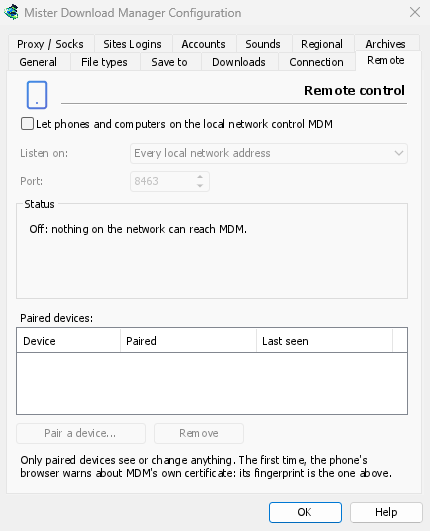
เปิดใช้งาน
- ตัวเลือก → ระยะไกล
- Tick Let phones and computers on the local network control VDM.
- คลิก ตกลง
จากนั้นหน้าเว็บจะแสดง เปิด และแสดงที่อยู่ที่จะเปิด เช่น https://192.168.1.20:8463/
The first time, Windows may ask whether to let VDM communicate on networks: allow it on private networks, or the phone can't reach VDM.
จับคู่โทรศัพท์ของคุณ
- บนคอมพิวเตอร์: ตัวเลือก → ระยะไกล → จับคู่อุปกรณ์... จะแสดงรหัส QR ที่อยู่ และรหัส 8 หลัก
- บนโทรศัพท์ที่เชื่อมต่อ Wi-Fi เดียวกัน: สแกนรหัส QR ด้วยกล้อง (หรือพิมพ์ที่อยู่)
- The browser warns that the connection's certificate isn't trusted. That is expected: VDM made its own certificate, on your computer, and no public authority knows it. To be sure the page is your VDM's, open the warning's details: the certificate's SHA-256 fingerprint is the one Options → Remote shows. Then continue to the page (Advanced → Proceed in Chrome, Show details → visit this website in Safari).
- รหัสจะถูกกรอกเมื่อคุณสแกนรหัส QR มิฉะนั้นให้พิมพ์รหัส ตั้งชื่อโทรศัพท์ แล้วแตะ จับคู่ หน้าต่างบนคอมพิวเตอร์จะแจ้งให้ทราบและปิดด้วย เสร็จสิ้น
รหัสใช้ได้ครั้งเดียวเป็นเวลาสิบนาที และใช้ไม่ได้หลังจากพยายามผิดห้าครั้ง: คลิก รหัสใหม่ เพื่อรับรหัสอื่น หากต้องการให้หน้าเว็บเข้าถึงได้ง่ายเพียงแตะครั้งเดียว ให้เพิ่มไปยังหน้าจอหลักของโทรศัพท์ (เมนูของเบราว์เซอร์: เพิ่มไปยังหน้าจอหลัก)
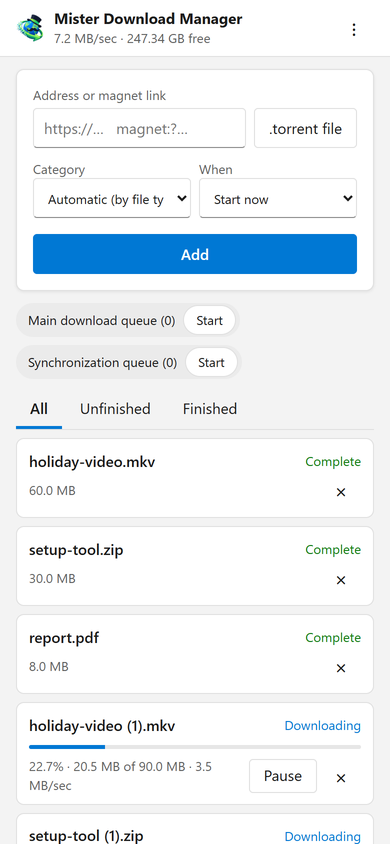
หน้าเว็บทำอะไรได้บ้าง
- Add: a download's address or a magnet link, or a
.torrentfile from the phone. Pick a Category (or let the file's type pick it), and When: Start now, or wait in a queue. A torrent is added with all its files, once VDM has read them (a magnet link can take a moment). - รายการ: การดาวน์โหลดแต่ละรายการพร้อมความคืบหน้า ความเร็ว และขนาด พร้อม ทั้งหมด, ยังไม่เสร็จสิ้น และ เสร็จสิ้น หยุดชั่วคราว และ เริ่ม แต่ละรายการ; × ลบออกจากรายการ และด้วย ลบไฟล์ด้วย จะลบไฟล์ออกจากคอมพิวเตอร์
- คิว: เริ่มและหยุดแต่ละคิว
- แถบด้านบนแสดงความเร็วรวมและพื้นที่ว่างที่การดาวน์โหลดของคุณจะไป
Downloads added from the phone are like the ones you add on the computer: they go into the category's folder, follow the queues, the Scheduler and the speed limits, and go through the network adapter you chose in Options → Proxy / Socks (and stop when it disconnects). The page shows the language your phone uses when VDM has it, and follows its light or dark mode.
อุปกรณ์ที่จับคู่ของคุณ
ตัวเลือก → ระยะไกล แสดงรายการอุปกรณ์ที่จับคู่ เมื่อจับคู่แต่ละครั้งและเมื่อเห็นครั้งล่าสุด เลือกหนึ่งรายการแล้วคลิก เอาออก: จะถูกปฏิเสธตั้งแต่คำขอถัดไปทันที (ไม่จำเป็นต้องกด ตกลง) บนโทรศัพท์ ⋮ → ลืมอุปกรณ์นี้ ของหน้าเว็บทำเช่นเดียวกันจากฝั่งนั้น
ทำโทรศัพท์หาย? ลบออกในตัวเลือก หากต้องการหยุดทุกคนพร้อมกัน ให้ยกเลิกการทำเครื่องหมายในช่อง: ไม่มีอะไรรับฟังอีกต่อไป
รับฟังที่ไหน
- รับฟังบน: ทุกที่อยู่เครือข่ายภายใน (ค่าเริ่มต้น) รับฟังบนแต่ละที่อยู่ส่วนตัวของคอมพิวเตอร์ (
192.168.x.x,10.x.x.x,172.16–31.x.xและfd…ของ IPv6) ทีละรายการ และติดตามเมื่อคุณเข้าร่วมเครือข่ายอื่น คอมพิวเตอร์เครื่องนี้เท่านั้น รับฟังบน127.0.0.1หรือเลือกที่อยู่หนึ่งของอะแดปเตอร์หนึ่ง - พอร์ต:
8463เว้นแต่โปรแกรมอื่นใช้; จากนั้นเลือกพอร์ตอื่น (1024 ถึง 65535)
Don't make VDM reachable from the internet (a router's port forwarding): the remote control is made for your home network. To reach it while away, use a VPN to your home network instead (WireGuard, Tailscale): with Tailscale, choose its address in Listen on.
ความปลอดภัย
สิ่งที่ทำให้การควบคุมระยะไกลปลอดภัยโดยสรุป:
- ปิดใช้งานโดยค่าเริ่มต้น และไม่มีอะไรรับฟังขณะปิดอยู่
- เฉพาะอุปกรณ์ที่จับคู่เท่านั้น: ทุกคำขอยกเว้นการจับคู่ต้องใช้โทเค็นที่อุปกรณ์ได้รับเมื่อจับคู่ รหัสจับคู่ใช้ได้ครั้งเดียวเป็นเวลาสิบนาที โดยมีห้าครั้ง และการพยายามจะช้าลง การตั้งค่าจะเก็บลายนิ้วมือของแต่ละโทเค็น ไม่ใช่โทเค็น
- Your local network only: VDM listens on the computer's private addresses, one by one, never on every address at once.
- เข้ารหัส: HTTPS พร้อมใบรับรองที่สร้างและเก็บไว้ในคอมพิวเตอร์ของคุณ ลายนิ้วมือของใบรับรองจะอยู่ในตัวเลือก เพื่อเปรียบเทียบกับที่เบราว์เซอร์ในโทรศัพท์แสดง
- Web pages can't use it: requests must name VDM's own address, come from its own page, and carry the token; VDM's page can't be shown inside another site.
- เฉพาะการดาวน์โหลด: อุปกรณ์ที่จับคู่สามารถแสดงรายการ เพิ่ม หยุดชั่วคราว เริ่ม และลบการดาวน์โหลด รวมถึงเริ่มและหยุดคิวได้ ไม่สามารถเปลี่ยนการตั้งค่า เปิดหน้าต่างบนคอมพิวเตอร์ หรือดูโฟลเดอร์ได้ (รายการที่ได้รับไม่มีเส้นทาง)
พบปัญหาใช่หรือไม่ โปรดรายงานเป็นการส่วนตัว ตามที่ SECURITY.md ระบุไว้
ฟรี, โอเพนซอร์ส, ไม่มีโฆษณา, ไม่มีช่วงทดลองใช้
Download Volt Download Manager