

There are several ways to give VDM something to download. Most of them end in the same window, Download File Info, where you choose where the file goes.
เพิ่ม URL
- คัดลอกที่อยู่ไฟล์ (ในเบราว์เซอร์: คลิกขวาที่ลิงก์ → คัดลอกลิงก์)
- คลิก เพิ่ม URL บนแถบเครื่องมือ เลือก งาน → เพิ่มการดาวน์โหลดใหม่ หรือกด Ctrl+N
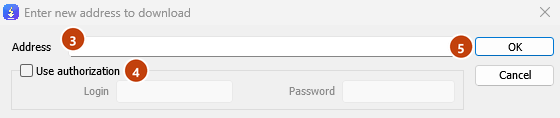
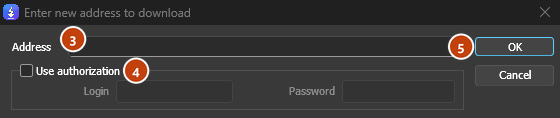
- หน้าต่าง ป้อนที่อยู่ใหม่เพื่อดาวน์โหลด จะเปิดขึ้น หากมีที่อยู่เว็บอยู่ในคลิปบอร์ด ที่อยู่จะถูกกรอกให้โดยอัตโนมัติ ลูกศรที่ท้ายช่อง ที่อยู่ จะแสดงรายการที่อยู่ 20 รายการล่าสุดที่คุณป้อน เลือกหนึ่งรายการเพื่อใช้ซ้ำ คลิกขวาที่ช่องเพื่อ ตัด, คัดลอก, วาง, ลบ และ เลือกทั้งหมด
- หากเซิร์ฟเวอร์ต้องการชื่อผู้ใช้และรหัสผ่าน ให้ทำเครื่องหมายที่ ใช้การอนุญาต แล้วพิมพ์ลงไป
- คลิก ตกลง
VDM takes http://, https://, ftp://, ftps://, ftpes:// and magnet: addresses. Anything else gets Invalid address.
A thunder://, flashget:// or qqdl:// link is one of those addresses wrapped in base64, as download pages made for Thunder (Xunlei), FlashGet and QQ's downloader write them. VDM unwraps it and downloads from the address inside, here, from the clipboard and in Link grabber; the download is listed under that address. A link that wraps anything else, or that can't be read, gets Invalid address too.
หากที่อยู่เป็นหน้าวิดีโอ (YouTube, Vimeo, TikTok และอื่น ๆ) หน้าต่างวิดีโอจะเปิดขึ้นแทน ดู ดาวน์โหลดวิดีโอ ลิงก์แม่เหล็กจะเปิด เพิ่มทอร์เรนต์ ดู ทอร์เรนต์
FTP และ FTPS
การดาวน์โหลด FTP ทำงานเหมือนกับการดาวน์โหลดเว็บ: มีการเชื่อมต่อหลายรายการพร้อมกัน, สามารถหยุดชั่วคราวและดำเนินการต่อได้, และมีหน้าต่างแสดงความคืบหน้าแบบเดียวกัน
ftp://— FTP แบบไม่เข้ารหัสftpes://— FTP ที่ปลอดภัยด้วย TLS ตั้งแต่เริ่มต้นเซสชัน (explicit FTPS,AUTH TLS, โดยปกติใช้พอร์ต 21) ใช้เมื่อเซิร์ฟเวอร์ระบุว่ารองรับ TLSftps://— implicit FTPS, พอร์ต 990 เว้นแต่ที่อยู่จะระบุเป็นอย่างอื่น
ใบรับรองของเซิร์ฟเวอร์จะถูกตรวจสอบกับใบรับรองที่เชื่อถือได้ของ Windows (หรือของระบบ) เช่นเดียวกับ https:// และของ Mozilla ซึ่งเป็นใบรับรองที่ Firefox ใช้ ในกรณีที่ระบบไม่มีรูทที่ใบรับรองของเซิร์ฟเวอร์มาจาก (Windows รุ่นเก่าที่ยังไม่ได้ดึงข้อมูลมา) ระบบ Linux ที่ไม่มีใบรับรองเหล่านี้ (การติดตั้งแบบน้อยที่สุดที่ไม่มีแพ็กเกจ ca-certificates) ยังคงดาวน์โหลดผ่าน HTTP และ FTP ธรรมดา การดาวน์โหลดที่ปลอดภัยแต่ละครั้งจะล้มเหลวทันที โดยระบุให้ติดตั้งแพ็กเกจนั้น
An https:// site whose certificate is refused (expired, self-signed or from an issuer the system doesn't
trust, made for another site name) isn't downloaded from: Download File Info, the progress window
and the list say which of these it is, as a browser warns about the same site. VDM has no way
around it.
Logging in. Write the login in the address (ftp://user:password@server/folder/file.iso),
tick Use authorization, or save it in Options → Sites Logins. Without one, VDM logs in as
anonymous. The path is relative to the folder the login starts in; to start from the server's
root, write %2F after the server (ftp://server/%2Fpub/file.iso).
Resuming. VDM keeps the file's size and modification time. If either has changed when you resume, it says the file changed on the server instead of mixing two versions (Options → Downloads → Ignore file modification time changes skips the time check). The password is not written to the resume file next to the download: VDM gives it again when it resumes.
การเชื่อมต่อ โหมด Passive ถูกใช้เป็นค่าเริ่มต้น ตัวเลือก → พร็อกซี / SOCKS → ใช้ FTP ในโหมด PASV จะปิดโหมดนี้สำหรับเซิร์ฟเวอร์ที่รับเฉพาะการเชื่อมต่อแบบ Active เท่านั้น FTP จะผ่านพร็อกซี SOCKS ที่ตั้งค่าไว้ใน ตัวเลือก → พร็อกซี / SOCKS (ในโหมด Passive เสมอ; ftps:// ยังไม่สามารถผ่านได้) และเชื่อมต่อกับเซิร์ฟเวอร์โดยตรงเมื่อพร็อกซีเป็นแบบ HTTP
Browsers no longer download ftp:// links themselves. Right-click one and choose Download with
Volt Download Manager, or copy it and use Add URL.
ลิงก์ Google Drive
วางลิงก์ Google Drive ตามที่ได้จาก แชร์ → คัดลอกลิงก์:
https://drive.google.com/file/d/…/view?usp=sharingพร้อมหรือไม่พร้อม/view;https://drive.google.com/uc?id=…&export=downloadและhttps://drive.google.com/open?id=…;https://docs.google.com/document/d/…/edit(และ Sheets, Slides, Drawings)
VDM downloads the file itself, as it was uploaded (a video comes in its own format, not the player's copy), with its real name and size, over several connections, and it can resume. For a large file, Drive shows a page that says it can't scan this file for viruses; VDM goes past it as Download anyway does.
Google Docs, Sheets และ Slides จะมาในรูปแบบไฟล์ Word (.docx), Excel (.xlsx) และ PowerPoint (.pptx) ส่วน Drawings จะมาในรูปแบบ .png ไฟล์เหล่านี้จะถูกสร้างขึ้นเมื่อมีการร้องขอ ดังนั้นขนาดของไฟล์จึงไม่เป็นที่ทราบจนกว่าจะดาวน์โหลดเสร็จสิ้น และไม่สามารถดาวน์โหลดต่อได้: การดาวน์โหลดที่ถูกขัดจังหวะจะต้องเริ่มต้นใหม่
Files that aren't shared with everyone. Right-click the link in the browser and choose Download with Volt Download Manager, or use Drive's own Download button: the extension passes your browser's Google sign-in with the download. VDM never asks for or keeps your password. Without a sign-in, VDM says the file needs you to sign in.
When Drive won't give a file. Drive limits how often a file can be downloaded: after many downloads in a day it answers "too many users have viewed or downloaded this file recently". VDM shows Drive's own words and writes nothing. Try again later (it can take up to a day), or sign in to Google in your browser and download from there, which often gets past the limit. VDM doesn't try to get around it. A file whose owner turned off downloading, or that your account can't open, gets no access.
ปุ่มวิดีโอที่อยู่เหนือวิดีโอใน Drive จะดาวน์โหลดไฟล์ต้นฉบับ ไม่ใช่สำเนาขนาดเล็กของโปรแกรมเล่น
Folders: paste a shared folder's link (https://drive.google.com/drive/folders/…) in Add
URL, or right-click it in the browser and choose Download with Volt Download Manager, and
Link grabber lists its files and its subfolders' to download into the same folders. See
Google Drive folders.
ข้อมูลไฟล์ดาวน์โหลด
VDM asks the server for the file's name and size, and shows them in Download File Info:
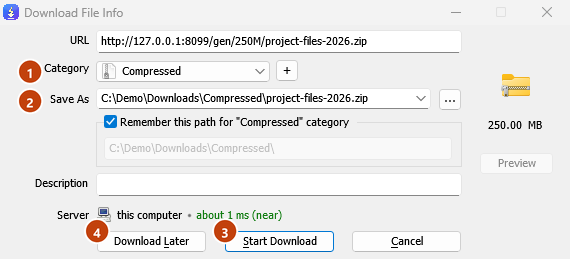
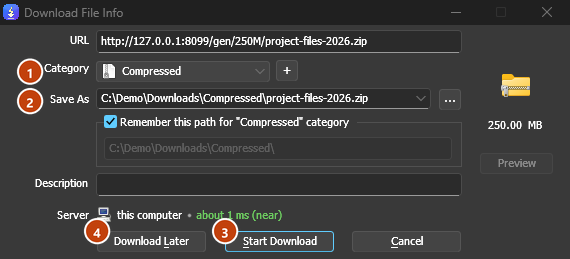
- URL — ที่อยู่
- หมวดหมู่ — เลือกจากประเภทของไฟล์ (บีบอัด, เอกสาร, เพลง, โปรแกรม, วิดีโอ หรือทั่วไป) แต่ละหมวดหมู่มีโฟลเดอร์ของตัวเอง เครื่องหมาย + ข้าง ๆ จะสร้างหมวดหมู่ใหม่
- Save As — the folder and file name. You can type another, pick one of the last 20 folders you saved to from the arrow at its end, or choose the folder and the file name in the system's Save dialog with ... (a name typed there without an extension keeps the download's). If you choose a file that is already there and answer Yes when the dialog asks whether to replace it, the download replaces it once it is complete; until then the old file stays as it was, so it is kept if the download fails or you cancel it. A name of a file that is already there that you type in Save As itself is asked about as you press Start Download or Download Later: Add the duplicate with a numbered file name takes the next free name, such as
name (1).zip; Add the duplicate and overwrite the existing file replaces it once the download is complete, as above; Cancel goes back to the dialog. A name VDM gave that is taken by the time the download starts is numbered without asking. - จดจำพาธนี้สำหรับหมวดหมู่ "…" — ทำเครื่องหมายที่ช่องนี้เพื่อกำหนดให้โฟลเดอร์ที่คุณป้อนเป็นโฟลเดอร์ของหมวดหมู่นั้นนับจากนี้ไป หากทำเครื่องหมายที่ บันทึกทุกการดาวน์โหลดในโฟลเดอร์ของหมวดหมู่ทั่วไป ใน ตัวเลือก → บันทึกไปที่ การดาวน์โหลดทุกรายการจะเริ่มต้นในโฟลเดอร์ทั่วไป และช่องนี้จะระบุชื่อทั่วไป: โฟลเดอร์ที่คุณป้อนจะกลายเป็นโฟลเดอร์สำหรับทุกการดาวน์โหลด
- คำอธิบาย — บันทึกส่วนตัวของคุณ จะแสดงในคอลัมน์ คำอธิบาย ของรายการ และสามารถค้นหาได้ด้วยฟังก์ชันค้นหา
- Server — where the server is: its country's flag and name, and how long a round trip to it takes. See Where the server is. It stays blank when the browser handed the download over with its name and size, since VDM didn't need to ask the server.
จากนั้นเลือก:
- เริ่มการดาวน์โหลด (หรือ Enter) — ดาวน์โหลดทันที หน้าต่างแสดงความคืบหน้าจะเปิดขึ้น
- ดาวน์โหลดภายหลัง — เพิ่มลงในคิวโดยไม่เริ่มดาวน์โหลด ดูด้านล่าง
- ยกเลิก (หรือ Esc) — ไม่เพิ่มอะไรเลย
By default VDM starts downloading while this window is open, so no time is lost while you decide. Cancel drops what it fetched. You can turn this off in Options → Downloads → Start downloading immediately while displaying "Download File Info" dialog.
If the folder doesn't exist yet, VDM asks Do you want to create it? before it starts.
เฉพาะบางไฟล์จากภายใน ZIP
สำหรับ .zip บนเว็บเซิร์ฟเวอร์ แสดงตัวอย่าง (ใต้ขนาดไฟล์) จะแสดงรายการสิ่งที่อยู่ภายใน เพื่อให้คุณสามารถดาวน์โหลดเฉพาะไฟล์ที่คุณต้องการแทนที่จะเป็นทั้งไฟล์เก็บถาวร: ไฟล์สองไฟล์จากไฟล์เก็บถาวรขนาด 20 GB ใช้การดาวน์โหลดขนาดเล็กสองครั้ง
As the window opens, VDM asks the server for the archive's last bytes, where a ZIP keeps its list of files. Only a server that sends parts of a file can give files one by one, so Preview works only there; elsewhere it stays grey, and its tooltip says why (the server can't send parts of the ZIP...). The whole archive still downloads as usual.
แสดงตัวอย่าง จะเปิด แสดงตัวอย่าง ZIP: ทุกไฟล์ในไฟล์เก็บถาวรพร้อม ชื่อไฟล์ (พาธภายใน ZIP), ขนาดที่บีบอัด (ขนาดภายใน ZIP), ขนาด และ แก้ไขเมื่อ ทำเครื่องหมายที่ไฟล์ที่คุณต้องการ (เลือกทั้งหมด จะทำเครื่องหมายทุกไฟล์) แล้วคลิก ตกลง จำนวนไฟล์ที่เลือกจะแสดงใต้ แสดงตัวอย่าง; วางเมาส์เหนือเพื่อดูว่าไฟล์เหล่านั้นจะไปที่ใด จากนั้น เริ่มการดาวน์โหลด หรือ ดาวน์โหลดภายหลัง จะเพิ่มไฟล์เหล่านั้นเป็นการดาวน์โหลดเดียว แทนไฟล์เก็บถาวร:
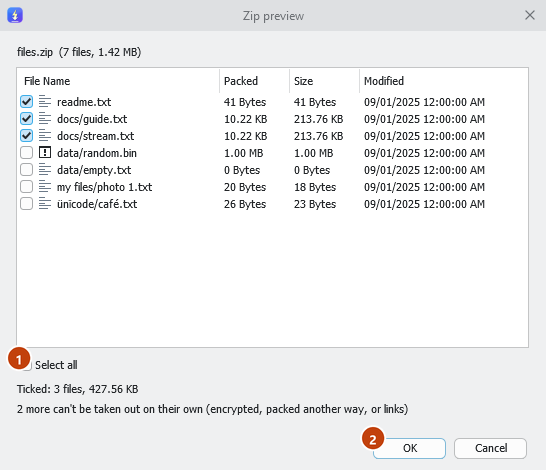
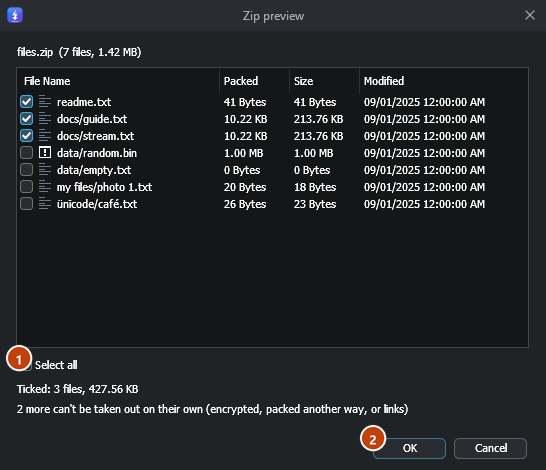
- ไฟล์เหล่านั้นจะถูกบันทึกในโฟลเดอร์ที่ตั้งชื่อตามไฟล์เก็บถาวร ในโฟลเดอร์ที่ บันทึกเป็น แสดง (
Downloads\Compressed\photos\สำหรับphotos.zip) โดยแต่ละไฟล์จะคงพาธจากภายใน ZIP ไว้ (photos\2025\beach.jpg) ไฟล์ที่มีชื่อเดียวกันที่อยู่แล้วจะถูกเก็บไว้ และไฟล์ใหม่จะถูกกำหนดหมายเลข - VDM fetches only each file's own bytes, unpacks it, and checks it against the checksum (CRC-32) and size the archive gives for it. A file that doesn't match is not kept, and the download says so.
- การดาวน์โหลดที่หยุดชั่วคราวจะดำเนินต่อด้วยไฟล์ที่ยังไม่ได้ดึงข้อมูล; ไฟล์ที่หยุดกลางคันจะถูกดึงข้อมูลอีกครั้ง
- ลบ พร้อม ลบไฟล์ออกจากดิสก์ด้วย จะคงโฟลเดอร์และไฟล์ไว้ เหมือนกับแกลเลอรีรูปภาพ
Some files can't be taken out on their own and aren't listed (the window counts them under the list): encrypted files, files packed with a method other than the two most ZIPs use (stored and Deflate), links, and names that would put a file outside its folder (../, a drive letter, an absolute path). A ZIP split over several files, or one whose list of files doesn't add up (files over each other, a list larger than VDM reads from a server), can't be previewed. For any of these, download the whole archive.
Each link opens a Download File Info of its own, so several can be open side by side, to compare their sizes before you choose. Each new one opens a little below and beside the one before and comes to the front; from the second on, its title carries its number: Download File Info (2), (3) and so on. Esc closes only the window you're in. Up to six are open at once: more links handed over together (a browser passing on several downloads) wait, and open one by one as you close windows; Cancel asks whether to cancel the ones still waiting. The same link handed over again brings its open window to the front. If you quit VDM with some still open, their downloads go to the Main download queue, as with Download Later.
ดาวน์โหลดภายหลัง
Download Later puts the download in a queue instead of starting it. By default VDM asks which one: pick the queue under Add to queue, and tick Start the queue now if you want it to run straight away. Cancel leaves the download in the list, in no queue.
หากต้องการข้ามคำถามนั้นและใช้ คิวการดาวน์โหลดหลัก เสมอ ให้ปิด ตัวเลือก → การดาวน์โหลด → แสดงแผงเลือกคิวเมื่อกดปุ่ม "ดาวน์โหลดภายหลัง"
อ่านเพิ่มเติมเกี่ยวกับคิวได้ใน คิวและตัวจัดกำหนดการ
จากคลิปบอร์ด
With Options → General → Offer to download links copied to the clipboard ticked (it is, unless you turned it off), when you copy a link to a file type in Options → File types (ZIP, EXE, MP4, PDF and many more), Download File Info opens with it filled in, ready for Start Download. Links to other pages are left alone. With Options → Downloads → Show start download dialog off, the download starts at once instead. Only links copied while VDM runs are taken, never one that was already there.
Copied several links at once, a list or a whole forum post? Choose Tasks → Add batch download from clipboard (Ctrl+B, also in the tray icon's menu). VDM reads the clipboard then, and only then, and finds every download link in the text: http, https, ftp and magnet links, one per line or among other words, in Markdown ([name](https://github.com/mikailhossenimran/voltdownloadmanager/blob/main/docs/link)) or between < and >. Each one is listed once in Link grabber, ticked and sorted into packages: pick a folder for each package, then Start or Add to queue. Downloads added together end with one Downloads complete summary. Magnet links are added as torrents with all their files once their files are known. thunder://, flashget:// and qqdl:// links count as the address wrapped in them, here and for a single copied link. A copied address with a number in its name, such as https://example.com/show/ep01.mp4, opens Batch download instead (below). If the clipboard holds no text, or no link, VDM says so.
ลากและวาง
- Choose Tasks → Show drop target. A small box with the VDM icon appears and stays on top of other windows.
- Drag a link from your browser onto it. VDM adds it as if you had used Add URL.
You can also drop magnet links and .torrent files on it. Drag the box to move it, and double-click it to bring the main window back. Right-click it for Show Volt Download Manager, Add new download and Hide drop target.
ดาวน์โหลดเป็นชุด: ไฟล์ที่มีหมายเลขจำนวนมาก
สำหรับไฟล์ที่มีชื่อแตกต่างกันเพียงแค่ตัวเลขหรือตัวอักษร เช่น photo001.jpg ถึง photo150.jpg:
- เลือก งาน → เพิ่มการดาวน์โหลดเป็นชุด คัดลอกที่อยู่เดียวที่มีตัวเลขในชื่อไฟล์ เช่น
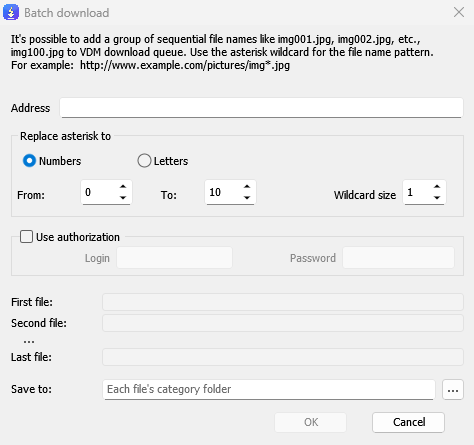
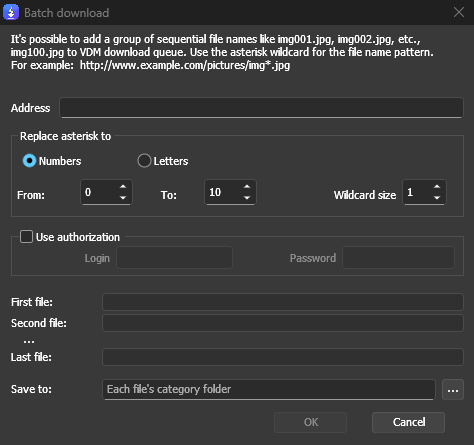
https://example.com/show/ep01.mp4ใช่หรือไม่ งาน → เพิ่มการดาวน์โหลดแบบกลุ่มจากคลิปบอร์ด (Ctrl+B) จะใส่เครื่องหมายดอกจันในตำแหน่งที่มีตัวเลข กำหนด จาก และ ขนาดสัญลักษณ์ตัวแทน จากตัวเลขนั้น (ep*.mp4, จาก 1, ขนาด 2) และรอตัวเลขสุดท้ายใน ถึง - ใน ที่อยู่ ให้เขียนที่อยู่โดยมีเครื่องหมายดอกจันหนึ่งตัวตรงที่ตัวเลขหรือตัวอักษรเปลี่ยนไป:
https://example.com/photo*.jpg - ใต้ แทนที่เครื่องหมายดอกจันด้วย ให้เลือก ตัวเลข หรือ ตัวอักษร จากนั้นเลือก จาก และ ถึง
- สำหรับตัวเลข ให้ตั้งค่า ขนาดสัญลักษณ์ตัวแทน เป็นจำนวนหลัก หากเป็น 3 ไฟล์จะเป็น
photo001.jpg,photo002.jpgและอื่นๆ - หากเซิร์ฟเวอร์ต้องใช้ข้อมูลเข้าสู่ระบบ ให้เลือก ใช้การอนุญาต
- เลือก ไฟล์แรก, ไฟล์ที่สอง และ ไฟล์สุดท้าย
- หากปล่อยว่างไว้ บันทึกไปที่ จะบันทึกแต่ละไฟล์ในโฟลเดอร์ของหมวดหมู่ (ตัวเลือก → บันทึกไปที่) หรือในโฟลเดอร์ทั่วไปเมื่อการดาวน์โหลดทุกรายการไปยังโฟลเดอร์เดียวที่นั่น หากต้องการบันทึกไฟล์ทั้งหมดในชุดลงในโฟลเดอร์เดียว ให้พิมพ์ชื่อโฟลเดอร์ที่นั่นหรือเลือกด้วย ... จากนั้นคลิก ตกลง
The downloads go to a queue. As with Download Later, VDM asks which queue unless you turn off Options → Downloads → Show queue selection panel on closing batch download dialogs.
รายการลิงก์
หากต้องการเพิ่มลิงก์ทั้งหมดในไฟล์ข้อความ:
- เลือก งาน → นำเข้า → จากไฟล์ข้อความ
- Pick the file. Link grabber lists every web address VDM found in it, in packages. While VDM reads a long file, the strip under the list of downloads says Reading and the file's name; you can go on using VDM meanwhile. Import reads files of up to 64 MB, far more than any list of links holds: a larger file (a video, an archive, a backup picked by mistake) is refused with a message.
- ยกเลิกการเลือกที่อยู่เว็บที่คุณไม่ต้องการ (เลือกทั้งหมด และ ไม่เลือกทั้งหมด จะช่วยได้) จากนั้นคลิก เพิ่มลงในคิว
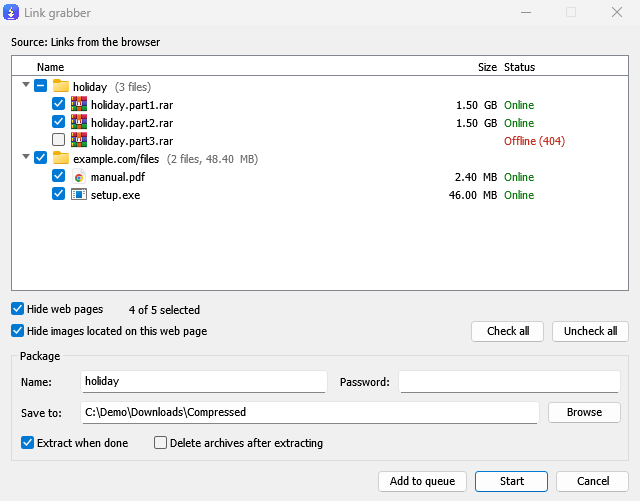
รายการดาวน์โหลดจะถูกเพิ่มไปยัง คิวการดาวน์โหลดหลัก พร้อมที่จะเริ่ม (เริ่ม ก็สามารถเริ่มได้เช่นกัน) งาน → นำเข้า → นำเข้าจากไฟล์ส่งออกของ IDM จะอ่านไฟล์ .ef2 ซึ่งมีตัวอ้างอิงและคุกกี้ของแต่ละรายการดาวน์โหลด รวมถึงชื่อไฟล์ที่ระบุในรายการในบรรทัด filename:
งาน → ตัวคว้าลิงก์... จะเปิดหน้าต่างเดียวกันแต่ว่างเปล่า: วางข้อความที่มีลิงก์ลงไป (Ctrl+V) ดู ตัวคว้าลิงก์และไฟล์เก็บถาวร สำหรับแพ็กเกจ รหัสผ่านไฟล์เก็บถาวร และการแตกไฟล์เก็บถาวรเมื่อดาวน์โหลดเสร็จสิ้น
หากต้องการบันทึกรายการของคุณเอง ให้ใช้ งาน → ส่งออก → ไปยังไฟล์ข้อความ (หนึ่งที่อยู่ต่อหนึ่งบรรทัด) หรือ ส่งออกไปยังไฟล์ IDM
เมื่อมีที่อยู่นี้อยู่ในรายการแล้ว
By default VDM asks what to do when you add an address it already has. You can choose a fixed answer in Options → Downloads → If a duplicate download link is added:
- แสดงกล่องโต้ตอบและถามว่าจะทำอะไร
- เพิ่มรายการที่ซ้ำกันด้วยชื่อไฟล์ที่มีหมายเลข
- เพิ่มรายการที่ซ้ำกันและเขียนทับไฟล์ที่มีอยู่
- หากไฟล์ที่มีอยู่ดาวน์โหลดเสร็จสมบูรณ์ ให้แสดงกล่องโต้ตอบดาวน์โหลดเสร็จสมบูรณ์ มิฉะนั้น ให้ดำเนินการต่อ
ขั้นตอนถัดไป
- Send browser downloads to VDM →
- ดูการดาวน์โหลดในหน้าต่างความคืบหน้า →
- จัดคิวการดาวน์โหลดไว้ดาวน์โหลดภายหลัง →
ฟรี, โอเพนซอร์ส, ไม่มีโฆษณา, ไม่มีช่วงทดลองใช้
Download Volt Download Manager