

There are several ways to give VDM something to download. Most of them end in the same window, Download File Info, where you choose where the file goes.
إضافة URL
- انسخ عنوان الملف (في المستعرض: انقر بزر الفأرة الأيمن على الرابط → نسخ الرابط).
- انقر على إضافة URL في شريط الأدوات، أو اختر المهام → إضافة تنزيل جديد، أو اضغط Ctrl+N.
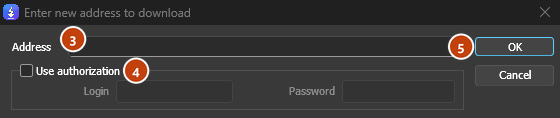
- تفتح نافذة أدخل عنوانا جديدا للتنزيل. إذا احتوت الحافظة على عنوان ويب، فسيكون العنوان مدخلا بالفعل. يعرض السهم في نهاية العنوان آخر 20 عنوانا أدخلتها؛ اختر أحدها لاستخدامه مجددا. انقر بزر الفأرة الأيمن على المربع لعرض الخيارات قص ونسخ ولصق وحذف وتحديد الكل.
- إذا كان الخادم يتطلب اسم مستخدم وكلمة مرور، فحدد استخدام التفويض وأدخلهما.
- انقر على موافق.
VDM takes http://, https://, ftp://, ftps://, ftpes:// and magnet: addresses. Anything else gets Invalid address.
A thunder://, flashget:// or qqdl:// link is one of those addresses wrapped in base64, as download pages made for Thunder (Xunlei), FlashGet and QQ's downloader write them. VDM unwraps it and downloads from the address inside, here, from the clipboard and in Link grabber; the download is listed under that address. A link that wraps anything else, or that can't be read, gets Invalid address too.
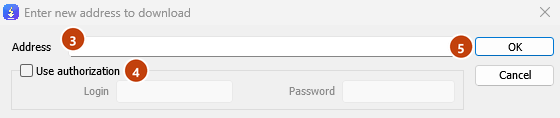
إذا كان العنوان لصفحة فيديو (YouTube وVimeo وTikTok وغيرها)، فستفتح نافذة الفيديو بدلا من ذلك. راجع تنزيلات الفيديو. يفتح الرابط المغناطيسي نافذة إضافة تورنت؛ راجع التورنت.
FTP وFTPS
تعمل تنزيلات FTP مثل تنزيلات الويب: عدة اتصالات في وقت واحد، إيقاف مؤقت واستئناف، ونفس نافذة التقدم.
ftp://— FTP غير مشفر.ftpes://— FTP مؤمن باستخدام TLS من بداية الجلسة (FTPS صريح،AUTH TLS، عادة المنفذ 21). استخدمه عندما يقول الخادم إنه يدعم TLS.ftps://— FTPS ضمني، المنفذ 990 ما لم يحدد العنوان منفذا آخر.
يتم التحقق من شهادة الخادم مقابل الشهادات الموثوقة في Windows (أو النظام)، كما هو الحال مع https://، ومقابل شهادات Mozilla التي يحملها Firefox، وذلك عندما يفتقر النظام إلى الجذر الذي أتت منه شهادة الخادم (إصدار قديم من Windows لم يجلبها بعد). لا يزال نظام Linux الذي لا يحتوي عليها (تثبيت بسيط بدون حزمة ca-certificates) يقوم بالتنزيل عبر HTTP وFTP العاديين؛ ثم يفشل كل تنزيل آمن على الفور، ويطلب تثبيت تلك الحزمة.
An https:// site whose certificate is refused (expired, self-signed or from an issuer the system doesn't
trust, made for another site name) isn't downloaded from: Download File Info, the progress window
and the list say which of these it is, as a browser warns about the same site. VDM has no way
around it.
Logging in. Write the login in the address (ftp://user:password@server/folder/file.iso),
tick Use authorization, or save it in Options → Sites Logins. Without one, VDM logs in as
anonymous. The path is relative to the folder the login starts in; to start from the server's
root, write %2F after the server (ftp://server/%2Fpub/file.iso).
Resuming. VDM keeps the file's size and modification time. If either has changed when you resume, it says the file changed on the server instead of mixing two versions (Options → Downloads → Ignore file modification time changes skips the time check). The password is not written to the resume file next to the download: VDM gives it again when it resumes.
الاتصالات. يستخدم الوضع السلبي افتراضيا. يقوم الخيارات ← الوكيل / SOCKS ← استخدام FTP في وضع PASV بإيقافه للخوادم التي تقبل الاتصالات النشطة فقط. يمر FTP عبر وكيل SOCKS تم تعيينه في الخيارات ← الوكيل / SOCKS (سلبي حينها، دائما؛ لا يمكن لـftps:// المرور عبره بعد)، ويتصل بالخادم مباشرة عندما يكون الوكيل من نوع HTTP.
Browsers no longer download ftp:// links themselves. Right-click one and choose Download with
Volt Download Manager, or copy it and use Add URL.
روابط Google Drive
الصق رابط Google Drive كما هو، أي الرابط الذي يظهر عند اختيار مشاركة → نسخ الرابط:
https://drive.google.com/file/d/…/view?usp=sharing، مع/viewأو بدونها؛https://drive.google.com/uc?id=…&export=downloadوhttps://drive.google.com/open?id=…؛https://docs.google.com/document/d/…/edit(وكذلك Sheets وSlides وDrawings).
VDM downloads the file itself, as it was uploaded (a video comes in its own format, not the player's copy), with its real name and size, over several connections, and it can resume. For a large file, Drive shows a page that says it can't scan this file for viruses; VDM goes past it as Download anyway does.
تنزل مستندات Google وSheets وSlides كملفات Word (.docx) وExcel (.xlsx) وPowerPoint (.pptx)، وتنزل الرسومات كملفات .png. تنشأ هذه الملفات عند طلبها، لذا لا يعرف حجمها حتى تصل، ولا يمكن متابعة تنزيلها؛ فإذا انقطع التنزيل، يبدأ من جديد.
Files that aren't shared with everyone. Right-click the link in the browser and choose Download with Volt Download Manager, or use Drive's own Download button: the extension passes your browser's Google sign-in with the download. VDM never asks for or keeps your password. Without a sign-in, VDM says the file needs you to sign in.
When Drive won't give a file. Drive limits how often a file can be downloaded: after many downloads in a day it answers "too many users have viewed or downloaded this file recently". VDM shows Drive's own words and writes nothing. Try again later (it can take up to a day), or sign in to Google in your browser and download from there, which often gets past the limit. VDM doesn't try to get around it. A file whose owner turned off downloading, or that your account can't open, gets no access.
ينزل زر الفيديو فوق فيديو Drive الملف الأصلي، وليس إحدى النسخ الأصغر التي يعرضها المشغل.
Folders: paste a shared folder's link (https://drive.google.com/drive/folders/…) in Add
URL, or right-click it in the browser and choose Download with Volt Download Manager, and
Link grabber lists its files and its subfolders' to download into the same folders. See
Google Drive folders.
معلومات ملف التنزيل
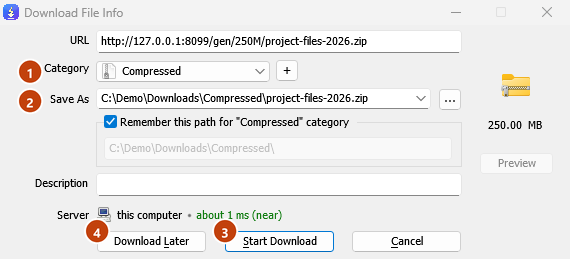
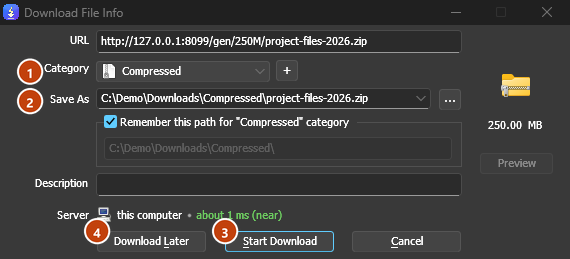
VDM asks the server for the file's name and size, and shows them in Download File Info:
- URL — العنوان.
- الفئة — تختار بحسب نوع الملف (المضغوطة، المستندات، الموسيقى، البرامج، الفيديو أو العام). لكل فئة مجلدها الخاص. ينشئ + بجانبها فئة جديدة.
- Save As — the folder and file name. You can type another, pick one of the last 20 folders you saved to from the arrow at its end, or choose the folder and the file name in the system's Save dialog with ... (a name typed there without an extension keeps the download's). If you choose a file that is already there and answer Yes when the dialog asks whether to replace it, the download replaces it once it is complete; until then the old file stays as it was, so it is kept if the download fails or you cancel it. A name of a file that is already there that you type in Save As itself is asked about as you press Start Download or Download Later: Add the duplicate with a numbered file name takes the next free name, such as
name (1).zip; Add the duplicate and overwrite the existing file replaces it once the download is complete, as above; Cancel goes back to the dialog. A name VDM gave that is taken by the time the download starts is numbered without asking. - تذكر هذا المسار لفئة «…» — ضع علامة هنا لجعل المجلد الذي كتبته هو مجلد الفئة من الآن فصاعدا. مع تحديد حفظ كل تنزيل في مجلد فئة «عام» في الخيارات → حفظ في، يبدأ كل تنزيل في مجلد «عام»، ويسمي هذا المربع «عام»: يصبح المجلد الذي كتبته هو المجلد لكل تنزيل.
- الوصف — ملاحظة تكتبها بنفسك. تظهر في عمود الوصف في القائمة، ويمكنك البحث عنها باستخدام «بحث».
- Server — where the server is: its country's flag and name, and how long a round trip to it takes. See Where the server is. It stays blank when the browser handed the download over with its name and size, since VDM didn't need to ask the server.
ثم اختر:
- بدء التنزيل (أو Enter) — ابدأ التنزيل الآن. ستفتح نافذة التقدم.
- تنزيل لاحقا — أضفه إلى قائمة انتظار من دون بدء التنزيل. راجع أدناه.
- إلغاء (أو Esc) — لا تضف شيئا.
By default VDM starts downloading while this window is open, so no time is lost while you decide. Cancel drops what it fetched. You can turn this off in Options → Downloads → Start downloading immediately while displaying "Download File Info" dialog.
If the folder doesn't exist yet, VDM asks Do you want to create it? before it starts.
بعض الملفات فقط من داخل ملف ZIP
بالنسبة لملف .zip على خادم ويب، تعرض معاينة (تحت حجم الملف) ما بداخله، بحيث يمكنك تنزيل الملفات التي تحتاجها فقط بدلا من الأرشيف بأكمله: ملفان من أرشيف بحجم 20 جيجابايت يتطلبان تنزيلين صغيرين.
As the window opens, VDM asks the server for the archive's last bytes, where a ZIP keeps its list of files. Only a server that sends parts of a file can give files one by one, so Preview works only there; elsewhere it stays grey, and its tooltip says why (the server can't send parts of the ZIP...). The whole archive still downloads as usual.
تفتح معاينة نافذة معاينة ZIP: كل ملف في الأرشيف مع اسم الملف (مساره داخل ZIP)، ومضغوط (حجمه داخل ZIP)، والحجم وتاريخ التعديل. حدد الملفات التي تريدها (تحديد الكل يحدد كل الملفات) وانقر على موافق. يظهر عدد الملفات المختارة تحت معاينة؛ مرر مؤشر الماوس فوقها لترى أين ستذهب. ثم بدء التنزيل أو تنزيل لاحقا يضيفها كتنزيل واحد، بدلا من الأرشيف:
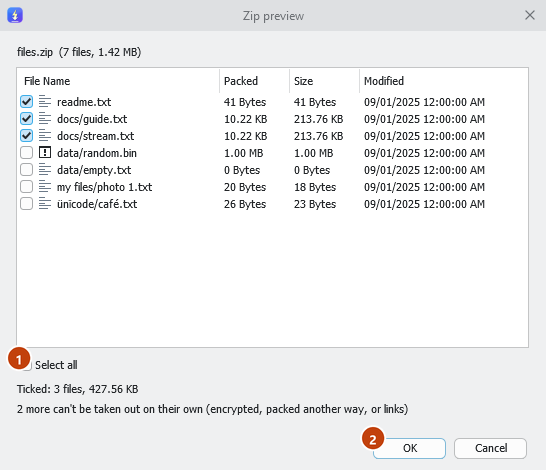
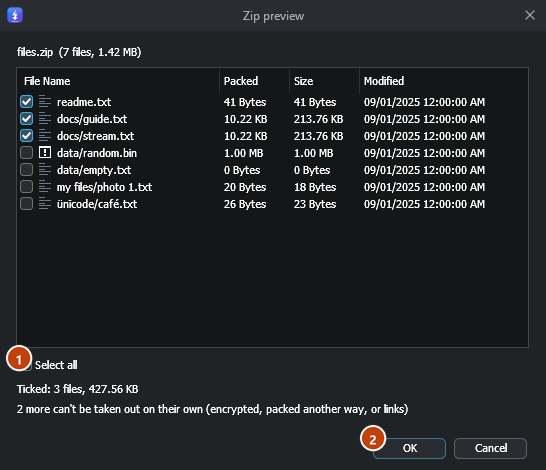
- تذهب إلى مجلد يحمل اسم الأرشيف، في المجلد الذي يظهره حفظ باسم (
Downloads\Compressed\photos\لـphotos.zip)، مع احتفاظ كل منها بمسارها من داخل ZIP (photos\2025\beach.jpg). يتم الاحتفاظ بملف يحمل نفس الاسم موجود بالفعل، ويتم ترقيم الملف الجديد. - VDM fetches only each file's own bytes, unpacks it, and checks it against the checksum (CRC-32) and size the archive gives for it. A file that doesn't match is not kept, and the download says so.
- يستمر التنزيل المتوقف مع الملفات التي لم يتم جلبها بعد؛ ويتم جلب الجزء المتوقف من الملف مرة أخرى.
- يترك حذف مع حذف الملفات من القرص أيضا المجلد وملفاته، كما هو الحال لمعرض الصور.
Some files can't be taken out on their own and aren't listed (the window counts them under the list): encrypted files, files packed with a method other than the two most ZIPs use (stored and Deflate), links, and names that would put a file outside its folder (../, a drive letter, an absolute path). A ZIP split over several files, or one whose list of files doesn't add up (files over each other, a list larger than VDM reads from a server), can't be previewed. For any of these, download the whole archive.
Each link opens a Download File Info of its own, so several can be open side by side, to compare their sizes before you choose. Each new one opens a little below and beside the one before and comes to the front; from the second on, its title carries its number: Download File Info (2), (3) and so on. Esc closes only the window you're in. Up to six are open at once: more links handed over together (a browser passing on several downloads) wait, and open one by one as you close windows; Cancel asks whether to cancel the ones still waiting. The same link handed over again brings its open window to the front. If you quit VDM with some still open, their downloads go to the Main download queue, as with Download Later.
تنزيل لاحقا
Download Later puts the download in a queue instead of starting it. By default VDM asks which one: pick the queue under Add to queue, and tick Start the queue now if you want it to run straight away. Cancel leaves the download in the list, in no queue.
لتخطي هذا السؤال واستخدام قائمة انتظار التنزيل الرئيسية دائما، أوقف الخيارات → التنزيلات → إظهار لوحة اختيار قائمة الانتظار عند الضغط على زر «تنزيل لاحقا».
المزيد عن قوائم الانتظار في قوائم الانتظار والجدولة.
من الحافظة
With Options → General → Offer to download links copied to the clipboard ticked (it is, unless you turned it off), when you copy a link to a file type in Options → File types (ZIP, EXE, MP4, PDF and many more), Download File Info opens with it filled in, ready for Start Download. Links to other pages are left alone. With Options → Downloads → Show start download dialog off, the download starts at once instead. Only links copied while VDM runs are taken, never one that was already there.
Copied several links at once, a list or a whole forum post? Choose Tasks → Add batch download from clipboard (Ctrl+B, also in the tray icon's menu). VDM reads the clipboard then, and only then, and finds every download link in the text: http, https, ftp and magnet links, one per line or among other words, in Markdown ([name](https://github.com/mikailhossenimran/voltdownloadmanager/blob/main/docs/link)) or between < and >. Each one is listed once in Link grabber, ticked and sorted into packages: pick a folder for each package, then Start or Add to queue. Downloads added together end with one Downloads complete summary. Magnet links are added as torrents with all their files once their files are known. thunder://, flashget:// and qqdl:// links count as the address wrapped in them, here and for a single copied link. A copied address with a number in its name, such as https://example.com/show/ep01.mp4, opens Batch download instead (below). If the clipboard holds no text, or no link, VDM says so.
السحب والإفلات
- Choose Tasks → Show drop target. A small box with the VDM icon appears and stays on top of other windows.
- Drag a link from your browser onto it. VDM adds it as if you had used Add URL.
You can also drop magnet links and .torrent files on it. Drag the box to move it, and double-click it to bring the main window back. Right-click it for Show Volt Download Manager, Add new download and Hide drop target.
تنزيل جماعي: ملفات عديدة مرقمة
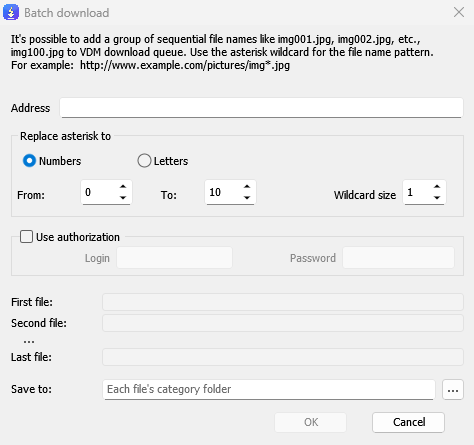
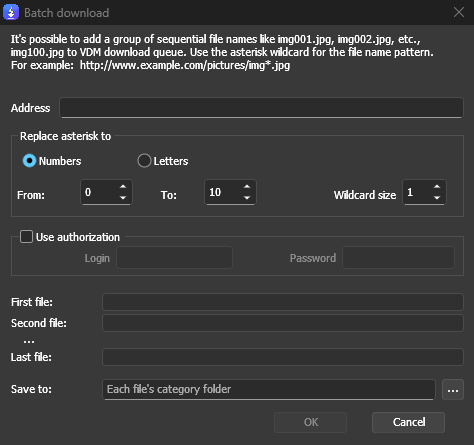
للملفات التي تختلف أسماؤها برقم أو حرف فقط، مثل photo001.jpg إلى photo150.jpg:
- اختر المهام ← إضافة تنزيل جماعي. هل نسخت عنوانا واحدا يحتوي على رقم في اسم ملفه، مثل
https://example.com/show/ep01.mp4؟ تضع المهام ← إضافة تنزيل جماعي من الحافظة (Ctrl+B) النجمة حيث كان الرقم، وتضبط من وعدد أحرف البدل منه (ep*.mp4، من 1، الحجم 2) وتنتظر في إلى الرقم الأخير. - في العنوان، اكتب العنوان مع علامة نجمية واحدة حيث يتغير الرقم أو الحرف:
https://example.com/photo*.jpg. - تحت استبدال العلامة النجمية بـ، اختر أرقام أو أحرف، ثم من وإلى.
- بالنسبة للأرقام، اضبط حجم حرف البدل على عدد الأرقام. مع 3، تكون الملفات
photo001.jpg،photo002.jpgوهكذا. - إذا كان الخادم يتطلب تسجيل الدخول، فحدد استخدام التفويض.
- حدد الملف الأول والملف الثاني والملف الأخير.
- إذا ترك فارغا، يضع حفظ في كل ملف في مجلد فئته (الخيارات → حفظ في)، أو في مجلد «عام» عندما تذهب كل التنزيلات إلى مجلد واحد هناك. لوضع كل ملفات الدفعة في مجلد واحد، اكتبه هناك أو اختره باستخدام .... ثم انقر فوق موافق.
The downloads go to a queue. As with Download Later, VDM asks which queue unless you turn off Options → Downloads → Show queue selection panel on closing batch download dialogs.
قائمة الروابط
لإضافة كل رابط في ملف نصي:
- اختر المهام ← استيراد ← من ملف نصي.
- Pick the file. Link grabber lists every web address VDM found in it, in packages. While VDM reads a long file, the strip under the list of downloads says Reading and the file's name; you can go on using VDM meanwhile. Import reads files of up to 64 MB, far more than any list of links holds: a larger file (a video, an archive, a backup picked by mistake) is refused with a message.
- ألغ تحديد العناوين التي لا تريدها (تساعدك تحديد الكل وإلغاء تحديد الكل)، ثم انقر على إضافة إلى قائمة الانتظار.
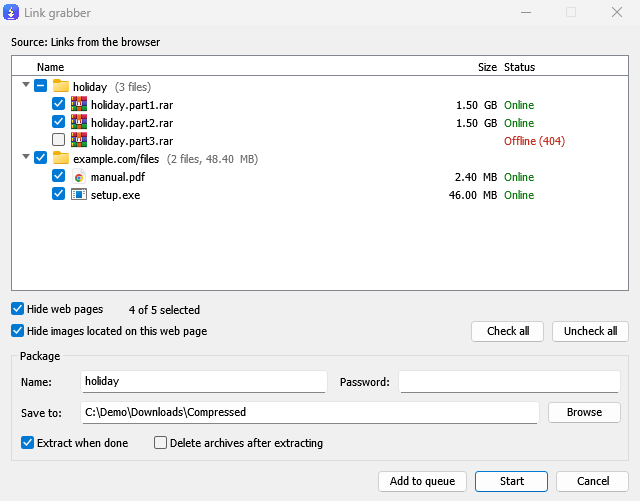
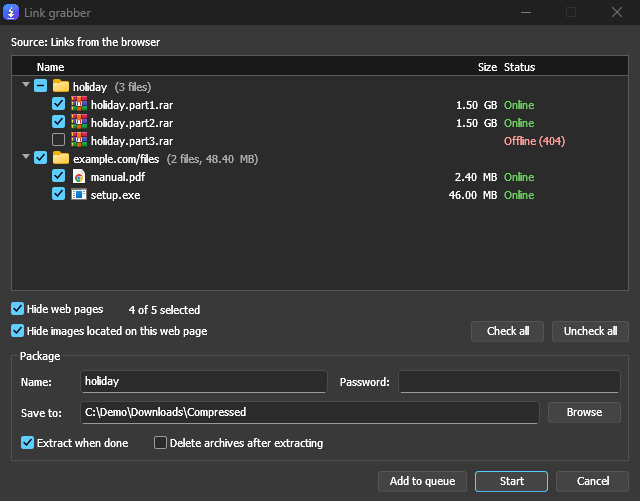
تنضم التنزيلات إلى قائمة انتظار التنزيل الرئيسية، لتكون جاهزة للبدء (يؤدي بدء إلى بدء تشغيلها أيضا). يقرأ المهام → استيراد → من ملف تصدير IDM ملف .ef2، مع مرجع كل تنزيل وملفات تعريف الارتباط الخاصة به، واسم الملف الذي تمنحه قائمة في سطر filename:.
تفتح المهام → أداة التقاط الروابط... نفس النافذة فارغة: الصق نصا يحتوي على روابط (Ctrl+V). راجع أداة التقاط الروابط والأرشيفات للحصول على الحزم وكلمة مرور الأرشيف واستخراج الأرشيفات عند تنزيلها.
لحفظ قائمتك الخاصة، استخدم المهام ← تصدير ← إلى ملف نصي (عنوان واحد لكل سطر) أو إلى ملف تصدير IDM.
عندما يكون العنوان موجودا بالفعل في القائمة
By default VDM asks what to do when you add an address it already has. You can choose a fixed answer in Options → Downloads → If a duplicate download link is added:
- إظهار مربع حوار والسؤال عما يجب فعله.
- إضافة النسخة المكررة باسم ملف مرقم
- إضافة النسخة المكررة والكتابة فوق الملف الموجود
- إذا كان الملف الموجود كاملا، أظهر مربع حوار اكتمال التنزيل؛ وإلا فاستأنفه.
الخطوات التالية
- Send browser downloads to VDM →
- مشاهدة تنزيل في نافذة التقدم ←
- إضافة التنزيلات إلى قائمة الانتظار لوقت لاحق ←
مجاني، مفتوح المصدر، بدون إعلانات، بدون فترة تجريبية.
Download Volt Download Manager