

There are several ways to give VDM something to download. Most of them end in the same window, Download File Info, where you choose where the file goes.
Додати URL
- Скопіюйте адресу файлу (у браузері: клацніть правою кнопкою миші на посиланні → Копіювати посилання).
- Натисніть Додати URL на панелі інструментів, виберіть Завдання → Додати нове завантаження або натисніть Ctrl+N.
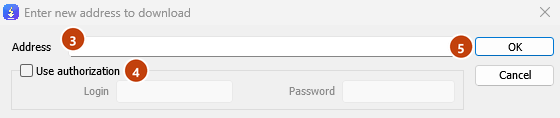
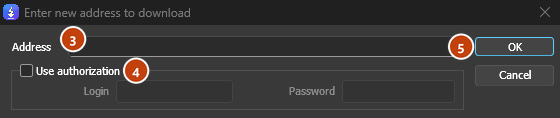
- Відкриється вікно Введіть нову адресу для завантаження. Якщо в буфері обміну є веб-адреса, вона вже заповнена. Стрілка в кінці поля Адреса відображає останні 20 введених адрес; виберіть одну, щоб використати її знову. Клацніть правою кнопкою миші на полі для Вирізати, Копіювати, Вставити, Видалити та Вибрати все.
- Якщо сервер вимагає ім'я користувача та пароль, поставте позначку Використовувати авторизацію та введіть їх.
- Натисніть OK.
VDM takes http://, https://, ftp://, ftps://, ftpes:// and magnet: addresses. Anything else gets Invalid address.
A thunder://, flashget:// or qqdl:// link is one of those addresses wrapped in base64, as download pages made for Thunder (Xunlei), FlashGet and QQ's downloader write them. VDM unwraps it and downloads from the address inside, here, from the clipboard and in Link grabber; the download is listed under that address. A link that wraps anything else, or that can't be read, gets Invalid address too.
Якщо адреса є сторінкою відео (YouTube, Vimeo, TikTok та інші), замість цього відкриється вікно відео. Дивіться Завантаження відео. Магнітне посилання відкриває Додати торрент; дивіться Торренти.
FTP та FTPS
Завантаження FTP працюють як веб-завантаження: кілька з'єднань одночасно, пауза та відновлення, а також те саме вікно прогресу.
ftp://— звичайний FTP.ftpes://— FTP, захищений TLS з початку сесії (явний FTPS,AUTH TLS, зазвичай порт 21). Використовуйте його, коли сервер заявляє про підтримку TLS.ftps://— неявний FTPS, порт 990, якщо адреса не вказує інший.
Сертифікат сервера перевіряється за довіреними сертифікатами Windows (або системи), як для https://, а також за сертифікатами Mozilla, які використовує Firefox, якщо в системі відсутній кореневий сертифікат сервера (старіша версія Windows, яка ще не отримала його). Система Linux без них (мінімальна інсталяція без пакета ca-certificates) все одно завантажує через звичайний HTTP та FTP; кожне безпечне завантаження тоді одразу завершується з помилкою, пропонуючи встановити цей пакет.
An https:// site whose certificate is refused (expired, self-signed or from an issuer the system doesn't
trust, made for another site name) isn't downloaded from: Download File Info, the progress window
and the list say which of these it is, as a browser warns about the same site. VDM has no way
around it.
Logging in. Write the login in the address (ftp://user:password@server/folder/file.iso),
tick Use authorization, or save it in Options → Sites Logins. Without one, VDM logs in as
anonymous. The path is relative to the folder the login starts in; to start from the server's
root, write %2F after the server (ftp://server/%2Fpub/file.iso).
Resuming. VDM keeps the file's size and modification time. If either has changed when you resume, it says the file changed on the server instead of mixing two versions (Options → Downloads → Ignore file modification time changes skips the time check). The password is not written to the resume file next to the download: VDM gives it again when it resumes.
З'єднання. За замовчуванням використовується пасивний режим. Параметри → Проксі / Socks → Використовувати FTP у пасивному режимі вимикає його для серверів, які приймають лише активні з'єднання. FTP проходить через SOCKS-проксі, налаштований у Параметри → Проксі / Socks (тоді завжди пасивний; ftps:// ще не може проходити через нього), і підключається до сервера безпосередньо, якщо проксі є HTTP.
Browsers no longer download ftp:// links themselves. Right-click one and choose Download with
Volt Download Manager, or copy it and use Add URL.
Посилання Google Диска
Вставте посилання Google Диска як є, те, що дає Поділитися → Копіювати посилання:
https://drive.google.com/file/d/…/view?usp=sharing, з/viewабо без;https://drive.google.com/uc?id=…&export=downloadтаhttps://drive.google.com/open?id=…;https://docs.google.com/document/d/…/edit(і Таблиці, Презентації, Малюнки).
VDM downloads the file itself, as it was uploaded (a video comes in its own format, not the player's copy), with its real name and size, over several connections, and it can resume. For a large file, Drive shows a page that says it can't scan this file for viruses; VDM goes past it as Download anyway does.
Документи, Таблиці та Презентації Google надходять як файли Word (.docx), Excel (.xlsx) та PowerPoint (.pptx), а Малюнки як .png. Ці файли створюються на запит, тому їх розмір невідомий, доки вони не надійдуть, і їх не можна відновити: перерване завантаження починається знову.
Files that aren't shared with everyone. Right-click the link in the browser and choose Download with Volt Download Manager, or use Drive's own Download button: the extension passes your browser's Google sign-in with the download. VDM never asks for or keeps your password. Without a sign-in, VDM says the file needs you to sign in.
When Drive won't give a file. Drive limits how often a file can be downloaded: after many downloads in a day it answers "too many users have viewed or downloaded this file recently". VDM shows Drive's own words and writes nothing. Try again later (it can take up to a day), or sign in to Google in your browser and download from there, which often gets past the limit. VDM doesn't try to get around it. A file whose owner turned off downloading, or that your account can't open, gets no access.
Кнопка відео над відео на Диску завантажує оригінальний файл, а не одну зі зменшених копій у програвачі.
Folders: paste a shared folder's link (https://drive.google.com/drive/folders/…) in Add
URL, or right-click it in the browser and choose Download with Volt Download Manager, and
Link grabber lists its files and its subfolders' to download into the same folders. See
Google Drive folders.
Інформація про файл завантаження
VDM asks the server for the file's name and size, and shows them in Download File Info:
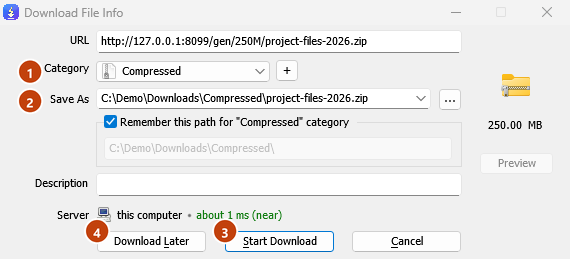
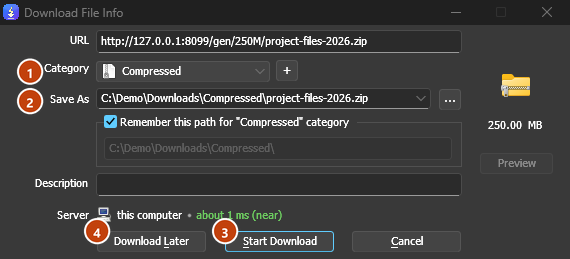
- URL — адреса.
- Категорія — визначається за типом файлу (Стиснуті, Документи, Музика, Програми, Відео або Загальні). Для кожної категорії є окрема папка. Кнопка + поруч створює нову категорію.
- Save As — the folder and file name. You can type another, pick one of the last 20 folders you saved to from the arrow at its end, or choose the folder and the file name in the system's Save dialog with ... (a name typed there without an extension keeps the download's). If you choose a file that is already there and answer Yes when the dialog asks whether to replace it, the download replaces it once it is complete; until then the old file stays as it was, so it is kept if the download fails or you cancel it. A name of a file that is already there that you type in Save As itself is asked about as you press Start Download or Download Later: Add the duplicate with a numbered file name takes the next free name, such as
name (1).zip; Add the duplicate and overwrite the existing file replaces it once the download is complete, as above; Cancel goes back to the dialog. A name VDM gave that is taken by the time the download starts is numbered without asking. - Запам'ятати цей шлях для категорії «…» — встановіть прапорець, щоб папка, яку ви ввели, стала папкою цієї категорії відтепер. Якщо встановлено прапорець Зберігати всі завантаження в папці категорії «Загальні» в Параметри → Зберегти до, кожне завантаження починається в папці «Загальні», і це поле називає «Загальні»: введена вами папка стає папкою для кожного завантаження.
- Опис — ваша примітка. Вона відображається у стовпці Опис списку, і її можна знайти за допомогою функції «Знайти».
- Server — where the server is: its country's flag and name, and how long a round trip to it takes. See Where the server is. It stays blank when the browser handed the download over with its name and size, since VDM didn't need to ask the server.
Потім виберіть:
- Почати завантаження (або Enter) — завантажити файл зараз. Відкриється вікно перебігу завантаження.
- Завантажити пізніше — додати файл до черги, не починаючи завантаження. Докладніше — нижче.
- Скасувати (або Esc) — нічого не додавати.
By default VDM starts downloading while this window is open, so no time is lost while you decide. Cancel drops what it fetched. You can turn this off in Options → Downloads → Start downloading immediately while displaying "Download File Info" dialog.
If the folder doesn't exist yet, VDM asks Do you want to create it? before it starts.
Лише деякі файли з ZIP-архіву
Для .zip на вебсервері Попередній перегляд (під розміром файлу) показує, що знаходиться всередині, тож ви можете завантажити лише потрібні файли замість усього архіву: два файли з 20 ГБ архіву займають два невеликі завантаження.
As the window opens, VDM asks the server for the archive's last bytes, where a ZIP keeps its list of files. Only a server that sends parts of a file can give files one by one, so Preview works only there; elsewhere it stays grey, and its tooltip says why (the server can't send parts of the ZIP...). The whole archive still downloads as usual.
Попередній перегляд відкриває Перегляд ZIP-архіву: кожен файл в архіві з його Ім'я файлу (його шлях всередині ZIP), Упаковано (його розмір всередині ZIP), Розмір та Змінено. Позначте потрібні (Вибрати все позначає всі) та натисніть OK. Кількість вибраних файлів відображається під Попередній перегляд; наведіть курсор, щоб побачити, куди вони потраплять. Потім Почати завантаження або Завантажити пізніше додає їх як одне завантаження замість архіву:
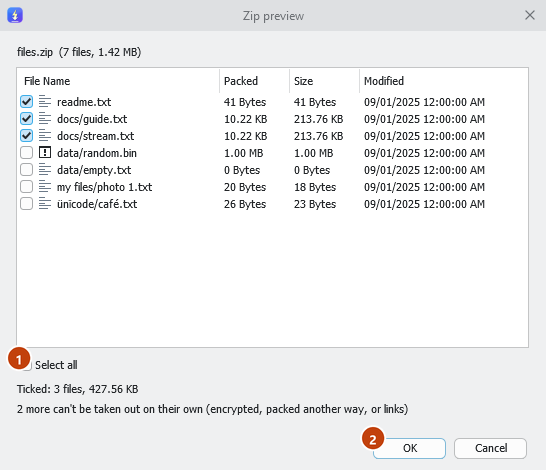
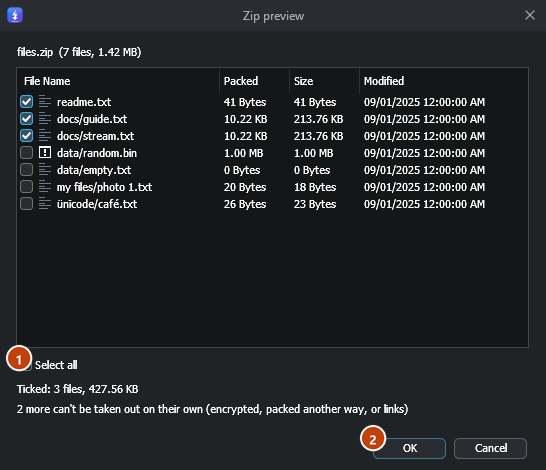
- Вони потрапляють у папку, названу на честь архіву, у папці, яку показує Зберегти як (
Downloads\Compressed\photos\дляphotos.zip), кожен зберігаючи свій шлях зсередини ZIP (photos\2025\beach.jpg). Файл з такою ж назвою, що вже існує, зберігається, а новий нумерується. - VDM fetches only each file's own bytes, unpacks it, and checks it against the checksum (CRC-32) and size the archive gives for it. A file that doesn't match is not kept, and the download says so.
- Зупинене завантаження продовжується з файлами, які ще не були отримані; частково зупинене завантажується знову.
- Видалити з Також видалити файли з диска залишає папку та її файли, як для галереї зображень.
Some files can't be taken out on their own and aren't listed (the window counts them under the list): encrypted files, files packed with a method other than the two most ZIPs use (stored and Deflate), links, and names that would put a file outside its folder (../, a drive letter, an absolute path). A ZIP split over several files, or one whose list of files doesn't add up (files over each other, a list larger than VDM reads from a server), can't be previewed. For any of these, download the whole archive.
Each link opens a Download File Info of its own, so several can be open side by side, to compare their sizes before you choose. Each new one opens a little below and beside the one before and comes to the front; from the second on, its title carries its number: Download File Info (2), (3) and so on. Esc closes only the window you're in. Up to six are open at once: more links handed over together (a browser passing on several downloads) wait, and open one by one as you close windows; Cancel asks whether to cancel the ones still waiting. The same link handed over again brings its open window to the front. If you quit VDM with some still open, their downloads go to the Main download queue, as with Download Later.
Завантажити пізніше
Download Later puts the download in a queue instead of starting it. By default VDM asks which one: pick the queue under Add to queue, and tick Start the queue now if you want it to run straight away. Cancel leaves the download in the list, in no queue.
Щоб пропустити це запитання й завжди використовувати Основна черга завантажень, вимкніть параметр Параметри → Завантаження → Показувати панель вибору черги під час натискання кнопки «Завантажити пізніше».
Докладніше про черги — у розділі Черги та планувальник.
З буфера обміну
With Options → General → Offer to download links copied to the clipboard ticked (it is, unless you turned it off), when you copy a link to a file type in Options → File types (ZIP, EXE, MP4, PDF and many more), Download File Info opens with it filled in, ready for Start Download. Links to other pages are left alone. With Options → Downloads → Show start download dialog off, the download starts at once instead. Only links copied while VDM runs are taken, never one that was already there.
Copied several links at once, a list or a whole forum post? Choose Tasks → Add batch download from clipboard (Ctrl+B, also in the tray icon's menu). VDM reads the clipboard then, and only then, and finds every download link in the text: http, https, ftp and magnet links, one per line or among other words, in Markdown ([name](https://github.com/mikailhossenimran/voltdownloadmanager/blob/main/docs/link)) or between < and >. Each one is listed once in Link grabber, ticked and sorted into packages: pick a folder for each package, then Start or Add to queue. Downloads added together end with one Downloads complete summary. Magnet links are added as torrents with all their files once their files are known. thunder://, flashget:// and qqdl:// links count as the address wrapped in them, here and for a single copied link. A copied address with a number in its name, such as https://example.com/show/ep01.mp4, opens Batch download instead (below). If the clipboard holds no text, or no link, VDM says so.
Перетягування
- Choose Tasks → Show drop target. A small box with the VDM icon appears and stays on top of other windows.
- Drag a link from your browser onto it. VDM adds it as if you had used Add URL.
You can also drop magnet links and .torrent files on it. Drag the box to move it, and double-click it to bring the main window back. Right-click it for Show Volt Download Manager, Add new download and Hide drop target.
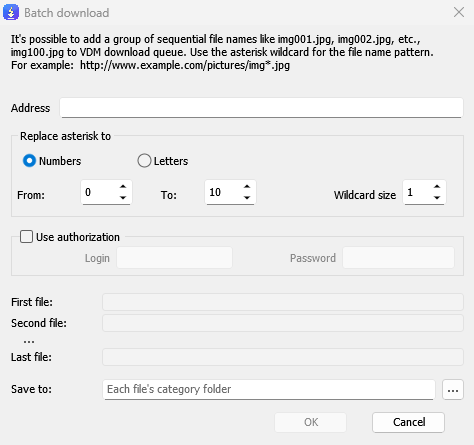
Пакетне завантаження: багато пронумерованих файлів
Для файлів, назви яких відрізняються лише номером або літерою, наприклад від photo001.jpg до photo150.jpg:
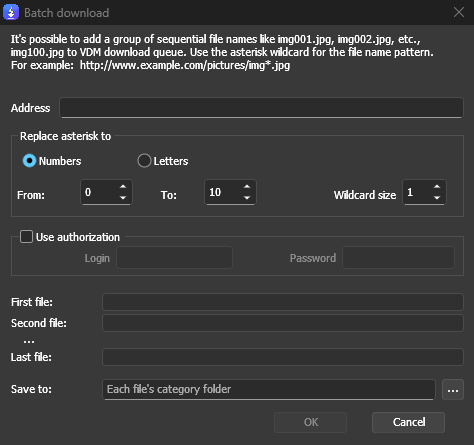
- Виберіть Завдання → Додати пакетне завантаження. Скопіювали одну адресу з числом у назві файлу, наприклад
https://example.com/show/ep01.mp4? Завдання → Додати пакетне завантаження з буфера обміну (Ctrl+B) ставить зірочку на місце числа, встановлює Від та Розмір за маскою з нього (ep*.mp4, від 1, розмір 2) і чекає в До на останнє число. - У Адреса введіть адресу з однією зірочкою там, де змінюється номер або літера:
https://example.com/photo*.jpg. - У розділі Замінити зірочку на оберіть Числа або Літери, потім Від і До.
- Для чисел встановіть Розмір за маскою на кількість цифр. З 3 файли будуть
photo001.jpg,photo002.jpgі так далі. - Якщо сервер потребує входу, поставте позначку Використовувати авторизацію.
- Позначте Перший файл, Другий файл та Останній файл.
- Якщо поле Зберегти до залишити порожнім, кожен файл буде збережено в папці його категорії (Параметри → Зберегти до), або в папці «Загальні», якщо всі завантаження йдуть в одну папку. Щоб зберегти кожен файл пакета в одній папці, введіть її там або виберіть за допомогою .... Потім натисніть ОК.
The downloads go to a queue. As with Download Later, VDM asks which queue unless you turn off Options → Downloads → Show queue selection panel on closing batch download dialogs.
Список посилань
Щоб додати кожне посилання з текстового файлу:
- Оберіть Завдання → Імпорт → З текстового файлу.
- Pick the file. Link grabber lists every web address VDM found in it, in packages. While VDM reads a long file, the strip under the list of downloads says Reading and the file's name; you can go on using VDM meanwhile. Import reads files of up to 64 MB, far more than any list of links holds: a larger file (a video, an archive, a backup picked by mistake) is refused with a message.
- Зніміть позначки з адрес, які вам не потрібні (допоможуть Вибрати всі та Зняти виділення з усіх), потім натисніть Додати до черги.
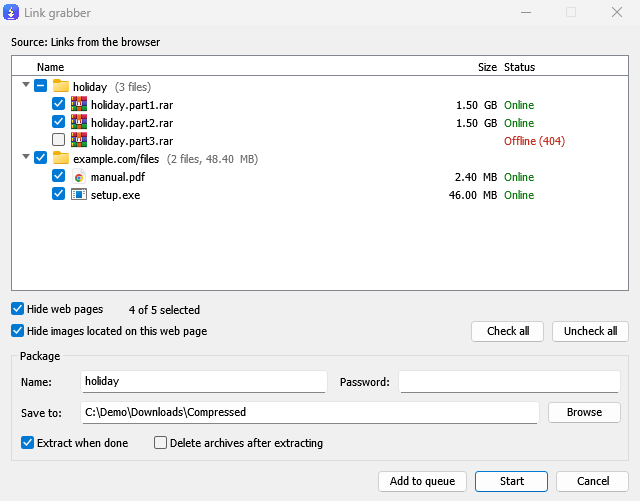
Завантаження додаються до Основної черги завантажень, готові до запуску (Запустити також запускає її). Завдання → Імпорт → З файлу експорту IDM зчитує файл .ef2 з реферером і файлами cookie для кожного завантаження, а також ім'я файлу, яке надає йому список у рядку filename:.
Завдання → Захоплення посилань... відкриває те саме порожнє вікно: вставте текст із посиланнями (Ctrl+V). Дивіться Захоплення посилань та архіви для отримання інформації про пакети, пароль архіву та розпакування архівів після їх завантаження.
Щоб зберегти власний список, використовуйте Завдання → Експорт → До текстового файлу (одна адреса на рядок) або До IDM експортувати файл.
Коли адреса вже є у списку
By default VDM asks what to do when you add an address it already has. You can choose a fixed answer in Options → Downloads → If a duplicate download link is added:
- Показати діалогове вікно та запитати, що робити.
- Додати дублікат з пронумерованим ім'ям файлу
- Додати дублікат і перезаписати наявний файл
- Якщо наявний файл повний, показати діалог завершення завантаження; інакше відновити його.
Наступні кроки
- Send browser downloads to VDM →
- Переглянути завантаження у вікні прогресу →
- Поставити завантаження в чергу на потім →
Безкоштовно, з відкритим кодом, без реклами, без пробного періоду.
Download Volt Download Manager