

There are several ways to give VDM something to download. Most of them end in the same window, Download File Info, where you choose where the file goes.
URL Ekle
- Dosyanın adresini kopyalayın (bir tarayıcıda: bağlantıya sağ tıklayın → Bağlantıyı kopyala).
- Araç çubuğunda URL Ekle'ye tıklayın, Görevler → Yeni indirme ekle seçeneğini belirleyin veya Ctrl+N tuşlarına basın.
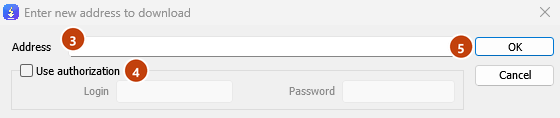
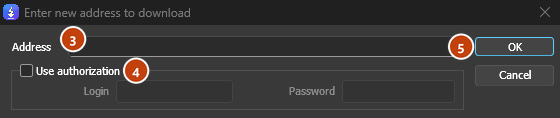
- İndirmek için yeni adres girin penceresi açılır. Panoda bir web adresi varsa, alan zaten doldurulmuştur. Adres alanının sonundaki ok, girdiğiniz son 20 adresi listeler; adreslerden birini yeniden kullanmak için seçin. Kes, Kopyala, Yapıştır, Sil ve Tümünü seç seçeneklerine ulaşmak için kutuya sağ tıklayın.
- Sunucu kullanıcı adı ve parola istiyorsa Yetkilendirme kullan seçeneğini işaretleyip bilgileri yazın.
- Tamam'a tıklayın.
VDM takes http://, https://, ftp://, ftps://, ftpes:// and magnet: addresses. Anything else gets Invalid address.
A thunder://, flashget:// or qqdl:// link is one of those addresses wrapped in base64, as download pages made for Thunder (Xunlei), FlashGet and QQ's downloader write them. VDM unwraps it and downloads from the address inside, here, from the clipboard and in Link grabber; the download is listed under that address. A link that wraps anything else, or that can't be read, gets Invalid address too.
Adres bir video sayfasına (YouTube, Vimeo, TikTok ve diğerleri) aitse video penceresi açılır. Video indirmeleri bölümüne bakın. Magnet bağlantısı Torrent ekle penceresini açar; Torrentler bölümüne bakın.
FTP ve FTPS
FTP indirmeleri web indirmeleri gibi çalışır: aynı anda birden fazla bağlantı kullanılır, indirme duraklatılıp sürdürülebilir ve aynı ilerleme penceresi gösterilir.
ftp://— şifrelenmemiş FTP.ftpes://— oturumun başından itibaren TLS ile güvence altına alınan FTP (açık FTPS,AUTH TLS, genellikle 21 numaralı bağlantı noktası). Sunucu TLS'yi desteklediğini belirtiyorsa kullanın.ftps://— örtük FTPS; adres başka bir bağlantı noktası belirtmiyorsa 990 numaralı bağlantı noktası kullanılır.
Sunucu sertifikası, https:// için olduğu gibi Windows'un (veya sistemin) güvenilen sertifikalarına ve Mozilla'nın (Firefox'un taşıdığı) sertifikalarına karşı denetlenir; sistemde bir sunucu sertifikasının geldiği kök eksikse (henüz almamış eski bir Windows sürümü gibi) bu sertifikalar kullanılır. Bunlara sahip olmayan bir Linux sistemi (ca-certificates paketi olmayan minimal bir kurulum) yine de düz HTTP ve FTP üzerinden indirir; ancak her güvenli indirme hemen başarısız olur ve o paketi kurmanızı söyler.
An https:// site whose certificate is refused (expired, self-signed or from an issuer the system doesn't
trust, made for another site name) isn't downloaded from: Download File Info, the progress window
and the list say which of these it is, as a browser warns about the same site. VDM has no way
around it.
Logging in. Write the login in the address (ftp://user:password@server/folder/file.iso),
tick Use authorization, or save it in Options → Sites Logins. Without one, VDM logs in as
anonymous. The path is relative to the folder the login starts in; to start from the server's
root, write %2F after the server (ftp://server/%2Fpub/file.iso).
Resuming. VDM keeps the file's size and modification time. If either has changed when you resume, it says the file changed on the server instead of mixing two versions (Options → Downloads → Ignore file modification time changes skips the time check). The password is not written to the resume file next to the download: VDM gives it again when it resumes.
Bağlantılar. Varsayılan olarak pasif mod kullanılır. Seçenekler → Proxy / SOCKS → FTP'yi PASV modunda kullan seçeneği, yalnızca aktif bağlantıları kabul eden sunucular için bu modu kapatır. FTP, Seçenekler → Proxy / SOCKS bölümünde ayarlanan bir SOCKS proxy üzerinden geçer (bu durumda her zaman pasif modda; ftps:// henüz bir proxy üzerinden geçemez) ve proxy bir HTTP proxy olduğunda sunucuya doğrudan bağlanır.
Browsers no longer download ftp:// links themselves. Right-click one and choose Download with
Volt Download Manager, or copy it and use Add URL.
Google Drive bağlantıları
Google Drive bağlantısını olduğu gibi yapıştırın. Paylaş → Bağlantıyı kopyala seçeneği şu bağlantıyı verir:
https://drive.google.com/file/d/…/view?usp=sharing,/viewile veya olmadan;https://drive.google.com/uc?id=…&export=downloadvehttps://drive.google.com/open?id=…;https://docs.google.com/document/d/…/edit(ve E-Tablolar, Slaytlar, Çizimler).
VDM downloads the file itself, as it was uploaded (a video comes in its own format, not the player's copy), with its real name and size, over several connections, and it can resume. For a large file, Drive shows a page that says it can't scan this file for viruses; VDM goes past it as Download anyway does.
Google Dokümanlar, E-Tablolar ve Slaytlar Word (.docx), Excel (.xlsx) ve PowerPoint (.pptx) dosyaları olarak; Çizimler ise .png olarak indirilir. Bu dosyalar istek üzerine oluşturulduğundan boyutları indirme tamamlanana kadar bilinmez ve indirme sürdürülemez: yarıda kalan indirme yeniden başlar.
Files that aren't shared with everyone. Right-click the link in the browser and choose Download with Volt Download Manager, or use Drive's own Download button: the extension passes your browser's Google sign-in with the download. VDM never asks for or keeps your password. Without a sign-in, VDM says the file needs you to sign in.
When Drive won't give a file. Drive limits how often a file can be downloaded: after many downloads in a day it answers "too many users have viewed or downloaded this file recently". VDM shows Drive's own words and writes nothing. Try again later (it can take up to a day), or sign in to Google in your browser and download from there, which often gets past the limit. VDM doesn't try to get around it. A file whose owner turned off downloading, or that your account can't open, gets no access.
Drive videosunun üzerindeki video düğmesi, oynatıcının daha küçük kopyalarından birini değil, orijinal dosyayı indirir.
Folders: paste a shared folder's link (https://drive.google.com/drive/folders/…) in Add
URL, or right-click it in the browser and choose Download with Volt Download Manager, and
Link grabber lists its files and its subfolders' to download into the same folders. See
Google Drive folders.
Dosya Bilgilerini İndir
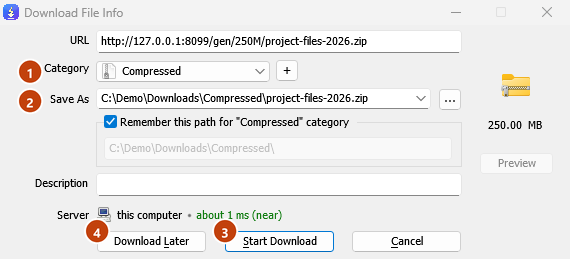
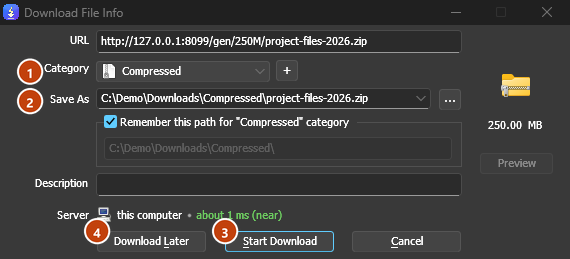
VDM asks the server for the file's name and size, and shows them in Download File Info:
- URL — adres.
- Kategori — dosya türüne göre seçilir (Sıkıştırılmış, Belgeler, Müzik, Programlar, Video veya Genel). Her kategorinin kendi klasörü vardır. Yanındaki + yeni bir kategori oluşturur.
- Save As — the folder and file name. You can type another, pick one of the last 20 folders you saved to from the arrow at its end, or choose the folder and the file name in the system's Save dialog with ... (a name typed there without an extension keeps the download's). If you choose a file that is already there and answer Yes when the dialog asks whether to replace it, the download replaces it once it is complete; until then the old file stays as it was, so it is kept if the download fails or you cancel it. A name of a file that is already there that you type in Save As itself is asked about as you press Start Download or Download Later: Add the duplicate with a numbered file name takes the next free name, such as
name (1).zip; Add the duplicate and overwrite the existing file replaces it once the download is complete, as above; Cancel goes back to the dialog. A name VDM gave that is taken by the time the download starts is numbered without asking. - Bu yolu "…" kategorisi için hatırla — bu kutuyu işaretlerseniz, yazdığınız klasör bu kategorinin varsayılan klasörü olur. Tüm indirmeleri "Genel" kategorisinin klasörüne kaydet seçeneği Seçenekler → Kaydedileceği yer bölümünde işaretliyse, her indirme Genel klasöründe başlar ve bu kutu Genel kategorisini adlandırır: yazdığınız klasör, her indirme için kullanılan klasör olur.
- Açıklama — kendi notunuz. Listenin Açıklama sütununda görünür ve Bul özelliği ile aranabilir.
- Server — where the server is: its country's flag and name, and how long a round trip to it takes. See Where the server is. It stays blank when the browser handed the download over with its name and size, since VDM didn't need to ask the server.
Ardından şunlardan birini seçin:
- İndirmeyi Başlat (veya Enter) — indirmeyi şimdi başlatır. İlerleme penceresi açılır.
- Daha Sonra İndir — indirmeyi başlatmadan bir sıraya ekler. Aşağıya bakın.
- İptal (veya Esc) — hiçbir şey eklemez.
By default VDM starts downloading while this window is open, so no time is lost while you decide. Cancel drops what it fetched. You can turn this off in Options → Downloads → Start downloading immediately while displaying "Download File Info" dialog.
If the folder doesn't exist yet, VDM asks Do you want to create it? before it starts.
ZIP içindeki dosyalardan sadece bazıları
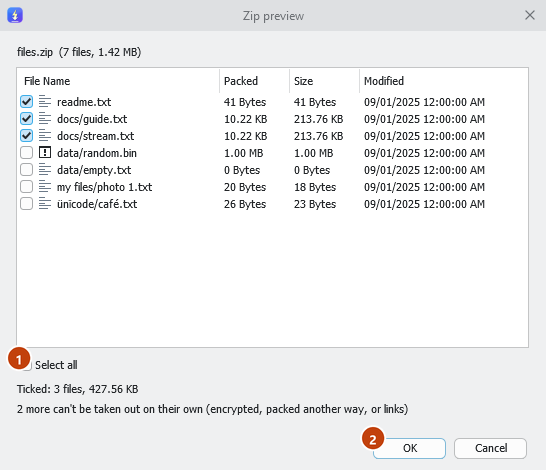
Bir web sunucusundaki .zip için, Önizle (dosya boyutunun altında) içindekileri listeler, böylece tüm arşivi yerine sadece ihtiyacınız olan dosyaları indirebilirsiniz: 20 GB'lık bir arşivden iki dosya, iki küçük indirme gerektirir.
As the window opens, VDM asks the server for the archive's last bytes, where a ZIP keeps its list of files. Only a server that sends parts of a file can give files one by one, so Preview works only there; elsewhere it stays grey, and its tooltip says why (the server can't send parts of the ZIP...). The whole archive still downloads as usual.
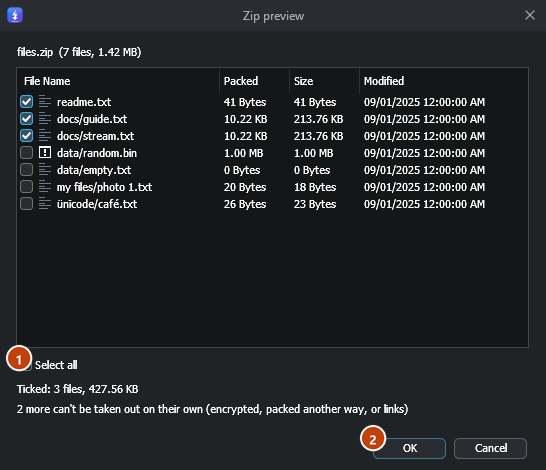
Önizle, ZIP önizlemesi penceresini açar: arşivdeki her dosya Dosya adı (ZIP içindeki yolu), Paketlenmiş (ZIP içindeki boyutu), Boyut ve Değiştirilme bilgileriyle birlikte listelenir. İstediğiniz dosyaları işaretleyin (Tümünü seç hepsini işaretler) ve Tamam'a tıklayın. Seçilen dosya sayısı Önizle altında gösterilir; üzerine gelerek nereye gideceklerini görebilirsiniz. Ardından İndirmeyi Başlat veya Daha Sonra İndir bunları arşiv yerine tek bir indirme olarak ekler:
- Bunlar, Farklı Kaydet'in gösterdiği klasörde (örneğin
Downloads\Compressed\photos\içinphotos.zip), arşivin adını taşıyan bir klasöre gider ve her biri ZIP içindeki yolunu korur (photos\2025\beach.jpg). Aynı ada sahip zaten var olan bir dosya korunur ve yenisi numaralandırılır. - VDM fetches only each file's own bytes, unpacks it, and checks it against the checksum (CRC-32) and size the archive gives for it. A file that doesn't match is not kept, and the download says so.
- Duraklatılmış bir indirme, henüz alınmamış dosyalarla devam eder; yarıda durdurulan bir dosya tekrar alınır.
- Sil seçeneği Dosyaları diskten de sil ile birlikte, bir resim galerisi gibi klasörü ve dosyalarını bırakır.
Some files can't be taken out on their own and aren't listed (the window counts them under the list): encrypted files, files packed with a method other than the two most ZIPs use (stored and Deflate), links, and names that would put a file outside its folder (../, a drive letter, an absolute path). A ZIP split over several files, or one whose list of files doesn't add up (files over each other, a list larger than VDM reads from a server), can't be previewed. For any of these, download the whole archive.
Each link opens a Download File Info of its own, so several can be open side by side, to compare their sizes before you choose. Each new one opens a little below and beside the one before and comes to the front; from the second on, its title carries its number: Download File Info (2), (3) and so on. Esc closes only the window you're in. Up to six are open at once: more links handed over together (a browser passing on several downloads) wait, and open one by one as you close windows; Cancel asks whether to cancel the ones still waiting. The same link handed over again brings its open window to the front. If you quit VDM with some still open, their downloads go to the Main download queue, as with Download Later.
Daha Sonra İndir
Download Later puts the download in a queue instead of starting it. By default VDM asks which one: pick the queue under Add to queue, and tick Start the queue now if you want it to run straight away. Cancel leaves the download in the list, in no queue.
Bu soruyu atlayıp her zaman Ana indirme kuyruğunu kullanmak için Seçenekler → İndirilenler → "Daha Sonra İndir" düğmesine basıldığında sıra seçim panelini göster seçeneğini kapatın.
Sıralar hakkında daha fazla bilgi için Sıralar ve Zamanlayıcı bölümüne bakın.
Panodan
With Options → General → Offer to download links copied to the clipboard ticked (it is, unless you turned it off), when you copy a link to a file type in Options → File types (ZIP, EXE, MP4, PDF and many more), Download File Info opens with it filled in, ready for Start Download. Links to other pages are left alone. With Options → Downloads → Show start download dialog off, the download starts at once instead. Only links copied while VDM runs are taken, never one that was already there.
Copied several links at once, a list or a whole forum post? Choose Tasks → Add batch download from clipboard (Ctrl+B, also in the tray icon's menu). VDM reads the clipboard then, and only then, and finds every download link in the text: http, https, ftp and magnet links, one per line or among other words, in Markdown ([name](https://github.com/mikailhossenimran/voltdownloadmanager/blob/main/docs/link)) or between < and >. Each one is listed once in Link grabber, ticked and sorted into packages: pick a folder for each package, then Start or Add to queue. Downloads added together end with one Downloads complete summary. Magnet links are added as torrents with all their files once their files are known. thunder://, flashget:// and qqdl:// links count as the address wrapped in them, here and for a single copied link. A copied address with a number in its name, such as https://example.com/show/ep01.mp4, opens Batch download instead (below). If the clipboard holds no text, or no link, VDM says so.
Sürükle ve bırak
- Choose Tasks → Show drop target. A small box with the VDM icon appears and stays on top of other windows.
- Drag a link from your browser onto it. VDM adds it as if you had used Add URL.
You can also drop magnet links and .torrent files on it. Drag the box to move it, and double-click it to bring the main window back. Right-click it for Show Volt Download Manager, Add new download and Hide drop target.
Toplu indirme: numaralı dosyalar
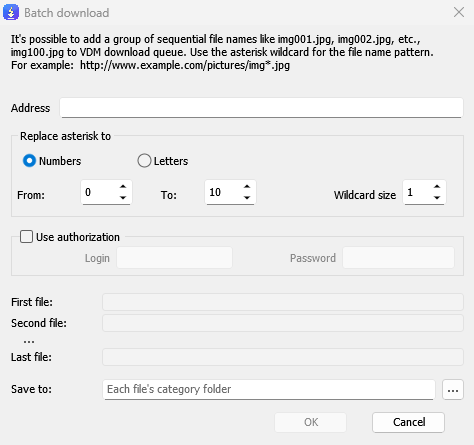
Adları yalnızca bir sayı veya harf bakımından farklı olan dosyalar için, örneğin photo001.jpg'den photo150.jpg'ye:
- Görevler → Toplu indirme ekle seçeneğini belirleyin. Dosya adında bir sayı bulunan, örneğin
https://example.com/show/ep01.mp4gibi tek bir adresi mi kopyaladınız? Görevler → Panodan toplu indirme ekle (Ctrl+B) yıldızı sayının olduğu yere koyar, Başlangıç ve Joker karakter boyutu değerlerini buradan ayarlar (ep*.mp4, 1'den, boyut 2) ve Bitiş kutusunda son sayıyı bekler. - Adres bölümüne, sayının veya harfin değiştiği yere bir yıldız işareti koyarak adresi yazın:
https://example.com/photo*.jpg. - Yıldızı şununla değiştir altında Sayılar veya Harfler seçeneğini, ardından Başlangıç ve Bitiş seçeneğini seçin.
- Sayılar için Joker karakter boyutunu basamak sayısına ayarlayın. 3 seçildiğinde dosyalar
photo001.jpg,photo002.jpgve böyle devam eder. - Sunucuda oturum açmak gerekiyorsa Yetkilendirme kullan seçeneğini işaretleyin.
- İlk dosya, İkinci dosya ve Son dosya seçeneklerini işaretleyin.
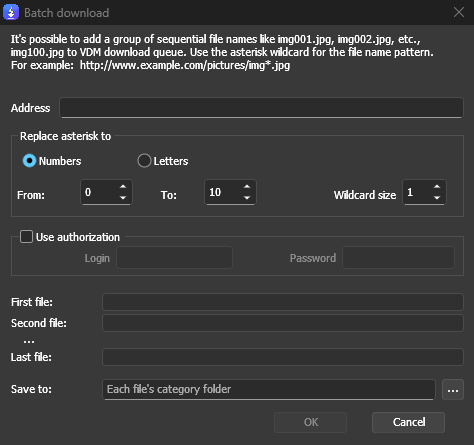
- Boş bırakıldığında, Kaydedileceği yer her dosyayı kendi kategorisinin klasörüne (Seçenekler → Kaydedileceği yer) veya tüm indirmeler tek bir klasöre gittiğinde Genel klasörüne kaydeder. Toplu indirmedeki her dosyayı tek bir klasöre kaydetmek için, buraya yazın veya ... ile seçin. Ardından Tamam düğmesine tıklayın.
The downloads go to a queue. As with Download Later, VDM asks which queue unless you turn off Options → Downloads → Show queue selection panel on closing batch download dialogs.
Bağlantı listesi
Bir metin dosyasındaki tüm bağlantıları eklemek için:
- Görevler → İçeri Aktar → Metin dosyasından seçeneğini seçin.
- Pick the file. Link grabber lists every web address VDM found in it, in packages. While VDM reads a long file, the strip under the list of downloads says Reading and the file's name; you can go on using VDM meanwhile. Import reads files of up to 64 MB, far more than any list of links holds: a larger file (a video, an archive, a backup picked by mistake) is refused with a message.
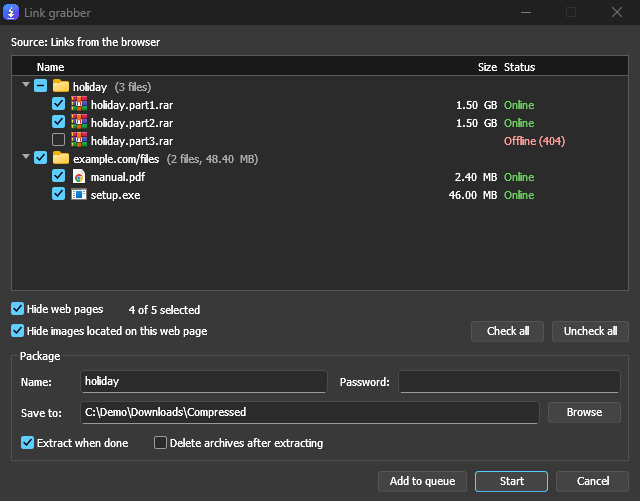
- İstemediğiniz adreslerin işaretini kaldırın (Tümünü işaretle ve Tümünü işaretle yardımcı olur), ardından Sıraya ekle'ye tıklayın.
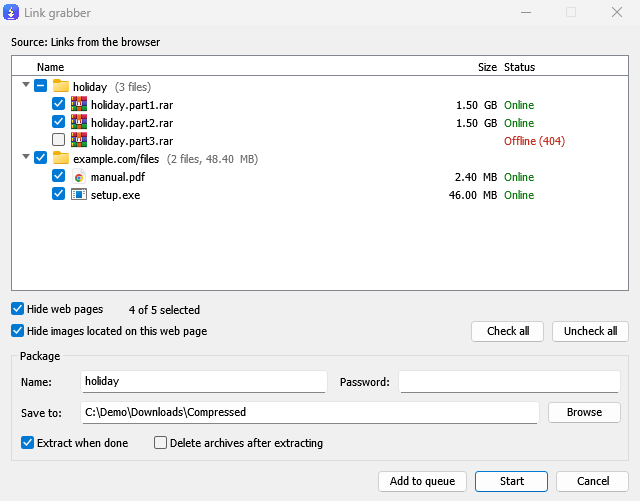
İndirmeler Ana indirme kuyruğu'na eklenir ve başlatılmaya hazır olur (Başlat da başlatır). Görevler → İçe aktar → IDM dışa aktarma dosyasından bir .ef2 dosyasını okur; her indirmenin yönlendirenini ve çerezlerini, ayrıca bir listede filename: satırında verilen dosya adını içerir.
Görevler → Bağlantı yakalayıcı... aynı pencereyi boş olarak açar. İçinde bağlantılar bulunan metni yapıştırın (Ctrl+V). Paketler, arşiv parolası ve indirilen arşivleri çıkarma hakkında bilgi için Bağlantı yakalayıcı ve arşivler bölümüne bakın.
Kendi listenizi kaydetmek için Görevler → Dışa aktar → Metin dosyasına (her satıra bir adres) veya IDM dışa aktarma dosyasına seçeneğini kullanın.
Adres zaten listedeyse
By default VDM asks what to do when you add an address it already has. You can choose a fixed answer in Options → Downloads → If a duplicate download link is added:
- Bir iletişim kutusu göster ve ne yapılacağını sor.
- Yineleneni numaralı bir dosya adıyla ekle
- Yineleneni ekle ve mevcut dosyanın üzerine yaz
- İndirme tamamlandıysa indirme tamamlandı iletişim kutusunu göster; değilse indirmeye devam et.
Sonraki adımlar
- Send browser downloads to VDM →
- İlerleme penceresinde bir indirmeyi izle →
- İndirmeleri sonraya sıraya koy →
Ücretsiz, açık kaynak, reklamsız, deneme sürümü yok.
Download Volt Download Manager