

There are several ways to give VDM something to download. Most of them end in the same window, Download File Info, where you choose where the file goes.
URL toevoegen
- Kopieer het adres van het bestand (in een browser: rechtermuisknop op de link → Link kopiëren).
- Klik op URL toevoegen op de werkbalk, kies Taken → Nieuwe download toevoegen, of druk op Ctrl+N.
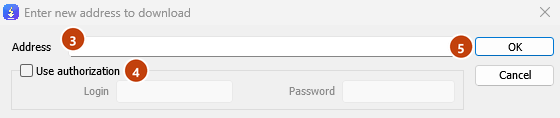
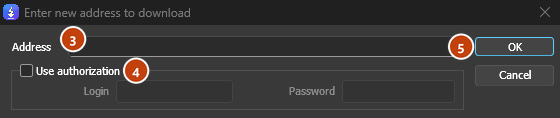
- Voer nieuw adres in om te downloaden wordt geopend. Als het klembord een webadres bevat, is dit al ingevuld. De pijl aan het einde van Adres toont de laatste 20 adressen die u hebt ingevoerd; kies er een om het opnieuw te gebruiken. Klik met de rechtermuisknop op het vak voor Knippen, Kopiëren, Plakken, Verwijderen en Alles selecteren.
- Als de server een gebruikersnaam en wachtwoord nodig heeft, vink dan Autorisatie gebruiken aan en typ deze in.
- Klik op OK.
VDM takes http://, https://, ftp://, ftps://, ftpes:// and magnet: addresses. Anything else gets Invalid address.
A thunder://, flashget:// or qqdl:// link is one of those addresses wrapped in base64, as download pages made for Thunder (Xunlei), FlashGet and QQ's downloader write them. VDM unwraps it and downloads from the address inside, here, from the clipboard and in Link grabber; the download is listed under that address. A link that wraps anything else, or that can't be read, gets Invalid address too.
Als het adres naar een videopagina leidt (YouTube, Vimeo, TikTok en andere), wordt in plaats daarvan het videovenster geopend. Zie Video downloads. Bij een magneetlink wordt Torrent toevoegen geopend; zie Torrents.
FTP en FTPS
FTP-downloads werken net als webdownloads: meerdere verbindingen tegelijk, pauzeren en hervatten, en hetzelfde voortgangsvenster.
ftp://— gewone FTP.ftpes://— FTP beveiligd met TLS vanaf het begin van de sessie (expliciete FTPS,AUTH TLS, meestal poort 21). Gebruik dit wanneer de server aangeeft TLS te ondersteunen.ftps://— impliciete FTPS, standaard via poort 990, tenzij het adres een andere poort opgeeft.
Het certificaat van de server wordt gecontroleerd aan de hand van de vertrouwde certificaten van Windows (of het systeem), zoals voor https://, en die van Mozilla, de certificaten die Firefox gebruikt, wanneer het systeem de root mist waar het certificaat van een server vandaan komt (een oudere Windows die het nog niet heeft opgehaald). Een Linux-systeem zonder deze (een minimale installatie zonder het pakket ca-certificates) downloadt nog steeds via gewone HTTP en FTP; elke beveiligde download mislukt dan onmiddellijk, met de melding dat dat pakket moet worden geïnstalleerd.
An https:// site whose certificate is refused (expired, self-signed or from an issuer the system doesn't
trust, made for another site name) isn't downloaded from: Download File Info, the progress window
and the list say which of these it is, as a browser warns about the same site. VDM has no way
around it.
Logging in. Write the login in the address (ftp://user:password@server/folder/file.iso),
tick Use authorization, or save it in Options → Sites Logins. Without one, VDM logs in as
anonymous. The path is relative to the folder the login starts in; to start from the server's
root, write %2F after the server (ftp://server/%2Fpub/file.iso).
Resuming. VDM keeps the file's size and modification time. If either has changed when you resume, it says the file changed on the server instead of mixing two versions (Options → Downloads → Ignore file modification time changes skips the time check). The password is not written to the resume file next to the download: VDM gives it again when it resumes.
Verbindingen. Passieve modus wordt standaard gebruikt. Opties → Proxy/Socks → FTP in PASV-modus gebruiken schakelt deze uit voor servers die alleen actieve verbindingen accepteren. FTP gaat via een SOCKS-proxy die is ingesteld in Opties → Proxy/Socks (dan passief, altijd; ftps:// kan er nog niet doorheen), en maakt rechtstreeks verbinding met de server wanneer de proxy een HTTP-proxy is.
Browsers no longer download ftp:// links themselves. Right-click one and choose Download with
Volt Download Manager, or copy it and use Add URL.
Google Drive-links
Plak een Google Drive-link zoals die is, zoals de link die u krijgt via Delen → Link kopiëren:
https://drive.google.com/file/d/…/view?usp=sharing, met of zonder/view;https://drive.google.com/uc?id=…&export=downloadenhttps://drive.google.com/open?id=…;https://docs.google.com/document/d/…/edit(en Spreadsheets, Presentaties en Tekeningen).
VDM downloads the file itself, as it was uploaded (a video comes in its own format, not the player's copy), with its real name and size, over several connections, and it can resume. For a large file, Drive shows a page that says it can't scan this file for viruses; VDM goes past it as Download anyway does.
Google Documenten, Spreadsheets en Presentaties worden gedownload als Word-bestanden (.docx), Excel-bestanden (.xlsx) en PowerPoint-bestanden (.pptx), en Tekeningen als .png. Deze bestanden worden pas gemaakt wanneer ze worden opgevraagd. Daarom is de bestandsgrootte pas bekend wanneer ze zijn binnengehaald en kunnen ze niet worden hervat: een afgebroken download moet opnieuw beginnen.
Files that aren't shared with everyone. Right-click the link in the browser and choose Download with Volt Download Manager, or use Drive's own Download button: the extension passes your browser's Google sign-in with the download. VDM never asks for or keeps your password. Without a sign-in, VDM says the file needs you to sign in.
When Drive won't give a file. Drive limits how often a file can be downloaded: after many downloads in a day it answers "too many users have viewed or downloaded this file recently". VDM shows Drive's own words and writes nothing. Try again later (it can take up to a day), or sign in to Google in your browser and download from there, which often gets past the limit. VDM doesn't try to get around it. A file whose owner turned off downloading, or that your account can't open, gets no access.
De videoknop boven een Drive-video downloadt het originele bestand, niet een van de kleinere kopieën van de speler.
Folders: paste a shared folder's link (https://drive.google.com/drive/folders/…) in Add
URL, or right-click it in the browser and choose Download with Volt Download Manager, and
Link grabber lists its files and its subfolders' to download into the same folders. See
Google Drive folders.
Bestandsinfo downloaden
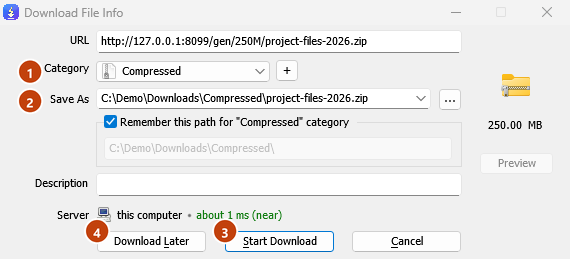
VDM asks the server for the file's name and size, and shows them in Download File Info:
- URL — het adres.
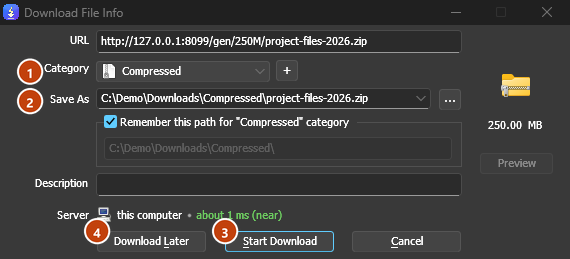
- Categorie — gekozen op basis van het bestandstype (Gecomprimeerd, Documenten, Muziek, Programma's, Video of Algemeen). Elke categorie heeft zijn eigen map. + ernaast maakt een nieuwe categorie.
- Save As — the folder and file name. You can type another, pick one of the last 20 folders you saved to from the arrow at its end, or choose the folder and the file name in the system's Save dialog with ... (a name typed there without an extension keeps the download's). If you choose a file that is already there and answer Yes when the dialog asks whether to replace it, the download replaces it once it is complete; until then the old file stays as it was, so it is kept if the download fails or you cancel it. A name of a file that is already there that you type in Save As itself is asked about as you press Start Download or Download Later: Add the duplicate with a numbered file name takes the next free name, such as
name (1).zip; Add the duplicate and overwrite the existing file replaces it once the download is complete, as above; Cancel goes back to the dialog. A name VDM gave that is taken by the time the download starts is numbered without asking. - Dit pad onthouden voor categorie „…” — schakel dit in om de ingevoerde map voortaan als de map van de categorie te gebruiken. Als Elke download opslaan in de map van de categorie „Algemeen” is ingeschakeld in Opties → Opslaan in, start elke download in de map van Algemeen, en dit vak benoemt Algemeen: de ingevoerde map wordt dan de map voor elke download.
- Beschrijving — een eigen notitie. Deze wordt weergegeven in de kolom Beschrijving van de lijst en kan worden doorzocht met Zoeken.
- Server — where the server is: its country's flag and name, and how long a round trip to it takes. See Where the server is. It stays blank when the browser handed the download over with its name and size, since VDM didn't need to ask the server.
Kies vervolgens:
- Download starten (of Enter) — nu downloaden. Het voortgangsvenster wordt geopend.
- Later downloaden — voeg het toe aan een wachtrij zonder te starten. Zie hieronder.
- Annuleren (of Esc) — niets toevoegen.
By default VDM starts downloading while this window is open, so no time is lost while you decide. Cancel drops what it fetched. You can turn this off in Options → Downloads → Start downloading immediately while displaying "Download File Info" dialog.
If the folder doesn't exist yet, VDM asks Do you want to create it? before it starts.
Slechts enkele bestanden uit een ZIP
Voor een .zip op een webserver toont Voorbeeld (onder de bestandsgrootte) wat erin zit, zodat u alleen de bestanden kunt downloaden die u nodig hebt in plaats van het hele archief: twee bestanden uit een archief van 20 GB vereisen twee kleine downloads.
As the window opens, VDM asks the server for the archive's last bytes, where a ZIP keeps its list of files. Only a server that sends parts of a file can give files one by one, so Preview works only there; elsewhere it stays grey, and its tooltip says why (the server can't send parts of the ZIP...). The whole archive still downloads as usual.
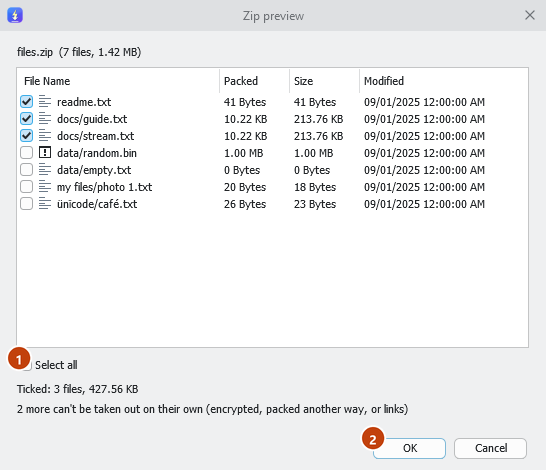
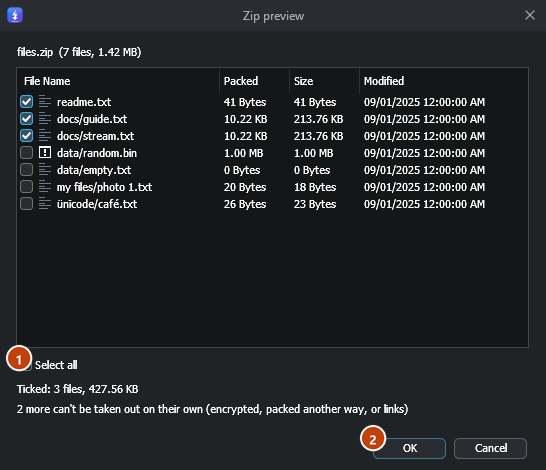
Voorbeeld opent ZIP-preview: elk bestand in het archief met zijn Bestandsnaam (het pad binnen de ZIP), Gecomprimeerd (de grootte binnen de ZIP), Grootte en Gewijzigd. Vink de gewenste bestanden aan (Alles selecteren vinkt ze allemaal aan) en klik op OK. Het aantal geselecteerde bestanden wordt weergegeven onder Voorbeeld; beweeg de muis eroverheen om te zien waar ze naartoe gaan. Vervolgens voegt Download starten of Later downloaden ze toe als één download, in plaats van het archief:
- Ze komen in een map met de naam van het archief, in de map die Opslaan als toont (
Downloads\Compressed\photos\voorphotos.zip), waarbij elk zijn pad binnen de ZIP behoudt (photos\2025\beach.jpg). Een bestand met dezelfde naam dat al aanwezig is, wordt behouden en het nieuwe bestand wordt genummerd. - VDM fetches only each file's own bytes, unpacks it, and checks it against the checksum (CRC-32) and size the archive gives for it. A file that doesn't match is not kept, and the download says so.
- Een gestopte download gaat verder met de bestanden die nog niet zijn opgehaald; een halverwege gestopte download wordt opnieuw opgehaald.
- Verwijderen met Bestanden ook van schijf verwijderen laat de map en de bestanden intact, net als bij een fotogalerij.
Some files can't be taken out on their own and aren't listed (the window counts them under the list): encrypted files, files packed with a method other than the two most ZIPs use (stored and Deflate), links, and names that would put a file outside its folder (../, a drive letter, an absolute path). A ZIP split over several files, or one whose list of files doesn't add up (files over each other, a list larger than VDM reads from a server), can't be previewed. For any of these, download the whole archive.
Each link opens a Download File Info of its own, so several can be open side by side, to compare their sizes before you choose. Each new one opens a little below and beside the one before and comes to the front; from the second on, its title carries its number: Download File Info (2), (3) and so on. Esc closes only the window you're in. Up to six are open at once: more links handed over together (a browser passing on several downloads) wait, and open one by one as you close windows; Cancel asks whether to cancel the ones still waiting. The same link handed over again brings its open window to the front. If you quit VDM with some still open, their downloads go to the Main download queue, as with Download Later.
Later downloaden
Download Later puts the download in a queue instead of starting it. By default VDM asks which one: pick the queue under Add to queue, and tick Start the queue now if you want it to run straight away. Cancel leaves the download in the list, in no queue.
Om die vraag over te slaan en altijd de Hoofd-downloadwachtrij te gebruiken, schakelt u Opties → Downloads → Wachtrijselectiepaneel weergeven bij het drukken op de knop "Later downloaden" uit.
Meer over wachtrijen in Wachtrijen en de Planner.
Vanaf het klembord
With Options → General → Offer to download links copied to the clipboard ticked (it is, unless you turned it off), when you copy a link to a file type in Options → File types (ZIP, EXE, MP4, PDF and many more), Download File Info opens with it filled in, ready for Start Download. Links to other pages are left alone. With Options → Downloads → Show start download dialog off, the download starts at once instead. Only links copied while VDM runs are taken, never one that was already there.
Copied several links at once, a list or a whole forum post? Choose Tasks → Add batch download from clipboard (Ctrl+B, also in the tray icon's menu). VDM reads the clipboard then, and only then, and finds every download link in the text: http, https, ftp and magnet links, one per line or among other words, in Markdown ([name](https://github.com/mikailhossenimran/voltdownloadmanager/blob/main/docs/link)) or between < and >. Each one is listed once in Link grabber, ticked and sorted into packages: pick a folder for each package, then Start or Add to queue. Downloads added together end with one Downloads complete summary. Magnet links are added as torrents with all their files once their files are known. thunder://, flashget:// and qqdl:// links count as the address wrapped in them, here and for a single copied link. A copied address with a number in its name, such as https://example.com/show/ep01.mp4, opens Batch download instead (below). If the clipboard holds no text, or no link, VDM says so.
Slepen en neerzetten
- Choose Tasks → Show drop target. A small box with the VDM icon appears and stays on top of other windows.
- Drag a link from your browser onto it. VDM adds it as if you had used Add URL.
You can also drop magnet links and .torrent files on it. Drag the box to move it, and double-click it to bring the main window back. Right-click it for Show Volt Download Manager, Add new download and Hide drop target.
Batchdownload: veel genummerde bestanden
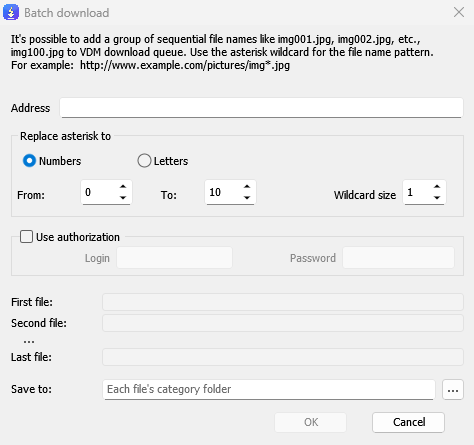
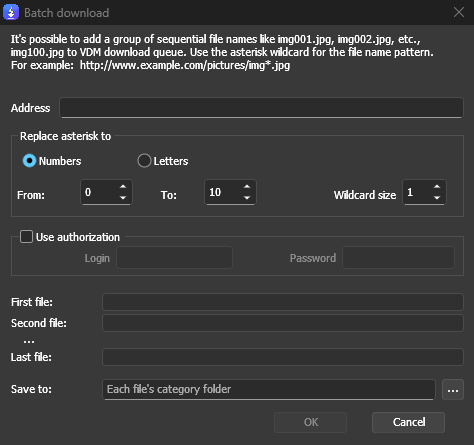
Voor bestanden waarvan de namen alleen verschillen door een nummer of een letter, zoals photo001.jpg tot photo150.jpg:
- Kies Taken → Batchdownload toevoegen. Heeft u één adres gekopieerd met een nummer in de bestandsnaam, zoals
https://example.com/show/ep01.mp4? Taken → Batchdownload toevoegen vanaf klembord (Ctrl+B) plaatst de asterisk waar het nummer stond, stelt Van en Jokerteken grootte daaruit in (ep*.mp4, vanaf 1, grootte 2) en wacht in Tot op het laatste nummer. - Schrijf in Adres het adres met één sterretje op de plek waar het nummer of de letter verandert:
https://example.com/photo*.jpg. - Kies onder Vervang sterretje door Nummers of Letters, en vervolgens Van en Tot.
- Stel voor nummers Jokerteken grootte in op het aantal cijfers. Bij 3 zijn de bestandsnamen
photo001.jpg,photo002.jpgenzovoort. - Als de server inloggegevens vereist, vinkt u Autorisatie gebruiken aan.
- Vink Eerste bestand, Tweede bestand en Laatste bestand aan.
- Als Opslaan in leeg wordt gelaten, plaatst VDM elk bestand in de map van de betreffende categorie (Opties → Opslaan in), of in de map van Algemeen als elke download naar één map gaat. Om alle bestanden van de batch in één map te plaatsen, typt u deze daar of kiest u deze met .... Klik vervolgens op OK.
The downloads go to a queue. As with Download Later, VDM asks which queue unless you turn off Options → Downloads → Show queue selection panel on closing batch download dialogs.
Een lijst met koppelingen
Alle koppelingen in een tekstbestand toevoegen:
- Kies Taken → Importeren → Uit tekstbestand.
- Pick the file. Link grabber lists every web address VDM found in it, in packages. While VDM reads a long file, the strip under the list of downloads says Reading and the file's name; you can go on using VDM meanwhile. Import reads files of up to 64 MB, far more than any list of links holds: a larger file (a video, an archive, a backup picked by mistake) is refused with a message.
- Deselecteer de adressen die u niet wilt toevoegen (Alles aanvinken en Alles deselecteren helpen hierbij) en klik op Toevoegen aan wachtrij.
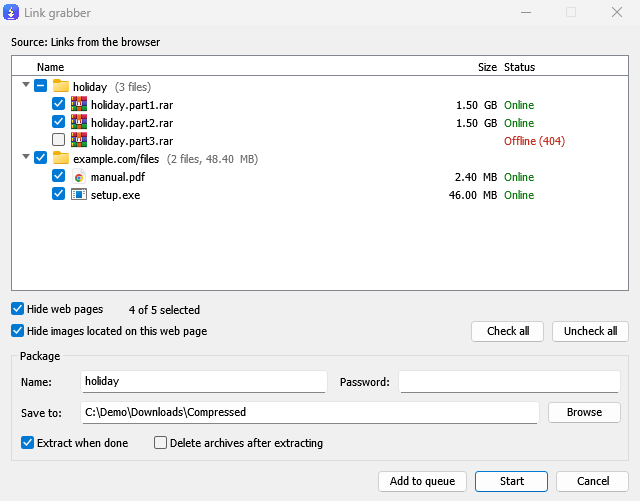
De downloads komen in de Hoofd-downloadwachtrij te staan, klaar om te starten (Starten start deze ook). Taken → Importeren → Uit IDM-exportbestand leest een .ef2-bestand, met de verwijzer en cookies van elke download, en de bestandsnaam die een lijst eraan geeft in een filename:-regel.
Taken → Link grabber... opent hetzelfde venster, maar dan leeg: plak er tekst met links in (Ctrl+V). Zie Link grabber en archieven voor informatie over de pakketten, het archiefwachtwoord en het uitpakken van archieven nadat ze zijn gedownload.
Om uw eigen lijst op te slaan, gebruikt u Taken → Exporteren → Naar tekstbestand (één adres per regel) of Naar IDM-exportbestand.
Wanneer het adres al in de lijst staat
By default VDM asks what to do when you add an address it already has. You can choose a fixed answer in Options → Downloads → If a duplicate download link is added:
- Een dialoogvenster weergeven en vragen wat te doen.
- Het duplicaat toevoegen met een genummerde bestandsnaam
- Het duplicaat toevoegen en het bestaande bestand overschrijven
- Als het bestand al volledig is, verschijnt het dialoogvenster 'Download voltooid'; anders wordt de download hervat.
Volgende stappen
- Send browser downloads to VDM →
- Een download volgen in het voortgangsvenster →
- Downloads in de wachtrij plaatsen voor later →
Gratis, open source, geen advertenties, geen proefversie.
Download Volt Download Manager