

VDM downloads videos from their web pages: YouTube, Vimeo, Dailymotion, Twitch, TikTok, X, Instagram, Facebook, Reddit, SoundCloud and well over a thousand other sites. yt-dlp, an open-source program whose community keeps it working as sites change, finds the video on the page; VDM's own downloader then brings it in, the way it downloads any file.
Een video downloaden
- Give the video's page address to Add URL (Ctrl+N). VDM recognises video pages and opens the video window, already looking the page up.
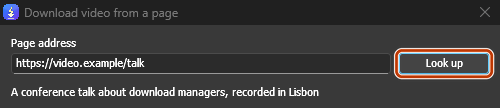
- Of kies Taken → Video downloaden van een pagina..., plak het adres in Pagina-adres en klik op Zoeken.
Elk ander webadres dat een webpagina blijkt te zijn, en geen bestand, wordt ook aangeboden in het videovenster. Op een site waar yt-dlp geen eigen lezer voor heeft, is de video degene waar de pagina over gaat, als er een wordt genoemd (in wat de pagina aan zoekmachines en linkvoorbeelden vertelt: de JSON-LD, og:video of twitter:player), in plaats van de eerste speler die in de HTML is geschreven. Het bestand krijgt de naam die de pagina eraan geeft.
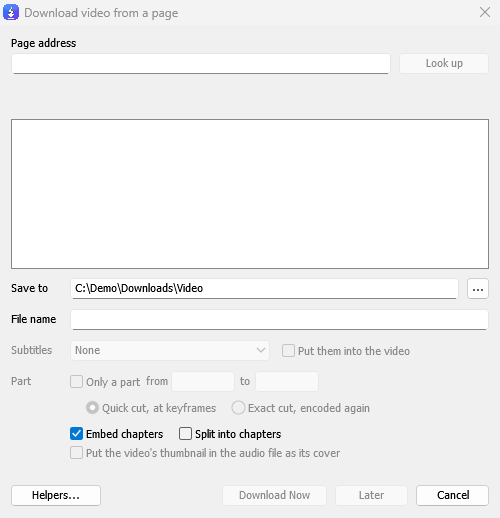
Plak het pagina-adres en klik op Zoeken. 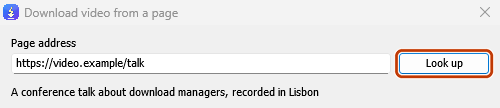
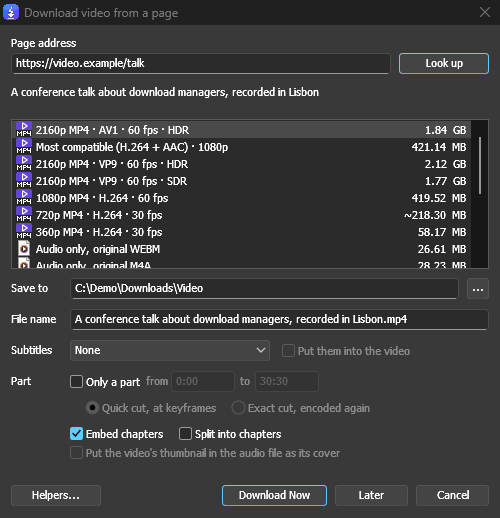
Kies een kwaliteit en klik dan op Nu downloaden. 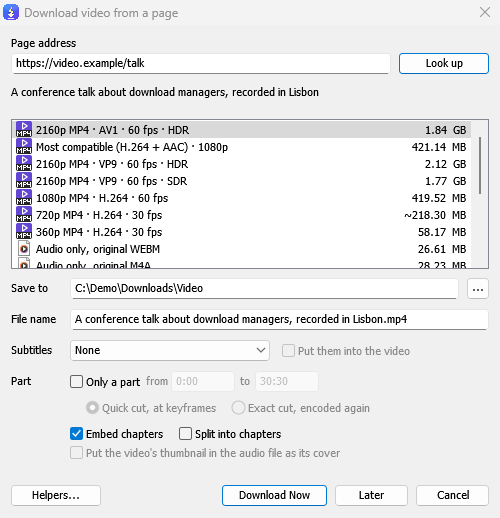
De video wordt net als elk ander bestand gedownload, met een eigen rij en venster. 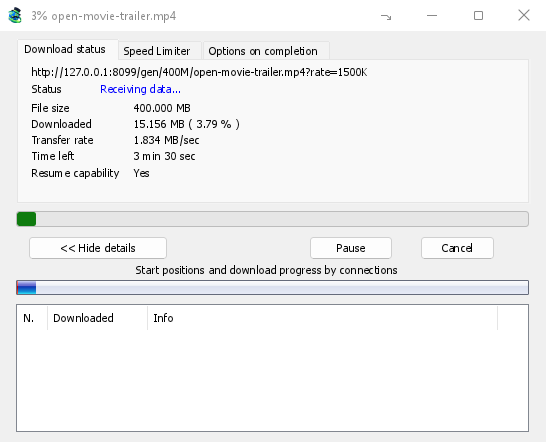
yt-dlp en ffmpeg
VDM offers its two helpers on its first start, and again the first time they are needed. It downloads them from their official releases with its own downloader, so a cut connection resumes, and uses your proxy settings:
- yt-dlp (about 23 MB) looks the page up and finds where the video and its sound come from; VDM downloads them (How a video comes down). The first time, click Install yt-dlp. VDM checks the download against the signature yt-dlp's developers publish before it uses it.
- ffmpeg (about 80 MB) joins a video and its sound when a site keeps them apart, which most sites do for the higher qualities, and turns the sound into an MP3, Opus or FLAC file. Click Install ffmpeg when VDM offers it. VDM installs only a build its maintainers checked: the download must match the SHA-256 in VDM's own list of builds, which carries VDM's signature. When that list can't be downloaded or checked, VDM says so and installs nothing; you can still choose your own ffmpeg in Helpers....
- Each processor gets its own build: yt-dlp's for x64, ARM64 and 32-bit Windows and for Linux on ARM, and ffmpeg's for x64 and ARM64 Windows. No ffmpeg is built for 32-bit Windows that VDM can check, so there VDM offers none: choose your own in Helpers... (below), or download the qualities that come with their sound.
You can install them ahead of time too: in Helpers..., a helper that isn't there yet says Not installed yet, and Install yt-dlp, Install ffmpeg or Install gallery-dl in its row downloads VDM's own copy, checked the same way, and keeps it up to date from then on. Where VDM has no copy for your system, the button is greyed out and the row says what to do instead.
Both are kept in a tools folder in VDM's data folder. For YouTube, yt-dlp also needs a JavaScript runtime, which VDM can download too: see A JavaScript runtime for YouTube.
Up-to-date houden
Sites change all the time, and a newer yt-dlp is usually what makes a page that stopped working download again. So VDM keeps its own copies of yt-dlp, gallery-dl, ffmpeg and Node.js up to date by itself:
- When: a few seconds after VDM starts, then again while it runs: yt-dlp and gallery-dl at most every 6 hours, Node.js once a day, ffmpeg once a week (a newer ffmpeg comes when VDM's list of checked builds names one, usually with a new version of VDM). VDM remembers when it last asked, so starting it many times doesn't ask again.
- How: each new version is downloaded and checked exactly as the first install was (yt-dlp's, gallery-dl's and Node.js's signed checksum lists, VDM's signed list of ffmpeg builds), never an older one, and installed beside the one in use.
- Wanneer het wisselt: alleen als geen download, opzoeking of andere uitvoering die helper gebruikt. Een video die downloadt wanneer de nieuwe yt-dlp arriveert, wordt voltooid met de versie waarmee het begon; de nieuwe wordt gebruikt vanaf het moment dat de laatste download die deze gebruikt, eindigt.
- De vorige versie blijft, zodat u ernaar kunt terugkeren. Oudere versies worden verwijderd.
- A video that fails with an error that usually means yt-dlp is out of date for the site (Unable to extract, Unsupported URL, YouTube's Sign in to confirm you're not a bot, HTTP Error 403, a failed signature or n challenge, Requested format is not available), or a gallery whose gallery-dl reports an unexpected error: VDM looks for a newer version at once, installs it if there is one, and tries that download again with it, once. Its log says so. If there is none, the error stands as before.
- A check that fails (no connection, GitHub busy) is tried again an hour later. It is written in VDM's log, never shown as an error.
In Helpers..., each of VDM's own copies says how it stands: Up to date, Version X available, Updated to X, or Version X is ready: used once its downloads end. Update gets the newest version of that one now, Go back to X uses the previous version again (automatic updates then wait for a version newer than the one you left; Update brings it back), and Check for updates checks them all. Untick Keep VDM's helpers up to date automatically to update only when you ask. Programs you chose with Use another program..., and your system's copies, say Updated by you: VDM leaves them to you.
Op de opdrachtregel controleert en werkt update-helpers ze allemaal bij en drukt hun versies af (Opdrachtregel).
Eigen kopieën gebruiken
On Linux and macOS, VDM finds yt-dlp, ffmpeg and gallery-dl on your PATH and in the usual package-manager folders, including Homebrew's. A program you selected yourself takes priority, followed by VDM's own installed copy. The system copy is used when neither is present, and your package manager keeps it up to date: VDM never downloads over it on its own. If your distribution's yt-dlp is old, Use VDM's own copy in Helpers downloads VDM's, which keeps itself current and is used from then on.
Already have yt-dlp or ffmpeg for another program? Use those instead of a second copy: in Download video from a page, click Helpers..., then Use another program... beside yt-dlp or ffmpeg, and choose the program. VDM runs it once to check that it is that program, and uses it from then on, the command line too. VDM doesn't update a program you chose: keep it up to date yourself (yt-dlp: yt-dlp -U, or your package manager). Use VDM's own copy goes back to the one VDM downloads and checks.
Een JavaScript-runtime voor YouTube
YouTube hides most of a video's qualities behind small puzzles that yt-dlp solves with a JavaScript runtime: Node.js, Deno, QuickJS or Bun. Without one, a look-up is slow, the list is short (sometimes only the sound and a low quality) or it fails with Requested format is not available, and VDM says so: YouTube needs a JavaScript runtime to list its video qualities. Other sites don't need one.
The quickest way is VDM's own copy of Node.js: click Install Node.js beside that message, or, in Helpers..., Install Node.js in the JavaScript runtime (for YouTube) row. The first start's setup offers it too, in its Video helpers step, when your computer has no runtime. VDM downloads Node.js's newest long-term support (LTS) build for your system and processor from nodejs.org with its own downloader (about 40 MB on Windows, 60 MB on Linux and macOS; Windows x64, ARM64 and 32-bit, Linux x64 and ARM64, macOS), checks the release's checksum list against the signing keys of Node.js's releasers and the download against that list before it uses it, keeps only the node program in the tools folder beside yt-dlp and ffmpeg, and from then on tells yt-dlp to use it. It keeps it up to date the way it keeps yt-dlp's (Keeping them up to date), never with an older version. 32-bit Windows gets the newest LTS line Node.js still builds for it, 22, which Node.js supports until April 2027; after that VDM has no Node.js for 32-bit Windows, and a runtime of your own (Use another program...) is needed there. VDM never installs a Node.js older than the LTS line current when that VDM was made, whatever nodejs.org's list says. The video is looked up again by itself once Node.js is in.
Already have one? Then nothing needs downloading: a runtime on your computer comes first. VDM finds Deno, Node.js (22 or newer, also one installed with nvm), QuickJS and Bun by itself, in the order yt-dlp prefers them, and passes over one too old for yt-dlp (Node.js 20, say) or a Node.js whose line has reached its end of life on nodejs.org's schedule (then VDM's own is used, which it keeps on a supported release). A supported Node.js of your computer's is used as it is: you or your package manager keep it up to date. Helpers says which one yt-dlp uses and where it is: Node.js 24.11.0, your system's, nothing to download. To use another one, a portable copy or one that isn't on the PATH, click Use another program... in that row and choose its program (node.exe, deno.exe, qjs.exe, bun.exe): VDM asks it for its version first and refuses one yt-dlp can't use. Use VDM's own copy goes back to the one VDM finds or downloads. (Choosing your own runtime was YairDies' idea.)
Earlier versions of VDM installed Deno. That copy keeps working until VDM's Node.js is in place (the next update check brings it, or Use VDM's own copy); then yt-dlp switches to Node.js and VDM removes its own Deno, once no download is using it. A Deno you installed yourself is never touched, nor VDM's own once you chose it with Use another program.... While VDM asks the runtimes on your computer for their versions, Helpers says Looking for a JavaScript runtime on this computer....
If you'd rather install one yourself, any of them works; then look the video up again. If VDM still says so, the new program's folder isn't on the PATH VDM started with (Windows' installers add it for programs started after them): quit VDM (Tasks → Exit) and start it again.
- Windows:
winget install DenoLand.Deno, ofwinget install OpenJS.NodeJS.LTS. De installers op deno.com en nodejs.org werken ook. - Ubuntu en Debian:
sudo apt install nodejs - Fedora:
sudo dnf install nodejs - Arch:
sudo pacman -S nodejs, ofsudo pacman -S deno - macOS:
brew install deno, ofbrew install node - Elk systeem, Deno alleen voor uw gebruiker:
curl -fsSL https://deno.land/install.sh | sh(op Windows, in PowerShell:irm https://deno.land/install.ps1 | iex)
A distribution's yt-dlp can also be too old for YouTube: if the list stays short, click Use VDM's own copy beside yt-dlp in Helpers.... A yt-dlp older than 2025.11.12 can't be told of a runtime at all; VDM then leaves the runtime out rather than stop the look-up.
Een kwaliteit kiezen
- Wait for the list. It shows each quality with its size, best first, then the sound alone:
- A video's line says its resolution, the file it makes, its picture's codec, its frame rate and whether it is HDR:
2160p MP4 · AV1 · 60 fps · HDR. MP4 is only the file: what's inside it can be AV1, VP9 or H.264, and the codec says which, the very one that downloads (should the site no longer offer that stream, VDM takes the nearest of the same codec and resolution first). A resolution that comes in several (AV1, VP9 and H.264, HDR and SDR) has a line for each: AV1 makes the smallest file, H.264 plays on the most devices, and an HDR video looks washed out on a screen without HDR.SDRis said only beside an HDR line of the same resolution. - Most compatible (H.264 + AAC), second in the list: the best H.264 video the site has (YouTube's usually go up to 1080p) with AAC sound (in stereo when the site has it beside surround), in an MP4 that Premiere Pro and other editors, older TVs and most phones open as it is. YouTube's best qualities are AV1 or VP9 with Opus sound, which some of them can't read. The line says its resolution:Most compatible (H.264 + AAC) · 1080p. VDM picks those streams, it doesn't convert anything: when the site has no H.264 video with AAC sound the line isn't there, and when the best line already is that, it isn't listed twice. - The size is that of exactly what downloads, the video and its sound. A size with~before it (~532 MB) is only an estimate: the site didn't say the size, so it comes from the stream's bitrate and length. - Audio only, original: the site's own file, not converted, once for each type the site has it in (WebM with Opus inside, M4A), the best first. The best sound there is, in the smallest file. - Audio only MP3 at its best variable bitrate (VBR) and at 320, 256, 192 and 128 kbps, for players that only take MP3. - Audio only OPUS: an.opusfile. When the site's sound is Opus already (YouTube's usually is), it's only moved into that file, not converted, so nothing is lost. - Audio only FLAC: a lossless.flacfile, for a library or a program that wants FLAC. It can't add quality: the site's sound is already compressed with losses, and FLAC keeps it exactly as it came, in a file several times bigger. The window says so when you choose it. - Kies een optie. Zonder ffmpeg worden alleen de kwaliteiten vermeld waarbij het geluid al is inbegrepen. Er zijn dan geen opties voor MP3, Opus of FLAC (die maakt ffmpeg).
- Controleer Opslaan in (standaard de map van de categorie Video) en Bestandsnaam, die afkomstig is van de videotitel. Een lange titel wordt ingekort, aan het einde van een woord, zodat de bestanden die naast de video worden opgeslagen terwijl deze wordt gedownload, passen binnen de systeemlimiet voor de lengte van een pad; een naam die u typt, wordt behouden zoals u deze hebt getypt.
- When the video's sound comes in several languages, choose one in Sound (see The sound's language). Choose Subtitles if you want them (see below). Embed chapters is ticked: see Chapters. To keep only a stretch of it, tick Only a part: see Download only a part. For a sound alone, Put the video's thumbnail in the audio file as its cover is ticked: see A cover for the sound.
- Klik op Nu downloaden, of op Later om het aan de lijst toe te voegen zonder te starten.
De video wordt vervolgens gedownload als elk ander bestand, met een eigen rij in de lijst en een voortgangsvenster.
Hoe een video wordt gedownload
yt-dlp looks the page up and picks the quality's video and sound. VDM's own downloader then brings each of them in, one after the other, the way it downloads any file:
- Via meerdere verbindingen: zoveel als Opties → Verbinding voor een bestand opgeeft. De verbindingentabel van het voortgangsvenster toont elke verbinding, en de segmentkaart toont eerst de video en daarna het geluid.
- A stream sent in many small pieces (HLS, DASH, as most sites other than YouTube send theirs) comes down that many pieces at once, each kept on disk as it arrives, then joined in order into one file, as yt-dlp joins them. Pieces encrypted with AES-128 are decrypted with the key the stream's playlist names. When their addresses expire, VDM asks yt-dlp for the stream's new list and carries on with the pieces still missing.
- Binnen uw snelheidslimieten: die van de Snelheidsbegrenzer, de eigen limiet van de video (het tabblad Snelheidsbegrenzer van het voortgangsvenster), en de limiet voor alle downloads samen. Een wijziging wordt direct toegepast.
- Paused and resumed like a file, also after quitting VDM: it carries on from the bytes already saved.
- When an address stops working: a video's addresses are signed and expire after a few hours (YouTube's after six). VDM asks yt-dlp for a fresh one for the same quality and carries on from where it stopped.
Daarna doet yt-dlp wat het na een download doet: het voegt de video en het geluid samen met ffmpeg tot één MP4, slaat de ondertitels op of sluit ze in, plaatst de hoofdstukken in het bestand en converteert het geluid voor een MP3-, Opus- of FLAC-keuze.
YouTube serves each connection's long requests slowly, so VDM asks for the video in pieces of 10 MB at most, as yt-dlp does, and several at once.
Sommige video's downloadt yt-dlp nog steeds zelf, via een eigen verbinding, en het voortgangsvenster geeft dit aan:
- een livestream die nog wordt opgenomen (Een livestream opnemen);
- een stream verzonden via RTMP, RTSP, MMS of FTP;
- de zeldzame streams in delen van andere soorten (Adobe's HDS, Microsoft's Smooth Streaming), en een waarvan de sleutel de site rechtstreeks aan yt-dlp geeft.
Hiervoor start een nieuwe snelheidslimiet de download opnieuw, vanaf waar deze was (Snelheidslimieten); een livestream die wordt opgenomen, neemt deze de volgende keer dat deze start.
Een livestream opnemen
A live stream, a broadcast still going on, is recorded by yt-dlp with ffmpeg into an unfinished file, so VDM can't know its length. While it records, the progress window says Recording..., and Downloaded and Transfer rate follow the size of what has been recorded so far.
- Opnemen... wordt getoond vanaf het moment dat de recorder zijn bestand opent, zodra deze verbinding heeft gemaakt met de stream (een paar seconden nadat de download start; tot dan toont het venster Verbinden...; een stream die niet bereikbaar is, komt daar nooit). Gedownload toont wat de schijf heeft bereikt, en de recorder schrijft het in blokken van 256 KB, dus het blijft op 0 KB totdat het eerste blok is geschreven (dat kan even duren bij een stream met lage bitrate), en groeit dan blok voor blok. Stoppen en opslaan vóór het eerste blok bewaart nog niets: de download blijft gestopt, met zijn lege bestand, zodat Hervatten opnieuw kan opnemen. Een leeg onvoltooid bestand dat een eerdere uitvoering heeft achtergelaten, wordt verwijderd wanneer de opname opnieuw start (het bevat niets), dus een hervatte opname toont Opnemen... vanaf hetzelfde moment.
- Stop and save is what the progress window's pause button reads for a live stream that is recording. It, Stop and Stop All in the list (toolbar and menus), a queue's stop (by hand, at its scheduled stop time, or through the API) and the phone page's pause all end the recording and keep it. VDM makes the recording an MP4 itself, as yt-dlp does when a live stream ends: the streams are copied as they are, nothing is converted. The window says Saving... meanwhile, and the download is then Complete, as when a live stream ends by itself: the queue goes on and the completion notice and actions run.
- De laatste momenten kunnen ontbreken: maximaal de laatste 1 MiB die de recorder nog niet had geschreven. Dat is een paar seconden video, en tot ongeveer een minuut voor een stream met alleen geluid.
- Als de MP4 niet kan worden gemaakt, wordt de opname bewaard als een MPEG-TS-bestand (
.ts), dat de meeste spelers openen. Als dat ook niet kan, vermeldt de download dit en blijft het onvoltooide bestand zoals het is. - De opname wordt alleen verwijderd wanneer de MP4 alles bevat: zolang de opname tot op een seconde nauwkeurig is, het beeld en het geluid elk ook (de duur van ffprobe; zonder deze, minstens 90% van de grootte van de opname). Een kortere MP4 wordt bewaard met de opname ernaast, als
My stream (recording 1).ts, en het logboek van de download vermeldt waarom (als de opname niet kan worden hernoemd, vermeldt het logboek dit: het blijft als het onvoltooide bestand). - A live stream that ends by itself while VDM records it is made an MP4 the same way, with the same check: yt-dlp is told to leave its recording as it is, and VDM makes the MP4 of it (when it has ffmpeg and the recording is the MPEG-TS yt-dlp made). From the moment yt-dlp says the recording is finished, the window says Saving... (only a moment when there is no MP4 to make), and a Stop waits for it: the download is then Complete. The recording goes only when the MP4 holds all of it, it is kept beside a shorter one, and if no MP4 can be made it is the download's
.tsfile (My stream (recording 1).tswhenMy stream.tsis taken). Subtitles asked to go inside the video are saved beside it instead, and no chapters are added: the recording isn't changed once it is made. - MP3, Opus of FLAC van een livestream: het geluid wordt opgeslagen zoals gevraagd, en de opname waarvan het is gemaakt, blijft ernaast, als
My stream (recording 1).ts. - Een afbeelding en een geluid die yt-dlp zelf heeft samengevoegd nadat de stream was afgelopen, blijven naast de video, zoals yt-dlp ze heeft achtergelaten, wanneer de video niet alles van beide bevat; anders verdwijnen ze.
- A recording yt-dlp finished but VDM didn't make an MP4 of (a try that failed just after, or VDM closed meanwhile) is still MPEG-TS under the MP4's name. Before the download starts again, VDM makes it an MP4 with the same check (the list says Merging meanwhile, and a Stop waits for it, then stops the download before anything else runs): when the MP4 holds all of it, it is the download. Otherwise the recording is kept as
My stream (recording 1).tsand the download starts over. Without VDM's ffmpeg it is set aside the same way. The same goes for a normal video in pieces (HLS) VDM's engine left as MPEG-TS inMy video.mp4when yt-dlp failed or was stopped while it fixed it up. - Een opname in meerdere delen (een beeld- en een geluidsdeel die yt-dlp apart heeft gelaten) wordt één MP4 met alle delen. Als ze niet kunnen worden samengevoegd, vermeldt de download dit en blijft elk deel zoals het is.
- Cancel in the progress window only stops the download: the recording stays in its unfinished file. So does reaching a download limit, which counts a recording as it grows and stops it as it stops other downloads. Resume, or VDM starting the download again by itself (after a network adapter change or the download limit, or a queue that starts when VDM opens), records the stream anew. It first sets the earlier recording aside, next to it, as
My stream (recording 1).ts(then(recording 2), and so on), so nothing is recorded over; so it does when the stream has ended meanwhile and the download goes on as a normal video. (An unfinished MPEG-TS file yt-dlp downloads directly, without its resume state, is taken for a recording the same way: it starts over, what it had kept aside.) If that file can't be set aside, VDM doesn't record over it and says so. - Deze bewaarde opnames zijn niet de eigen bestanden van de download: Verwijderen met zijn bestanden laat ze staan.
- Closing VDM while a live stream records, or while it saves one, stops it without saving: the recording stays in its unfinished file (a half-made MP4 is left as
<name>.temp.mp4, which Delete with its files removes), and it is set aside when the download starts again. The command line (voltdownloadmanager-cli) doesn't save a live stream this way. - Een livestream die is opgeslagen door het stoppen van een wachtrij, telt als voltooid, dus een dagelijkse wachtrij start deze de volgende dag niet opnieuw.
The sound's language
More and more videos come with their sound in several languages: the one they were made in, the original, and others dubbed (YouTube's dubbed and automatically dubbed tracks, for one). When the site names each track's language, Download video has a Sound list under File name, the original first and marked: English, original, then Deutsch · German, Español · Spanish... (each language in its own words, and in English when that differs). A video in one language has no such list and looks as before.
- The qualities follow it. Every line in the list is then in that language: a video line joins its picture with that language's sound and its size is theirs, and Audio only (as the site has it), MP3, Opus and FLAC take that language's sound. A video line whose file carries another language's sound (YouTube's 360p in one file) isn't offered for a dubbed language; without ffmpeg, which joins a picture and a sound, only the sound in that language is.
- One sound track per file. The file has the language chosen, never two.
- For every video and playlist: Options → Regional → Videos' sound chooses one language, which every video looked up starts on when it has it (in Download video, where you can still choose another, and in the button over a video) and which every video of a playlist downloads with. A video without that language comes with its original sound. Each video's original, the default, keeps every video in the language it was made in.
- The button over a video says the language of each line's sound in its menu, and its Audio tab has each other language's sound as the site has it too.
- If the site no longer offers that language when the download starts, the video comes with its original sound.
A cover for the sound
A sound saved alone has no picture, so music players show an empty square. With Put the video's thumbnail in the audio file as its cover ticked in Download video (under Embed chapters), the picture the site shows for that video becomes the file's cover once it is saved.
- It is ticked to begin with, and stays as you leave it for the next video. It applies to a playlist's sound too.
- Which files: an M4A as the site has it (Audio only, original M4A), and an MP3, Opus or FLAC. A WebM (Audio only, original WEBM, YouTube's Opus as it comes) can't hold a cover: choose M4A or Opus instead. Videos are saved as they are.
- How: VDM brings the picture in with its own connections (your proxy and network adapter, as every download), from where the site says that video's picture is, nothing from anywhere else. ffmpeg puts it into the file as its cover (Opus files as the picture comment music players read in them), copying the sound as it is: nothing is encoded again. A WebP picture is made a JPEG first.
- It needs ffmpeg. Without it, or when the picture can't be had, the file is saved as before, without a cover, and the download's log says why.
Ondertitels
Als de video ondertitels heeft, kunt u die kiezen in de lijst Ondertitels. Eerst staan de talen van de uploader zelf (en Alle ondertitels van de uploader als er meerdere zijn), gevolgd door de automatische ondertiteling van de site, gemarkeerd met automatisch. Daarvan worden alleen de ondertitels in de gesproken taal en de vertalingen in het Engels en de taal van uw interface weergegeven. Sites zoals YouTube bieden automatische vertalingen in alle talen die ze ondersteunen.
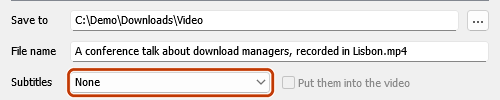
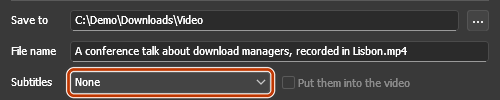
- Als de ondertitels naast de video worden opgeslagen, krijgen ze de naam van de video en de taal:
My video.fr.srt. Spelers zoals VLC en MPV vinden ze automatisch. Met ffmpeg zijn de ondertitels altijd SRT; zonder ffmpeg worden ze opgeslagen in de indeling van de site (vaak WebVTT,.vtt). - In de video plaatsen plaatst ze in plaats daarvan in het bestand, als tracks die u in de speler inschakelt. Het vereist ffmpeg en een MP4- of MKV-video. De opname van een livestream bewaart ze ernaast (Een livestream opnemen).
- Bij een optie met alleen geluid (Alleen audio, MP3, Opus, FLAC) zijn geen ondertitels beschikbaar.
VDM offers the same choice again for the next video when it has that language.
A site may refuse subtitles when it's asked too often: YouTube does, most of all for its translated captions. The video is saved all the same. VDM asks for the subtitles once more after 20 seconds, and if they still don't come, the Download complete window and the download's log say which ones are missing and why. Try them again later. When subtitles meant to go inside the video only come on that second try, they're saved beside it instead.
Hoofdstukken
Veel video's zijn op hun pagina in hoofdstukken verdeeld: de lijst van YouTube onder de speler, met een titel en een starttijd voor elk deel. Als Hoofdstukken insluiten is aangevinkt, onder Ondertitels, worden ze in het videobestand geplaatst, zodat spelers zoals VLC, MPV, MPC-HC en Windows Media Player ze weergeven en van het ene naar het volgende kunnen springen.
- Het is standaard aangevinkt en blijft zo staan voor de volgende video.
- Hiervoor is ffmpeg nodig, dat ze schrijft. Een video zonder hoofdstukken wordt opgeslagen zoals hij is.
- Ze gaan in een video (MP4, MKV, WebM) en in het geluid zoals de site het heeft (Alleen audio, origineel), niet in een MP3-, Opus- of FLAC-bestand, noch in de opname van een livestream.
- De opdrachtregel (
video-get) voegt ze ook toe, wanneer ffmpeg aanwezig is.
Als Splitsen in hoofdstukken is aangevinkt (naast Hoofdstukken insluiten, of eronder in een lange taal), wordt de video ook gesplitst in afzonderlijke hoofdstukbestanden (<filename> - <NN> - <chapter name>.<ext>, of <filename> - <NN>.<ext> wanneer zonder titel). De hele video wordt ook bewaard.
- Het vereist ffmpeg en blijft zoals u het achterlaat voor de volgende video.
- Splitting uses stream copy without re-encoding, so it runs losslessly and near-instantly. Each cut lands on a keyframe, so a chapter can start a second or a few early (yt-dlp's
--force-keyframes-at-cutsmakes it exact, but re-encodes, so VDM does not turn it on by default). - Een video zonder hoofdstukken of met één hoofdstuk wordt als één bestand opgeslagen zonder te splitsen.
- De titel van een hoofdstuk wordt ingekort om te voldoen aan de systeemlimieten voor bestandsnamen en paden; in een zeer diepe map wordt een hoofdstuk alleen met zijn nummer benoemd.
- Het wordt niet aangeboden met Alleen een deel: een deel heeft geen hoofdstukken.
- De opdrachtregel
video-getenplaylist-getondersteunen dit via--split-chapters. - Het verwijderen van de download samen met de bestanden ruimt ook de gesplitste hoofdstukbestanden op, terwijl niet-gerelateerde bestanden in dezelfde map behouden blijven.
Alleen een deel downloaden
Om slechts een deel van een video of geluid op te slaan (een scène, een nummer uit een lange mix, een paar minuten van een podcast), vinkt u Alleen een deel aan op de rij Deel, onder Ondertitels, en typt u waar het begint en waar het eindigt.
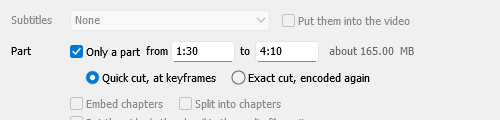
- Tijden worden getypt als
1:30(anderhalve minuut),1:02:03(een uur, twee minuten en drie seconden) of in seconden (90). De vakjes beginnen bij de hele video, van 0:00 tot het einde; Omhoog en Omlaag verplaatsen een tijd met een seconde, Page Up en Page Down met tien. Een vakje wordt rood zolang de tijd niet geldig is (het is geen tijd, het einde komt vóór het begin, het is voorbij het einde van de video, of het deel is de hele video), en Nu downloaden vermeldt waarom. - Snel knippen, bij keyframes, de eerste keuze: het beeld en het geluid worden gekopieerd zoals ze zijn, niets wordt opnieuw gecodeerd, dus het is snel en verliest niets. Een beeld kan alleen schoon beginnen bij een keyframe, dus het deel begint bij de laatste vóór uw start: hooguit een paar seconden te vroeg, nooit te laat. Een geluid alleen in een M4A begint waar u zegt; in een WebM (Opus) bij het laatste zoekpunt ervoor, wat tien seconden te vroeg kan zijn.
- Exact knippen, opnieuw gecodeerd: het deel begint en eindigt waar u zei. ffmpeg codeert het opnieuw (H.264 en AAC in een MP4, VP9 en Opus in een WebM, het geluid alleen in zijn eigen formaat), wat ongeveer even lang duurt als het coderen van dat aantal minuten op uw computer, en het beeld kan een beetje verliezen.
- De grootte naast de tijden is een schatting: het aandeel van het deel in het geheel.
- Bestandsnaam vermeldt het deel:
My video (1m30s-4m10s).mp4. Een naam die u typt, wordt behouden zoals u die hebt getypt. - Geen ondertitels en geen hoofdstukken gaan samen met een deel: ze zouden van de hele video zijn, op de tijden van de hele video. Ondertitels en Hoofdstukken insluiten zijn grijs terwijl Alleen een deel is aangevinkt.
- Het heeft ffmpeg nodig, dat het deel knipt, en een video waarvan de lengte door de site wordt vermeld (geen livestream). De video's van een afspeellijst worden volledig gedownload.
- Vanuit de browser: het menu van de knop Video downloaden boven een video heeft Een deel vanaf hier downloaden.... Dit opent dit venster met Alleen een deel aangevinkt en de start ervan waar de video wordt afgespeeld.
How a part comes down: yt-dlp's ffmpeg finds the part in each stream by the stream's own index (an MP4's or a WebM's, an HLS stream's playlist) and reads only that part, never the whole file. What it reads comes in through VDM's own connections, in requests of a MB at most, several at once: a part comes about as fast as a whole video would (YouTube sends one long request at about the video's own pace), under your speed limits (a change applies at once), and through your proxy or network adapter. The progress window shows what has come against the part's estimated size. Paused and resumed, a part starts again from its beginning: ffmpeg can't go on from the middle of a cut. A stream sent another way (a DASH manifest, RTMP) is read by ffmpeg itself.
Afspeellijsten en kanalen
Plak het adres van een afspeellijst (youtube.com/playlist?list=…) of de video's van een kanaal (youtube.com/@name/videos) en klik op Zoeken. In plaats van de kwaliteitsopties voor één video toont het venster de video's in de lijst, elk met de speelduur.
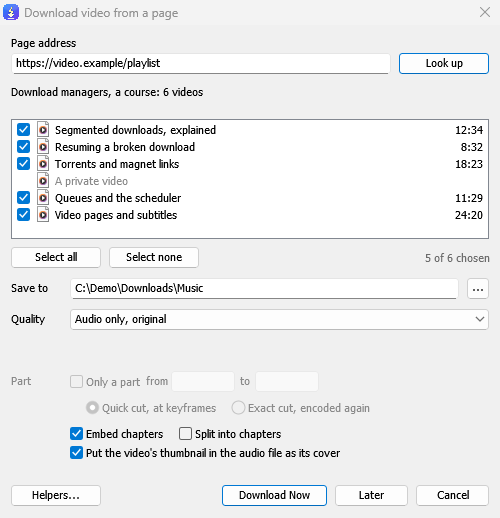
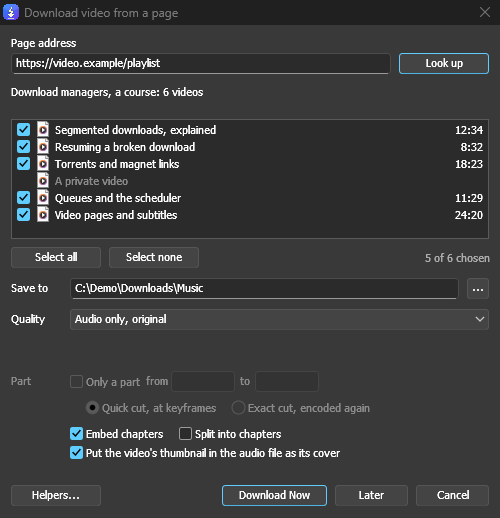
- Een afspeellijst wordt in zijn geheel weergegeven terwijl de video's binnenkomen. De regel boven de lijst geeft aan hoever het proces is ("Video's weergeven: 1,200 van 6,000"). Met Lijstweergave stoppen behoudt u de video's die al in de lijst staan. Met De rest weergeven gaat u verder waar u was gebleven. Als de site halverwege niet meer reageert (dit kan bij YouTube gebeuren als er te vaak om wordt gevraagd), geeft het venster aan na hoeveel video's dit gebeurde en waarom. Met De rest weergeven probeert u het vanaf dat punt opnieuw.
- Een kanaal wordt weergegeven in groepen van 50 video's, met de nieuwste eerst. Met Meer laden worden de volgende 50 weergegeven.
- Alle video's zijn standaard aangevinkt. Schakel de video's die u niet wilt uit of gebruik Alles selecteren en Niets selecteren. Privévideo's en verwijderde video's worden grijs weergegeven en kunnen niet worden aangevinkt.
- The sound's language: every video of the list downloads with Options → Regional → Videos' sound's language when it has it, else its original (The sound's language).
- Kwaliteit is van toepassing op elke video: Beste kwaliteit, Meest compatibel (H.264 + AAC) (het beste H.264-beeld van elke video met AAC-geluid; een video die dit niet heeft, wordt niet gedownload), Tot een bepaalde hoogte (elke video op die hoogte, of de dichtstbijzijnde daaronder), Alleen audio, origineel, Alleen audio MP3, Alleen audio OPUS of Alleen audio FLAC. Zonder ffmpeg worden alleen de kwaliteiten aangeboden die met hun geluid komen, en geen MP3, Opus of FLAC.
- De video's worden elk onder hun eigen titel opgeslagen in een map met de naam van de lijst, in Opslaan in.
Nu downloaden voegt elke video toe als een aparte download en start de hoofdwachtrij. Die downloadt zoveel bestanden tegelijk als is ingesteld in de Planner (N bestanden tegelijk downloaden). Later voegt de video's toe zonder de downloads te starten. Bij het toevoegen van meer dan 500 video's tegelijk wordt eerst om bevestiging gevraagd.
VDM lists at most 20,000 videos of one list.
Een pagina-adres dat verwijst naar één video in een afspeellijst of mix (bijvoorbeeld watch?v=…&list=…) downloadt alleen die video, nooit de hele lijst.
Snelheidslimieten
Videos keep to the Speed Limiter: the limit for one file, a video's own limit (the Speed Limiter tab of its progress window), and the limit for all downloads together, which they share with every other download. VDM's own downloader brings them in, so a change applies at once, as for a file.
A video yt-dlp downloads by itself (How a video comes down) takes a limit only as it starts: when you turn the limiter on or off, change its settings or the video's own limit, VDM stops it and starts it again with the new limit, and it goes on from where it was (the log says "Stopped: the speed limit changed; starting again with it"). A live stream that is recording is the exception: restarting it would cut the recording, so it keeps recording and takes the limit the next time it starts. Under the limit for all downloads, such videos share it evenly: when another starts, the ones running with more than their share start again with it; when one ends, the others keep theirs. A gallery's pictures that VDM brings in follow a change at once; what gallery-dl still fetches itself starts again with the new limit, skipping the files already saved. Other changes (torrents taking more or less of the limit for all downloads, Only while I'm using the computer) apply to the next one that starts.
Via de adapter van een VPN
With Options → Proxy / Socks → Network adapter set, video downloads go through that adapter too, with the same kill switch as other downloads. VDM's own downloader opens its connections through the adapter as for any file; for yt-dlp's look-ups (and what it downloads itself, with the ffmpeg it starts) VDM hands it a proxy of its own on this computer, and opens every connection through the adapter, looking the names up with the DNS you chose in Options → Connection (without an adapter, yt-dlp uses the system's DNS). When the adapter disconnects, the video download stops, and it starts again when the adapter is back. Formats sent over RTMP, RTSP, MMS or FTP can't go through it and are refused.
Sites waarvoor u moet zijn aangemeld
Sommige video's worden alleen afgespeeld voor een ingelogde kijker: een video voor leden of een privévideo, of een video met leeftijdsbeperking. En YouTube vraagt soms aan kijkers van een netwerk dat het wantrouwt (een VPN, een gedeeld of cloudadres) om "In te loggen om te bevestigen dat u geen bot bent". yt-dlp heeft dan de cookies van uw browser nodig, de kleine bestanden die u ingelogd houden.
- De knop Video downloaden boven de video geeft de cookies van die pagina door, vanuit het venster en profiel waarin u zich bevindt (een privévenster, een Firefox-container), voor het opzoeken en downloaden, zodat u bent ingelogd zoals u in de browser bent. Niets in te stellen. Elke cookie hoort bij het domein waarvoor de browser deze bewaart, dus een aanmelding op YouTube Music (music.youtube.com) of de mobiele site van YouTube bereikt ook www.youtube.com.
- Een geplakt adres (URL toevoegen, Video downloaden van een pagina, een afspeellijst): kies uw browser in Opties → Siteaanmeldingen → Cookies voor videosites. yt-dlp leest dan de cookies van die browser op deze computer voor elke video die wordt opgezocht of gedownload. Wanneer de extensie de eigen cookies van de pagina heeft doorgegeven, worden die gebruikt: het zijn die van die pagina en die sessie.
- Een reserveaccount, in een eigen profiel: u hoeft yt-dlp uw hoofdaccount niet te lenen. Maak een tweede profiel in uw browser, log daar in op de site met een reserveaccount en plaats dat profiel in Profiel (de naam, of de map met ...). yt-dlp leest alleen de cookies van dat profiel. De ontwikkelaars van yt-dlp adviseren dit ook: een site kan een account beperken dat door een programma wordt gebruikt.
Signed in, YouTube sometimes refuses what it gives a visitor: its servers answer the video with HTTP Error 403: Forbidden, or the look-up with its bot check, where a private window plays it. When YouTube refuses a video anyone may watch that way, VDM looks it up once more without your cookies, as a private window would, and the download's log says so. A private, members' or age-restricted video keeps them.


Sign in to the site in that browser first. VDM never logs or shows the cookies; the download's log names only the browser they came from.
Welke browsers
Van browser toont de browsers die yt-dlp leest: Firefox, Chrome, Edge, Brave, Opera, Vivaldi, Chromium en Whale, en Safari op macOS. Profiel is optioneel: de naam van een profiel (Profile 1) of de map ervan; leeg, het laatst gebruikte profiel.
- Firefox werkt op elk systeem. Als u zich net hebt aangemeld terwijl Firefox open was, sluit het dan één keer zodat het de aanmelding naar zijn bestanden schrijft.
- Chrome, Edge en Brave op Windows vergrendelen hun cookies voor zichzelf (Chrome 127 en later, "app-bound encryption"), en yt-dlp kan ze ook niet lezen terwijl de browser open is. Het venster zegt dit; kies Firefox, of gebruik de knop boven de video, die werkt met elke browser.
- Op Linux bewaren Chrome-familiebrowsers de sleutel tot hun cookies in de sleutelhanger van het systeem (GNOME Keyring, KWallet); yt-dlp vraagt deze op, dus deze moet ontgrendeld zijn.
- Een andere browser gebouwd op Chromium (Helium, Thorium, ungoogled-chromium...): kies Chromium en de profielmap van die browser (de
Default-map, ofProfile 1...; onder~/.configop Linux,%LOCALAPPDATA%op Windows). yt-dlp leest de map, maar een browser die zijn sleutel onder zijn eigen naam in de sleutelhanger bewaart, of zijn cookies vergrendelt zoals Chrome dat doet, kan op deze manier niet worden gelezen: gebruik de knop van de extensie.
Als een videoserver niet bereikbaar is
Some sites, YouTube among them, send each viewer to a nearby video server, sometimes one inside the internet provider's own network. If that server can't be reached from your connection, a browser quietly switches to another one, but yt-dlp on its own would give up. Before each video download VDM checks the servers in the video's links and, if one doesn't answer, switches to the next one the site lists. The download's log says when this happens.
Als een video niet kan worden gedownload
- Beweeg de muisaanwijzer over Status van de download of open het voortgangsvenster om de melding van yt-dlp te lezen.
- Geen video die kan worden gedownload op deze pagina betekent dat yt-dlp niets op de pagina heeft gevonden. Controleer of het adres de pagina van de video zelf is.
- Voor deze video moet u zijn aangemeld, of de site wil dat u bent aangemeld: zie Sites waarvoor u moet zijn aangemeld.
- Sites change often, and a newer yt-dlp usually fixes it. VDM keeps its own yt-dlp up to date by itself, and when a download fails in a way that usually means yt-dlp is out of date, it looks for a newer one at once and tries again (Keeping them up to date). To check right now: Helpers... → Check for updates. If you chose your own yt-dlp in Helpers, update it yourself (
yt-dlp -U, or your package manager). - The path is too long for Windows (or the file name is too long) means the folder and the file name together, with the files saved beside the video while it downloads, are longer than the system allows: 259 characters on Windows unless long paths are turned on there, 255 a name (255 bytes on Linux and macOS). VDM shortens a title by itself, so this comes from a name you typed or a very deep Save to folder: add the video again with a shorter name, or a folder nearer the top of the drive.
- Videos protected with DRM (most paid streaming services) can't be downloaded, and VDM doesn't try. The browser extension's Media on this page shows such a stream as Protected and doesn't send it.
- Als het venster de video op een pagina niet kan vinden, speel de video dan af in uw browser. Gebruik daarna Media op deze pagina in de extensie om de stream die de pagina heeft geladen naar VDM te sturen.
- Downloaden kan in strijd zijn met de voorwaarden van sommige sites. U bent zelf verantwoordelijk om dit te controleren.
- Komt u er nog steeds niet uit? Gebruik Help → Een probleem melden en vermeld het pagina-adres.
Volgende stappen
Gratis, open source, geen advertenties, geen proefversie.
Download Volt Download Manager