

VDM downloads videos from their web pages: YouTube, Vimeo, Dailymotion, Twitch, TikTok, X, Instagram, Facebook, Reddit, SoundCloud and well over a thousand other sites. yt-dlp, an open-source program whose community keeps it working as sites change, finds the video on the page; VDM's own downloader then brings it in, the way it downloads any file.
Iniciar um download de vídeo
- Give the video's page address to Add URL (Ctrl+N). VDM recognises video pages and opens the video window, already looking the page up.
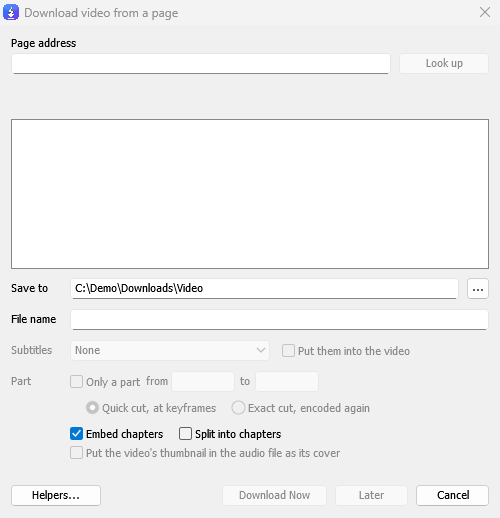
- Ou escolha Tarefas → Baixar vídeo de uma página..., cole o endereço em Endereço da página e clique em Pesquisar.
Qualquer outro endereço de página que seja uma página da web, não um arquivo, também é oferecido à janela de vídeo. Em um site para o qual o yt-dlp não tem um leitor próprio, o vídeo é aquele que a página diz ser, quando nomeia um (no que informa aos mecanismos de busca e prévias de links: seu JSON-LD, og:video ou twitter:player), em vez do primeiro player escrito em seu HTML, e o arquivo é nomeado como a página o nomeia.
Cole o endereço da página e clique em Pesquisar. 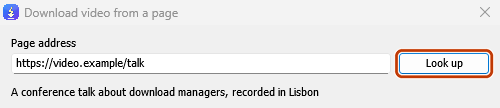
Escolha uma qualidade e, depois, Baixar Agora. 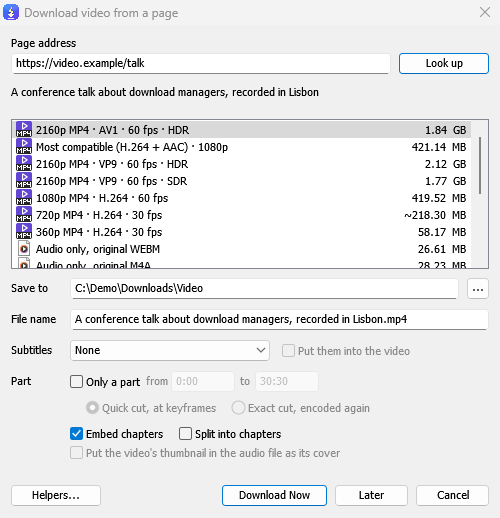
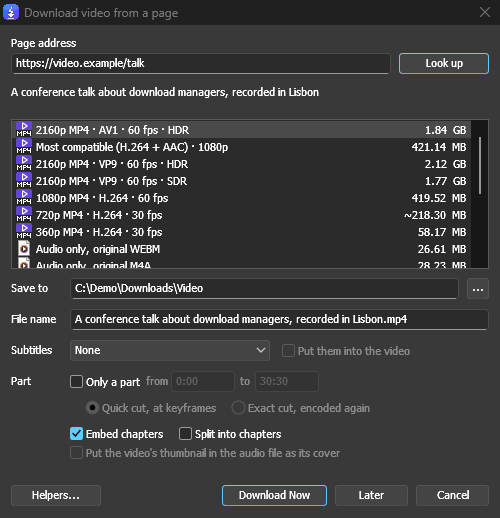
O download é feito como o de qualquer outro arquivo, em uma linha e uma janela próprias. 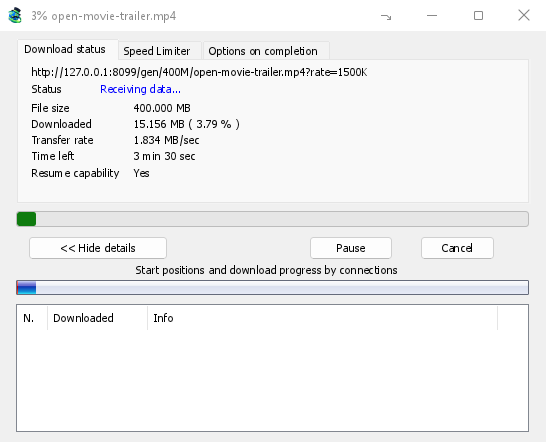
yt-dlp e ffmpeg
VDM offers its two helpers on its first start, and again the first time they are needed. It downloads them from their official releases with its own downloader, so a cut connection resumes, and uses your proxy settings:
- yt-dlp (about 23 MB) looks the page up and finds where the video and its sound come from; VDM downloads them (How a video comes down). The first time, click Install yt-dlp. VDM checks the download against the signature yt-dlp's developers publish before it uses it.
- ffmpeg (about 80 MB) joins a video and its sound when a site keeps them apart, which most sites do for the higher qualities, and turns the sound into an MP3, Opus or FLAC file. Click Install ffmpeg when VDM offers it. VDM installs only a build its maintainers checked: the download must match the SHA-256 in VDM's own list of builds, which carries VDM's signature. When that list can't be downloaded or checked, VDM says so and installs nothing; you can still choose your own ffmpeg in Helpers....
- Each processor gets its own build: yt-dlp's for x64, ARM64 and 32-bit Windows and for Linux on ARM, and ffmpeg's for x64 and ARM64 Windows. No ffmpeg is built for 32-bit Windows that VDM can check, so there VDM offers none: choose your own in Helpers... (below), or download the qualities that come with their sound.
You can install them ahead of time too: in Helpers..., a helper that isn't there yet says Not installed yet, and Install yt-dlp, Install ffmpeg or Install gallery-dl in its row downloads VDM's own copy, checked the same way, and keeps it up to date from then on. Where VDM has no copy for your system, the button is greyed out and the row says what to do instead.
Both are kept in a tools folder in VDM's data folder. For YouTube, yt-dlp also needs a JavaScript runtime, which VDM can download too: see A JavaScript runtime for YouTube.
Mantendo-os atualizados
Sites change all the time, and a newer yt-dlp is usually what makes a page that stopped working download again. So VDM keeps its own copies of yt-dlp, gallery-dl, ffmpeg and Node.js up to date by itself:
- When: a few seconds after VDM starts, then again while it runs: yt-dlp and gallery-dl at most every 6 hours, Node.js once a day, ffmpeg once a week (a newer ffmpeg comes when VDM's list of checked builds names one, usually with a new version of VDM). VDM remembers when it last asked, so starting it many times doesn't ask again.
- How: each new version is downloaded and checked exactly as the first install was (yt-dlp's, gallery-dl's and Node.js's signed checksum lists, VDM's signed list of ffmpeg builds), never an older one, and installed beside the one in use.
- Quando ele muda: somente enquanto nenhum download, pesquisa ou outra execução estiver usando esse auxiliar. Um vídeo baixando quando o novo yt-dlp chega termina com o que começou; o novo é usado a partir do momento em que o último download que o utilizava termina.
- A versão anterior permanece, para que você possa voltar a ela. As mais antigas são removidas.
- A video that fails with an error that usually means yt-dlp is out of date for the site (Unable to extract, Unsupported URL, YouTube's Sign in to confirm you're not a bot, HTTP Error 403, a failed signature or n challenge, Requested format is not available), or a gallery whose gallery-dl reports an unexpected error: VDM looks for a newer version at once, installs it if there is one, and tries that download again with it, once. Its log says so. If there is none, the error stands as before.
- A check that fails (no connection, GitHub busy) is tried again an hour later. It is written in VDM's log, never shown as an error.
In Helpers..., each of VDM's own copies says how it stands: Up to date, Version X available, Updated to X, or Version X is ready: used once its downloads end. Update gets the newest version of that one now, Go back to X uses the previous version again (automatic updates then wait for a version newer than the one you left; Update brings it back), and Check for updates checks them all. Untick Keep VDM's helpers up to date automatically to update only when you ask. Programs you chose with Use another program..., and your system's copies, say Updated by you: VDM leaves them to you.
Na linha de comando, update-helpers verifica e atualiza todos eles e imprime suas versões (Linha de comando).
Usar suas próprias cópias
On Linux and macOS, VDM finds yt-dlp, ffmpeg and gallery-dl on your PATH and in the usual package-manager folders, including Homebrew's. A program you selected yourself takes priority, followed by VDM's own installed copy. The system copy is used when neither is present, and your package manager keeps it up to date: VDM never downloads over it on its own. If your distribution's yt-dlp is old, Use VDM's own copy in Helpers downloads VDM's, which keeps itself current and is used from then on.
Already have yt-dlp or ffmpeg for another program? Use those instead of a second copy: in Download video from a page, click Helpers..., then Use another program... beside yt-dlp or ffmpeg, and choose the program. VDM runs it once to check that it is that program, and uses it from then on, the command line too. VDM doesn't update a program you chose: keep it up to date yourself (yt-dlp: yt-dlp -U, or your package manager). Use VDM's own copy goes back to the one VDM downloads and checks.
Um ambiente de execução JavaScript para o YouTube
YouTube hides most of a video's qualities behind small puzzles that yt-dlp solves with a JavaScript runtime: Node.js, Deno, QuickJS or Bun. Without one, a look-up is slow, the list is short (sometimes only the sound and a low quality) or it fails with Requested format is not available, and VDM says so: YouTube needs a JavaScript runtime to list its video qualities. Other sites don't need one.
The quickest way is VDM's own copy of Node.js: click Install Node.js beside that message, or, in Helpers..., Install Node.js in the JavaScript runtime (for YouTube) row. The first start's setup offers it too, in its Video helpers step, when your computer has no runtime. VDM downloads Node.js's newest long-term support (LTS) build for your system and processor from nodejs.org with its own downloader (about 40 MB on Windows, 60 MB on Linux and macOS; Windows x64, ARM64 and 32-bit, Linux x64 and ARM64, macOS), checks the release's checksum list against the signing keys of Node.js's releasers and the download against that list before it uses it, keeps only the node program in the tools folder beside yt-dlp and ffmpeg, and from then on tells yt-dlp to use it. It keeps it up to date the way it keeps yt-dlp's (Keeping them up to date), never with an older version. 32-bit Windows gets the newest LTS line Node.js still builds for it, 22, which Node.js supports until April 2027; after that VDM has no Node.js for 32-bit Windows, and a runtime of your own (Use another program...) is needed there. VDM never installs a Node.js older than the LTS line current when that VDM was made, whatever nodejs.org's list says. The video is looked up again by itself once Node.js is in.
Already have one? Then nothing needs downloading: a runtime on your computer comes first. VDM finds Deno, Node.js (22 or newer, also one installed with nvm), QuickJS and Bun by itself, in the order yt-dlp prefers them, and passes over one too old for yt-dlp (Node.js 20, say) or a Node.js whose line has reached its end of life on nodejs.org's schedule (then VDM's own is used, which it keeps on a supported release). A supported Node.js of your computer's is used as it is: you or your package manager keep it up to date. Helpers says which one yt-dlp uses and where it is: Node.js 24.11.0, your system's, nothing to download. To use another one, a portable copy or one that isn't on the PATH, click Use another program... in that row and choose its program (node.exe, deno.exe, qjs.exe, bun.exe): VDM asks it for its version first and refuses one yt-dlp can't use. Use VDM's own copy goes back to the one VDM finds or downloads. (Choosing your own runtime was YairDies' idea.)
Earlier versions of VDM installed Deno. That copy keeps working until VDM's Node.js is in place (the next update check brings it, or Use VDM's own copy); then yt-dlp switches to Node.js and VDM removes its own Deno, once no download is using it. A Deno you installed yourself is never touched, nor VDM's own once you chose it with Use another program.... While VDM asks the runtimes on your computer for their versions, Helpers says Looking for a JavaScript runtime on this computer....
If you'd rather install one yourself, any of them works; then look the video up again. If VDM still says so, the new program's folder isn't on the PATH VDM started with (Windows' installers add it for programs started after them): quit VDM (Tasks → Exit) and start it again.
- Windows:
winget install DenoLand.Deno, ouwinget install OpenJS.NodeJS.LTS. Os instaladores em deno.com e nodejs.org também funcionam. - Ubuntu e Debian:
sudo apt install nodejs - Fedora:
sudo dnf install nodejs - Arch:
sudo pacman -S nodejs, ousudo pacman -S deno - macOS:
brew install deno, oubrew install node - Qualquer sistema, Deno apenas para seu usuário:
curl -fsSL https://deno.land/install.sh | sh(no Windows, no PowerShell:irm https://deno.land/install.ps1 | iex)
A distribution's yt-dlp can also be too old for YouTube: if the list stays short, click Use VDM's own copy beside yt-dlp in Helpers.... A yt-dlp older than 2025.11.12 can't be told of a runtime at all; VDM then leaves the runtime out rather than stop the look-up.
Escolher a qualidade
- Wait for the list. It shows each quality with its size, best first, then the sound alone:
- A video's line says its resolution, the file it makes, its picture's codec, its frame rate and whether it is HDR:
2160p MP4 · AV1 · 60 fps · HDR. MP4 is only the file: what's inside it can be AV1, VP9 or H.264, and the codec says which, the very one that downloads (should the site no longer offer that stream, VDM takes the nearest of the same codec and resolution first). A resolution that comes in several (AV1, VP9 and H.264, HDR and SDR) has a line for each: AV1 makes the smallest file, H.264 plays on the most devices, and an HDR video looks washed out on a screen without HDR.SDRis said only beside an HDR line of the same resolution. - Most compatible (H.264 + AAC), second in the list: the best H.264 video the site has (YouTube's usually go up to 1080p) with AAC sound (in stereo when the site has it beside surround), in an MP4 that Premiere Pro and other editors, older TVs and most phones open as it is. YouTube's best qualities are AV1 or VP9 with Opus sound, which some of them can't read. The line says its resolution:Most compatible (H.264 + AAC) · 1080p. VDM picks those streams, it doesn't convert anything: when the site has no H.264 video with AAC sound the line isn't there, and when the best line already is that, it isn't listed twice. - The size is that of exactly what downloads, the video and its sound. A size with~before it (~532 MB) is only an estimate: the site didn't say the size, so it comes from the stream's bitrate and length. - Audio only, original: the site's own file, not converted, once for each type the site has it in (WebM with Opus inside, M4A), the best first. The best sound there is, in the smallest file. - Audio only MP3 at its best variable bitrate (VBR) and at 320, 256, 192 and 128 kbps, for players that only take MP3. - Audio only OPUS: an.opusfile. When the site's sound is Opus already (YouTube's usually is), it's only moved into that file, not converted, so nothing is lost. - Audio only FLAC: a lossless.flacfile, for a library or a program that wants FLAC. It can't add quality: the site's sound is already compressed with losses, and FLAC keeps it exactly as it came, in a file several times bigger. The window says so when you choose it. - Escolha uma opção. Sem ffmpeg, a lista mostra apenas as qualidades que incluem o áudio. Não há opções de MP3, Opus ou FLAC (elas são criadas pelo ffmpeg).
- Verifique Salvar em (a pasta da categoria Vídeo por padrão) e Nome do arquivo, que vem do título do vídeo. Um título longo é encurtado, no final de uma palavra, para que os arquivos salvos ao lado do vídeo enquanto ele baixa se ajustem ao limite do sistema para o comprimento de um caminho; um nome que você digita é mantido como você o digitou.
- When the video's sound comes in several languages, choose one in Sound (see The sound's language). Choose Subtitles if you want them (see below). Embed chapters is ticked: see Chapters. To keep only a stretch of it, tick Only a part: see Download only a part. For a sound alone, Put the video's thumbnail in the audio file as its cover is ticked: see A cover for the sound.
- Clique em Baixar Agora ou em Mais tarde para adicionar à lista sem iniciar o download.
O vídeo então é baixado como qualquer outro arquivo, com sua própria linha na lista e sua janela de progresso.
Como um vídeo é baixado
yt-dlp looks the page up and picks the quality's video and sound. VDM's own downloader then brings each of them in, one after the other, the way it downloads any file:
- Por várias conexões: tantas quanto Opções → Conexão permite para um arquivo. A tabela de conexões da janela de progresso mostra cada uma, e o mapa de segmentos mostra o vídeo e depois o áudio.
- A stream sent in many small pieces (HLS, DASH, as most sites other than YouTube send theirs) comes down that many pieces at once, each kept on disk as it arrives, then joined in order into one file, as yt-dlp joins them. Pieces encrypted with AES-128 are decrypted with the key the stream's playlist names. When their addresses expire, VDM asks yt-dlp for the stream's new list and carries on with the pieces still missing.
- Sob seus limites de velocidade: os do Limitador de Velocidade, o próprio do vídeo (a aba Limitador de Velocidade de sua janela de progresso) e o limite para todos os downloads juntos. Uma alteração é aplicada imediatamente.
- Paused and resumed like a file, also after quitting VDM: it carries on from the bytes already saved.
- When an address stops working: a video's addresses are signed and expire after a few hours (YouTube's after six). VDM asks yt-dlp for a fresh one for the same quality and carries on from where it stopped.
Então o yt-dlp faz o que faz depois de um download: ele junta o vídeo e seu som com o ffmpeg em um MP4, salva ou incorpora as legendas, coloca os capítulos no arquivo e converte o som para uma escolha de MP3, Opus ou FLAC.
YouTube serves each connection's long requests slowly, so VDM asks for the video in pieces of 10 MB at most, as yt-dlp does, and several at once.
Alguns vídeos o yt-dlp ainda baixa por conta própria, por sua própria conexão, e a janela de progresso informa isso:
- um stream ao vivo ainda sendo gravado (Gravando um stream ao vivo);
- um fluxo enviado via RTMP, RTSP, MMS ou FTP;
- os raros fluxos em partes de outros tipos (HDS da Adobe, Smooth Streaming da Microsoft) e um cuja chave o site entrega diretamente ao yt-dlp.
Para esses, um novo limite de velocidade reinicia o download com ele, de onde parou (Limites de velocidade); um stream ao vivo que está gravando o retoma na próxima vez que iniciar.
Gravando um stream ao vivo
A live stream, a broadcast still going on, is recorded by yt-dlp with ffmpeg into an unfinished file, so VDM can't know its length. While it records, the progress window says Recording..., and Downloaded and Transfer rate follow the size of what has been recorded so far.
- Gravando... aparece a partir do momento em que o gravador abre seu arquivo, uma vez que ele se conectou ao stream (alguns segundos após o início do download; até então a janela mostra Conectando...; um stream que não pode ser alcançado nunca chega lá). Baixado mostra o que chegou ao disco, e o gravador o escreve em blocos de 256 KB, então ele permanece em 0 KB até que o primeiro bloco seja escrito (isso pode levar um tempo em um stream de baixa taxa de bits), então cresce bloco a bloco. Parar e salvar antes do primeiro bloco ainda não mantém nada: o download é deixado parado, com seu arquivo vazio, para que Retomar grave novamente. Um arquivo vazio inacabado que uma execução anterior deixou é removido quando a gravação é reiniciada (ele não contém nada), então uma gravação retomada mostra Gravando... a partir do mesmo momento.
- Stop and save is what the progress window's pause button reads for a live stream that is recording. It, Stop and Stop All in the list (toolbar and menus), a queue's stop (by hand, at its scheduled stop time, or through the API) and the phone page's pause all end the recording and keep it. VDM makes the recording an MP4 itself, as yt-dlp does when a live stream ends: the streams are copied as they are, nothing is converted. The window says Saving... meanwhile, and the download is then Complete, as when a live stream ends by itself: the queue goes on and the completion notice and actions run.
- Os últimos momentos podem estar faltando: no máximo o último 1 MiB que o gravador ainda não havia escrito. Isso representa alguns segundos de vídeo, e até cerca de um minuto para um stream apenas com áudio.
- Se o MP4 não puder ser criado, a gravação é mantida como um arquivo MPEG-TS (
.ts), que a maioria dos players abre. Se isso também não puder ser feito, o download informa e o arquivo inacabado permanece como está. - A gravação é removida apenas quando o MP4 contém tudo: desde que a gravação esteja dentro de um segundo, sua imagem e seu som também (durações do ffprobe; sem elas, pelo menos 90% do tamanho da gravação). Um MP4 mais curto é mantido com a gravação ao lado, como
My stream (recording 1).ts, e o log do download informa o motivo (se a gravação não puder ser renomeada, o log informa: ela permanece como o arquivo inacabado). - A live stream that ends by itself while VDM records it is made an MP4 the same way, with the same check: yt-dlp is told to leave its recording as it is, and VDM makes the MP4 of it (when it has ffmpeg and the recording is the MPEG-TS yt-dlp made). From the moment yt-dlp says the recording is finished, the window says Saving... (only a moment when there is no MP4 to make), and a Stop waits for it: the download is then Complete. The recording goes only when the MP4 holds all of it, it is kept beside a shorter one, and if no MP4 can be made it is the download's
.tsfile (My stream (recording 1).tswhenMy stream.tsis taken). Subtitles asked to go inside the video are saved beside it instead, and no chapters are added: the recording isn't changed once it is made. - MP3, Opus ou FLAC de uma transmissão ao vivo: o áudio é salvo conforme solicitado, e a gravação da qual foi feito permanece ao lado dele, como
My stream (recording 1).ts. - Uma imagem e um áudio que o yt-dlp juntou sozinho depois que a transmissão terminou permanecem ao lado do vídeo, como o yt-dlp os deixou, quando o vídeo não contém tudo de ambos; caso contrário, eles são excluídos.
- A recording yt-dlp finished but VDM didn't make an MP4 of (a try that failed just after, or VDM closed meanwhile) is still MPEG-TS under the MP4's name. Before the download starts again, VDM makes it an MP4 with the same check (the list says Merging meanwhile, and a Stop waits for it, then stops the download before anything else runs): when the MP4 holds all of it, it is the download. Otherwise the recording is kept as
My stream (recording 1).tsand the download starts over. Without VDM's ffmpeg it is set aside the same way. The same goes for a normal video in pieces (HLS) VDM's engine left as MPEG-TS inMy video.mp4when yt-dlp failed or was stopped while it fixed it up. - Uma gravação em várias partes (uma parte de imagem e uma de áudio que o yt-dlp deixou separadas) é transformada em um MP4 com todas elas. Se não puderem ser unidas, o download informa e cada parte permanece como está.
- Cancel in the progress window only stops the download: the recording stays in its unfinished file. So does reaching a download limit, which counts a recording as it grows and stops it as it stops other downloads. Resume, or VDM starting the download again by itself (after a network adapter change or the download limit, or a queue that starts when VDM opens), records the stream anew. It first sets the earlier recording aside, next to it, as
My stream (recording 1).ts(then(recording 2), and so on), so nothing is recorded over; so it does when the stream has ended meanwhile and the download goes on as a normal video. (An unfinished MPEG-TS file yt-dlp downloads directly, without its resume state, is taken for a recording the same way: it starts over, what it had kept aside.) If that file can't be set aside, VDM doesn't record over it and says so. - Essas gravações mantidas não são os arquivos próprios do download: Excluir com seus arquivos as deixa.
- Closing VDM while a live stream records, or while it saves one, stops it without saving: the recording stays in its unfinished file (a half-made MP4 is left as
<name>.temp.mp4, which Delete with its files removes), and it is set aside when the download starts again. The command line (voltdownloadmanager-cli) doesn't save a live stream this way. - Um stream ao vivo salvo pela parada de uma fila é considerado completo, então uma fila diária não o inicia novamente no dia seguinte.
The sound's language
More and more videos come with their sound in several languages: the one they were made in, the original, and others dubbed (YouTube's dubbed and automatically dubbed tracks, for one). When the site names each track's language, Download video has a Sound list under File name, the original first and marked: English, original, then Deutsch · German, Español · Spanish... (each language in its own words, and in English when that differs). A video in one language has no such list and looks as before.
- The qualities follow it. Every line in the list is then in that language: a video line joins its picture with that language's sound and its size is theirs, and Audio only (as the site has it), MP3, Opus and FLAC take that language's sound. A video line whose file carries another language's sound (YouTube's 360p in one file) isn't offered for a dubbed language; without ffmpeg, which joins a picture and a sound, only the sound in that language is.
- One sound track per file. The file has the language chosen, never two.
- For every video and playlist: Options → Regional → Videos' sound chooses one language, which every video looked up starts on when it has it (in Download video, where you can still choose another, and in the button over a video) and which every video of a playlist downloads with. A video without that language comes with its original sound. Each video's original, the default, keeps every video in the language it was made in.
- The button over a video says the language of each line's sound in its menu, and its Audio tab has each other language's sound as the site has it too.
- If the site no longer offers that language when the download starts, the video comes with its original sound.
A cover for the sound
A sound saved alone has no picture, so music players show an empty square. With Put the video's thumbnail in the audio file as its cover ticked in Download video (under Embed chapters), the picture the site shows for that video becomes the file's cover once it is saved.
- It is ticked to begin with, and stays as you leave it for the next video. It applies to a playlist's sound too.
- Which files: an M4A as the site has it (Audio only, original M4A), and an MP3, Opus or FLAC. A WebM (Audio only, original WEBM, YouTube's Opus as it comes) can't hold a cover: choose M4A or Opus instead. Videos are saved as they are.
- How: VDM brings the picture in with its own connections (your proxy and network adapter, as every download), from where the site says that video's picture is, nothing from anywhere else. ffmpeg puts it into the file as its cover (Opus files as the picture comment music players read in them), copying the sound as it is: nothing is encoded again. A WebP picture is made a JPEG first.
- It needs ffmpeg. Without it, or when the picture can't be had, the file is saved as before, without a cover, and the download's log says why.
Legendas
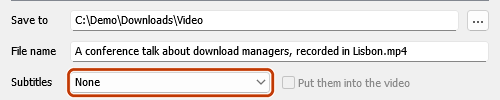
Quando o vídeo tem legendas, a lista Legendas as oferece: primeiro, os idiomas das legendas enviadas pelo próprio carregador (e Todos os do carregador quando há vários); depois, as legendas automáticas do site, marcadas como automáticas. Entre elas, a lista mostra apenas as do idioma falado e suas traduções para o inglês e para o idioma da interface. Sites como o YouTube oferecem tradução automática para todos os idiomas disponíveis.
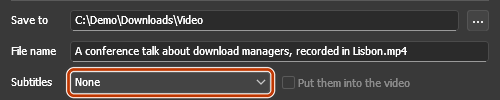
- Quando salvas ao lado do vídeo, elas recebem o nome do vídeo e o idioma:
My video.fr.srt. Reprodutores como VLC e MPV as reconhecem automaticamente. Com ffmpeg, são sempre arquivos SRT; sem ele, usam o formato do próprio site (geralmente WebVTT,.vtt). - Colocá-las no vídeo as insere dentro do arquivo, como faixas que você ativa no reprodutor. Isso requer ffmpeg e um vídeo MP4 ou MKV. A gravação de uma transmissão ao vivo as mantém ao lado dela (Gravando uma transmissão ao vivo).
- Uma opção somente de áudio (Somente áudio, MP3, Opus ou FLAC) não tem legendas.
VDM offers the same choice again for the next video when it has that language.
A site may refuse subtitles when it's asked too often: YouTube does, most of all for its translated captions. The video is saved all the same. VDM asks for the subtitles once more after 20 seconds, and if they still don't come, the Download complete window and the download's log say which ones are missing and why. Try them again later. When subtitles meant to go inside the video only come on that second try, they're saved beside it instead.
Capítulos
Muitos vídeos são divididos em capítulos em sua página: a lista do YouTube abaixo do player, com um título e um tempo de início para cada parte. Com Incorporar capítulos marcado, em Legendas, eles vão para o arquivo de vídeo, para que players como VLC, MPV, MPC-HC e o Media Player do Windows os listem e pulem de um para o próximo.
- Ele vem marcado por padrão e permanece como você o deixou para o próximo vídeo.
- Ele precisa do ffmpeg, que os escreve. Um vídeo sem capítulos é salvo como está.
- Elas vão para um vídeo (MP4, MKV, WebM) e para o áudio como o site o tem (Somente áudio, original), não para um arquivo MP3, Opus ou FLAC, nem para a gravação de uma transmissão ao vivo.
- A linha de comando (
video-get) também os insere, sempre que o ffmpeg estiver presente.
Com Dividir em capítulos marcado (ao lado de Incorporar capítulos, ou abaixo dele em um idioma longo), o vídeo também é dividido em arquivos de capítulo individuais (<filename> - <NN> - <chapter name>.<ext>, ou <filename> - <NN>.<ext> quando sem título). O vídeo completo também é mantido.
- Requer ffmpeg e permanece como você o deixou para o próximo vídeo.
- Splitting uses stream copy without re-encoding, so it runs losslessly and near-instantly. Each cut lands on a keyframe, so a chapter can start a second or a few early (yt-dlp's
--force-keyframes-at-cutsmakes it exact, but re-encodes, so VDM does not turn it on by default). - Um vídeo sem capítulos ou com um único capítulo é salvo como um único arquivo sem divisão.
- O título de um capítulo é encurtado para se ajustar aos limites do sistema em nomes de arquivos e caminhos; em uma pasta muito profunda, um capítulo é nomeado apenas por seu número.
- Não é oferecido com Apenas uma parte: uma parte não tem capítulos.
- Os
video-geteplaylist-getda linha de comando o suportam via--split-chapters. - Excluir o download junto com seus arquivos também limpa seus arquivos de capítulo divididos, preservando arquivos não relacionados na mesma pasta.
Baixar apenas uma parte
Para salvar apenas um trecho de um vídeo ou de um áudio (uma cena, uma música de uma mixagem longa, alguns minutos de um podcast), marque Apenas uma parte na linha Parte, abaixo de Legendas, e digite onde ele começa e onde termina.
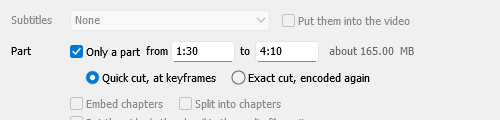
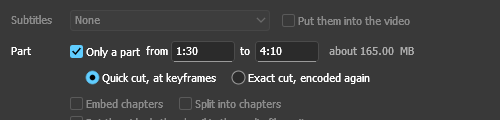
- Os Tempos são digitados como
1:30(um minuto e meio),1:02:03(uma hora, dois minutos e três segundos) ou em segundos (90). As caixas começam no vídeo inteiro, de 0:00 até o final; Para cima e Para baixo movem um tempo em um segundo, Page Up e Page Down em dez. Uma caixa fica vermelha enquanto seu tempo não pode ser (não é um tempo, o final vem antes do início, está além do final do vídeo, ou a parte é o vídeo inteiro), e Baixar Agora diz o porquê. - Corte rápido, em quadros-chave, a primeira opção: a imagem e o som são copiados como estão, nada é recodificado, então é rápido e não perde nada. Uma imagem só pode começar de forma limpa em um quadro-chave, então a parte começa no último antes do seu início: no máximo alguns segundos antes, nunca depois. Um som sozinho em um M4A começa onde você diz; em um WebM (Opus) no último ponto de busca antes dele, o que pode ser dez segundos antes.
- Corte exato, recodificado: a parte começa e termina onde você disse. O ffmpeg a recodifica novamente (H.264 e AAC em um MP4, VP9 e Opus em um WebM, o som sozinho em seu próprio formato), o que leva aproximadamente o mesmo tempo que a codificação de tantos minutos leva em seu computador, e a imagem pode perder um pouco.
- O tamanho ao lado dos tempos é uma estimativa: a proporção da parte em relação ao todo.
- Nome do arquivo indica a parte:
My video (1m30s-4m10s).mp4. Um nome que você digita é mantido como você o digitou. - Nenhuma legenda e nenhum capítulo acompanham uma parte: seriam do vídeo inteiro, nos tempos do vídeo inteiro. Legendas e Incorporar capítulos ficam esmaecidos enquanto Apenas uma parte está marcada.
- É preciso ffmpeg, que corta a parte, e um vídeo cuja duração o site informa (não uma transmissão ao vivo). Os vídeos de uma playlist são baixados inteiros.
- Do navegador: o menu do botão Baixar vídeo sobre um vídeo tem Baixar uma parte a partir daqui.... Ele abre esta janela com Apenas uma parte marcada e seu início onde o vídeo está sendo reproduzido.
How a part comes down: yt-dlp's ffmpeg finds the part in each stream by the stream's own index (an MP4's or a WebM's, an HLS stream's playlist) and reads only that part, never the whole file. What it reads comes in through VDM's own connections, in requests of a MB at most, several at once: a part comes about as fast as a whole video would (YouTube sends one long request at about the video's own pace), under your speed limits (a change applies at once), and through your proxy or network adapter. The progress window shows what has come against the part's estimated size. Paused and resumed, a part starts again from its beginning: ffmpeg can't go on from the middle of a cut. A stream sent another way (a DASH manifest, RTMP) is read by ffmpeg itself.
Listas de reprodução e canais
Cole o endereço de uma lista de reprodução (youtube.com/playlist?list=…) ou dos vídeos de um canal (youtube.com/@name/videos) e clique em Pesquisar. Em vez das qualidades de um vídeo, a janela lista os vídeos da lista, cada um com sua duração.
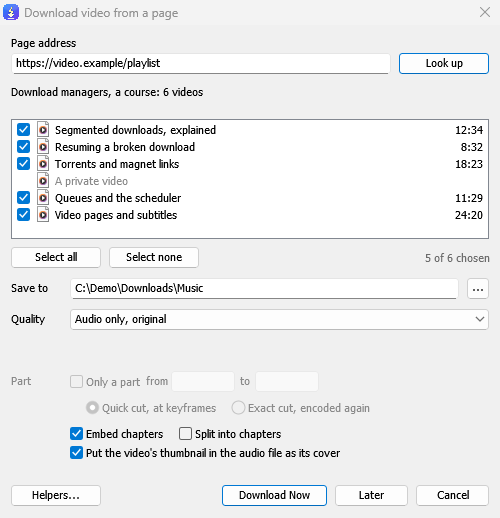
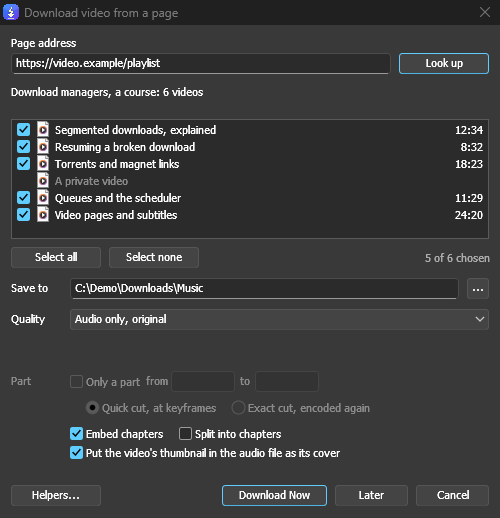
- Uma playlist é listada por completo, à medida que seus vídeos são encontrados: a linha acima da lista mostra o progresso ("Listando os vídeos: 1.200 de 6.000"). Parar de listar mantém os vídeos já listados, e Listar o restante continua a partir dali. Se o site parar de responder no meio do processo (o YouTube pode fazer isso se for solicitado com muita frequência), a janela informa após quantos vídeos e por que, e Listar o restante tenta novamente a partir daquele ponto.
- Um canal é listado 50 vídeos por vez, os mais recentes primeiro. Carregar mais lista os próximos 50.
- Todo vídeo começa marcado. Desmarque os que você não quer, ou use Selecionar tudo e Desmarcar tudo. Vídeos privados e excluídos ficam esmaecidos e não podem ser marcados.
- The sound's language: every video of the list downloads with Options → Regional → Videos' sound's language when it has it, else its original (The sound's language).
- Qualidade se aplica a todos os vídeos: Melhor qualidade, Mais compatível (H.264 + AAC) (a melhor imagem H.264 de cada vídeo com som AAC; um vídeo que não tem nenhum não é baixado), Até uma altura (cada vídeo nessa altura, ou a mais próxima abaixo dela), Somente áudio, original, Somente áudio MP3, Somente áudio OPUS ou Somente áudio FLAC. Sem o ffmpeg, apenas as qualidades que vêm com seu som são oferecidas, e nenhum MP3, Opus ou FLAC.
- Os vídeos vão para uma pasta com o nome da lista, dentro de Salvar em, cada um com seu próprio título.
Baixar Agora adiciona cada vídeo como seu próprio download e inicia a fila principal, que executa quantos downloads você configurou no Agendador (Baixar N arquivos ao mesmo tempo). Mais tarde os adiciona sem iniciar. Adicionar mais de 500 de uma vez pede confirmação primeiro.
VDM lists at most 20,000 videos of one list.
Um endereço de página que aponta para um vídeo dentro de uma playlist ou um mix (por exemplo watch?v=…&list=…) baixa apenas esse vídeo, nunca a lista inteira.
Limites de velocidade
Videos keep to the Speed Limiter: the limit for one file, a video's own limit (the Speed Limiter tab of its progress window), and the limit for all downloads together, which they share with every other download. VDM's own downloader brings them in, so a change applies at once, as for a file.
A video yt-dlp downloads by itself (How a video comes down) takes a limit only as it starts: when you turn the limiter on or off, change its settings or the video's own limit, VDM stops it and starts it again with the new limit, and it goes on from where it was (the log says "Stopped: the speed limit changed; starting again with it"). A live stream that is recording is the exception: restarting it would cut the recording, so it keeps recording and takes the limit the next time it starts. Under the limit for all downloads, such videos share it evenly: when another starts, the ones running with more than their share start again with it; when one ends, the others keep theirs. A gallery's pictures that VDM brings in follow a change at once; what gallery-dl still fetches itself starts again with the new limit, skipping the files already saved. Other changes (torrents taking more or less of the limit for all downloads, Only while I'm using the computer) apply to the next one that starts.
Pelo adaptador de uma VPN
With Options → Proxy / Socks → Network adapter set, video downloads go through that adapter too, with the same kill switch as other downloads. VDM's own downloader opens its connections through the adapter as for any file; for yt-dlp's look-ups (and what it downloads itself, with the ffmpeg it starts) VDM hands it a proxy of its own on this computer, and opens every connection through the adapter, looking the names up with the DNS you chose in Options → Connection (without an adapter, yt-dlp uses the system's DNS). When the adapter disconnects, the video download stops, and it starts again when the adapter is back. Formats sent over RTMP, RTSP, MMS or FTP can't go through it and are refused.
Sites que exigem login
Alguns vídeos são reproduzidos apenas para um espectador conectado: um vídeo de membro ou privado, um com restrição de idade. E o YouTube às vezes pede a qualquer espectador de uma rede que ele duvida (uma VPN, um endereço compartilhado ou de nuvem) para "Fazer login para confirmar que você não é um robô". O yt-dlp então precisa dos cookies do seu navegador, os pequenos arquivos que o mantêm conectado.
- O botão Baixar vídeo sobre o vídeo passa os cookies dessa página, da janela e do perfil em que você está (uma janela privada, um contêiner do Firefox), para a pesquisa e o download, então você está conectado como está no navegador. Nada para configurar. Cada cookie vai com o domínio para o qual o navegador o mantém, então um login no YouTube Music (music.youtube.com) ou no site móvel do YouTube também alcança www.youtube.com.
- Um endereço colado (Adicionar URL, Baixar vídeo de uma página, uma playlist): escolha seu navegador em Opções → Logins de Sites → Cookies para sites de vídeo. O yt-dlp então lê os cookies desse navegador neste computador para cada vídeo que ele busca ou baixa. Quando a extensão passou os próprios cookies da página, esses são usados em vez disso: eles são dessa página e dessa sessão.
- Uma conta extra, em um perfil próprio: você não precisa emprestar sua conta principal ao yt-dlp. Crie um segundo perfil em seu navegador, faça login no site lá com uma conta extra e coloque esse perfil em Perfil (seu nome, ou sua pasta com ...). O yt-dlp lê apenas os cookies desse perfil. Os desenvolvedores do yt-dlp também aconselham isso: um site pode limitar uma conta que ele vê sendo usada por um programa.
Signed in, YouTube sometimes refuses what it gives a visitor: its servers answer the video with HTTP Error 403: Forbidden, or the look-up with its bot check, where a private window plays it. When YouTube refuses a video anyone may watch that way, VDM looks it up once more without your cookies, as a private window would, and the download's log says so. A private, members' or age-restricted video keeps them.


Sign in to the site in that browser first. VDM never logs or shows the cookies; the download's log names only the browser they came from.
Quais navegadores
Do navegador lista os navegadores que o yt-dlp lê: Firefox, Chrome, Edge, Brave, Opera, Vivaldi, Chromium e Whale, e Safari no macOS. Perfil é opcional: o nome de um perfil (Profile 1) ou sua pasta; vazio, o perfil usado por último.
- O Firefox funciona em todos os sistemas. Se você fez login há poucos instantes com o Firefox aberto, feche-o uma vez para que ele grave o login em seus arquivos.
- O Chrome, Edge e Brave no Windows bloqueiam seus cookies para si mesmos (Chrome 127 e posterior, "criptografia vinculada ao aplicativo"), e o yt-dlp não consegue lê-los enquanto o navegador está aberto. A janela informa isso; escolha Firefox, ou use o botão sobre o vídeo, que funciona com qualquer navegador.
- No Linux, os navegadores da família Chrome mantêm a chave de seus cookies no chaveiro do sistema (GNOME Keyring, KWallet); o yt-dlp a solicita, então ela deve estar desbloqueada.
- Outro navegador baseado no Chromium (Helium, Thorium, ungoogled-chromium...): escolha Chromium e a pasta de perfil desse navegador (sua pasta
Default, ouProfile 1...; em~/.configno Linux,%LOCALAPPDATA%no Windows). O yt-dlp lê a pasta, mas um navegador que mantém sua chave sob seu próprio nome no chaveiro, ou bloqueia seus cookies como o Chrome faz, não pode ser lido dessa forma: use o botão de sua extensão.
Quando um servidor de vídeo não pode ser alcançado
Some sites, YouTube among them, send each viewer to a nearby video server, sometimes one inside the internet provider's own network. If that server can't be reached from your connection, a browser quietly switches to another one, but yt-dlp on its own would give up. Before each video download VDM checks the servers in the video's links and, if one doesn't answer, switches to the next one the site lists. The download's log says when this happens.
Se um vídeo não baixar
- Passe o mouse sobre o Status do download, ou abra sua janela de progresso, para ler a mensagem do yt-dlp.
- Nenhum vídeo que possa ser baixado nesta página significa que o yt-dlp não encontrou nada na página. Verifique se o endereço é a própria página do vídeo.
- Este vídeo exige que você esteja logado, ou o site exige que você esteja logado: veja Sites que exigem login.
- Sites change often, and a newer yt-dlp usually fixes it. VDM keeps its own yt-dlp up to date by itself, and when a download fails in a way that usually means yt-dlp is out of date, it looks for a newer one at once and tries again (Keeping them up to date). To check right now: Helpers... → Check for updates. If you chose your own yt-dlp in Helpers, update it yourself (
yt-dlp -U, or your package manager). - The path is too long for Windows (or the file name is too long) means the folder and the file name together, with the files saved beside the video while it downloads, are longer than the system allows: 259 characters on Windows unless long paths are turned on there, 255 a name (255 bytes on Linux and macOS). VDM shortens a title by itself, so this comes from a name you typed or a very deep Save to folder: add the video again with a shorter name, or a folder nearer the top of the drive.
- Videos protected with DRM (most paid streaming services) can't be downloaded, and VDM doesn't try. The browser extension's Media on this page shows such a stream as Protected and doesn't send it.
- Uma página cujo vídeo a janela não consegue encontrar: reproduza o vídeo no seu navegador e, em seguida, use a opção Mídia nesta página da extensão para enviar o stream que a página carregou.
- O download pode ser contra os termos de alguns sites. Verificar isso é sua responsabilidade.
- Ainda com problemas? Use Ajuda → Relatar um problema e inclua o endereço da página.
Próximos passos
Gratuito, de código aberto, sem anúncios, sem período de teste.
Download Volt Download Manager