

VDM downloads videos from their web pages: YouTube, Vimeo, Dailymotion, Twitch, TikTok, X, Instagram, Facebook, Reddit, SoundCloud and well over a thousand other sites. yt-dlp, an open-source program whose community keeps it working as sites change, finds the video on the page; VDM's own downloader then brings it in, the way it downloads any file.
Avviare un download video
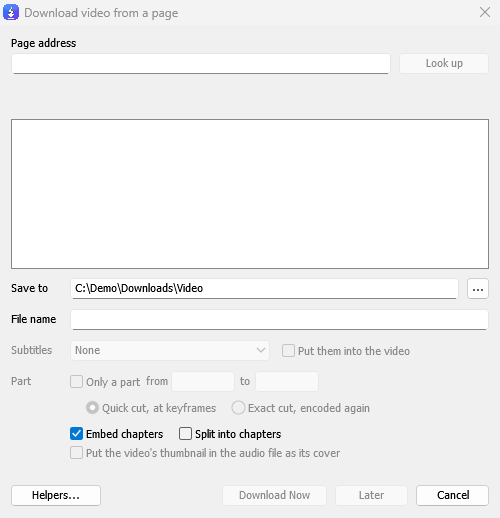
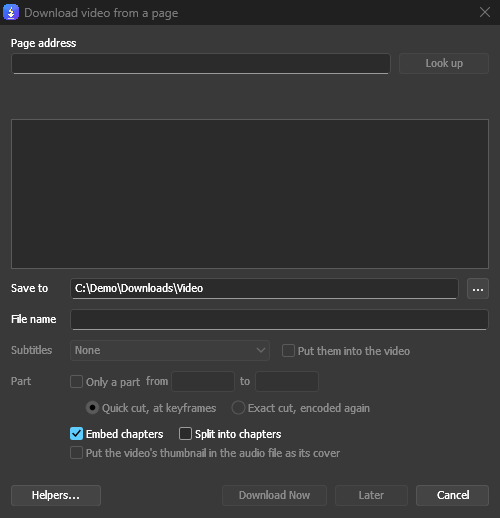
- Give the video's page address to Add URL (Ctrl+N). VDM recognises video pages and opens the video window, already looking the page up.
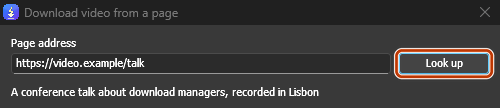
- Oppure scegli Attività → Scarica video da una pagina..., incolla l'indirizzo in Indirizzo della pagina e fai clic su Cerca.
Qualsiasi altro indirizzo di pagina che si rivela essere una pagina web, non un file, viene offerto anche alla finestra video. Su un sito per cui yt-dlp non ha un proprio lettore, il video è quello che la pagina dichiara di trattare, quando ne nomina uno (in ciò che dice ai motori di ricerca e alle anteprime dei collegamenti: il suo JSON-LD, og:video o twitter:player), piuttosto che il primo lettore scritto nel suo HTML, e il file viene nominato come lo nomina la pagina.
Incolla l'indirizzo della pagina e fai clic su Cerca. 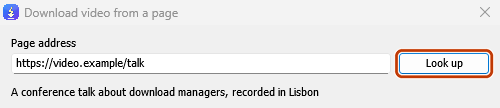
Scegli una qualità, poi Scarica ora. 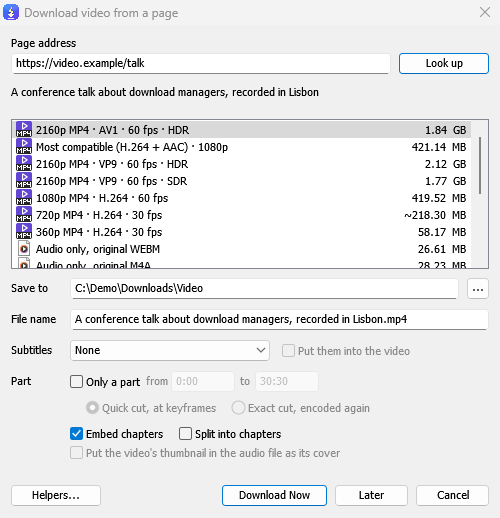
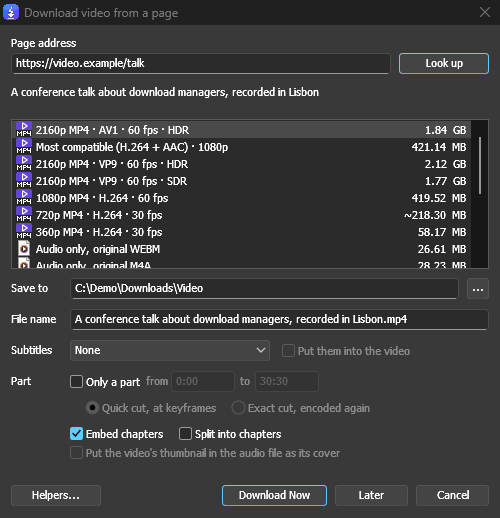
Il download avviene come per qualsiasi altro file, nella sua riga e finestra dedicate. 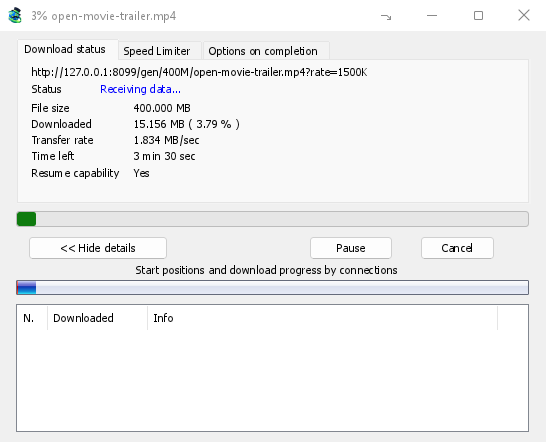
yt-dlp e ffmpeg
VDM offers its two helpers on its first start, and again the first time they are needed. It downloads them from their official releases with its own downloader, so a cut connection resumes, and uses your proxy settings:
- yt-dlp (about 23 MB) looks the page up and finds where the video and its sound come from; VDM downloads them (How a video comes down). The first time, click Install yt-dlp. VDM checks the download against the signature yt-dlp's developers publish before it uses it.
- ffmpeg (about 80 MB) joins a video and its sound when a site keeps them apart, which most sites do for the higher qualities, and turns the sound into an MP3, Opus or FLAC file. Click Install ffmpeg when VDM offers it. VDM installs only a build its maintainers checked: the download must match the SHA-256 in VDM's own list of builds, which carries VDM's signature. When that list can't be downloaded or checked, VDM says so and installs nothing; you can still choose your own ffmpeg in Helpers....
- Each processor gets its own build: yt-dlp's for x64, ARM64 and 32-bit Windows and for Linux on ARM, and ffmpeg's for x64 and ARM64 Windows. No ffmpeg is built for 32-bit Windows that VDM can check, so there VDM offers none: choose your own in Helpers... (below), or download the qualities that come with their sound.
You can install them ahead of time too: in Helpers..., a helper that isn't there yet says Not installed yet, and Install yt-dlp, Install ffmpeg or Install gallery-dl in its row downloads VDM's own copy, checked the same way, and keeps it up to date from then on. Where VDM has no copy for your system, the button is greyed out and the row says what to do instead.
Both are kept in a tools folder in VDM's data folder. For YouTube, yt-dlp also needs a JavaScript runtime, which VDM can download too: see A JavaScript runtime for YouTube.
Mantienili aggiornati
Sites change all the time, and a newer yt-dlp is usually what makes a page that stopped working download again. So VDM keeps its own copies of yt-dlp, gallery-dl, ffmpeg and Node.js up to date by itself:
- When: a few seconds after VDM starts, then again while it runs: yt-dlp and gallery-dl at most every 6 hours, Node.js once a day, ffmpeg once a week (a newer ffmpeg comes when VDM's list of checked builds names one, usually with a new version of VDM). VDM remembers when it last asked, so starting it many times doesn't ask again.
- How: each new version is downloaded and checked exactly as the first install was (yt-dlp's, gallery-dl's and Node.js's signed checksum lists, VDM's signed list of ffmpeg builds), never an older one, and installed beside the one in use.
- Quando cambia: solo quando nessun download, ricerca o altra esecuzione sta usando quel programma di supporto. Un video in download quando arriva il nuovo yt-dlp finisce con quello con cui è iniziato; il nuovo viene usato dal momento in cui termina l'ultimo download che lo usa.
- La versione precedente resta, così puoi tornare a usarla. Quelle più vecchie vengono rimosse.
- A video that fails with an error that usually means yt-dlp is out of date for the site (Unable to extract, Unsupported URL, YouTube's Sign in to confirm you're not a bot, HTTP Error 403, a failed signature or n challenge, Requested format is not available), or a gallery whose gallery-dl reports an unexpected error: VDM looks for a newer version at once, installs it if there is one, and tries that download again with it, once. Its log says so. If there is none, the error stands as before.
- A check that fails (no connection, GitHub busy) is tried again an hour later. It is written in VDM's log, never shown as an error.
In Helpers..., each of VDM's own copies says how it stands: Up to date, Version X available, Updated to X, or Version X is ready: used once its downloads end. Update gets the newest version of that one now, Go back to X uses the previous version again (automatic updates then wait for a version newer than the one you left; Update brings it back), and Check for updates checks them all. Untick Keep VDM's helpers up to date automatically to update only when you ask. Programs you chose with Use another program..., and your system's copies, say Updated by you: VDM leaves them to you.
Dalla riga di comando, update-helpers li verifica e aggiorna tutti e stampa le loro versioni (Riga di comando).
Usa le tue copie
On Linux and macOS, VDM finds yt-dlp, ffmpeg and gallery-dl on your PATH and in the usual package-manager folders, including Homebrew's. A program you selected yourself takes priority, followed by VDM's own installed copy. The system copy is used when neither is present, and your package manager keeps it up to date: VDM never downloads over it on its own. If your distribution's yt-dlp is old, Use VDM's own copy in Helpers downloads VDM's, which keeps itself current and is used from then on.
Already have yt-dlp or ffmpeg for another program? Use those instead of a second copy: in Download video from a page, click Helpers..., then Use another program... beside yt-dlp or ffmpeg, and choose the program. VDM runs it once to check that it is that program, and uses it from then on, the command line too. VDM doesn't update a program you chose: keep it up to date yourself (yt-dlp: yt-dlp -U, or your package manager). Use VDM's own copy goes back to the one VDM downloads and checks.
Un runtime JavaScript per YouTube
YouTube hides most of a video's qualities behind small puzzles that yt-dlp solves with a JavaScript runtime: Node.js, Deno, QuickJS or Bun. Without one, a look-up is slow, the list is short (sometimes only the sound and a low quality) or it fails with Requested format is not available, and VDM says so: YouTube needs a JavaScript runtime to list its video qualities. Other sites don't need one.
The quickest way is VDM's own copy of Node.js: click Install Node.js beside that message, or, in Helpers..., Install Node.js in the JavaScript runtime (for YouTube) row. The first start's setup offers it too, in its Video helpers step, when your computer has no runtime. VDM downloads Node.js's newest long-term support (LTS) build for your system and processor from nodejs.org with its own downloader (about 40 MB on Windows, 60 MB on Linux and macOS; Windows x64, ARM64 and 32-bit, Linux x64 and ARM64, macOS), checks the release's checksum list against the signing keys of Node.js's releasers and the download against that list before it uses it, keeps only the node program in the tools folder beside yt-dlp and ffmpeg, and from then on tells yt-dlp to use it. It keeps it up to date the way it keeps yt-dlp's (Keeping them up to date), never with an older version. 32-bit Windows gets the newest LTS line Node.js still builds for it, 22, which Node.js supports until April 2027; after that VDM has no Node.js for 32-bit Windows, and a runtime of your own (Use another program...) is needed there. VDM never installs a Node.js older than the LTS line current when that VDM was made, whatever nodejs.org's list says. The video is looked up again by itself once Node.js is in.
Already have one? Then nothing needs downloading: a runtime on your computer comes first. VDM finds Deno, Node.js (22 or newer, also one installed with nvm), QuickJS and Bun by itself, in the order yt-dlp prefers them, and passes over one too old for yt-dlp (Node.js 20, say) or a Node.js whose line has reached its end of life on nodejs.org's schedule (then VDM's own is used, which it keeps on a supported release). A supported Node.js of your computer's is used as it is: you or your package manager keep it up to date. Helpers says which one yt-dlp uses and where it is: Node.js 24.11.0, your system's, nothing to download. To use another one, a portable copy or one that isn't on the PATH, click Use another program... in that row and choose its program (node.exe, deno.exe, qjs.exe, bun.exe): VDM asks it for its version first and refuses one yt-dlp can't use. Use VDM's own copy goes back to the one VDM finds or downloads. (Choosing your own runtime was YairDies' idea.)
Earlier versions of VDM installed Deno. That copy keeps working until VDM's Node.js is in place (the next update check brings it, or Use VDM's own copy); then yt-dlp switches to Node.js and VDM removes its own Deno, once no download is using it. A Deno you installed yourself is never touched, nor VDM's own once you chose it with Use another program.... While VDM asks the runtimes on your computer for their versions, Helpers says Looking for a JavaScript runtime on this computer....
If you'd rather install one yourself, any of them works; then look the video up again. If VDM still says so, the new program's folder isn't on the PATH VDM started with (Windows' installers add it for programs started after them): quit VDM (Tasks → Exit) and start it again.
- Windows:
winget install DenoLand.Deno, owinget install OpenJS.NodeJS.LTS. Funzionano anche gli installer su deno.com e nodejs.org. - Ubuntu e Debian:
sudo apt install nodejs - Fedora:
sudo dnf install nodejs - Arch:
sudo pacman -S nodejs, osudo pacman -S deno - macOS:
brew install deno, obrew install node - Qualsiasi sistema, Deno solo per il tuo utente:
curl -fsSL https://deno.land/install.sh | sh(su Windows, in PowerShell:irm https://deno.land/install.ps1 | iex)
A distribution's yt-dlp can also be too old for YouTube: if the list stays short, click Use VDM's own copy beside yt-dlp in Helpers.... A yt-dlp older than 2025.11.12 can't be told of a runtime at all; VDM then leaves the runtime out rather than stop the look-up.
Scegli la qualità
- Wait for the list. It shows each quality with its size, best first, then the sound alone:
- A video's line says its resolution, the file it makes, its picture's codec, its frame rate and whether it is HDR:
2160p MP4 · AV1 · 60 fps · HDR. MP4 is only the file: what's inside it can be AV1, VP9 or H.264, and the codec says which, the very one that downloads (should the site no longer offer that stream, VDM takes the nearest of the same codec and resolution first). A resolution that comes in several (AV1, VP9 and H.264, HDR and SDR) has a line for each: AV1 makes the smallest file, H.264 plays on the most devices, and an HDR video looks washed out on a screen without HDR.SDRis said only beside an HDR line of the same resolution. - Most compatible (H.264 + AAC), second in the list: the best H.264 video the site has (YouTube's usually go up to 1080p) with AAC sound (in stereo when the site has it beside surround), in an MP4 that Premiere Pro and other editors, older TVs and most phones open as it is. YouTube's best qualities are AV1 or VP9 with Opus sound, which some of them can't read. The line says its resolution:Most compatible (H.264 + AAC) · 1080p. VDM picks those streams, it doesn't convert anything: when the site has no H.264 video with AAC sound the line isn't there, and when the best line already is that, it isn't listed twice. - The size is that of exactly what downloads, the video and its sound. A size with~before it (~532 MB) is only an estimate: the site didn't say the size, so it comes from the stream's bitrate and length. - Audio only, original: the site's own file, not converted, once for each type the site has it in (WebM with Opus inside, M4A), the best first. The best sound there is, in the smallest file. - Audio only MP3 at its best variable bitrate (VBR) and at 320, 256, 192 and 128 kbps, for players that only take MP3. - Audio only OPUS: an.opusfile. When the site's sound is Opus already (YouTube's usually is), it's only moved into that file, not converted, so nothing is lost. - Audio only FLAC: a lossless.flacfile, for a library or a program that wants FLAC. It can't add quality: the site's sound is already compressed with losses, and FLAC keeps it exactly as it came, in a file several times bigger. The window says so when you choose it. - Scegline uno. Senza ffmpeg, vengono elencate solo le qualità che includono già l'audio, e nessun MP3, Opus o FLAC (ffmpeg li crea).
- Verifica Salva in (la cartella della categoria Video per impostazione predefinita) e Nome file, che deriva dal titolo del video. Un titolo lungo viene abbreviato, alla fine di una parola, in modo che i file salvati accanto al video durante il download rispettino il limite del sistema sulla lunghezza di un percorso; un nome che digiti viene mantenuto come lo hai digitato.
- When the video's sound comes in several languages, choose one in Sound (see The sound's language). Choose Subtitles if you want them (see below). Embed chapters is ticked: see Chapters. To keep only a stretch of it, tick Only a part: see Download only a part. For a sound alone, Put the video's thumbnail in the audio file as its cover is ticked: see A cover for the sound.
- Fai clic su Scarica ora, o su Più tardi per aggiungerlo all'elenco senza avviare il download.
Il video viene poi scaricato come qualsiasi altro file, con la sua riga nell'elenco e la sua finestra di avanzamento.
Come viene scaricato un video
yt-dlp looks the page up and picks the quality's video and sound. VDM's own downloader then brings each of them in, one after the other, the way it downloads any file:
- Su più connessioni: tante quante Opzioni → Connessione ne assegna a un file. La tabella delle connessioni della finestra di avanzamento mostra ciascuna di esse, e la mappa dei segmenti mostra il video e poi il suo audio.
- A stream sent in many small pieces (HLS, DASH, as most sites other than YouTube send theirs) comes down that many pieces at once, each kept on disk as it arrives, then joined in order into one file, as yt-dlp joins them. Pieces encrypted with AES-128 are decrypted with the key the stream's playlist names. When their addresses expire, VDM asks yt-dlp for the stream's new list and carries on with the pieces still missing.
- Sotto i tuoi limiti di velocità: quelli del Limitatore di velocità, quelli propri del video (la scheda Limitatore di velocità della sua finestra di avanzamento) e il limite per tutti i download insieme. Una modifica si applica subito.
- Paused and resumed like a file, also after quitting VDM: it carries on from the bytes already saved.
- When an address stops working: a video's addresses are signed and expire after a few hours (YouTube's after six). VDM asks yt-dlp for a fresh one for the same quality and carries on from where it stopped.
Poi yt-dlp fa ciò che fa dopo un download: unisce il video e il suo audio con ffmpeg in un unico MP4, salva o incorpora i sottotitoli, inserisce i capitoli nel file e converte l'audio per una scelta MP3, Opus o FLAC.
YouTube serves each connection's long requests slowly, so VDM asks for the video in pieces of 10 MB at most, as yt-dlp does, and several at once.
Alcuni video yt-dlp li scarica ancora da solo, tramite la sua connessione, e la finestra di avanzamento lo indica:
- un live stream ancora in registrazione (Registrazione di un live stream);
- un flusso inviato tramite RTMP, RTSP, MMS o FTP;
- i rari flussi in parti di altri tipi (HDS di Adobe, Smooth Streaming di Microsoft) e quelli la cui chiave il sito fornisce direttamente a yt-dlp.
Per questi, un nuovo limite di velocità riavvia il download da dove era rimasto (Limiti di velocità); un live stream in registrazione lo riprende la prossima volta che inizia.
Registrazione di un live stream
A live stream, a broadcast still going on, is recorded by yt-dlp with ffmpeg into an unfinished file, so VDM can't know its length. While it records, the progress window says Recording..., and Downloaded and Transfer rate follow the size of what has been recorded so far.
- Registrazione in corso... viene mostrato dal momento in cui il registratore apre il suo file, una volta connesso al flusso (pochi secondi dopo l'avvio del download; fino ad allora la finestra indica Connessione in corso...; un flusso irraggiungibile non arriva mai a questo punto). Scaricato mostra ciò che è arrivato sul disco, e il registratore lo scrive in blocchi da 256 KB, quindi resta a 0 KB finché il primo blocco non viene scritto (il che può richiedere un po' di tempo su un flusso a basso bitrate), poi cresce blocco per blocco. Interrompi e salva prima del primo blocco non conserva ancora nulla: il download viene lasciato interrotto, con il suo file vuoto, affinché Riprendi registri di nuovo. Un file vuoto non finito lasciato da un'esecuzione precedente viene rimosso quando la registrazione riparte (non contiene nulla), quindi una registrazione ripresa mostra Registrazione in corso... dallo stesso momento.
- Stop and save is what the progress window's pause button reads for a live stream that is recording. It, Stop and Stop All in the list (toolbar and menus), a queue's stop (by hand, at its scheduled stop time, or through the API) and the phone page's pause all end the recording and keep it. VDM makes the recording an MP4 itself, as yt-dlp does when a live stream ends: the streams are copied as they are, nothing is converted. The window says Saving... meanwhile, and the download is then Complete, as when a live stream ends by itself: the queue goes on and the completion notice and actions run.
- Gli ultimi momenti potrebbero mancare: al massimo l'ultimo 1 MiB che il registratore non aveva ancora scritto. Si tratta di pochi secondi di video, e fino a circa un minuto per un flusso con solo audio.
- Se l'MP4 non può essere creato, la registrazione viene mantenuta come file MPEG-TS (
.ts), che la maggior parte dei lettori apre. Se neanche questo è possibile, il download lo indica e il file non finito resta così com'è. - La registrazione viene rimossa solo quando l'MP4 la contiene tutta: se la registrazione è entro un secondo, anche la sua immagine e il suo audio (durate di ffprobe; senza di esse, almeno il 90% della dimensione della registrazione). Un MP4 più corto viene mantenuto con la registrazione accanto, come
My stream (recording 1).ts, e il log del download indica il motivo (se la registrazione non può essere rinominata, il log lo indica: resta come file non finito). - A live stream that ends by itself while VDM records it is made an MP4 the same way, with the same check: yt-dlp is told to leave its recording as it is, and VDM makes the MP4 of it (when it has ffmpeg and the recording is the MPEG-TS yt-dlp made). From the moment yt-dlp says the recording is finished, the window says Saving... (only a moment when there is no MP4 to make), and a Stop waits for it: the download is then Complete. The recording goes only when the MP4 holds all of it, it is kept beside a shorter one, and if no MP4 can be made it is the download's
.tsfile (My stream (recording 1).tswhenMy stream.tsis taken). Subtitles asked to go inside the video are saved beside it instead, and no chapters are added: the recording isn't changed once it is made. - MP3, Opus o FLAC di un live stream: l'audio viene salvato come richiesto, e la registrazione da cui è stato creato resta accanto ad esso, come
My stream (recording 1).ts. - Un'immagine e un audio uniti da yt-dlp una volta terminato lo stream restano accanto al video, come li ha lasciati yt-dlp, quando il video non li contiene entrambi; altrimenti vengono eliminati.
- A recording yt-dlp finished but VDM didn't make an MP4 of (a try that failed just after, or VDM closed meanwhile) is still MPEG-TS under the MP4's name. Before the download starts again, VDM makes it an MP4 with the same check (the list says Merging meanwhile, and a Stop waits for it, then stops the download before anything else runs): when the MP4 holds all of it, it is the download. Otherwise the recording is kept as
My stream (recording 1).tsand the download starts over. Without VDM's ffmpeg it is set aside the same way. The same goes for a normal video in pieces (HLS) VDM's engine left as MPEG-TS inMy video.mp4when yt-dlp failed or was stopped while it fixed it up. - Una registrazione in più parti (una parte video e una audio lasciate separate da yt-dlp) viene trasformata in un unico MP4 con tutte. Se non possono essere unite, il download lo indica e ogni parte resta così com'è.
- Cancel in the progress window only stops the download: the recording stays in its unfinished file. So does reaching a download limit, which counts a recording as it grows and stops it as it stops other downloads. Resume, or VDM starting the download again by itself (after a network adapter change or the download limit, or a queue that starts when VDM opens), records the stream anew. It first sets the earlier recording aside, next to it, as
My stream (recording 1).ts(then(recording 2), and so on), so nothing is recorded over; so it does when the stream has ended meanwhile and the download goes on as a normal video. (An unfinished MPEG-TS file yt-dlp downloads directly, without its resume state, is taken for a recording the same way: it starts over, what it had kept aside.) If that file can't be set aside, VDM doesn't record over it and says so. - Queste registrazioni conservate non sono i file propri del download: Elimina con i suoi file li lascia.
- Closing VDM while a live stream records, or while it saves one, stops it without saving: the recording stays in its unfinished file (a half-made MP4 is left as
<name>.temp.mp4, which Delete with its files removes), and it is set aside when the download starts again. The command line (voltdownloadmanager-cli) doesn't save a live stream this way. - Un live stream salvato dall'interruzione di una coda viene conteggiato come completo, quindi una coda giornaliera non lo riavvia il giorno successivo.
The sound's language
More and more videos come with their sound in several languages: the one they were made in, the original, and others dubbed (YouTube's dubbed and automatically dubbed tracks, for one). When the site names each track's language, Download video has a Sound list under File name, the original first and marked: English, original, then Deutsch · German, Español · Spanish... (each language in its own words, and in English when that differs). A video in one language has no such list and looks as before.
- The qualities follow it. Every line in the list is then in that language: a video line joins its picture with that language's sound and its size is theirs, and Audio only (as the site has it), MP3, Opus and FLAC take that language's sound. A video line whose file carries another language's sound (YouTube's 360p in one file) isn't offered for a dubbed language; without ffmpeg, which joins a picture and a sound, only the sound in that language is.
- One sound track per file. The file has the language chosen, never two.
- For every video and playlist: Options → Regional → Videos' sound chooses one language, which every video looked up starts on when it has it (in Download video, where you can still choose another, and in the button over a video) and which every video of a playlist downloads with. A video without that language comes with its original sound. Each video's original, the default, keeps every video in the language it was made in.
- The button over a video says the language of each line's sound in its menu, and its Audio tab has each other language's sound as the site has it too.
- If the site no longer offers that language when the download starts, the video comes with its original sound.
A cover for the sound
A sound saved alone has no picture, so music players show an empty square. With Put the video's thumbnail in the audio file as its cover ticked in Download video (under Embed chapters), the picture the site shows for that video becomes the file's cover once it is saved.
- It is ticked to begin with, and stays as you leave it for the next video. It applies to a playlist's sound too.
- Which files: an M4A as the site has it (Audio only, original M4A), and an MP3, Opus or FLAC. A WebM (Audio only, original WEBM, YouTube's Opus as it comes) can't hold a cover: choose M4A or Opus instead. Videos are saved as they are.
- How: VDM brings the picture in with its own connections (your proxy and network adapter, as every download), from where the site says that video's picture is, nothing from anywhere else. ffmpeg puts it into the file as its cover (Opus files as the picture comment music players read in them), copying the sound as it is: nothing is encoded again. A WebP picture is made a JPEG first.
- It needs ffmpeg. Without it, or when the picture can't be had, the file is saved as before, without a cover, and the download's log says why.
Sottotitoli
Quando il video ha i sottotitoli, l'elenco Sottotitoli li propone: prima le lingue caricate dall'autore (e Tutti quelli dell'autore quando ce ne sono diversi), poi i sottotitoli automatici del sito, contrassegnati come automatici. Di questi vengono elencati solo quelli nella lingua parlata e le loro traduzioni in inglese e nella lingua dell'interfaccia; siti come YouTube offrono una traduzione automatica in ogni lingua che conoscono.
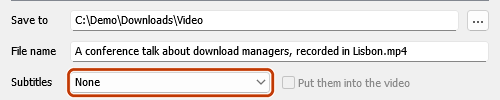
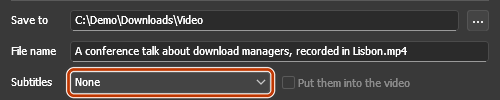
- Salvati accanto al video, prendono il suo nome e la lingua:
My video.fr.srt. Lettori come VLC e MPV li rilevano da soli. Con ffmpeg sono sempre SRT; senza, il formato proprio del sito (spesso WebVTT,.vtt). - Incorporali nel video li inserisce invece all'interno del file, come tracce che attivi nel lettore. Richiede ffmpeg e un video MP4 o MKV. La registrazione di un live stream li conserva accanto ad essa (Registrazione in corso di un live stream).
- Una scelta solo audio (Solo audio, MP3, Opus, FLAC) non include sottotitoli.
VDM offers the same choice again for the next video when it has that language.
A site may refuse subtitles when it's asked too often: YouTube does, most of all for its translated captions. The video is saved all the same. VDM asks for the subtitles once more after 20 seconds, and if they still don't come, the Download complete window and the download's log say which ones are missing and why. Try them again later. When subtitles meant to go inside the video only come on that second try, they're saved beside it instead.
Capitoli
Molti video sono divisi in capitoli sulla loro pagina: l'elenco di YouTube sotto il lettore, con un titolo e un'ora di inizio per ogni parte. Con Incorpora capitoli selezionato, sotto Sottotitoli, questi vanno nel file video, in modo che lettori come VLC, MPV, MPC-HC e Windows Media Player li elencano e saltano da uno all'altro.
- È selezionato all'inizio e resta come lo lasci per il video successivo.
- Serve ffmpeg, che li scrive. Un video senza capitoli viene salvato così com'è.
- Vanno in un video (MP4, MKV, WebM) e nell'audio come il sito lo fornisce (Solo audio, originale), non in un file MP3, Opus o FLAC, né nella registrazione di un live stream.
- Anche la riga di comando (
video-get) li inserisce, ogni volta che ffmpeg è presente.
Con Dividi in capitoli selezionato (accanto a Incorpora capitoli, o sotto di esso in una lingua lunga), il video viene anche diviso in singoli file capitolo (<filename> - <NN> - <chapter name>.<ext>, o <filename> - <NN>.<ext> quando senza titolo). Viene conservato anche l'intero video.
- Richiede ffmpeg e resta come lo lasci per il video successivo.
- Splitting uses stream copy without re-encoding, so it runs losslessly and near-instantly. Each cut lands on a keyframe, so a chapter can start a second or a few early (yt-dlp's
--force-keyframes-at-cutsmakes it exact, but re-encodes, so VDM does not turn it on by default). - Un video senza capitoli o con un singolo capitolo viene salvato come un unico file senza divisione.
- Il titolo di un capitolo viene abbreviato per adattarsi ai limiti del sistema sui nomi e percorsi dei file; in una cartella molto profonda un capitolo viene nominato solo dal suo numero.
- Non è offerto con Solo una parte: una parte non ha capitoli.
- I comandi
video-geteplaylist-getdella riga di comando lo supportano tramite--split-chapters. - L'eliminazione del download insieme ai suoi file pulisce anche i suoi file capitolo divisi, preservando i file non correlati nella stessa cartella.
Scarica solo una parte
Per salvare solo una parte di un video o di un audio (una scena, una canzone da un lungo mix, alcuni minuti di un podcast), seleziona Solo una parte nella riga Parte, sotto Sottotitoli, e digita dove inizia e dove finisce.
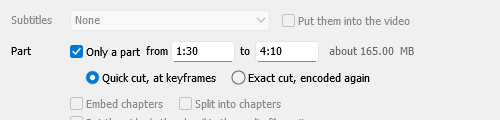
- I Tempi si digitano come
1:30(un minuto e mezzo),1:02:03(un'ora, due minuti e tre secondi) o in secondi (90). Le caselle partono dall'intero video, da 0:00 alla sua fine; Su e Giù spostano un tempo di un secondo, Pagina su e Pagina giù di dieci. Una casella diventa rossa mentre il suo tempo non è valido (non è un tempo, la fine precede l'inizio, è oltre la fine del video, o la parte è l'intero video), e Scarica ora indica il motivo. - Taglio rapido, ai fotogrammi chiave, la prima scelta: immagine e audio vengono copiati così come sono, senza nuova codifica, quindi è veloce e non perde nulla. Un'immagine può iniziare in modo pulito solo da un fotogramma chiave, quindi la parte inizia dall'ultimo prima del tuo inizio: al massimo qualche secondo prima, mai in ritardo. Un audio da solo in un M4A inizia dove dici tu; in un WebM (Opus) all'ultimo punto di ricerca prima, che può essere dieci secondi prima.
- Taglio esatto, con nuova codifica: la parte inizia e finisce dove hai detto tu. ffmpeg la codifica di nuovo (H.264 e AAC in un MP4, VP9 e Opus in un WebM, l'audio da solo nel suo formato), il che richiede circa lo stesso tempo che impiega il tuo computer per codificare quei minuti, e l'immagine potrebbe perdere un po'.
- La dimensione accanto ai tempi è una stima: la quota della parte rispetto al tutto.
- Nome file indica la parte:
My video (1m30s-4m10s).mp4. Un nome che digiti viene mantenuto così come lo hai digitato. - Nessun sottotitolo e nessun capitolo accompagnano una parte: sarebbero quelli dell'intero video, ai tempi dell'intero video. Sottotitoli e Incorpora capitoli sono disattivati mentre Solo una parte è selezionata.
- Serve ffmpeg, che taglia la parte, e un video di cui il sito indica la lunghezza (non un live stream). I video di una playlist vengono scaricati per intero.
- Dal browser: il menu del pulsante Scarica video su un video ha Scarica una parte da qui.... Apre questa finestra con Solo una parte selezionata e il suo inizio dove il video è in riproduzione.
How a part comes down: yt-dlp's ffmpeg finds the part in each stream by the stream's own index (an MP4's or a WebM's, an HLS stream's playlist) and reads only that part, never the whole file. What it reads comes in through VDM's own connections, in requests of a MB at most, several at once: a part comes about as fast as a whole video would (YouTube sends one long request at about the video's own pace), under your speed limits (a change applies at once), and through your proxy or network adapter. The progress window shows what has come against the part's estimated size. Paused and resumed, a part starts again from its beginning: ffmpeg can't go on from the middle of a cut. A stream sent another way (a DASH manifest, RTMP) is read by ffmpeg itself.
Playlist e canali
Incolla l'indirizzo di una playlist (youtube.com/playlist?list=…) o dei video di un canale (youtube.com/@name/videos) e fai clic su Cerca. Invece delle qualità di un singolo video, la finestra elenca i video della playlist, ognuno con la sua durata.
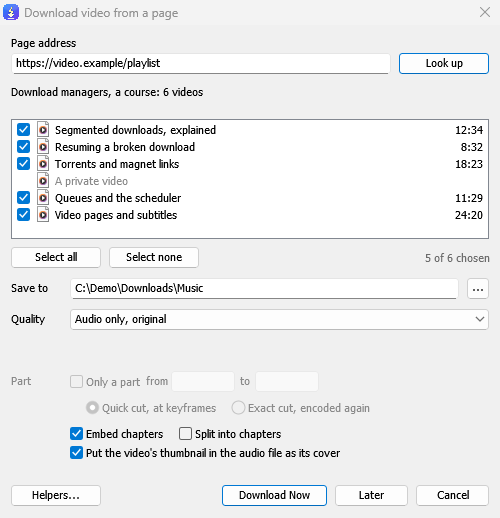
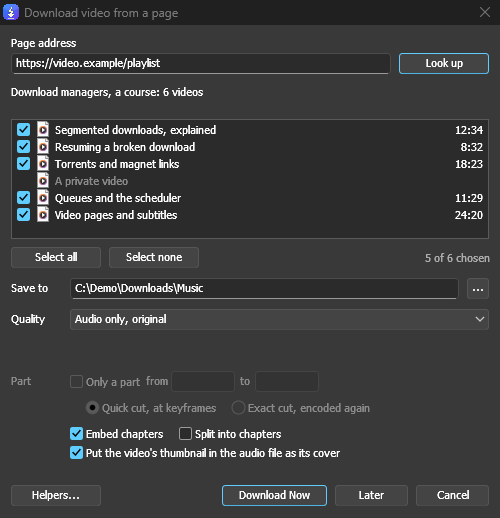
- Una playlist viene elencata per intero, man mano che i video vengono caricati: la riga sopra l'elenco indica a che punto si trova ("Elenco dei video: 1.200 di 6.000"). Interrompi l'elenco mantiene quelli elencati finora, e Elenca i restanti riprende da lì. Se il sito smette di rispondere a metà (YouTube potrebbe farlo, se interrogato troppo spesso), la finestra indica dopo quanti video e perché, e Elenca i restanti riprova da lì.
- I video di un canale vengono elencati 50 alla volta, dai più recenti. Carica altro elenca i 50 successivi.
- Ogni video è selezionato all'inizio. Deseleziona quelli che non desideri, oppure usa Seleziona tutto e Deseleziona tutto. I video privati ed eliminati sono in grigio e non possono essere selezionati.
- The sound's language: every video of the list downloads with Options → Regional → Videos' sound's language when it has it, else its original (The sound's language).
- La Qualità si applica a ogni video: Qualità migliore, Più compatibile (H.264 + AAC) (la migliore immagine H.264 di ogni video con audio AAC; un video che non ne ha non viene scaricato), Fino a un'altezza (ogni video a quell'altezza, o la più vicina inferiore), Solo audio, originale, Solo audio MP3, Solo audio OPUS o Solo audio FLAC. Senza ffmpeg, vengono offerte solo le qualità che includono il loro audio, e nessun MP3, Opus o FLAC.
- I video vengono salvati in una cartella con il nome della playlist, all'interno di Salva in, ognuno con il proprio titolo.
Scarica ora aggiunge ogni video come download separato e avvia la coda di download principale, che esegue contemporaneamente il numero di download impostato nel Pianificatore (Scarica N file contemporaneamente). Più tardi li aggiunge senza avviare il download. L'aggiunta di più di 500 download contemporaneamente richiede una conferma.
VDM lists at most 20,000 videos of one list.
Un indirizzo di pagina che punta a un video all'interno di una playlist o di un mix (ad esempio watch?v=…&list=…) scarica quel singolo video, mai l'intero elenco.
Limiti di velocità
Videos keep to the Speed Limiter: the limit for one file, a video's own limit (the Speed Limiter tab of its progress window), and the limit for all downloads together, which they share with every other download. VDM's own downloader brings them in, so a change applies at once, as for a file.
A video yt-dlp downloads by itself (How a video comes down) takes a limit only as it starts: when you turn the limiter on or off, change its settings or the video's own limit, VDM stops it and starts it again with the new limit, and it goes on from where it was (the log says "Stopped: the speed limit changed; starting again with it"). A live stream that is recording is the exception: restarting it would cut the recording, so it keeps recording and takes the limit the next time it starts. Under the limit for all downloads, such videos share it evenly: when another starts, the ones running with more than their share start again with it; when one ends, the others keep theirs. A gallery's pictures that VDM brings in follow a change at once; what gallery-dl still fetches itself starts again with the new limit, skipping the files already saved. Other changes (torrents taking more or less of the limit for all downloads, Only while I'm using the computer) apply to the next one that starts.
Tramite la scheda di una VPN
With Options → Proxy / Socks → Network adapter set, video downloads go through that adapter too, with the same kill switch as other downloads. VDM's own downloader opens its connections through the adapter as for any file; for yt-dlp's look-ups (and what it downloads itself, with the ffmpeg it starts) VDM hands it a proxy of its own on this computer, and opens every connection through the adapter, looking the names up with the DNS you chose in Options → Connection (without an adapter, yt-dlp uses the system's DNS). When the adapter disconnects, the video download stops, and it starts again when the adapter is back. Formats sent over RTMP, RTSP, MMS or FTP can't go through it and are refused.
Siti che richiedono l'accesso
Alcuni video vengono riprodotti solo per un utente che ha effettuato l'accesso: un video per membri o privato, o con restrizioni di età. E YouTube a volte chiede a qualsiasi spettatore proveniente da una rete che dubita (una VPN, un indirizzo condiviso o cloud) di "Accedere per confermare che non sei un bot". yt-dlp ha quindi bisogno dei cookie del tuo browser, i piccoli file che ti mantengono connesso.
- Il pulsante Scarica video sopra il video passa i cookie di quella pagina, dalla finestra e dal profilo in cui ti trovi (una finestra privata, un contenitore Firefox), per la ricerca e il download, in modo che tu sia connesso come nel browser. Nulla da configurare. Ogni cookie va con il dominio per cui il browser lo conserva, quindi un accesso a YouTube Music (music.youtube.com) o al sito mobile di YouTube raggiunge anche www.youtube.com.
- Un indirizzo incollato (Aggiungi URL, Scarica video da una pagina, una playlist): scegli il tuo browser in Opzioni → Accessi ai siti → Cookie per i siti video. yt-dlp legge i cookie di quel browser su questo computer per ogni video che cerca o scarica. Quando l'estensione ha passato i cookie della pagina, questi vengono usati al loro posto: sono quelli della pagina e della sessione.
- Un account di riserva, in un profilo a sé stante: non devi prestare a yt-dlp il tuo account principale. Crea un secondo profilo nel tuo browser, accedi al sito lì con un account di riserva e inserisci quel profilo in Profilo (il suo nome, o la sua cartella con ...). yt-dlp legge solo i cookie di quel profilo. Anche gli sviluppatori di yt-dlp lo consigliano: un sito potrebbe limitare un account che vede utilizzato da un programma.
Signed in, YouTube sometimes refuses what it gives a visitor: its servers answer the video with HTTP Error 403: Forbidden, or the look-up with its bot check, where a private window plays it. When YouTube refuses a video anyone may watch that way, VDM looks it up once more without your cookies, as a private window would, and the download's log says so. A private, members' or age-restricted video keeps them.


Sign in to the site in that browser first. VDM never logs or shows the cookies; the download's log names only the browser they came from.
Quali browser
Dal browser elenca i browser che yt-dlp legge: Firefox, Chrome, Edge, Brave, Opera, Vivaldi, Chromium e Whale, e Safari su macOS. Profilo è facoltativo: il nome di un profilo (Profile 1) o la sua cartella; se vuoto, l'ultimo profilo usato.
- Firefox funziona su ogni sistema. Se hai effettuato l'accesso solo pochi istanti fa con Firefox aperto, chiudilo una volta in modo che salvi l'accesso nei suoi file.
- Chrome, Edge e Brave su Windows bloccano i loro cookie (Chrome 127 e successivi, "crittografia legata all'app"), e yt-dlp non può leggerli nemmeno mentre il browser è aperto. La finestra lo indica; scegli Firefox, oppure usa il pulsante sopra il video, che funziona con qualsiasi browser.
- Su Linux, i browser della famiglia Chrome mantengono la chiave dei loro cookie nel portachiavi del sistema (GNOME Keyring, KWallet); yt-dlp la richiede, quindi deve essere sbloccata.
- Un altro browser basato su Chromium (Helium, Thorium, ungoogled-chromium...): scegli Chromium e la cartella del profilo di quel browser (la sua cartella
Default, oProfile 1...; sotto~/.configsu Linux,%LOCALAPPDATA%su Windows). yt-dlp legge la cartella, ma un browser che mantiene la sua chiave sotto il proprio nome nel portachiavi, o blocca i suoi cookie come fa Chrome, non può essere letto in questo modo: usa il pulsante della sua estensione.
Quando un server video non è raggiungibile
Some sites, YouTube among them, send each viewer to a nearby video server, sometimes one inside the internet provider's own network. If that server can't be reached from your connection, a browser quietly switches to another one, but yt-dlp on its own would give up. Before each video download VDM checks the servers in the video's links and, if one doesn't answer, switches to the next one the site lists. The download's log says when this happens.
Se un video non si scarica
- Passa il puntatore sopra lo Stato del download, o apri la sua finestra di avanzamento, per leggere il messaggio di yt-dlp.
- In quella pagina non c'è nessun video scaricabile significa che yt-dlp non ha trovato nulla sulla pagina. Controlla che l'indirizzo sia la pagina del video stesso.
- Questo video richiede l'accesso, o il sito richiede l'accesso: vedi Siti che richiedono l'accesso.
- Sites change often, and a newer yt-dlp usually fixes it. VDM keeps its own yt-dlp up to date by itself, and when a download fails in a way that usually means yt-dlp is out of date, it looks for a newer one at once and tries again (Keeping them up to date). To check right now: Helpers... → Check for updates. If you chose your own yt-dlp in Helpers, update it yourself (
yt-dlp -U, or your package manager). - The path is too long for Windows (or the file name is too long) means the folder and the file name together, with the files saved beside the video while it downloads, are longer than the system allows: 259 characters on Windows unless long paths are turned on there, 255 a name (255 bytes on Linux and macOS). VDM shortens a title by itself, so this comes from a name you typed or a very deep Save to folder: add the video again with a shorter name, or a folder nearer the top of the drive.
- Videos protected with DRM (most paid streaming services) can't be downloaded, and VDM doesn't try. The browser extension's Media on this page shows such a stream as Protected and doesn't send it.
- Una pagina il cui video la finestra non riesce a trovare: riproduci il video nel tuo browser, quindi usa la funzione Contenuti multimediali in questa pagina dell'estensione per inviare il flusso caricato dalla pagina.
- Il download potrebbe essere contrario ai termini di alcuni siti. La verifica spetta a te.
- Il problema persiste? Usa Guida → Segnala un problema e includi l'indirizzo della pagina.
Passi successivi
Gratuito, open source, senza pubblicità, senza periodo di prova.
Download Volt Download Manager