

La finestra di avanzamento
Ogni download in corso ha la sua finestra di avanzamento. Si apre all'avvio del download (a meno che tu non l'abbia disattivata o non abbia scelto Mostra ridotta a icona in Opzioni → Download → Personalizza la finestra "Avanzamento download" → Modifica...); per riaprirla, fai doppio clic sul download nell'elenco.
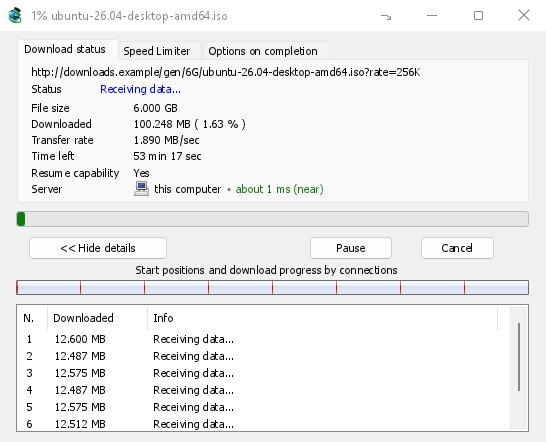
La scheda Stato del download mostra:
- Stato: Connessione in corso..., Ricezione dati..., In pausa, Completato o l'errore.
- Dimensione file, Scaricato e Velocità di trasferimento.
- Tempo rimanente.
- Resume capability — Yes if the server lets VDM continue the download later, No if it doesn't.
- Server: dove si trova il server e quanto è vicino. Vedi Dove si trova il server.
Mostra dettagli >> (aperto per impostazione predefinita) aggiunge la vista delle connessioni:
- Una barra dell'intero file, che mostra dove è iniziata ogni connessione e quanto è avanzata (Posizioni iniziali e avanzamento del download per connessione).
- Una tabella con una riga per connessione: il suo numero, quanto ha scaricato e cosa sta facendo in quel momento.
I pulsanti:
- Pausa ferma il download e mantiene ciò che ha; Riprendi lo continua.
- Interrompi e mantieni prende il posto di Pausa per un download che potrebbe non finire mai da solo: una radio internet, il feed di una telecamera, qualsiasi server che non invia la dimensione e non può riprendere (Ripresa supportata: No). Metterlo in pausa scarterebbe ciò che è arrivato; Interrompi e mantieni lo termina lì e conserva ciò che è arrivato come file completato, nella sua cartella e elencato come Completato. Vedi Download che non finiscono mai.
- Annulla ferma il download e chiude la finestra. Il download rimane nell'elenco e può essere ripreso.
- Chiudendo la finestra con il suo pulsante di chiusura il download rimane in esecuzione.
- Il pulsante Nascondi nell'area di notifica (un trattino corto con una freccia in basso verso l'angolo; in Windows, nella barra del titolo, a sinistra di Riduci a icona) sposta la finestra nell'area di notifica; Download in corso nel menu dell'icona nell'area di notifica la riapre. Vedi L'icona nell'area di notifica.
Dove si trova il server
Informazioni sul file da scaricare, la finestra di avanzamento e Proprietà mostrano dove si trova il server di un download: la bandiera e il nome del suo paese, poi il tempo che impiega un viaggio di andata e ritorno, come circa 24 ms (vicino).
- Vicino (verde): meno di 60 ms, di solito lo stesso paese o quello adiacente.
- Medio (ambra): da 60 a 150 ms, di solito lo stesso continente.
- Lontano (rosso): oltre 150 ms, di solito un altro continente. Un server lontano è spesso più lento, e sono soprattutto questi server a trarre vantaggio da più connessioni.
Passa il puntatore sulla riga per vedere l'indirizzo del server e come è stato misurato il tempo.
How VDM knows:
- The country comes from a table of address ranges that comes with VDM (IP to Country Lite by DB-IP, CC BY 4.0), looked up on your computer. VDM never sends the address anywhere to ask where it is. The table is updated with each release; an address that has moved since may show its old country.
- The time is measured from the download's own connections, as each one opens: VDM sends nothing extra to the server. It is an estimate (the time to open a connection, divided by its round trips: one for http, two for https), so it says about. The quickest connection counts.
- Un server sul tuo computer o sulla tua rete locale viene mostrato come tale, senza bandiera.
- Through a proxy, VDM only sees the proxy, so it says through a proxy (with the proxy's country when it knows it) instead of guessing the server's. A VPN that works at the system level can't be seen: the country is then the server's, but the time includes the VPN's detour.
- Una rete di distribuzione di contenuti (Cloudflare, Amazon CloudFront, Fastly, Akamai e altri) serve un file da un server vicino a te, non da quello del proprietario del sito. La descrizione lo indica: il luogo è il server della rete, non dove si trova il sito.
- Torrents and galleries have no single server of VDM's own (peers, or the many a gallery's pictures come from), so their windows don't show one. A video in one file shows the server it comes from.
Proprietà conserva ciò che è stato visto nell'ultima esecuzione, quindi un download completato mostra ancora da dove proviene.
Altre due schede:
- Limitatore di velocità: un limite solo per questo download. Vedi sotto.
- Opzioni al termine: mostra dove verrà salvato il file. Deseleziona Mostra la finestra di download completato per saltare la finestra Download completato solo per questo file.
Il comando Nascondi scheda rimuove una scheda dalla finestra di questo download e torna a Stato del download. Per ripristinare le schede, fai clic destro sulla riga delle schede e scegli Mostra schede nascoste; anche chiudere la finestra e riaprirla le ripristina.
Quando un download termina
La finestra Download completato mostra la dimensione del file, il suo indirizzo e dove è stato salvato. Scegli Apri, Apri con..., Apri cartella o Chiudi. Su Windows puoi anche trascinare la piccola casella in basso a destra in Esplora file, in un'email o in una chat per rilasciare il file lì. Come quando trascini un file in Esplora file, una cartella sulla stessa unità riceve il file spostato lì e un'altra unità ne riceve una copia (tieni premuto Shift per spostarlo, Ctrl per copiarlo). Il download segue un file spostato: l'elenco e Apri lo trovano nella sua nuova posizione. La finestra appare sopra gli altri programmi finché non ci fai clic, senza togliere la tastiera a quello in cui stai digitando.
Seleziona Non mostrare più questa finestra per non vederla più. Può essere riattivata in Opzioni → Download → Mostra la finestra di download completato.
How VDM uses connections
VDM splits a file into parts and downloads them over several connections at once:
- Per impostazione predefinita, usa 8 connessioni. Puoi impostare da 1 a 32 in Opzioni → Connessione → N. max connessioni predefinito, o fino a 128 selezionando lì Consenti più di 32 connessioni. Più connessioni aiutano solo quando il server invia ciascuna a una velocità limitata e ne consente così tante da un singolo indirizzo; la maggior parte dei server ne consente molte meno.
- Quando una connessione termina la sua parte, prende in carico metà della parte più grande ancora rimanente, in modo che nessuna connessione rimanga inattiva mentre un'altra sta ancora lavorando.
- Una connessione molto più lenta delle altre viene interrotta e riaperta.
- Some servers allow only a few connections. VDM notices this and stops asking that server for more. What it has learned shows in Options → Connection under Exceptions, marked (auto).
- Puoi impostare tu stesso un numero per un server: Opzioni → Connessione → Nuovo, poi digita il nome del server e il numero di connessioni.
*sta per qualsiasi testo:*.example.comè ogni sottodominio di example.com (non example.com stesso),files*.example.netogni server il cui nome inizia così. Quando più eccezioni nominano un server, conta la prima nell'elenco.
Each connection writes straight into the file's place on disk, in a part file named <name>.vdm.part next to the final file. When every part is done, VDM checks the size and renames it. There is no temporary folder and no joining step at the end.
Regole del sito
Alcuni siti richiedono uno User-Agent particolare, un'intestazione aggiuntiva o meno connessioni, consentono solo ai browser di passare o necessitano di un proxy (o di nessuno) quando gli altri non lo fanno. Opzioni → Connessione → Regole del sito... imposta queste regole una volta per ogni download da un sito:
- Sito — il nome del sito, come per le eccezioni:
example.com,*.example.com(i suoi sottodomini),files*.example.net. Uno schema davanti (https://example.com) mantiene la regola a quello schema. - User-Agent — the name VDM gives itself to that site, instead of your browser's or the one set in Options → Downloads. Empty: as usual.
- Intestazioni di richiesta — una per riga,
Name: value(Accept-Language: de,X-Api-Key: ...). Un'intestazione che il download ha già, come il Referer del browser, viene sostituita. Le intestazioni chiamate Cookie e Authorization restano con il sito quando invia il download altrove; le altre lo seguono, come in altri programmi di download. - Numero di connessioni — il numero proprio del sito. È lo stesso della sua eccezione sopra: il numero di una regola appare sotto Eccezioni, e un'eccezione appare come una regola.
- Always connect the way a browser does — VDM asks the site the way a browser connects from the first request, instead of only after the site turned it away ("this site lets only browsers through").
- Proxy — As in Options (the default: Options → Proxy / Socks decides), No proxy (straight to the site, whatever Options says), or This proxy: one of its own, typed as a download's own proxy is,
host:port,http://host:port,https://host:port,socks5://host:port(socks5h://to have the proxy look the site's name up). Proxy user and Password are its login, if it needs one; the password is kept with VDM's other passwords (in the system's keychain), never in the settings file as it is. This replaces switching Options back and forth, or writing a proxy auto-config script, when only some sites need a proxy.
Each setting comes from the first rule in the list that names the site and sets it, so put a narrower rule (dl.example.com) above a wider one (*.example.com) with Move up and Move down. Rules apply to downloads VDM's engine makes, as they start or resume. The command line's get and resume use them too, unless you give the same thing on the command line.
Quale proxy utilizzerà un download: prima il suo (sotto), poi la prima regola che nomina il sito e imposta un proxy, poi Opzioni → Proxy / Socks (e il proxy del browser, quando Usa proxy/socks dalla richiesta di un browser è attivo). Il proxy di una regola gestisce anche la ricerca delle Informazioni sul file da scaricare e, per una pagina video o galleria che la regola nomina, la ricerca di yt-dlp e gallery-dl e il download del video, in modo che i collegamenti ottenuti vengano utilizzati dallo stesso indirizzo. La Scheda di rete scelta in Opzioni → Proxy / Socks, e il suo kill switch, mantengono comunque ogni connessione: con una scheda scelta, nulla la aggira.
Impostazioni di un download
Le Proprietà → Connessione... di un download interrotto modificano il modo in cui si connette quando riprende: il suo User-Agent, le intestazioni di richiesta, il proxy (come nelle Opzioni, nessuno, o uno che host:port digiti, socks5://host:port) e il numero di connessioni. Queste impostazioni hanno la precedenza sulle regole del sito e sulle Opzioni, e restano salvate con l'elenco. Mentre il download è in corso, il pulsante è disattivato: prima mettilo in pausa.
When it resumes, VDM checks it is still the same file (its size, and the ETag and date the server gives) before it writes anything. If the new settings lead to another version of the file, the download stops with the file changed on the server and keeps what it had: start it again from the beginning only if you want the new one. Changed settings never mix two files.
Ripresa
A download resumes where it stopped: after you stop it, after the connection drops, or after Windows or VDM crashes. VDM saves how far each part has got as it goes.
- Una connessione che non riesce viene riprovata automaticamente. La tabella della finestra di avanzamento mostra Nuovo tentativo e il motivo.
- Per continuare un download interrotto, selezionalo e fai clic su Riprendi nella barra degli strumenti (o File → Scarica ora).
- Before continuing, VDM checks that the file on the server is still the same. If it changed, the download stops with the file changed on the server. Use Redownload to start again from the beginning.
- If Resume capability is No, the server can't send a file in parts. VDM then downloads it over one connection, and a download that stops has to start over.
Riprendere un download interrotto vale anche per i collegamenti scaduti.
Download che non finiscono mai
Alcuni indirizzi non finiscono mai da soli: una stazione radio internet, l'immagine live di una telecamera, un server che continua a inviare. Il loro server non indica la dimensione e non può inviare parti, quindi la finestra di avanzamento mostra Ripresa supportata: No, Scaricato cresce senza percentuale, e il suo pulsante Pausa mostra Interrompi e mantieni.
- Interrompi e mantieni termina il download dove si trova e conserva tutto ciò che è arrivato come file completato: nominato, nella sua cartella, Completato nell'elenco, con la finestra Download completato come per qualsiasi altro file.
- Interrompi e mantieni è l'unico modo per conservarlo. Interrompi sulla barra degli strumenti, Interrompi tutto, l'interruzione di una coda (manualmente o al suo orario di interruzione), la Pausa del pannello della barra delle applicazioni, la pausa della pagina del telefono e Annulla lo interrompono tutti senza conservare nulla, come per qualsiasi download il cui server non può riprendere: una successiva Riprendi lo fa ripartire da capo.
- Un checksum che hai dato per il download non viene verificato rispetto a un file conservato in questo modo: può essere solo per un file intero.
- Closing VDM while such a download runs, and the command line, don't keep it.
Lo stesso vale per qualsiasi download il cui server non invia la dimensione e non accetta intervalli, un file che un sito crea su tua richiesta tra questi: Interrompi e mantieni conserva ciò che è arrivato finora come suo file, non l'intero file. Per ottenere un tale file intero, lascialo finire.
Solo tramite la tua VPN: la scheda di rete e il suo kill switch
Options → Proxy / Socks → Network adapter holds every connection VDM opens to one network adapter, usually your VPN's: downloads, FTP, torrents, video pages and galleries, VDM's own downloads and the update check. It works as a kill switch: when the adapter disconnects, or the VPN is switched off, nothing goes out through your normal connection. Running downloads stop with … is not connected, and start again by themselves when the adapter is back. The line under the list shows the adapter's address, or that it isn't connected. Details in Options → Proxy / Socks and, for torrents, in Torrents and your security.
Il DNS
Options → Connection → DNS chooses who turns the servers' names into addresses: the system's DNS (the default), or an encrypted one (DNS over HTTPS or TLS) such as Cloudflare, Google, Quad9, AdGuard, NextDNS or your own. With a network adapter chosen, VDM asks it through the adapter, so the names stay inside your VPN too. See Options → Connection.
Limitatore di velocità
The Speed Limiter keeps VDM from using all of your connection.
Per ogni download
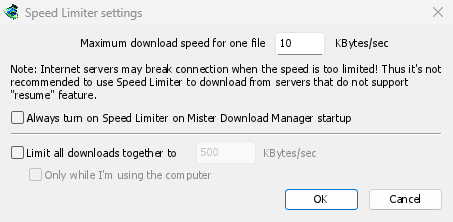
- Scegli Download → Limitatore di velocità → Impostazioni....
- Imposta la Velocità massima di download per un file in KB/sec. Inizia a 10, quindi impostala prima di attivare il limitatore.
- Fai clic su OK.
- Scegli Download → Limitatore di velocità → Attiva. Disattiva ripristina la piena velocità.
Always turn on Speed Limiter on Volt Download Manager startup turns it on each time VDM starts.
Un torrent conta come un file: ogni torrent ha il suo limite. Lo stesso vale per un video e una galleria di immagini (Video). Un download con un limite proprio (vedi Per un download) mantiene quel limite.
Per tutti i download insieme
In the same window, tick Limit all downloads together to and set the speed. This caps VDM as a whole, however many files are downloading, torrents included. When torrents and other downloads run at the same time, each side gets at least half of the speed, and more when the other side needs less: a torrent going slowly leaves the rest to the other downloads, and the other way round. It applies whenever it is ticked, whether the per-file limiter is on or off.
Tick Only while I'm using the computer to apply it only while you use the mouse or keyboard. After a minute without input, VDM goes back to full speed.
Per un singolo download
Nella finestra di avanzamento del download, apri la scheda Limitatore di velocità:
- Seleziona Usa il limitatore di velocità.
- Imposta la Velocità massima di download in KB/sec. Il nuovo limite si applica immediatamente.
- Tick Remember Speed Limiter settings for this file on download stop/resume to keep this limit for the file: it applies again when you resume it later, even after restarting VDM.
Un video o una galleria hanno un limite proprio allo stesso modo. Per un torrent, il limite è solo di quel torrent; gli altri mantengono il loro. Un torrent non può essere mantenuto sotto i 16 KB/sec: un limite inferiore gli assegna 16 KB/sec.
Alcuni server interrompono la connessione quando la velocità è molto bassa. Evita di impostare un limite troppo basso per i server che non supportano la ripresa (Ripresa supportata: No).
Passi successivi
- Mantenere un po' di velocità per tutto il resto →
- Riprendere un download interrotto →
- Impostazioni di connessione in Opzioni →
Gratuito, open source, senza pubblicità, senza periodo di prova.
Download Volt Download Manager