

The progress window
Each running download has its own progress window. It opens when the download starts (unless you turned that off, or chose Show minimized, in Options → Downloads → Customize "Download progress" dialog → Edit...); to open it again, double-click the download in the list.
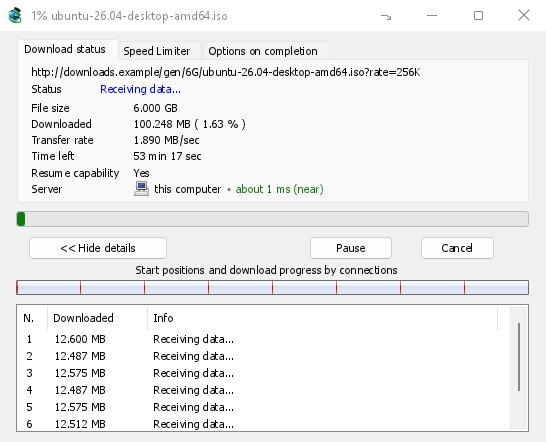
The Download status tab shows:
- Status — Connecting..., Receiving data..., Paused, Complete or the error.
- File size, Downloaded and Transfer rate.
- Time left.
- Resume capability — Yes if the server lets VDM continue the download later, No if it doesn't.
- Server — where the server is, and how near. See Where the server is.
Show details >> (open by default) adds the connection view:
- A bar of the whole file, showing where each connection started and how far it has got (Start positions and download progress by connections).
- A table with one row per connection: its number, how much it has downloaded, and what it is doing right now.
The buttons:
- Pause stops the download and keeps what it has; Resume continues it.
- Stop and keep takes Pause's place for a download that may never end by itself: an internet radio, a camera feed, any server that sends no size and can't resume (Resume capability: No). Pausing it would throw away what arrived; Stop and keep ends it there and keeps what arrived as a finished file, in its folder and listed as Complete. See Downloads that never end.
- Cancel stops the download and closes the window. The download stays in the list and can be resumed.
- Closing the window with its close box keeps the download running.
- Hide to the notification area (a short dash with an arrow down to the corner; on Windows in the title bar, left of Minimize) puts the window in the notification area; Downloads in progress in the tray icon's menu brings it back. See The tray icon.
Where the server is
Download File Info, the progress window and Properties show where a download's server is: its country's flag and name, then the time a round trip to it takes, such as about 24 ms (near).
- Near (green): under 60 ms, usually the same country or the next one.
- Medium (amber): 60 to 150 ms, usually the same continent.
- Far (red): over 150 ms, usually another continent. A far server is often slower, and more connections help it most.
Hover over the line for the server's address and how the time was measured.
How VDM knows:
- The country comes from a table of address ranges that comes with VDM (IP to Country Lite by DB-IP, CC BY 4.0), looked up on your computer. VDM never sends the address anywhere to ask where it is. The table is updated with each release; an address that has moved since may show its old country.
- The time is measured from the download's own connections, as each one opens: VDM sends nothing extra to the server. It is an estimate (the time to open a connection, divided by its round trips: one for http, two for https), so it says about. The quickest connection counts.
- A server on your computer or your local network shows as such, with no flag.
- Through a proxy, VDM only sees the proxy, so it says through a proxy (with the proxy's country when it knows it) instead of guessing the server's. A VPN that works at the system level can't be seen: the country is then the server's, but the time includes the VPN's detour.
- A content delivery network (Cloudflare, Amazon CloudFront, Fastly, Akamai and others) serves a file from a server near you, not from the site owner's. The tooltip says so: the place is the network's server, not where the site is.
- Torrents and galleries have no single server of VDM's own (peers, or the many a gallery's pictures come from), so their windows don't show one. A video in one file shows the server it comes from.
Properties keeps what the last run saw, so a finished download still shows where it came from.
Two more tabs:
- Speed Limiter — a limit for this download only. See below.
- Options on completion — shows where the file will be saved. Untick Show download complete dialog to skip the Download complete box for this file only.
Hide tab takes a tab off this download's window and goes back to Download status. To bring the tabs back, right-click the tab row and choose Show hidden tabs; closing the window and opening it again brings them back too.
When a download finishes
Download complete shows the file's size, its address and where it was saved. Choose Open, Open with..., Open folder or Close. On Windows you can also drag the small box at the bottom right into Explorer, an email or a chat to drop the file there. As when you drag a file in Explorer, a folder on the same drive gets the file moved there and another drive gets a copy (hold Shift to move it, Ctrl to copy it). The download follows a moved file: the list and Open find it in its new place. The window shows above your other programs until you click it, without taking the keyboard from the one you're typing in.
Tick Don't show this dialog again to stop seeing it. It can be turned back on in Options → Downloads → Show download complete dialog.
How VDM uses connections
VDM splits a file into parts and downloads them over several connections at once:
- It uses 8 connections by default. You can set 1 to 32 in Options → Connection → Default max. conn. number, or up to 128 after ticking Allow more than 32 connections there. More connections help only when the server sends each one at a limited speed and allows that many from one address; most servers allow far fewer.
- When a connection finishes its part, it takes over half of the largest part still left, so no connection sits idle while another one is still working.
- A connection that is far slower than the others is dropped and opened again.
- Some servers allow only a few connections. VDM notices this and stops asking that server for more. What it has learned shows in Options → Connection under Exceptions, marked (auto).
- You can set a number for a server yourself: Options → Connection → New, then type the server's name and the number of connections.
*stands for any text:*.example.comis every subdomain of example.com (not example.com itself),files*.example.netevery server whose name starts so. When several exceptions name a server, the first one in the list counts.
Each connection writes straight into the file's place on disk, in a part file named <name>.vdm.part next to the final file. When every part is done, VDM checks the size and renames it. There is no temporary folder and no joining step at the end.
Site rules
Some sites want a particular User-Agent, an extra header or fewer connections, let only browsers through, or need a proxy (or none) when the others don't. Options → Connection → Site rules... sets these once for every download from a site:
- Site — the site's name, as for the exceptions:
example.com,*.example.com(its subdomains),files*.example.net. A scheme in front (https://example.com) keeps the rule to that scheme. - User-Agent — the name VDM gives itself to that site, instead of your browser's or the one set in Options → Downloads. Empty: as usual.
- Request headers — one a line,
Name: value(Accept-Language: de,X-Api-Key: ...). A header the download already has, such as the browser's Referer, is replaced. Headers named Cookie and Authorization stay with the site when it sends the download elsewhere; others follow it, as in other download programs. - Number of connections — the site's own number. It is the same as its exception above: a rule's number shows under Exceptions, and an exception shows as a rule.
- Always connect the way a browser does — VDM asks the site the way a browser connects from the first request, instead of only after the site turned it away ("this site lets only browsers through").
- Proxy — As in Options (the default: Options → Proxy / Socks decides), No proxy (straight to the site, whatever Options says), or This proxy: one of its own, typed as a download's own proxy is,
host:port,http://host:port,https://host:port,socks5://host:port(socks5h://to have the proxy look the site's name up). Proxy user and Password are its login, if it needs one; the password is kept with VDM's other passwords (in the system's keychain), never in the settings file as it is. This replaces switching Options back and forth, or writing a proxy auto-config script, when only some sites need a proxy.
Each setting comes from the first rule in the list that names the site and sets it, so put a narrower rule (dl.example.com) above a wider one (*.example.com) with Move up and Move down. Rules apply to downloads VDM's engine makes, as they start or resume. The command line's get and resume use them too, unless you give the same thing on the command line.
Which proxy a download goes through: its own (below) first, then the first rule that names the site and sets a proxy, then Options → Proxy / Socks (and the browser's proxy, when Use proxy/socks from a browser's request is on). A rule's proxy also carries Download File Info's look-up and, for a video or gallery page the rule names, yt-dlp's and gallery-dl's look-up and the video's download, so the links they get are used from the same address. The Network adapter chosen in Options → Proxy / Socks, and its kill switch, still hold every connection: with an adapter chosen, nothing goes around it.
One download's settings
A stopped download's Properties → Connection... changes how that download connects when it goes on: its User-Agent, request headers, proxy (as in Options, none, or one you type, host:port or socks5://host:port) and number of connections. They come before the site rules and Options, and are kept with the list. While the download runs, the button is greyed: pause it first.
When it resumes, VDM checks it is still the same file (its size, and the ETag and date the server gives) before it writes anything. If the new settings lead to another version of the file, the download stops with the file changed on the server and keeps what it had: start it again from the beginning only if you want the new one. Changed settings never mix two files.
Resuming
A download resumes where it stopped: after you stop it, after the connection drops, or after Windows or VDM crashes. VDM saves how far each part has got as it goes.
- A connection that fails is retried on its own. The progress window's table shows Retrying and the reason.
- To continue a stopped download, select it and click Resume on the toolbar (or File → Download Now).
- Before continuing, VDM checks that the file on the server is still the same. If it changed, the download stops with the file changed on the server. Use Redownload to start again from the beginning.
- If Resume capability is No, the server can't send a file in parts. VDM then downloads it over one connection, and a download that stops has to start over.
Resume a broken download covers expired links too.
Downloads that never end
Some addresses never finish on their own: an internet radio station, a camera's live picture, a server that keeps sending. Their server says no size and can't send parts, so the progress window shows Resume capability: No, Downloaded grows with no percentage, and its Pause button reads Stop and keep.
- Stop and keep ends the download where it is and keeps everything that arrived as the finished file: named, in its folder, Complete in the list, with the Download complete window as for any other file.
- Stop and keep is the only way to keep it. Stop on the toolbar, Stop All, a queue's stop (by hand or at its stop time), the tray panel's Pause, the phone page's pause and Cancel all stop it without keeping anything, as for any download whose server can't resume: a later Resume starts it over.
- A checksum you gave for the download isn't checked against a file kept this way: it can only be for a whole file.
- Closing VDM while such a download runs, and the command line, don't keep it.
The same goes for any download whose server sends no size and takes no ranges, a file a site makes as you ask for it among them: Stop and keep keeps what arrived so far as its file, not the whole file. To get such a file whole, let it finish.
Through your VPN only: the network adapter and its kill switch
Options → Proxy / Socks → Network adapter holds every connection VDM opens to one network adapter, usually your VPN's: downloads, FTP, torrents, video pages and galleries, VDM's own downloads and the update check. It works as a kill switch: when the adapter disconnects, or the VPN is switched off, nothing goes out through your normal connection. Running downloads stop with … is not connected, and start again by themselves when the adapter is back. The line under the list shows the adapter's address, or that it isn't connected. Details in Options → Proxy / Socks and, for torrents, in Torrents and your security.
The DNS
Options → Connection → DNS chooses who turns the servers' names into addresses: the system's DNS (the default), or an encrypted one (DNS over HTTPS or TLS) such as Cloudflare, Google, Quad9, AdGuard, NextDNS or your own. With a network adapter chosen, VDM asks it through the adapter, so the names stay inside your VPN too. See Options → Connection.
Speed Limiter
The Speed Limiter keeps VDM from using all of your connection.
For every download
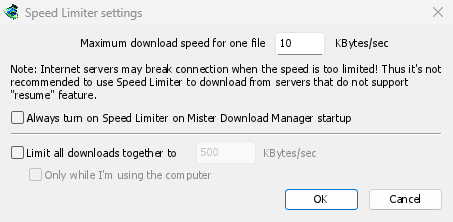
- Choose Downloads → Speed Limiter → Settings....
- Set Maximum download speed for one file in KBytes/sec. It starts at 10, so set it before you turn the limiter on.
- Click OK.
- Choose Downloads → Speed Limiter → Turn on. Turn off gives full speed again.
Always turn on Speed Limiter on Volt Download Manager startup turns it on each time VDM starts.
A torrent counts as one file here: each torrent gets the limit of its own. So do a video and an image gallery (Videos). A download with a limit of its own (see For one download) keeps that one.
For all downloads together
In the same window, tick Limit all downloads together to and set the speed. This caps VDM as a whole, however many files are downloading, torrents included. When torrents and other downloads run at the same time, each side gets at least half of the speed, and more when the other side needs less: a torrent going slowly leaves the rest to the other downloads, and the other way round. It applies whenever it is ticked, whether the per-file limiter is on or off.
Tick Only while I'm using the computer to apply it only while you use the mouse or keyboard. After a minute without input, VDM goes back to full speed.
For one download
In the download's progress window, open the Speed Limiter tab:
- Tick Use Speed Limiter.
- Set Maximum download speed in KBytes/sec. The new limit applies at once.
- Tick Remember Speed Limiter settings for this file on download stop/resume to keep this limit for the file: it applies again when you resume it later, even after restarting VDM.
A video or a gallery takes a limit of its own the same way. For a torrent, the limit is that torrent's alone; the others keep theirs. A torrent can't be held under 16 KBytes/sec: a lower limit gives it 16.
Some servers drop the connection when the speed is very low. Avoid a tight limit for servers that can't resume (Resume capability: No).
Next steps
Free, open source, no ads, no trial.
Download Volt Download Manager