

VDM runs on Windows 10 and Windows 11 (x64, ARM64 and 32-bit), and on 64-bit Linux (x86-64 and ARM64): see On Linux. Builds for macOS are new and still experimental: see On a Mac.
Choose a download
Every version is on the Releases page. For Windows there are three files:
| File | What it is |
|---|---|
VoltDownloadManager-<version>-setup.exe |
The installer. Pick this one unless you have a reason not to. It can set up browser integration and open .torrent files and magnet links with VDM. |
VoltDownloadManager-<version>-portable.zip |
A portable copy. The download list and settings stay in a data folder next to the program, and nothing is written to the registry. Browser integration needs the installer. See Portable mode. |
VoltDownloadManager-<version>-x64.zip |
The same programs without an installer. It keeps its data in %APPDATA%\voltdownloadmanager, like an installed copy. |
These three are for 64-bit Windows on an Intel or AMD processor (x64), the usual PC. From version 0.6.0, each comes for two more kinds of PC too, with the processor in its name:
| Files | For |
|---|---|
...-setup-arm64.exe, ...-portable-arm64.zip, ...-arm64.zip |
Windows on ARM (PCs with a Snapdragon or another ARM processor). On Windows 11 the x64 files run there too, translated by Windows, more slowly. The ARM64 setup installed over the x64 one replaces it; your list and settings stay, as they are kept in your profile, not with the program. |
...-setup-x86.exe, ...-portable-x86.zip, ...-x86.zip |
32-bit Windows 10. Not sure which you have? Settings → System → About → System type says it. VDM can't download ffmpeg for you there (none is built for 32-bit Windows that VDM can check): to get the best video qualities, choose an ffmpeg of your own in Helpers... (Video). |
Help → Check for updates updates each copy to the files for its own processor.
With WinGet
VDM is also in WinGet, Windows' package manager. In a terminal, the first line installs VDM and the second updates it to the latest version:
winget install MikaiL.VoltDownloadManager
winget upgrade MikaiL.VoltDownloadManager
WinGet downloads the setup and installs VDM without the setup's questions.
On Linux
VDM runs on 64-bit Linux with a desktop session. It is tested on Ubuntu 24.04, Debian 12 and
Fedora, with GNOME, KDE Plasma, Xfce and Cinnamon, on X11 and in Wayland sessions. Pick one
of these files (up to version 0.2.4, their names end in -experimental, as in
...-linux-x86_64-experimental.deb). From version 0.6.0, each also comes for 64-bit
ARM computers, with arm64 in place of x86_64 (...-linux-arm64.deb); they are built and
tested on GitHub's ARM machines. On ARM, VDM doesn't download gallery-dl itself (its author
builds none for it): install it with your system's packages or pip.
| File | What it is |
|---|---|
...-linux-x86_64.deb |
For Ubuntu, Debian, Mint and Pop!_OS: sudo apt install ./<file>.deb. It brings the libraries VDM needs. |
...-linux-x86_64.rpm |
For Fedora, openSUSE and RHEL: sudo dnf install ./<file>.rpm. It brings the libraries VDM needs. |
...-linux-x86_64.AppImage |
Runs on most distributions: make it executable (chmod +x) and run it. It updates itself in place (Help → Check for updates). |
...-linux-x86_64.tar.gz |
The plain programs, for any distribution. |
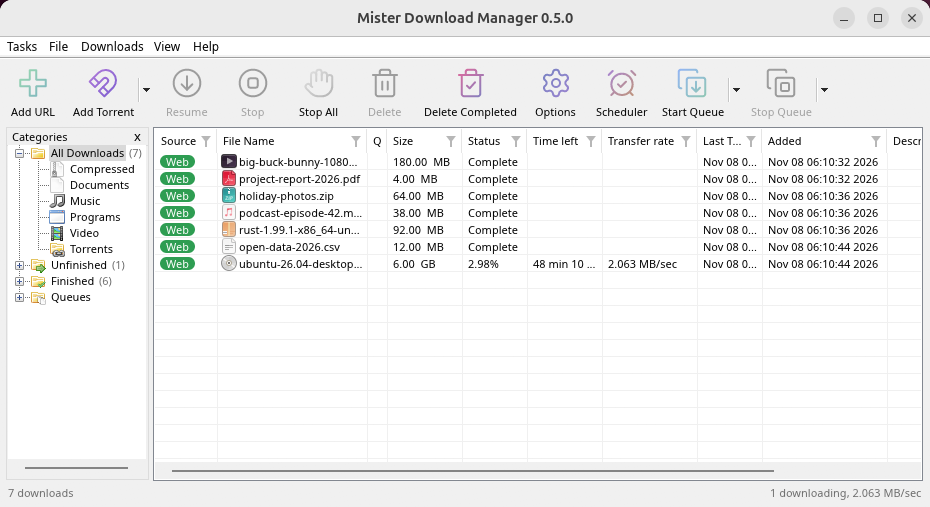
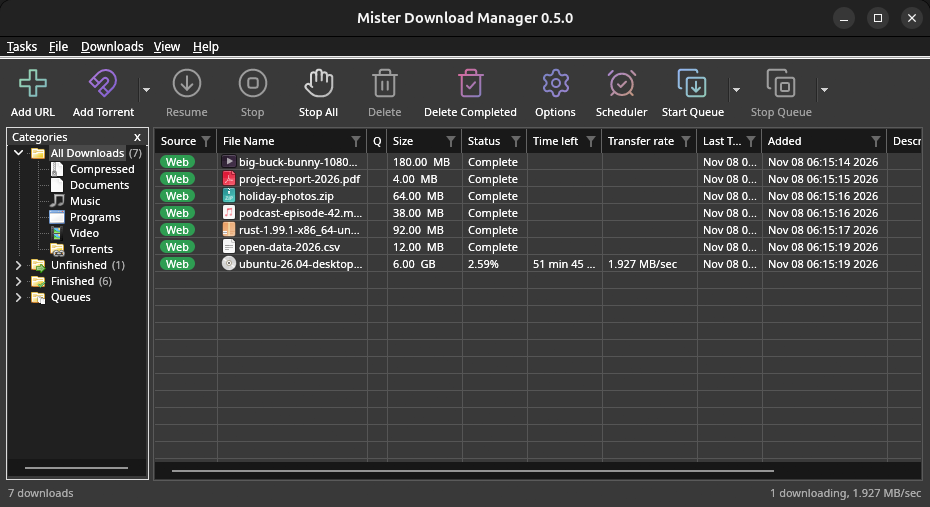
Browser integration is set up by VDM itself at each start (the browsers installed then are found); add the extension as in Browser integration. Firefox installed as a Snap (Ubuntu's) reaches VDM once you allow it; other Snap and Flatpak browsers can't (see Flatpak and Snap browsers). The tray icon, Dark Mode support and Launch on startup work on GNOME (Ubuntu's), KDE Plasma, Xfce and Cinnamon. Running downloads show their progress on VDM's icon in docks that can show it, such as Ubuntu Dock and KDE Plasma's task manager, as on the Windows taskbar (more).
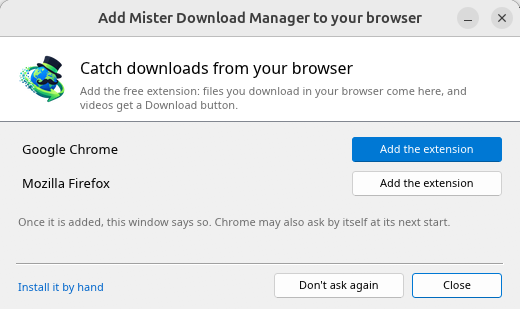
In a Wayland session the windows go through XWayland or Wayland (below). Not there yet on Linux: screen readers (Orca) don't read VDM's windows; browsers installed as a Flatpak can't reach VDM (Firefox from Flathub may, through the desktop as the Snap does, but that isn't checked yet); and View → Draw with → Vulkan is a choice, OpenGL stays the default.
In a Wayland session, VDM chooses its windows' system as it starts, the same way however it was started (its menu entry, the browser's helper, the session's autostart). Its windows run through XWayland where X11 programs look right: only X11 lets VDM open its menus and drop-down lists right under what you clicked (on Wayland they open where the compositor puts new windows, often the middle of the screen) and hide its window in the notification area. That is GNOME and KDE Plasma, which tell X11 programs the screen's scale, and any desktop whose screens aren't scaled. On a scaled screen where nothing tells X11 programs the scale (Hyprland, labwc, sway and other wlroots compositors), the compositor would scale VDM's windows up, blurry, so VDM uses Wayland's own windows there. View → Window system picks X11 (XWayland) or Wayland instead, from the next start, for every way VDM starts (Automatic goes back to VDM's choice); VDM_WAYLAND=1 or VDM_WAYLAND=0 decides for one start. If the system lacks a library X11 windows need (such as libxkbcommon-x11, which the .deb and .rpm bring but the AppImage and the tar.gz can't), VDM opens on Wayland instead; with no window system it can use, it names what's missing and the command that installs it.
The windows are the ones described in this help, with the desktop's fonts, file icons and title bars:
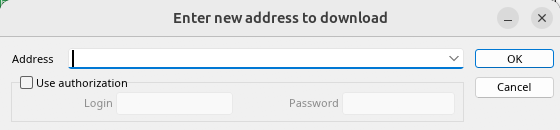
Add URL. 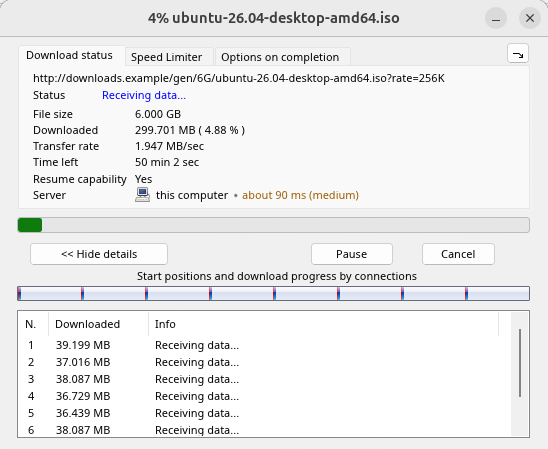
A download's progress. 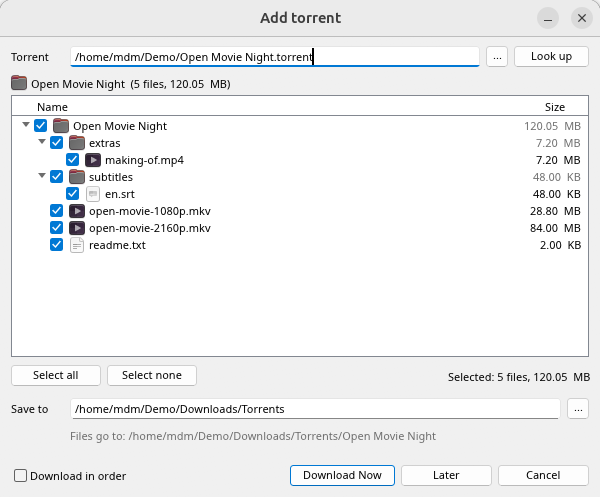
Add torrent. 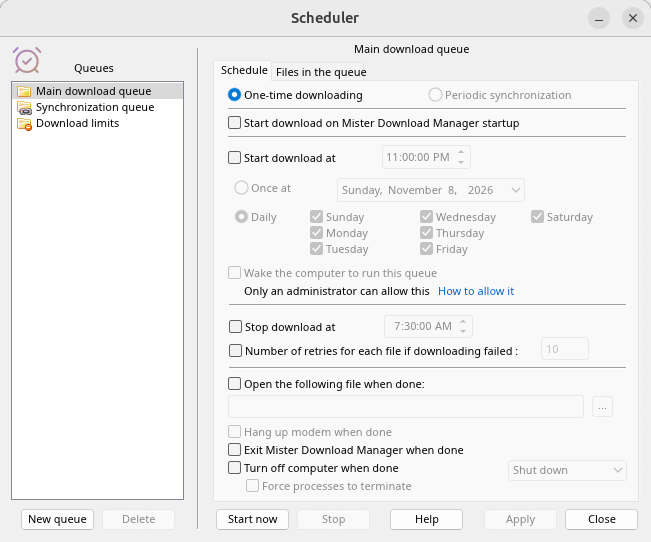
The Scheduler. 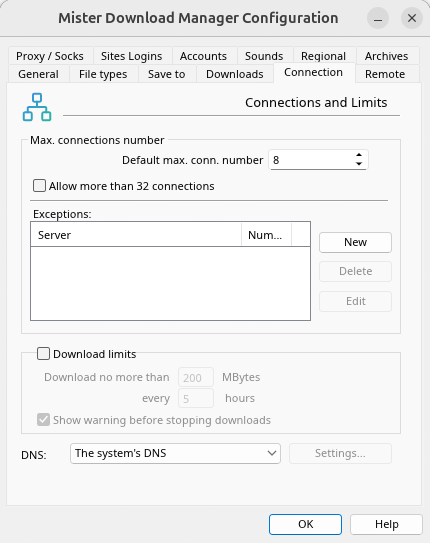
Options.
And on the other desktops it was checked on:
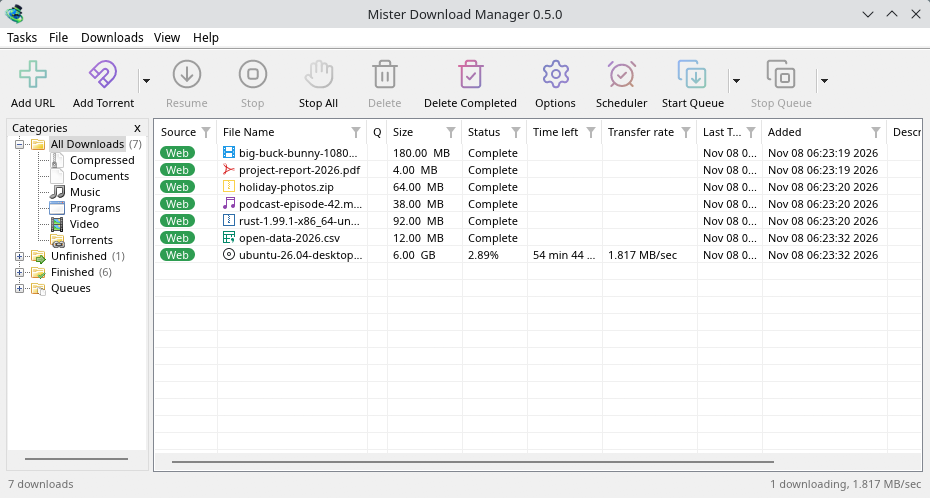
KDE Plasma. 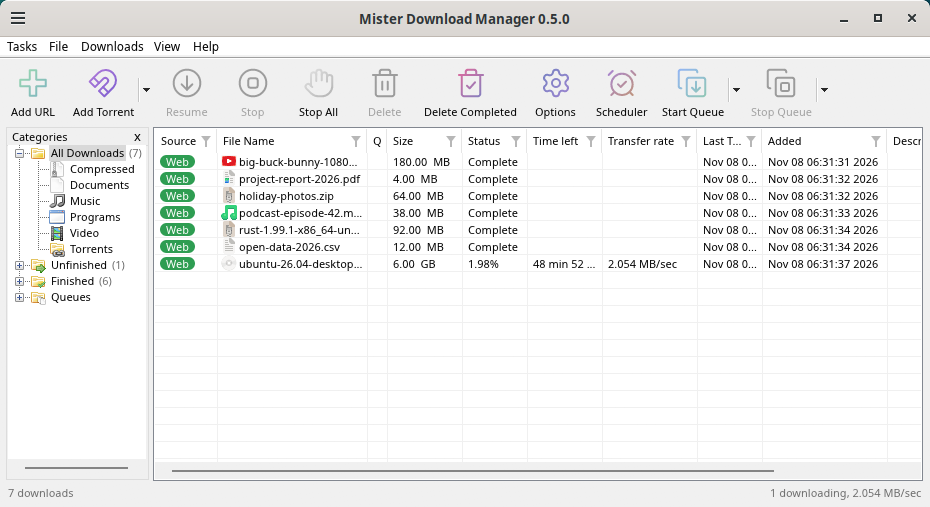
Cinnamon. 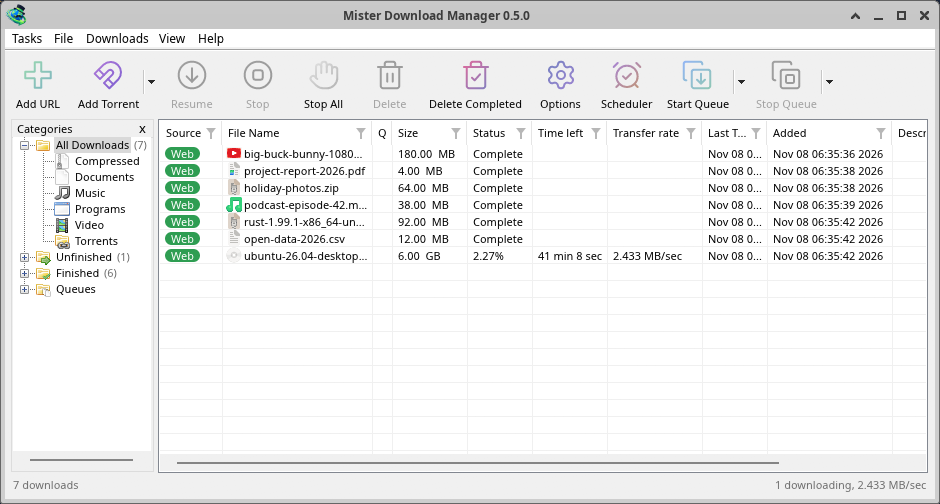
Xfce.
Uninstall on Linux
sudo apt remove voltdownloadmanager (or sudo dnf remove voltdownloadmanager) removes the
programs, and the small files that tell your browsers where VDM's helper is: the .deb and .rpm
install those for everyone (in /etc and /usr/lib), for Chrome, Chromium, Edge, Brave, Vivaldi,
Helium and Firefox (the Snap too), so VDM doesn't write them in your home folder. For the AppImage
or the tar.gz, delete the file or the folder.
What VDM keeps in your home folder stays, as with any package: your list and settings
(~/.local/share/voltdownloadmanager), the AppImage's and the tar.gz's browser files, and
those of the browsers that read them only there (Opera, Helium, Thorium, and Firefox's forks:
Zen, LibreWolf, Floorp, Waterfox). A package can't remove those: it never touches
home folders. Without VDM they lead nowhere, so the extension says it can't reach VDM. To remove
them as well, run this as each user who used VDM, before uninstalling:
voltdownloadmanager-nmhost --unregister
(From the AppImage: ~/.local/share/voltdownloadmanager/browser-host/voltdownloadmanager-nmhost --unregister.)
Already uninstalled? This removes the same files:
find ~/.mozilla ~/.librewolf ~/.config -name com.voltdownloadmanager.host.json -delete 2>/dev/null
On a Mac
The macOS builds are fresh and still experimental: we haven't tried them on a Mac ourselves yet, so you'd be among the first. Please tell us how it went, good or bad.
| File | What it is |
|---|---|
...-macos-arm64-experimental.dmg |
For a Mac with Apple Silicon (M1 or later: Apple menu → About This Mac shows a Chip). Open it and drag Volt Download Manager to Applications. macOS asks before its first start, because the app isn't notarized by Apple: right-click it and choose Open (on macOS 15 and later: System Settings → Privacy & Security → Open Anyway). |
...-macos-x86_64-experimental.dmg |
The same, for a Mac with an Intel processor (About This Mac shows a Processor). |
Browser integration is set up by VDM itself at each start (the browsers installed then are found); add the extension as in Browser integration.
Install with the setup
- Run
VoltDownloadManager-<version>-setup.exe. - Choose the language. Windows' display language is already selected. The setup offers every language VDM has, and VDM starts in the one you pick.
- Choose whether to install for you only or for everyone on the computer. For you only needs no administrator rights and goes to
%LOCALAPPDATA%\Programs\Volt Download Manager. For everyone goes toProgram Files. - Pick what the setup should do: - Set up browser integration (Chrome, Edge, Brave, Firefox) - Open .torrent files and magnet links with Volt Download Manager - Start Volt Download Manager when Windows starts - Create a desktop shortcut (off unless you tick it)
- Click Install, then Finish to start VDM.
If VDM is already running, the setup asks it to save and close first. To update, use Help → Check for updates → Update now, or run the setup of the new version (or update with WinGet); your list and settings stay.
Browser integration needs one more step in each browser: adding the extension. In Firefox, click Add to Firefox on its page on addons.mozilla.org; in Chrome, Edge, Brave, Opera and Vivaldi, Add to Chrome on its page in the Chrome Web Store. Browser integration shows how.
Uninstall
Uninstall VDM from Windows Settings → Apps. The uninstaller asks whether to delete your download list and settings too. Your downloaded files are never touched.
Use a zip copy
- Unzip the file to a folder you can write to (not straight into
Program Files). - Run
voltdownloadmanager.exe.
The zips hold the same programs as the setup: the app, voltdownloadmanager-cli.exe (downloads from the command line; see Command line and automation) and the extension folder.
First start and the language
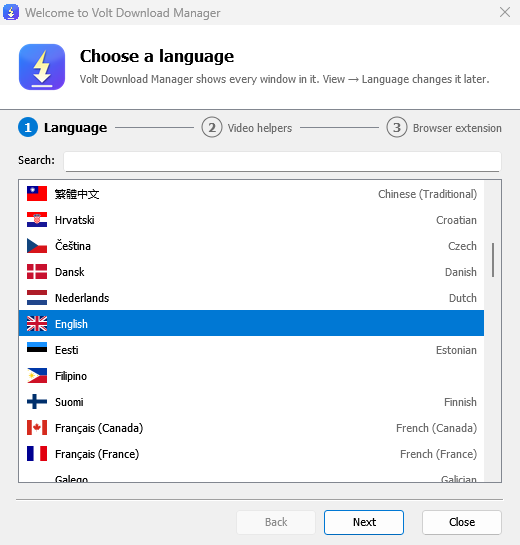
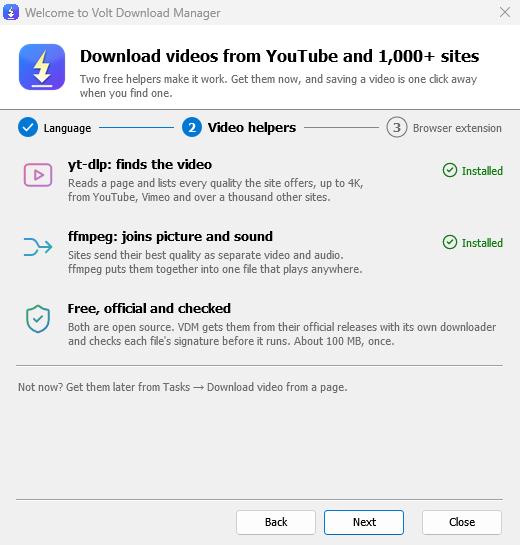
On its first start VDM opens one Welcome to Volt Download Manager window that walks you through what it needs, a step at a time: the steps are named on top, Back and Next move between them, and Finish on the last one closes it. Each step can be passed with Next without doing anything, Close or the window's × ends the setup at any step, and once it is finished or closed it doesn't come back: everything in it stays in the menus. Steps that aren't needed are left out.
- Language. - Installed with the setup: VDM starts in the language you chose in the setup, and this step is left out. - Otherwise: the list of languages, each with its flag and its own name. Click yours: the window switches to it at once, right to left for Arabic, Hebrew, Persian and Urdu.
You can change it at any time in View → Language. More in Languages.
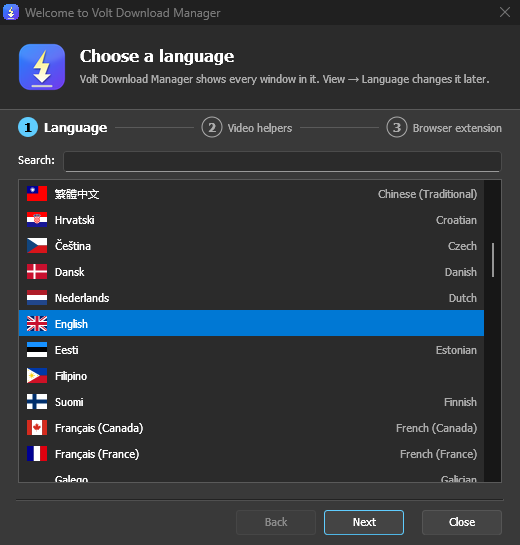
- Video helpers (below).
- Browser extension: each browser VDM found, with Add the extension for it, as in Browser integration. Left out when a browser's extension already reached VDM, or in a portable copy.
The video helpers
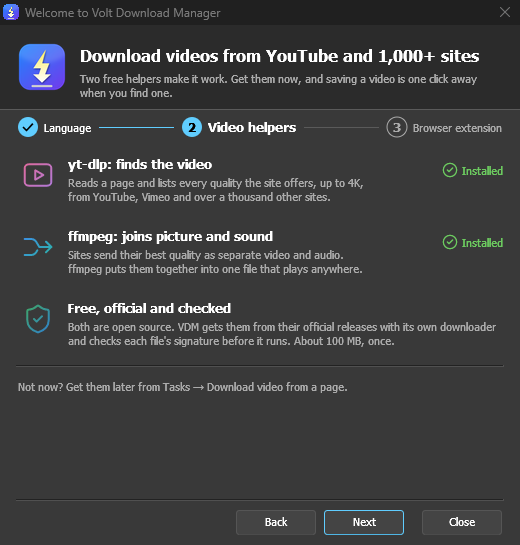
The setup's second step offers VDM's free video helpers: yt-dlp, which finds the video on a page, ffmpeg, which joins its picture and sound (on Windows; elsewhere VDM uses your system's), and Node.js, which YouTube needs, when your computer has no JavaScript runtime. Each says whether it is already there; one that isn't has its own Install button, and Yes, download them (recommended) gets every one that is missing. They download in the background, about 100 MB, once, each with its progress in its row, and go on if you close the window. Nothing is downloaded until you press one. Next leaves them for later: the video window offers them when you first need them. The step is left out when they are all there. More in Videos.
The main window
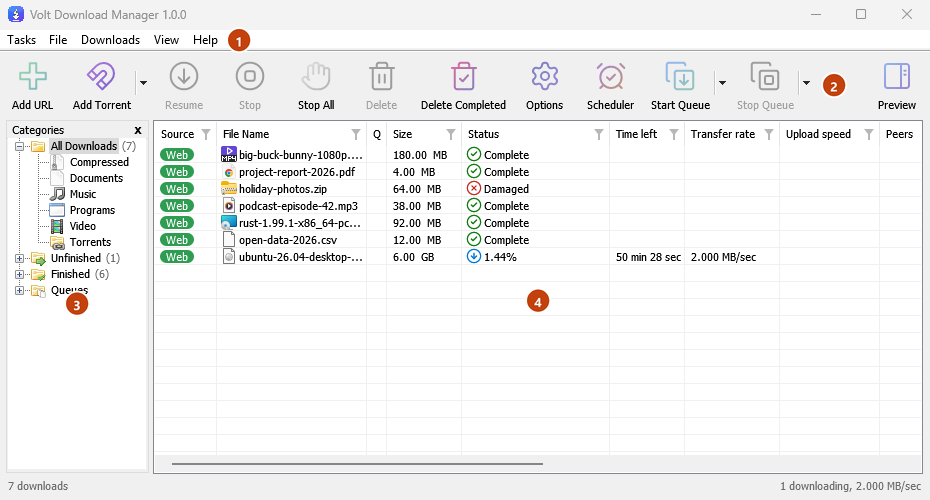
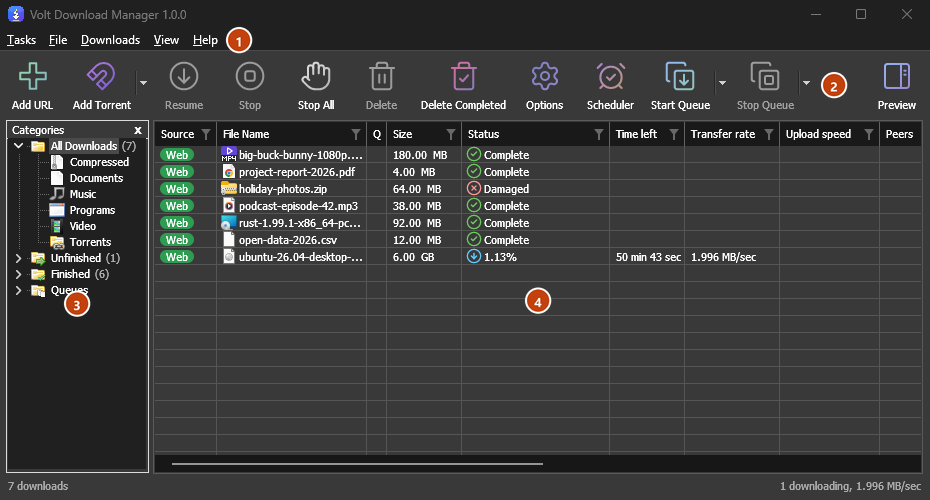
From top to bottom:
- Menu bar.
- Tasks — add downloads, torrents, magnet links, batch downloads and videos from a page; Torrent settings; Link grabber; RSS feeds; show the drop target; import and export the list; exit.
- File — the selected download: Stop Download, Remove, Download Now, Redownload.
- Downloads — Pause All, Stop All, Delete All Completed, Find, the Scheduler, queues, the Speed Limiter and Options.
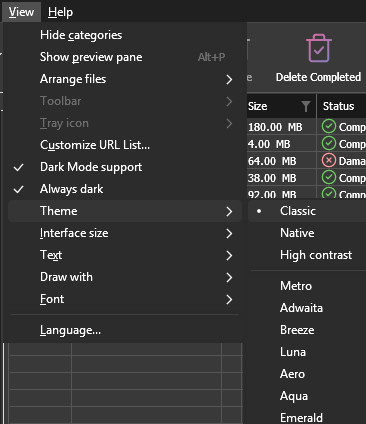
- View — show or hide the categories, sort the list (Arrange files), Dark Mode support, Always dark, Theme, Interface size (every window larger, 100 % to 200 %; Ctrl +, Ctrl − and Ctrl 0 too), Font (the interface's own font file and text size, apart from Interface size), Text (Windows: smooth or classic letters), Draw with (OpenGL, or Direct3D on Windows, Vulkan on Linux, Metal on macOS) and Language.
- Help — help pages and tutorials (on the website, in your language when it has it), Keyboard shortcuts, Report a problem, Check for updates, About, Tell a friend and Support VDM (its creator's GitHub Sponsors page: optional, nothing in VDM changes).
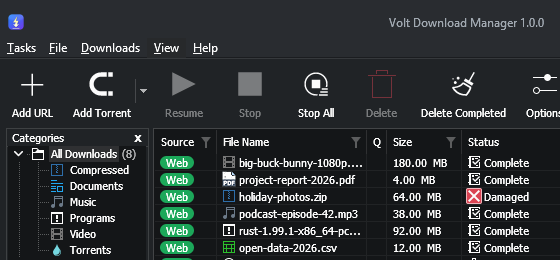
- Toolbar. Add URL, Add Torrent, Resume, Stop, Stop All, Delete, Delete Completed, Options, Scheduler, Start Queue, Stop Queue. The small arrow next to Add Torrent, Start Queue and Stop Queue opens more choices.
- Categories (left). Choose what the list shows: All Downloads, Unfinished, Finished and Queues, each with its categories. Drag the gap between the pane and the list to make it wider.
- Download list (right). One row per download. See The download list.
Dark mode
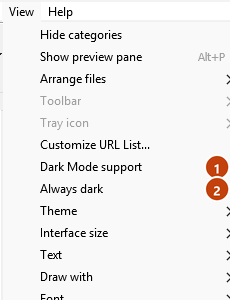
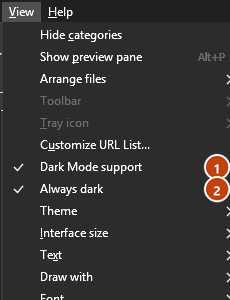
VDM follows your system: when Windows (or your desktop's light/dark preference on Linux and macOS) is set to dark mode, so is VDM. To keep VDM light whatever the system does, turn off View → Dark Mode support. To keep it dark whatever the system does, for example on a desktop that reports no preference, turn on View → Always dark.
Themes
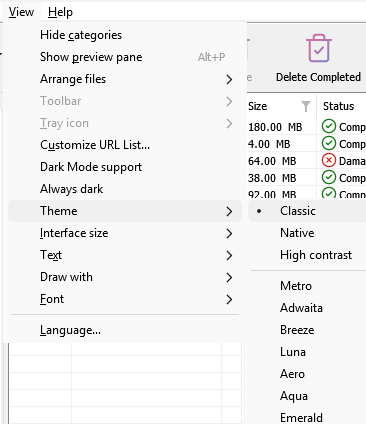
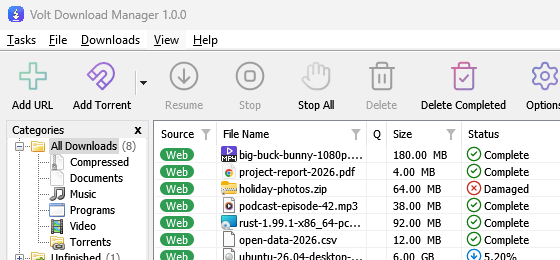
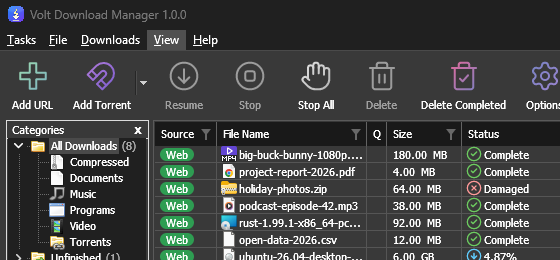
View → Theme changes VDM's look at once, keeping its layout:
- Classic: VDM's own look, the default.
- Native: your system's colours. Windows' accent colour (Settings → Personalization → Colors) and, when it is on, its contrast theme; the desktop's accent colour and its higher contrast setting on Linux (GNOME 47 and later, KDE Plasma); the accent colour on macOS. It follows them when you change them.
- High contrast: black and white, a bright accent, every edge drawn, text at 7:1 or more.
- Metro: Windows 8's flat look: square corners, flat buttons and boxes, a coloured title bar with the title centred (on Windows, where VDM draws it), and one-colour icons (Microsoft's Fluent UI System Icons).
- Adwaita: GNOME's look: round corners, flat grey buttons, a rounded focus ring, GNOME's check boxes, a header bar with the title in bold and round buttons (on Windows, where VDM draws it), and GNOME's Adwaita icons, in colour for files and categories, one colour in the toolbar.
- Breeze: KDE Plasma's look: rounded corners, buttons and boxes that take the accent's edge under the pointer or when focused, KDE's check boxes and focus frame, KDE's title bar with the title centred and round buttons (on Windows, where VDM draws it), and KDE's Breeze icons.
- Luna: Windows XP's look: buttons shaded from white with an orange glow under the pointer, green ticks, square text boxes, progress in green blocks, a deep blue title bar with the title in bold (on Windows, where VDM draws it), and colourful icons drawn for VDM in that manner.
- Aero: Windows 7's look: glossy buttons that turn light blue under the pointer, quiet check boxes, a glossy green progress bar, a glassy title bar with the title on a soft glow (on Windows), and glossy icons drawn for VDM in that manner.
- Aqua: Mac OS X's look: gel buttons round at the ends (the default one blue), glossy check boxes, a blue focus ring, a blue gel progress bar, a grey title bar with small round buttons (on Windows), and icons drawn for VDM in that manner.
- Emerald: a white canvas with one near-black ink and a ladder of neutral greys for structure, emerald fills that always carry near-black text rather than white, 6-point corners on every control, and Metro's one-colour icons.
Classic 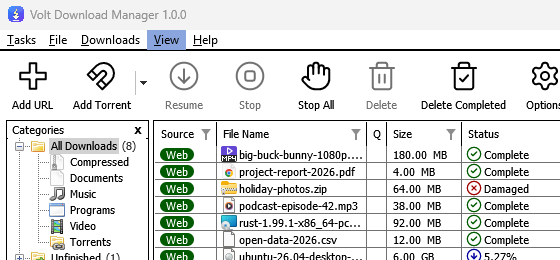
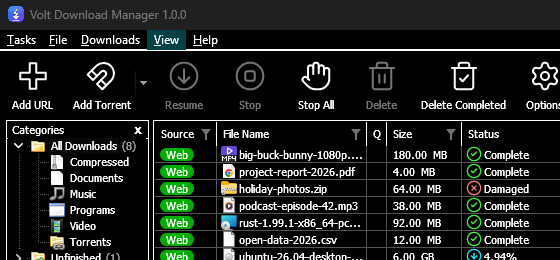
High contrast 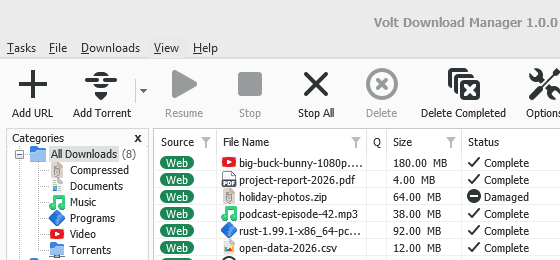
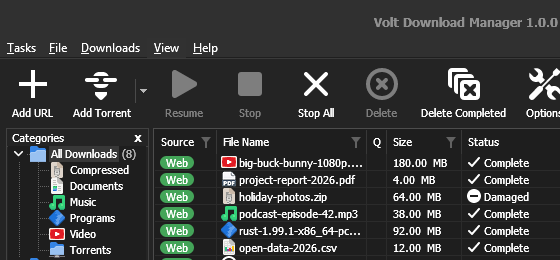
Adwaita 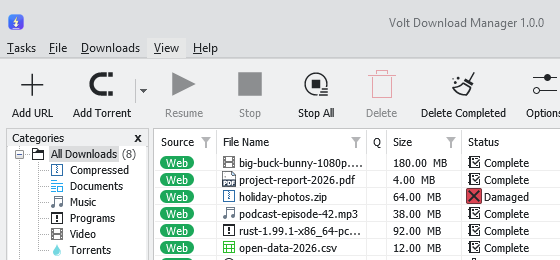
Breeze
Each has a light and a dark side: Dark Mode support and Always dark choose between
them as before. Theme files you put in the themes folder (View → Theme → Open themes folder)
are listed there too, and so are Base16 and pywal colour schemes (View → Theme → Add a theme
file…; pywal follows wal as it runs): Themes says where that folder is, what
a theme file holds (inherits, colours, sizes, control shapes, icons), how a scheme's colours are
used, and how to make and share one.
The tray icon
Closing the main window doesn't quit VDM. It hides in the notification area, and downloads, queues and schedules carry on. To make closing quit (a portable copy's folder can then be deleted), untick Options → General → Keep running when closing the window. If there is no icon for VDM at all — not in the notification area, nor behind the ^ hidden icons — the window minimizes to the taskbar instead, so downloads continue and there is a way back. An icon behind ^ can be clicked to bring the window back, and starting VDM again always does. On macOS the window closes into the Dock, as Mac apps' windows do: click VDM's icon in the Dock (or in the menu bar) to bring it back, and quit with Cmd+Q or Volt Download Manager → Quit.
On Linux this needs a tray, which most desktops have (KDE Plasma, Xfce, Cinnamon, Ubuntu's GNOME or GNOME with the AppIndicator extension, waybar's tray). On a desktop without one (some tiling window managers), closing the window quits VDM, since there would be nowhere to bring it back from.
- Click the tray icon to see what is downloading: a small panel over the icon lists each running download with its progress bar, how much has come of how much, its speed and the time left, and the progress window's Pause (then Resume; Stop and save for a live stream being recorded) and Cancel beside it. Open Volt Download Manager at its bottom brings the window back. Its ×, Esc, a click elsewhere or another click on the icon closes it.
- Double-click the tray icon to bring the window back straight away (Windows).
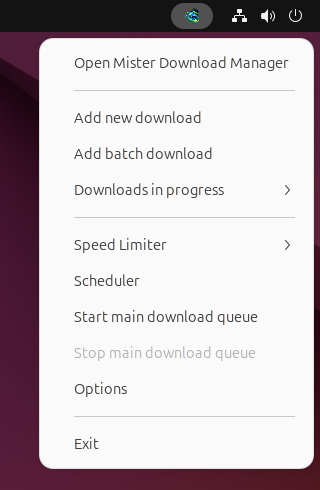
- Right-click it for Add new download, Add batch download, Downloads in progress, Speed Limiter, Scheduler, the main download queue, Options and Exit.
- Downloads in progress lists the running downloads. Choose one to see its progress window.
- Options → General → Show downloads when the notification area icon is clicked is ticked in a new copy of VDM. Untick it and a click on the icon brings the window back (or hides it there while it is in front), as it did before the panel. An VDM that was set up before the panel keeps that click: tick it to have the panel.
- On Linux the panel depends on the desktop's tray. KDE Plasma and Xfce send VDM the click, so the panel opens beside the icon. GNOME's AppIndicator extension may open the icon's menu on a left click instead, or send no place for the click: the panel then opens at the top right of the screen, under GNOME's top bar. In a native Wayland session the compositor decides where the panel goes and may not give it the focus, so a click elsewhere doesn't close it there: use its × or click the icon again. If the panel doesn't suit your desktop, untick the option above.
Minimize hides the main window there too, while Minimize to the notification area is on in Options → General. It is on by default; where the tray has no icon, Minimize sends the window to the taskbar instead.
A download's progress window can go there as well, with its Minimize or with its Hide to the notification area button: a short dash with an arrow down to the corner.
On Windows that button is in the window's title bar, left of Minimize, and in the title bar's menu (Alt+Space). On Linux and macOS it's at the end of the tab row.
To bring the window back, choose it in Downloads in progress, or double-click the download in the list.
To quit, choose Tasks → Exit or Exit in the tray menu.
Where VDM keeps its data
The download list and settings are in %APPDATA%\voltdownloadmanager (downloads.json); on Linux in ~/.local/share/voltdownloadmanager, on a Mac in ~/Library/Application Support/voltdownloadmanager. A portable copy keeps them in its data folder instead. Downloaded files go to your Downloads folder, sorted into a folder per category; you can change that in Options → Save to.
Next steps
Free, open source, no ads, no trial.
Download Volt Download Manager