

VDM runs on Windows 10 and Windows 11 (x64, ARM64 and 32-bit), and on 64-bit Linux (x86-64 and ARM64): see On Linux. Builds for macOS are new and still experimental: see On a Mac.
Elegir una descarga
Todas las versiones están en la página de Lanzamientos. Para Windows hay tres archivos:
| Archivo | Qué es |
|---|---|
VoltDownloadManager-<version>-setup.exe |
The installer. Pick this one unless you have a reason not to. It can set up browser integration and open .torrent files and magnet links with VDM. |
VoltDownloadManager-<version>-portable.zip |
Una copia portátil. La lista de descargas y la configuración permanecen en una carpeta data junto al programa, y no se escribe nada en el registro. La integración con el navegador necesita el instalador. Consulta Modo portátil. |
VoltDownloadManager-<version>-x64.zip |
Los mismos programas sin instalador. Guarda sus datos en %APPDATA%\voltdownloadmanager, como una copia instalada. |
Estos tres son para Windows de 64 bits con procesador Intel o AMD (x64), el PC habitual. A partir de la versión 0.6.0, cada uno también está disponible para otros dos tipos de PC, con el procesador en su nombre:
| Archivos | Para |
|---|---|
...-setup-arm64.exe, ...-portable-arm64.zip,...-arm64.zip |
Windows en ARM (PC con procesador Snapdragon u otro ARM). En Windows 11, los archivos x64 también se ejecutan allí, traducidos por Windows, pero más lentamente. La instalación de ARM64 sobre la de x64 la reemplaza; tu lista y configuración se mantienen, ya que se guardan en tu perfil, no con el programa. |
...-setup-x86.exe, ...-portable-x86.zip,...-x86.zip |
32-bit Windows 10. Not sure which you have? Settings → System → About → System type says it. VDM can't download ffmpeg for you there (none is built for 32-bit Windows that VDM can check): to get the best video qualities, choose an ffmpeg of your own in Helpers... (Video). |
Ayuda → Buscar actualizaciones actualiza cada copia a los archivos de su propio procesador.
Con WinGet
VDM is also in WinGet, Windows' package manager. In a terminal, the first line installs VDM and the second updates it to the latest version:
winget install MikaiL.VoltDownloadManager
winget upgrade MikaiL.VoltDownloadManager
WinGet downloads the setup and installs VDM without the setup's questions.
En Linux
VDM runs on 64-bit Linux with a desktop session. It is tested on Ubuntu 24.04, Debian 12 and
Fedora, with GNOME, KDE Plasma, Xfce and Cinnamon, on X11 and in Wayland sessions. Pick one
of these files (up to version 0.2.4, their names end in -experimental, as in
...-linux-x86_64-experimental.deb). From version 0.6.0, each also comes for 64-bit
ARM computers, with arm64 in place of x86_64 (...-linux-arm64.deb); they are built and
tested on GitHub's ARM machines. On ARM, VDM doesn't download gallery-dl itself (its author
builds none for it): install it with your system's packages or pip.
| Archivo | Qué es |
|---|---|
...-linux-x86_64.deb |
For Ubuntu, Debian, Mint and Pop!_OS: sudo apt install ./<file>.deb. It brings the libraries VDM needs. |
...-linux-x86_64.rpm |
For Fedora, openSUSE and RHEL: sudo dnf install ./<file>.rpm. It brings the libraries VDM needs. |
...-linux-x86_64.AppImage |
Funciona en la mayoría de las distribuciones: hazlo ejecutable (chmod +x) y ejecútalo. Se actualiza en el mismo lugar (Ayuda → Buscar actualizaciones). |
...-linux-x86_64.tar.gz |
Los programas simples, para cualquier distribución. |
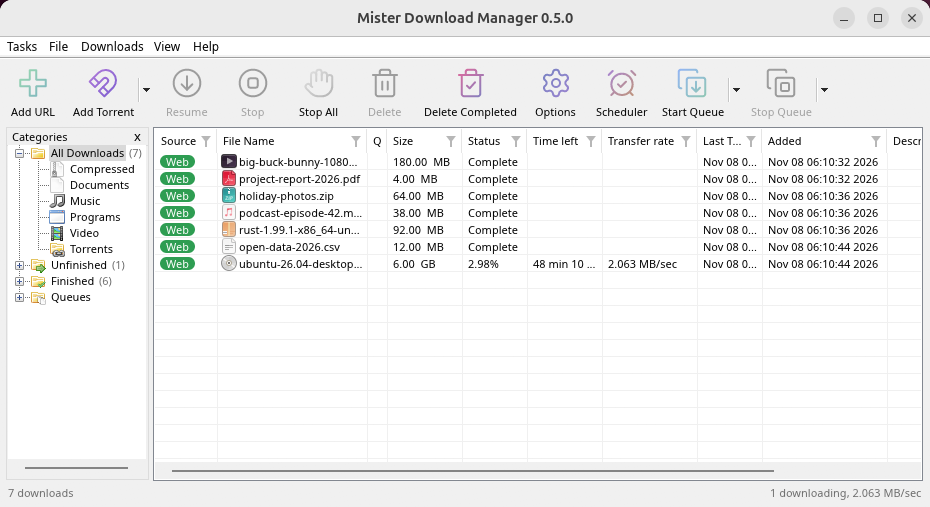
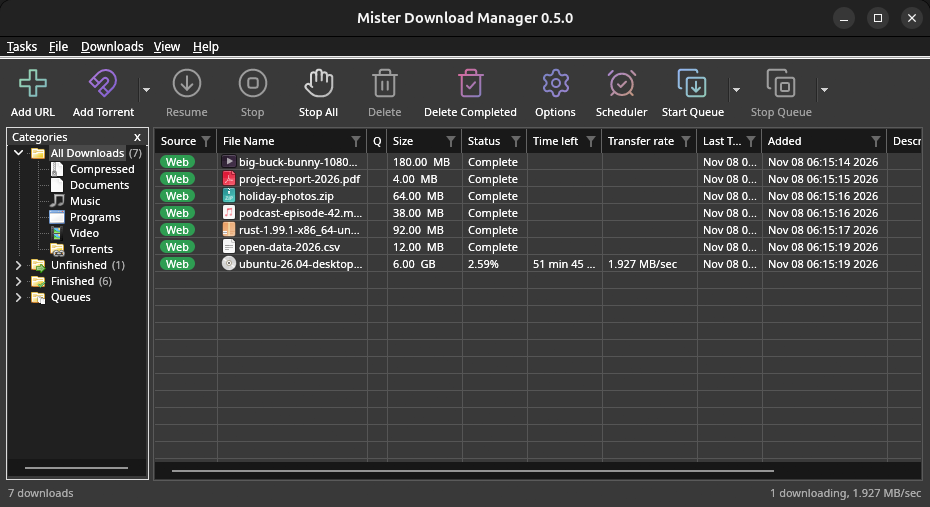
Browser integration is set up by VDM itself at each start (the browsers installed then are found); add the extension as in Browser integration. Firefox installed as a Snap (Ubuntu's) reaches VDM once you allow it; other Snap and Flatpak browsers can't (see Flatpak and Snap browsers). The tray icon, Dark Mode support and Launch on startup work on GNOME (Ubuntu's), KDE Plasma, Xfce and Cinnamon. Running downloads show their progress on VDM's icon in docks that can show it, such as Ubuntu Dock and KDE Plasma's task manager, as on the Windows taskbar (more).
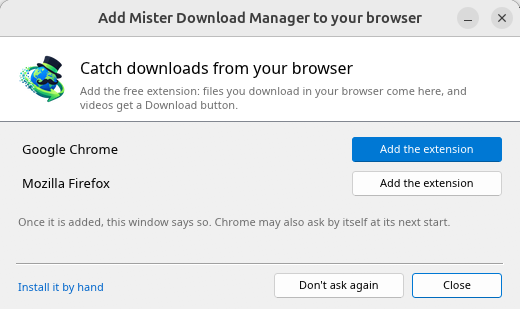
In a Wayland session the windows go through XWayland or Wayland (below). Not there yet on Linux: screen readers (Orca) don't read VDM's windows; browsers installed as a Flatpak can't reach VDM (Firefox from Flathub may, through the desktop as the Snap does, but that isn't checked yet); and View → Draw with → Vulkan is a choice, OpenGL stays the default.
In a Wayland session, VDM chooses its windows' system as it starts, the same way however it was started (its menu entry, the browser's helper, the session's autostart). Its windows run through XWayland where X11 programs look right: only X11 lets VDM open its menus and drop-down lists right under what you clicked (on Wayland they open where the compositor puts new windows, often the middle of the screen) and hide its window in the notification area. That is GNOME and KDE Plasma, which tell X11 programs the screen's scale, and any desktop whose screens aren't scaled. On a scaled screen where nothing tells X11 programs the scale (Hyprland, labwc, sway and other wlroots compositors), the compositor would scale VDM's windows up, blurry, so VDM uses Wayland's own windows there. View → Window system picks X11 (XWayland) or Wayland instead, from the next start, for every way VDM starts (Automatic goes back to VDM's choice); VDM_WAYLAND=1 or VDM_WAYLAND=0 decides for one start. If the system lacks a library X11 windows need (such as libxkbcommon-x11, which the .deb and .rpm bring but the AppImage and the tar.gz can't), VDM opens on Wayland instead; with no window system it can use, it names what's missing and the command that installs it.
Las ventanas son las descritas en esta ayuda, con las fuentes, los iconos de archivo y las barras de título del escritorio:
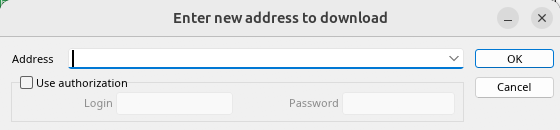
Añadir URL. 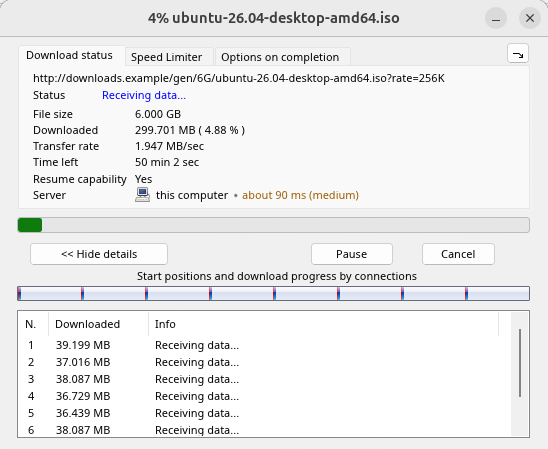
Progreso de una descarga. 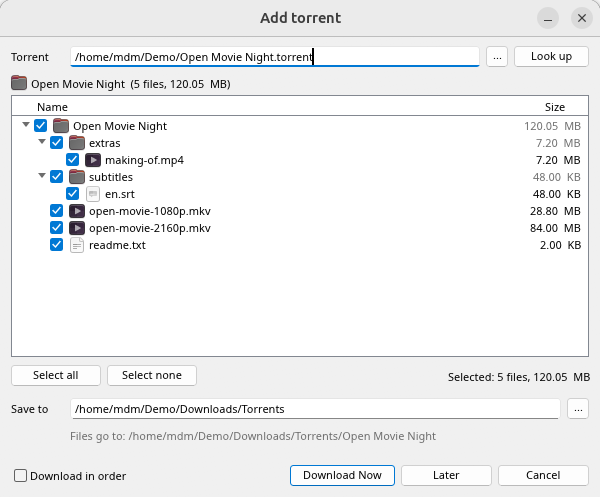
Añadir torrent. 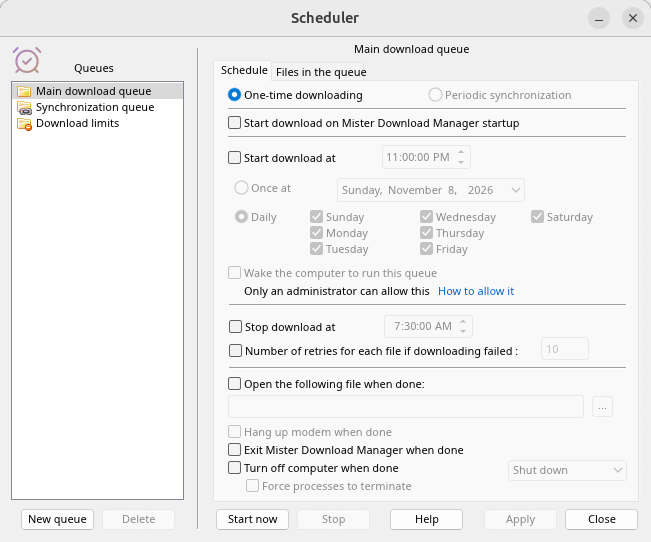
El Programador. 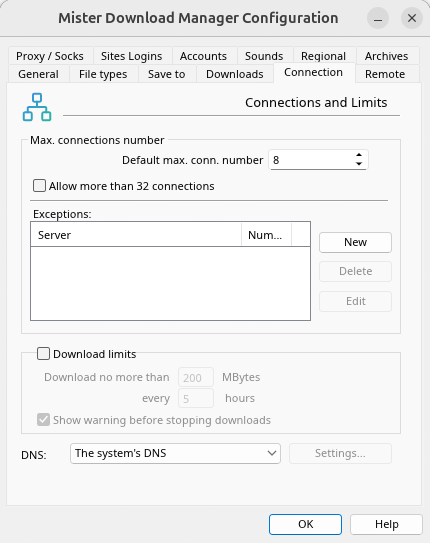
Opciones.
Y en los otros escritorios en los que se comprobó:
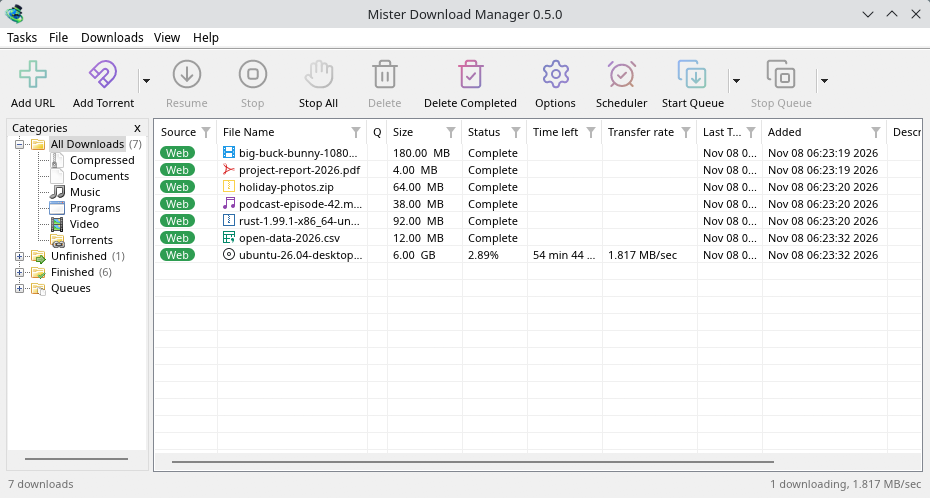
KDE Plasma. 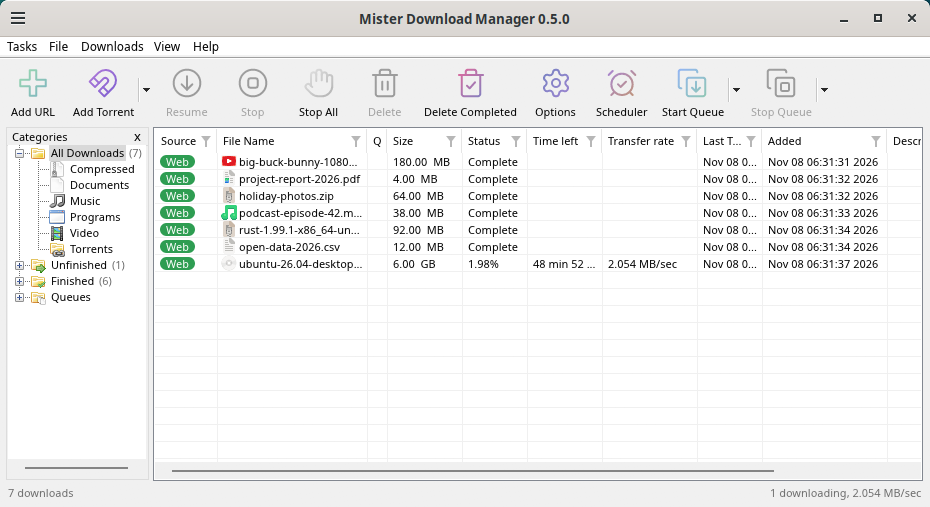
Cinnamon. 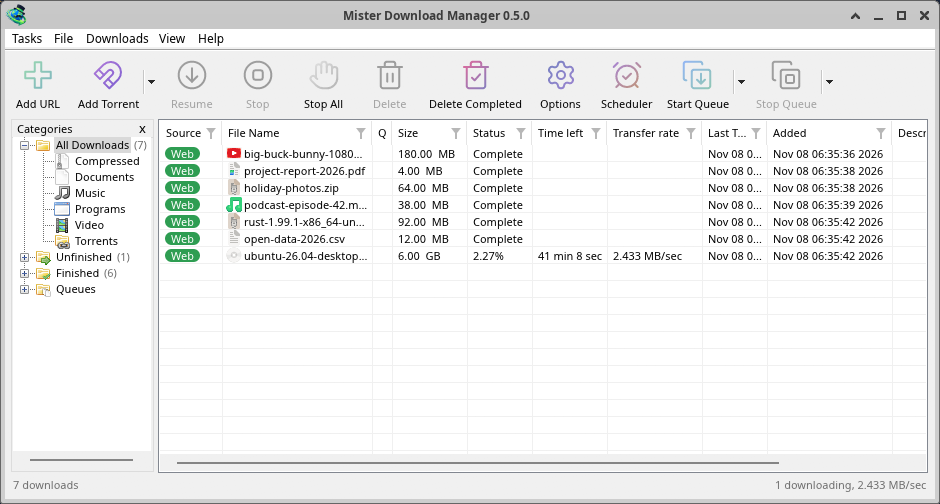
Xfce.
Desinstalar en Linux
sudo apt remove voltdownloadmanager (or sudo dnf remove voltdownloadmanager) removes the
programs, and the small files that tell your browsers where VDM's helper is: the .deb and .rpm
install those for everyone (in /etc and /usr/lib), for Chrome, Chromium, Edge, Brave, Vivaldi,
Helium and Firefox (the Snap too), so VDM doesn't write them in your home folder. For the AppImage
or the tar.gz, delete the file or the folder.
What VDM keeps in your home folder stays, as with any package: your list and settings
(~/.local/share/voltdownloadmanager), the AppImage's and the tar.gz's browser files, and
those of the browsers that read them only there (Opera, Helium, Thorium, and Firefox's forks:
Zen, LibreWolf, Floorp, Waterfox). A package can't remove those: it never touches
home folders. Without VDM they lead nowhere, so the extension says it can't reach VDM. To remove
them as well, run this as each user who used VDM, before uninstalling:
voltdownloadmanager-nmhost --unregister
(Desde el AppImage: ~/.local/share/voltdownloadmanager/browser-host/voltdownloadmanager-nmhost --unregister.) ¿Ya desinstalado? Esto elimina los mismos archivos:
find ~/.mozilla ~/.librewolf ~/.config -name com.voltdownloadmanager.host.json -delete 2>/dev/null
En un Mac
Las versiones para macOS son recientes y aún experimentales: todavía no las hemos probado nosotros mismos en un Mac, así que serías de los primeros. Por favor, cuéntanos cómo te fue, bien o mal.
| Archivo | Qué es |
|---|---|
...-macos-arm64-experimental.dmg |
For a Mac with Apple Silicon (M1 or later: Apple menu → About This Mac shows a Chip). Open it and drag Volt Download Manager to Applications. macOS asks before its first start, because the app isn't notarized by Apple: right-click it and choose Open (on macOS 15 and later: System Settings → Privacy & Security → Open Anyway). |
...-macos-x86_64-experimental.dmg |
Lo mismo, para un Mac con procesador Intel (Acerca de este Mac muestra un Procesador). |
Browser integration is set up by VDM itself at each start (the browsers installed then are found); add the extension as in Browser integration.
Instalar con el programa de instalación
- Ejecuta
VoltDownloadManager-<version>-setup.exe. - Choose the language. Windows' display language is already selected. The setup offers every language VDM has, and VDM starts in the one you pick.
- Elige si instalar solo para ti o para todos los usuarios del ordenador. Solo para ti no necesita derechos de administrador y se instala en
%LOCALAPPDATA%\Programs\Volt Download Manager. Para todos se instala enProgram Files. - Pick what the setup should do: - Set up browser integration (Chrome, Edge, Brave, Firefox) - Open .torrent files and magnet links with Volt Download Manager - Start Volt Download Manager when Windows starts - Create a desktop shortcut (off unless you tick it)
- Click Install, then Finish to start VDM.
If VDM is already running, the setup asks it to save and close first. To update, use Help → Check for updates → Update now, or run the setup of the new version (or update with WinGet); your list and settings stay.
La integración con el navegador requiere un paso adicional en cada navegador: añadir la extensión. En Firefox, haz clic en Añadir a Firefox en su página en addons.mozilla.org; en Chrome, Edge, Brave, Opera y Vivaldi, haz clic en Añadir a Chrome en su página en Chrome Web Store. La sección Integración con el navegador muestra cómo hacerlo.
Desinstalar
Uninstall VDM from Windows Settings → Apps. The uninstaller asks whether to delete your download list and settings too. Your downloaded files are never touched.
Usar una copia zip
- Descomprime el archivo en una carpeta en la que puedas escribir (no directamente en
Program Files). - Ejecuta
voltdownloadmanager.exe.
Los archivos zip contienen los mismos programas que el instalador: la aplicación, voltdownloadmanager-cli.exe (descargas desde la línea de comandos; véase Línea de comandos y automatización) y la carpeta extension.
Primer inicio y el idioma
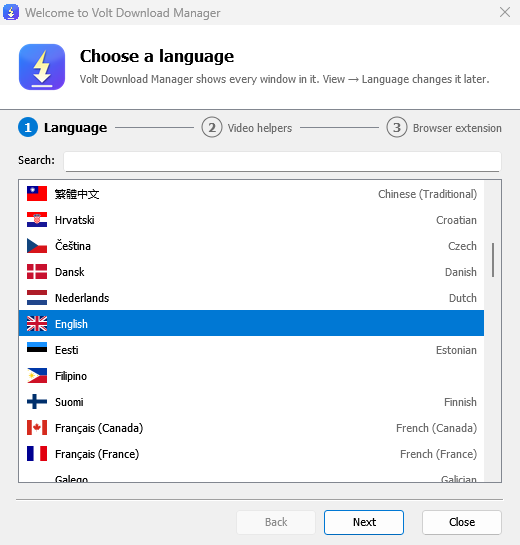
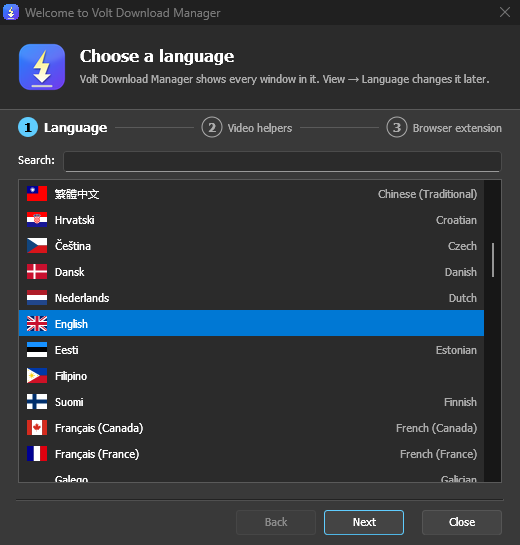
On its first start VDM opens one Welcome to Volt Download Manager window that walks you through what it needs, a step at a time: the steps are named on top, Back and Next move between them, and Finish on the last one closes it. Each step can be passed with Next without doing anything, Close or the window's × ends the setup at any step, and once it is finished or closed it doesn't come back: everything in it stays in the menus. Steps that aren't needed are left out.
- Language. - Installed with the setup: VDM starts in the language you chose in the setup, and this step is left out. - Otherwise: the list of languages, each with its flag and its own name. Click yours: the window switches to it at once, right to left for Arabic, Hebrew, Persian and Urdu.
Puede cambiarlo en cualquier momento en Ver → Idioma. Más información en Idiomas.
- Herramientas de vídeo (abajo).
- Browser extension: each browser VDM found, with Add the extension for it, as in Browser integration. Left out when a browser's extension already reached VDM, or in a portable copy.
Los ayudantes de vídeo
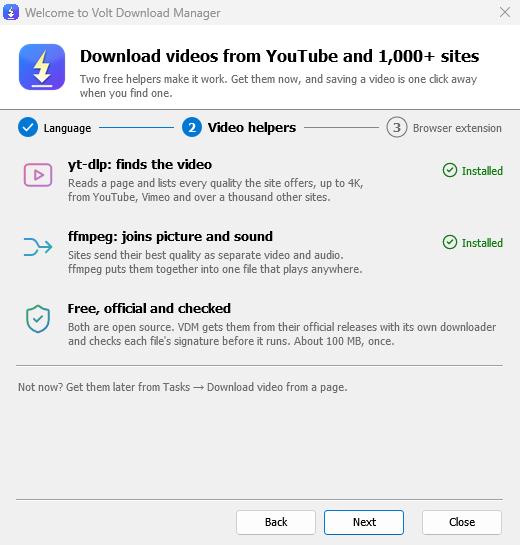
The setup's second step offers VDM's free video helpers: yt-dlp, which finds the video on a page, ffmpeg, which joins its picture and sound (on Windows; elsewhere VDM uses your system's), and Node.js, which YouTube needs, when your computer has no JavaScript runtime. Each says whether it is already there; one that isn't has its own Install button, and Yes, download them (recommended) gets every one that is missing. They download in the background, about 100 MB, once, each with its progress in its row, and go on if you close the window. Nothing is downloaded until you press one. Next leaves them for later: the video window offers them when you first need them. The step is left out when they are all there. More in Videos.
La ventana principal
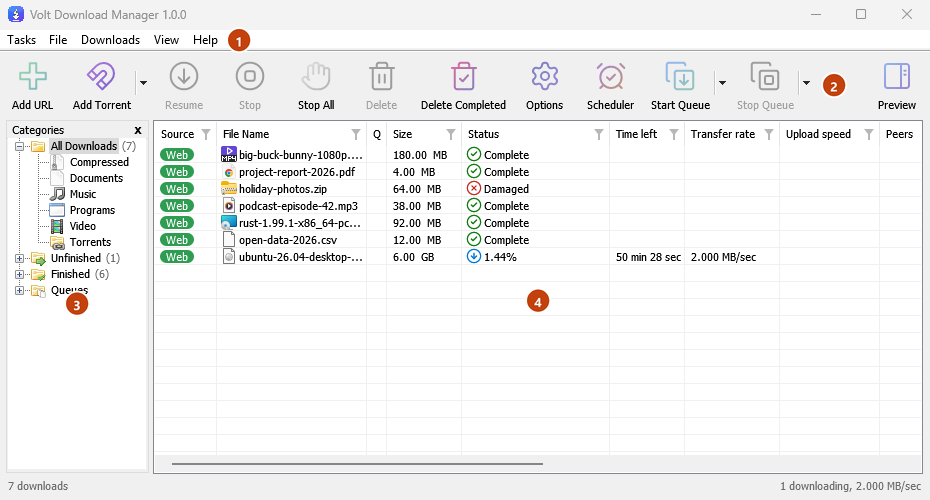
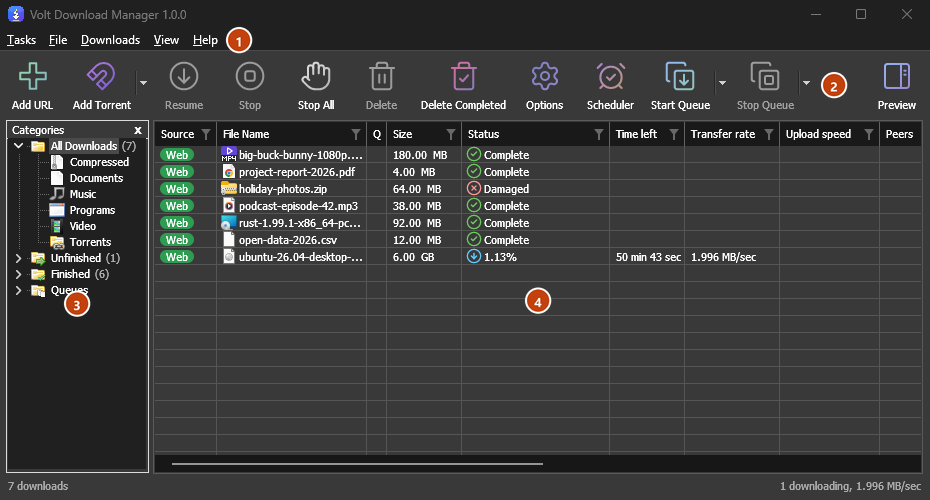
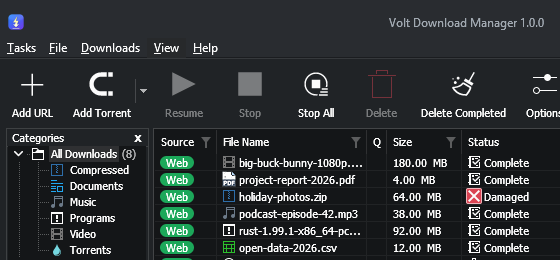
De arriba abajo:
- Barra de menú.
- Tareas — añadir descargas, torrents, enlaces magnet, descargas por lotes y vídeos de una página; Configuración de torrents; Capturador de enlaces; Fuentes RSS; mostrar el destino de arrastre; importar y exportar la lista; salir.
- Archivo — la descarga seleccionada: Detener descarga, Quitar, Descargar ahora, Volver a descargar.
- Descargas — Pausar todo, Detener todo, Eliminar todas las completadas, Buscar, el Programador, las colas, el Limitador de velocidad y Opciones.
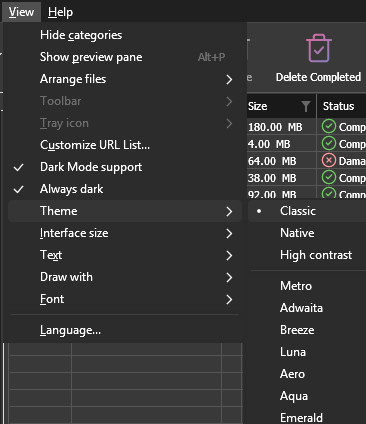
- Ver: muestra u oculta las categorías, ordena la lista (Organizar archivos), compatibilidad con el modo oscuro, siempre oscuro, tema, tamaño de la interfaz (todas las ventanas más grandes, del 100 % al 200 %; también con Ctrl +, Ctrl − y Ctrl 0), fuente (el archivo de fuente y el tamaño del texto de la interfaz, aparte del tamaño de la interfaz), texto (Windows: letras suaves o clásicas), dibujar con (OpenGL, o Direct3D en Windows, Vulkan en Linux, Metal en macOS) e idioma.
- Help — help pages and tutorials (on the website, in your language when it has it), Keyboard shortcuts, Report a problem, Check for updates, About, Tell a friend and Support VDM (its creator's GitHub Sponsors page: optional, nothing in VDM changes).
- Barra de herramientas. Añadir URL, Añadir torrent, Reanudar, Detener, Detener todo, Eliminar, Eliminar completadas, Opciones, Programador, Iniciar cola, Detener cola. La pequeña flecha junto a Añadir torrent, Iniciar cola y Detener cola abre más opciones.
- Categorías (izquierda). Elija lo que muestra la lista: Todas las descargas, Inacabado, Finalizado y Colas, cada una con sus categorías. Arrastre el espacio entre el panel y la lista para hacerlo más ancho.
- Lista de descargas (derecha). Una fila por descarga. Véase La lista de descargas.
Modo oscuro
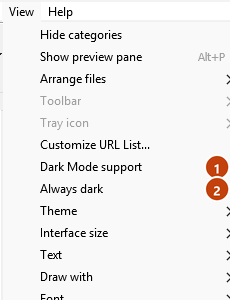
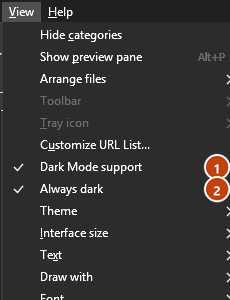
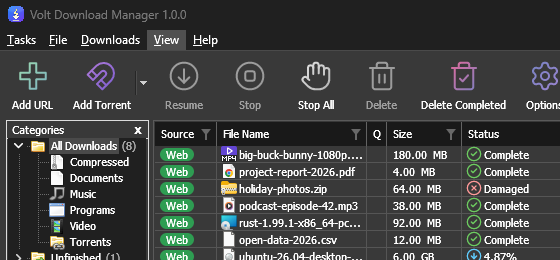
VDM follows your system: when Windows (or your desktop's light/dark preference on Linux and macOS) is set to dark mode, so is VDM. To keep VDM light whatever the system does, turn off View → Dark Mode support. To keep it dark whatever the system does, for example on a desktop that reports no preference, turn on View → Always dark.
Temas
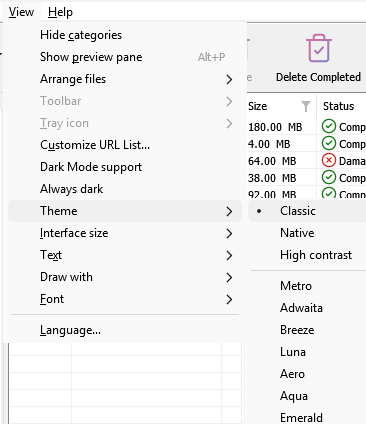
View → Theme changes VDM's look at once, keeping its layout:
- Classic: VDM's own look, the default.
- Nativo: los colores de su sistema. El color de énfasis de Windows (Configuración → Personalización → Colores) y, cuando está activado, su tema de contraste; el color de énfasis del escritorio y su configuración de mayor contraste en Linux (GNOME 47 y posteriores, KDE Plasma); el color de énfasis en macOS. Los sigue cuando los cambia.
- Contraste alto: blanco y negro, un acento brillante, todos los bordes dibujados, texto con una relación de 7:1 o más.
- Metro: Windows 8's flat look: square corners, flat buttons and boxes, a coloured title bar with the title centred (on Windows, where VDM draws it), and one-colour icons (Microsoft's Fluent UI System Icons).
- Adwaita: GNOME's look: round corners, flat grey buttons, a rounded focus ring, GNOME's check boxes, a header bar with the title in bold and round buttons (on Windows, where VDM draws it), and GNOME's Adwaita icons, in colour for files and categories, one colour in the toolbar.
- Breeze: KDE Plasma's look: rounded corners, buttons and boxes that take the accent's edge under the pointer or when focused, KDE's check boxes and focus frame, KDE's title bar with the title centred and round buttons (on Windows, where VDM draws it), and KDE's Breeze icons.
- Luna: Windows XP's look: buttons shaded from white with an orange glow under the pointer, green ticks, square text boxes, progress in green blocks, a deep blue title bar with the title in bold (on Windows, where VDM draws it), and colourful icons drawn for VDM in that manner.
- Aero: Windows 7's look: glossy buttons that turn light blue under the pointer, quiet check boxes, a glossy green progress bar, a glassy title bar with the title on a soft glow (on Windows), and glossy icons drawn for VDM in that manner.
- Aqua: Mac OS X's look: gel buttons round at the ends (the default one blue), glossy check boxes, a blue focus ring, a blue gel progress bar, a grey title bar with small round buttons (on Windows), and icons drawn for VDM in that manner.
- Emerald: un lienzo blanco con una tinta casi negra y una escala de grises neutros para la estructura, rellenos esmeralda que siempre llevan texto casi negro en lugar de blanco, esquinas de 6 puntos en cada control e iconos de un solo color de Metro.
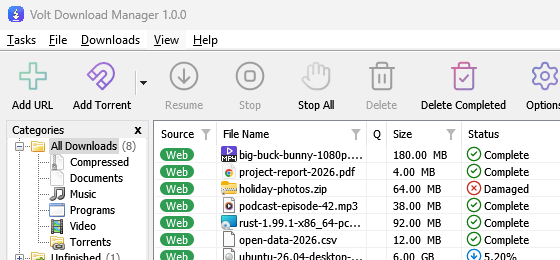
Clásico 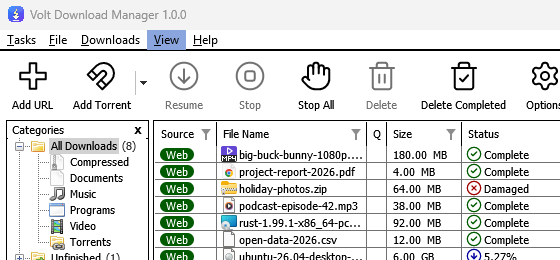
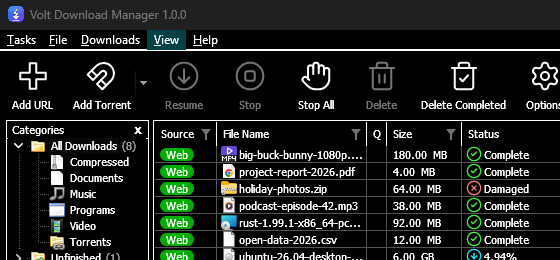
Contraste alto 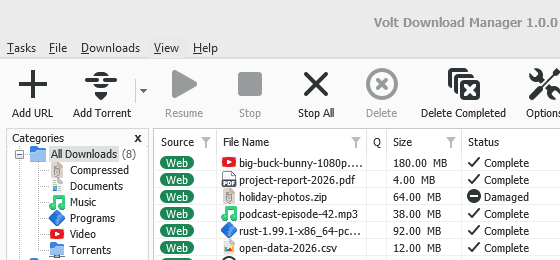
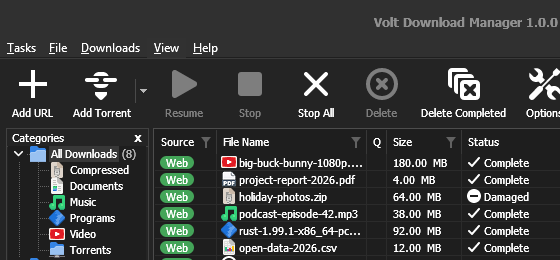
Adwaita 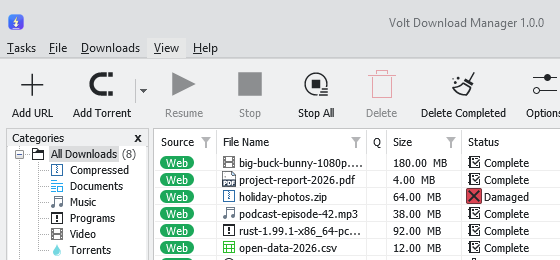
Breeze
Cada uno tiene un lado claro y uno oscuro: Compatibilidad con el modo oscuro y Siempre oscuro eligen entre ellos como antes. Los archivos de tema que pongas en la carpeta de temas (Ver → Tema → Abrir carpeta de temas) también se listan ahí, al igual que los esquemas de color Base16 y pywal (Ver → Tema → Añadir un archivo de tema…; pywal sigue a wal mientras se ejecuta): Temas indica dónde está esa carpeta, qué contiene un archivo de tema (inherits, colores, tamaños, formas de control, iconos), cómo se usan los colores de un esquema y cómo crear y compartir uno.
El icono del área de notificación
Closing the main window doesn't quit VDM. It hides in the notification area, and downloads, queues and schedules carry on. To make closing quit (a portable copy's folder can then be deleted), untick Options → General → Keep running when closing the window. If there is no icon for VDM at all — not in the notification area, nor behind the ^ hidden icons — the window minimizes to the taskbar instead, so downloads continue and there is a way back. An icon behind ^ can be clicked to bring the window back, and starting VDM again always does. On macOS the window closes into the Dock, as Mac apps' windows do: click VDM's icon in the Dock (or in the menu bar) to bring it back, and quit with Cmd+Q or Volt Download Manager → Quit.
On Linux this needs a tray, which most desktops have (KDE Plasma, Xfce, Cinnamon, Ubuntu's GNOME or GNOME with the AppIndicator extension, waybar's tray). On a desktop without one (some tiling window managers), closing the window quits VDM, since there would be nowhere to bring it back from.
- Click the tray icon to see what is downloading: a small panel over the icon lists each running download with its progress bar, how much has come of how much, its speed and the time left, and the progress window's Pause (then Resume; Stop and save for a live stream being recorded) and Cancel beside it. Open Volt Download Manager at its bottom brings the window back. Its ×, Esc, a click elsewhere or another click on the icon closes it.
- Haz doble clic en el icono de la bandeja para traer la ventana de vuelta de inmediato (Windows).
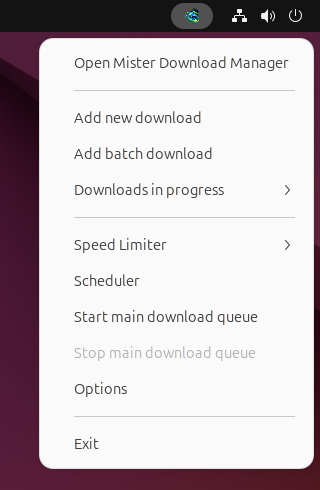
- Haz clic con el botón derecho para acceder a Añadir nueva descarga, Añadir descarga por lotes, Descargas en curso, Limitador de velocidad, Programador, la cola principal de descargas, Opciones y Salir.
- Descargas en curso muestra las descargas en ejecución. Elija una para ver su ventana de progreso.
- Options → General → Show downloads when the notification area icon is clicked is ticked in a new copy of VDM. Untick it and a click on the icon brings the window back (or hides it there while it is in front), as it did before the panel. An VDM that was set up before the panel keeps that click: tick it to have the panel.
- On Linux the panel depends on the desktop's tray. KDE Plasma and Xfce send VDM the click, so the panel opens beside the icon. GNOME's AppIndicator extension may open the icon's menu on a left click instead, or send no place for the click: the panel then opens at the top right of the screen, under GNOME's top bar. In a native Wayland session the compositor decides where the panel goes and may not give it the focus, so a click elsewhere doesn't close it there: use its × or click the icon again. If the panel doesn't suit your desktop, untick the option above.
Minimizar también oculta la ventana principal allí, mientras que Minimizar en el área de notificación está activado en Opciones → General. Está activado por defecto; si no hay icono en la bandeja, Minimizar envía la ventana a la barra de tareas.
La ventana de progreso de una descarga también puede ir allí, con su botón Minimizar o con su botón Ocultar en el área de notificación: una raya corta con una flecha hacia abajo en la esquina.
En Windows, ese botón está en la barra de título de la ventana, a la izquierda de Minimizar, y en el menú de la barra de título (Alt+Espacio). En Linux y macOS está al final de la fila de pestañas.
Para volver a mostrar la ventana, selecciónala en Descargas en curso o haz doble clic en la descarga de la lista.
Para salir, selecciona Tareas → Salir o Salir en el menú del área de notificación.
Where VDM keeps its data
La lista de descargas y la configuración están en %APPDATA%\voltdownloadmanager (downloads.json); en Linux en ~/.local/share/voltdownloadmanager, en un Mac en ~/Library/Application Support/voltdownloadmanager. Una copia portable las guarda en su carpeta data. Los archivos descargados van a tu carpeta Descargas, ordenados en una carpeta por categoría; puedes cambiar esto en Opciones → Guardar en.
Pasos siguientes
Gratis, código abierto, sin anuncios, sin prueba.
Download Volt Download Manager