

VDM runs on Windows 10 and Windows 11 (x64, ARM64 and 32-bit), and on 64-bit Linux (x86-64 and ARM64): see On Linux. Builds for macOS are new and still experimental: see On a Mac.
Wybierz plik do pobrania
Każda wersja znajduje się na stronie Wydania. Dla systemu Windows dostępne są trzy pliki:
| Plik | Co to jest |
|---|---|
VoltDownloadManager-<version>-setup.exe |
The installer. Pick this one unless you have a reason not to. It can set up browser integration and open .torrent files and magnet links with VDM. |
VoltDownloadManager-<version>-portable.zip |
Przenośna kopia. Lista pobierania i ustawienia pozostają w folderze data obok programu, a nic nie jest zapisywane w rejestrze. Integracja z przeglądarką wymaga instalatora. Zobacz Tryb przenośny. |
VoltDownloadManager-<version>-x64.zip |
Te same programy bez instalatora. Przechowuje swoje dane w %APPDATA%\voltdownloadmanager, tak jak zainstalowana kopia. |
Te trzy pliki są dla 64-bitowego systemu Windows na procesorze Intel lub AMD (x64), czyli typowego komputera PC. Od wersji 0.6.0 każdy jest dostępny również dla dwóch innych typów komputerów PC, z nazwą procesora w nazwie pliku:
| Pliki | Dla |
|---|---|
...-setup-arm64.exe, ...-portable-arm64.zip,...-arm64.zip |
Windows na ARM (komputery PC z procesorem Snapdragon lub innym procesorem ARM). W systemie Windows 11 pliki x64 również działają, tłumaczone przez system Windows, ale wolniej. Instalacja ARM64 nad x64 zastępuje ją; Twoja lista i ustawienia pozostają, ponieważ są przechowywane w Twoim profilu, a nie z programem. |
...-setup-x86.exe, ...-portable-x86.zip,...-x86.zip |
32-bit Windows 10. Not sure which you have? Settings → System → About → System type says it. VDM can't download ffmpeg for you there (none is built for 32-bit Windows that VDM can check): to get the best video qualities, choose an ffmpeg of your own in Helpers... (Video). |
Pomoc → Sprawdź aktualizacje aktualizuje każdą kopię do plików dla jej własnego procesora.
Przez WinGet
VDM is also in WinGet, Windows' package manager. In a terminal, the first line installs VDM and the second updates it to the latest version:
winget install MikaiL.VoltDownloadManager
winget upgrade MikaiL.VoltDownloadManager
WinGet downloads the setup and installs VDM without the setup's questions.
W systemie Linux
VDM runs on 64-bit Linux with a desktop session. It is tested on Ubuntu 24.04, Debian 12 and
Fedora, with GNOME, KDE Plasma, Xfce and Cinnamon, on X11 and in Wayland sessions. Pick one
of these files (up to version 0.2.4, their names end in -experimental, as in
...-linux-x86_64-experimental.deb). From version 0.6.0, each also comes for 64-bit
ARM computers, with arm64 in place of x86_64 (...-linux-arm64.deb); they are built and
tested on GitHub's ARM machines. On ARM, VDM doesn't download gallery-dl itself (its author
builds none for it): install it with your system's packages or pip.
| Plik | Co to jest |
|---|---|
...-linux-x86_64.deb |
For Ubuntu, Debian, Mint and Pop!_OS: sudo apt install ./<file>.deb. It brings the libraries VDM needs. |
...-linux-x86_64.rpm |
For Fedora, openSUSE and RHEL: sudo dnf install ./<file>.rpm. It brings the libraries VDM needs. |
...-linux-x86_64.AppImage |
Działa na większości dystrybucji: nadaj mu uprawnienia do wykonania (chmod +x) i uruchom. Aktualizuje się w miejscu (Pomoc → Sprawdź aktualizacje). |
...-linux-x86_64.tar.gz |
Zwykłe programy, dla każdej dystrybucji. |
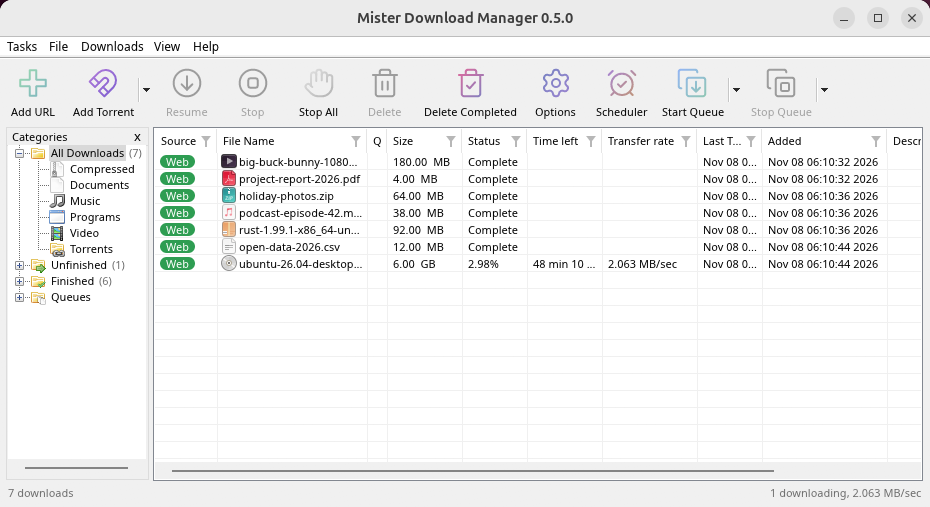
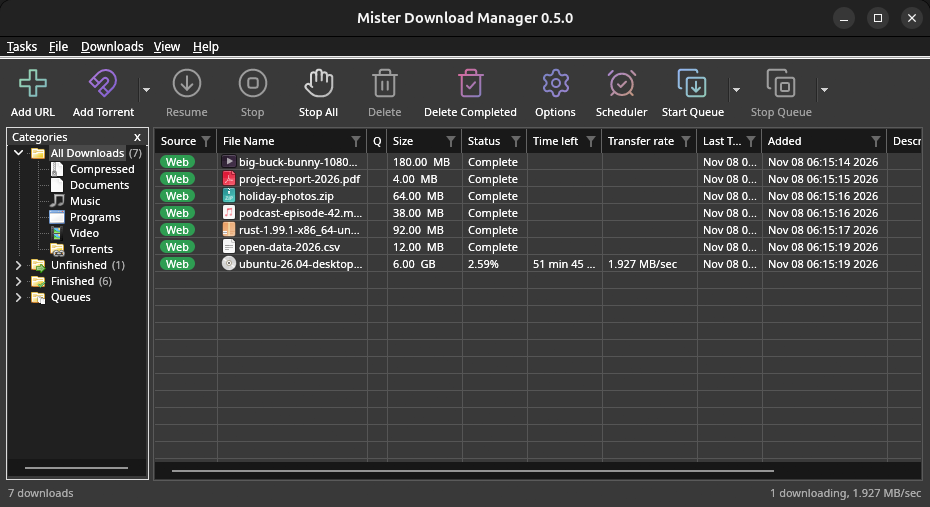
Browser integration is set up by VDM itself at each start (the browsers installed then are found); add the extension as in Browser integration. Firefox installed as a Snap (Ubuntu's) reaches VDM once you allow it; other Snap and Flatpak browsers can't (see Flatpak and Snap browsers). The tray icon, Dark Mode support and Launch on startup work on GNOME (Ubuntu's), KDE Plasma, Xfce and Cinnamon. Running downloads show their progress on VDM's icon in docks that can show it, such as Ubuntu Dock and KDE Plasma's task manager, as on the Windows taskbar (more).
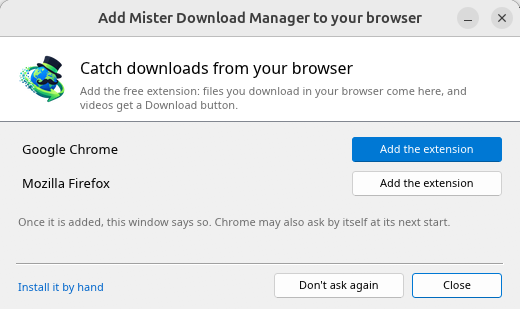
In a Wayland session the windows go through XWayland or Wayland (below). Not there yet on Linux: screen readers (Orca) don't read VDM's windows; browsers installed as a Flatpak can't reach VDM (Firefox from Flathub may, through the desktop as the Snap does, but that isn't checked yet); and View → Draw with → Vulkan is a choice, OpenGL stays the default.
In a Wayland session, VDM chooses its windows' system as it starts, the same way however it was started (its menu entry, the browser's helper, the session's autostart). Its windows run through XWayland where X11 programs look right: only X11 lets VDM open its menus and drop-down lists right under what you clicked (on Wayland they open where the compositor puts new windows, often the middle of the screen) and hide its window in the notification area. That is GNOME and KDE Plasma, which tell X11 programs the screen's scale, and any desktop whose screens aren't scaled. On a scaled screen where nothing tells X11 programs the scale (Hyprland, labwc, sway and other wlroots compositors), the compositor would scale VDM's windows up, blurry, so VDM uses Wayland's own windows there. View → Window system picks X11 (XWayland) or Wayland instead, from the next start, for every way VDM starts (Automatic goes back to VDM's choice); VDM_WAYLAND=1 or VDM_WAYLAND=0 decides for one start. If the system lacks a library X11 windows need (such as libxkbcommon-x11, which the .deb and .rpm bring but the AppImage and the tar.gz can't), VDM opens on Wayland instead; with no window system it can use, it names what's missing and the command that installs it.
Okna są takie, jak opisano w tej pomocy, z czcionkami, ikonami plików i paskami tytułowymi pulpitu:
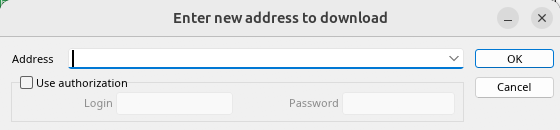
Dodaj URL. 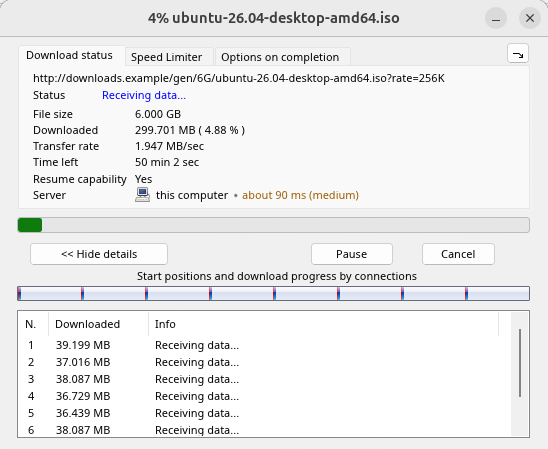
Postęp pobierania. 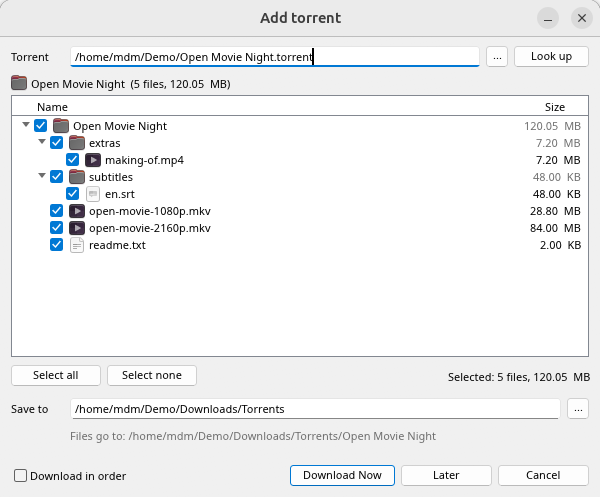
Dodaj torrent. 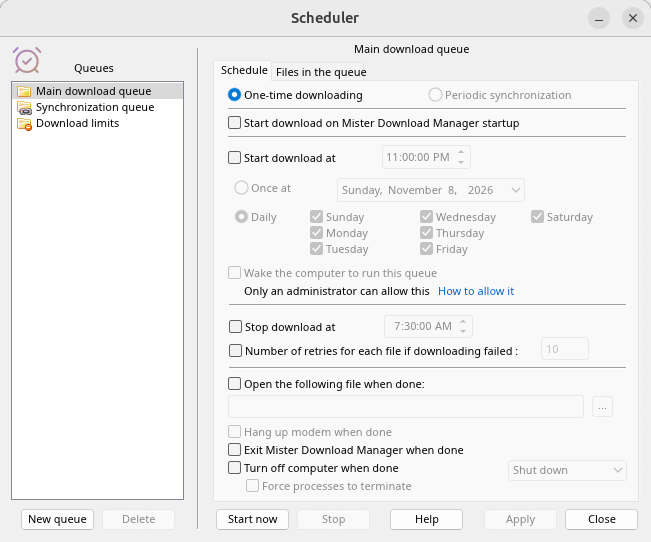
Harmonogram. 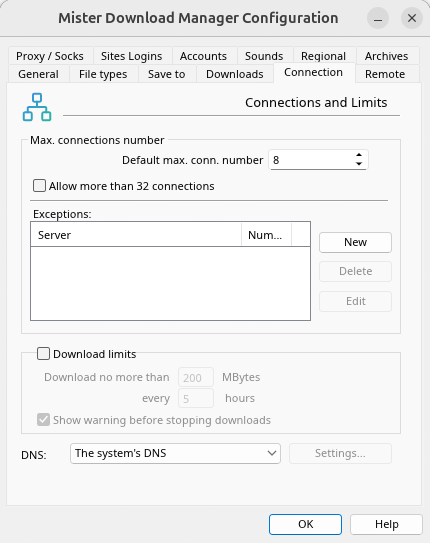
Opcje.
I na innych pulpitach, na których był sprawdzany:
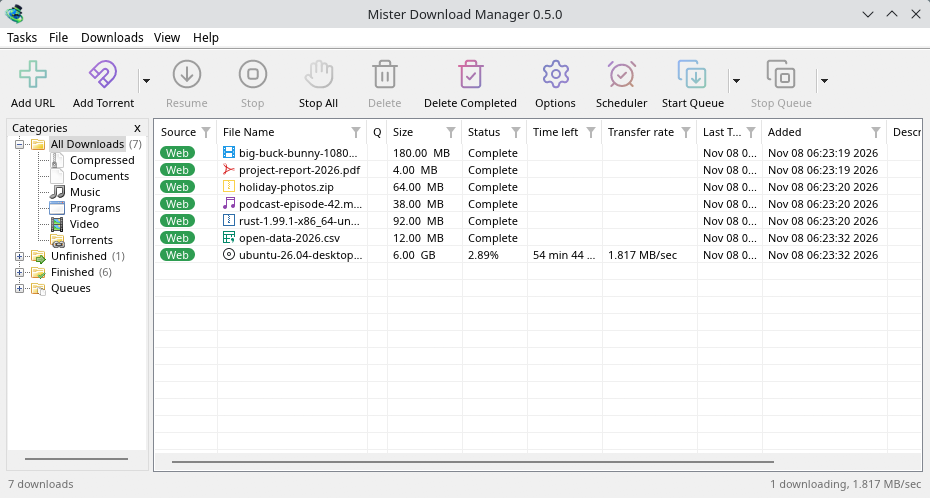
KDE Plasma. 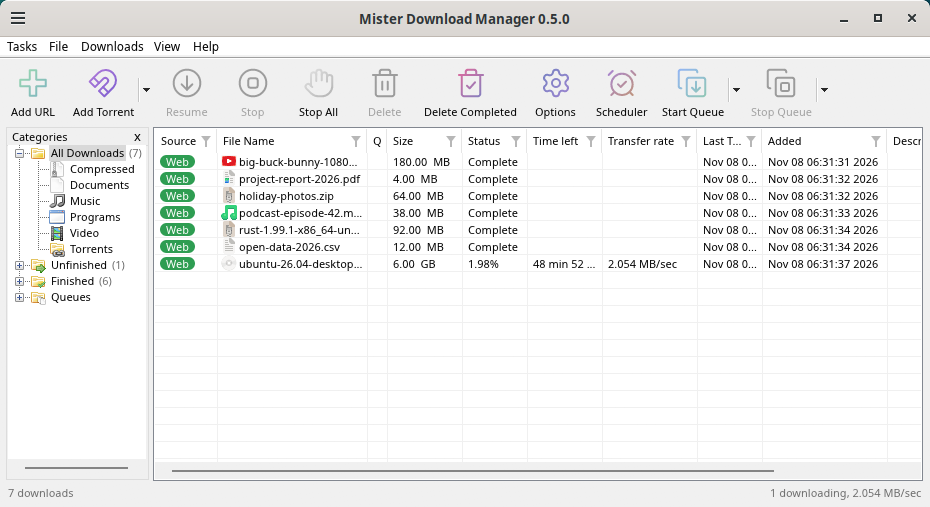
Cinnamon. 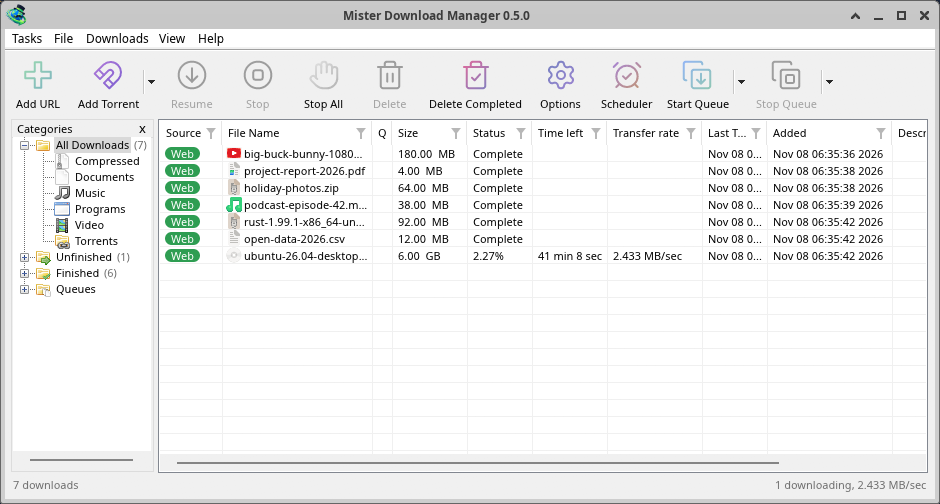
Xfce.
Odinstaluj w systemie Linux
sudo apt remove voltdownloadmanager (or sudo dnf remove voltdownloadmanager) removes the
programs, and the small files that tell your browsers where VDM's helper is: the .deb and .rpm
install those for everyone (in /etc and /usr/lib), for Chrome, Chromium, Edge, Brave, Vivaldi,
Helium and Firefox (the Snap too), so VDM doesn't write them in your home folder. For the AppImage
or the tar.gz, delete the file or the folder.
What VDM keeps in your home folder stays, as with any package: your list and settings
(~/.local/share/voltdownloadmanager), the AppImage's and the tar.gz's browser files, and
those of the browsers that read them only there (Opera, Helium, Thorium, and Firefox's forks:
Zen, LibreWolf, Floorp, Waterfox). A package can't remove those: it never touches
home folders. Without VDM they lead nowhere, so the extension says it can't reach VDM. To remove
them as well, run this as each user who used VDM, before uninstalling:
voltdownloadmanager-nmhost --unregister
(Z AppImage: ~/.local/share/voltdownloadmanager/browser-host/voltdownloadmanager-nmhost --unregister.) Już odinstalowano? To usuwa te same pliki:
find ~/.mozilla ~/.librewolf ~/.config -name com.voltdownloadmanager.host.json -delete 2>/dev/null
Na Macu
Kompilacje dla macOS są świeże i wciąż eksperymentalne: sami jeszcze ich nie testowaliśmy na Macu, więc będziesz wśród pierwszych. Prosimy powiedz nam, jak poszło, dobrze czy źle.
| Plik | Co to jest |
|---|---|
...-macos-arm64-experimental.dmg |
For a Mac with Apple Silicon (M1 or later: Apple menu → About This Mac shows a Chip). Open it and drag Volt Download Manager to Applications. macOS asks before its first start, because the app isn't notarized by Apple: right-click it and choose Open (on macOS 15 and later: System Settings → Privacy & Security → Open Anyway). |
...-macos-x86_64-experimental.dmg |
To samo dla Maca z procesorem Intel (Ten Mac pokazuje Procesor). |
Browser integration is set up by VDM itself at each start (the browsers installed then are found); add the extension as in Browser integration.
Instalacja za pomocą instalatora
- Uruchom
VoltDownloadManager-<version>-setup.exe. - Choose the language. Windows' display language is already selected. The setup offers every language VDM has, and VDM starts in the one you pick.
- Wybierz, czy zainstalować tylko dla Ciebie, czy dla wszystkich użytkowników komputera. Tylko dla Ciebie nie wymaga praw administratora i trafia do
%LOCALAPPDATA%\Programs\Volt Download Manager. Dla wszystkich trafia doProgram Files. - Pick what the setup should do: - Set up browser integration (Chrome, Edge, Brave, Firefox) - Open .torrent files and magnet links with Volt Download Manager - Start Volt Download Manager when Windows starts - Create a desktop shortcut (off unless you tick it)
- Click Install, then Finish to start VDM.
If VDM is already running, the setup asks it to save and close first. To update, use Help → Check for updates → Update now, or run the setup of the new version (or update with WinGet); your list and settings stay.
Integracja z przeglądarką wymaga jeszcze jednego kroku w każdej przeglądarce: dodania rozszerzenia. W przeglądarce Firefox kliknij Dodaj do Firefox na stronie rozszerzenia w addons.mozilla.org; w Chrome, Edge, Brave, Opera i Vivaldi kliknij Dodaj do Chrome na stronie rozszerzenia w Chrome Web Store. Integracja z przeglądarką pokazuje, jak to zrobić.
Odinstaluj
Uninstall VDM from Windows Settings → Apps. The uninstaller asks whether to delete your download list and settings too. Your downloaded files are never touched.
Użyj kopii zip
- Rozpakuj plik do folderu, w którym możesz zapisywać pliki (nie bezpośrednio do
Program Files). - Uruchom
voltdownloadmanager.exe.
Archiwa ZIP zawierają te same programy co instalator: aplikację, voltdownloadmanager-cli.exe (pobieranie z wiersza poleceń; zobacz Wiersz poleceń i automatyzacja) oraz folder extension.
Pierwsze uruchomienie i język
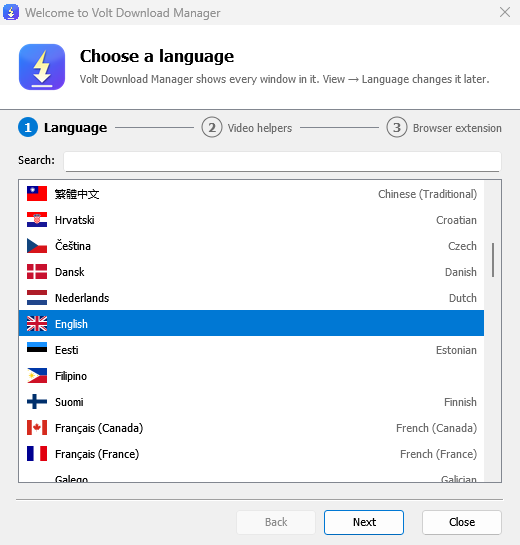
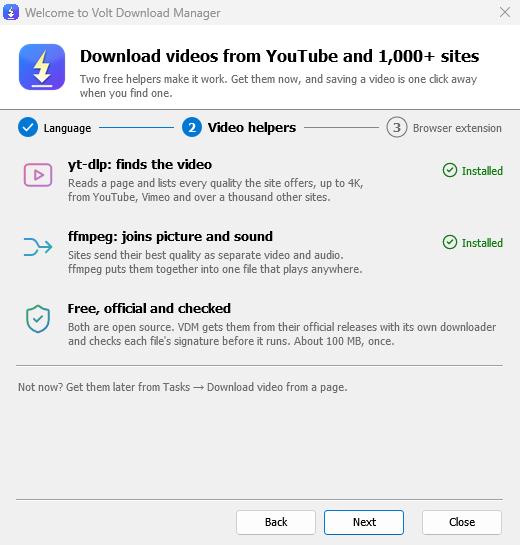
On its first start VDM opens one Welcome to Volt Download Manager window that walks you through what it needs, a step at a time: the steps are named on top, Back and Next move between them, and Finish on the last one closes it. Each step can be passed with Next without doing anything, Close or the window's × ends the setup at any step, and once it is finished or closed it doesn't come back: everything in it stays in the menus. Steps that aren't needed are left out.
- Language. - Installed with the setup: VDM starts in the language you chose in the setup, and this step is left out. - Otherwise: the list of languages, each with its flag and its own name. Click yours: the window switches to it at once, right to left for Arabic, Hebrew, Persian and Urdu.
Możesz to zmienić w dowolnym momencie w Widok → Język. Więcej w Języki.
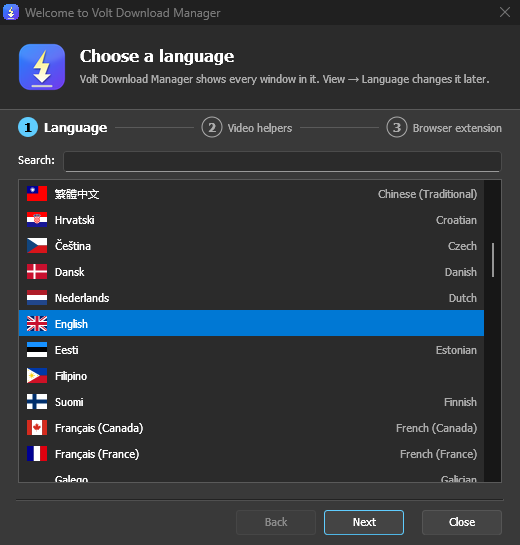
- Pomocnicy wideo (poniżej).
- Browser extension: each browser VDM found, with Add the extension for it, as in Browser integration. Left out when a browser's extension already reached VDM, or in a portable copy.
Narzędzia do obsługi wideo
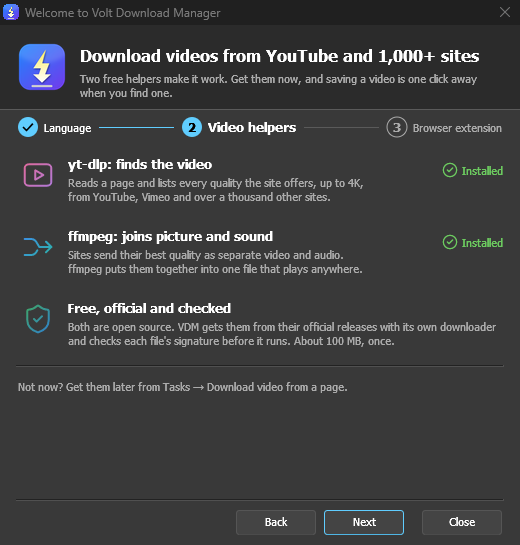
The setup's second step offers VDM's free video helpers: yt-dlp, which finds the video on a page, ffmpeg, which joins its picture and sound (on Windows; elsewhere VDM uses your system's), and Node.js, which YouTube needs, when your computer has no JavaScript runtime. Each says whether it is already there; one that isn't has its own Install button, and Yes, download them (recommended) gets every one that is missing. They download in the background, about 100 MB, once, each with its progress in its row, and go on if you close the window. Nothing is downloaded until you press one. Next leaves them for later: the video window offers them when you first need them. The step is left out when they are all there. More in Videos.
Główne okno
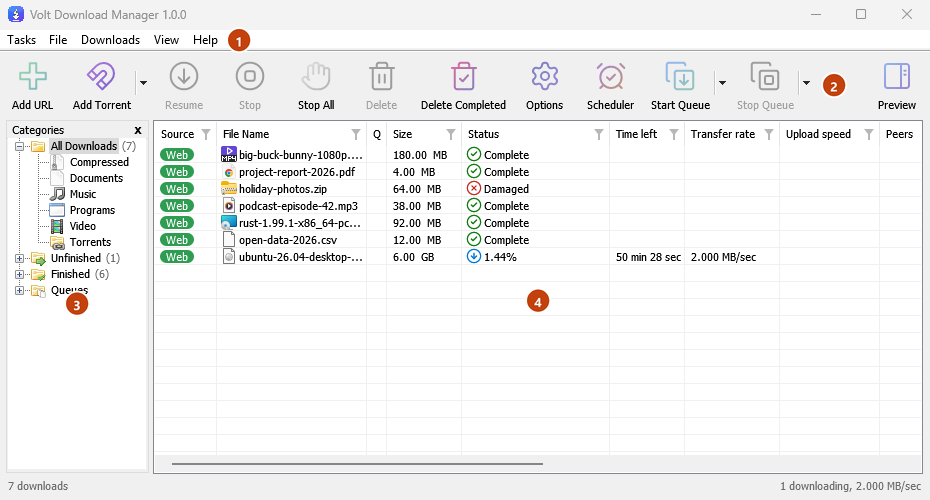
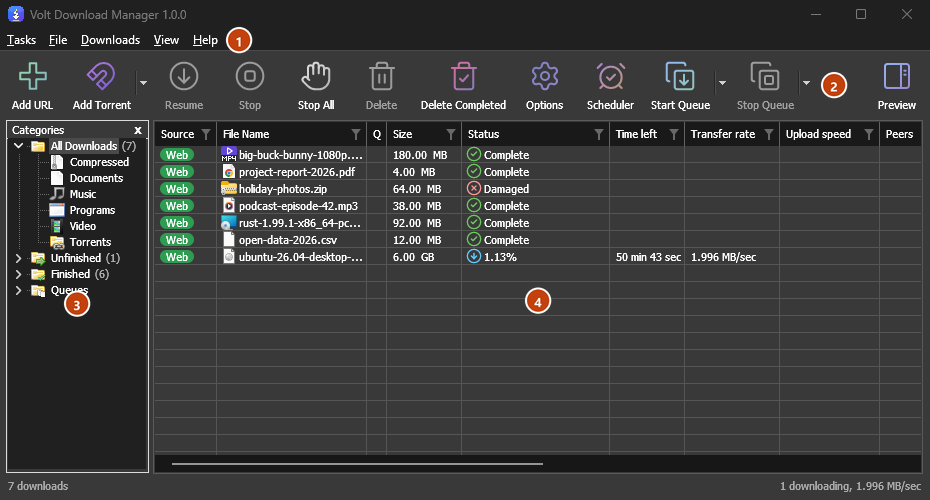
Od góry do dołu:
- Pasek menu.
- Zadania — dodaj pobieranie, torrenty, linki magnet, pobieranie wsadowe i filmy ze strony; Ustawienia torrenta; Link grabber; Kanały RSS; pokaż cel upuszczania; importuj i eksportuj listę; wyjdź.
- Plik — wybrane pobieranie: Zatrzymaj pobieranie, Usuń, Pobierz teraz, Pobierz ponownie.
- Pobrane pliki — Wstrzymaj wszystkie, Zatrzymaj wszystkie, Usuń wszystkie ukończone, Znajdź, Harmonogram, kolejki, Ogranicznik prędkości i Opcje.
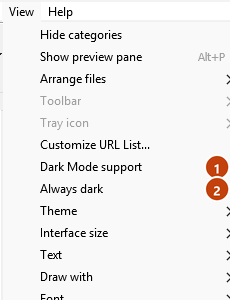
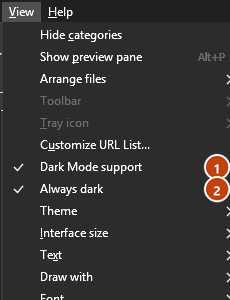
- Widok — pokaż lub ukryj kategorie, posortuj listę (Uporządkuj pliki), Obsługa trybu ciemnego, Zawsze ciemny, Motyw, Rozmiar interfejsu (każde okno większe, od 100% do 200%; także Ctrl +, Ctrl − i Ctrl 0), Chrzcielnica (plik czcionki interfejsu i rozmiar tekstu, niezależnie od Rozmiar interfejsu), Tekst (Windows: litery wygładzone lub klasyczne), Rysuj za pomocą (OpenGL, lub Direct3D w Windows, Vulkan w Linux, Metal w macOS) i Język.
- Help — help pages and tutorials (on the website, in your language when it has it), Keyboard shortcuts, Report a problem, Check for updates, About, Tell a friend and Support VDM (its creator's GitHub Sponsors page: optional, nothing in VDM changes).
- Pasek narzędzi. Dodaj URL, Dodaj torrent, Wznów, Zatrzymaj, Zatrzymaj wszystkie, Usuń, Usuń ukończone, Opcje, Harmonogram, Uruchom kolejkę, Zatrzymaj kolejkę. Mała strzałka obok Dodaj torrent, Uruchom kolejkę i Zatrzymaj kolejkę otwiera więcej opcji.
- Kategorie (po lewej). Wybierz, co ma wyświetlać lista: Wszystkie pobierania, Niezakończone, Ukończone i Kolejki, a w każdej z nich odpowiednie kategorie. Przeciągnij krawędź między panelem a listą, aby poszerzyć panel.
- Lista pobierania (po prawej). Jeden wiersz na każde pobieranie. Zobacz Listę pobierania.
Tryb ciemny
VDM follows your system: when Windows (or your desktop's light/dark preference on Linux and macOS) is set to dark mode, so is VDM. To keep VDM light whatever the system does, turn off View → Dark Mode support. To keep it dark whatever the system does, for example on a desktop that reports no preference, turn on View → Always dark.
Motywy
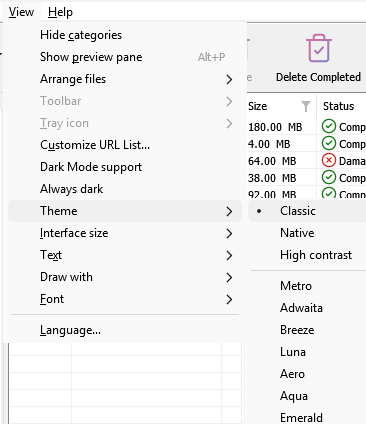
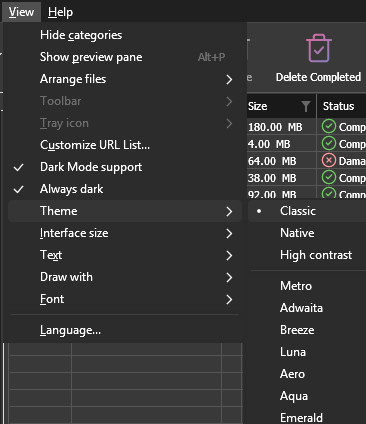
View → Theme changes VDM's look at once, keeping its layout:
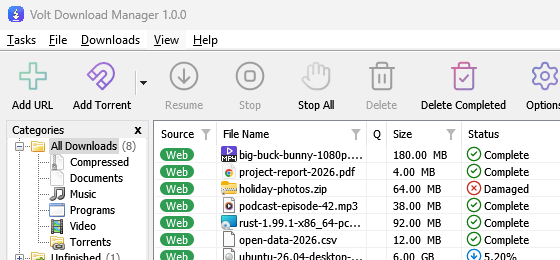
- Classic: VDM's own look, the default.
- Natywny: kolory Twojego systemu. Kolor akcentu Windows (Ustawienia → Personalizacja → Kolory) i, gdy jest włączony, jego motyw kontrastowy; kolor akcentu pulpitu i jego ustawienie wyższego kontrastu w Linux (GNOME 47 i nowsze, KDE Plasma); kolor akcentu w macOS. Podąża za nimi, gdy je zmieniasz.
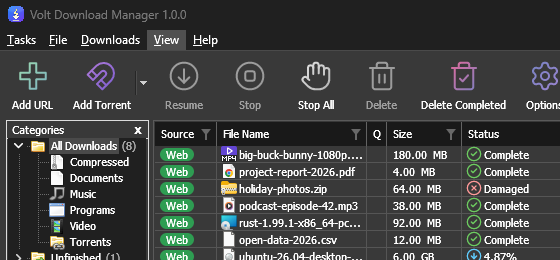
- Wysoki kontrast: czarno-biały, jasny akcent, każda krawędź narysowana, tekst o kontraście 7:1 lub więcej.
- Metro: Windows 8's flat look: square corners, flat buttons and boxes, a coloured title bar with the title centred (on Windows, where VDM draws it), and one-colour icons (Microsoft's Fluent UI System Icons).
- Adwaita: GNOME's look: round corners, flat grey buttons, a rounded focus ring, GNOME's check boxes, a header bar with the title in bold and round buttons (on Windows, where VDM draws it), and GNOME's Adwaita icons, in colour for files and categories, one colour in the toolbar.
- Breeze: KDE Plasma's look: rounded corners, buttons and boxes that take the accent's edge under the pointer or when focused, KDE's check boxes and focus frame, KDE's title bar with the title centred and round buttons (on Windows, where VDM draws it), and KDE's Breeze icons.
- Luna: Windows XP's look: buttons shaded from white with an orange glow under the pointer, green ticks, square text boxes, progress in green blocks, a deep blue title bar with the title in bold (on Windows, where VDM draws it), and colourful icons drawn for VDM in that manner.
- Aero: Windows 7's look: glossy buttons that turn light blue under the pointer, quiet check boxes, a glossy green progress bar, a glassy title bar with the title on a soft glow (on Windows), and glossy icons drawn for VDM in that manner.
- Aqua: Mac OS X's look: gel buttons round at the ends (the default one blue), glossy check boxes, a blue focus ring, a blue gel progress bar, a grey title bar with small round buttons (on Windows), and icons drawn for VDM in that manner.
- Emerald: białe tło z niemal czarnym tuszem i drabiną neutralnych szarości dla struktury, szmaragdowe wypełnienia zawsze z niemal czarnym tekstem zamiast białego, 6-punktowe zaokrąglenia na każdym elemencie sterującym i jednokolorowe ikony Metro.
Klasyczny 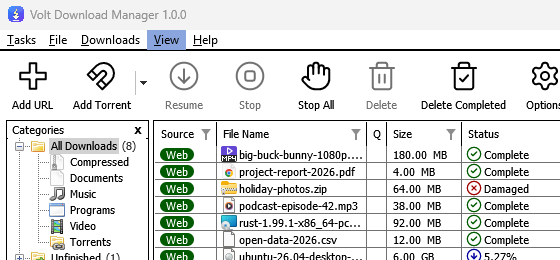
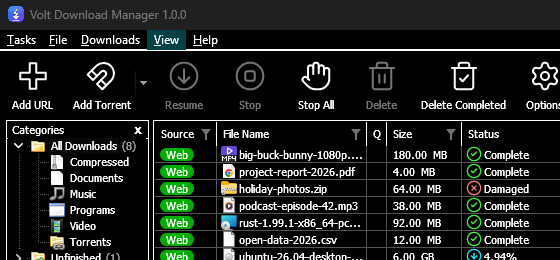
Wysoki kontrast 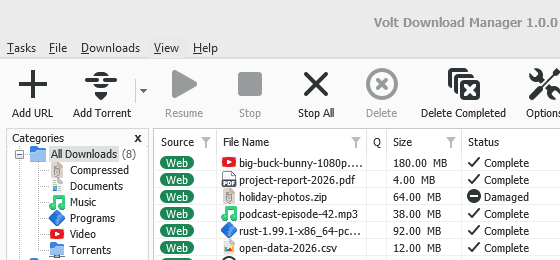
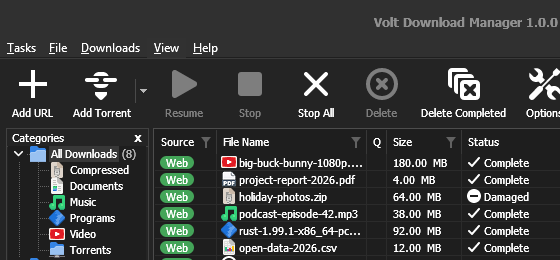
Adwaita 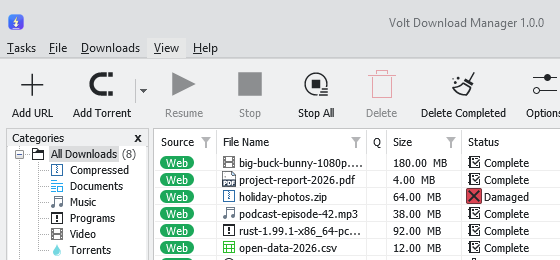
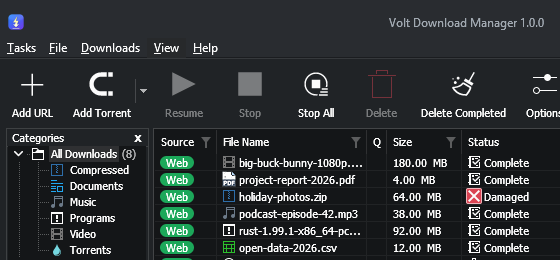
Breeze
Każdy motyw ma jasną i ciemną stronę: Obsługa trybu ciemnego i Zawsze ciemny wybierają między nimi jak poprzednio. Pliki motywów, które umieścisz w folderze motywów (Widok → Motyw → Otwórz folder motywów), są tam również wymienione, podobnie jak schematy kolorów Base16 i pywal (Widok → Motyw → Dodaj plik motywu…; pywal działa zgodnie z wal): Motywy informuje, gdzie znajduje się ten folder, co zawiera plik motywu (inherits, kolory, rozmiary, kształty kontrolek, ikony), jak używane są kolory schematu oraz jak stworzyć i udostępnić własny motyw.
Ikona w zasobniku systemowym
Closing the main window doesn't quit VDM. It hides in the notification area, and downloads, queues and schedules carry on. To make closing quit (a portable copy's folder can then be deleted), untick Options → General → Keep running when closing the window. If there is no icon for VDM at all — not in the notification area, nor behind the ^ hidden icons — the window minimizes to the taskbar instead, so downloads continue and there is a way back. An icon behind ^ can be clicked to bring the window back, and starting VDM again always does. On macOS the window closes into the Dock, as Mac apps' windows do: click VDM's icon in the Dock (or in the menu bar) to bring it back, and quit with Cmd+Q or Volt Download Manager → Quit.
On Linux this needs a tray, which most desktops have (KDE Plasma, Xfce, Cinnamon, Ubuntu's GNOME or GNOME with the AppIndicator extension, waybar's tray). On a desktop without one (some tiling window managers), closing the window quits VDM, since there would be nowhere to bring it back from.
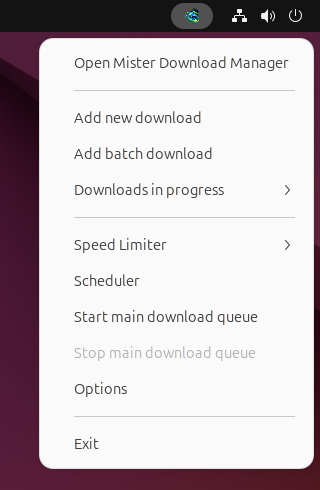
- Click the tray icon to see what is downloading: a small panel over the icon lists each running download with its progress bar, how much has come of how much, its speed and the time left, and the progress window's Pause (then Resume; Stop and save for a live stream being recorded) and Cancel beside it. Open Volt Download Manager at its bottom brings the window back. Its ×, Esc, a click elsewhere or another click on the icon closes it.
- Kliknij dwukrotnie ikonę w zasobniku systemowym, aby natychmiast przywrócić okno programu (Windows).
- Kliknij ikonę prawym przyciskiem myszy, aby uzyskać dostęp do opcji Dodaj nowe pobieranie, Dodaj pobieranie wsadowe, Pobieranie w toku, Ogranicznik prędkości, Harmonogram, głównej kolejki pobierania, Opcje i Zakończ.
- Pobieranie w toku wyświetla listę aktywnych pobierań. Wybierz jedno, aby zobaczyć jego okno postępu.
- Options → General → Show downloads when the notification area icon is clicked is ticked in a new copy of VDM. Untick it and a click on the icon brings the window back (or hides it there while it is in front), as it did before the panel. An VDM that was set up before the panel keeps that click: tick it to have the panel.
- On Linux the panel depends on the desktop's tray. KDE Plasma and Xfce send VDM the click, so the panel opens beside the icon. GNOME's AppIndicator extension may open the icon's menu on a left click instead, or send no place for the click: the panel then opens at the top right of the screen, under GNOME's top bar. In a native Wayland session the compositor decides where the panel goes and may not give it the focus, so a click elsewhere doesn't close it there: use its × or click the icon again. If the panel doesn't suit your desktop, untick the option above.
Przycisk Minimalizuj również ukrywa główne okno, gdy w Opcje → Ogólne włączona jest opcja Minimalizuj do obszaru powiadomień. Jest ona domyślnie włączona; jeśli w zasobniku systemowym nie ma ikony, Minimalizuj zamiast tego wysyła okno do paska zadań.
Okno postępu pobierania również można ukryć w obszarze powiadomień za pomocą przycisku Minimalizuj lub Ukryj w obszarze powiadomień: krótkiej kreski ze strzałką skierowaną w dół, ku rogowi.
W systemie Windows ten przycisk znajduje się na pasku tytułu okna, po lewej stronie przycisku Minimalizuj, oraz w menu paska tytułu (Alt+Space). W systemach Linux i macOS znajduje się na końcu wiersza kart.
Aby przywrócić okno, wybierz pobieranie w Pobieranie w toku lub kliknij je dwukrotnie na liście.
Aby zakończyć działanie programu, wybierz Zadania → Zakończ lub Zakończ w menu zasobnika systemowego.
Where VDM keeps its data
Lista pobierania i ustawienia znajdują się w %APPDATA%\voltdownloadmanager (downloads.json); w systemie Linux w ~/.local/share/voltdownloadmanager, na komputerze Mac w ~/Library/Application Support/voltdownloadmanager. Przenośna kopia przechowuje je zamiast tego w folderze data. Pobrane pliki trafiają do folderu Pobrane pliki, posortowane w folderach według kategorii; możesz to zmienić w Opcje → Zapisz w.
Następne kroki
Darmowy, open source, bez reklam, bez wersji próbnej.
Download Volt Download Manager