

VDM runs on Windows 10 and Windows 11 (x64, ARM64 and 32-bit), and on 64-bit Linux (x86-64 and ARM64): see On Linux. Builds for macOS are new and still experimental: see On a Mac.
Chọn bản tải xuống
Mọi phiên bản đều có trên trang Bản phát hành. Đối với Windows có ba tệp:
| Tệp | Là gì |
|---|---|
VoltDownloadManager-<version>-setup.exe |
The installer. Pick this one unless you have a reason not to. It can set up browser integration and open .torrent files and magnet links with VDM. |
VoltDownloadManager-<version>-portable.zip |
Bản sao di động. Danh sách tải xuống và cài đặt nằm trong thư mục data bên cạnh chương trình, và không có gì được ghi vào registry. Tích hợp trình duyệt cần trình cài đặt. Xem Chế độ di động. |
VoltDownloadManager-<version>-x64.zip |
Các chương trình tương tự nhưng không có trình cài đặt. Dữ liệu được lưu trong %APPDATA%\voltdownloadmanager, như bản đã cài đặt. |
Ba tệp này dành cho Windows 64-bit trên bộ xử lý Intel hoặc AMD (x64), là PC thông thường. Từ phiên bản 0.6.0, mỗi tệp cũng có thêm hai loại PC khác, với tên bộ xử lý trong tên của nó:
| Tệp | Dành cho |
|---|---|
...-setup-arm64.exe, ...-portable-arm64.zip,...-arm64.zip |
Windows trên ARM (PC dùng bộ xử lý Snapdragon hoặc ARM khác). Trên Windows 11, các tệp x64 cũng chạy được ở đó, được Windows dịch, nhưng chậm hơn. Bản cài đặt ARM64 cài đè lên bản x64 sẽ thay thế nó; danh sách và cài đặt của bạn vẫn giữ nguyên, vì chúng được lưu trong hồ sơ của bạn, không phải cùng với chương trình. |
...-setup-x86.exe, ...-portable-x86.zip,...-x86.zip |
32-bit Windows 10. Not sure which you have? Settings → System → About → System type says it. VDM can't download ffmpeg for you there (none is built for 32-bit Windows that VDM can check): to get the best video qualities, choose an ffmpeg of your own in Helpers... (Video). |
Trợ giúp → Kiểm tra bản cập nhật sẽ cập nhật mỗi bản sao cho bộ xử lý của riêng nó.
Với WinGet
VDM is also in WinGet, Windows' package manager. In a terminal, the first line installs VDM and the second updates it to the latest version:
winget install MikaiL.VoltDownloadManager
winget upgrade MikaiL.VoltDownloadManager
WinGet downloads the setup and installs VDM without the setup's questions.
Trên Linux
VDM runs on 64-bit Linux with a desktop session. It is tested on Ubuntu 24.04, Debian 12 and
Fedora, with GNOME, KDE Plasma, Xfce and Cinnamon, on X11 and in Wayland sessions. Pick one
of these files (up to version 0.2.4, their names end in -experimental, as in
...-linux-x86_64-experimental.deb). From version 0.6.0, each also comes for 64-bit
ARM computers, with arm64 in place of x86_64 (...-linux-arm64.deb); they are built and
tested on GitHub's ARM machines. On ARM, VDM doesn't download gallery-dl itself (its author
builds none for it): install it with your system's packages or pip.
| Tệp | Là gì |
|---|---|
...-linux-x86_64.deb |
For Ubuntu, Debian, Mint and Pop!_OS: sudo apt install ./<file>.deb. It brings the libraries VDM needs. |
...-linux-x86_64.rpm |
For Fedora, openSUSE and RHEL: sudo dnf install ./<file>.rpm. It brings the libraries VDM needs. |
...-linux-x86_64.AppImage |
Chạy trên hầu hết các bản phân phối: đặt quyền thực thi (chmod +x) và chạy. Chương trình tự cập nhật tại chỗ (Trợ giúp → Kiểm tra bản cập nhật). |
...-linux-x86_64.tar.gz |
Các chương trình thuần túy, cho bất kỳ bản phân phối nào. |
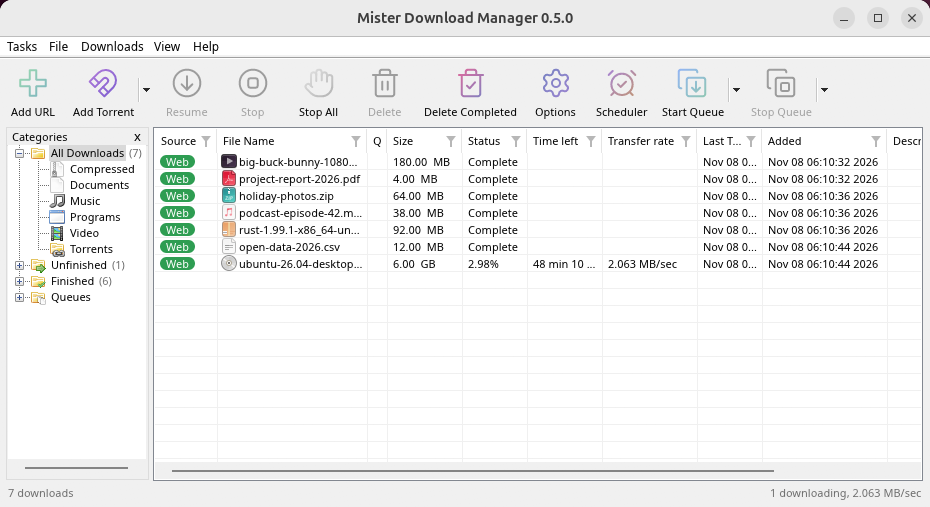
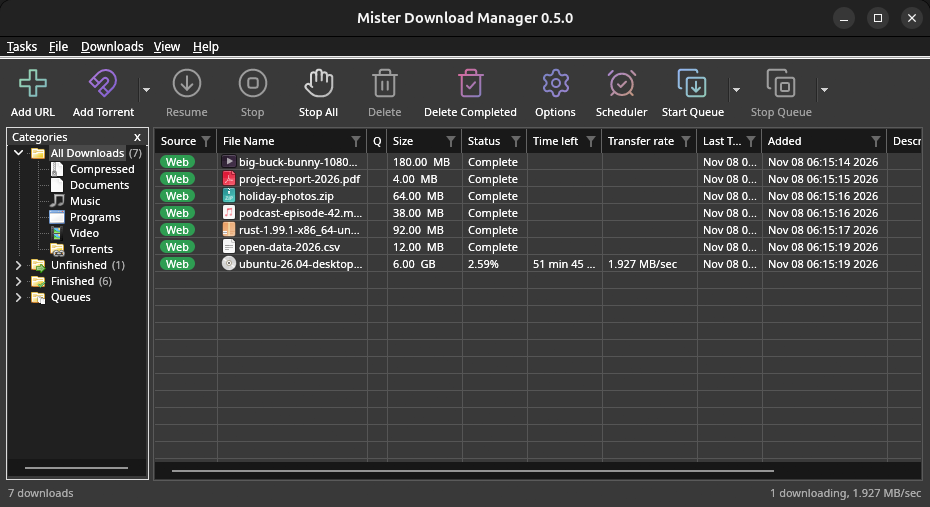
Browser integration is set up by VDM itself at each start (the browsers installed then are found); add the extension as in Browser integration. Firefox installed as a Snap (Ubuntu's) reaches VDM once you allow it; other Snap and Flatpak browsers can't (see Flatpak and Snap browsers). The tray icon, Dark Mode support and Launch on startup work on GNOME (Ubuntu's), KDE Plasma, Xfce and Cinnamon. Running downloads show their progress on VDM's icon in docks that can show it, such as Ubuntu Dock and KDE Plasma's task manager, as on the Windows taskbar (more).
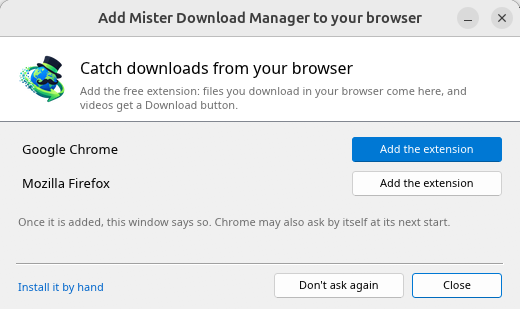
In a Wayland session the windows go through XWayland or Wayland (below). Not there yet on Linux: screen readers (Orca) don't read VDM's windows; browsers installed as a Flatpak can't reach VDM (Firefox from Flathub may, through the desktop as the Snap does, but that isn't checked yet); and View → Draw with → Vulkan is a choice, OpenGL stays the default.
In a Wayland session, VDM chooses its windows' system as it starts, the same way however it was started (its menu entry, the browser's helper, the session's autostart). Its windows run through XWayland where X11 programs look right: only X11 lets VDM open its menus and drop-down lists right under what you clicked (on Wayland they open where the compositor puts new windows, often the middle of the screen) and hide its window in the notification area. That is GNOME and KDE Plasma, which tell X11 programs the screen's scale, and any desktop whose screens aren't scaled. On a scaled screen where nothing tells X11 programs the scale (Hyprland, labwc, sway and other wlroots compositors), the compositor would scale VDM's windows up, blurry, so VDM uses Wayland's own windows there. View → Window system picks X11 (XWayland) or Wayland instead, from the next start, for every way VDM starts (Automatic goes back to VDM's choice); VDM_WAYLAND=1 or VDM_WAYLAND=0 decides for one start. If the system lacks a library X11 windows need (such as libxkbcommon-x11, which the .deb and .rpm bring but the AppImage and the tar.gz can't), VDM opens on Wayland instead; with no window system it can use, it names what's missing and the command that installs it.
Các cửa sổ là những cửa sổ được mô tả trong phần trợ giúp này, với phông chữ, biểu tượng tệp và thanh tiêu đề của máy tính để bàn:
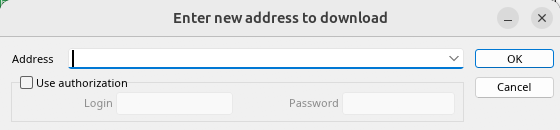
Thêm URL. 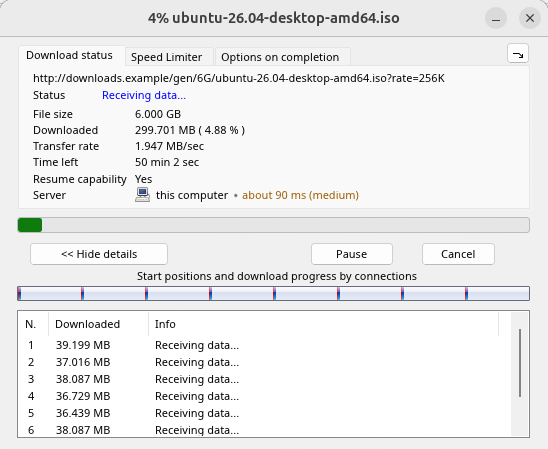
Tiến trình tải xuống. 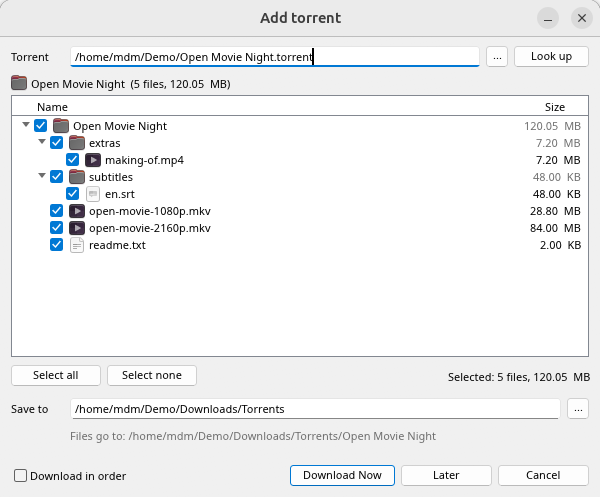
Thêm torrent. 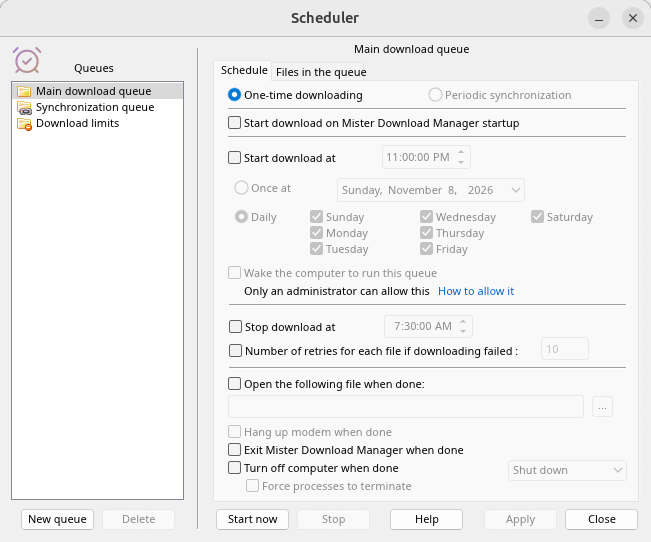
Bộ lập lịch. 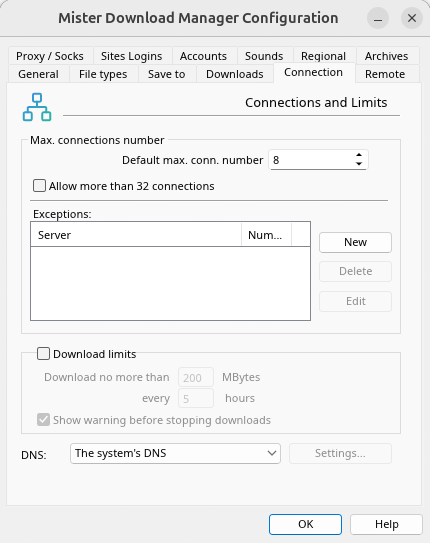
Tùy chọn.
Và trên các máy tính để bàn khác đã được kiểm tra:
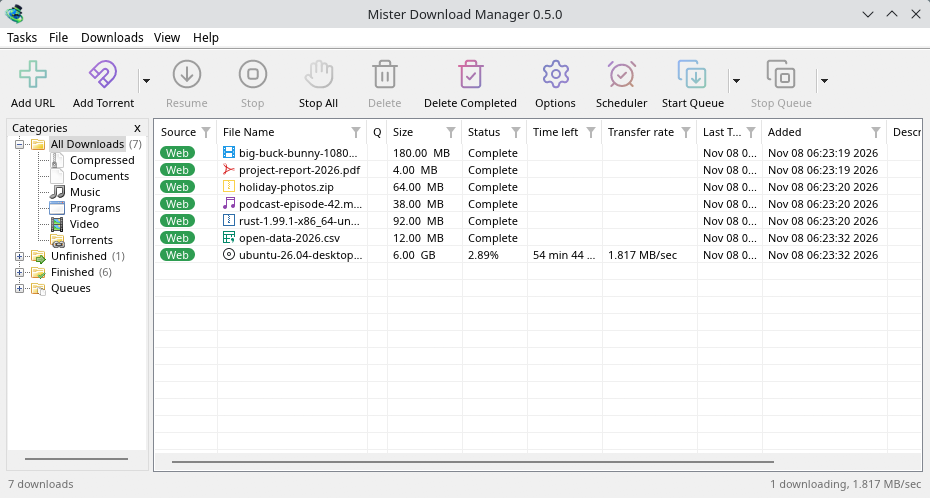
KDE Plasma. 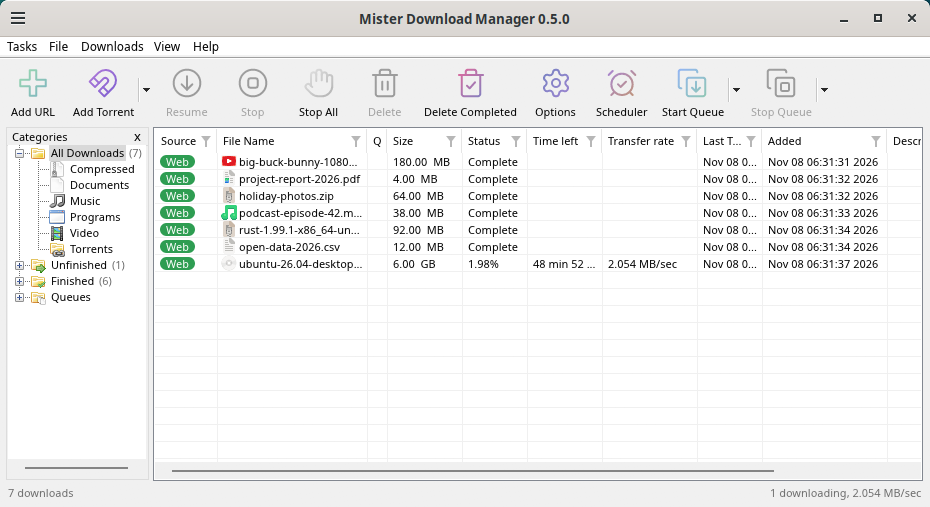
Cinnamon. 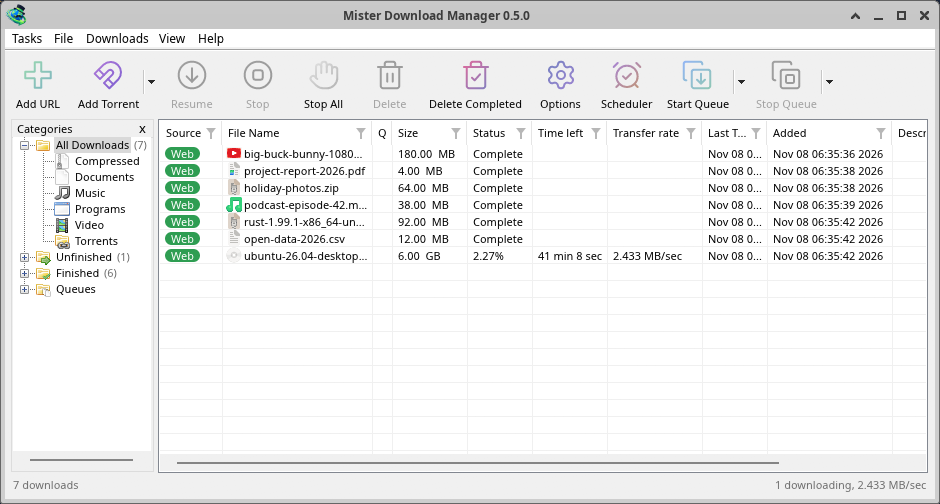
Xfce.
Gỡ cài đặt trên Linux
sudo apt remove voltdownloadmanager (or sudo dnf remove voltdownloadmanager) removes the
programs, and the small files that tell your browsers where VDM's helper is: the .deb and .rpm
install those for everyone (in /etc and /usr/lib), for Chrome, Chromium, Edge, Brave, Vivaldi,
Helium and Firefox (the Snap too), so VDM doesn't write them in your home folder. For the AppImage
or the tar.gz, delete the file or the folder.
What VDM keeps in your home folder stays, as with any package: your list and settings
(~/.local/share/voltdownloadmanager), the AppImage's and the tar.gz's browser files, and
those of the browsers that read them only there (Opera, Helium, Thorium, and Firefox's forks:
Zen, LibreWolf, Floorp, Waterfox). A package can't remove those: it never touches
home folders. Without VDM they lead nowhere, so the extension says it can't reach VDM. To remove
them as well, run this as each user who used VDM, before uninstalling:
voltdownloadmanager-nmhost --unregister
(Từ AppImage: ~/.local/share/voltdownloadmanager/browser-host/voltdownloadmanager-nmhost --unregister.) Đã gỡ cài đặt? Lệnh này xóa các tệp tương tự:
find ~/.mozilla ~/.librewolf ~/.config -name com.voltdownloadmanager.host.json -delete 2>/dev/null
Trên máy Mac
Các bản dựng macOS còn mới và đang thử nghiệm: chúng tôi chưa tự mình thử chúng trên máy Mac, vì vậy bạn sẽ là một trong những người đầu tiên. Vui lòng cho chúng tôi biết kết quả, dù tốt hay xấu.
| Tệp | Là gì |
|---|---|
...-macos-arm64-experimental.dmg |
For a Mac with Apple Silicon (M1 or later: Apple menu → About This Mac shows a Chip). Open it and drag Volt Download Manager to Applications. macOS asks before its first start, because the app isn't notarized by Apple: right-click it and choose Open (on macOS 15 and later: System Settings → Privacy & Security → Open Anyway). |
...-macos-x86_64-experimental.dmg |
Tương tự, đối với máy Mac dùng bộ xử lý Intel (Giới thiệu về máy Mac này sẽ hiển thị Bộ xử lý). |
Browser integration is set up by VDM itself at each start (the browsers installed then are found); add the extension as in Browser integration.
Cài đặt bằng trình cài đặt
- Chạy
VoltDownloadManager-<version>-setup.exe. - Choose the language. Windows' display language is already selected. The setup offers every language VDM has, and VDM starts in the one you pick.
- Chọn cài đặt chỉ cho bạn hoặc cho mọi người trên máy tính. Chỉ cho bạn không cần quyền quản trị và đi đến
%LOCALAPPDATA%\Programs\Volt Download Manager. Cho mọi người đi đếnProgram Files. - Pick what the setup should do: - Set up browser integration (Chrome, Edge, Brave, Firefox) - Open .torrent files and magnet links with Volt Download Manager - Start Volt Download Manager when Windows starts - Create a desktop shortcut (off unless you tick it)
- Click Install, then Finish to start VDM.
If VDM is already running, the setup asks it to save and close first. To update, use Help → Check for updates → Update now, or run the setup of the new version (or update with WinGet); your list and settings stay.
Để tích hợp trình duyệt, bạn cần thực hiện thêm một bước trong mỗi trình duyệt: thêm tiện ích mở rộng. Trong Firefox, nhấp vào Thêm vào Firefox trên trang của tiện ích này tại addons.mozilla.org; trong Chrome, Edge, Brave, Opera và Vivaldi, nhấp vào Thêm vào Chrome trên trang của tiện ích này trong Cửa hàng Chrome trực tuyến. Tích hợp trình duyệt sẽ hướng dẫn cách thực hiện.
Gỡ cài đặt
Uninstall VDM from Windows Settings → Apps. The uninstaller asks whether to delete your download list and settings too. Your downloaded files are never touched.
Sử dụng bản sao zip
- Giải nén tệp vào thư mục mà bạn có quyền ghi (không giải nén trực tiếp vào
Program Files). - Chạy
voltdownloadmanager.exe.
Các tệp zip chứa các chương trình giống như trình cài đặt: ứng dụng, voltdownloadmanager-cli.exe (tải xuống từ dòng lệnh; xem Dòng lệnh và tự động hóa) và thư mục extension.
Khởi động lần đầu và chọn ngôn ngữ
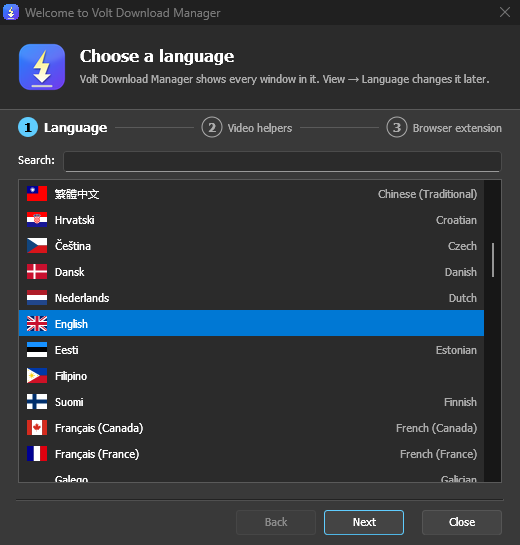
On its first start VDM opens one Welcome to Volt Download Manager window that walks you through what it needs, a step at a time: the steps are named on top, Back and Next move between them, and Finish on the last one closes it. Each step can be passed with Next without doing anything, Close or the window's × ends the setup at any step, and once it is finished or closed it doesn't come back: everything in it stays in the menus. Steps that aren't needed are left out.
- Language. - Installed with the setup: VDM starts in the language you chose in the setup, and this step is left out. - Otherwise: the list of languages, each with its flag and its own name. Click yours: the window switches to it at once, right to left for Arabic, Hebrew, Persian and Urdu.
Bạn có thể thay đổi bất cứ lúc nào trong Xem → Ngôn ngữ. Xem thêm trong Ngôn ngữ.
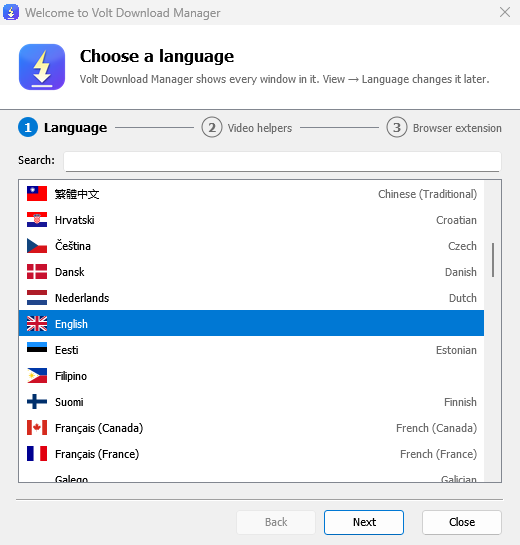
- Trợ giúp video (bên dưới).
- Browser extension: each browser VDM found, with Add the extension for it, as in Browser integration. Left out when a browser's extension already reached VDM, or in a portable copy.
Công cụ hỗ trợ video
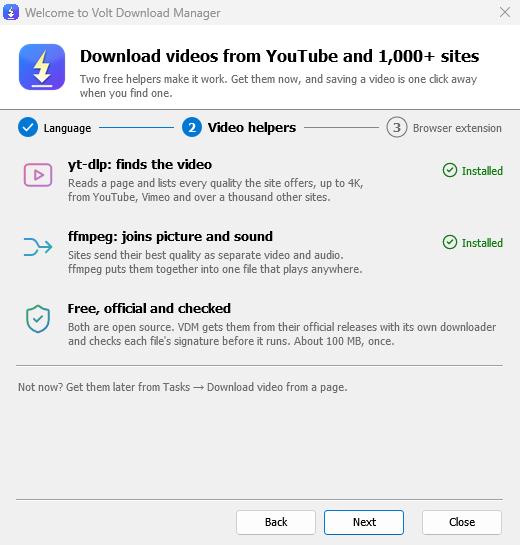
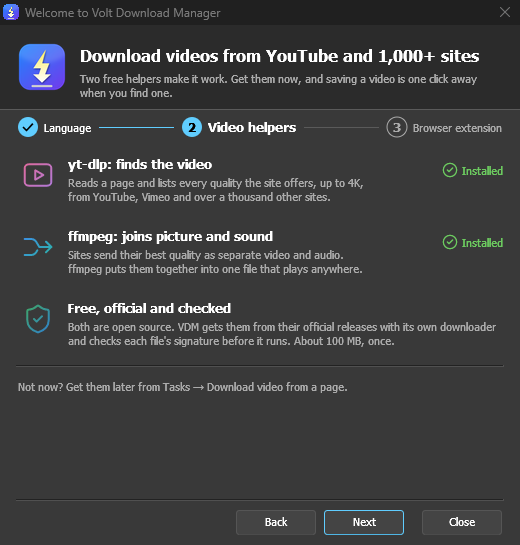
The setup's second step offers VDM's free video helpers: yt-dlp, which finds the video on a page, ffmpeg, which joins its picture and sound (on Windows; elsewhere VDM uses your system's), and Node.js, which YouTube needs, when your computer has no JavaScript runtime. Each says whether it is already there; one that isn't has its own Install button, and Yes, download them (recommended) gets every one that is missing. They download in the background, about 100 MB, once, each with its progress in its row, and go on if you close the window. Nothing is downloaded until you press one. Next leaves them for later: the video window offers them when you first need them. The step is left out when they are all there. More in Videos.
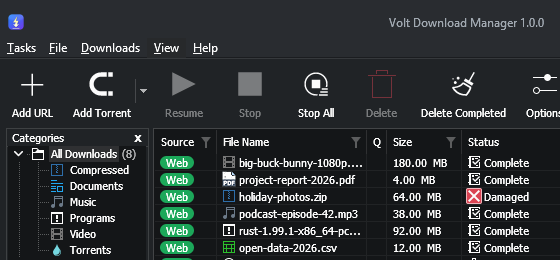
Cửa sổ chính
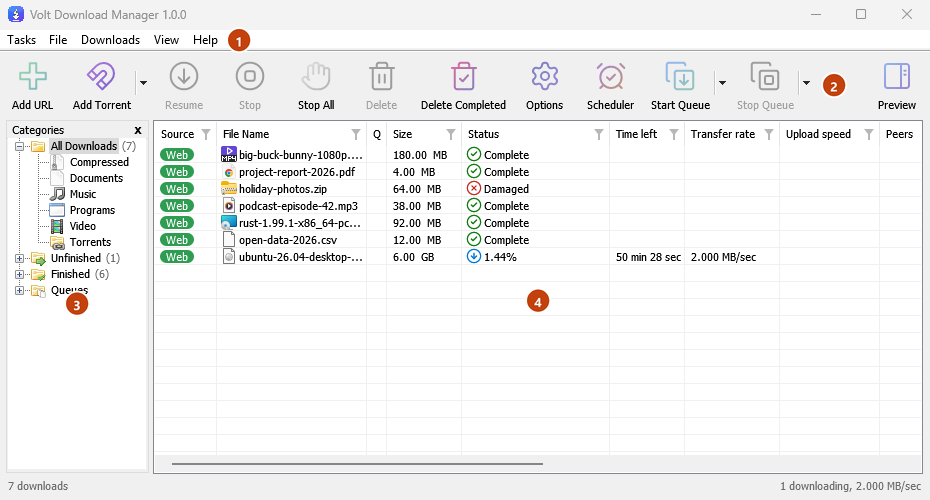
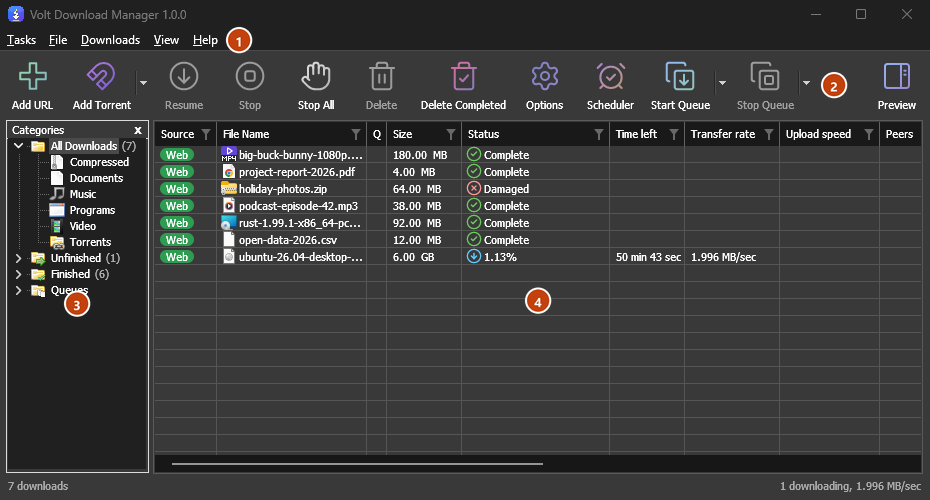
Từ trên xuống dưới:
- Thanh menu.
- Tác vụ — thêm tải xuống, torrent, liên kết magnet, tải xuống hàng loạt và video từ một trang; Cài đặt torrent; Trình lấy liên kết; Nguồn cấp dữ liệu RSS; hiển thị mục tiêu kéo thả; nhập và xuất danh sách; thoát.
- Tệp — bản tải xuống đã chọn: Dừng tải xuống, Xóa, Tải xuống ngay, Tải xuống lại.
- Tải xuống — Tạm dừng tất cả, Dừng tất cả, Xóa tất cả đã hoàn tất, Tìm, Bộ lập lịch, hàng đợi, Giới hạn tốc độ và Tùy chọn.
- Xem — hiển thị hoặc ẩn các danh mục, sắp xếp danh sách (Sắp xếp tệp), Hỗ trợ Chế độ tối, Luôn tối, Chủ đề, Kích thước giao diện (mọi cửa sổ lớn hơn, từ 100 % đến 200 %; cả Ctrl +, Ctrl − và Ctrl 0), Phông chữ (tệp phông chữ và kích thước văn bản của giao diện, ngoài Kích thước giao diện), Văn bản (Windows: chữ mượt mà hoặc cổ điển), Vẽ bằng (OpenGL, hoặc Direct3D trên Windows, Vulkan trên Linux, Metal trên macOS) và Ngôn ngữ.
- Help — help pages and tutorials (on the website, in your language when it has it), Keyboard shortcuts, Report a problem, Check for updates, About, Tell a friend and Support VDM (its creator's GitHub Sponsors page: optional, nothing in VDM changes).
- Thanh công cụ. Thêm URL, Thêm Torrent, Tiếp tục, Dừng, Dừng tất cả, Xóa, Xóa đã hoàn tất, Tùy chọn, Bộ lập lịch, Bắt đầu hàng đợi, Dừng hàng đợi. Mũi tên nhỏ bên cạnh Thêm Torrent, Bắt đầu hàng đợi và Dừng hàng đợi mở thêm các lựa chọn.
- Danh mục (bên trái). Chọn những gì danh sách hiển thị: Tất cả các bản tải xuống, Chưa hoàn tất, Đã hoàn tất và Hàng đợi, mỗi mục có các danh mục riêng. Kéo khoảng trống giữa khung và danh sách để làm cho nó rộng hơn.
- Danh sách tải xuống (bên phải). Một hàng cho mỗi bản tải xuống. Xem Danh sách tải xuống.
Chế độ tối
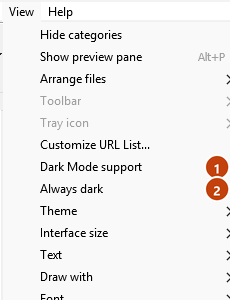
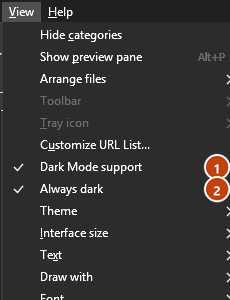
VDM follows your system: when Windows (or your desktop's light/dark preference on Linux and macOS) is set to dark mode, so is VDM. To keep VDM light whatever the system does, turn off View → Dark Mode support. To keep it dark whatever the system does, for example on a desktop that reports no preference, turn on View → Always dark.
Chủ đề
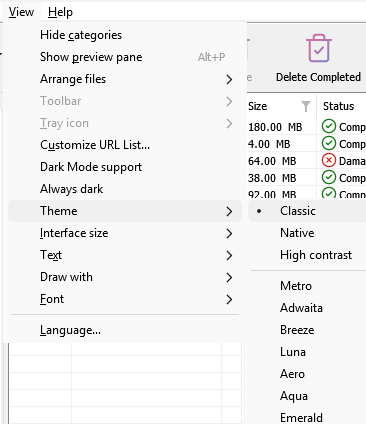
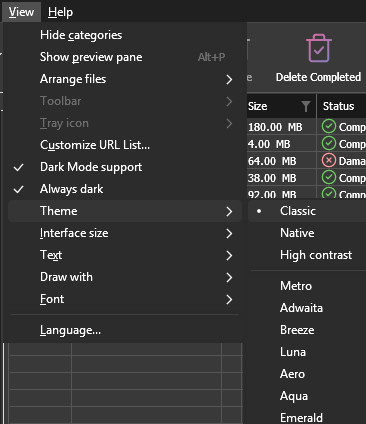
View → Theme changes VDM's look at once, keeping its layout:
- Classic: VDM's own look, the default.
- Gốc: màu sắc của hệ thống. Màu nhấn của Windows (Cài đặt → Cá nhân hóa → Màu sắc) và, khi bật, chủ đề tương phản của nó; màu nhấn của màn hình nền và cài đặt độ tương phản cao hơn trên Linux (GNOME 47 trở lên, KDE Plasma); màu nhấn trên macOS. Nó sẽ tuân theo khi bạn thay đổi chúng.
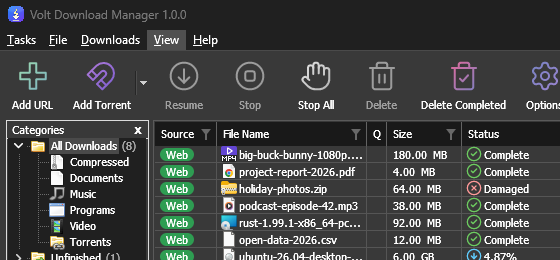
- Độ tương phản cao: đen và trắng, một điểm nhấn sáng, mọi cạnh đều được vẽ, văn bản có tỷ lệ 7:1 trở lên.
- Metro: Windows 8's flat look: square corners, flat buttons and boxes, a coloured title bar with the title centred (on Windows, where VDM draws it), and one-colour icons (Microsoft's Fluent UI System Icons).
- Adwaita: GNOME's look: round corners, flat grey buttons, a rounded focus ring, GNOME's check boxes, a header bar with the title in bold and round buttons (on Windows, where VDM draws it), and GNOME's Adwaita icons, in colour for files and categories, one colour in the toolbar.
- Breeze: KDE Plasma's look: rounded corners, buttons and boxes that take the accent's edge under the pointer or when focused, KDE's check boxes and focus frame, KDE's title bar with the title centred and round buttons (on Windows, where VDM draws it), and KDE's Breeze icons.
- Luna: Windows XP's look: buttons shaded from white with an orange glow under the pointer, green ticks, square text boxes, progress in green blocks, a deep blue title bar with the title in bold (on Windows, where VDM draws it), and colourful icons drawn for VDM in that manner.
- Aero: Windows 7's look: glossy buttons that turn light blue under the pointer, quiet check boxes, a glossy green progress bar, a glassy title bar with the title on a soft glow (on Windows), and glossy icons drawn for VDM in that manner.
- Aqua: Mac OS X's look: gel buttons round at the ends (the default one blue), glossy check boxes, a blue focus ring, a blue gel progress bar, a grey title bar with small round buttons (on Windows), and icons drawn for VDM in that manner.
- Emerald: một nền trắng với mực gần đen và thang màu xám trung tính để tạo cấu trúc, các ô màu ngọc lục bảo luôn chứa văn bản gần đen thay vì trắng, các góc 6 điểm trên mọi điều khiển và biểu tượng một màu của Metro.
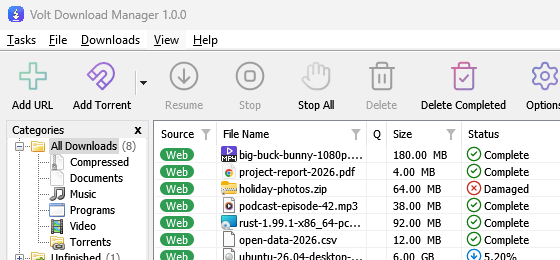
Cổ điển 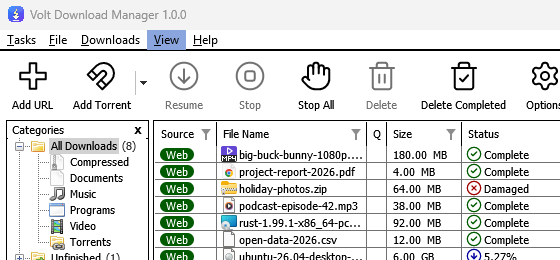
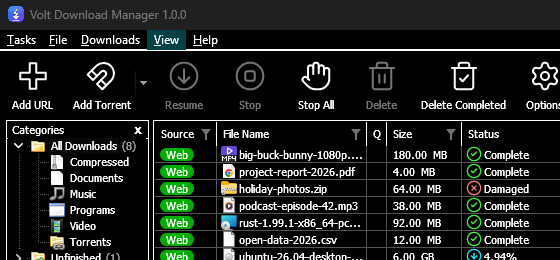
Độ tương phản cao 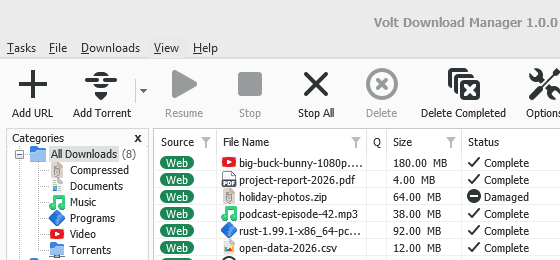
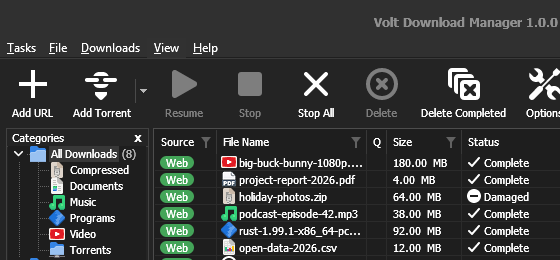
Adwaita 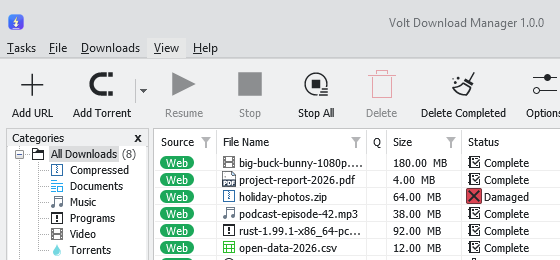
Breeze
Mỗi chủ đề có một phiên bản sáng và tối: Hỗ trợ Chế độ tối và Luôn tối chọn giữa chúng như trước. Các tệp chủ đề bạn đặt trong thư mục chủ đề (Xem → Chủ đề → Mở thư mục chủ đề) cũng được liệt kê ở đó, cũng như các bảng màu Base16 và pywal (Xem → Chủ đề → Thêm tệp chủ đề…; pywal theo wal khi nó chạy): Chủ đề cho biết thư mục đó ở đâu, một tệp chủ đề chứa gì (inherits, màu sắc, kích thước, hình dạng điều khiển, biểu tượng), cách sử dụng màu của bảng màu và cách tạo cũng như chia sẻ một chủ đề.
Biểu tượng khay hệ thống
Closing the main window doesn't quit VDM. It hides in the notification area, and downloads, queues and schedules carry on. To make closing quit (a portable copy's folder can then be deleted), untick Options → General → Keep running when closing the window. If there is no icon for VDM at all — not in the notification area, nor behind the ^ hidden icons — the window minimizes to the taskbar instead, so downloads continue and there is a way back. An icon behind ^ can be clicked to bring the window back, and starting VDM again always does. On macOS the window closes into the Dock, as Mac apps' windows do: click VDM's icon in the Dock (or in the menu bar) to bring it back, and quit with Cmd+Q or Volt Download Manager → Quit.
On Linux this needs a tray, which most desktops have (KDE Plasma, Xfce, Cinnamon, Ubuntu's GNOME or GNOME with the AppIndicator extension, waybar's tray). On a desktop without one (some tiling window managers), closing the window quits VDM, since there would be nowhere to bring it back from.
- Click the tray icon to see what is downloading: a small panel over the icon lists each running download with its progress bar, how much has come of how much, its speed and the time left, and the progress window's Pause (then Resume; Stop and save for a live stream being recorded) and Cancel beside it. Open Volt Download Manager at its bottom brings the window back. Its ×, Esc, a click elsewhere or another click on the icon closes it.
- Nhấp đúp vào biểu tượng khay hệ thống để đưa cửa sổ chính trở lại ngay lập tức (Windows).
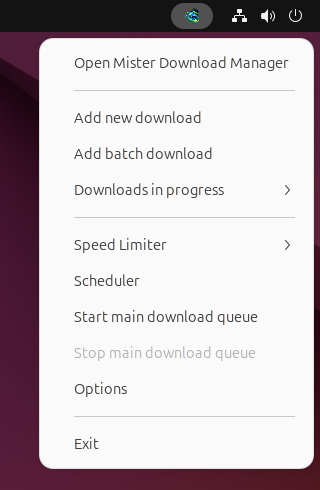
- Nhấp chuột phải vào biểu tượng để chọn Thêm tải xuống mới, Thêm tải xuống hàng loạt, Đang tải xuống, Giới hạn tốc độ, Bộ lập lịch, hàng đợi tải xuống chính, Tùy chọn và Thoát.
- Đang tải xuống liệt kê các lượt tải xuống đang chạy. Chọn một lượt để xem cửa sổ tiến trình.
- Options → General → Show downloads when the notification area icon is clicked is ticked in a new copy of VDM. Untick it and a click on the icon brings the window back (or hides it there while it is in front), as it did before the panel. An VDM that was set up before the panel keeps that click: tick it to have the panel.
- On Linux the panel depends on the desktop's tray. KDE Plasma and Xfce send VDM the click, so the panel opens beside the icon. GNOME's AppIndicator extension may open the icon's menu on a left click instead, or send no place for the click: the panel then opens at the top right of the screen, under GNOME's top bar. In a native Wayland session the compositor decides where the panel goes and may not give it the focus, so a click elsewhere doesn't close it there: use its × or click the icon again. If the panel doesn't suit your desktop, untick the option above.
Thu nhỏ cũng ẩn cửa sổ chính ở đó, khi Thu nhỏ vào vùng thông báo được bật trong Tùy chọn → Chung. Tùy chọn này được bật theo mặc định; nếu khay hệ thống không có biểu tượng, Thu nhỏ sẽ gửi cửa sổ xuống thanh tác vụ thay thế.
Cửa sổ tiến trình tải xuống cũng có thể ẩn vào vùng thông báo bằng nút Thu nhỏ hoặc nút Ẩn vào vùng thông báo: một dấu gạch ngang ngắn với mũi tên chỉ xuống góc.
Trên Windows, nút đó nằm trên thanh tiêu đề của cửa sổ, bên trái nút Thu nhỏ, và trong menu thanh tiêu đề (Alt+Space). Trên Linux và macOS, nút nằm ở cuối hàng thẻ.
Để mở lại cửa sổ, chọn lượt tải xuống trong Đang tải xuống hoặc nhấp đúp vào lượt tải xuống trong danh sách.
Để thoát, chọn Tác vụ → Thoát hoặc Thoát trong menu khay hệ thống.
Where VDM keeps its data
Danh sách tải xuống và cài đặt nằm trong %APPDATA%\voltdownloadmanager (downloads.json); trên Linux trong ~/.local/share/voltdownloadmanager, trên máy Mac trong ~/Library/Application Support/voltdownloadmanager. Một bản sao di động sẽ giữ chúng trong thư mục data của nó. Các tệp đã tải xuống sẽ được lưu vào thư mục Tải xuống của bạn, được sắp xếp vào một thư mục cho mỗi danh mục; bạn có thể thay đổi điều đó trong Tùy chọn → Lưu vào.
Các bước tiếp theo
Miễn phí, mã nguồn mở, không quảng cáo, không dùng thử.
Download Volt Download Manager