

Trước tiên, hãy xem điều gì đã xảy ra
Mỗi lượt tải xuống đều lưu nhật ký các sự kiện gần đây: thử lại, chuyển hướng, phản hồi và lỗi của máy chủ.
- Di chuột qua Trạng thái của lượt tải xuống trong danh sách để xem chúng.
- Hoặc mở cửa sổ tiến trình của nó (nhấp đúp vào một lượt tải xuống chưa hoàn thành). Bảng kết nối hiển thị từng kết nối đang làm gì và Đang thử lại với lý do khi một kết nối thất bại.
- Thuộc tính tệp (Alt+Enter) hiển thị Lần thử cuối và Kết quả của nó.
Một lượt tải xuống báo Lỗi
- Đọc lý do (di chuột qua Trạng thái).
- Chọn lượt tải xuống và nhấp vào Tiếp tục. Nhiều lỗi là do máy chủ hoặc kết nối gặp sự cố tạm thời.
- If the link has expired (common for links from sites you sign in to, or links with a time limit in them), get a new one: right-click → Refresh download address, then start the download again in the browser, and VDM gives its new address to the download that waits for it, which continues (a Rapidgator download waits by itself: starting it again in the browser is enough). See Resume a broken download.
- If it says the file changed on the server, the file isn't the one VDM started with. Right-click → Redownload to start again from the beginning.
- Nếu có thông báo Google Drive sẽ không cung cấp tệp này ngay bây giờ, tức là đã đạt đến giới hạn tải xuống của Drive cho tệp đó. Xem Liên kết Google Drive.
- If it says this site lets only browsers through, the site's bot check (Cloudflare's, for one) turned VDM away. VDM has already asked once more connecting the way your browser does, with your browser's cookies for that site, and once under its own name (some checks let a program that says what it is through), and the site still wants its check answered in a browser. Hold Alt (Option on a Mac) as you click the link: the browser opens it in the tab, runs the site's check there ("Just a moment...", sometimes a box to tick), and keeps the download that comes after it. VDM leaves that download alone for a minute after your click. See Browser integration.
- If it says the site sent a web page instead of the file, the link led to the site's own page: a file host's countdown, a captcha, a Download button to press, or a sign-in. VDM never saves that page as your file. Click Open in browser in the download's progress window (or open the link yourself), finish there, and when the browser starts the real download, VDM's extension hands it to VDM. Without the extension, let the browser download it.
Tải xuống báo cáo bị hỏng
Kiểm tra kho lưu trữ của nó đã tìm thấy các tệp không đọc được toàn bộ (Kiểm tra kho lưu trữ): di chuột qua Trạng thái để xem tệp nào.
- Nhấp chuột phải → Tải xuống lại (hoặc Tải xuống lại trong cửa sổ Kho lưu trữ bị hỏng) sẽ tải xuống lại từ đầu.
- A ZIP whose damaged parts VDM downloaded again and still came damaged, or a 7z or RAR that is damaged again after a Redownload, is probably damaged on the server itself: ask the site for another copy.
- Để kiểm tra lại thủ công, nhấp chuột phải → Kiểm tra kho lưu trữ.
Một lượt tải xuống bắt đầu lại thay vì tiếp tục
- Look at Resume capability in the progress window. No means the server can't send a file in parts, so VDM can't continue it later.
- Một số máy chủ báo cáo ngày mới cho cùng một tệp mỗi lần. Đánh dấu Tùy chọn → Tải xuống → Bỏ qua thay đổi thời gian sửa đổi tệp khi tiếp tục tải xuống.
Tải xuống chậm
- Kiểm tra xem Giới hạn tốc độ đã tắt chưa: Tải xuống → Giới hạn tốc độ → Tắt. Cũng xem Tải xuống → Giới hạn tốc độ → Cài đặt... → Giới hạn tất cả các lượt tải xuống cùng nhau thành, điều này vẫn áp dụng ngay cả khi bộ giới hạn tắt.
- Kiểm tra tab Giới hạn tốc độ của chính lượt tải xuống trong cửa sổ tiến trình của nó.
- Check Options → Connection. A low Default max. conn. number, or an exception for the server, means fewer connections. Rows marked (auto) are servers that refused more connections; VDM can't do more there.
- Kiểm tra Giới hạn tải xuống trong Bộ lập lịch. Khi đạt đến giới hạn, các lượt tải xuống sẽ chờ với Đang chờ: đã đạt đến giới hạn tải xuống (Bộ lập lịch).
The browser doesn't send downloads to VDM
- Was VDM installed with the setup, with Set up browser integration ticked? A portable copy can't take browser downloads. Run the setup again to add it.
- Is the extension loaded and turned on? Look for Volt Download Manager on the browser's extensions page. In Firefox, install it from addons.mozilla.org: a temporary add-on is gone after a restart. See Browser integration.
- Tùy chọn → Chung → Sử dụng tích hợp trình duyệt nâng cao đã bật chưa, và trình duyệt của bạn đã được đánh dấu dưới Chụp các lượt tải xuống từ các trình duyệt sau chưa?
- Is the file's type in Options → File types? Only listed types are taken automatically. Download with Volt Download Manager on the right-click menu takes any link.
- Trang web có nằm trong Không tự động bắt đầu tải xuống từ các trang web sau không?
When none of this helps, the browser keeps the download, so nothing is lost. The extension's toolbar button says why it couldn't reach VDM; see The browser and VDM aren't connected.
Bộ lập lịch không khởi động hàng đợi
- VDM must be running at that time. Closing the window is fine (it stays in the tray); Tasks → Exit is not.
- Bạn đã nhấp vào Áp dụng sau khi đặt thời gian chưa?
- Hàng ngày chỉ bắt đầu vào các ngày được đánh dấu. Một lần vào lúc chỉ bắt đầu vào ngày đó.
- Máy tính đang ngủ sẽ không chạy bất cứ thứ gì cho đến khi được đánh thức, trừ khi hàng đợi đã chọn Đánh thức máy tính để chạy hàng đợi này (trên Windows cần Cho phép hẹn giờ đánh thức trong gói năng lượng; Bộ lập lịch sẽ báo khi tính năng này tắt). Xem Đánh thức máy tính để chạy hàng đợi.
Không tải được video
Liên kết magnet mất nhiều thời gian
A magnet link has to get the torrent's file list from other peers first. That can take a minute or two, and longer for torrents with few peers. If nobody answers in about three minutes, VDM gives up; try again later, or use the .torrent file if the site offers one.
VDM uses a lot of memory
Trình quản lý Tác vụ hiển thị nhiều số liệu, và chúng có ý nghĩa khác nhau:
- Memory (on the Processes tab) is what VDM holds for itself alone, its private working set. With the window open and nothing downloading, that is about 70 MB.
- Working set (Details tab, add the column) adds memory shared with other programs. VDM draws its windows with the graphics card, so the graphics driver's memory counts here too, about 120 MB in all.
- Commit size is memory VDM has reserved, whether in use or not.
Closed to the notification area, VDM gives its memory back to Windows: Memory drops to under 10 MB within seconds and stays low while it waits. Downloads, queues and the scheduler go on as before. The list of every language (View → Language) loads fonts for every script while it's open; VDM lets them go when it closes.
Chữ quá nhỏ hoặc bị mờ
VDM keeps Internet Download Manager's compact sizes. On a large or high-resolution screen, choose View → Interface size (110 %, 115 %, 120 %, 125 %, 150 %, 175 % or 200 %), or press Ctrl + and Ctrl − in any VDM window, as in a browser; Ctrl 0 goes back to 100 %. Every window follows at once, and VDM starts at that size next time. It comes on top of Windows' own display scale (Settings → System → Display → Scale).
Where only the letters are too small, the sizes under View → Font draw the interface's text larger (or smaller) on its own: from 75 % to 150 % of the theme's sizes. The windows keep their compact layout, so nothing is pushed off the screen; the text is simply larger in the same place. View → Font also draws every window's text in a font file of your own (Choose a font file..., a TrueType, OpenType or collection file), and System font goes back to Segoe UI (Windows) or the computer's own font. While a file is in use, its own name sits checked in the menu, so what is on is always said. Both choices are saved for the next start. If the chosen file is moved or deleted, VDM draws with the system font until another one is chosen.
Một cửa sổ lớn hơn màn hình ở kích thước đó (Tùy chọn ở 200 % trên màn hình 1366 × 768) sẽ mở ra lớn nhất có thể trên màn hình, và phần còn lại sẽ cuộn: bằng thanh cuộn, con lăn chuột, hoặc Tab để chuyển đến điều khiển tiếp theo.
VDM tells Windows it draws for each monitor's own scale, so Windows never stretches its windows into blur, and it draws Windows' fonts grid-fitted to whole pixels. If the text still looks blurred, tell us your screen's resolution and Windows' display scale when you report it.
Cửa sổ bị treo hoặc hiển thị sai
On Windows, VDM draws its windows with Direct3D 12; on Linux and macOS, with OpenGL, or with Vulkan (Linux) or Metal (macOS) when you choose them. A graphics driver can still misbehave: a window that holds still for seconds, flickers, or shows wrong colours or blocks. Try the other one: choose View → Draw with → OpenGL (or Direct3D, Vulkan, Metal), then quit VDM (Tasks → Exit) and start it again. Choosing the first one goes back the same way.
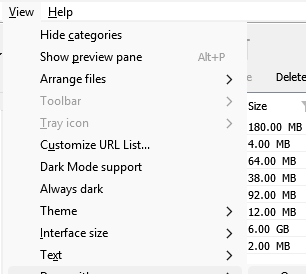
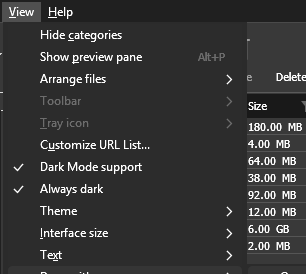
- If Direct3D, Vulkan or Metal can't start on your graphics card (no driver for it, some virtual machines), or its first window doesn't show within 10 seconds of its own (the time VDM spends loading your list and its icons doesn't count, however slow the computer is just after it starts), VDM draws with OpenGL, and View → Draw with says so and why. Choosing it again tries it again at the next start.
- Trên Linux, Vulkan cần trình điều khiển Vulkan của card đồ họa của bạn: Mesa (
mesa-vulkan-driverstrên Ubuntu và Debian,vulkan-radeonhoặcvulkan-inteltrên Arch) cho AMD và Intel, trình điều khiển riêng của NVIDIA cho NVIDIA. - If neither can start, VDM draws with a software renderer (Microsoft's on Windows, Mesa's on Linux), so the window still opens (Remote Desktop, a virtual machine without a graphics driver). It works, but keeps the processor busier while a window changes.
- On Windows, Microsoft's software renderer (WARP) keeps the processor much busier than Mesa's (llvmpipe), the more so the larger the window. Where WARP draws for want of a graphics driver, VDM offers once to download llvmpipe (about 66 MB, from Mesa's Windows builds on GitHub), and View → Draw with → Download Mesa's software renderer (llvmpipe)... offers it at any time. Nothing downloads until you press Download; it is checked against VDM's signed list of checked builds, as ffmpeg is, and kept in VDM's data folder (
tools\mesa). VDM draws with it from its next start, and View → Draw with says Software (llvmpipe). If it can't start or draw there, VDM remembers that and draws with WARP again (Software (llvmpipe) didn't start here: WARP draws); a newer llvmpipe is tried again. To stop using it, quit VDM and delete thetools\mesafolder. - On Windows, when OpenGL fails on a card without Direct3D 12, VDM draws with Direct3D on Microsoft's software renderer (WARP) from the next start, and View → Draw with says why: OpenGL couldn't start, it is too old to draw VDM (older than 3.0, such as Intel's first HD Graphics, whose OpenGL 2.1 drew VDM's windows as garbage), its first window didn't show within 10 seconds, VDM froze inside the graphics driver while OpenGL showed a frame (the older Intel HD Graphics and AMD Radeon cards' drivers did), or VDM crashed inside it (OpenGL crashed inside its driver here). Choosing OpenGL there tries it again; so does a graphics driver update.
- If the graphics card is reset while VDM runs (a driver update, or a driver that resets by itself, as some older Radeon cards' do with Direct3D 12), VDM starts again by itself. Lost twice in 10 minutes, it goes back to OpenGL, and View → Draw with says why. If the card isn't back yet when VDM starts again, that start draws another way (OpenGL, or WARP), and the next start tries the card again.
- Cập nhật trình điều khiển đồ họa từ trang web của nhà sản xuất card (Intel, AMD hoặc NVIDIA) sẽ khắc phục nhiều vấn đề này.
- A freeze whose report shows the window thread inside the graphics driver as it shows a frame (
ig4icd64.dllorig9icd64.dllfor Intel,nvoglv64.dllfor NVIDIA,atio6axx.dllfor AMD, underopengl32.dll) is the driver's OpenGL stuck, not VDM: on Windows, choose View → Draw with → Direct3D (the default) and restart VDM, and update the graphics driver. If Draw with says Direct3D didn't start there, the line under it says why; VDM then remembers the freeze and draws with WARP from the next start. - A crash report whose crashed thread is inside the graphics driver while VDM drew with OpenGL is the same: the driver's names above, or
d3d11.dllalone with nothing of VDM's on the thread (NVIDIA's driver on a laptop with two graphics chips shows OpenGL's frames through Direct3D 11). On Windows, VDM remembers it and draws with Direct3D 12 from the next start, on WARP if the card can't; updating the graphics driver is still the real fix. - A freeze or crash report says which one was drawing, on which graphics card and driver, and why that one (chosen, the default, or the other one failing), on its
Drawing with:line near the top: include it when you report a problem. A freeze report also says whether VDM was busy, waiting, or hardly ran at all (a computer too busy to run it); see Crash reports.
The setup or VDM won't start
- Nếu Windows hiển thị Windows đã bảo vệ PC của bạn, hãy nhấp vào Thông tin thêm, kiểm tra xem tệp có
VoltDownloadManager-<version>-setup.exetừ trang Bản phát hành hay không, sau đó nhấp vào Chạy dù sao. - VDM runs only once. Starting it again brings the running copy's window to the front. If nothing appears, look for VDM's icon in the notification area.
- Linux, from the AppImage or the tar.gz: if the system lacks a library VDM's window needs (such as
libxkbcommon-x11), VDM names it on the terminal and in a message box, with the command that installs it (sudo apt install libxkbcommon-x11-0, or your distribution's). The .deb and .rpm bring these libraries themselves. In a Wayland session VDM opens its window on Wayland instead. - Linux, the first start is slow: VDM looks up the system's fonts for every script once, all together, while it starts (fontconfig); a first start on a busy computer can take a few seconds more. Install your distribution's Noto fonts if some scripts or symbols show as boxes.
My antivirus or VirusTotal flags VDM
It is most likely a false alarm. Some antivirus programs judge a program they don't know by an educated guess, not by a known virus: detection names such as Malware.AI, Gen:, ML or Heur mean such a guess. What they flag most is a new download few people have run yet, from a small project, without a publisher's signature; VDM's installer isn't code-signed yet. On VirusTotal, a handful of engines flagging a new setup while most stay clean is the usual sign of a false positive.
Kiểm tra xem bản sao của bạn có phải là của chúng tôi không:
- Download VDM only from vdm.mikaillab.com or GitHub Releases.
- Lấy mã kiểm tra SHA-256 của tệp của bạn, với tên tệp đã tải xuống thay cho
<file>: trên Windows, trong PowerShell,Get-FileHash <file>; trên Linux,sha256sum <file>; trên macOS,shasum -a 256 <file>. - Compare it with the same file's line in that release's
SHA256SUMS.txt(capital or small letters don't matter). To be sure the list itself is ours, check its signature,SHA256SUMS.txt.sig, with VDM's release key: see Check your download.
If they match, it is the file we published. VDM is open source and built in public: every release is built from the public source code by GitHub Actions, on GitHub's servers, with every build's log there to see, so anyone can read what went into it and build it again.
Sau đó:
- Báo cáo tệp cho phần mềm diệt virus của bạn là cảnh báo nhầm: Microsoft Defender, Malwarebytes, Avast, AVG, Bitdefender, Kaspersky, ESET.
- Hãy cho chúng tôi biết trên GitHub đó là phần mềm diệt virus nào, tên phát hiện và tệp, để chúng tôi cũng có thể báo cáo.
- If your antivirus quarantined VDM, restore it and add an exception for its folder.
Nếu tổng kiểm không khớp, hoặc bản sao đến từ bất kỳ nơi nào khác, đừng chạy nó: hãy xóa nó và cho chúng tôi biết.
Tải xuống HTTPS thất bại với lỗi "không có chứng chỉ" (Linux)
A minimal Linux system (often with the AppImage, the tar.gz or a build from source) may have no CA certificates, which VDM needs to check a secure server. Plain http:// and ftp:// downloads still work; each https:// or ftps:// one stops at once saying the computer has no certificates to check the server with. Install the ca-certificates package (sudo apt install ca-certificates, sudo dnf install ca-certificates), then resume the download. The .deb and .rpm bring it.
Tải xuống HTTPS thất bại với lỗi "không đáng tin cậy" hoặc "nhà phát hành không xác định"
VDM checks a secure server's certificate the way your browser does: with your system's trusted certificates (Windows', macOS's, or the Linux CA bundle), and with Mozilla's, the ones Firefox carries. On Windows, Mozilla's are used only when Windows' own don't complete the chain; on macOS and Linux they are added to the system's. A Windows 10 or 11 that hasn't been updated for a while fetches the roots it trusts from Windows Update only when a site first needs one, and behind a proxy that can fail: VDM then goes by Firefox's list, so such a site still downloads. One consequence: a root you removed from the system's store, or marked as not trusted, is still trusted by VDM when Mozilla's list has it, as Firefox trusts it.
If a site still says not trusted (self-signed or from an unknown issuer), its certificate isn't from an issuer any browser trusts. On a company or school network, a proxy or an antivirus that inspects HTTPS shows its own certificate instead of the site's: VDM trusts it when it is installed in the system's store, as Edge and Chrome do (Firefox has its own setting for it). Opening the site in Edge (on Windows) shows the same certificate VDM sees.
Dữ liệu của bạn ở đâu
- Đã cài đặt hoặc tệp zip thông thường:
%APPDATA%\voltdownloadmanager. Danh sách và cài đặt nằm trongdownloads.json. - Bản di động: thư mục
databên cạnhvoltdownloadmanager.exe. - Linux:
~/.local/share/voltdownloadmanager; Mac:~/Library/Application Support/voltdownloadmanager. - Mật khẩu (Đăng nhập trang web, proxy, tài khoản debrid) nằm trong chuỗi khóa của hệ thống, không phải trong
downloads.json; xem Tùy chọn → Đăng nhập trang web.
To back up your list, quit VDM (Tasks → Exit) and copy downloads.json.
Cập nhật
Help → Check for updates... tells you whether a newer version is out, and what is new in it. Check for updates at every start in that window lets VDM look by itself: a few seconds after it starts, and once a day while it stays open. When there's a new version, its window opens in front.
When there is one, Update now downloads it, checks it, puts it in place and restarts VDM; your list, settings and downloads stay as they are:
| Bạn đã cài đặt | Những gì Cập nhật ngay thực hiện |
|---|---|
| Windows, trình cài đặt | Chạy trình cài đặt mới mà không hiển thị cửa sổ. Nếu cài đặt cho tất cả người dùng, bạn cần cấp quyền quản trị viên. |
| Windows, bản di động hoặc tệp zip thông thường | Thay thế các chương trình trong thư mục của chúng (thư mục data của bản di động được giữ lại). |
| Mac | Thay thế ứng dụng trong thư mục Applications. |
| Linux, AppImage hoặc .tar.gz | Thay thế AppImage, hoặc các chương trình trong thư mục của chúng. |
| Linux, tệp .deb hoặc .rpm | Mở gói đã kiểm tra trong trình cài đặt gói của hệ thống, trình này sẽ yêu cầu mật khẩu của bạn. |
| Linux, gói của trình quản lý gói khác (pacman, ...) | Không có gì: cửa sổ sẽ thông báo, và các bản cập nhật hệ thống của bạn sẽ mang đến phiên bản mới. |
VDM installs an update only when the release's list of checksums is signed by VDM's release key and the file matches it; anything else is refused, and Download opens the Releases page instead. Updating this way starts with version 0.2.1: earlier versions open the Releases page.
VDM asks GitHub's API for the newest version (of VDM, and of yt-dlp). GitHub answers 60 such questions an hour for each internet address, so on a network many people share (a mobile or home internet provider that puts many customers behind one address, a campus, an office) others can use them up. VDM then reads GitHub's ordinary release pages instead, with the same checks of what it downloads. If GitHub refuses those too, the window says api.github.com refused the request (403 Forbidden): too many requests from your network for now: try again in an hour, or from another network.
AppImage cũng có thể được cập nhật bằng các công cụ AppImage (AppImageLauncher, Gear Lever, AppImageUpdate): AppImage chứa địa chỉ cập nhật, và mỗi bản phát hành có tệp .AppImage.zsync riêng, vì vậy các công cụ đó chỉ tải xuống những phần đã thay đổi. Tính năng này có từ AppImage của phiên bản sau 0.2.4.
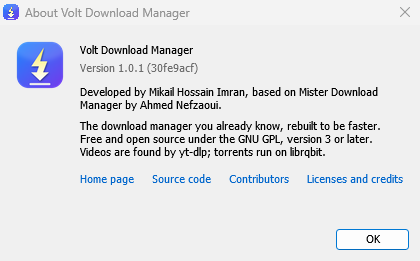
Help → About Volt Download Manager shows the version you have.
Báo cáo sự cố
Choose Help → Report a problem. It opens the bug report form on GitHub with your VDM version, your system and its version, how VDM was installed and its interface language already filled in. Describe what happened, what you expected and the steps that make it happen. For a download, include the address if you can share it, and the reason shown under Status.
Bạn cũng có thể tự mở biểu mẫu; nó yêu cầu các chi tiết tương tự.
Các bước tiếp theo
Miễn phí, mã nguồn mở, không quảng cáo, không dùng thử.
Download Volt Download Manager