

ابتدا، ببینید چه اتفاقی افتاده است
برای هر بارگیری، گزارش رویدادهای اخیر ثبت میشود: تلاشهای مجدد، تغییر مسیرها، پاسخهای سرور و خطاها.
- برای دیدن رویدادها، نشانگر ماوس را روی وضعیت بارگیری در فهرست نگه دارید.
- یا پنجره پیشرفت آن را باز کنید (روی یک بارگیری ناتمام دوبار کلیک کنید). جدول اتصال نشان میدهد هر اتصال چه کاری انجام میدهد و اگر اتصالی با مشکل روبهرو شود، تلاش مجدد و دلیل آن را نشان میدهد.
- ویژگیهای فایل (Alt+Enter) آخرین تلاش و نتیجه آن را نشان میدهد.
یک بارگیری میگوید خطا
- دلیل را بخوانید (نشانگر ماوس را روی وضعیت نگه دارید).
- بارگیری را انتخاب کنید و روی ادامه کلیک کنید. بسیاری از خطاها به دلیل بروز مشکل موقت در سرور یا اتصال هستند.
- If the link has expired (common for links from sites you sign in to, or links with a time limit in them), get a new one: right-click → Refresh download address, then start the download again in the browser, and VDM gives its new address to the download that waits for it, which continues (a Rapidgator download waits by itself: starting it again in the browser is enough). See Resume a broken download.
- If it says the file changed on the server, the file isn't the one VDM started with. Right-click → Redownload to start again from the beginning.
- اگر پیام Google Drive در حال حاضر این فایل را ارائه نمیکند را میبینید، محدودیت بارگیری آن فایل در Drive به پایان رسیده است. به پیوندهای Google Drive مراجعه کنید.
- If it says this site lets only browsers through, the site's bot check (Cloudflare's, for one) turned VDM away. VDM has already asked once more connecting the way your browser does, with your browser's cookies for that site, and once under its own name (some checks let a program that says what it is through), and the site still wants its check answered in a browser. Hold Alt (Option on a Mac) as you click the link: the browser opens it in the tab, runs the site's check there ("Just a moment...", sometimes a box to tick), and keeps the download that comes after it. VDM leaves that download alone for a minute after your click. See Browser integration.
- If it says the site sent a web page instead of the file, the link led to the site's own page: a file host's countdown, a captcha, a Download button to press, or a sign-in. VDM never saves that page as your file. Click Open in browser in the download's progress window (or open the link yourself), finish there, and when the browser starts the real download, VDM's extension hands it to VDM. Without the extension, let the browser download it.
بارگیری «آسیبدیده» است
آزمایش آرشیو نشان میدهد که فایلهای درون آن بهطور کامل خوانده نمیشوند (آزمایش آرشیوها): نشانگر ماوس را روی وضعیت نگه دارید تا جزئیات را ببینید.
- با راستکلیک و انتخاب بارگیری مجدد (یا دکمه بارگیری مجدد در پنجره آرشیو آسیبدیده)، فایل از ابتدا دوباره بارگیری میشود.
- A ZIP whose damaged parts VDM downloaded again and still came damaged, or a 7z or RAR that is damaged again after a Redownload, is probably damaged on the server itself: ask the site for another copy.
- برای آزمایش مجدد دستی، راستکلیک کرده و آزمایش آرشیو را انتخاب کنید.
یک بارگیری به جای ادامه، از نو شروع میشود
- Look at Resume capability in the progress window. No means the server can't send a file in parts, so VDM can't continue it later.
- برخی سرورها هر بار برای همان فایل تاریخ جدیدی گزارش میدهند. گزینه گزینهها → بارگیریها → نادیده گرفتن تغییرات زمان اصلاح فایل هنگام ادامه بارگیری را انتخاب کنید.
بارگیریها کند هستند
- بررسی کنید که محدودکننده سرعت خاموش باشد: بارگیریها → محدودکننده سرعت → خاموش کردن. همچنین بارگیریها → محدودکننده سرعت → تنظیمات... → محدود کردن همه بارگیریها با هم به را بررسی کنید؛ این محدودیت حتی وقتی محدودکننده خاموش است نیز اعمال میشود.
- برگه محدودکننده سرعت را در پنجره پیشرفت بارگیری بررسی کنید.
- Check Options → Connection. A low Default max. conn. number, or an exception for the server, means fewer connections. Rows marked (auto) are servers that refused more connections; VDM can't do more there.
- محدودیتهای بارگیری را در زمانبند بررسی کنید. وقتی محدودیت پر شود، بارگیریها با وضعیت در انتظار: محدودیت دانلود رسیده است (زمانبندی) منتظر میمانند.
The browser doesn't send downloads to VDM
- Was VDM installed with the setup, with Set up browser integration ticked? A portable copy can't take browser downloads. Run the setup again to add it.
- Is the extension loaded and turned on? Look for Volt Download Manager on the browser's extensions page. In Firefox, install it from addons.mozilla.org: a temporary add-on is gone after a restart. See Browser integration.
- آیا گزینهها → عمومی → استفاده از یکپارچهسازی پیشرفته مرورگر فعال است و مرورگر شما در گرفتن بارگیریها از مرورگرهای زیر انتخاب شده است؟
- Is the file's type in Options → File types? Only listed types are taken automatically. Download with Volt Download Manager on the right-click menu takes any link.
- آیا سایت در فهرست از سایتهای زیر بهطور خودکار بارگیری را شروع نکن قرار دارد؟
When none of this helps, the browser keeps the download, so nothing is lost. The extension's toolbar button says why it couldn't reach VDM; see The browser and VDM aren't connected.
زمانبند صف را شروع نکرد
- VDM must be running at that time. Closing the window is fine (it stays in the tray); Tasks → Exit is not.
- آیا پس از تنظیم زمان روی اعمال کلیک کردید؟
- روزانه فقط در روزهای انتخابشده شروع میشود. یک بار در فقط در همان تاریخ شروع میشود.
- رایانه در حال خواب هیچ کاری را اجرا نمیکند، مگر اینکه گزینه بیدار نگهداشتن رایانه برای اجرای این صف در زمانبند فعال باشد (در Windows، باید Allow wake timers در طرح برق فعال باشد؛ زمانبند وضعیت غیرفعال بودن را نشان میدهد). به بیدار نگهداشتن رایانه برای اجرای یک صف مراجعه کنید.
ویدئو بارگیری نمیشود
اگر ویدئو بارگیری نمیشود را ببینید.
پیوند مگنت دیر آماده میشود
A magnet link has to get the torrent's file list from other peers first. That can take a minute or two, and longer for torrents with few peers. If nobody answers in about three minutes, VDM gives up; try again later, or use the .torrent file if the site offers one.
VDM uses a lot of memory
مدیر وظایف چند مقدار را نشان میدهد که هرکدام معنای متفاوتی دارند:
- Memory (on the Processes tab) is what VDM holds for itself alone, its private working set. With the window open and nothing downloading, that is about 70 MB.
- Working set (Details tab, add the column) adds memory shared with other programs. VDM draws its windows with the graphics card, so the graphics driver's memory counts here too, about 120 MB in all.
- Commit size is memory VDM has reserved, whether in use or not.
Closed to the notification area, VDM gives its memory back to Windows: Memory drops to under 10 MB within seconds and stays low while it waits. Downloads, queues and the scheduler go on as before. The list of every language (View → Language) loads fonts for every script while it's open; VDM lets them go when it closes.
متن خیلی کوچک یا تار است
VDM keeps Internet Download Manager's compact sizes. On a large or high-resolution screen, choose View → Interface size (110 %, 115 %, 120 %, 125 %, 150 %, 175 % or 200 %), or press Ctrl + and Ctrl − in any VDM window, as in a browser; Ctrl 0 goes back to 100 %. Every window follows at once, and VDM starts at that size next time. It comes on top of Windows' own display scale (Settings → System → Display → Scale).
Where only the letters are too small, the sizes under View → Font draw the interface's text larger (or smaller) on its own: from 75 % to 150 % of the theme's sizes. The windows keep their compact layout, so nothing is pushed off the screen; the text is simply larger in the same place. View → Font also draws every window's text in a font file of your own (Choose a font file..., a TrueType, OpenType or collection file), and System font goes back to Segoe UI (Windows) or the computer's own font. While a file is in use, its own name sits checked in the menu, so what is on is always said. Both choices are saved for the next start. If the chosen file is moved or deleted, VDM draws with the system font until another one is chosen.
پنجرهای که در آن اندازه بزرگتر از صفحه نمایش باشد (مثلا «گزینهها» در 200٪ روی صفحه نمایش 1366 × 768)، به اندازه مجاز صفحه نمایش باز میشود و بقیه آن با نوارهای پیمایش، چرخ ماوس یا با فشردن Tab برای رفتن به کنترل بعدی، قابل پیمایش است.
VDM tells Windows it draws for each monitor's own scale, so Windows never stretches its windows into blur, and it draws Windows' fonts grid-fitted to whole pixels. If the text still looks blurred, tell us your screen's resolution and Windows' display scale when you report it.
پنجره هنگ میکند یا نادرست ترسیم میشود
On Windows, VDM draws its windows with Direct3D 12; on Linux and macOS, with OpenGL, or with Vulkan (Linux) or Metal (macOS) when you choose them. A graphics driver can still misbehave: a window that holds still for seconds, flickers, or shows wrong colours or blocks. Try the other one: choose View → Draw with → OpenGL (or Direct3D, Vulkan, Metal), then quit VDM (Tasks → Exit) and start it again. Choosing the first one goes back the same way.
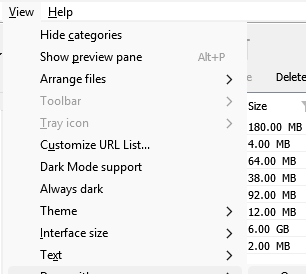
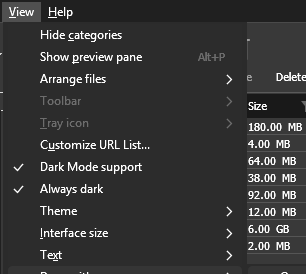
- If Direct3D, Vulkan or Metal can't start on your graphics card (no driver for it, some virtual machines), or its first window doesn't show within 10 seconds of its own (the time VDM spends loading your list and its icons doesn't count, however slow the computer is just after it starts), VDM draws with OpenGL, and View → Draw with says so and why. Choosing it again tries it again at the next start.
- در Linux، Vulkan به درایور Vulkan کارت گرافیک نیاز دارد: درایور Mesa (
mesa-vulkan-driversدر Ubuntu و Debian،vulkan-radeonیاvulkan-intelدر Arch) برای AMD و Intel، و درایور اختصاصی NVIDIA برای NVIDIA. - If neither can start, VDM draws with a software renderer (Microsoft's on Windows, Mesa's on Linux), so the window still opens (Remote Desktop, a virtual machine without a graphics driver). It works, but keeps the processor busier while a window changes.
- On Windows, Microsoft's software renderer (WARP) keeps the processor much busier than Mesa's (llvmpipe), the more so the larger the window. Where WARP draws for want of a graphics driver, VDM offers once to download llvmpipe (about 66 MB, from Mesa's Windows builds on GitHub), and View → Draw with → Download Mesa's software renderer (llvmpipe)... offers it at any time. Nothing downloads until you press Download; it is checked against VDM's signed list of checked builds, as ffmpeg is, and kept in VDM's data folder (
tools\mesa). VDM draws with it from its next start, and View → Draw with says Software (llvmpipe). If it can't start or draw there, VDM remembers that and draws with WARP again (Software (llvmpipe) didn't start here: WARP draws); a newer llvmpipe is tried again. To stop using it, quit VDM and delete thetools\mesafolder. - On Windows, when OpenGL fails on a card without Direct3D 12, VDM draws with Direct3D on Microsoft's software renderer (WARP) from the next start, and View → Draw with says why: OpenGL couldn't start, it is too old to draw VDM (older than 3.0, such as Intel's first HD Graphics, whose OpenGL 2.1 drew VDM's windows as garbage), its first window didn't show within 10 seconds, VDM froze inside the graphics driver while OpenGL showed a frame (the older Intel HD Graphics and AMD Radeon cards' drivers did), or VDM crashed inside it (OpenGL crashed inside its driver here). Choosing OpenGL there tries it again; so does a graphics driver update.
- If the graphics card is reset while VDM runs (a driver update, or a driver that resets by itself, as some older Radeon cards' do with Direct3D 12), VDM starts again by itself. Lost twice in 10 minutes, it goes back to OpenGL, and View → Draw with says why. If the card isn't back yet when VDM starts again, that start draws another way (OpenGL, or WARP), and the next start tries the card again.
- بهروزرسانی درایور گرافیک از وبسایت سازنده کارت (Intel، AMD یا NVIDIA) بسیاری از این مشکلات را برطرف میکند.
- A freeze whose report shows the window thread inside the graphics driver as it shows a frame (
ig4icd64.dllorig9icd64.dllfor Intel,nvoglv64.dllfor NVIDIA,atio6axx.dllfor AMD, underopengl32.dll) is the driver's OpenGL stuck, not VDM: on Windows, choose View → Draw with → Direct3D (the default) and restart VDM, and update the graphics driver. If Draw with says Direct3D didn't start there, the line under it says why; VDM then remembers the freeze and draws with WARP from the next start. - A crash report whose crashed thread is inside the graphics driver while VDM drew with OpenGL is the same: the driver's names above, or
d3d11.dllalone with nothing of VDM's on the thread (NVIDIA's driver on a laptop with two graphics chips shows OpenGL's frames through Direct3D 11). On Windows, VDM remembers it and draws with Direct3D 12 from the next start, on WARP if the card can't; updating the graphics driver is still the real fix. - A freeze or crash report says which one was drawing, on which graphics card and driver, and why that one (chosen, the default, or the other one failing), on its
Drawing with:line near the top: include it when you report a problem. A freeze report also says whether VDM was busy, waiting, or hardly ran at all (a computer too busy to run it); see Crash reports.
The setup or VDM won't start
- اگر Windows پیام Windows از رایانه شما محافظت کرد را نشان داد، روی اطلاعات بیشتر کلیک کنید، بررسی کنید فایل
VoltDownloadManager-<version>-setup.exeاز صفحه نسخهها باشد، سپس روی اجرای بههرحال کلیک کنید. - VDM runs only once. Starting it again brings the running copy's window to the front. If nothing appears, look for VDM's icon in the notification area.
- Linux, from the AppImage or the tar.gz: if the system lacks a library VDM's window needs (such as
libxkbcommon-x11), VDM names it on the terminal and in a message box, with the command that installs it (sudo apt install libxkbcommon-x11-0, or your distribution's). The .deb and .rpm bring these libraries themselves. In a Wayland session VDM opens its window on Wayland instead. - Linux, the first start is slow: VDM looks up the system's fonts for every script once, all together, while it starts (fontconfig); a first start on a busy computer can take a few seconds more. Install your distribution's Noto fonts if some scripts or symbols show as boxes.
My antivirus or VirusTotal flags VDM
It is most likely a false alarm. Some antivirus programs judge a program they don't know by an educated guess, not by a known virus: detection names such as Malware.AI, Gen:, ML or Heur mean such a guess. What they flag most is a new download few people have run yet, from a small project, without a publisher's signature; VDM's installer isn't code-signed yet. On VirusTotal, a handful of engines flagging a new setup while most stay clean is the usual sign of a false positive.
بررسی کنید که نسخه شما از ماست:
- Download VDM only from vdm.mikaillab.com or GitHub Releases.
- چکسام SHA-256 فایل خود را با جایگزینی نام فایل بارگیریشده به جای
<file>به دست آورید: در Windows، در PowerShell،Get-FileHash <file>؛ در Linux،sha256sum <file>؛ در macOS،shasum -a 256 <file>. - Compare it with the same file's line in that release's
SHA256SUMS.txt(capital or small letters don't matter). To be sure the list itself is ours, check its signature,SHA256SUMS.txt.sig, with VDM's release key: see Check your download.
If they match, it is the file we published. VDM is open source and built in public: every release is built from the public source code by GitHub Actions, on GitHub's servers, with every build's log there to see, so anyone can read what went into it and build it again.
سپس:
- فایل را به آنتیویروس خود به عنوان یک مثبت کاذب گزارش دهید: Microsoft Defender، Malwarebytes، Avast، AVG، Bitdefender، Kaspersky، ESET.
- در GitHub به ما بگویید که کدام آنتیویروس بوده، نام شناسایی و فایل چه بوده است تا ما نیز بتوانیم آن را گزارش دهیم.
- If your antivirus quarantined VDM, restore it and add an exception for its folder.
اگر چکسام مطابقت ندارد، یا نسخه از جای دیگری آمده است، آن را اجرا نکنید: حذفش کنید و به ما اطلاع دهید.
بارگیریهای HTTPS با خطای «بدون گواهی» شکست میخورند (Linux)
A minimal Linux system (often with the AppImage, the tar.gz or a build from source) may have no CA certificates, which VDM needs to check a secure server. Plain http:// and ftp:// downloads still work; each https:// or ftps:// one stops at once saying the computer has no certificates to check the server with. Install the ca-certificates package (sudo apt install ca-certificates, sudo dnf install ca-certificates), then resume the download. The .deb and .rpm bring it.
بارگیریهای HTTPS با خطای «غیرقابل اعتماد» یا «صادرکننده ناشناس» شکست میخورند
VDM checks a secure server's certificate the way your browser does: with your system's trusted certificates (Windows', macOS's, or the Linux CA bundle), and with Mozilla's, the ones Firefox carries. On Windows, Mozilla's are used only when Windows' own don't complete the chain; on macOS and Linux they are added to the system's. A Windows 10 or 11 that hasn't been updated for a while fetches the roots it trusts from Windows Update only when a site first needs one, and behind a proxy that can fail: VDM then goes by Firefox's list, so such a site still downloads. One consequence: a root you removed from the system's store, or marked as not trusted, is still trusted by VDM when Mozilla's list has it, as Firefox trusts it.
If a site still says not trusted (self-signed or from an unknown issuer), its certificate isn't from an issuer any browser trusts. On a company or school network, a proxy or an antivirus that inspects HTTPS shows its own certificate instead of the site's: VDM trusts it when it is installed in the system's store, as Edge and Chrome do (Firefox has its own setting for it). Opening the site in Edge (on Windows) shows the same certificate VDM sees.
دادههای شما کجا هستند
- نسخه نصبشده یا فایل zip ساده:
%APPDATA%\voltdownloadmanager. فهرست و تنظیمات درdownloads.jsonهستند. - نسخه قابلحمل: پوشه
dataکنارvoltdownloadmanager.exe. - Linux:
~/.local/share/voltdownloadmanager؛ مک:~/Library/Application Support/voltdownloadmanager. - گذرواژهها (ورود به سایتها، پروکسی، حسابهای debrid) در keychain سیستم ذخیره میشوند، نه در
downloads.json؛ به گزینهها → ورود به سایتها مراجعه کنید.
To back up your list, quit VDM (Tasks → Exit) and copy downloads.json.
بهروزرسانیها
Help → Check for updates... tells you whether a newer version is out, and what is new in it. Check for updates at every start in that window lets VDM look by itself: a few seconds after it starts, and once a day while it stays open. When there's a new version, its window opens in front.
When there is one, Update now downloads it, checks it, puts it in place and restarts VDM; your list, settings and downloads stay as they are:
| شما نصب کردید | کاری که اکنون بهروزرسانی کن انجام میدهد |
|---|---|
| Windows، نصبکننده | فایل نصب جدید را بدون نمایش پنجرههای آن اجرا میکند. برای نصب برای همه کاربران، اجازه مدیر لازم است. |
| Windows، نسخه پرتابل یا فایل فشرده | برنامهها را در پوشهشان جایگزین میکند (پوشه data نسخه قابلحمل حفظ میشود). |
| مک | برنامه را در Applications جایگزین میکند. |
| Linux، AppImage یا .tar.gz | AppImage یا برنامهها را در پوشهشان جایگزین میکند. |
| Linux، فایل .deb یا .rpm | بسته بررسیشده را در نصبکننده بستههای سیستم باز میکند؛ نصبکننده از شما رمز عبور میخواهد. |
| Linux، بسته مدیر بسته دیگر (pacman و غیره) | هیچچیز: پنجره این را میگوید و بهروزرسانیهای سیستم شما نسخه جدید را به همراه میآورند. |
VDM installs an update only when the release's list of checksums is signed by VDM's release key and the file matches it; anything else is refused, and Download opens the Releases page instead. Updating this way starts with version 0.2.1: earlier versions open the Releases page.
VDM asks GitHub's API for the newest version (of VDM, and of yt-dlp). GitHub answers 60 such questions an hour for each internet address, so on a network many people share (a mobile or home internet provider that puts many customers behind one address, a campus, an office) others can use them up. VDM then reads GitHub's ordinary release pages instead, with the same checks of what it downloads. If GitHub refuses those too, the window says api.github.com refused the request (403 Forbidden): too many requests from your network for now: try again in an hour, or from another network.
AppImage را میتوان با ابزارهای AppImage (AppImageLauncher، Gear Lever، AppImageUpdate) نیز بهروزرسانی کرد: نشانی بهروزرسانیها در آن ثبت شده است و هر نسخه فایل .AppImage.zsync مخصوص به خود را دارد؛ بنابراین این ابزارها فقط بخشهای تغییرکرده را بارگیری میکنند. این قابلیت از AppImage نسخهای که پس از 0.2.4 منتشر شده است در دسترس است.
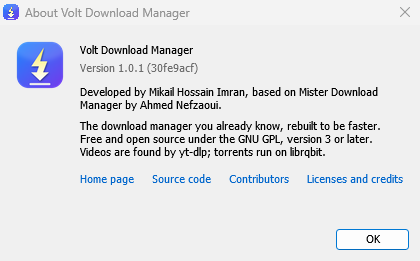
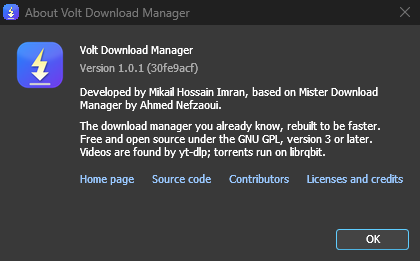
Help → About Volt Download Manager shows the version you have.
گزارش مشکل
Choose Help → Report a problem. It opens the bug report form on GitHub with your VDM version, your system and its version, how VDM was installed and its interface language already filled in. Describe what happened, what you expected and the steps that make it happen. For a download, include the address if you can share it, and the reason shown under Status.
همچنین میتوانید فرم را خودتان باز کنید؛ در آن فرم همان اطلاعات درخواست میشود.
مراحل بعدی
رایگان، متنباز، بدون تبلیغات، بدون دوره آزمایشی.
Download Volt Download Manager