

With the VDM extension, clicking a download link in your browser hands the download to VDM. VDM gets the address together with the page it came from (the referrer), your cookies for the site and the browser's User-Agent, so downloads that need you to be signed in still work. It also gets the address the browser's own download had reached: when a site refuses VDM the link itself (a one-time link the browser has already used, or a site that lets only browsers ask for its links), VDM goes on from there once, without your cookies if it is another site. When a site's bot check (Cloudflare's, for one) or its refusal of programs (FileHippo's 412 Precondition Failed) turns VDM's own connection away, VDM asks once more connecting the way your browser does (the same handshake, settings and order of headers), with your browser's User-Agent and its cookies for that site only, and downloads on it with as many connections as any download, each asking for its part of the file (on one connection when the site refuses parts there); your proxy, network adapter and speed limits apply as usual. The pieces of a video stream (HLS, DASH) go the same way when the site's check refuses them. Some checks (SourceForge's) refuse anything that calls itself a browser without connecting exactly like one, and let a program that says what it is through: when that connection is refused too, VDM asks once more under its own name (VoltDownloadManager/ and its version, or the User-Agent you typed in Options → Downloads), with the same cookies and referrer, and remembers the site until VDM closes, so its next downloads, and a paused one when it resumes, go that way at once. It solves no challenge: a site that still wants one answered (some Cloudflare checks ask it of every visitor, for the site's pages too) refuses again, and VDM says this site lets only browsers through; Alt+click the link to leave the download to the browser, which opens the link, passes the check and keeps the file.
این افزونه در Google Chrome، Microsoft Edge، Brave، Opera و Vivaldi، در Firefox نسخه 140 یا بالاتر، و در Safari نسخه 17 یا بالاتر در مک (به Safari مراجعه کنید) کار میکند.
Browsers built on them work too: Chromium and Helium take the extension as Chrome does, Brave Origin as Brave does, Zen and LibreWolf as Firefox does. On Windows, Zen has a bug of its own (see The browser and VDM aren't connected).
تنظیم
یکپارچهسازی مرورگر دو بخش دارد: برنامه کمکی کوچکی که مرورگر با آن ارتباط برقرار میکند و خود افزونه.
- Install VDM with the setup and keep Set up browser integration (Chrome, Edge, Brave, Firefox) ticked. This registers the helper. (The portable copy can't do this; see Portable mode.) On Linux and macOS VDM registers it itself, each time it starts, for the browsers installed then.
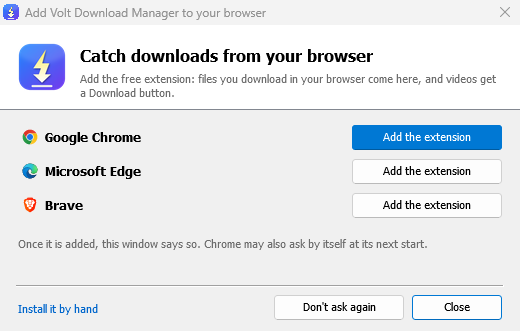
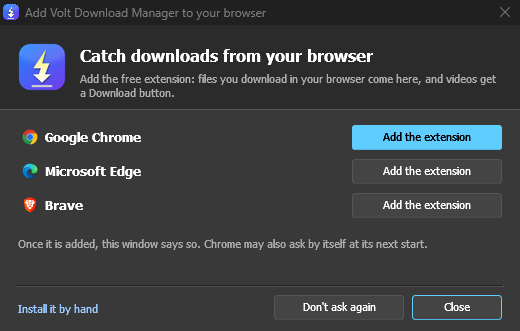
- Add the extension to each browser you use, as below: Firefox from its add-ons store, the others from the Chrome Web Store. On the first start this is a step of the setup window. Until a browser's extension has reached VDM, VDM's Add Volt Download Manager to your browser window opens at each later start: it lists the browsers it found, and Add the extension opens the store's page in that browser. Install it by hand opens the steps for loading it without the store; Don't ask again stops the window.
Firefox
Firefox 140 or later is needed. Install the add-on from its page on addons.mozilla.org, Volt Download Manager: click Add to Firefox. Firefox keeps it updated. Zen and LibreWolf install it from the same page. (VDM's Add Volt Download Manager to your browser window opens that page for you.)
For developers, Firefox can also load the add-on by hand: in about:debugging, This Firefox → Load Temporary Add-on..., choose vdm-firefox.xpi, which comes with VDM: in the extension folder where it is installed on Windows (as below), in /usr/share/voltdownloadmanager from the Linux packages. Firefox keeps that copy only until it restarts, and it doesn't update itself; its toolbar button's popup says so. The add-on from addons.mozilla.org is the one to use.
Chrome، Edge، Brave، Opera و Vivaldi
Install the extension from its page in the Chrome Web Store, Volt Download Manager: click Add to Chrome. In Edge the button is Get: Edge first asks to Allow extensions from other stores (click Allow), then Add extension. The browser keeps it updated. VDM's Add Volt Download Manager to your browser window opens that page in each browser for you, and Chrome may offer it by itself at its next start once VDM is installed.
To load it by hand instead (a browser that can't use the store, or a build of your own): its files are in the extension folder where VDM is installed: %LOCALAPPDATA%\Programs\Volt Download Manager\extension if you installed it for yourself, or Program Files\Volt Download Manager\extension if you installed it for everyone. Every release also has them as their own download, ...-extension-chromium.zip (unzip it first).
- صفحه افزونهها را باز کنید:
chrome://extensions،edge://extensionsیاbrave://extensions. - حالت توسعهدهنده را روشن کنید.
- روی بارگذاری بستهبندینشده کلیک کنید و پوشه
extension\chromiumرا انتخاب کنید.
Volt Download Manager appears in the list. Leave it turned on. Pin its button to the toolbar to see at a glance whether the browser reaches VDM.
هلیوم
هلیوم افزونه را از همان صفحه در فروشگاه وب Chrome نصب میکند: روی افزودن به Chrome کلیک کنید. هلیوم افزونهها را از طریق سرویسهای خود دریافت میکند، بنابراین این کار فقط زمانی کار میکند که آنها مجاز باشند. اگر هلیوم میگوید بارگیری افزونهها غیرفعال است، helium://settings/privacy/services (تنظیمات ← حریم خصوصی و امنیت ← سرویسهای هلیوم) را باز کنید، اجازه اتصال به سرویسهای هلیوم و پروکسی کردن بارگیریها و بهروزرسانیهای افزونه را روشن کنید و دوباره روی افزودن به Chrome کلیک کنید. با خاموش بودن این گزینهها، افزونه را به صورت دستی نصب کنید، همانطور که در بالا گفته شد (chrome://extensions در هلیوم نیز کار میکند).
VDM's setup registers the helper where Helium looks for it, on Windows, Linux and macOS. On Linux and macOS VDM also offers the extension to Helium, through Helium's own services, so with them allowed it arrives by itself at Helium's next start (on macOS Helium asks first: New extension added in its menu, where you turn it on). The Linux packages (.deb, .rpm) leave that to the window below, writing nothing in your home folder. On Windows Helium can't be offered the extension this way: VDM's Add Volt Download Manager to your browser window opens the store's page in Helium when Helium was installed with its setup; Helium from its zip isn't found there, so open the store's page in it yourself. Helium presents itself as Google Chrome, on purpose, so in Options → General → Capture downloads from the following browsers it is Google Chrome.
Safari (macOS)
برنامه مک شامل افزونه Safari است: نیازی به بارگیری چیزی نیست. Safari 17 یا جدیدتر و macOS 14 یا جدیدتر لازم است.
- Drag VDM to Applications and start it once. VDM's Add Volt Download Manager to your browser window lists Safari: How to Add shows the steps below.
- In Safari open Settings → Extensions and tick Volt Download Manager. Click Always Allow on Every Website: the extension needs to read the site to pass your sign-in on.
- تا زمانی که برنامه توسط Apple تأیید نشده است (بیلدهای آزمایشی تأیید نشدهاند)، Safari افزونه را فقط در صورتی فهرست میکند که افزونههای بدون امضا مجاز باشند: Settings → Advanced → Show features for web developers، سپس Settings → Developer → Allow unsigned extensions. Safari هر بار که بسته میشود این تنظیم را فراموش میکند.
Safari به یک افزونه اجازه نمیدهد بارگیریهای مرورگر را ببیند یا متوقف کند، بنابراین عملکرد آن با سایر مرورگرها متفاوت است:
- Works as in the other browsers: the right-click items, the button over videos, Media on this page, the toolbar button, Alt-click, VDM starting by itself, and every rule in Options.
- A click on a link to a file type VDM takes goes to VDM. A download the page starts by itself (a script, or a link with no file name in its address that the server answers with a file) stays with Safari: use right-click → Download with Volt Download Manager for those.
- در دسترس نیست: اشتراکگذاری پروکسی یا VPN مرورگر، و بارگیری از یک فرم.
از فایل ZIP ساده
The -x64.zip copy has no installer, but you can register the helper yourself. Open a command prompt in VDM's folder and run:
voltdownloadmanager-nmhost.exe --register
این کار فقط برای حساب کاربری Windows شما انجام میشود. --unregister آن را لغو میکند. سپس افزونه را مانند بالا از پوشه extension فایل ZIP بارگذاری کنید.
چه چیزهایی لازم است
When you click a download, the extension checks VDM's Options:
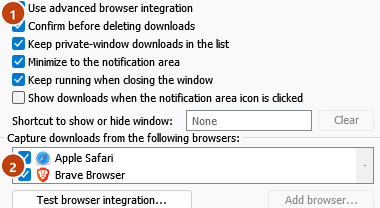
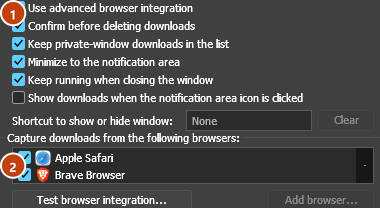
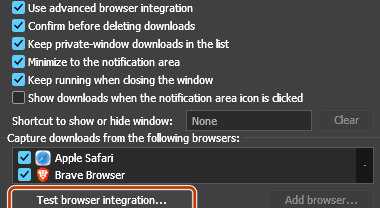
- Options → General → Use advanced browser integration must be on. Turn it off to send nothing to VDM.
- در گزینهها → عمومی → دریافت بارگیریها از مرورگرهای زیر باید مرورگرتان انتخاب شده باشد.
- Options → File types → Automatically start downloading the following file types باید نوع فایل را فهرست کند. این فهرست با موارد معمول شروع میشود: ZIP, RAR, 7Z, EXE, MSI, ISO, DMG, DEB, RPM, APPIMAGE, MP3, MP4, MKV, WEBM, PDF, مدلهای هوش مصنوعی مانند GGUF و SAFETENSORS, فایلهای سهبعدی مانند GLB و STL، و بسیاری دیگر. هر چیز دیگری را میتوان به فهرست اضافه کرد.
- گزینهها ← انواع فایل ← از سایتهای زیر بهطور خودکار بارگیری را شروع نکن نباید آن سایت را فهرست کند. نامها با فاصله از هم جدا میشوند؛ یک نام زیردامنههای خود را پوشش میدهد (
example.com،www.example.comرا پوشش میدهد، همانطور که*.update.microsoft.com،dl.update.microsoft.comرا پوشش میدهد؛*با هر چیزی مطابقت دارد، مانند*.example.*)، و فایلهایی که صفحات سایت در سرور دیگری (یک CDN) به آنها پیوند میدهند، که توسط صفحهای که بارگیری از آن آمده (ارجاعدهنده آن) مشخص میشود. ویرایش فهرست ... در زیر آن، نشانیهای کاملی را که باید نادیده گرفته شوند، هر یک در یک خط (https://example.com/private/*) فهرست میکند. - در گزینهها → انواع فایل → فایلهای کوچکتر از این اندازه را بارگیری نکنید، فایلهای کوچک (مثل رسید یا آیکون) به مرورگر سپرده میشوند. مقدار 0 یعنی هر اندازهای پذیرفته میشود.
- A
.torrentfile goes to VDM only while Tasks → Torrent settings → Open magnet links and .torrent files with Volt Download Manager is on. Off, the browser keeps it and opens it in your own torrent program. See Torrents. - افزونه باید اجازه خواندن محتوای سایت را داشته باشد. اگر دسترسی آن را به برخی سایتها محدود کنید (یا گزینه با کلیک را انتخاب کنید)، نمیتواند اطلاعات ورود شما را منتقل کند؛ بنابراین بارگیری از آن سایتها به مرورگر سپرده میشود.
When the browser keeps a download, the extension's button says which of these left it there, with the file's name, and VDM's log has a line for each one (logs\vdm.log in VDM's data folder).
هم نشانیای که روی آن کلیک کردهاید و هم نشانی مقصد پس از تغییر مسیر بررسی میشوند؛ بنابراین سایتی که از فهرست خارج کردهاید، حتی اگر شما را به سرور دیگری بفرستد، همچنان از فهرست خارج میماند. بارگیریهای دیگر به مرورگر سپرده میشوند. تغییرات تنظیمات ظرف یک دقیقه به مرورگر میرسند و نیازی به راهاندازی مجدد آن نیست.
When VDM takes a download, it gets the browser's file name, size and type with it, so Download File Info shows them at once without asking the server again. A download from a form (a button that posts and gets a file back) is posted again by VDM with the form's data; a form that sends a file stays with the browser.
When VDM takes a download, the browser's own copy is cancelled and removed from the browser's download list. In Firefox and the browsers built on it (Waterfox, Zen, LibreWolf), VDM takes it as soon as the server answers, before the browser asks What should … do with this file?: for a file VDM takes, that question never shows (Waterfox asks it for every new type of file). Files VDM doesn't take get the question as before. Download File Info opens in VDM (unless you turned it off in Options → Downloads). Cancelling there doesn't hand the download back to the browser.
Click a download link in the browser: Download File Info opens in VDM. 

شروع دانلود: پنجره پیشرفت، روند بارگیری را نشان میدهد. 

بارگیری کامل شد: فایل را باز کنید، یا پوشه را باز کنید. 

A download takes your cookies with it, as the browser sends them: those of the link's site, and of every site the link sent the browser on to (a sign-in step, a file host's download server), the one the download ended at included, with the page's partitioned cookies. Cookies a site sets along the way are kept for the next step, as a browser keeps them. Each site only ever gets its own cookies, and none go from a secure (https) address down to a plain http one.
Downloads from a private window use that window's cookies, never the normal ones, and are kept in VDM's list like any other, so they are still there after a restart (their cookies are never saved). A small mask before a download's status marks it as a private window's; its tip says whether the list keeps it. To keep them in memory only, as the browser keeps its private history, untick Options → General → Keep private-window downloads in the list: then they are gone from the list when VDM closes.
Files VDM downloads from the browser are marked as coming from the internet, as the browser marks its own: Windows checks a program with SmartScreen before it runs and Office opens a document in Protected View. Like the browser, VDM leaves the mark out when Windows' Group Policy Do not preserve zone information in file attachments is on; Options → Save to can turn it off for VDM alone.
فایلهایی که مرورگر باز میکند
A PDF, a song or a video that the browser would show or play itself goes to VDM too, when its type is in Options → File types (not on the excluded sites). That's one you open from a link or the address bar, and one a page shows in a frame, as many course and document sites show their PDFs. To turn this off, untick Also take files the browser would open in Options → General → Keys.... This needs a Chromium browser (Chrome, Edge, Brave, Opera, Vivaldi) version 128 or later, or Firefox.
A page with a PDF viewer of its own (its own page numbers, zoom and buttons, while the address bar keeps the page's address) reads the file itself and draws it. VDM leaves that file to the page: if VDM took it, the page would get nothing and say the document failed to load. To download such a file, open its address in a tab of its own, or use the page's own download button if it has one.
دکمه نوار ابزار
The extension's button shows whether the browser reaches VDM. A red ! means it doesn't; click the button to see why, and How to fix it opens the matching section of The browser and VDM aren't connected. While VDM downloads, the button shows how many downloads are running, in blue; II means taking downloads is paused. Its popup says under VDM's name whether it is connected, and to which version; the gear opens VDM's Options. It has three tabs:
- Downloads: VDM's newest downloads (see Recent downloads, below).
- This page: Media on this page, what the page has loaded that VDM can download (see below), Images on this page (below), and Never take downloads from the current site, a switch: on, the site goes on VDM's excluded sites and the popup says Downloads from the site stay with the browser, whenever you open it there; off takes it off the list again. A site that a pattern of your own in Options excludes (
*.example.com) shows the switch on, and greyed: Options holds it. - Settings: Take downloads from this browser (off pauses: every download stays with the browser until you turn it on again), the browser's proxy (see below), Hide the download button in full screen, Send downloads to (this computer or another VDM, see Remote control), Options... and Open Volt Download Manager.
بارگیریهای اخیر
Downloads lists VDM's newest downloads, newest first, and keeps them up to date while the popup is open: each with your system's own icon for its file type (as Explorer, Finder or your file manager shows it), its size and what it is doing. A running download shows a progress bar, its speed and the time left; a finished one when it finished; a failed one why; a finished one whose file was deleted or moved since says so. The search box finds downloads by any words of their name or address, and All, Running, Done and Failed show only those (each with how many there are). The popup shows the newest 60 that match; VDM's own window lists them all.
اشاره به یک بارگیری (یا رسیدن به آن با صفحهکلید) برای Show in folder و Pause یا Resume. روی نام یک فایل تکمیلشده کلیک کنید تا باز شود. منوی ⋯ آن بقیه را دارد:
- Open, Show in folder: as in VDM; the program or folder opens in front of the browser.
- Copy file: خود فایل به کلیپبورد میرود، همانطور که Copy مدیر فایل شما آن را قرار میدهد. آن را در یک پوشه، یک چت، یک ایمیل یا کادر آپلود یک صفحه وب بچسبانید (مرورگرها فایلهای چسباندهشده را میپذیرند).
- Share...: برگه اشتراکگذاری سیستم شما با فایل (Windows 10 و 11، macOS)، با هر اندازهای. Linux برگه اشتراکگذاری استانداردی ندارد، بنابراین Share در آنجا ارائه نمیشود: از Copy file یا Show in folder استفاده کنید.
- Copy link: نشانی بارگیری.
- Download again: from the start (a file; videos and torrents have their own way in VDM).
- Remove from list (فایل باقی میماند) و Delete file...، که ابتدا سؤال میکند: فایل از رایانه شما حذف میشود، که قابل بازگشت نیست.
Clear finished takes every finished download off the list; their files stay where they are. When VDM isn't running, the tab says so, with a button to start it.
یک پنجره بازشو نمیتواند فایلی را از مرورگر به برنامه دیگر یا صفحه وب بکشد (مرورگرها به پنجره بازشوی یک افزونه اجازه نمیدهند که یک فایل واقعی را با کشیدن حمل کند)، بنابراین Copy file و Show in folder این کار را انجام میدهند.
When downloads go to another VDM (a server), the list is that server's: Pause, Resume, Remove from list and Copy link work, and the buttons that need the file on this computer (open it, its folder, copy, share, delete) aren't shown; a line at the top says so.
On Linux, Copy file works in X11 sessions and in Wayland sessions with XWayland (GNOME, KDE and most others have it): VDM keeps the file on the clipboard until something else is copied.
افزونه VPN یا پروکسی
A VPN or proxy extension is a proxy for the browser only. Switch on Send downloads through this browser's proxy or VPN extension in the extension's toolbar popup (it's off as installed), and VDM downloads what it takes from the browser through the same proxy (with Options → Proxy / Socks → Use proxy/socks from a browser's request, on by default; see Options). Switched off, the extension reads nothing of the browser's proxy.
- Firefox asks you once, at the switch, to allow the extension to read the browser's proxy; switching it off takes that permission back. VDM gets the proxy the browser's own request for the file took, including the ones a VPN extension picks for each request.
- Chrome, Edge, Brave, Opera and Vivaldi can't ask for that permission at the switch, so the
extension has it from the install (Chrome counts it under the access to every site the extension
already asks for, so it adds no line to the install prompt and the update asks for nothing new).
The switch asks nothing. VDM gets the browser's effective proxy, whoever set it (a VPN or proxy
extension, a policy, the command line): a fixed server for the download's scheme (
http,https,socks4,socks5), unless the address is on its bypass list, or its proxy auto-config script (by its address or inline). With no proxy, or the system's, nothing is sent and VDM goes by its own Options. A QUIC proxy can't be shared.
در هر دو مورد، اطلاعات ورود به پروکسی هرگز خوانده نمیشود: پروکسی که اطلاعات ورود خود افزونه VPN را درخواست میکند، قابل اشتراکگذاری نیست، و بارگیری به جای ادامه بدون آن، این موضوع را اعلام میکند.
رسانههای این صفحه
برخی صفحهها ویدئو را بدون پیوند پخش میکنند و برخی پخشکنندهها آن را از دکمه بارگیری هم پنهان میکنند. دکمه نوار ابزار مواردی را که صفحه بارگیری کرده فهرست میکند تا همچنان بتوانید آنها را ذخیره کنید:
- جریانها: HLS (
.m3u8) و DASH (.mpd)، روشهایی که بیشتر سایتها برای پخش ویدئوهای بلند به کار میبرند. هر جریان فقط یک بار فهرست میشود، حتی اگر پخشکننده بین چند کیفیت جابهجا شود. کیفیتها (1080p · 720p) و مدت جریان هم در فهرست میآیند، اگر افزونه بتواند آنها را بخواند. جریانهایی که نشانیشان به.m3u8یا.mpdختم نمیشود و بهصورت متن ساده ارائه میشوند نیز پیدا میشوند: وقتی فهرست را باز میکنید (یا هنگام نمایش جریان، روی پخشکننده دکمه بارگیری را میزنید)، افزونه برای شناسایی جریان، چند کیلوبایت نخست دادههایی را میخواند که پخشکننده دریافت کرده است. تا وقتی درخواست نکنید، چیزی خوانده نمیشود. - فایلهای ویدئویی و صوتی که صفحه پخش کرده است (MP4، WebM، MP3 و موارد مشابه)، همراه با اندازه فایل و، برای ویدئوها، اندازه تصویر.
Start the video first: the list fills as the page loads things, and it's emptied when the tab goes
to another page. Each file is listed under the name it will be saved with. A file the site sends
through a program's address (stream.php, remote_control.php, videoplayback, a bare number)
has no name of its own: it's named after the page (The page.mp4; a title's site name at its end,
as in The page | Example, is left out), or after the file= name in
its address when there is one, with the type its server says it is (MP4, not PHP). With Prefix
media file names with the page title on, a file with a name of its own is named after the page,
then that name (The page - clip.mp4). Click Download beside one: a stream opens VDM's Download video from a page
window, which reads its qualities (yt-dlp does the work); a file goes to VDM's list like any other
download. Your cookies for its server, the page as the referrer and your browser's User-Agent go
with it, as they do for a link you click.
Pieces of a stream (its segments) are never listed. A copy-protected stream (DRM: Widevine, PlayReady, FairPlay, as most paid streaming services use) is listed as Protected, with no Download button: no tool may break that protection, and VDM doesn't try.
برای این کار لازم نیست کار دیگری انجام دهید: افزونه برای واگذاری بارگیریها، از قبل مواردی را که مرورگر بارگیری میکند میبیند. اطلاعاتی که ثبت میکند در حافظه مرورگر میماند و با بستن مرورگر پاک میشود.
تصاویر در این صفحه
برای بارگیری یک گالری یا تمام تصاویر یک صفحه، تب این صفحه دکمه نوار ابزار را باز کنید و روی یافتن تصاویر کلیک کنید. تا زمانی که روی آن کلیک نکنید، چیزی جستجو نمیشود. افزونه موارد زیر را پیدا میکند:
- هر تصویری که صفحه نمایش میدهد، با بزرگترین اندازهای که صفحه برای آن لیست کرده است: تصویری که در چندین اندازه ارائه شده است (یک
srcset، یک<picture>با منابع آن،1xو2x) یک بار، با بزرگترین اندازه خود، پیدا میشود، نه با اندازهای که صفحه اتفاقا نشان میدهد؛ - تصویری که صفحه فقط زمانی که به آن پیمایش میکنید بارگیری میکند (
data-srcیاdata-srcsetآن)، در کنار جاینگهداری که تا آن زمان نشان میدهد؛ - پیوندهایی که مستقیما به یک تصویر میروند، مانند یک تصویر بندانگشتی که به اندازه کامل آن پیوند میدهد.
هر آدرس یک بار، در صفحه و در فریمهای آن، به عنوان یک آدرس کامل پیدا میشود. تصاویری که در خود صفحه نوشته شدهاند (آدرسهای data:) و آنهایی که یک اسکریپت ساخته است (blob:) فایلهایی نیستند که یک سرور داشته باشد، بنابراین حذف میشوند. تصاویر پسزمینه که توسط سبکهای یک صفحه تنظیم شدهاند، جستجو نمیشوند.
سپس انتخاب کنید کدام را ارسال کنید:
- حداقل یک عرض و یک ارتفاع، بر حسب پیکسل، برای حذف آیکونها و تصاویر بندانگشتی. تصویری که اندازه آن توسط صفحه داده نشده است (تصویری که هنوز بارگیری نشده، تصویری که فقط به آن پیوند داده شده است) حفظ میشود، و خط زیر فیلترها تعداد آنها را نشان میدهد.
- یک دکمه برای هر نوع یافت شده (JPEG، PNG، WEBP، GIF، AVIF، SVG، ...، سایر)، با تعداد هر یک: روی یکی کلیک کنید تا آن نوع حذف شود، دوباره کلیک کنید تا برگردانده شود. نوع همان چیزی است که آدرس میگوید (پسوند فایل آن، یا فرمتی که یک سرویس تصویر در آن نام میبرد).
Send to Link grabber hands the kept ones to VDM's Link grabber, the way Download all links does, with the page as their referrer and your cookies for it. Link grabber looks each one up for its real name and size, and you tick there the ones to download.
Right-click: Download with Volt Download Manager
Right-click a link, a video, a sound or a picture and choose Download with Volt Download Manager. VDM downloads it whatever its type: you asked for it, so the file types list and the excluded sites don't apply here (they only decide which downloads VDM takes over by itself). A video that plays as a stream goes to the Download video window with the stream its player loaded (HLS or DASH), as the button over videos sends it, with your cookies for the stream's server and what the browser sent with the stream (its referrer and origin, else the page as the referrer).
Select part of a page and right-click it for Download selected links with Volt Download Manager, or right-click the page for Download all links with Volt Download Manager: the links open in Link grabber, sorted into packages, where you tick the ones you want. A page with tens of thousands of links works too: the extension sends a long list in parts, and Link grabber shows it once they are all in.
بارگیری همه پیوندها همچنین تصاویر موجود در صفحه و فریمهای آن را ارسال میکند (تصاویر آن، هر یک با بزرگترین اندازهای که صفحه برای آن لیست کرده است، همانطور که یافتن تصاویر آنها را پیدا میکند، هیچ یک بر اساس اندازه یا نوع حذف نمیشوند)، و بارگیری پیوندهای انتخاب شده آنهایی را که در انتخاب هستند. رباینده پیوند آنها را پنهان میکند در حالی که پنهان کردن تصاویر موجود در این صفحه وب آن علامت خورده است، همانطور که هر بار چنین لیستی میآید: علامت آن را بردارید تا تصاویر را ببینید و مواردی را که میخواهید علامت بزنید. پیوند به یک تصویر یک پیوند است و همیشه نشان داده میشود، حتی زمانی که همان تصویر در صفحه نیز نشان داده میشود. تصاویر پسزمینه که توسط سبکهای صفحه تنظیم شدهاند، ارسال نمیشوند.
If VDM can't be reached when you choose one of these, the help page opens at the section that explains why.
دکمه بارگیری روی ویدئوها
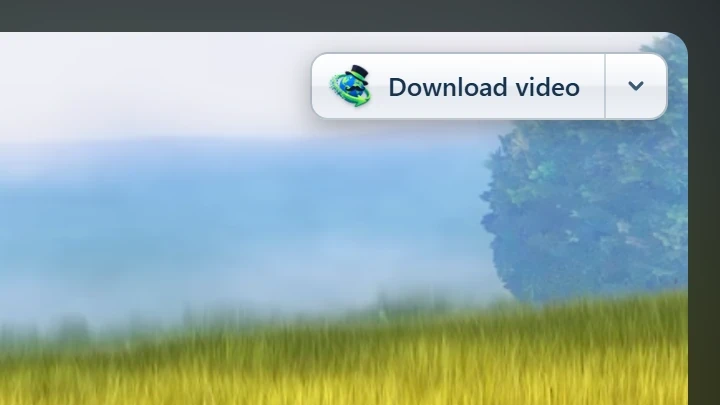
Point at a video on a web page and a small tab appears at its top corner: VDM's logo and a green Download video part, an arrow for its list and ✕ to hide it on this video. It follows Windows' light or dark mode. As it appears, VDM looks the video up (when VDM is running), and the button then names the best quality it found (1080p, 4K). Click it and that quality downloads at once, with only its progress window; VDM's main window stays where it is (with Do not start downloading, only add files to the queue on in Options, it goes in the queue instead). Clicking while VDM is still looking works too: it takes the best quality as soon as it is known. A video that plays a plain file (not a stream) needs no look-up: the button shows its picture size and downloads the file itself. When nothing could be looked up (VDM wasn't running, yt-dlp isn't installed, the page is a playlist, or you send downloads to another VDM), a click opens the Download video from a page window, which says why and offers what to do.
It takes the video you clicked: its own file when it plays one, or the stream the player loaded (HLS or DASH), else the page. A video that hasn't started yet, on a site yt-dlp doesn't read, has loaded no stream: the button then takes the stream address the page wrote for its player (an HLS or DASH playlist in its scripts or the player's attributes; the master playlist, else the best quality it names), on a page with one video, so you don't need to play it first. It only asks for addresses the page names. In a feed it takes the post the video sits in. When VDM finds nothing there (a feed that names no post, a post or a site yt-dlp can't read, such as Douyin's recommended videos), the button offers what the tab played for that video instead: the file or the stream whose length is the video's, never the next video the feed loaded meanwhile. When more than one could be it, it says Can't tell which video this is rather than guess; the toolbar button's Media on this page lists what the page loaded. Embedded players work too, and your sign-in for the site, the page that embeds the player and your browser's User-Agent go with it, so videos for members, or that play only on the site that embeds them, can be downloaded. A stream goes with what the browser sent when the player asked for it, its referrer, its origin and its cookies (a player embedded from another site may have cookies the browser keeps for that page only), and VDM sends them again with each of its playlists and pieces: a site's video server that serves its own pages' players only lets VDM through as well. A video the site names (YouTube, Vimeo and the others yt-dlp reads) keeps its own title; a stream known by no title of its own (its address is only playlist.m3u8) is named after the page you're on, without the site's name at its end: on a page titled A film | Example, it's A film.mp4, even when the player is embedded from another site. Sound players get the button too.
پس از کلیک، آنچه اتفاق افتاده است را با رنگ خودش بیان میکند:
- Added to VDM (green), with the quality: Show brings VDM's window up with that download selected.
- برای بارگیری، پست را باز کنید (کهربایی): ویدئو در یک فید قرار دارد و نمیتوان آن را از آنجا بارگیری کرد. باز کردن پست پست را در یک برگه جدید باز میکند، وقتی دکمه آن را میشناسد؛ از دکمه آنجا استفاده کنید.
- VDM didn't answer (red): VDM isn't installed or didn't start. Get VDM opens its download page; Retry tries again.
- در این سایت خاموش است (خاکستری): پس از هرگز در سایت، یا وقتی گزینهها آن را در آنجا خاموش نگه میدارند. روشن کردن آن را دوباره در سایت نشان میدهد.
- ویدیوی محافظتشده · قابل ذخیره نیست (خاکستری، با قفل): یک ویدیوی محافظتشده در برابر کپی (DRM)، که هیچ ابزاری نمیتواند آن را ذخیره کند.
این دکمه مزاحمتی ایجاد نمیکند: فقط زمانی که نشانگر ماوس را روی ویدئو حرکت میدهید (یا پخشکننده فوکوس صفحهکلید را دارد؛ سپس Tab به دکمه منتقل میشود) نمایش داده میشود، 1.5 ثانیه پس از توقف نشانگر یا لحظهای پس از خروج آن از ویدئو کمرنگ میشود و 3 ثانیه بعد ناپدید میگردد؛ در حالت کمرنگ، همچنان قابل یافتن است و با اشاره به آن دوباره کامل ظاهر میشود. هرگز در حالی که منوی آن باز است محو نمیشود و با کاهش حرکت سیستم، بدون محو شدن تغییر میکند. ویدئوهای کوچک و حلقههای کوتاه بیصدا (تصاویر متحرک، پسزمینهها) را نادیده میگیرد. دکمههای خود صفحه را نمیپوشاند: وقتی دکمهای زیر هر قسمت از گوشه آن قرار میگیرد (دکمه بازخورد یا تنظیمات پخشکننده، دکمه تماشای بعدی یک تصویر کوچک)، گوشه آزاد بعدی را اشغال میکند و آن را نگه میدارد در حالی که پخشکننده دکمههای خود را نمایش و پنهان میکند، بنابراین در جای خود باقی میماند تا شما به آن دسترسی پیدا کنید. روی پیشنمایشی که در حالی که نشانگر روی یک تصویر کوچک است پخش میشود (صفحه اصلی YouTube، یک جستجو، یک کانال)، صفحه پیشنمایش را متوقف میکند وقتی نشانگر به دکمه میرسد؛ دکمه در همان جایی که بود باقی میماند در حالی که نشانگر روی آن است، و یک کلیک ویدئوی آن پیشنمایش را بارگیری میکند. پخش یا مکث ویدئو آن را برنمیگرداند. همانطور که نصب شده است (اندازه دکمه: خودکار در گزینهها، در پایین)، فقط لوگوی آن، فلش آن و ✕ روی یک ویدئو در یک فید (فیسبوک، X، لینکدین، اینستاگرام، ردیت، صفحه اصلی YouTube و موارد مشابه) و روی یک پخشکننده کوچک، و کل دکمه، با کلمات آن، روی یک پخشکننده بزرگ مانند صفحه تماشا است؛ روی یک ویدئو با عرض کمتر از 360 پیکسل، یا جایی که کلمات آن جا نمیشوند، همیشه آن دکمه گرد است. کامل کلمات آن را در هر کجا که جا شوند نگه میدارد؛ فشرده آن را به دکمه گرد روی هر ویدئو تبدیل میکند. در حالت تمامصفحه، وقتی پخشکننده اجازه میدهد، ویدئو را دنبال میکند، و ورود به حالت تمامصفحه آن را از سر راه برمیدارد تا زمانی که دوباره نشانگر را حرکت دهید.
- Its menu (the arrow next to it, or ↓ when the button has the keyboard's focus): the video's title, length and site; its filters, when the qualities differ: All, Video (the picture with its sound) or Audio only, and the file type (MP4, WEBM, M4A, MP3...) or the picture's codec (AV1, VP9, H.264), kept for the site; Download best first (the best of what the filters keep), then one numbered line per quality under VIDEO and AUDIO, with its file type, codec, frame rate or bitrate and size (
1080pMP4 · AV1 · 60 fps, as the Download video window says it), the best one marked, and Most compatible (H.264 + AAC) beside the resolution of the one that plays everywhere (Choose the quality); All qualities and subtitles..., which opens the Download video from a page window; then Put the button back in its corner (once you moved it on the site), Hide on this video (Esc), Hide the download button in full screen, Never on the site (VDM remembers the site), and Button settings..., which opens VDM's Options. The arrow keys move through it, Enter picks, Esc closes it. - انتقال: آن را با نقطههایش به هر نقطهای روی ویدئو، به گوشه یا لبهای دیگر، یا خارج از پخشکننده، بالا، پایین یا کنار آن بکشید (برای سایتی که پخشکننده خود را میپوشاند یا کنترلهای خود را در جایی که دکمه قرار میگیرد، ترسیم میکند)؛ نزدیک یک لبه یا خارج از آن، لبه و نقاطی که به آن میچسبد (گوشهها و وسط) نمایش داده میشوند. خارج از پخشکننده، وقتی پنجره در آنجا فضایی ندارد (یک پخشکننده در بالای پنجره، تمامصفحه)، در آن لبه در داخل میماند. در همان جایی که آن را در آن سایت قرار دادهاید، میماند؛ دکمه را به گوشه خود برگردانید در منو آن را برمیگرداند، و پاپآپ افزونه دارای تنظیمات ← دکمه بارگیری روی ویدئوها ← بازنشانی برای هر سایت است (فیلترهای آن نیز).
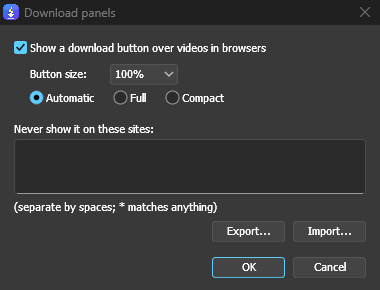
- Turn it off, make it smaller, or see the sites it stays off: Options → General → Customize VDM Download panels in browsers → Edit.... Button size has a 80%, 100% or 120% scale beside it, and is Automatic as installed (round in a feed and over a small player, its words over a big one), Full (its words wherever they fit) or Compact (only VDM's logo, the arrow and ✕, on every video, as on a small one); after a click it still says what happened in words. Pages already open follow a change within a few seconds, without a reload.
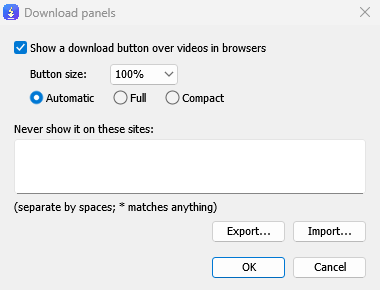
این دکمه هم از تنظیمات یکپارچهسازی پیروی میکند: اگر استفاده از یکپارچهسازی پیشرفته مرورگر خاموش باشد یا مرورگر انتخاب نشده باشد، نمایش داده نمیشود.
کلیدهای اجبار یا جلوگیری از دریافت
Hold Alt (Option on a Mac) while clicking a link to let the browser download it instead of VDM. The extension follows the link as a plain click would, in every browser, and the browser keeps what comes of it: the link opens in the tab, so a site's bot check (Cloudflare's "Just a moment...") runs there first. Without the extension in the way, Chromium browsers and Safari would save the link without opening it, which saves the check's page instead of the file; Firefox would do nothing. When the link redirects, or the page it leads to starts the download by script ("your download starts in 5 seconds"), that download stays with the browser too when it starts within ten seconds; the link's own address, and a download its own page starts (a bot check's page once its check is passed), within a minute. Alt with Ctrl, Shift or Cmd, and the middle button, keep their meaning (a new tab or window). Options → General → Keys... says so, and holds Also take files the browser would open.
برای اینکه بارگیریهای یک سایت همیشه در مرورگر انجام شوند، از گزینه هرگز بارگیری از در دکمه نوار ابزار استفاده کنید یا سایت را به فهرست از سایتهای زیر بارگیری را بهطور خودکار آغاز نکن اضافه کنید. برای اینکه نوع خاصی از فایل در مرورگر بارگیری شود، آن را از فهرست انواع فایل حذف کنید.
When VDM isn't running
You don't need to start VDM first. When the browser hands over a download and VDM isn't running, the helper starts it and passes the download on.
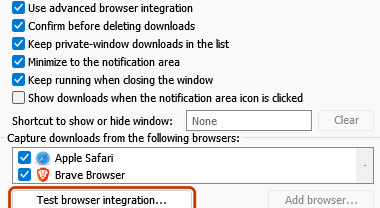
If VDM can't be reached at all (it was uninstalled, or the helper isn't registered), the download stays with the browser, so nothing is lost, and the toolbar button shows a red !. See The browser and VDM aren't connected, or run Options → General → Test browser integration....
مراحل بعدی
- آموزش: دریافت بارگیریها از مرورگر →
- Change which file types VDM takes →
- اگر مرورگر بارگیریها را تحویل نمیدهد →
رایگان، متنباز، بدون تبلیغات، بدون دوره آزمایشی.
Download Volt Download Manager