

With the VDM extension, clicking a download link in your browser hands the download to VDM. VDM gets the address together with the page it came from (the referrer), your cookies for the site and the browser's User-Agent, so downloads that need you to be signed in still work. It also gets the address the browser's own download had reached: when a site refuses VDM the link itself (a one-time link the browser has already used, or a site that lets only browsers ask for its links), VDM goes on from there once, without your cookies if it is another site. When a site's bot check (Cloudflare's, for one) or its refusal of programs (FileHippo's 412 Precondition Failed) turns VDM's own connection away, VDM asks once more connecting the way your browser does (the same handshake, settings and order of headers), with your browser's User-Agent and its cookies for that site only, and downloads on it with as many connections as any download, each asking for its part of the file (on one connection when the site refuses parts there); your proxy, network adapter and speed limits apply as usual. The pieces of a video stream (HLS, DASH) go the same way when the site's check refuses them. Some checks (SourceForge's) refuse anything that calls itself a browser without connecting exactly like one, and let a program that says what it is through: when that connection is refused too, VDM asks once more under its own name (VoltDownloadManager/ and its version, or the User-Agent you typed in Options → Downloads), with the same cookies and referrer, and remembers the site until VDM closes, so its next downloads, and a paused one when it resumes, go that way at once. It solves no challenge: a site that still wants one answered (some Cloudflare checks ask it of every visitor, for the site's pages too) refuses again, and VDM says this site lets only browsers through; Alt+click the link to leave the download to the browser, which opens the link, passes the check and keeps the file.
이 확장 프로그램은 Google Chrome, Microsoft Edge, Brave, Opera, Vivaldi에서 작동하며, Firefox 140 이상, Mac의 Safari 17 이상에서도 작동합니다 (Safari 참조).
Browsers built on them work too: Chromium and Helium take the extension as Chrome does, Brave Origin as Brave does, Zen and LibreWolf as Firefox does. On Windows, Zen has a bug of its own (see The browser and VDM aren't connected).
설정하기
브라우저 통합은 브라우저와 통신하는 작은 도우미 프로그램과 확장 프로그램 자체의 두 부분으로 구성됩니다.
- Install VDM with the setup and keep Set up browser integration (Chrome, Edge, Brave, Firefox) ticked. This registers the helper. (The portable copy can't do this; see Portable mode.) On Linux and macOS VDM registers it itself, each time it starts, for the browsers installed then.
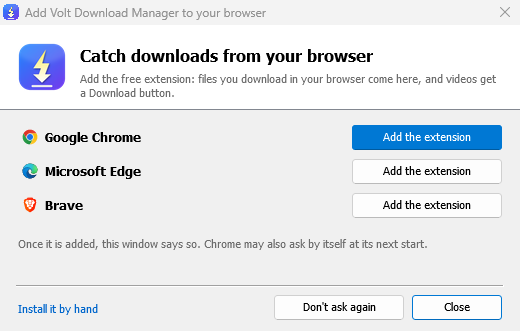
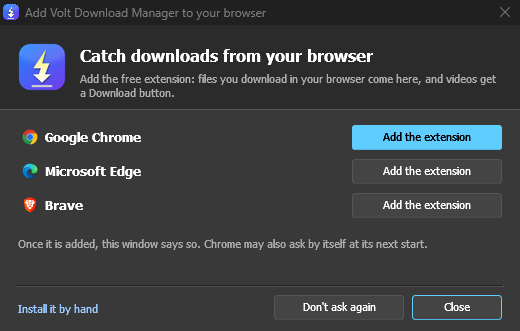
- Add the extension to each browser you use, as below: Firefox from its add-ons store, the others from the Chrome Web Store. On the first start this is a step of the setup window. Until a browser's extension has reached VDM, VDM's Add Volt Download Manager to your browser window opens at each later start: it lists the browsers it found, and Add the extension opens the store's page in that browser. Install it by hand opens the steps for loading it without the store; Don't ask again stops the window.
Firefox
Firefox 140 or later is needed. Install the add-on from its page on addons.mozilla.org, Volt Download Manager: click Add to Firefox. Firefox keeps it updated. Zen and LibreWolf install it from the same page. (VDM's Add Volt Download Manager to your browser window opens that page for you.)
For developers, Firefox can also load the add-on by hand: in about:debugging, This Firefox → Load Temporary Add-on..., choose vdm-firefox.xpi, which comes with VDM: in the extension folder where it is installed on Windows (as below), in /usr/share/voltdownloadmanager from the Linux packages. Firefox keeps that copy only until it restarts, and it doesn't update itself; its toolbar button's popup says so. The add-on from addons.mozilla.org is the one to use.
Chrome, Edge, Brave, Opera 및 Vivaldi
Install the extension from its page in the Chrome Web Store, Volt Download Manager: click Add to Chrome. In Edge the button is Get: Edge first asks to Allow extensions from other stores (click Allow), then Add extension. The browser keeps it updated. VDM's Add Volt Download Manager to your browser window opens that page in each browser for you, and Chrome may offer it by itself at its next start once VDM is installed.
To load it by hand instead (a browser that can't use the store, or a build of your own): its files are in the extension folder where VDM is installed: %LOCALAPPDATA%\Programs\Volt Download Manager\extension if you installed it for yourself, or Program Files\Volt Download Manager\extension if you installed it for everyone. Every release also has them as their own download, ...-extension-chromium.zip (unzip it first).
- 확장 프로그램 페이지를 엽니다:
chrome://extensions,edge://extensions또는brave://extensions. - 개발자 모드를 켭니다.
- 압축 해제된 확장 프로그램 로드를 클릭하고
extension\chromium폴더를 선택합니다.
Volt Download Manager appears in the list. Leave it turned on. Pin its button to the toolbar to see at a glance whether the browser reaches VDM.
Helium
Helium은 Chrome 웹 스토어의 동일한 페이지에서 확장 프로그램을 설치합니다. Chrome에 추가를 클릭하세요. Helium은 자체 서비스를 통해 확장 프로그램을 가져오므로, 이 기능은 해당 서비스가 허용될 때만 작동합니다. Helium이 확장 프로그램 다운로드가 비활성화되었습니다라고 표시하면, helium://settings/privacy/services(설정 → 개인 정보 보호 및 보안 → Helium 서비스)를 열고 Helium 서비스 연결 허용 및 확장 프로그램 다운로드 및 업데이트 프록시를 켠 다음, Chrome에 추가를 다시 클릭하세요. 이 옵션들이 꺼져 있으면 위에서 설명한 대로 확장 프로그램을 수동으로 로드하세요(chrome://extensions는 Helium에서도 작동합니다).
VDM's setup registers the helper where Helium looks for it, on Windows, Linux and macOS. On Linux and macOS VDM also offers the extension to Helium, through Helium's own services, so with them allowed it arrives by itself at Helium's next start (on macOS Helium asks first: New extension added in its menu, where you turn it on). The Linux packages (.deb, .rpm) leave that to the window below, writing nothing in your home folder. On Windows Helium can't be offered the extension this way: VDM's Add Volt Download Manager to your browser window opens the store's page in Helium when Helium was installed with its setup; Helium from its zip isn't found there, so open the store's page in it yourself. Helium presents itself as Google Chrome, on purpose, so in Options → General → Capture downloads from the following browsers it is Google Chrome.
Safari (macOS)
Mac 앱에는 Safari 확장 프로그램이 포함되어 있어 별도로 다운로드할 필요가 없습니다. Safari 17 이상 및 macOS 14 이상이 필요합니다.
- Drag VDM to Applications and start it once. VDM's Add Volt Download Manager to your browser window lists Safari: How to Add shows the steps below.
- In Safari open Settings → Extensions and tick Volt Download Manager. Click Always Allow on Every Website: the extension needs to read the site to pass your sign-in on.
- 앱이 Apple에 의해 공증되지 않은 경우 (실험 빌드는 공증되지 않음), Safari는 서명되지 않은 확장 프로그램이 허용될 때만 확장 프로그램을 나열합니다. 설정 → 고급 → 웹 개발자용 기능 보기를 선택한 다음 설정 → 개발자 → 서명되지 않은 확장 프로그램 허용을 선택합니다. Safari는 종료할 때마다 이 설정을 잊어버립니다.
Safari는 확장 프로그램이 브라우저의 다운로드를 보거나 중지하도록 허용하지 않으므로 다른 브라우저와 작동 방식이 다릅니다.
- Works as in the other browsers: the right-click items, the button over videos, Media on this page, the toolbar button, Alt-click, VDM starting by itself, and every rule in Options.
- A click on a link to a file type VDM takes goes to VDM. A download the page starts by itself (a script, or a link with no file name in its address that the server answers with a file) stays with Safari: use right-click → Download with Volt Download Manager for those.
- 사용할 수 없는 기능: 브라우저의 프록시 또는 VPN 공유, 양식에서 다운로드.
일반 zip 파일에서
The -x64.zip copy has no installer, but you can register the helper yourself. Open a command prompt in VDM's folder and run:
voltdownloadmanager-nmhost.exe --register
이것은 귀하의 Windows 계정에만 해당됩니다. --unregister은 이를 취소합니다. 그런 다음 위와 같이 zip 파일의 extension 폴더에서 확장 프로그램을 로드합니다.
작동 방식
When you click a download, the extension checks VDM's Options:
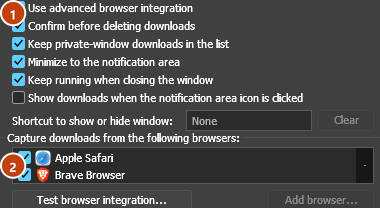
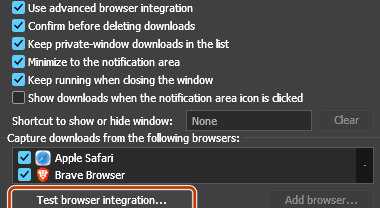
- Options → General → Use advanced browser integration must be on. Turn it off to send nothing to VDM.
- 옵션 → 일반 → 다음 브라우저에서 다운로드 캡처에 귀하의 브라우저가 선택되어 있어야 합니다.
- 옵션 → 파일 형식 → 다음 파일 형식 자동 다운로드 시작에 파일 형식이 나열되어야 합니다. 목록은 일반적인 형식으로 시작합니다: ZIP, RAR, 7Z, EXE, MSI, ISO, DMG, DEB, RPM, APPIMAGE, MP3, MP4, MKV, WEBM, PDF, GGUF 및 SAFETENSORS와 같은 AI 모델, GLB 및 STL과 같은 3D 파일 등. 다른 형식도 목록에 추가할 수 있습니다.
- 옵션 → 파일 형식 → 다음 사이트에서 자동으로 다운로드 시작 안 함에 해당 사이트가 나열되어 있지 않아야 합니다. 이름은 공백으로 구분됩니다. 이름은 하위 도메인을 포함합니다(
example.com는www.example.com를 포함하고,*.update.microsoft.com는dl.update.microsoft.com를 포함합니다.*는*.example.*처럼 모든 것을 일치시킵니다). 또한 다운로드가 시작된 페이지(리퍼러)에 의해 알려진 다른 서버(CDN)에 있는 사이트 페이지가 링크하는 파일도 포함합니다. 그 아래의 목록 편집...은 제외할 전체 주소를 한 줄에 하나씩 나열합니다(https://example.com/private/*). - 옵션 → 파일 형식 → 다음보다 작은 파일은 가져오지 않음은 작은 파일(영수증, 아이콘)을 브라우저에 남겨둡니다. 0은 모든 크기를 가져옵니다.
- A
.torrentfile goes to VDM only while Tasks → Torrent settings → Open magnet links and .torrent files with Volt Download Manager is on. Off, the browser keeps it and opens it in your own torrent program. See Torrents. - 확장 프로그램은 해당 사이트를 읽을 수 있어야 합니다. 일부 사이트로 제한하거나(클릭 시) 로그인 정보를 전달할 수 없으므로 해당 사이트의 다운로드는 브라우저에 남겨둡니다.
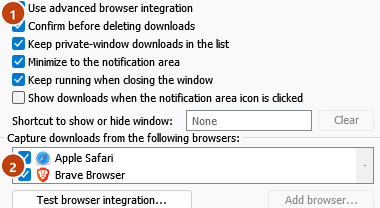
When the browser keeps a download, the extension's button says which of these left it there, with the file's name, and VDM's log has a line for each one (logs\vdm.log in VDM's data folder).
클릭한 주소와 리디렉션된 주소 모두 확인되므로, 제외한 사이트는 다른 서버로 연결되더라도 계속 제외됩니다. 그 외의 모든 것은 브라우저에 남습니다. 옵션 변경 사항은 1분 이내에 브라우저에 적용되며, 브라우저를 다시 시작할 필요가 없습니다.
When VDM takes a download, it gets the browser's file name, size and type with it, so Download File Info shows them at once without asking the server again. A download from a form (a button that posts and gets a file back) is posted again by VDM with the form's data; a form that sends a file stays with the browser.
When VDM takes a download, the browser's own copy is cancelled and removed from the browser's download list. In Firefox and the browsers built on it (Waterfox, Zen, LibreWolf), VDM takes it as soon as the server answers, before the browser asks What should … do with this file?: for a file VDM takes, that question never shows (Waterfox asks it for every new type of file). Files VDM doesn't take get the question as before. Download File Info opens in VDM (unless you turned it off in Options → Downloads). Cancelling there doesn't hand the download back to the browser.
Click a download link in the browser: Download File Info opens in VDM. 

다운로드 시작: 진행 창에 다운로드 진행 상황이 표시됩니다. 

다운로드 완료: 파일을 열거나 폴더를 엽니다. 

A download takes your cookies with it, as the browser sends them: those of the link's site, and of every site the link sent the browser on to (a sign-in step, a file host's download server), the one the download ended at included, with the page's partitioned cookies. Cookies a site sets along the way are kept for the next step, as a browser keeps them. Each site only ever gets its own cookies, and none go from a secure (https) address down to a plain http one.
Downloads from a private window use that window's cookies, never the normal ones, and are kept in VDM's list like any other, so they are still there after a restart (their cookies are never saved). A small mask before a download's status marks it as a private window's; its tip says whether the list keeps it. To keep them in memory only, as the browser keeps its private history, untick Options → General → Keep private-window downloads in the list: then they are gone from the list when VDM closes.
Files VDM downloads from the browser are marked as coming from the internet, as the browser marks its own: Windows checks a program with SmartScreen before it runs and Office opens a document in Protected View. Like the browser, VDM leaves the mark out when Windows' Group Policy Do not preserve zone information in file attachments is on; Options → Save to can turn it off for VDM alone.
브라우저가 열 파일
A PDF, a song or a video that the browser would show or play itself goes to VDM too, when its type is in Options → File types (not on the excluded sites). That's one you open from a link or the address bar, and one a page shows in a frame, as many course and document sites show their PDFs. To turn this off, untick Also take files the browser would open in Options → General → Keys.... This needs a Chromium browser (Chrome, Edge, Brave, Opera, Vivaldi) version 128 or later, or Firefox.
A page with a PDF viewer of its own (its own page numbers, zoom and buttons, while the address bar keeps the page's address) reads the file itself and draws it. VDM leaves that file to the page: if VDM took it, the page would get nothing and say the document failed to load. To download such a file, open its address in a tab of its own, or use the page's own download button if it has one.
도구 모음 버튼
The extension's button shows whether the browser reaches VDM. A red ! means it doesn't; click the button to see why, and How to fix it opens the matching section of The browser and VDM aren't connected. While VDM downloads, the button shows how many downloads are running, in blue; II means taking downloads is paused. Its popup says under VDM's name whether it is connected, and to which version; the gear opens VDM's Options. It has three tabs:
- Downloads: VDM's newest downloads (see Recent downloads, below).
- This page: Media on this page, what the page has loaded that VDM can download (see below), Images on this page (below), and Never take downloads from the current site, a switch: on, the site goes on VDM's excluded sites and the popup says Downloads from the site stay with the browser, whenever you open it there; off takes it off the list again. A site that a pattern of your own in Options excludes (
*.example.com) shows the switch on, and greyed: Options holds it. - Settings: Take downloads from this browser (off pauses: every download stays with the browser until you turn it on again), the browser's proxy (see below), Hide the download button in full screen, Send downloads to (this computer or another VDM, see Remote control), Options... and Open Volt Download Manager.
최근 다운로드
Downloads lists VDM's newest downloads, newest first, and keeps them up to date while the popup is open: each with your system's own icon for its file type (as Explorer, Finder or your file manager shows it), its size and what it is doing. A running download shows a progress bar, its speed and the time left; a finished one when it finished; a failed one why; a finished one whose file was deleted or moved since says so. The search box finds downloads by any words of their name or address, and All, Running, Done and Failed show only those (each with how many there are). The popup shows the newest 60 that match; VDM's own window lists them all.
다운로드에 마우스를 가져가거나(또는 키보드로 이동) 폴더에 표시 및 일시 중지 또는 다시 시작을 선택합니다. 완료된 파일 이름을 클릭하여 엽니다. ⋯ 메뉴에는 나머지가 있습니다.
- Open, Show in folder: as in VDM; the program or folder opens in front of the browser.
- 파일 복사: 파일 관리자의 복사와 마찬가지로 파일 자체가 클립보드에 복사됩니다. 폴더, 채팅, 이메일 또는 웹 페이지의 업로드 상자에 붙여넣으세요(브라우저는 붙여넣은 파일을 허용합니다).
- 공유...: 파일과 함께 시스템의 공유 시트(Windows 10 및 11, macOS)가 모든 크기로 표시됩니다. Linux에는 표준 공유 시트가 없으므로 공유가 제공되지 않습니다. 파일 복사 또는 폴더에 표시를 사용하세요.
- 링크 복사: 다운로드 주소.
- Download again: from the start (a file; videos and torrents have their own way in VDM).
- 목록에서 제거(파일은 유지됨) 및 파일 삭제...(먼저 확인 요청): 파일이 컴퓨터에서 삭제되며, 실행 취소할 수 없습니다.
Clear finished takes every finished download off the list; their files stay where they are. When VDM isn't running, the tab says so, with a button to start it.
팝업은 브라우저에서 다른 프로그램이나 웹 페이지로 파일을 드래그할 수 없으므로(브라우저는 애드온 팝업이 드래그 시 실제 파일을 전달하는 것을 허용하지 않음) 파일 복사 및 폴더에 표시가 해당 작업을 수행합니다.
When downloads go to another VDM (a server), the list is that server's: Pause, Resume, Remove from list and Copy link work, and the buttons that need the file on this computer (open it, its folder, copy, share, delete) aren't shown; a line at the top says so.
On Linux, Copy file works in X11 sessions and in Wayland sessions with XWayland (GNOME, KDE and most others have it): VDM keeps the file on the clipboard until something else is copied.
VPN 또는 프록시 확장 프로그램
A VPN or proxy extension is a proxy for the browser only. Switch on Send downloads through this browser's proxy or VPN extension in the extension's toolbar popup (it's off as installed), and VDM downloads what it takes from the browser through the same proxy (with Options → Proxy / Socks → Use proxy/socks from a browser's request, on by default; see Options). Switched off, the extension reads nothing of the browser's proxy.
- Firefox asks you once, at the switch, to allow the extension to read the browser's proxy; switching it off takes that permission back. VDM gets the proxy the browser's own request for the file took, including the ones a VPN extension picks for each request.
- Chrome, Edge, Brave, Opera and Vivaldi can't ask for that permission at the switch, so the
extension has it from the install (Chrome counts it under the access to every site the extension
already asks for, so it adds no line to the install prompt and the update asks for nothing new).
The switch asks nothing. VDM gets the browser's effective proxy, whoever set it (a VPN or proxy
extension, a policy, the command line): a fixed server for the download's scheme (
http,https,socks4,socks5), unless the address is on its bypass list, or its proxy auto-config script (by its address or inline). With no proxy, or the system's, nothing is sent and VDM goes by its own Options. A QUIC proxy can't be shared.
두 경우 모두 프록시 로그인은 읽히지 않습니다. VPN 확장 프로그램 자체의 로그인을 요구하는 프록시는 공유할 수 없으며, 다운로드는 로그인 없이 진행하는 대신 그렇게 표시됩니다.
이 페이지의 미디어
일부 페이지에서는 비디오 링크 없이 비디오가 재생되고, 일부 플레이어는 다운로드 버튼에서도 비디오를 숨깁니다. 도구 모음 버튼에는 페이지에 로드된 항목이 표시되므로 여기서 저장할 수 있습니다.
- 스트림: 긴 비디오를 재생할 때 대부분의 사이트에서 사용하는 HLS(
.m3u8) 및 DASH(.mpd)입니다. 스트림마다 한 번만 표시되며, 플레이어가 여러 화질로 전환해도 마찬가지입니다. 확장 프로그램에서 확인할 수 있으면 화질(1080p · 720p)과 재생 시간도 표시됩니다. 주소가.m3u8또는.mpd로 끝나지 않고 일반 텍스트로 제공되는 스트림도 찾을 수 있습니다. 목록을 열거나 플레이어 위의 다운로드 버튼을 누른 상태에서 플레이어가 스트림을 재생하면, 확장 프로그램은 플레이어가 가져온 데이터의 처음 몇 KB를 읽어 스트림을 식별합니다. 요청하기 전까지는 아무것도 읽지 않습니다. - 페이지에서 재생한 비디오 및 오디오 파일(MP4, WebM, MP3 등)과 파일 크기. 비디오의 경우 화면 크기도 표시됩니다.
Start the video first: the list fills as the page loads things, and it's emptied when the tab goes
to another page. Each file is listed under the name it will be saved with. A file the site sends
through a program's address (stream.php, remote_control.php, videoplayback, a bare number)
has no name of its own: it's named after the page (The page.mp4; a title's site name at its end,
as in The page | Example, is left out), or after the file= name in
its address when there is one, with the type its server says it is (MP4, not PHP). With Prefix
media file names with the page title on, a file with a name of its own is named after the page,
then that name (The page - clip.mp4). Click Download beside one: a stream opens VDM's Download video from a page
window, which reads its qualities (yt-dlp does the work); a file goes to VDM's list like any other
download. Your cookies for its server, the page as the referrer and your browser's User-Agent go
with it, as they do for a link you click.
Pieces of a stream (its segments) are never listed. A copy-protected stream (DRM: Widevine, PlayReady, FairPlay, as most paid streaming services use) is listed as Protected, with no Download button: no tool may break that protection, and VDM doesn't try.
별도로 설정할 필요가 없습니다. 확장 프로그램은 다운로드를 VDM으로 전달하기 위해 브라우저가 다운로드하는 항목을 이미 확인합니다. 기록된 내용은 브라우저 메모리에만 저장되며 브라우저를 닫으면 삭제됩니다.
이 페이지의 이미지
갤러리나 페이지의 모든 그림을 다운로드하려면 도구 모음 버튼의 이 페이지 탭을 열고 이미지 찾기를 클릭하세요. 클릭하기 전까지는 아무것도 찾지 않습니다. 확장 프로그램은 다음을 찾습니다.
- 페이지에 표시되는 각 그림을 페이지에 나열된 가장 큰 크기로 찾습니다. 여러 크기로 제공되는 그림(
srcset, 소스가 있는<picture>,1x및2x)은 페이지에 표시되는 크기가 아닌 가장 큰 크기로 한 번만 찾습니다. - 페이지를 스크롤해야만 로드되는 그림(해당
data-src또는data-srcset)을 그때까지 표시되는 자리 표시자 옆에서 찾습니다. - 썸네일이 원본 크기로 연결되는 링크와 같이 그림으로 바로 연결되는 링크를 찾습니다.
각 주소는 페이지와 해당 프레임에서 완전한 주소로 한 번만 찾습니다. 페이지 자체에 작성된 그림(data: 주소)과 스크립트가 만든 그림(blob:)은 서버에 있는 파일이 아니므로 제외됩니다. 페이지 스타일로 설정된 배경 그림은 찾지 않습니다.
그런 다음 보낼 항목을 선택하세요.
- 아이콘과 썸네일을 제외하려면 픽셀 단위로 최소 너비와 높이를 지정하세요. 페이지에 크기가 제공되지 않는 그림(아직 로드되지 않았거나 링크만 있는 그림)은 유지되며, 필터 아래 줄에 해당 그림의 개수가 표시됩니다.
- 찾은 각 유형(JPEG, PNG, WEBP, GIF, AVIF, SVG, ..., 기타)에 대한 버튼과 각 유형의 개수가 표시됩니다. 버튼을 클릭하여 해당 유형을 제외하고, 다시 클릭하여 되돌릴 수 있습니다. 유형은 주소에 표시된 내용(파일 확장자 또는 이미지 서비스에서 명명한 형식)입니다.
Send to Link grabber hands the kept ones to VDM's Link grabber, the way Download all links does, with the page as their referrer and your cookies for it. Link grabber looks each one up for its real name and size, and you tick there the ones to download.
Right-click: Download with Volt Download Manager
Right-click a link, a video, a sound or a picture and choose Download with Volt Download Manager. VDM downloads it whatever its type: you asked for it, so the file types list and the excluded sites don't apply here (they only decide which downloads VDM takes over by itself). A video that plays as a stream goes to the Download video window with the stream its player loaded (HLS or DASH), as the button over videos sends it, with your cookies for the stream's server and what the browser sent with the stream (its referrer and origin, else the page as the referrer).
Select part of a page and right-click it for Download selected links with Volt Download Manager, or right-click the page for Download all links with Volt Download Manager: the links open in Link grabber, sorted into packages, where you tick the ones you want. A page with tens of thousands of links works too: the extension sends a long list in parts, and Link grabber shows it once they are all in.
모든 링크 다운로드는 페이지와 해당 프레임에 있는 그림(페이지에 나열된 가장 큰 크기의 이미지, 이미지 찾기가 찾는 방식과 동일하며 크기나 유형으로 제외되지 않음)도 전송하고, 선택한 링크 다운로드는 선택된 항목을 전송합니다. 링크 그래버는 이 웹 페이지에 있는 이미지 숨기기가 선택되어 있는 동안(이러한 목록이 나타날 때마다 선택됨) 해당 그림을 숨깁니다. 그림을 보려면 선택을 해제하고 원하는 그림을 선택하세요. 그림으로 연결되는 링크는 링크이며, 동일한 그림이 페이지에 표시되더라도 항상 표시됩니다. 페이지 스타일로 설정된 배경 그림은 전송되지 않습니다.
If VDM can't be reached when you choose one of these, the help page opens at the section that explains why.
비디오 위 다운로드 단추
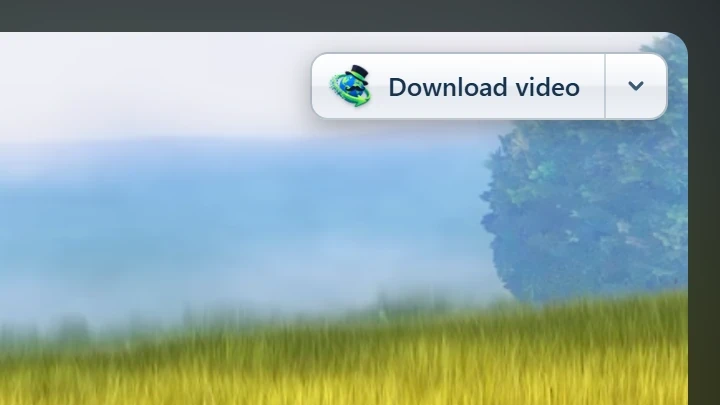
Point at a video on a web page and a small tab appears at its top corner: VDM's logo and a green Download video part, an arrow for its list and ✕ to hide it on this video. It follows Windows' light or dark mode. As it appears, VDM looks the video up (when VDM is running), and the button then names the best quality it found (1080p, 4K). Click it and that quality downloads at once, with only its progress window; VDM's main window stays where it is (with Do not start downloading, only add files to the queue on in Options, it goes in the queue instead). Clicking while VDM is still looking works too: it takes the best quality as soon as it is known. A video that plays a plain file (not a stream) needs no look-up: the button shows its picture size and downloads the file itself. When nothing could be looked up (VDM wasn't running, yt-dlp isn't installed, the page is a playlist, or you send downloads to another VDM), a click opens the Download video from a page window, which says why and offers what to do.
It takes the video you clicked: its own file when it plays one, or the stream the player loaded (HLS or DASH), else the page. A video that hasn't started yet, on a site yt-dlp doesn't read, has loaded no stream: the button then takes the stream address the page wrote for its player (an HLS or DASH playlist in its scripts or the player's attributes; the master playlist, else the best quality it names), on a page with one video, so you don't need to play it first. It only asks for addresses the page names. In a feed it takes the post the video sits in. When VDM finds nothing there (a feed that names no post, a post or a site yt-dlp can't read, such as Douyin's recommended videos), the button offers what the tab played for that video instead: the file or the stream whose length is the video's, never the next video the feed loaded meanwhile. When more than one could be it, it says Can't tell which video this is rather than guess; the toolbar button's Media on this page lists what the page loaded. Embedded players work too, and your sign-in for the site, the page that embeds the player and your browser's User-Agent go with it, so videos for members, or that play only on the site that embeds them, can be downloaded. A stream goes with what the browser sent when the player asked for it, its referrer, its origin and its cookies (a player embedded from another site may have cookies the browser keeps for that page only), and VDM sends them again with each of its playlists and pieces: a site's video server that serves its own pages' players only lets VDM through as well. A video the site names (YouTube, Vimeo and the others yt-dlp reads) keeps its own title; a stream known by no title of its own (its address is only playlist.m3u8) is named after the page you're on, without the site's name at its end: on a page titled A film | Example, it's A film.mp4, even when the player is embedded from another site. Sound players get the button too.
클릭 후에는 자체 색상으로 발생한 일을 알려줍니다.
- Added to VDM (green), with the quality: Show brings VDM's window up with that download selected.
- 게시물을 열어 다운로드(황색): 비디오가 피드에 있어 거기서는 다운로드할 수 없습니다. 게시물 열기는 버튼이 게시물을 아는 경우 새 탭에서 게시물을 엽니다. 거기서 버튼을 사용하세요.
- VDM didn't answer (red): VDM isn't installed or didn't start. Get VDM opens its download page; Retry tries again.
- 이 사이트에서 해제됨(회색): 사이트에서 이 사이트에서 항상 해제를 선택했거나 옵션에서 해제되어 있을 때. 켜기를 클릭하면 사이트에서 다시 표시됩니다.
- 보호된 동영상 · 저장할 수 없음(회색, 잠금 아이콘 포함): 복사 방지된 비디오(DRM)로, 어떤 도구로도 저장할 수 없습니다.
이 버튼은 방해가 되지 않습니다. 포인터를 비디오 위로 이동할 때만 표시되고(또는 플레이어에 키보드 초점이 있을 때; Tab을 누르면 버튼으로 이동), 포인터가 멈춘 후 1.5초 또는 비디오를 벗어난 직후 희미해졌다가 3초 후에 사라집니다. 희미한 상태에서도 찾을 수 있으며, 포인터를 가져가면 다시 온전하게 나타납니다. 메뉴가 열려 있는 동안에는 절대 희미해지지 않으며, 시스템의 동작 줄이기 설정에서는 희미해지는 효과 없이 변경됩니다. 작은 비디오나 짧은 음소거 루프(애니메이션 사진, 배경)에는 표시되지 않습니다. 페이지 자체의 버튼을 가리지 않습니다. 버튼의 모서리 아래에 다른 버튼(플레이어의 피드백 또는 설정 버튼, 썸네일의 나중에 볼 동영상 버튼)이 있는 경우, 다음 빈 모서리로 이동하여 플레이어가 버튼을 표시하고 숨기는 동안 그 자리를 유지하므로, 사용자가 버튼을 찾을 때 제자리에 있습니다. 썸네일에 포인터를 올리면 재생되는 미리보기(YouTube 홈 페이지, 검색, 채널) 위에서는 포인터가 버튼에 닿으면 페이지가 미리보기를 중지합니다. 포인터가 버튼 위에 있는 동안 버튼은 제자리에 있으며, 클릭하면 해당 미리보기 비디오를 다운로드합니다. 비디오를 재생하거나 일시 중지해도 다시 나타나지 않습니다. 설치 시(아래 옵션에서 단추 크기: 자동), 피드(Facebook, X, LinkedIn, Instagram, Reddit, YouTube 홈 등)의 비디오와 작은 플레이어 위에서는 로고, 화살표 및 ✕만 표시되며, 시청 페이지와 같은 큰 플레이어 위에서는 단어가 포함된 전체 버튼이 표시됩니다. 너비가 360픽셀 미만이거나 단어가 들어갈 공간이 없는 비디오에서는 항상 둥근 버튼으로 표시됩니다. 크게는 단어가 들어갈 수 있는 모든 곳에 단어를 유지하고, 작게는 모든 비디오에서 둥근 버튼으로 만듭니다. 전체 화면에서는 플레이어가 허용하는 경우 비디오를 따라가며, 전체 화면으로 전환하면 포인터를 다시 움직일 때까지 방해가 되지 않습니다.
- Its menu (the arrow next to it, or ↓ when the button has the keyboard's focus): the video's title, length and site; its filters, when the qualities differ: All, Video (the picture with its sound) or Audio only, and the file type (MP4, WEBM, M4A, MP3...) or the picture's codec (AV1, VP9, H.264), kept for the site; Download best first (the best of what the filters keep), then one numbered line per quality under VIDEO and AUDIO, with its file type, codec, frame rate or bitrate and size (
1080pMP4 · AV1 · 60 fps, as the Download video window says it), the best one marked, and Most compatible (H.264 + AAC) beside the resolution of the one that plays everywhere (Choose the quality); All qualities and subtitles..., which opens the Download video from a page window; then Put the button back in its corner (once you moved it on the site), Hide on this video (Esc), Hide the download button in full screen, Never on the site (VDM remembers the site), and Button settings..., which opens VDM's Options. The arrow keys move through it, Enter picks, Esc closes it. - 이동: 점을 드래그하여 비디오 위의 아무 곳, 다른 모서리나 가장자리, 또는 플레이어 바깥(위, 아래 또는 옆)으로 이동할 수 있습니다(플레이어를 가리거나 버튼이 있을 자리에 자체 컨트롤을 그리는 사이트의 경우). 가장자리 근처나 바깥으로 이동하면, 가장자리와 스냅되는 지점(모서리와 중앙)이 표시됩니다. 플레이어 바깥으로 이동해도 창에 공간이 없을 때(창 상단의 플레이어, 전체 화면) 해당 가장자리 안쪽에 머무릅니다. 설정한 위치는 해당 사이트에 저장됩니다. 메뉴의 버튼을 제자리로 되돌리기를 클릭하면 원래 위치로 돌아오고, 애드온 팝업의 설정 → 동영상 위 다운로드 버튼 → 다시 설정은 모든 사이트에 적용됩니다(필터도 마찬가지).
- Turn it off, make it smaller, or see the sites it stays off: Options → General → Customize VDM Download panels in browsers → Edit.... Button size has a 80%, 100% or 120% scale beside it, and is Automatic as installed (round in a feed and over a small player, its words over a big one), Full (its words wherever they fit) or Compact (only VDM's logo, the arrow and ✕, on every video, as on a small one); after a click it still says what happened in words. Pages already open follow a change within a few seconds, without a reload.
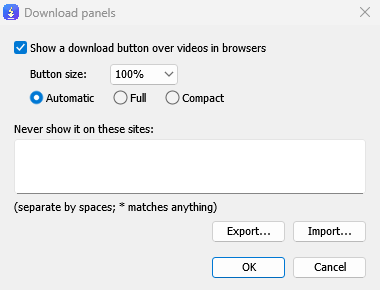
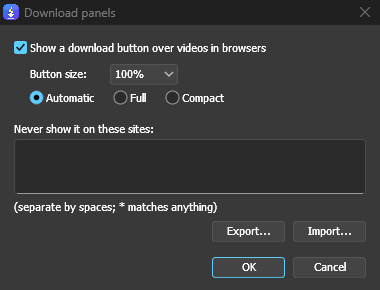
이 단추는 나머지 통합을 따릅니다. 고급 브라우저 통합 사용이 꺼져 있거나 브라우저가 선택 해제된 경우에는 표시되지 않습니다.
강제 또는 방지 캡처 키
Hold Alt (Option on a Mac) while clicking a link to let the browser download it instead of VDM. The extension follows the link as a plain click would, in every browser, and the browser keeps what comes of it: the link opens in the tab, so a site's bot check (Cloudflare's "Just a moment...") runs there first. Without the extension in the way, Chromium browsers and Safari would save the link without opening it, which saves the check's page instead of the file; Firefox would do nothing. When the link redirects, or the page it leads to starts the download by script ("your download starts in 5 seconds"), that download stays with the browser too when it starts within ten seconds; the link's own address, and a download its own page starts (a bot check's page once its check is passed), within a minute. Alt with Ctrl, Shift or Cmd, and the middle button, keep their meaning (a new tab or window). Options → General → Keys... says so, and holds Also take files the browser would open.
사이트의 다운로드를 영구적으로 브라우저에 유지하려면 도구 모음 버튼의 다음에서 다운로드 절대 가져오지 않음을 사용하거나, 다음 사이트에서 자동으로 다운로드 시작 안 함에 사이트를 추가하십시오. 파일 유형을 브라우저에 유지하려면 파일 유형 목록에서 제거하십시오.
When VDM isn't running
You don't need to start VDM first. When the browser hands over a download and VDM isn't running, the helper starts it and passes the download on.
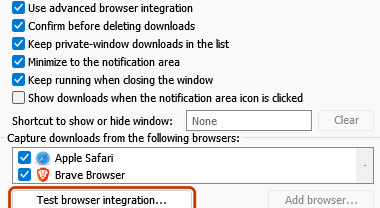
If VDM can't be reached at all (it was uninstalled, or the helper isn't registered), the download stays with the browser, so nothing is lost, and the toolbar button shows a red !. See The browser and VDM aren't connected, or run Options → General → Test browser integration....
다음 단계
무료, 오픈 소스, 광고 없음, 평가판 없음.
Download Volt Download Manager