

With the VDM extension, clicking a download link in your browser hands the download to VDM. VDM gets the address together with the page it came from (the referrer), your cookies for the site and the browser's User-Agent, so downloads that need you to be signed in still work. It also gets the address the browser's own download had reached: when a site refuses VDM the link itself (a one-time link the browser has already used, or a site that lets only browsers ask for its links), VDM goes on from there once, without your cookies if it is another site. When a site's bot check (Cloudflare's, for one) or its refusal of programs (FileHippo's 412 Precondition Failed) turns VDM's own connection away, VDM asks once more connecting the way your browser does (the same handshake, settings and order of headers), with your browser's User-Agent and its cookies for that site only, and downloads on it with as many connections as any download, each asking for its part of the file (on one connection when the site refuses parts there); your proxy, network adapter and speed limits apply as usual. The pieces of a video stream (HLS, DASH) go the same way when the site's check refuses them. Some checks (SourceForge's) refuse anything that calls itself a browser without connecting exactly like one, and let a program that says what it is through: when that connection is refused too, VDM asks once more under its own name (VoltDownloadManager/ and its version, or the User-Agent you typed in Options → Downloads), with the same cookies and referrer, and remembers the site until VDM closes, so its next downloads, and a paused one when it resumes, go that way at once. It solves no challenge: a site that still wants one answered (some Cloudflare checks ask it of every visitor, for the site's pages too) refuses again, and VDM says this site lets only browsers through; Alt+click the link to leave the download to the browser, which opens the link, passes the check and keeps the file.
يعمل الملحق في Google Chrome وMicrosoft Edge وBrave وOpera وVivaldi، وفي Firefox 140 أو أحدث، وفي Safari 17 أو أحدث على Mac (انظر Safari).
Browsers built on them work too: Chromium and Helium take the extension as Chrome does, Brave Origin as Brave does, Zen and LibreWolf as Firefox does. On Windows, Zen has a bug of its own (see The browser and VDM aren't connected).
إعداده
يتكون الربط بالمستعرض من جزأين: برنامج مساعد صغير يتواصل معه المستعرض، والملحق نفسه.
- Install VDM with the setup and keep Set up browser integration (Chrome, Edge, Brave, Firefox) ticked. This registers the helper. (The portable copy can't do this; see Portable mode.) On Linux and macOS VDM registers it itself, each time it starts, for the browsers installed then.
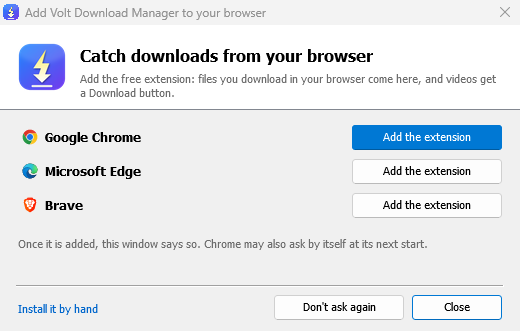
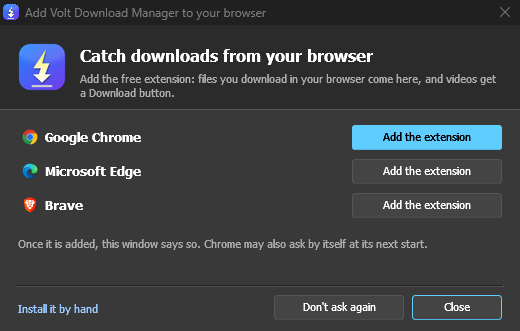
- Add the extension to each browser you use, as below: Firefox from its add-ons store, the others from the Chrome Web Store. On the first start this is a step of the setup window. Until a browser's extension has reached VDM, VDM's Add Volt Download Manager to your browser window opens at each later start: it lists the browsers it found, and Add the extension opens the store's page in that browser. Install it by hand opens the steps for loading it without the store; Don't ask again stops the window.
Firefox
Firefox 140 or later is needed. Install the add-on from its page on addons.mozilla.org, Volt Download Manager: click Add to Firefox. Firefox keeps it updated. Zen and LibreWolf install it from the same page. (VDM's Add Volt Download Manager to your browser window opens that page for you.)
For developers, Firefox can also load the add-on by hand: in about:debugging, This Firefox → Load Temporary Add-on..., choose vdm-firefox.xpi, which comes with VDM: in the extension folder where it is installed on Windows (as below), in /usr/share/voltdownloadmanager from the Linux packages. Firefox keeps that copy only until it restarts, and it doesn't update itself; its toolbar button's popup says so. The add-on from addons.mozilla.org is the one to use.
Chrome وEdge وBrave وOpera وVivaldi
Install the extension from its page in the Chrome Web Store, Volt Download Manager: click Add to Chrome. In Edge the button is Get: Edge first asks to Allow extensions from other stores (click Allow), then Add extension. The browser keeps it updated. VDM's Add Volt Download Manager to your browser window opens that page in each browser for you, and Chrome may offer it by itself at its next start once VDM is installed.
To load it by hand instead (a browser that can't use the store, or a build of your own): its files are in the extension folder where VDM is installed: %LOCALAPPDATA%\Programs\Volt Download Manager\extension if you installed it for yourself, or Program Files\Volt Download Manager\extension if you installed it for everyone. Every release also has them as their own download, ...-extension-chromium.zip (unzip it first).
- افتح صفحة الإضافات:
chrome://extensions،edge://extensionsأوbrave://extensions. - شغل وضع المطور.
- انقر على تحميل غير مضغوط واختر المجلد
extension\chromium.
Volt Download Manager appears in the list. Leave it turned on. Pin its button to the toolbar to see at a glance whether the browser reaches VDM.
هيليوم
تثبت هيليوم الإضافة من نفس الصفحة في سوق Chrome الإلكتروني: انقر على إضافة إلى Chrome. تجلب هيليوم الإضافات عبر خدماتها الخاصة، لذا يعمل هذا فقط طالما كانت مسموحا بها. إذا قالت هيليوم تنزيلات الإضافات معطلة، افتح helium://settings/privacy/services (الإعدادات ← الخصوصية والأمان ← خدمات هيليوم)، وقم بتشغيل السماح بالاتصال بخدمات هيليوم وتنزيلات وتحديثات الإضافات عبر الوكيل، ثم انقر على إضافة إلى Chrome مرة أخرى. مع إيقاف تشغيل هذه الخيارات، قم بتحميل الإضافة يدويا بدلا من ذلك، كما هو موضح أعلاه (chrome://extensions يعمل في هيليوم أيضا).
VDM's setup registers the helper where Helium looks for it, on Windows, Linux and macOS. On Linux and macOS VDM also offers the extension to Helium, through Helium's own services, so with them allowed it arrives by itself at Helium's next start (on macOS Helium asks first: New extension added in its menu, where you turn it on). The Linux packages (.deb, .rpm) leave that to the window below, writing nothing in your home folder. On Windows Helium can't be offered the extension this way: VDM's Add Volt Download Manager to your browser window opens the store's page in Helium when Helium was installed with its setup; Helium from its zip isn't found there, so open the store's page in it yourself. Helium presents itself as Google Chrome, on purpose, so in Options → General → Capture downloads from the following browsers it is Google Chrome.
Safari (macOS)
يحمل تطبيق Mac ملحق Safari: لا يوجد شيء لتنزيله. يلزم Safari 17 أو أحدث وmacOS 14 أو أحدث.
- Drag VDM to Applications and start it once. VDM's Add Volt Download Manager to your browser window lists Safari: How to Add shows the steps below.
- In Safari open Settings → Extensions and tick Volt Download Manager. Click Always Allow on Every Website: the extension needs to read the site to pass your sign-in on.
- بينما لم يتم توثيق التطبيق من قبل Apple (الإصدارات التجريبية ليست كذلك)، يسرد Safari الملحق فقط مع الملحقات غير الموقعة المسموح بها: الإعدادات ← متقدم ← إظهار ميزات لمطوري الويب، ثم الإعدادات ← مطور ← السماح بالملحقات غير الموقعة. ينسى Safari هذا الإعداد في كل مرة يغلق فيها.
لا يسمح Safari للملحق برؤية أو إيقاف تنزيلات المستعرض، لذا يختلف ما يعمل عن المستعرضات الأخرى:
- Works as in the other browsers: the right-click items, the button over videos, Media on this page, the toolbar button, Alt-click, VDM starting by itself, and every rule in Options.
- A click on a link to a file type VDM takes goes to VDM. A download the page starts by itself (a script, or a link with no file name in its address that the server answers with a file) stays with Safari: use right-click → Download with Volt Download Manager for those.
- غير متوفر: مشاركة وكيل المستعرض أو VPN، والتنزيل من نموذج.
من ملف zip عادي
The -x64.zip copy has no installer, but you can register the helper yourself. Open a command prompt in VDM's folder and run:
voltdownloadmanager-nmhost.exe --register
هذا لحساب Windows الخاص بك فقط. يلغي --unregister ذلك. ثم حمل الملحق كما هو موضح أعلاه، من المجلد extension داخل الملف المضغوط.
ما يلزم
When you click a download, the extension checks VDM's Options:
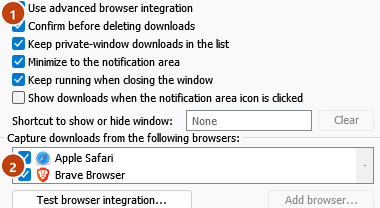
- Options → General → Use advanced browser integration must be on. Turn it off to send nothing to VDM.
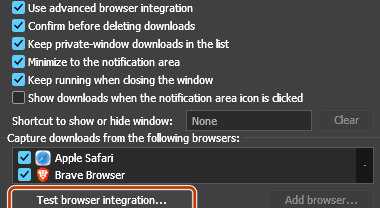
- يجب تحديد مستعرضك في الخيارات → عام → التقاط التنزيلات من المتصفحات التالية.
- يجب أن تسرد الخيارات ← أنواع الملفات ← بدء تنزيل أنواع الملفات التالية تلقائيا نوع الملف. تبدأ القائمة بالأنواع المعتادة: ZIP، RAR، 7Z، EXE، MSI، ISO، DMG، DEB، RPM، APPIMAGE، MP3، MP4، MKV، WEBM، PDF، نماذج الذكاء الاصطناعي مثل GGUF وSAFETENSORS، ملفات ثلاثية الأبعاد مثل GLB وSTL، وغيرها الكثير. يمكن إضافة أي شيء آخر إلى القائمة.
- يجب ألا تسرد الخيارات ← أنواع الملفات ← عدم بدء التنزيل تلقائيا من المواقع التالية الموقع. تفصل الأسماء بمسافات؛ يغطي الاسم نطاقاته الفرعية (
example.comيغطيwww.example.com، كما يغطي*.update.microsoft.comdl.update.microsoft.com؛*يطابق أي شيء، كما في*.example.*)، والملفات التي ترتبط بها صفحات الموقع على خادم آخر (CDN)، والتي يتم تحديدها بواسطة الصفحة التي جاء منها التنزيل (مرجعها). تحرير قائمة ... أسفلها يسرد عناوين كاملة لتركها وشأنها، واحد لكل سطر (https://example.com/private/*). - يترك الخيارات → أنواع الملفات → عدم أخذ الملفات الأصغر من الملفات الصغيرة (مثل إيصال أو أيقونة) للمستعرض. يقبل 0 أي حجم.
- A
.torrentfile goes to VDM only while Tasks → Torrent settings → Open magnet links and .torrent files with Volt Download Manager is on. Off, the browser keeps it and opens it in your own torrent program. See Torrents. - يجب السماح للملحق بقراءة الموقع. إذا قصرت استخدامه على بعض المواقع (أو اخترت عند النقر)، فلن يتمكن من تمرير بيانات تسجيل دخولك، لذا يترك تنزيلات تلك المواقع للمستعرض.
When the browser keeps a download, the extension's button says which of these left it there, with the file's name, and VDM's log has a line for each one (logs\vdm.log in VDM's data folder).
يتحقق من العنوان الذي نقرت عليه ومن العنوان الذي أدت إليه عمليات إعادة التوجيه، لذلك يبقى الموقع الذي استبعدته مستبعدا حتى إذا أرسلك إلى خادم آخر. وتبقى جميع التنزيلات الأخرى في المستعرض. تصل تغييرات الخيارات إلى المستعرض خلال دقيقة؛ ولا تحتاج إلى إعادة تشغيله.
When VDM takes a download, it gets the browser's file name, size and type with it, so Download File Info shows them at once without asking the server again. A download from a form (a button that posts and gets a file back) is posted again by VDM with the form's data; a form that sends a file stays with the browser.
When VDM takes a download, the browser's own copy is cancelled and removed from the browser's download list. In Firefox and the browsers built on it (Waterfox, Zen, LibreWolf), VDM takes it as soon as the server answers, before the browser asks What should … do with this file?: for a file VDM takes, that question never shows (Waterfox asks it for every new type of file). Files VDM doesn't take get the question as before. Download File Info opens in VDM (unless you turned it off in Options → Downloads). Cancelling there doesn't hand the download back to the browser.
Click a download link in the browser: Download File Info opens in VDM. 

«بدء التنزيل»: تعرض نافذة التقدم الملف أثناء تنزيله. 

«اكتمل التنزيل»: افتح الملف أو المجلد. 

A download takes your cookies with it, as the browser sends them: those of the link's site, and of every site the link sent the browser on to (a sign-in step, a file host's download server), the one the download ended at included, with the page's partitioned cookies. Cookies a site sets along the way are kept for the next step, as a browser keeps them. Each site only ever gets its own cookies, and none go from a secure (https) address down to a plain http one.
Downloads from a private window use that window's cookies, never the normal ones, and are kept in VDM's list like any other, so they are still there after a restart (their cookies are never saved). A small mask before a download's status marks it as a private window's; its tip says whether the list keeps it. To keep them in memory only, as the browser keeps its private history, untick Options → General → Keep private-window downloads in the list: then they are gone from the list when VDM closes.
Files VDM downloads from the browser are marked as coming from the internet, as the browser marks its own: Windows checks a program with SmartScreen before it runs and Office opens a document in Protected View. Like the browser, VDM leaves the mark out when Windows' Group Policy Do not preserve zone information in file attachments is on; Options → Save to can turn it off for VDM alone.
الملفات التي قد يفتحها المستعرض
A PDF, a song or a video that the browser would show or play itself goes to VDM too, when its type is in Options → File types (not on the excluded sites). That's one you open from a link or the address bar, and one a page shows in a frame, as many course and document sites show their PDFs. To turn this off, untick Also take files the browser would open in Options → General → Keys.... This needs a Chromium browser (Chrome, Edge, Brave, Opera, Vivaldi) version 128 or later, or Firefox.
A page with a PDF viewer of its own (its own page numbers, zoom and buttons, while the address bar keeps the page's address) reads the file itself and draws it. VDM leaves that file to the page: if VDM took it, the page would get nothing and say the document failed to load. To download such a file, open its address in a tab of its own, or use the page's own download button if it has one.
زر شريط الأدوات
The extension's button shows whether the browser reaches VDM. A red ! means it doesn't; click the button to see why, and How to fix it opens the matching section of The browser and VDM aren't connected. While VDM downloads, the button shows how many downloads are running, in blue; II means taking downloads is paused. Its popup says under VDM's name whether it is connected, and to which version; the gear opens VDM's Options. It has three tabs:
- Downloads: VDM's newest downloads (see Recent downloads, below).
- This page: Media on this page, what the page has loaded that VDM can download (see below), Images on this page (below), and Never take downloads from the current site, a switch: on, the site goes on VDM's excluded sites and the popup says Downloads from the site stay with the browser, whenever you open it there; off takes it off the list again. A site that a pattern of your own in Options excludes (
*.example.com) shows the switch on, and greyed: Options holds it. - Settings: Take downloads from this browser (off pauses: every download stays with the browser until you turn it on again), the browser's proxy (see below), Hide the download button in full screen, Send downloads to (this computer or another VDM, see Remote control), Options... and Open Volt Download Manager.
التنزيلات الأخيرة
Downloads lists VDM's newest downloads, newest first, and keeps them up to date while the popup is open: each with your system's own icon for its file type (as Explorer, Finder or your file manager shows it), its size and what it is doing. A running download shows a progress bar, its speed and the time left; a finished one when it finished; a failed one why; a finished one whose file was deleted or moved since says so. The search box finds downloads by any words of their name or address, and All, Running, Done and Failed show only those (each with how many there are). The popup shows the newest 60 that match; VDM's own window lists them all.
أشر إلى تنزيل (أو وصل إليه باستخدام لوحة المفاتيح) لـ إظهار في المجلد وإيقاف مؤقت أو متابعة. انقر على اسم ملف مكتمل لفتحه. تحتوي قائمة ⋯ الخاصة به على البقية:
- Open, Show in folder: as in VDM; the program or folder opens in front of the browser.
- نسخ الملف: يذهب الملف نفسه إلى الحافظة، كما يضعه نسخ مدير الملفات الخاص بك. الصقه في مجلد، أو محادثة، أو بريد إلكتروني، أو مربع تحميل صفحة ويب (تقبل المستعرضات الملفات الملصقة).
- مشاركة...: ورقة مشاركة نظامك مع الملف (Windows 10 و 11، macOS)، بأي حجم. لا يحتوي Linux على ورقة مشاركة قياسية، لذا لا يتم تقديم المشاركة هناك: استخدم نسخ الملف أو إظهار في المجلد.
- نسخ الرابط: عنوان التنزيل.
- Download again: from the start (a file; videos and torrents have their own way in VDM).
- إزالة من القائمة (يبقى الملف) وحذف ملف...، الذي يسأل أولا: يتم حذف الملف من جهاز الكمبيوتر الخاص بك، ولا يمكن التراجع عن ذلك.
Clear finished takes every finished download off the list; their files stay where they are. When VDM isn't running, the tab says so, with a button to start it.
لا يمكن لنافذة منبثقة سحب ملف من المستعرض إلى برنامج آخر أو صفحة ويب (لا تسمح المستعرضات لنافذة منبثقة لإضافة بحمل ملف حقيقي عند السحب)، لذا فإن نسخ الملف وإظهار في المجلد يقومان بهذه المهمة.
When downloads go to another VDM (a server), the list is that server's: Pause, Resume, Remove from list and Copy link work, and the buttons that need the file on this computer (open it, its folder, copy, share, delete) aren't shown; a line at the top says so.
On Linux, Copy file works in X11 sessions and in Wayland sessions with XWayland (GNOME, KDE and most others have it): VDM keeps the file on the clipboard until something else is copied.
ملحق VPN أو وكيل
A VPN or proxy extension is a proxy for the browser only. Switch on Send downloads through this browser's proxy or VPN extension in the extension's toolbar popup (it's off as installed), and VDM downloads what it takes from the browser through the same proxy (with Options → Proxy / Socks → Use proxy/socks from a browser's request, on by default; see Options). Switched off, the extension reads nothing of the browser's proxy.
- Firefox asks you once, at the switch, to allow the extension to read the browser's proxy; switching it off takes that permission back. VDM gets the proxy the browser's own request for the file took, including the ones a VPN extension picks for each request.
- Chrome, Edge, Brave, Opera and Vivaldi can't ask for that permission at the switch, so the
extension has it from the install (Chrome counts it under the access to every site the extension
already asks for, so it adds no line to the install prompt and the update asks for nothing new).
The switch asks nothing. VDM gets the browser's effective proxy, whoever set it (a VPN or proxy
extension, a policy, the command line): a fixed server for the download's scheme (
http,https,socks4,socks5), unless the address is on its bypass list, or its proxy auto-config script (by its address or inline). With no proxy, or the system's, nothing is sent and VDM goes by its own Options. A QUIC proxy can't be shared.
في كليهما، لا يتم قراءة بيانات تسجيل الدخول للوكيل أبدا: لا يمكن مشاركة وكيل يطلب بيانات تسجيل الدخول الخاصة بملحق VPN، ويشير التنزيل إلى ذلك بدلا من المتابعة بدونه.
الوسائط في هذه الصفحة
تعرض بعض الصفحات فيديو من دون رابط إليه، وتخفيه بعض مشغلات الفيديو عن زر التنزيل أيضا. يعرض زر شريط الأدوات ما حملته الصفحة، لتتمكن من حفظه رغم ذلك:
- البثوث: HLS (
.m3u8) وDASH (.mpd)، وهما الطريقة التي تعرض بها معظم المواقع مقاطع الفيديو الطويلة. يظهر كل بث مرة واحدة، مهما تعددت مستويات الجودة التي انتقل بينها مشغله، مع مستويات الجودة (1080p · 720p) والمدة إذا استطاع الملحق قراءتها. ويعثر أيضا على البث الذي لا ينتهي عنوانه بـ.m3u8أو.mpdويقدم كنص عادي: عندما تفتح القائمة (أو تضغط على زر التنزيل فوق مشغله) بينما يشغل المشغل بثا، يقرأ الملحق أول بضعة كيلوبايتات مما جلبه المشغل للتعرف عليه. لا يقرأ الملحق شيئا حتى تطلب ذلك. - ملفات الفيديو والصوت التي شغلتها الصفحة (MP4 وWebM وMP3 وما شابهها)، مع أحجامها، وحجم الصورة في ملفات الفيديو.
Start the video first: the list fills as the page loads things, and it's emptied when the tab goes
to another page. Each file is listed under the name it will be saved with. A file the site sends
through a program's address (stream.php, remote_control.php, videoplayback, a bare number)
has no name of its own: it's named after the page (The page.mp4; a title's site name at its end,
as in The page | Example, is left out), or after the file= name in
its address when there is one, with the type its server says it is (MP4, not PHP). With Prefix
media file names with the page title on, a file with a name of its own is named after the page,
then that name (The page - clip.mp4). Click Download beside one: a stream opens VDM's Download video from a page
window, which reads its qualities (yt-dlp does the work); a file goes to VDM's list like any other
download. Your cookies for its server, the page as the referrer and your browser's User-Agent go
with it, as they do for a link you click.
Pieces of a stream (its segments) are never listed. A copy-protected stream (DRM: Widevine, PlayReady, FairPlay, as most paid streaming services use) is listed as Protected, with no Download button: no tool may break that protection, and VDM doesn't try.
لا يتطلب هذا منك أي شيء إضافي: فالملحق يرى بالفعل ما ينزله المستعرض لكي ينقل إليه التنزيلات. تبقى المعلومات التي يسجلها في ذاكرة المستعرض وتنسى عند إغلاقه.
الصور في هذه الصفحة
لتنزيل معرض صور، أو كل صورة في صفحة، افتح علامة التبويب هذه الصفحة في زر شريط الأدوات وانقر على البحث عن الصور. لا يتم البحث عن شيء حتى تنقر عليه. يجد الامتداد:
- كل صورة تعرضها الصفحة، بأكبر حجم تسجله الصفحة لها: الصورة المعروضة بعدة أحجام (
srcset،<picture>بمصادرها،1xو2x) يتم العثور عليها مرة واحدة، بأكبرها، وليس بالحجم الذي تعرضه الصفحة بالصدفة؛ - الصورة التي تحملها الصفحة فقط عند التمرير إليها (
data-srcأوdata-srcset)، بجانب العنصر النائب الذي تعرضه حتى ذلك الحين؛ - الروابط التي تؤدي مباشرة إلى صورة، مثل صورة مصغرة تربط بحجمها الكامل.
يتم العثور على كل عنوان مرة واحدة، في الصفحة وفي إطاراتها، كعنوان كامل. الصور المكتوبة في الصفحة نفسها (عناوين data:) وتلك التي أنشأها نص برمجي (blob:) ليست ملفات يمتلكها خادم، لذلك يتم استبعادها. لا يتم البحث عن صور الخلفية التي تحددها أنماط الصفحة.
ثم اختر أيها تريد إرساله:
- على الأقل عرض وارتفاع، بالبكسل، لاستبعاد الأيقونات والصور المصغرة. الصورة التي لا تعطي الصفحة حجمها (واحدة لم يتم تحميلها بعد، أو واحدة مرتبطة بها فقط) يتم الاحتفاظ بها، ويشير السطر الموجود أسفل المرشحات إلى عددها.
- زر لكل نوع تم العثور عليه (JPEG، PNG، WEBP، GIF، AVIF، SVG، ...، أخرى)، مع عدد كل منها: انقر على واحد لاستبعاد هذا النوع، ومرة أخرى لإعادته. النوع هو ما يشير إليه العنوان (امتداد ملفه، أو الصيغة التي يسميها خدمة الصور فيه).
Send to Link grabber hands the kept ones to VDM's Link grabber, the way Download all links does, with the page as their referrer and your cookies for it. Link grabber looks each one up for its real name and size, and you tick there the ones to download.
Right-click: Download with Volt Download Manager
Right-click a link, a video, a sound or a picture and choose Download with Volt Download Manager. VDM downloads it whatever its type: you asked for it, so the file types list and the excluded sites don't apply here (they only decide which downloads VDM takes over by itself). A video that plays as a stream goes to the Download video window with the stream its player loaded (HLS or DASH), as the button over videos sends it, with your cookies for the stream's server and what the browser sent with the stream (its referrer and origin, else the page as the referrer).
Select part of a page and right-click it for Download selected links with Volt Download Manager, or right-click the page for Download all links with Volt Download Manager: the links open in Link grabber, sorted into packages, where you tick the ones you want. A page with tens of thousands of links works too: the extension sends a long list in parts, and Link grabber shows it once they are all in.
تنزيل كل الروابط يرسل أيضا الصور الموجودة في الصفحة وفي إطاراتها (صورها، كل منها بأكبر حجم تسجله الصفحة لها، كما يجدها البحث عن الصور، لا يتم استبعاد أي منها حسب الحجم أو النوع)، وتنزيل الروابط المحددة تلك الموجودة في التحديد. يخفي ملتقط الروابط هذه الصور بينما تكون علامة إخفاء الصور الموجودة في صفحة الويب هذه محددة، كما هي في كل مرة تأتي فيها مثل هذه القائمة: ألغ تحديدها لرؤية الصور وتحديد تلك التي تريدها. الرابط إلى صورة هو رابط ويظهر دائما، حتى عندما تظهر نفس الصورة أيضا في الصفحة. لا يتم إرسال صور الخلفية التي تحددها أنماط الصفحة.
If VDM can't be reached when you choose one of these, the help page opens at the section that explains why.
زر التنزيل فوق مقاطع الفيديو
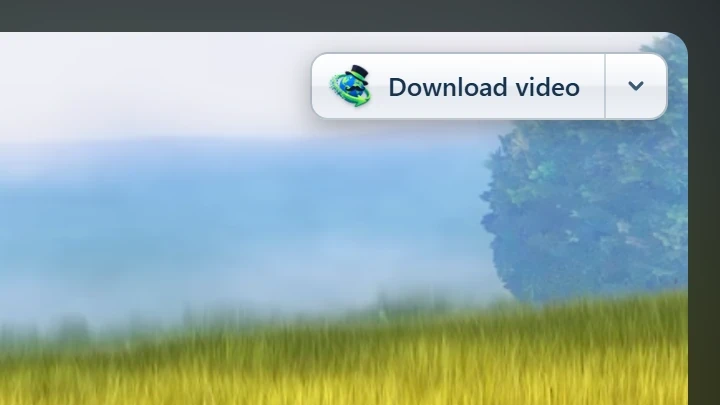
Point at a video on a web page and a small tab appears at its top corner: VDM's logo and a green Download video part, an arrow for its list and ✕ to hide it on this video. It follows Windows' light or dark mode. As it appears, VDM looks the video up (when VDM is running), and the button then names the best quality it found (1080p, 4K). Click it and that quality downloads at once, with only its progress window; VDM's main window stays where it is (with Do not start downloading, only add files to the queue on in Options, it goes in the queue instead). Clicking while VDM is still looking works too: it takes the best quality as soon as it is known. A video that plays a plain file (not a stream) needs no look-up: the button shows its picture size and downloads the file itself. When nothing could be looked up (VDM wasn't running, yt-dlp isn't installed, the page is a playlist, or you send downloads to another VDM), a click opens the Download video from a page window, which says why and offers what to do.
It takes the video you clicked: its own file when it plays one, or the stream the player loaded (HLS or DASH), else the page. A video that hasn't started yet, on a site yt-dlp doesn't read, has loaded no stream: the button then takes the stream address the page wrote for its player (an HLS or DASH playlist in its scripts or the player's attributes; the master playlist, else the best quality it names), on a page with one video, so you don't need to play it first. It only asks for addresses the page names. In a feed it takes the post the video sits in. When VDM finds nothing there (a feed that names no post, a post or a site yt-dlp can't read, such as Douyin's recommended videos), the button offers what the tab played for that video instead: the file or the stream whose length is the video's, never the next video the feed loaded meanwhile. When more than one could be it, it says Can't tell which video this is rather than guess; the toolbar button's Media on this page lists what the page loaded. Embedded players work too, and your sign-in for the site, the page that embeds the player and your browser's User-Agent go with it, so videos for members, or that play only on the site that embeds them, can be downloaded. A stream goes with what the browser sent when the player asked for it, its referrer, its origin and its cookies (a player embedded from another site may have cookies the browser keeps for that page only), and VDM sends them again with each of its playlists and pieces: a site's video server that serves its own pages' players only lets VDM through as well. A video the site names (YouTube, Vimeo and the others yt-dlp reads) keeps its own title; a stream known by no title of its own (its address is only playlist.m3u8) is named after the page you're on, without the site's name at its end: on a page titled A film | Example, it's A film.mp4, even when the player is embedded from another site. Sound players get the button too.
بعد النقر، يذكر ما حدث بلونه الخاص:
- Added to VDM (green), with the quality: Show brings VDM's window up with that download selected.
- افتح المنشور لتنزيله (كهرماني): الفيديو موجود في موجز ولا يمكن تنزيله من هناك. افتح المنشور يفتح المنشور في علامة تبويب جديدة، عندما يعرف الزر ذلك؛ استخدم الزر هناك.
- VDM didn't answer (red): VDM isn't installed or didn't start. Get VDM opens its download page; Retry tries again.
- متوقف في هذا الموقع (رمادي): بعد أبدا على الموقع، أو عندما تبقيه الخيارات متوقفا هناك. تشغيل يظهره على الموقع مرة أخرى.
- فيديو محمي · لا يمكن حفظه (رمادي، مع قفل): فيديو محمي بحقوق النشر (DRM)، لا يمكن لأي أداة حفظه.
يبقى بعيدا عن الطريق: يظهر فقط عندما تحرك المؤشر فوق مقطع فيديو (أو عندما يكون مشغل الفيديو في بؤرة تركيز لوحة المفاتيح؛ ثم تنتقل Tab إلى الزر)، ويصبح باهتا بعد 1.5 ثانية من توقف المؤشر، أو بعد لحظة من مغادرته للفيديو، ويختفي بعد 3 ثوان؛ عندما يكون باهتا، يظل موجودا للعثور عليه، وتوجيه المؤشر إليه يعيده بالكامل. لا يتلاشى أبدا أثناء فتح قائمته، ومع تقليل الحركة في النظام، يتغير دون التلاشي. يستبعد مقاطع الفيديو الصغيرة والحلقات القصيرة الصامتة (الصور المتحركة، الخلفيات). لا يغطي أزرار الصفحة الخاصة: عندما يقع أحدها تحت أي جزء من زاويته (زر ملاحظات المشغل أو إعداداته، زر المشاهدة لاحقا على صورة مصغرة)، فإنه يأخذ الزاوية الحرة التالية ويحتفظ بها بينما يظهر المشغل ويخفي أزراره، لذلك يبقى في مكانه عندما تصل إليه. فوق معاينة يتم تشغيلها بينما يكون المؤشر على صورة مصغرة (الصفحة الرئيسية لـ YouTube، بحث، قناة)، توقف الصفحة المعاينة عندما يصل المؤشر إلى الزر؛ يبقى الزر في مكانه بينما يكون المؤشر عليه، والنقر عليه ينزل فيديو تلك المعاينة. تشغيل الفيديو أو إيقافه مؤقتا لا يعيده. كما هو مثبت (حجم الزر: تلقائي في الخيارات، أدناه)، فإنه يكون فقط شعاره وسهمه و✕ فوق مقطع فيديو في موجز (Facebook، X، LinkedIn، Instagram، Reddit، الصفحة الرئيسية لـ YouTube وما شابه) وفوق مشغل صغير، والزر بأكمله، بكلماته، فوق مشغل كبير مثل صفحة المشاهدة؛ على مقطع فيديو أقل من 360 بكسل عرضا، أو حيث لا تتناسب كلماته، فإنه دائما ما يكون هذا الزر الدائري. كامل يبقي كلماته حيثما تتناسب؛ مدمج يجعله الزر الدائري على كل مقطع فيديو. في وضع ملء الشاشة، يتبع الفيديو عندما يسمح المشغل بذلك، ودخول وضع ملء الشاشة يتركه بعيدا عن الطريق حتى تحرك المؤشر مرة أخرى.
- Its menu (the arrow next to it, or ↓ when the button has the keyboard's focus): the video's title, length and site; its filters, when the qualities differ: All, Video (the picture with its sound) or Audio only, and the file type (MP4, WEBM, M4A, MP3...) or the picture's codec (AV1, VP9, H.264), kept for the site; Download best first (the best of what the filters keep), then one numbered line per quality under VIDEO and AUDIO, with its file type, codec, frame rate or bitrate and size (
1080pMP4 · AV1 · 60 fps, as the Download video window says it), the best one marked, and Most compatible (H.264 + AAC) beside the resolution of the one that plays everywhere (Choose the quality); All qualities and subtitles..., which opens the Download video from a page window; then Put the button back in its corner (once you moved it on the site), Hide on this video (Esc), Hide the download button in full screen, Never on the site (VDM remembers the site), and Button settings..., which opens VDM's Options. The arrow keys move through it, Enter picks, Esc closes it. - نقله: اسحبه من نقاطه إلى أي مكان فوق الفيديو، إلى زاوية أو حافة أخرى، أو خارج المشغل، فوقه أو تحته أو بجانبه (لموقع يغطي مشغله أو يرسم عناصر تحكمه الخاصة حيث سيكون الزر)؛ بالقرب من حافة أو خارجها، تظهر الحافة والنقاط التي يلتصق بها (الزوايا والمنتصف). خارج المشغل يبقى بالداخل على تلك الحافة عندما لا توجد مساحة في النافذة (مشغل في أعلى النافذة، ملء الشاشة). يبقى حيث وضعته على ذلك الموقع؛ تعيده أعد الزر إلى مكانه في القائمة، وتحتوي نافذة الملحق المنبثقة على الإعدادات ← زر التنزيل فوق مقاطع الفيديو ← إعادة تعيين لكل موقع (وفلاتره أيضا).
- Turn it off, make it smaller, or see the sites it stays off: Options → General → Customize VDM Download panels in browsers → Edit.... Button size has a 80%, 100% or 120% scale beside it, and is Automatic as installed (round in a feed and over a small player, its words over a big one), Full (its words wherever they fit) or Compact (only VDM's logo, the arrow and ✕, on every video, as on a small one); after a click it still says what happened in words. Pages already open follow a change within a few seconds, without a reload.
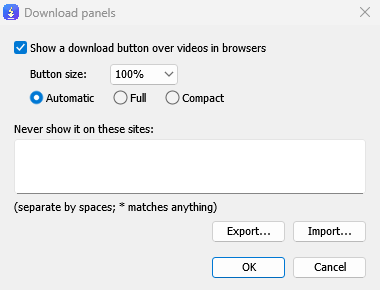
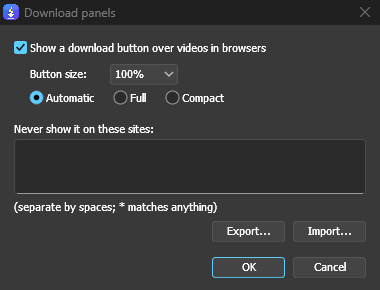
يتبع الزر بقية إعدادات الربط: لا يظهر عندما يكون استخدام الربط المتقدم بالمستعرض متوقفا أو عندما لا يكون المستعرض محددا.
مفاتيح لفرض الالتقاط أو منعه
Hold Alt (Option on a Mac) while clicking a link to let the browser download it instead of VDM. The extension follows the link as a plain click would, in every browser, and the browser keeps what comes of it: the link opens in the tab, so a site's bot check (Cloudflare's "Just a moment...") runs there first. Without the extension in the way, Chromium browsers and Safari would save the link without opening it, which saves the check's page instead of the file; Firefox would do nothing. When the link redirects, or the page it leads to starts the download by script ("your download starts in 5 seconds"), that download stays with the browser too when it starts within ten seconds; the link's own address, and a download its own page starts (a bot check's page once its check is passed), within a minute. Alt with Ctrl, Shift or Cmd, and the middle button, keep their meaning (a new tab or window). Options → General → Keys... says so, and holds Also take files the browser would open.
لإبقاء تنزيلات موقع ما في المستعرض دائما، استخدم خيار عدم أخذ التنزيلات أبدا من في زر شريط الأدوات، أو أضف الموقع إلى قائمة عدم بدء التنزيل تلقائيا من المواقع التالية. ولإبقاء نوع ملف في المستعرض، أزله من قائمة أنواع الملفات.
When VDM isn't running
You don't need to start VDM first. When the browser hands over a download and VDM isn't running, the helper starts it and passes the download on.
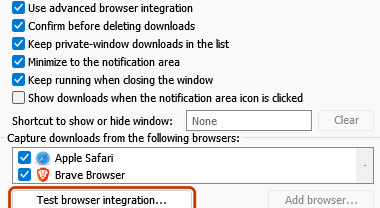
If VDM can't be reached at all (it was uninstalled, or the helper isn't registered), the download stays with the browser, so nothing is lost, and the toolbar button shows a red !. See The browser and VDM aren't connected, or run Options → General → Test browser integration....
الخطوات التالية
- شرح: التقاط التنزيلات من مستعرضك →
- Change which file types VDM takes →
- إذا لم يسلم المستعرض التنزيلات إلى VDM →
مجاني، مفتوح المصدر، بدون إعلانات، بدون فترة تجريبية.
Download Volt Download Manager