

With the VDM extension, clicking a download link in your browser hands the download to VDM. VDM gets the address together with the page it came from (the referrer), your cookies for the site and the browser's User-Agent, so downloads that need you to be signed in still work. It also gets the address the browser's own download had reached: when a site refuses VDM the link itself (a one-time link the browser has already used, or a site that lets only browsers ask for its links), VDM goes on from there once, without your cookies if it is another site. When a site's bot check (Cloudflare's, for one) or its refusal of programs (FileHippo's 412 Precondition Failed) turns VDM's own connection away, VDM asks once more connecting the way your browser does (the same handshake, settings and order of headers), with your browser's User-Agent and its cookies for that site only, and downloads on it with as many connections as any download, each asking for its part of the file (on one connection when the site refuses parts there); your proxy, network adapter and speed limits apply as usual. The pieces of a video stream (HLS, DASH) go the same way when the site's check refuses them. Some checks (SourceForge's) refuse anything that calls itself a browser without connecting exactly like one, and let a program that says what it is through: when that connection is refused too, VDM asks once more under its own name (VoltDownloadManager/ and its version, or the User-Agent you typed in Options → Downloads), with the same cookies and referrer, and remembers the site until VDM closes, so its next downloads, and a paused one when it resumes, go that way at once. It solves no challenge: a site that still wants one answered (some Cloudflare checks ask it of every visitor, for the site's pages too) refuses again, and VDM says this site lets only browsers through; Alt+click the link to leave the download to the browser, which opens the link, passes the check and keeps the file.
Ekstensi ini berfungsi di Google Chrome, Microsoft Edge, Brave, Opera, dan Vivaldi, di Firefox versi 140 atau yang lebih baru, serta di Safari versi 17 atau yang lebih baru di Mac (lihat Safari).
Browsers built on them work too: Chromium and Helium take the extension as Chrome does, Brave Origin as Brave does, Zen and LibreWolf as Firefox does. On Windows, Zen has a bug of its own (see The browser and VDM aren't connected).
Siapkan
Integrasi browser terdiri dari dua bagian: program kecil yang berkomunikasi dengan browser dan ekstensinya.
- Install VDM with the setup and keep Set up browser integration (Chrome, Edge, Brave, Firefox) ticked. This registers the helper. (The portable copy can't do this; see Portable mode.) On Linux and macOS VDM registers it itself, each time it starts, for the browsers installed then.
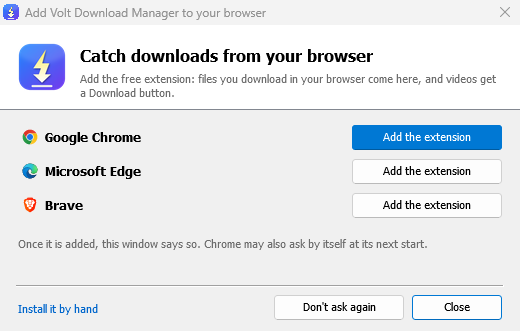
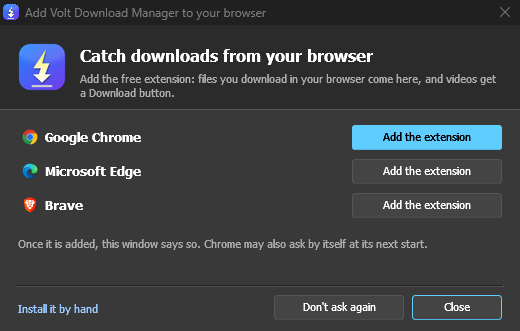
- Add the extension to each browser you use, as below: Firefox from its add-ons store, the others from the Chrome Web Store. On the first start this is a step of the setup window. Until a browser's extension has reached VDM, VDM's Add Volt Download Manager to your browser window opens at each later start: it lists the browsers it found, and Add the extension opens the store's page in that browser. Install it by hand opens the steps for loading it without the store; Don't ask again stops the window.
Firefox
Firefox 140 or later is needed. Install the add-on from its page on addons.mozilla.org, Volt Download Manager: click Add to Firefox. Firefox keeps it updated. Zen and LibreWolf install it from the same page. (VDM's Add Volt Download Manager to your browser window opens that page for you.)
For developers, Firefox can also load the add-on by hand: in about:debugging, This Firefox → Load Temporary Add-on..., choose vdm-firefox.xpi, which comes with VDM: in the extension folder where it is installed on Windows (as below), in /usr/share/voltdownloadmanager from the Linux packages. Firefox keeps that copy only until it restarts, and it doesn't update itself; its toolbar button's popup says so. The add-on from addons.mozilla.org is the one to use.
Chrome, Edge, Brave, Opera, dan Vivaldi
Install the extension from its page in the Chrome Web Store, Volt Download Manager: click Add to Chrome. In Edge the button is Get: Edge first asks to Allow extensions from other stores (click Allow), then Add extension. The browser keeps it updated. VDM's Add Volt Download Manager to your browser window opens that page in each browser for you, and Chrome may offer it by itself at its next start once VDM is installed.
To load it by hand instead (a browser that can't use the store, or a build of your own): its files are in the extension folder where VDM is installed: %LOCALAPPDATA%\Programs\Volt Download Manager\extension if you installed it for yourself, or Program Files\Volt Download Manager\extension if you installed it for everyone. Every release also has them as their own download, ...-extension-chromium.zip (unzip it first).
- Buka halaman ekstensi:
chrome://extensions,edge://extensions, ataubrave://extensions. - Nyalakan Mode pengembang.
- Klik Muat yang belum dikemas dan pilih folder
extension\chromium.
Volt Download Manager appears in the list. Leave it turned on. Pin its button to the toolbar to see at a glance whether the browser reaches VDM.
Helium
Helium menginstal ekstensi dari halaman yang sama di Chrome Web Store: klik Tambahkan ke Chrome. Helium mengambil ekstensi melalui layanannya sendiri, jadi ini hanya berfungsi selama diizinkan. Jika Helium mengatakan Unduhan ekstensi dinonaktifkan, buka helium://settings/privacy/services (Pengaturan → Privasi dan keamanan → Layanan Helium), aktifkan Izinkan koneksi ke layanan Helium dan Proxy unduhan dan pembaruan ekstensi, lalu klik Tambahkan ke Chrome lagi. Jika itu mati, muat ekstensi secara manual, seperti di atas (chrome://extensions juga berfungsi di Helium).
VDM's setup registers the helper where Helium looks for it, on Windows, Linux and macOS. On Linux and macOS VDM also offers the extension to Helium, through Helium's own services, so with them allowed it arrives by itself at Helium's next start (on macOS Helium asks first: New extension added in its menu, where you turn it on). The Linux packages (.deb, .rpm) leave that to the window below, writing nothing in your home folder. On Windows Helium can't be offered the extension this way: VDM's Add Volt Download Manager to your browser window opens the store's page in Helium when Helium was installed with its setup; Helium from its zip isn't found there, so open the store's page in it yourself. Helium presents itself as Google Chrome, on purpose, so in Options → General → Capture downloads from the following browsers it is Google Chrome.
Safari (macOS)
Aplikasi Mac sudah menyertakan ekstensi Safari: tidak ada yang perlu diunduh. Diperlukan Safari 17 atau yang lebih baru dan macOS 14 atau yang lebih baru.
- Drag VDM to Applications and start it once. VDM's Add Volt Download Manager to your browser window lists Safari: How to Add shows the steps below.
- In Safari open Settings → Extensions and tick Volt Download Manager. Click Always Allow on Every Website: the extension needs to read the site to pass your sign-in on.
- Selama aplikasi tidak disahkan oleh Apple (versi eksperimental tidak), Safari hanya mencantumkan ekstensi dengan ekstensi yang tidak ditandatangani diizinkan: Pengaturan → Lanjutan → Tampilkan fitur untuk pengembang web, lalu Pengaturan → Pengembang → Izinkan ekstensi yang tidak ditandatangani. Safari melupakan pengaturan itu setiap kali keluar.
Safari tidak mengizinkan ekstensi untuk melihat maupun menghentikan unduhan browser, jadi cara kerjanya berbeda dari browser lain:
- Works as in the other browsers: the right-click items, the button over videos, Media on this page, the toolbar button, Alt-click, VDM starting by itself, and every rule in Options.
- A click on a link to a file type VDM takes goes to VDM. A download the page starts by itself (a script, or a link with no file name in its address that the server answers with a file) stays with Safari: use right-click → Download with Volt Download Manager for those.
- Tidak tersedia: berbagi proxy atau VPN browser, dan unduhan dari formulir.
Dari file zip biasa
The -x64.zip copy has no installer, but you can register the helper yourself. Open a command prompt in VDM's folder and run:
voltdownloadmanager-nmhost.exe --register
Tindakan ini hanya berlaku untuk akun Windows Anda. --unregister membatalkan pendaftaran. Setelah itu, muat ekstensi seperti di atas dari folder extension di dalam file zip.
Yang diperlukan
When you click a download, the extension checks VDM's Options:
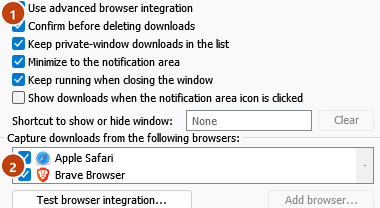
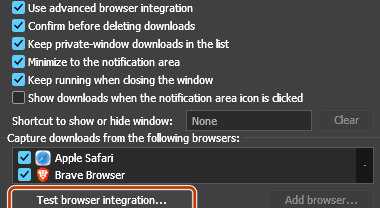
- Options → General → Use advanced browser integration must be on. Turn it off to send nothing to VDM.
- Browser Anda harus dicentang di Opsi → Umum → Tangkap unduhan dari browser berikut.
- Opsi → Jenis file → Mulai mengunduh jenis file berikut secara otomatis harus mencantumkan jenis file tersebut. Daftar ini dimulai dengan yang umum: ZIP, RAR, 7Z, EXE, MSI, ISO, DMG, DEB, RPM, APPIMAGE, MP3, MP4, MKV, WEBM, PDF, model AI seperti GGUF dan SAFETENSORS, file 3D seperti GLB dan STL, dan banyak lagi. Apa pun yang lain dapat ditambahkan ke daftar.
- Opsi → Jenis file → Jangan mulai mengunduh secara otomatis dari situs berikut tidak boleh mencantumkan situs tersebut. Nama dipisahkan oleh spasi; sebuah nama mencakup subdomainnya (
example.commencakupwww.example.com, seperti*.update.microsoft.commencakupdl.update.microsoft.com;*cocok dengan apa pun, seperti dalam*.example.*), dan file yang ditautkan oleh halaman situs di server lain (CDN), yang diberitahukan oleh halaman asal unduhan (referrer-nya). Edit daftar ... di bawahnya mencantumkan seluruh alamat yang harus diabaikan, satu per baris (https://example.com/private/*). - Opsi → Jenis file → Jangan ambil file yang lebih kecil dari membuat browser menangani file kecil (seperti tanda terima atau ikon). Nilai 0 berarti ukuran berapa pun.
- A
.torrentfile goes to VDM only while Tasks → Torrent settings → Open magnet links and .torrent files with Volt Download Manager is on. Off, the browser keeps it and opens it in your own torrent program. See Torrents. - Ekstensi harus diizinkan membaca situs. Jika Anda membatasi aksesnya ke beberapa situs (atau memilih Saat diklik), ekstensi tidak dapat meneruskan informasi login Anda, sehingga unduhan dari situs tersebut tetap ditangani oleh browser.
When the browser keeps a download, the extension's button says which of these left it there, with the file's name, and VDM's log has a line for each one (logs\vdm.log in VDM's data folder).
Alamat yang Anda klik dan alamat tujuan setelah pengalihan sama-sama diperiksa. Jadi, situs yang Anda kecualikan tetap dikecualikan meskipun mengarahkan Anda ke server lain. Unduhan lainnya tetap ditangani oleh browser. Perubahan di Opsi akan diterapkan di browser dalam waktu satu menit; Anda tidak perlu memulai ulang browser.
When VDM takes a download, it gets the browser's file name, size and type with it, so Download File Info shows them at once without asking the server again. A download from a form (a button that posts and gets a file back) is posted again by VDM with the form's data; a form that sends a file stays with the browser.
When VDM takes a download, the browser's own copy is cancelled and removed from the browser's download list. In Firefox and the browsers built on it (Waterfox, Zen, LibreWolf), VDM takes it as soon as the server answers, before the browser asks What should … do with this file?: for a file VDM takes, that question never shows (Waterfox asks it for every new type of file). Files VDM doesn't take get the question as before. Download File Info opens in VDM (unless you turned it off in Options → Downloads). Cancelling there doesn't hand the download back to the browser.
Click a download link in the browser: Download File Info opens in VDM. 

Mulai Unduhan: jendela progres menunjukkan unduhan sedang berlangsung. 

Unduhan selesai: Buka file, atau Buka folder. 

A download takes your cookies with it, as the browser sends them: those of the link's site, and of every site the link sent the browser on to (a sign-in step, a file host's download server), the one the download ended at included, with the page's partitioned cookies. Cookies a site sets along the way are kept for the next step, as a browser keeps them. Each site only ever gets its own cookies, and none go from a secure (https) address down to a plain http one.
Downloads from a private window use that window's cookies, never the normal ones, and are kept in VDM's list like any other, so they are still there after a restart (their cookies are never saved). A small mask before a download's status marks it as a private window's; its tip says whether the list keeps it. To keep them in memory only, as the browser keeps its private history, untick Options → General → Keep private-window downloads in the list: then they are gone from the list when VDM closes.
Files VDM downloads from the browser are marked as coming from the internet, as the browser marks its own: Windows checks a program with SmartScreen before it runs and Office opens a document in Protected View. Like the browser, VDM leaves the mark out when Windows' Group Policy Do not preserve zone information in file attachments is on; Options → Save to can turn it off for VDM alone.
File yang akan dibuka browser
A PDF, a song or a video that the browser would show or play itself goes to VDM too, when its type is in Options → File types (not on the excluded sites). That's one you open from a link or the address bar, and one a page shows in a frame, as many course and document sites show their PDFs. To turn this off, untick Also take files the browser would open in Options → General → Keys.... This needs a Chromium browser (Chrome, Edge, Brave, Opera, Vivaldi) version 128 or later, or Firefox.
A page with a PDF viewer of its own (its own page numbers, zoom and buttons, while the address bar keeps the page's address) reads the file itself and draws it. VDM leaves that file to the page: if VDM took it, the page would get nothing and say the document failed to load. To download such a file, open its address in a tab of its own, or use the page's own download button if it has one.
Tombol bilah alat
The extension's button shows whether the browser reaches VDM. A red ! means it doesn't; click the button to see why, and How to fix it opens the matching section of The browser and VDM aren't connected. While VDM downloads, the button shows how many downloads are running, in blue; II means taking downloads is paused. Its popup says under VDM's name whether it is connected, and to which version; the gear opens VDM's Options. It has three tabs:
- Downloads: VDM's newest downloads (see Recent downloads, below).
- This page: Media on this page, what the page has loaded that VDM can download (see below), Images on this page (below), and Never take downloads from the current site, a switch: on, the site goes on VDM's excluded sites and the popup says Downloads from the site stay with the browser, whenever you open it there; off takes it off the list again. A site that a pattern of your own in Options excludes (
*.example.com) shows the switch on, and greyed: Options holds it. - Settings: Take downloads from this browser (off pauses: every download stays with the browser until you turn it on again), the browser's proxy (see below), Hide the download button in full screen, Send downloads to (this computer or another VDM, see Remote control), Options... and Open Volt Download Manager.
Unduhan terbaru
Downloads lists VDM's newest downloads, newest first, and keeps them up to date while the popup is open: each with your system's own icon for its file type (as Explorer, Finder or your file manager shows it), its size and what it is doing. A running download shows a progress bar, its speed and the time left; a finished one when it finished; a failed one why; a finished one whose file was deleted or moved since says so. The search box finds downloads by any words of their name or address, and All, Running, Done and Failed show only those (each with how many there are). The popup shows the newest 60 that match; VDM's own window lists them all.
Arahkan ke unduhan (atau capai dengan keyboard) untuk Tampilkan di folder dan Jeda atau Lanjutkan. Klik nama file yang sudah selesai untuk membukanya. Menu ⋯ memiliki sisanya:
- Open, Show in folder: as in VDM; the program or folder opens in front of the browser.
- Salin file: file itu sendiri masuk ke papan klip, seperti yang dilakukan Salin pengelola file Anda. Tempelkan ke folder, obrolan, email, atau kotak unggah halaman web (browser menerima file yang ditempel).
- Bagikan...: lembar berbagi sistem Anda dengan file (Windows 10 dan 11, macOS), dalam ukuran berapa pun. Linux tidak memiliki lembar berbagi standar, jadi Bagikan tidak ditawarkan di sana: gunakan Salin file atau Tampilkan di folder.
- Salin tautan: alamat unduhan.
- Download again: from the start (a file; videos and torrents have their own way in VDM).
- Hapus dari daftar (file tetap ada) dan Hapus file..., yang bertanya terlebih dahulu: file dihapus dari komputer Anda, yang tidak dapat dibatalkan.
Clear finished takes every finished download off the list; their files stay where they are. When VDM isn't running, the tab says so, with a button to start it.
Pop-up tidak dapat menyeret file keluar dari browser ke program lain atau halaman web (browser tidak mengizinkan pop-up add-on membawa file sungguhan saat menyeret), jadi Salin file dan Tampilkan di folder melakukan pekerjaan itu.
When downloads go to another VDM (a server), the list is that server's: Pause, Resume, Remove from list and Copy link work, and the buttons that need the file on this computer (open it, its folder, copy, share, delete) aren't shown; a line at the top says so.
On Linux, Copy file works in X11 sessions and in Wayland sessions with XWayland (GNOME, KDE and most others have it): VDM keeps the file on the clipboard until something else is copied.
Ekstensi VPN atau proksi
A VPN or proxy extension is a proxy for the browser only. Switch on Send downloads through this browser's proxy or VPN extension in the extension's toolbar popup (it's off as installed), and VDM downloads what it takes from the browser through the same proxy (with Options → Proxy / Socks → Use proxy/socks from a browser's request, on by default; see Options). Switched off, the extension reads nothing of the browser's proxy.
- Firefox asks you once, at the switch, to allow the extension to read the browser's proxy; switching it off takes that permission back. VDM gets the proxy the browser's own request for the file took, including the ones a VPN extension picks for each request.
- Chrome, Edge, Brave, Opera and Vivaldi can't ask for that permission at the switch, so the
extension has it from the install (Chrome counts it under the access to every site the extension
already asks for, so it adds no line to the install prompt and the update asks for nothing new).
The switch asks nothing. VDM gets the browser's effective proxy, whoever set it (a VPN or proxy
extension, a policy, the command line): a fixed server for the download's scheme (
http,https,socks4,socks5), unless the address is on its bypass list, or its proxy auto-config script (by its address or inline). With no proxy, or the system's, nothing is sent and VDM goes by its own Options. A QUIC proxy can't be shared.
Di keduanya, login proksi tidak pernah dibaca: proksi yang meminta login ekstensi VPN sendiri tidak dapat dibagikan, dan unduhan akan menyatakan demikian daripada berjalan tanpanya.
Media di halaman ini
Beberapa halaman memutar video tanpa tautan ke video tersebut, dan beberapa pemutar juga menyembunyikannya dari tombol unduh. Tombol bilah alat mencantumkan apa yang telah dimuat halaman, sehingga Anda tetap dapat menyimpannya:
- Stream: HLS (
.m3u8) dan DASH (.mpd), cara sebagian besar situs memutar video panjang. Setiap stream terdaftar sekali, tidak peduli berapa banyak kualitas yang diubah oleh pemutarnya, dengan kualitasnya (1080p · 720p) dan durasinya saat ekstensi dapat membacanya. Stream yang alamatnya tidak berakhiran.m3u8atau.mpd, disajikan sebagai teks biasa, juga ditemukan: saat Anda membuka daftar (atau menekan tombol unduh di atas pemutarnya) dan pemutar memutar stream, ekstensi membaca beberapa kilobyte pertama dari apa yang diambil pemutar tersebut untuk mengenalinya. Tidak ada yang dibaca sampai Anda meminta. - File video dan suara yang diputar halaman (MP4, WebM, MP3, dan sejenisnya), dengan ukurannya dan, untuk video, ukuran gambarnya.
Start the video first: the list fills as the page loads things, and it's emptied when the tab goes
to another page. Each file is listed under the name it will be saved with. A file the site sends
through a program's address (stream.php, remote_control.php, videoplayback, a bare number)
has no name of its own: it's named after the page (The page.mp4; a title's site name at its end,
as in The page | Example, is left out), or after the file= name in
its address when there is one, with the type its server says it is (MP4, not PHP). With Prefix
media file names with the page title on, a file with a name of its own is named after the page,
then that name (The page - clip.mp4). Click Download beside one: a stream opens VDM's Download video from a page
window, which reads its qualities (yt-dlp does the work); a file goes to VDM's list like any other
download. Your cookies for its server, the page as the referrer and your browser's User-Agent go
with it, as they do for a link you click.
Pieces of a stream (its segments) are never listed. A copy-protected stream (DRM: Widevine, PlayReady, FairPlay, as most paid streaming services use) is listed as Protected, with no Download button: no tool may break that protection, and VDM doesn't try.
Ini tidak memerlukan apa pun lagi dari Anda: ekstensi sudah melihat apa yang diunduh browser untuk menyerahkan unduhan. Apa yang dicatatnya tetap ada di memori browser dan dilupakan saat browser ditutup.
Gambar di halaman ini
Untuk mengunduh galeri, atau setiap gambar dari sebuah halaman, buka tab Halaman ini pada tombol bilah alat dan klik Cari gambar. Tidak ada yang dicari sampai Anda mengkliknya. Ekstensi menemukan:
- setiap gambar yang ditampilkan halaman, pada ukuran terbesar yang tercantum di halaman: gambar yang ditawarkan dalam beberapa ukuran (sebuah
srcset, sebuah<picture>dengan sumbernya,1xdan2x) ditemukan sekali, pada ukuran terbesarnya, bukan pada ukuran yang kebetulan ditampilkan halaman; - gambar yang dimuat halaman hanya saat Anda menggulir ke sana (
data-srcataudata-srcset), di samping placeholder yang ditampilkannya hingga saat itu; - tautan yang langsung menuju ke gambar, seperti gambar mini yang menautkan ke ukuran penuhnya.
Setiap alamat ditemukan sekali, di halaman dan di bingkainya, sebagai alamat lengkap. Gambar yang ditulis ke dalam halaman itu sendiri (alamat data:) dan yang dibuat oleh skrip (blob:) bukanlah file yang dimiliki server, jadi gambar tersebut ditinggalkan. Gambar latar belakang yang diatur oleh gaya halaman tidak dicari.
Kemudian pilih mana yang akan dikirim:
- Setidaknya lebar dan tinggi, dalam piksel, untuk meninggalkan ikon dan gambar mini. Gambar yang ukurannya tidak diberikan halaman (yang belum dimuat, yang hanya ditautkan) tetap disimpan, dan baris di bawah filter menunjukkan berapa banyak yang ada.
- Tombol untuk setiap jenis yang ditemukan (JPEG, PNG, WEBP, GIF, AVIF, SVG, ..., Lainnya), dengan jumlah masing-masing: klik satu untuk meninggalkan jenis itu, lagi untuk mengambilnya kembali. Jenisnya adalah apa yang dikatakan alamat (ekstensi filenya, atau format yang disebutkan layanan gambar di dalamnya).
Send to Link grabber hands the kept ones to VDM's Link grabber, the way Download all links does, with the page as their referrer and your cookies for it. Link grabber looks each one up for its real name and size, and you tick there the ones to download.
Right-click: Download with Volt Download Manager
Right-click a link, a video, a sound or a picture and choose Download with Volt Download Manager. VDM downloads it whatever its type: you asked for it, so the file types list and the excluded sites don't apply here (they only decide which downloads VDM takes over by itself). A video that plays as a stream goes to the Download video window with the stream its player loaded (HLS or DASH), as the button over videos sends it, with your cookies for the stream's server and what the browser sent with the stream (its referrer and origin, else the page as the referrer).
Select part of a page and right-click it for Download selected links with Volt Download Manager, or right-click the page for Download all links with Volt Download Manager: the links open in Link grabber, sorted into packages, where you tick the ones you want. A page with tens of thousands of links works too: the extension sends a long list in parts, and Link grabber shows it once they are all in.
Unduh semua tautan juga mengirimkan gambar yang terletak di halaman dan di bingkainya (gambarnya, masing-masing pada ukuran terbesar yang tercantum di halaman, seperti yang ditemukan Cari gambar, tidak ada yang ditinggalkan berdasarkan ukuran atau jenis), dan Unduh tautan yang dipilih yang ada dalam pilihan. Pengambil tautan menyembunyikannya saat Sembunyikan gambar yang ada di halaman web ini dicentang, seperti setiap kali daftar seperti itu muncul: hapus centang untuk melihat gambar dan centang yang Anda inginkan. Tautan ke gambar adalah tautan dan selalu ditampilkan, bahkan ketika gambar yang sama juga ditampilkan di halaman. Gambar latar belakang yang diatur oleh gaya halaman tidak dikirim.
If VDM can't be reached when you choose one of these, the help page opens at the section that explains why.
Tombol unduh di atas video
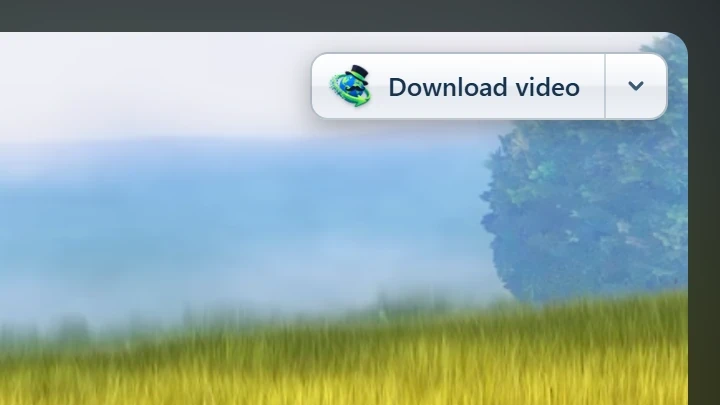
Point at a video on a web page and a small tab appears at its top corner: VDM's logo and a green Download video part, an arrow for its list and ✕ to hide it on this video. It follows Windows' light or dark mode. As it appears, VDM looks the video up (when VDM is running), and the button then names the best quality it found (1080p, 4K). Click it and that quality downloads at once, with only its progress window; VDM's main window stays where it is (with Do not start downloading, only add files to the queue on in Options, it goes in the queue instead). Clicking while VDM is still looking works too: it takes the best quality as soon as it is known. A video that plays a plain file (not a stream) needs no look-up: the button shows its picture size and downloads the file itself. When nothing could be looked up (VDM wasn't running, yt-dlp isn't installed, the page is a playlist, or you send downloads to another VDM), a click opens the Download video from a page window, which says why and offers what to do.
It takes the video you clicked: its own file when it plays one, or the stream the player loaded (HLS or DASH), else the page. A video that hasn't started yet, on a site yt-dlp doesn't read, has loaded no stream: the button then takes the stream address the page wrote for its player (an HLS or DASH playlist in its scripts or the player's attributes; the master playlist, else the best quality it names), on a page with one video, so you don't need to play it first. It only asks for addresses the page names. In a feed it takes the post the video sits in. When VDM finds nothing there (a feed that names no post, a post or a site yt-dlp can't read, such as Douyin's recommended videos), the button offers what the tab played for that video instead: the file or the stream whose length is the video's, never the next video the feed loaded meanwhile. When more than one could be it, it says Can't tell which video this is rather than guess; the toolbar button's Media on this page lists what the page loaded. Embedded players work too, and your sign-in for the site, the page that embeds the player and your browser's User-Agent go with it, so videos for members, or that play only on the site that embeds them, can be downloaded. A stream goes with what the browser sent when the player asked for it, its referrer, its origin and its cookies (a player embedded from another site may have cookies the browser keeps for that page only), and VDM sends them again with each of its playlists and pieces: a site's video server that serves its own pages' players only lets VDM through as well. A video the site names (YouTube, Vimeo and the others yt-dlp reads) keeps its own title; a stream known by no title of its own (its address is only playlist.m3u8) is named after the page you're on, without the site's name at its end: on a page titled A film | Example, it's A film.mp4, even when the player is embedded from another site. Sound players get the button too.
Setelah diklik, tombol ini akan menampilkan apa yang terjadi, dengan warnanya sendiri:
- Added to VDM (green), with the quality: Show brings VDM's window up with that download selected.
- Buka postingan untuk mengunduhnya (kuning): video berada di feed dan tidak dapat diunduh dari sana. Buka postingan akan membuka postingan di tab baru, jika tombol mengetahuinya; gunakan tombol di sana.
- VDM didn't answer (red): VDM isn't installed or didn't start. Get VDM opens its download page; Retry tries again.
- Nonaktif di situs ini (abu-abu): setelah Jangan pernah di situs ini, atau ketika Opsi menonaktifkannya di sana. Nyalakan akan menampilkannya di situs lagi.
- Video terproteksi · tidak dapat disimpan (abu-abu, dengan gembok): video yang dilindungi hak cipta (DRM), yang tidak dapat disimpan oleh alat apa pun.
Tombol ini tidak mengganggu: hanya muncul saat Anda menggerakkan penunjuk di atas video (atau pemutar memiliki fokus keyboard; Tab lalu berpindah ke tombol), memudar 1,5 detik setelah penunjuk berhenti, atau sesaat setelah meninggalkan video, dan menghilang 3 detik kemudian; saat memudar, tombol masih ada untuk ditemukan, dan menunjuknya akan mengembalikannya sepenuhnya. Tombol tidak pernah memudar saat menunya terbuka, dan dengan gerakan sistem yang dikurangi, tombol berubah tanpa memudar. Tombol ini tidak muncul di video kecil dan loop singkat yang dibisukan (gambar animasi, latar belakang). Tombol ini tidak menutupi tombol halaman itu sendiri: ketika ada tombol yang terletak di bawah bagian mana pun dari sudutnya (tombol umpan balik atau pengaturan pemutar, tombol tonton nanti pada thumbnail), tombol ini akan mengambil sudut bebas berikutnya dan mempertahankannya saat pemutar menampilkan dan menyembunyikan tombolnya, sehingga tombol tetap di tempatnya saat Anda meraihnya. Di atas pratinjau yang diputar saat penunjuk berada di thumbnail (halaman beranda YouTube, pencarian, saluran), halaman akan menghentikan pratinjau saat penunjuk mencapai tombol; tombol tetap di tempatnya saat penunjuk berada di atasnya, dan klik akan mengunduh video pratinjau tersebut. Memutar atau menjeda video tidak mengembalikannya. Saat diinstal (Ukuran tombol: Otomatis di Opsi, di bawah), tombol ini hanya berupa logo, panah, dan ✕ di atas video dalam feed (Facebook, X, LinkedIn, Instagram, Reddit, beranda YouTube, dan sejenisnya) dan di atas pemutar kecil, serta seluruh tombol, dengan tulisannya, di atas pemutar besar seperti halaman tonton; pada video di bawah 360 piksel lebar, atau di mana tulisannya tidak muat, tombol ini selalu berupa tombol bulat itu. Penuh mempertahankan tulisannya di mana pun tulisan itu muat; Ringkas menjadikannya tombol bulat di setiap video. Dalam mode layar penuh, tombol ini mengikuti video jika pemutar mengizinkannya, dan memasuki layar penuh akan membuatnya tidak mengganggu sampai Anda menggerakkan penunjuk lagi.
- Its menu (the arrow next to it, or ↓ when the button has the keyboard's focus): the video's title, length and site; its filters, when the qualities differ: All, Video (the picture with its sound) or Audio only, and the file type (MP4, WEBM, M4A, MP3...) or the picture's codec (AV1, VP9, H.264), kept for the site; Download best first (the best of what the filters keep), then one numbered line per quality under VIDEO and AUDIO, with its file type, codec, frame rate or bitrate and size (
1080pMP4 · AV1 · 60 fps, as the Download video window says it), the best one marked, and Most compatible (H.264 + AAC) beside the resolution of the one that plays everywhere (Choose the quality); All qualities and subtitles..., which opens the Download video from a page window; then Put the button back in its corner (once you moved it on the site), Hide on this video (Esc), Hide the download button in full screen, Never on the site (VDM remembers the site), and Button settings..., which opens VDM's Options. The arrow keys move through it, Enter picks, Esc closes it. - Pindahkan: seret dengan titik-titiknya ke titik mana pun di atas video, ke sudut atau tepi lain, atau di luar pemutar, di atas, di bawah, atau di sampingnya (untuk situs yang menutupi pemutarnya atau menggambar kontrolnya sendiri di tempat tombol seharusnya); di dekat tepi atau di luar, tepi dan titik-titik yang menempel padanya (sudut dan tengah) akan terlihat. Di luar pemutar, tombol tetap berada di dalam pada tepi itu saat jendela tidak memiliki ruang di sana (pemutar di bagian atas jendela, layar penuh). Tombol tetap di tempat Anda meletakkannya di situs itu; Kembalikan tombol ke sudut semula di menu mengembalikannya, dan pop-up add-on memiliki Pengaturan → Tombol unduh di atas video → Atur Ulang untuk setiap situs (filternya juga).
- Turn it off, make it smaller, or see the sites it stays off: Options → General → Customize VDM Download panels in browsers → Edit.... Button size has a 80%, 100% or 120% scale beside it, and is Automatic as installed (round in a feed and over a small player, its words over a big one), Full (its words wherever they fit) or Compact (only VDM's logo, the arrow and ✕, on every video, as on a small one); after a click it still says what happened in words. Pages already open follow a change within a few seconds, without a reload.
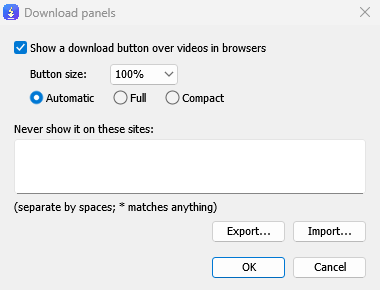
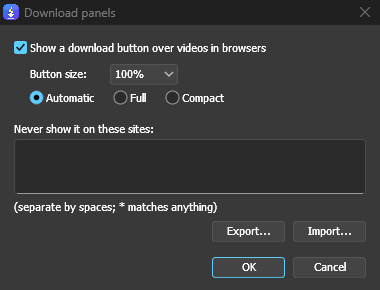
Tombol ini mengikuti integrasi lainnya: tidak akan muncul jika Gunakan integrasi browser tingkat lanjut dimatikan atau browser tidak dicentang.
Tombol untuk memaksa atau mencegah pengambilan
Hold Alt (Option on a Mac) while clicking a link to let the browser download it instead of VDM. The extension follows the link as a plain click would, in every browser, and the browser keeps what comes of it: the link opens in the tab, so a site's bot check (Cloudflare's "Just a moment...") runs there first. Without the extension in the way, Chromium browsers and Safari would save the link without opening it, which saves the check's page instead of the file; Firefox would do nothing. When the link redirects, or the page it leads to starts the download by script ("your download starts in 5 seconds"), that download stays with the browser too when it starts within ten seconds; the link's own address, and a download its own page starts (a bot check's page once its check is passed), within a minute. Alt with Ctrl, Shift or Cmd, and the middle button, keep their meaning (a new tab or window). Options → General → Keys... says so, and holds Also take files the browser would open.
Untuk menyimpan unduhan situs di browser secara permanen, gunakan Jangan pernah mengambil unduhan dari tombol bilah alat, atau tambahkan situs ke Jangan mulai mengunduh secara otomatis dari situs berikut. Untuk menyimpan jenis file di browser, hapus dari daftar jenis file.
When VDM isn't running
You don't need to start VDM first. When the browser hands over a download and VDM isn't running, the helper starts it and passes the download on.
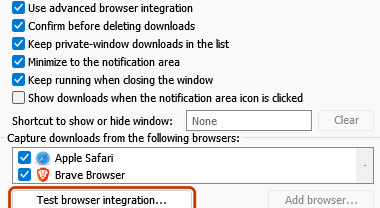
If VDM can't be reached at all (it was uninstalled, or the helper isn't registered), the download stays with the browser, so nothing is lost, and the toolbar button shows a red !. See The browser and VDM aren't connected, or run Options → General → Test browser integration....
Langkah selanjutnya
- Tutorial: menangkap unduhan dari browser Anda →
- Change which file types VDM takes →
- Jika browser tidak menyerahkan unduhan →
Gratis, sumber terbuka, tanpa iklan, tanpa masa uji coba.
Download Volt Download Manager