

With the VDM extension, clicking a download link in your browser hands the download to VDM. VDM gets the address together with the page it came from (the referrer), your cookies for the site and the browser's User-Agent, so downloads that need you to be signed in still work. It also gets the address the browser's own download had reached: when a site refuses VDM the link itself (a one-time link the browser has already used, or a site that lets only browsers ask for its links), VDM goes on from there once, without your cookies if it is another site. When a site's bot check (Cloudflare's, for one) or its refusal of programs (FileHippo's 412 Precondition Failed) turns VDM's own connection away, VDM asks once more connecting the way your browser does (the same handshake, settings and order of headers), with your browser's User-Agent and its cookies for that site only, and downloads on it with as many connections as any download, each asking for its part of the file (on one connection when the site refuses parts there); your proxy, network adapter and speed limits apply as usual. The pieces of a video stream (HLS, DASH) go the same way when the site's check refuses them. Some checks (SourceForge's) refuse anything that calls itself a browser without connecting exactly like one, and let a program that says what it is through: when that connection is refused too, VDM asks once more under its own name (VoltDownloadManager/ and its version, or the User-Agent you typed in Options → Downloads), with the same cookies and referrer, and remembers the site until VDM closes, so its next downloads, and a paused one when it resumes, go that way at once. It solves no challenge: a site that still wants one answered (some Cloudflare checks ask it of every visitor, for the site's pages too) refuses again, and VDM says this site lets only browsers through; Alt+click the link to leave the download to the browser, which opens the link, passes the check and keeps the file.
यह एक्सटेंशन Google Chrome, Microsoft Edge, Brave, Opera और Vivaldi में, Firefox 140 या उसके बाद के संस्करण में, और Mac पर Safari 17 या उसके बाद के संस्करण में काम करता है (देखें Safari)।
Browsers built on them work too: Chromium and Helium take the extension as Chrome does, Brave Origin as Brave does, Zen and LibreWolf as Firefox does. On Windows, Zen has a bug of its own (see The browser and VDM aren't connected).
इसे सेट करें
ब्राउज़र एकीकरण के दो भाग हैं: एक छोटा सहायक प्रोग्राम जिससे ब्राउज़र बात करता है, और एक्सटेंशन स्वयं।
- Install VDM with the setup and keep Set up browser integration (Chrome, Edge, Brave, Firefox) ticked. This registers the helper. (The portable copy can't do this; see Portable mode.) On Linux and macOS VDM registers it itself, each time it starts, for the browsers installed then.
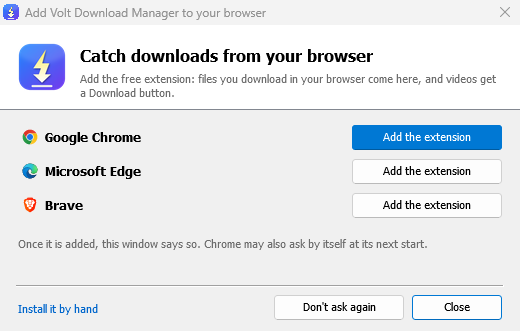
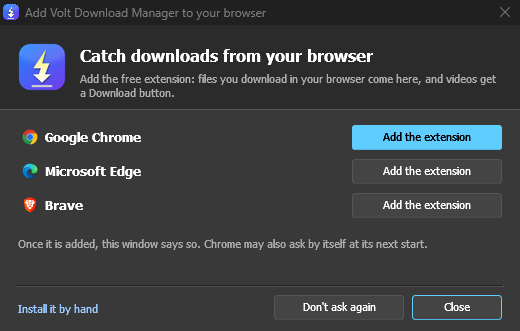
- Add the extension to each browser you use, as below: Firefox from its add-ons store, the others from the Chrome Web Store. On the first start this is a step of the setup window. Until a browser's extension has reached VDM, VDM's Add Volt Download Manager to your browser window opens at each later start: it lists the browsers it found, and Add the extension opens the store's page in that browser. Install it by hand opens the steps for loading it without the store; Don't ask again stops the window.
Firefox
Firefox 140 or later is needed. Install the add-on from its page on addons.mozilla.org, Volt Download Manager: click Add to Firefox. Firefox keeps it updated. Zen and LibreWolf install it from the same page. (VDM's Add Volt Download Manager to your browser window opens that page for you.)
For developers, Firefox can also load the add-on by hand: in about:debugging, This Firefox → Load Temporary Add-on..., choose vdm-firefox.xpi, which comes with VDM: in the extension folder where it is installed on Windows (as below), in /usr/share/voltdownloadmanager from the Linux packages. Firefox keeps that copy only until it restarts, and it doesn't update itself; its toolbar button's popup says so. The add-on from addons.mozilla.org is the one to use.
Chrome, Edge, Brave, Opera और Vivaldi
Install the extension from its page in the Chrome Web Store, Volt Download Manager: click Add to Chrome. In Edge the button is Get: Edge first asks to Allow extensions from other stores (click Allow), then Add extension. The browser keeps it updated. VDM's Add Volt Download Manager to your browser window opens that page in each browser for you, and Chrome may offer it by itself at its next start once VDM is installed.
To load it by hand instead (a browser that can't use the store, or a build of your own): its files are in the extension folder where VDM is installed: %LOCALAPPDATA%\Programs\Volt Download Manager\extension if you installed it for yourself, or Program Files\Volt Download Manager\extension if you installed it for everyone. Every release also has them as their own download, ...-extension-chromium.zip (unzip it first).
- एक्सटेंशन पेज खोलें:
chrome://extensions,edge://extensionsयाbrave://extensions। - डेवलपर मोड चालू करें।
- अनपैक्ड लोड करें पर क्लिक करें और
extension\chromiumफ़ोल्डर चुनें।
Volt Download Manager appears in the list. Leave it turned on. Pin its button to the toolbar to see at a glance whether the browser reaches VDM.
हीलियम
हीलियम Chrome वेब स्टोर में उसी पृष्ठ से एक्सटेंशन स्थापित करता है: Chrome में जोड़ें पर क्लिक करें। हीलियम अपनी सेवाओं के माध्यम से एक्सटेंशन प्राप्त करता है, इसलिए यह तभी काम करता है जब उन्हें अनुमति दी जाती है। यदि हीलियम कहता है एक्सटेंशन डाउनलोड अक्षम हैं, तो helium://settings/privacy/services (सेटिंग्स → गोपनीयता और सुरक्षा → हीलियम सेवाएँ) खोलें, हीलियम सेवाओं से कनेक्ट करने की अनुमति दें और प्रॉक्सी एक्सटेंशन डाउनलोड और अपडेट चालू करें, और फिर से Chrome में जोड़ें पर क्लिक करें। इन्हें बंद करने पर, इसके बजाय एक्सटेंशन को मैन्युअल रूप से लोड करें, जैसा कि ऊपर बताया गया है (chrome://extensions हीलियम में भी काम करता है)।
VDM's setup registers the helper where Helium looks for it, on Windows, Linux and macOS. On Linux and macOS VDM also offers the extension to Helium, through Helium's own services, so with them allowed it arrives by itself at Helium's next start (on macOS Helium asks first: New extension added in its menu, where you turn it on). The Linux packages (.deb, .rpm) leave that to the window below, writing nothing in your home folder. On Windows Helium can't be offered the extension this way: VDM's Add Volt Download Manager to your browser window opens the store's page in Helium when Helium was installed with its setup; Helium from its zip isn't found there, so open the store's page in it yourself. Helium presents itself as Google Chrome, on purpose, so in Options → General → Capture downloads from the following browsers it is Google Chrome.
Safari (macOS)
Mac ऐप में Safari एक्सटेंशन होता है: कुछ भी डाउनलोड करने की आवश्यकता नहीं है। Safari 17 या उसके बाद के संस्करण और macOS 14 या उसके बाद के संस्करण की आवश्यकता है।
- Drag VDM to Applications and start it once. VDM's Add Volt Download Manager to your browser window lists Safari: How to Add shows the steps below.
- In Safari open Settings → Extensions and tick Volt Download Manager. Click Always Allow on Every Website: the extension needs to read the site to pass your sign-in on.
- जब तक ऐप Apple द्वारा नोटराइज़ नहीं किया जाता है (प्रायोगिक बिल्ड नहीं हैं), Safari एक्सटेंशन को केवल अहस्ताक्षरित एक्सटेंशन की अनुमति होने पर ही सूचीबद्ध करता है: सेटिंग्स → उन्नत → वेब डेवलपर्स के लिए सुविधाएँ दिखाएँ, फिर सेटिंग्स → डेवलपर → अहस्ताक्षरित एक्सटेंशन की अनुमति दें। Safari हर बार बंद होने पर उस सेटिंग को भूल जाता है।
Safari एक एक्सटेंशन को ब्राउज़र के डाउनलोड देखने या रोकने की अनुमति नहीं देता है, इसलिए जो काम करता है वह अन्य ब्राउज़रों से अलग है:
- Works as in the other browsers: the right-click items, the button over videos, Media on this page, the toolbar button, Alt-click, VDM starting by itself, and every rule in Options.
- A click on a link to a file type VDM takes goes to VDM. A download the page starts by itself (a script, or a link with no file name in its address that the server answers with a file) stays with Safari: use right-click → Download with Volt Download Manager for those.
- उपलब्ध नहीं: ब्राउज़र के प्रॉक्सी या VPN को साझा करना, और एक फ़ॉर्म से डाउनलोड।
सादे ज़िप से
The -x64.zip copy has no installer, but you can register the helper yourself. Open a command prompt in VDM's folder and run:
voltdownloadmanager-nmhost.exe --register
यह केवल आपके Windows खाते के लिए है। --unregister इसे पूर्ववत करता है। फिर एक्सटेंशन को ऊपर बताए अनुसार, ज़िप के extension फ़ोल्डर से लोड करें।
क्या लगता है
When you click a download, the extension checks VDM's Options:
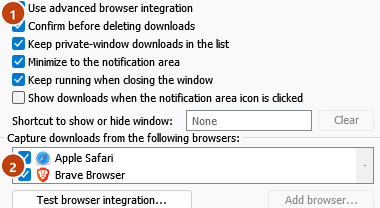
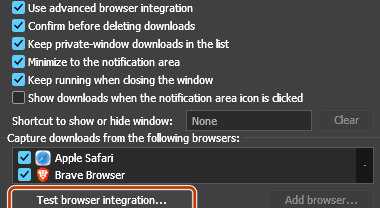
- Options → General → Use advanced browser integration must be on. Turn it off to send nothing to VDM.
- विकल्प → सामान्य → निम्नलिखित ब्राउज़र से डाउनलोड कैप्चर करें में आपका ब्राउज़र टिक किया हुआ होना चाहिए।
- विकल्प → फ़ाइल प्रकार → निम्नलिखित फ़ाइल प्रकारों को स्वचालित रूप से डाउनलोड करना शुरू करें में फ़ाइल का प्रकार सूचीबद्ध होना चाहिए। सूची सामान्य फ़ाइलों से शुरू होती है: ZIP, RAR, 7Z, EXE, MSI, ISO, DMG, DEB, RPM, APPIMAGE, MP3, MP4, MKV, WEBM, PDF, AI मॉडल जैसे GGUF और SAFETENSORS, 3D फ़ाइलें जैसे GLB और STL, और भी बहुत कुछ। सूची में कुछ भी जोड़ा जा सकता है।
- विकल्प → फ़ाइल प्रकार → निम्नलिखित साइटों से स्वचालित रूप से डाउनलोड करना शुरू न करें में साइट सूचीबद्ध नहीं होनी चाहिए। नाम रिक्त स्थान से अलग किए जाते हैं; एक नाम अपने उपडोमेन को कवर करता है (
example.comwww.example.comको कवर करता है, जैसे*.update.microsoft.comdl.update.microsoft.comको कवर करता है;*किसी भी चीज़ से मेल खाता है, जैसे*.example.*में), और फ़ाइलें जो साइट के पृष्ठ किसी अन्य सर्वर (एक CDN) पर लिंक करते हैं, उस पृष्ठ द्वारा बताया जाता है जहाँ से डाउनलोड आया है (उसका रेफरर)। इसके नीचे सूची संपादित करें... उन पूरे पतों को सूचीबद्ध करता है जिन्हें अकेला छोड़ना है, प्रति पंक्ति एक (https://example.com/private/*)। - विकल्प → फ़ाइल प्रकार → इससे छोटी फ़ाइलें न लें छोटी फ़ाइलों (एक रसीद, एक आइकन) को ब्राउज़र के लिए छोड़ देता है। 0 कोई भी आकार लेता है।
- A
.torrentfile goes to VDM only while Tasks → Torrent settings → Open magnet links and .torrent files with Volt Download Manager is on. Off, the browser keeps it and opens it in your own torrent program. See Torrents. - एक्सटेंशन को साइट पढ़ने की अनुमति होनी चाहिए। जब आप इसे कुछ साइटों तक सीमित करते हैं (या क्लिक करने पर), तो यह आपके साइन-इन को पास नहीं कर सकता है, इसलिए यह उन साइटों के डाउनलोड को ब्राउज़र के लिए छोड़ देता है।
When the browser keeps a download, the extension's button says which of these left it there, with the file's name, and VDM's log has a line for each one (logs\vdm.log in VDM's data folder).
आपके द्वारा क्लिक किया गया पता और उसके रीडायरेक्ट द्वारा ले जाया गया पता दोनों की जाँच की जाती है, इसलिए आपके द्वारा बहिष्कृत की गई साइट बहिष्कृत रहती है, भले ही वह आपको किसी अन्य सर्वर पर भेज दे। बाकी सब कुछ ब्राउज़र के साथ रहता है। विकल्पों में परिवर्तन एक मिनट के भीतर ब्राउज़र तक पहुँच जाते हैं; आपको इसे पुनरारंभ करने की आवश्यकता नहीं है।
When VDM takes a download, it gets the browser's file name, size and type with it, so Download File Info shows them at once without asking the server again. A download from a form (a button that posts and gets a file back) is posted again by VDM with the form's data; a form that sends a file stays with the browser.
When VDM takes a download, the browser's own copy is cancelled and removed from the browser's download list. In Firefox and the browsers built on it (Waterfox, Zen, LibreWolf), VDM takes it as soon as the server answers, before the browser asks What should … do with this file?: for a file VDM takes, that question never shows (Waterfox asks it for every new type of file). Files VDM doesn't take get the question as before. Download File Info opens in VDM (unless you turned it off in Options → Downloads). Cancelling there doesn't hand the download back to the browser.
Click a download link in the browser: Download File Info opens in VDM. 

डाउनलोड प्रारंभ करें: प्रगति विंडो में डाउनलोड होते हुए दिखता है। 

डाउनलोड पूरा: फ़ाइल खोलें, या फ़ोल्डर खोलें। 

A download takes your cookies with it, as the browser sends them: those of the link's site, and of every site the link sent the browser on to (a sign-in step, a file host's download server), the one the download ended at included, with the page's partitioned cookies. Cookies a site sets along the way are kept for the next step, as a browser keeps them. Each site only ever gets its own cookies, and none go from a secure (https) address down to a plain http one.
Downloads from a private window use that window's cookies, never the normal ones, and are kept in VDM's list like any other, so they are still there after a restart (their cookies are never saved). A small mask before a download's status marks it as a private window's; its tip says whether the list keeps it. To keep them in memory only, as the browser keeps its private history, untick Options → General → Keep private-window downloads in the list: then they are gone from the list when VDM closes.
Files VDM downloads from the browser are marked as coming from the internet, as the browser marks its own: Windows checks a program with SmartScreen before it runs and Office opens a document in Protected View. Like the browser, VDM leaves the mark out when Windows' Group Policy Do not preserve zone information in file attachments is on; Options → Save to can turn it off for VDM alone.
वे फ़ाइलें जिन्हें ब्राउज़र खोलता
A PDF, a song or a video that the browser would show or play itself goes to VDM too, when its type is in Options → File types (not on the excluded sites). That's one you open from a link or the address bar, and one a page shows in a frame, as many course and document sites show their PDFs. To turn this off, untick Also take files the browser would open in Options → General → Keys.... This needs a Chromium browser (Chrome, Edge, Brave, Opera, Vivaldi) version 128 or later, or Firefox.
A page with a PDF viewer of its own (its own page numbers, zoom and buttons, while the address bar keeps the page's address) reads the file itself and draws it. VDM leaves that file to the page: if VDM took it, the page would get nothing and say the document failed to load. To download such a file, open its address in a tab of its own, or use the page's own download button if it has one.
टूलबार बटन
The extension's button shows whether the browser reaches VDM. A red ! means it doesn't; click the button to see why, and How to fix it opens the matching section of The browser and VDM aren't connected. While VDM downloads, the button shows how many downloads are running, in blue; II means taking downloads is paused. Its popup says under VDM's name whether it is connected, and to which version; the gear opens VDM's Options. It has three tabs:
- Downloads: VDM's newest downloads (see Recent downloads, below).
- This page: Media on this page, what the page has loaded that VDM can download (see below), Images on this page (below), and Never take downloads from the current site, a switch: on, the site goes on VDM's excluded sites and the popup says Downloads from the site stay with the browser, whenever you open it there; off takes it off the list again. A site that a pattern of your own in Options excludes (
*.example.com) shows the switch on, and greyed: Options holds it. - Settings: Take downloads from this browser (off pauses: every download stays with the browser until you turn it on again), the browser's proxy (see below), Hide the download button in full screen, Send downloads to (this computer or another VDM, see Remote control), Options... and Open Volt Download Manager.
हाल के डाउनलोड
Downloads lists VDM's newest downloads, newest first, and keeps them up to date while the popup is open: each with your system's own icon for its file type (as Explorer, Finder or your file manager shows it), its size and what it is doing. A running download shows a progress bar, its speed and the time left; a finished one when it finished; a failed one why; a finished one whose file was deleted or moved since says so. The search box finds downloads by any words of their name or address, and All, Running, Done and Failed show only those (each with how many there are). The popup shows the newest 60 that match; VDM's own window lists them all.
फ़ोल्डर में दिखाएँ और रोकें या फिर से शुरू करें के लिए डाउनलोड पर इंगित करें (या कीबोर्ड से उस तक पहुँचें)। इसे खोलने के लिए एक पूरी हुई फ़ाइल के नाम पर क्लिक करें। इसके ⋯ मेनू में बाकी हैं:
- Open, Show in folder: as in VDM; the program or folder opens in front of the browser.
- फ़ाइल कॉपी करें: फ़ाइल खुद क्लिपबोर्ड पर जाती है, जैसे आपके फ़ाइल प्रबंधक का कॉपी इसे रखता है। इसे एक फ़ोल्डर, एक चैट, एक ई-मेल, या एक वेब पेज के अपलोड बॉक्स में चिपकाएँ (ब्राउज़र चिपकाई गई फ़ाइलों को लेते हैं)।
- साझा करें...: फ़ाइल के साथ आपके सिस्टम की शेयर शीट (Windows 10 और 11, macOS), किसी भी आकार में। Linux में कोई मानक शेयर शीट नहीं है, इसलिए वहाँ साझा करें की पेशकश नहीं की जाती है: फ़ाइल कॉपी करें या फ़ोल्डर में दिखाएँ का उपयोग करें।
- लिंक कॉपी करें: डाउनलोड का पता।
- Download again: from the start (a file; videos and torrents have their own way in VDM).
- सूची से हटाएँ (फ़ाइल वहीं रहती है) और फ़ाइल हटाएँ..., जो पहले पूछता है: फ़ाइल आपके कंप्यूटर से हटा दी जाती है, जिसे पूर्ववत नहीं किया जा सकता।
Clear finished takes every finished download off the list; their files stay where they are. When VDM isn't running, the tab says so, with a button to start it.
एक पॉपअप ब्राउज़र से किसी अन्य प्रोग्राम या वेब पेज में फ़ाइल को खींच नहीं सकता है (ब्राउज़र एक ऐड-ऑन के पॉपअप को ड्रैग पर एक वास्तविक फ़ाइल ले जाने नहीं देते हैं), इसलिए फ़ाइल कॉपी करें और फ़ोल्डर में दिखाएँ वह काम करते हैं।
When downloads go to another VDM (a server), the list is that server's: Pause, Resume, Remove from list and Copy link work, and the buttons that need the file on this computer (open it, its folder, copy, share, delete) aren't shown; a line at the top says so.
On Linux, Copy file works in X11 sessions and in Wayland sessions with XWayland (GNOME, KDE and most others have it): VDM keeps the file on the clipboard until something else is copied.
एक VPN या प्रॉक्सी एक्सटेंशन
A VPN or proxy extension is a proxy for the browser only. Switch on Send downloads through this browser's proxy or VPN extension in the extension's toolbar popup (it's off as installed), and VDM downloads what it takes from the browser through the same proxy (with Options → Proxy / Socks → Use proxy/socks from a browser's request, on by default; see Options). Switched off, the extension reads nothing of the browser's proxy.
- Firefox asks you once, at the switch, to allow the extension to read the browser's proxy; switching it off takes that permission back. VDM gets the proxy the browser's own request for the file took, including the ones a VPN extension picks for each request.
- Chrome, Edge, Brave, Opera and Vivaldi can't ask for that permission at the switch, so the
extension has it from the install (Chrome counts it under the access to every site the extension
already asks for, so it adds no line to the install prompt and the update asks for nothing new).
The switch asks nothing. VDM gets the browser's effective proxy, whoever set it (a VPN or proxy
extension, a policy, the command line): a fixed server for the download's scheme (
http,https,socks4,socks5), unless the address is on its bypass list, or its proxy auto-config script (by its address or inline). With no proxy, or the system's, nothing is sent and VDM goes by its own Options. A QUIC proxy can't be shared.
दोनों में, प्रॉक्सी का लॉगिन कभी नहीं पढ़ा जाता है: एक प्रॉक्सी जो VPN एक्सटेंशन के अपने लॉगिन के लिए पूछता है उसे साझा नहीं किया जा सकता है, और डाउनलोड इसके बिना जाने के बजाय ऐसा कहता है।
इस पृष्ठ का मीडिया
कुछ पृष्ठ किसी लिंक के बिना वीडियो चलाते हैं और कुछ प्लेयर उसे डाउनलोड बटन से भी छिपा देते हैं। टूलबार बटन पृष्ठ पर लोड हुई चीज़ों की सूची दिखाता है, ताकि आप फिर भी उन्हें सहेज सकें:
- स्ट्रीम: HLS (
.m3u8) और DASH (.mpd), जिनके ज़रिए ज़्यादातर साइटें लंबे वीडियो चलाती हैं। हर स्ट्रीम सूची में एक ही बार आती है, चाहे उसका प्लेयर कितनी भी क्वालिटी के बीच बदला हो। एक्सटेंशन उन्हें पढ़ सके, तो उनकी क्वालिटी (1080p · 720p) और अवधि भी दिखाई जाती है। सादे टेक्स्ट के रूप में दी गई ऐसी स्ट्रीम भी मिल जाती है, जिसके पते का अंत.m3u8या.mpdसे नहीं होता। जब आप सूची खोलते हैं (या स्ट्रीम चलाने वाले प्लेयर पर डाउनलोड बटन दबाते हैं), तो एक्सटेंशन स्ट्रीम पहचानने के लिए प्लेयर द्वारा प्राप्त किए गए शुरुआती कुछ किलोबाइट पढ़ता है। आपके कहने से पहले कुछ भी नहीं पढ़ा जाता। - वीडियो और ऑडियो फ़ाइलें जिन्हें पृष्ठ ने चलाया (MP4, WebM, MP3 आदि), उनका आकार और, वीडियो के मामले में, उसका चित्र आकार।
Start the video first: the list fills as the page loads things, and it's emptied when the tab goes
to another page. Each file is listed under the name it will be saved with. A file the site sends
through a program's address (stream.php, remote_control.php, videoplayback, a bare number)
has no name of its own: it's named after the page (The page.mp4; a title's site name at its end,
as in The page | Example, is left out), or after the file= name in
its address when there is one, with the type its server says it is (MP4, not PHP). With Prefix
media file names with the page title on, a file with a name of its own is named after the page,
then that name (The page - clip.mp4). Click Download beside one: a stream opens VDM's Download video from a page
window, which reads its qualities (yt-dlp does the work); a file goes to VDM's list like any other
download. Your cookies for its server, the page as the referrer and your browser's User-Agent go
with it, as they do for a link you click.
Pieces of a stream (its segments) are never listed. A copy-protected stream (DRM: Widevine, PlayReady, FairPlay, as most paid streaming services use) is listed as Protected, with no Download button: no tool may break that protection, and VDM doesn't try.
इसके लिए आपको कुछ और करने की ज़रूरत नहीं है: डाउनलोड VDM को सौंपने के लिए एक्सटेंशन पहले से ही देखता है कि ब्राउज़र क्या डाउनलोड करता है। एक्सटेंशन जो जानकारी नोट करता है, वह ब्राउज़र की मेमोरी में रहती है और ब्राउज़र बंद होने पर मिट जाती है।
इस पृष्ठ पर छवियाँ
एक गैलरी, या पेज की हर तस्वीर डाउनलोड करने के लिए, टूलबार बटन के यह पेज टैब को खोलें और छवियाँ ढूँढें पर क्लिक करें। जब तक आप क्लिक नहीं करते, तब तक कुछ भी नहीं खोजा जाता है। एक्सटेंशन ढूँढता है:
- पेज पर दिखाई गई प्रत्येक तस्वीर, सबसे बड़े आकार में जो पेज उसके लिए सूचीबद्ध करता है: कई आकारों में पेश की गई एक तस्वीर (एक
srcset, उसके स्रोतों के साथ एक<picture>,1xऔर2x) एक बार, उसके सबसे बड़े आकार में मिलती है, न कि उस आकार में जो पेज दिखाता है; - वह तस्वीर जिसे पेज तभी लोड करता है जब आप उस पर स्क्रॉल करते हैं (उसका
data-srcयाdata-srcset), उस प्लेसहोल्डर के बगल में जो वह तब तक दिखाता है; - सीधे तस्वीर पर जाने वाले लिंक, जैसे कि एक थंबनेल जो उसके पूर्ण आकार से जुड़ा होता है।
प्रत्येक पता एक बार, पेज में और उसके फ़्रेम में, एक पूर्ण पते के रूप में पाया जाता है। पेज में ही लिखी गई तस्वीरें (data: पते) और वे जो एक स्क्रिप्ट ने बनाई हैं (blob:) सर्वर पर फ़ाइलें नहीं होती हैं, इसलिए उन्हें छोड़ दिया जाता है। पेज की शैलियों द्वारा सेट की गई पृष्ठभूमि की तस्वीरें नहीं खोजी जाती हैं।
फिर चुनें कि किसे भेजना है:
- आइकन और थंबनेल को छोड़ने के लिए, पिक्सेल में कम से कम एक चौड़ाई और एक ऊँचाई। एक तस्वीर जिसका आकार पेज नहीं देता है (एक जो अभी तक लोड नहीं हुई है, एक जो केवल लिंक की गई है) रखी जाती है, और फ़िल्टर के नीचे की पंक्ति बताती है कि कितनी हैं।
- प्रत्येक प्रकार के लिए एक बटन (JPEG, PNG, WEBP, GIF, AVIF, SVG, ..., अन्य), प्रत्येक की संख्या के साथ: उस प्रकार को छोड़ने के लिए एक पर क्लिक करें, उसे वापस लेने के लिए फिर से क्लिक करें। प्रकार वह है जो पता कहता है (उसका फ़ाइल एक्सटेंशन, या वह प्रारूप जिसे एक छवि सेवा उसमें नाम देती है)।
Send to Link grabber hands the kept ones to VDM's Link grabber, the way Download all links does, with the page as their referrer and your cookies for it. Link grabber looks each one up for its real name and size, and you tick there the ones to download.
Right-click: Download with Volt Download Manager
Right-click a link, a video, a sound or a picture and choose Download with Volt Download Manager. VDM downloads it whatever its type: you asked for it, so the file types list and the excluded sites don't apply here (they only decide which downloads VDM takes over by itself). A video that plays as a stream goes to the Download video window with the stream its player loaded (HLS or DASH), as the button over videos sends it, with your cookies for the stream's server and what the browser sent with the stream (its referrer and origin, else the page as the referrer).
Select part of a page and right-click it for Download selected links with Volt Download Manager, or right-click the page for Download all links with Volt Download Manager: the links open in Link grabber, sorted into packages, where you tick the ones you want. A page with tens of thousands of links works too: the extension sends a long list in parts, and Link grabber shows it once they are all in.
सभी लिंक डाउनलोड करें पेज पर और उसके फ़्रेम में स्थित तस्वीरों को भी भेजता है (उसकी छवियाँ, प्रत्येक सबसे बड़े आकार में जो पेज उसके लिए सूचीबद्ध करता है, जैसे छवियाँ ढूँढें उन्हें ढूँढता है, आकार या प्रकार से कोई भी नहीं छोड़ा जाता है), और चयनित लिंक डाउनलोड करें चयन में उन लोगों को। लिंक ग्रैबर उन्हें तब तक छिपाता है जब तक उसका इस वेब पेज की छवियाँ छिपाना टिक नहीं किया जाता है, जैसा कि हर बार ऐसी सूची आने पर होता है: तस्वीरों को देखने और अपनी इच्छित तस्वीरों को टिक करने के लिए इसे अनटिक करें। एक तस्वीर का लिंक एक लिंक होता है और हमेशा दिखाई देता है, भले ही वही तस्वीर पेज पर भी दिखाई गई हो। पेज की शैलियों द्वारा सेट की गई पृष्ठभूमि की तस्वीरें नहीं भेजी जाती हैं।
If VDM can't be reached when you choose one of these, the help page opens at the section that explains why.
वीडियो पर डाउनलोड बटन
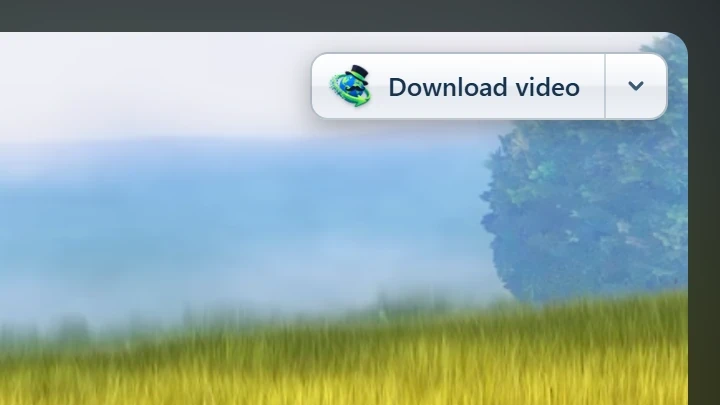
Point at a video on a web page and a small tab appears at its top corner: VDM's logo and a green Download video part, an arrow for its list and ✕ to hide it on this video. It follows Windows' light or dark mode. As it appears, VDM looks the video up (when VDM is running), and the button then names the best quality it found (1080p, 4K). Click it and that quality downloads at once, with only its progress window; VDM's main window stays where it is (with Do not start downloading, only add files to the queue on in Options, it goes in the queue instead). Clicking while VDM is still looking works too: it takes the best quality as soon as it is known. A video that plays a plain file (not a stream) needs no look-up: the button shows its picture size and downloads the file itself. When nothing could be looked up (VDM wasn't running, yt-dlp isn't installed, the page is a playlist, or you send downloads to another VDM), a click opens the Download video from a page window, which says why and offers what to do.
It takes the video you clicked: its own file when it plays one, or the stream the player loaded (HLS or DASH), else the page. A video that hasn't started yet, on a site yt-dlp doesn't read, has loaded no stream: the button then takes the stream address the page wrote for its player (an HLS or DASH playlist in its scripts or the player's attributes; the master playlist, else the best quality it names), on a page with one video, so you don't need to play it first. It only asks for addresses the page names. In a feed it takes the post the video sits in. When VDM finds nothing there (a feed that names no post, a post or a site yt-dlp can't read, such as Douyin's recommended videos), the button offers what the tab played for that video instead: the file or the stream whose length is the video's, never the next video the feed loaded meanwhile. When more than one could be it, it says Can't tell which video this is rather than guess; the toolbar button's Media on this page lists what the page loaded. Embedded players work too, and your sign-in for the site, the page that embeds the player and your browser's User-Agent go with it, so videos for members, or that play only on the site that embeds them, can be downloaded. A stream goes with what the browser sent when the player asked for it, its referrer, its origin and its cookies (a player embedded from another site may have cookies the browser keeps for that page only), and VDM sends them again with each of its playlists and pieces: a site's video server that serves its own pages' players only lets VDM through as well. A video the site names (YouTube, Vimeo and the others yt-dlp reads) keeps its own title; a stream known by no title of its own (its address is only playlist.m3u8) is named after the page you're on, without the site's name at its end: on a page titled A film | Example, it's A film.mp4, even when the player is embedded from another site. Sound players get the button too.
एक क्लिक के बाद यह अपनी रंग में बताता है कि क्या हुआ:
- Added to VDM (green), with the quality: Show brings VDM's window up with that download selected.
- इसे डाउनलोड करने के लिए पोस्ट खोलें (एम्बर): वीडियो एक फ़ीड में है और वहां से डाउनलोड नहीं किया जा सकता है। पोस्ट खोलें एक नए टैब में पोस्ट खोलता है, जब बटन इसे जानता है; वहां बटन का उपयोग करें।
- VDM didn't answer (red): VDM isn't installed or didn't start. Get VDM opens its download page; Retry tries again.
- इस साइट पर बंद है (ग्रे): साइट पर कभी नहीं के बाद, या जब विकल्प इसे वहां बंद रखते हैं। चालू करें इसे साइट पर फिर से दिखाता है।
- सुरक्षित वीडियो · सहेजा नहीं जा सकता (ग्रे, एक लॉक के साथ): एक कॉपी-सुरक्षित वीडियो (DRM), जिसे कोई भी टूल सहेज नहीं सकता।
यह रास्ते में नहीं आता है: यह केवल तब दिखाई देता है जब आप पॉइंटर को किसी वीडियो पर ले जाते हैं (या प्लेयर पर कीबोर्ड का फ़ोकस होता है; Tab फिर बटन पर चला जाता है), पॉइंटर रुकने के 1.5 सेकंड बाद या वीडियो छोड़ने के तुरंत बाद हल्का हो जाता है, और 3 सेकंड बाद गायब हो जाता है; हल्का होने पर भी यह खोजने के लिए वहीं रहता है, और उस पर पॉइंट करने से यह पूरा वापस आ जाता है। जब इसका मेनू खुला होता है तो यह कभी फीका नहीं पड़ता, और सिस्टम की कम गति के साथ यह फीका हुए बिना बदल जाता है। यह छोटे वीडियो और छोटी म्यूट लूप (एनिमेटेड चित्र, पृष्ठभूमि) को छोड़ देता है। यह पृष्ठ के अपने बटनों को नहीं ढकता है: जब कोई इसके कोने के किसी भी हिस्से के नीचे होता है (एक प्लेयर का फ़ीडबैक या सेटिंग्स बटन, एक थंबनेल का बाद में देखें बटन), तो यह अगला खाली कोना लेता है और उसे तब तक रखता है जब तक प्लेयर अपने बटन दिखाता और छिपाता है, ताकि जब आप उस तक पहुँचें तो वह वहीं रहे। एक ऐसे पूर्वावलोकन पर जो थंबनेल पर पॉइंटर होने पर चलता है (YouTube का होम पेज, एक खोज, एक चैनल), पृष्ठ पूर्वावलोकन को रोक देता है जैसे ही पॉइंटर बटन तक पहुँचता है; पॉइंटर उस पर होने पर बटन वहीं रहता है जहाँ वह था, और एक क्लिक उस पूर्वावलोकन के वीडियो को डाउनलोड करता है। वीडियो चलाने या रोकने से यह वापस नहीं आता है। जैसा कि स्थापित है (नीचे विकल्प में बटन का आकार: स्वचालित), यह केवल इसका लोगो, इसका तीर और ✕ एक फ़ीड में वीडियो पर (Facebook, X, LinkedIn, Instagram, Reddit, YouTube का होम और इसी तरह) और एक छोटे प्लेयर पर, और पूरा बटन, अपने शब्दों के साथ, एक बड़े प्लेयर पर जैसे कि एक वॉच पेज का; 360 पिक्सेल से कम चौड़े वीडियो पर, या जहाँ इसके शब्द फिट नहीं होते, यह हमेशा वह गोल बटन होता है। पूर्ण इसके शब्दों को जहाँ भी वे फिट होते हैं, रखता है; कॉम्पैक्ट इसे हर वीडियो पर गोल बटन बनाता है। फ़ुलस्क्रीन में यह वीडियो का अनुसरण करता है जब प्लेयर इसकी अनुमति देता है, और फ़ुल स्क्रीन में प्रवेश करने पर यह तब तक रास्ते में नहीं आता जब तक आप पॉइंटर को फिर से नहीं हिलाते।
- Its menu (the arrow next to it, or ↓ when the button has the keyboard's focus): the video's title, length and site; its filters, when the qualities differ: All, Video (the picture with its sound) or Audio only, and the file type (MP4, WEBM, M4A, MP3...) or the picture's codec (AV1, VP9, H.264), kept for the site; Download best first (the best of what the filters keep), then one numbered line per quality under VIDEO and AUDIO, with its file type, codec, frame rate or bitrate and size (
1080pMP4 · AV1 · 60 fps, as the Download video window says it), the best one marked, and Most compatible (H.264 + AAC) beside the resolution of the one that plays everywhere (Choose the quality); All qualities and subtitles..., which opens the Download video from a page window; then Put the button back in its corner (once you moved it on the site), Hide on this video (Esc), Hide the download button in full screen, Never on the site (VDM remembers the site), and Button settings..., which opens VDM's Options. The arrow keys move through it, Enter picks, Esc closes it. - इसे स्थानांतरित करें: इसे इसके बिंदुओं से वीडियो पर किसी भी स्थान पर, दूसरे कोने या किनारे पर, या प्लेयर के बाहर, ऊपर, नीचे या बगल में खींचें (एक ऐसी साइट के लिए जो अपने प्लेयर को कवर करती है या अपने स्वयं के नियंत्रण बनाती है जहाँ बटन होगा); एक किनारे के पास या बाहर, किनारा और वे स्थान जहाँ यह चिपकता है (कोने और मध्य) दिखाई देते हैं। प्लेयर के बाहर यह उस किनारे पर अंदर रहता है जब विंडो में वहाँ जगह नहीं होती है (विंडो के शीर्ष पर एक प्लेयर, पूर्ण स्क्रीन)। यह वहीं रहता है जहाँ आपने इसे उस साइट पर रखा था; मेनू का बटन को वापस उसके कोने में रखें इसे वापस लाता है, और ऐड-ऑन के पॉपअप में हर साइट के लिए सेटिंग्स → वीडियो पर डाउनलोड बटन → रीसेट होता है (इसके फ़िल्टर भी)।
- Turn it off, make it smaller, or see the sites it stays off: Options → General → Customize VDM Download panels in browsers → Edit.... Button size has a 80%, 100% or 120% scale beside it, and is Automatic as installed (round in a feed and over a small player, its words over a big one), Full (its words wherever they fit) or Compact (only VDM's logo, the arrow and ✕, on every video, as on a small one); after a click it still says what happened in words. Pages already open follow a change within a few seconds, without a reload.
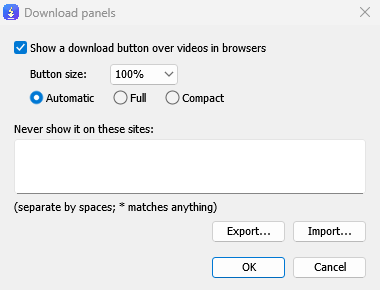
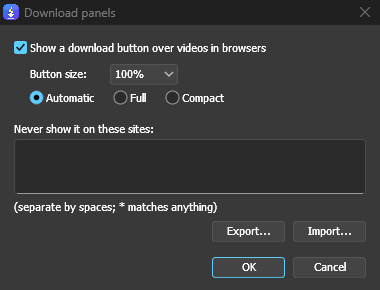
यह बटन बाकी एकीकरण की सेटिंग के अनुसार काम करता है: उन्नत ब्राउज़र एकीकरण का उपयोग करें बंद होने या ब्राउज़र का चयन न होने पर यह दिखाई नहीं देता।
डाउनलोड लेने के लिए बाध्य करने या रोकने की कुंजियाँ
Hold Alt (Option on a Mac) while clicking a link to let the browser download it instead of VDM. The extension follows the link as a plain click would, in every browser, and the browser keeps what comes of it: the link opens in the tab, so a site's bot check (Cloudflare's "Just a moment...") runs there first. Without the extension in the way, Chromium browsers and Safari would save the link without opening it, which saves the check's page instead of the file; Firefox would do nothing. When the link redirects, or the page it leads to starts the download by script ("your download starts in 5 seconds"), that download stays with the browser too when it starts within ten seconds; the link's own address, and a download its own page starts (a bot check's page once its check is passed), within a minute. Alt with Ctrl, Shift or Cmd, and the middle button, keep their meaning (a new tab or window). Options → General → Keys... says so, and holds Also take files the browser would open.
किसी साइट के डाउनलोड हमेशा ब्राउज़र में ही रखने के लिए, टूलबार बटन का इस साइट से डाउनलोड कभी न लें विकल्प चुनें, या साइट को निम्नलिखित साइटों से डाउनलोड अपने-आप शुरू न करें में जोड़ें। किसी फ़ाइल प्रकार को ब्राउज़र में ही रखने के लिए, उसे फ़ाइल प्रकारों की सूची से हटाएँ।
When VDM isn't running
You don't need to start VDM first. When the browser hands over a download and VDM isn't running, the helper starts it and passes the download on.
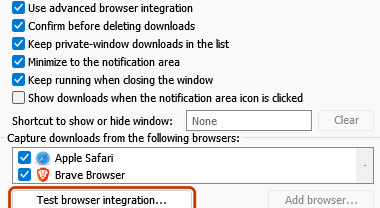
If VDM can't be reached at all (it was uninstalled, or the helper isn't registered), the download stays with the browser, so nothing is lost, and the toolbar button shows a red !. See The browser and VDM aren't connected, or run Options → General → Test browser integration....
अगले चरण
- ट्यूटोरियल: ब्राउज़र से डाउनलोड VDM को सौंपें →
- Change which file types VDM takes →
- अगर ब्राउज़र डाउनलोड VDM को नहीं सौंपता →
मुफ़्त, ओपन सोर्स, कोई विज्ञापन नहीं, कोई ट्रायल नहीं।
Download Volt Download Manager