

पहले, देखें कि क्या हुआ
हर डाउनलोड अपनी हाल की घटनाओं का एक लॉग रखता है: पुनः प्रयास, रीडायरेक्ट, सर्वर के उत्तर और त्रुटियाँ।
- उन्हें देखने के लिए सूची में डाउनलोड की स्थिति पर होवर करें।
- या इसकी प्रगति विंडो खोलें (एक अधूरी डाउनलोड पर डबल-क्लिक करें)। कनेक्शन तालिका दिखाती है कि प्रत्येक कनेक्शन क्या कर रहा है, और जब कोई विफल होता है तो कारण के साथ पुनः प्रयास कर रहा है।
- फ़ाइल गुण (Alt+Enter) अंतिम प्रयास और उसका परिणाम दिखाता है।
एक डाउनलोड त्रुटि दिखाता है
- कारण पढ़ें (स्थिति पर होवर करें)।
- डाउनलोड का चयन करें और फिर से शुरू करें पर क्लिक करें। कई त्रुटियाँ सर्वर या कनेक्शन के खराब क्षण होने के कारण होती हैं।
- If the link has expired (common for links from sites you sign in to, or links with a time limit in them), get a new one: right-click → Refresh download address, then start the download again in the browser, and VDM gives its new address to the download that waits for it, which continues (a Rapidgator download waits by itself: starting it again in the browser is enough). See Resume a broken download.
- If it says the file changed on the server, the file isn't the one VDM started with. Right-click → Redownload to start again from the beginning.
- अगर यह कहता है कि Google Drive यह फ़ाइल अभी नहीं देगा, तो उस फ़ाइल के लिए Drive की डाउनलोड सीमा पूरी हो गई है। Google Drive लिंक देखें।
- If it says this site lets only browsers through, the site's bot check (Cloudflare's, for one) turned VDM away. VDM has already asked once more connecting the way your browser does, with your browser's cookies for that site, and once under its own name (some checks let a program that says what it is through), and the site still wants its check answered in a browser. Hold Alt (Option on a Mac) as you click the link: the browser opens it in the tab, runs the site's check there ("Just a moment...", sometimes a box to tick), and keeps the download that comes after it. VDM leaves that download alone for a minute after your click. See Browser integration.
- If it says the site sent a web page instead of the file, the link led to the site's own page: a file host's countdown, a captcha, a Download button to press, or a sign-in. VDM never saves that page as your file. Click Open in browser in the download's progress window (or open the link yourself), finish there, and when the browser starts the real download, VDM's extension hands it to VDM. Without the extension, let the browser download it.
एक डाउनलोड “क्षतिग्रस्त” दिखाता है
इसके संग्रह के परीक्षण में ऐसी फ़ाइलें मिलीं जो पूरी तरह से वापस नहीं पढ़ी जा सकतीं (संग्रहों का परीक्षण करना): यह देखने के लिए स्थिति पर होवर करें कि कौन सी।
- राइट-क्लिक करें → फिर से डाउनलोड करें (या क्षतिग्रस्त संग्रह विंडो का फिर से डाउनलोड करें) इसे शुरू से फिर से डाउनलोड करता है।
- A ZIP whose damaged parts VDM downloaded again and still came damaged, or a 7z or RAR that is damaged again after a Redownload, is probably damaged on the server itself: ask the site for another copy.
- इसे हाथ से फिर से परीक्षण करने के लिए, राइट-क्लिक करें → संग्रह का परीक्षण करें।
एक डाउनलोड फिर से शुरू होने के बजाय फिर से शुरू होता है
- Look at Resume capability in the progress window. No means the server can't send a file in parts, so VDM can't continue it later.
- कुछ सर्वर हर बार एक ही फ़ाइल के लिए एक नई तारीख की रिपोर्ट करते हैं। विकल्प → डाउनलोड → डाउनलोड फिर से शुरू करते समय फ़ाइल संशोधन समय परिवर्तनों को अनदेखा करें पर टिक करें।
डाउनलोड धीमे हैं
- जांचें कि गति सीमित करने वाला बंद है: डाउनलोड → गति सीमित करने वाला → बंद करें। डाउनलोड → गति सीमित करने वाला → सेटिंग्स... → सभी डाउनलोड को एक साथ सीमित करें भी देखें, जो सीमित करने वाले के बंद होने पर भी लागू होता है।
- इसकी प्रगति विंडो में डाउनलोड के अपने गति सीमित करने वाला टैब की जाँच करें।
- Check Options → Connection. A low Default max. conn. number, or an exception for the server, means fewer connections. Rows marked (auto) are servers that refused more connections; VDM can't do more there.
- शेड्यूलर में डाउनलोड सीमाएँ की जाँच करें। जब सीमा पहुँच जाती है, तो डाउनलोड प्रतीक्षा कर रहा है: डाउनलोड सीमा पहुँच गई है (शेड्यूलर) के साथ प्रतीक्षा करते हैं।
The browser doesn't send downloads to VDM
- Was VDM installed with the setup, with Set up browser integration ticked? A portable copy can't take browser downloads. Run the setup again to add it.
- Is the extension loaded and turned on? Look for Volt Download Manager on the browser's extensions page. In Firefox, install it from addons.mozilla.org: a temporary add-on is gone after a restart. See Browser integration.
- क्या विकल्प → सामान्य → उन्नत ब्राउज़र एकीकरण का उपयोग करें चालू है, और आपका ब्राउज़र निम्नलिखित ब्राउज़रों से डाउनलोड कैप्चर करें के तहत टिक किया गया है?
- Is the file's type in Options → File types? Only listed types are taken automatically. Download with Volt Download Manager on the right-click menu takes any link.
- क्या साइट निम्नलिखित साइटों से स्वचालित रूप से डाउनलोड करना शुरू न करें में है?
When none of this helps, the browser keeps the download, so nothing is lost. The extension's toolbar button says why it couldn't reach VDM; see The browser and VDM aren't connected.
शेड्यूलर ने कतार शुरू नहीं की
- VDM must be running at that time. Closing the window is fine (it stays in the tray); Tasks → Exit is not.
- क्या आपने समय निर्धारित करने के बाद लागू करें पर क्लिक किया?
- दैनिक केवल चुने गए दिनों में शुरू होता है। एक बार, समय: केवल उसी तारीख पर शुरू होता है।
- एक कंप्यूटर जो स्लीप मोड में है, वह तब तक कुछ भी नहीं चलाता जब तक वह जाग न जाए, जब तक कि कतार में इस कतार को चलाने के लिए कंप्यूटर को जगाएँ पर टिक न किया गया हो (Windows पर इसके लिए पावर प्लान में वेक टाइमर की अनुमति दें की आवश्यकता होती है; शेड्यूलर बताता है कि यह कब बंद है)। कतार चलाने के लिए कंप्यूटर को जगाएँ देखें।
एक वीडियो डाउनलोड नहीं हो रहा है
यदि कोई वीडियो डाउनलोड नहीं हो रहा है देखें।
एक मैग्नेट लिंक में बहुत समय लगता है
A magnet link has to get the torrent's file list from other peers first. That can take a minute or two, and longer for torrents with few peers. If nobody answers in about three minutes, VDM gives up; try again later, or use the .torrent file if the site offers one.
VDM uses a lot of memory
टास्क मैनेजर कई आंकड़े दिखाता है, और उनका मतलब अलग-अलग होता है:
- Memory (on the Processes tab) is what VDM holds for itself alone, its private working set. With the window open and nothing downloading, that is about 70 MB.
- Working set (Details tab, add the column) adds memory shared with other programs. VDM draws its windows with the graphics card, so the graphics driver's memory counts here too, about 120 MB in all.
- Commit size is memory VDM has reserved, whether in use or not.
Closed to the notification area, VDM gives its memory back to Windows: Memory drops to under 10 MB within seconds and stays low while it waits. Downloads, queues and the scheduler go on as before. The list of every language (View → Language) loads fonts for every script while it's open; VDM lets them go when it closes.
टेक्स्ट बहुत छोटा या धुंधला है
VDM keeps Internet Download Manager's compact sizes. On a large or high-resolution screen, choose View → Interface size (110 %, 115 %, 120 %, 125 %, 150 %, 175 % or 200 %), or press Ctrl + and Ctrl − in any VDM window, as in a browser; Ctrl 0 goes back to 100 %. Every window follows at once, and VDM starts at that size next time. It comes on top of Windows' own display scale (Settings → System → Display → Scale).
Where only the letters are too small, the sizes under View → Font draw the interface's text larger (or smaller) on its own: from 75 % to 150 % of the theme's sizes. The windows keep their compact layout, so nothing is pushed off the screen; the text is simply larger in the same place. View → Font also draws every window's text in a font file of your own (Choose a font file..., a TrueType, OpenType or collection file), and System font goes back to Segoe UI (Windows) or the computer's own font. While a file is in use, its own name sits checked in the menu, so what is on is always said. Both choices are saved for the next start. If the chosen file is moved or deleted, VDM draws with the system font until another one is chosen.
उस आकार पर स्क्रीन से बड़ी विंडो (1366 × 768 स्क्रीन पर 200 % पर विकल्प) उतनी बड़ी खुलती है जितनी स्क्रीन अनुमति देती है, और बाकी स्क्रॉल होता है: स्क्रॉल बार, माउस व्हील, या अगले नियंत्रण पर Tab के साथ।
VDM tells Windows it draws for each monitor's own scale, so Windows never stretches its windows into blur, and it draws Windows' fonts grid-fitted to whole pixels. If the text still looks blurred, tell us your screen's resolution and Windows' display scale when you report it.
विंडो फ्रीज हो जाती है या गलत तरीके से दिखती है
On Windows, VDM draws its windows with Direct3D 12; on Linux and macOS, with OpenGL, or with Vulkan (Linux) or Metal (macOS) when you choose them. A graphics driver can still misbehave: a window that holds still for seconds, flickers, or shows wrong colours or blocks. Try the other one: choose View → Draw with → OpenGL (or Direct3D, Vulkan, Metal), then quit VDM (Tasks → Exit) and start it again. Choosing the first one goes back the same way.
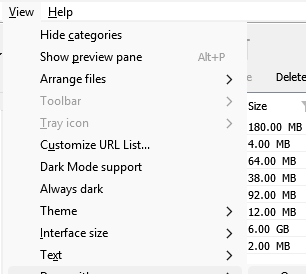
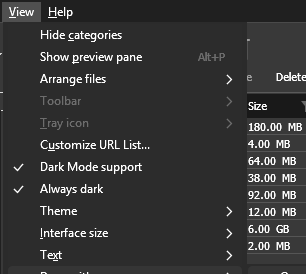
- If Direct3D, Vulkan or Metal can't start on your graphics card (no driver for it, some virtual machines), or its first window doesn't show within 10 seconds of its own (the time VDM spends loading your list and its icons doesn't count, however slow the computer is just after it starts), VDM draws with OpenGL, and View → Draw with says so and why. Choosing it again tries it again at the next start.
- Linux पर Vulkan के लिए आपके ग्राफ़िक्स कार्ड का Vulkan ड्राइवर ज़रूरी है: AMD और Intel के लिए Mesa का ड्राइवर (
mesa-vulkan-driversUbuntu और Debian पर,vulkan-radeonयाvulkan-intelArch पर), और NVIDIA के लिए NVIDIA का अपना ड्राइवर। - If neither can start, VDM draws with a software renderer (Microsoft's on Windows, Mesa's on Linux), so the window still opens (Remote Desktop, a virtual machine without a graphics driver). It works, but keeps the processor busier while a window changes.
- On Windows, Microsoft's software renderer (WARP) keeps the processor much busier than Mesa's (llvmpipe), the more so the larger the window. Where WARP draws for want of a graphics driver, VDM offers once to download llvmpipe (about 66 MB, from Mesa's Windows builds on GitHub), and View → Draw with → Download Mesa's software renderer (llvmpipe)... offers it at any time. Nothing downloads until you press Download; it is checked against VDM's signed list of checked builds, as ffmpeg is, and kept in VDM's data folder (
tools\mesa). VDM draws with it from its next start, and View → Draw with says Software (llvmpipe). If it can't start or draw there, VDM remembers that and draws with WARP again (Software (llvmpipe) didn't start here: WARP draws); a newer llvmpipe is tried again. To stop using it, quit VDM and delete thetools\mesafolder. - On Windows, when OpenGL fails on a card without Direct3D 12, VDM draws with Direct3D on Microsoft's software renderer (WARP) from the next start, and View → Draw with says why: OpenGL couldn't start, it is too old to draw VDM (older than 3.0, such as Intel's first HD Graphics, whose OpenGL 2.1 drew VDM's windows as garbage), its first window didn't show within 10 seconds, VDM froze inside the graphics driver while OpenGL showed a frame (the older Intel HD Graphics and AMD Radeon cards' drivers did), or VDM crashed inside it (OpenGL crashed inside its driver here). Choosing OpenGL there tries it again; so does a graphics driver update.
- If the graphics card is reset while VDM runs (a driver update, or a driver that resets by itself, as some older Radeon cards' do with Direct3D 12), VDM starts again by itself. Lost twice in 10 minutes, it goes back to OpenGL, and View → Draw with says why. If the card isn't back yet when VDM starts again, that start draws another way (OpenGL, or WARP), and the next start tries the card again.
- कार्ड निर्माता की साइट (Intel, AMD या NVIDIA) से ग्राफ़िक्स ड्राइवर अपडेट करने पर इनमें से कई समस्याएँ ठीक हो जाती हैं।
- A freeze whose report shows the window thread inside the graphics driver as it shows a frame (
ig4icd64.dllorig9icd64.dllfor Intel,nvoglv64.dllfor NVIDIA,atio6axx.dllfor AMD, underopengl32.dll) is the driver's OpenGL stuck, not VDM: on Windows, choose View → Draw with → Direct3D (the default) and restart VDM, and update the graphics driver. If Draw with says Direct3D didn't start there, the line under it says why; VDM then remembers the freeze and draws with WARP from the next start. - A crash report whose crashed thread is inside the graphics driver while VDM drew with OpenGL is the same: the driver's names above, or
d3d11.dllalone with nothing of VDM's on the thread (NVIDIA's driver on a laptop with two graphics chips shows OpenGL's frames through Direct3D 11). On Windows, VDM remembers it and draws with Direct3D 12 from the next start, on WARP if the card can't; updating the graphics driver is still the real fix. - A freeze or crash report says which one was drawing, on which graphics card and driver, and why that one (chosen, the default, or the other one failing), on its
Drawing with:line near the top: include it when you report a problem. A freeze report also says whether VDM was busy, waiting, or hardly ran at all (a computer too busy to run it); see Crash reports.
The setup or VDM won't start
- अगर Windows में Windows ने आपके PC को सुरक्षित रखा है संदेश दिखे, तो ज़्यादा जानकारी पर क्लिक करें। जाँचें कि फ़ाइल
VoltDownloadManager-<version>-setup.exeरिलीज़ पेज से है, फिर फिर भी चलाएँ पर क्लिक करें। - VDM runs only once. Starting it again brings the running copy's window to the front. If nothing appears, look for VDM's icon in the notification area.
- Linux, from the AppImage or the tar.gz: if the system lacks a library VDM's window needs (such as
libxkbcommon-x11), VDM names it on the terminal and in a message box, with the command that installs it (sudo apt install libxkbcommon-x11-0, or your distribution's). The .deb and .rpm bring these libraries themselves. In a Wayland session VDM opens its window on Wayland instead. - Linux, the first start is slow: VDM looks up the system's fonts for every script once, all together, while it starts (fontconfig); a first start on a busy computer can take a few seconds more. Install your distribution's Noto fonts if some scripts or symbols show as boxes.
My antivirus or VirusTotal flags VDM
It is most likely a false alarm. Some antivirus programs judge a program they don't know by an educated guess, not by a known virus: detection names such as Malware.AI, Gen:, ML or Heur mean such a guess. What they flag most is a new download few people have run yet, from a small project, without a publisher's signature; VDM's installer isn't code-signed yet. On VirusTotal, a handful of engines flagging a new setup while most stay clean is the usual sign of a false positive.
जांचें कि आपकी कॉपी हमारी है:
- Download VDM only from vdm.mikaillab.com or GitHub Releases.
- अपनी फ़ाइल का SHA-256 चेकसम प्राप्त करें, जिसमें
<file>के स्थान पर डाउनलोड की गई फ़ाइल का नाम हो: Windows पर, PowerShell में,Get-FileHash <file>; Linux पर,sha256sum <file>; macOS पर,shasum -a 256 <file>। - Compare it with the same file's line in that release's
SHA256SUMS.txt(capital or small letters don't matter). To be sure the list itself is ours, check its signature,SHA256SUMS.txt.sig, with VDM's release key: see Check your download.
If they match, it is the file we published. VDM is open source and built in public: every release is built from the public source code by GitHub Actions, on GitHub's servers, with every build's log there to see, so anyone can read what went into it and build it again.
फिर:
- फ़ाइल को अपने एंटीवायरस को गलत सकारात्मक के रूप में रिपोर्ट करें: Microsoft Defender, Malwarebytes, Avast, AVG, Bitdefender, Kaspersky, ESET।
- हमें GitHub पर बताएं कि यह कौन सा एंटीवायरस था, डिटेक्शन का नाम और फ़ाइल, ताकि हम भी इसे रिपोर्ट कर सकें।
- If your antivirus quarantined VDM, restore it and add an exception for its folder.
यदि चेकसम मेल नहीं खाता है, या कॉपी कहीं और से आई है, तो इसे न चलाएं: इसे हटा दें और हमें बताएं।
HTTPS डाउनलोड "कोई प्रमाणपत्र नहीं" के साथ विफल होते हैं (Linux)
A minimal Linux system (often with the AppImage, the tar.gz or a build from source) may have no CA certificates, which VDM needs to check a secure server. Plain http:// and ftp:// downloads still work; each https:// or ftps:// one stops at once saying the computer has no certificates to check the server with. Install the ca-certificates package (sudo apt install ca-certificates, sudo dnf install ca-certificates), then resume the download. The .deb and .rpm bring it.
HTTPS डाउनलोड “अविश्वसनीय” या “अज्ञात जारीकर्ता” के साथ विफल होते हैं
VDM checks a secure server's certificate the way your browser does: with your system's trusted certificates (Windows', macOS's, or the Linux CA bundle), and with Mozilla's, the ones Firefox carries. On Windows, Mozilla's are used only when Windows' own don't complete the chain; on macOS and Linux they are added to the system's. A Windows 10 or 11 that hasn't been updated for a while fetches the roots it trusts from Windows Update only when a site first needs one, and behind a proxy that can fail: VDM then goes by Firefox's list, so such a site still downloads. One consequence: a root you removed from the system's store, or marked as not trusted, is still trusted by VDM when Mozilla's list has it, as Firefox trusts it.
If a site still says not trusted (self-signed or from an unknown issuer), its certificate isn't from an issuer any browser trusts. On a company or school network, a proxy or an antivirus that inspects HTTPS shows its own certificate instead of the site's: VDM trusts it when it is installed in the system's store, as Edge and Chrome do (Firefox has its own setting for it). Opening the site in Edge (on Windows) shows the same certificate VDM sees.
आपका डेटा कहाँ है
- इंस्टॉल किया हुआ संस्करण या सादा ज़िप:
%APPDATA%\voltdownloadmanager। सूची और सेटिंग्सdownloads.jsonमें हैं। - पोर्टेबल:
voltdownloadmanager.exeके बगल वालाdataफ़ोल्डर। - Linux:
~/.local/share/voltdownloadmanager; एक Mac:~/Library/Application Support/voltdownloadmanager। - पासवर्ड (साइट लॉगिन, प्रॉक्सी, डीब्रिड खाते) सिस्टम की कीचेन में होते हैं,
downloads.jsonमें नहीं; विकल्प → साइट लॉगिन देखें।
To back up your list, quit VDM (Tasks → Exit) and copy downloads.json.
अपडेट
Help → Check for updates... tells you whether a newer version is out, and what is new in it. Check for updates at every start in that window lets VDM look by itself: a few seconds after it starts, and once a day while it stays open. When there's a new version, its window opens in front.
When there is one, Update now downloads it, checks it, puts it in place and restarts VDM; your list, settings and downloads stay as they are:
| आपने इंस्टॉल किया | अभी अपडेट करें क्या करता है |
|---|---|
| Windows, सेटअप | नया इंस्टॉलर बिना विंडो दिखाए चलता है। सभी उपयोगकर्ताओं के लिए इंस्टॉल करने पर व्यवस्थापक की अनुमति माँगी जाती है। |
| Windows, पोर्टेबल या सादा ज़िप | प्रोग्रामों को उनके फ़ोल्डर में बदल देता है (पोर्टेबल कॉपी का data फ़ोल्डर बना रहता है)। |
| मैक | Applications में ऐप को बदल देता है। |
| Linux, AppImage या .tar.gz | AppImage को या उनके फ़ोल्डर में मौजूद प्रोग्रामों को बदल देता है। |
| Linux, .deb या .rpm | जाँचे गए पैकेज को आपके सिस्टम के पैकेज इंस्टॉलर में खोलता है, जो आपका पासवर्ड माँगता है। |
| Linux, किसी अन्य पैकेज मैनेजर का पैकेज (pacman, ...) | कुछ नहीं: विंडो ऐसा कहती है, और आपके सिस्टम के अपडेट नया संस्करण लाते हैं। |
VDM installs an update only when the release's list of checksums is signed by VDM's release key and the file matches it; anything else is refused, and Download opens the Releases page instead. Updating this way starts with version 0.2.1: earlier versions open the Releases page.
VDM asks GitHub's API for the newest version (of VDM, and of yt-dlp). GitHub answers 60 such questions an hour for each internet address, so on a network many people share (a mobile or home internet provider that puts many customers behind one address, a campus, an office) others can use them up. VDM then reads GitHub's ordinary release pages instead, with the same checks of what it downloads. If GitHub refuses those too, the window says api.github.com refused the request (403 Forbidden): too many requests from your network for now: try again in an hour, or from another network.
AppImage को AppImage टूल (AppImageLauncher, Gear Lever, AppImageUpdate) से भी अपडेट किया जा सकता है: इसमें अपडेट का पता होता है, और हर रिलीज़ में उसकी .AppImage.zsync फ़ाइल होती है, इसलिए ये टूल केवल बदले हुए हिस्सों को डाउनलोड करते हैं। यह सुविधा 0.2.4 के बाद वाले संस्करण के AppImage से शुरू होती है।
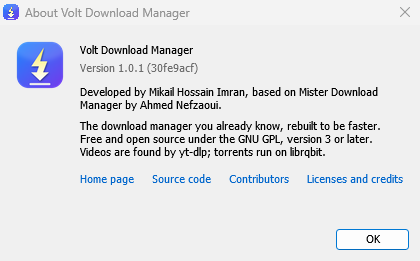
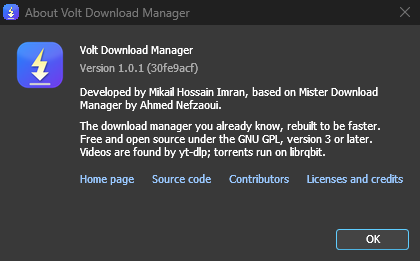
Help → About Volt Download Manager shows the version you have.
एक समस्या की रिपोर्ट करना
Choose Help → Report a problem. It opens the bug report form on GitHub with your VDM version, your system and its version, how VDM was installed and its interface language already filled in. Describe what happened, what you expected and the steps that make it happen. For a download, include the address if you can share it, and the reason shown under Status.
आप फ़ॉर्म खुद भी खोल सकते हैं; उसमें वही जानकारी माँगी जाती है।
अगले चरण
मुफ़्त, ओपन सोर्स, कोई विज्ञापन नहीं, कोई ट्रायल नहीं।
Download Volt Download Manager