

There are several ways to give VDM something to download. Most of them end in the same window, Download File Info, where you choose where the file goes.
URL जोड़ें
- फ़ाइल का पता कॉपी करें (ब्राउज़र में: लिंक पर राइट-क्लिक करें → लिंक कॉपी करें)।
- टूलबार पर URL जोड़ें पर क्लिक करें, कार्य → नया डाउनलोड जोड़ें चुनें, या Ctrl+N दबाएँ।
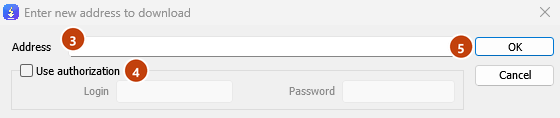
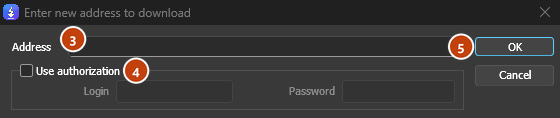
- डाउनलोड करने के लिए नया पता दर्ज करें विंडो खुलती है। अगर क्लिपबोर्ड में वेब पता है, तो वह पहले से भरा होता है। पता के अंत में मौजूद तीर से आपके दर्ज किए गए पिछले 20 पतों की सूची खुलती है। किसी पते को फिर से इस्तेमाल करने के लिए उसे चुनें। काटें, कॉपी करें, चिपकाएँ, हटाएँ और सभी चुनें विकल्पों के लिए बॉक्स पर राइट-क्लिक करें।
- अगर सर्वर को उपयोगकर्ता नाम और पासवर्ड चाहिए, तो प्राधिकरण का उपयोग करें पर टिक करें और दोनों दर्ज करें।
- ठीक है पर क्लिक करें।
VDM takes http://, https://, ftp://, ftps://, ftpes:// and magnet: addresses. Anything else gets Invalid address.
A thunder://, flashget:// or qqdl:// link is one of those addresses wrapped in base64, as download pages made for Thunder (Xunlei), FlashGet and QQ's downloader write them. VDM unwraps it and downloads from the address inside, here, from the clipboard and in Link grabber; the download is listed under that address. A link that wraps anything else, or that can't be read, gets Invalid address too.
अगर पता किसी वीडियो के पेज का है (YouTube, Vimeo, TikTok और अन्य), तो वीडियो विंडो खुलती है। वीडियो डाउनलोड देखें। मैग्नेट लिंक से टॉरेंट जोड़ें खुलता है; टॉरेंट देखें।
FTP और FTPS
FTP डाउनलोड, वेब डाउनलोड की तरह काम करते हैं: एक साथ कई कनेक्शन, रोकने और फिर से शुरू करने की सुविधा, और वही प्रगति विंडो।
ftp://— साधारण FTP।ftpes://— सत्र की शुरुआत से TLS द्वारा सुरक्षित FTP (एक्सप्लिसिट FTPS,AUTH TLS, आमतौर पर पोर्ट 21)। इसका इस्तेमाल तब करें जब सर्वर TLS का समर्थन करता हो।ftps://— इम्प्लिसिट FTPS, पोर्ट 990, जब तक पते में कोई दूसरा पोर्ट न दिया गया हो।
सर्वर के प्रमाणपत्र की जाँच Windows (या सिस्टम) के विश्वसनीय प्रमाणपत्रों के विरुद्ध की जाती है, जैसे https:// के लिए, और Mozilla के प्रमाणपत्रों के विरुद्ध भी, जो Firefox में होते हैं, जहाँ सिस्टम में उस रूट का अभाव होता है जहाँ से सर्वर का प्रमाणपत्र आता है (एक पुराना Windows जिसने इसे अभी तक प्राप्त नहीं किया है)। उनके बिना एक Linux सिस्टम (बिना ca-certificates पैकेज के न्यूनतम इंस्टॉलेशन) अभी भी सादे HTTP और FTP पर डाउनलोड करता है; प्रत्येक सुरक्षित डाउनलोड तब तुरंत विफल हो जाता है, यह कहते हुए कि उस पैकेज को स्थापित करें।
An https:// site whose certificate is refused (expired, self-signed or from an issuer the system doesn't
trust, made for another site name) isn't downloaded from: Download File Info, the progress window
and the list say which of these it is, as a browser warns about the same site. VDM has no way
around it.
Logging in. Write the login in the address (ftp://user:password@server/folder/file.iso),
tick Use authorization, or save it in Options → Sites Logins. Without one, VDM logs in as
anonymous. The path is relative to the folder the login starts in; to start from the server's
root, write %2F after the server (ftp://server/%2Fpub/file.iso).
Resuming. VDM keeps the file's size and modification time. If either has changed when you resume, it says the file changed on the server instead of mixing two versions (Options → Downloads → Ignore file modification time changes skips the time check). The password is not written to the resume file next to the download: VDM gives it again when it resumes.
कनेक्शन। डिफ़ॉल्ट रूप से पैसिव मोड का उपयोग किया जाता है। विकल्प → प्रॉक्सी / SOCKS → PASV मोड में FTP का उपयोग करें इसे उन सर्वरों के लिए बंद कर देता है जो केवल सक्रिय कनेक्शन लेते हैं। FTP विकल्प → प्रॉक्सी / SOCKS में सेट SOCKS प्रॉक्सी के माध्यम से जाता है (तब पैसिव, हमेशा; ftps:// अभी तक इसके माध्यम से नहीं जा सकता है), और जब प्रॉक्सी एक HTTP प्रॉक्सी होता है तो सीधे सर्वर से जुड़ता है।
Browsers no longer download ftp:// links themselves. Right-click one and choose Download with
Volt Download Manager, or copy it and use Add URL.
Google Drive लिंक
Google Drive के लिंक को उसी रूप में चिपकाएँ, जैसा शेयर करें → लिंक कॉपी करें से मिलता है:
https://drive.google.com/file/d/…/view?usp=sharing,/viewके साथ या उसके बिना;https://drive.google.com/uc?id=…&export=downloadऔरhttps://drive.google.com/open?id=…;https://docs.google.com/document/d/…/edit(और Sheets, Slides, Drawings)।
VDM downloads the file itself, as it was uploaded (a video comes in its own format, not the player's copy), with its real name and size, over several connections, and it can resume. For a large file, Drive shows a page that says it can't scan this file for viruses; VDM goes past it as Download anyway does.
Google Docs, Sheets और Slides की फ़ाइलें Word (.docx), Excel (.xlsx) और PowerPoint (.pptx) फ़ाइलों के रूप में मिलती हैं, और Drawings की फ़ाइल .png के रूप में मिलती है। ये फ़ाइलें अनुरोध किए जाने पर बनती हैं, इसलिए इनके डाउनलोड होने तक इनका आकार पता नहीं चलता और इन्हें फिर से शुरू नहीं किया जा सकता: बीच में रुक जाने पर डाउनलोड फिर से शुरू से होता है।
Files that aren't shared with everyone. Right-click the link in the browser and choose Download with Volt Download Manager, or use Drive's own Download button: the extension passes your browser's Google sign-in with the download. VDM never asks for or keeps your password. Without a sign-in, VDM says the file needs you to sign in.
When Drive won't give a file. Drive limits how often a file can be downloaded: after many downloads in a day it answers "too many users have viewed or downloaded this file recently". VDM shows Drive's own words and writes nothing. Try again later (it can take up to a day), or sign in to Google in your browser and download from there, which often gets past the limit. VDM doesn't try to get around it. A file whose owner turned off downloading, or that your account can't open, gets no access.
ड्राइव वीडियो पर वीडियो बटन मूल फ़ाइल को डाउनलोड करता है, न कि प्लेयर की छोटी प्रतियों में से एक को।
Folders: paste a shared folder's link (https://drive.google.com/drive/folders/…) in Add
URL, or right-click it in the browser and choose Download with Volt Download Manager, and
Link grabber lists its files and its subfolders' to download into the same folders. See
Google Drive folders.
फ़ाइल जानकारी डाउनलोड करें
VDM asks the server for the file's name and size, and shows them in Download File Info:
- URL — पता।
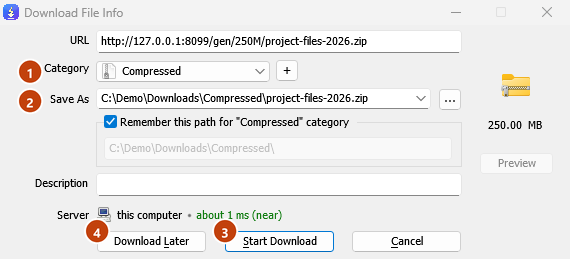
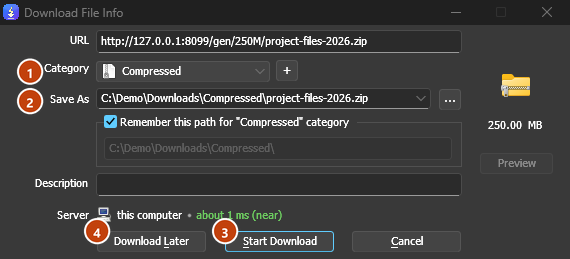
- श्रेणी — फ़ाइल के प्रकार (संपीड़ित, दस्तावेज़, संगीत, प्रोग्राम, वीडियो या सामान्य) से चुनी गई। प्रत्येक श्रेणी का अपना फ़ोल्डर होता है। इसके बगल में + एक नई श्रेणी बनाता है।
- Save As — the folder and file name. You can type another, pick one of the last 20 folders you saved to from the arrow at its end, or choose the folder and the file name in the system's Save dialog with ... (a name typed there without an extension keeps the download's). If you choose a file that is already there and answer Yes when the dialog asks whether to replace it, the download replaces it once it is complete; until then the old file stays as it was, so it is kept if the download fails or you cancel it. A name of a file that is already there that you type in Save As itself is asked about as you press Start Download or Download Later: Add the duplicate with a numbered file name takes the next free name, such as
name (1).zip; Add the duplicate and overwrite the existing file replaces it once the download is complete, as above; Cancel goes back to the dialog. A name VDM gave that is taken by the time the download starts is numbered without asking. - “…” श्रेणी के लिए यह पाथ याद रखें — इस पर टिक करें ताकि आपके द्वारा टाइप किया गया फ़ोल्डर अब से श्रेणी का फ़ोल्डर बन जाए। विकल्प → इसमें सहेजें में हर डाउनलोड को “सामान्य” श्रेणी के फ़ोल्डर में सहेजें पर टिक करने पर, हर डाउनलोड सामान्य के फ़ोल्डर में शुरू होता है, और यह बॉक्स सामान्य का नाम देता है: आपके द्वारा टाइप किया गया फ़ोल्डर हर डाउनलोड के लिए एक बन जाता है।
- विवरण — आपका अपना एक नोट। यह सूची के विवरण कॉलम में दिखाता है और खोज इसे खोज सकती है।
- Server — where the server is: its country's flag and name, and how long a round trip to it takes. See Where the server is. It stays blank when the browser handed the download over with its name and size, since VDM didn't need to ask the server.
फिर चुनें:
- डाउनलोड प्रारंभ करें (या Enter) — अभी डाउनलोड करें। प्रगति विंडो खुलती है।
- बाद में डाउनलोड करें — बिना शुरू किए इसे एक कतार में जोड़ें। नीचे देखें।
- रद्द करें (या Esc) — कुछ भी न जोड़ें।
By default VDM starts downloading while this window is open, so no time is lost while you decide. Cancel drops what it fetched. You can turn this off in Options → Downloads → Start downloading immediately while displaying "Download File Info" dialog.
If the folder doesn't exist yet, VDM asks Do you want to create it? before it starts.
ZIP के अंदर से केवल कुछ फ़ाइलें
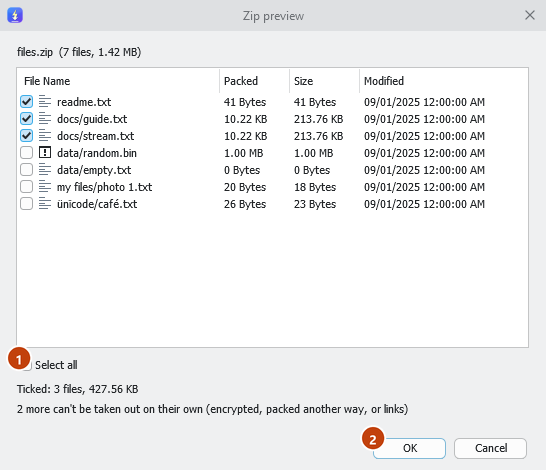
वेब सर्वर पर .zip के लिए, पूर्वावलोकन (फ़ाइल के आकार के नीचे) अंदर क्या है उसे सूचीबद्ध करता है, ताकि आप पूरे संग्रह के बजाय केवल वही फ़ाइलें डाउनलोड कर सकें जिनकी आपको आवश्यकता है: 20 GB के संग्रह में से दो फ़ाइलें दो छोटे डाउनलोड लेती हैं।
As the window opens, VDM asks the server for the archive's last bytes, where a ZIP keeps its list of files. Only a server that sends parts of a file can give files one by one, so Preview works only there; elsewhere it stays grey, and its tooltip says why (the server can't send parts of the ZIP...). The whole archive still downloads as usual.
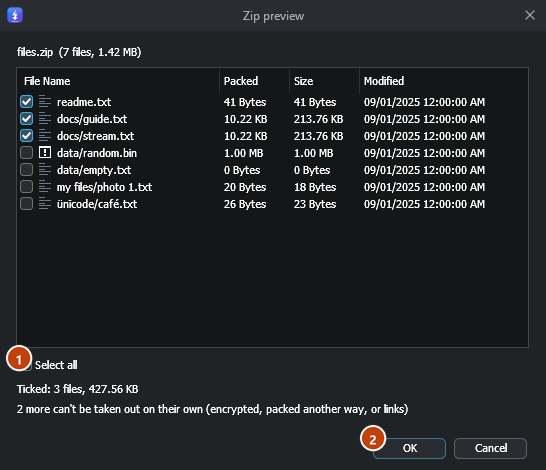
पूर्वावलोकन ZIP पूर्वावलोकन खोलता है: संग्रह में हर फ़ाइल अपने फ़ाइल का नाम (ZIP के अंदर उसका पथ), संपीड़ित (ZIP के अंदर उसका आकार), आकार और संशोधित के साथ। जिन्हें आप चाहते हैं उन्हें टिक करें (सभी चुनें हर एक को टिक करता है) और ठीक है पर क्लिक करें। चुनी गई फ़ाइलों की संख्या पूर्वावलोकन के नीचे दिखती है; यह देखने के लिए उस पर होवर करें कि वे कहाँ जाती हैं। फिर डाउनलोड प्रारंभ करें या बाद में डाउनलोड करें उन्हें संग्रह के स्थान पर एक डाउनलोड के रूप में जोड़ता है:
- वे संग्रह के नाम पर एक फ़ोल्डर में जाते हैं, उस फ़ोल्डर में जिसे इस रूप में सहेजें दिखाता है (
Downloads\Compressed\photos\photos.zipके लिए), प्रत्येक ZIP के अंदर से अपना पथ रखता है (photos\2025\beach.jpg)। उसी नाम की पहले से मौजूद फ़ाइल को रखा जाता है, और नई वाली को क्रमांकित किया जाता है। - VDM fetches only each file's own bytes, unpacks it, and checks it against the checksum (CRC-32) and size the archive gives for it. A file that doesn't match is not kept, and the download says so.
- एक रुका हुआ डाउनलोड उन फ़ाइलों के साथ जारी रहता है जिन्हें अभी तक प्राप्त नहीं किया गया है; आंशिक रूप से रुका हुआ डाउनलोड फिर से प्राप्त किया जाता है।
- हटाएँ डिस्क से फ़ाइलें भी हटाएँ के साथ फ़ोल्डर और उसकी फ़ाइलों को छोड़ देता है, जैसे कि एक छवि गैलरी के लिए।
Some files can't be taken out on their own and aren't listed (the window counts them under the list): encrypted files, files packed with a method other than the two most ZIPs use (stored and Deflate), links, and names that would put a file outside its folder (../, a drive letter, an absolute path). A ZIP split over several files, or one whose list of files doesn't add up (files over each other, a list larger than VDM reads from a server), can't be previewed. For any of these, download the whole archive.
Each link opens a Download File Info of its own, so several can be open side by side, to compare their sizes before you choose. Each new one opens a little below and beside the one before and comes to the front; from the second on, its title carries its number: Download File Info (2), (3) and so on. Esc closes only the window you're in. Up to six are open at once: more links handed over together (a browser passing on several downloads) wait, and open one by one as you close windows; Cancel asks whether to cancel the ones still waiting. The same link handed over again brings its open window to the front. If you quit VDM with some still open, their downloads go to the Main download queue, as with Download Later.
बाद में डाउनलोड करें
Download Later puts the download in a queue instead of starting it. By default VDM asks which one: pick the queue under Add to queue, and tick Start the queue now if you want it to run straight away. Cancel leaves the download in the list, in no queue.
उस प्रश्न को छोड़ने और हमेशा मुख्य डाउनलोड कतार का उपयोग करने के लिए, विकल्प → डाउनलोड → "बाद में डाउनलोड करें" बटन दबाने पर कतार चयन पैनल दिखाएँ को बंद करें।
कतारें और शेड्यूलर में कतारों के बारे में अधिक जानकारी।
क्लिपबोर्ड से
With Options → General → Offer to download links copied to the clipboard ticked (it is, unless you turned it off), when you copy a link to a file type in Options → File types (ZIP, EXE, MP4, PDF and many more), Download File Info opens with it filled in, ready for Start Download. Links to other pages are left alone. With Options → Downloads → Show start download dialog off, the download starts at once instead. Only links copied while VDM runs are taken, never one that was already there.
Copied several links at once, a list or a whole forum post? Choose Tasks → Add batch download from clipboard (Ctrl+B, also in the tray icon's menu). VDM reads the clipboard then, and only then, and finds every download link in the text: http, https, ftp and magnet links, one per line or among other words, in Markdown ([name](https://github.com/mikailhossenimran/voltdownloadmanager/blob/main/docs/link)) or between < and >. Each one is listed once in Link grabber, ticked and sorted into packages: pick a folder for each package, then Start or Add to queue. Downloads added together end with one Downloads complete summary. Magnet links are added as torrents with all their files once their files are known. thunder://, flashget:// and qqdl:// links count as the address wrapped in them, here and for a single copied link. A copied address with a number in its name, such as https://example.com/show/ep01.mp4, opens Batch download instead (below). If the clipboard holds no text, or no link, VDM says so.
खींचें और छोड़ें
- Choose Tasks → Show drop target. A small box with the VDM icon appears and stays on top of other windows.
- Drag a link from your browser onto it. VDM adds it as if you had used Add URL.
You can also drop magnet links and .torrent files on it. Drag the box to move it, and double-click it to bring the main window back. Right-click it for Show Volt Download Manager, Add new download and Hide drop target.
बैच डाउनलोड: कई क्रमांकित फ़ाइलें
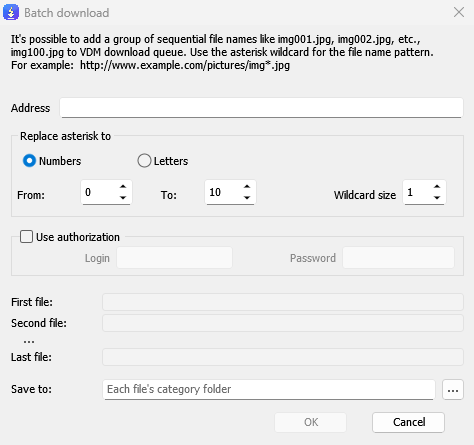
उन फ़ाइलों के लिए जिनके नाम केवल एक संख्या या अक्षर से भिन्न होते हैं, जैसे photo001.jpg से photo150.jpg:
- कार्य → बैच डाउनलोड जोड़ें चुनें। क्या आपने इसके फ़ाइल नाम में एक संख्या वाला एक पता कॉपी किया है, जैसे
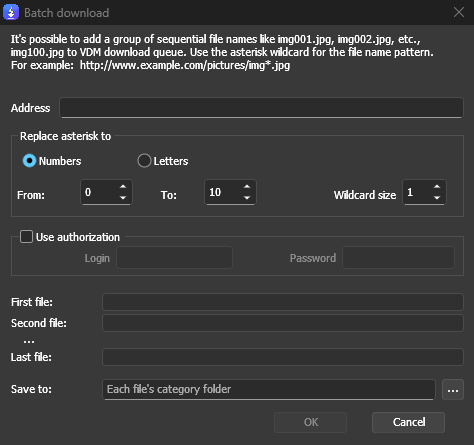
https://example.com/show/ep01.mp4? कार्य → क्लिपबोर्ड से बैच डाउनलोड जोड़ें (Ctrl+B) संख्या की जगह पर तारांकन (*) लगाता है, इससे से और वाइल्डकार्ड का आकार सेट करता है (ep*.mp4, 1 से, आकार 2) और अंतिम संख्या के लिए तक में प्रतीक्षा करता है। - पता में, पते को एक तारांकन के साथ लिखें जहाँ संख्या या अक्षर बदलता है:
https://example.com/photo*.jpg। - एस्टरिस्क को इससे बदलें के तहत, संख्याएँ या अक्षर चुनें, फिर से और तक।
- संख्याओं के लिए, वाइल्डकार्ड का आकार अंकों की संख्या के बराबर रखें। 3 चुनने पर फ़ाइलें
photo001.jpg,photo002.jpgऔर इसी तरह होंगी। - अगर सर्वर पर लॉगिन करना ज़रूरी है, तो प्राधिकरण का उपयोग करें चुनें।
- पहली फ़ाइल, दूसरी फ़ाइल और अंतिम फ़ाइल को चुनें।
- खाली छोड़ने पर, इसमें सहेजें हर फ़ाइल को उसकी श्रेणी के फ़ोल्डर (विकल्प → इसमें सहेजें) में डालता है, या सामान्य के फ़ोल्डर में जब हर डाउनलोड वहाँ एक फ़ोल्डर में जाता है। बैच की हर फ़ाइल को एक फ़ोल्डर में डालने के लिए, उसे वहाँ टाइप करें या ... से चुनें। फिर ठीक है पर क्लिक करें।
The downloads go to a queue. As with Download Later, VDM asks which queue unless you turn off Options → Downloads → Show queue selection panel on closing batch download dialogs.
लिंक की सूची
टेक्स्ट फ़ाइल के सभी लिंक जोड़ने के लिए:
- कार्य → आयात किया गया। → टेक्स्ट फ़ाइल से चुनें।
- Pick the file. Link grabber lists every web address VDM found in it, in packages. While VDM reads a long file, the strip under the list of downloads says Reading and the file's name; you can go on using VDM meanwhile. Import reads files of up to 64 MB, far more than any list of links holds: a larger file (a video, an archive, a backup picked by mistake) is refused with a message.
- जिन पतों की ज़रूरत नहीं है, उन्हें अनचेक करें (सभी चुनें और सभी को अनचेक करें से मदद मिलेगी), फिर कतार में जोड़ें पर क्लिक करें।
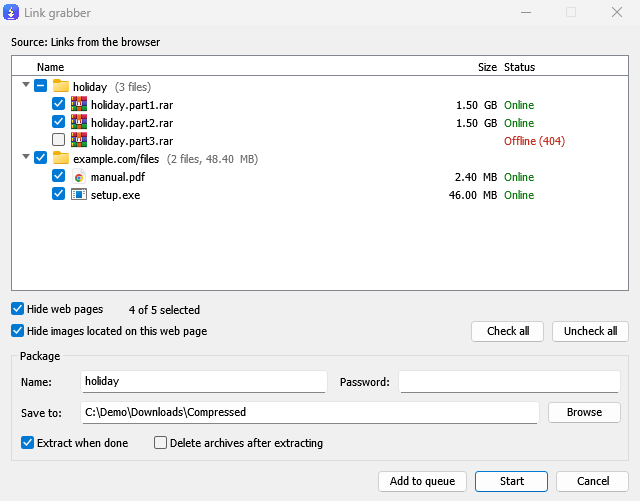
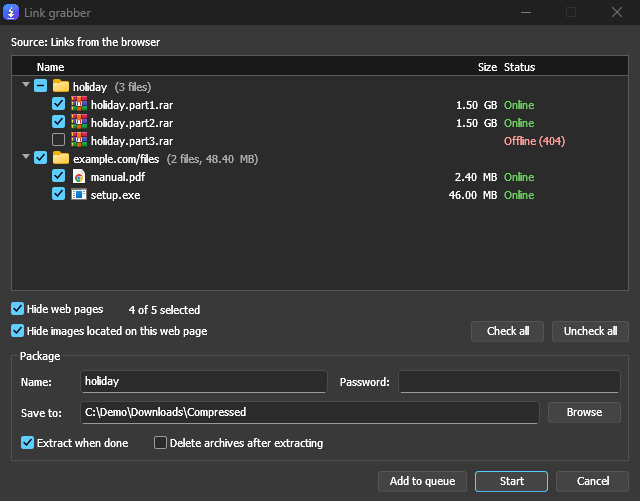
डाउनलोड मुख्य डाउनलोड कतार में जुड़ जाते हैं, शुरू होने के लिए तैयार (शुरू करें इसे भी शुरू करता है)। कार्य → आयात → IDM निर्यात फ़ाइल से एक .ef2 फ़ाइल पढ़ता है, जिसमें प्रत्येक डाउनलोड का रेफ़रर और कुकीज़ होती हैं, और फ़ाइल का नाम एक सूची इसे filename: लाइन में देती है।
कार्य → लिंक ग्रैबर... से वही विंडो खाली खुलती है: उसमें लिंक वाला टेक्स्ट पेस्ट करें (Ctrl+V)। पैकेज, आर्काइव पासवर्ड और डाउनलोड होने पर आर्काइव निकालने के बारे में जानने के लिए लिंक ग्रैबर और आर्काइव देखें।
अपनी सूची सहेजने के लिए, कार्य → निर्यात करें → पाठ फ़ाइल में (हर पंक्ति में एक पता) या IDM निर्यात फ़ाइल में का उपयोग करें।
जब पता पहले से सूची में हो
By default VDM asks what to do when you add an address it already has. You can choose a fixed answer in Options → Downloads → If a duplicate download link is added:
- एक संवाद दिखाएँ और पूछें कि क्या करना है।
- संख्यात्मक फ़ाइल नाम के साथ डुप्लिकेट जोड़ें
- डुप्लिकेट जोड़ें और मौजूदा फ़ाइल को अधिलेखित करें
- अगर मौजूदा फ़ाइल पूरी हो चुकी है, तो डाउनलोड पूरा होने का संवाद दिखाएँ, वरना उसे फिर से शुरू करें।
अगले चरण
मुफ़्त, ओपन सोर्स, कोई विज्ञापन नहीं, कोई ट्रायल नहीं।
Download Volt Download Manager