

There are several ways to give VDM something to download. Most of them end in the same window, Download File Info, where you choose where the file goes.
Aggiungi URL
- Copia l'indirizzo del file (in un browser: clic destro sul collegamento → Copia link).
- Fai clic su Aggiungi URL nella barra degli strumenti, scegli Attività → Aggiungi nuovo download o premi Ctrl+N.
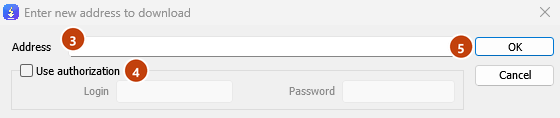
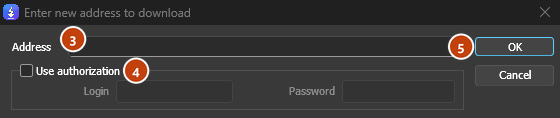
- Si apre Inserisci il nuovo indirizzo da scaricare. Se negli Appunti c'è un indirizzo web, è già compilato. La freccia alla fine di Indirizzo elenca gli ultimi 20 indirizzi che hai inserito; scegline uno per usarlo di nuovo. Fai clic destro sulla casella per Taglia, Copia, Incolla, Elimina e Seleziona tutto.
- Se il server richiede un nome utente e una password, seleziona Usa autorizzazione e digitali.
- Fai clic su OK.
VDM takes http://, https://, ftp://, ftps://, ftpes:// and magnet: addresses. Anything else gets Invalid address.
A thunder://, flashget:// or qqdl:// link is one of those addresses wrapped in base64, as download pages made for Thunder (Xunlei), FlashGet and QQ's downloader write them. VDM unwraps it and downloads from the address inside, here, from the clipboard and in Link grabber; the download is listed under that address. A link that wraps anything else, or that can't be read, gets Invalid address too.
Se l'indirizzo è la pagina di un video (YouTube, Vimeo, TikTok e altri), si apre invece la finestra del video. Vedi Download video. Un link magnet apre Aggiungi torrent; vedi Torrent.
FTP e FTPS
I download FTP funzionano come i download web: più connessioni contemporaneamente, pausa e ripresa, e la stessa finestra di avanzamento.
ftp://indica FTP non protetto.ftpes://indica FTP protetto con TLS dall'inizio della sessione (FTPS esplicito,AUTH TLS, solitamente porta 21). Usalo quando il server dichiara di supportare TLS.ftps://indica FTPS implicito, porta 990 a meno che l'indirizzo non ne indichi un'altra.
Il certificato del server viene controllato rispetto ai certificati attendibili di Windows (o del sistema), come per https://, e a quelli di Mozilla, usati da Firefox, quando il sistema non ha la root da cui proviene il certificato del server (un Windows più vecchio che non l'ha ancora scaricata). Un sistema Linux senza di essi (un'installazione minima senza il pacchetto ca-certificates) scarica comunque tramite HTTP e FTP non protetti; ogni download sicuro fallisce immediatamente, indicando di installare quel pacchetto.
An https:// site whose certificate is refused (expired, self-signed or from an issuer the system doesn't
trust, made for another site name) isn't downloaded from: Download File Info, the progress window
and the list say which of these it is, as a browser warns about the same site. VDM has no way
around it.
Logging in. Write the login in the address (ftp://user:password@server/folder/file.iso),
tick Use authorization, or save it in Options → Sites Logins. Without one, VDM logs in as
anonymous. The path is relative to the folder the login starts in; to start from the server's
root, write %2F after the server (ftp://server/%2Fpub/file.iso).
Resuming. VDM keeps the file's size and modification time. If either has changed when you resume, it says the file changed on the server instead of mixing two versions (Options → Downloads → Ignore file modification time changes skips the time check). The password is not written to the resume file next to the download: VDM gives it again when it resumes.
Connessioni. La modalità passiva è usata per impostazione predefinita. Opzioni → Proxy / Socks → Usa FTP in modalità PASV la disattiva per i server che accettano solo connessioni attive. FTP passa attraverso un proxy SOCKS impostato in Opzioni → Proxy / Socks (allora in modalità passiva, sempre; ftps:// non può ancora passare attraverso uno), e si connette direttamente al server quando il proxy è HTTP.
Browsers no longer download ftp:// links themselves. Right-click one and choose Download with
Volt Download Manager, or copy it and use Add URL.
Collegamenti di Google Drive
Incolla un collegamento di Google Drive così com'è, quello fornito da Condividi → Copia link:
https://drive.google.com/file/d/…/view?usp=sharing, con o senza/view;https://drive.google.com/uc?id=…&export=downloadehttps://drive.google.com/open?id=…;https://docs.google.com/document/d/…/edit(e Fogli, Presentazioni, Disegni).
VDM downloads the file itself, as it was uploaded (a video comes in its own format, not the player's copy), with its real name and size, over several connections, and it can resume. For a large file, Drive shows a page that says it can't scan this file for viruses; VDM goes past it as Download anyway does.
Documenti, Fogli e Presentazioni Google vengono scaricati come file Word (.docx), Excel (.xlsx) e PowerPoint (.pptx), e Disegni come .png. Questi file vengono creati al momento della richiesta, quindi la loro dimensione è sconosciuta finché non arrivano e non possono essere ripresi: un download interrotto riparte da capo.
Files that aren't shared with everyone. Right-click the link in the browser and choose Download with Volt Download Manager, or use Drive's own Download button: the extension passes your browser's Google sign-in with the download. VDM never asks for or keeps your password. Without a sign-in, VDM says the file needs you to sign in.
When Drive won't give a file. Drive limits how often a file can be downloaded: after many downloads in a day it answers "too many users have viewed or downloaded this file recently". VDM shows Drive's own words and writes nothing. Try again later (it can take up to a day), or sign in to Google in your browser and download from there, which often gets past the limit. VDM doesn't try to get around it. A file whose owner turned off downloading, or that your account can't open, gets no access.
Il pulsante video su un video di Drive scarica il file originale, non una delle copie più piccole del lettore.
Folders: paste a shared folder's link (https://drive.google.com/drive/folders/…) in Add
URL, or right-click it in the browser and choose Download with Volt Download Manager, and
Link grabber lists its files and its subfolders' to download into the same folders. See
Google Drive folders.
Informazioni sul file da scaricare
VDM asks the server for the file's name and size, and shows them in Download File Info:
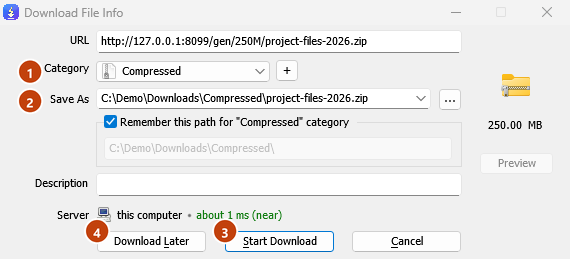
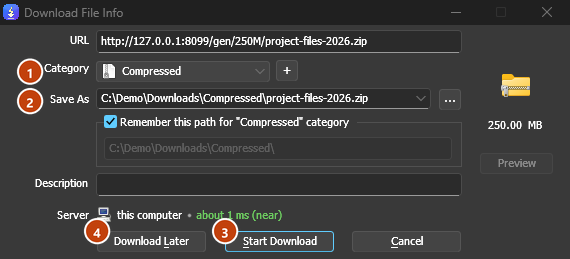
- URL: l'indirizzo.
- Categoria: scelta in base al tipo di file (Compressi, Documenti, Musica, Programmi, Video o Generale). Ogni categoria ha la sua cartella. + accanto aggiunge una nuova categoria.
- Save As — the folder and file name. You can type another, pick one of the last 20 folders you saved to from the arrow at its end, or choose the folder and the file name in the system's Save dialog with ... (a name typed there without an extension keeps the download's). If you choose a file that is already there and answer Yes when the dialog asks whether to replace it, the download replaces it once it is complete; until then the old file stays as it was, so it is kept if the download fails or you cancel it. A name of a file that is already there that you type in Save As itself is asked about as you press Start Download or Download Later: Add the duplicate with a numbered file name takes the next free name, such as
name (1).zip; Add the duplicate and overwrite the existing file replaces it once the download is complete, as above; Cancel goes back to the dialog. A name VDM gave that is taken by the time the download starts is numbered without asking. - Ricorda questo percorso per la categoria «…»: seleziona questa casella per fare in modo che la cartella che hai digitato diventi d'ora in poi la cartella della categoria. Se hai selezionato Salva ogni download nella cartella della categoria Generale in Opzioni → Salva in, ogni download inizia nella cartella Generale, e questa casella si riferisce a Generale: la cartella che hai digitato diventa quella per ogni download.
- Descrizione: una tua nota. Viene mostrata nella colonna Descrizione dell'elenco e puoi cercarla con Trova.
- Server — where the server is: its country's flag and name, and how long a round trip to it takes. See Where the server is. It stays blank when the browser handed the download over with its name and size, since VDM didn't need to ask the server.
Poi scegli:
- Avvia download (o Invio): avvia il download subito. Si apre la finestra di avanzamento.
- Scarica più tardi: aggiungi il download a una coda senza avviarlo. Vedi sotto.
- Annulla (o Esc): non aggiunge nulla.
By default VDM starts downloading while this window is open, so no time is lost while you decide. Cancel drops what it fetched. You can turn this off in Options → Downloads → Start downloading immediately while displaying "Download File Info" dialog.
If the folder doesn't exist yet, VDM asks Do you want to create it? before it starts.
Solo alcuni file da un archivio ZIP
Per un .zip su un server web, Anteprima (sotto la dimensione del file) elenca il suo contenuto, così puoi scaricare solo i file che ti servono invece dell'intero archivio: due file da un archivio di 20 GB richiedono due piccoli download.
As the window opens, VDM asks the server for the archive's last bytes, where a ZIP keeps its list of files. Only a server that sends parts of a file can give files one by one, so Preview works only there; elsewhere it stays grey, and its tooltip says why (the server can't send parts of the ZIP...). The whole archive still downloads as usual.
Anteprima apre Anteprima ZIP: ogni file nell'archivio con il suo Nome file (il suo percorso all'interno dello ZIP), Compresso (la sua dimensione all'interno dello ZIP), Dimensione e Modificato. Seleziona quelli che vuoi (Seleziona tutto li seleziona tutti) e fai clic su OK. Il numero di file scelti viene mostrato sotto Anteprima; passa il mouse sopra per vedere dove andranno. Poi Avvia download o Scarica più tardi li aggiunge come un unico download, al posto dell'archivio:
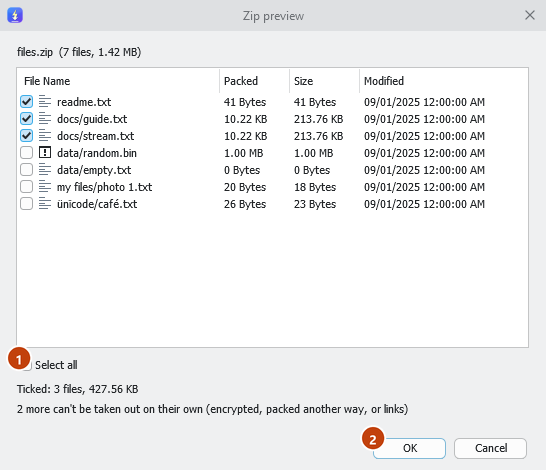
- Vanno in una cartella con il nome dell'archivio, nella cartella che Salva con nome mostra (
Downloads\Compressed\photos\perphotos.zip), ognuno mantenendo il suo percorso dall'interno dello ZIP (photos\2025\beach.jpg). Un file con lo stesso nome già presente viene mantenuto e il nuovo viene numerato. - VDM fetches only each file's own bytes, unpacks it, and checks it against the checksum (CRC-32) and size the archive gives for it. A file that doesn't match is not kept, and the download says so.
- Un download interrotto prosegue con i file non ancora recuperati; uno interrotto a metà viene recuperato di nuovo.
- Elimina con Elimina anche i file dal disco lascia la cartella e i suoi file, come per una galleria di immagini.
Some files can't be taken out on their own and aren't listed (the window counts them under the list): encrypted files, files packed with a method other than the two most ZIPs use (stored and Deflate), links, and names that would put a file outside its folder (../, a drive letter, an absolute path). A ZIP split over several files, or one whose list of files doesn't add up (files over each other, a list larger than VDM reads from a server), can't be previewed. For any of these, download the whole archive.
Each link opens a Download File Info of its own, so several can be open side by side, to compare their sizes before you choose. Each new one opens a little below and beside the one before and comes to the front; from the second on, its title carries its number: Download File Info (2), (3) and so on. Esc closes only the window you're in. Up to six are open at once: more links handed over together (a browser passing on several downloads) wait, and open one by one as you close windows; Cancel asks whether to cancel the ones still waiting. The same link handed over again brings its open window to the front. If you quit VDM with some still open, their downloads go to the Main download queue, as with Download Later.
Scarica più tardi
Download Later puts the download in a queue instead of starting it. By default VDM asks which one: pick the queue under Add to queue, and tick Start the queue now if you want it to run straight away. Cancel leaves the download in the list, in no queue.
Per saltare questa domanda e usare sempre la Coda di download principale, disattiva Opzioni → Download → Mostra il pannello di scelta della coda quando si preme "Scarica più tardi".
Scopri di più sulle code in Code e Pianificatore.
Dagli Appunti
With Options → General → Offer to download links copied to the clipboard ticked (it is, unless you turned it off), when you copy a link to a file type in Options → File types (ZIP, EXE, MP4, PDF and many more), Download File Info opens with it filled in, ready for Start Download. Links to other pages are left alone. With Options → Downloads → Show start download dialog off, the download starts at once instead. Only links copied while VDM runs are taken, never one that was already there.
Copied several links at once, a list or a whole forum post? Choose Tasks → Add batch download from clipboard (Ctrl+B, also in the tray icon's menu). VDM reads the clipboard then, and only then, and finds every download link in the text: http, https, ftp and magnet links, one per line or among other words, in Markdown ([name](https://github.com/mikailhossenimran/voltdownloadmanager/blob/main/docs/link)) or between < and >. Each one is listed once in Link grabber, ticked and sorted into packages: pick a folder for each package, then Start or Add to queue. Downloads added together end with one Downloads complete summary. Magnet links are added as torrents with all their files once their files are known. thunder://, flashget:// and qqdl:// links count as the address wrapped in them, here and for a single copied link. A copied address with a number in its name, such as https://example.com/show/ep01.mp4, opens Batch download instead (below). If the clipboard holds no text, or no link, VDM says so.
Trascina e rilascia
- Choose Tasks → Show drop target. A small box with the VDM icon appears and stays on top of other windows.
- Drag a link from your browser onto it. VDM adds it as if you had used Add URL.
You can also drop magnet links and .torrent files on it. Drag the box to move it, and double-click it to bring the main window back. Right-click it for Show Volt Download Manager, Add new download and Hide drop target.
Download in batch: molti file numerati
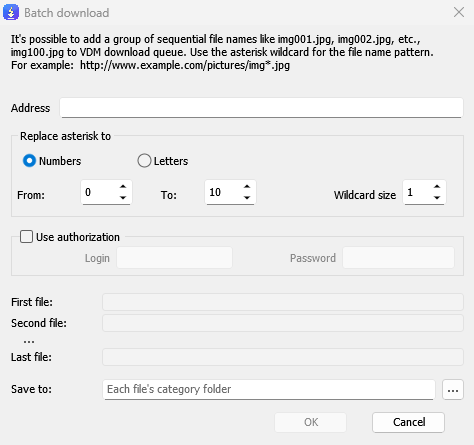
Per i file i cui nomi differiscono solo per un numero o una lettera, come photo001.jpg e photo150.jpg:
- Scegli Attività → Aggiungi download in batch. Hai copiato un indirizzo con un numero nel nome del file, come
https://example.com/show/ep01.mp4? Attività → Aggiungi download in batch dagli Appunti (Ctrl+B) inserisce l'asterisco dove c'era il numero, imposta Da e Lunghezza del carattere jolly da esso (ep*.mp4, da 1, lunghezza 2) e attende in A l'ultimo numero. - In Indirizzo, scrivi l'indirizzo con un asterisco dove il numero o la lettera cambia:
https://example.com/photo*.jpg. - Sotto Sostituisci l'asterisco con, scegli Numeri o Lettere, poi Da e A.
- Per i numeri, imposta Lunghezza del carattere jolly al numero di cifre. Con 3, i file sono
photo001.jpg,photo002.jpge così via. - Se il server richiede un accesso, seleziona Usa autorizzazione.
- Seleziona Primo file, Secondo file e Ultimo file.
- Se lasciato vuoto, Salva in mette ogni file nella cartella della sua categoria (Opzioni → Salva in), o nella cartella Generale quando ogni download va in una sola cartella. Per mettere ogni file del gruppo in una sola cartella, digitala lì o scegliila con .... Poi fai clic su OK.
The downloads go to a queue. As with Download Later, VDM asks which queue unless you turn off Options → Downloads → Show queue selection panel on closing batch download dialogs.
Un elenco di collegamenti
Per aggiungere tutti i collegamenti di un file di testo:
- Scegli Attività → Importa → Da file di testo.
- Pick the file. Link grabber lists every web address VDM found in it, in packages. While VDM reads a long file, the strip under the list of downloads says Reading and the file's name; you can go on using VDM meanwhile. Import reads files of up to 64 MB, far more than any list of links holds: a larger file (a video, an archive, a backup picked by mistake) is refused with a message.
- Deseleziona gli indirizzi che non vuoi (Seleziona tutti e Deseleziona tutti sono d'aiuto), poi fai clic su Aggiungi alla coda.
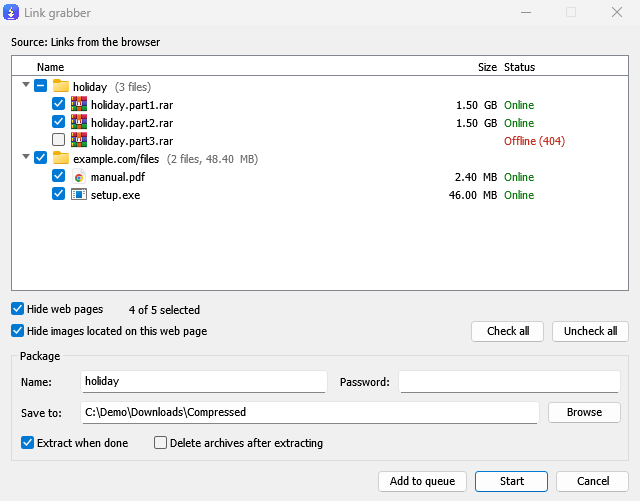
I download si uniscono alla Coda di download principale, pronti per essere avviati (anche Avvia la avvia). Attività → Importa → Da file di esportazione IDM legge un file .ef2, con il referer e i cookie di ogni download, e il nome del file che un elenco gli dà in una riga filename:.
Attività → Link grabber... apre la stessa finestra vuota: incolla un testo che contiene collegamenti (Ctrl+V). Vedi Link grabber e archivi per i pacchetti, la password dell'archivio e l'estrazione degli archivi una volta scaricati.
Per salvare il tuo elenco, usa Attività → Esporta → In file di testo (un indirizzo per riga) o In file di esportazione IDM.
Quando l'indirizzo è già nell'elenco
By default VDM asks what to do when you add an address it already has. You can choose a fixed answer in Options → Downloads → If a duplicate download link is added:
- Mostra una finestra e chiedi cosa fare.
- Aggiungi il duplicato con un nome file numerato
- Aggiungi il duplicato e sovrascrivi il file esistente
- Se il file esistente è completo, mostra la finestra di download completato; altrimenti riprendilo.
Passi successivi
- Send browser downloads to VDM →
- Seguire un download nella finestra di avanzamento →
- Mettere i download in coda per dopo →
Gratuito, open source, senza pubblicità, senza periodo di prova.
Download Volt Download Manager