

VDM downloads BitTorrent files from magnet links and .torrent files. Torrents appear in the same list as other downloads, marked Torrent in the Source column, and can be queued and scheduled like them.
Aggiungi un torrent
- Fai clic su Aggiungi torrent nella barra degli strumenti per scegliere un file
.torrent. Oppure fai clic sulla freccia accanto e scegli Apri file torrent... o Aggiungi link magnet... (anche sotto Attività). - Si apre la finestra Aggiungi torrent. Incolla un link magnet in Torrent, oppure fai clic su ... per scegliere un file
.torrent, poi fai clic su Cerca. - VDM reads the torrent and shows its files as a folder tree. A
.torrentfile is read at once. A magnet link first has to get the file list from other peers, usually within seconds. While it waits, Add torrent shows how many peers it found, from the trackers, the DHT or your local network, and how many answered. After 30 seconds without an answer, it says what may be in the way: a link with no trackers while the DHT is off, or a firewall, a VPN or a network that blocks BitTorrent. - Deseleziona le cartelle o i file che non vuoi. Seleziona tutto e Deseleziona tutto sono utili con i torrent di grandi dimensioni. Selezionati mostra quanti file e quanti dati hai selezionato.
- Seleziona Salva in. I file vanno in mostra la cartella esatta. I torrent hanno la loro categoria, quindi per impostazione predefinita è
Downloads\Torrents. Per un torrent con più file scaricato direttamente tramite BitTorrent, Crea una cartella per questo torrent è selezionato per impostazione predefinita. Deselezionalo per mettere i file direttamente in Salva in, mantenendo le loro cartelle interne. L'albero dei file e I file vanno in si aggiornano di conseguenza. Rinomina è disabilitato finché non c'è una cartella esterna da nominare. - Per guardare un video mentre viene scaricato, seleziona Scarica in sequenza (vedi Scarica in sequenza).
- Fai clic su Scarica ora, o su Più tardi per aggiungerlo all'elenco senza avviare il download.
Una destinazione già occupata da un altro download, incluso uno in attesa con Più tardi, deve essere modificata prima che il torrent possa essere aggiunto. Questo include i percorsi non selezionati perché una parte sovrapposta può scriverci. Un torrent più vecchio senza un elenco di file salvati riserva in modo conservativo la sua intera destinazione; scegli un'altra destinazione o rimuovi quella voce dall'elenco senza eliminare i suoi file prima di condividere la cartella.
Also delete the file from disk removes the files VDM made for the torrent, each recognised by its file index and the time it was created, so a file that took the same name later is never taken for the torrent's. Files that were already there, files another download claims and files you agreed to use stay. VDM creates every ticked file of a torrent itself, empty, before it starts, so they are removed with it. Unticked files aren't made in the folder: the parts of the pieces they share with ticked files are kept in VDM's own torrent data, and go with the torrent; a file ticked later is made then, and gets them. Only empty folders VDM created are removed; existing folders and a shared Save to folder stay. A torrent with its own outer folder, added before this version, is deleted the way it always was. An older one-file torrent is deleted by name, from its own folder. Another older torrent (saved without an outer folder) has no record of its files: VDM keeps them and says why, so check and remove them yourself. A filesystem that gives no reliable creation time (FAT and exFAT, some network and Linux filesystems) keeps its files: VDM never deletes what it cannot recognise. Whenever Also delete the file from disk leaves files on the disk, VDM lists them. A Save to folder that does not exist yet is made, with its parents, when the torrent starts. A torrent added before this version, with its own folder or one file, takes the files already there as its own once, so resuming it or sharing it again does not ask about files VDM itself downloaded.
The torrent can only write into files VDM has checked, however it starts (Download Now, Resume, the Files tab, Recheck, or when VDM opens). If a file is at one of its paths and VDM did not make it (saved there after the torrent was added, replaced while the torrent was stopped, or moved to another drive by something other than VDM), VDM asks before using it. Yes lets the torrent use the file and write into it, and VDM never deletes it; No leaves it as it is and the torrent does not start. Starting it again asks again. An empty file is asked about too (a .gitkeep, or a file another program has just made and is about to write). If you replace a file while its torrent is stopped, starting the torrent adds it again on the file that is there now, so what you agreed to is what it writes to. When VDM opens, finished torrents are shared again only if their files are as VDM left them; one with a file that would need your permission is left stopped, and VDM asks nothing then.
An older VDM can open a list that holds a torrent saved without its own folder, but it does not know that its folder is shared: do not Move, Rename or Delete that torrent there. Its Delete with files removes every file of the torrent in Save to, those you agreed to use included, and Save to itself if that is then empty. This version recognises such a torrent again from its address, which an older VDM keeps.
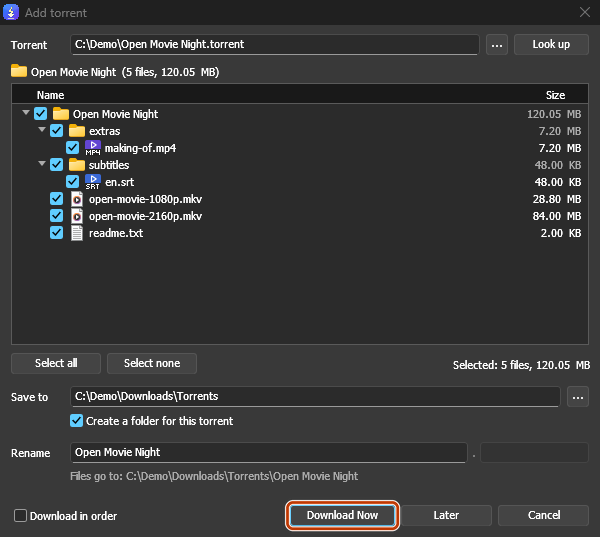
Deseleziona ciò che non vuoi, poi fai clic su Scarica ora. 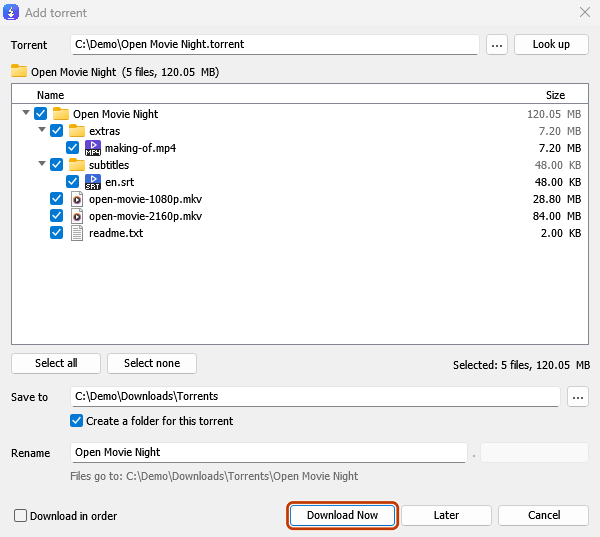
La sua finestra di avanzamento: ogni file e quanto ne è stato scaricato. 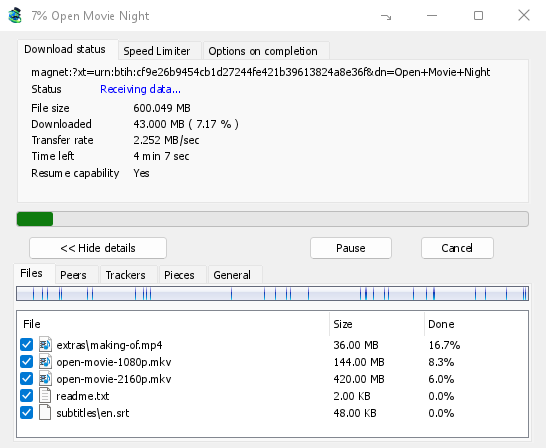
Parti: la mappa delle parti del torrent, che si riempie. 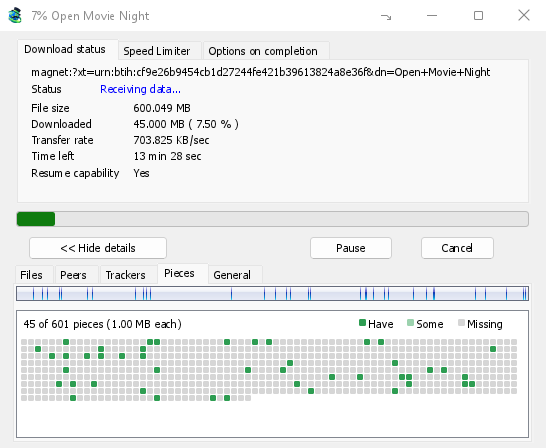
You can also paste a magnet link into Add URL, or drop a magnet link or a .torrent file on the drop target (Tasks → Show drop target). If a torrent is already in the list, VDM says so instead of adding it twice.
A .torrent file's web address works too: paste it into Add URL or Torrent, or let the browser hand the download over. VDM fetches the file, with the browser's cookies when the browser sent it, and Add torrent shows what it holds. The browser hands .torrent downloads over when TORRENT is in Options → File types and Open magnet links and .torrent files with Volt Download Manager is on in Torrent settings. TORRENT is in the list by default; a list you had before it came keeps what it had, so add TORRENT to it yourself. While that setting is off, the browser keeps .torrent downloads and opens them in your own torrent program, and the extension's button says why. Download with Volt Download Manager on a link always hands it over. A command line with /n (silent) saves the .torrent file itself, like any file. VDM fetches at most 10 MB: anything bigger isn't a .torrent file.
If some of the torrent's files are already in the folder, VDM asks before using them. Yes keeps them for the torrent: VDM checks them, keeps what matches the torrent and downloads the rest, which is how you continue a download started elsewhere or share files you already have. No (the default) goes back, so you can choose another folder and nothing of yours is overwritten.
The chosen layout is kept when the torrent is paused or VDM restarts. A multi-file torrent saved directly in Save to shares that directory: Move/Rename and folder renaming on completion are disabled for it so they cannot move unrelated files. Deleting the torrent's files leaves unrelated files and the shared destination folder in place. The layout option applies to direct BitTorrent downloads; torrents downloaded through a debrid account keep their existing layout.
Some programs (BitComet, for one) write a torrent's names in another encoding and add a UTF-8 copy of them (name.utf-8, path.utf-8); VDM shows and saves the files under the UTF-8 names. A torrent like that which was downloading in an earlier version starts those files again under their correct names, and leaves the files with the old names in the folder.
VDM refuses a torrent with file names your system can't write safely, says which name, and writes nothing. What others can see, the network switches in Torrent settings, blocklists and proxies: Torrents and your security.
Durante il download
Fai doppio clic sul torrent nell'elenco per aprire la finestra di avanzamento. Oltre al normale stato, la finestra di un torrent ha cinque schede:
- File: ogni file, la sua dimensione e la quantità scaricata. I file che hai deselezionato mostrano Saltato. Seleziona o deseleziona la casella di un file per modificare cosa viene scaricato, anche mentre il torrent è in esecuzione. Almeno un file resta selezionato. Se deselezioni tutti i file che mancano ancora, il torrent termina. Se un torrent completato e non in esecuzione riceve di nuovo un file, resta fermo finché non lo riprendi, così non viene scaricato nulla a tua insaputa.
- Peer: i computer da cui scarichi, con la quantità di dati ricevuti e inviati a ciascuno.
- Tracker: i tracker del torrent. Se non ce ne sono, i peer provengono dalla DHT e dagli altri peer.
- Parti: una mappa delle parti del torrent: presenti, parzialmente presenti o mancanti.
- General — the info hash, pieces, peers, how much was sent, the share ratio, how long it has been shared and the folder. What was sent and the time shared add up over all of the torrent's runs: they don't start again at 0 after a pause or a restart of VDM.
Le schede restano disponibili dopo che il torrent è terminato, finché è condiviso.
A file is made when its first byte is downloaded, and only a ticked one is made in the folder: what an unticked file shares with a ticked one waits in VDM's own torrent data. A running torrent keeps only the files it is reading or writing open, a few hundred at most for all of VDM's torrents together (fewer where the system allows fewer, as macOS does), so a torrent of thousands of files runs where it used to fail with "Too many open files".
A stopped torrent keeps none of its files open: you can move, rename or delete them, or open them in another program, while it waits. When you start it again, VDM opens them where they are; a file that was moved away or deleted meanwhile is made again and its pieces downloaded again. A finished torrent that is shared (Keep sharing torrents after they finish, in Torrent settings) keeps its files open only to read them: other programs can open, copy, run, move or rename them meanwhile.
La scheda Limitatore di velocità della finestra di un torrent permette di impostare, oltre al limite di download, Limita l'upload a una velocità a tua scelta. Il limite viene salvato con il torrent e si applica ogni volta che il torrent viene eseguito o condiviso. In ogni caso, la velocità di un torrent non può essere limitata a meno di 16 KB/sec.
Comandi torrent
Fai clic destro su un torrent nell'elenco e apri Torrent:
- Verifica di nuovo i file: legge e verifica ogni parte dei file del torrent, ad esempio dopo aver spostato i file o in caso di errori del disco. Un torrent in esecuzione riprende e scarica ciò che manca. Un torrent fermo resta fermo. Il log eventi indica la quantità di dati trovata: un torrent completato con una parte danneggiata si ferma e, quando lo riprendi, scarica di nuovo quella parte.
- Riannuncia: chiede subito di nuovo i peer ai tracker del torrent, invece di aspettare il successivo aggiornamento. Funziona mentre il torrent è in esecuzione o condiviso.
- Add trackers... — adds trackers, one address a line (
http,httpsorudp). They are kept with the torrent, after the ones it has, and the Trackers tab shows them. A tracker on your computer or your local network is refused: VDM never contacts those (why). - Scarica in sequenza: scarica i file del torrent dall'inizio (vedi sotto). Fai clic di nuovo per tornare a scaricare prima le parti più rare.
- Prima le parti iniziali e finali: con Scarica in sequenza, le parti iniziali e finali di ogni file vengono scaricate prima delle altre. L'opzione è attiva per impostazione predefinita.
- Copia link magnet: copia un link magnet al torrent, con i suoi tracker.
L'esito di ogni comando viene annotato nel log eventi del torrent; passa il puntatore sulla sua cella Stato nell'elenco per leggerlo.
Scarica in sequenza
By default VDM downloads the pieces that the fewest peers have first, as BitTorrent programs usually do. That way a piece only one peer has is fetched before that peer leaves, and VDM can pass it on to others sooner. On VDM's test swarms it finished just as fast as downloading in order, and it was the only order that finished when a scarce piece's only holder left.
Scarica in sequenza scarica prima l'inizio di un file, così puoi guardare un video mentre viene scaricato: aprilo nel lettore quando è disponibile la prima parte. Seleziona l'opzione in Aggiungi torrent, oppure scegli Torrent → Scarica in sequenza dal menu del clic destro nell'elenco, in qualsiasi momento, anche mentre il torrent è in download. Le parti richieste successivamente seguiranno il nuovo ordine.
- Con Prima le parti iniziali e finali (attiva per impostazione predefinita), anche le parti finali di ogni file vengono scaricate presto. La maggior parte dei file video contiene l'indice alla fine, e il lettore lo legge prima di riprodurre qualsiasi cosa.
- I file vengono scaricati uno dopo l'altro, in ordine alfabetico.
- I peer più lenti scaricano parti un po' più avanti, così l'inizio non resta in attesa.
Un torrent scaricato in sequenza non termina più in fretta e aiuta meno lo sciame: usalo per ciò che vuoi guardare subito.
Feed RSS
Many sites publish their new torrents as an RSS or Atom feed. VDM can watch feeds, list what they hold, and add the new torrents you want by itself. Choose Tasks → RSS feeds..., or click the arrow next to Add Torrent.
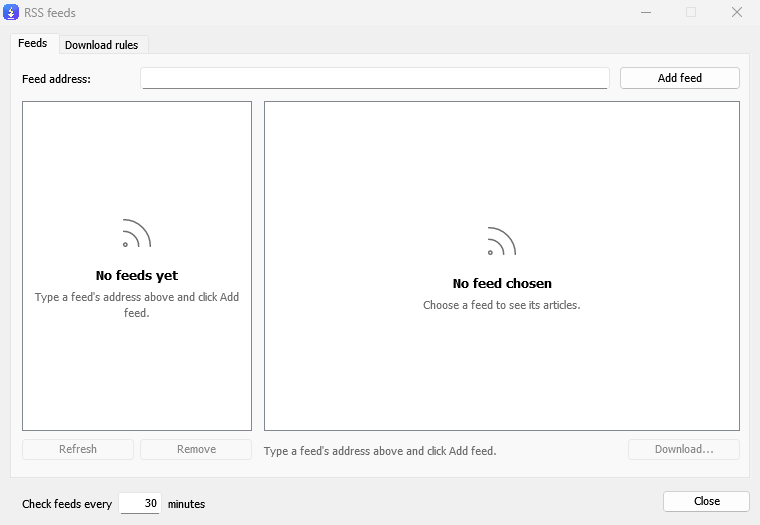
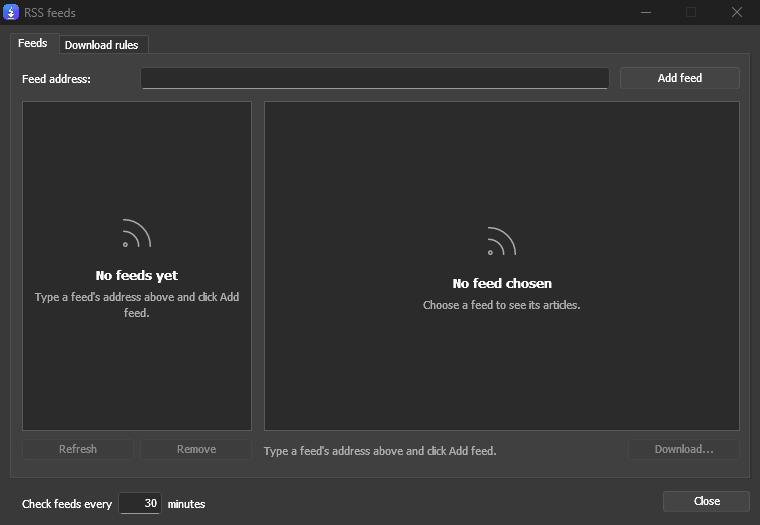
Scheda Feed:
- Type a feed's address into Feed address and click Add feed. VDM fetches it at once, then every 30 minutes; change that under Check feeds every ... minutes, 5 at the least.
- Seleziona un feed a sinistra per vedere i suoi articoli. Se un articolo contiene un torrent, viene mostrata un'icona torrent e, se il feed la fornisce, la dimensione. Fai doppio clic su un articolo, oppure selezionalo e fai clic su Scarica..., per aprirlo in Aggiungi torrent, come faresti con qualsiasi link magnet o indirizzo
.torrent. - Aggiorna recupera subito il feed selezionato. Rimuovi interrompe il monitoraggio. I feed che non è possibile leggere vengono mostrati in rosso e la riga in basso indica il motivo.
Scheda Regole di download: una regola aggiunge senza chiedere i torrent degli articoli nuovi il cui titolo corrisponde ai criteri.
- Deve contenere: le parole che il titolo deve contenere, tutte e in qualsiasi ordine.
|separa le alternative (1080p|2160p), mentre*e?sono caratteri jolly. Le maiuscole e le minuscole sono considerate uguali. - Non deve contenere: le parole che fanno ignorare un articolo alla regola, specificate allo stesso modo.
- Espressioni regolari: usa invece espressioni regolari nelle due caselle.
- Episodi: quali episodi scaricare, ricavati dal titolo da
S01E05o1x05.1x2indica la stagione 1, episodio 2;1x5-8gli episodi dal 5 all'8;2x1-tutti gli episodi dalla stagione 2, episodio 1 in poi;3tutta la stagione 3. Separa i valori con;. Se il campo è vuoto, vengono considerati tutti gli articoli. Una regola scarica ogni episodio una sola volta: una nuova release di un episodio già aggiunto viene ignorata. - Salva in: la cartella in cui vengono salvati i torrent; se il campo è vuoto, viene usata la cartella della categoria Torrent. Aggiungili senza avviarli li aggiunge come farebbe Scarica più tardi.
- Feed: i feed da monitorare; se nessuno è selezionato, vengono usati tutti.
Rules only look at articles that are new since the feed was last fetched, and a feed's first fetch only lists what is there. So adding a feed or a rule never downloads a whole backlog. Matches ... articles now shows which of the articles the feeds hold now the rule matches, to check it; download those by hand. A torrent the list already has isn't added again, and neither is one whose files are already in the folder: VDM never writes into files it didn't make without asking. The bottom line of the tab says what the rules did last, and a torrent a rule added says so in its event log.
Feeds and rules are kept in rss.json in VDM's data folder. VDM reads at most 5 MB of a feed.
Impostazioni torrent
Scegli Attività → Impostazioni torrent... (oppure fai clic sulla freccia accanto a Aggiungi torrent):
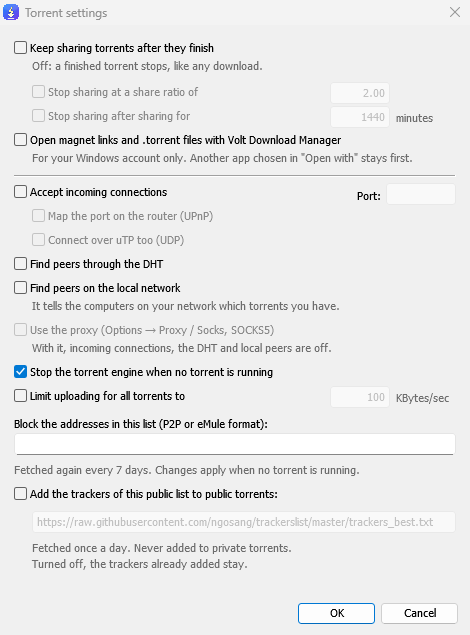
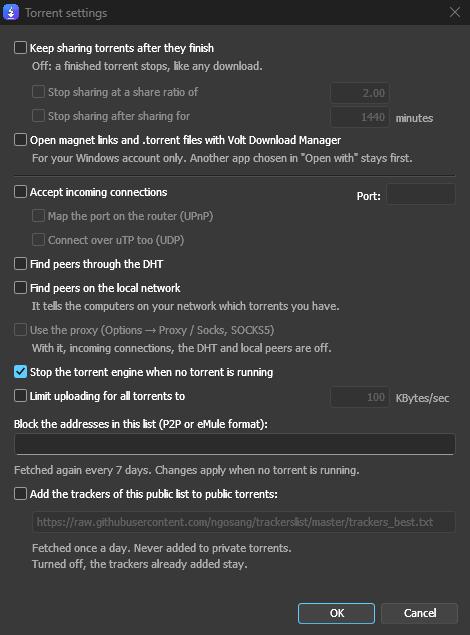
- Continua a condividere i torrent dopo il completamento: disattivato per impostazione predefinita: un torrent completato si interrompe, come qualsiasi download. Attivalo per continuare a fare upload agli altri peer dopo aver completato il download.
- Interrompi la condivisione al rapporto di: un torrent completato smette di essere condiviso quando ha inviato quel numero di volte la propria dimensione (2.00: il doppio). Disattivata per impostazione predefinita.
- Interrompi la condivisione dopo … minuti di condivisione: oppure quando il torrent è stato condiviso così a lungo, sommando tutte le sessioni. Disattivata per impostazione predefinita.
A torrent stopped by one of these says so in its event log, and isn't shared again when VDM starts. Raise or turn off the limit to share it again.
- Limit uploading for all torrents to — off by default. Caps what all your torrents together send to other peers, while they download and while they share. A torrent's own upload limit, in its progress window, applies on top of it.
- Open magnet links and .torrent files with Volt Download Manager — Windows then opens magnet links in your browser and .torrent files in Explorer with VDM. This is for your Windows account only. It also lists VDM in Windows' Settings → Apps → Default apps for MAGNET and .torrent. A program already chosen there (or in Open with) stays first, because Windows lets only you change that choice: when you turn the setting on and Windows still opens them with another program, VDM says which and opens its own Default apps page, where you set MAGNET and .torrent to Volt Download Manager. Firefox can keep a choice of its own for magnet links: when magnet is listed in its Settings → General → Applications, set its action to Volt Download Manager (shown as the default once Windows has it) or to Always ask. The setup can turn it on for you. It also decides whether the browser hands .torrent downloads to VDM: off, they stay with the browser for your own torrent program, even with TORRENT in Options → File types. It starts as you chose in the setup; a portable copy, or an VDM updated from an earlier version, starts with it on when your system already opens .torrent files with this VDM (or you had ticked it), off otherwise. From then on it stays as you leave it. On Linux it makes VDM your desktop's default app for them; on macOS, their default app (Finder offers VDM in Open With for .torrent files either way, and a double-click opens them in VDM when no other app is their default).
-
Connect over uTP too (UDP) — on by default. uTP is BitTorrent over UDP. Many peers (qBittorrent's, µTorrent's, Transmission's and others) take uTP, and some take nothing else: without it, VDM can't reach those, and a torrent with few peers may find almost none. VDM tries TCP first and uTP when TCP doesn't answer within a second, on the same port it listens on, so uTP needs Accept incoming connections on. A SOCKS5 proxy carries only TCP, so with Use the proxy on, uTP is off. A chosen network adapter holds uTP's socket too.
-
Add the trackers of this public list to public torrents — off by default. While it is on, every public torrent also asks the trackers of a public tracker list, so it finds peers sooner, above all an old torrent whose own trackers have gone quiet: the ones you add from then on, and those already in your list (once, when you turn it on). The list is ngosang/trackerslist's best trackers unless you type another address in the box (one tracker per line). VDM fetches it with its own downloader, through your proxy and network adapter, once a day (an hour later when a fetch failed), and keeps the last good copy: a new torrent never waits for it, and takes the list as last fetched. When a newer list brings new trackers, each torrent gets those too. A private torrent (one from a private tracker, marked so inside the torrent) never gets them: it may only ask its own trackers. Turning it off doesn't take away the trackers already added. Each torrent's Trackers tab shows them, and its event log says how many were added.
voltdownloadmanager-cli torrent-getfollows the same switch.
La stessa finestra contiene gli interruttori di rete (connessioni in entrata, la porta, UPnP, uTP, la DHT, un proxy SOCKS5), la blocklist e l'elenco pubblico dei tracker: vedi Torrent e la tua sicurezza.
VDM starts its torrent engine the first time you add a torrent. If you never use torrents, it never listens for peers.
When the network comes back after a drop (Wi-Fi reconnecting, the computer waking from sleep, a VPN connecting or switching), VDM notices within a few seconds and calls the torrents' peers again at once, and asks their trackers and the DHT again, so a download picks up where it was instead of waiting minutes for each peer's next try. Each peer is called once for it; a tracker is still never asked sooner than its minimum interval. Behind a SOCKS5 proxy, a drop the computer itself doesn't see (the router losing its line while Wi-Fi stays up) is noticed only through the DHT, which is off there, so those torrents come back on their own, as before.
To find peers without trackers, VDM joins the DHT through four public routers (dht.libtorrent.org, dht.transmissionbt.com, router.bittorrent.com and router.utorrent.com); any one that answers is enough. It keeps the DHT nodes it found for the next start, so later starts don't depend on those routers.
VDM's log (logs\vdm.log in VDM's data folder) says where it listens, for example torrents: listening for peers on TCP and uTP (UDP) port 51413 (every address, IPv4 and IPv6: [::]:51413). That is one socket for IPv4 and IPv6 (and one UDP socket for uTP), so on Windows netstat -ano -p tcp (IPv4 only) doesn't list it; netstat -ano or Get-NetTCPConnection -State Listen does, under [::] or :: (and Get-NetUDPEndpoint the uTP one).
On a Linux system without CA certificates (a minimal install without the ca-certificates package), torrents still work: peers, the DHT and http:// trackers. An https:// tracker can't be checked there, so VDM skips it; install that package to use those too.
With a debrid account, torrents and magnet links can go to the service instead of to peers, and VDM downloads the files from it over HTTP: see Torrents through the service.
Passi successivi
Gratuito, open source, senza pubblicità, senza periodo di prova.
Download Volt Download Manager