

Apri Download → Opzioni, oppure fai clic su Opzioni nella barra degli strumenti. La finestra ha dodici pagine su due righe di schede. OK salva le modifiche; chiudendo la finestra o premendo Esc le annulli.
Alcuni pulsanti sono disattivati. Appartengono a funzionalità non ancora implementate.
Generale
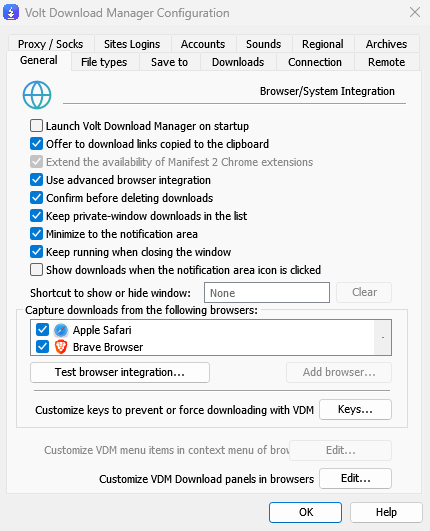
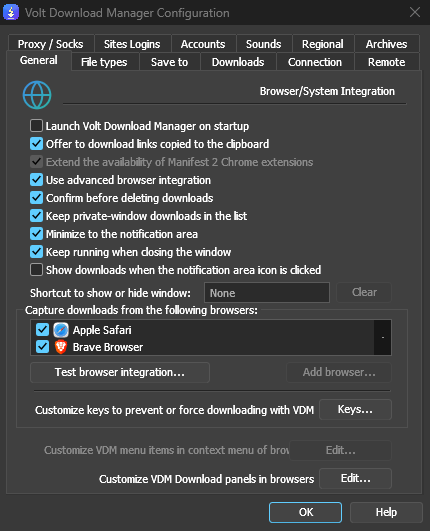
- Launch Volt Download Manager on startup — start VDM when you sign in to Windows. It starts in the notification area, its window hidden, with its downloads, queues and Scheduler running; click its icon (or start VDM again) to show the window. On Linux and macOS it starts with your session the same way; where no notification area shows VDM's icon (some Linux desktops), it starts minimized, and the option's tooltip says so. VDM waits for the notification area up to 30 seconds after making its icon, its window hidden, as a desktop's can come up after VDM at sign-in. Off by default. Greyed in a portable copy, which writes nothing to the registry.
- Proponi di scaricare i collegamenti copiati negli Appunti — quando copi un collegamento il cui tipo di file è nella pagina Tipi di file, si apre la finestra Informazioni sul file da scaricare con il collegamento, pronta per avviare il download (o il download si avvia subito, se Mostra la finestra di avvio del download è disattivata). Questo vale per archivi, programmi, musica, video, PDF e qualsiasi tipo che hai aggiunto tu, così copiare l'indirizzo di un'immagine, un font o un modello 3D per usarlo altrove non avvia mai un download. Attivato per impostazione predefinita.
- Use advanced browser integration — let the browser extension hand downloads to VDM. Turn it off to keep every download in the browser.
- Chiedi conferma prima di eliminare i download: chiede conferma prima di rimuovere i download dall'elenco. Attivata per impostazione predefinita; Non mostrare più questa finestra in quella domanda la disattiva, e selezionarla qui la riattiva. Se disattivata, Elimina rimuove i download solo dall'elenco e ne mantiene i file; Shift+Canc chiede comunque conferma, come sempre quando si eliminano file dal disco.
- Keep private-window downloads in the list — save downloads that come from a browser's private (incognito) window in VDM's list like any other, so an unfinished one is still there to resume after VDM closes or restarts. On by default. Unticked, they are kept in memory only, as the browser keeps them, and are gone when VDM closes. In the list, a private window's download has a small mask before its status; its tip says whether the list keeps it. The first time one comes, VDM says that they are kept and where to turn that off. Their cookies are never saved either way, and after a restart they still stay apart from normal windows' downloads (a private download that waits for a new address isn't given one by a normal window's, and a private window's video never uses Cookies for video sites from Sites Logins: if a site wants you signed in, open the page in a private window, sign in there, and use its Download video button again). Turning it off later doesn't remove the ones already saved by an earlier session.
- Keep running when closing the window — closing the main window hides it in the notification area instead of quitting, and downloads, queues and schedules go on. On by default; unticked, closing quits VDM (so a portable copy's folder can then be deleted). If there is no icon for VDM at all — not even behind the ^ hidden icons — the window minimizes to the taskbar instead, so downloads continue and the window stays reachable; an icon behind ^ can be clicked to bring it back, or start VDM again. On macOS the window closes into the Dock, and a click on VDM's icon there (or in the menu bar) brings it back; Cmd+Q quits. Greyed where no tray shows VDM's icon (some Linux desktops): closing quits there.
- Show downloads when the notification area icon is clicked — a click on VDM's icon there shows a small panel over it with what is downloading, each download's progress, Pause and Cancel, and a button that opens the window; a double click opens the window (Windows). On in a new copy of VDM; one set up before it keeps its click, which shows or hides the window, until it is ticked. Greyed where no tray shows VDM's icon. See The tray icon.
- Minimize to the notification area — Minimize hides the main window, and a download's progress window, in the notification area; downloads go on. On by default. Where the tray has no icon, the main window minimizes to the taskbar instead. The close setting above is separate; when it is on, closing hides there too (or minimizes to the taskbar if there is no icon at all). Greyed where no tray shows VDM's icon (some Linux desktops); in a Wayland session the main window stays minimized in the dock, since Wayland can't hide a window.
- Acquisisci i download dai seguenti browser: deseleziona un browser per lasciare i suoi download al browser stesso.
- Customize VDM Download panels in browsers → Edit... — the download button over videos on web pages: turn it off, choose its Button size (80%, 100% or 120%, and Automatic, as installed: only the logo, the arrow and ✕ in a feed and over a small player, its words over a big one; Full, its words wherever they fit; or Compact, only the logo, the arrow and ✕ on every video), or list the sites it never shows on (separate them by spaces; wildcards like
*.youtube.*,youtube.*or*.example.comwork). See Browser integration.
Vedi Integrazione con i browser.
Tipi di file
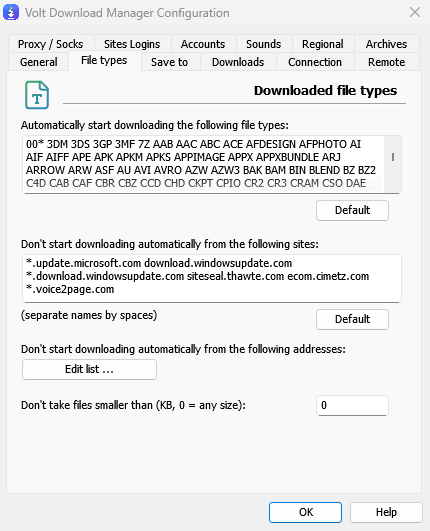
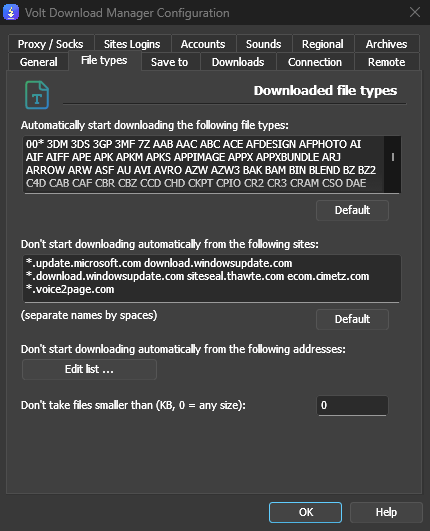
- Avvia automaticamente il download dei seguenti tipi di file — i tipi di file che il browser passa (e che gli Appunti rilevano). Separali con spazi;
*corrisponde a qualsiasi carattere, come inR0*. Predefiniti ripristina l'elenco originale. L'elenco inizia con i soliti archivi, programmi e installatori (Windows, macOS e Linux: DMG, PKG, DEB, RPM, APPIMAGE, MSIX), musica e video, file PDF e Office, modelli e set di dati AI (GGUF, SAFETENSORS, CKPT, PT, ONNX, PARQUET), file 3D e CAD (GLB, FBX, OBJ, STL, BLEND, STEP), file di design e RAW della fotocamera, ebook, immagini disco e archivi divisi. Pagine, script, testo semplice e immagini web sono esclusi di proposito, così il salvataggio di un'immagine o di una pagina resta con il browser; aggiungi qualsiasi tipo di cui hai bisogno, o metti un singolo*nella casella per accettare ogni file che ha un'estensione. Un elenco che non hai mai modificato acquisisce i tipi aggiunti da una nuova versione; uno che hai modificato resta così com'è. - Non avviare automaticamente il download dai seguenti siti — i siti i cui download restano nel browser, separati da spazi. Un nome copre anche i sottodomini del sito (
example.comcoprewww.example.comedl.example.com, così come*.example.com),*corrisponde a qualsiasi cosa come nell'elenco dei pannelli di download (*.example.*), e ai file che le sue pagine collegano su un altro server (un server di download o una CDN), indicato dalla pagina da cui proviene il download. Un download senza pagina conosciuta è abbinato al suo stesso indirizzo. Predefiniti ripristina l'elenco originale.
Salva in
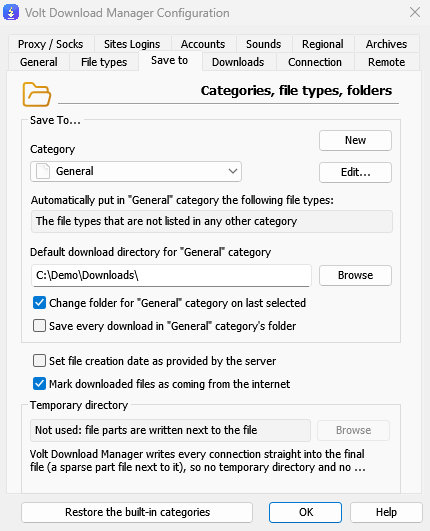
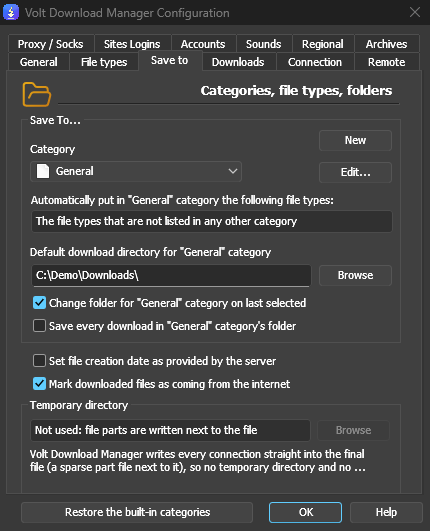
- Categoria: scegli una categoria per vedere e modificare le sue impostazioni qui sotto.
- Nuovo: crea la tua categoria. Modifica... cambia quella selezionata: il suo nome, i tipi di file e la cartella. Le categorie predefinite (Compressi, Documenti, Musica, Programmi, Video) possono essere rinominate, assegnate ad altri tipi di file ed eliminate come le tue; una rinominata mantiene la sua cartella. Generale e Torrent cambiano solo la loro cartella.
- Ripristina le categorie predefinite: ripristina le categorie predefinite come erano in origine, dopo che le hai rinominate, modificate o eliminate.
- Assegna automaticamente alla categoria "…" i seguenti tipi di file — i tipi di file che vanno in questa categoria. Una categoria predefinita il cui elenco non hai mai modificato acquisisce i tipi che una nuova versione aggiunge; una che hai modificato resta come tale.
- Cartella di download predefinita per la categoria "…": la cartella della categoria. Digita un percorso o fai clic su Sfoglia.
- Cambia cartella per la categoria "…" in base all'ultima selezionata: quando scegli un'altra cartella in Informazioni sul file da scaricare, diventa la cartella della categoria da quel momento in poi. Attivato per impostazione predefinita. (Imposta lo stato iniziale di Ricorda questo percorso in quella finestra.)
- Salva ogni download nella cartella della categoria "Generale" — disattivato per impostazione predefinita. Se selezionato, ogni nuovo download va nella cartella di Generale, qualunque sia la sua categoria: dal browser, Aggiungi URL, Download in batch, Link grabber, code, riga di comando, video e torrent. Le categorie ordinano comunque l'elenco. La cartella di Generale è quella da impostare (scegli Generale qui sopra); le altre categorie mantengono le proprie cartelle per quando sarà di nuovo disattivato, mostrate in grigio nel frattempo. Un singolo download può comunque andare altrove: cambia la sua cartella nella finestra che lo avvia (Ricorda questo percorso poi cambia la cartella di Generale). I download già nell'elenco restano dove sono.
- Imposta la data di creazione del file fornita dal server: assegna ai file completati la data riportata dal server, non la data in cui li hai scaricati.
- Mark downloaded files as coming from the internet — on by default. Every file VDM downloads (from the browser, a link you add, a video, a gallery, a torrent, and the files extracted from an archive) carries the mark a browser's downloads carry. On Windows that is the Mark of the Web: SmartScreen checks a program before it first runs, and Office opens a document in Protected View. On a Mac it is the quarantine attribute Gatekeeper checks; on Linux, where the file came from, which file managers show. Unticked, no download is marked. On Windows, VDM also follows the Group Policy Do not preserve zone information in file attachments, as browsers do: when it is on (for the computer or for you), no download is marked, whatever this box says.
VDM doesn't use a temporary folder: every connection writes straight into the final file's place, so there is nothing to put together at the end.
Download
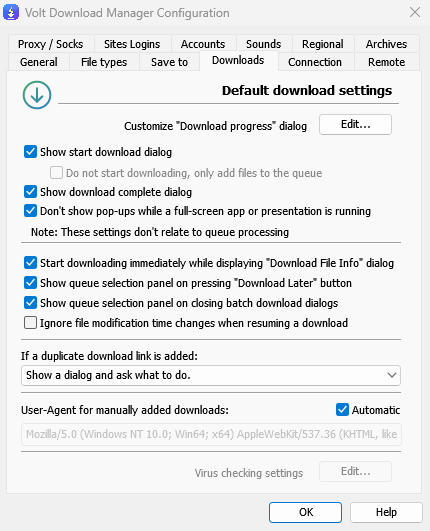
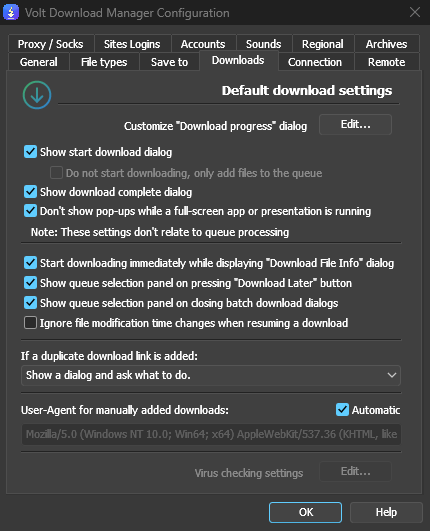
- Personalizza la finestra "Avanzamento download" → Modifica... — Mostra la finestra di avanzamento del download all'avvio di un download: Mostra normalmente, attiva per impostazione predefinita; Mostra ridotta a icona, che avvia la finestra di avanzamento del download ridotta a icona sulla barra delle applicazioni, senza togliere il focus dal programma in uso; oppure Non mostrare, dove un download non aprirà più la sua finestra di avanzamento all'avvio, dal browser, da un collegamento aggiunto, da un video o da una coda, e continuerà nell'elenco della finestra principale, dove un doppio clic aprirà la sua finestra di avanzamento. La finestra Download completato verrà comunque mostrata al termine, come indicato da Mostra la finestra di download completato qui sotto.
- Mostra la finestra di avvio del download: mostra Informazioni sul file da scaricare per ogni nuovo download. Se disattivato, i download iniziano subito, o si uniscono alla coda solo se selezioni Non avviare il download, aggiungi solo i file alla coda.
- Mostra la finestra di download completato: mostra Download completato quando un file termina.
- Don't show pop-ups while a full-screen app or presentation is running — on by default. While a full-screen game, app or video, a presentation or the locked screen is on, Download complete and the other windows VDM opens by itself wait, and show when you're back, one after the other in the order they came: Downloads complete, a new version found by the weekly check, the download limit's warning, an archive's test result, its password question or its call for 7-Zip, the browser extension's offer, a link copied to the clipboard, and the crash report. The downloads carry on as usual, and the tray icon's tip says how many windows wait. The windows you open yourself, links you click in the browser and the Turn off computer countdown (so you can still cancel it) show at once. On Windows VDM goes by the state Windows holds its own notifications by (games, presentation mode, full-screen apps and videos), by a frameless window that fills its whole screen in front (on any of your screens), and by the screen's lock; on Linux by the session's lock, and by a full-screen window under X11 or XWayland (on Wayland, a native program's full screen can't be seen). On macOS a full-screen app has a Space of its own, which VDM's windows never open over. Untick it and the windows show at once, as before.
- Avvia subito il download mentre è aperta la finestra "Informazioni sul file da scaricare": attivato per impostazione predefinita, così il download è già in corso mentre scegli una cartella.
- Mostra il pannello di scelta della coda quando si preme "Scarica più tardi": ti chiede quale coda usare; se è disattivato, il download viene aggiunto alla Coda di download principale.
- Mostra il pannello di scelta della coda alla chiusura delle finestre di download in batch: lo stesso per i download in batch.
- Ignora i cambiamenti della data di modifica del file quando si riprende un download: utile per i server che ogni volta segnalano una nuova data per lo stesso file. Senza questa opzione, con questi server ogni ripresa ricomincia da capo.
- Se viene aggiunto un collegamento di download duplicato: chiedi cosa fare, aggiungilo con un nome numerato, sovrascrivi quello precedente oppure apri quello completato / riprendi quello non completato.
- User-Agent for manually added downloads — how VDM names itself to servers for downloads you add yourself. With Automatic ticked (the default), VDM introduces itself as your default browser: the User-Agent that browser sends, at the version you have installed (Chrome, Edge, Brave, Opera, Vivaldi, Firefox or Safari). The box shows it, and pointing at it names the browser. When VDM doesn't recognise your default browser, it sends a current Chrome's. Untick Automatic to type your own; tick it again to go back. Downloads from the browser use that browser's own User-Agent, the one your sign-in and the site's checks know; the one typed here doesn't replace it. If a site turns a browser's User-Agent away, VDM asks once more with the one typed here (with Automatic, with Internet Explorer's). If a site's bot check refuses it, and the way a browser connects too, VDM asks once more under its own name,
VoltDownloadManager/and its version (or the one typed here), and remembers that site until VDM closes. A User-Agent typed here for the downloads you add yourself is the only one they send.
Connessione
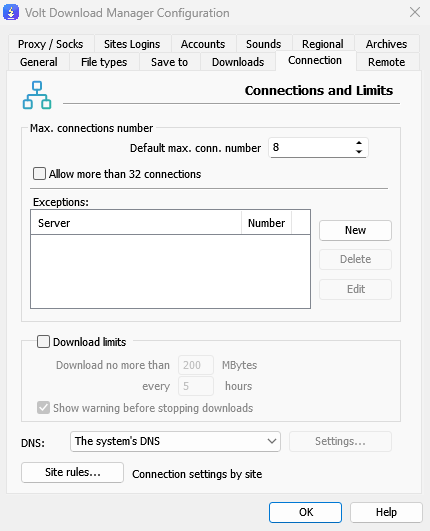
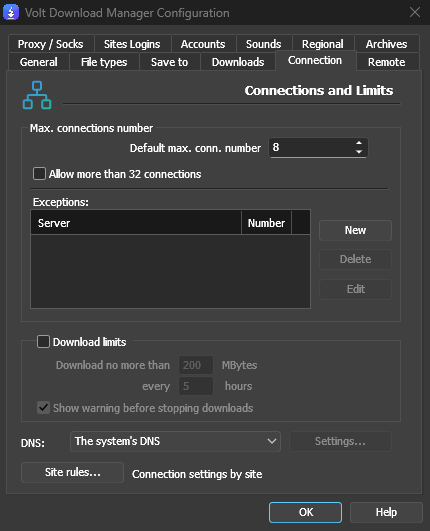
- N. max connessioni predefinito: quante connessioni può usare ogni download, da 1 a 32 (8 per impostazione predefinita). Digita il numero o usa le frecce.
- Allow more than 32 connections — raises the most to 128, for the number above and for the exceptions. Most servers allow far fewer from one address; VDM notices and asks those for fewer. Turned off again, any higher number comes back to 32.
- Exceptions — a different number for some servers. New adds one (the server's name and the number of connections); Edit and Delete change or remove the selected one. Rows marked (auto) are limits VDM learned by itself from servers that refused more connections. They can't be edited and fade away by themselves.
- Regole del sito... — un User-Agent, le intestazioni della richiesta, il numero di connessioni, Connetti sempre come farebbe un browser e un proxy (nessuno, o uno proprio con il suo login), per sito. Vedi Regole del sito.
- Limiti di download: limita la quantità scaricata nell'arco di alcune ore. La stessa impostazione si trova nel Pianificatore; vedi Code e Pianificatore.
- DNS — which DNS turns the servers' names into addresses for VDM's downloads, its own downloads (helpers, updates) and FTP. The system's DNS is the default (on Windows 11 it can already be encrypted, in Windows' own network settings). Or pick Cloudflare, Google, Quad9, AdGuard or NextDNS, or Another DNS... to type your own; Settings... chooses how it's asked:
- DNS su HTTPS (l'impostazione predefinita) o DNS su TLS: la richiesta è crittografata, così nessuno lungo il percorso può vedere o modificare i nomi che cerchi.
- Plain DNS: not encrypted. VDM asks it over TCP, never UDP, so it never needs a firewall exception.
- Per il tuo DNS: gli indirizzi IP dei server, il nome indicato nel loro certificato (TLS) oppure l'indirizzo
https://(HTTPS, con i relativi indirizzi IP, se li conosci). NextDNS richiede il tuo ID di configurazione. - Se non è raggiungibile, usa il DNS di sistema: è disattivato per impostazione predefinita. Se il DNS non risponde, il download si interrompe e un messaggio indica quale DNS non ha risposto, invece di inviare silenziosamente le tue richieste al DNS di sistema. Se il DNS indica che un nome non esiste, non viene usato il DNS di sistema (altrimenti si annullerebbe il filtraggio).
- Prova interroga il DNS per github.com e mostra quanto tempo impiega.
I nomi nel tuo file hosts e i nomi locali (parole singole, .local, .lan, .home.arpa, .internal, localhost) restano con il DNS del sistema. Le pagine video (yt-dlp) e le gallerie di immagini (gallery-dl) usano il DNS che hai scelto solo quando è selezionata una scheda di rete; altrimenti, come i tracker torrent, usano quello del sistema. Con un proxy, il proxy cerca per te i nomi dei siti che raggiunge.
Scopri di più in Connessioni e velocità.
Proxy / Socks
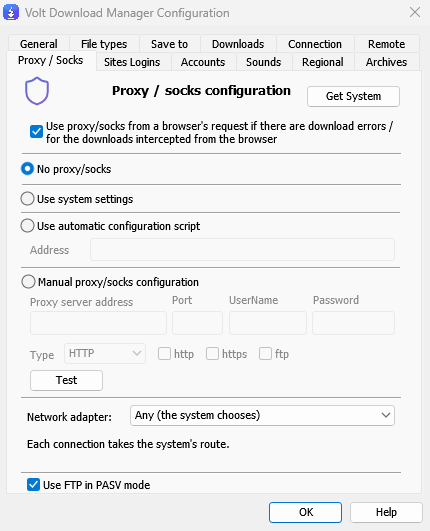
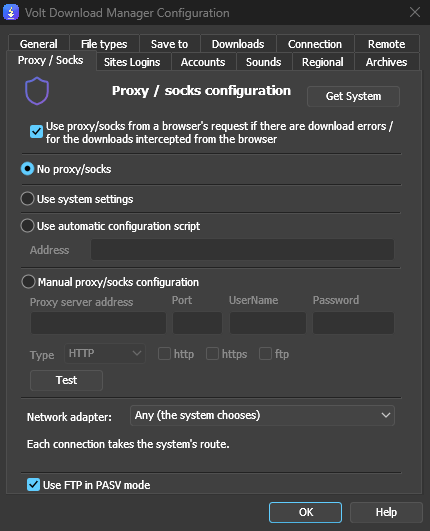
- No proxy/socks — connect directly. This is the default. Chosen here (clicked, or with Use proxy/socks from a browser's request… unticked while it's on), video pages and image galleries connect directly too: yt-dlp and gallery-dl are kept off Windows' proxy and the
HTTPS_PROXY/HTTP_PROXY/ALL_PROXYvariables. Left at the default, they still follow those, as they always did. - Usa le impostazioni di sistema: usa il proxy del sistema: le impostazioni di Windows o macOS, o su Linux le variabili
https_proxy,http_proxyeall_proxydella tua sessione. - Use automatic configuration script — the proxy auto-config (PAC) script your network gives: type its address (
http://…/proxy.pac, or a file). VDM fetches it and asks it which proxy each download goes through (PROXY,HTTPS,SOCKS,SOCKS5,SOCKS4orDIRECT), as browsers do. Through aSOCKSorSOCKS5answer, the proxy looks the site's name up, as in browsers. Until the script has been fetched, or if it can't be, VDM uses the system's settings. - Configurazione manuale proxy/socks: il tuo proxy personale:
- Indirizzo del server proxy e Porta: il suo nome o indirizzo IP (
127.0.0.1) e la porta (1080). - Tipo: il protocollo usato dal proxy. HTTP (il solito proxy web), HTTPS (un proxy web raggiunto tramite una connessione crittografata), SOCKS5 o SOCKS4.
- Nome utente e Password, se necessari (HTTP, HTTPS e SOCKS5; SOCKS4 non ha login, quindi sono disattivati).
- Per un proxy HTTP o HTTPS, seleziona i protocolli per cui è attivo (http, https). I download FTP non passano mai attraverso un proxy HTTP: la sua casella ftp resta disattivata e lo indica.
- A SOCKS proxy carries every connection: web downloads, FTP, video pages and galleries (yt-dlp and gallery-dl), VDM's own downloads and the update check, and torrents if you ask (below). It has no protocol boxes; instead, Look up site names through the proxy (on by default) has the proxy turn the sites' names into addresses, so your own DNS never sees which sites you visit (
socks5h,socks4a). Untick it only for a proxy that can't look names up; VDM then looks them up with the DNS chosen under Connection and hands the proxy the address. - FTP tramite un proxy SOCKS usa sempre la modalità passiva (il proxy non può ritrasmettere le connessioni del server), quindi Usa FTP in modalità PASV appare selezionata e disattivata. Gli indirizzi
ftps://(TLS dal primo byte) non possono ancora passare attraverso un proxy SOCKS;ftpes://(TLS dopo la connessione) possono. - I torrent usano un proxy SOCKS5 solo quando Usa il proxy è attivata in Impostazioni torrent (vedi Torrent e la tua sicurezza). Un proxy SOCKS4 o HTTP non li gestisce.
- Un indirizzo scritto nel modo più vecchio,
socks5://host(osocks5h://,socks4://,http://), funziona ancora: Opzioni lo mostra come suo Tipo con solo l'host. - Leggi dal sistema: compila i campi manuali dalle impostazioni proxy di Windows (su Windows): il suo proxy HTTP quando ne ha uno, altrimenti il suo SOCKS (come SOCKS5: Windows non dice quale versione; scegli SOCKS4 se il tuo parla solo quella).
- Prova: una richiesta tramite ciò che la pagina dice ora (il suo proxy, con il DNS e la scheda di rete che le Opzioni hanno), a
one.one.one.onedi Cloudflare, che risponde con l'indirizzo che ha visto. La riga accanto al pulsante indica quanto tempo ci è voluto e l'indirizzo che vede internet (quello del proxy, quando gestisce le tue connessioni), o perché è fallito: il proxy non è raggiungibile, ha rifiutato l'accesso o non è riuscito a raggiungere il sito. Nient'altro viene inviato.
Which do I pick?
- A VPN app usually needs nothing here: it carries all the computer's traffic. To make sure VDM never goes around it, choose its Network adapter below. Some VPN apps also offer a SOCKS5 proxy of their own (in their settings, with its own login): SOCKS5, its address, port and login.
- Tor (Tor Browser or the Tor service): SOCKS5, 127.0.0.1, port 9150 (Tor Browser) or 9050 (the service), Look up site names through the proxy ticked. Tor carries no torrents well; leave Use the proxy off in Torrent settings.
- An SSH tunnel, ssh -D 1080 you@server: SOCKS5, 127.0.0.1, port 1080.
- Clash, v2rayN and similar proxy programs: their mixed port takes both, usually 127.0.0.1:7890 (HTTP or SOCKS5); v2rayN also has a SOCKS port, often 10808. Or turn on their system proxy and choose Use system settings.
- A proxy your workplace or school gives: usually an HTTP one, or a script (Use automatic configuration script). Ask which.
- Use proxy/socks from a browser's request… — on by default. A download VDM takes from the browser goes through the proxy the browser used for it. That's the one a VPN or proxy extension set, the browser's own manual proxy, or its proxy auto-config script. Without it, the download would leave from your own address, and content limited to the VPN's country, or to its address, would fail. The browser extension reads that proxy and hands it to VDM with each download, once you switch on Send downloads through this browser's proxy or VPN extension in the extension's toolbar popup (Firefox asks you once; Chrome, Edge, Brave, Opera and Vivaldi ask nothing more: see A VPN or proxy extension).
- A proxy that asks for a login the VPN extension gives itself can't be shared: no other program has that login. The download then stops and says so, rather than going without the proxy. Use the VPN's own app, or choose its adapter under Network adapter.
- In Firefox, VDM sees the proxy the browser's own request for the file took, including the ones a VPN extension picks for each request. In Chrome and the other Chromium browsers, it sees the browser's proxy settings: the server for the download's scheme (honouring their bypass list) or their proxy auto-config script.
- When the browser used no proxy, and No proxy/socks is chosen, VDM uses Windows' proxy settings, as browsers do.
- Network adapter — Any (the system chooses) is the default. Pick an adapter, usually your VPN's, and every connection VDM opens goes out through it, or not at all. That covers downloads, FTP, torrents, video pages and image galleries, the DNS you chose, VDM's own downloads and the update check. It works as a kill switch: when the adapter disconnects, or the VPN is switched off, nothing goes out through your normal connection. Running downloads stop with "… is not connected" and start again when the adapter is back. The line under the list shows the adapter's address, or that it isn't connected.
- How it holds: Windows binds the adapter's own address. Windows then sends those packets only through that adapter (its strong host model). Linux binds the device itself (Linux 5.7 or newer), and macOS binds the interface. An address of a kind the adapter doesn't have (IPv6 on an IPv4-only VPN) is refused, not sent around it.
- The system's DNS asks the names in its own way, and Windows may ask over every adapter. To keep the names inside the adapter too, choose a DNS under Connection → DNS: VDM then asks it through the adapter.
- Video pages and image galleries: yt-dlp, gallery-dl and the ffmpeg yt-dlp starts can't be held to an adapter themselves, so while one is chosen VDM gives them a proxy of its own on this computer (127.0.0.1, with a password only they get). VDM opens their connections through the adapter, as it opens its own, and looks the names up with the DNS you chose. When the adapter disconnects, their connections close and the downloads stop with the others. Video formats that can't go through a proxy (RTMP, RTSP, MMS, FTP) are refused rather than sent around it.
- Not held to the adapter yet, so they don't start while one is chosen: ftps:// (implicit TLS; ftp:// with TLS is fine).
- Connections to this computer itself (localhost) aren't bound. A proxy on this computer carries the downloads, and where it sends them is up to it.
- On macOS a VPN that reconnects may get a new interface (utun5 instead of utun4): pick it again.
- Use FTP in PASV mode — on by default: for FTP downloads VDM opens the data connections itself (passive mode), which works through routers and firewalls. Turn it off only for a server that needs active mode (the server connects back to you). FTP goes through a SOCKS proxy above (always passive then), never through an HTTP one. See FTP and FTPS.
Accessi ai siti


User names and passwords for sites that ask for them. New adds a row: the site (with a path if the login is only for part of it), the user name and the password. Edit and Remove change or delete the selected row. VDM uses the login for every download from that site. A login typed in Add URL (Use authorization) takes priority for that one download. For huggingface.co, the password is your Hugging Face access token, for gated models and datasets: VDM sends it as a token, to Hugging Face only (the user name can be anything; see Models, datasets and releases).
The passwords (these, the proxy's and the debrid accounts') are kept in the system's keychain: Windows Credential Manager, the keyring on Linux (Secret Service: GNOME Keyring, KeePassXC and others) or the macOS keychain; VDM's settings keep only a reference. A locked keyring is never unlocked for VDM: without one, they stay in VDM's settings, sealed for your Windows account on Windows. Options → Accounts says where they are. A portable copy keeps them in its own folder.
Cookie per i siti video: per i video che si riproducono solo quando hai effettuato l'accesso (YouTube: "Accedi per confermare che non sei un bot"):
- Disattivato (impostazione predefinita): yt-dlp ottiene i cookie solo dall'estensione del browser, quando usi il pulsante sopra un video.
- Dal browser — yt-dlp legge i cookie del browser scelto su questo computer (Firefox, Chrome, Edge, Brave, Opera, Vivaldi, Chromium, Whale; Safari su macOS) per ogni video che cerca o scarica, inclusi gli indirizzi incollati. Quando l'estensione ha passato i cookie della pagina stessa, vengono usati quelli. Un video da una finestra privata del browser non li legge mai, incluso uno mantenuto dopo un riavvio: ha solo i cookie che la sua finestra privata ha fornito. Profilo (opzionale): il nome o la cartella di un profilo (... ne sceglie uno); se vuoto, quello usato l'ultima volta. Chrome, Edge e Brave bloccano i loro cookie su Windows: Firefox funziona. Vedi Siti che vogliono che tu sia connesso.
Use my yt-dlp config file — off by default. Ticked, yt-dlp also reads its own config files (%APPDATA%\yt-dlp\config.txt on Windows, ~/.config/yt-dlp/config on Linux and macOS, and the others it looks for, such as yt-dlp.conf in your home folder) for the videos, playlists and look-ups the app starts, so your subtitle, thumbnail, metadata or SponsorBlock choices apply there too. Most of what VDM chooses still wins: the folder and file name, the quality, the proxy and network adapter set here. VDM also keeps yt-dlp's own downloader for HTTP, FTP and HLS (one the file names, aria2c, reports no progress), leaves out a download archive, forced overwrites and marking videos as watched (which would mark every video only looked up), keeps part files (with --no-part the engine's streams would be downloaded again into a doubled file), and keeps the usual fix-ups. Options there that skip or filter videos (--match-filters, --max-filesize, a strict -f) apply too, and can make a video say it can't be downloaded. A proxy with a user name set here gives way to a --proxy in the file.
Account
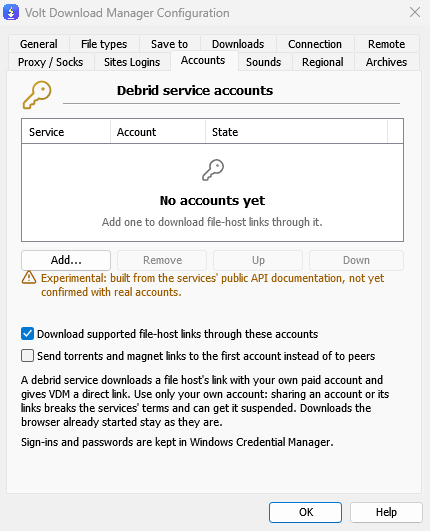
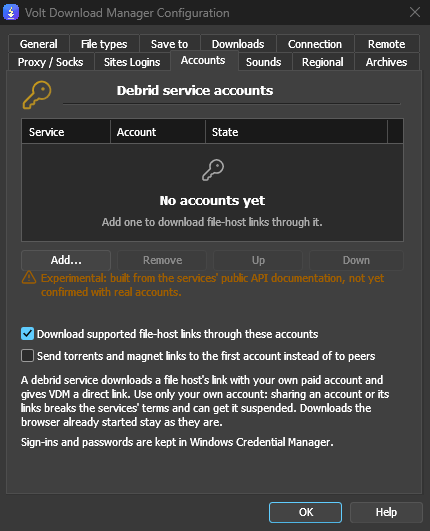
I tuoi account del servizio debrid (Real-Debrid, AllDebrid, Premiumize, TorBox, Mega-Debrid; sperimentale): Aggiungi... esegue l'accesso tramite codice nel browser, con nome utente e password, o con il token o la chiave API; un collegamento da un host supportato dal servizio viene quindi scaricato tramite esso. L'ordine dell'elenco è l'ordine in cui vengono richiesti gli account. Vedi Account del servizio debrid.
Suoni
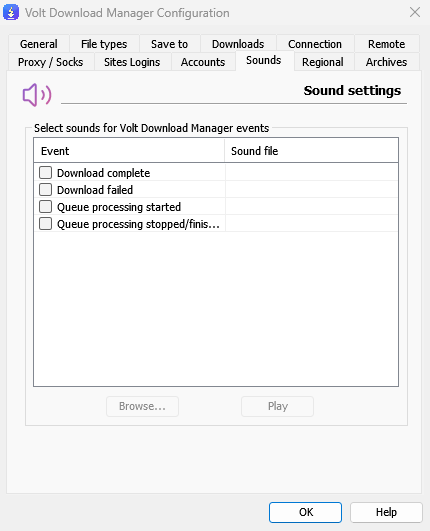
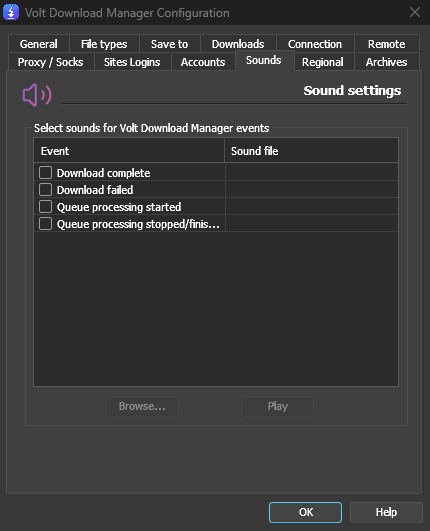
Riproduci un suono per Download completato, Download non riuscito, Elaborazione coda avviata e Elaborazione coda interrotta/completata. Seleziona un evento, fai clic su Sfoglia... per scegliere un file .wav e su Riproduci per ascoltarlo.
Formato internazionale
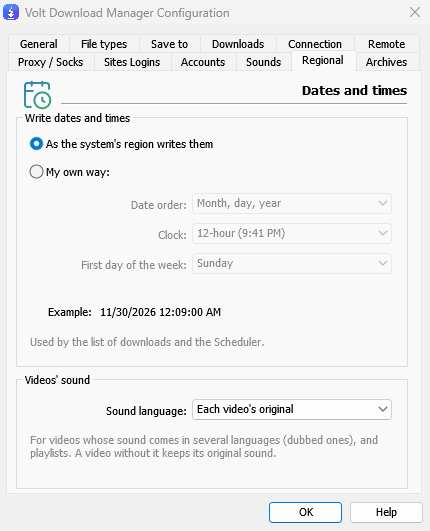
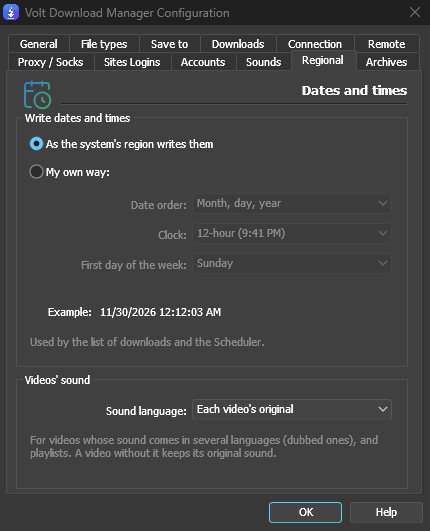
Formato di date e orari nell'elenco dei download e nel Pianificatore.
- Come nelle impostazioni internazionali del sistema (impostazione predefinita): usa le impostazioni internazionali di Windows (Impostazioni → Ora e lingua → Area geografica); su macOS e Linux, usa il formato consueto della lingua. In inglese, l'elenco mantiene il formato delle date di IDM.
- Personalizzato: scegli l'ordine della data (giorno, mese, anno; mese, giorno, anno; oppure anno, mese, giorno), il formato a 12 o 24 ore e il primo giorno della settimana nel calendario del Pianificatore. Esempio mostra il risultato.
Videos' sound — the language a video's sound comes in when the site has it in several (dubbed videos): Each video's original (the default), or a language, which every video looked up and every playlist downloads with when it has it. A video without it comes with its original sound, and Download video can choose another for one video (The sound's language).
Archivi
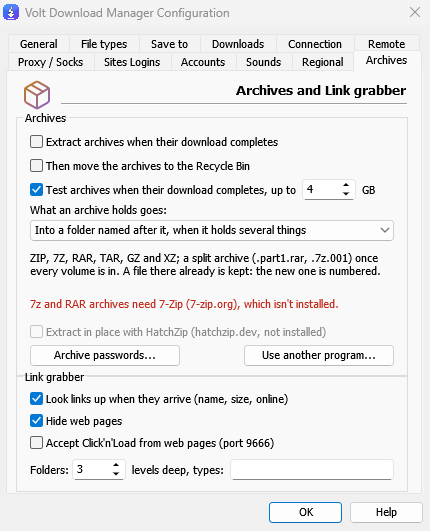
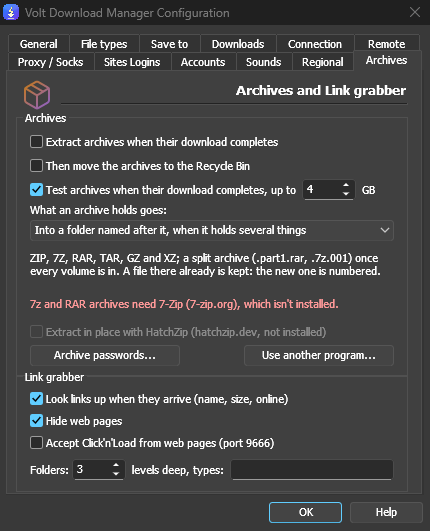
Archivi (zip, 7z, rar, tar, gz, xz) e Link grabber.
- Estrai gli archivi al completamento del download (disattivata per impostazione predefinita): estrae ogni archivio appena il download è completo (o quando è stato scaricato l'ultimo volume di un archivio diviso). Un pacchetto del Link grabber ha una propria opzione Estrai al termine.
- Poi sposta gli archivi nel Cestino (disattivata per impostazione predefinita; nel Cestino su macOS e Linux): solo dopo un'estrazione completata correttamente. Questa è anche l'impostazione predefinita dell'opzione Elimina gli archivi dopo l'estrazione per i nuovi pacchetti.
- Test archives when their download completes, up to 4 GB (on by default) — a ZIP, 7z or RAR archive (a split one once its last volume is in) is read back and every file in it checked before its download counts as done, with the 7-Zip named below (a ZIP without 7-Zip by VDM itself). A larger one isn't tested by itself, as a test reads the whole file: right-click → Test archive tests it. A damaged ZIP's damaged files are downloaded again; any other damaged archive is offered for Redownload. See Testing archives.
- Destinazione del contenuto di un archivio: in una cartella con il nome dell'archivio se contiene più elementi (impostazione predefinita), sempre in una cartella di questo tipo oppure direttamente nella cartella dell'archivio.
- Whether 7-Zip was found: 7z and RAR archives need it, unless they are extracted in place with HatchZip. VDM also finds the 7-Zip inside PeaZip and NanaZip's command line.
- Use another program... — choose the 7-Zip command line program yourself (
7z.exeof a portable copy or of another archiver); Find 7-Zip automatically goes back to the one VDM finds. See Extracting archives. - Estrai sul posto con HatchZip (disattivato per impostazione predefinita; disattivato quando HatchZip non è installato) — l'archivio viene rimosso mentre i suoi file vengono estratti, quindi solo questi ultimi richiedono spazio. Vedi Estrazione in corso degli archivi.
- Archive passwords... — the passwords tried on an encrypted archive before VDM asks, one per line; the one that fits moves to the top. A package's own password is never added by itself. See Archive passwords.
- Analizza i collegamenti all'arrivo (nome, dimensione, online): il Link grabber chiede a ogni server informazioni sul relativo file (attivata per impostazione predefinita).
- Nascondi le pagine web: l'impostazione predefinita del Link grabber per la stessa casella (attiva).
- Accept Click'n'Load from web pages (port 9666) (off by default) — a link site's Click'n'Load button sends its links to VDM's Link grabber. See Click'n'Load.
- Cartelle: 3 livelli di profondità, tipi: — quanti livelli di sottocartelle il Link grabber legge quando gli dai una cartella FTP o un elenco di cartelle di un server web (da 0 a 10; 0 sono i file della cartella stessa), e quali tipi di file mantiene da essi (come nella pagina Tipi di file,
ISO ZIP R0*; vuoto mantiene ogni tipo). Vedi Cartelle.
Remoto
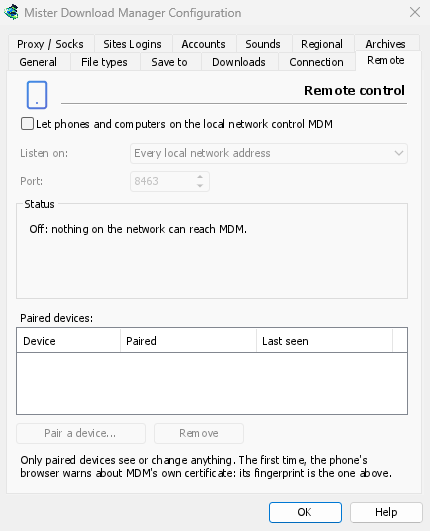
Control VDM from your phone or another computer on the local network: see Control VDM from your phone.
- Let phones and computers on the local network control VDM (off by default).
- Ascolta su: ogni indirizzo di rete locale (l'impostazione predefinita), solo questo computer, o un indirizzo specifico.
- Porta: 8463 per impostazione predefinita.
- Stato: cosa sta facendo, l'indirizzo da aprire sul telefono e l'impronta digitale del certificato.
- Dispositivi associati: Associa un dispositivo... mostra un codice QR e un codice; Rimuovi disassocia immediatamente il dispositivo selezionato.
Altrove
Alcune impostazioni si trovano al di fuori di questa finestra:
- Download → Limitatore di velocità → Impostazioni...: limiti di velocità. Vedi Connessioni e velocità.
- Tasks → Torrent settings... — sharing and file associations, and whether the browser hands
.torrentdownloads to VDM. See Torrents. - Visualizza → Supporto modalità scura, Sempre scuro, Tema, Rendering con, Dimensioni interfaccia, Font (il file del font dell'interfaccia e la dimensione del testo) e Lingua. Vedi Per iniziare e Risoluzione dei problemi.
- Guida → Verifica aggiornamenti...: Verifica aggiornamenti a ogni avvio si trova in quella finestra.
Passi successivi
Gratuito, open source, senza pubblicità, senza periodo di prova.
Download Volt Download Manager