

打开下载 → 选项,或点击工具栏上的选项。窗口有两排共十二个选项卡页面。确定保存您的更改;关闭窗口或按Esc则放弃更改。
有些按钮是灰色的。它们属于尚未构建的功能。
常规
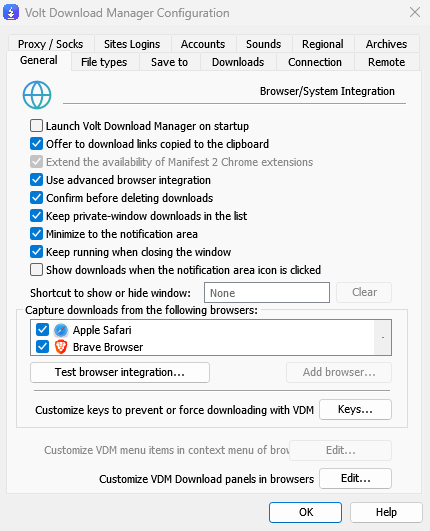
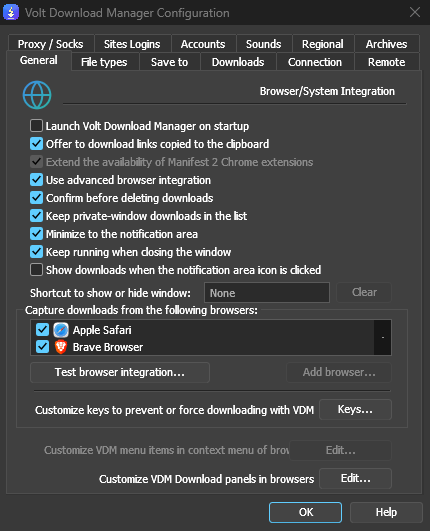
- Launch Volt Download Manager on startup — start VDM when you sign in to Windows. It starts in the notification area, its window hidden, with its downloads, queues and Scheduler running; click its icon (or start VDM again) to show the window. On Linux and macOS it starts with your session the same way; where no notification area shows VDM's icon (some Linux desktops), it starts minimized, and the option's tooltip says so. VDM waits for the notification area up to 30 seconds after making its icon, its window hidden, as a desktop's can come up after VDM at sign-in. Off by default. Greyed in a portable copy, which writes nothing to the registry.
- 提供下载复制到剪贴板的链接 — 当您复制的链接文件类型在文件类型页面上时,下载文件信息会随之打开,准备开始下载(如果显示开始下载对话框关闭,则立即开始下载)。它仅限于压缩包、程序、音乐、视频、PDF 和您自己添加的任何类型,因此复制图片、字体或 3D 模型的地址以在其他地方使用时,绝不会开始下载。默认开启。
- Use advanced browser integration — let the browser extension hand downloads to VDM. Turn it off to keep every download in the browser.
- 删除下载任务前确认 — 从列表中移除下载任务前进行询问。此选项默认开启;在询问对话框中勾选不再显示此对话框会将其关闭,在此处重新勾选则会再次开启。关闭此选项后,删除仅将下载任务从列表中移除并保留其文件;Shift+Delete仍会询问,因为从磁盘删除文件总是需要确认。
- Keep private-window downloads in the list — save downloads that come from a browser's private (incognito) window in VDM's list like any other, so an unfinished one is still there to resume after VDM closes or restarts. On by default. Unticked, they are kept in memory only, as the browser keeps them, and are gone when VDM closes. In the list, a private window's download has a small mask before its status; its tip says whether the list keeps it. The first time one comes, VDM says that they are kept and where to turn that off. Their cookies are never saved either way, and after a restart they still stay apart from normal windows' downloads (a private download that waits for a new address isn't given one by a normal window's, and a private window's video never uses Cookies for video sites from Sites Logins: if a site wants you signed in, open the page in a private window, sign in there, and use its Download video button again). Turning it off later doesn't remove the ones already saved by an earlier session.
- Keep running when closing the window — closing the main window hides it in the notification area instead of quitting, and downloads, queues and schedules go on. On by default; unticked, closing quits VDM (so a portable copy's folder can then be deleted). If there is no icon for VDM at all — not even behind the ^ hidden icons — the window minimizes to the taskbar instead, so downloads continue and the window stays reachable; an icon behind ^ can be clicked to bring it back, or start VDM again. On macOS the window closes into the Dock, and a click on VDM's icon there (or in the menu bar) brings it back; Cmd+Q quits. Greyed where no tray shows VDM's icon (some Linux desktops): closing quits there.
- Show downloads when the notification area icon is clicked — a click on VDM's icon there shows a small panel over it with what is downloading, each download's progress, Pause and Cancel, and a button that opens the window; a double click opens the window (Windows). On in a new copy of VDM; one set up before it keeps its click, which shows or hides the window, until it is ticked. Greyed where no tray shows VDM's icon. See The tray icon.
- Minimize to the notification area — Minimize hides the main window, and a download's progress window, in the notification area; downloads go on. On by default. Where the tray has no icon, the main window minimizes to the taskbar instead. The close setting above is separate; when it is on, closing hides there too (or minimizes to the taskbar if there is no icon at all). Greyed where no tray shows VDM's icon (some Linux desktops); in a Wayland session the main window stays minimized in the dock, since Wayland can't hide a window.
- 从以下浏览器捕获下载 — 取消勾选某个浏览器,即可让其下载由浏览器自行处理。
- Customize VDM Download panels in browsers → Edit... — the download button over videos on web pages: turn it off, choose its Button size (80%, 100% or 120%, and Automatic, as installed: only the logo, the arrow and ✕ in a feed and over a small player, its words over a big one; Full, its words wherever they fit; or Compact, only the logo, the arrow and ✕ on every video), or list the sites it never shows on (separate them by spaces; wildcards like
*.youtube.*,youtube.*or*.example.comwork). See Browser integration.
请参阅浏览器集成。
文件类型
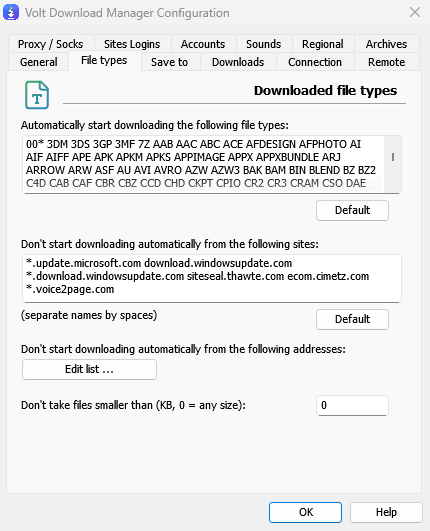
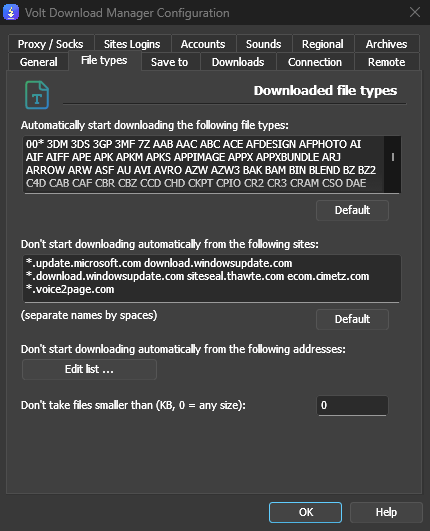
- 自动下载以下文件类型 — 浏览器移交(和剪贴板获取)的文件类型。用空格分隔;
*匹配任何字符,如R0*。点击默认会恢复原始列表。列表最初包含常见的压缩包、程序和安装程序(Windows、macOS 和 Linux:DMG、PKG、DEB、RPM、APPIMAGE、MSIX)、音乐和视频、PDF 和 Office 文件、AI 模型和数据集(GGUF、SAFETENSORS、CKPT、PT、ONNX、PARQUET)、3D 和 CAD 文件(GLB、FBX、OBJ、STL、BLEND、STEP)、设计和相机 RAW 文件、电子书、磁盘映像和分卷压缩包。页面、脚本、纯文本和网页图片被有意排除,因此保存图片或页面仍由浏览器处理;添加您需要的任何类型,或在框中输入单个*以获取所有带扩展名的文件。您从未更改过的列表会添加新版本增加的类型;您编辑过的列表则保持不变。 - 不自动从以下网站开始下载 — 下载会保留在浏览器中的网站,用空格分隔。一个名称也涵盖该网站的子域名(
example.com涵盖www.example.com和dl.example.com,*.example.com也是),*匹配任何内容,如同下载面板列表中的那样(*.example.*),以及其页面链接到另一个服务器(下载服务器或 CDN)上的文件,由下载来源页面决定。未知来源页面的下载任务则通过其自身地址匹配。默认会恢复原始列表。
保存到
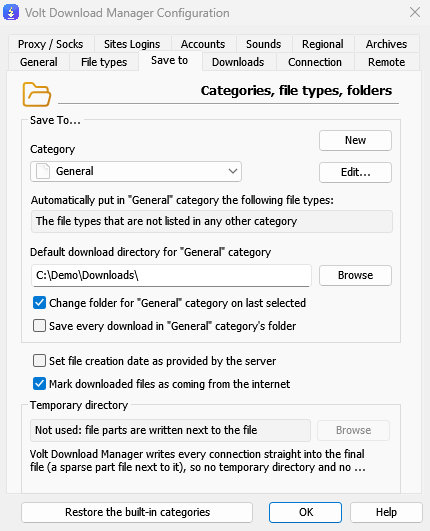
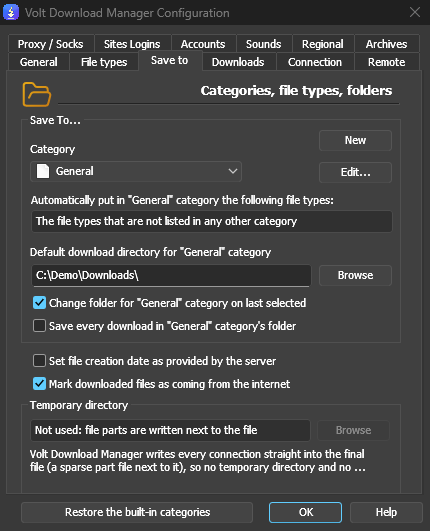
- 类别 — 选择一个类别以查看和更改其下方的设置。
- 新建 — 创建您自己的类别。编辑... — 更改所选类别的名称、文件类型和文件夹。内置类别(压缩文件、文档、音乐、程序、视频)可以像您自己的类别一样重命名、更改文件类型和删除;重命名后的类别会保留其文件夹。常规和种子类别只能更改其文件夹。
- 恢复内置类别 — 在您重命名、更改文件类型或删除内置类别后,将其恢复到初始状态。
- 自动将以下文件类型放入“…”类别 — 属于此类别的文件类型。您从未更改的内置类别将获得新版本添加的类型;您编辑过的类别保持不变。
- “…”类别的默认下载目录 — 该类别的文件夹。输入路径或点击浏览。
- 根据上次选择更改“…”类别的文件夹 — 当您在下载文件信息中选择另一个文件夹时,它将成为该类别从那时起的文件夹。默认开启。(它设置了该窗口中记住此路径的初始状态。)
- 将所有下载保存到“常规”类别的文件夹 — 默认关闭。勾选后,所有新下载(无论是来自浏览器、“添加 URL”、“批量下载”、链接抓取器、队列、命令行、视频还是种子)都将保存到“常规”文件夹,无论其类别如何。类别仍用于列表排序。“常规”文件夹是需要设置的文件夹(在上方选择常规);其他类别将保留其各自的文件夹,当此选项再次关闭时,这些文件夹将重新启用,在此期间显示为灰色。单个下载仍可保存到其他位置:在启动下载的窗口中更改其文件夹(此时记住此路径将更改“常规”文件夹)。列表中已有的下载将保留在原位置。
- 将文件创建日期设置为服务器提供日期 — 将完成文件的日期设置为服务器报告的日期,而不是您下载它们的日期。
- Mark downloaded files as coming from the internet — on by default. Every file VDM downloads (from the browser, a link you add, a video, a gallery, a torrent, and the files extracted from an archive) carries the mark a browser's downloads carry. On Windows that is the Mark of the Web: SmartScreen checks a program before it first runs, and Office opens a document in Protected View. On a Mac it is the quarantine attribute Gatekeeper checks; on Linux, where the file came from, which file managers show. Unticked, no download is marked. On Windows, VDM also follows the Group Policy Do not preserve zone information in file attachments, as browsers do: when it is on (for the computer or for you), no download is marked, whatever this box says.
VDM doesn't use a temporary folder: every connection writes straight into the final file's place, so there is nothing to put together at the end.
下载
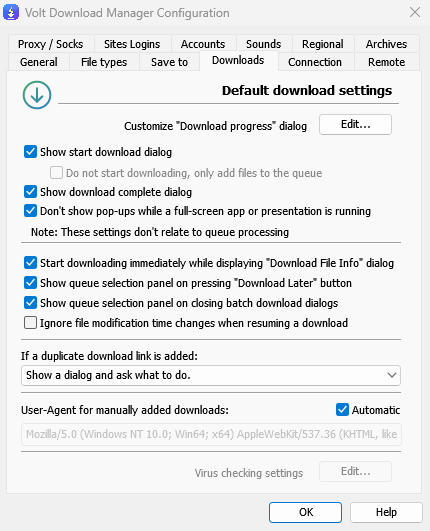
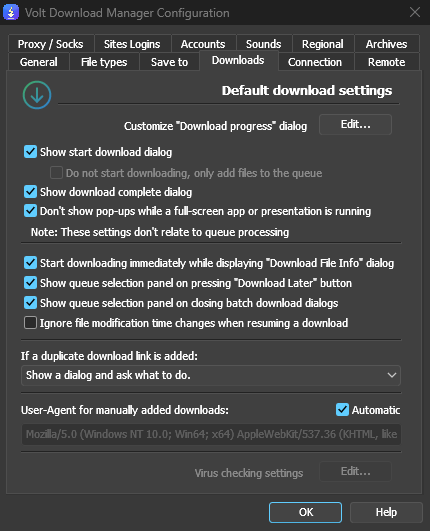
- 自定义“下载进度”对话框 → 编辑... — 下载开始时显示下载进度对话框:正常显示(默认开启),下载进度窗口会正常显示;最小化显示,下载进度窗口会在任务栏最小化显示,不会抢占当前程序的焦点;或者不显示,下载开始时(无论是通过浏览器、添加链接、视频还是队列)不再打开进度窗口,任务会在主窗口列表中进行,双击任务可打开其进度窗口。下载完成时仍会显示,如以下显示下载完成对话框所述。
- 显示开始下载对话框 — 为每个新下载显示下载文件信息。如果关闭此选项,下载会立即开始,或者如果您勾选不开始下载,只将文件添加到队列,则只会加入队列。
- 显示下载完成对话框 — 文件完成时显示下载完成。
- Don't show pop-ups while a full-screen app or presentation is running — on by default. While a full-screen game, app or video, a presentation or the locked screen is on, Download complete and the other windows VDM opens by itself wait, and show when you're back, one after the other in the order they came: Downloads complete, a new version found by the weekly check, the download limit's warning, an archive's test result, its password question or its call for 7-Zip, the browser extension's offer, a link copied to the clipboard, and the crash report. The downloads carry on as usual, and the tray icon's tip says how many windows wait. The windows you open yourself, links you click in the browser and the Turn off computer countdown (so you can still cancel it) show at once. On Windows VDM goes by the state Windows holds its own notifications by (games, presentation mode, full-screen apps and videos), by a frameless window that fills its whole screen in front (on any of your screens), and by the screen's lock; on Linux by the session's lock, and by a full-screen window under X11 or XWayland (on Wayland, a native program's full screen can't be seen). On macOS a full-screen app has a Space of its own, which VDM's windows never open over. Untick it and the windows show at once, as before.
- 显示“下载文件信息”对话框时立即开始下载 — 默认开启,因此在您选择文件夹时下载已在进行中。
- 按下“稍后下载”按钮时显示队列选择面板 — 询问要使用哪个队列;关闭此选项后,下载会放入主下载队列。
- 关闭批量下载对话框时显示队列选择面板 — 批量下载也一样。
- 恢复下载时忽略文件修改时间的变化 — 适用于每次都为同一文件报告新日期的服务器。如果关闭此选项,此类服务器会导致每次恢复下载都从头开始。
- 添加重复的下载链接时 — 询问要执行哪种操作:以带编号的名称添加、覆盖旧文件,或打开已完成的文件/恢复未完成的文件。
- User-Agent for manually added downloads — how VDM names itself to servers for downloads you add yourself. With Automatic ticked (the default), VDM introduces itself as your default browser: the User-Agent that browser sends, at the version you have installed (Chrome, Edge, Brave, Opera, Vivaldi, Firefox or Safari). The box shows it, and pointing at it names the browser. When VDM doesn't recognise your default browser, it sends a current Chrome's. Untick Automatic to type your own; tick it again to go back. Downloads from the browser use that browser's own User-Agent, the one your sign-in and the site's checks know; the one typed here doesn't replace it. If a site turns a browser's User-Agent away, VDM asks once more with the one typed here (with Automatic, with Internet Explorer's). If a site's bot check refuses it, and the way a browser connects too, VDM asks once more under its own name,
VoltDownloadManager/and its version (or the one typed here), and remembers that site until VDM closes. A User-Agent typed here for the downloads you add yourself is the only one they send.
连接
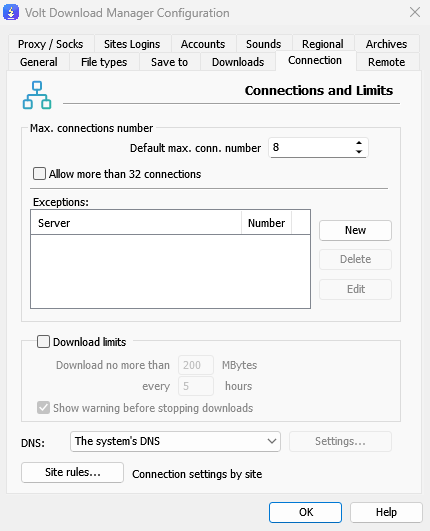
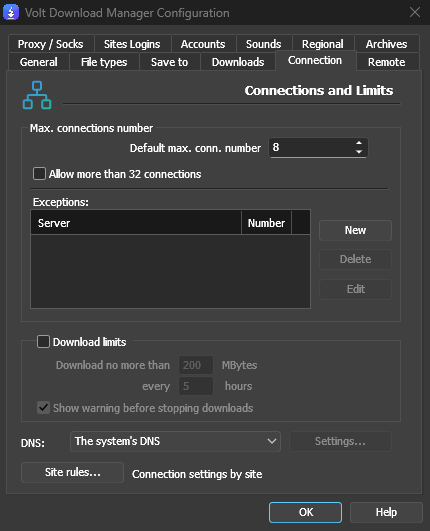
- 默认最大连接数 — 每个下载可使用的连接数为 1 到 32(默认为 8)。输入数字或使用箭头调整。
- Allow more than 32 connections — raises the most to 128, for the number above and for the exceptions. Most servers allow far fewer from one address; VDM notices and asks those for fewer. Turned off again, any higher number comes back to 32.
- Exceptions — a different number for some servers. New adds one (the server's name and the number of connections); Edit and Delete change or remove the selected one. Rows marked (auto) are limits VDM learned by itself from servers that refused more connections. They can't be edited and fade away by themselves.
- 站点规则... — 按站点设置用户代理、请求头、连接数、始终以浏览器方式连接以及代理(无代理,或使用其自己的代理及登录信息)。请参阅站点规则。
- 下载限制 — 每隔几小时,限制下载量不超过设定值。计划程序中也有相同设置;请参阅队列和计划程序。
- DNS — which DNS turns the servers' names into addresses for VDM's downloads, its own downloads (helpers, updates) and FTP. The system's DNS is the default (on Windows 11 it can already be encrypted, in Windows' own network settings). Or pick Cloudflare, Google, Quad9, AdGuard or NextDNS, or Another DNS... to type your own; Settings... chooses how it's asked:
- 基于 HTTPS 的 DNS(默认)或基于 TLS 的 DNS:查询经过加密,因此传输过程中无人能看到或更改您查询的名称。
- Plain DNS: not encrypted. VDM asks it over TCP, never UDP, so it never needs a firewall exception.
- 自定义 DNS:输入服务器的 IP 地址、证书中显示的名称(TLS),或
https://地址(HTTPS;如果知道其 IP 地址,也可以填写)。NextDNS 则需要填写配置 ID。 - 如果无法访问,请使用系统的 DNS:此选项默认关闭,因此 DNS 无响应时会停止下载,并显示 DNS 名称,而不会悄悄将您的查询交给系统的 DNS。如果 DNS 指定某个名称不存在,则不会回退到系统的 DNS(否则会绕过 DNS 过滤)。
- 测试会查询 github.com 并显示耗时。
您主机文件中的名称以及本地名称(单个单词,.local、.lan、.home.arpa、.internal、localhost)仍使用系统的 DNS。视频页面 (yt-dlp) 和图片库 (gallery-dl) 仅在选择了网络适配器时使用您选择的 DNS;否则,它们会像种子追踪器一样使用系统的 DNS。使用代理时,代理会为您查找其所访问站点的名称。
更多内容请参阅连接和速度。
代理/Socks
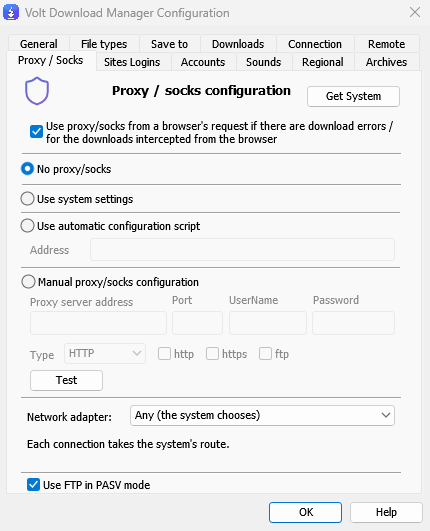
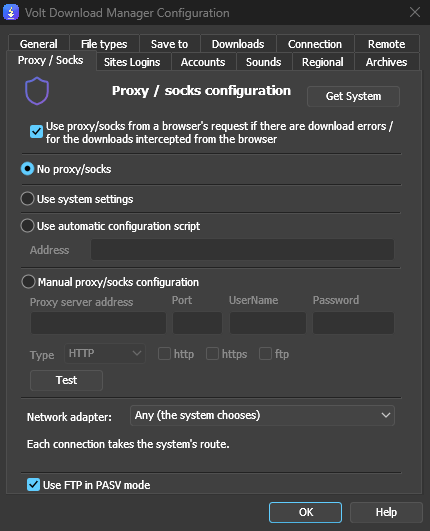
- No proxy/socks — connect directly. This is the default. Chosen here (clicked, or with Use proxy/socks from a browser's request… unticked while it's on), video pages and image galleries connect directly too: yt-dlp and gallery-dl are kept off Windows' proxy and the
HTTPS_PROXY/HTTP_PROXY/ALL_PROXYvariables. Left at the default, they still follow those, as they always did. - 使用系统设置 — 使用系统的代理:Windows 或 macOS 的设置,或者 Linux 上您会话的
https_proxy、http_proxy和all_proxy变量。 - Use automatic configuration script — the proxy auto-config (PAC) script your network gives: type its address (
http://…/proxy.pac, or a file). VDM fetches it and asks it which proxy each download goes through (PROXY,HTTPS,SOCKS,SOCKS5,SOCKS4orDIRECT), as browsers do. Through aSOCKSorSOCKS5answer, the proxy looks the site's name up, as in browsers. Until the script has been fetched, or if it can't be, VDM uses the system's settings. - 手动代理/SOCKS 配置 — 您自己的代理:
- 代理服务器地址和端口:其名称或 IP 地址(
127.0.0.1)和端口(1080)。 - 类型:代理支持的协议。HTTP(常见的网页代理)、HTTPS(通过加密连接访问的网页代理)、SOCKS5或SOCKS4。
- 用户名和密码,如果代理需要它们(HTTP、HTTPS 和 SOCKS5;SOCKS4 没有登录功能,因此这些字段呈灰色)。
- 对于 HTTP 或 HTTPS 代理,勾选其支持的协议(http、https)。FTP 下载绝不会通过 HTTP 代理:其ftp复选框会保持灰色并显示此信息。
- A SOCKS proxy carries every connection: web downloads, FTP, video pages and galleries (yt-dlp and gallery-dl), VDM's own downloads and the update check, and torrents if you ask (below). It has no protocol boxes; instead, Look up site names through the proxy (on by default) has the proxy turn the sites' names into addresses, so your own DNS never sees which sites you visit (
socks5h,socks4a). Untick it only for a proxy that can't look names up; VDM then looks them up with the DNS chosen under Connection and hands the proxy the address. - 通过 SOCKS 代理的 FTP 总是使用被动模式(代理无法将服务器的连接传回),因此在 PASV 模式下使用 FTP会显示为勾选且呈灰色。
ftps://地址(从第一个字节开始的 TLS)目前无法通过 SOCKS 代理;ftpes://(连接后的 TLS)可以。 - 种子仅在“种子设置”中使用代理开启时才使用 SOCKS5 代理(请参阅种子与您的安全)。SOCKS4 或 HTTP 代理不支持种子下载。
- 旧式写法(
socks5://host或socks5h://、socks4://、http://)的地址仍然有效:“选项”会将其显示为类型,仅包含主机名。 - 从系统获取 — 从 Windows 的代理设置(在 Windows 上)填充手动字段:如果有 HTTP 代理则填充 HTTP 代理,否则填充 SOCKS 代理(作为SOCKS5:Windows 不说明具体版本;如果您的代理只支持 SOCKS4,请选择SOCKS4)。
- 测试 — 通过当前页面设置(其代理,以及“选项”中的 DNS 和网络适配器)向 Cloudflare 的
one.one.one.one发送一个请求,它会返回其看到的地址。按钮旁边的行会显示耗时以及互联网看到的地址(如果代理承载您的连接,则为代理的地址),或失败原因:代理无法访问、拒绝登录或无法访问站点。不会发送其他任何信息。
Which do I pick?
- A VPN app usually needs nothing here: it carries all the computer's traffic. To make sure VDM never goes around it, choose its Network adapter below. Some VPN apps also offer a SOCKS5 proxy of their own (in their settings, with its own login): SOCKS5, its address, port and login.
- Tor (Tor Browser or the Tor service): SOCKS5, 127.0.0.1, port 9150 (Tor Browser) or 9050 (the service), Look up site names through the proxy ticked. Tor carries no torrents well; leave Use the proxy off in Torrent settings.
- An SSH tunnel, ssh -D 1080 you@server: SOCKS5, 127.0.0.1, port 1080.
- Clash, v2rayN and similar proxy programs: their mixed port takes both, usually 127.0.0.1:7890 (HTTP or SOCKS5); v2rayN also has a SOCKS port, often 10808. Or turn on their system proxy and choose Use system settings.
- A proxy your workplace or school gives: usually an HTTP one, or a script (Use automatic configuration script). Ask which.
- Use proxy/socks from a browser's request… — on by default. A download VDM takes from the browser goes through the proxy the browser used for it. That's the one a VPN or proxy extension set, the browser's own manual proxy, or its proxy auto-config script. Without it, the download would leave from your own address, and content limited to the VPN's country, or to its address, would fail. The browser extension reads that proxy and hands it to VDM with each download, once you switch on Send downloads through this browser's proxy or VPN extension in the extension's toolbar popup (Firefox asks you once; Chrome, Edge, Brave, Opera and Vivaldi ask nothing more: see A VPN or proxy extension).
- A proxy that asks for a login the VPN extension gives itself can't be shared: no other program has that login. The download then stops and says so, rather than going without the proxy. Use the VPN's own app, or choose its adapter under Network adapter.
- In Firefox, VDM sees the proxy the browser's own request for the file took, including the ones a VPN extension picks for each request. In Chrome and the other Chromium browsers, it sees the browser's proxy settings: the server for the download's scheme (honouring their bypass list) or their proxy auto-config script.
- When the browser used no proxy, and No proxy/socks is chosen, VDM uses Windows' proxy settings, as browsers do.
- Network adapter — Any (the system chooses) is the default. Pick an adapter, usually your VPN's, and every connection VDM opens goes out through it, or not at all. That covers downloads, FTP, torrents, video pages and image galleries, the DNS you chose, VDM's own downloads and the update check. It works as a kill switch: when the adapter disconnects, or the VPN is switched off, nothing goes out through your normal connection. Running downloads stop with "… is not connected" and start again when the adapter is back. The line under the list shows the adapter's address, or that it isn't connected.
- How it holds: Windows binds the adapter's own address. Windows then sends those packets only through that adapter (its strong host model). Linux binds the device itself (Linux 5.7 or newer), and macOS binds the interface. An address of a kind the adapter doesn't have (IPv6 on an IPv4-only VPN) is refused, not sent around it.
- The system's DNS asks the names in its own way, and Windows may ask over every adapter. To keep the names inside the adapter too, choose a DNS under Connection → DNS: VDM then asks it through the adapter.
- Video pages and image galleries: yt-dlp, gallery-dl and the ffmpeg yt-dlp starts can't be held to an adapter themselves, so while one is chosen VDM gives them a proxy of its own on this computer (127.0.0.1, with a password only they get). VDM opens their connections through the adapter, as it opens its own, and looks the names up with the DNS you chose. When the adapter disconnects, their connections close and the downloads stop with the others. Video formats that can't go through a proxy (RTMP, RTSP, MMS, FTP) are refused rather than sent around it.
- Not held to the adapter yet, so they don't start while one is chosen: ftps:// (implicit TLS; ftp:// with TLS is fine).
- Connections to this computer itself (localhost) aren't bound. A proxy on this computer carries the downloads, and where it sends them is up to it.
- On macOS a VPN that reconnects may get a new interface (utun5 instead of utun4): pick it again.
- Use FTP in PASV mode — on by default: for FTP downloads VDM opens the data connections itself (passive mode), which works through routers and firewalls. Turn it off only for a server that needs active mode (the server connects back to you). FTP goes through a SOCKS proxy above (always passive then), never through an HTTP one. See FTP and FTPS.
站点登录


User names and passwords for sites that ask for them. New adds a row: the site (with a path if the login is only for part of it), the user name and the password. Edit and Remove change or delete the selected row. VDM uses the login for every download from that site. A login typed in Add URL (Use authorization) takes priority for that one download. For huggingface.co, the password is your Hugging Face access token, for gated models and datasets: VDM sends it as a token, to Hugging Face only (the user name can be anything; see Models, datasets and releases).
The passwords (these, the proxy's and the debrid accounts') are kept in the system's keychain: Windows Credential Manager, the keyring on Linux (Secret Service: GNOME Keyring, KeePassXC and others) or the macOS keychain; VDM's settings keep only a reference. A locked keyring is never unlocked for VDM: without one, they stay in VDM's settings, sealed for your Windows account on Windows. Options → Accounts says where they are. A portable copy keeps them in its own folder.
视频网站的 Cookie — 针对仅在您登录后才能播放的视频(YouTube 的“登录以确认您不是机器人”):
- 关(默认)— yt-dlp 仅在您使用视频上方的按钮时,从浏览器扩展程序获取 Cookie。
- 从浏览器 — yt-dlp 会读取此计算机上所选浏览器(Windows 上的 Firefox、Chrome、Edge、Brave、Opera、Vivaldi、Chromium、Whale;macOS 上的 Safari)的 Cookie,用于每次查找或下载视频,包括粘贴的地址。当扩展程序传递页面自己的 Cookie 时,则使用这些 Cookie。来自浏览器隐私窗口的视频从不读取它们,包括重启后保留的视频:它只拥有其隐私窗口提供的 Cookie。配置文件(可选):配置文件的名称或文件夹(... 选择一个);为空则使用上次使用的。Chrome、Edge 和 Brave 在 Windows 上锁定其 Cookie:Firefox 可以。请参阅需要您登录的网站。
Use my yt-dlp config file — off by default. Ticked, yt-dlp also reads its own config files (%APPDATA%\yt-dlp\config.txt on Windows, ~/.config/yt-dlp/config on Linux and macOS, and the others it looks for, such as yt-dlp.conf in your home folder) for the videos, playlists and look-ups the app starts, so your subtitle, thumbnail, metadata or SponsorBlock choices apply there too. Most of what VDM chooses still wins: the folder and file name, the quality, the proxy and network adapter set here. VDM also keeps yt-dlp's own downloader for HTTP, FTP and HLS (one the file names, aria2c, reports no progress), leaves out a download archive, forced overwrites and marking videos as watched (which would mark every video only looked up), keeps part files (with --no-part the engine's streams would be downloaded again into a doubled file), and keeps the usual fix-ups. Options there that skip or filter videos (--match-filters, --max-filesize, a strict -f) apply too, and can make a video say it can't be downloaded. A proxy with a user name set here gives way to a --proxy in the file.
帐户
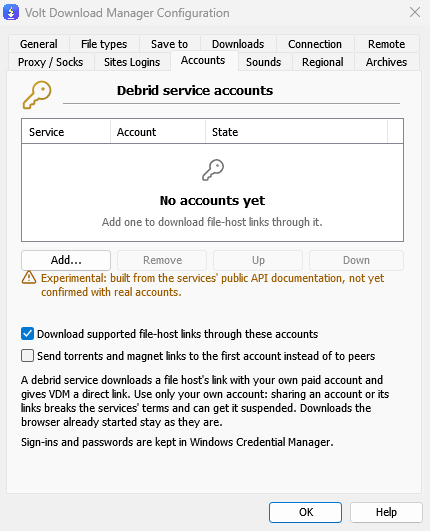
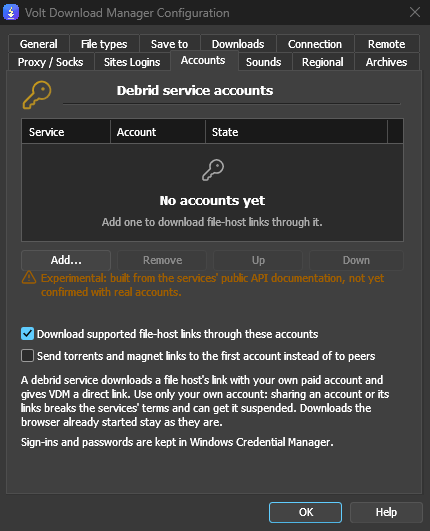
您的网盘服务帐户(Real-Debrid、AllDebrid、Premiumize、TorBox、Mega-Debrid;实验性功能):添加… 通过浏览器中的代码、您的用户名和密码,或您的 API 令牌或密钥登录;然后,服务支持的主机链接将通过它下载。列表的顺序是帐户被请求的顺序。请参阅网盘服务帐户。
声音
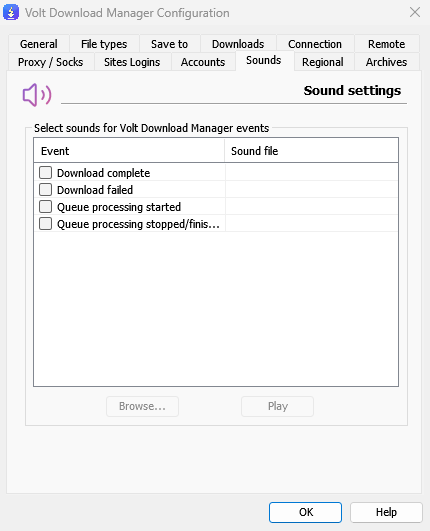
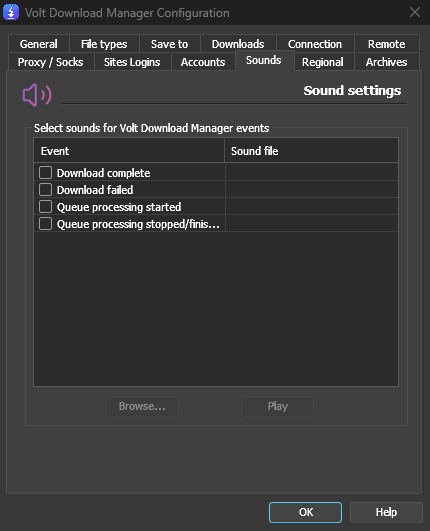
为下载完成、下载失败、队列处理已开始和队列处理已停止/完成播放声音。勾选一个事件并选中它,点击浏览选择 .wav 文件,然后点击播放试听。
区域
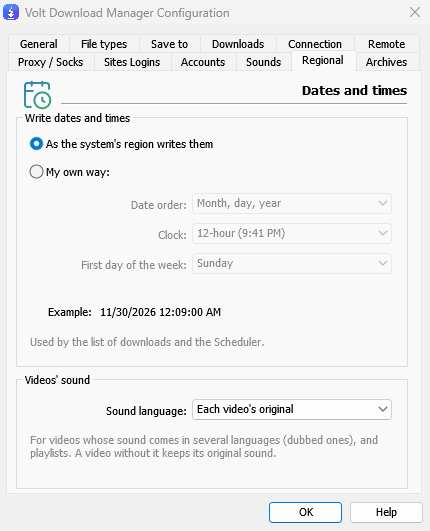
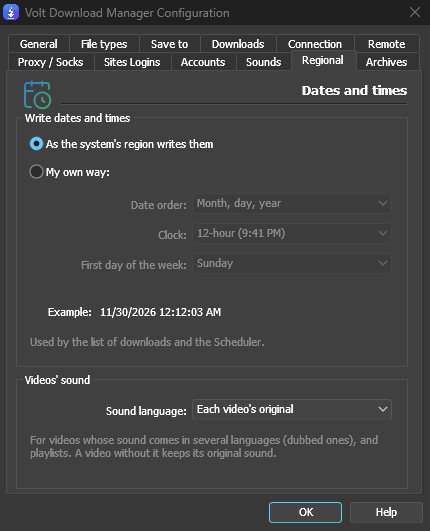
下载列表和计划程序中的日期和时间格式。
- 按系统区域设置写入(默认)— 使用 Windows 的区域设置(设置 → 时间和语言 → 区域);在 macOS 和 Linux 上,使用相应语言的常用格式。使用英语时,列表会保留 IDM 自己的日期文本。
- 自定义格式 — 选择日期顺序(日、月、年;月、日、年;或年、月、日)、12 小时制或 24 小时制,以及计划程序日历中的一周的第一天。示例会显示格式效果。
Videos' sound — the language a video's sound comes in when the site has it in several (dubbed videos): Each video's original (the default), or a language, which every video looked up and every playlist downloads with when it has it. A video without it comes with its original sound, and Download video can choose another for one video (The sound's language).
存档
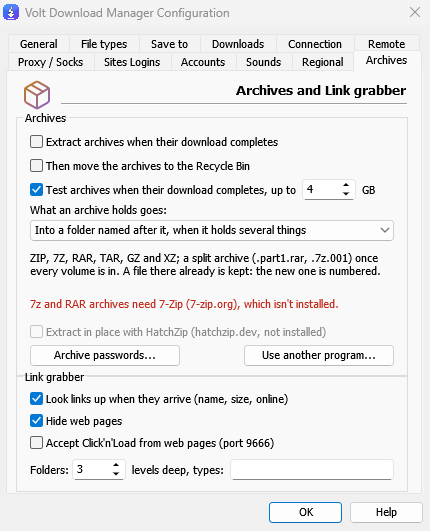
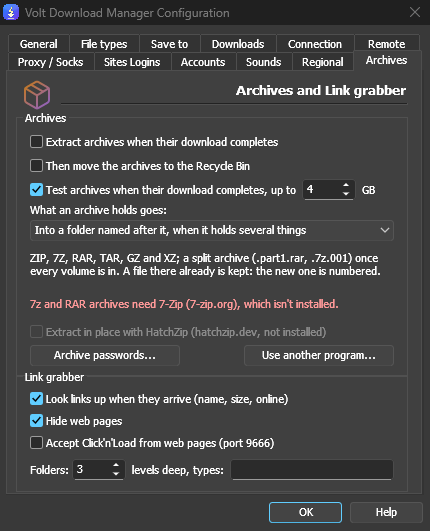
存档(zip、7z、rar、tar、gz、xz)和链接抓取器。
- 下载完成后提取存档(默认关闭)— 每个存档下载完成后立即提取;分卷存档则在最后一个卷下载完成后提取。链接抓取器的每个包都可以单独设置完成后提取。
- 然后将存档移至回收站(默认关闭;在 macOS 和 Linux 上移至废纸篓)— 仅在成功提取后移动。这也是新建包的提取后删除存档选项的默认设置。
- Test archives when their download completes, up to 4 GB (on by default) — a ZIP, 7z or RAR archive (a split one once its last volume is in) is read back and every file in it checked before its download counts as done, with the 7-Zip named below (a ZIP without 7-Zip by VDM itself). A larger one isn't tested by itself, as a test reads the whole file: right-click → Test archive tests it. A damaged ZIP's damaged files are downloaded again; any other damaged archive is offered for Redownload. See Testing archives.
- 存档内容的存放位置——存档包含多个文件时,放入以存档命名的文件夹中(默认);始终放入这样的文件夹中;或直接放入存档所在的文件夹中。
- Whether 7-Zip was found: 7z and RAR archives need it, unless they are extracted in place with HatchZip. VDM also finds the 7-Zip inside PeaZip and NanaZip's command line.
- Use another program... — choose the 7-Zip command line program yourself (
7z.exeof a portable copy or of another archiver); Find 7-Zip automatically goes back to the one VDM finds. See Extracting archives. - 使用 HatchZip 就地解压(默认关闭;未安装 HatchZip 时变灰) — 压缩包在文件解压出来时被移除,因此只需要为文件腾出空间。请参阅解压压缩包。
- Archive passwords... — the passwords tried on an encrypted archive before VDM asks, one per line; the one that fits moves to the top. A package's own password is never added by itself. See Archive passwords.
- 链接到达时查找(名称、大小、在线) — 链接抓取器会向每台服务器查询文件信息(默认开启)。
- 隐藏网页——链接抓取器中相同复选框的默认设置(开启)。
- Accept Click'n'Load from web pages (port 9666) (off by default) — a link site's Click'n'Load button sends its links to VDM's Link grabber. See Click'n'Load.
- 文件夹:3 级深度,类型: — 当您向链接抓取器提供 FTP 文件夹或 Web 服务器的文件夹列表时,它读取的子文件夹层级数(0 到 10;0 表示文件夹自身的文件),以及它从中保留的文件类型(如
ISO ZIP R0*“文件类型”页面所示;留空表示保留所有类型)。参见文件夹。
远程
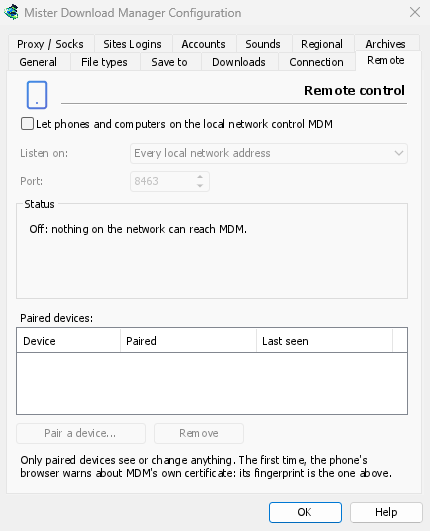
Control VDM from your phone or another computer on the local network: see Control VDM from your phone.
- Let phones and computers on the local network control VDM (off by default).
- 监听 — 所有本地网络地址(默认)、仅此电脑,或一个特定地址。
- 端口 — 默认 8463。
- 状态 — 当前正在做什么、手机上要打开的地址以及证书的指纹。
- 已配对设备 — 配对设备...显示一个二维码和一个代码;删除立即取消配对所选设备。
其他
一些设置不在本窗口中:
- 下载 → 速度限制器 → 设置… — 速度限制。请参阅连接和速度。
- Tasks → Torrent settings... — sharing and file associations, and whether the browser hands
.torrentdownloads to VDM. See Torrents. - 视图 → 深色模式支持、始终深色、主题、绘制方式、界面大小、字体(界面自身的字体文件和文本大小)和语言。请参阅入门和故障排除。
- 帮助 → 检查更新… — 每次启动时检查更新在该窗口中。
下一步
免费、开源、无广告、无试用版。
Download Volt Download Manager