

ダウンロード → オプションを開くか、ツールバーのオプションをクリックします。ウィンドウには、2列のタブに12のページがあります。OKで変更を保存し、ウィンドウを閉じるかEscを押すと変更は破棄されます。
一部のボタンはグレー表示されています。これらはまだ実装されていない機能です。
一般
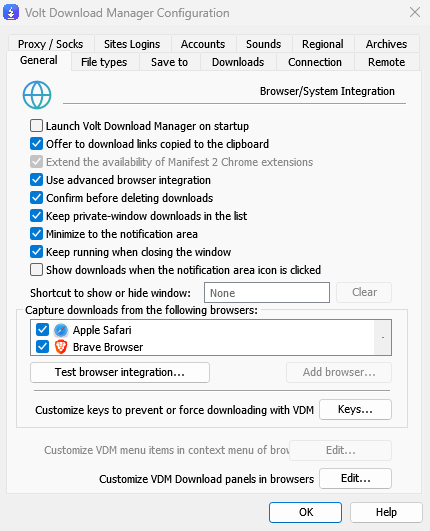
- Launch Volt Download Manager on startup — start VDM when you sign in to Windows. It starts in the notification area, its window hidden, with its downloads, queues and Scheduler running; click its icon (or start VDM again) to show the window. On Linux and macOS it starts with your session the same way; where no notification area shows VDM's icon (some Linux desktops), it starts minimized, and the option's tooltip says so. VDM waits for the notification area up to 30 seconds after making its icon, its window hidden, as a desktop's can come up after VDM at sign-in. Off by default. Greyed in a portable copy, which writes nothing to the registry.
- クリップボードにコピーされたリンクをダウンロードするよう提案する: ファイルの種類ページにあるファイル形式のリンクをコピーすると、ダウンロード ファイル情報が開き、ダウンロードを開始する準備ができます(ダウンロード開始ダイアログを表示がオフの場合、ダウンロードはすぐに開始されます)。アーカイブ、プログラム、音楽、ビデオ、PDF、および自分で追加した種類に限定されるため、写真、フォント、3Dモデルのアドレスをコピーしてもダウンロードは開始されません。既定でオンになっています。
- Use advanced browser integration — let the browser extension hand downloads to VDM. Turn it off to keep every download in the browser.
- ダウンロードを削除する前に確認する — リストからダウンロードを削除する前に確認を求めます。既定でオンになっています。この質問で今後このダイアログを表示しないをオンにするとオフになり、ここでチェックを入れると再びオンになります。オフの場合、削除はリストからダウンロードを削除するだけでファイルを保持します。Shift+Deleteは、ディスクからファイルを削除する場合と同様に、常に確認を求めます。
- Keep private-window downloads in the list — save downloads that come from a browser's private (incognito) window in VDM's list like any other, so an unfinished one is still there to resume after VDM closes or restarts. On by default. Unticked, they are kept in memory only, as the browser keeps them, and are gone when VDM closes. In the list, a private window's download has a small mask before its status; its tip says whether the list keeps it. The first time one comes, VDM says that they are kept and where to turn that off. Their cookies are never saved either way, and after a restart they still stay apart from normal windows' downloads (a private download that waits for a new address isn't given one by a normal window's, and a private window's video never uses Cookies for video sites from Sites Logins: if a site wants you signed in, open the page in a private window, sign in there, and use its Download video button again). Turning it off later doesn't remove the ones already saved by an earlier session.
- Keep running when closing the window — closing the main window hides it in the notification area instead of quitting, and downloads, queues and schedules go on. On by default; unticked, closing quits VDM (so a portable copy's folder can then be deleted). If there is no icon for VDM at all — not even behind the ^ hidden icons — the window minimizes to the taskbar instead, so downloads continue and the window stays reachable; an icon behind ^ can be clicked to bring it back, or start VDM again. On macOS the window closes into the Dock, and a click on VDM's icon there (or in the menu bar) brings it back; Cmd+Q quits. Greyed where no tray shows VDM's icon (some Linux desktops): closing quits there.
- Show downloads when the notification area icon is clicked — a click on VDM's icon there shows a small panel over it with what is downloading, each download's progress, Pause and Cancel, and a button that opens the window; a double click opens the window (Windows). On in a new copy of VDM; one set up before it keeps its click, which shows or hides the window, until it is ticked. Greyed where no tray shows VDM's icon. See The tray icon.
- Minimize to the notification area — Minimize hides the main window, and a download's progress window, in the notification area; downloads go on. On by default. Where the tray has no icon, the main window minimizes to the taskbar instead. The close setting above is separate; when it is on, closing hides there too (or minimizes to the taskbar if there is no icon at all). Greyed where no tray shows VDM's icon (some Linux desktops); in a Wayland session the main window stays minimized in the dock, since Wayland can't hide a window.
- 以下のブラウザーからのダウンロードをキャプチャする — そのブラウザーのダウンロードをそのままにするには、チェックを外します。
- Customize VDM Download panels in browsers → Edit... — the download button over videos on web pages: turn it off, choose its Button size (80%, 100% or 120%, and Automatic, as installed: only the logo, the arrow and ✕ in a feed and over a small player, its words over a big one; Full, its words wherever they fit; or Compact, only the logo, the arrow and ✕ on every video), or list the sites it never shows on (separate them by spaces; wildcards like
*.youtube.*,youtube.*or*.example.comwork). See Browser integration.
ブラウザー統合を参照してください。
ファイルの種類
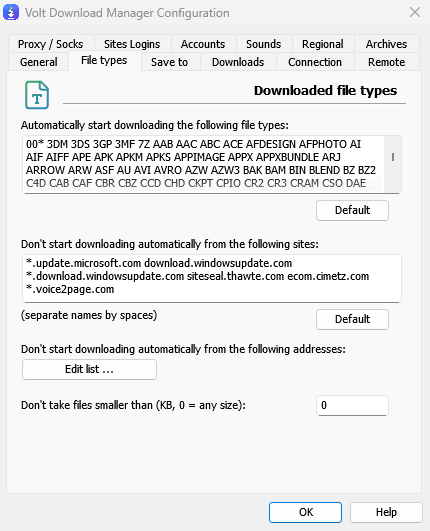
- 次のファイルの種類を自動的にダウンロードする: ブラウザーが引き渡す(およびクリップボードが取得する)ファイルの種類です。スペースで区切ります。
*はR0*のように任意の文字に一致します。既定をクリックすると、元のリストに戻ります。リストは、一般的なアーカイブ、プログラム、インストーラー(Windows、macOS、Linuxのもの:DMG、PKG、DEB、RPM、APPIMAGE、MSIX)、音楽、ビデオ、PDF、Officeファイル、AIモデルとデータセット(GGUF、SAFETENSORS、CKPT、PT、ONNX、PARQUET)、3DおよびCADファイル(GLB、FBX、OBJ、STL、BLEND、STEP)、デザインおよびカメラRAWファイル、電子書籍、ディスク イメージ、分割アーカイブから始まります。ページ、スクリプト、プレーン テキスト、Web画像は意図的に除外されているため、写真やページの保存はブラウザーで行われます。必要な種類を追加するか、ボックスに単一の*を入力して、拡張子を持つすべてのファイルを取得します。変更されていないリストには新しいバージョンが追加する種類が追加されます。編集したリストはそのまま残ります。 - 以下のサイトからは自動的にダウンロードを開始しない — ダウンロードがブラウザーに残るサイトをスペースで区切って指定します。名前はサイトのサブドメインもカバーします (
example.comはwww.example.comとdl.example.comをカバーし、*.example.comも同様です)。*はダウンロード パネルのリスト (*.example.*) と同様に何にでも一致し、そのページが別のサーバー (ダウンロード サーバーまたは CDN) にリンクしているファイルは、ダウンロード元のページによって識別されます。ページが不明なダウンロードは、そのアドレス自体によって一致します。既定 をクリックすると、元のリストに戻ります。
保存先
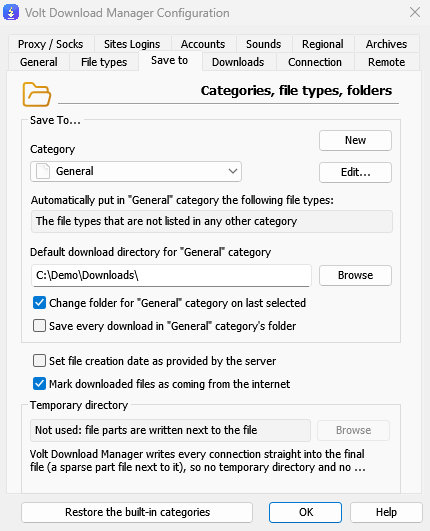
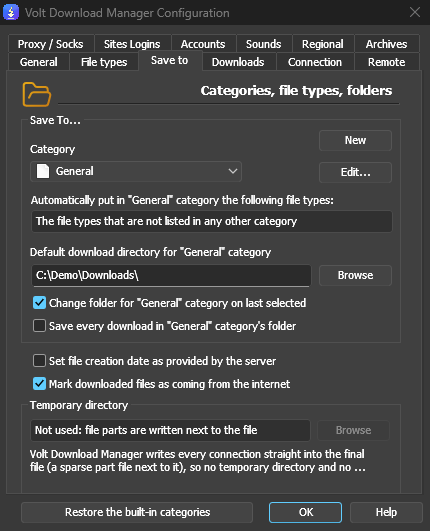
- カテゴリ — カテゴリを選択すると、下に設定が表示され、変更できます。
- 新規 — 独自のカテゴリを作成します。編集... — 選択したカテゴリの名前、ファイルの種類、フォルダーを変更します。組み込みのカテゴリ (圧縮、ドキュメント、音楽、プログラム、ビデオ) は、独自のものと同様に名前を変更したり、他のファイルの種類を指定したり、削除したりできます。名前を変更したカテゴリはフォルダーを保持します。一般とトレントはフォルダーのみを変更します。
- 組み込みのカテゴリを復元 — 名前を変更したり、種類を変更したり、削除したりした組み込みのカテゴリを元の状態に戻します。
- 以下のファイルの種類を「…」カテゴリに自動的に分類する — このカテゴリに分類されるファイルの種類。リストを変更していない組み込みカテゴリには、新しいバージョンで追加された種類が適用されます。編集したカテゴリはそのまま維持されます。
- 「…」カテゴリの既定のダウンロード フォルダー — カテゴリのフォルダーです。パスを入力するか、参照をクリックします。
- 最後に選択したフォルダーを「…」カテゴリのフォルダーにする — ダウンロード ファイル情報で別のフォルダーを選択すると、以降そのフォルダーがカテゴリの保存先になります。既定ではオンです。(このウィンドウのこのパスを記憶するの初期状態を設定します。)
- すべてのダウンロードを「一般」カテゴリのフォルダーに保存する — 既定ではオフです。オンにすると、新しいダウンロードはすべて、カテゴリに関係なく一般のフォルダーに保存されます。ブラウザーから、URL を追加、バッチ ダウンロード、リンク グラバー、キュー、コマンド ライン、動画、トレントなど、すべてが対象です。カテゴリは引き続きリストを並べ替えます。一般のフォルダーは設定するフォルダーです (上記で一般を選択)。他のカテゴリは、オフに戻したときのために独自のフォルダーを保持し、その間はグレー表示されます。個々のダウンロードは別の場所に保存することもできます。開始ウィンドウでフォルダーを変更します (このパスを記憶するをオンにすると、一般のフォルダーが変更されます)。すでにリストにあるダウンロードは、元の場所に残ります。
- サーバーから提供されたファイル作成日を設定 — ダウンロードした日付ではなく、サーバーから報告された日付をダウンロード完了後のファイルに設定します。
- Mark downloaded files as coming from the internet — on by default. Every file VDM downloads (from the browser, a link you add, a video, a gallery, a torrent, and the files extracted from an archive) carries the mark a browser's downloads carry. On Windows that is the Mark of the Web: SmartScreen checks a program before it first runs, and Office opens a document in Protected View. On a Mac it is the quarantine attribute Gatekeeper checks; on Linux, where the file came from, which file managers show. Unticked, no download is marked. On Windows, VDM also follows the Group Policy Do not preserve zone information in file attachments, as browsers do: when it is on (for the computer or for you), no download is marked, whatever this box says.
VDM doesn't use a temporary folder: every connection writes straight into the final file's place, so there is nothing to put together at the end.
ダウンロード
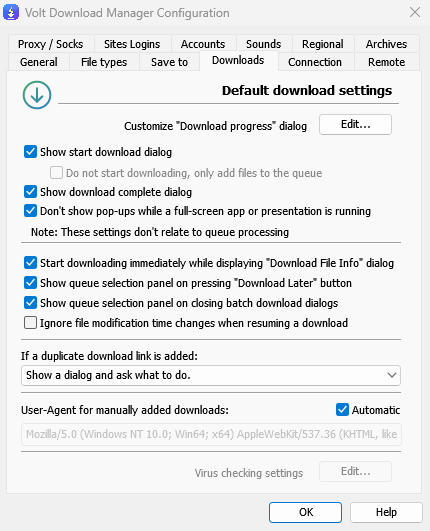
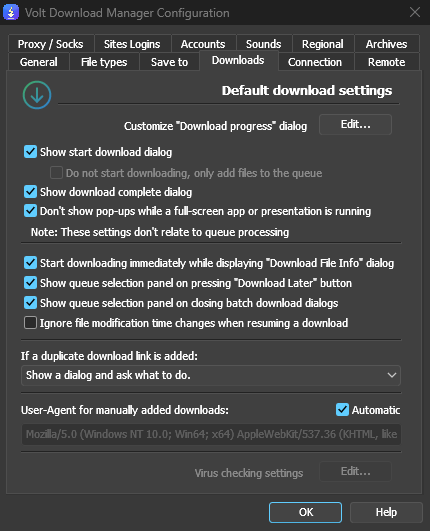
- 「ダウンロードの進行状況」ダイアログをカスタマイズ → 編集... — ダウンロード開始時にダウンロードの進行状況ダイアログを表示する: デフォルトでオンになっている通常表示、現在使用しているプログラムからフォーカスを奪わずにダウンロードの進行状況ウィンドウをタスクバーに最小化して起動する最小化して表示、またはブラウザ、追加したリンク、動画、キューからダウンロードが開始されたときに進行状況ウィンドウを開かず、メインウィンドウのリストで進行し、ダブルクリックで進行状況ウィンドウを開く表示しない、のいずれかを選択します。ダウンロードが完了すると、以下のダウンロード完了ダイアログを表示の設定に従ってダウンロード完了ダイアログが表示されます。
- ダウンロード開始ダイアログを表示 — 新しいダウンロードごとにダウンロード ファイル情報を表示します。オフにすると、ダウンロードはすぐに開始されます。ただし、ダウンロードを開始せず、ファイルをキューに追加するだけにチェックを入れている場合は、キューに追加されます。
- ダウンロード完了ダイアログを表示 — ファイルのダウンロードが完了したときにダウンロード完了を表示します。
- Don't show pop-ups while a full-screen app or presentation is running — on by default. While a full-screen game, app or video, a presentation or the locked screen is on, Download complete and the other windows VDM opens by itself wait, and show when you're back, one after the other in the order they came: Downloads complete, a new version found by the weekly check, the download limit's warning, an archive's test result, its password question or its call for 7-Zip, the browser extension's offer, a link copied to the clipboard, and the crash report. The downloads carry on as usual, and the tray icon's tip says how many windows wait. The windows you open yourself, links you click in the browser and the Turn off computer countdown (so you can still cancel it) show at once. On Windows VDM goes by the state Windows holds its own notifications by (games, presentation mode, full-screen apps and videos), by a frameless window that fills its whole screen in front (on any of your screens), and by the screen's lock; on Linux by the session's lock, and by a full-screen window under X11 or XWayland (on Wayland, a native program's full screen can't be seen). On macOS a full-screen app has a Space of its own, which VDM's windows never open over. Untick it and the windows show at once, as before.
- 「ダウンロード ファイル情報」ダイアログの表示中にダウンロードを開始する — 既定ではオンです。フォルダーを選択している間もダウンロードが進みます。
- 「後でダウンロード」ボタンを押したときにキュー選択パネルを表示 — どのキューに入れるか尋ねます。オフにするとメインダウンロードキューに入ります。
- 一括ダウンロード ダイアログを閉じるときにキュー選択パネルを表示 — 一括ダウンロードの場合も同様です。
- ダウンロードを再開するときにファイル変更時間の変更を無視する — 同じファイルに対して毎回新しい日付を報告するサーバーの場合。これがないと、そのようなサーバーは再開するたびに最初からやり直します。
- 重複するダウンロードリンクが追加された場合 — 尋ねる、番号付きの名前で追加する、古いものを上書きする、または完了したものを開く/未完了のものを再開する。
- User-Agent for manually added downloads — how VDM names itself to servers for downloads you add yourself. With Automatic ticked (the default), VDM introduces itself as your default browser: the User-Agent that browser sends, at the version you have installed (Chrome, Edge, Brave, Opera, Vivaldi, Firefox or Safari). The box shows it, and pointing at it names the browser. When VDM doesn't recognise your default browser, it sends a current Chrome's. Untick Automatic to type your own; tick it again to go back. Downloads from the browser use that browser's own User-Agent, the one your sign-in and the site's checks know; the one typed here doesn't replace it. If a site turns a browser's User-Agent away, VDM asks once more with the one typed here (with Automatic, with Internet Explorer's). If a site's bot check refuses it, and the way a browser connects too, VDM asks once more under its own name,
VoltDownloadManager/and its version (or the one typed here), and remembers that site until VDM closes. A User-Agent typed here for the downloads you add yourself is the only one they send.
接続
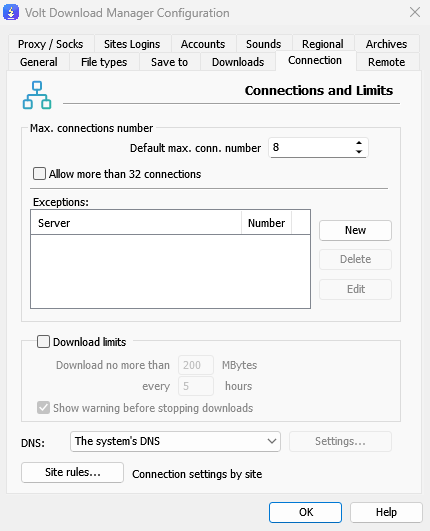
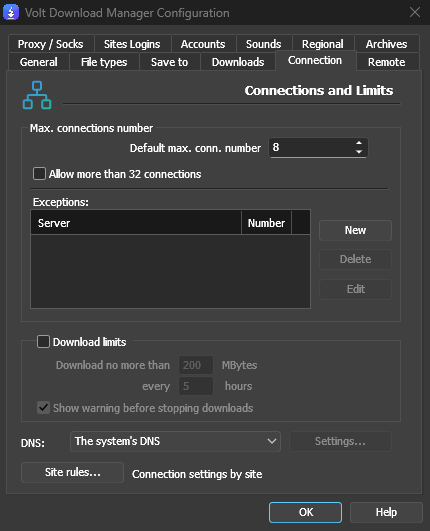
- 既定の最大接続数 — 各ダウンロードで使用できる接続数。1から32まで(既定は8)。数字を入力するか、矢印を使用してください。
- Allow more than 32 connections — raises the most to 128, for the number above and for the exceptions. Most servers allow far fewer from one address; VDM notices and asks those for fewer. Turned off again, any higher number comes back to 32.
- Exceptions — a different number for some servers. New adds one (the server's name and the number of connections); Edit and Delete change or remove the selected one. Rows marked (auto) are limits VDM learned by itself from servers that refused more connections. They can't be edited and fade away by themselves.
- サイト ルール... — サイトごとに、ユーザー エージェント、リクエスト ヘッダー、接続数、常にブラウザーと同じ方法で接続する、プロキシ (なし、またはログイン情報付きの独自のプロキシ) を設定します。サイト ルールを参照してください。
- ダウンロード制限 — 数時間ごとに設定された量を超えてダウンロードしないようにします。同じ設定はスケジューラにもあります。キューとスケジューラを参照してください。
- DNS — which DNS turns the servers' names into addresses for VDM's downloads, its own downloads (helpers, updates) and FTP. The system's DNS is the default (on Windows 11 it can already be encrypted, in Windows' own network settings). Or pick Cloudflare, Google, Quad9, AdGuard or NextDNS, or Another DNS... to type your own; Settings... chooses how it's asked:
- DNS over HTTPS(デフォルト)または DNS over TLS:暗号化されているため、途中で誰も検索した名前を見たり変更したりできません。
- Plain DNS: not encrypted. VDM asks it over TCP, never UDP, so it never needs a firewall exception.
- 独自の DNS の場合:サーバーの IP アドレス、証明書に表示される名前(TLS)、または
https://アドレス(HTTPS、IP アドレスが分かっている場合はそれも)を入力します。NextDNS は設定 ID を使用します。 - 到達できない場合はシステムの DNS を使用する:デフォルトではオフになっています。そのため、応答しない DNS は、システム DNS に検索を静かに表示するのではなく、その名前をメッセージで示してダウンロードを停止します。DNS が存在しないと判断した名前は、フォールバックしません(これはフィルタリング DNS を無効にしてしまいます)。
- テスト は github.com に問い合わせを行い、かかった時間を示します。
ホスト ファイル内の名前、およびローカル名(単一の単語、.local、.lan、.home.arpa、.internal、localhost)は、システムの DNS を使用します。ビデオ ページ(yt-dlp)と画像ギャラリー(gallery-dl)は、ネットワーク アダプターが選択されている場合にのみ、選択した DNS を使用します。それ以外の場合、トレント トラッカーと同様にシステムの DNS を使用します。プロキシを使用する場合、プロキシがアクセスするサイトの名前を検索します。
接続と速度で詳細を確認してください。
プロキシ / SOCKS
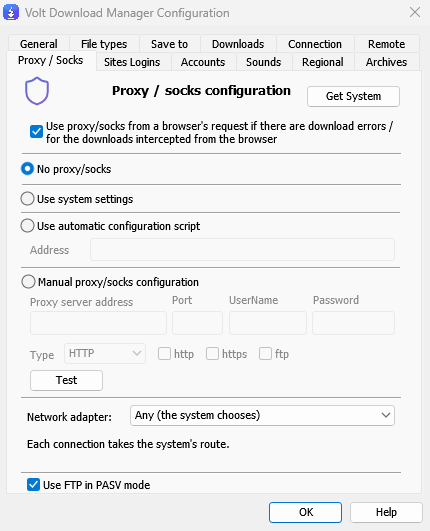
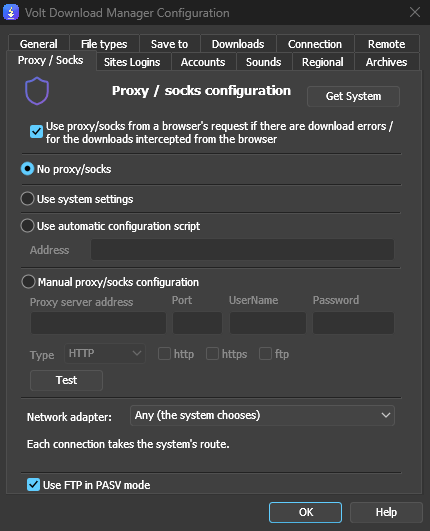
- No proxy/socks — connect directly. This is the default. Chosen here (clicked, or with Use proxy/socks from a browser's request… unticked while it's on), video pages and image galleries connect directly too: yt-dlp and gallery-dl are kept off Windows' proxy and the
HTTPS_PROXY/HTTP_PROXY/ALL_PROXYvariables. Left at the default, they still follow those, as they always did. - システム設定を使用する — システムのプロキシを使用します。Windows または macOS の設定、または Linux ではセッションの
https_proxy、http_proxy、all_proxy変数を使用します。 - Use automatic configuration script — the proxy auto-config (PAC) script your network gives: type its address (
http://…/proxy.pac, or a file). VDM fetches it and asks it which proxy each download goes through (PROXY,HTTPS,SOCKS,SOCKS5,SOCKS4orDIRECT), as browsers do. Through aSOCKSorSOCKS5answer, the proxy looks the site's name up, as in browsers. Until the script has been fetched, or if it can't be, VDM uses the system's settings. - プロキシ/SOCKS の手動設定 — 独自のプロキシ:
- プロキシ サーバー アドレスとポート: その名前または IP アドレス (
127.0.0.1) とポート (1080)。 - 種類: プロキシが対応するプロトコル。HTTP (一般的な Web プロキシ)、HTTPS (暗号化された接続経由でアクセスする Web プロキシ)、SOCKS5、またはSOCKS4。
- ユーザー名とパスワード (必要な場合) (HTTP、HTTPS、SOCKS5)。SOCKS4 にはログインがないため、これらはグレー表示されます。
- HTTP または HTTPS プロキシの場合、対応するプロトコル (http、https) にチェックを入れます。FTP ダウンロードは HTTP プロキシを通過しないため、ftpボックスはグレー表示され、その旨が表示されます。
- A SOCKS proxy carries every connection: web downloads, FTP, video pages and galleries (yt-dlp and gallery-dl), VDM's own downloads and the update check, and torrents if you ask (below). It has no protocol boxes; instead, Look up site names through the proxy (on by default) has the proxy turn the sites' names into addresses, so your own DNS never sees which sites you visit (
socks5h,socks4a). Untick it only for a proxy that can't look names up; VDM then looks them up with the DNS chosen under Connection and hands the proxy the address. - SOCKS プロキシ経由の FTP は常にパッシブ モードを使用するため (プロキシはサーバーの接続を戻すことができません)、PASV モードで FTP を使用するはチェック済みでグレー表示されます。
ftps://アドレス (最初のバイトから TLS) はまだ SOCKS プロキシを通過できません。ftpes://(接続後の TLS) は通過できます。 - トレントは、トレント設定でプロキシを使用するがオンの場合にのみ SOCKS5 プロキシを使用します (トレントとセキュリティを参照)。SOCKS4 または HTTP プロキシはトレントを処理しません。
- 古い形式で記述されたアドレス (
socks5://host、またはsocks5h://、socks4://、http://) も機能します。オプションでは、その種類としてホストのみが表示されます。 - システムを取得 — Windows のプロキシ設定 (Windows の場合) から手動フィールドに入力します。HTTP プロキシがある場合はそれを使用し、ない場合は SOCKS プロキシを使用します (SOCKS5: Windows はバージョンを特定しないため、お使いのプロキシが SOCKS4 のみ対応している場合はSOCKS4を選択してください)。
- テスト — 現在のページの設定 (プロキシ、DNS、ネットワーク アダプターのオプション) を介して Cloudflare の
one.one.one.oneに 1 回リクエストを送信します。Cloudflare は認識したアドレスで応答します。ボタンの横の行には、かかった時間とインターネットが認識するアドレス (接続を処理するプロキシのアドレス)、または失敗した理由 (プロキシに到達できない、ログインが拒否された、サイトに到達できなかったなど) が表示されます。それ以外の情報は送信されません。
Which do I pick?
- A VPN app usually needs nothing here: it carries all the computer's traffic. To make sure VDM never goes around it, choose its Network adapter below. Some VPN apps also offer a SOCKS5 proxy of their own (in their settings, with its own login): SOCKS5, its address, port and login.
- Tor (Tor Browser or the Tor service): SOCKS5, 127.0.0.1, port 9150 (Tor Browser) or 9050 (the service), Look up site names through the proxy ticked. Tor carries no torrents well; leave Use the proxy off in Torrent settings.
- An SSH tunnel, ssh -D 1080 you@server: SOCKS5, 127.0.0.1, port 1080.
- Clash, v2rayN and similar proxy programs: their mixed port takes both, usually 127.0.0.1:7890 (HTTP or SOCKS5); v2rayN also has a SOCKS port, often 10808. Or turn on their system proxy and choose Use system settings.
- A proxy your workplace or school gives: usually an HTTP one, or a script (Use automatic configuration script). Ask which.
- Use proxy/socks from a browser's request… — on by default. A download VDM takes from the browser goes through the proxy the browser used for it. That's the one a VPN or proxy extension set, the browser's own manual proxy, or its proxy auto-config script. Without it, the download would leave from your own address, and content limited to the VPN's country, or to its address, would fail. The browser extension reads that proxy and hands it to VDM with each download, once you switch on Send downloads through this browser's proxy or VPN extension in the extension's toolbar popup (Firefox asks you once; Chrome, Edge, Brave, Opera and Vivaldi ask nothing more: see A VPN or proxy extension).
- A proxy that asks for a login the VPN extension gives itself can't be shared: no other program has that login. The download then stops and says so, rather than going without the proxy. Use the VPN's own app, or choose its adapter under Network adapter.
- In Firefox, VDM sees the proxy the browser's own request for the file took, including the ones a VPN extension picks for each request. In Chrome and the other Chromium browsers, it sees the browser's proxy settings: the server for the download's scheme (honouring their bypass list) or their proxy auto-config script.
- When the browser used no proxy, and No proxy/socks is chosen, VDM uses Windows' proxy settings, as browsers do.
- Network adapter — Any (the system chooses) is the default. Pick an adapter, usually your VPN's, and every connection VDM opens goes out through it, or not at all. That covers downloads, FTP, torrents, video pages and image galleries, the DNS you chose, VDM's own downloads and the update check. It works as a kill switch: when the adapter disconnects, or the VPN is switched off, nothing goes out through your normal connection. Running downloads stop with "… is not connected" and start again when the adapter is back. The line under the list shows the adapter's address, or that it isn't connected.
- How it holds: Windows binds the adapter's own address. Windows then sends those packets only through that adapter (its strong host model). Linux binds the device itself (Linux 5.7 or newer), and macOS binds the interface. An address of a kind the adapter doesn't have (IPv6 on an IPv4-only VPN) is refused, not sent around it.
- The system's DNS asks the names in its own way, and Windows may ask over every adapter. To keep the names inside the adapter too, choose a DNS under Connection → DNS: VDM then asks it through the adapter.
- Video pages and image galleries: yt-dlp, gallery-dl and the ffmpeg yt-dlp starts can't be held to an adapter themselves, so while one is chosen VDM gives them a proxy of its own on this computer (127.0.0.1, with a password only they get). VDM opens their connections through the adapter, as it opens its own, and looks the names up with the DNS you chose. When the adapter disconnects, their connections close and the downloads stop with the others. Video formats that can't go through a proxy (RTMP, RTSP, MMS, FTP) are refused rather than sent around it.
- Not held to the adapter yet, so they don't start while one is chosen: ftps:// (implicit TLS; ftp:// with TLS is fine).
- Connections to this computer itself (localhost) aren't bound. A proxy on this computer carries the downloads, and where it sends them is up to it.
- On macOS a VPN that reconnects may get a new interface (utun5 instead of utun4): pick it again.
- Use FTP in PASV mode — on by default: for FTP downloads VDM opens the data connections itself (passive mode), which works through routers and firewalls. Turn it off only for a server that needs active mode (the server connects back to you). FTP goes through a SOCKS proxy above (always passive then), never through an HTTP one. See FTP and FTPS.
サイトのログイン


User names and passwords for sites that ask for them. New adds a row: the site (with a path if the login is only for part of it), the user name and the password. Edit and Remove change or delete the selected row. VDM uses the login for every download from that site. A login typed in Add URL (Use authorization) takes priority for that one download. For huggingface.co, the password is your Hugging Face access token, for gated models and datasets: VDM sends it as a token, to Hugging Face only (the user name can be anything; see Models, datasets and releases).
The passwords (these, the proxy's and the debrid accounts') are kept in the system's keychain: Windows Credential Manager, the keyring on Linux (Secret Service: GNOME Keyring, KeePassXC and others) or the macOS keychain; VDM's settings keep only a reference. A locked keyring is never unlocked for VDM: without one, they stay in VDM's settings, sealed for your Windows account on Windows. Options → Accounts says where they are. A portable copy keeps them in its own folder.
動画サイトの Cookie — サインインしている場合にのみ再生される動画 (YouTube の「ボットではないことを確認するためにサインインしてください」など) の場合:
- オフ (既定) — 動画のボタンを使用すると、yt-dlp はブラウザー拡張機能からのみ Cookie を取得します。
- ブラウザーから — yt-dlp は、検索またはダウンロードするすべての動画(貼り付けたアドレスを含む)について、このコンピューター上の選択したブラウザー(Windows および Linux では Firefox、Chrome、Edge、Brave、Opera、Vivaldi、Chromium、Whale。macOS では Safari)の Cookie を読み取ります。拡張機能がページの Cookie を渡した場合は、代わりにそれらが使用されます。ブラウザーのプライベート ウィンドウからの動画は、再起動後に保持されたものを含め、それらを読み取りません。プライベート ウィンドウが提供した Cookie のみを使用します。プロファイル (オプション): プロファイルの名前またはフォルダー(... で選択します)。空の場合は、最後に使用されたものが使われます。Chrome、Edge、Brave は Windows で Cookie をロックします。Firefox は機能します。サインインが必要なサイトを参照してください。
Use my yt-dlp config file — off by default. Ticked, yt-dlp also reads its own config files (%APPDATA%\yt-dlp\config.txt on Windows, ~/.config/yt-dlp/config on Linux and macOS, and the others it looks for, such as yt-dlp.conf in your home folder) for the videos, playlists and look-ups the app starts, so your subtitle, thumbnail, metadata or SponsorBlock choices apply there too. Most of what VDM chooses still wins: the folder and file name, the quality, the proxy and network adapter set here. VDM also keeps yt-dlp's own downloader for HTTP, FTP and HLS (one the file names, aria2c, reports no progress), leaves out a download archive, forced overwrites and marking videos as watched (which would mark every video only looked up), keeps part files (with --no-part the engine's streams would be downloaded again into a doubled file), and keeps the usual fix-ups. Options there that skip or filter videos (--match-filters, --max-filesize, a strict -f) apply too, and can make a video say it can't be downloaded. A proxy with a user name set here gives way to a --proxy in the file.
アカウント
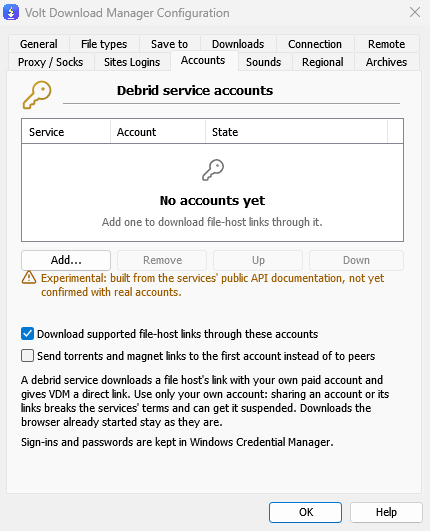
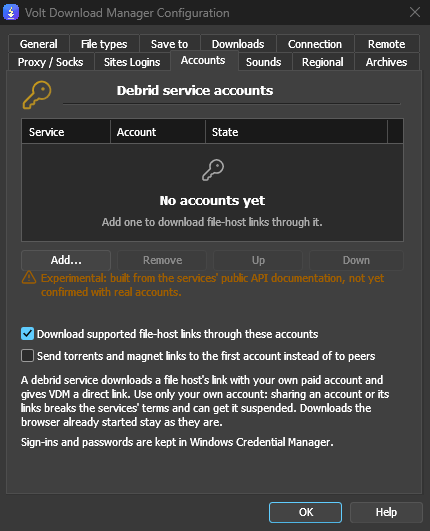
デブリットサービスアカウント (Real-Debrid、AllDebrid、Premiumize、TorBox、Mega-Debrid; 試験運用中): 追加... をクリックすると、ブラウザーでコード、ユーザー名とパスワード、または API トークンやキーを使ってサインインできます。その後、サービスがサポートするホストからのリンクは、そのサービス経由でダウンロードされます。リストの順序は、アカウントが要求される順序です。デブリットサービスアカウント を参照してください。
サウンド
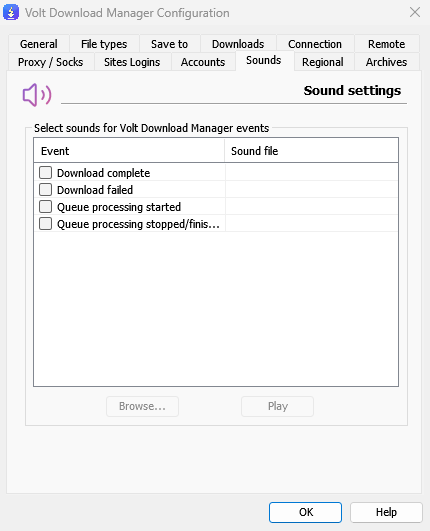
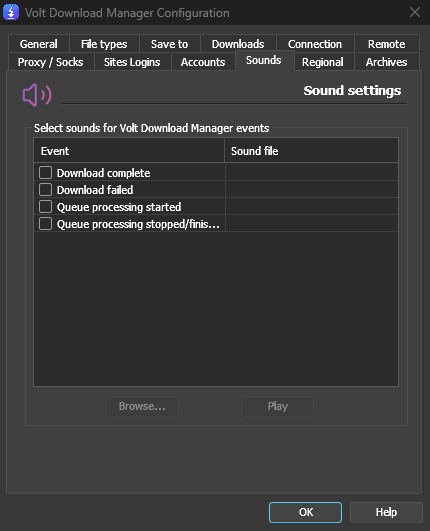
ダウンロード完了、ダウンロードに失敗しました、キュー処理を開始しました、キュー処理を停止/終了しましたのイベントでサウンドを再生します。イベントにチェックを入れ、選択し、参照...をクリックして.wavファイルを選択し、再生をクリックして聞きます。
地域
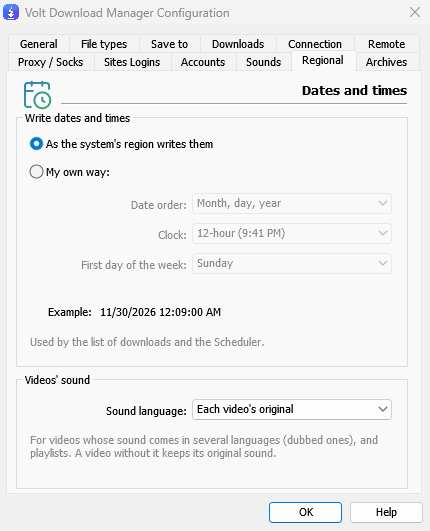
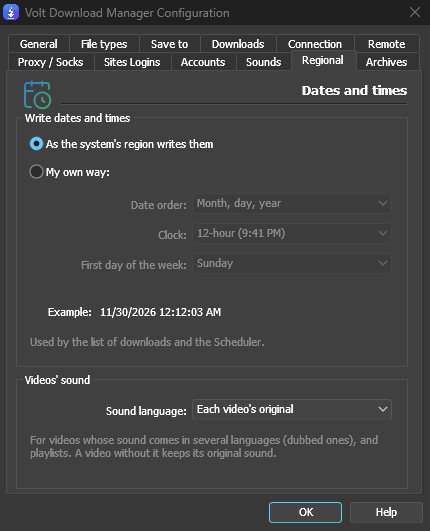
ダウンロードリストとスケジューラでの日付と時刻の表示形式。
- システムの地域設定に従う (既定) — Windows の地域設定 (設定 → 時刻と言語 → 地域) に従います。macOS および Linux では、言語の通常の表示方法に従います。英語の場合、リストは IDM 独自の日付テキストを保持します。
- 独自の方法 — 日付の順序 (日、月、年; 月、日、年; または年、月、日)、12 時間または 24 時間表示、およびスケジューラのカレンダーでの週の最初の曜日を選択します。例で結果が表示されます。
Videos' sound — the language a video's sound comes in when the site has it in several (dubbed videos): Each video's original (the default), or a language, which every video looked up and every playlist downloads with when it has it. A video without it comes with its original sound, and Download video can choose another for one video (The sound's language).
アーカイブ
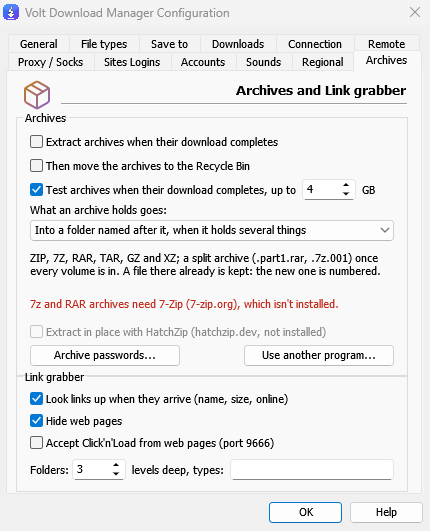
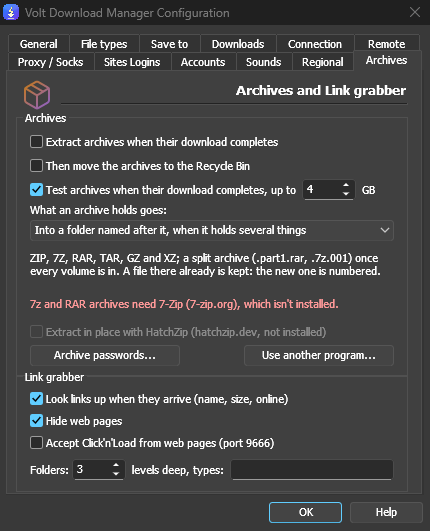
アーカイブ (zip, 7z, rar, tar, gz, xz) とリンク グラバー。
- ダウンロード完了時にアーカイブを展開する (デフォルトではオフ) — ダウンロードされたすべてのアーカイブが、それ自体 (または分割アーカイブの最後のボリューム) が揃い次第展開されます。リンク グラバーのパッケージには、独自の完了時に展開があります。
- その後、アーカイブをゴミ箱に移動する (デフォルトではオフ、macOSおよびLinuxではゴミ箱) — 展開が成功した場合のみ。これは、新しいパッケージの展開後にアーカイブを削除するのデフォルトでもあります。
- Test archives when their download completes, up to 4 GB (on by default) — a ZIP, 7z or RAR archive (a split one once its last volume is in) is read back and every file in it checked before its download counts as done, with the 7-Zip named below (a ZIP without 7-Zip by VDM itself). A larger one isn't tested by itself, as a test reads the whole file: right-click → Test archive tests it. A damaged ZIP's damaged files are downloaded again; any other damaged archive is offered for Redownload. See Testing archives.
- アーカイブの内容の保存先 — 複数の項目が含まれる場合はアーカイブと同じ名前のフォルダーに保存 (デフォルト)、常にそのようなフォルダーに保存、またはアーカイブと同じフォルダーに直接保存します。
- Whether 7-Zip was found: 7z and RAR archives need it, unless they are extracted in place with HatchZip. VDM also finds the 7-Zip inside PeaZip and NanaZip's command line.
- Use another program... — choose the 7-Zip command line program yourself (
7z.exeof a portable copy or of another archiver); Find 7-Zip automatically goes back to the one VDM finds. See Extracting archives. - HatchZip でその場で展開 (既定でオフ。HatchZip がインストールされていない場合はグレー表示) — アーカイブは削除され、ファイルが展開されるため、ファイルのみにスペースが必要です。アーカイブの展開を参照してください。
- Archive passwords... — the passwords tried on an encrypted archive before VDM asks, one per line; the one that fits moves to the top. A package's own password is never added by itself. See Archive passwords.
- リンク到着時に検索する (名前、サイズ、オンライン) — リンク グラバーは、各サーバーにファイルについて問い合わせます (デフォルトではオン)。
- Web ページを非表示にする — リンク グラバーで同じチェックボックスをオンにした場合の既定値。
- Accept Click'n'Load from web pages (port 9666) (off by default) — a link site's Click'n'Load button sends its links to VDM's Link grabber. See Click'n'Load.
- フォルダー: 3 階層の深さ、種類:: リンク グラバーが FTP フォルダーまたは Web サーバーのフォルダー リストを読み取る際のサブフォルダーの階層数 (0 ~ 10、0 はフォルダー自身のファイルのみ) と、そこから保持するファイルの種類 (ファイルの種類ページと同じ、
ISO ZIP R0*; 空の場合はすべての種類を保持) を設定します。フォルダーを参照してください。
リモート
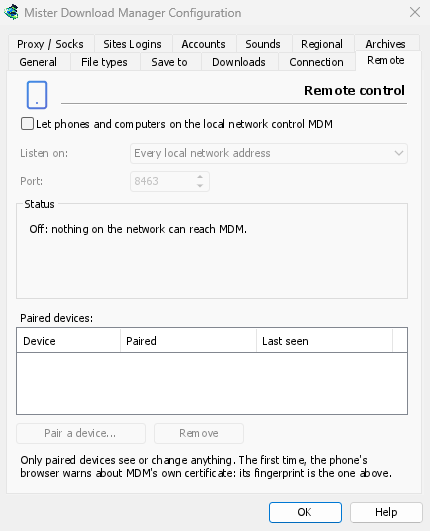
Control VDM from your phone or another computer on the local network: see Control VDM from your phone.
- Let phones and computers on the local network control VDM (off by default).
- リッスンする — すべてのローカルネットワークアドレス(デフォルト)、このコンピューターのみ、または1つのアドレス。
- ポート — デフォルトは8463。
- 状態 — 現在の動作、スマートフォンで開くアドレス、および証明書のフィンガープリント。
- ペアリング済みデバイス — デバイスのペアリングでQRコードとコードが表示されます。削除で選択したデバイスのペアリングがすぐに解除されます。
その他
このウィンドウ以外にも、いくつかの設定があります。
- ダウンロード → 速度制限 → 設定... — 速度制限。接続と速度を参照してください。
- Tasks → Torrent settings... — sharing and file associations, and whether the browser hands
.torrentdownloads to VDM. See Torrents. - 表示 → ダーク モードのサポート、常にダーク、テーマ、描画方法、インターフェイスのサイズ、フォント (インターフェイス自身のフォント ファイルとテキスト サイズ)、言語を設定します。はじめにとトラブルシューティングを参照してください。
- ヘルプ → 更新プログラムの確認... — 起動時に更新を確認するはそのウィンドウにあります。
次のステップ
無料、オープンソース、広告なし、試用期間なし。
Download Volt Download Manager