

Öffnen Sie Downloads → Optionen oder klicken Sie in der Symbolleiste auf Optionen. Das Fenster hat zwölf Seiten auf zwei Registerkartenreihen. OK speichert Ihre Änderungen; das Schließen des Fensters oder das Drücken von Esc verwirft sie.
Einige Schaltflächen sind ausgegraut. Sie gehören zu Funktionen, die noch nicht implementiert sind.
Allgemein
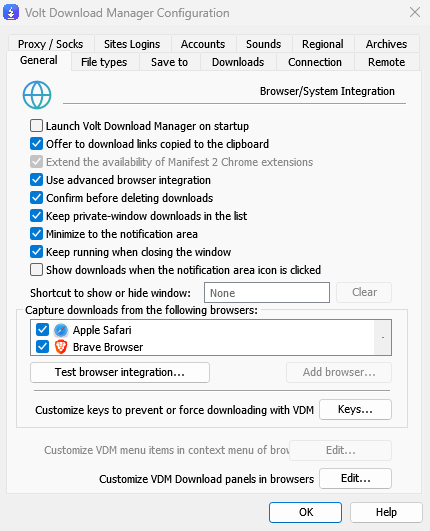
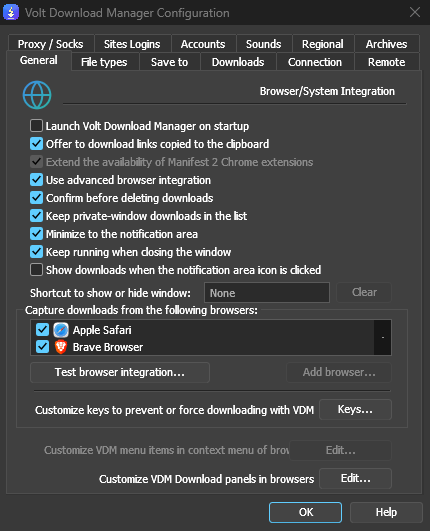
- Launch Volt Download Manager on startup — start VDM when you sign in to Windows. It starts in the notification area, its window hidden, with its downloads, queues and Scheduler running; click its icon (or start VDM again) to show the window. On Linux and macOS it starts with your session the same way; where no notification area shows VDM's icon (some Linux desktops), it starts minimized, and the option's tooltip says so. VDM waits for the notification area up to 30 seconds after making its icon, its window hidden, as a desktop's can come up after VDM at sign-in. Off by default. Greyed in a portable copy, which writes nothing to the registry.
- Anbieten, in die Zwischenablage kopierte Links herunterzuladen – wenn Sie einen Link kopieren, dessen Dateityp auf der Seite Dateitypen steht, öffnet sich Dateiinformationen herunterladen damit, bereit zum Start (oder der Download beginnt sofort, wenn Dialogfeld „Download starten“ anzeigen deaktiviert ist). Dies gilt für Archive, Programme, Musik, Videos, PDF und alle von Ihnen hinzugefügten Typen, sodass das Kopieren der Adresse eines Bildes, einer Schriftart oder eines 3D-Modells zur anderweitigen Verwendung niemals einen Download startet. Standardmäßig aktiviert.
- Use advanced browser integration — let the browser extension hand downloads to VDM. Turn it off to keep every download in the browser.
- Löschen von Downloads bestätigen – vor dem Entfernen von Downloads aus der Liste nachfragen. Standardmäßig aktiviert; Diesen Dialog nicht wieder anzeigen in dieser Frage deaktiviert die Funktion, und das erneute Aktivieren hier schaltet sie wieder ein. Wenn deaktiviert, entfernt Löschen Downloads nur aus der Liste und behält ihre Dateien; Umschalt+Entf fragt weiterhin nach, da das Löschen von Dateien von der Festplatte immer eine Bestätigung erfordert.
- Keep private-window downloads in the list — save downloads that come from a browser's private (incognito) window in VDM's list like any other, so an unfinished one is still there to resume after VDM closes or restarts. On by default. Unticked, they are kept in memory only, as the browser keeps them, and are gone when VDM closes. In the list, a private window's download has a small mask before its status; its tip says whether the list keeps it. The first time one comes, VDM says that they are kept and where to turn that off. Their cookies are never saved either way, and after a restart they still stay apart from normal windows' downloads (a private download that waits for a new address isn't given one by a normal window's, and a private window's video never uses Cookies for video sites from Sites Logins: if a site wants you signed in, open the page in a private window, sign in there, and use its Download video button again). Turning it off later doesn't remove the ones already saved by an earlier session.
- Keep running when closing the window — closing the main window hides it in the notification area instead of quitting, and downloads, queues and schedules go on. On by default; unticked, closing quits VDM (so a portable copy's folder can then be deleted). If there is no icon for VDM at all — not even behind the ^ hidden icons — the window minimizes to the taskbar instead, so downloads continue and the window stays reachable; an icon behind ^ can be clicked to bring it back, or start VDM again. On macOS the window closes into the Dock, and a click on VDM's icon there (or in the menu bar) brings it back; Cmd+Q quits. Greyed where no tray shows VDM's icon (some Linux desktops): closing quits there.
- Show downloads when the notification area icon is clicked — a click on VDM's icon there shows a small panel over it with what is downloading, each download's progress, Pause and Cancel, and a button that opens the window; a double click opens the window (Windows). On in a new copy of VDM; one set up before it keeps its click, which shows or hides the window, until it is ticked. Greyed where no tray shows VDM's icon. See The tray icon.
- Minimize to the notification area — Minimize hides the main window, and a download's progress window, in the notification area; downloads go on. On by default. Where the tray has no icon, the main window minimizes to the taskbar instead. The close setting above is separate; when it is on, closing hides there too (or minimizes to the taskbar if there is no icon at all). Greyed where no tray shows VDM's icon (some Linux desktops); in a Wayland session the main window stays minimized in the dock, since Wayland can't hide a window.
- Downloads von den folgenden Browsern erfassen – deaktivieren Sie einen Browser, um dessen Downloads unberührt zu lassen.
- Customize VDM Download panels in browsers → Edit... — the download button over videos on web pages: turn it off, choose its Button size (80%, 100% or 120%, and Automatic, as installed: only the logo, the arrow and ✕ in a feed and over a small player, its words over a big one; Full, its words wherever they fit; or Compact, only the logo, the arrow and ✕ on every video), or list the sites it never shows on (separate them by spaces; wildcards like
*.youtube.*,youtube.*or*.example.comwork). See Browser integration.
Siehe Browserintegration.
Dateitypen
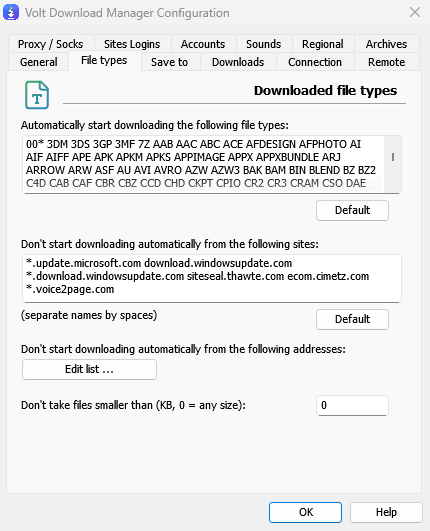
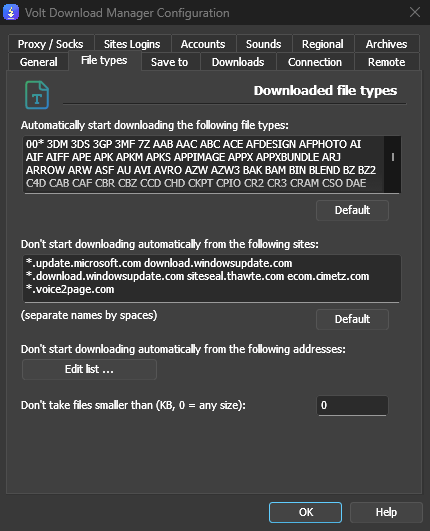
- Folgende Dateitypen automatisch herunterladen – die Dateitypen, die der Browser übergibt (und die Zwischenablage aufnimmt). Trennen Sie sie durch Leerzeichen;
*entspricht beliebigen Zeichen, wie inR0*. Standard stellt die ursprüngliche Liste wieder her. Die Liste beginnt mit den üblichen Archiven, Programmen und Installationsdateien (Windows-, macOS- und Linux-Dateien: DMG, PKG, DEB, RPM, APPIMAGE, MSIX), Musik und Videos, PDF- und Office-Dateien, KI-Modellen und Datensätzen (GGUF, SAFETENSORS, CKPT, PT, ONNX, PARQUET), 3D- und CAD-Dateien (GLB, FBX, OBJ, STL, BLEND, STEP), Design- und Kamera-RAW-Dateien, E-Books, Disk-Images und geteilten Archiven. Seiten, Skripte, einfacher Text und Webbilder sind absichtlich ausgeschlossen, sodass das Speichern eines Bildes oder einer Seite beim Browser bleibt; fügen Sie jeden benötigten Typ hinzu oder setzen Sie ein einzelnes*in das Feld, um jede Datei mit einer Erweiterung zu erfassen. Eine Liste, die Sie nie geändert haben, erhält die Typen, die eine neue Version hinzufügt; eine von Ihnen bearbeitete Liste bleibt unverändert. - Downloads von den folgenden Websites nicht automatisch starten – Websites, deren Downloads im Browser bleiben, durch Leerzeichen getrennt. Ein Name deckt auch die Subdomains der Website ab (
example.comdecktwww.example.comunddl.example.comab, ebenso*.example.com),*stimmt mit allem überein, wie in der Liste der Download-Bedienfelder (*.example.*), und mit den Dateien, auf die ihre Seiten auf einem anderen Server (einem Download-Server oder einem CDN) verlinken, erkennbar an der Seite, von der der Download stammt. Ein Download ohne bekannte Seite wird anhand seiner eigenen Adresse abgeglichen. Standard stellt die ursprüngliche Liste wieder her.
Speichern unter
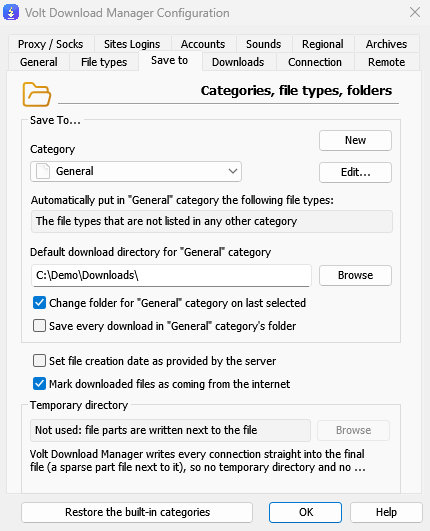
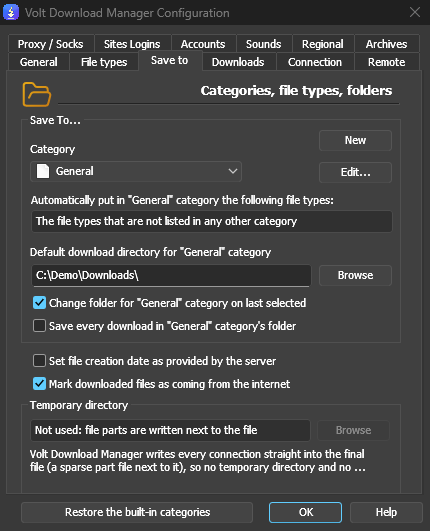
- Kategorie – wählen Sie eine Kategorie, um deren Einstellungen unten anzuzeigen und zu ändern.
- Neu – erstellen Sie Ihre eigene Kategorie. Bearbeiten... ändert die ausgewählte Kategorie: ihren Namen, Dateitypen und Ordner. Die integrierten Kategorien (Komprimiert, Dokumente, Musik, Programme, Video) können wie Ihre eigenen umbenannt, mit anderen Dateitypen versehen und gelöscht werden; eine umbenannte Kategorie behält ihren Ordner. Allgemein und Torrents ändern nur ihren Ordner.
- Integrierte Kategorien wiederherstellen – stellt die integrierten Kategorien in ihrem ursprünglichen Zustand wieder her, nachdem Sie sie umbenannt, neu zugeordnet oder gelöscht haben.
- Folgende Dateitypen automatisch in die Kategorie „…“ einordnen – die Dateitypen, die in diese Kategorie verschoben werden. Eine integrierte Kategorie, deren Liste Sie nie geändert haben, erhält die Dateitypen, die eine neue Version hinzufügt; eine von Ihnen bearbeitete bleibt unverändert.
- Standard-Download-Verzeichnis für die Kategorie „…“ – der Ordner der Kategorie. Geben Sie einen Pfad ein oder klicken Sie auf Durchsuchen.
- Ordner für die Kategorie „…“ beim zuletzt ausgewählten Ordner ändern – wenn Sie in Dateiinformationen herunterladen einen anderen Ordner auswählen, wird dieser von da an zum Ordner der Kategorie. Standardmäßig aktiviert. (Damit wird der Anfangszustand von Diesen Pfad merken in diesem Fenster festgelegt.)
- Jeden Download im Ordner der Kategorie „Allgemein“ speichern – standardmäßig deaktiviert. Wenn diese Option aktiviert ist, wird jeder neue Download im Ordner der Kategorie „Allgemein“ gespeichert, unabhängig von seiner Kategorie: aus dem Browser, URL hinzufügen, Batch-Download, Link-Grabber, Warteschlangen, der Befehlszeile, Videos und Torrents gleichermaßen. Die Kategorien sortieren die Liste weiterhin. Der Ordner der Kategorie „Allgemein“ ist der einzustellende (wählen Sie oben Allgemein); die anderen Kategorien behalten ihre eigenen Ordner für den Fall, dass diese Option wieder deaktiviert wird, und werden in der Zwischenzeit ausgegraut angezeigt. Ein einzelner Download kann weiterhin an einen anderen Ort gehen: Ändern Sie seinen Ordner im Startfenster (Diesen Pfad merken ändert dann den Ordner der Kategorie „Allgemein“). Bereits in der Liste befindliche Downloads bleiben an ihrem Ort.
- Dateierstellungsdatum vom Server übernehmen – fertige Dateien erhalten das vom Server gemeldete Datum, nicht das Datum des Downloads.
- Mark downloaded files as coming from the internet — on by default. Every file VDM downloads (from the browser, a link you add, a video, a gallery, a torrent, and the files extracted from an archive) carries the mark a browser's downloads carry. On Windows that is the Mark of the Web: SmartScreen checks a program before it first runs, and Office opens a document in Protected View. On a Mac it is the quarantine attribute Gatekeeper checks; on Linux, where the file came from, which file managers show. Unticked, no download is marked. On Windows, VDM also follows the Group Policy Do not preserve zone information in file attachments, as browsers do: when it is on (for the computer or for you), no download is marked, whatever this box says.
VDM doesn't use a temporary folder: every connection writes straight into the final file's place, so there is nothing to put together at the end.
Downloads
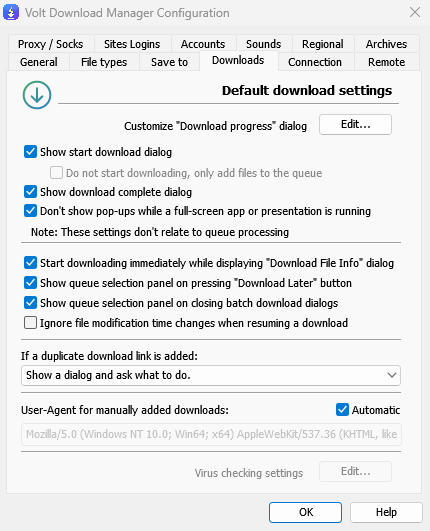
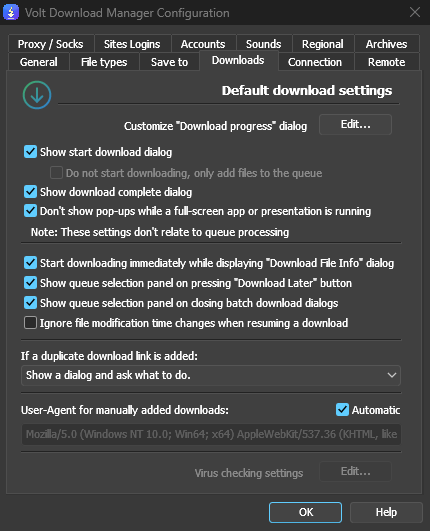
- Dialogfeld „Download-Fortschritt“ anpassen → Bearbeiten… – Download-Fortschrittsdialog anzeigen, wenn ein Download startet: Normal anzeigen (standardmäßig aktiviert); Minimiert anzeigen, wodurch das Fortschrittsfenster des Downloads minimiert in der Taskleiste startet, ohne den Fokus vom aktuellen Programm zu nehmen; oder Nicht anzeigen, wodurch ein Download beim Start kein Fortschrittsfenster mehr öffnet – weder aus dem Browser, über einen hinzugefügten Link, ein Video oder eine Warteschlange – und stattdessen in der Liste des Hauptfensters fortgesetzt wird, wo ein Doppelklick das Fortschrittsfenster öffnet. Download abgeschlossen wird weiterhin angezeigt, wenn der Download beendet ist, wie unter Dialogfeld „Download abgeschlossen“ anzeigen beschrieben.
- Dialogfeld „Download starten“ anzeigen – zeigt Dateiinformationen herunterladen für jeden neuen Download an. Wenn die Option deaktiviert ist, starten Downloads sofort oder werden nur zur Warteschlange hinzugefügt, wenn Sie Download nicht starten, nur Dateien zur Warteschlange hinzufügen aktivieren.
- Dialogfeld „Download abgeschlossen“ anzeigen – zeigt Download abgeschlossen an, wenn eine Datei fertig ist.
- Don't show pop-ups while a full-screen app or presentation is running — on by default. While a full-screen game, app or video, a presentation or the locked screen is on, Download complete and the other windows VDM opens by itself wait, and show when you're back, one after the other in the order they came: Downloads complete, a new version found by the weekly check, the download limit's warning, an archive's test result, its password question or its call for 7-Zip, the browser extension's offer, a link copied to the clipboard, and the crash report. The downloads carry on as usual, and the tray icon's tip says how many windows wait. The windows you open yourself, links you click in the browser and the Turn off computer countdown (so you can still cancel it) show at once. On Windows VDM goes by the state Windows holds its own notifications by (games, presentation mode, full-screen apps and videos), by a frameless window that fills its whole screen in front (on any of your screens), and by the screen's lock; on Linux by the session's lock, and by a full-screen window under X11 or XWayland (on Wayland, a native program's full screen can't be seen). On macOS a full-screen app has a Space of its own, which VDM's windows never open over. Untick it and the windows show at once, as before.
- Download sofort starten, während das Dialogfeld „Dateiinformationen herunterladen“ angezeigt wird – standardmäßig aktiviert, sodass der Download bereits läuft, während Sie einen Ordner auswählen.
- Warteschlangen-Auswahlbereich beim Drücken der Schaltfläche „Später herunterladen“ anzeigen – fragt, welche Warteschlange verwendet werden soll. Ist die Option deaktiviert, wird der Download in die Haupt-Downloadwarteschlange aufgenommen.
- Warteschlangen-Auswahlbereich beim Schließen von Batch-Download-Dialogfeldern anzeigen – dasselbe für Batch-Downloads.
- Änderungen der Dateimodifikationszeit beim Fortsetzen eines Downloads ignorieren – für Server, die jedes Mal ein neues Datum für dieselbe Datei melden. Ohne dies würde ein solcher Server jede Fortsetzung von vorne beginnen lassen.
- Wenn ein doppelter Download-Link hinzugefügt wird – fragen, ihn mit einer Nummer im Namen hinzufügen, den alten überschreiben oder den abgeschlossenen öffnen beziehungsweise den laufenden fortsetzen.
- User-Agent for manually added downloads — how VDM names itself to servers for downloads you add yourself. With Automatic ticked (the default), VDM introduces itself as your default browser: the User-Agent that browser sends, at the version you have installed (Chrome, Edge, Brave, Opera, Vivaldi, Firefox or Safari). The box shows it, and pointing at it names the browser. When VDM doesn't recognise your default browser, it sends a current Chrome's. Untick Automatic to type your own; tick it again to go back. Downloads from the browser use that browser's own User-Agent, the one your sign-in and the site's checks know; the one typed here doesn't replace it. If a site turns a browser's User-Agent away, VDM asks once more with the one typed here (with Automatic, with Internet Explorer's). If a site's bot check refuses it, and the way a browser connects too, VDM asks once more under its own name,
VoltDownloadManager/and its version (or the one typed here), and remembers that site until VDM closes. A User-Agent typed here for the downloads you add yourself is the only one they send.
Verbindung
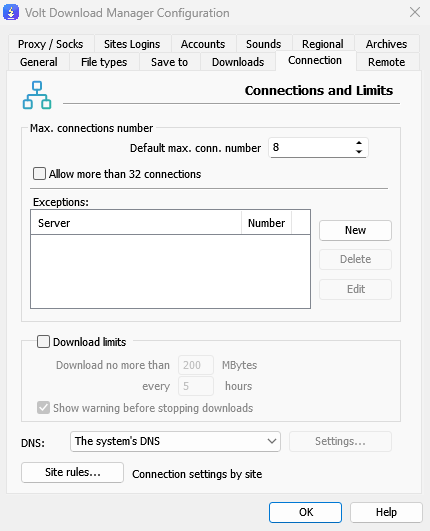
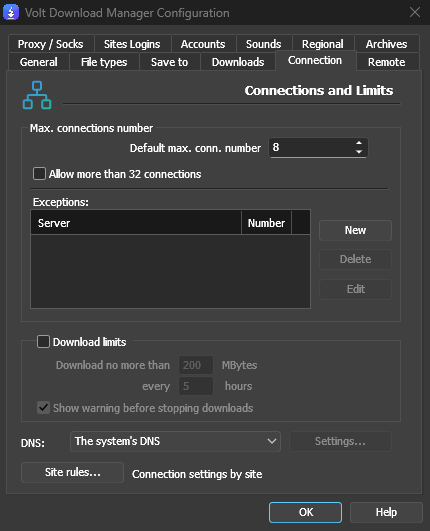
- Standard max. Verbindungsanzahl – Anzahl der Verbindungen, die jeder Download verwenden darf: 1 bis 32 (Standard: 8). Geben Sie die Zahl ein oder verwenden Sie die Pfeile.
- Allow more than 32 connections — raises the most to 128, for the number above and for the exceptions. Most servers allow far fewer from one address; VDM notices and asks those for fewer. Turned off again, any higher number comes back to 32.
- Exceptions — a different number for some servers. New adds one (the server's name and the number of connections); Edit and Delete change or remove the selected one. Rows marked (auto) are limits VDM learned by itself from servers that refused more connections. They can't be edited and fade away by themselves.
- Website-Regeln... – ein User-Agent, Anfrage-Header, die Anzahl der Verbindungen, Immer wie ein Browser verbinden und ein Proxy (keiner oder ein eigener mit Anmeldedaten), pro Website. Siehe Website-Regeln.
- Download-Limits – innerhalb eines Zeitraums von einigen Stunden höchstens eine festgelegte Datenmenge herunterladen. Dieselbe Einstellung finden Sie im Zeitplaner; siehe Warteschlangen und Zeitplaner.
- DNS — which DNS turns the servers' names into addresses for VDM's downloads, its own downloads (helpers, updates) and FTP. The system's DNS is the default (on Windows 11 it can already be encrypted, in Windows' own network settings). Or pick Cloudflare, Google, Quad9, AdGuard or NextDNS, or Another DNS... to type your own; Settings... chooses how it's asked:
- DNS über HTTPS (Standard) oder DNS über TLS: Die Verbindung ist verschlüsselt, sodass niemand unterwegs die von Ihnen abgefragten Namen sehen oder ändern kann.
- Plain DNS: not encrypted. VDM asks it over TCP, never UDP, so it never needs a firewall exception.
- Für einen eigenen DNS: die IP-Adressen der Server, den im Zertifikat angegebenen Namen (TLS) oder die
https://-Adresse (HTTPS; wenn bekannt, auch die IP-Adressen). NextDNS benötigt Ihre Konfigurations-ID. - Wenn nicht erreichbar, den DNS des Systems verwenden: standardmäßig deaktiviert. Antwortet ein DNS nicht, wird der Download mit einer Meldung beendet, die den DNS nennt. So werden Ihre Abfragen nicht unbemerkt an den DNS des Systems weitergegeben. Wenn der DNS meldet, dass ein Name nicht existiert, wird nicht auf einen anderen DNS zurückgegriffen (dadurch würde die Filterung aufgehoben).
- Mit Testen wird github.com abgefragt und die Dauer der Abfrage angezeigt.
Die Namen in Ihrer Hosts-Datei und lokale Namen (einzelne Wörter, .local, .lan, .home.arpa, .internal, localhost) bleiben beim DNS des Systems. Videoseiten (yt-dlp) und Bildergalerien (gallery-dl) verwenden das von Ihnen gewählte DNS nur, wenn ein Netzwerkadapter ausgewählt ist; andernfalls verwenden sie, wie Torrent-Tracker, das System-DNS. Bei einem Proxy fragt der Proxy die Namen der von ihm erreichten Websites für Sie ab.
Weitere Informationen: Verbindungen und Geschwindigkeit.
Proxy / SOCKS
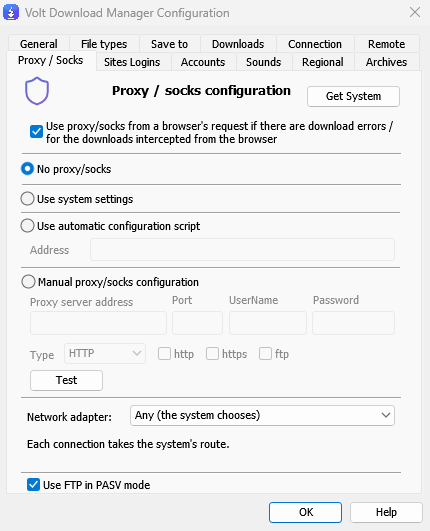
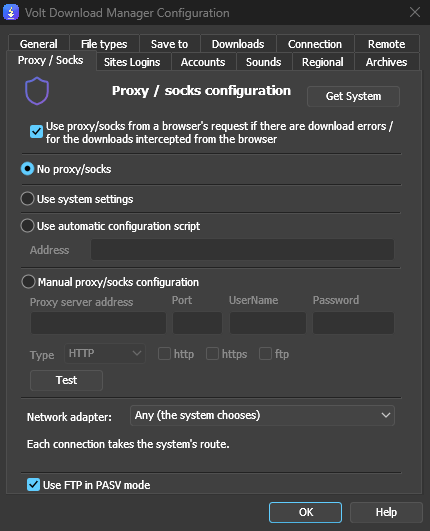
- No proxy/socks — connect directly. This is the default. Chosen here (clicked, or with Use proxy/socks from a browser's request… unticked while it's on), video pages and image galleries connect directly too: yt-dlp and gallery-dl are kept off Windows' proxy and the
HTTPS_PROXY/HTTP_PROXY/ALL_PROXYvariables. Left at the default, they still follow those, as they always did. - Systemeinstellungen verwenden – verwendet den System-Proxy: die Einstellungen von Windows oder macOS, oder unter Linux die Variablen
https_proxy,http_proxyundall_proxyIhrer Sitzung. - Use automatic configuration script — the proxy auto-config (PAC) script your network gives: type its address (
http://…/proxy.pac, or a file). VDM fetches it and asks it which proxy each download goes through (PROXY,HTTPS,SOCKS,SOCKS5,SOCKS4orDIRECT), as browsers do. Through aSOCKSorSOCKS5answer, the proxy looks the site's name up, as in browsers. Until the script has been fetched, or if it can't be, VDM uses the system's settings. - Manuelle Proxy-/SOCKS-Konfiguration – Ihr eigener Proxy:
- Proxy-Server-Adresse und Port: dessen Name oder IP-Adresse (
127.0.0.1) und Port (1080). - Typ: welche Protokolle der Proxy spricht. HTTP (der übliche Web-Proxy), HTTPS (ein Web-Proxy, der über eine verschlüsselte Verbindung erreicht wird), SOCKS5 oder SOCKS4.
- Benutzername und Passwort, falls diese benötigt werden (HTTP, HTTPS und SOCKS5; SOCKS4 hat keine Anmeldung, daher sind diese ausgegraut).
- Für einen HTTP- oder HTTPS-Proxy aktivieren Sie die Protokolle, für die er bestimmt ist (http, https). FTP-Downloads gehen niemals über einen HTTP-Proxy: Das ftp-Feld bleibt ausgegraut und zeigt dies an.
- A SOCKS proxy carries every connection: web downloads, FTP, video pages and galleries (yt-dlp and gallery-dl), VDM's own downloads and the update check, and torrents if you ask (below). It has no protocol boxes; instead, Look up site names through the proxy (on by default) has the proxy turn the sites' names into addresses, so your own DNS never sees which sites you visit (
socks5h,socks4a). Untick it only for a proxy that can't look names up; VDM then looks them up with the DNS chosen under Connection and hands the proxy the address. - FTP über einen SOCKS-Proxy verwendet immer den passiven Modus (der Proxy kann die Verbindungen des Servers nicht zurückleiten), daher wird FTP im PASV-Modus verwenden aktiviert und ausgegraut angezeigt.
ftps://-Adressen (TLS ab dem ersten Byte) können noch nicht über einen SOCKS-Proxy geleitet werden;ftpes://(TLS nach dem Verbindungsaufbau) kann. - Torrents verwenden einen SOCKS5-Proxy nur, wenn Proxy verwenden in den Torrent-Einstellungen aktiviert ist (siehe Torrents und Ihre Sicherheit). Ein SOCKS4- oder HTTP-Proxy leitet sie nicht weiter.
- Eine ältere Schreibweise der Adresse,
socks5://host(odersocks5h://,socks4://,http://), funktioniert weiterhin: Die Optionen zeigen sie als Typ mit dem Host allein an. - System abrufen – füllt die manuellen Felder aus den Windows-Proxy-Einstellungen (unter Windows) aus: den HTTP-Proxy, wenn vorhanden, ansonsten den SOCKS-Proxy (als SOCKS5: Windows gibt die Version nicht an; wählen Sie SOCKS4, wenn Ihrer nur diese spricht).
- Testen – eine Anfrage über die aktuellen Einstellungen der Seite (ihren Proxy, mit dem DNS und Netzwerkadapter, die in den Optionen festgelegt sind) an Cloudflare's
one.one.one.one, die mit der gesehenen Adresse antwortet. Die Zeile neben der Schaltfläche zeigt an, wie lange es gedauert hat und welche Adresse das Internet sieht (die des Proxys, wenn er Ihre Verbindungen weiterleitet), oder warum es fehlgeschlagen ist: Der Proxy ist nicht erreichbar, hat die Anmeldung verweigert oder konnte die Website nicht erreichen. Es wird nichts anderes gesendet.
Which do I pick?
- A VPN app usually needs nothing here: it carries all the computer's traffic. To make sure VDM never goes around it, choose its Network adapter below. Some VPN apps also offer a SOCKS5 proxy of their own (in their settings, with its own login): SOCKS5, its address, port and login.
- Tor (Tor Browser or the Tor service): SOCKS5, 127.0.0.1, port 9150 (Tor Browser) or 9050 (the service), Look up site names through the proxy ticked. Tor carries no torrents well; leave Use the proxy off in Torrent settings.
- An SSH tunnel, ssh -D 1080 you@server: SOCKS5, 127.0.0.1, port 1080.
- Clash, v2rayN and similar proxy programs: their mixed port takes both, usually 127.0.0.1:7890 (HTTP or SOCKS5); v2rayN also has a SOCKS port, often 10808. Or turn on their system proxy and choose Use system settings.
- A proxy your workplace or school gives: usually an HTTP one, or a script (Use automatic configuration script). Ask which.
- Use proxy/socks from a browser's request… — on by default. A download VDM takes from the browser goes through the proxy the browser used for it. That's the one a VPN or proxy extension set, the browser's own manual proxy, or its proxy auto-config script. Without it, the download would leave from your own address, and content limited to the VPN's country, or to its address, would fail. The browser extension reads that proxy and hands it to VDM with each download, once you switch on Send downloads through this browser's proxy or VPN extension in the extension's toolbar popup (Firefox asks you once; Chrome, Edge, Brave, Opera and Vivaldi ask nothing more: see A VPN or proxy extension).
- A proxy that asks for a login the VPN extension gives itself can't be shared: no other program has that login. The download then stops and says so, rather than going without the proxy. Use the VPN's own app, or choose its adapter under Network adapter.
- In Firefox, VDM sees the proxy the browser's own request for the file took, including the ones a VPN extension picks for each request. In Chrome and the other Chromium browsers, it sees the browser's proxy settings: the server for the download's scheme (honouring their bypass list) or their proxy auto-config script.
- When the browser used no proxy, and No proxy/socks is chosen, VDM uses Windows' proxy settings, as browsers do.
- Network adapter — Any (the system chooses) is the default. Pick an adapter, usually your VPN's, and every connection VDM opens goes out through it, or not at all. That covers downloads, FTP, torrents, video pages and image galleries, the DNS you chose, VDM's own downloads and the update check. It works as a kill switch: when the adapter disconnects, or the VPN is switched off, nothing goes out through your normal connection. Running downloads stop with "… is not connected" and start again when the adapter is back. The line under the list shows the adapter's address, or that it isn't connected.
- How it holds: Windows binds the adapter's own address. Windows then sends those packets only through that adapter (its strong host model). Linux binds the device itself (Linux 5.7 or newer), and macOS binds the interface. An address of a kind the adapter doesn't have (IPv6 on an IPv4-only VPN) is refused, not sent around it.
- The system's DNS asks the names in its own way, and Windows may ask over every adapter. To keep the names inside the adapter too, choose a DNS under Connection → DNS: VDM then asks it through the adapter.
- Video pages and image galleries: yt-dlp, gallery-dl and the ffmpeg yt-dlp starts can't be held to an adapter themselves, so while one is chosen VDM gives them a proxy of its own on this computer (127.0.0.1, with a password only they get). VDM opens their connections through the adapter, as it opens its own, and looks the names up with the DNS you chose. When the adapter disconnects, their connections close and the downloads stop with the others. Video formats that can't go through a proxy (RTMP, RTSP, MMS, FTP) are refused rather than sent around it.
- Not held to the adapter yet, so they don't start while one is chosen: ftps:// (implicit TLS; ftp:// with TLS is fine).
- Connections to this computer itself (localhost) aren't bound. A proxy on this computer carries the downloads, and where it sends them is up to it.
- On macOS a VPN that reconnects may get a new interface (utun5 instead of utun4): pick it again.
- Use FTP in PASV mode — on by default: for FTP downloads VDM opens the data connections itself (passive mode), which works through routers and firewalls. Turn it off only for a server that needs active mode (the server connects back to you). FTP goes through a SOCKS proxy above (always passive then), never through an HTTP one. See FTP and FTPS.
Site-Anmeldungen


User names and passwords for sites that ask for them. New adds a row: the site (with a path if the login is only for part of it), the user name and the password. Edit and Remove change or delete the selected row. VDM uses the login for every download from that site. A login typed in Add URL (Use authorization) takes priority for that one download. For huggingface.co, the password is your Hugging Face access token, for gated models and datasets: VDM sends it as a token, to Hugging Face only (the user name can be anything; see Models, datasets and releases).
The passwords (these, the proxy's and the debrid accounts') are kept in the system's keychain: Windows Credential Manager, the keyring on Linux (Secret Service: GNOME Keyring, KeePassXC and others) or the macOS keychain; VDM's settings keep only a reference. A locked keyring is never unlocked for VDM: without one, they stay in VDM's settings, sealed for your Windows account on Windows. Options → Accounts says where they are. A portable copy keeps them in its own folder.
Cookies für Videoseiten – für Videos, die nur abgespielt werden, wenn Sie angemeldet sind (YouTube: „Anmelden, um zu bestätigen, dass Sie kein Bot sind“):
- Aus (Standard) – yt-dlp erhält Cookies nur über die Browser-Erweiterung, wenn Sie die Schaltfläche über einem Video verwenden.
- Aus Browser – yt-dlp liest die Cookies des ausgewählten Browsers auf diesem Computer (Firefox, Chrome, Edge, Brave, Opera, Vivaldi, Chromium, Whale; Safari unter macOS) für jedes Video, das es sucht oder herunterlädt, einschließlich eingefügter Adressen. Wenn die Erweiterung die eigenen Cookies der Seite übergeben hat, werden diese stattdessen verwendet. Ein Video aus einem privaten Browserfenster liest diese niemals, auch kein gespeichertes nach einem Neustart: Es hat nur die Cookies, die sein privates Fenster gegeben hat. Profil (optional): Name oder Ordner eines Profils (... wählt eines aus); leer, das zuletzt verwendete. Chrome, Edge und Brave sperren ihre Cookies unter Windows: Firefox funktioniert. Siehe Websites, die eine Anmeldung erfordern.
Use my yt-dlp config file — off by default. Ticked, yt-dlp also reads its own config files (%APPDATA%\yt-dlp\config.txt on Windows, ~/.config/yt-dlp/config on Linux and macOS, and the others it looks for, such as yt-dlp.conf in your home folder) for the videos, playlists and look-ups the app starts, so your subtitle, thumbnail, metadata or SponsorBlock choices apply there too. Most of what VDM chooses still wins: the folder and file name, the quality, the proxy and network adapter set here. VDM also keeps yt-dlp's own downloader for HTTP, FTP and HLS (one the file names, aria2c, reports no progress), leaves out a download archive, forced overwrites and marking videos as watched (which would mark every video only looked up), keeps part files (with --no-part the engine's streams would be downloaded again into a doubled file), and keeps the usual fix-ups. Options there that skip or filter videos (--match-filters, --max-filesize, a strict -f) apply too, and can make a video say it can't be downloaded. A proxy with a user name set here gives way to a --proxy in the file.
Konten
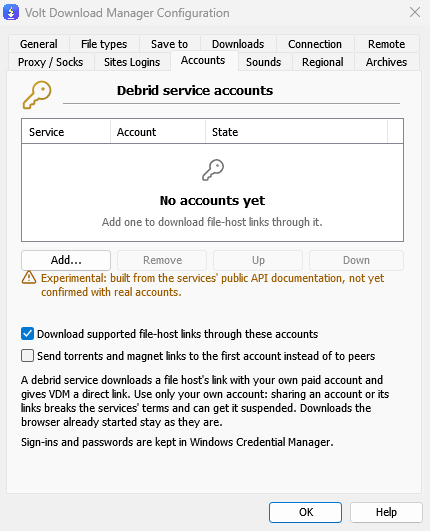
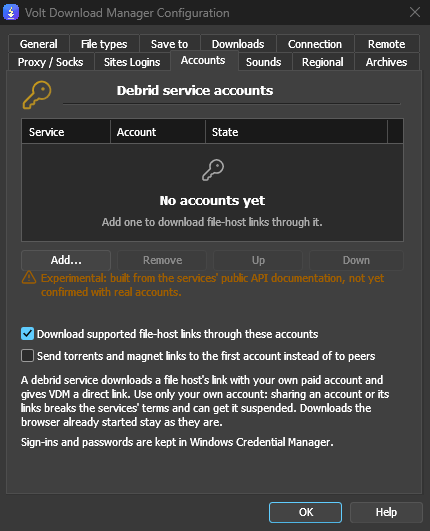
Ihre Debrid-Dienstkonten (Real-Debrid, AllDebrid, Premiumize, TorBox, Mega-Debrid; experimentell): Hinzufügen… meldet sich per Code im Browser, mit Ihrem Benutzernamen und Passwort oder mit Ihrem API-Token oder Schlüssel an; ein Link von einem vom Dienst unterstützten Host wird dann darüber heruntergeladen. Die Reihenfolge der Liste ist die Reihenfolge, in der Konten abgefragt werden. Siehe Debrid-Dienstkonten.
Töne
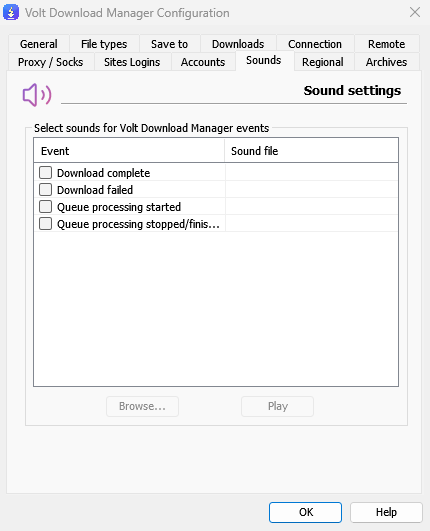
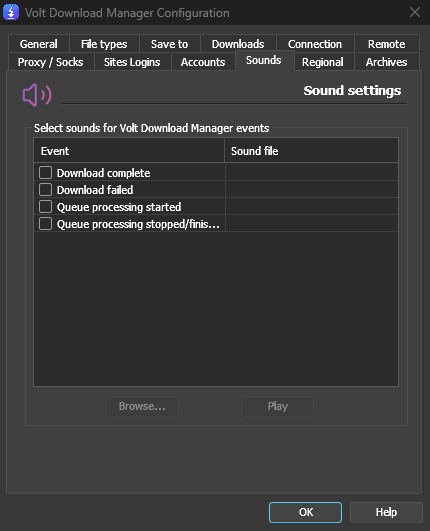
Bei Download abgeschlossen, Download fehlgeschlagen, Warteschlangenverarbeitung gestartet und Warteschlangenverarbeitung beendet/abgeschlossen einen Ton abspielen. Aktivieren Sie ein Ereignis, wählen Sie es aus und klicken Sie auf Durchsuchen..., um eine .wav-Datei auszuwählen. Klicken Sie auf Wiedergeben, um sie anzuhören.
Regional
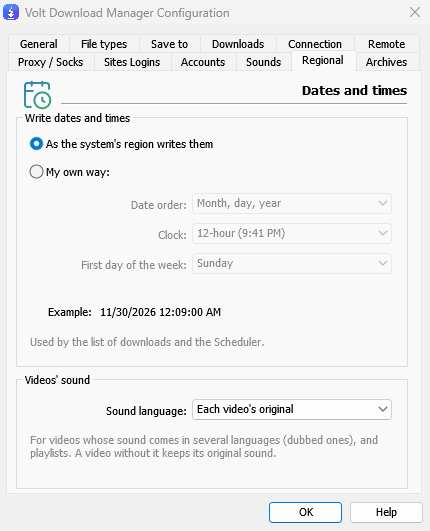
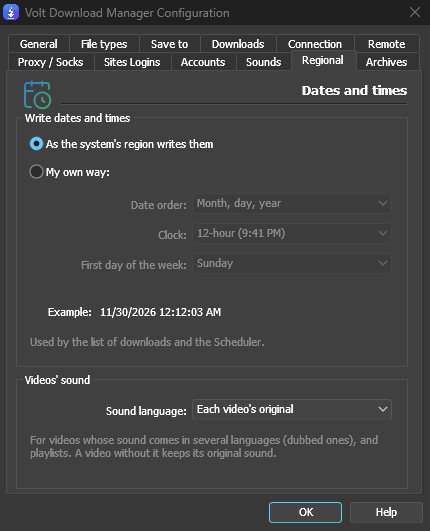
Format für Datum und Uhrzeit in der Download-Liste und im Zeitplaner.
- Wie in den Systemeinstellungen festgelegt (Standard) – die Regionseinstellungen von Windows (Einstellungen → Zeit & Sprache → Region); unter macOS und Linux die übliche Schreibweise Ihrer Sprache. In der englischen Version behält die Liste den Datumstext von IDM bei.
- Eigene Vorgaben – wählen Sie die Datumsreihenfolge (Tag, Monat, Jahr; Monat, Tag, Jahr; oder Jahr, Monat, Tag), eine 12- oder 24-Stunden-Uhr und den ersten Wochentag im Kalender des Zeitplaners. Beispiel zeigt das Ergebnis.
Videos' sound — the language a video's sound comes in when the site has it in several (dubbed videos): Each video's original (the default), or a language, which every video looked up and every playlist downloads with when it has it. A video without it comes with its original sound, and Download video can choose another for one video (The sound's language).
Archive
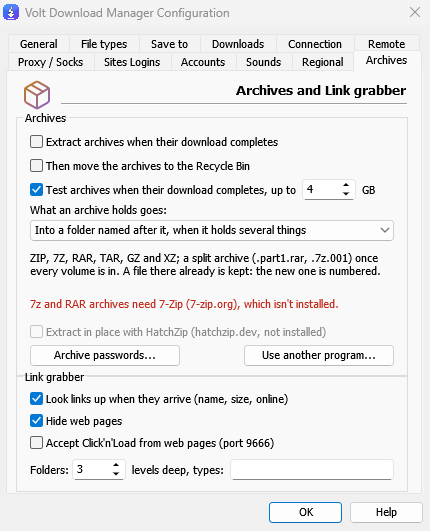
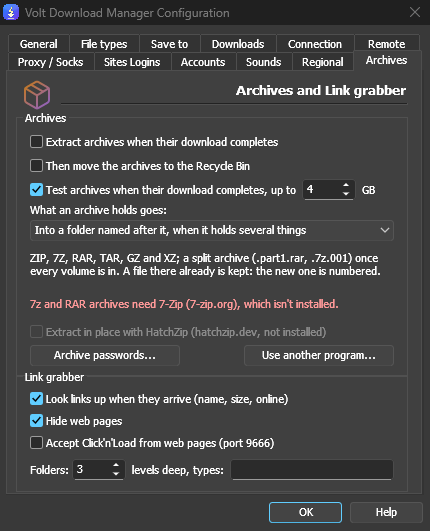
Archive (zip, 7z, rar, tar, gz, xz) und Link-Grabber.
- Archive nach Abschluss des Downloads extrahieren (standardmäßig deaktiviert) – jedes heruntergeladene Archiv wird extrahiert, sobald der Download abgeschlossen ist (bei einem geteilten Archiv, sobald das letzte Teil angekommen ist). Für ein Link-Grabber-Paket gibt es eine eigene Option: Nach Abschluss extrahieren.
- Archive dann in den Papierkorb verschieben (standardmäßig deaktiviert; unter macOS und Linux in den Papierkorb) – nur nach erfolgreicher Extraktion. Dies ist auch die Standardeinstellung für die Option Archive nach dem Extrahieren löschen eines neuen Pakets.
- Test archives when their download completes, up to 4 GB (on by default) — a ZIP, 7z or RAR archive (a split one once its last volume is in) is read back and every file in it checked before its download counts as done, with the 7-Zip named below (a ZIP without 7-Zip by VDM itself). A larger one isn't tested by itself, as a test reads the whole file: right-click → Test archive tests it. A damaged ZIP's damaged files are downloaded again; any other damaged archive is offered for Redownload. See Testing archives.
- Archivinhalt ablegen – in einem nach dem Archiv benannten Ordner, wenn es mehrere Dateien enthält (Standard), immer in einem solchen Ordner oder direkt im Ordner des Archivs.
- Whether 7-Zip was found: 7z and RAR archives need it, unless they are extracted in place with HatchZip. VDM also finds the 7-Zip inside PeaZip and NanaZip's command line.
- Use another program... — choose the 7-Zip command line program yourself (
7z.exeof a portable copy or of another archiver); Find 7-Zip automatically goes back to the one VDM finds. See Extracting archives. - Mit HatchZip direkt extrahieren (standardmäßig deaktiviert; ausgegraut, wenn HatchZip nicht installiert ist) – das Archiv wird entfernt, während seine Dateien entpackt werden, sodass nur diese Platz benötigen. Siehe Archive extrahieren.
- Archive passwords... — the passwords tried on an encrypted archive before VDM asks, one per line; the one that fits moves to the top. A package's own password is never added by itself. See Archive passwords.
- Links beim Eintreffen nachschlagen (Name, Größe, online) – der Link-Grabber fragt jeden Server nach der zugehörigen Datei (standardmäßig aktiviert).
- Webseiten ausblenden – die Standardeinstellung des Link-Grabbers für dasselbe Feld (an).
- Accept Click'n'Load from web pages (port 9666) (off by default) — a link site's Click'n'Load button sends its links to VDM's Link grabber. See Click'n'Load.
- Ordner: 3 Ebenen tief, Typen: – wie viele Unterordner der Link-Grabber liest, wenn Sie ihm einen FTP-Ordner oder eine Ordnerliste eines Webservers geben (0 bis 10; 0 sind die eigenen Dateien des Ordners), und welche Dateitypen er davon behält (wie auf der Seite Dateitypen,
ISO ZIP R0*; leer behält jeden Typ). Siehe Ordner.
Fernzugriff
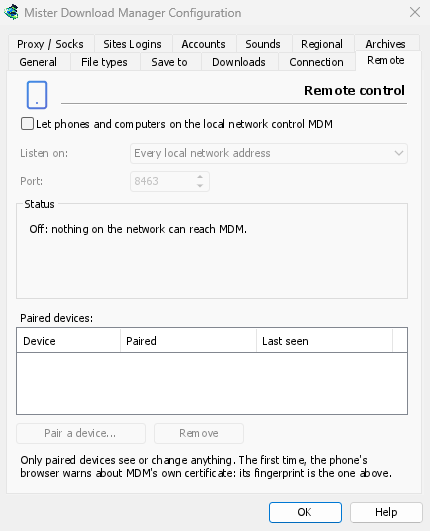
Control VDM from your phone or another computer on the local network: see Control VDM from your phone.
- Let phones and computers on the local network control VDM (off by default).
- Abhören auf – jede lokale Netzwerkadresse (Standard), nur dieser Computer oder eine Adresse.
- Port – standardmäßig 8463.
- Status – was es tut, die auf dem Telefon zu öffnende Adresse und der Fingerabdruck des Zertifikats.
- Gekoppelte Geräte – Gerät koppeln... zeigt einen QR-Code und einen Code an; Entfernen entkoppelt das ausgewählte Gerät sofort.
Andere Einstellungen
Einige Einstellungen befinden sich außerhalb dieses Fensters:
- Downloads → Geschwindigkeitsbegrenzer → Einstellungen... – Geschwindigkeitsbegrenzungen. Siehe Verbindungen und Geschwindigkeit.
- Tasks → Torrent settings... — sharing and file associations, and whether the browser hands
.torrentdownloads to VDM. See Torrents. - Ansicht → Dark Mode-Unterstützung, Immer dunkel, Design, Zeichnen mit, Oberflächengröße, Schriftart (die eigene Schriftartdatei und Textgröße der Oberfläche) und Sprache. Siehe Erste Schritte und Fehlerbehebung.
- Hilfe → Nach Updates suchen... – Bei jedem Start nach Updates suchen befindet sich in diesem Fenster.
Nächste Schritte
Kostenlos, Open Source, keine Werbung, keine Testversion.
Download Volt Download Manager