

بارگیریها ← گزینهها را باز کنید، یا روی گزینهها در نوار ابزار کلیک کنید. پنجره دارای دوازده صفحه در دو ردیف تب است. تأیید تغییرات شما را ذخیره میکند؛ بستن پنجره یا فشار دادن Esc آنها را دور میاندازد.
برخی از دکمهها خاکستری هستند. آنها به ویژگیهایی تعلق دارند که هنوز ساخته نشدهاند.
عمومی
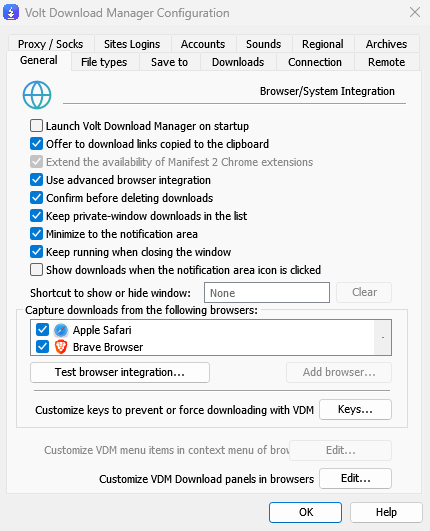
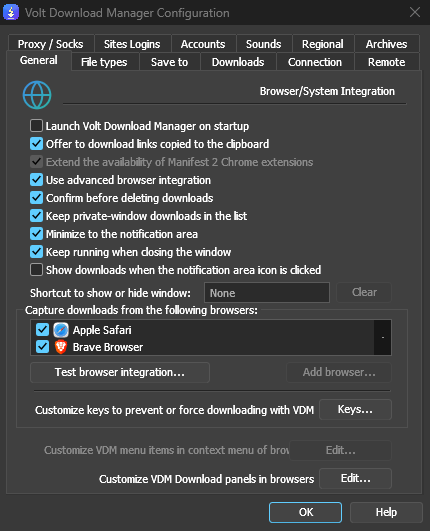
- Launch Volt Download Manager on startup — start VDM when you sign in to Windows. It starts in the notification area, its window hidden, with its downloads, queues and Scheduler running; click its icon (or start VDM again) to show the window. On Linux and macOS it starts with your session the same way; where no notification area shows VDM's icon (some Linux desktops), it starts minimized, and the option's tooltip says so. VDM waits for the notification area up to 30 seconds after making its icon, its window hidden, as a desktop's can come up after VDM at sign-in. Off by default. Greyed in a portable copy, which writes nothing to the registry.
- پیشنهاد دانلود پیوندهای کپیشده در کلیپبورد — وقتی پیوندی را کپی میکنید که نوع فایل آن در صفحه انواع فایل موجود است، پنجره اطلاعات فایل بارگیریشده با آن پیوند باز میشود و آماده شروع بارگیری است (یا اگر نمایش کادر گفتگوی شروع دانلود خاموش باشد، بارگیری بلافاصله آغاز میشود). این قابلیت فقط برای آرشیوها، برنامهها، موسیقی، ویدئوها، PDF و هر نوع فایلی که خودتان اضافه کردهاید فعال است؛ بنابراین کپی کردن آدرس یک عکس، فونت یا مدل سهبعدی برای استفاده در جای دیگر، هرگز بارگیری را آغاز نمیکند. این گزینه بهطور پیشفرض فعال است.
- Use advanced browser integration — let the browser extension hand downloads to VDM. Turn it off to keep every download in the browser.
- تأیید قبل از حذف دانلودها — پیش از حذف بارگیریها از فهرست، تأیید میخواهد. این گزینه بهطور پیشفرض فعال است؛ با انتخاب این گفتگو را دوباره نشان نده در آن پرسش، غیرفعال میشود و با علامت زدن اینجا دوباره فعال میگردد. اگر غیرفعال باشد، حذف فقط بارگیریها را از فهرست حذف میکند و فایلهایشان را نگه میدارد؛ Shift+Delete همچنان تأیید میخواهد، زیرا حذف فایلها از دیسک همیشه اینگونه است.
- Keep private-window downloads in the list — save downloads that come from a browser's private (incognito) window in VDM's list like any other, so an unfinished one is still there to resume after VDM closes or restarts. On by default. Unticked, they are kept in memory only, as the browser keeps them, and are gone when VDM closes. In the list, a private window's download has a small mask before its status; its tip says whether the list keeps it. The first time one comes, VDM says that they are kept and where to turn that off. Their cookies are never saved either way, and after a restart they still stay apart from normal windows' downloads (a private download that waits for a new address isn't given one by a normal window's, and a private window's video never uses Cookies for video sites from Sites Logins: if a site wants you signed in, open the page in a private window, sign in there, and use its Download video button again). Turning it off later doesn't remove the ones already saved by an earlier session.
- Keep running when closing the window — closing the main window hides it in the notification area instead of quitting, and downloads, queues and schedules go on. On by default; unticked, closing quits VDM (so a portable copy's folder can then be deleted). If there is no icon for VDM at all — not even behind the ^ hidden icons — the window minimizes to the taskbar instead, so downloads continue and the window stays reachable; an icon behind ^ can be clicked to bring it back, or start VDM again. On macOS the window closes into the Dock, and a click on VDM's icon there (or in the menu bar) brings it back; Cmd+Q quits. Greyed where no tray shows VDM's icon (some Linux desktops): closing quits there.
- Show downloads when the notification area icon is clicked — a click on VDM's icon there shows a small panel over it with what is downloading, each download's progress, Pause and Cancel, and a button that opens the window; a double click opens the window (Windows). On in a new copy of VDM; one set up before it keeps its click, which shows or hides the window, until it is ticked. Greyed where no tray shows VDM's icon. See The tray icon.
- Minimize to the notification area — Minimize hides the main window, and a download's progress window, in the notification area; downloads go on. On by default. Where the tray has no icon, the main window minimizes to the taskbar instead. The close setting above is separate; when it is on, closing hides there too (or minimizes to the taskbar if there is no icon at all). Greyed where no tray shows VDM's icon (some Linux desktops); in a Wayland session the main window stays minimized in the dock, since Wayland can't hide a window.
- گرفتن بارگیریها از مرورگرهای زیر — برای اینکه بارگیریهای یک مرورگر در همان مرورگر بمانند، تیک آن را بردارید.
- Customize VDM Download panels in browsers → Edit... — the download button over videos on web pages: turn it off, choose its Button size (80%, 100% or 120%, and Automatic, as installed: only the logo, the arrow and ✕ in a feed and over a small player, its words over a big one; Full, its words wherever they fit; or Compact, only the logo, the arrow and ✕ on every video), or list the sites it never shows on (separate them by spaces; wildcards like
*.youtube.*,youtube.*or*.example.comwork). See Browser integration.
به یکپارچهسازی مرورگر مراجعه کنید.
انواع فایل
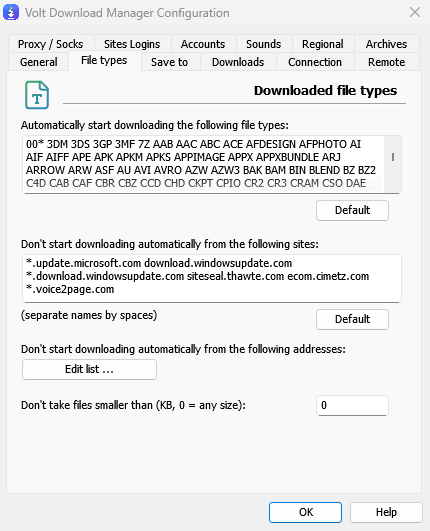
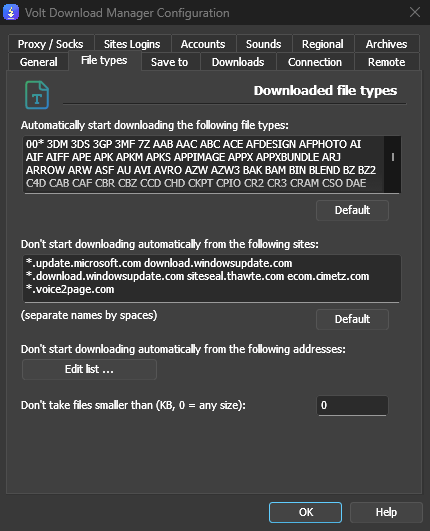
- شروع خودکار بارگیری انواع فایل زیر — انواع فایلهایی که مرورگر تحویل میدهد (و کلیپبورد آنها را دریافت میکند). آنها را با فاصله از هم جدا کنید؛
*با هر کاراکتری مطابقت دارد، مانندR0*. پیشفرض لیست اصلی را بازمیگرداند. لیست با آرشیوهای معمول، برنامهها و نصبکنندهها (Windows، macOS و Linux: DMG, PKG, DEB, RPM, APPIMAGE, MSIX)، موسیقی و ویدئوها، فایلهای PDF و Office، مدلها و مجموعهدادههای هوش مصنوعی (GGUF, SAFETENSORS, CKPT, PT, ONNX, PARQUET)، فایلهای سهبعدی و CAD (GLB, FBX, OBJ, STL, BLEND, STEP)، فایلهای طراحی و RAW دوربین، کتابهای الکترونیکی، ایمیجهای دیسک و آرشیوهای تقسیمشده آغاز میشود. صفحات، اسکریپتها، متن ساده و تصاویر وب عمدا حذف شدهاند، بنابراین ذخیره یک عکس یا صفحه با مرورگر باقی میماند؛ هر نوعی را که نیاز دارید اضافه کنید، یا یک*تنها در کادر قرار دهید تا هر فایلی که پسوند دارد را دریافت کند. لیستی که هرگز تغییر ندادهاید، انواع فایلهای اضافه شده در نسخه جدید را دریافت میکند؛ لیستی که ویرایش کردهاید، همانطور که هست باقی میماند. - از سایتهای زیر بهطور خودکار بارگیری را شروع نکن — سایتهایی که بارگیریهایشان در مرورگر باقی میمانند، با فاصله از هم جدا شدهاند. یک نام، زیردامنههای سایت را نیز پوشش میدهد (
example.com،www.example.comوdl.example.comرا پوشش میدهد، همانطور که*.example.comنیز همینطور است)،*با هر چیزی مانند فهرست پنلهای دانلود (*.example.*) مطابقت دارد، و فایلهایی که صفحات آن به سرور دیگری (سرور دانلود یا CDN) پیوند میدهند، که از صفحه مبدأ بارگیری مشخص میشود. بارگیری بدون صفحه شناختهشده با آدرس خودش مطابقت داده میشود. پیشفرض فهرست اصلی را برمیگرداند.
ذخیره در
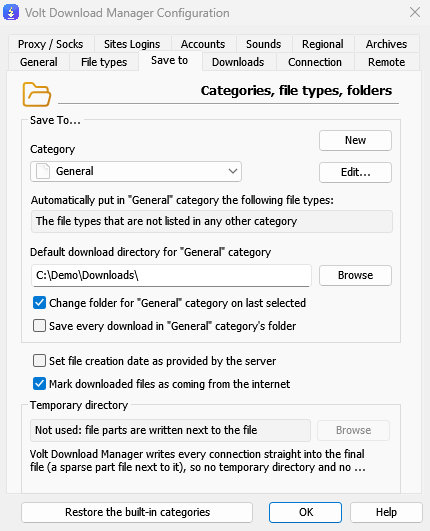
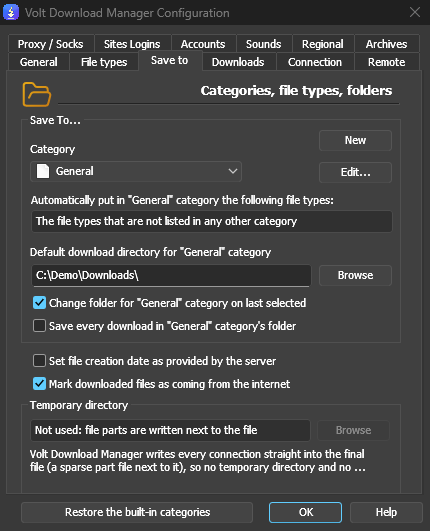
- دسته — یک دسته را انتخاب کنید تا تنظیمات آن را در زیر ببینید و تغییر دهید.
- جدید — دستهبندی خود را بسازید. ویرایش… دستهبندی انتخابشده را تغییر میدهد: نام، انواع فایل و پوشه آن. دستهبندیهای داخلی (فشرده، اسناد، موسیقی، برنامهها، ویدئو) را میتوان مانند دستهبندیهای خودتان تغییر نام داد، انواع فایل دیگری به آنها اختصاص داد و حذف کرد؛ دستهبندی تغییرنامیافته پوشه خود را حفظ میکند. دستهبندیهای عمومی و تورنتها فقط پوشه خود را تغییر میدهند.
- بازیابی دستهبندیهای داخلی — دستهبندیهای داخلی را پس از تغییر نام، تغییر نوع یا حذف آنها، به حالت اولیه بازمیگرداند.
- انتقال خودکار انواع فایل زیر به دستهبندی «…» — انواع فایلهایی که به این دستهبندی منتقل میشوند. یک دستهبندی داخلی که فهرست آن را هرگز تغییر ندادهاید، انواع فایلهای اضافه شده در نسخههای جدید را دریافت میکند؛ دستهبندی ویرایش شده به همان صورت باقی میماند.
- دایرکتوری دانلود پیشفرض برای دسته "..." — پوشه دسته. یک مسیر را تایپ کنید یا روی مرور کلیک کنید.
- تغییر پوشه برای دسته "..." بر اساس آخرین انتخاب — هنگامی که پوشه دیگری را در اطلاعات فایل بارگیری انتخاب میکنید، از آن به بعد پوشه دسته میشود. به طور پیشفرض روشن است. (این حالت اولیه این مسیر را به خاطر بسپار را در آن پنجره تنظیم میکند.)
- ذخیره هر بارگیری در پوشه دسته «عمومی» — بهطور پیشفرض خاموش است. با انتخاب این گزینه، هر بارگیری جدید به پوشه عمومی میرود، صرفنظر از دستهاش: از مرورگر، افزودن URL، دانلود دستهای، رباینده پیوند، صفها، خط فرمان، ویدیوها و تورنتها. دستهها همچنان لیست را مرتب میکنند. پوشه عمومی همان پوشهای است که باید تنظیم شود (در بالا عمومی را انتخاب کنید)؛ سایر دستهها پوشههای خود را برای زمانی که دوباره خاموش شود، حفظ میکنند و در این مدت خاکستری نمایش داده میشوند. یک بارگیری تکی همچنان میتواند به جای دیگری برود: پوشه آن را در پنجرهای که آن را شروع میکند تغییر دهید (این مسیر را به خاطر بسپار سپس پوشه عمومی را تغییر میدهد). بارگیریهایی که از قبل در لیست هستند، در جای خود باقی میمانند.
- تنظیم تاریخ ایجاد فایل مطابق با سرور — به فایلهای تمام شده تاریخی را بدهید که سرور گزارش میدهد، نه تاریخی که آنها را دانلود کردهاید.
- Mark downloaded files as coming from the internet — on by default. Every file VDM downloads (from the browser, a link you add, a video, a gallery, a torrent, and the files extracted from an archive) carries the mark a browser's downloads carry. On Windows that is the Mark of the Web: SmartScreen checks a program before it first runs, and Office opens a document in Protected View. On a Mac it is the quarantine attribute Gatekeeper checks; on Linux, where the file came from, which file managers show. Unticked, no download is marked. On Windows, VDM also follows the Group Policy Do not preserve zone information in file attachments, as browsers do: when it is on (for the computer or for you), no download is marked, whatever this box says.
VDM doesn't use a temporary folder: every connection writes straight into the final file's place, so there is nothing to put together at the end.
بارگیریها
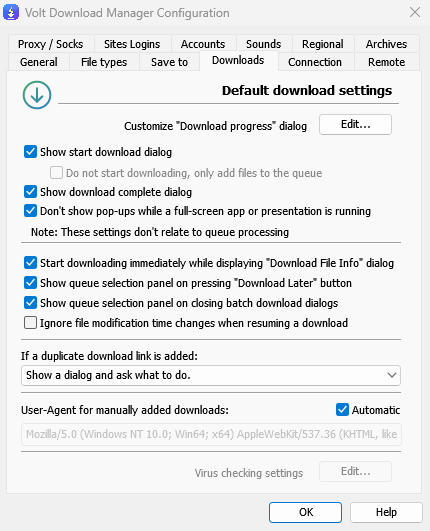
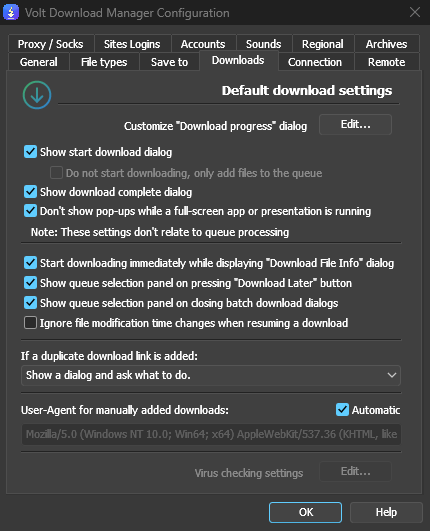
- سفارشیسازی کادر محاورهای «پیشرفت دانلود» → ویرایش... — نمایش گفتگوی پیشرفت بارگیری هنگام شروع بارگیری: بهطور عادی نمایش بده، که بهطور پیشفرض فعال است؛ کوچکشده نمایش بده، که پنجره پیشرفت بارگیری را در نوار وظیفه بهصورت کوچکشده باز میکند، بدون اینکه تمرکز را از برنامهای که در آن هستید بگیرد؛ یا نمایش نده، که در این حالت بارگیری دیگر پنجره پیشرفت خود را هنگام شروع از مرورگر، پیوندی که اضافه میکنید، یک ویدئو یا صف باز نمیکند و در لیست پنجره اصلی ادامه مییابد، جایی که با دوبار کلیک پنجره پیشرفت آن باز میشود. بارگیری کامل شد همچنان هنگام پایان نمایش داده میشود، همانطور که نمایش کادر محاورهای تکمیل دانلود در پایین توضیح میدهد.
- نمایش کادر گفتگوی شروع دانلود — اطلاعات فایل بارگیری را برای هر دانلود جدید نمایش دهید. با خاموش بودن آن، دانلودها بلافاصله شروع میشوند، یا فقط در صورتی به صف میپیوندند که شروع به بارگیری نکند، فقط فایلها را به صف اضافه کند را علامت بزنید.
- نمایش کادر محاورهای تکمیل دانلود — بارگیری کامل شد را هنگام اتمام یک فایل نمایش دهید.
- Don't show pop-ups while a full-screen app or presentation is running — on by default. While a full-screen game, app or video, a presentation or the locked screen is on, Download complete and the other windows VDM opens by itself wait, and show when you're back, one after the other in the order they came: Downloads complete, a new version found by the weekly check, the download limit's warning, an archive's test result, its password question or its call for 7-Zip, the browser extension's offer, a link copied to the clipboard, and the crash report. The downloads carry on as usual, and the tray icon's tip says how many windows wait. The windows you open yourself, links you click in the browser and the Turn off computer countdown (so you can still cancel it) show at once. On Windows VDM goes by the state Windows holds its own notifications by (games, presentation mode, full-screen apps and videos), by a frameless window that fills its whole screen in front (on any of your screens), and by the screen's lock; on Linux by the session's lock, and by a full-screen window under X11 or XWayland (on Wayland, a native program's full screen can't be seen). On macOS a full-screen app has a Space of its own, which VDM's windows never open over. Untick it and the windows show at once, as before.
- شروع بارگیری بلافاصله هنگام نمایش کادر گفتگوی "اطلاعات فایل بارگیری" — به طور پیشفرض روشن است، بنابراین دانلود در حالی که شما پوشه را انتخاب میکنید، در حال انجام است.
- نمایش پنل انتخاب صف هنگام فشردن دکمه «بارگیری بعدا» — پرسیده میشود کدام صف را انتخاب کنید؛ اگر این گزینه خاموش باشد، بارگیری در صف اصلی دانلود قرار میگیرد.
- نمایش پنل انتخاب صف هنگام بستن کادرهای گفتگوی دانلود دستهای — همین برای دانلودهای دستهای.
- نادیده گرفتن تغییر زمان ویرایش فایل هنگام ادامه بارگیری — برای سرورهایی که هر بار تاریخ جدیدی برای همان فایل گزارش میدهند. اگر این گزینه فعال نباشد، چنین سروری باعث میشود هر بار ادامه بارگیری از ابتدا شروع شود.
- اگر پیوند بارگیری تکراری اضافه شود — پرسیده میشود که پیوند با نامی شمارهدار اضافه شود، فایل قبلی بازنویسی شود، یا فایل تکمیلشده باز شود / بارگیری ناتمام ادامه یابد.
- User-Agent for manually added downloads — how VDM names itself to servers for downloads you add yourself. With Automatic ticked (the default), VDM introduces itself as your default browser: the User-Agent that browser sends, at the version you have installed (Chrome, Edge, Brave, Opera, Vivaldi, Firefox or Safari). The box shows it, and pointing at it names the browser. When VDM doesn't recognise your default browser, it sends a current Chrome's. Untick Automatic to type your own; tick it again to go back. Downloads from the browser use that browser's own User-Agent, the one your sign-in and the site's checks know; the one typed here doesn't replace it. If a site turns a browser's User-Agent away, VDM asks once more with the one typed here (with Automatic, with Internet Explorer's). If a site's bot check refuses it, and the way a browser connects too, VDM asks once more under its own name,
VoltDownloadManager/and its version (or the one typed here), and remembers that site until VDM closes. A User-Agent typed here for the downloads you add yourself is the only one they send.
اتصال
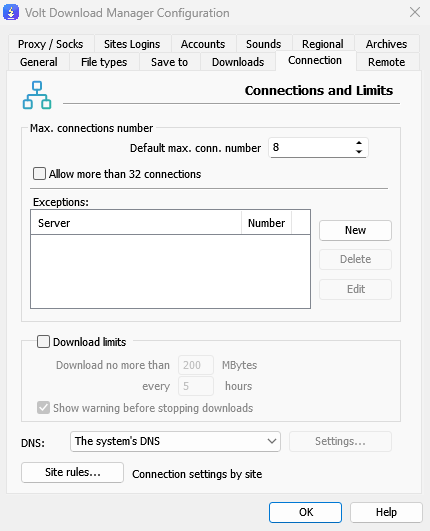
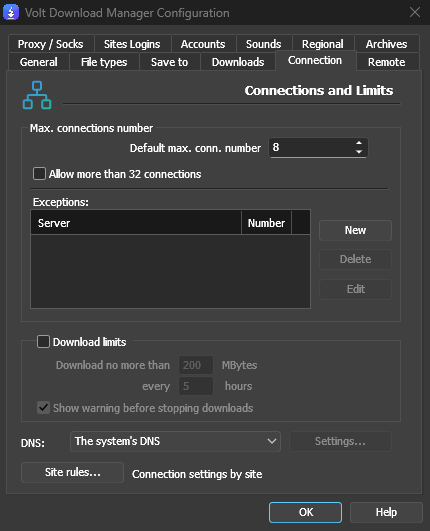
- حداکثر تعداد اتصال پیشفرض — هر بارگیری میتواند از چند اتصال استفاده کند؛ از 1 تا 32 (پیشفرض 8). عدد را وارد کنید یا از پیکانها استفاده کنید.
- Allow more than 32 connections — raises the most to 128, for the number above and for the exceptions. Most servers allow far fewer from one address; VDM notices and asks those for fewer. Turned off again, any higher number comes back to 32.
- Exceptions — a different number for some servers. New adds one (the server's name and the number of connections); Edit and Delete change or remove the selected one. Rows marked (auto) are limits VDM learned by itself from servers that refused more connections. They can't be edited and fade away by themselves.
- قوانین سایت… — عامل کاربر، سربرگهای درخواست، تعداد اتصالها، همیشه مانند مرورگر متصل شو و یک پروکسی (هیچکدام، یا پروکسی خودش با اطلاعات ورود) بر اساس سایت. به قوانین سایت مراجعه کنید.
- محدودیتهای بارگیری — هر چند ساعت، حداکثر مقدار مشخصی بارگیری کنید. همین تنظیم در زمانبند هم وجود دارد؛ به صفها و زمانبند مراجعه کنید.
- DNS — which DNS turns the servers' names into addresses for VDM's downloads, its own downloads (helpers, updates) and FTP. The system's DNS is the default (on Windows 11 it can already be encrypted, in Windows' own network settings). Or pick Cloudflare, Google, Quad9, AdGuard or NextDNS, or Another DNS... to type your own; Settings... chooses how it's asked:
- DNS از طریق HTTPS (پیشفرض) یا DNS از طریق TLS: ارتباط رمزگذاری میشود تا هیچکس در مسیر نتواند نامهایی را که جستوجو میکنید ببیند یا تغییر دهد.
- Plain DNS: not encrypted. VDM asks it over TCP, never UDP, so it never needs a firewall exception.
- برای DNS دلخواهتان: آدرسهای IP سرورها، نامی که در گواهی آنها درج شده است (TLS)، یا آدرس
https://(HTTPS، همراه با آدرسهای IP آن، اگر میدانید). برای NextDNS، شناسه پیکربندیتان را وارد کنید. - اگر قابل دسترسی نبود، از DNS سیستم استفاده کنید: این گزینه بهطور پیشفرض خاموش است. بنابراین اگر DNS پاسخ ندهد، بارگیری با پیامی که نام آن را نشان میدهد متوقف میشود، نه اینکه بیسروصدا نامهایی را که جستوجو میکنید به DNS سیستم نشان دهد. اگر DNS اعلام کند نامی وجود ندارد، از DNS سیستم استفاده نمیشود (چون این کار فیلتر DNS را بیاثر میکند).
- آزمایش از DNS درباره github.com پرسوجو میکند و مدتزمان آن را نشان میدهد.
نامهای موجود در فایل میزبان شما و نامهای محلی (تککلمهای، .local، .lan، .home.arpa، .internal، localhost) با DNS سیستم باقی میمانند. صفحات ویدئو (yt-dlp) و گالریهای تصویر (gallery-dl) فقط زمانی از DNS انتخابی شما استفاده میکنند که یک آداپتور شبکه انتخاب شده باشد؛ در غیر این صورت، مانند ردیابهای تورنت، از DNS سیستم استفاده میکنند. با یک پروکسی، پروکسی نام سایتهایی را که برای شما به آنها دسترسی پیدا میکند، جستجو میکند.
اطلاعات بیشتر در اتصالها و سرعت.
پروکسی / SOCKS
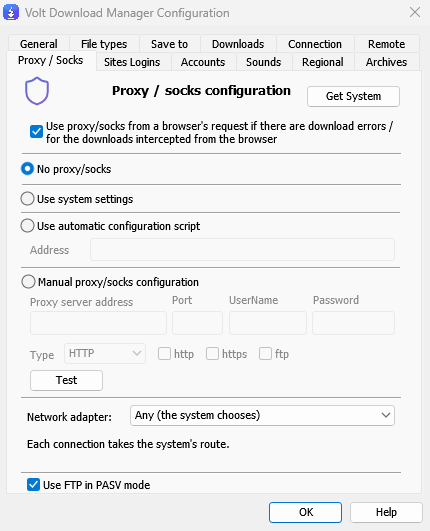
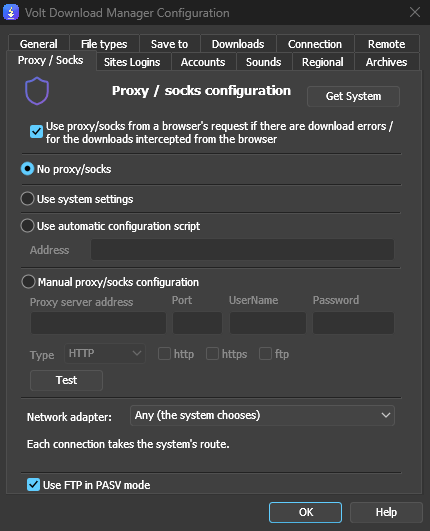
- No proxy/socks — connect directly. This is the default. Chosen here (clicked, or with Use proxy/socks from a browser's request… unticked while it's on), video pages and image galleries connect directly too: yt-dlp and gallery-dl are kept off Windows' proxy and the
HTTPS_PROXY/HTTP_PROXY/ALL_PROXYvariables. Left at the default, they still follow those, as they always did. - استفاده از تنظیمات سیستم — از پروکسی سیستم استفاده کنید: تنظیمات Windows یا macOS، یا در Linux از متغیرهای
https_proxy،http_proxyوall_proxyجلسه خود. - Use automatic configuration script — the proxy auto-config (PAC) script your network gives: type its address (
http://…/proxy.pac, or a file). VDM fetches it and asks it which proxy each download goes through (PROXY,HTTPS,SOCKS,SOCKS5,SOCKS4orDIRECT), as browsers do. Through aSOCKSorSOCKS5answer, the proxy looks the site's name up, as in browsers. Until the script has been fetched, or if it can't be, VDM uses the system's settings. - پیکربندی دستی پراکسی/SOCKS — پراکسی شخصی شما:
- نشانی سرور پراکسی و درگاه: نام یا نشانی IP آن (
127.0.0.1) و درگاه (1080). - نوع: پروتکلی که پراکسی از آن پشتیبانی میکند. HTTP (پراکسی وب معمول)، HTTPS (یک پراکسی وب که از طریق اتصال رمزگذاری شده قابل دسترسی است)، SOCKS5 یا SOCKS4.
- نام کاربری و گذرواژه، اگر پراکسی به آنها نیاز داشته باشد (HTTP، HTTPS و SOCKS5؛ SOCKS4 ورود به سیستم ندارد، بنابراین این گزینهها خاکستری هستند).
- برای پراکسی HTTP یا HTTPS، پروتکلهایی را که برای آنهاست (http، https) علامت بزنید. بارگیریهای FTP هرگز از طریق پراکسی HTTP انجام نمیشوند: کادر ftp آن خاکستری میماند و این موضوع را نشان میدهد.
- A SOCKS proxy carries every connection: web downloads, FTP, video pages and galleries (yt-dlp and gallery-dl), VDM's own downloads and the update check, and torrents if you ask (below). It has no protocol boxes; instead, Look up site names through the proxy (on by default) has the proxy turn the sites' names into addresses, so your own DNS never sees which sites you visit (
socks5h,socks4a). Untick it only for a proxy that can't look names up; VDM then looks them up with the DNS chosen under Connection and hands the proxy the address. - FTP از طریق پراکسی SOCKS همیشه از حالت غیرفعال (passive mode) استفاده میکند (پراکسی نمیتواند اتصالات سرور را برگرداند)، بنابراین استفاده از FTP در حالت PASV علامتخورده و خاکستری نمایش داده میشود. آدرسهای
ftps://(TLS از بایت اول) هنوز نمیتوانند از طریق پراکسی SOCKS عبور کنند؛ftpes://(TLS پس از اتصال) میتوانند. - تورنتها فقط زمانی از پراکسی SOCKS5 استفاده میکنند که استفاده از پراکسی در تنظیمات تورنت فعال باشد (به تورنتها و امنیت شما مراجعه کنید). پراکسی SOCKS4 یا HTTP آنها را حمل نمیکند.
- آدرسی که به روش قدیمیتر نوشته شده است،
socks5://host(یاsocks5h://،socks4://،http://)، همچنان کار میکند: گزینهها آن را به عنوان نوع خود با تنها میزبان نشان میدهد. - دریافت سیستم — پر کردن فیلدهای دستی از تنظیمات پراکسی Windows (در Windows): پراکسی HTTP آن در صورت وجود، در غیر این صورت پراکسی SOCKS آن (به عنوان SOCKS5: Windows نسخه را مشخص نمیکند؛ اگر پراکسی شما فقط از SOCKS4 پشتیبانی میکند، آن را انتخاب کنید).
- آزمایش — یک درخواست از طریق آنچه صفحه اکنون میگوید (پراکسی آن، با DNS و آداپتور شبکه که در گزینهها تنظیم شدهاند)، به
one.one.one.oneCloudflare، که با آدرسی که دیده است پاسخ میدهد. خط کنار دکمه نشان میدهد که چقدر طول کشیده و آدرسی که اینترنت میبیند (آدرس پراکسی، وقتی اتصالات شما را حمل میکند)، یا چرا ناموفق بوده است: پراکسی قابل دسترسی نیست، ورود را رد کرده است، یا نتوانسته به سایت دسترسی پیدا کند. هیچ چیز دیگری ارسال نمیشود.
Which do I pick?
- A VPN app usually needs nothing here: it carries all the computer's traffic. To make sure VDM never goes around it, choose its Network adapter below. Some VPN apps also offer a SOCKS5 proxy of their own (in their settings, with its own login): SOCKS5, its address, port and login.
- Tor (Tor Browser or the Tor service): SOCKS5, 127.0.0.1, port 9150 (Tor Browser) or 9050 (the service), Look up site names through the proxy ticked. Tor carries no torrents well; leave Use the proxy off in Torrent settings.
- An SSH tunnel, ssh -D 1080 you@server: SOCKS5, 127.0.0.1, port 1080.
- Clash, v2rayN and similar proxy programs: their mixed port takes both, usually 127.0.0.1:7890 (HTTP or SOCKS5); v2rayN also has a SOCKS port, often 10808. Or turn on their system proxy and choose Use system settings.
- A proxy your workplace or school gives: usually an HTTP one, or a script (Use automatic configuration script). Ask which.
- Use proxy/socks from a browser's request… — on by default. A download VDM takes from the browser goes through the proxy the browser used for it. That's the one a VPN or proxy extension set, the browser's own manual proxy, or its proxy auto-config script. Without it, the download would leave from your own address, and content limited to the VPN's country, or to its address, would fail. The browser extension reads that proxy and hands it to VDM with each download, once you switch on Send downloads through this browser's proxy or VPN extension in the extension's toolbar popup (Firefox asks you once; Chrome, Edge, Brave, Opera and Vivaldi ask nothing more: see A VPN or proxy extension).
- A proxy that asks for a login the VPN extension gives itself can't be shared: no other program has that login. The download then stops and says so, rather than going without the proxy. Use the VPN's own app, or choose its adapter under Network adapter.
- In Firefox, VDM sees the proxy the browser's own request for the file took, including the ones a VPN extension picks for each request. In Chrome and the other Chromium browsers, it sees the browser's proxy settings: the server for the download's scheme (honouring their bypass list) or their proxy auto-config script.
- When the browser used no proxy, and No proxy/socks is chosen, VDM uses Windows' proxy settings, as browsers do.
- Network adapter — Any (the system chooses) is the default. Pick an adapter, usually your VPN's, and every connection VDM opens goes out through it, or not at all. That covers downloads, FTP, torrents, video pages and image galleries, the DNS you chose, VDM's own downloads and the update check. It works as a kill switch: when the adapter disconnects, or the VPN is switched off, nothing goes out through your normal connection. Running downloads stop with "… is not connected" and start again when the adapter is back. The line under the list shows the adapter's address, or that it isn't connected.
- How it holds: Windows binds the adapter's own address. Windows then sends those packets only through that adapter (its strong host model). Linux binds the device itself (Linux 5.7 or newer), and macOS binds the interface. An address of a kind the adapter doesn't have (IPv6 on an IPv4-only VPN) is refused, not sent around it.
- The system's DNS asks the names in its own way, and Windows may ask over every adapter. To keep the names inside the adapter too, choose a DNS under Connection → DNS: VDM then asks it through the adapter.
- Video pages and image galleries: yt-dlp, gallery-dl and the ffmpeg yt-dlp starts can't be held to an adapter themselves, so while one is chosen VDM gives them a proxy of its own on this computer (127.0.0.1, with a password only they get). VDM opens their connections through the adapter, as it opens its own, and looks the names up with the DNS you chose. When the adapter disconnects, their connections close and the downloads stop with the others. Video formats that can't go through a proxy (RTMP, RTSP, MMS, FTP) are refused rather than sent around it.
- Not held to the adapter yet, so they don't start while one is chosen: ftps:// (implicit TLS; ftp:// with TLS is fine).
- Connections to this computer itself (localhost) aren't bound. A proxy on this computer carries the downloads, and where it sends them is up to it.
- On macOS a VPN that reconnects may get a new interface (utun5 instead of utun4): pick it again.
- Use FTP in PASV mode — on by default: for FTP downloads VDM opens the data connections itself (passive mode), which works through routers and firewalls. Turn it off only for a server that needs active mode (the server connects back to you). FTP goes through a SOCKS proxy above (always passive then), never through an HTTP one. See FTP and FTPS.
ورود به سایتها


User names and passwords for sites that ask for them. New adds a row: the site (with a path if the login is only for part of it), the user name and the password. Edit and Remove change or delete the selected row. VDM uses the login for every download from that site. A login typed in Add URL (Use authorization) takes priority for that one download. For huggingface.co, the password is your Hugging Face access token, for gated models and datasets: VDM sends it as a token, to Hugging Face only (the user name can be anything; see Models, datasets and releases).
The passwords (these, the proxy's and the debrid accounts') are kept in the system's keychain: Windows Credential Manager, the keyring on Linux (Secret Service: GNOME Keyring, KeePassXC and others) or the macOS keychain; VDM's settings keep only a reference. A locked keyring is never unlocked for VDM: without one, they stay in VDM's settings, sealed for your Windows account on Windows. Options → Accounts says where they are. A portable copy keeps them in its own folder.
کوکیها برای سایتهای ویدیویی — برای ویدیوهایی که فقط هنگام ورود به سیستم پخش میشوند (مانند «برای تأیید اینکه ربات نیستید، وارد شوید» در YouTube):
- خاموش (پیشفرض) — yt-dlp کوکیها را فقط از افزونه مرورگر دریافت میکند، زمانی که دکمه بالای ویدیو را استفاده میکنید.
- از مرورگر — yt-dlp کوکیهای مرورگر انتخابشده را در این رایانه (Firefox، Chrome، Edge، Brave، Opera، Vivaldi، Chromium، Whale؛ Safari در macOS) برای هر ویدیویی که جستجو یا بارگیری میکند، از جمله آدرسهای چسباندهشده، میخواند. وقتی افزونه کوکیهای خود صفحه را ارسال کرده باشد، از آنها استفاده میشود. ویدیویی از پنجره خصوصی مرورگر هرگز آنها را نمیخواند، حتی اگر پس از راهاندازی مجدد حفظ شده باشد: فقط کوکیهایی را دارد که پنجره خصوصیاش داده است. پروفایل (اختیاری): نام یا پوشه یک پروفایل (... یکی را انتخاب میکند)؛ خالی باشد، آخرین پروفایل استفادهشده. Chrome، Edge و Brave کوکیهای خود را در Windows قفل میکنند: Firefox کار میکند. به سایتهایی که نیاز به ورود شما دارند مراجعه کنید.
Use my yt-dlp config file — off by default. Ticked, yt-dlp also reads its own config files (%APPDATA%\yt-dlp\config.txt on Windows, ~/.config/yt-dlp/config on Linux and macOS, and the others it looks for, such as yt-dlp.conf in your home folder) for the videos, playlists and look-ups the app starts, so your subtitle, thumbnail, metadata or SponsorBlock choices apply there too. Most of what VDM chooses still wins: the folder and file name, the quality, the proxy and network adapter set here. VDM also keeps yt-dlp's own downloader for HTTP, FTP and HLS (one the file names, aria2c, reports no progress), leaves out a download archive, forced overwrites and marking videos as watched (which would mark every video only looked up), keeps part files (with --no-part the engine's streams would be downloaded again into a doubled file), and keeps the usual fix-ups. Options there that skip or filter videos (--match-filters, --max-filesize, a strict -f) apply too, and can make a video say it can't be downloaded. A proxy with a user name set here gives way to a --proxy in the file.
حسابها
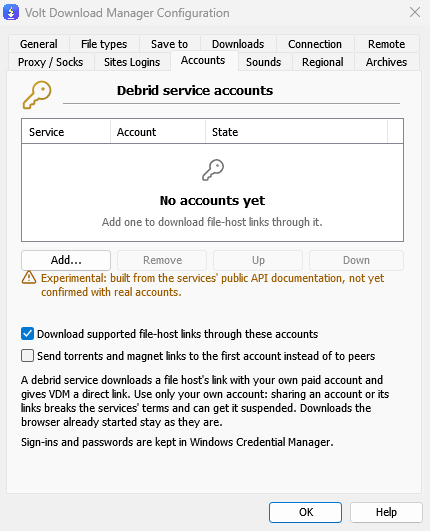
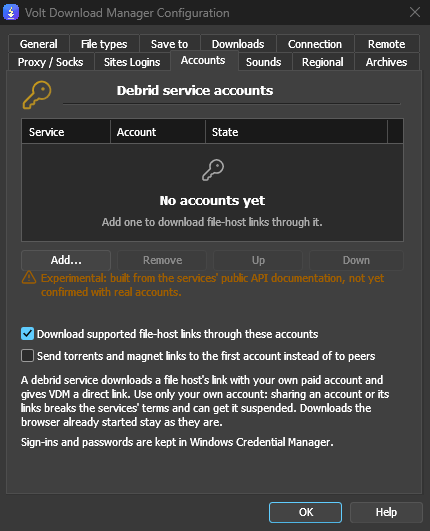
حسابهای سرویس debrid شما (Real-Debrid، AllDebrid، Premiumize، TorBox، Mega-Debrid؛ آزمایشی): افزودن... با کد در مرورگر، با نام کاربری و رمز عبور شما، یا با توکن یا کلید API شما وارد میشود؛ سپس پیوندی از میزبانی که سرویس پشتیبانی میکند، از طریق آن بارگیری میشود. ترتیب فهرست، ترتیب درخواست حسابها است. به حسابهای سرویس debrid مراجعه کنید.
صداها
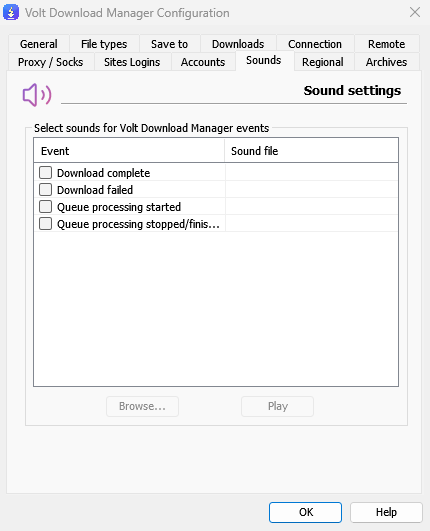
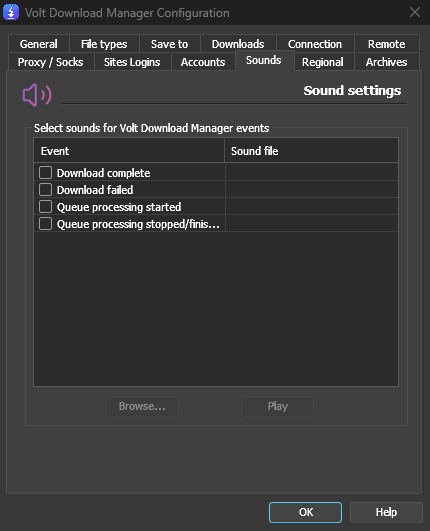
برای رویدادهای بارگیری کامل شد، بارگیری ناموفق بود، پردازش صف شروع شد و پردازش صف متوقف/تمام شد صدا پخش کنید. رویدادی را علامت بزنید و انتخاب کنید، روی مرور... کلیک کنید تا فایل .wav را انتخاب کنید، سپس برای شنیدن صدا روی پخش کلیک کنید.
منطقهای
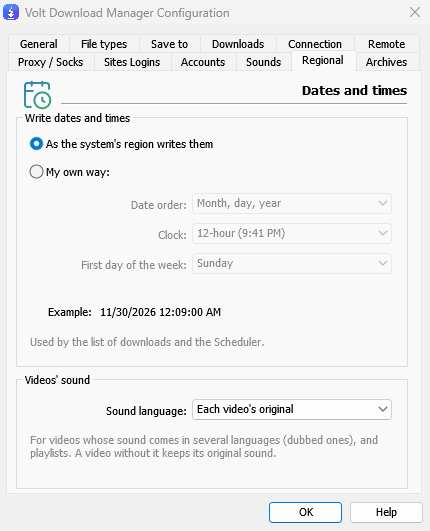
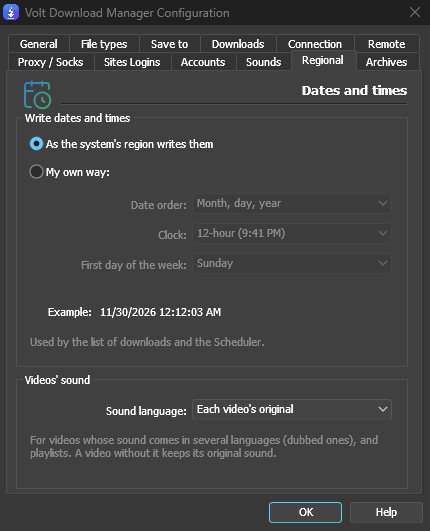
نحوه نمایش تاریخ و زمان در فهرست بارگیریها و زمانبند.
- همانطور که منطقه سیستم مینویسد (پیشفرض) — تنظیمات منطقهای Windows (تنظیمات → زمان و زبان → منطقه)؛ در macOS و Linux، شکل رایج در زبان شما. در زبان انگلیسی، فهرست قالب تاریخ خود IDM را حفظ میکند.
- روش دلخواه من — ترتیب تاریخ (روز، ماه، سال؛ ماه، روز، سال؛ یا سال، ماه، روز)، ساعت 12 یا 24 ساعته و نخستین روز هفته را در تقویم زمانبند انتخاب کنید. نمونه نتیجه را نشان میدهد.
Videos' sound — the language a video's sound comes in when the site has it in several (dubbed videos): Each video's original (the default), or a language, which every video looked up and every playlist downloads with when it has it. A video without it comes with its original sound, and Download video can choose another for one video (The sound's language).
بایگانیها
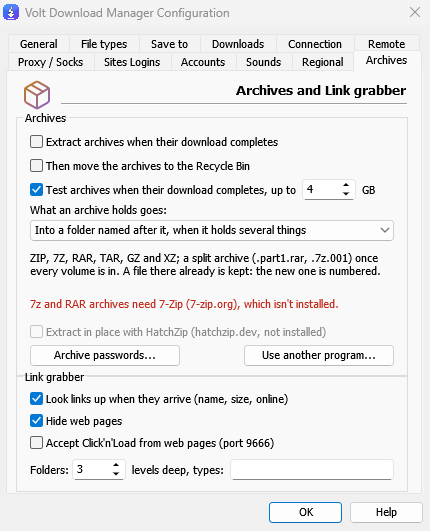
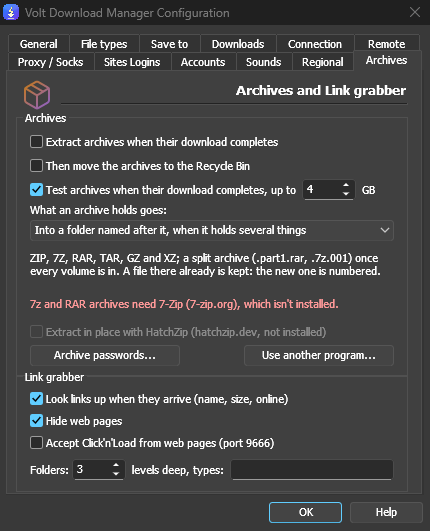
بایگانیها (zip، 7z، rar، tar، gz، xz) و رباینده پیوند.
- بایگانیها را پس از اتمام دانلود استخراج کن (بهطور پیشفرض خاموش است) — هر بایگانی بلافاصله پس از کاملشدن بارگیری آن (یا آخرین بخش از بایگانی چندبخشی) استخراج میشود. هر بسته رباینده پیوند گزینه پس از اتمام استخراج کن مخصوص به خود را دارد.
- سپس بایگانیها را به سطل بازیافت منتقل کنید (بهطور پیشفرض خاموش است؛ در macOS و Linux به سطل زباله منتقل میشوند) — فقط پس از استخراج موفق. این گزینه برای حذف بایگانیها پس از استخراج در بستههای جدید نیز پیشفرض است.
- Test archives when their download completes, up to 4 GB (on by default) — a ZIP, 7z or RAR archive (a split one once its last volume is in) is read back and every file in it checked before its download counts as done, with the 7-Zip named below (a ZIP without 7-Zip by VDM itself). A larger one isn't tested by itself, as a test reads the whole file: right-click → Test archive tests it. A damaged ZIP's damaged files are downloaded again; any other damaged archive is offered for Redownload. See Testing archives.
- محتویات بایگانی کجا قرار بگیرد — اگر بایگانی چند مورد داشته باشد، محتویات آن در پوشهای همنام با بایگانی قرار میگیرد (پیشفرض)؛ یا همیشه در چنین پوشهای قرار میگیرد؛ یا مستقیما در پوشه بایگانی قرار میگیرد.
- Whether 7-Zip was found: 7z and RAR archives need it, unless they are extracted in place with HatchZip. VDM also finds the 7-Zip inside PeaZip and NanaZip's command line.
- Use another program... — choose the 7-Zip command line program yourself (
7z.exeof a portable copy or of another archiver); Find 7-Zip automatically goes back to the one VDM finds. See Extracting archives. - استخراج در محل با HatchZip (بهطور پیشفرض غیرفعال است؛ در صورت عدم نصب HatchZip خاکستری میشود) — آرشیو حذف میشود در حالی که فایلهای آن خارج میشوند، بنابراین فقط آنها به فضا نیاز دارند. به استخراج آرشیوها مراجعه کنید.
- Archive passwords... — the passwords tried on an encrypted archive before VDM asks, one per line; the one that fits moves to the top. A package's own password is never added by itself. See Archive passwords.
- هنگام رسیدن پیوندها را جستجو کن (نام، اندازه، آنلاین) — رباینده پیوند از هر سرور درباره فایل آن پرسوجو میکند (بهطور پیشفرض روشن است).
- پنهان کردن صفحات وب — پیشفرض دریافتکننده پیوند برای همان کادر (روشن).
- Accept Click'n'Load from web pages (port 9666) (off by default) — a link site's Click'n'Load button sends its links to VDM's Link grabber. See Click'n'Load.
- پوشهها: 3 سطح عمق، انواع: — رباینده پیوند چند سطح زیرپوشه را میخواند وقتی یک پوشه FTP یا فهرست پوشههای یک وبسرور را به آن میدهید (0 تا 10؛ 0 فایلهای خود پوشه است)، و چه انواع فایلی را از آنها نگه میدارد (مانند صفحه انواع فایل،
ISO ZIP R0*؛ خالی همه انواع را نگه میدارد). به پوشهها مراجعه کنید.
کنترل از راه دور
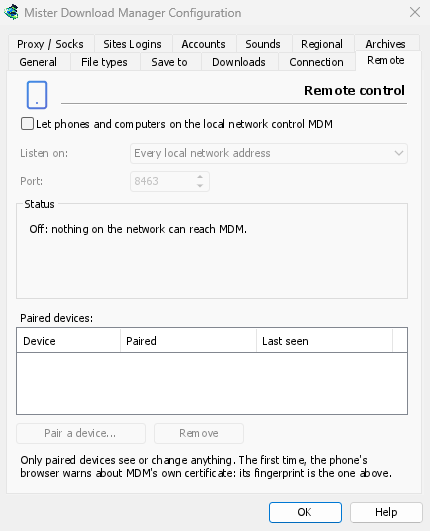
Control VDM from your phone or another computer on the local network: see Control VDM from your phone.
- Let phones and computers on the local network control VDM (off by default).
- گوش دادن به — هر آدرس شبکه محلی (پیشفرض)، فقط این رایانه، یا یک آدرس.
- درگاه — 8463 به طور پیشفرض.
- وضعیت — کاری که انجام میدهد، آدرسی که باید در تلفن باز شود، و اثر انگشت گواهی.
- دستگاههای جفتشده — جفت کردن دستگاه… یک کد QR و یک کد را نشان میدهد؛ حذف دستگاه انتخابشده را بلافاصله از جفت خارج میکند.
جای دیگر
چند تنظیم خارج از این پنجره قرار دارند:
- بارگیریها ← محدودکننده سرعت ← تنظیمات... — محدودیتهای سرعت. به اتصالات و سرعت مراجعه کنید.
- Tasks → Torrent settings... — sharing and file associations, and whether the browser hands
.torrentdownloads to VDM. See Torrents. - نما → پشتیبانی از حالت تاریک، همیشه تیره، پوسته، ترسیم با، اندازه رابط، فونت (فایل فونت و اندازه متن رابط) و زبان. به شروع کار و عیبیابی مراجعه کنید.
- راهنما ← بررسی بهروزرسانیها... — بررسی بهروزرسانیها در هر بار شروع در آن پنجره است.
مراحل بعدی
رایگان، متنباز، بدون تبلیغات، بدون دوره آزمایشی.
Download Volt Download Manager