

İndirilenler → Seçenekler'i açın veya araç çubuğundaki Seçenekler'e tıklayın. Pencerede iki sıra sekmede on iki sayfa bulunur. Tamam değişikliklerinizi kaydeder; pencereyi kapatmak veya Esc tuşuna basmak onları iptal eder.
Bazı düğmeler gri renktedir. Bunlar henüz oluşturulmamış özelliklere aittir.
Genel
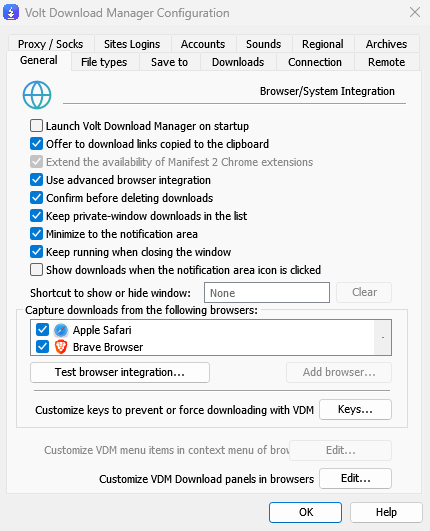
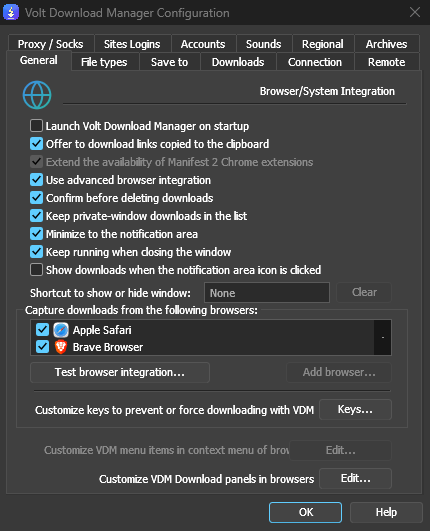
- Launch Volt Download Manager on startup — start VDM when you sign in to Windows. It starts in the notification area, its window hidden, with its downloads, queues and Scheduler running; click its icon (or start VDM again) to show the window. On Linux and macOS it starts with your session the same way; where no notification area shows VDM's icon (some Linux desktops), it starts minimized, and the option's tooltip says so. VDM waits for the notification area up to 30 seconds after making its icon, its window hidden, as a desktop's can come up after VDM at sign-in. Off by default. Greyed in a portable copy, which writes nothing to the registry.
- Panoya kopyalanan bağlantıları indirmeyi öner — dosya türü Dosya türleri sayfasında olan bir bağlantıyı kopyaladığınızda, Dosya Bilgilerini İndir penceresi bu bağlantıyla açılır ve indirmeye başlamaya hazır olur (veya İndirme başlatma iletişim kutusunu göster kapalıysa indirme hemen başlar). Bu özellik arşivler, programlar, müzikler, videolar, PDF ve sizin eklediğiniz tüm türler için geçerlidir, böylece başka bir yerde kullanmak üzere bir resmin, yazı tipinin veya 3D modelin adresini kopyalamak asla bir indirme başlatmaz. Varsayılan olarak açık.
- Use advanced browser integration — let the browser extension hand downloads to VDM. Turn it off to keep every download in the browser.
- İndirmeleri silmeden önce onayla — indirmeleri listeden kaldırmadan önce sorar. Varsayılan olarak açık; o sorudaki Bu iletişim kutusunu bir daha gösterme seçeneği bunu kapatır ve buradaki işaretleme tekrar açar. Kapalıyken, Sil yalnızca indirmeleri listeden kaldırır ve dosyalarını tutar; Shift+Delete diskten dosya silerken her zaman olduğu gibi yine sorar.
- Keep private-window downloads in the list — save downloads that come from a browser's private (incognito) window in VDM's list like any other, so an unfinished one is still there to resume after VDM closes or restarts. On by default. Unticked, they are kept in memory only, as the browser keeps them, and are gone when VDM closes. In the list, a private window's download has a small mask before its status; its tip says whether the list keeps it. The first time one comes, VDM says that they are kept and where to turn that off. Their cookies are never saved either way, and after a restart they still stay apart from normal windows' downloads (a private download that waits for a new address isn't given one by a normal window's, and a private window's video never uses Cookies for video sites from Sites Logins: if a site wants you signed in, open the page in a private window, sign in there, and use its Download video button again). Turning it off later doesn't remove the ones already saved by an earlier session.
- Keep running when closing the window — closing the main window hides it in the notification area instead of quitting, and downloads, queues and schedules go on. On by default; unticked, closing quits VDM (so a portable copy's folder can then be deleted). If there is no icon for VDM at all — not even behind the ^ hidden icons — the window minimizes to the taskbar instead, so downloads continue and the window stays reachable; an icon behind ^ can be clicked to bring it back, or start VDM again. On macOS the window closes into the Dock, and a click on VDM's icon there (or in the menu bar) brings it back; Cmd+Q quits. Greyed where no tray shows VDM's icon (some Linux desktops): closing quits there.
- Show downloads when the notification area icon is clicked — a click on VDM's icon there shows a small panel over it with what is downloading, each download's progress, Pause and Cancel, and a button that opens the window; a double click opens the window (Windows). On in a new copy of VDM; one set up before it keeps its click, which shows or hides the window, until it is ticked. Greyed where no tray shows VDM's icon. See The tray icon.
- Minimize to the notification area — Minimize hides the main window, and a download's progress window, in the notification area; downloads go on. On by default. Where the tray has no icon, the main window minimizes to the taskbar instead. The close setting above is separate; when it is on, closing hides there too (or minimizes to the taskbar if there is no icon at all). Greyed where no tray shows VDM's icon (some Linux desktops); in a Wayland session the main window stays minimized in the dock, since Wayland can't hide a window.
- Aşağıdaki tarayıcılardan indirmeleri yakala — indirmelerini kendi haline bırakmak için bir tarayıcının işaretini kaldırın.
- Customize VDM Download panels in browsers → Edit... — the download button over videos on web pages: turn it off, choose its Button size (80%, 100% or 120%, and Automatic, as installed: only the logo, the arrow and ✕ in a feed and over a small player, its words over a big one; Full, its words wherever they fit; or Compact, only the logo, the arrow and ✕ on every video), or list the sites it never shows on (separate them by spaces; wildcards like
*.youtube.*,youtube.*or*.example.comwork). See Browser integration.
Bkz. Tarayıcı tümleştirmesi.
Dosya türleri
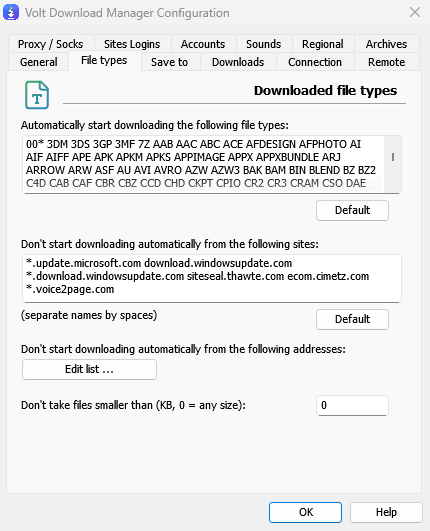
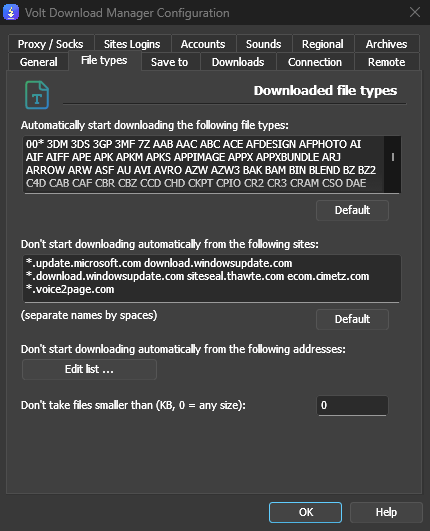
- Aşağıdaki dosya türlerini otomatik olarak indirmeye başla — tarayıcının devrettiği (ve panonun aldığı) dosya türleri. Bunları boşluklarla ayırın;
*,R0*gibi herhangi bir karakterle eşleşir. Varsayılan orijinal listeyi geri getirir. Liste, olağan arşivler, programlar ve yükleyiciler (Windows, macOS ve Linux: DMG, PKG, DEB, RPM, APPIMAGE, MSIX), müzik ve videolar, PDF ve Office dosyaları, yapay zeka modelleri ve veri kümeleri (GGUF, SAFETENSORS, CKPT, PT, ONNX, PARQUET), 3D ve CAD dosyaları (GLB, FBX, OBJ, STL, BLEND, STEP), tasarım ve kamera RAW dosyaları, e-kitaplar, disk görüntüleri ve bölünmüş arşivlerle başlar. Sayfalar, komut dosyaları, düz metin ve web resimleri kasıtlı olarak dışarıda bırakılmıştır, böylece bir resim veya sayfa kaydetme tarayıcıda kalır; ihtiyacınız olan herhangi bir türü ekleyin veya uzantısı olan her dosyayı almak için kutuya tek bir*koyun. Hiç değiştirmediğiniz bir liste, yeni bir sürümün eklediği türleri kazanır; düzenlediğiniz bir liste olduğu gibi kalır. - Aşağıdaki sitelerden otomatik indirme başlatma — indirmeleri tarayıcıda kalan siteler, boşluklarla ayrılmış. Bir ad, sitenin alt alanlarını da kapsar (
example.com,www.example.comvedl.example.com'ü kapsar,*.example.comgibi),*İndirme panelleri listesindeki gibi her şeyi eşleştirir (*.example.*) ve sayfalarının başka bir sunucudaki (bir indirme sunucusu veya bir CDN) bağlantılarını, indirme geldiği sayfa tarafından belirtilir. Bilinen bir sayfası olmayan bir indirme, kendi adresiyle eşleştirilir. Varsayılan orijinal listeyi geri getirir.
Kaydedileceği yer
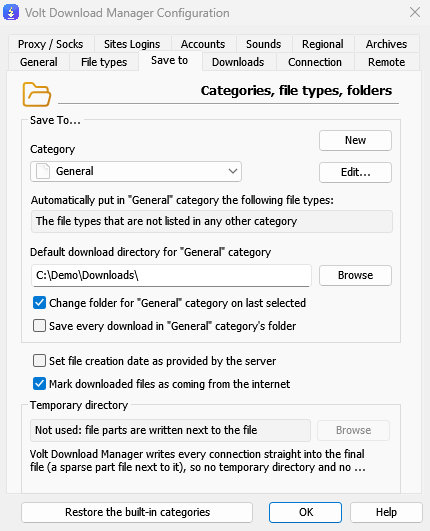
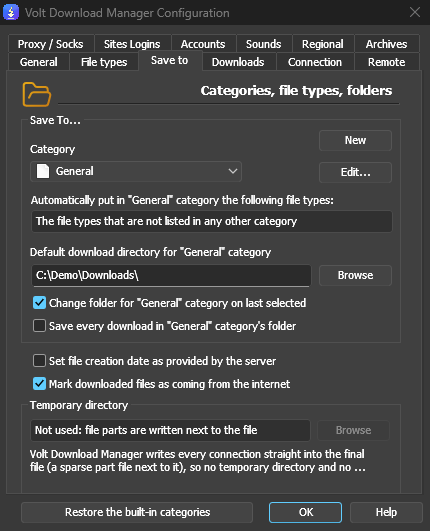
- Kategori — ayarlarını aşağıda görmek ve değiştirmek için bir kategori seçin.
- Yeni — kendi kategorinizi oluşturun. Düzenle... seçili olanı değiştirir: adını, dosya türlerini ve klasörünü. Yerleşik kategoriler (Sıkıştırılmış, Belgeler, Müzik, Programlar, Video) sizin oluşturduklarınız gibi yeniden adlandırılabilir, başka dosya türleri atanabilir ve silinebilir; yeniden adlandırılan bir kategori klasörünü korur. Genel ve Torrentler sadece klasörlerini değiştirir.
- Yerleşik kategorileri geri yükle — yerleşik kategorileri, yeniden adlandırdıktan, dosya türlerini değiştirdikten veya sildikten sonra ilk hallerine geri getirir.
- Şu dosya türlerini otomatik olarak “…” kategorisine koy — bu kategoriye giden dosya türleri. Hiç değiştirmediğiniz yerleşik bir kategori, yeni bir sürümün eklediği türleri alır; düzenlediğiniz bir kategori olduğu gibi kalır.
- "…" kategorisi için varsayılan indirme dizini — kategorinin klasörü. Bir yol yazın veya Gözat'a tıklayın.
- "…" kategorisi için klasörü son seçilene göre değiştir — Dosya Bilgilerini İndir penceresinde başka bir klasör seçtiğinizde, o andan itibaren kategorinin klasörü olur. Varsayılan olarak açıktır. (Bu, o penceredeki Bu yolu hatırla seçeneğinin ilk durumunu ayarlar.)
- Her indirmeyi "Genel" kategorisinin klasörüne kaydet — varsayılan olarak kapalıdır. İşaretlendiğinde, her yeni indirme, kategorisi ne olursa olsun Genel klasörüne gider: tarayıcıdan, URL Ekle'den, Toplu indirme'den, Bağlantı yakalayıcıdan, kuyruklardan, komut satırından, videolar ve torrentler dahil. Kategoriler listeyi yine de sıralar. Genel klasörü ayarlanacak olandır (yukarıdan Genel'i seçin); diğer kategoriler, bu ayar tekrar kapatıldığında kendi klasörlerini korur, bu arada gri renkte gösterilir. Tek bir indirme yine de başka bir yere gidebilir: indirmeyi başlatan pencerede klasörünü değiştirin (Bu yolu hatırla daha sonra Genel klasörünü değiştirir). Listede zaten bulunan indirmeler oldukları yerde kalır.
- Dosya oluşturma tarihini sunucu tarafından sağlandığı gibi ayarla — bitmiş dosyalara, indirdiğiniz tarih yerine sunucunun bildirdiği tarihi verin.
- Mark downloaded files as coming from the internet — on by default. Every file VDM downloads (from the browser, a link you add, a video, a gallery, a torrent, and the files extracted from an archive) carries the mark a browser's downloads carry. On Windows that is the Mark of the Web: SmartScreen checks a program before it first runs, and Office opens a document in Protected View. On a Mac it is the quarantine attribute Gatekeeper checks; on Linux, where the file came from, which file managers show. Unticked, no download is marked. On Windows, VDM also follows the Group Policy Do not preserve zone information in file attachments, as browsers do: when it is on (for the computer or for you), no download is marked, whatever this box says.
VDM doesn't use a temporary folder: every connection writes straight into the final file's place, so there is nothing to put together at the end.
İndirilenler
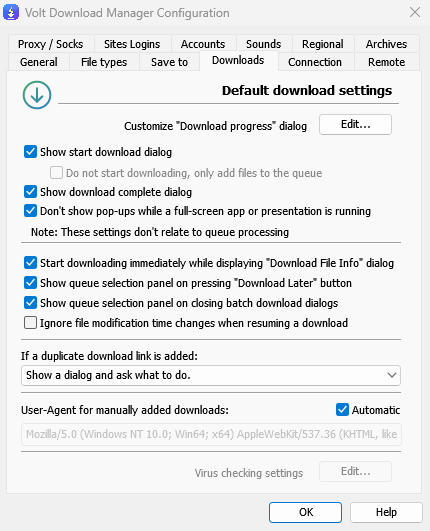
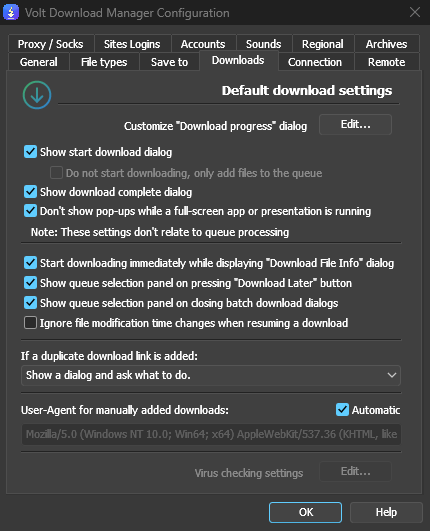
- "İndirme ilerlemesi" iletişim kutusunu özelleştir → Düzenle... — Bir indirme başladığında indirme ilerleme iletişim kutusunu göster: Varsayılan olarak açık olan Normal olarak göster; içinde bulunduğunuz programdan odağı almadan, indirme ilerleme penceresini görev çubuğunda küçültülmüş olarak başlatan Küçültülmüş olarak göster; veya bir indirme başladığında, tarayıcıdan, eklediğiniz bir bağlantıdan, bir videodan veya bir kuyruktan ilerleme penceresini artık açmayan ve ana pencerenin listesinde devam eden Gösterme seçeneği. Bu durumda ilerleme penceresini çift tıklayarak açabilirsiniz. İndirme tamamlandı mesajı, aşağıdaki İndirme tamamlandığında iletişim kutusunu göster ayarında belirtildiği gibi, indirme bittiğinde yine de gösterilir.
- İndirme başlatma iletişim kutusunu göster — her yeni indirme için Dosya Bilgilerini İndir penceresini gösterir. Bu kapalıyken, indirmeler hemen başlar veya yalnızca İndirmeye başlama, yalnızca dosyaları kuyruğa ekle seçeneğini işaretlerseniz kuyruğa katılır.
- İndirme tamamlandı iletişim kutusunu göster — bir dosya bittiğinde İndirme tamamlandı penceresini gösterir.
- Don't show pop-ups while a full-screen app or presentation is running — on by default. While a full-screen game, app or video, a presentation or the locked screen is on, Download complete and the other windows VDM opens by itself wait, and show when you're back, one after the other in the order they came: Downloads complete, a new version found by the weekly check, the download limit's warning, an archive's test result, its password question or its call for 7-Zip, the browser extension's offer, a link copied to the clipboard, and the crash report. The downloads carry on as usual, and the tray icon's tip says how many windows wait. The windows you open yourself, links you click in the browser and the Turn off computer countdown (so you can still cancel it) show at once. On Windows VDM goes by the state Windows holds its own notifications by (games, presentation mode, full-screen apps and videos), by a frameless window that fills its whole screen in front (on any of your screens), and by the screen's lock; on Linux by the session's lock, and by a full-screen window under X11 or XWayland (on Wayland, a native program's full screen can't be seen). On macOS a full-screen app has a Space of its own, which VDM's windows never open over. Untick it and the windows show at once, as before.
- "Dosya Bilgilerini İndir" iletişim kutusu görüntülenirken hemen indirmeye başla — varsayılan olarak açıktır, böylece bir klasör seçerken indirme zaten devam eder.
- “Daha Sonra İndir” düğmesine basıldığında sıra seçim panelini göster — hangi sıranın kullanılacağını sorar; kapalıysa indirme Ana indirme kuyruğu'na eklenir.
- Toplu indirme iletişim kutularını kapatırken sıra seçim panelini göster — toplu indirmeler için de aynıdır.
- İndirmeye devam ederken dosyanın değiştirilme zamanı değişikliklerini yoksay — aynı dosya için her seferinde yeni bir tarih bildiren sunucular içindir. Bu seçenek kapalıysa böyle bir sunucuda indirmeye her devam edildiğinde işlem baştan başlar.
- Yinelenen bir indirme bağlantısı eklenirse — sor, numaralı bir adla ekle, eskisinin üzerine yaz veya tamamlanmış indirmeyi aç / tamamlanmamış indirmeye devam et.
- User-Agent for manually added downloads — how VDM names itself to servers for downloads you add yourself. With Automatic ticked (the default), VDM introduces itself as your default browser: the User-Agent that browser sends, at the version you have installed (Chrome, Edge, Brave, Opera, Vivaldi, Firefox or Safari). The box shows it, and pointing at it names the browser. When VDM doesn't recognise your default browser, it sends a current Chrome's. Untick Automatic to type your own; tick it again to go back. Downloads from the browser use that browser's own User-Agent, the one your sign-in and the site's checks know; the one typed here doesn't replace it. If a site turns a browser's User-Agent away, VDM asks once more with the one typed here (with Automatic, with Internet Explorer's). If a site's bot check refuses it, and the way a browser connects too, VDM asks once more under its own name,
VoltDownloadManager/and its version (or the one typed here), and remembers that site until VDM closes. A User-Agent typed here for the downloads you add yourself is the only one they send.
Bağlantı
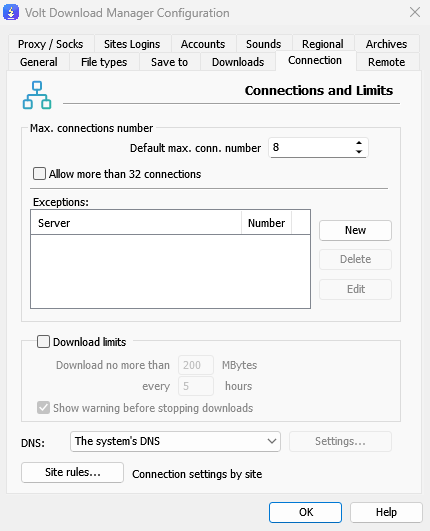
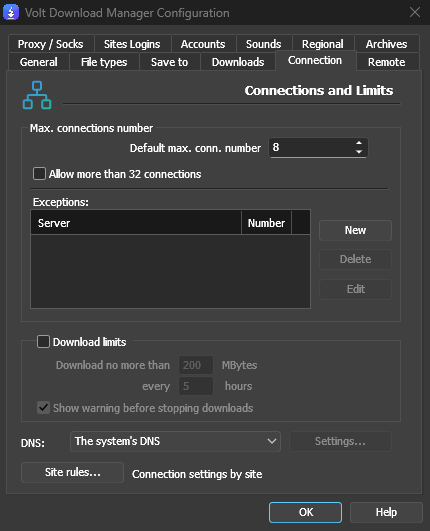
- Varsayılan maks. bağlantı sayısı — her indirmenin kullanabileceği bağlantı sayısı: 1 ila 32 (varsayılan olarak 8). Sayıyı yazın veya okları kullanın.
- Allow more than 32 connections — raises the most to 128, for the number above and for the exceptions. Most servers allow far fewer from one address; VDM notices and asks those for fewer. Turned off again, any higher number comes back to 32.
- Exceptions — a different number for some servers. New adds one (the server's name and the number of connections); Edit and Delete change or remove the selected one. Rows marked (auto) are limits VDM learned by itself from servers that refused more connections. They can't be edited and fade away by themselves.
- Site kuralları... — siteye özel Kullanıcı Aracısı, istek başlıkları, bağlantı sayısı, Her zaman bir tarayıcı gibi bağlan ayarı ve bir proxy (yok veya kendi giriş bilgileriyle), siteye göre. Bkz. Site kuralları.
- İndirme sınırları — birkaç saatte bir belirlenen miktardan fazla indirme yapılmasını önler. Aynı ayar Zamanlayıcı'da da bulunur; bkz. Sıralar ve Zamanlayıcı.
- DNS — which DNS turns the servers' names into addresses for VDM's downloads, its own downloads (helpers, updates) and FTP. The system's DNS is the default (on Windows 11 it can already be encrypted, in Windows' own network settings). Or pick Cloudflare, Google, Quad9, AdGuard or NextDNS, or Another DNS... to type your own; Settings... chooses how it's asked:
- HTTPS üzerinden DNS (varsayılan) veya TLS üzerinden DNS: şifrelidir; böylece aradığınız adlar aktarım sırasında görülemez veya değiştirilemez.
- Plain DNS: not encrypted. VDM asks it over TCP, never UDP, so it never needs a firewall exception.
- Kendi DNS'iniz için: sunucuların IP adresleri, sertifikalarında (TLS) belirtilen ad veya
https://adresi (HTTPS; biliyorsanız IP adresleriyle birlikte). NextDNS yapılandırma kimliğinizi kullanır. - Ulaşılamazsa sistemin DNS'ini kullan: varsayılan olarak kapalıdır. Böylece yanıt vermeyen bir DNS, aramalarınızı sessizce sistemin DNS'ine göndermek yerine, adı belirten bir mesajla indirmeyi durdurur. DNS'in var olmadığını belirttiği bir ad için sistemin DNS'ine geçilmez (bu, filtreleme yapan bir DNS'i etkisiz kılardı).
- Test et, github.com için DNS sorgusu yapar ve ne kadar sürdüğünü gösterir.
Ana bilgisayar dosyanızdaki adlar ve yerel adlar (tek kelimeler, .local, .lan, .home.arpa, .internal, localhost) sistemin DNS'i ile kalır. Video sayfaları (yt-dlp) ve resim galerileri (gallery-dl), yalnızca bir ağ bağdaştırıcısı seçildiğinde seçtiğiniz DNS'i kullanır; aksi takdirde, torrent izleyiciler gibi, sistemin DNS'ini kullanırlar. Bir proxy ile, proxy sizin için ulaştığı sitelerin adlarını arar.
Daha fazla bilgi için Bağlantılar ve hız bölümüne bakın.
Ara Sunucu / Socks
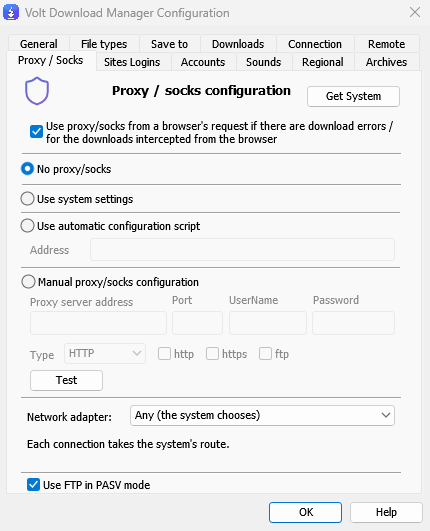
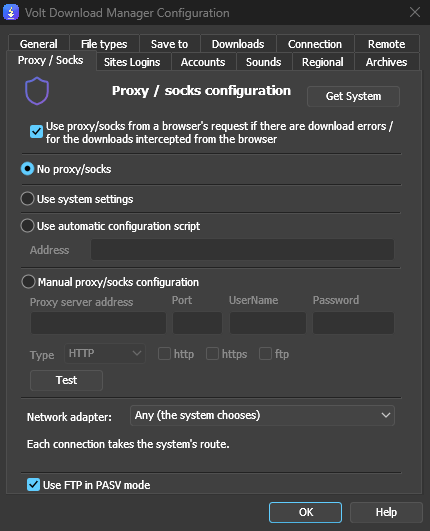
- No proxy/socks — connect directly. This is the default. Chosen here (clicked, or with Use proxy/socks from a browser's request… unticked while it's on), video pages and image galleries connect directly too: yt-dlp and gallery-dl are kept off Windows' proxy and the
HTTPS_PROXY/HTTP_PROXY/ALL_PROXYvariables. Left at the default, they still follow those, as they always did. - Sistem ayarlarını kullan — sistemin proxy'sini kullanın: Windows veya macOS ayarlarını ya da Linux'ta oturumunuzun
https_proxy,http_proxyveall_proxydeğişkenlerini. - Use automatic configuration script — the proxy auto-config (PAC) script your network gives: type its address (
http://…/proxy.pac, or a file). VDM fetches it and asks it which proxy each download goes through (PROXY,HTTPS,SOCKS,SOCKS5,SOCKS4orDIRECT), as browsers do. Through aSOCKSorSOCKS5answer, the proxy looks the site's name up, as in browsers. Until the script has been fetched, or if it can't be, VDM uses the system's settings. - Manuel proxy/socks yapılandırması — kendi proxy'niz:
- Ara sunucu adresi ve Bağlantı noktası: adı veya IP adresi (
127.0.0.1) ve bağlantı noktası (1080). - Tür: proxy'nin konuştuğu protokol. HTTP (olağan web proxy'si), HTTPS (şifreli bir bağlantı üzerinden erişilen bir web proxy'si), SOCKS5 veya SOCKS4.
- Kullanıcı Adı ve Parola, eğer gerekiyorsa (HTTP, HTTPS ve SOCKS5; SOCKS4'ün oturum açma bilgisi yoktur, bu yüzden grileşirler).
- Bir HTTP veya HTTPS proxy'si için, hangi protokoller için olduğunu işaretleyin (http, https). FTP indirmeleri asla bir HTTP proxy'si üzerinden gitmez: ftp kutusu gri kalır ve bunu belirtir.
- A SOCKS proxy carries every connection: web downloads, FTP, video pages and galleries (yt-dlp and gallery-dl), VDM's own downloads and the update check, and torrents if you ask (below). It has no protocol boxes; instead, Look up site names through the proxy (on by default) has the proxy turn the sites' names into addresses, so your own DNS never sees which sites you visit (
socks5h,socks4a). Untick it only for a proxy that can't look names up; VDM then looks them up with the DNS chosen under Connection and hands the proxy the address. - Bir SOCKS proxy'si üzerinden FTP her zaman pasif modu kullanır (proxy sunucunun bağlantılarını geri geçiremez), bu nedenle FTP'yi PASV modunda kullan işaretli ve gri gösterilir.
ftps://adresleri (ilk bayttan itibaren TLS) henüz bir SOCKS proxy'si üzerinden gidemez;ftpes://(bağlandıktan sonra TLS) gidebilir. - Torrentler, Torrent ayarlarında Proxy'yi kullan açık olduğunda yalnızca bir SOCKS5 proxy'si kullanır (bkz. Torrentler ve güvenliğiniz). Bir SOCKS4 veya HTTP proxy'si bunları taşımaz.
- Eski şekilde yazılmış bir adres,
socks5://host(veyasocks5h://,socks4://,http://), hala çalışır: Seçenekler bunu ana bilgisayarın tek başına olduğu Tür olarak gösterir. - Sistem Al — Windows'un proxy ayarlarından (Windows'ta) manuel alanları doldurun: bir HTTP proxy'si varsa onu, yoksa SOCKS proxy'sini (SOCKS5 olarak: Windows hangi sürüm olduğunu söylemez; sizinki yalnızca bunu konuşuyorsa SOCKS4 seçin).
- Test et — Cloudflare'ın
one.one.one.oneadresine, sayfanın şu anda söylediği (proxy'si, Seçenekler'in DNS ve ağ bağdaştırıcısı ile) aracılığıyla bir istek gönderilir ve bu, gördüğü adresle yanıt verir. Düğmenin yanındaki satır, ne kadar sürdüğünü ve internetin gördüğü adresi (bağlantılarınızı taşıdığında proxy'nin) veya neden başarısız olduğunu belirtir: proxy'ye ulaşılamadı, oturum açmayı reddetti veya siteye ulaşılamadı. Başka hiçbir şey gönderilmez.
Which do I pick?
- A VPN app usually needs nothing here: it carries all the computer's traffic. To make sure VDM never goes around it, choose its Network adapter below. Some VPN apps also offer a SOCKS5 proxy of their own (in their settings, with its own login): SOCKS5, its address, port and login.
- Tor (Tor Browser or the Tor service): SOCKS5, 127.0.0.1, port 9150 (Tor Browser) or 9050 (the service), Look up site names through the proxy ticked. Tor carries no torrents well; leave Use the proxy off in Torrent settings.
- An SSH tunnel, ssh -D 1080 you@server: SOCKS5, 127.0.0.1, port 1080.
- Clash, v2rayN and similar proxy programs: their mixed port takes both, usually 127.0.0.1:7890 (HTTP or SOCKS5); v2rayN also has a SOCKS port, often 10808. Or turn on their system proxy and choose Use system settings.
- A proxy your workplace or school gives: usually an HTTP one, or a script (Use automatic configuration script). Ask which.
- Use proxy/socks from a browser's request… — on by default. A download VDM takes from the browser goes through the proxy the browser used for it. That's the one a VPN or proxy extension set, the browser's own manual proxy, or its proxy auto-config script. Without it, the download would leave from your own address, and content limited to the VPN's country, or to its address, would fail. The browser extension reads that proxy and hands it to VDM with each download, once you switch on Send downloads through this browser's proxy or VPN extension in the extension's toolbar popup (Firefox asks you once; Chrome, Edge, Brave, Opera and Vivaldi ask nothing more: see A VPN or proxy extension).
- A proxy that asks for a login the VPN extension gives itself can't be shared: no other program has that login. The download then stops and says so, rather than going without the proxy. Use the VPN's own app, or choose its adapter under Network adapter.
- In Firefox, VDM sees the proxy the browser's own request for the file took, including the ones a VPN extension picks for each request. In Chrome and the other Chromium browsers, it sees the browser's proxy settings: the server for the download's scheme (honouring their bypass list) or their proxy auto-config script.
- When the browser used no proxy, and No proxy/socks is chosen, VDM uses Windows' proxy settings, as browsers do.
- Network adapter — Any (the system chooses) is the default. Pick an adapter, usually your VPN's, and every connection VDM opens goes out through it, or not at all. That covers downloads, FTP, torrents, video pages and image galleries, the DNS you chose, VDM's own downloads and the update check. It works as a kill switch: when the adapter disconnects, or the VPN is switched off, nothing goes out through your normal connection. Running downloads stop with "… is not connected" and start again when the adapter is back. The line under the list shows the adapter's address, or that it isn't connected.
- How it holds: Windows binds the adapter's own address. Windows then sends those packets only through that adapter (its strong host model). Linux binds the device itself (Linux 5.7 or newer), and macOS binds the interface. An address of a kind the adapter doesn't have (IPv6 on an IPv4-only VPN) is refused, not sent around it.
- The system's DNS asks the names in its own way, and Windows may ask over every adapter. To keep the names inside the adapter too, choose a DNS under Connection → DNS: VDM then asks it through the adapter.
- Video pages and image galleries: yt-dlp, gallery-dl and the ffmpeg yt-dlp starts can't be held to an adapter themselves, so while one is chosen VDM gives them a proxy of its own on this computer (127.0.0.1, with a password only they get). VDM opens their connections through the adapter, as it opens its own, and looks the names up with the DNS you chose. When the adapter disconnects, their connections close and the downloads stop with the others. Video formats that can't go through a proxy (RTMP, RTSP, MMS, FTP) are refused rather than sent around it.
- Not held to the adapter yet, so they don't start while one is chosen: ftps:// (implicit TLS; ftp:// with TLS is fine).
- Connections to this computer itself (localhost) aren't bound. A proxy on this computer carries the downloads, and where it sends them is up to it.
- On macOS a VPN that reconnects may get a new interface (utun5 instead of utun4): pick it again.
- Use FTP in PASV mode — on by default: for FTP downloads VDM opens the data connections itself (passive mode), which works through routers and firewalls. Turn it off only for a server that needs active mode (the server connects back to you). FTP goes through a SOCKS proxy above (always passive then), never through an HTTP one. See FTP and FTPS.
Site Oturum Açmaları


User names and passwords for sites that ask for them. New adds a row: the site (with a path if the login is only for part of it), the user name and the password. Edit and Remove change or delete the selected row. VDM uses the login for every download from that site. A login typed in Add URL (Use authorization) takes priority for that one download. For huggingface.co, the password is your Hugging Face access token, for gated models and datasets: VDM sends it as a token, to Hugging Face only (the user name can be anything; see Models, datasets and releases).
The passwords (these, the proxy's and the debrid accounts') are kept in the system's keychain: Windows Credential Manager, the keyring on Linux (Secret Service: GNOME Keyring, KeePassXC and others) or the macOS keychain; VDM's settings keep only a reference. A locked keyring is never unlocked for VDM: without one, they stay in VDM's settings, sealed for your Windows account on Windows. Options → Accounts says where they are. A portable copy keeps them in its own folder.
Video siteleri için çerezler — yalnızca oturum açtığınızda oynatılan videolar için (YouTube'un "Bot olmadığınızı doğrulamak için oturum açın"):
- Kapalı (varsayılan) — yt-dlp, çerezleri yalnızca bir video üzerindeki düğmeyi kullandığınızda tarayıcının uzantısından alır.
- Tarayıcıdan — yt-dlp, yapıştırılan adresler de dahil olmak üzere, baktığı veya indirdiği her video için bu bilgisayardaki seçili tarayıcının (Windows'ta Firefox, Chrome, Edge, Brave, Opera, Vivaldi, Chromium, Whale; macOS'ta Safari) çerezlerini okur. Uzantı sayfanın kendi çerezlerini ilettiğinde, bunlar yerine kullanılır. Bir tarayıcının gizli penceresinden gelen bir video, yeniden başlatıldıktan sonra tutulanlar da dahil olmak üzere bunları asla okumaz: yalnızca gizli penceresinin verdiği çerezlere sahiptir. Profil (isteğe bağlı): bir profilin adı veya klasörü (... birini seçer); boş bırakılırsa, en son kullanılan. Chrome, Edge ve Brave, Windows'ta çerezlerini kilitler: Firefox çalışır. Oturum açmanızı isteyen siteler bölümüne bakın.
Use my yt-dlp config file — off by default. Ticked, yt-dlp also reads its own config files (%APPDATA%\yt-dlp\config.txt on Windows, ~/.config/yt-dlp/config on Linux and macOS, and the others it looks for, such as yt-dlp.conf in your home folder) for the videos, playlists and look-ups the app starts, so your subtitle, thumbnail, metadata or SponsorBlock choices apply there too. Most of what VDM chooses still wins: the folder and file name, the quality, the proxy and network adapter set here. VDM also keeps yt-dlp's own downloader for HTTP, FTP and HLS (one the file names, aria2c, reports no progress), leaves out a download archive, forced overwrites and marking videos as watched (which would mark every video only looked up), keeps part files (with --no-part the engine's streams would be downloaded again into a doubled file), and keeps the usual fix-ups. Options there that skip or filter videos (--match-filters, --max-filesize, a strict -f) apply too, and can make a video say it can't be downloaded. A proxy with a user name set here gives way to a --proxy in the file.
Hesaplar
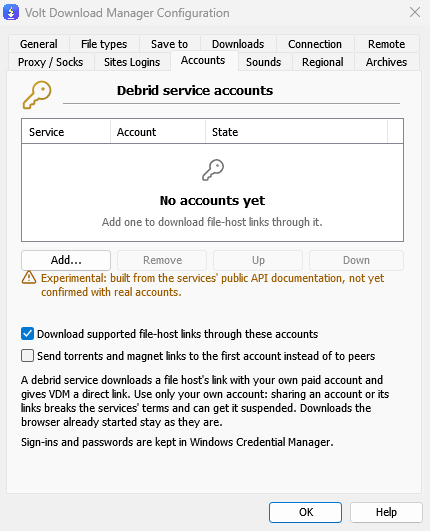
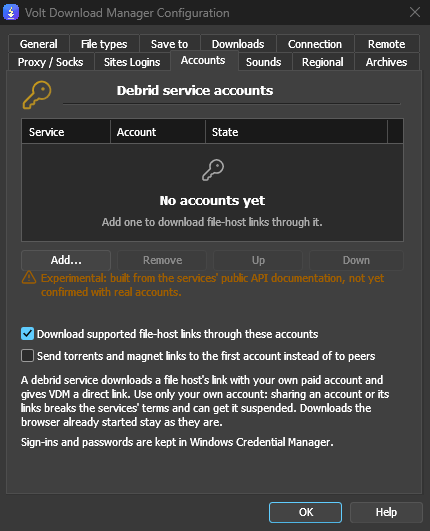
Debrid hizmeti hesaplarınız (Real-Debrid, AllDebrid, Premiumize, TorBox, Mega-Debrid; deneysel): Ekle... seçeneği, tarayıcıda kodla, kullanıcı adınız ve parolanızla veya API belirteciniz ya da anahtarınızla oturum açar; hizmetin desteklediği bir sunucudan gelen bağlantı daha sonra bu hizmet üzerinden indirilir. Listedeki sıralama, hesapların sorulma sırasıdır. Bkz. Debrid hizmeti hesapları.
Sesler
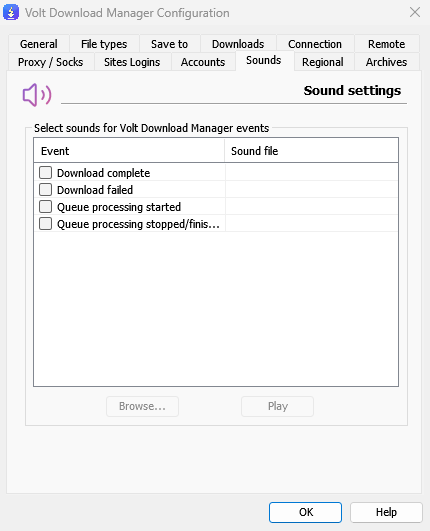
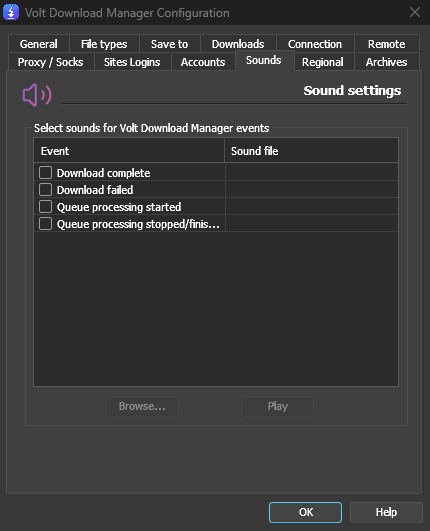
İndirme tamamlandı, İndirme başarısız, Sıra işleme başlatıldı ve Sıra işleme durduruldu/bitirildi için bir ses çalın. Bir olayı işaretleyin, seçin, bir .wav dosyası seçmek için Gözat... düğmesine tıklayın ve duymak için Çal düğmesine tıklayın.
Bölgesel
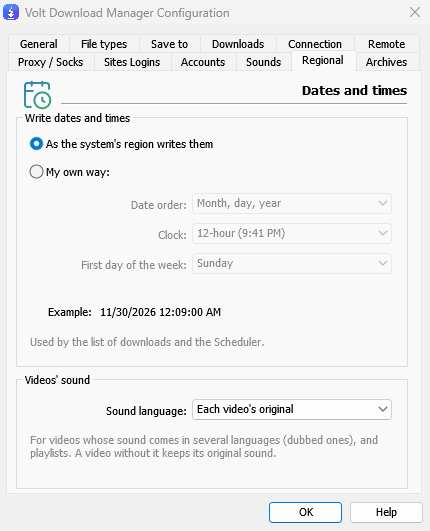
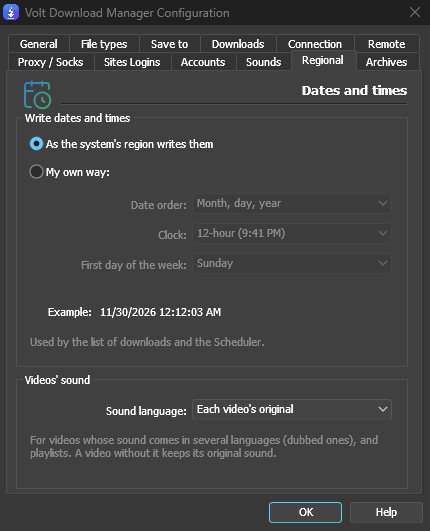
İndirme listesinde ve Zamanlayıcı'da tarih ve saatlerin yazılış biçimi.
- Sistemin bölgesi yazdığı gibi (varsayılan) — Windows'un bölge ayarları (Ayarlar → Saat ve dil → Bölge); macOS ve Linux'ta dilinizde kullanılan biçim. İngilizce'de liste, IDM'nin kendi tarih metnini kullanır.
- Kendi yöntemim — tarih sırasını (gün, ay, yıl; ay, gün, yıl veya yıl, ay, gün), 12 ya da 24 saatlik saat biçimini ve Zamanlayıcı takviminde haftanın ilk gününü seçin. Örnek sonucu gösterir.
Videos' sound — the language a video's sound comes in when the site has it in several (dubbed videos): Each video's original (the default), or a language, which every video looked up and every playlist downloads with when it has it. A video without it comes with its original sound, and Download video can choose another for one video (The sound's language).
Arşivler
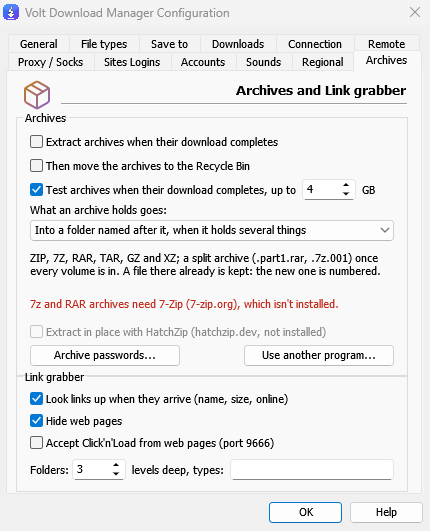
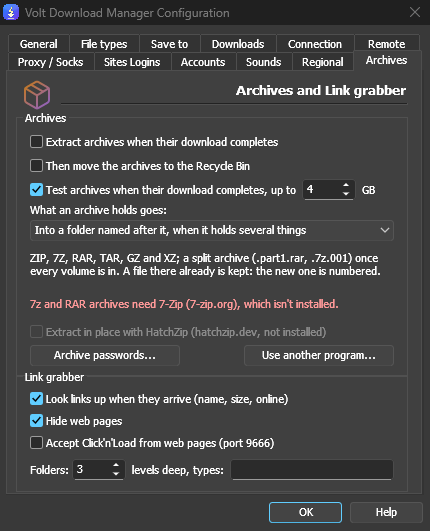
Arşivler (zip, 7z, rar, tar, gz, xz) ve Bağlantı yakalayıcı.
- İndirme tamamlandığında arşivleri çıkar (varsayılan olarak kapalı) — indirilen her arşiv için, indirme tamamlanır tamamlanmaz (bölünmüş arşivlerde son birim indikten sonra) çıkarma işlemi yapılır. Bağlantı yakalayıcı paketlerinde ayrıca Bittiğinde çıkar seçeneği bulunur.
- Ardından arşivleri Geri Dönüşüm Kutusu'na taşı (varsayılan olarak kapalı; macOS ve Linux'ta Çöp Kutusu) — yalnızca çıkarma işlemi başarıyla tamamlandıktan sonra. Bu, yeni paketlerdeki Çıkardıktan sonra arşivleri sil seçeneğinin de varsayılan ayarıdır.
- Test archives when their download completes, up to 4 GB (on by default) — a ZIP, 7z or RAR archive (a split one once its last volume is in) is read back and every file in it checked before its download counts as done, with the 7-Zip named below (a ZIP without 7-Zip by VDM itself). A larger one isn't tested by itself, as a test reads the whole file: right-click → Test archive tests it. A damaged ZIP's damaged files are downloaded again; any other damaged archive is offered for Redownload. See Testing archives.
- Arşiv içeriğinin kaydedileceği yer — birden fazla öğe içeriyorsa (varsayılan) arşivin adını taşıyan bir klasöre, her zaman böyle bir klasöre veya doğrudan arşivin bulunduğu klasöre.
- Whether 7-Zip was found: 7z and RAR archives need it, unless they are extracted in place with HatchZip. VDM also finds the 7-Zip inside PeaZip and NanaZip's command line.
- Use another program... — choose the 7-Zip command line program yourself (
7z.exeof a portable copy or of another archiver); Find 7-Zip automatically goes back to the one VDM finds. See Extracting archives. - HatchZip ile yerinde çıkar (varsayılan olarak kapalı; HatchZip yüklü değilse grileşir) — arşiv kaldırılırken dosyaları çıkarılır, böylece sadece onlar yer kaplar. Bkz. Arşivleri ayıklama.
- Archive passwords... — the passwords tried on an encrypted archive before VDM asks, one per line; the one that fits moves to the top. A package's own password is never added by itself. See Archive passwords.
- Bağlantılar geldiğinde ara (ad, boyut, çevrimiçi) — Bağlantı yakalayıcı her sunucuya dosya bilgilerini sorar (varsayılan olarak açık).
- Web sayfalarını gizle — Bağlantı yakalayıcı'nın aynı kutu için varsayılanı (açık).
- Accept Click'n'Load from web pages (port 9666) (off by default) — a link site's Click'n'Load button sends its links to VDM's Link grabber. See Click'n'Load.
- Klasörler: 3 seviye derinlik, türler: — Bağlantı yakalayıcıya bir FTP klasörü veya bir web sunucusunun klasör listesini verdiğinizde kaç alt klasör seviyesi okuyacağı (0 ila 10; 0 klasörün kendi dosyalarıdır) ve bunlardan hangi dosya türlerini tutacağı (Dosya türleri sayfasındaki gibi,
ISO ZIP R0*; boş bırakmak her türü tutar). Bkz. Klasörler.
Uzaktan
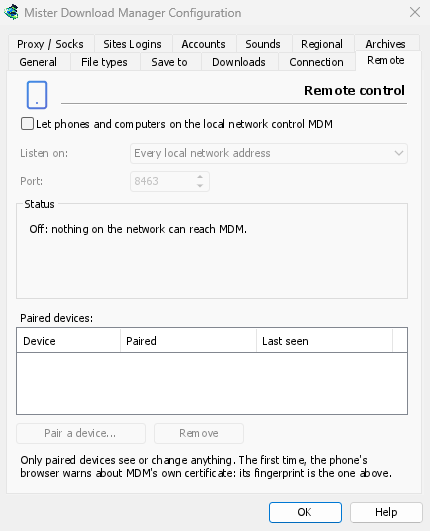
Control VDM from your phone or another computer on the local network: see Control VDM from your phone.
- Let phones and computers on the local network control VDM (off by default).
- Dinle — her yerel ağ adresi (varsayılan), yalnızca bu bilgisayar veya tek bir adres.
- Bağlantı noktası — varsayılan olarak 8463.
- Durum — ne yaptığı, telefonda açılacak adres ve sertifikanın parmak izi.
- Eşleştirilmiş cihazlar — Bir cihazı eşleştir bir QR kodu ve bir kod gösterir; Kaldır seçilen cihazın eşleşmesini anında kaldırır.
Diğer Yerler
Bu pencerenin dışında birkaç ayar bulunur:
- İndirilenler → Hız Sınırlayıcı → Ayarlar... — hız sınırları. Bkz. Bağlantılar ve hız.
- Tasks → Torrent settings... — sharing and file associations, and whether the browser hands
.torrentdownloads to VDM. See Torrents. - Görünüm → Koyu mod desteği, Her zaman koyu, Tema, Şununla çiz, Arayüz boyutu, Yazı tipi (arayüzün kendi yazı tipi dosyası ve metin boyutu) ve Dil. Bkz. Başlarken ve Sorun giderme.
- Yardım → Güncelleştirmeleri denetle... — Her başlangıçta güncelleştirmeleri denetle o pencerede bulunur.
Sonraki adımlar
Ücretsiz, açık kaynak, reklamsız, deneme sürümü yok.
Download Volt Download Manager