

Відкрийте Завантаження → Параметри або натисніть Параметри на панелі інструментів. Вікно має дванадцять сторінок на двох рядках вкладок. OK зберігає ваші зміни; закриття вікна або натискання Esc скасовує їх.
Деякі кнопки неактивні. Вони відповідають функціям, які ще не реалізовано.
Загальні
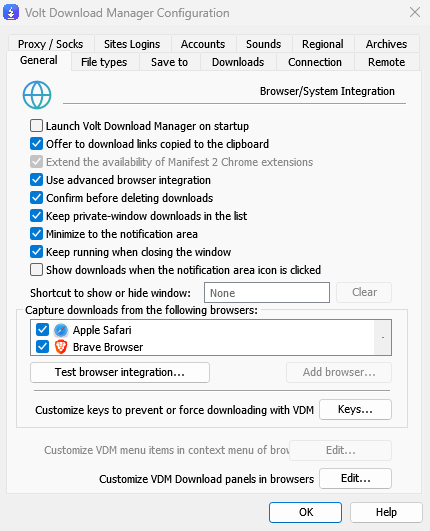
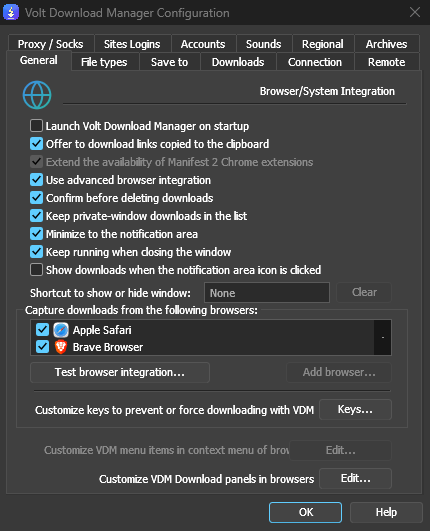
- Launch Volt Download Manager on startup — start VDM when you sign in to Windows. It starts in the notification area, its window hidden, with its downloads, queues and Scheduler running; click its icon (or start VDM again) to show the window. On Linux and macOS it starts with your session the same way; where no notification area shows VDM's icon (some Linux desktops), it starts minimized, and the option's tooltip says so. VDM waits for the notification area up to 30 seconds after making its icon, its window hidden, as a desktop's can come up after VDM at sign-in. Off by default. Greyed in a portable copy, which writes nothing to the registry.
- Пропонувати завантажити посилання, скопійовані до буфера обміну — коли ви копіюєте посилання на файл, тип якого є на сторінці Типи файлів, відкривається вікно Інформація про файл завантаження з готовим до початку завантаження файлом (або завантаження починається одразу, якщо Показувати діалогове вікно початку завантаження вимкнено). Це стосується архівів, програм, музики, відео, PDF та будь-яких типів, які ви додали самостійно, тому копіювання адреси зображення, шрифту або 3D-моделі для використання в іншому місці ніколи не запускає завантаження. Увімкнено типово.
- Use advanced browser integration — let the browser extension hand downloads to VDM. Turn it off to keep every download in the browser.
- Підтверджувати перед видаленням завантажень — запитувати перед видаленням завантажень зі списку. Увімкнено за замовчуванням; Більше не показувати це діалогове вікно у цьому запитанні вимикає його, а встановлення прапорця тут знову вмикає. Якщо вимкнено, Видалити лише видаляє завантаження зі списку та зберігає їхні файли; Shift+Delete все одно запитує, оскільки видалення файлів з диска завжди це робить.
- Keep private-window downloads in the list — save downloads that come from a browser's private (incognito) window in VDM's list like any other, so an unfinished one is still there to resume after VDM closes or restarts. On by default. Unticked, they are kept in memory only, as the browser keeps them, and are gone when VDM closes. In the list, a private window's download has a small mask before its status; its tip says whether the list keeps it. The first time one comes, VDM says that they are kept and where to turn that off. Their cookies are never saved either way, and after a restart they still stay apart from normal windows' downloads (a private download that waits for a new address isn't given one by a normal window's, and a private window's video never uses Cookies for video sites from Sites Logins: if a site wants you signed in, open the page in a private window, sign in there, and use its Download video button again). Turning it off later doesn't remove the ones already saved by an earlier session.
- Keep running when closing the window — closing the main window hides it in the notification area instead of quitting, and downloads, queues and schedules go on. On by default; unticked, closing quits VDM (so a portable copy's folder can then be deleted). If there is no icon for VDM at all — not even behind the ^ hidden icons — the window minimizes to the taskbar instead, so downloads continue and the window stays reachable; an icon behind ^ can be clicked to bring it back, or start VDM again. On macOS the window closes into the Dock, and a click on VDM's icon there (or in the menu bar) brings it back; Cmd+Q quits. Greyed where no tray shows VDM's icon (some Linux desktops): closing quits there.
- Show downloads when the notification area icon is clicked — a click on VDM's icon there shows a small panel over it with what is downloading, each download's progress, Pause and Cancel, and a button that opens the window; a double click opens the window (Windows). On in a new copy of VDM; one set up before it keeps its click, which shows or hides the window, until it is ticked. Greyed where no tray shows VDM's icon. See The tray icon.
- Minimize to the notification area — Minimize hides the main window, and a download's progress window, in the notification area; downloads go on. On by default. Where the tray has no icon, the main window minimizes to the taskbar instead. The close setting above is separate; when it is on, closing hides there too (or minimizes to the taskbar if there is no icon at all). Greyed where no tray shows VDM's icon (some Linux desktops); in a Wayland session the main window stays minimized in the dock, since Wayland can't hide a window.
- Перехоплювати завантаження з таких браузерів — зніміть позначку з браузера, щоб його завантаження не перехоплювалися.
- Customize VDM Download panels in browsers → Edit... — the download button over videos on web pages: turn it off, choose its Button size (80%, 100% or 120%, and Automatic, as installed: only the logo, the arrow and ✕ in a feed and over a small player, its words over a big one; Full, its words wherever they fit; or Compact, only the logo, the arrow and ✕ on every video), or list the sites it never shows on (separate them by spaces; wildcards like
*.youtube.*,youtube.*or*.example.comwork). See Browser integration.
Див. Інтеграція з браузером.
Типи файлів
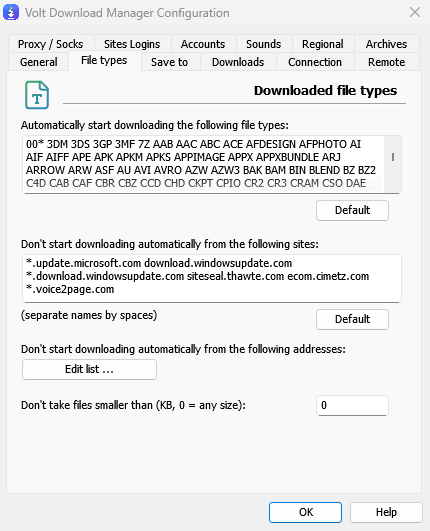
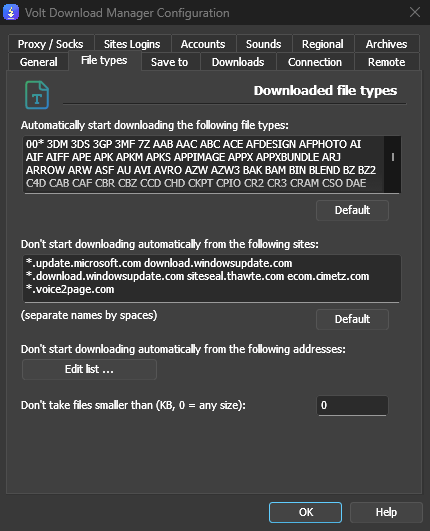
- Автоматично починати завантаження наступних типів файлів — типи файлів, які передає браузер (і які підхоплює буфер обміну). Розділяйте їх пробілами;
*відповідає будь-яким символам, як уR0*. Типово повертає початковий список. Список починається зі звичайних архівів, програм та інсталяторів (для Windows, macOS та Linux: DMG, PKG, DEB, RPM, APPIMAGE, MSIX), музики та відео, файлів PDF та Office, моделей ШІ та наборів даних (GGUF, SAFETENSORS, CKPT, PT, ONNX, PARQUET), 3D- та CAD-файлів (GLB, FBX, OBJ, STL, BLEND, STEP), файлів дизайну та RAW-файлів камер, електронних книг, образів дисків та розділених архівів. Сторінки, скрипти, звичайний текст та веб-зображення навмисно виключені, тому збереження зображення або сторінки залишається за браузером; додайте будь-який потрібний тип або введіть один*у поле, щоб приймати кожен файл, що має розширення. Список, який ви ніколи не змінювали, отримує типи, додані новою версією; змінений вами список залишається без змін. - Не починати завантаження автоматично з наступних сайтів — сайти, завантаження з яких залишаються в браузері, розділені пробілами. Назва охоплює також піддомени сайту (
example.comохоплюєwww.example.comтаdl.example.com, як і*.example.com),*відповідає будь-чому, як у списку панелей завантаження (*.example.*), а також файлам, на які посилаються його сторінки на іншому сервері (сервер завантаження або CDN), визначеним за сторінкою, з якої надійшло завантаження. Завантаження без відомої сторінки відповідає його власній адресі. Типово повертає початковий список.
Зберегти до
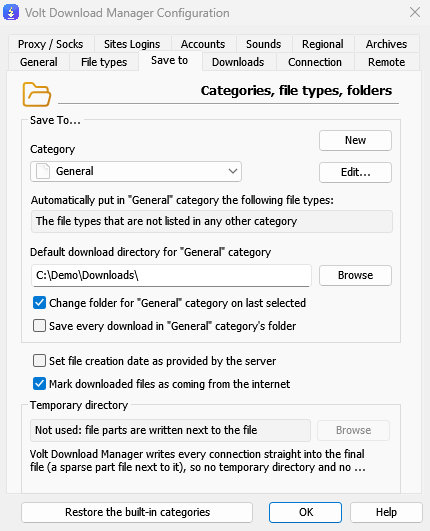
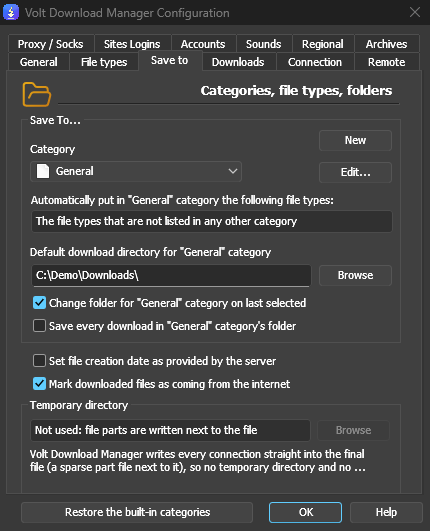
- Категорія — виберіть категорію, щоб переглянути й змінити її параметри нижче.
- Створити — створити власну категорію. Змінити... змінює вибрану: її назву, типи файлів та папку. Вбудовані категорії (Стиснуті, Документи, Музика, Програми, Відео) можна перейменовувати, надавати їм інші типи файлів та видаляти, як і власні; перейменована категорія зберігає свою папку. Категорії Загальні та Торренти змінюють лише свою папку.
- Відновити вбудовані категорії — повертає вбудовані категорії до початкового стану після того, як ви їх перейменували, змінили типи файлів або видалили.
- Автоматично додавати до категорії «…» такі типи файлів — типи файлів, які належать до цієї категорії. Вбудована категорія, список якої ви ніколи не змінювали, отримує типи, додані новою версією; та, яку ви редагували, залишається без змін.
- Типова папка для завантажень категорії «…» — папка категорії. Введіть шлях або натисніть Огляд.
- Змінити папку категорії «…» на останню вибрану — коли ви вибираєте іншу папку у вікні Інформація про файл завантаження, відтепер вона стає папкою цієї категорії. Типово ввімкнено. (Це визначає початковий стан параметра Запам'ятати цей шлях у цьому вікні.)
- Зберігати кожне завантаження в папці категорії «Загальні» — за замовчуванням вимкнено. Якщо позначено, кожне нове завантаження потрапляє до папки «Загальні», незалежно від його категорії: з браузера, Додати URL, Пакетне завантаження, захоплення посилань, черг, командного рядка, відео та торрентів. Категорії все ще сортують список. Папка «Загальні» — це та, яку потрібно встановити (виберіть Загальні вище); інші категорії зберігають власні папки, коли ця опція знову вимкнена, тим часом відображаючись сірим кольором. Окреме завантаження все ще може бути збережено в іншому місці: змініть його папку у вікні, що його запускає (Запам'ятати цей шлях тоді змінює папку «Загальні»). Завантаження, які вже є у списку, залишаються на своїх місцях.
- Встановити дату створення файлу, надану сервером — присвоювати завантаженим файлам дату, зазначену сервером, а не дату завантаження.
- Mark downloaded files as coming from the internet — on by default. Every file VDM downloads (from the browser, a link you add, a video, a gallery, a torrent, and the files extracted from an archive) carries the mark a browser's downloads carry. On Windows that is the Mark of the Web: SmartScreen checks a program before it first runs, and Office opens a document in Protected View. On a Mac it is the quarantine attribute Gatekeeper checks; on Linux, where the file came from, which file managers show. Unticked, no download is marked. On Windows, VDM also follows the Group Policy Do not preserve zone information in file attachments, as browsers do: when it is on (for the computer or for you), no download is marked, whatever this box says.
VDM doesn't use a temporary folder: every connection writes straight into the final file's place, so there is nothing to put together at the end.
Завантаження
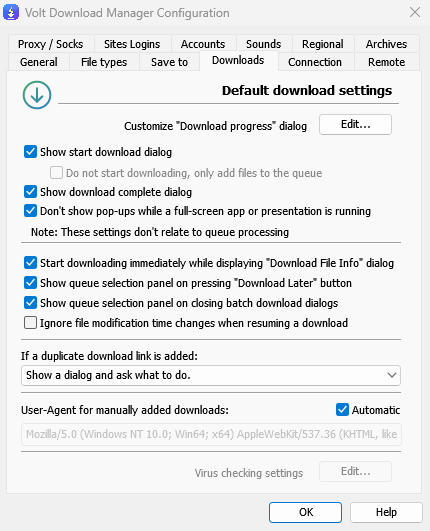
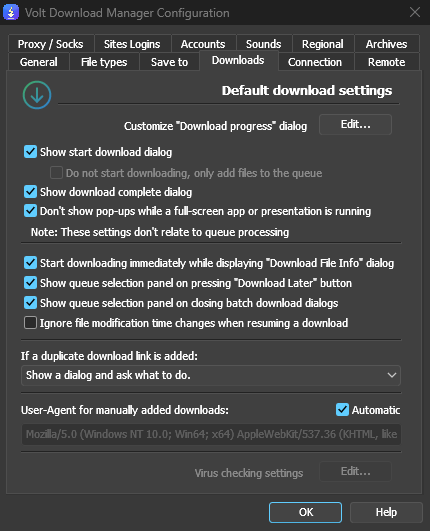
- Налаштувати діалогове вікно «Прогрес завантаження» → Змінити... — Показувати діалогове вікно прогресу завантаження, коли починається завантаження: Показувати у звичайному режимі, увімкнено за замовчуванням; Показувати згорнутим, що запускає вікно прогресу завантаження згорнутим на панелі завдань, не забираючи фокус від програми, в якій ви перебуваєте; або Не показувати, коли завантаження більше не відкриває вікно прогресу під час запуску з браузера, доданого вами посилання, відео чи черги, і воно продовжується у списку головного вікна, де подвійне клацання відкриває його вікно прогресу. Завантаження завершено все ще відображається після завершення, як зазначено в Показати діалогове вікно завершення завантаження нижче.
- Показувати діалогове вікно початку завантаження — показувати вікно Інформація про файл завантаження для кожного нового завантаження. Якщо параметр вимкнено, завантаження починається відразу або лише додається до черги, якщо позначити Не починати завантаження, лише додати файли до черги.
- Показати діалогове вікно завершення завантаження — показувати вікно Завантаження завершено, коли файл завантажено.
- Don't show pop-ups while a full-screen app or presentation is running — on by default. While a full-screen game, app or video, a presentation or the locked screen is on, Download complete and the other windows VDM opens by itself wait, and show when you're back, one after the other in the order they came: Downloads complete, a new version found by the weekly check, the download limit's warning, an archive's test result, its password question or its call for 7-Zip, the browser extension's offer, a link copied to the clipboard, and the crash report. The downloads carry on as usual, and the tray icon's tip says how many windows wait. The windows you open yourself, links you click in the browser and the Turn off computer countdown (so you can still cancel it) show at once. On Windows VDM goes by the state Windows holds its own notifications by (games, presentation mode, full-screen apps and videos), by a frameless window that fills its whole screen in front (on any of your screens), and by the screen's lock; on Linux by the session's lock, and by a full-screen window under X11 or XWayland (on Wayland, a native program's full screen can't be seen). On macOS a full-screen app has a Space of its own, which VDM's windows never open over. Untick it and the windows show at once, as before.
- Починати завантаження відразу, показуючи діалогове вікно «Інформація про файл завантаження» — типово ввімкнено, тому завантаження починається, поки ви вибираєте папку.
- Показувати панель вибору черги після натискання кнопки «Завантажити пізніше» — запитувати, до якої черги додати завантаження; якщо вимкнути, воно потрапить до Основна черга завантажень.
- Показувати панель вибору черги під час закриття діалогових вікон пакетного завантаження — те саме для пакетних завантажень.
- Ігнорувати зміни часу модифікації файлу під час відновлення завантаження — для серверів, які щоразу повідомляють нову дату для того самого файлу. Без цього такі сервери щоразу починають завантаження спочатку.
- Якщо додано дублікат посилання для завантаження — запитати, чи додати його з номером у назві, перезаписати старий файл, відкрити вже завантажений файл або відновити незавершене завантаження.
- User-Agent for manually added downloads — how VDM names itself to servers for downloads you add yourself. With Automatic ticked (the default), VDM introduces itself as your default browser: the User-Agent that browser sends, at the version you have installed (Chrome, Edge, Brave, Opera, Vivaldi, Firefox or Safari). The box shows it, and pointing at it names the browser. When VDM doesn't recognise your default browser, it sends a current Chrome's. Untick Automatic to type your own; tick it again to go back. Downloads from the browser use that browser's own User-Agent, the one your sign-in and the site's checks know; the one typed here doesn't replace it. If a site turns a browser's User-Agent away, VDM asks once more with the one typed here (with Automatic, with Internet Explorer's). If a site's bot check refuses it, and the way a browser connects too, VDM asks once more under its own name,
VoltDownloadManager/and its version (or the one typed here), and remembers that site until VDM closes. A User-Agent typed here for the downloads you add yourself is the only one they send.
Підключення
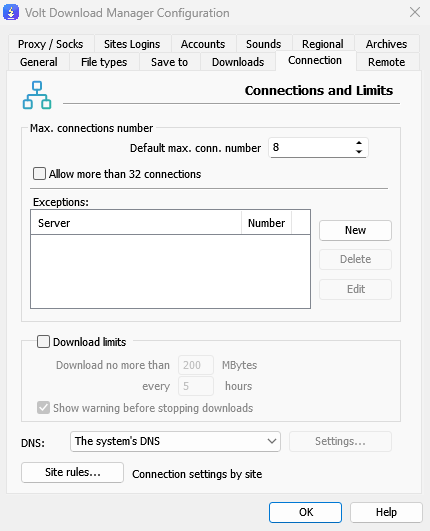
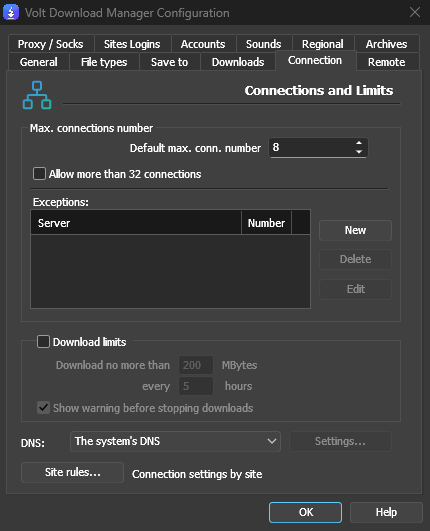
- Типова макс. кількість з’єднань — скільки з’єднань може використовувати кожне завантаження, від 1 до 32 (8 типово). Введіть число або скористайтеся стрілками.
- Allow more than 32 connections — raises the most to 128, for the number above and for the exceptions. Most servers allow far fewer from one address; VDM notices and asks those for fewer. Turned off again, any higher number comes back to 32.
- Exceptions — a different number for some servers. New adds one (the server's name and the number of connections); Edit and Delete change or remove the selected one. Rows marked (auto) are limits VDM learned by itself from servers that refused more connections. They can't be edited and fade away by themselves.
- Правила сайту... — User-Agent, заголовки запитів, кількість з’єднань, Завжди підключатися як браузер та проксі (немає або власний з логіном), за сайтом. Див. Правила сайту.
- Обмеження завантаження — завантажувати не більше встановленої кількості даних протягом кількох годин. Це саме налаштування є в Планувальнику; див. Черги та Планувальник.
- DNS — which DNS turns the servers' names into addresses for VDM's downloads, its own downloads (helpers, updates) and FTP. The system's DNS is the default (on Windows 11 it can already be encrypted, in Windows' own network settings). Or pick Cloudflare, Google, Quad9, AdGuard or NextDNS, or Another DNS... to type your own; Settings... chooses how it's asked:
- DNS через HTTPS (типово) або DNS через TLS: зашифровано, тому ніхто на шляху не бачить і не змінює імена, які ви шукаєте.
- Plain DNS: not encrypted. VDM asks it over TCP, never UDP, so it never needs a firewall exception.
- Для власної DNS-служби вкажіть IP-адреси серверів, ім’я з їхнього сертифіката (TLS) або адресу
https://(HTTPS, за бажанням — її IP-адреси). Для NextDNS вкажіть ідентифікатор конфігурації. - Якщо недоступно, використовувати системний DNS: вимкнено за замовчуванням, тому DNS, який не відповідає, зупиняє завантаження з повідомленням про це, а не тихо показує ваші запити системному DNS. Ім'я, яке DNS вважає неіснуючим, ніколи не повертається до системного DNS (це скасувало б фільтруючий DNS).
- Тест запитує github.com і показує, скільки часу це зайняло.
Імена у вашому файлі hosts та локальні імена (окремі слова, .local, .lan, .home.arpa, .internal, localhost) залишаються з системним DNS. Відеосторінки (yt-dlp) та галереї зображень (gallery-dl) використовують вибраний вами DNS лише тоді, коли вибрано мережевий адаптер; в іншому випадку, як і торрент-трекери, вони використовують системний. З проксі-сервером проксі-сервер шукає для вас імена сайтів, до яких він звертається.
Більше в З’єднання та швидкість.
Проксі / Socks
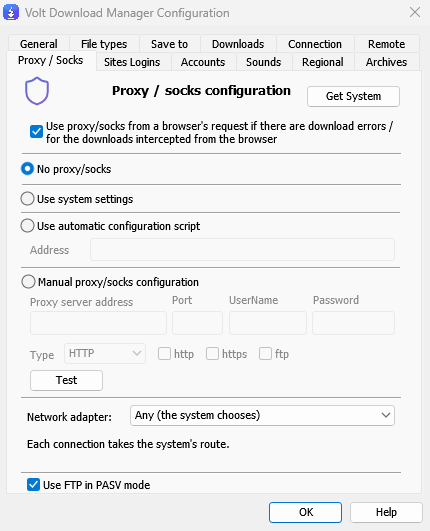
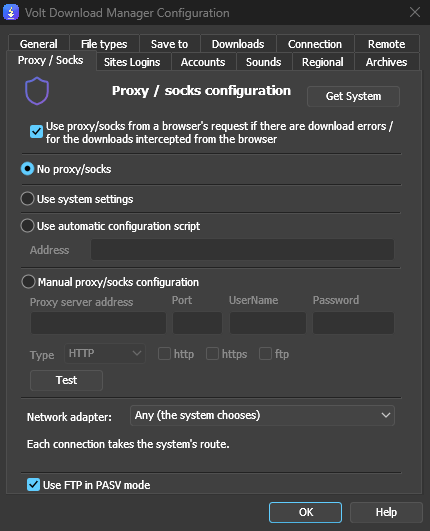
- No proxy/socks — connect directly. This is the default. Chosen here (clicked, or with Use proxy/socks from a browser's request… unticked while it's on), video pages and image galleries connect directly too: yt-dlp and gallery-dl are kept off Windows' proxy and the
HTTPS_PROXY/HTTP_PROXY/ALL_PROXYvariables. Left at the default, they still follow those, as they always did. - Використовувати системні параметри — використовувати системний проксі-сервер: параметри Windows або macOS, або в Linux змінні
https_proxy,http_proxyтаall_proxyвашої сесії. - Use automatic configuration script — the proxy auto-config (PAC) script your network gives: type its address (
http://…/proxy.pac, or a file). VDM fetches it and asks it which proxy each download goes through (PROXY,HTTPS,SOCKS,SOCKS5,SOCKS4orDIRECT), as browsers do. Through aSOCKSorSOCKS5answer, the proxy looks the site's name up, as in browsers. Until the script has been fetched, or if it can't be, VDM uses the system's settings. - Налаштування проксі/socks вручну — ваш власний проксі:
- Адреса проксі-сервера та Порт: його ім'я або IP-адреса (
127.0.0.1) та порт (1080). - Тип: який протокол підтримує проксі. HTTP (звичайний веб-проксі), HTTPS (веб-проксі, доступний через зашифроване з'єднання), SOCKS5 або SOCKS4.
- Ім’я користувача та Пароль, якщо вони потрібні (HTTP, HTTPS та SOCKS5; SOCKS4 не має входу, тому вони неактивні).
- Для проксі HTTP або HTTPS встановіть прапорці протоколів, для яких він призначений (http, https). Завантаження FTP ніколи не проходять через проксі HTTP: його поле ftp залишається неактивним і повідомляє про це.
- A SOCKS proxy carries every connection: web downloads, FTP, video pages and galleries (yt-dlp and gallery-dl), VDM's own downloads and the update check, and torrents if you ask (below). It has no protocol boxes; instead, Look up site names through the proxy (on by default) has the proxy turn the sites' names into addresses, so your own DNS never sees which sites you visit (
socks5h,socks4a). Untick it only for a proxy that can't look names up; VDM then looks them up with the DNS chosen under Connection and hands the proxy the address. - FTP через проксі SOCKS завжди використовує пасивний режим (проксі не може передавати з'єднання сервера назад), тому Використовувати FTP у пасивному режимі відображається встановленим та неактивним. Адреси
ftps://(TLS з першого байта) поки що не можуть проходити через проксі SOCKS;ftpes://(TLS після підключення) можуть. - Торренти використовують проксі SOCKS5 лише тоді, коли в налаштуваннях торрентів увімкнено Використовувати проксі (див. Торренти та ваша безпека). Проксі SOCKS4 або HTTP їх не передає.
- Адреса, написана старим способом,
socks5://host(абоsocks5h://,socks4://,http://), все ще працює: Параметри показують її як її Тип лише з хостом. - Отримати систему — заповнити поля вручну з налаштувань проксі Windows (у Windows): його HTTP-проксі, якщо він є, інакше його SOCKS-проксі (як SOCKS5: Windows не вказує версію; виберіть SOCKS4, якщо ваш підтримує лише його).
- Тест — один запит через те, що зараз вказано на сторінці (його проксі, з DNS та мережевим адаптером, які є в Параметрах), до
one.one.one.oneCloudflare, який відповідає адресою, яку він бачив. Рядок поруч із кнопкою показує, скільки часу це зайняло та адресу, яку бачить інтернет (проксі, коли він передає ваші з'єднання), або чому це не вдалося: проксі недоступний, відмовив у вході або не зміг дістатися до сайту. Більше нічого не надсилається.
Which do I pick?
- A VPN app usually needs nothing here: it carries all the computer's traffic. To make sure VDM never goes around it, choose its Network adapter below. Some VPN apps also offer a SOCKS5 proxy of their own (in their settings, with its own login): SOCKS5, its address, port and login.
- Tor (Tor Browser or the Tor service): SOCKS5, 127.0.0.1, port 9150 (Tor Browser) or 9050 (the service), Look up site names through the proxy ticked. Tor carries no torrents well; leave Use the proxy off in Torrent settings.
- An SSH tunnel, ssh -D 1080 you@server: SOCKS5, 127.0.0.1, port 1080.
- Clash, v2rayN and similar proxy programs: their mixed port takes both, usually 127.0.0.1:7890 (HTTP or SOCKS5); v2rayN also has a SOCKS port, often 10808. Or turn on their system proxy and choose Use system settings.
- A proxy your workplace or school gives: usually an HTTP one, or a script (Use automatic configuration script). Ask which.
- Use proxy/socks from a browser's request… — on by default. A download VDM takes from the browser goes through the proxy the browser used for it. That's the one a VPN or proxy extension set, the browser's own manual proxy, or its proxy auto-config script. Without it, the download would leave from your own address, and content limited to the VPN's country, or to its address, would fail. The browser extension reads that proxy and hands it to VDM with each download, once you switch on Send downloads through this browser's proxy or VPN extension in the extension's toolbar popup (Firefox asks you once; Chrome, Edge, Brave, Opera and Vivaldi ask nothing more: see A VPN or proxy extension).
- A proxy that asks for a login the VPN extension gives itself can't be shared: no other program has that login. The download then stops and says so, rather than going without the proxy. Use the VPN's own app, or choose its adapter under Network adapter.
- In Firefox, VDM sees the proxy the browser's own request for the file took, including the ones a VPN extension picks for each request. In Chrome and the other Chromium browsers, it sees the browser's proxy settings: the server for the download's scheme (honouring their bypass list) or their proxy auto-config script.
- When the browser used no proxy, and No proxy/socks is chosen, VDM uses Windows' proxy settings, as browsers do.
- Network adapter — Any (the system chooses) is the default. Pick an adapter, usually your VPN's, and every connection VDM opens goes out through it, or not at all. That covers downloads, FTP, torrents, video pages and image galleries, the DNS you chose, VDM's own downloads and the update check. It works as a kill switch: when the adapter disconnects, or the VPN is switched off, nothing goes out through your normal connection. Running downloads stop with "… is not connected" and start again when the adapter is back. The line under the list shows the adapter's address, or that it isn't connected.
- How it holds: Windows binds the adapter's own address. Windows then sends those packets only through that adapter (its strong host model). Linux binds the device itself (Linux 5.7 or newer), and macOS binds the interface. An address of a kind the adapter doesn't have (IPv6 on an IPv4-only VPN) is refused, not sent around it.
- The system's DNS asks the names in its own way, and Windows may ask over every adapter. To keep the names inside the adapter too, choose a DNS under Connection → DNS: VDM then asks it through the adapter.
- Video pages and image galleries: yt-dlp, gallery-dl and the ffmpeg yt-dlp starts can't be held to an adapter themselves, so while one is chosen VDM gives them a proxy of its own on this computer (127.0.0.1, with a password only they get). VDM opens their connections through the adapter, as it opens its own, and looks the names up with the DNS you chose. When the adapter disconnects, their connections close and the downloads stop with the others. Video formats that can't go through a proxy (RTMP, RTSP, MMS, FTP) are refused rather than sent around it.
- Not held to the adapter yet, so they don't start while one is chosen: ftps:// (implicit TLS; ftp:// with TLS is fine).
- Connections to this computer itself (localhost) aren't bound. A proxy on this computer carries the downloads, and where it sends them is up to it.
- On macOS a VPN that reconnects may get a new interface (utun5 instead of utun4): pick it again.
- Use FTP in PASV mode — on by default: for FTP downloads VDM opens the data connections itself (passive mode), which works through routers and firewalls. Turn it off only for a server that needs active mode (the server connects back to you). FTP goes through a SOCKS proxy above (always passive then), never through an HTTP one. See FTP and FTPS.
Входи на сайти


User names and passwords for sites that ask for them. New adds a row: the site (with a path if the login is only for part of it), the user name and the password. Edit and Remove change or delete the selected row. VDM uses the login for every download from that site. A login typed in Add URL (Use authorization) takes priority for that one download. For huggingface.co, the password is your Hugging Face access token, for gated models and datasets: VDM sends it as a token, to Hugging Face only (the user name can be anything; see Models, datasets and releases).
The passwords (these, the proxy's and the debrid accounts') are kept in the system's keychain: Windows Credential Manager, the keyring on Linux (Secret Service: GNOME Keyring, KeePassXC and others) or the macOS keychain; VDM's settings keep only a reference. A locked keyring is never unlocked for VDM: without one, they stay in VDM's settings, sealed for your Windows account on Windows. Options → Accounts says where they are. A portable copy keeps them in its own folder.
Файли cookie для відеосайтів — для відео, які відтворюються лише після входу (наприклад, «Увійдіть, щоб підтвердити, що ви не робот» на YouTube):
- Вимкнено (за замовчуванням) — yt-dlp отримує файли cookie лише з розширення браузера, коли ви використовуєте кнопку над відео.
- З браузера — yt-dlp читає файли cookie обраного браузера на цьому комп’ютері (Firefox, Chrome, Edge, Brave, Opera, Vivaldi, Chromium, Whale; Safari на macOS) для кожного відео, яке він шукає або завантажує, включно з вставленими адресами. Коли розширення передало власні файли cookie сторінки, використовуються вони. Відео з приватного вікна браузера ніколи не читає їх, включно зі збереженим після перезапуску: воно має лише ті файли cookie, які надало його приватне вікно. Профіль (необов’язково): ім’я або папка профілю (... вибирає один); якщо порожньо, використовується останній. Chrome, Edge і Brave блокують свої файли cookie на Windows: Firefox працює. Дивіться Сайти, що вимагають входу.
Use my yt-dlp config file — off by default. Ticked, yt-dlp also reads its own config files (%APPDATA%\yt-dlp\config.txt on Windows, ~/.config/yt-dlp/config on Linux and macOS, and the others it looks for, such as yt-dlp.conf in your home folder) for the videos, playlists and look-ups the app starts, so your subtitle, thumbnail, metadata or SponsorBlock choices apply there too. Most of what VDM chooses still wins: the folder and file name, the quality, the proxy and network adapter set here. VDM also keeps yt-dlp's own downloader for HTTP, FTP and HLS (one the file names, aria2c, reports no progress), leaves out a download archive, forced overwrites and marking videos as watched (which would mark every video only looked up), keeps part files (with --no-part the engine's streams would be downloaded again into a doubled file), and keeps the usual fix-ups. Options there that skip or filter videos (--match-filters, --max-filesize, a strict -f) apply too, and can make a video say it can't be downloaded. A proxy with a user name set here gives way to a --proxy in the file.
Облікові записи
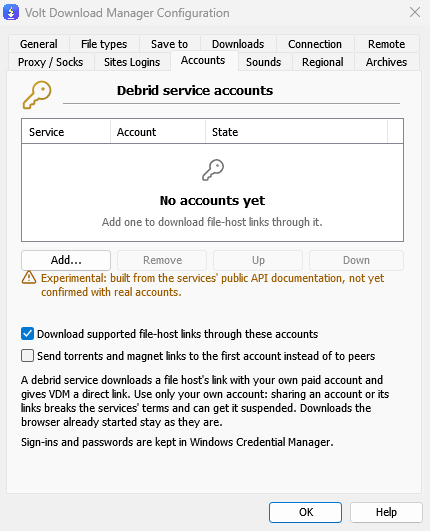
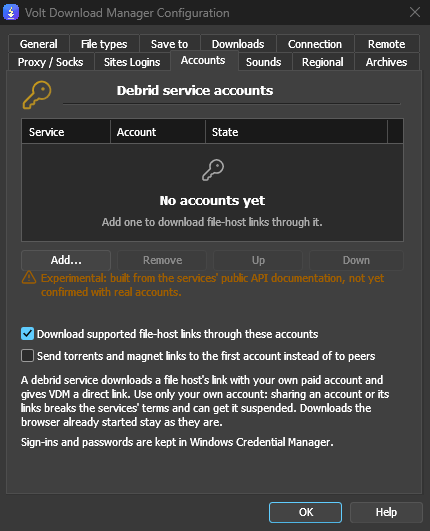
Ваші облікові записи сервісів розблокування завантажень (Real-Debrid, AllDebrid, Premiumize, TorBox, Mega-Debrid; експериментально): Додати... вхід за допомогою коду в браузері, з вашим іменем користувача та паролем, або за допомогою токена чи ключа API; посилання з хоста, який підтримує сервіс, завантажується через нього. Порядок у списку — це порядок запитів до облікових записів. Дивіться Облікові записи сервісів розблокування завантажень.
Звуки
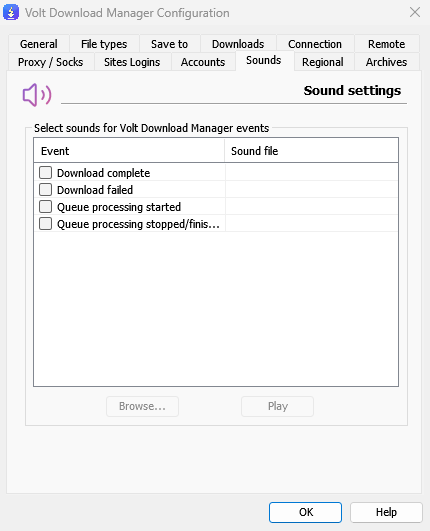
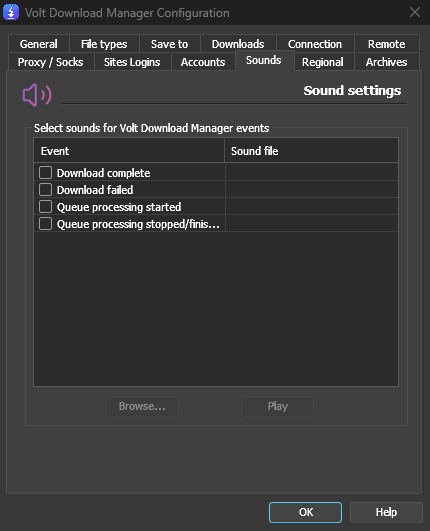
Відтворити звук для Завантаження завершено, Помилка завантаження, Обробка черги розпочато та Обробка черги зупинено/завершено. Позначте подію, виберіть її, натисніть Огляд..., щоб вибрати файл .wav, і Відтворити, щоб прослухати його.
Регіональні
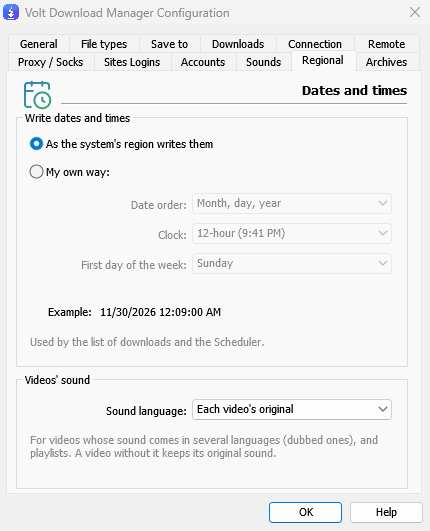
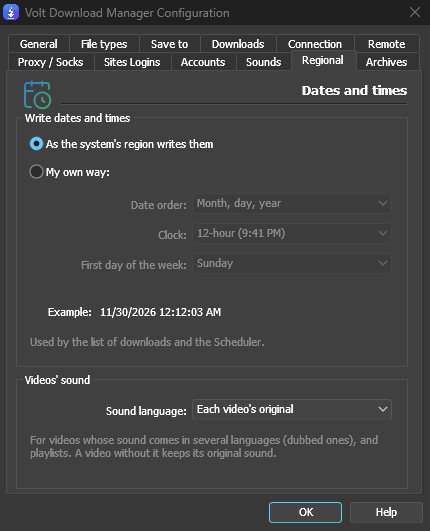
Формат дат і часу у списку завантажень і Планувальнику.
- Як їх записує регіон системи (за замовчуванням) — регіональні налаштування Windows (Налаштування → Час і мова → Регіон); у macOS і Linux — звичний для вашої мови формат. Для англійської мови у списку використовується власний формат дат IDM.
- Власний формат — виберіть порядок дати (день, місяць, рік; місяць, день, рік; або рік, місяць, день), 12- або 24-годинний формат часу і перший день тижня у календарі Планувальника. У полі Приклад показано результат.
Videos' sound — the language a video's sound comes in when the site has it in several (dubbed videos): Each video's original (the default), or a language, which every video looked up and every playlist downloads with when it has it. A video without it comes with its original sound, and Download video can choose another for one video (The sound's language).
Архіви
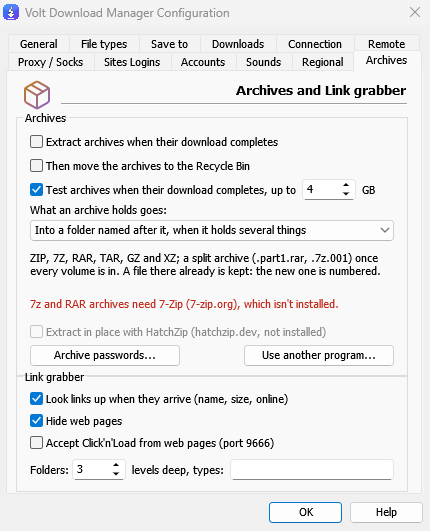
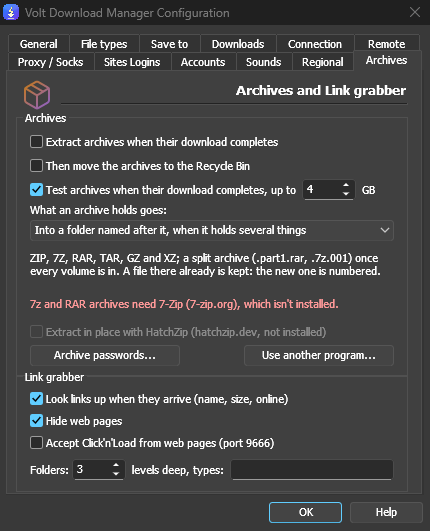
Архіви (zip, 7z, rar, tar, gz, xz) і Захоплення посилань.
- Видобувати архіви після завершення завантаження (за замовчуванням вимкнено) — розпаковувати кожен архів одразу після завантаження (або після завантаження останнього тому розділеного архіву). Пакет у розділі «Захоплення посилань» має власний параметр Видобути після завершення.
- Потім перемістити архіви до Кошика (за замовчуванням вимкнено; у macOS і Linux — до кошика) — переміщувати архіви лише після успішного розпакування. Цей параметр також увімкнено за замовчуванням для нових пакетів у параметрі Видаляти архіви після розпакування.
- Test archives when their download completes, up to 4 GB (on by default) — a ZIP, 7z or RAR archive (a split one once its last volume is in) is read back and every file in it checked before its download counts as done, with the 7-Zip named below (a ZIP without 7-Zip by VDM itself). A larger one isn't tested by itself, as a test reads the whole file: right-click → Test archive tests it. A damaged ZIP's damaged files are downloaded again; any other damaged archive is offered for Redownload. See Testing archives.
- Куди розпаковувати вміст архіву — у папку з назвою архіву, якщо він містить кілька елементів (за замовчуванням); завжди в таку папку або безпосередньо в папку архіву.
- Whether 7-Zip was found: 7z and RAR archives need it, unless they are extracted in place with HatchZip. VDM also finds the 7-Zip inside PeaZip and NanaZip's command line.
- Use another program... — choose the 7-Zip command line program yourself (
7z.exeof a portable copy or of another archiver); Find 7-Zip automatically goes back to the one VDM finds. See Extracting archives. - Розпакувати на місці за допомогою HatchZip (вимкнено за замовчуванням; недоступно, якщо HatchZip не встановлено) — архів видаляється, поки його файли витягуються, тому місце потрібне лише для них. Дивіться Видобування архівів.
- Archive passwords... — the passwords tried on an encrypted archive before VDM asks, one per line; the one that fits moves to the top. A package's own password is never added by itself. See Archive passwords.
- Шукати посилання після їх надходження (ім’я, розмір, онлайн) — Захоплення посилань запитує кожен сервер про його файл (увімкнено за замовчуванням).
- Приховати вебсторінки — значення за замовчуванням для того ж поля в Захоплення посилань (увімкнено).
- Accept Click'n'Load from web pages (port 9666) (off by default) — a link site's Click'n'Load button sends its links to VDM's Link grabber. See Click'n'Load.
- Папки: 3 рівні вглиб, типи: — скільки рівнів підпапок захоплювач посилань читає, коли ви даєте йому FTP-папку або список папок вебсервера (від 0 до 10; 0 — це власні файли папки), і які типи файлів він зберігає з них (як на сторінці Типи файлів,
ISO ZIP R0*; порожнє поле зберігає всі типи). Див. Папки.
Віддалений
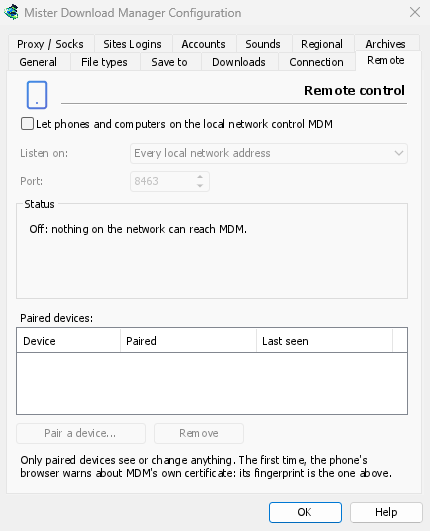
Control VDM from your phone or another computer on the local network: see Control VDM from your phone.
- Let phones and computers on the local network control VDM (off by default).
- Слухати на — кожна адреса локальної мережі (за замовчуванням), лише цей комп’ютер або одна адреса.
- Порт — 8463 за замовчуванням.
- Стан — що він робить, адреса для відкриття на телефоні та відбиток сертифіката.
- Підключені пристрої — Підключити пристрій... показує QR-код і код; Видалити негайно відключає вибраний пристрій.
Інше
Кілька налаштувань доступні поза цим вікном:
- Завантаження → Обмежувач швидкості → Налаштування... — обмеження швидкості. Див. З’єднання та швидкість.
- Tasks → Torrent settings... — sharing and file associations, and whether the browser hands
.torrentdownloads to VDM. See Torrents. - Вигляд → Підтримка темного режиму, Завжди темна тема, Тема, Малювати за допомогою, Розмір інтерфейсу, Шрифт (власний файл шрифту інтерфейсу та розмір тексту) та Мова. Див. Початок роботи та Вирішення проблем.
- Довідка → Перевірити наявність оновлень... — Перевіряти наявність оновлень під час кожного запуску знаходиться в цьому вікні.
Наступні кроки
Безкоштовно, з відкритим кодом, без реклами, без пробного періоду.
Download Volt Download Manager