

Otwórz Pobrane pliki → Opcje lub kliknij Opcje na pasku narzędzi. Okno ma dwanaście stron w dwóch rzędach zakładek. OK zapisuje zmiany; zamknięcie okna lub naciśnięcie Esc je odrzuca.
Niektóre przyciski są wyszarzone. Należą do funkcji, które nie zostały jeszcze zaimplementowane.
Ogólne
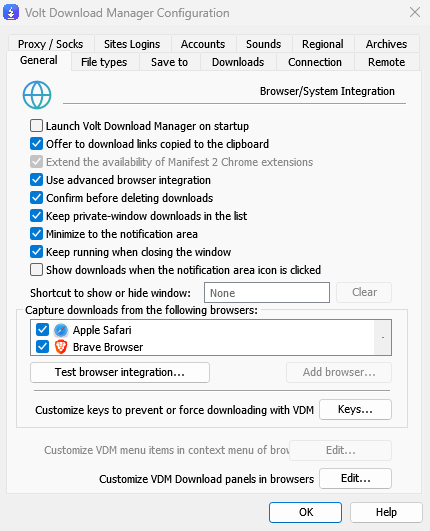
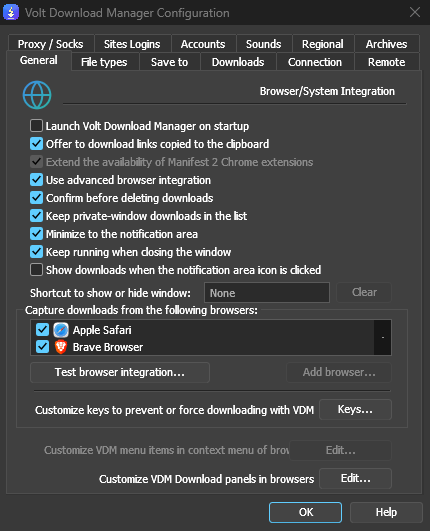
- Launch Volt Download Manager on startup — start VDM when you sign in to Windows. It starts in the notification area, its window hidden, with its downloads, queues and Scheduler running; click its icon (or start VDM again) to show the window. On Linux and macOS it starts with your session the same way; where no notification area shows VDM's icon (some Linux desktops), it starts minimized, and the option's tooltip says so. VDM waits for the notification area up to 30 seconds after making its icon, its window hidden, as a desktop's can come up after VDM at sign-in. Off by default. Greyed in a portable copy, which writes nothing to the registry.
- Oferuj pobieranie linków skopiowanych do schowka — gdy skopiujesz link do pliku, którego typ znajduje się na stronie Typy plików, otworzy się okno Informacje o pliku do pobrania, gotowe do rozpoczęcia (lub pobieranie rozpocznie się od razu, jeśli Pokaż okno dialogowe rozpoczęcia pobierania jest wyłączone). Dotyczy to archiwów, programów, muzyki, filmów, plików PDF i wszelkich typów dodanych przez Ciebie, więc skopiowanie adresu obrazu, czcionki lub modelu 3D do użycia gdzie indziej nigdy nie rozpocznie pobierania. Domyślnie włączone.
- Use advanced browser integration — let the browser extension hand downloads to VDM. Turn it off to keep every download in the browser.
- Potwierdź przed usunięciem pobranych plików — pytaj przed usunięciem pobranych plików z listy. Domyślnie włączone; Nie pokazuj tego okna dialogowego ponownie w tym pytaniu wyłącza tę opcję, a zaznaczenie jej tutaj włącza ją ponownie. Po wyłączeniu Usuń tylko usuwa pobrane pliki z listy i zachowuje ich pliki; Shift+Delete nadal pyta, ponieważ usuwanie plików z dysku zawsze tak działa.
- Keep private-window downloads in the list — save downloads that come from a browser's private (incognito) window in VDM's list like any other, so an unfinished one is still there to resume after VDM closes or restarts. On by default. Unticked, they are kept in memory only, as the browser keeps them, and are gone when VDM closes. In the list, a private window's download has a small mask before its status; its tip says whether the list keeps it. The first time one comes, VDM says that they are kept and where to turn that off. Their cookies are never saved either way, and after a restart they still stay apart from normal windows' downloads (a private download that waits for a new address isn't given one by a normal window's, and a private window's video never uses Cookies for video sites from Sites Logins: if a site wants you signed in, open the page in a private window, sign in there, and use its Download video button again). Turning it off later doesn't remove the ones already saved by an earlier session.
- Keep running when closing the window — closing the main window hides it in the notification area instead of quitting, and downloads, queues and schedules go on. On by default; unticked, closing quits VDM (so a portable copy's folder can then be deleted). If there is no icon for VDM at all — not even behind the ^ hidden icons — the window minimizes to the taskbar instead, so downloads continue and the window stays reachable; an icon behind ^ can be clicked to bring it back, or start VDM again. On macOS the window closes into the Dock, and a click on VDM's icon there (or in the menu bar) brings it back; Cmd+Q quits. Greyed where no tray shows VDM's icon (some Linux desktops): closing quits there.
- Show downloads when the notification area icon is clicked — a click on VDM's icon there shows a small panel over it with what is downloading, each download's progress, Pause and Cancel, and a button that opens the window; a double click opens the window (Windows). On in a new copy of VDM; one set up before it keeps its click, which shows or hides the window, until it is ticked. Greyed where no tray shows VDM's icon. See The tray icon.
- Minimize to the notification area — Minimize hides the main window, and a download's progress window, in the notification area; downloads go on. On by default. Where the tray has no icon, the main window minimizes to the taskbar instead. The close setting above is separate; when it is on, closing hides there too (or minimizes to the taskbar if there is no icon at all). Greyed where no tray shows VDM's icon (some Linux desktops); in a Wayland session the main window stays minimized in the dock, since Wayland can't hide a window.
- Przechwytuj pobierane pliki z następujących przeglądarek — odznacz przeglądarkę, aby jej pobierane pliki nie były przechwytywane.
- Customize VDM Download panels in browsers → Edit... — the download button over videos on web pages: turn it off, choose its Button size (80%, 100% or 120%, and Automatic, as installed: only the logo, the arrow and ✕ in a feed and over a small player, its words over a big one; Full, its words wherever they fit; or Compact, only the logo, the arrow and ✕ on every video), or list the sites it never shows on (separate them by spaces; wildcards like
*.youtube.*,youtube.*or*.example.comwork). See Browser integration.
Zobacz Integracja z przeglądarką.
Typy plików
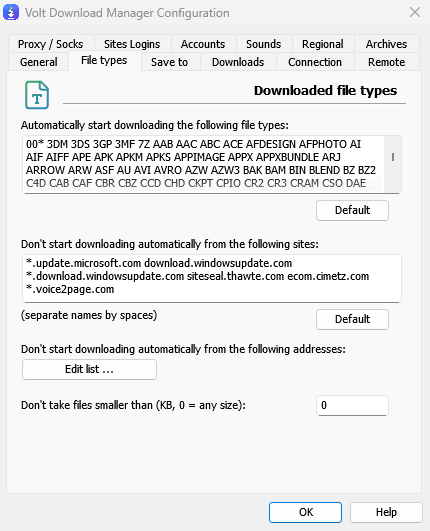
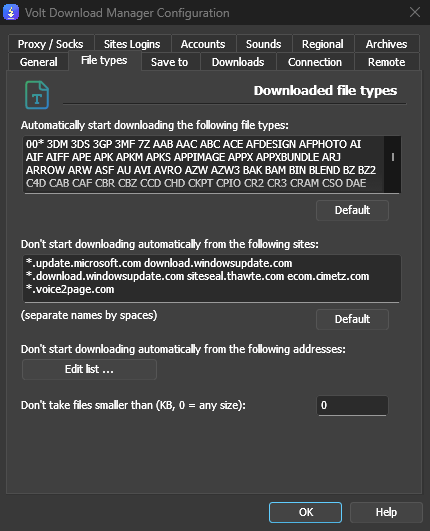
- Automatycznie rozpoczynaj pobieranie następujących typów plików — typy plików, które przeglądarka przekazuje (i które schowek przechwytuje). Oddziel je spacjami;
*pasuje do dowolnych znaków, jak wR0*. Przywróć domyślne przywraca oryginalną listę. Lista zaczyna się od typowych archiwów, programów i instalatorów (Windows, macOS i Linux: DMG, PKG, DEB, RPM, APPIMAGE, MSIX), muzyki i filmów, plików PDF i Office, modeli i zestawów danych AI (GGUF, SAFETENSORS, CKPT, PT, ONNX, PARQUET), plików 3D i CAD (GLB, FBX, OBJ, STL, BLEND, STEP), plików projektowych i RAW z aparatów, e-booków, obrazów dysków i podzielonych archiwów. Strony, skrypty, zwykły tekst i obrazy internetowe są celowo pominięte, więc zapisywanie obrazu lub strony pozostaje w przeglądarce; dodaj dowolny potrzebny typ lub umieść pojedynczy*w polu, aby pobrać każdy plik z rozszerzeniem. Lista, której nigdy nie zmieniałeś, zyskuje typy dodane przez nową wersję; edytowana lista pozostaje bez zmian. - Nie rozpoczynaj automatycznego pobierania z następujących witryn — witryny, których pobieranie pozostaje w przeglądarce, oddzielone spacjami. Nazwa obejmuje również subdomeny witryny (
example.comobejmujewww.example.comidl.example.com, podobnie jak*.example.com),*pasuje do wszystkiego, tak jak na liście paneli pobierania (*.example.*), oraz do plików, do których linkują jej strony na innym serwerze (serwer pobierania lub CDN), określonych przez stronę, z której pochodzi pobieranie. Pobieranie bez znanej strony jest dopasowywane przez własny adres. Przywróć domyślne przywraca oryginalną listę.
Zapisz w
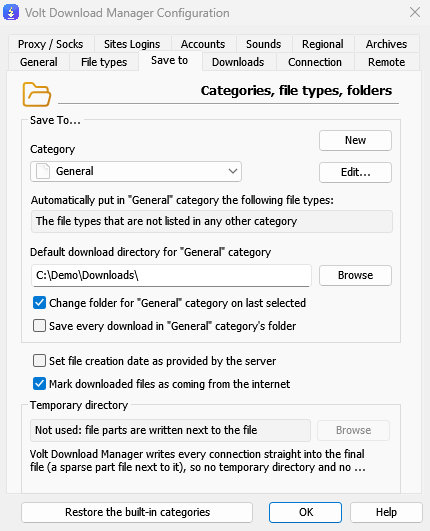
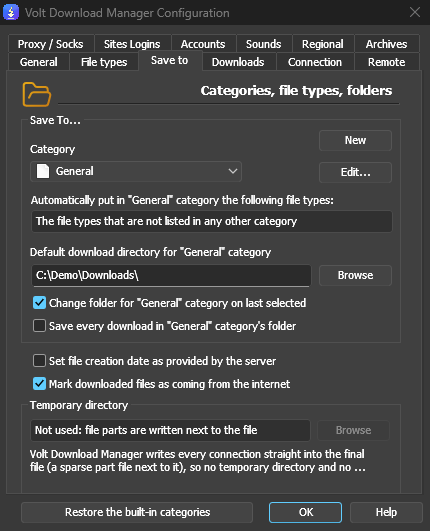
- Kategoria — wybierz kategorię, aby zobaczyć i zmienić jej ustawienia poniżej.
- Nowa — utwórz własną kategorię. Edytuj... zmienia wybraną: jej nazwę, typy plików i folder. Wbudowane kategorie (Skompresowane, Dokumenty, Muzyka, Programy, Wideo) można zmieniać, przypisywać im inne typy plików i usuwać jak własne; zmieniona nazwa zachowuje swój folder. Ogólne i Torrenty zmieniają tylko swój folder.
- Przywróć wbudowane kategorie — przywraca wbudowane kategorie do stanu początkowego, po ich zmianie nazwy, typu lub usunięciu.
- Automatycznie umieszczaj w kategorii „…” następujące typy plików — typy plików, które trafiają do tej kategorii. Wbudowana kategoria, której listy nigdy nie zmieniono, otrzymuje typy dodane w nowej wersji; edytowana pozostaje bez zmian.
- Domyślny katalog pobierania dla kategorii „…” — folder kategorii. Wpisz ścieżkę lub kliknij Przeglądaj.
- Zmień folder dla kategorii „…” na ostatnio wybranym — gdy wybierzesz inny folder w Informacje o pliku do pobrania, staje się on folderem kategorii od tego momentu. Domyślnie włączone. (Ustawia początkowy stan Zapamiętaj tę ścieżkę w tym oknie.)
- Zapisuj każde pobieranie w folderze kategorii „Ogólne” — domyślnie wyłączone. Po zaznaczeniu każde nowe pobieranie trafia do folderu Ogólne, niezależnie od kategorii: z przeglądarki, Dodaj URL, Pobieranie wsadowe, Link grabber, kolejek, wiersza poleceń, filmów i torrentów. Kategorie nadal sortują listę. Folder Ogólne jest tym, który należy ustawić (wybierz Ogólne powyżej); pozostałe kategorie zachowują swoje własne foldery, gdy opcja zostanie ponownie wyłączona, w międzyczasie wyświetlane na szaro. Pojedyncze pobieranie nadal może trafić gdzie indziej: zmień jego folder w oknie, które je uruchamia (Zapamiętaj tę ścieżkę zmienia wtedy folder Ogólne). Pobierania już na liście pozostają tam, gdzie są.
- Ustaw datę utworzenia pliku zgodnie z datą dostarczoną przez serwer — nadaj ukończonym plikom datę zgłoszoną przez serwer, a nie datę ich pobrania.
- Mark downloaded files as coming from the internet — on by default. Every file VDM downloads (from the browser, a link you add, a video, a gallery, a torrent, and the files extracted from an archive) carries the mark a browser's downloads carry. On Windows that is the Mark of the Web: SmartScreen checks a program before it first runs, and Office opens a document in Protected View. On a Mac it is the quarantine attribute Gatekeeper checks; on Linux, where the file came from, which file managers show. Unticked, no download is marked. On Windows, VDM also follows the Group Policy Do not preserve zone information in file attachments, as browsers do: when it is on (for the computer or for you), no download is marked, whatever this box says.
VDM doesn't use a temporary folder: every connection writes straight into the final file's place, so there is nothing to put together at the end.
Pobrane pliki
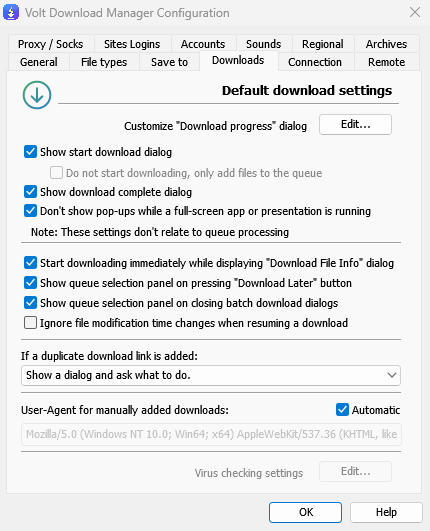
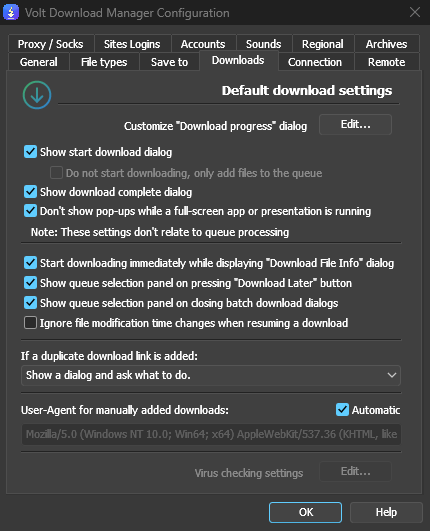
- Dostosuj okno dialogowe „Postęp pobierania” → Edytuj... — Pokaż okno postępu pobierania po rozpoczęciu pobierania: Pokaż normalnie (domyślnie włączone); Pokaż zminimalizowane (okno postępu pobierania uruchamia się zminimalizowane na pasku zadań, nie zabierając fokusu z używanego programu); lub Nie pokazuj (pobieranie nie otwiera już okna postępu po rozpoczęciu – z przeglądarki, dodanego linku, filmu czy kolejki – i kontynuuje się na liście w głównym oknie, gdzie dwukrotne kliknięcie otwiera jego okno postępu). Pobieranie zakończone nadal wyświetla się po zakończeniu, zgodnie z ustawieniem Pokaż okno dialogowe ukończenia pobierania poniżej.
- Pokaż okno dialogowe rozpoczęcia pobierania — pokazuje Informacje o pliku do pobrania dla każdego nowego pobierania. Gdy jest wyłączone, pobieranie rozpoczyna się od razu lub tylko dołącza do kolejki, jeśli zaznaczysz Nie rozpoczynaj pobierania, tylko dodaj pliki do kolejki.
- Pokaż okno dialogowe ukończenia pobierania — pokazuje Pobieranie zakończone, gdy plik zostanie ukończony.
- Don't show pop-ups while a full-screen app or presentation is running — on by default. While a full-screen game, app or video, a presentation or the locked screen is on, Download complete and the other windows VDM opens by itself wait, and show when you're back, one after the other in the order they came: Downloads complete, a new version found by the weekly check, the download limit's warning, an archive's test result, its password question or its call for 7-Zip, the browser extension's offer, a link copied to the clipboard, and the crash report. The downloads carry on as usual, and the tray icon's tip says how many windows wait. The windows you open yourself, links you click in the browser and the Turn off computer countdown (so you can still cancel it) show at once. On Windows VDM goes by the state Windows holds its own notifications by (games, presentation mode, full-screen apps and videos), by a frameless window that fills its whole screen in front (on any of your screens), and by the screen's lock; on Linux by the session's lock, and by a full-screen window under X11 or XWayland (on Wayland, a native program's full screen can't be seen). On macOS a full-screen app has a Space of its own, which VDM's windows never open over. Untick it and the windows show at once, as before.
- Rozpocznij pobieranie natychmiast podczas wyświetlania okna dialogowego „Informacje o pliku do pobrania” — domyślnie włączone, więc pobieranie jest już w toku, gdy wybierasz folder.
- Pokaż panel wyboru kolejki po naciśnięciu przycisku „Pobierz później” — pyta, do której kolejki dodać pobieranie; po wyłączeniu umieszcza je w Główna kolejka pobierania.
- Pokaż panel wyboru kolejki po zamknięciu okien dialogowych pobierania wsadowego — to samo dotyczy pobierania wsadowego.
- Ignoruj zmiany czasu modyfikacji pliku podczas wznawiania pobierania — dla serwerów, które za każdym razem zgłaszają nową datę dla tego samego pliku. Bez tego taki serwer powoduje, że każde wznowienie rozpoczyna się od nowa.
- Jeśli zostanie dodany zduplikowany link do pobrania — zapytaj, dodaj go z numerowaną nazwą, nadpisz stary lub otwórz ukończony / wznów niedokończony.
- User-Agent for manually added downloads — how VDM names itself to servers for downloads you add yourself. With Automatic ticked (the default), VDM introduces itself as your default browser: the User-Agent that browser sends, at the version you have installed (Chrome, Edge, Brave, Opera, Vivaldi, Firefox or Safari). The box shows it, and pointing at it names the browser. When VDM doesn't recognise your default browser, it sends a current Chrome's. Untick Automatic to type your own; tick it again to go back. Downloads from the browser use that browser's own User-Agent, the one your sign-in and the site's checks know; the one typed here doesn't replace it. If a site turns a browser's User-Agent away, VDM asks once more with the one typed here (with Automatic, with Internet Explorer's). If a site's bot check refuses it, and the way a browser connects too, VDM asks once more under its own name,
VoltDownloadManager/and its version (or the one typed here), and remembers that site until VDM closes. A User-Agent typed here for the downloads you add yourself is the only one they send.
Połączenie
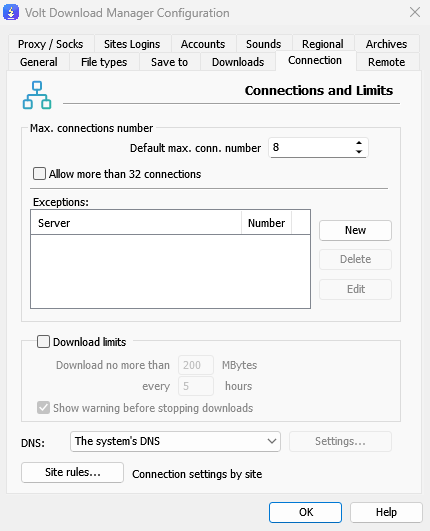
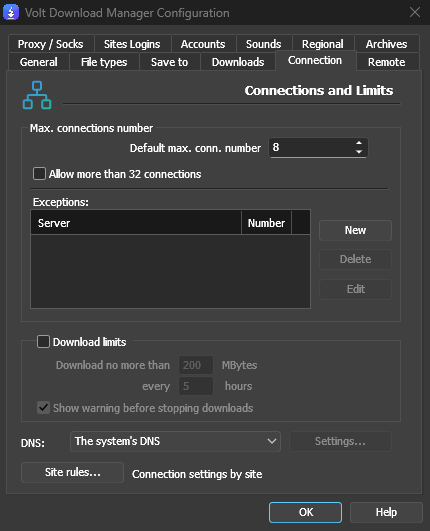
- Domyślna maks. liczba połączeń — ile połączeń może używać każde pobieranie, od 1 do 32 (domyślnie 8). Wpisz liczbę lub użyj strzałek.
- Allow more than 32 connections — raises the most to 128, for the number above and for the exceptions. Most servers allow far fewer from one address; VDM notices and asks those for fewer. Turned off again, any higher number comes back to 32.
- Exceptions — a different number for some servers. New adds one (the server's name and the number of connections); Edit and Delete change or remove the selected one. Rows marked (auto) are limits VDM learned by itself from servers that refused more connections. They can't be edited and fade away by themselves.
- Reguły witryn... — User-Agent, nagłówki żądań, liczba połączeń, Zawsze łącz się jak przeglądarka i serwer proxy (brak lub własny z danymi logowania), według witryny. Zobacz Reguły witryn.
- Limity pobierania — pobieraj nie więcej niż ustawioną ilość co kilka godzin. To samo ustawienie znajduje się w Harmonogramie; zobacz Kolejki i Harmonogram.
- DNS — which DNS turns the servers' names into addresses for VDM's downloads, its own downloads (helpers, updates) and FTP. The system's DNS is the default (on Windows 11 it can already be encrypted, in Windows' own network settings). Or pick Cloudflare, Google, Quad9, AdGuard or NextDNS, or Another DNS... to type your own; Settings... chooses how it's asked:
- DNS przez HTTPS (domyślnie) lub DNS przez TLS: zaszyfrowane, więc nikt po drodze nie widzi ani nie zmienia wyszukiwanych nazw.
- Plain DNS: not encrypted. VDM asks it over TCP, never UDP, so it never needs a firewall exception.
- Dla własnego DNS: adresy IP serwerów, nazwa wyświetlana w ich certyfikacie (TLS) lub adres
https://(HTTPS, z jego adresami IP, jeśli je znasz). NextDNS wymaga Twojego identyfikatora konfiguracji. - Jeśli jest niedostępny, użyj systemowego DNS: domyślnie wyłączone, więc DNS, który nie odpowiada, zatrzymuje pobieranie z komunikatem o jego nazwie, zamiast po cichu pokazywać Twoje wyszukiwania systemowemu DNS. Nazwa, o której DNS mówi, że nie istnieje, nigdy nie wraca do poprzedniego stanu (to cofnęłoby działanie filtrującego DNS).
- Testuj wysyła zapytanie o github.com i pokazuje, ile czasu to zajęło.
Nazwy w pliku hosts i nazwy lokalne (pojedyncze słowa, .local, .lan, .home.arpa, .internal, localhost) pozostają z systemowym DNS. Strony wideo (yt-dlp) i galerie obrazów (gallery-dl) używają wybranego DNS tylko wtedy, gdy wybrano kartę sieciową; w przeciwnym razie, podobnie jak trackery torrentów, używają systemowego. Z serwerem proxy, proxy wyszukuje nazwy stron, do których dociera za Ciebie.
Więcej w Połączenia i prędkość.
Serwer proxy / Socks
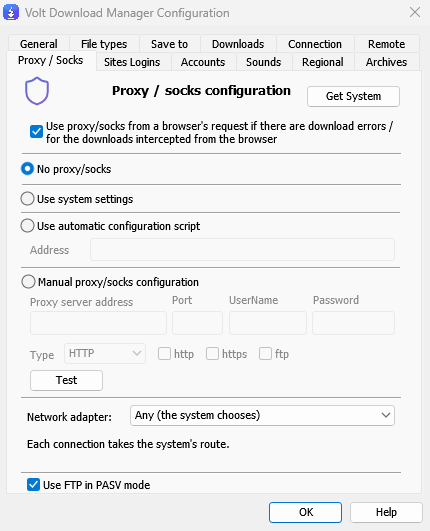
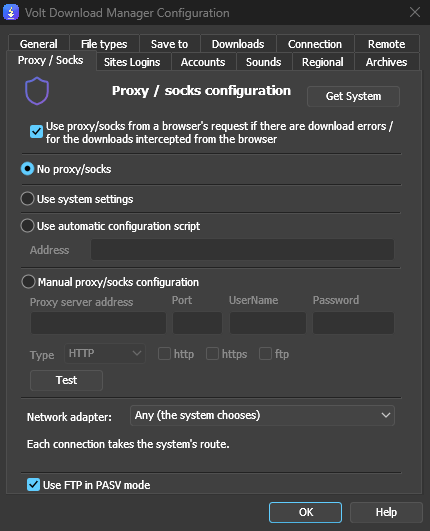
- No proxy/socks — connect directly. This is the default. Chosen here (clicked, or with Use proxy/socks from a browser's request… unticked while it's on), video pages and image galleries connect directly too: yt-dlp and gallery-dl are kept off Windows' proxy and the
HTTPS_PROXY/HTTP_PROXY/ALL_PROXYvariables. Left at the default, they still follow those, as they always did. - Użyj ustawień systemowych — użyj systemowego serwera proxy: ustawień Windows lub macOS, albo w systemie Linux zmiennych
https_proxy,http_proxyiall_proxyTwojej sesji. - Use automatic configuration script — the proxy auto-config (PAC) script your network gives: type its address (
http://…/proxy.pac, or a file). VDM fetches it and asks it which proxy each download goes through (PROXY,HTTPS,SOCKS,SOCKS5,SOCKS4orDIRECT), as browsers do. Through aSOCKSorSOCKS5answer, the proxy looks the site's name up, as in browsers. Until the script has been fetched, or if it can't be, VDM uses the system's settings. - Ręczna konfiguracja proxy/SOCKS — Twoje własne proxy:
- Adres serwera proxy i Port: jego nazwa lub adres IP (
127.0.0.1) i port (1080). - Typ: protokół, którym posługuje się proxy. HTTP (zwykłe proxy webowe), HTTPS (proxy webowe dostępne przez zaszyfrowane połączenie), SOCKS5 lub SOCKS4.
- Nazwa użytkownika i Hasło, jeśli są wymagane (HTTP, HTTPS i SOCKS5; SOCKS4 nie ma logowania, więc są wyszarzone).
- Dla proxy HTTP lub HTTPS zaznacz protokoły, dla których jest przeznaczone (http, https). Pobieranie FTP nigdy nie przechodzi przez proxy HTTP: jego pole ftp pozostaje wyszarzone i informuje o tym.
- A SOCKS proxy carries every connection: web downloads, FTP, video pages and galleries (yt-dlp and gallery-dl), VDM's own downloads and the update check, and torrents if you ask (below). It has no protocol boxes; instead, Look up site names through the proxy (on by default) has the proxy turn the sites' names into addresses, so your own DNS never sees which sites you visit (
socks5h,socks4a). Untick it only for a proxy that can't look names up; VDM then looks them up with the DNS chosen under Connection and hands the proxy the address. - FTP przez proxy SOCKS zawsze używa trybu pasywnego (proxy nie może przekazywać połączeń serwera z powrotem), więc Użyj FTP w trybie PASV jest zaznaczone i wyszarzone. Adresy
ftps://(TLS od pierwszego bajtu) nie mogą jeszcze przechodzić przez proxy SOCKS;ftpes://(TLS po połączeniu) mogą. - Torrenty używają proxy SOCKS5 tylko wtedy, gdy Użyj proxy jest włączone w Ustawieniach torrenta (zobacz Torrenty i Twoje bezpieczeństwo). Proxy SOCKS4 lub HTTP ich nie obsługuje.
- Adres zapisany w starszy sposób,
socks5://host(lubsocks5h://,socks4://,http://), nadal działa: Opcje pokazują go jako Typ z samym hostem. - Pobierz system — wypełnij pola ręczne z ustawień proxy systemu Windows (w systemie Windows): jego proxy HTTP, jeśli je ma, w przeciwnym razie jego proxy SOCKS (jako SOCKS5: Windows nie podaje wersji; wybierz SOCKS4, jeśli Twoje obsługuje tylko to).
- Testuj — jedno żądanie przez to, co strona mówi teraz (jej proxy, z DNS i kartą sieciową, które mają Opcje), do
one.one.one.oneCloudflare, które odpowiada adresem, który widziało. Linia obok przycisku informuje, ile czasu to zajęło i adres, który widzi internet (proxy, gdy obsługuje Twoje połączenia), lub dlaczego się nie powiodło: proxy jest nieosiągalne, odmówiło logowania lub nie mogło dotrzeć do witryny. Nic innego nie jest wysyłane.
Which do I pick?
- A VPN app usually needs nothing here: it carries all the computer's traffic. To make sure VDM never goes around it, choose its Network adapter below. Some VPN apps also offer a SOCKS5 proxy of their own (in their settings, with its own login): SOCKS5, its address, port and login.
- Tor (Tor Browser or the Tor service): SOCKS5, 127.0.0.1, port 9150 (Tor Browser) or 9050 (the service), Look up site names through the proxy ticked. Tor carries no torrents well; leave Use the proxy off in Torrent settings.
- An SSH tunnel, ssh -D 1080 you@server: SOCKS5, 127.0.0.1, port 1080.
- Clash, v2rayN and similar proxy programs: their mixed port takes both, usually 127.0.0.1:7890 (HTTP or SOCKS5); v2rayN also has a SOCKS port, often 10808. Or turn on their system proxy and choose Use system settings.
- A proxy your workplace or school gives: usually an HTTP one, or a script (Use automatic configuration script). Ask which.
- Use proxy/socks from a browser's request… — on by default. A download VDM takes from the browser goes through the proxy the browser used for it. That's the one a VPN or proxy extension set, the browser's own manual proxy, or its proxy auto-config script. Without it, the download would leave from your own address, and content limited to the VPN's country, or to its address, would fail. The browser extension reads that proxy and hands it to VDM with each download, once you switch on Send downloads through this browser's proxy or VPN extension in the extension's toolbar popup (Firefox asks you once; Chrome, Edge, Brave, Opera and Vivaldi ask nothing more: see A VPN or proxy extension).
- A proxy that asks for a login the VPN extension gives itself can't be shared: no other program has that login. The download then stops and says so, rather than going without the proxy. Use the VPN's own app, or choose its adapter under Network adapter.
- In Firefox, VDM sees the proxy the browser's own request for the file took, including the ones a VPN extension picks for each request. In Chrome and the other Chromium browsers, it sees the browser's proxy settings: the server for the download's scheme (honouring their bypass list) or their proxy auto-config script.
- When the browser used no proxy, and No proxy/socks is chosen, VDM uses Windows' proxy settings, as browsers do.
- Network adapter — Any (the system chooses) is the default. Pick an adapter, usually your VPN's, and every connection VDM opens goes out through it, or not at all. That covers downloads, FTP, torrents, video pages and image galleries, the DNS you chose, VDM's own downloads and the update check. It works as a kill switch: when the adapter disconnects, or the VPN is switched off, nothing goes out through your normal connection. Running downloads stop with "… is not connected" and start again when the adapter is back. The line under the list shows the adapter's address, or that it isn't connected.
- How it holds: Windows binds the adapter's own address. Windows then sends those packets only through that adapter (its strong host model). Linux binds the device itself (Linux 5.7 or newer), and macOS binds the interface. An address of a kind the adapter doesn't have (IPv6 on an IPv4-only VPN) is refused, not sent around it.
- The system's DNS asks the names in its own way, and Windows may ask over every adapter. To keep the names inside the adapter too, choose a DNS under Connection → DNS: VDM then asks it through the adapter.
- Video pages and image galleries: yt-dlp, gallery-dl and the ffmpeg yt-dlp starts can't be held to an adapter themselves, so while one is chosen VDM gives them a proxy of its own on this computer (127.0.0.1, with a password only they get). VDM opens their connections through the adapter, as it opens its own, and looks the names up with the DNS you chose. When the adapter disconnects, their connections close and the downloads stop with the others. Video formats that can't go through a proxy (RTMP, RTSP, MMS, FTP) are refused rather than sent around it.
- Not held to the adapter yet, so they don't start while one is chosen: ftps:// (implicit TLS; ftp:// with TLS is fine).
- Connections to this computer itself (localhost) aren't bound. A proxy on this computer carries the downloads, and where it sends them is up to it.
- On macOS a VPN that reconnects may get a new interface (utun5 instead of utun4): pick it again.
- Use FTP in PASV mode — on by default: for FTP downloads VDM opens the data connections itself (passive mode), which works through routers and firewalls. Turn it off only for a server that needs active mode (the server connects back to you). FTP goes through a SOCKS proxy above (always passive then), never through an HTTP one. See FTP and FTPS.
Loginy do witryn


User names and passwords for sites that ask for them. New adds a row: the site (with a path if the login is only for part of it), the user name and the password. Edit and Remove change or delete the selected row. VDM uses the login for every download from that site. A login typed in Add URL (Use authorization) takes priority for that one download. For huggingface.co, the password is your Hugging Face access token, for gated models and datasets: VDM sends it as a token, to Hugging Face only (the user name can be anything; see Models, datasets and releases).
The passwords (these, the proxy's and the debrid accounts') are kept in the system's keychain: Windows Credential Manager, the keyring on Linux (Secret Service: GNOME Keyring, KeePassXC and others) or the macOS keychain; VDM's settings keep only a reference. A locked keyring is never unlocked for VDM: without one, they stay in VDM's settings, sealed for your Windows account on Windows. Options → Accounts says where they are. A portable copy keeps them in its own folder.
Pliki cookie dla witryn wideo — dla filmów odtwarzanych tylko po zalogowaniu (np. „Zaloguj się, aby potwierdzić, że nie jesteś robotem” na YouTube):
- Wyłączone (domyślnie) — yt-dlp pobiera pliki cookie tylko z rozszerzenia przeglądarki, gdy używasz przycisku nad filmem.
- Z przeglądarki — yt-dlp odczytuje pliki cookie wybranej przeglądarki na tym komputerze (Firefox, Chrome, Edge, Brave, Opera, Vivaldi, Chromium, Whale; Safari na macOS) dla każdego wyszukiwanego lub pobieranego wideo, w tym dla wklejonych adresów. Gdy rozszerzenie przekazało własne pliki cookie strony, używane są one zamiast tego. Wideo z prywatnego okna przeglądarki nigdy ich nie odczytuje, w tym zachowane po ponownym uruchomieniu: ma tylko pliki cookie, które podało jego prywatne okno. Profil (opcjonalnie): nazwa lub folder profilu (... wybiera jeden); puste pole oznacza ostatnio używany. Chrome, Edge i Brave blokują swoje pliki cookie w systemie Windows: Firefox działa. Zobacz Witryny wymagające zalogowania.
Use my yt-dlp config file — off by default. Ticked, yt-dlp also reads its own config files (%APPDATA%\yt-dlp\config.txt on Windows, ~/.config/yt-dlp/config on Linux and macOS, and the others it looks for, such as yt-dlp.conf in your home folder) for the videos, playlists and look-ups the app starts, so your subtitle, thumbnail, metadata or SponsorBlock choices apply there too. Most of what VDM chooses still wins: the folder and file name, the quality, the proxy and network adapter set here. VDM also keeps yt-dlp's own downloader for HTTP, FTP and HLS (one the file names, aria2c, reports no progress), leaves out a download archive, forced overwrites and marking videos as watched (which would mark every video only looked up), keeps part files (with --no-part the engine's streams would be downloaded again into a doubled file), and keeps the usual fix-ups. Options there that skip or filter videos (--match-filters, --max-filesize, a strict -f) apply too, and can make a video say it can't be downloaded. A proxy with a user name set here gives way to a --proxy in the file.
Konta
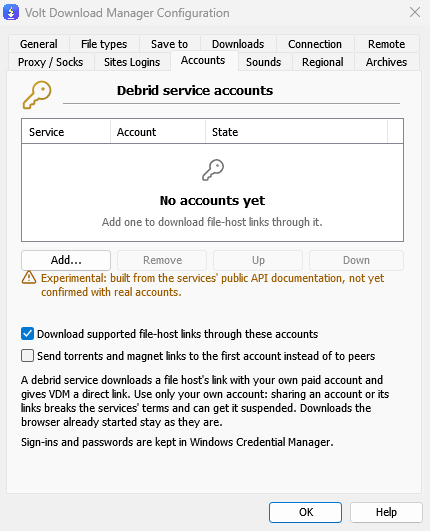
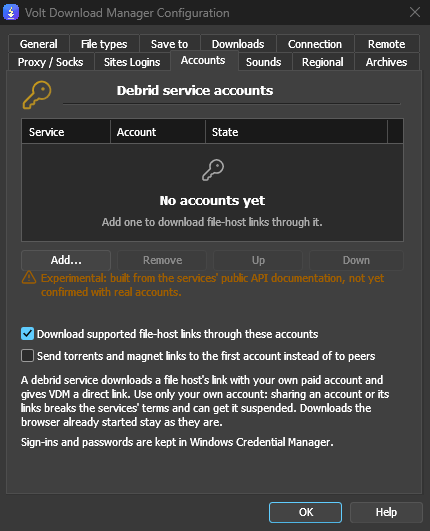
Twoje konta usług debrid (Real-Debrid, AllDebrid, Premiumize, TorBox, Mega-Debrid; eksperymentalne): Dodaj... loguje się za pomocą kodu w przeglądarce, nazwą użytkownika i hasłem lub tokenem/kluczem API; link z hosta obsługiwanego przez usługę jest następnie pobierany za jej pośrednictwem. Kolejność na liście to kolejność, w jakiej konta są pytane. Zobacz Konta usług debrid.
Dźwięki
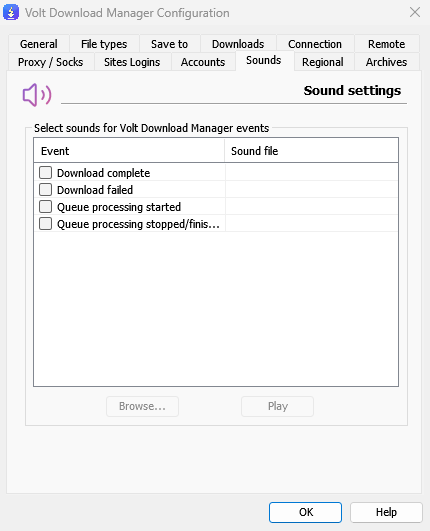
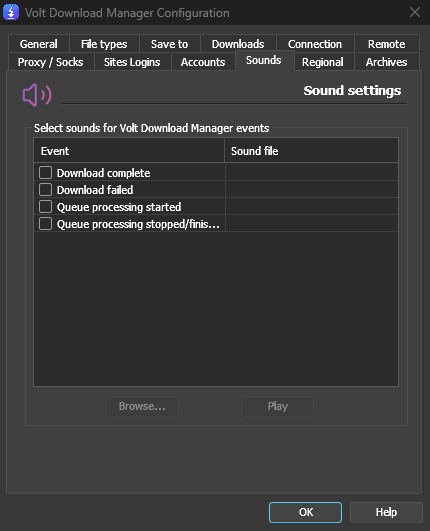
Odtwarzaj dźwięk przy zdarzeniach Pobieranie zakończone, Pobieranie nie powiodło się, Przetwarzanie kolejki rozpoczęte i Przetwarzanie kolejki zatrzymane/zakończone. Zaznacz zdarzenie, wybierz je, kliknij Przeglądaj..., aby wybrać plik .wav, a następnie kliknij Odtwórz, aby go odsłuchać.
Regionalne
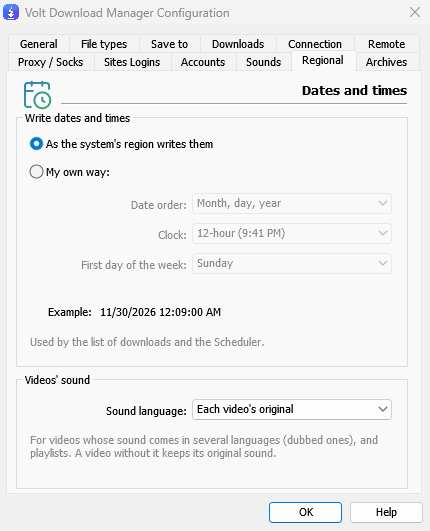
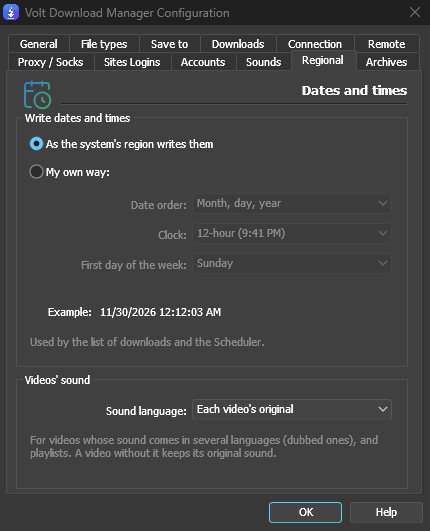
Sposób zapisywania dat i godzin na liście pobrań i w Harmonogramie.
- Zgodnie z ustawieniami regionalnymi systemu (domyślnie) — ustawienia regionalne systemu Windows (Ustawienia → Czas i język → Region); w macOS i Linux stosowany jest zwyczajowy format danego języka. W języku angielskim lista zachowuje format daty używany przez IDM.
- Własny format — wybierz kolejność zapisu daty (dzień, miesiąc, rok; miesiąc, dzień, rok lub rok, miesiąc, dzień), zegar 12- lub 24-godzinny oraz pierwszy dzień tygodnia w kalendarzu Harmonogramu. Przykład pokazuje wynik.
Videos' sound — the language a video's sound comes in when the site has it in several (dubbed videos): Each video's original (the default), or a language, which every video looked up and every playlist downloads with when it has it. A video without it comes with its original sound, and Download video can choose another for one video (The sound's language).
Archiwa
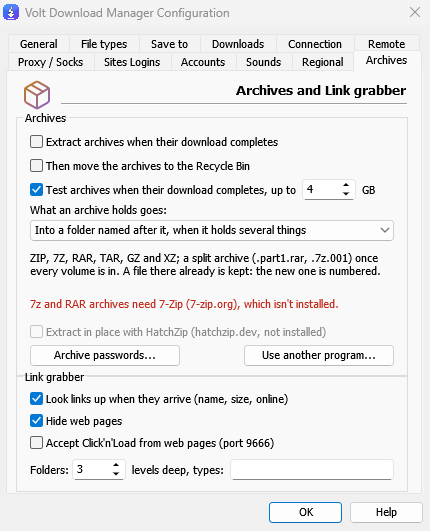
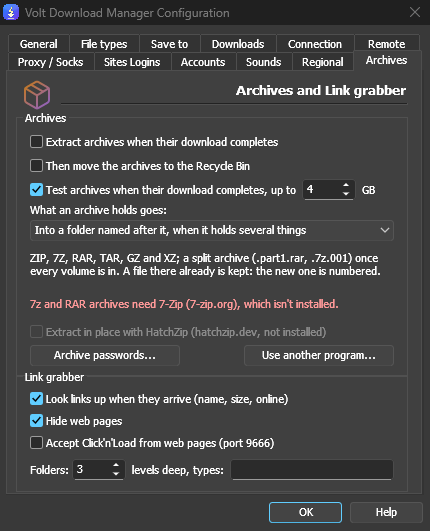
Archiwa (zip, 7z, rar, tar, gz, xz) i Link grabber.
- Wyodrębnij archiwa po zakończeniu pobierania (domyślnie wyłączone) — wyodrębnia każde pobrane archiwum, gdy tylko pobieranie zostanie zakończone (w przypadku archiwum podzielonego na części — po pobraniu ostatniej części). Pakiet w Link grabber ma własne ustawienie Wyodrębnij po zakończeniu.
- Następnie przenieś archiwa do Kosza (domyślnie wyłączone; w macOS i Linux do Kosza systemowego) — archiwa są przenoszone tylko po pomyślnym wyodrębnieniu. To także domyślne ustawienie opcji Usuń archiwa po wyodrębnieniu w nowym pakiecie.
- Test archives when their download completes, up to 4 GB (on by default) — a ZIP, 7z or RAR archive (a split one once its last volume is in) is read back and every file in it checked before its download counts as done, with the 7-Zip named below (a ZIP without 7-Zip by VDM itself). A larger one isn't tested by itself, as a test reads the whole file: right-click → Test archive tests it. A damaged ZIP's damaged files are downloaded again; any other damaged archive is offered for Redownload. See Testing archives.
- Zawartość archiwum trafia — domyślnie do folderu o nazwie archiwum, jeśli zawiera ono kilka elementów; zawsze do takiego folderu albo bezpośrednio do folderu archiwum.
- Whether 7-Zip was found: 7z and RAR archives need it, unless they are extracted in place with HatchZip. VDM also finds the 7-Zip inside PeaZip and NanaZip's command line.
- Use another program... — choose the 7-Zip command line program yourself (
7z.exeof a portable copy or of another archiver); Find 7-Zip automatically goes back to the one VDM finds. See Extracting archives. - Wyodrębnij na miejscu za pomocą HatchZip (domyślnie wyłączone; wyszarzone, gdy HatchZip nie jest zainstalowany) — archiwum jest usuwane, a jego pliki są rozpakowywane, więc tylko one potrzebują miejsca. Zobacz Wyodrębnianie archiwów.
- Archive passwords... — the passwords tried on an encrypted archive before VDM asks, one per line; the one that fits moves to the top. A package's own password is never added by itself. See Archive passwords.
- Sprawdzaj linki po ich otrzymaniu (nazwa, rozmiar, dostępność) — Link grabber sprawdza plik na każdym serwerze (domyślnie włączone).
- Ukryj strony internetowe — domyślne ustawienie Link grabbera dla tego samego pola (włączone).
- Accept Click'n'Load from web pages (port 9666) (off by default) — a link site's Click'n'Load button sends its links to VDM's Link grabber. See Click'n'Load.
- Foldery: 3 poziomy głębokości, typy: — ile poziomów podfolderów Link grabber odczytuje, gdy podasz mu folder FTP lub listę folderów serwera WWW (od 0 do 10; 0 to pliki własne folderu), oraz które typy plików z nich zachowuje (jak na stronie Typy plików,
ISO ZIP R0*; puste zachowuje każdy typ). Zobacz Foldery.
Zdalne
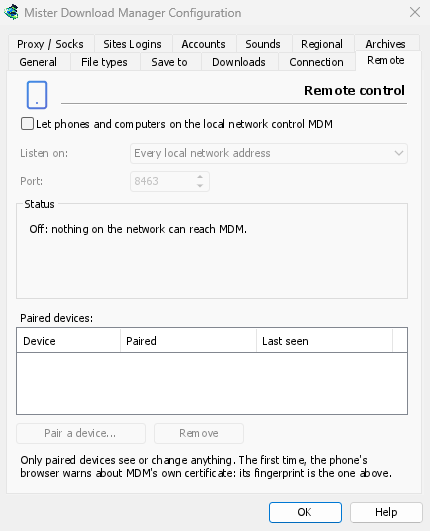
Control VDM from your phone or another computer on the local network: see Control VDM from your phone.
- Let phones and computers on the local network control VDM (off by default).
- Nasłuchuj na — każdy adres sieci lokalnej (domyślnie), tylko ten komputer lub jeden adres.
- Port — domyślnie 8463.
- Stan — co robi, adres do otwarcia na telefonie i odcisk palca certyfikatu.
- Sparowane urządzenia — Sparuj urządzenie... pokazuje kod QR i kod; Usuń natychmiast rozparowuje wybrane urządzenie.
Inne
Kilka ustawień znajduje się poza tym oknem:
- Pobrane pliki → Ogranicznik prędkości → Ustawienia... — limity prędkości. Zobacz Połączenia i prędkość.
- Tasks → Torrent settings... — sharing and file associations, and whether the browser hands
.torrentdownloads to VDM. See Torrents. - Widok → Obsługa trybu ciemnego, Zawsze ciemny, Motyw, Rysuj za pomocą, Rozmiar interfejsu, Chrzcielnica (plik czcionki interfejsu i rozmiar tekstu) oraz Język. Zobacz Pierwsze kroki i Rozwiązywanie problemów.
- Pomoc → Sprawdź aktualizacje... — Sprawdzaj aktualizacje przy każdym uruchomieniu znajduje się w tym oknie.
Następne kroki
Darmowy, open source, bez reklam, bez wersji próbnej.
Download Volt Download Manager