

Mở Tải xuống → Tùy chọn, hoặc nhấp vào Tùy chọn trên thanh công cụ. Cửa sổ có mười hai trang trên hai hàng tab. OK lưu các thay đổi của bạn; đóng cửa sổ hoặc nhấn Esc sẽ hủy bỏ chúng.
Một số nút bị làm mờ. Các nút này thuộc về những tính năng chưa được phát triển.
Chung
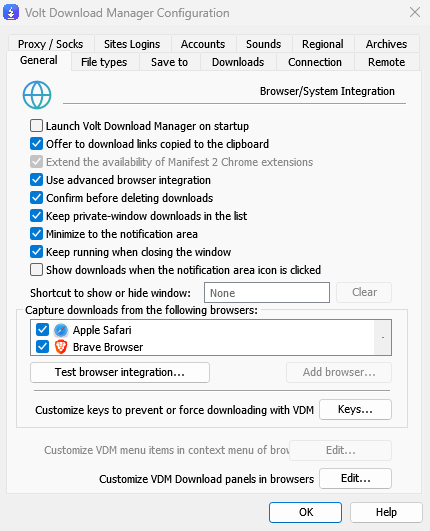
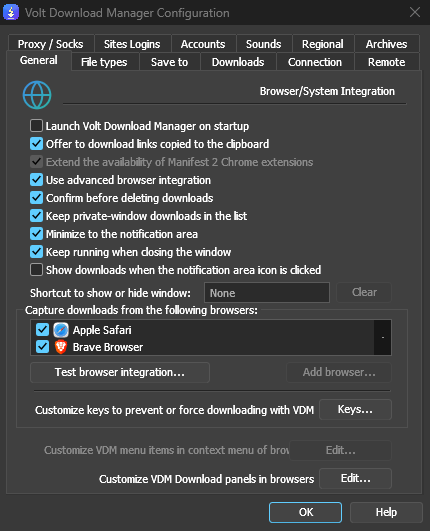
- Launch Volt Download Manager on startup — start VDM when you sign in to Windows. It starts in the notification area, its window hidden, with its downloads, queues and Scheduler running; click its icon (or start VDM again) to show the window. On Linux and macOS it starts with your session the same way; where no notification area shows VDM's icon (some Linux desktops), it starts minimized, and the option's tooltip says so. VDM waits for the notification area up to 30 seconds after making its icon, its window hidden, as a desktop's can come up after VDM at sign-in. Off by default. Greyed in a portable copy, which writes nothing to the registry.
- Đề xuất tải xuống các liên kết đã sao chép vào bảng tạm — khi bạn sao chép một liên kết có loại tệp nằm trong trang Loại tệp, Thông tin tệp tải xuống sẽ mở ra với liên kết đó, sẵn sàng bắt đầu (hoặc quá trình tải xuống bắt đầu ngay lập tức nếu Hiển thị hộp thoại bắt đầu tải xuống tắt). Tính năng này chỉ áp dụng cho các tệp lưu trữ, chương trình, nhạc, video, PDF và bất kỳ loại nào bạn tự thêm vào, vì vậy việc sao chép địa chỉ của một hình ảnh, phông chữ hoặc mô hình 3D để sử dụng ở nơi khác sẽ không bao giờ bắt đầu tải xuống. Mặc định là bật.
- Use advanced browser integration — let the browser extension hand downloads to VDM. Turn it off to keep every download in the browser.
- Xác nhận trước khi xóa bản tải xuống — hỏi trước khi xóa các mục tải xuống khỏi danh sách. Mặc định là bật; Không hiển thị hộp thoại này nữa trong câu hỏi đó sẽ tắt nó, và chọn lại ở đây sẽ bật lại. Khi tắt, Xóa chỉ xóa các mục tải xuống khỏi danh sách và giữ lại tệp của chúng; Shift+Delete vẫn hỏi, vì việc xóa tệp khỏi đĩa luôn cần xác nhận.
- Keep private-window downloads in the list — save downloads that come from a browser's private (incognito) window in VDM's list like any other, so an unfinished one is still there to resume after VDM closes or restarts. On by default. Unticked, they are kept in memory only, as the browser keeps them, and are gone when VDM closes. In the list, a private window's download has a small mask before its status; its tip says whether the list keeps it. The first time one comes, VDM says that they are kept and where to turn that off. Their cookies are never saved either way, and after a restart they still stay apart from normal windows' downloads (a private download that waits for a new address isn't given one by a normal window's, and a private window's video never uses Cookies for video sites from Sites Logins: if a site wants you signed in, open the page in a private window, sign in there, and use its Download video button again). Turning it off later doesn't remove the ones already saved by an earlier session.
- Keep running when closing the window — closing the main window hides it in the notification area instead of quitting, and downloads, queues and schedules go on. On by default; unticked, closing quits VDM (so a portable copy's folder can then be deleted). If there is no icon for VDM at all — not even behind the ^ hidden icons — the window minimizes to the taskbar instead, so downloads continue and the window stays reachable; an icon behind ^ can be clicked to bring it back, or start VDM again. On macOS the window closes into the Dock, and a click on VDM's icon there (or in the menu bar) brings it back; Cmd+Q quits. Greyed where no tray shows VDM's icon (some Linux desktops): closing quits there.
- Show downloads when the notification area icon is clicked — a click on VDM's icon there shows a small panel over it with what is downloading, each download's progress, Pause and Cancel, and a button that opens the window; a double click opens the window (Windows). On in a new copy of VDM; one set up before it keeps its click, which shows or hides the window, until it is ticked. Greyed where no tray shows VDM's icon. See The tray icon.
- Minimize to the notification area — Minimize hides the main window, and a download's progress window, in the notification area; downloads go on. On by default. Where the tray has no icon, the main window minimizes to the taskbar instead. The close setting above is separate; when it is on, closing hides there too (or minimizes to the taskbar if there is no icon at all). Greyed where no tray shows VDM's icon (some Linux desktops); in a Wayland session the main window stays minimized in the dock, since Wayland can't hide a window.
- Bắt các bản tải xuống từ các trình duyệt sau — bỏ chọn trình duyệt để các bản tải xuống từ trình duyệt đó không bị can thiệp.
- Customize VDM Download panels in browsers → Edit... — the download button over videos on web pages: turn it off, choose its Button size (80%, 100% or 120%, and Automatic, as installed: only the logo, the arrow and ✕ in a feed and over a small player, its words over a big one; Full, its words wherever they fit; or Compact, only the logo, the arrow and ✕ on every video), or list the sites it never shows on (separate them by spaces; wildcards like
*.youtube.*,youtube.*or*.example.comwork). See Browser integration.
Xem Tích hợp trình duyệt.
Loại tệp
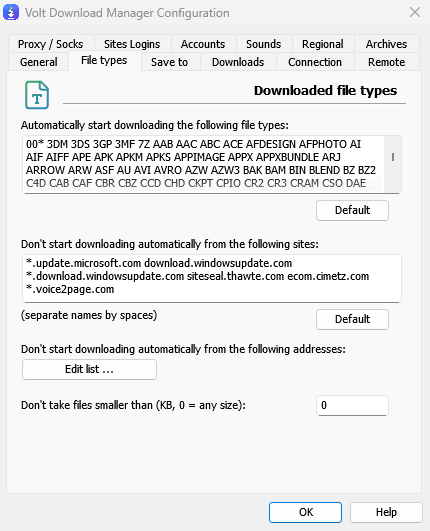
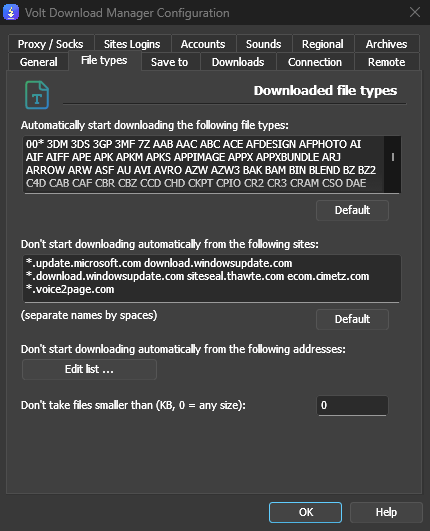
- Tự động bắt đầu tải xuống các loại tệp sau — các loại tệp mà trình duyệt chuyển giao (và bảng tạm nhận). Phân tách chúng bằng dấu cách;
*khớp với bất kỳ ký tự nào, như trongR0*. Mặc định sẽ khôi phục danh sách ban đầu. Danh sách bắt đầu với các tệp lưu trữ, chương trình và trình cài đặt thông thường (Windows, macOS và Linux: DMG, PKG, DEB, RPM, APPIMAGE, MSIX), nhạc và video, tệp PDF và Office, mô hình và bộ dữ liệu AI (GGUF, SAFETENSORS, CKPT, PT, ONNX, PARQUET), tệp 3D và CAD (GLB, FBX, OBJ, STL, BLEND, STEP), tệp thiết kế và ảnh RAW, sách điện tử, ảnh đĩa và tệp lưu trữ chia nhỏ. Các trang web, tập lệnh, văn bản thuần túy và hình ảnh web bị loại bỏ có chủ đích, để việc lưu ảnh hoặc trang vẫn thuộc về trình duyệt; hãy thêm bất kỳ loại nào bạn cần, hoặc đặt một*duy nhất vào ô để nhận mọi tệp có phần mở rộng. Một danh sách bạn chưa từng thay đổi sẽ có thêm các loại mà phiên bản mới bổ sung; một danh sách bạn đã chỉnh sửa sẽ giữ nguyên. - Không tự động bắt đầu tải xuống từ các trang web sau — các trang web mà lượt tải xuống của chúng vẫn ở trong trình duyệt, phân cách bằng dấu cách. Một tên bao gồm cả các tên miền phụ của trang web đó (
example.combao gồmwww.example.comvàdl.example.com, cũng như*.example.com),*khớp với bất kỳ thứ gì như trong danh sách Bảng điều khiển tải xuống (*.example.*), và các tệp mà trang của nó liên kết đến trên một máy chủ khác (máy chủ tải xuống hoặc CDN), được xác định bởi trang mà lượt tải xuống đến từ. Một lượt tải xuống không rõ trang sẽ được khớp bằng chính địa chỉ của nó. Mặc định sẽ khôi phục danh sách ban đầu.
Lưu vào
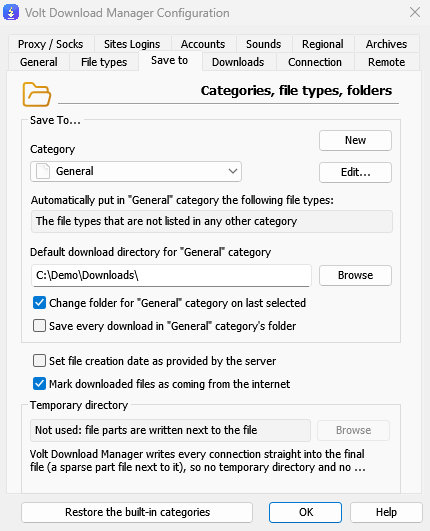
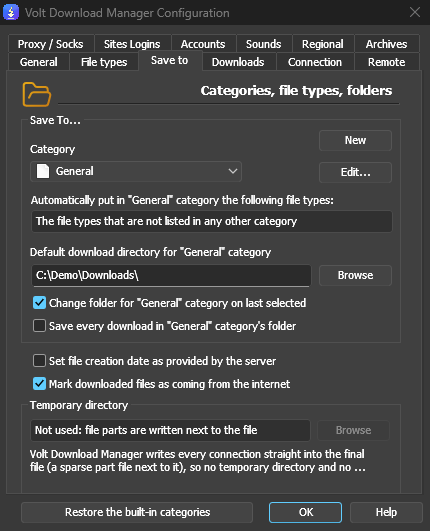
- Danh mục — chọn một danh mục để xem và thay đổi cài đặt của nó bên dưới.
- Mới — tạo danh mục của riêng bạn. Sửa... thay đổi danh mục đã chọn: tên, loại tệp và thư mục của nó. Các danh mục tích hợp (Đã nén, Tài liệu, Nhạc, Chương trình, Video) có thể được đổi tên, gán các loại tệp khác và xóa như của riêng bạn; danh mục đã đổi tên vẫn giữ thư mục của nó. Chung và Torrent chỉ thay đổi thư mục của chúng.
- Khôi phục các danh mục tích hợp — đưa các danh mục tích hợp trở lại như ban đầu, sau khi bạn đã đổi tên, đổi loại hoặc xóa chúng.
- Tự động đưa các loại tệp sau vào danh mục “…” — các loại tệp sẽ được chuyển vào danh mục này. Một danh mục tích hợp sẵn mà bạn chưa từng thay đổi danh sách sẽ nhận thêm các loại tệp mà phiên bản mới bổ sung; danh mục bạn đã chỉnh sửa sẽ giữ nguyên.
- Thư mục tải xuống mặc định cho danh mục "…" — thư mục của danh mục. Nhập đường dẫn hoặc nhấp Duyệt.
- Thay đổi thư mục cho danh mục "…" theo lần chọn cuối cùng — khi bạn chọn một thư mục khác trong Thông tin tệp tải xuống, nó sẽ trở thành thư mục của danh mục đó từ đó trở đi. Mặc định là bật. (Nó đặt trạng thái ban đầu của Ghi nhớ đường dẫn này trong cửa sổ đó.)
- Lưu mọi tải xuống vào thư mục của danh mục "Chung" — mặc định tắt. Khi được chọn, mọi tải xuống mới sẽ vào thư mục của danh mục Chung, bất kể danh mục của nó: từ trình duyệt, Thêm URL, Tải xuống hàng loạt, trình lấy liên kết, hàng đợi, dòng lệnh, video và torrent đều như vậy. Các danh mục vẫn sắp xếp danh sách. Thư mục của danh mục Chung là thư mục cần đặt (chọn Chung ở trên); các danh mục khác giữ thư mục riêng của chúng khi tùy chọn này tắt trở lại, trong khi đó hiển thị màu xám. Một tải xuống riêng lẻ vẫn có thể đi nơi khác: thay đổi thư mục của nó trong cửa sổ bắt đầu tải xuống (Nhớ đường dẫn này sau đó thay đổi thư mục của danh mục Chung). Các tải xuống đã có trong danh sách vẫn ở nguyên vị trí.
- Đặt ngày tạo tệp theo ngày máy chủ cung cấp — đặt ngày máy chủ báo cáo cho các tệp đã tải xong, thay vì ngày bạn tải chúng xuống.
- Mark downloaded files as coming from the internet — on by default. Every file VDM downloads (from the browser, a link you add, a video, a gallery, a torrent, and the files extracted from an archive) carries the mark a browser's downloads carry. On Windows that is the Mark of the Web: SmartScreen checks a program before it first runs, and Office opens a document in Protected View. On a Mac it is the quarantine attribute Gatekeeper checks; on Linux, where the file came from, which file managers show. Unticked, no download is marked. On Windows, VDM also follows the Group Policy Do not preserve zone information in file attachments, as browsers do: when it is on (for the computer or for you), no download is marked, whatever this box says.
VDM doesn't use a temporary folder: every connection writes straight into the final file's place, so there is nothing to put together at the end.
Tải xuống
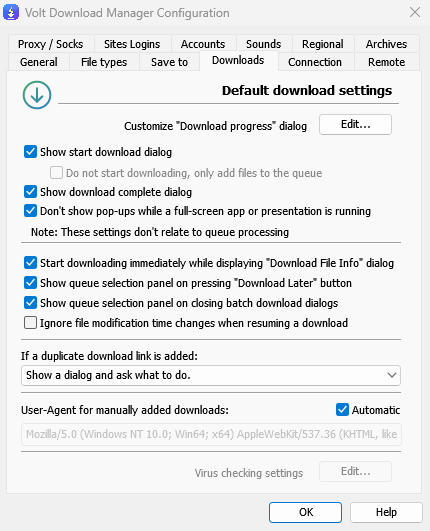
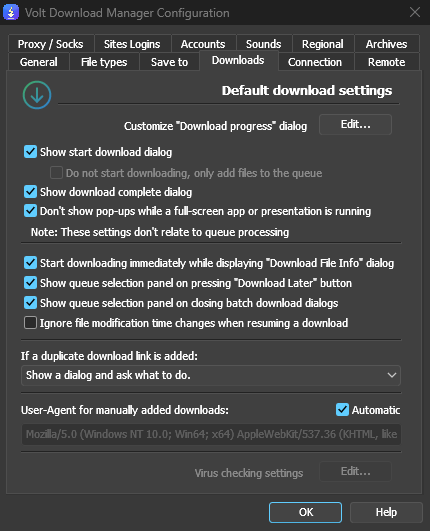
- Tùy chỉnh hộp thoại "Tiến độ tải xuống" → Sửa... — Hiển thị hộp thoại tiến trình tải xuống khi một lượt tải xuống bắt đầu: Hiển thị bình thường, bật theo mặc định; Hiển thị thu nhỏ, cửa sổ tiến trình tải xuống sẽ bắt đầu ở dạng thu nhỏ trên thanh tác vụ, không chiếm tiêu điểm của chương trình bạn đang dùng; hoặc Không hiển thị, khi đó một lượt tải xuống sẽ không mở cửa sổ tiến trình khi bắt đầu, dù từ trình duyệt, liên kết bạn thêm, video hay hàng đợi, và nó sẽ tiếp tục trong danh sách của cửa sổ chính, nơi bạn có thể nhấp đúp để mở cửa sổ tiến trình. Tải xuống hoàn tất vẫn hiển thị khi hoàn thành, như Hiển thị hộp thoại hoàn tất tải xuống bên dưới đã nêu.
- Hiển thị hộp thoại bắt đầu tải xuống — hiển thị Thông tin tệp tải xuống cho mỗi bản tải xuống mới. Khi tắt, các bản tải xuống bắt đầu ngay lập tức, hoặc chỉ tham gia hàng đợi nếu bạn chọn Không bắt đầu tải xuống, chỉ thêm tệp vào hàng đợi.
- Hiển thị hộp thoại hoàn tất tải xuống — hiển thị Tải xuống hoàn tất khi một tệp hoàn thành.
- Don't show pop-ups while a full-screen app or presentation is running — on by default. While a full-screen game, app or video, a presentation or the locked screen is on, Download complete and the other windows VDM opens by itself wait, and show when you're back, one after the other in the order they came: Downloads complete, a new version found by the weekly check, the download limit's warning, an archive's test result, its password question or its call for 7-Zip, the browser extension's offer, a link copied to the clipboard, and the crash report. The downloads carry on as usual, and the tray icon's tip says how many windows wait. The windows you open yourself, links you click in the browser and the Turn off computer countdown (so you can still cancel it) show at once. On Windows VDM goes by the state Windows holds its own notifications by (games, presentation mode, full-screen apps and videos), by a frameless window that fills its whole screen in front (on any of your screens), and by the screen's lock; on Linux by the session's lock, and by a full-screen window under X11 or XWayland (on Wayland, a native program's full screen can't be seen). On macOS a full-screen app has a Space of its own, which VDM's windows never open over. Untick it and the windows show at once, as before.
- Bắt đầu tải xuống ngay lập tức trong khi hiển thị hộp thoại "Thông tin tệp tải xuống" — mặc định là bật, để quá trình tải xuống đã diễn ra trong khi bạn chọn thư mục.
- Hiển thị bảng chọn hàng đợi khi nhấn nút "Tải xuống sau" — hỏi muốn chọn hàng đợi nào; nếu tắt, bản tải xuống sẽ được đưa vào Hàng đợi tải xuống chính.
- Hiển thị bảng chọn hàng đợi khi đóng hộp thoại tải xuống hàng loạt — tương tự cho các bản tải xuống hàng loạt.
- Bỏ qua các thay đổi thời gian sửa đổi tệp khi tiếp tục tải xuống — dành cho các máy chủ báo cáo ngày mới cho cùng một tệp mỗi lần. Nếu không có nó, một máy chủ như vậy sẽ khiến mỗi lần tiếp tục phải bắt đầu lại.
- Nếu một liên kết tải xuống trùng lặp được thêm vào — hỏi, thêm nó với tên được đánh số, ghi đè lên cái cũ, hoặc mở cái đã hoàn thành / tiếp tục cái chưa hoàn thành.
- User-Agent for manually added downloads — how VDM names itself to servers for downloads you add yourself. With Automatic ticked (the default), VDM introduces itself as your default browser: the User-Agent that browser sends, at the version you have installed (Chrome, Edge, Brave, Opera, Vivaldi, Firefox or Safari). The box shows it, and pointing at it names the browser. When VDM doesn't recognise your default browser, it sends a current Chrome's. Untick Automatic to type your own; tick it again to go back. Downloads from the browser use that browser's own User-Agent, the one your sign-in and the site's checks know; the one typed here doesn't replace it. If a site turns a browser's User-Agent away, VDM asks once more with the one typed here (with Automatic, with Internet Explorer's). If a site's bot check refuses it, and the way a browser connects too, VDM asks once more under its own name,
VoltDownloadManager/and its version (or the one typed here), and remembers that site until VDM closes. A User-Agent typed here for the downloads you add yourself is the only one they send.
Kết nối
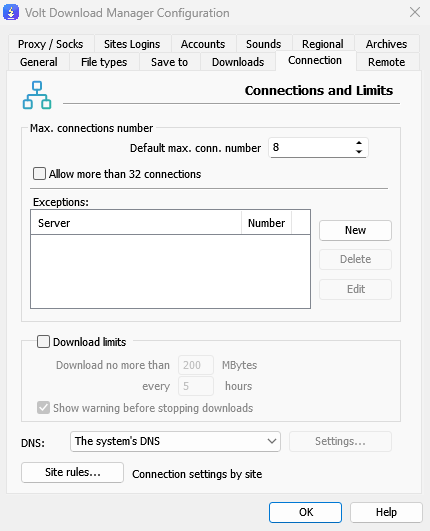
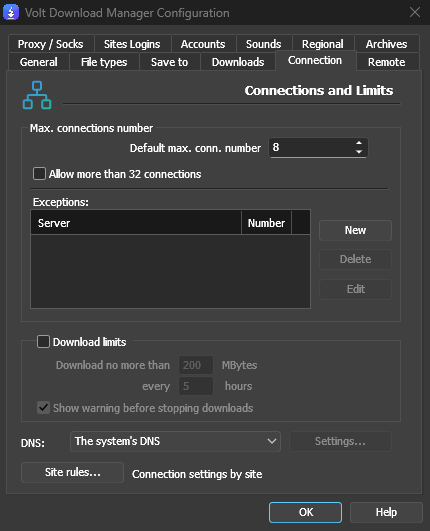
- Số kết nối tối đa mặc định — số kết nối mà mỗi lượt tải xuống có thể sử dụng, từ 1 đến 32 (mặc định là 8). Nhập số hoặc dùng các mũi tên.
- Allow more than 32 connections — raises the most to 128, for the number above and for the exceptions. Most servers allow far fewer from one address; VDM notices and asks those for fewer. Turned off again, any higher number comes back to 32.
- Exceptions — a different number for some servers. New adds one (the server's name and the number of connections); Edit and Delete change or remove the selected one. Rows marked (auto) are limits VDM learned by itself from servers that refused more connections. They can't be edited and fade away by themselves.
- Quy tắc trang web... — User-Agent, tiêu đề yêu cầu, số lượng kết nối, Luôn kết nối như trình duyệt và proxy (không có, hoặc một proxy riêng với thông tin đăng nhập của nó), theo từng trang web. Xem Quy tắc trang web.
- Giới hạn tải xuống — không tải xuống quá một lượng đã đặt sau mỗi vài giờ. Cài đặt tương tự có trong Bộ lập lịch; xem Hàng đợi và Bộ lập lịch.
- DNS — which DNS turns the servers' names into addresses for VDM's downloads, its own downloads (helpers, updates) and FTP. The system's DNS is the default (on Windows 11 it can already be encrypted, in Windows' own network settings). Or pick Cloudflare, Google, Quad9, AdGuard or NextDNS, or Another DNS... to type your own; Settings... chooses how it's asked:
- DNS qua HTTPS (mặc định) hoặc DNS qua TLS: được mã hóa, vì vậy không ai trên đường truyền có thể thấy hoặc thay đổi các tên bạn tra cứu.
- Plain DNS: not encrypted. VDM asks it over TCP, never UDP, so it never needs a firewall exception.
- Đối với DNS của riêng bạn: địa chỉ IP của máy chủ, tên chứng chỉ của chúng hiển thị (TLS), hoặc địa chỉ
https://(HTTPS, với địa chỉ IP của nó nếu bạn biết). NextDNS lấy ID cấu hình của bạn. - Nếu không thể truy cập, hãy dùng DNS của hệ thống: mặc định tắt. Nếu DNS không phản hồi, quá trình tải xuống sẽ dừng và hiển thị thông báo nêu tên DNS đó, thay vì âm thầm gửi các yêu cầu tra cứu của bạn đến DNS của hệ thống. Nếu DNS báo một tên không tồn tại, VDM sẽ không dùng DNS dự phòng (vì như vậy sẽ vô hiệu hóa DNS lọc).
- Kiểm tra hỏi nó cho github.com và hiển thị thời gian mất.
Các tên trong tệp hosts của bạn và các tên cục bộ (từ đơn, .local, .lan, .home.arpa, .internal, localhost) vẫn sử dụng DNS của hệ thống. Các trang video (yt-dlp) và thư viện hình ảnh (gallery-dl) chỉ sử dụng DNS bạn đã chọn khi bộ điều hợp mạng được chọn; nếu không, giống như các trình theo dõi torrent, chúng sử dụng DNS của hệ thống. Với proxy, proxy sẽ tra cứu tên của các trang web mà nó truy cập cho bạn.
Xem thêm trong Kết nối và tốc độ.
Proxy / Socks
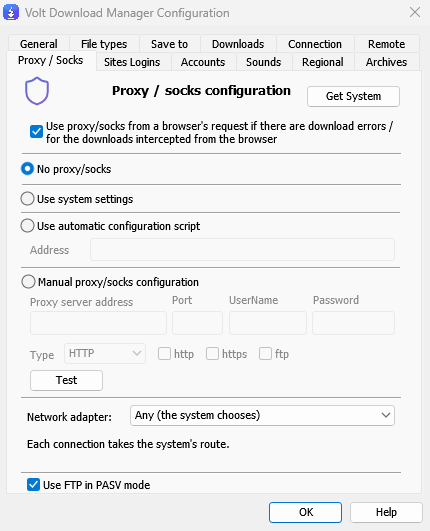
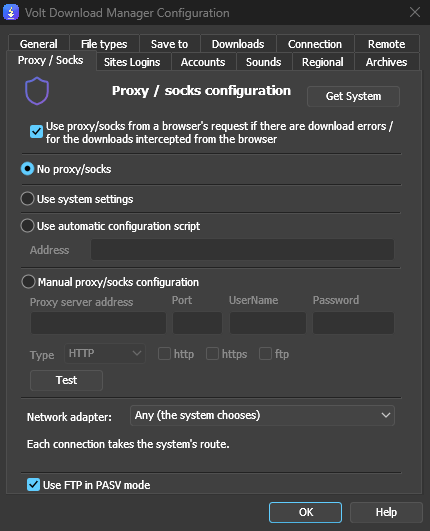
- No proxy/socks — connect directly. This is the default. Chosen here (clicked, or with Use proxy/socks from a browser's request… unticked while it's on), video pages and image galleries connect directly too: yt-dlp and gallery-dl are kept off Windows' proxy and the
HTTPS_PROXY/HTTP_PROXY/ALL_PROXYvariables. Left at the default, they still follow those, as they always did. - Sử dụng cài đặt hệ thống — sử dụng proxy của hệ thống: cài đặt của Windows hoặc macOS, hoặc trên Linux là các biến
https_proxy,http_proxyvàall_proxycủa phiên làm việc của bạn. - Use automatic configuration script — the proxy auto-config (PAC) script your network gives: type its address (
http://…/proxy.pac, or a file). VDM fetches it and asks it which proxy each download goes through (PROXY,HTTPS,SOCKS,SOCKS5,SOCKS4orDIRECT), as browsers do. Through aSOCKSorSOCKS5answer, the proxy looks the site's name up, as in browsers. Until the script has been fetched, or if it can't be, VDM uses the system's settings. - Cấu hình proxy/socks thủ công — proxy của riêng bạn:
- Địa chỉ máy chủ proxy và Cổng: tên hoặc địa chỉ IP của nó (
127.0.0.1) và cổng (1080). - Loại: giao thức mà proxy sử dụng. HTTP (proxy web thông thường), HTTPS (proxy web được truy cập qua kết nối được mã hóa), SOCKS5 hoặc SOCKS4.
- Tên người dùng và Mật khẩu, nếu cần (HTTP, HTTPS và SOCKS5; SOCKS4 không có đăng nhập, nên chúng bị làm mờ).
- Đối với proxy HTTP hoặc HTTPS, hãy chọn các giao thức mà nó hỗ trợ (http, https). Các mục tải xuống FTP không bao giờ đi qua proxy HTTP: hộp ftp của nó vẫn bị làm mờ và hiển thị thông báo đó.
- A SOCKS proxy carries every connection: web downloads, FTP, video pages and galleries (yt-dlp and gallery-dl), VDM's own downloads and the update check, and torrents if you ask (below). It has no protocol boxes; instead, Look up site names through the proxy (on by default) has the proxy turn the sites' names into addresses, so your own DNS never sees which sites you visit (
socks5h,socks4a). Untick it only for a proxy that can't look names up; VDM then looks them up with the DNS chosen under Connection and hands the proxy the address. - FTP qua proxy SOCKS luôn sử dụng chế độ thụ động (proxy không thể chuyển các kết nối của máy chủ trở lại), vì vậy Sử dụng FTP ở chế độ PASV hiển thị đã chọn và bị làm mờ. Địa chỉ
ftps://(TLS từ byte đầu tiên) chưa thể đi qua proxy SOCKS;ftpes://(TLS sau khi kết nối) có thể. - Torrent chỉ sử dụng proxy SOCKS5 khi Sử dụng proxy được bật trong Cài đặt torrent (xem Torrent và bảo mật của bạn). Proxy SOCKS4 hoặc HTTP không hỗ trợ chúng.
- Một địa chỉ được viết theo cách cũ,
socks5://host(hoặcsocks5h://,socks4://,http://), vẫn hoạt động: Tùy chọn hiển thị nó là Loại của nó với máy chủ riêng. - Lấy Hệ thống — điền các trường thủ công từ cài đặt proxy của Windows (trên Windows): proxy HTTP của nó khi có, nếu không thì là proxy SOCKS của nó (là SOCKS5: Windows không nói phiên bản nào; chọn SOCKS4 nếu của bạn chỉ hỗ trợ đó).
- Kiểm tra — một yêu cầu thông qua những gì trang này hiện nói (proxy của nó, với DNS và bộ điều hợp mạng mà Tùy chọn có), đến
one.one.one.onecủa Cloudflare, nơi trả lời bằng địa chỉ mà nó đã thấy. Dòng bên cạnh nút cho biết mất bao lâu và địa chỉ mà internet thấy (của proxy, khi nó truyền các kết nối của bạn), hoặc tại sao nó thất bại: không thể tiếp cận proxy, từ chối đăng nhập hoặc không thể tiếp cận trang web. Không có gì khác được gửi.
Which do I pick?
- A VPN app usually needs nothing here: it carries all the computer's traffic. To make sure VDM never goes around it, choose its Network adapter below. Some VPN apps also offer a SOCKS5 proxy of their own (in their settings, with its own login): SOCKS5, its address, port and login.
- Tor (Tor Browser or the Tor service): SOCKS5, 127.0.0.1, port 9150 (Tor Browser) or 9050 (the service), Look up site names through the proxy ticked. Tor carries no torrents well; leave Use the proxy off in Torrent settings.
- An SSH tunnel, ssh -D 1080 you@server: SOCKS5, 127.0.0.1, port 1080.
- Clash, v2rayN and similar proxy programs: their mixed port takes both, usually 127.0.0.1:7890 (HTTP or SOCKS5); v2rayN also has a SOCKS port, often 10808. Or turn on their system proxy and choose Use system settings.
- A proxy your workplace or school gives: usually an HTTP one, or a script (Use automatic configuration script). Ask which.
- Use proxy/socks from a browser's request… — on by default. A download VDM takes from the browser goes through the proxy the browser used for it. That's the one a VPN or proxy extension set, the browser's own manual proxy, or its proxy auto-config script. Without it, the download would leave from your own address, and content limited to the VPN's country, or to its address, would fail. The browser extension reads that proxy and hands it to VDM with each download, once you switch on Send downloads through this browser's proxy or VPN extension in the extension's toolbar popup (Firefox asks you once; Chrome, Edge, Brave, Opera and Vivaldi ask nothing more: see A VPN or proxy extension).
- A proxy that asks for a login the VPN extension gives itself can't be shared: no other program has that login. The download then stops and says so, rather than going without the proxy. Use the VPN's own app, or choose its adapter under Network adapter.
- In Firefox, VDM sees the proxy the browser's own request for the file took, including the ones a VPN extension picks for each request. In Chrome and the other Chromium browsers, it sees the browser's proxy settings: the server for the download's scheme (honouring their bypass list) or their proxy auto-config script.
- When the browser used no proxy, and No proxy/socks is chosen, VDM uses Windows' proxy settings, as browsers do.
- Network adapter — Any (the system chooses) is the default. Pick an adapter, usually your VPN's, and every connection VDM opens goes out through it, or not at all. That covers downloads, FTP, torrents, video pages and image galleries, the DNS you chose, VDM's own downloads and the update check. It works as a kill switch: when the adapter disconnects, or the VPN is switched off, nothing goes out through your normal connection. Running downloads stop with "… is not connected" and start again when the adapter is back. The line under the list shows the adapter's address, or that it isn't connected.
- How it holds: Windows binds the adapter's own address. Windows then sends those packets only through that adapter (its strong host model). Linux binds the device itself (Linux 5.7 or newer), and macOS binds the interface. An address of a kind the adapter doesn't have (IPv6 on an IPv4-only VPN) is refused, not sent around it.
- The system's DNS asks the names in its own way, and Windows may ask over every adapter. To keep the names inside the adapter too, choose a DNS under Connection → DNS: VDM then asks it through the adapter.
- Video pages and image galleries: yt-dlp, gallery-dl and the ffmpeg yt-dlp starts can't be held to an adapter themselves, so while one is chosen VDM gives them a proxy of its own on this computer (127.0.0.1, with a password only they get). VDM opens their connections through the adapter, as it opens its own, and looks the names up with the DNS you chose. When the adapter disconnects, their connections close and the downloads stop with the others. Video formats that can't go through a proxy (RTMP, RTSP, MMS, FTP) are refused rather than sent around it.
- Not held to the adapter yet, so they don't start while one is chosen: ftps:// (implicit TLS; ftp:// with TLS is fine).
- Connections to this computer itself (localhost) aren't bound. A proxy on this computer carries the downloads, and where it sends them is up to it.
- On macOS a VPN that reconnects may get a new interface (utun5 instead of utun4): pick it again.
- Use FTP in PASV mode — on by default: for FTP downloads VDM opens the data connections itself (passive mode), which works through routers and firewalls. Turn it off only for a server that needs active mode (the server connects back to you). FTP goes through a SOCKS proxy above (always passive then), never through an HTTP one. See FTP and FTPS.
Đăng nhập trang web


User names and passwords for sites that ask for them. New adds a row: the site (with a path if the login is only for part of it), the user name and the password. Edit and Remove change or delete the selected row. VDM uses the login for every download from that site. A login typed in Add URL (Use authorization) takes priority for that one download. For huggingface.co, the password is your Hugging Face access token, for gated models and datasets: VDM sends it as a token, to Hugging Face only (the user name can be anything; see Models, datasets and releases).
The passwords (these, the proxy's and the debrid accounts') are kept in the system's keychain: Windows Credential Manager, the keyring on Linux (Secret Service: GNOME Keyring, KeePassXC and others) or the macOS keychain; VDM's settings keep only a reference. A locked keyring is never unlocked for VDM: without one, they stay in VDM's settings, sealed for your Windows account on Windows. Options → Accounts says where they are. A portable copy keeps them in its own folder.
Cookie cho các trang web video — đối với các video chỉ phát khi bạn đã đăng nhập (ví dụ: YouTube yêu cầu “Đăng nhập để xác nhận bạn không phải là robot”):
- Tắt (mặc định) — yt-dlp chỉ lấy cookie từ tiện ích mở rộng của trình duyệt khi bạn sử dụng nút trên video.
- Từ trình duyệt — yt-dlp đọc cookie của trình duyệt đã chọn trên máy tính này (Firefox, Chrome, Edge, Brave, Opera, Vivaldi, Chromium, Whale; Safari trên macOS) cho mỗi video mà nó tìm kiếm hoặc tải xuống, bao gồm cả các địa chỉ đã dán. Khi tiện ích mở rộng chuyển cookie của trang, những cookie đó sẽ được sử dụng thay thế. Một video từ cửa sổ riêng tư của trình duyệt không bao giờ đọc chúng, kể cả video đã được giữ lại sau khi khởi động lại: nó chỉ có cookie mà cửa sổ riêng tư của nó cung cấp. Hồ sơ (tùy chọn): tên hoặc thư mục của hồ sơ (... chọn một); nếu để trống, hồ sơ được sử dụng gần đây nhất. Chrome, Edge và Brave khóa cookie của chúng trên Windows: Firefox hoạt động. Xem Các trang web yêu cầu bạn đăng nhập.
Use my yt-dlp config file — off by default. Ticked, yt-dlp also reads its own config files (%APPDATA%\yt-dlp\config.txt on Windows, ~/.config/yt-dlp/config on Linux and macOS, and the others it looks for, such as yt-dlp.conf in your home folder) for the videos, playlists and look-ups the app starts, so your subtitle, thumbnail, metadata or SponsorBlock choices apply there too. Most of what VDM chooses still wins: the folder and file name, the quality, the proxy and network adapter set here. VDM also keeps yt-dlp's own downloader for HTTP, FTP and HLS (one the file names, aria2c, reports no progress), leaves out a download archive, forced overwrites and marking videos as watched (which would mark every video only looked up), keeps part files (with --no-part the engine's streams would be downloaded again into a doubled file), and keeps the usual fix-ups. Options there that skip or filter videos (--match-filters, --max-filesize, a strict -f) apply too, and can make a video say it can't be downloaded. A proxy with a user name set here gives way to a --proxy in the file.
Tài khoản
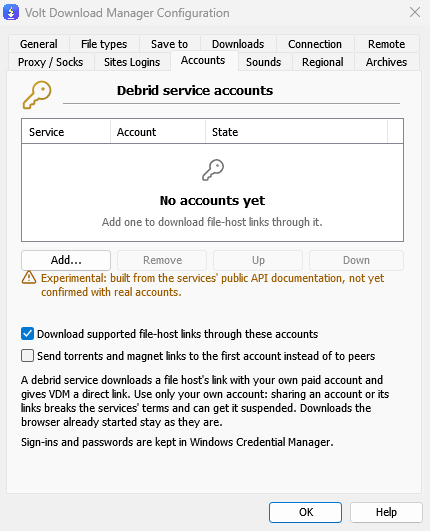
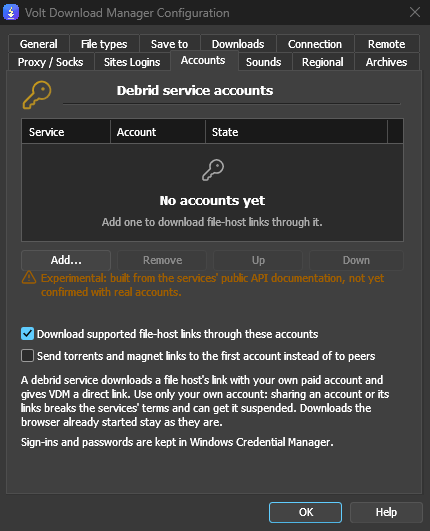
Tài khoản dịch vụ debrid của bạn (Real-Debrid, AllDebrid, Premiumize, TorBox, Mega-Debrid; thử nghiệm): Thêm... đăng nhập bằng mã trong trình duyệt, với tên người dùng và mật khẩu của bạn, hoặc bằng mã API hay khóa của bạn; một liên kết từ máy chủ mà dịch vụ hỗ trợ sẽ được tải xuống thông qua đó. Thứ tự trong danh sách là thứ tự các tài khoản được yêu cầu. Xem Tài khoản dịch vụ debrid.
Âm thanh
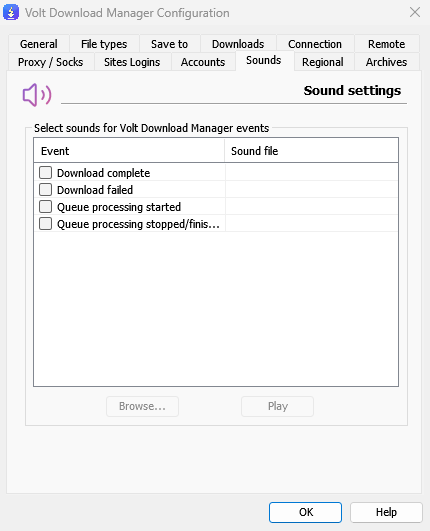
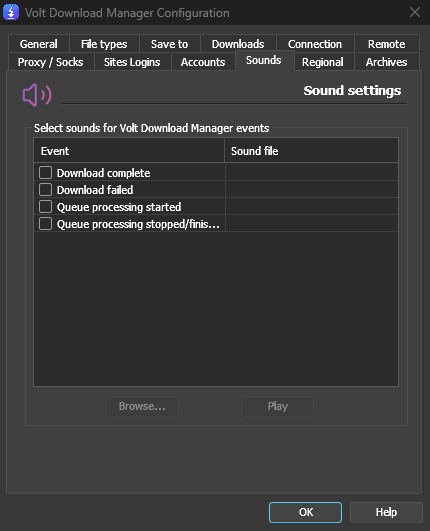
Phát âm thanh khi Tải xuống hoàn tất, Tải xuống không thành công, Đã bắt đầu xử lý hàng đợi và Đã dừng/hoàn tất xử lý hàng đợi. Đánh dấu một sự kiện, chọn sự kiện đó, nhấp vào Duyệt để chọn tệp .wav, rồi nhấp Phát để nghe thử.
Khu vực
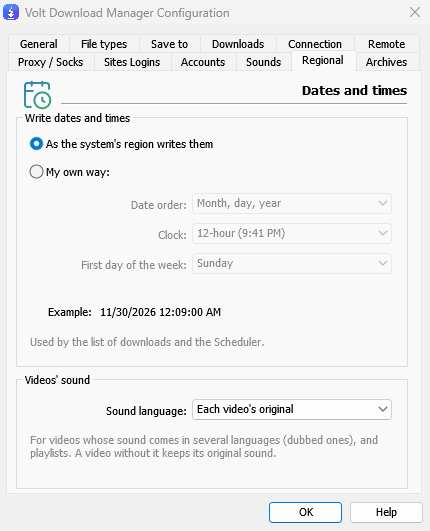
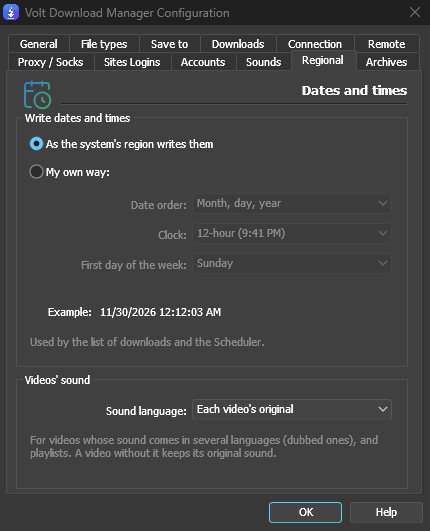
Cách viết ngày và giờ trong danh sách tải xuống và Bộ lập lịch.
- Theo cách viết của khu vực hệ thống (mặc định) — dùng cài đặt khu vực của Windows (Cài đặt → Thời gian & ngôn ngữ → Khu vực); trên macOS và Linux, dùng cách viết thông dụng theo ngôn ngữ của bạn. Khi dùng tiếng Anh, danh sách giữ nguyên cách ghi ngày của IDM.
- Cách riêng của tôi — chọn thứ tự ngày (ngày, tháng, năm; tháng, ngày, năm; hoặc năm, tháng, ngày), đồng hồ 12 hoặc 24 giờ và ngày đầu tuần trong lịch của Bộ lập lịch. Ví dụ hiển thị kết quả.
Videos' sound — the language a video's sound comes in when the site has it in several (dubbed videos): Each video's original (the default), or a language, which every video looked up and every playlist downloads with when it has it. A video without it comes with its original sound, and Download video can choose another for one video (The sound's language).
Lưu trữ
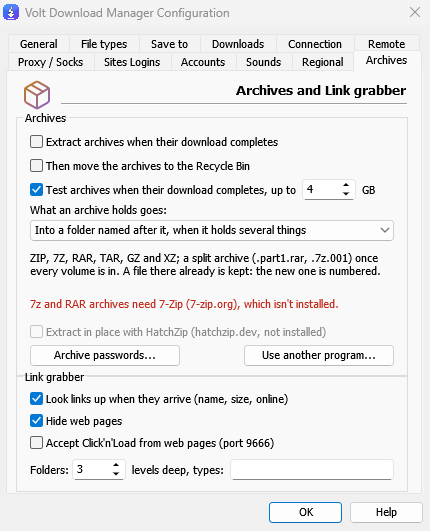
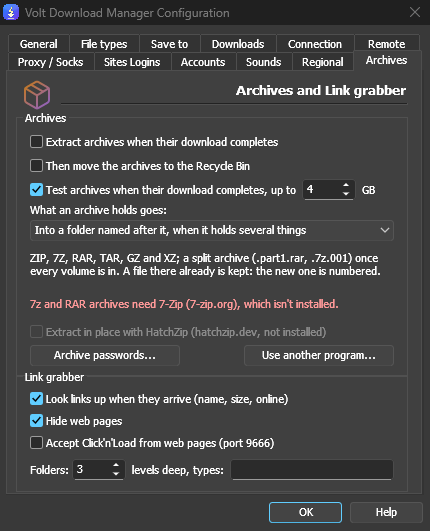
Tệp lưu trữ (zip, 7z, rar, tar, gz, xz) và Trình lấy liên kết.
- Giải nén các tệp lưu trữ khi quá trình tải xuống hoàn tất (mặc định tắt) — giải nén từng tệp lưu trữ ngay khi tải xong (hoặc khi tải xong tập cuối cùng của bộ lưu trữ chia nhỏ). Gói trong Trình lấy liên kết có tùy chọn Giải nén khi hoàn tất riêng.
- Sau đó di chuyển các kho lưu trữ vào Thùng rác (mặc định tắt; trên macOS và Linux là Thùng rác) — chỉ thực hiện sau khi giải nén thành công. Đây cũng là thiết lập mặc định cho tùy chọn Xóa các tệp lưu trữ sau khi giải nén của gói mới.
- Test archives when their download completes, up to 4 GB (on by default) — a ZIP, 7z or RAR archive (a split one once its last volume is in) is read back and every file in it checked before its download counts as done, with the 7-Zip named below (a ZIP without 7-Zip by VDM itself). A larger one isn't tested by itself, as a test reads the whole file: right-click → Test archive tests it. A damaged ZIP's damaged files are downloaded again; any other damaged archive is offered for Redownload. See Testing archives.
- Nội dung trong tệp lưu trữ được giải nén — vào thư mục mang tên tệp lưu trữ nếu tệp chứa nhiều mục (mặc định), luôn vào thư mục như vậy hoặc trực tiếp vào thư mục chứa tệp lưu trữ.
- Whether 7-Zip was found: 7z and RAR archives need it, unless they are extracted in place with HatchZip. VDM also finds the 7-Zip inside PeaZip and NanaZip's command line.
- Use another program... — choose the 7-Zip command line program yourself (
7z.exeof a portable copy or of another archiver); Find 7-Zip automatically goes back to the one VDM finds. See Extracting archives. - Giải nén tại chỗ bằng HatchZip (mặc định là tắt; bị làm mờ khi HatchZip chưa được cài đặt) — kho lưu trữ bị xóa trong khi các tệp của nó được giải nén, vì vậy chỉ cần không gian cho các tệp đó. Xem Giải nén kho lưu trữ.
- Archive passwords... — the passwords tried on an encrypted archive before VDM asks, one per line; the one that fits moves to the top. A package's own password is never added by itself. See Archive passwords.
- Tra cứu liên kết khi chúng đến (tên, kích thước, trực tuyến) — Trình lấy liên kết hỏi máy chủ về từng tệp (mặc định bật).
- Ẩn các trang web — Mặc định của Trình lấy liên kết cho cùng một hộp (bật).
- Accept Click'n'Load from web pages (port 9666) (off by default) — a link site's Click'n'Load button sends its links to VDM's Link grabber. See Click'n'Load.
- Thư mục: 3 cấp độ sâu, loại: — số cấp thư mục con mà Trình lấy liên kết đọc khi bạn cung cấp cho nó một thư mục FTP hoặc danh sách thư mục của máy chủ web (0 đến 10; 0 là các tệp trong chính thư mục đó), và các loại tệp mà nó giữ lại từ đó (như trên trang Loại tệp,
ISO ZIP R0*; để trống sẽ giữ lại mọi loại). Xem Thư mục.
Điều khiển từ xa
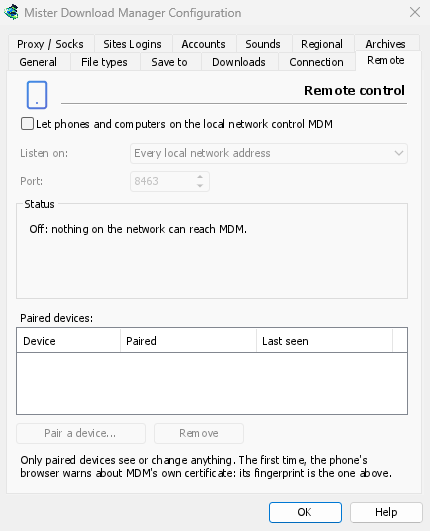
Control VDM from your phone or another computer on the local network: see Control VDM from your phone.
- Let phones and computers on the local network control VDM (off by default).
- Nghe trên — mọi địa chỉ mạng cục bộ (mặc định), chỉ máy tính này hoặc một địa chỉ.
- Cổng — 8463 theo mặc định.
- Trạng thái — những gì nó đang làm, địa chỉ để mở trên điện thoại và dấu vân tay của chứng chỉ.
- Thiết bị đã ghép nối — Ghép nối thiết bị hiển thị mã QR và mã; Xóa hủy ghép nối thiết bị đã chọn, ngay lập tức.
Ở nơi khác
Một vài cài đặt nằm ngoài cửa sổ này:
- Tải xuống → Giới hạn tốc độ → Cài đặt... — giới hạn tốc độ. Xem Kết nối và tốc độ.
- Tasks → Torrent settings... — sharing and file associations, and whether the browser hands
.torrentdownloads to VDM. See Torrents. - Xem → Hỗ trợ Chế độ tối, Luôn tối, Chủ đề, Vẽ bằng, Kích thước giao diện, Phông chữ (tệp phông chữ và kích thước văn bản của giao diện) và Ngôn ngữ. Xem Bắt đầu và Khắc phục sự cố.
- Trợ giúp → Kiểm tra bản cập nhật... — Kiểm tra bản cập nhật mỗi khi khởi động nằm trong cửa sổ đó.
Các bước tiếp theo
Miễn phí, mã nguồn mở, không quảng cáo, không dùng thử.
Download Volt Download Manager