

VDM downloads videos from their web pages: YouTube, Vimeo, Dailymotion, Twitch, TikTok, X, Instagram, Facebook, Reddit, SoundCloud and well over a thousand other sites. yt-dlp, an open-source program whose community keeps it working as sites change, finds the video on the page; VDM's own downloader then brings it in, the way it downloads any file.
Bắt đầu tải xuống video
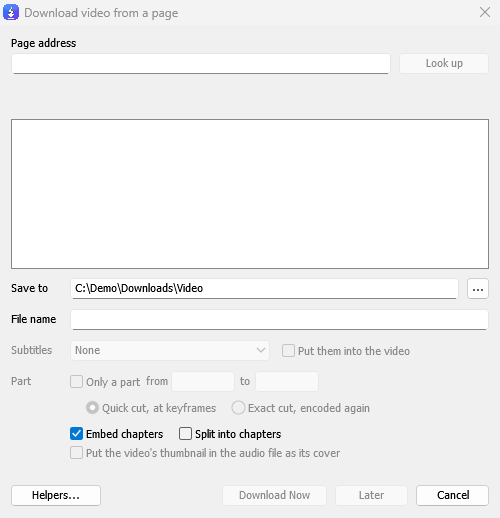
- Give the video's page address to Add URL (Ctrl+N). VDM recognises video pages and opens the video window, already looking the page up.
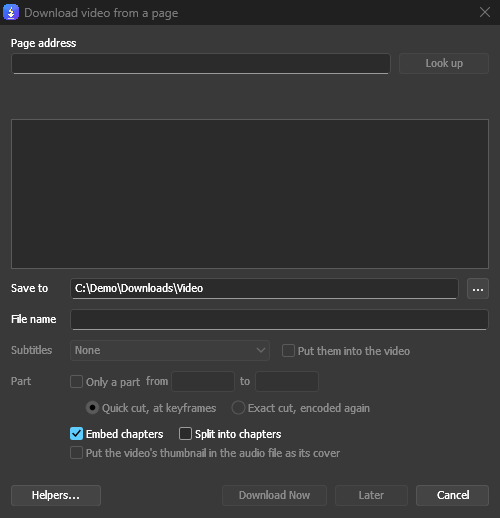
- Hoặc chọn Tác vụ → Tải xuống video từ một trang..., dán địa chỉ vào Địa chỉ trang rồi nhấp Tra cứu.
Bất kỳ địa chỉ trang nào khác mà hóa ra là một trang web, không phải một tệp, cũng được đưa vào cửa sổ video. Trên một trang mà yt-dlp không có trình đọc riêng, video được đề xuất là video mà trang đó nói về, nếu có tên (trong thông tin cung cấp cho công cụ tìm kiếm và bản xem trước liên kết: JSON-LD, og:video hoặc twitter:player), thay vì trình phát đầu tiên được viết trong HTML của nó, và tệp được đặt tên theo cách trang đó đặt tên.
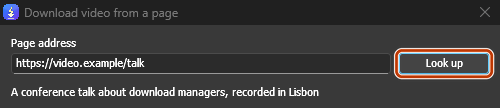
Dán địa chỉ trang và nhấp Tra cứu. 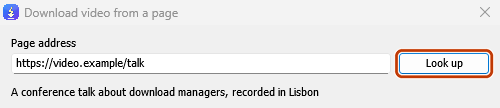
Chọn chất lượng, sau đó Tải xuống ngay. 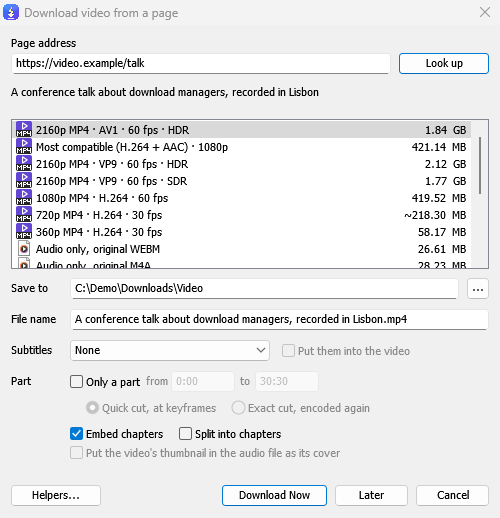
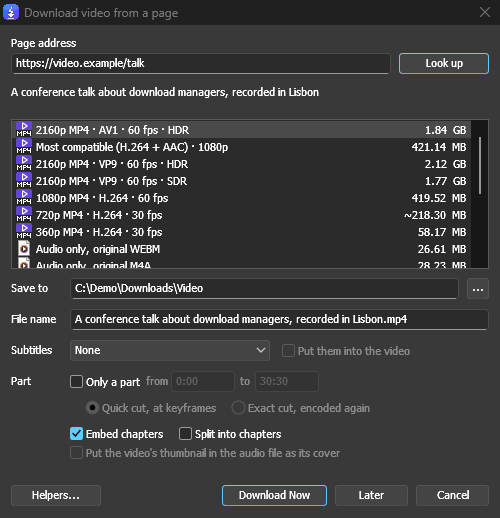
Nó tải xuống như bất kỳ tệp nào khác, trong hàng và cửa sổ riêng của nó. 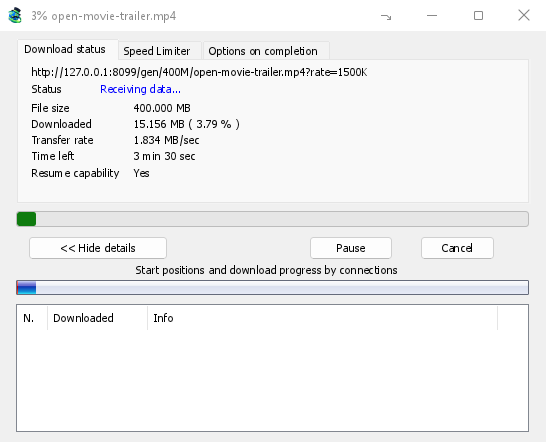
yt-dlp và ffmpeg
VDM offers its two helpers on its first start, and again the first time they are needed. It downloads them from their official releases with its own downloader, so a cut connection resumes, and uses your proxy settings:
- yt-dlp (about 23 MB) looks the page up and finds where the video and its sound come from; VDM downloads them (How a video comes down). The first time, click Install yt-dlp. VDM checks the download against the signature yt-dlp's developers publish before it uses it.
- ffmpeg (about 80 MB) joins a video and its sound when a site keeps them apart, which most sites do for the higher qualities, and turns the sound into an MP3, Opus or FLAC file. Click Install ffmpeg when VDM offers it. VDM installs only a build its maintainers checked: the download must match the SHA-256 in VDM's own list of builds, which carries VDM's signature. When that list can't be downloaded or checked, VDM says so and installs nothing; you can still choose your own ffmpeg in Helpers....
- Each processor gets its own build: yt-dlp's for x64, ARM64 and 32-bit Windows and for Linux on ARM, and ffmpeg's for x64 and ARM64 Windows. No ffmpeg is built for 32-bit Windows that VDM can check, so there VDM offers none: choose your own in Helpers... (below), or download the qualities that come with their sound.
You can install them ahead of time too: in Helpers..., a helper that isn't there yet says Not installed yet, and Install yt-dlp, Install ffmpeg or Install gallery-dl in its row downloads VDM's own copy, checked the same way, and keeps it up to date from then on. Where VDM has no copy for your system, the button is greyed out and the row says what to do instead.
Both are kept in a tools folder in VDM's data folder. For YouTube, yt-dlp also needs a JavaScript runtime, which VDM can download too: see A JavaScript runtime for YouTube.
Luôn cập nhật
Sites change all the time, and a newer yt-dlp is usually what makes a page that stopped working download again. So VDM keeps its own copies of yt-dlp, gallery-dl, ffmpeg and Node.js up to date by itself:
- When: a few seconds after VDM starts, then again while it runs: yt-dlp and gallery-dl at most every 6 hours, Node.js once a day, ffmpeg once a week (a newer ffmpeg comes when VDM's list of checked builds names one, usually with a new version of VDM). VDM remembers when it last asked, so starting it many times doesn't ask again.
- How: each new version is downloaded and checked exactly as the first install was (yt-dlp's, gallery-dl's and Node.js's signed checksum lists, VDM's signed list of ffmpeg builds), never an older one, and installed beside the one in use.
- Khi nó chuyển đổi: chỉ khi không có tải xuống, tra cứu hoặc chạy nào khác đang sử dụng trình hỗ trợ đó. Một video đang tải xuống khi yt-dlp mới đến sẽ hoàn tất với phiên bản đã bắt đầu; phiên bản mới được sử dụng từ thời điểm tải xuống cuối cùng sử dụng nó kết thúc.
- Phiên bản trước vẫn còn, để bạn có thể quay lại. Các phiên bản cũ hơn sẽ bị xóa.
- A video that fails with an error that usually means yt-dlp is out of date for the site (Unable to extract, Unsupported URL, YouTube's Sign in to confirm you're not a bot, HTTP Error 403, a failed signature or n challenge, Requested format is not available), or a gallery whose gallery-dl reports an unexpected error: VDM looks for a newer version at once, installs it if there is one, and tries that download again with it, once. Its log says so. If there is none, the error stands as before.
- A check that fails (no connection, GitHub busy) is tried again an hour later. It is written in VDM's log, never shown as an error.
In Helpers..., each of VDM's own copies says how it stands: Up to date, Version X available, Updated to X, or Version X is ready: used once its downloads end. Update gets the newest version of that one now, Go back to X uses the previous version again (automatic updates then wait for a version newer than the one you left; Update brings it back), and Check for updates checks them all. Untick Keep VDM's helpers up to date automatically to update only when you ask. Programs you chose with Use another program..., and your system's copies, say Updated by you: VDM leaves them to you.
Trên dòng lệnh, update-helpers kiểm tra và cập nhật tất cả chúng và in phiên bản của chúng (Dòng lệnh).
Sử dụng bản sao của riêng bạn
On Linux and macOS, VDM finds yt-dlp, ffmpeg and gallery-dl on your PATH and in the usual package-manager folders, including Homebrew's. A program you selected yourself takes priority, followed by VDM's own installed copy. The system copy is used when neither is present, and your package manager keeps it up to date: VDM never downloads over it on its own. If your distribution's yt-dlp is old, Use VDM's own copy in Helpers downloads VDM's, which keeps itself current and is used from then on.
Already have yt-dlp or ffmpeg for another program? Use those instead of a second copy: in Download video from a page, click Helpers..., then Use another program... beside yt-dlp or ffmpeg, and choose the program. VDM runs it once to check that it is that program, and uses it from then on, the command line too. VDM doesn't update a program you chose: keep it up to date yourself (yt-dlp: yt-dlp -U, or your package manager). Use VDM's own copy goes back to the one VDM downloads and checks.
Môi trường chạy JavaScript cho YouTube
YouTube hides most of a video's qualities behind small puzzles that yt-dlp solves with a JavaScript runtime: Node.js, Deno, QuickJS or Bun. Without one, a look-up is slow, the list is short (sometimes only the sound and a low quality) or it fails with Requested format is not available, and VDM says so: YouTube needs a JavaScript runtime to list its video qualities. Other sites don't need one.
The quickest way is VDM's own copy of Node.js: click Install Node.js beside that message, or, in Helpers..., Install Node.js in the JavaScript runtime (for YouTube) row. The first start's setup offers it too, in its Video helpers step, when your computer has no runtime. VDM downloads Node.js's newest long-term support (LTS) build for your system and processor from nodejs.org with its own downloader (about 40 MB on Windows, 60 MB on Linux and macOS; Windows x64, ARM64 and 32-bit, Linux x64 and ARM64, macOS), checks the release's checksum list against the signing keys of Node.js's releasers and the download against that list before it uses it, keeps only the node program in the tools folder beside yt-dlp and ffmpeg, and from then on tells yt-dlp to use it. It keeps it up to date the way it keeps yt-dlp's (Keeping them up to date), never with an older version. 32-bit Windows gets the newest LTS line Node.js still builds for it, 22, which Node.js supports until April 2027; after that VDM has no Node.js for 32-bit Windows, and a runtime of your own (Use another program...) is needed there. VDM never installs a Node.js older than the LTS line current when that VDM was made, whatever nodejs.org's list says. The video is looked up again by itself once Node.js is in.
Already have one? Then nothing needs downloading: a runtime on your computer comes first. VDM finds Deno, Node.js (22 or newer, also one installed with nvm), QuickJS and Bun by itself, in the order yt-dlp prefers them, and passes over one too old for yt-dlp (Node.js 20, say) or a Node.js whose line has reached its end of life on nodejs.org's schedule (then VDM's own is used, which it keeps on a supported release). A supported Node.js of your computer's is used as it is: you or your package manager keep it up to date. Helpers says which one yt-dlp uses and where it is: Node.js 24.11.0, your system's, nothing to download. To use another one, a portable copy or one that isn't on the PATH, click Use another program... in that row and choose its program (node.exe, deno.exe, qjs.exe, bun.exe): VDM asks it for its version first and refuses one yt-dlp can't use. Use VDM's own copy goes back to the one VDM finds or downloads. (Choosing your own runtime was YairDies' idea.)
Earlier versions of VDM installed Deno. That copy keeps working until VDM's Node.js is in place (the next update check brings it, or Use VDM's own copy); then yt-dlp switches to Node.js and VDM removes its own Deno, once no download is using it. A Deno you installed yourself is never touched, nor VDM's own once you chose it with Use another program.... While VDM asks the runtimes on your computer for their versions, Helpers says Looking for a JavaScript runtime on this computer....
If you'd rather install one yourself, any of them works; then look the video up again. If VDM still says so, the new program's folder isn't on the PATH VDM started with (Windows' installers add it for programs started after them): quit VDM (Tasks → Exit) and start it again.
- Windows:
winget install DenoLand.Deno, hoặcwinget install OpenJS.NodeJS.LTS. Trình cài đặt trên deno.com và nodejs.org cũng hoạt động. - Ubuntu và Debian:
sudo apt install nodejs - Fedora:
sudo dnf install nodejs - Arch:
sudo pacman -S nodejs, hoặcsudo pacman -S deno - macOS:
brew install deno, hoặcbrew install node - Mọi hệ thống, Deno chỉ dành cho người dùng của bạn:
curl -fsSL https://deno.land/install.sh | sh(trên Windows, trong PowerShell:irm https://deno.land/install.ps1 | iex)
A distribution's yt-dlp can also be too old for YouTube: if the list stays short, click Use VDM's own copy beside yt-dlp in Helpers.... A yt-dlp older than 2025.11.12 can't be told of a runtime at all; VDM then leaves the runtime out rather than stop the look-up.
Chọn chất lượng
- Wait for the list. It shows each quality with its size, best first, then the sound alone:
- A video's line says its resolution, the file it makes, its picture's codec, its frame rate and whether it is HDR:
2160p MP4 · AV1 · 60 fps · HDR. MP4 is only the file: what's inside it can be AV1, VP9 or H.264, and the codec says which, the very one that downloads (should the site no longer offer that stream, VDM takes the nearest of the same codec and resolution first). A resolution that comes in several (AV1, VP9 and H.264, HDR and SDR) has a line for each: AV1 makes the smallest file, H.264 plays on the most devices, and an HDR video looks washed out on a screen without HDR.SDRis said only beside an HDR line of the same resolution. - Most compatible (H.264 + AAC), second in the list: the best H.264 video the site has (YouTube's usually go up to 1080p) with AAC sound (in stereo when the site has it beside surround), in an MP4 that Premiere Pro and other editors, older TVs and most phones open as it is. YouTube's best qualities are AV1 or VP9 with Opus sound, which some of them can't read. The line says its resolution:Most compatible (H.264 + AAC) · 1080p. VDM picks those streams, it doesn't convert anything: when the site has no H.264 video with AAC sound the line isn't there, and when the best line already is that, it isn't listed twice. - The size is that of exactly what downloads, the video and its sound. A size with~before it (~532 MB) is only an estimate: the site didn't say the size, so it comes from the stream's bitrate and length. - Audio only, original: the site's own file, not converted, once for each type the site has it in (WebM with Opus inside, M4A), the best first. The best sound there is, in the smallest file. - Audio only MP3 at its best variable bitrate (VBR) and at 320, 256, 192 and 128 kbps, for players that only take MP3. - Audio only OPUS: an.opusfile. When the site's sound is Opus already (YouTube's usually is), it's only moved into that file, not converted, so nothing is lost. - Audio only FLAC: a lossless.flacfile, for a library or a program that wants FLAC. It can't add quality: the site's sound is already compressed with losses, and FLAC keeps it exactly as it came, in a file several times bigger. The window says so when you choose it. - Chọn một. Nếu không có ffmpeg, chỉ những chất lượng đi kèm với âm thanh của chúng mới được liệt kê, và không có MP3, Opus hoặc FLAC (ffmpeg tạo ra chúng).
- Kiểm tra Lưu vào (thư mục của danh mục Video theo mặc định) và Tên tệp, được lấy từ tiêu đề của video. Một tiêu đề dài sẽ được rút ngắn, ở cuối một từ, để các tệp được lưu bên cạnh video trong khi tải xuống phù hợp với giới hạn độ dài đường dẫn của hệ thống; một tên bạn nhập sẽ được giữ nguyên như bạn đã nhập.
- When the video's sound comes in several languages, choose one in Sound (see The sound's language). Choose Subtitles if you want them (see below). Embed chapters is ticked: see Chapters. To keep only a stretch of it, tick Only a part: see Download only a part. For a sound alone, Put the video's thumbnail in the audio file as its cover is ticked: see A cover for the sound.
- Nhấp vào Tải xuống ngay, hoặc Sau để thêm vào danh sách mà không bắt đầu.
Video sau đó được tải xuống như bất kỳ tệp nào khác, với hàng riêng trong danh sách và cửa sổ tiến trình của nó.
Video được tải xuống như thế nào
yt-dlp looks the page up and picks the quality's video and sound. VDM's own downloader then brings each of them in, one after the other, the way it downloads any file:
- Qua nhiều kết nối: nhiều như số kết nối Tùy chọn → Kết nối cho phép một tệp. Bảng kết nối của cửa sổ tiến trình hiển thị từng kết nối, và bản đồ phân đoạn hiển thị video rồi đến âm thanh của nó.
- A stream sent in many small pieces (HLS, DASH, as most sites other than YouTube send theirs) comes down that many pieces at once, each kept on disk as it arrives, then joined in order into one file, as yt-dlp joins them. Pieces encrypted with AES-128 are decrypted with the key the stream's playlist names. When their addresses expire, VDM asks yt-dlp for the stream's new list and carries on with the pieces still missing.
- Theo giới hạn tốc độ của bạn: của Giới hạn tốc độ, giới hạn riêng của video (tab Giới hạn tốc độ của cửa sổ tiến trình), và giới hạn cho tất cả các lượt tải xuống cùng nhau. Một thay đổi sẽ được áp dụng ngay lập tức.
- Paused and resumed like a file, also after quitting VDM: it carries on from the bytes already saved.
- When an address stops working: a video's addresses are signed and expire after a few hours (YouTube's after six). VDM asks yt-dlp for a fresh one for the same quality and carries on from where it stopped.
Sau đó, yt-dlp thực hiện những gì nó làm sau khi tải xuống: nó ghép video và âm thanh bằng ffmpeg thành một tệp MP4, lưu hoặc nhúng phụ đề, đưa các chương vào tệp và chuyển đổi âm thanh cho lựa chọn MP3, Opus hoặc FLAC.
YouTube serves each connection's long requests slowly, so VDM asks for the video in pieces of 10 MB at most, as yt-dlp does, and several at once.
Một số video yt-dlp vẫn tự tải xuống, qua kết nối riêng của nó, và cửa sổ tiến trình hiển thị điều đó:
- một luồng trực tiếp vẫn đang được ghi (Đang ghi luồng trực tiếp);
- một luồng được gửi qua RTMP, RTSP, MMS hoặc FTP;
- các luồng hiếm gặp được chia thành các phần khác (HDS của Adobe, Smooth Streaming của Microsoft) và luồng có khóa mà trang web cung cấp trực tiếp cho yt-dlp.
Đối với những trường hợp đó, một giới hạn tốc độ mới sẽ bắt đầu lại quá trình tải xuống từ vị trí cũ (Giới hạn tốc độ); một luồng trực tiếp đang ghi sẽ áp dụng giới hạn này vào lần bắt đầu tiếp theo.
Đang ghi luồng trực tiếp
A live stream, a broadcast still going on, is recorded by yt-dlp with ffmpeg into an unfinished file, so VDM can't know its length. While it records, the progress window says Recording..., and Downloaded and Transfer rate follow the size of what has been recorded so far.
- Đang ghi... hiển thị từ thời điểm trình ghi mở tệp của nó, sau khi đã kết nối với luồng (vài giây sau khi quá trình tải xuống bắt đầu; cho đến lúc đó cửa sổ hiển thị Đang kết nối...; một luồng không thể truy cập sẽ không bao giờ đến được đó). Đã tải xuống hiển thị những gì đã đến đĩa, và trình ghi ghi nó theo khối 256 KB, vì vậy nó vẫn ở 0 KB cho đến khi khối đầu tiên được ghi (điều này có thể mất một thời gian trên luồng có tốc độ bit thấp), sau đó tăng dần từng khối. Dừng và lưu trước khối đầu tiên không giữ lại gì: quá trình tải xuống bị dừng, với tệp trống của nó, để Tiếp tục ghi lại từ đầu. Một tệp trống chưa hoàn chỉnh mà lần chạy trước để lại sẽ bị xóa khi quá trình ghi bắt đầu lại (nó không chứa gì), vì vậy một bản ghi được tiếp tục hiển thị Đang ghi... từ cùng thời điểm.
- Stop and save is what the progress window's pause button reads for a live stream that is recording. It, Stop and Stop All in the list (toolbar and menus), a queue's stop (by hand, at its scheduled stop time, or through the API) and the phone page's pause all end the recording and keep it. VDM makes the recording an MP4 itself, as yt-dlp does when a live stream ends: the streams are copied as they are, nothing is converted. The window says Saving... meanwhile, and the download is then Complete, as when a live stream ends by itself: the queue goes on and the completion notice and actions run.
- Những khoảnh khắc cuối cùng có thể bị thiếu: nhiều nhất là 1 MiB cuối cùng mà trình ghi chưa kịp ghi. Đó là vài giây video, và tối đa khoảng một phút đối với luồng chỉ có âm thanh.
- Nếu không thể tạo MP4, bản ghi sẽ được giữ dưới dạng tệp MPEG-TS (
.ts), mà hầu hết các trình phát đều mở được. Nếu cũng không thể làm được điều đó, quá trình tải xuống sẽ thông báo và tệp chưa hoàn chỉnh vẫn giữ nguyên. - Bản ghi chỉ bị xóa khi tệp MP4 chứa toàn bộ nội dung: bản ghi phải khớp đến từng giây, cả hình ảnh và âm thanh (thời lượng của ffprobe; nếu không có, ít nhất 90% kích thước của bản ghi). Một tệp MP4 ngắn hơn sẽ được giữ lại cùng với bản ghi bên cạnh, dưới dạng
My stream (recording 1).ts, và nhật ký tải xuống sẽ cho biết lý do (nếu không thể đổi tên bản ghi, nhật ký sẽ thông báo: nó vẫn là tệp chưa hoàn chỉnh). - A live stream that ends by itself while VDM records it is made an MP4 the same way, with the same check: yt-dlp is told to leave its recording as it is, and VDM makes the MP4 of it (when it has ffmpeg and the recording is the MPEG-TS yt-dlp made). From the moment yt-dlp says the recording is finished, the window says Saving... (only a moment when there is no MP4 to make), and a Stop waits for it: the download is then Complete. The recording goes only when the MP4 holds all of it, it is kept beside a shorter one, and if no MP4 can be made it is the download's
.tsfile (My stream (recording 1).tswhenMy stream.tsis taken). Subtitles asked to go inside the video are saved beside it instead, and no chapters are added: the recording isn't changed once it is made. - MP3, Opus hoặc FLAC của luồng trực tiếp: âm thanh được lưu theo yêu cầu, và bản ghi gốc của nó vẫn ở bên cạnh, dưới dạng
My stream (recording 1).ts. - Một hình ảnh và âm thanh mà yt-dlp tự ghép sau khi luồng kết thúc vẫn ở bên cạnh video, như yt-dlp đã để lại, khi video không chứa toàn bộ cả hai; nếu không thì chúng sẽ biến mất.
- A recording yt-dlp finished but VDM didn't make an MP4 of (a try that failed just after, or VDM closed meanwhile) is still MPEG-TS under the MP4's name. Before the download starts again, VDM makes it an MP4 with the same check (the list says Merging meanwhile, and a Stop waits for it, then stops the download before anything else runs): when the MP4 holds all of it, it is the download. Otherwise the recording is kept as
My stream (recording 1).tsand the download starts over. Without VDM's ffmpeg it is set aside the same way. The same goes for a normal video in pieces (HLS) VDM's engine left as MPEG-TS inMy video.mp4when yt-dlp failed or was stopped while it fixed it up. - Một bản ghi gồm nhiều phần (một phần hình ảnh và một phần âm thanh mà yt-dlp để riêng) sẽ được tạo thành một tệp MP4 duy nhất chứa tất cả. Nếu không thể ghép nối, quá trình tải xuống sẽ thông báo và mỗi phần vẫn giữ nguyên.
- Cancel in the progress window only stops the download: the recording stays in its unfinished file. So does reaching a download limit, which counts a recording as it grows and stops it as it stops other downloads. Resume, or VDM starting the download again by itself (after a network adapter change or the download limit, or a queue that starts when VDM opens), records the stream anew. It first sets the earlier recording aside, next to it, as
My stream (recording 1).ts(then(recording 2), and so on), so nothing is recorded over; so it does when the stream has ended meanwhile and the download goes on as a normal video. (An unfinished MPEG-TS file yt-dlp downloads directly, without its resume state, is taken for a recording the same way: it starts over, what it had kept aside.) If that file can't be set aside, VDM doesn't record over it and says so. - Những bản ghi được giữ lại này không phải là tệp riêng của quá trình tải xuống: Xóa cùng với các tệp của nó sẽ giữ lại chúng.
- Closing VDM while a live stream records, or while it saves one, stops it without saving: the recording stays in its unfinished file (a half-made MP4 is left as
<name>.temp.mp4, which Delete with its files removes), and it is set aside when the download starts again. The command line (voltdownloadmanager-cli) doesn't save a live stream this way. - Một luồng trực tiếp được lưu bởi lệnh dừng của hàng đợi được tính là hoàn tất, vì vậy hàng đợi hàng ngày sẽ không bắt đầu lại nó vào ngày hôm sau.
The sound's language
More and more videos come with their sound in several languages: the one they were made in, the original, and others dubbed (YouTube's dubbed and automatically dubbed tracks, for one). When the site names each track's language, Download video has a Sound list under File name, the original first and marked: English, original, then Deutsch · German, Español · Spanish... (each language in its own words, and in English when that differs). A video in one language has no such list and looks as before.
- The qualities follow it. Every line in the list is then in that language: a video line joins its picture with that language's sound and its size is theirs, and Audio only (as the site has it), MP3, Opus and FLAC take that language's sound. A video line whose file carries another language's sound (YouTube's 360p in one file) isn't offered for a dubbed language; without ffmpeg, which joins a picture and a sound, only the sound in that language is.
- One sound track per file. The file has the language chosen, never two.
- For every video and playlist: Options → Regional → Videos' sound chooses one language, which every video looked up starts on when it has it (in Download video, where you can still choose another, and in the button over a video) and which every video of a playlist downloads with. A video without that language comes with its original sound. Each video's original, the default, keeps every video in the language it was made in.
- The button over a video says the language of each line's sound in its menu, and its Audio tab has each other language's sound as the site has it too.
- If the site no longer offers that language when the download starts, the video comes with its original sound.
A cover for the sound
A sound saved alone has no picture, so music players show an empty square. With Put the video's thumbnail in the audio file as its cover ticked in Download video (under Embed chapters), the picture the site shows for that video becomes the file's cover once it is saved.
- It is ticked to begin with, and stays as you leave it for the next video. It applies to a playlist's sound too.
- Which files: an M4A as the site has it (Audio only, original M4A), and an MP3, Opus or FLAC. A WebM (Audio only, original WEBM, YouTube's Opus as it comes) can't hold a cover: choose M4A or Opus instead. Videos are saved as they are.
- How: VDM brings the picture in with its own connections (your proxy and network adapter, as every download), from where the site says that video's picture is, nothing from anywhere else. ffmpeg puts it into the file as its cover (Opus files as the picture comment music players read in them), copying the sound as it is: nothing is encoded again. A WebP picture is made a JPEG first.
- It needs ffmpeg. Without it, or when the picture can't be had, the file is saved as before, without a cover, and the download's log says why.
Phụ đề
Khi video có phụ đề, danh sách Phụ đề sẽ hiển thị chúng: ngôn ngữ của người tải lên trước (và Tất cả của người tải lên khi có nhiều), sau đó là phụ đề tự động của trang web, được đánh dấu tự động. Trong số đó, chỉ những phụ đề bằng ngôn ngữ được nói và bản dịch của chúng sang tiếng Anh và ngôn ngữ giao diện của bạn mới được liệt kê; các trang web như YouTube cung cấp bản dịch máy sang mọi ngôn ngữ mà họ biết.
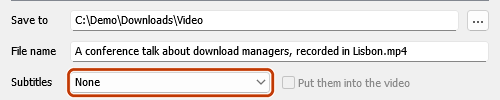
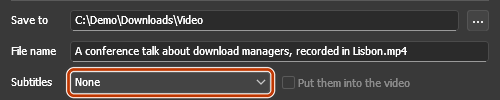
- Được lưu cạnh video, chúng sẽ có tên và ngôn ngữ của video:
My video.fr.srt. Các trình phát như VLC và MPV sẽ tự động nhận chúng. Với ffmpeg, chúng luôn là SRT; nếu không có, định dạng riêng của trang web (thường là WebVTT,.vtt). - Nhúng chúng vào video sẽ đưa chúng vào bên trong tệp, dưới dạng các bản nhạc bạn bật trong trình phát. Nó cần ffmpeg và một video MP4 hoặc MKV. Bản ghi của luồng trực tiếp sẽ giữ chúng bên cạnh (Đang ghi luồng trực tiếp).
- Lựa chọn chỉ âm thanh (Chỉ âm thanh, MP3, Opus, FLAC) không có phụ đề.
VDM offers the same choice again for the next video when it has that language.
A site may refuse subtitles when it's asked too often: YouTube does, most of all for its translated captions. The video is saved all the same. VDM asks for the subtitles once more after 20 seconds, and if they still don't come, the Download complete window and the download's log say which ones are missing and why. Try them again later. When subtitles meant to go inside the video only come on that second try, they're saved beside it instead.
Chương
Nhiều video được chia thành các chương trên trang của chúng: danh sách của YouTube bên dưới trình phát, với tiêu đề và thời gian bắt đầu cho mỗi phần. Với Nhúng chương được chọn, bên dưới Phụ đề, chúng sẽ được đưa vào tệp video, để các trình phát như VLC, MPV, MPC-HC và Windows Media Player liệt kê chúng và chuyển từ chương này sang chương khác.
- Nó được chọn ngay từ đầu và giữ nguyên như bạn đã đặt cho video tiếp theo.
- Nó cần ffmpeg, thứ sẽ ghi chúng. Một video không có chương sẽ được lưu nguyên trạng.
- Chúng được đưa vào video (MP4, MKV, WebM) và vào âm thanh như trang web có (Chỉ âm thanh, gốc), không phải vào tệp MP3, Opus hoặc FLAC, cũng không vào bản ghi của luồng trực tiếp.
- Dòng lệnh (
video-get) cũng đưa chúng vào, bất cứ khi nào ffmpeg có mặt.
Với Tách thành các chương được chọn (bên cạnh Nhúng chương, hoặc bên dưới nó trong một ngôn ngữ dài), video cũng được tách thành các tệp chương riêng lẻ (<filename> - <NN> - <chapter name>.<ext>, hoặc <filename> - <NN>.<ext> khi không có tiêu đề). Toàn bộ video cũng được giữ lại.
- Nó cần ffmpeg, và giữ nguyên cài đặt bạn đã chọn cho video tiếp theo.
- Splitting uses stream copy without re-encoding, so it runs losslessly and near-instantly. Each cut lands on a keyframe, so a chapter can start a second or a few early (yt-dlp's
--force-keyframes-at-cutsmakes it exact, but re-encodes, so VDM does not turn it on by default). - Một video không có chương hoặc chỉ có một chương sẽ được lưu dưới dạng một tệp duy nhất mà không tách.
- Tiêu đề của một chương được rút ngắn để phù hợp với giới hạn của hệ thống về tên tệp và đường dẫn; trong một thư mục rất sâu, một chương được đặt tên chỉ bằng số của nó.
- Nó không được cung cấp với Chỉ một phần: một phần không có chương.
- Các lệnh
video-getvàplaylist-getcủa dòng lệnh hỗ trợ nó thông qua--split-chapters. - Xóa bản tải xuống cùng với các tệp của nó cũng dọn dẹp các tệp chương đã tách của nó, đồng thời bảo toàn các tệp không liên quan trong cùng thư mục.
Chỉ tải xuống một phần
Để chỉ lưu một đoạn video hoặc âm thanh (một cảnh, một bài hát từ một bản phối dài, vài phút của một podcast), hãy chọn Chỉ một phần trên dòng Phần, dưới Phụ đề, và nhập thời gian bắt đầu và kết thúc.
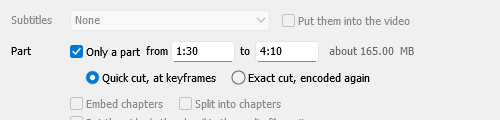
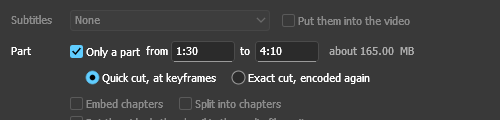
- Thời gian được nhập dưới dạng
1:30(một phút rưỡi),1:02:03(một giờ, hai phút và ba giây) hoặc theo giây (90). Các ô bắt đầu từ toàn bộ video, từ 0:00 đến cuối; Lên và Xuống di chuyển thời gian một giây, Page Up và Page Down di chuyển mười giây. Một ô chuyển sang màu đỏ khi thời gian của nó không hợp lệ (không phải là thời gian, thời gian kết thúc trước thời gian bắt đầu, vượt quá thời gian kết thúc của video, hoặc phần đó là toàn bộ video), và Tải xuống ngay sẽ cho biết lý do. - Cắt nhanh, tại khung hình chính, là lựa chọn đầu tiên: hình ảnh và âm thanh được sao chép nguyên trạng, không mã hóa lại, nên nhanh và không mất chất lượng. Hình ảnh chỉ có thể bắt đầu rõ nét tại một khung hình chính, vì vậy phần cắt sẽ bắt đầu từ khung hình chính cuối cùng trước điểm bắt đầu bạn chọn: sớm nhất vài giây, không bao giờ muộn. Âm thanh riêng lẻ trong tệp M4A bắt đầu đúng chỗ bạn chỉ định; trong tệp WebM (Opus) thì bắt đầu tại điểm tìm kiếm cuối cùng trước đó, có thể sớm hơn mười giây.
- Cắt chính xác, mã hóa lại: phần cắt bắt đầu và kết thúc đúng chỗ bạn chỉ định. ffmpeg mã hóa lại (H.264 và AAC trong MP4, VP9 và Opus trong WebM, âm thanh riêng lẻ ở định dạng của nó), quá trình này mất khoảng thời gian tương đương với việc mã hóa số phút đó trên máy tính của bạn, và hình ảnh có thể giảm chất lượng một chút.
- Kích thước bên cạnh thời gian là ước tính: tỷ lệ phần cắt so với toàn bộ video.
- Tên tệp hiển thị phần cắt:
My video (1m30s-4m10s).mp4. Tên bạn nhập sẽ được giữ nguyên. - Không có phụ đề và không có chương đi kèm với phần cắt: chúng sẽ là của toàn bộ video, theo thời gian của toàn bộ video. Phụ đề và Nhúng chương bị làm mờ khi Chỉ một phần được chọn.
- Tính năng này cần ffmpeg, để cắt phần video, và một video mà trang web hiển thị độ dài (không phải luồng trực tiếp). Video trong danh sách phát được tải xuống toàn bộ.
- Từ trình duyệt: menu của nút Tải xuống video trên một video có Tải xuống một phần từ đây.... Nó mở cửa sổ này với Chỉ một phần được chọn và điểm bắt đầu là vị trí video đang phát.
How a part comes down: yt-dlp's ffmpeg finds the part in each stream by the stream's own index (an MP4's or a WebM's, an HLS stream's playlist) and reads only that part, never the whole file. What it reads comes in through VDM's own connections, in requests of a MB at most, several at once: a part comes about as fast as a whole video would (YouTube sends one long request at about the video's own pace), under your speed limits (a change applies at once), and through your proxy or network adapter. The progress window shows what has come against the part's estimated size. Paused and resumed, a part starts again from its beginning: ffmpeg can't go on from the middle of a cut. A stream sent another way (a DASH manifest, RTMP) is read by ffmpeg itself.
Danh sách phát và kênh
Dán địa chỉ của danh sách phát (youtube.com/playlist?list=…) hoặc video của một kênh (youtube.com/@name/videos) rồi nhấp Tra cứu. Thay vì hiển thị các chất lượng của một video, cửa sổ sẽ liệt kê các video trong danh sách, cùng thời lượng của từng video.
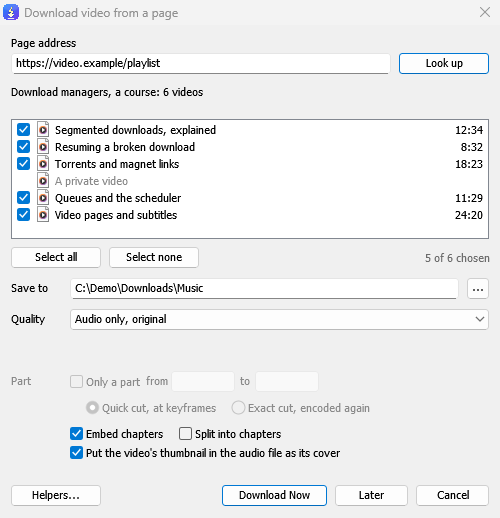
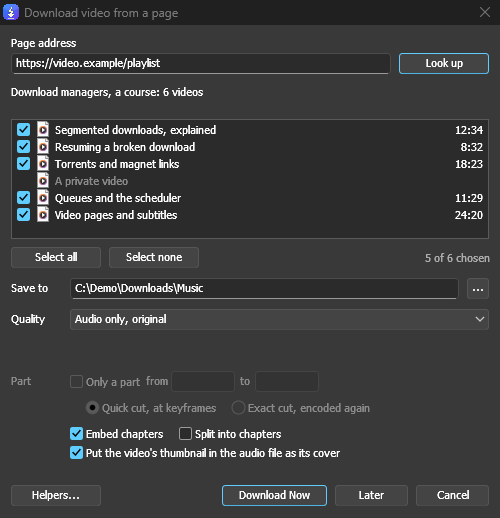
- Danh sách phát được liệt kê dần theo từng video. Dòng phía trên danh sách cho biết tiến độ ("Đang liệt kê video: 1.200 trên 6.000"). Dừng liệt kê sẽ giữ lại các video đã liệt kê. Liệt kê phần còn lại sẽ tiếp tục từ đó. Nếu trang web ngừng phản hồi giữa chừng (YouTube có thể làm vậy khi bị yêu cầu quá thường xuyên), cửa sổ sẽ cho biết việc này xảy ra sau bao nhiêu video và lý do. Liệt kê phần còn lại sẽ thử lại từ đó.
- Mỗi lần, kênh được liệt kê 50 video, bắt đầu từ video mới nhất. Tải thêm sẽ liệt kê 50 video tiếp theo.
- Ban đầu, tất cả video đều được chọn. Bỏ chọn những video không muốn tải xuống hoặc dùng Chọn tất cả và Bỏ chọn tất cả. Video riêng tư và đã bị xóa sẽ bị làm mờ và không thể chọn.
- The sound's language: every video of the list downloads with Options → Regional → Videos' sound's language when it has it, else its original (The sound's language).
- Chất lượng áp dụng cho mọi video: Chất lượng tốt nhất, Tương thích nhất (H.264 + AAC) (hình ảnh H.264 tốt nhất của mỗi video với âm thanh AAC; video nào không có sẽ không được tải xuống), Tối đa một chiều cao (mỗi video ở chiều cao đó, hoặc gần nhất bên dưới nó), Chỉ âm thanh, gốc, Chỉ âm thanh MP3, Chỉ âm thanh OPUS hoặc Chỉ âm thanh FLAC. Nếu không có ffmpeg, chỉ các chất lượng đi kèm với âm thanh của chúng mới được cung cấp, và không có MP3, Opus hoặc FLAC.
- Video được lưu trong thư mục có tên theo danh sách, bên trong Lưu vào. Mỗi video được lưu với tên tiêu đề riêng.
Tải xuống ngay thêm từng video thành một lượt tải xuống riêng và bắt đầu hàng đợi chính. Số lượt tải xuống chạy đồng thời theo thiết lập trong Bộ lập lịch (Tải xuống N tệp cùng lúc). Sau thêm video vào hàng đợi mà không bắt đầu tải xuống. Nếu thêm hơn 500 lượt tải xuống cùng lúc, VDM sẽ hỏi xác nhận trước.
VDM lists at most 20,000 videos of one list.
Nếu địa chỉ trang trỏ đến một video trong danh sách phát hoặc bản phối (ví dụ watch?v=…&list=…), VDM chỉ tải xuống video đó, không tải toàn bộ danh sách.
Giới hạn tốc độ
Videos keep to the Speed Limiter: the limit for one file, a video's own limit (the Speed Limiter tab of its progress window), and the limit for all downloads together, which they share with every other download. VDM's own downloader brings them in, so a change applies at once, as for a file.
A video yt-dlp downloads by itself (How a video comes down) takes a limit only as it starts: when you turn the limiter on or off, change its settings or the video's own limit, VDM stops it and starts it again with the new limit, and it goes on from where it was (the log says "Stopped: the speed limit changed; starting again with it"). A live stream that is recording is the exception: restarting it would cut the recording, so it keeps recording and takes the limit the next time it starts. Under the limit for all downloads, such videos share it evenly: when another starts, the ones running with more than their share start again with it; when one ends, the others keep theirs. A gallery's pictures that VDM brings in follow a change at once; what gallery-dl still fetches itself starts again with the new limit, skipping the files already saved. Other changes (torrents taking more or less of the limit for all downloads, Only while I'm using the computer) apply to the next one that starts.
Qua bộ điều hợp VPN
With Options → Proxy / Socks → Network adapter set, video downloads go through that adapter too, with the same kill switch as other downloads. VDM's own downloader opens its connections through the adapter as for any file; for yt-dlp's look-ups (and what it downloads itself, with the ffmpeg it starts) VDM hands it a proxy of its own on this computer, and opens every connection through the adapter, looking the names up with the DNS you chose in Options → Connection (without an adapter, yt-dlp uses the system's DNS). When the adapter disconnects, the video download stops, and it starts again when the adapter is back. Formats sent over RTMP, RTSP, MMS or FTP can't go through it and are refused.
Các trang web yêu cầu đăng nhập
Một số video chỉ phát cho người xem đã đăng nhập: video của thành viên hoặc video riêng tư, video bị giới hạn độ tuổi. Và YouTube đôi khi yêu cầu bất kỳ người xem nào từ một mạng mà nó nghi ngờ (VPN, địa chỉ dùng chung hoặc đám mây) "Đăng nhập để xác nhận bạn không phải là bot". yt-dlp sau đó cần cookie của trình duyệt của bạn, các tệp nhỏ giúp bạn duy trì trạng thái đăng nhập.
- Nút Tải xuống video trên video chuyển cookie của trang đó, từ cửa sổ và hồ sơ bạn đang sử dụng (cửa sổ riêng tư, vùng chứa Firefox), để tra cứu và tải xuống, vì vậy bạn đã đăng nhập như trong trình duyệt. Không cần thiết lập gì cả. Mỗi cookie đi kèm với miền mà trình duyệt lưu trữ nó, vì vậy việc đăng nhập trên YouTube Music (music.youtube.com) hoặc trang di động của YouTube cũng đến được www.youtube.com.
- Một địa chỉ đã dán (Thêm URL, Tải xuống video từ một trang, danh sách phát): chọn trình duyệt của bạn trong Tùy chọn → Đăng nhập trang web → Cookie cho các trang web video. yt-dlp sau đó đọc cookie của trình duyệt đó trên máy tính này cho mỗi video mà nó tra cứu hoặc tải xuống. Khi tiện ích mở rộng chuyển cookie của chính trang đó, những cookie đó sẽ được sử dụng thay thế: chúng thuộc về trang đó và phiên đó.
- Một tài khoản phụ, trong hồ sơ riêng của nó: bạn không cần cho yt-dlp mượn tài khoản chính của mình. Tạo một hồ sơ thứ hai trong trình duyệt của bạn, đăng nhập vào trang web đó bằng một tài khoản phụ và đặt hồ sơ đó vào Hồ sơ (tên của nó, hoặc thư mục của nó với ...). yt-dlp chỉ đọc cookie của hồ sơ đó. Các nhà phát triển của yt-dlp cũng khuyên điều này: một trang web có thể giới hạn một tài khoản mà nó thấy được sử dụng bởi một chương trình.
Signed in, YouTube sometimes refuses what it gives a visitor: its servers answer the video with HTTP Error 403: Forbidden, or the look-up with its bot check, where a private window plays it. When YouTube refuses a video anyone may watch that way, VDM looks it up once more without your cookies, as a private window would, and the download's log says so. A private, members' or age-restricted video keeps them.


Sign in to the site in that browser first. VDM never logs or shows the cookies; the download's log names only the browser they came from.
Các trình duyệt nào
Từ trình duyệt liệt kê các trình duyệt mà yt-dlp đọc: Firefox, Chrome, Edge, Brave, Opera, Vivaldi, Chromium và Whale, và Safari trên macOS. Hồ sơ là tùy chọn: tên hồ sơ (Profile 1) hoặc thư mục của nó; để trống, hồ sơ được sử dụng gần đây nhất.
- Firefox hoạt động trên mọi hệ thống. Nếu bạn vừa đăng nhập cách đây ít phút khi Firefox đang mở, hãy đóng nó một lần để nó ghi thông tin đăng nhập vào các tệp của nó.
- Chrome, Edge và Brave trên Windows khóa cookie của chúng với chính chúng (Chrome 127 trở lên, “mã hóa ràng buộc ứng dụng”), và yt-dlp cũng không thể đọc chúng khi trình duyệt đang mở. Cửa sổ thông báo điều đó; hãy chọn Firefox, hoặc sử dụng nút trên video, nút này hoạt động với bất kỳ trình duyệt nào.
- Trên Linux, các trình duyệt họ Chrome giữ khóa cookie của chúng trong kho khóa của hệ thống (GNOME Keyring, KWallet); yt-dlp yêu cầu nó, vì vậy nó phải được mở khóa.
- Một trình duyệt khác được xây dựng trên Chromium (Helium, Thorium, ungoogled-chromium...): chọn Chromium và thư mục hồ sơ của trình duyệt đó (thư mục
Defaultcủa nó, hoặcProfile 1...; dưới~/.configtrên Linux,%LOCALAPPDATA%trên Windows). yt-dlp đọc thư mục, nhưng một trình duyệt giữ khóa của nó dưới tên riêng của nó trong kho khóa, hoặc khóa cookie của nó như Chrome, thì không thể đọc theo cách này: hãy sử dụng nút tiện ích mở rộng của nó.
Khi không thể kết nối với máy chủ video
Some sites, YouTube among them, send each viewer to a nearby video server, sometimes one inside the internet provider's own network. If that server can't be reached from your connection, a browser quietly switches to another one, but yt-dlp on its own would give up. Before each video download VDM checks the servers in the video's links and, if one doesn't answer, switches to the next one the site lists. The download's log says when this happens.
Nếu không tải được video
- Di chuột qua Trạng thái của lượt tải xuống hoặc mở cửa sổ tiến trình để xem thông báo của yt-dlp.
- Không có video nào trên trang đó có thể tải xuống nghĩa là yt-dlp không tìm thấy video nào trên trang. Hãy kiểm tra xem địa chỉ có phải là trang riêng của video hay không.
- Video này yêu cầu bạn phải đăng nhập, hoặc trang web muốn bạn đăng nhập: xem Các trang web yêu cầu đăng nhập.
- Sites change often, and a newer yt-dlp usually fixes it. VDM keeps its own yt-dlp up to date by itself, and when a download fails in a way that usually means yt-dlp is out of date, it looks for a newer one at once and tries again (Keeping them up to date). To check right now: Helpers... → Check for updates. If you chose your own yt-dlp in Helpers, update it yourself (
yt-dlp -U, or your package manager). - The path is too long for Windows (or the file name is too long) means the folder and the file name together, with the files saved beside the video while it downloads, are longer than the system allows: 259 characters on Windows unless long paths are turned on there, 255 a name (255 bytes on Linux and macOS). VDM shortens a title by itself, so this comes from a name you typed or a very deep Save to folder: add the video again with a shorter name, or a folder nearer the top of the drive.
- Videos protected with DRM (most paid streaming services) can't be downloaded, and VDM doesn't try. The browser extension's Media on this page shows such a stream as Protected and doesn't send it.
- Nếu cửa sổ không tìm thấy video trên trang, hãy phát video trong trình duyệt rồi dùng mục Nội dung đa phương tiện trên trang này của tiện ích mở rộng để gửi luồng mà trang đã tải.
- Việc tải xuống có thể vi phạm điều khoản của một số trang web. Bạn cần tự kiểm tra điều này.
- Vẫn gặp khó khăn? Chọn Trợ giúp → Báo cáo sự cố và đính kèm địa chỉ trang.
Các bước tiếp theo
Miễn phí, mã nguồn mở, không quảng cáo, không dùng thử.
Download Volt Download Manager