

VDM downloads videos from their web pages: YouTube, Vimeo, Dailymotion, Twitch, TikTok, X, Instagram, Facebook, Reddit, SoundCloud and well over a thousand other sites. yt-dlp, an open-source program whose community keeps it working as sites change, finds the video on the page; VDM's own downloader then brings it in, the way it downloads any file.
ビデオのダウンロードを開始する
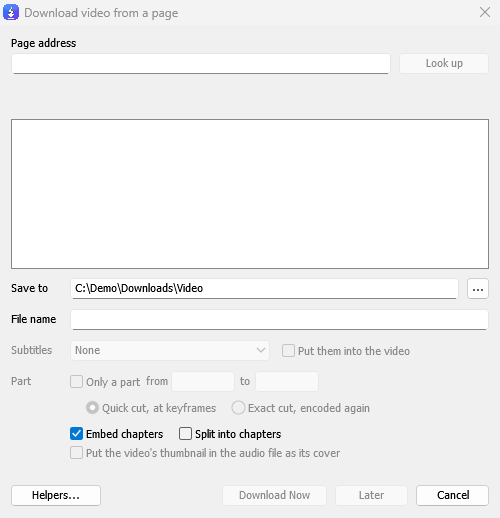
- Give the video's page address to Add URL (Ctrl+N). VDM recognises video pages and opens the video window, already looking the page up.
- または、タスク → ページからビデオをダウンロード... を選択し、ページ アドレスにアドレスを貼り付けて検索をクリックします。
ファイルではなくウェブページであることが判明した他のページアドレスも、ビデオウィンドウに表示されます。yt-dlpが独自のリーダーを持たないサイトでは、HTMLに書かれた最初のプレーヤーではなく、ページが検索エンジンやリンクプレビューに伝える情報(JSON-LD、og:video、twitter:player)で言及しているビデオが対象となり、ファイル名はページが指定した名前になります。
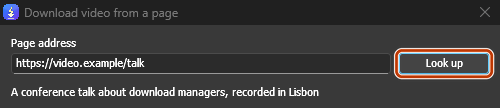
ページのアドレスを貼り付け、検索をクリックします。 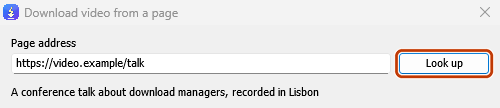
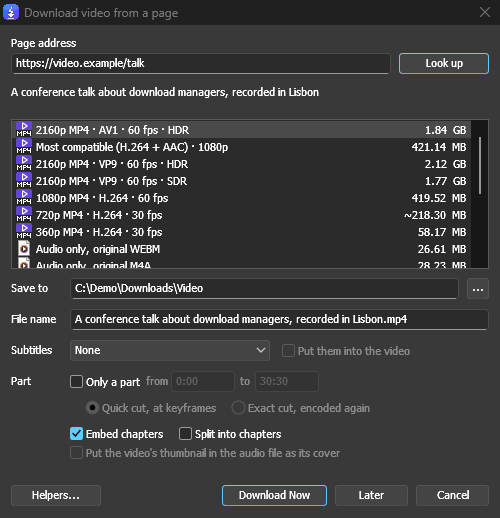
画質を選び、今すぐダウンロードをクリックします。 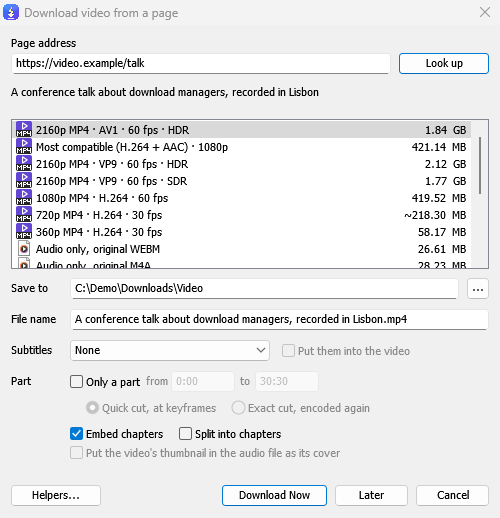
他のファイルと同様に、独自の行とウィンドウでダウンロードされます。 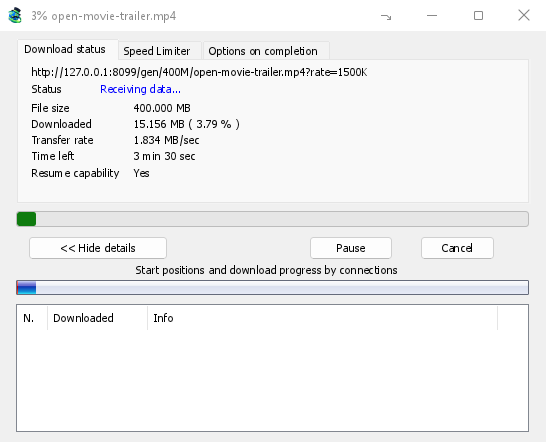
yt-dlp と ffmpeg
VDM offers its two helpers on its first start, and again the first time they are needed. It downloads them from their official releases with its own downloader, so a cut connection resumes, and uses your proxy settings:
- yt-dlp (about 23 MB) looks the page up and finds where the video and its sound come from; VDM downloads them (How a video comes down). The first time, click Install yt-dlp. VDM checks the download against the signature yt-dlp's developers publish before it uses it.
- ffmpeg (about 80 MB) joins a video and its sound when a site keeps them apart, which most sites do for the higher qualities, and turns the sound into an MP3, Opus or FLAC file. Click Install ffmpeg when VDM offers it. VDM installs only a build its maintainers checked: the download must match the SHA-256 in VDM's own list of builds, which carries VDM's signature. When that list can't be downloaded or checked, VDM says so and installs nothing; you can still choose your own ffmpeg in Helpers....
- Each processor gets its own build: yt-dlp's for x64, ARM64 and 32-bit Windows and for Linux on ARM, and ffmpeg's for x64 and ARM64 Windows. No ffmpeg is built for 32-bit Windows that VDM can check, so there VDM offers none: choose your own in Helpers... (below), or download the qualities that come with their sound.
You can install them ahead of time too: in Helpers..., a helper that isn't there yet says Not installed yet, and Install yt-dlp, Install ffmpeg or Install gallery-dl in its row downloads VDM's own copy, checked the same way, and keeps it up to date from then on. Where VDM has no copy for your system, the button is greyed out and the row says what to do instead.
Both are kept in a tools folder in VDM's data folder. For YouTube, yt-dlp also needs a JavaScript runtime, which VDM can download too: see A JavaScript runtime for YouTube.
最新の状態に保つ
Sites change all the time, and a newer yt-dlp is usually what makes a page that stopped working download again. So VDM keeps its own copies of yt-dlp, gallery-dl, ffmpeg and Node.js up to date by itself:
- When: a few seconds after VDM starts, then again while it runs: yt-dlp and gallery-dl at most every 6 hours, Node.js once a day, ffmpeg once a week (a newer ffmpeg comes when VDM's list of checked builds names one, usually with a new version of VDM). VDM remembers when it last asked, so starting it many times doesn't ask again.
- How: each new version is downloaded and checked exactly as the first install was (yt-dlp's, gallery-dl's and Node.js's signed checksum lists, VDM's signed list of ffmpeg builds), never an older one, and installed beside the one in use.
- 切り替えのタイミング: ダウンロード、検索、またはその他の実行でヘルパーが使用されていない間のみです。新しい yt-dlp が到着したときにダウンロード中のビデオは、開始したバージョンで完了します。新しいバージョンは、それを使用する最後のダウンロードが終了した時点から使用されます。
- 以前のバージョンは残るため、元に戻すことができます。古いバージョンは削除されます。
- A video that fails with an error that usually means yt-dlp is out of date for the site (Unable to extract, Unsupported URL, YouTube's Sign in to confirm you're not a bot, HTTP Error 403, a failed signature or n challenge, Requested format is not available), or a gallery whose gallery-dl reports an unexpected error: VDM looks for a newer version at once, installs it if there is one, and tries that download again with it, once. Its log says so. If there is none, the error stands as before.
- A check that fails (no connection, GitHub busy) is tried again an hour later. It is written in VDM's log, never shown as an error.
In Helpers..., each of VDM's own copies says how it stands: Up to date, Version X available, Updated to X, or Version X is ready: used once its downloads end. Update gets the newest version of that one now, Go back to X uses the previous version again (automatic updates then wait for a version newer than the one you left; Update brings it back), and Check for updates checks them all. Untick Keep VDM's helpers up to date automatically to update only when you ask. Programs you chose with Use another program..., and your system's copies, say Updated by you: VDM leaves them to you.
コマンド ラインでは、update-helpers はすべてをチェックして更新し、そのバージョンを出力します (コマンド ライン)。
独自のコピーを使用する
On Linux and macOS, VDM finds yt-dlp, ffmpeg and gallery-dl on your PATH and in the usual package-manager folders, including Homebrew's. A program you selected yourself takes priority, followed by VDM's own installed copy. The system copy is used when neither is present, and your package manager keeps it up to date: VDM never downloads over it on its own. If your distribution's yt-dlp is old, Use VDM's own copy in Helpers downloads VDM's, which keeps itself current and is used from then on.
Already have yt-dlp or ffmpeg for another program? Use those instead of a second copy: in Download video from a page, click Helpers..., then Use another program... beside yt-dlp or ffmpeg, and choose the program. VDM runs it once to check that it is that program, and uses it from then on, the command line too. VDM doesn't update a program you chose: keep it up to date yourself (yt-dlp: yt-dlp -U, or your package manager). Use VDM's own copy goes back to the one VDM downloads and checks.
YouTube 用 JavaScript ランタイム
YouTube hides most of a video's qualities behind small puzzles that yt-dlp solves with a JavaScript runtime: Node.js, Deno, QuickJS or Bun. Without one, a look-up is slow, the list is short (sometimes only the sound and a low quality) or it fails with Requested format is not available, and VDM says so: YouTube needs a JavaScript runtime to list its video qualities. Other sites don't need one.
The quickest way is VDM's own copy of Node.js: click Install Node.js beside that message, or, in Helpers..., Install Node.js in the JavaScript runtime (for YouTube) row. The first start's setup offers it too, in its Video helpers step, when your computer has no runtime. VDM downloads Node.js's newest long-term support (LTS) build for your system and processor from nodejs.org with its own downloader (about 40 MB on Windows, 60 MB on Linux and macOS; Windows x64, ARM64 and 32-bit, Linux x64 and ARM64, macOS), checks the release's checksum list against the signing keys of Node.js's releasers and the download against that list before it uses it, keeps only the node program in the tools folder beside yt-dlp and ffmpeg, and from then on tells yt-dlp to use it. It keeps it up to date the way it keeps yt-dlp's (Keeping them up to date), never with an older version. 32-bit Windows gets the newest LTS line Node.js still builds for it, 22, which Node.js supports until April 2027; after that VDM has no Node.js for 32-bit Windows, and a runtime of your own (Use another program...) is needed there. VDM never installs a Node.js older than the LTS line current when that VDM was made, whatever nodejs.org's list says. The video is looked up again by itself once Node.js is in.
Already have one? Then nothing needs downloading: a runtime on your computer comes first. VDM finds Deno, Node.js (22 or newer, also one installed with nvm), QuickJS and Bun by itself, in the order yt-dlp prefers them, and passes over one too old for yt-dlp (Node.js 20, say) or a Node.js whose line has reached its end of life on nodejs.org's schedule (then VDM's own is used, which it keeps on a supported release). A supported Node.js of your computer's is used as it is: you or your package manager keep it up to date. Helpers says which one yt-dlp uses and where it is: Node.js 24.11.0, your system's, nothing to download. To use another one, a portable copy or one that isn't on the PATH, click Use another program... in that row and choose its program (node.exe, deno.exe, qjs.exe, bun.exe): VDM asks it for its version first and refuses one yt-dlp can't use. Use VDM's own copy goes back to the one VDM finds or downloads. (Choosing your own runtime was YairDies' idea.)
Earlier versions of VDM installed Deno. That copy keeps working until VDM's Node.js is in place (the next update check brings it, or Use VDM's own copy); then yt-dlp switches to Node.js and VDM removes its own Deno, once no download is using it. A Deno you installed yourself is never touched, nor VDM's own once you chose it with Use another program.... While VDM asks the runtimes on your computer for their versions, Helpers says Looking for a JavaScript runtime on this computer....
If you'd rather install one yourself, any of them works; then look the video up again. If VDM still says so, the new program's folder isn't on the PATH VDM started with (Windows' installers add it for programs started after them): quit VDM (Tasks → Exit) and start it again.
- Windows:
winget install DenoLand.Deno、またはwinget install OpenJS.NodeJS.LTS。deno.com および nodejs.org のインストーラーも動作します。 - Ubuntu および Debian:
sudo apt install nodejs - Fedora:
sudo dnf install nodejs - Arch:
sudo pacman -S nodejs、またはsudo pacman -S deno - macOS:
brew install deno、またはbrew install node - 任意のシステム、Deno をユーザーのみにインストールする場合:
curl -fsSL https://deno.land/install.sh | sh(Windows の PowerShell では:irm https://deno.land/install.ps1 | iex)
A distribution's yt-dlp can also be too old for YouTube: if the list stays short, click Use VDM's own copy beside yt-dlp in Helpers.... A yt-dlp older than 2025.11.12 can't be told of a runtime at all; VDM then leaves the runtime out rather than stop the look-up.
品質を選択する
- Wait for the list. It shows each quality with its size, best first, then the sound alone:
- A video's line says its resolution, the file it makes, its picture's codec, its frame rate and whether it is HDR:
2160p MP4 · AV1 · 60 fps · HDR. MP4 is only the file: what's inside it can be AV1, VP9 or H.264, and the codec says which, the very one that downloads (should the site no longer offer that stream, VDM takes the nearest of the same codec and resolution first). A resolution that comes in several (AV1, VP9 and H.264, HDR and SDR) has a line for each: AV1 makes the smallest file, H.264 plays on the most devices, and an HDR video looks washed out on a screen without HDR.SDRis said only beside an HDR line of the same resolution. - Most compatible (H.264 + AAC), second in the list: the best H.264 video the site has (YouTube's usually go up to 1080p) with AAC sound (in stereo when the site has it beside surround), in an MP4 that Premiere Pro and other editors, older TVs and most phones open as it is. YouTube's best qualities are AV1 or VP9 with Opus sound, which some of them can't read. The line says its resolution:Most compatible (H.264 + AAC) · 1080p. VDM picks those streams, it doesn't convert anything: when the site has no H.264 video with AAC sound the line isn't there, and when the best line already is that, it isn't listed twice. - The size is that of exactly what downloads, the video and its sound. A size with~before it (~532 MB) is only an estimate: the site didn't say the size, so it comes from the stream's bitrate and length. - Audio only, original: the site's own file, not converted, once for each type the site has it in (WebM with Opus inside, M4A), the best first. The best sound there is, in the smallest file. - Audio only MP3 at its best variable bitrate (VBR) and at 320, 256, 192 and 128 kbps, for players that only take MP3. - Audio only OPUS: an.opusfile. When the site's sound is Opus already (YouTube's usually is), it's only moved into that file, not converted, so nothing is lost. - Audio only FLAC: a lossless.flacfile, for a library or a program that wants FLAC. It can't add quality: the site's sound is already compressed with losses, and FLAC keeps it exactly as it came, in a file several times bigger. The window says so when you choose it. - 1つ選択してください。ffmpegがない場合、音声が付属している品質のみがリストに表示され、MP3、Opus、FLACは表示されません(ffmpegがこれらを作成します)。
- 保存先(デフォルトではビデオカテゴリのフォルダー)とファイル名を確認します。ファイル名はビデオのタイトルから取得されます。長いタイトルは、ダウンロード中にビデオの横に保存されるファイルがシステムのパス長の制限に収まるように、単語の終わりで短縮されます。入力した名前は入力されたとおりに保持されます。
- When the video's sound comes in several languages, choose one in Sound (see The sound's language). Choose Subtitles if you want them (see below). Embed chapters is ticked: see Chapters. To keep only a stretch of it, tick Only a part: see Download only a part. For a sound alone, Put the video's thumbnail in the audio file as its cover is ticked: see A cover for the sound.
- 今すぐダウンロードをクリックするか、開始せずにリストに追加するには後でをクリックします。
その後、動画は他のファイルと同様にダウンロードされ、リストに独自の行と進行状況ウィンドウが表示されます。
動画のダウンロード方法
yt-dlp looks the page up and picks the quality's video and sound. VDM's own downloader then brings each of them in, one after the other, the way it downloads any file:
- 複数の接続: オプション → 接続 でファイルに指定された数だけ接続します。進行状況ウィンドウの接続テーブルには各接続が表示され、セグメント マップには動画、次に音声が表示されます。
- A stream sent in many small pieces (HLS, DASH, as most sites other than YouTube send theirs) comes down that many pieces at once, each kept on disk as it arrives, then joined in order into one file, as yt-dlp joins them. Pieces encrypted with AES-128 are decrypted with the key the stream's playlist names. When their addresses expire, VDM asks yt-dlp for the stream's new list and carries on with the pieces still missing.
- 速度制限内: 速度制限、動画自体の制限 (進行状況ウィンドウの 速度制限 タブ)、およびすべてのダウンロードの合計制限が適用されます。変更はすぐに適用されます。
- Paused and resumed like a file, also after quitting VDM: it carries on from the bytes already saved.
- When an address stops working: a video's addresses are signed and expire after a few hours (YouTube's after six). VDM asks yt-dlp for a fresh one for the same quality and carries on from where it stopped.
その後、yt-dlp はダウンロード後に通常行う処理を実行します。動画とその音声を ffmpeg で結合して 1 つの MP4 にし、字幕を保存または埋め込み、チャプターをファイルに含め、MP3、Opus、または FLAC の選択肢のために音声を変換します。
YouTube serves each connection's long requests slowly, so VDM asks for the video in pieces of 10 MB at most, as yt-dlp does, and several at once.
yt-dlp が独自にダウンロードする動画もいくつかあり、進行状況ウィンドウにその旨が表示されます。
- まだ録画中のライブ ストリーム(ライブ ストリームを録画中)。
- RTMP、RTSP、MMS、または FTP 経由で送信されるストリーム。
- 他の種類のピース (Adobe の HDS、Microsoft の Smooth Streaming) で構成される珍しいストリーム、およびサイトが yt-dlp に直接キーを渡すストリーム。
これらの場合、新しい速度制限が適用され、ダウンロードは中断された場所から再開されます(速度制限)。録画中のライブ ストリームは、次に開始されるときに適用されます。
ライブ ストリームを録画中
A live stream, a broadcast still going on, is recorded by yt-dlp with ffmpeg into an unfinished file, so VDM can't know its length. While it records, the progress window says Recording..., and Downloaded and Transfer rate follow the size of what has been recorded so far.
- 録画中... は、レコーダーがストリームに接続した瞬間(ダウンロード開始から数秒後。それまではウィンドウに接続中...と表示されます。到達できないストリームは決してそこまで到達しません)から表示されます。ダウンロード済みはディスクに到達した量を示し、レコーダーは 256 KB のブロックで書き込むため、最初のブロックが書き込まれるまで 0 KB のままです(低ビットレートのストリームでは時間がかかる場合があります)。その後、ブロックごとに増加します。停止して保存を最初のブロックの前に実行しても何も保存されません。ダウンロードは空のファイルのまま停止され、再開で新たに録画されます。以前の実行で残された空の未完成ファイルは、録画が再開されるときに削除されるため(何も保持していません)、再開された録画は同じ瞬間から録画中...と表示されます。
- Stop and save is what the progress window's pause button reads for a live stream that is recording. It, Stop and Stop All in the list (toolbar and menus), a queue's stop (by hand, at its scheduled stop time, or through the API) and the phone page's pause all end the recording and keep it. VDM makes the recording an MP4 itself, as yt-dlp does when a live stream ends: the streams are copied as they are, nothing is converted. The window says Saving... meanwhile, and the download is then Complete, as when a live stream ends by itself: the queue goes on and the completion notice and actions run.
- 最後の数秒が欠落している可能性があります。レコーダーがまだ書き込んでいなかった最大 1 MiB です。これは数秒の動画であり、音声のみのストリームの場合は最大約 1 分です。
- MP4 を作成できない場合、録画は MPEG-TS ファイル(
.ts)として保存され、ほとんどのプレーヤーで開くことができます。それもできない場合、ダウンロードは失敗したことを示し、未完成のファイルはそのまま残ります。 - 録画は、MP4 がすべてを保持している場合にのみ削除されます。つまり、録画が 1 秒以内であり、その画像と音声もそれぞれ(ffprobe の期間。それらがない場合は、録画サイズの少なくとも 90%)含まれている場合です。短い MP4 は、録画の横に
My stream (recording 1).tsとして保存され、ダウンロードのログに理由が記録されます(録画の名前を変更できない場合、ログにその旨が記録され、未完成のファイルのままになります)。 - A live stream that ends by itself while VDM records it is made an MP4 the same way, with the same check: yt-dlp is told to leave its recording as it is, and VDM makes the MP4 of it (when it has ffmpeg and the recording is the MPEG-TS yt-dlp made). From the moment yt-dlp says the recording is finished, the window says Saving... (only a moment when there is no MP4 to make), and a Stop waits for it: the download is then Complete. The recording goes only when the MP4 holds all of it, it is kept beside a shorter one, and if no MP4 can be made it is the download's
.tsfile (My stream (recording 1).tswhenMy stream.tsis taken). Subtitles asked to go inside the video are saved beside it instead, and no chapters are added: the recording isn't changed once it is made. - ライブ ストリームの MP3、Opus、または FLAC: 音声は要求どおりに保存され、作成元の録画は
My stream (recording 1).tsとしてその横に保持されます。 - ストリーム終了後にyt-dlp が結合した画像と音声は、動画に両方がすべて含まれていない場合、yt-dlp が残したまま動画の横に保持されます。それ以外の場合は削除されます。
- A recording yt-dlp finished but VDM didn't make an MP4 of (a try that failed just after, or VDM closed meanwhile) is still MPEG-TS under the MP4's name. Before the download starts again, VDM makes it an MP4 with the same check (the list says Merging meanwhile, and a Stop waits for it, then stops the download before anything else runs): when the MP4 holds all of it, it is the download. Otherwise the recording is kept as
My stream (recording 1).tsand the download starts over. Without VDM's ffmpeg it is set aside the same way. The same goes for a normal video in pieces (HLS) VDM's engine left as MPEG-TS inMy video.mp4when yt-dlp failed or was stopped while it fixed it up. - 複数の部分に分かれた録画(yt-dlp が分離した画像と音声の部分)は、それらすべてを含む 1 つの MP4 に結合されます。結合できない場合、ダウンロードは失敗したことを示し、各部分はそのまま残ります。
- Cancel in the progress window only stops the download: the recording stays in its unfinished file. So does reaching a download limit, which counts a recording as it grows and stops it as it stops other downloads. Resume, or VDM starting the download again by itself (after a network adapter change or the download limit, or a queue that starts when VDM opens), records the stream anew. It first sets the earlier recording aside, next to it, as
My stream (recording 1).ts(then(recording 2), and so on), so nothing is recorded over; so it does when the stream has ended meanwhile and the download goes on as a normal video. (An unfinished MPEG-TS file yt-dlp downloads directly, without its resume state, is taken for a recording the same way: it starts over, what it had kept aside.) If that file can't be set aside, VDM doesn't record over it and says so. - これらの保存された録画はダウンロード独自のファイルではありません。ファイルとともに削除しても、これらは残ります。
- Closing VDM while a live stream records, or while it saves one, stops it without saving: the recording stays in its unfinished file (a half-made MP4 is left as
<name>.temp.mp4, which Delete with its files removes), and it is set aside when the download starts again. The command line (voltdownloadmanager-cli) doesn't save a live stream this way. - キューの停止によって保存されたライブ ストリームは完了と見なされるため、日次キューは翌日には再開されません。
The sound's language
More and more videos come with their sound in several languages: the one they were made in, the original, and others dubbed (YouTube's dubbed and automatically dubbed tracks, for one). When the site names each track's language, Download video has a Sound list under File name, the original first and marked: English, original, then Deutsch · German, Español · Spanish... (each language in its own words, and in English when that differs). A video in one language has no such list and looks as before.
- The qualities follow it. Every line in the list is then in that language: a video line joins its picture with that language's sound and its size is theirs, and Audio only (as the site has it), MP3, Opus and FLAC take that language's sound. A video line whose file carries another language's sound (YouTube's 360p in one file) isn't offered for a dubbed language; without ffmpeg, which joins a picture and a sound, only the sound in that language is.
- One sound track per file. The file has the language chosen, never two.
- For every video and playlist: Options → Regional → Videos' sound chooses one language, which every video looked up starts on when it has it (in Download video, where you can still choose another, and in the button over a video) and which every video of a playlist downloads with. A video without that language comes with its original sound. Each video's original, the default, keeps every video in the language it was made in.
- The button over a video says the language of each line's sound in its menu, and its Audio tab has each other language's sound as the site has it too.
- If the site no longer offers that language when the download starts, the video comes with its original sound.
A cover for the sound
A sound saved alone has no picture, so music players show an empty square. With Put the video's thumbnail in the audio file as its cover ticked in Download video (under Embed chapters), the picture the site shows for that video becomes the file's cover once it is saved.
- It is ticked to begin with, and stays as you leave it for the next video. It applies to a playlist's sound too.
- Which files: an M4A as the site has it (Audio only, original M4A), and an MP3, Opus or FLAC. A WebM (Audio only, original WEBM, YouTube's Opus as it comes) can't hold a cover: choose M4A or Opus instead. Videos are saved as they are.
- How: VDM brings the picture in with its own connections (your proxy and network adapter, as every download), from where the site says that video's picture is, nothing from anywhere else. ffmpeg puts it into the file as its cover (Opus files as the picture comment music players read in them), copying the sound as it is: nothing is encoded again. A WebP picture is made a JPEG first.
- It needs ffmpeg. Without it, or when the picture can't be had, the file is saved as before, without a cover, and the download's log says why.
字幕
動画に字幕がある場合、字幕リストに表示されます。まずアップロード者自身の言語(複数ある場合はアップロード者によるすべての字幕)、次にサイトの自動キャプション(自動と表示)が表示されます。そのうち、話されている言語のものと、その英語およびインターフェース言語への翻訳のみがリストに表示されます。YouTubeのようなサイトは、知っているすべての言語への機械翻訳を提供しています。
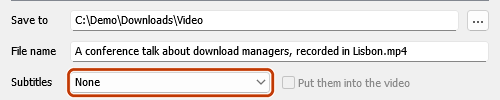
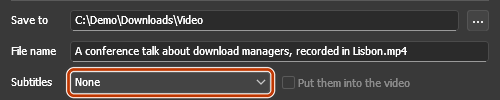
- 動画の横に保存され、動画の名前と言語が付けられます。
My video.fr.srt。VLCやMPVなどのプレーヤーは自動的にこれらを認識します。ffmpegを使用する場合は常にSRT形式で、使用しない場合はサイト独自の形式(多くの場合WebVTT、.vtt)です。 - Put them into the video を選択すると、代わりにファイル内にトラックとして埋め込まれ、プレーヤーで切り替えることができます。これには ffmpeg と MP4 または MKV 動画が必要です。ライブ ストリームの録画では、それらはその横に保持されます (Recording a live stream)。
- 音声のみの選択(音声のみ、MP3、Opus、FLAC)には字幕がありません。
VDM offers the same choice again for the next video when it has that language.
A site may refuse subtitles when it's asked too often: YouTube does, most of all for its translated captions. The video is saved all the same. VDM asks for the subtitles once more after 20 seconds, and if they still don't come, the Download complete window and the download's log say which ones are missing and why. Try them again later. When subtitles meant to go inside the video only come on that second try, they're saved beside it instead.
チャプター
多くの動画はページ上でチャプターに分割されています。YouTube のプレーヤーの下にあるリストには、各部分のタイトルと開始時刻が表示されます。字幕 の下にある チャプターを埋め込む にチェックを入れると、チャプターが動画ファイルに組み込まれるため、VLC、MPV、MPC-HC、Windows Media Player などのプレーヤーでチャプターが一覧表示され、次々にスキップできます。
- 最初はチェックが入っており、次の動画でもその設定が維持されます。
- チャプターを書き込む ffmpeg が必要です。チャプターのない動画はそのまま保存されます。
- これらは動画 (MP4、MKV、WebM) とサイトにある音声 (Audio only, original) に埋め込まれ、MP3、Opus、FLAC ファイル、またはライブ ストリームの録画には埋め込まれません。
- コマンドライン (
video-get) でも、ffmpeg があればチャプターが組み込まれます。
Split into chapters にチェックを入れると (Embed chapters の横、または長い言語ではその下)、動画は個別のチャプター ファイル (<filename> - <NN> - <chapter name>.<ext>、またはタイトルなしの場合は<filename> - <NN>.<ext>) にも分割されます。動画全体も保持されます。
- これには ffmpeg が必要で、次の動画のために設定を保持します。
- Splitting uses stream copy without re-encoding, so it runs losslessly and near-instantly. Each cut lands on a keyframe, so a chapter can start a second or a few early (yt-dlp's
--force-keyframes-at-cutsmakes it exact, but re-encodes, so VDM does not turn it on by default). - チャプターがない動画、または単一のチャプターを持つ動画は、分割されずに単一のファイルとして保存されます。
- チャプターのタイトルは、ファイル名とパスに関するシステムの制限に合うように短縮されます。非常に深いフォルダーでは、チャプターは番号のみで命名されます。
- Only a part では提供されません。一部にはチャプターがありません。
- コマンド ラインの
video-getとplaylist-getは、--split-chaptersを介してこれをサポートします。 - ダウンロードをファイルとともに削除すると、分割されたチャプター ファイルもクリーンアップされ、同じフォルダー内の無関係なファイルは保持されます。
一部のみダウンロード
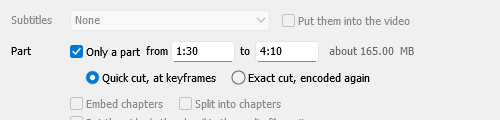
動画や音声の一部(シーン、長いミックスからの曲、ポッドキャストの数分間)のみを保存するには、字幕の下にある一部行の一部のみにチェックを入れ、開始時刻と終了時刻を入力します。
- 時刻は
1:30(1 分半)、1:02:03(1 時間 2 分 3 秒)、または秒単位(90)で入力します。ボックスは動画全体、0:00 から最後までで開始します。上へと下へは時刻を 1 秒ずつ移動させ、Page UpとPage Downは 10 秒ずつ移動させます。時刻が無効な場合(時刻ではない、終了が開始より前、動画の終了時刻を超えている、または全体が一部である)、ボックスは赤くなり、今すぐダウンロードに理由が表示されます。 - 最初の選択肢であるキーフレームで素早くカットするでは、画像と音声がそのままコピーされ、再エンコードは行われないため、高速で品質の劣化もありません。画像はキーフレームからしかきれいに開始できないため、指定した開始位置の直前のキーフレームから始まります。最大で数秒早くなることはあっても、遅れることはありません。M4A の音声のみの場合は指定した位置から始まります。WebM (Opus) の場合は、指定した位置の直前のシークポイントから始まり、最大で 10 秒早くなることがあります。
- 正確にカットし、再エンコードするでは、指定した位置で開始および終了します。ffmpeg が再エンコードするため (MP4 では H.264 と AAC、WebM では VP9 と Opus、音声のみの場合はその形式)、コンピューターでのエンコードにかかる時間と同じくらい時間がかかり、画質がわずかに劣化する可能性があります。
- 時間の横にあるサイズは、全体のダウンロード量に対するその部分の割合を示す推定値です。
- ファイル名には、その部分が
My video (1m30s-4m10s).mp4と表示されます。入力した名前は、入力したとおりに保持されます。 - 部分ダウンロードには字幕もチャプターも含まれません。これらは動画全体の時間に基づいたものになります。字幕とチャプターを埋め込むは、一部のみが選択されている間はグレー表示されます。
- この機能には、部分をカットするffmpegと、サイトが長さを指定している動画 (ライブ ストリームではない) が必要です。プレイリストの動画はすべてダウンロードされます。
- ブラウザーから: 動画の動画をダウンロードボタンのメニューにここから一部をダウンロード...があります。これをクリックすると、一部のみが選択され、動画が再生されている位置が開始位置として設定されたこのウィンドウが開きます。
How a part comes down: yt-dlp's ffmpeg finds the part in each stream by the stream's own index (an MP4's or a WebM's, an HLS stream's playlist) and reads only that part, never the whole file. What it reads comes in through VDM's own connections, in requests of a MB at most, several at once: a part comes about as fast as a whole video would (YouTube sends one long request at about the video's own pace), under your speed limits (a change applies at once), and through your proxy or network adapter. The progress window shows what has come against the part's estimated size. Paused and resumed, a part starts again from its beginning: ffmpeg can't go on from the middle of a cut. A stream sent another way (a DASH manifest, RTMP) is read by ffmpeg itself.
プレイリストとチャンネル
プレイリスト(youtube.com/playlist?list=…)またはチャンネルの動画(youtube.com/@name/videos)のアドレスを貼り付けて、検索をクリックします。1本の動画の品質の代わりに、ウィンドウにはプレイリスト内の動画が長さとともに表示されます。
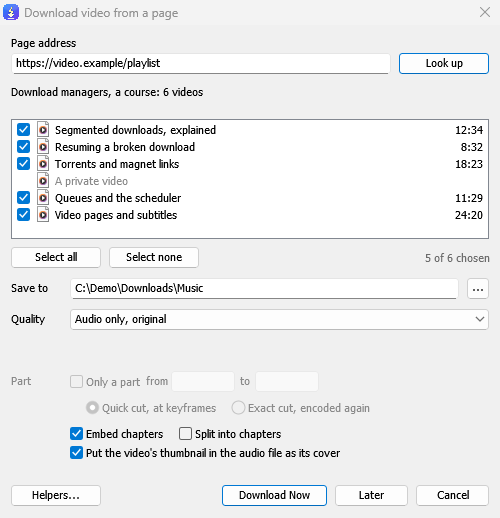
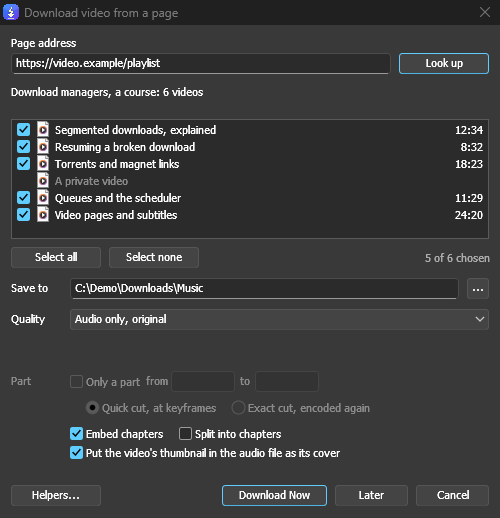
- プレイリストは、動画が読み込まれるたびに全体の一覧に追加されます。一覧の上には、読み込み状況が表示されます(「動画を一覧表示中: 6,000件中1,200件」)。リストを停止すると、それまでに読み込まれた動画はそのまま残ります。残りをリストをクリックすると、そこから続行します。サイトが途中で応答しなくなった場合(YouTubeでは、要求が多すぎると起こることがあります)、ウィンドウに応答が止まった動画数とその理由が表示されます。残りをリストをクリックすると、そこから再試行します。
- チャンネルの動画は、新しいものから順に50本ずつ一覧表示されます。さらに読み込むをクリックすると、次の50本が一覧表示されます。
- すべての動画は最初から選択されています。不要な動画の選択を解除するか、すべて選択または選択解除を使用します。非公開または削除済みの動画はグレー表示され、選択できません。
- The sound's language: every video of the list downloads with Options → Regional → Videos' sound's language when it has it, else its original (The sound's language).
- 画質はすべての動画に適用されます。最高品質、最も互換性のある形式 (H.264 + AAC) (各動画の最高の H.264 画像と AAC サウンド。ない動画はダウンロードされません)、高さまで (その高さ、またはそれより近い高さの各動画)、音声のみ(オリジナル)、音声のみ MP3、音声のみ OPUS、または音声のみ FLAC。ffmpeg がない場合、サウンド付きで提供される画質のみが提供され、MP3、Opus、FLAC は提供されません。
- 動画は保存先内にリスト名と同じ名前のフォルダーを作成して保存され、各動画のファイル名にはそれぞれのタイトルが使われます。
今すぐダウンロードをクリックすると、各動画が個別のダウンロードとして追加され、メインキューが開始されます。同時に実行する数は、スケジューラの(同時にN個のファイルをダウンロード)で設定した数になります。後でをクリックすると、ダウンロードを開始せずに動画を追加します。一度に500本を超える動画を追加する場合は、確認が求められます。
VDM lists at most 20,000 videos of one list.
プレイリストまたはミックス内の1本の動画を指すページ アドレス(例: watch?v=…&list=…)の場合、その動画だけがダウンロードされ、リスト全体はダウンロードされません。
速度制限
Videos keep to the Speed Limiter: the limit for one file, a video's own limit (the Speed Limiter tab of its progress window), and the limit for all downloads together, which they share with every other download. VDM's own downloader brings them in, so a change applies at once, as for a file.
A video yt-dlp downloads by itself (How a video comes down) takes a limit only as it starts: when you turn the limiter on or off, change its settings or the video's own limit, VDM stops it and starts it again with the new limit, and it goes on from where it was (the log says "Stopped: the speed limit changed; starting again with it"). A live stream that is recording is the exception: restarting it would cut the recording, so it keeps recording and takes the limit the next time it starts. Under the limit for all downloads, such videos share it evenly: when another starts, the ones running with more than their share start again with it; when one ends, the others keep theirs. A gallery's pictures that VDM brings in follow a change at once; what gallery-dl still fetches itself starts again with the new limit, skipping the files already saved. Other changes (torrents taking more or less of the limit for all downloads, Only while I'm using the computer) apply to the next one that starts.
VPNアダプター経由
With Options → Proxy / Socks → Network adapter set, video downloads go through that adapter too, with the same kill switch as other downloads. VDM's own downloader opens its connections through the adapter as for any file; for yt-dlp's look-ups (and what it downloads itself, with the ffmpeg it starts) VDM hands it a proxy of its own on this computer, and opens every connection through the adapter, looking the names up with the DNS you chose in Options → Connection (without an adapter, yt-dlp uses the system's DNS). When the adapter disconnects, the video download stops, and it starts again when the adapter is back. Formats sent over RTMP, RTSP, MMS or FTP can't go through it and are refused.
サインインが必要なサイト
一部の動画は、サインインした視聴者のみが再生できます。メンバー限定動画、プライベート動画、年齢制限のある動画などです。また、YouTube は、疑わしいネットワーク (VPN、共有アドレス、クラウドアドレス) からの視聴者に対して、「ボットではないことを確認するためにサインインしてください」と求めることがあります。その場合、yt-dlp には、サインイン状態を維持する小さなファイルであるブラウザの Cookie が必要です。
- 動画上の動画をダウンロードボタン は、現在開いているウィンドウとプロファイル (プライベートウィンドウ、Firefox コンテナ) から、そのページの Cookie を検索とダウンロードのために渡すため、ブラウザでサインインしているのと同じ状態でサインインできます。設定は不要です。各 Cookie はブラウザが保持しているドメインと関連付けられているため、YouTube Music (music.youtube.com) や YouTube のモバイルサイトでのサインインも www.youtube.com にも適用されます。
- 貼り付けたアドレス ([URL を追加]、[ページからビデオをダウンロード]、プレイリスト) の場合: [オプション]→[サイトのログイン]→[動画サイトの Cookie]でブラウザーを選択します。yt-dlp は、検索またはダウンロードするすべての動画について、このコンピューター上のそのブラウザーの Cookie を読み取ります。拡張機能がページの Cookie を渡した場合は、それらが代わりに使用されます。それらはそのページとセッションのものです。
- 独自のプロファイルに予備のアカウント: メインのアカウントを yt-dlp に貸す必要はありません。ブラウザで別のプロファイルを作成し、そこで予備のアカウントでサイトにサインインし、そのプロファイルを プロファイル (その名前、または ... を使ってそのフォルダー) に設定します。yt-dlp はそのプロファイルの Cookie のみを読み取ります。yt-dlp の開発者もこれを推奨しています。サイトがプログラムによって使用されているアカウントを制限する可能性があるためです。
Signed in, YouTube sometimes refuses what it gives a visitor: its servers answer the video with HTTP Error 403: Forbidden, or the look-up with its bot check, where a private window plays it. When YouTube refuses a video anyone may watch that way, VDM looks it up once more without your cookies, as a private window would, and the download's log says so. A private, members' or age-restricted video keeps them.


Sign in to the site in that browser first. VDM never logs or shows the cookies; the download's log names only the browser they came from.
対応ブラウザー
[ブラウザーから]には、yt-dlp が読み取るブラウザーが表示されます: Firefox、Chrome、Edge、Brave、Opera、Vivaldi、Chromium、Whale、および macOS の Safari。[プロファイル]はオプションです。プロファイル名 (Profile 1) またはそのフォルダーを指定します。空の場合、最後に使用されたプロファイルが使用されます。
- Firefox はすべてのシステムで動作します。Firefox を開いた状態で数分前にサインインしたばかりの場合は、一度閉じてサインイン情報をファイルに書き込ませてください。
- Windows の Chrome、Edge、Brave は、Cookie を自身にロックします (Chrome 127 以降、「アプリ結合型暗号化」)。ブラウザーが開いている間は yt-dlp も読み取ることができません。ウィンドウにその旨が表示されます。Firefox を選択するか、どのブラウザーでも動作する動画上のボタンを使用してください。
- Linux では、Chrome ファミリーのブラウザーは Cookie のキーをシステムのキーリング (GNOME Keyring、KWallet) に保持します。yt-dlp はそれを要求するため、ロックが解除されている必要があります。
- Chromium ベースの別のブラウザー (Helium、Thorium、ungoogled-chromium など) の場合: [Chromium]とそのブラウザーのプロファイル フォルダー (その
Defaultフォルダー、またはProfile 1...。~/.config(Linux)、%LOCALAPPDATA%(Windows) の下) を選択します。yt-dlp はフォルダーを読み取りますが、キーをキーリングに独自の名称で保持しているブラウザー、または Chrome のように Cookie をロックしているブラウザーは、この方法では読み取れません。その場合は拡張機能のボタンを使用してください。
動画サーバーに接続できない場合
Some sites, YouTube among them, send each viewer to a nearby video server, sometimes one inside the internet provider's own network. If that server can't be reached from your connection, a browser quietly switches to another one, but yt-dlp on its own would give up. Before each video download VDM checks the servers in the video's links and, if one doesn't answer, switches to the next one the site lists. The download's log says when this happens.
動画をダウンロードできない場合
- ダウンロードの状態にカーソルを合わせるか、進行状況ウィンドウを開くと、yt-dlpのメッセージを確認できます。
- このページにはダウンロードできる動画がありませんは、yt-dlpがページ上に動画を見つけられなかったことを意味します。アドレスが動画のページそのものを指しているか確認してください。
- この動画はサインインが必要です、またはサイトがサインインを要求しています: 「サインインが必要なサイト」を参照してください。
- Sites change often, and a newer yt-dlp usually fixes it. VDM keeps its own yt-dlp up to date by itself, and when a download fails in a way that usually means yt-dlp is out of date, it looks for a newer one at once and tries again (Keeping them up to date). To check right now: Helpers... → Check for updates. If you chose your own yt-dlp in Helpers, update it yourself (
yt-dlp -U, or your package manager). - The path is too long for Windows (or the file name is too long) means the folder and the file name together, with the files saved beside the video while it downloads, are longer than the system allows: 259 characters on Windows unless long paths are turned on there, 255 a name (255 bytes on Linux and macOS). VDM shortens a title by itself, so this comes from a name you typed or a very deep Save to folder: add the video again with a shorter name, or a folder nearer the top of the drive.
- Videos protected with DRM (most paid streaming services) can't be downloaded, and VDM doesn't try. The browser extension's Media on this page shows such a stream as Protected and doesn't send it.
- ウィンドウで動画を見つけられないページの場合は、ブラウザーで動画を再生してから、拡張機能のこのページのメディアを使って、ページが読み込んだストリームを送信します。
- ダウンロードが一部のサイトの利用規約に違反する場合があります。規約を確認するかどうかはご自身で判断してください。
- 問題が解決しない場合は、ヘルプ → 問題の報告からページ アドレスを添えて報告してください。
次のステップ
無料、オープンソース、広告なし、試用期間なし。
Download Volt Download Manager