

VDM downloads videos from their web pages: YouTube, Vimeo, Dailymotion, Twitch, TikTok, X, Instagram, Facebook, Reddit, SoundCloud and well over a thousand other sites. yt-dlp, an open-source program whose community keeps it working as sites change, finds the video on the page; VDM's own downloader then brings it in, the way it downloads any file.
Einen Video-Download starten
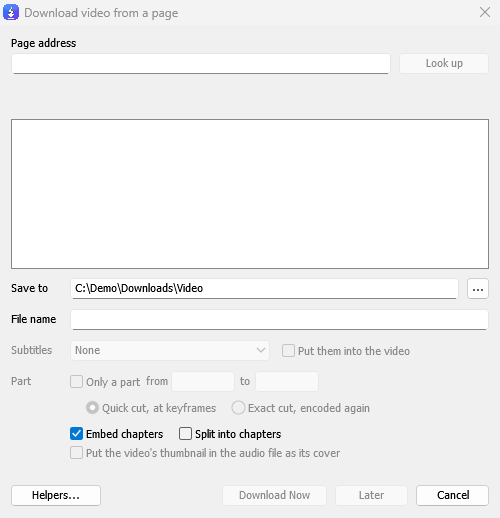
- Give the video's page address to Add URL (Ctrl+N). VDM recognises video pages and opens the video window, already looking the page up.
- Oder wählen Sie Aufgaben → Video von einer Seite herunterladen..., fügen Sie die Adresse in Seitenadresse ein und klicken Sie auf Suchen.
Jede andere Seitenadresse, die sich als Webseite und nicht als Datei herausstellt, wird ebenfalls dem Videofenster angeboten. Auf einer Website, für die yt-dlp keinen eigenen Reader hat, ist das Video dasjenige, das die Seite als ihr Thema angibt, wenn sie eines benennt (in dem, was sie Suchmaschinen und Link-Vorschauen mitteilt: ihr JSON-LD, og:video oder twitter:player), anstatt des ersten Players, der in ihrem HTML geschrieben ist, und die Datei wird so benannt, wie die Seite sie benennt.
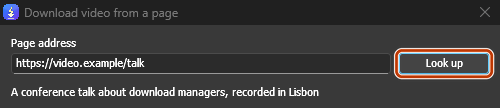
Fügen Sie die Seitenadresse ein und klicken Sie auf Suchen. 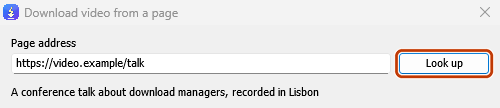
Wählen Sie eine Qualität und klicken Sie dann auf Jetzt herunterladen. 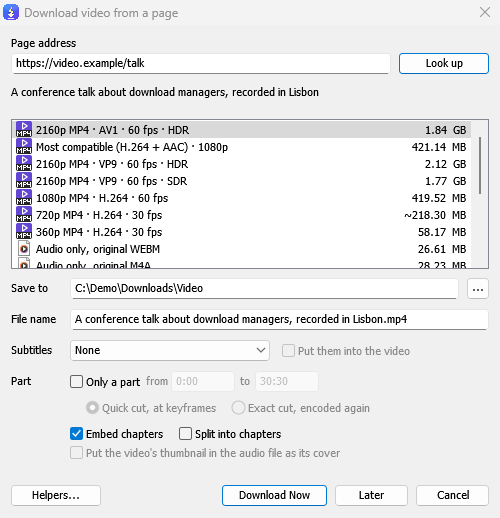
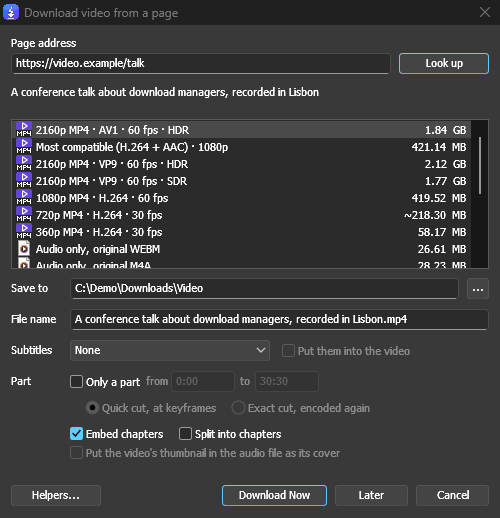
Es wird wie jede andere Datei in einer eigenen Zeile und einem eigenen Fenster heruntergeladen. 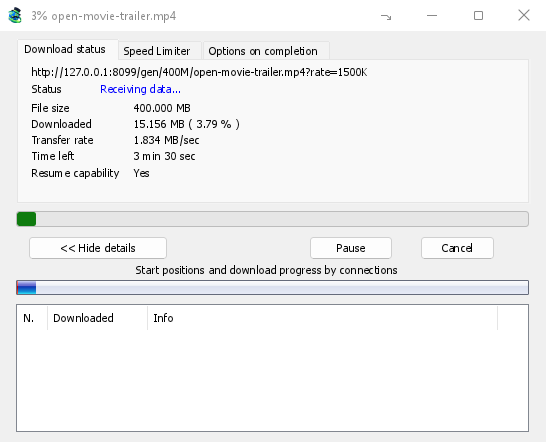
yt-dlp und ffmpeg
VDM offers its two helpers on its first start, and again the first time they are needed. It downloads them from their official releases with its own downloader, so a cut connection resumes, and uses your proxy settings:
- yt-dlp (about 23 MB) looks the page up and finds where the video and its sound come from; VDM downloads them (How a video comes down). The first time, click Install yt-dlp. VDM checks the download against the signature yt-dlp's developers publish before it uses it.
- ffmpeg (about 80 MB) joins a video and its sound when a site keeps them apart, which most sites do for the higher qualities, and turns the sound into an MP3, Opus or FLAC file. Click Install ffmpeg when VDM offers it. VDM installs only a build its maintainers checked: the download must match the SHA-256 in VDM's own list of builds, which carries VDM's signature. When that list can't be downloaded or checked, VDM says so and installs nothing; you can still choose your own ffmpeg in Helpers....
- Each processor gets its own build: yt-dlp's for x64, ARM64 and 32-bit Windows and for Linux on ARM, and ffmpeg's for x64 and ARM64 Windows. No ffmpeg is built for 32-bit Windows that VDM can check, so there VDM offers none: choose your own in Helpers... (below), or download the qualities that come with their sound.
You can install them ahead of time too: in Helpers..., a helper that isn't there yet says Not installed yet, and Install yt-dlp, Install ffmpeg or Install gallery-dl in its row downloads VDM's own copy, checked the same way, and keeps it up to date from then on. Where VDM has no copy for your system, the button is greyed out and the row says what to do instead.
Both are kept in a tools folder in VDM's data folder. For YouTube, yt-dlp also needs a JavaScript runtime, which VDM can download too: see A JavaScript runtime for YouTube.
Auf dem neuesten Stand halten
Sites change all the time, and a newer yt-dlp is usually what makes a page that stopped working download again. So VDM keeps its own copies of yt-dlp, gallery-dl, ffmpeg and Node.js up to date by itself:
- When: a few seconds after VDM starts, then again while it runs: yt-dlp and gallery-dl at most every 6 hours, Node.js once a day, ffmpeg once a week (a newer ffmpeg comes when VDM's list of checked builds names one, usually with a new version of VDM). VDM remembers when it last asked, so starting it many times doesn't ask again.
- How: each new version is downloaded and checked exactly as the first install was (yt-dlp's, gallery-dl's and Node.js's signed checksum lists, VDM's signed list of ffmpeg builds), never an older one, and installed beside the one in use.
- Wann gewechselt wird: nur, wenn kein Download, keine Suche oder andere Ausführung dieses Hilfsprogramm verwendet. Ein Video, das heruntergeladen wird, wenn das neue yt-dlp eintrifft, wird mit der Version abgeschlossen, mit der es begonnen wurde; die neue Version wird ab dem Moment verwendet, in dem der letzte Download, der sie verwendet, endet.
- Die vorherige Version bleibt erhalten, sodass Sie zu ihr zurückkehren können. Ältere Versionen werden entfernt.
- A video that fails with an error that usually means yt-dlp is out of date for the site (Unable to extract, Unsupported URL, YouTube's Sign in to confirm you're not a bot, HTTP Error 403, a failed signature or n challenge, Requested format is not available), or a gallery whose gallery-dl reports an unexpected error: VDM looks for a newer version at once, installs it if there is one, and tries that download again with it, once. Its log says so. If there is none, the error stands as before.
- A check that fails (no connection, GitHub busy) is tried again an hour later. It is written in VDM's log, never shown as an error.
In Helpers..., each of VDM's own copies says how it stands: Up to date, Version X available, Updated to X, or Version X is ready: used once its downloads end. Update gets the newest version of that one now, Go back to X uses the previous version again (automatic updates then wait for a version newer than the one you left; Update brings it back), and Check for updates checks them all. Untick Keep VDM's helpers up to date automatically to update only when you ask. Programs you chose with Use another program..., and your system's copies, say Updated by you: VDM leaves them to you.
Auf der Befehlszeile überprüft und aktualisiert update-helpers alle und gibt ihre Versionen aus (Befehlszeile).
Eigene Kopien verwenden
On Linux and macOS, VDM finds yt-dlp, ffmpeg and gallery-dl on your PATH and in the usual package-manager folders, including Homebrew's. A program you selected yourself takes priority, followed by VDM's own installed copy. The system copy is used when neither is present, and your package manager keeps it up to date: VDM never downloads over it on its own. If your distribution's yt-dlp is old, Use VDM's own copy in Helpers downloads VDM's, which keeps itself current and is used from then on.
Already have yt-dlp or ffmpeg for another program? Use those instead of a second copy: in Download video from a page, click Helpers..., then Use another program... beside yt-dlp or ffmpeg, and choose the program. VDM runs it once to check that it is that program, and uses it from then on, the command line too. VDM doesn't update a program you chose: keep it up to date yourself (yt-dlp: yt-dlp -U, or your package manager). Use VDM's own copy goes back to the one VDM downloads and checks.
Eine JavaScript-Laufzeitumgebung für YouTube
YouTube hides most of a video's qualities behind small puzzles that yt-dlp solves with a JavaScript runtime: Node.js, Deno, QuickJS or Bun. Without one, a look-up is slow, the list is short (sometimes only the sound and a low quality) or it fails with Requested format is not available, and VDM says so: YouTube needs a JavaScript runtime to list its video qualities. Other sites don't need one.
The quickest way is VDM's own copy of Node.js: click Install Node.js beside that message, or, in Helpers..., Install Node.js in the JavaScript runtime (for YouTube) row. The first start's setup offers it too, in its Video helpers step, when your computer has no runtime. VDM downloads Node.js's newest long-term support (LTS) build for your system and processor from nodejs.org with its own downloader (about 40 MB on Windows, 60 MB on Linux and macOS; Windows x64, ARM64 and 32-bit, Linux x64 and ARM64, macOS), checks the release's checksum list against the signing keys of Node.js's releasers and the download against that list before it uses it, keeps only the node program in the tools folder beside yt-dlp and ffmpeg, and from then on tells yt-dlp to use it. It keeps it up to date the way it keeps yt-dlp's (Keeping them up to date), never with an older version. 32-bit Windows gets the newest LTS line Node.js still builds for it, 22, which Node.js supports until April 2027; after that VDM has no Node.js for 32-bit Windows, and a runtime of your own (Use another program...) is needed there. VDM never installs a Node.js older than the LTS line current when that VDM was made, whatever nodejs.org's list says. The video is looked up again by itself once Node.js is in.
Already have one? Then nothing needs downloading: a runtime on your computer comes first. VDM finds Deno, Node.js (22 or newer, also one installed with nvm), QuickJS and Bun by itself, in the order yt-dlp prefers them, and passes over one too old for yt-dlp (Node.js 20, say) or a Node.js whose line has reached its end of life on nodejs.org's schedule (then VDM's own is used, which it keeps on a supported release). A supported Node.js of your computer's is used as it is: you or your package manager keep it up to date. Helpers says which one yt-dlp uses and where it is: Node.js 24.11.0, your system's, nothing to download. To use another one, a portable copy or one that isn't on the PATH, click Use another program... in that row and choose its program (node.exe, deno.exe, qjs.exe, bun.exe): VDM asks it for its version first and refuses one yt-dlp can't use. Use VDM's own copy goes back to the one VDM finds or downloads. (Choosing your own runtime was YairDies' idea.)
Earlier versions of VDM installed Deno. That copy keeps working until VDM's Node.js is in place (the next update check brings it, or Use VDM's own copy); then yt-dlp switches to Node.js and VDM removes its own Deno, once no download is using it. A Deno you installed yourself is never touched, nor VDM's own once you chose it with Use another program.... While VDM asks the runtimes on your computer for their versions, Helpers says Looking for a JavaScript runtime on this computer....
If you'd rather install one yourself, any of them works; then look the video up again. If VDM still says so, the new program's folder isn't on the PATH VDM started with (Windows' installers add it for programs started after them): quit VDM (Tasks → Exit) and start it again.
- Windows:
winget install DenoLand.Denooderwinget install OpenJS.NodeJS.LTS. Die Installer auf deno.com und nodejs.org funktionieren ebenfalls. - Ubuntu und Debian:
sudo apt install nodejs - Fedora:
sudo dnf install nodejs - Arch:
sudo pacman -S nodejsodersudo pacman -S deno - macOS:
brew install denooderbrew install node - Jedes System, Deno nur für Ihren Benutzer:
curl -fsSL https://deno.land/install.sh | sh(unter Windows, in PowerShell:irm https://deno.land/install.ps1 | iex)
A distribution's yt-dlp can also be too old for YouTube: if the list stays short, click Use VDM's own copy beside yt-dlp in Helpers.... A yt-dlp older than 2025.11.12 can't be told of a runtime at all; VDM then leaves the runtime out rather than stop the look-up.
Die Qualität wählen
- Wait for the list. It shows each quality with its size, best first, then the sound alone:
- A video's line says its resolution, the file it makes, its picture's codec, its frame rate and whether it is HDR:
2160p MP4 · AV1 · 60 fps · HDR. MP4 is only the file: what's inside it can be AV1, VP9 or H.264, and the codec says which, the very one that downloads (should the site no longer offer that stream, VDM takes the nearest of the same codec and resolution first). A resolution that comes in several (AV1, VP9 and H.264, HDR and SDR) has a line for each: AV1 makes the smallest file, H.264 plays on the most devices, and an HDR video looks washed out on a screen without HDR.SDRis said only beside an HDR line of the same resolution. - Most compatible (H.264 + AAC), second in the list: the best H.264 video the site has (YouTube's usually go up to 1080p) with AAC sound (in stereo when the site has it beside surround), in an MP4 that Premiere Pro and other editors, older TVs and most phones open as it is. YouTube's best qualities are AV1 or VP9 with Opus sound, which some of them can't read. The line says its resolution:Most compatible (H.264 + AAC) · 1080p. VDM picks those streams, it doesn't convert anything: when the site has no H.264 video with AAC sound the line isn't there, and when the best line already is that, it isn't listed twice. - The size is that of exactly what downloads, the video and its sound. A size with~before it (~532 MB) is only an estimate: the site didn't say the size, so it comes from the stream's bitrate and length. - Audio only, original: the site's own file, not converted, once for each type the site has it in (WebM with Opus inside, M4A), the best first. The best sound there is, in the smallest file. - Audio only MP3 at its best variable bitrate (VBR) and at 320, 256, 192 and 128 kbps, for players that only take MP3. - Audio only OPUS: an.opusfile. When the site's sound is Opus already (YouTube's usually is), it's only moved into that file, not converted, so nothing is lost. - Audio only FLAC: a lossless.flacfile, for a library or a program that wants FLAC. It can't add quality: the site's sound is already compressed with losses, and FLAC keeps it exactly as it came, in a file several times bigger. The window says so when you choose it. - Wählen Sie eine Qualität aus. Ohne ffmpeg werden nur die Qualitätsstufen mit Ton aufgelistet. MP3, Opus und FLAC werden nicht angeboten (diese Formate erstellt ffmpeg).
- Überprüfen Sie Speichern in (standardmäßig der Ordner der Kategorie Video) und Dateiname, der vom Titel des Videos stammt. Ein langer Titel wird am Ende eines Wortes gekürzt, damit die Dateien, die neben dem Video während des Downloads gespeichert werden, die Systemgrenze für die Pfadlänge einhalten; ein von Ihnen eingegebener Name wird so beibehalten, wie Sie ihn eingegeben haben.
- When the video's sound comes in several languages, choose one in Sound (see The sound's language). Choose Subtitles if you want them (see below). Embed chapters is ticked: see Chapters. To keep only a stretch of it, tick Only a part: see Download only a part. For a sound alone, Put the video's thumbnail in the audio file as its cover is ticked: see A cover for the sound.
- Klicken Sie auf Jetzt herunterladen oder auf Später, um es der Liste hinzuzufügen, ohne den Download zu starten.
Das Video wird dann wie jede andere Datei heruntergeladen, mit einer eigenen Zeile in der Liste und einem Fortschrittsfenster.
So wird ein Video heruntergeladen
yt-dlp looks the page up and picks the quality's video and sound. VDM's own downloader then brings each of them in, one after the other, the way it downloads any file:
- Über mehrere Verbindungen: so viele, wie Optionen → Verbindung für eine Datei angibt. Die Verbindungstabelle des Fortschrittsfensters zeigt jede einzelne an, und die Segmentkarte zeigt zuerst das Video und dann den Ton.
- A stream sent in many small pieces (HLS, DASH, as most sites other than YouTube send theirs) comes down that many pieces at once, each kept on disk as it arrives, then joined in order into one file, as yt-dlp joins them. Pieces encrypted with AES-128 are decrypted with the key the stream's playlist names. When their addresses expire, VDM asks yt-dlp for the stream's new list and carries on with the pieces still missing.
- Unter Ihren Geschwindigkeitsbegrenzungen: die des Geschwindigkeitsbegrenzers, die eigene des Videos (der Tab Geschwindigkeitsbegrenzer im Fortschrittsfenster) und die Begrenzung für alle Downloads zusammen. Eine Änderung wird sofort angewendet.
- Paused and resumed like a file, also after quitting VDM: it carries on from the bytes already saved.
- When an address stops working: a video's addresses are signed and expire after a few hours (YouTube's after six). VDM asks yt-dlp for a fresh one for the same quality and carries on from where it stopped.
Danach macht yt-dlp das, was es nach einem Download tut: Es fügt Video und Ton mit ffmpeg zu einer MP4-Datei zusammen, speichert oder bettet die Untertitel ein, fügt die Kapitel in die Datei ein und konvertiert den Ton für eine MP3-, Opus- oder FLAC-Auswahl.
YouTube serves each connection's long requests slowly, so VDM asks for the video in pieces of 10 MB at most, as yt-dlp does, and several at once.
Einige Videos lädt yt-dlp immer noch selbst herunter, über seine eigene Verbindung, und das Fortschrittsfenster zeigt dies an:
- einen Livestream, der noch aufgezeichnet wird (Einen Livestream aufzeichnen);
- ein Stream, der über RTMP, RTSP, MMS oder FTP gesendet wird;
- die seltenen Streams in Teilen anderer Art (Adobes HDS, Microsofts Smooth Streaming) und solche, deren Schlüssel die Website yt-dlp direkt übergibt.
Für diese startet eine neue Geschwindigkeitsbegrenzung den Download erneut, von der Stelle, an der er war (Geschwindigkeitsbegrenzungen); ein Livestream, der aufgezeichnet wird, nimmt ihn beim nächsten Start mit.
Einen Livestream aufzeichnen
A live stream, a broadcast still going on, is recorded by yt-dlp with ffmpeg into an unfinished file, so VDM can't know its length. While it records, the progress window says Recording..., and Downloaded and Transfer rate follow the size of what has been recorded so far.
- Aufnahme läuft... wird ab dem Moment angezeigt, in dem der Recorder seine Datei öffnet, sobald er sich mit dem Stream verbunden hat (einige Sekunden nach dem Start des Downloads; bis dahin zeigt das Fenster Verbinden... an; ein Stream, der nicht erreicht werden kann, gelangt nie dorthin). Heruntergeladen zeigt an, was auf der Festplatte angekommen ist, und der Recorder schreibt es in Blöcken von 256 KB, sodass es bei 0 KB bleibt, bis der erste Block geschrieben ist (das kann bei einem Stream mit niedriger Bitrate eine Weile dauern), und wächst dann Block für Block. Stoppen und speichern vor dem ersten Block behält noch nichts: Der Download bleibt mit seiner leeren Datei gestoppt, damit Fortsetzen neu aufzeichnen kann. Eine leere, unfertige Datei, die ein früherer Durchlauf hinterlassen hat, wird beim Neustart der Aufzeichnung entfernt (sie enthält nichts), sodass eine fortgesetzte Aufzeichnung ab demselben Moment Aufnahme läuft... anzeigt.
- Stop and save is what the progress window's pause button reads for a live stream that is recording. It, Stop and Stop All in the list (toolbar and menus), a queue's stop (by hand, at its scheduled stop time, or through the API) and the phone page's pause all end the recording and keep it. VDM makes the recording an MP4 itself, as yt-dlp does when a live stream ends: the streams are copied as they are, nothing is converted. The window says Saving... meanwhile, and the download is then Complete, as when a live stream ends by itself: the queue goes on and the completion notice and actions run.
- Die letzten Momente könnten fehlen: höchstens die letzten 1 MiB, die der Recorder noch nicht geschrieben hatte. Das sind ein paar Sekunden Video und bis zu etwa einer Minute für einen Stream nur mit Ton.
- Wenn das MP4 nicht erstellt werden kann, wird die Aufzeichnung als MPEG-TS-Datei (
.ts) gespeichert, die die meisten Player öffnen. Wenn auch das nicht möglich ist, meldet der Download dies und die unfertige Datei bleibt, wie sie ist. - Die Aufzeichnung wird nur entfernt, wenn das MP4 alles enthält: solange die Aufzeichnung bis auf eine Sekunde genau ist, Bild und Ton jeweils auch (ffprobe-Dauern; ohne diese, mindestens 90 % der Größe der Aufzeichnung). Ein kürzeres MP4 wird mit der Aufzeichnung daneben als
My stream (recording 1).tsbehalten, und das Download-Protokoll gibt den Grund an (wenn die Aufzeichnung nicht umbenannt werden kann, meldet das Protokoll dies: sie bleibt als unfertige Datei). - A live stream that ends by itself while VDM records it is made an MP4 the same way, with the same check: yt-dlp is told to leave its recording as it is, and VDM makes the MP4 of it (when it has ffmpeg and the recording is the MPEG-TS yt-dlp made). From the moment yt-dlp says the recording is finished, the window says Saving... (only a moment when there is no MP4 to make), and a Stop waits for it: the download is then Complete. The recording goes only when the MP4 holds all of it, it is kept beside a shorter one, and if no MP4 can be made it is the download's
.tsfile (My stream (recording 1).tswhenMy stream.tsis taken). Subtitles asked to go inside the video are saved beside it instead, and no chapters are added: the recording isn't changed once it is made. - MP3, Opus oder FLAC eines Livestreams: Der Ton wird wie gewünscht gespeichert, und die Aufnahme, aus der er erstellt wurde, bleibt daneben, als
My stream (recording 1).ts. - Ein Bild und ein Ton, die yt-dlp selbst zusammengefügt hat, nachdem der Stream beendet war, bleiben neben dem Video, wie yt-dlp sie hinterlassen hat, wenn das Video nicht alles von beidem enthält; andernfalls werden sie gelöscht.
- A recording yt-dlp finished but VDM didn't make an MP4 of (a try that failed just after, or VDM closed meanwhile) is still MPEG-TS under the MP4's name. Before the download starts again, VDM makes it an MP4 with the same check (the list says Merging meanwhile, and a Stop waits for it, then stops the download before anything else runs): when the MP4 holds all of it, it is the download. Otherwise the recording is kept as
My stream (recording 1).tsand the download starts over. Without VDM's ffmpeg it is set aside the same way. The same goes for a normal video in pieces (HLS) VDM's engine left as MPEG-TS inMy video.mp4when yt-dlp failed or was stopped while it fixed it up. - Eine Aufzeichnung in mehreren Teilen (ein Bild- und ein Tonteil, die yt-dlp getrennt gelassen hat) wird zu einem MP4 mit allen zusammengefügt. Wenn sie nicht zusammengefügt werden können, meldet der Download dies und jeder Teil bleibt, wie er ist.
- Cancel in the progress window only stops the download: the recording stays in its unfinished file. So does reaching a download limit, which counts a recording as it grows and stops it as it stops other downloads. Resume, or VDM starting the download again by itself (after a network adapter change or the download limit, or a queue that starts when VDM opens), records the stream anew. It first sets the earlier recording aside, next to it, as
My stream (recording 1).ts(then(recording 2), and so on), so nothing is recorded over; so it does when the stream has ended meanwhile and the download goes on as a normal video. (An unfinished MPEG-TS file yt-dlp downloads directly, without its resume state, is taken for a recording the same way: it starts over, what it had kept aside.) If that file can't be set aside, VDM doesn't record over it and says so. - Diese behaltenen Aufzeichnungen sind nicht die eigenen Dateien des Downloads: Löschen mit seinen Dateien lässt sie.
- Closing VDM while a live stream records, or while it saves one, stops it without saving: the recording stays in its unfinished file (a half-made MP4 is left as
<name>.temp.mp4, which Delete with its files removes), and it is set aside when the download starts again. The command line (voltdownloadmanager-cli) doesn't save a live stream this way. - Ein von einem Warteschlangenstopp gespeicherter Livestream gilt als abgeschlossen, sodass eine tägliche Warteschlange ihn am nächsten Tag nicht erneut startet.
The sound's language
More and more videos come with their sound in several languages: the one they were made in, the original, and others dubbed (YouTube's dubbed and automatically dubbed tracks, for one). When the site names each track's language, Download video has a Sound list under File name, the original first and marked: English, original, then Deutsch · German, Español · Spanish... (each language in its own words, and in English when that differs). A video in one language has no such list and looks as before.
- The qualities follow it. Every line in the list is then in that language: a video line joins its picture with that language's sound and its size is theirs, and Audio only (as the site has it), MP3, Opus and FLAC take that language's sound. A video line whose file carries another language's sound (YouTube's 360p in one file) isn't offered for a dubbed language; without ffmpeg, which joins a picture and a sound, only the sound in that language is.
- One sound track per file. The file has the language chosen, never two.
- For every video and playlist: Options → Regional → Videos' sound chooses one language, which every video looked up starts on when it has it (in Download video, where you can still choose another, and in the button over a video) and which every video of a playlist downloads with. A video without that language comes with its original sound. Each video's original, the default, keeps every video in the language it was made in.
- The button over a video says the language of each line's sound in its menu, and its Audio tab has each other language's sound as the site has it too.
- If the site no longer offers that language when the download starts, the video comes with its original sound.
A cover for the sound
A sound saved alone has no picture, so music players show an empty square. With Put the video's thumbnail in the audio file as its cover ticked in Download video (under Embed chapters), the picture the site shows for that video becomes the file's cover once it is saved.
- It is ticked to begin with, and stays as you leave it for the next video. It applies to a playlist's sound too.
- Which files: an M4A as the site has it (Audio only, original M4A), and an MP3, Opus or FLAC. A WebM (Audio only, original WEBM, YouTube's Opus as it comes) can't hold a cover: choose M4A or Opus instead. Videos are saved as they are.
- How: VDM brings the picture in with its own connections (your proxy and network adapter, as every download), from where the site says that video's picture is, nothing from anywhere else. ffmpeg puts it into the file as its cover (Opus files as the picture comment music players read in them), copying the sound as it is: nothing is encoded again. A WebP picture is made a JPEG first.
- It needs ffmpeg. Without it, or when the picture can't be had, the file is saved as before, without a cover, and the download's log says why.
Untertitel
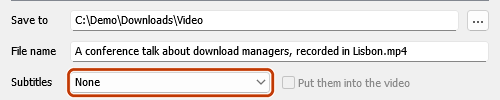
Wenn das Video Untertitel hat, werden sie in der Liste Untertitel angeboten: zuerst die Sprachen des Uploaders (und Alle vom Uploader, wenn es mehrere gibt), dann die automatischen Untertitel der Website, gekennzeichnet mit automatisch. Aufgelistet werden nur Untertitel in der gesprochenen Sprache sowie deren Übersetzungen ins Englische und in die Sprache der Benutzeroberfläche. Websites wie YouTube bieten maschinelle Übersetzungen in alle verfügbaren Sprachen an.
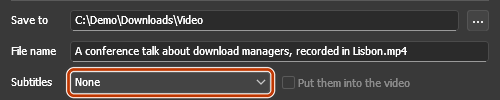
- Wenn die Untertitel neben dem Video gespeichert werden, erhalten sie dessen Namen und die Sprachangabe:
My video.fr.srt. Player wie VLC und MPV erkennen sie automatisch. Mit ffmpeg werden sie immer als SRT gespeichert; ohne ffmpeg im Originalformat der Website (oft WebVTT,.vtt). - In das Video einbetten fügt sie stattdessen als Spuren in die Datei ein, die Sie im Player einschalten. Es benötigt ffmpeg und ein MP4- oder MKV-Video. Die Aufnahme eines Livestreams behält sie daneben (Aufnahme eines Livestreams).
- Für reine Audioformate (Nur Audio, MP3, Opus, FLAC) gibt es keine Untertitel.
VDM offers the same choice again for the next video when it has that language.
A site may refuse subtitles when it's asked too often: YouTube does, most of all for its translated captions. The video is saved all the same. VDM asks for the subtitles once more after 20 seconds, and if they still don't come, the Download complete window and the download's log say which ones are missing and why. Try them again later. When subtitles meant to go inside the video only come on that second try, they're saved beside it instead.
Kapitel
Viele Videos sind auf ihrer Seite in Kapitel unterteilt: YouTubes Liste unter dem Player, mit einem Titel und einer Startzeit für jeden Teil. Wenn Kapitel einbetten unter Untertitel angehakt ist, werden sie in die Videodatei eingefügt, sodass Player wie VLC, MPV, MPC-HC und der Windows Media Player sie auflisten und von einem zum nächsten springen können.
- Es ist zunächst angehakt und bleibt so, wie Sie es für das nächste Video verlassen.
- Es benötigt ffmpeg, das sie schreibt. Ein Video ohne Kapitel wird so gespeichert, wie es ist.
- Sie gehen in ein Video (MP4, MKV, WebM) und in den Ton, wie die Website es hat (Nur Audio, Original), nicht in eine MP3-, Opus- oder FLAC-Datei, noch in die Aufnahme eines Livestreams.
- Die Befehlszeile (
video-get) fügt sie ebenfalls ein, wann immer ffmpeg vorhanden ist.
Wenn In Kapitel aufteilen angekreuzt ist (neben Kapitel einbetten oder darunter in einer langen Sprache), wird das Video auch in einzelne Kapiteldateien aufgeteilt (<filename> - <NN> - <chapter name>.<ext> oder <filename> - <NN>.<ext>, wenn unbetitelt). Das gesamte Video bleibt ebenfalls erhalten.
- Es benötigt ffmpeg und bleibt so, wie Sie es für das nächste Video belassen.
- Splitting uses stream copy without re-encoding, so it runs losslessly and near-instantly. Each cut lands on a keyframe, so a chapter can start a second or a few early (yt-dlp's
--force-keyframes-at-cutsmakes it exact, but re-encodes, so VDM does not turn it on by default). - Ein Video ohne Kapitel oder mit einem einzelnen Kapitel wird als einzelne Datei ohne Aufteilung gespeichert.
- Der Titel eines Kapitels wird gekürzt, um die Systemgrenzen für Dateinamen und Pfade einzuhalten; in einem sehr tiefen Ordner wird ein Kapitel nur nach seiner Nummer benannt.
- Es wird nicht mit Nur ein Teil angeboten: Ein Teil hat keine Kapitel.
- Die Befehlszeilenoptionen
video-getundplaylist-getunterstützen dies über--split-chapters. - Das Löschen des Downloads zusammen mit seinen Dateien bereinigt auch seine aufgeteilten Kapiteldateien, während nicht verwandte Dateien im selben Ordner erhalten bleiben.
Nur einen Teil herunterladen
Um nur einen Abschnitt eines Videos oder eines Tons (eine Szene, ein Lied aus einem langen Mix, ein paar Minuten eines Podcasts) zu speichern, haken Sie Nur ein Teil in der Zeile Teil unter Untertitel an und geben Sie ein, wo er beginnt und wo er endet.
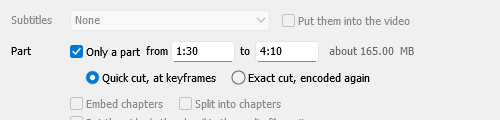
- Zeiten werden als
1:30(anderthalb Minuten),1:02:03(eine Stunde, zwei Minuten und drei Sekunden) oder in Sekunden (90) eingegeben. Die Felder beginnen beim gesamten Video, von 0:00 bis zum Ende; Nach oben und Nach unten verschieben eine Zeit um eine Sekunde, Bild auf und Bild ab um zehn. Ein Feld wird rot, solange seine Zeit ungültig ist (es ist keine Zeit, das Ende kommt vor dem Anfang, es liegt nach dem Ende des Videos oder der Teil ist das gesamte Video), und Jetzt herunterladen gibt den Grund an. - Schneller Schnitt, an Keyframes, die erste Wahl: Bild und Ton werden unverändert kopiert, nichts wird neu kodiert, daher ist es schnell und verlustfrei. Ein Bild kann nur sauber an einem Keyframe beginnen, daher startet der Teil am letzten Keyframe vor Ihrem Start: höchstens ein paar Sekunden früher, nie später. Ein Ton allein in einer M4A-Datei beginnt dort, wo Sie es angeben; in einer WebM-Datei (Opus) am letzten Suchpunkt davor, was zehn Sekunden früher sein kann.
- Exakter Schnitt, neu kodiert: Der Teil beginnt und endet dort, wo Sie es angegeben haben. ffmpeg kodiert ihn neu (H.264 und AAC in einer MP4, VP9 und Opus in einer WebM, der Ton allein in seinem eigenen Format), was etwa so lange dauert, wie die Kodierung dieser Minuten auf Ihrem Computer, und das Bild kann dabei etwas an Qualität verlieren.
- Die Größe neben den Zeiten ist eine Schätzung: der Anteil des Teils am Ganzen.
- Dateiname gibt den Teil an:
My video (1m30s-4m10s).mp4. Ein von Ihnen eingegebener Name wird so beibehalten, wie Sie ihn eingegeben haben. - Keine Untertitel und keine Kapitel gehören zu einem Teil: Sie wären die des gesamten Videos, zu den Zeiten des gesamten Videos. Untertitel und Kapitel einbetten sind ausgegraut, solange Nur ein Teil aktiviert ist.
- Es benötigt ffmpeg, das den Teil schneidet, und ein Video, dessen Länge die Website angibt (kein Livestream). Die Videos einer Wiedergabeliste werden vollständig heruntergeladen.
- Aus dem Browser: Das Menü der Schaltfläche Video herunterladen über einem Video enthält Einen Teil ab hier herunterladen.... Es öffnet dieses Fenster mit aktiviertem Nur ein Teil und dem Startpunkt dort, wo das Video gerade abgespielt wird.
How a part comes down: yt-dlp's ffmpeg finds the part in each stream by the stream's own index (an MP4's or a WebM's, an HLS stream's playlist) and reads only that part, never the whole file. What it reads comes in through VDM's own connections, in requests of a MB at most, several at once: a part comes about as fast as a whole video would (YouTube sends one long request at about the video's own pace), under your speed limits (a change applies at once), and through your proxy or network adapter. The progress window shows what has come against the part's estimated size. Paused and resumed, a part starts again from its beginning: ffmpeg can't go on from the middle of a cut. A stream sent another way (a DASH manifest, RTMP) is read by ffmpeg itself.
Wiedergabelisten und Kanäle
Fügen Sie die Adresse einer Wiedergabeliste (youtube.com/playlist?list=…) oder der Videos eines Kanals (youtube.com/@name/videos) ein und klicken Sie auf Suchen. Statt der Qualitäten eines einzelnen Videos zeigt das Fenster die Videos der Liste mit ihrer jeweiligen Länge an.
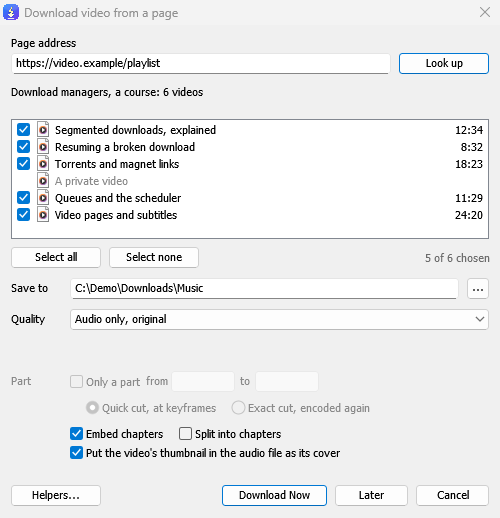
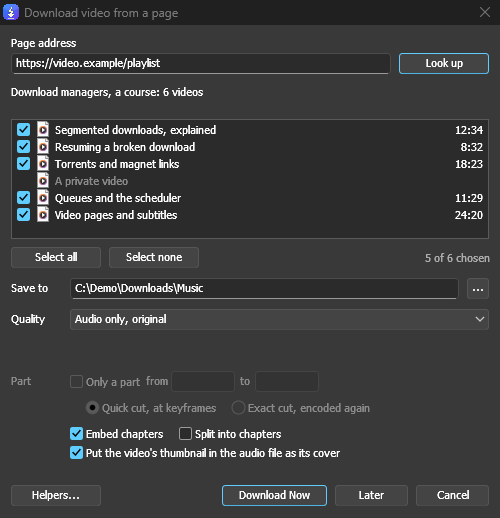
- Eine Wiedergabeliste wird vollständig aufgelistet, während ihre Videos geladen werden. Die Zeile über der Liste zeigt den Fortschritt an („Videos werden aufgelistet: 1.200 von 6.000“). Auflistung beenden behält die bisher aufgelisteten Videos bei, und Rest auflisten fährt dort fort. Wenn die Website zwischendurch nicht mehr antwortet (das kann bei YouTube passieren, wenn es zu oft angefragt wird), zeigt das Fenster an, nach wie vielen Videos und warum. Mit Rest auflisten wird es dann erneut versucht.
- Ein Kanal wird in Gruppen von jeweils 50 Videos aufgelistet, die neuesten zuerst. Mehr laden listet die nächsten 50 auf.
- Jedes Video ist zunächst ausgewählt. Entfernen Sie die Häkchen bei den Videos, die Sie nicht möchten, oder verwenden Sie Alle auswählen und Nichts auswählen. Private und gelöschte Videos sind ausgegraut und können nicht ausgewählt werden.
- The sound's language: every video of the list downloads with Options → Regional → Videos' sound's language when it has it, else its original (The sound's language).
- Qualität gilt für jedes Video: Beste Qualität, Am kompatibelsten (H.264 + AAC) (das beste H.264-Bild jedes Videos mit AAC-Ton; ein Video, das keines hat, wird nicht heruntergeladen), Bis zu einer Höhe (jedes Video in dieser Höhe oder der nächstniedrigeren), Nur Audio, Original, Nur Audio MP3, Nur Audio OPUS oder Nur Audio FLAC. Ohne ffmpeg werden nur die Qualitäten angeboten, die mit ihrem Ton geliefert werden, und kein MP3, Opus oder FLAC.
- Die Videos werden jeweils unter ihrem Titel in einem Ordner mit dem Namen der Liste innerhalb des unter Speichern unter festgelegten Ordners abgelegt.
Jetzt herunterladen fügt jedes Video als eigenen Download hinzu und startet die Hauptwarteschlange. Diese führt so viele Downloads gleichzeitig aus, wie Sie im Zeitplaner (N Dateien gleichzeitig herunterladen) festgelegt haben. Später fügt die Videos hinzu, ohne den Download zu starten. Wenn Sie mehr als 500 Videos auf einmal hinzufügen, werden Sie vorher gefragt.
VDM lists at most 20,000 videos of one list.
Eine Seitenadresse, die auf ein Video in einer Wiedergabeliste oder einem Mix verweist (zum Beispiel watch?v=…&list=…), lädt nur dieses eine Video herunter, nicht die gesamte Liste.
Geschwindigkeitsbegrenzungen
Videos keep to the Speed Limiter: the limit for one file, a video's own limit (the Speed Limiter tab of its progress window), and the limit for all downloads together, which they share with every other download. VDM's own downloader brings them in, so a change applies at once, as for a file.
A video yt-dlp downloads by itself (How a video comes down) takes a limit only as it starts: when you turn the limiter on or off, change its settings or the video's own limit, VDM stops it and starts it again with the new limit, and it goes on from where it was (the log says "Stopped: the speed limit changed; starting again with it"). A live stream that is recording is the exception: restarting it would cut the recording, so it keeps recording and takes the limit the next time it starts. Under the limit for all downloads, such videos share it evenly: when another starts, the ones running with more than their share start again with it; when one ends, the others keep theirs. A gallery's pictures that VDM brings in follow a change at once; what gallery-dl still fetches itself starts again with the new limit, skipping the files already saved. Other changes (torrents taking more or less of the limit for all downloads, Only while I'm using the computer) apply to the next one that starts.
Über den VPN-Adapter
With Options → Proxy / Socks → Network adapter set, video downloads go through that adapter too, with the same kill switch as other downloads. VDM's own downloader opens its connections through the adapter as for any file; for yt-dlp's look-ups (and what it downloads itself, with the ffmpeg it starts) VDM hands it a proxy of its own on this computer, and opens every connection through the adapter, looking the names up with the DNS you chose in Options → Connection (without an adapter, yt-dlp uses the system's DNS). When the adapter disconnects, the video download stops, and it starts again when the adapter is back. Formats sent over RTMP, RTSP, MMS or FTP can't go through it and are refused.
Websites, die eine Anmeldung erfordern
Einige Videos werden nur für angemeldete Zuschauer abgespielt: ein Mitglieder- oder privates Video, ein altersbeschränktes. Und YouTube fordert manchmal jeden Zuschauer aus einem Netzwerk, das es anzweifelt (ein VPN, eine geteilte oder Cloud-Adresse), auf, sich „anzumelden, um zu bestätigen, dass Sie kein Bot sind“. yt-dlp benötigt dann die Cookies Ihres Browsers, die kleinen Dateien, die Sie angemeldet halten.
- Die Schaltfläche „Video herunterladen“ über dem Video übergibt die Cookies dieser Seite, aus dem Fenster und Profil, in dem Sie sich befinden (ein privates Fenster, ein Firefox-Container), für die Suche und den Download, sodass Sie so angemeldet sind, wie Sie es im Browser sind. Nichts einzurichten. Jedes Cookie gehört zu der Domain, für die der Browser es speichert, sodass eine Anmeldung bei YouTube Music (music.youtube.com) oder der mobilen YouTube-Website auch www.youtube.com erreicht.
- Eine eingefügte Adresse (URL hinzufügen, Video von einer Seite herunterladen, eine Playlist): Wählen Sie Ihren Browser unter Optionen → Site-Anmeldungen → Cookies für Videoseiten aus. yt-dlp liest dann die Cookies dieses Browsers auf diesem Computer für jedes Video, das es sucht oder herunterlädt. Wenn die Erweiterung die seiteninternen Cookies übergeben hat, werden diese stattdessen verwendet: Es sind die Cookies dieser Seite und dieser Sitzung.
- Ein Ersatzkonto in einem eigenen Profil: Sie müssen yt-dlp Ihr Hauptkonto nicht leihen. Erstellen Sie ein zweites Profil in Ihrem Browser, melden Sie sich dort mit einem Ersatzkonto auf der Website an und geben Sie dieses Profil unter Profil an (dessen Name oder dessen Ordner mit ...). yt-dlp liest nur die Cookies dieses Profils. Die Entwickler von yt-dlp raten ebenfalls dazu: Eine Website kann ein Konto einschränken, das von einem Programm verwendet wird.
Signed in, YouTube sometimes refuses what it gives a visitor: its servers answer the video with HTTP Error 403: Forbidden, or the look-up with its bot check, where a private window plays it. When YouTube refuses a video anyone may watch that way, VDM looks it up once more without your cookies, as a private window would, and the download's log says so. A private, members' or age-restricted video keeps them.


Sign in to the site in that browser first. VDM never logs or shows the cookies; the download's log names only the browser they came from.
Welche Browser
Von Browser listet die Browser auf, die yt-dlp liest: Firefox, Chrome, Edge, Brave, Opera, Vivaldi, Chromium und Whale, sowie Safari unter macOS. Profil ist optional: der Name eines Profils (Profile 1) oder dessen Ordner; leer bedeutet das zuletzt verwendete Profil.
- Firefox funktioniert auf jedem System. Wenn Sie sich erst vor wenigen Augenblicken bei geöffnetem Firefox angemeldet haben, schließen Sie ihn einmal, damit die Anmeldung in seine Dateien geschrieben wird.
- Chrome, Edge und Brave unter Windows sperren ihre Cookies für sich selbst (Chrome 127 und höher, „App-gebundene Verschlüsselung“), und yt-dlp kann sie auch bei geöffnetem Browser nicht lesen. Das Fenster weist darauf hin; wählen Sie Firefox, oder verwenden Sie die Schaltfläche über dem Video, die mit jedem Browser funktioniert.
- Unter Linux speichern Browser der Chrome-Familie den Schlüssel zu ihren Cookies im System-Schlüsselbund (GNOME Keyring, KWallet); yt-dlp fragt diesen ab, daher muss er entsperrt sein.
- Ein anderer auf Chromium basierender Browser (Helium, Thorium, ungoogled-chromium...): Wählen Sie Chromium und den Profilordner dieses Browsers (dessen
Default-Ordner oderProfile 1...; unter~/.configunter Linux,%LOCALAPPDATA%unter Windows). yt-dlp liest den Ordner, aber ein Browser, der seinen Schlüssel unter seinem eigenen Namen im Schlüsselbund speichert oder seine Cookies wie Chrome sperrt, kann auf diese Weise nicht gelesen werden: Verwenden Sie die Schaltfläche seiner Erweiterung.
Wenn ein Video-Server nicht erreichbar ist
Some sites, YouTube among them, send each viewer to a nearby video server, sometimes one inside the internet provider's own network. If that server can't be reached from your connection, a browser quietly switches to another one, but yt-dlp on its own would give up. Before each video download VDM checks the servers in the video's links and, if one doesn't answer, switches to the next one the site lists. The download's log says when this happens.
Wenn sich ein Video nicht herunterladen lässt
- Bewegen Sie den Mauszeiger über den Status des Downloads oder öffnen Sie dessen Fortschrittsfenster, um die Meldung von yt-dlp zu lesen.
- Kein Video auf dieser Seite zum Herunterladen verfügbar bedeutet, dass yt-dlp auf der Seite nichts gefunden hat. Überprüfen Sie, ob die Adresse auf die Seite des Videos verweist.
- Dieses Video erfordert, dass Sie angemeldet sind, oder die Website möchte, dass Sie angemeldet sind: siehe Websites, die eine Anmeldung erfordern.
- Sites change often, and a newer yt-dlp usually fixes it. VDM keeps its own yt-dlp up to date by itself, and when a download fails in a way that usually means yt-dlp is out of date, it looks for a newer one at once and tries again (Keeping them up to date). To check right now: Helpers... → Check for updates. If you chose your own yt-dlp in Helpers, update it yourself (
yt-dlp -U, or your package manager). - The path is too long for Windows (or the file name is too long) means the folder and the file name together, with the files saved beside the video while it downloads, are longer than the system allows: 259 characters on Windows unless long paths are turned on there, 255 a name (255 bytes on Linux and macOS). VDM shortens a title by itself, so this comes from a name you typed or a very deep Save to folder: add the video again with a shorter name, or a folder nearer the top of the drive.
- Videos protected with DRM (most paid streaming services) can't be downloaded, and VDM doesn't try. The browser extension's Media on this page shows such a stream as Protected and doesn't send it.
- Wenn das Fenster das Video auf einer Seite nicht finden kann: Spielen Sie das Video in Ihrem Browser ab und verwenden Sie dann Medien auf dieser Seite in der Erweiterung, um den von der Seite geladenen Stream zu senden.
- Das Herunterladen kann gegen die Nutzungsbedingungen mancher Websites verstoßen. Das müssen Sie selbst prüfen.
- Funktioniert es immer noch nicht? Verwenden Sie Hilfe → Ein Problem melden und geben Sie die Seitenadresse an.
Nächste Schritte
Kostenlos, Open Source, keine Werbung, keine Testversion.
Download Volt Download Manager