

Link grabber gathers many links at once, sorts them into packages, and lets you tick the ones to download. VDM can then extract the archives it downloaded (zip, 7z, rar and more), by itself or when you ask.
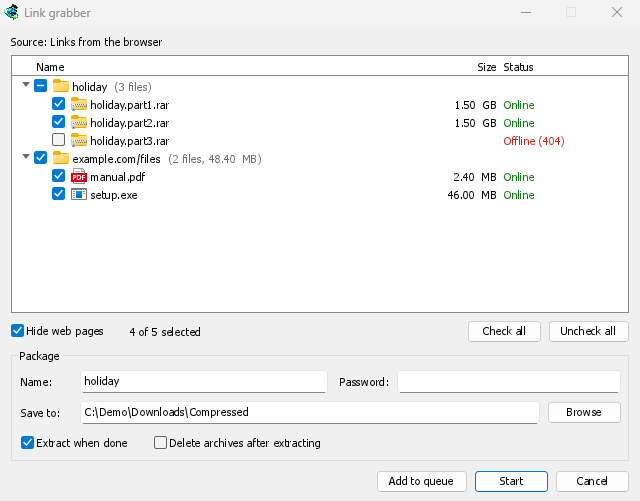
Woher Links kommen
- The browser. Right-click a page for Download all links with Volt Download Manager, or select part of it for Download selected links with Volt Download Manager. The page's referrer and cookies go with each link. Both also send the pictures located on the page (or in the selection), hidden at first (see Hide images located on this web page below).
- Bilder einer Seite. Die Schaltfläche in der Symbolleiste des Browser-Add-ons, Diese Seite → Bilder finden, sendet die Bilder einer Seite in der größten Größe, die sie auflistet, jene, die Sie nach Größe und Typ behalten haben (Bilder auf dieser Seite).
- Aufgaben → Importieren → Aus Textdatei und Aus IDM-Exportdatei. Eine
.ef2-Datei enthält den Referrer und die Cookies jedes Downloads sowie den Dateinamen, wenn die Liste einen angibt (einefilename:-Zeile; nur der Name, niemals ein Ordner). - Mehrere Links oder eine
.txt- oder.ef2-Liste, die in die Downloadliste gezogen wurden. - Die Zwischenablage. Aufgaben → Stapel-Download aus der Zwischenablage hinzufügen (Strg+B, auch im Menü des Tray-Symbols) liest den kopierten Text, wenn Sie ihn auswählen, und listet jeden Download-Link darin auf:
http,https,ftpund Magnet-Links, in einer Liste, einem Forenbeitrag, Markdown oder HTML, jeweils einmal. Einthunder://-,flashget://- oderqqdl://-Link wird als die darin enthaltene Adresse aufgeführt, sodass dieselbe Datei, die umschlossen und unformatiert verknüpft ist, eine Zeile ist; dies gilt auch für eingefügten Text und importierte Listen. - Einfügen. Wählen Sie Aufgaben → Link-Grabber... und drücken Sie Strg+V: Jeder Download-Link im kopierten Text wird hinzugefügt.
- A web page's address. Paste or copy the address of a page (
https://example.com/downloads) and VDM reads the page and lists the links on it, as the browser's Download all links does, in a package named after the page. The page itself is left unticked. This works for addresses that came on their own (pasted, copied, typed, in a list), not for the links found on a page, so VDM never wanders off through a site. VDM reads only what the page itself holds: links a page's scripts add after it loads come only through the browser. - A folder. Paste or copy the address of an
ftp://folder (ftp://ftp.example.org/pub/) or of the page a web server makes of a folder ("Index of /pub/"), and VDM lists every file in it and in its subfolders, each folder's files in a package of their own. See Folders. - A Hugging Face model or dataset, a GitHub release. Paste the address of a model or dataset on Hugging Face, of a folder in one, or of a release on GitHub, in Add URL or here, and VDM lists every file in it, with its size and folder. See Models, datasets and releases.
- A Google Drive folder. Paste a shared folder's link (
https://drive.google.com/drive/folders/…) in Add URL or here, or right-click it in the browser and choose Download with Volt Download Manager, and VDM lists every file in it and in its subfolders. See Google Drive folders. - Click'n'Load-Schaltflächen auf Link-Seiten, sobald Sie es aktiviert haben. Siehe Click'n'Load.
A magnet link shows as Magnet link and isn't looked up: once you click Start or Add to queue, VDM finds the torrent's files and adds it with all of them, in the package's folder (or the Torrents folder when the package has none).
Links, die während das Fenster geöffnet ist ankommen, werden zu den bereits vorhandenen hinzugefügt. Ein Link, der bereits im Fenster steht, wird nicht doppelt hinzugefügt. Ein Link, der bereits in Ihrer Downloadliste steht, wird unter Bereits in der Liste angezeigt und ist nicht ausgewählt.
Pakete
Jedes Paket ist eine Zeile, die Sie öffnen und schließen können (klicken Sie auf den Pfeil, doppelklicken Sie darauf oder drücken Sie Right und Left). Wenn Sie ein Paket auswählen, werden alle darin enthaltenen Links ausgewählt. Das Kästchen ist halb ausgefüllt, wenn nur einige Links ausgewählt sind.
- Die Teile eines Archivs (
movie.part1.rar,movie.part2.rar… oderbackup.7z.001,backup.7z.002…) bilden ein Paket, das nach dem Archiv benannt ist, sofern sie von derselben Website stammen. - Die übrigen Links einer Seite bilden ein Paket, das nach der Seite benannt ist.
- Alles andere kommt in Verschiedene Dateien.
- Links, die eine Seite gepackt hat (Click'n'Load), behalten die Pakete und Namen der Seite, mit dem Archivpasswort, falls die Seite eines angegeben hat.
- Die Dateien eines Ordners bilden für jeden Ordner ein Paket, das nach ihm benannt ist und dessen Speichern in die Ordnerstruktur beibehält (siehe Ordner).
- Die Dateien eines Modells, Datensatzes oder Releases bilden ein Paket, dessen Speichern in die Ordner beibehält (siehe Modelle, Datensätze und Releases).
Ordner
Geben Sie dem Link-Grabber die Adresse eines Ordners, so wie Sie ihm die einer Seite geben: Fügen Sie sie mit Strg+V ein, kopieren Sie sie für Aufgaben → Stapel-Download aus der Zwischenablage hinzufügen, fügen Sie sie einer Liste für Aufgaben → Importieren hinzu oder ziehen Sie sie auf die Download-Liste.
- An FTP folder: an
ftp://,ftpes://orftps://address that ends in/(ftp://ftp.example.org/pub/). VDM logs in as it does for a download from that address (its user name and password, else your Sites Logins, else as anonymous) and asks the server for the folder's list. Each file comes with the size the server lists, so it isn't looked up again. - A web server's folder listing: the page Apache, nginx, IIS and other servers make of a folder without its own page, titled Index of /pub/ (or Directory listing for /pub/). VDM recognizes it, so it reads the folder instead of listing the page's links.
Der Link-Grabber listet dann jede Datei im Ordner und in seinen Unterordnern auf. Die Dateien jedes Ordners sind ein Paket, das nach dem Ordner benannt ist, und sein Speichern in ist dieser Ordner unter Ihrem Download-Ordner (Optionen → Speichern in), sodass die Struktur beibehalten wird: ftp://ftp.example.org/pub/iso/disc.iso geht nach Downloads\pub\iso\disc.iso. Markieren Sie, was Sie möchten; Webseiten ausblenden und die Paketkästchen funktionieren wie bei allen Links.
Options → Archives and Link grabber → Folders: 3 levels deep, types: ... sets how far VDM goes and what it keeps:
- Ebenen tief: wie viele Ebenen von Unterordnern gelesen werden, standardmäßig 3, maximal 10. 0 listet nur die eigenen Dateien des Ordners auf.
- Typen: nur die Dateien dieser Typen, geschrieben wie auf der Seite Dateitypen (
ISO ZIP R0*). Leer (Standard) behält jeden Typ.
VDM stays inside the folder you gave. It never goes up to the folder above (../), never onto another site, never through a link the listing makes to somewhere else, and an FTP folder's links to other folders (symbolic links) aren't followed. A name that isn't a plain file or folder name (one with / or \ in it, ..) is left out. One folder lists at most 10,000 files, and VDM reads at most 500 folders for it; past that, the window's Source line says the folder was listed only in part (pub: only its first 10000 files).
Ordner werden nur mit eingeschalteter Option Links beim Eintreffen nachschlagen (Standard) gelesen, wie Webseiten. Eine FTP-Adresse ohne ihr abschließendes / wird als Datei interpretiert.
Modelle, Datensätze und Releases
Fügen Sie eine dieser Adressen in URL hinzufügen (Strg+N) oder im Link-Grabber mit Strg+V ein (kopiert, importiert oder per Drag & Drop funktioniert ebenfalls):
- Ein Hugging Face-Modell oder -Datensatz:
https://huggingface.co/<owner>/<name>oderhttps://huggingface.co/datasets/<owner>/<name>, das gesamte Repository. - Ein Ordner davon, in einem Branch, einem Tag oder einem Commit: die Adresse der Ordnerseite,
https://huggingface.co/<owner>/<name>/tree/<revision>/<folder>. - Ein GitHub-Release:
https://github.com/<owner>/<repo>/releases/tag/<tag>oder…/releases/latestfür das neueste. Ein Tag ohne Release listet seinen Quellcode auf.
VDM asks the site's public API for the list of files and opens Link grabber with all of them in one package: each file with its size and the folder it is in, unticked, so you tick only what you need (the package's box ticks them all). Its Save to is the address's path under your download folder (Options → Save to), and each file keeps its folder inside it: onnx/model.onnx of huggingface.co/org/tiny goes to Downloads\org\tiny\onnx\model.onnx, a dataset's files under Downloads\datasets\…, a release's under Downloads\<owner>\<repo>\<tag>. A folder of a repository keeps its place in it (org\tiny\onnx\…), so files you take later from another folder land beside it. Start or Add to queue adds them as one group, with one summary when the last is done.
- Checked against the site's digest. Hugging Face publishes a SHA-256 for each large file, GitHub for each release file. VDM checks the finished file against it, as Verify checksum does; a file that doesn't match stays unfinished and says so (the file's SHA-256 checksum doesn't match), and Redownload fetches it again. Small files kept in the repository itself, and a release's source code, have no digest of their own to check.
- Eine Version. Die Dateien eines Repositorys werden zum Commit abgefragt, auf den sein Branch oder Tag zum Zeitpunkt der Auflistung zeigte, sodass ein Branch, der sich während des Downloads weiterentwickelt, niemals zwei Versionen mischt.
- Straight from the sites. Files come from Hugging Face's and GitHub's own servers, never through a mirror, through VDM's own connections, speed limits and proxy, like any download.
- Gated Models. Ein Repository, dessen Dateien die Annahme seiner Bedingungen erfordern, wird mit Ihrem Hugging Face-Zugriffstoken heruntergeladen: Akzeptieren Sie die Bedingungen auf der Seite, erstellen Sie ein Token in Ihren Hugging Face-Einstellungen und fügen Sie es unter Optionen → Site-Anmeldungen mit der Website
huggingface.co, einem beliebigen Benutzernamen und dem Token als Passwort hinzu. Es wird mit Ihren anderen Passwörtern im System-Schlüsselbund gespeichert und nur anhuggingface.cogesendet, niemals an die Server, von denen die Dateien gesendet werden. Die Quellzeile zeigt an, wenn ein Gated Repository noch kein Token hat. - Limits. Beide Websites lassen nur eine bestimmte Anzahl von Anfragen von einem Computer ohne Konto zu (GitHub 60 pro Stunde). Wenn das Limit erreicht ist, zeigt die Zeile der Adresse Später erneut versuchen an, und der Tooltip zeigt an, wie lange.
Was die Liste einer Website angibt, wird vor der Verwendung überprüft: Eine Datei, deren Pfad aus ihrem Ordner herausführen würde (.., ein absoluter Pfad, ein Laufwerksbuchstabe, ein Gerätename wie CON), wird ausgelassen, und die Quellzeile zählt sie. Maximal 10.000 Dateien werden für eine Adresse aufgelistet. Ordner werden nur gelesen, wenn Links beim Eintreffen nachschlagen aktiviert ist (Standardeinstellung).
Google Drive folders
Paste a shared folder's link, the one Drive's Share → Copy link gives (https://drive.google.com/drive/folders/…?usp=sharing), in Add URL (Ctrl+N) or in Link grabber with Ctrl+V. VDM reads the folder's page, the one your browser opens, and its subfolders' pages, one after the other, and opens Link grabber with all their files in one package, ticked, each with its name and size and the subfolder it is in. Its Save to is a folder of the Drive folder's name under your download folder (Options → Save to), and each file keeps its subfolders inside it: Day 2/hills.jpg of a folder named Holiday photos goes to Downloads\Holiday photos\Day 2\hills.jpg. Start or Add to queue adds them as one group, with one summary when the last is done.
- Each file as a single Drive file. Every file downloads the way a Drive file's own link does (Google Drive links): from Google's own servers, through VDM's connections, speed limits and proxy, past the can't scan this file for viruses page as Download anyway does. When Drive refuses one (too many downloads lately, a sign-in needed, no access), that file says so in its row, and the others go on.
- Google Docs, Sheets and Slides come as Word (
.docx), Excel (.xlsx) and PowerPoint (.pptx) files, Drawings as.png; their size shows once they are looked up. Forms, shortcuts and Sites aren't files: they are left out, and the Source line says how many. - Folders shared with your account only. Sign in to Google in your browser, right-click the folder's link there and choose Download with Volt Download Manager: the browser add-on passes your Google sign-in with it, and VDM uses it for the folder's pages and its files, on Google Drive only. Pasted without one, the folder's row says Needs a sign-in.
- 50 items a folder. Drive's page lists a folder's first 50 items, so a folder (or a subfolder) with more shows only 50 of them. The Source line says so when a folder shows 50; Drive's own Download on the folder gets all of it, as a zip, which the browser add-on hands to VDM.
- Names. Drive lets a name hold characters a disk doesn't take (
a/b,x:y) or be a Windows device's name (CON); VDM makes them plain names (a_b,x_y,_CON), as for any download. A name that is only dots (..) is left out, and the Source line counts it. A file's address is made from its Drive ID, never taken from the page.
Click'n'Load
Many link sites have a Click'n'Load button that sends their links straight to a download manager on your computer, as JDownloader's documentation for web sites describes. Turn it on in Options → Archives and Link grabber → Accept Click'n'Load from web pages (off by default). VDM then listens on port 9666 of this computer only, and the links a page sends open in Link grabber, with the page's package name and archive password.
Any web page can send links there, not only the link site you are on, so VDM is careful with them:
- The first time a site sends links, VDM asks: Allow (that site's links go to Link grabber from now on), Block (they never do), or Not now (these links are dropped, and the site is asked again next time). The site is the one your browser names, never what the page claims. When the browser names none (a page that hides where it is, or one inside a sandboxed frame), the window says An unknown site: it is asked about every time, and its answer is never kept. Turning Click'n'Load off forgets the answers.
- Gesendete Links einer Seite werden nicht nachgeschlagen: Der Link-Grabber zeigt sie als Nicht nachgeschlagen an, und es wird keine Anfrage für sie gesendet, weder mit noch ohne Ihre Site-Anmeldungen oder Debrid-Konten, bis Sie sie zur Warteschlange hinzufügen. Davor wird nichts heruntergeladen.
- Links to this computer or your network are left out: a link to
localhost, to a private or link-local address (192.168.…,10.…,172.16.…,169.254.…, their IPv6 kin), or to a name without a dot or under.local,.lanor.internalnever reaches Link grabber. A link site's files aren't there, and such an address could be your router or another device. VDM judges the address as written: a public-looking name that points into your network isn't recognized, so look at a package before you add it. - Limits: at most 10 posts a minute from one site, 500 links and 256 KB a post; more is refused, and one site's posts don't use up another's. At most 20 posts wait for an answer. A site brings VDM's window to the front at most once a minute; its links still arrive in Link grabber in between.
- Die eigene Adresse der Seite wird nicht als Referrer der Links gesendet: Eine Seite könnte jede beliebige nennen.
- VDM doesn't say it is JDownloader. Some sites first ask whether JDownloader is running (a script named
jdcheck.js) and show their button only then. VDM doesn't answer that question, so such a site may say no program was found; a site that simply sends its form works. - Only one program can listen on port 9666. If JDownloader is running, VDM says so: close it, then turn the option off and on again.
- A button that sends a DLC container instead of links isn't taken: reading one needs a key VDM can't use. The site's plain links, or its Click'n'Load button, are the way.
- Some sites hide the key in a script VDM doesn't run (only the plain form the documentation shows is read): then their button reports a failure, and the site's plain links are the way.
Links nachschlagen
As links arrive, VDM asks each server about its file, as IDM's Download all links does. A few links are checked at a time, and only a few from any one site. Each link then shows its real name and size, and a status:
- Online: Der Server hat die Datei.
- Offline (404): Die Datei ist nicht verfügbar. Der Link ist nicht ausgewählt.
- Benötigt eine Anmeldung: Der Server verlangt einen Benutzernamen und ein Passwort oder die Cookies der Seite.
- Besetzt, später versuchen: Der Server hat darum gebeten, es später erneut zu versuchen.
Turn the look-ups off in Options → Archives → Look links up when they arrive. Some file hosts count a look-up as a download. With the look-ups off, VDM asks nothing of the network until you start, so a web page's address isn't read for its links either.
Webseiten ausblenden (standardmäßig aktiviert) lässt Links zu Seiten (.html, .php und Ähnliches sowie alle Links, deren Nachschlagevorgang eine Webseite gefunden hat) weg: Sie werden weder angezeigt noch heruntergeladen.
Auf dieser Webseite befindliche Bilder ausblenden lässt die Bilder weg, die der Browser auf der Seite gefunden hat (ihre Bilder, in der größten Größe, die die Seite für jedes auflistet), sodass die Liste die Links der Seite enthält. Es wird jedes Mal wieder angekreuzt, wenn die Links einer Seite mit solchen Bildern kommen, und nicht gespeichert: Deaktivieren Sie es, um die Bilder zu sehen und die gewünschten anzukreuzen; solange es angekreuzt ist, werden sie weder angezeigt noch heruntergeladen. Ein Link zu einem Bild (ein Miniaturbild, das auf seine volle Größe verlinkt) ist ein Link wie jeder andere und wird immer angezeigt, auch wenn dasselbe Bild auch auf der Seite angezeigt wird.
Das Paketfeld
Das Feld unter der Liste bearbeitet das von Ihnen ausgewählte Paket:
- Name: Der Name des Pakets, der mit den darin enthaltenen Downloads gespeichert wird.
- Speichern unter: Der Ordner, in dem die Dateien gespeichert werden. Wenn ein Paket mehrere Dateitypen enthält, steht im Feld Ordner der Kategorie jeder Datei: Jede Datei wird im Ordner ihrer Kategorie gespeichert (Optionen → Speichern unter), wie es beim Import schon immer der Fall war.
- Passwort: Das Passwort der Archive, falls vorhanden. Es wird nur im Speicher gehalten und nie von selbst gespeichert. Um es für andere Pakete zu behalten, fügen Sie es Ihren Archivkennwörtern hinzu.
- Nach Abschluss extrahieren: Wird automatisch ausgewählt, wenn das Paket ein Archiv enthält.
- Archive nach dem Extrahieren löschen: Nach dem Extrahieren werden die Archive in den Papierkorb verschoben (unter macOS und Linux in den Papierkorb).
Links hinzufügen
- Starten fügt die angekreuzten Links zur Haupt-Downloadwarteschlange hinzu und startet die Warteschlange. Es werden so viele Dateien gleichzeitig heruntergeladen, wie die Warteschlange zulässt.
- Zur Warteschlange hinzufügen fügt sie der Haupt-Downloadwarteschlange hinzu, ohne sie zu starten, wie es der IDM-Import tut.
- Abbrechen schließt das Fenster und fügt nichts hinzu.
Archive extrahieren
VDM itself extracts zip archives (AES-encrypted and Deflate64 ones too), tar, tar.gz and tar.xz archives, and single .gz and .xz files.
7z and RAR archives need 7-Zip, a free program (7-zip.org). VDM runs it when it is installed, for split and encrypted archives too. RAR's own extraction code can't be part of a free program like VDM, and 7-Zip extracts 7z best.
Options → Archives says whether 7-Zip was found. Without it, a 7z or RAR archive isn't extracted, and the 7-Zip needed window says so, with a Get 7-Zip button. On Linux, install your distribution's 7zip (or p7zip) package: VDM finds 7zz, 7z or 7za on its own.
Another archiver built on 7-Zip does as well, so there is no need for a second copy. On Windows VDM finds the 7-Zip that PeaZip brings with it (PeaZip\res\bin\7z\7z.exe in Program Files) and NanaZip's command line (NanaZipC.exe) by itself, after 7-Zip's own folders. For any other, such as a portable copy or one installed for your user only, press Use another program... in Options → Archives and choose its 7-Zip command line program: 7z.exe, 7za.exe or 7zz, not the archiver's own window. VDM runs it once to see that it answers as 7-Zip, then uses it for 7z and RAR archives, with the same arguments as always. Find 7-Zip automatically goes back to the one VDM finds, which is also used if the chosen program is removed.
An Ort und Stelle, mit HatchZip
HatchZip is another free extractor (MIT or Apache-2.0), optional. VDM uses its command line program, hatchzip, when it is on the PATH (its installers and packages put it there; the desktop app alone isn't enough):
- Options → Archives → Extract in place with HatchZip (off by default): HatchZip removes the archive while its files come out, so a 180 GB download that unpacks to 200 GB needs a little over 200 GB, not 380 GB. It reads zip, 7z, RAR and tar archives, split ones too; single
.gzand.xzfiles are still extracted by VDM. A solid RAR archive can't be extracted in place (HatchZip says so before it changes anything): VDM then extracts it as usual, with 7-Zip, and keeps the archive. HatchZip's own release builds read RAR; a build from crates.io doesn't. - Bevor HatchZip etwas ändert, prüft es, ob die Dateien passen und das Passwort korrekt ist. Ein fehlendes oder falsches Passwort oder zu wenig Speicherplatz ändert nichts: Das Protokoll weist darauf hin, und das Fenster Archivkennwort fragt wie gewohnt. Das Passwort wird HatchZip über seine Umgebung übergeben, niemals über die Befehlszeile.
- Die Dateien landen dort, wo Inhalt eines Archivs speichern unter angibt, wie bei jeder anderen Extraktion. Unterwegs befinden sie sich in einem Ordner namens
<archive>.hatchzip-outneben dem Archiv. - If it stops partway (VDM closed, the download deleted, the disk filled by something else), the files extracted so far stay in that folder and the rest is still in the archive. Extract continues where it stopped, even with the option off: only HatchZip can finish such an archive. VDM continues only a run it started itself (it keeps a note of it in its own data): a HatchZip progress file (
<archive>.hatchzip) that comes with a download or a torrent starts nothing, and that archive is extracted as usual. - Nothing HatchZip extracted is ever deleted, those files are no longer in the archive. Entries VDM leaves out (links, names leading outside the folder) stay in that folder, and so do the files a failed move couldn't put in place (a file held open by another program); the log says where. So after an extraction in place, a link an archive held that VDM considers unsafe is still in your download folder, inside
<archive>.hatchzip-out: it is never followed or moved, but it isn't removed either, as it is by every other extraction. Look at what is left in that folder before you open it. - Archive dann in den Papierkorb verschieben hat danach nichts zu verschieben: Das Archiv ist bereits weg.
- 7z- und RAR-Archive benötigen weiterhin 7-Zip, wenn die Option deaktiviert ist.
Ein Archiv wird extrahiert:
- wenn sein Paket Nach Abschluss extrahieren angibt,
- wenn Optionen → Archive → Archive nach dem Download extrahieren aktiviert ist (standardmäßig deaktiviert), für jeden anderen Download,
- wenn Sie mit der rechten Maustaste auf ein fertiges Archiv klicken und Extrahieren wählen.
Ein geteiltes Archiv wird einmal extrahiert, wenn sein letztes Volume heruntergeladen wurde. Die Dateien werden neben dem Archiv abgelegt:
- in einem Ordner, der nach dem Archiv benannt ist, wenn es mehrere Elemente auf seiner obersten Ebene enthält (oder immer, oder nie: Optionen → Archive),
- Eine bereits vorhandene Datei bleibt erhalten, und die neue Datei erhält eine Nummer:
report (1).txt.
Extrahierte Dateien werden wie das Archiv als aus dem Internet stammend markiert, sodass Windows weiterhin warnt, bevor ein Programm daraus ausgeführt wird.
VDM extracts safely. A name that would lead outside the folder is left out, and so is a link to somewhere else on the disk. An archive that would write far more than its size, or more than the disk has room for, stops before it fills it. When something goes wrong, nothing but the archive is left behind.
Das Download-Protokoll (in der Liste darüberfahren) zeigt an, was passiert ist: 12 Dateien extrahiert nach …, oder warum nicht, zum Beispiel Konnte movie.7z.001 nicht extrahieren: Band 3 fehlt. Jedes Archiv wird zuerst ohne Passwort versucht. Ein Archiv, das sich als verschlüsselt herausstellt, wird mit dem Passwort seines Pakets versucht, dann mit jedem Ihrer gespeicherten Passwörter (Optionen → Archive → Archivkennwörter...), in deren Reihenfolge, sodass ein Archiv, das kein Passwort benötigt, diese nie zu Gesicht bekommt. Erst wenn keines passt, öffnet sich das Fenster Archivkennwort. Geben Sie das Passwort ein und klicken Sie auf Extrahieren, oder auf Abbrechen, um das Archiv so zu belassen, wie es ist. Aktivieren Sie Für andere Archive merken (es ist standardmäßig deaktiviert), um es zu den gespeicherten Passwörtern hinzuzufügen. 7-Zip erhält jedes Passwort über seine Eingabe, niemals über seine Befehlszeile, wo andere Programme auf dem Computer es lesen könnten.
Archivkennwörter
Options → Archives → Archive passwords... keeps the passwords you use again and again (a site's own, say), one per line. The download's log says Trying the saved archive passwords... while VDM tries them. The one that opens an archive moves to the top of the list, so the passwords you need most are tried first. A package's password (one you typed in Link grabber, or one that came with the links) is tried first and never added to the list by itself; when it is one of your saved passwords already, it moves to the top like any other. A password typed in the Archive password window is added only with Remember it for other archives ticked, and only once it fits. The list is kept in the system's keychain, as the other passwords are (see Where the sign-in is kept).
Jeder Versuch startet die Extraktion erneut: Bei einer langen Liste und einem großen Archiv, dessen Dateinamen nicht verschlüsselt sind, kann es einen Moment dauern, bis das richtige gefunden wird.
Archive testen
A finished archive can still be broken: a server sent wrong bytes, or a proxy on the way mangled part of the file. It shows only when someone opens it, often much later. So VDM tests ZIP, 7z and RAR archives, split ones too once every volume is in, when their download completes: Options → Archives → Test archives when their download completes is on by default, up to 4 GB. A test reads the whole archive, so a larger one is tested only when you ask: right-click a finished archive and choose Test archive, whatever its size.
- The test is 7-Zip's (
7z t, with the 7-Zip that Options → Archives names): every file in the archive is read back and checked, and nothing is written. Without 7-Zip, VDM tests ZIP archives itself; 7z and RAR archives aren't tested. - Der Download gilt erst als abgeschlossen, wenn der Test beendet ist. In der Liste steht währenddessen Überprüfe 45%, die Warteschlange wartet darauf, und das Fenster Download abgeschlossen, der Ton und die Extraktion erfolgen nach dem Test.
- Ein passwortgeschütztes Archiv wird nicht getestet, da seine Dateien ohne Passwort nicht gelesen werden können: Im Protokoll steht Konnte photos.zip nicht testen: Es benötigt ein Passwort. Das gilt auch für tar-, gz- und xz-Dateien.
- Ein beschädigtes Archiv wird in der Liste als Beschädigt angezeigt, im Protokoll werden die beschädigten Dateien genannt, und das Fenster Beschädigtes Archiv bietet Erneut herunterladen an: Das Archiv (jeder Teil eines mehrteiligen Archivs) wird dann komplett neu heruntergeladen. Es wird nicht automatisch extrahiert; Extrahieren versucht es trotzdem.
- A ZIP in one file is repaired instead, when VDM can tell where its damaged files are in it: their bytes alone are downloaded again, from the same server, and the archive is tested once more. The log says Downloading the damaged parts again (1.20 MB), then Tested again: the archive has no errors now. The bytes come only from the same version of the file: VDM asks for them as it resumes any download (with the file's ETag or date,
If-Range), and checks the bytes just before each part against the ones on disk. A file that changed on the server stops the download with the file changed on the server instead of mixing two versions: Redownload downloads the new one. An archive still damaged after that is offered for Redownload. - 7z- und RAR-Archive speichern ihre Dateien in Blöcken, deren Position in der Datei der 7-Zip-Test nicht angibt, und die Teile eines mehrteiligen Archivs sind separate Downloads: Diese werden getestet und bei Beschädigung zum Erneut herunterladen angeboten, aber nie teilweise repariert.
- Ein mehrteiliges Archiv (
photos.zip.001,photos.z01,notes.7z.001,movie.part1.rar,movie.r00) wird einmal vom ersten Teil an getestet, sobald alle Teile heruntergeladen sind, unabhängig davon, welcher zuletzt fertig wird. Die Teile werden oft nacheinander heruntergeladen (eine Warteschlange, die einzeln herunterlädt, ein Host, der Wartezeiten zwischen Dateien erzwingt), und die bisher heruntergeladenen Teile werden als unvollständiges Archiv gelesen, daher werden sie nicht einzeln getestet. Archiv testen bei einem noch nicht vollständigen mehrteiligen Archiv meldet dies: Noch nicht getestet: photos.zip.001 ist nicht vollständig (Teil 3 fehlt noch). - Closing VDM stops a test; the archive is tested again at the next start.
Nächste Schritte
Kostenlos, Open Source, keine Werbung, keine Testversion.
Download Volt Download Manager