

Link grabber gathers many links at once, sorts them into packages, and lets you tick the ones to download. VDM can then extract the archives it downloaded (zip, 7z, rar and more), by itself or when you ask.
De dónde vienen los enlaces
- The browser. Right-click a page for Download all links with Volt Download Manager, or select part of it for Download selected links with Volt Download Manager. The page's referrer and cookies go with each link. Both also send the pictures located on the page (or in the selection), hidden at first (see Hide images located on this web page below).
- Imágenes de una página. El botón de la barra de herramientas del complemento del navegador, Esta página → Buscar imágenes, envía las imágenes de una página en el tamaño más grande que se muestra, las que hayas conservado por tamaño y tipo (Imágenes de esta página).
- Tareas → Importar → Desde archivo de texto y Desde archivo de exportación de IDM. Un archivo
.ef2trae el referente y las cookies de cada descarga, y su nombre de archivo cuando la lista lo proporciona (una líneafilename:; solo el nombre, nunca una carpeta). - Varios enlaces o una lista
.txto.ef2que se arrastran a la lista de descargas. - El portapapeles. Tareas → Añadir descarga por lotes desde el portapapeles (Ctrl+B, también en el menú del icono de la bandeja) lee el texto copiado cuando lo seleccionas y lista todos los enlaces de descarga que contiene:
http,https,ftpy enlaces magnet, en una lista, una publicación de foro, Markdown o HTML, cada uno una vez. Un enlacethunder://,flashget://oqqdl://se lista como la dirección que lo envuelve, por lo que el mismo archivo enlazado envuelto y sin formato es una fila; esto también se aplica al texto pegado y a las listas importadas. - Pegar. Elige Tareas → Capturador de enlaces... y pulsa Ctrl+V: se añade cada vínculo de descarga del texto copiado.
- A web page's address. Paste or copy the address of a page (
https://example.com/downloads) and VDM reads the page and lists the links on it, as the browser's Download all links does, in a package named after the page. The page itself is left unticked. This works for addresses that came on their own (pasted, copied, typed, in a list), not for the links found on a page, so VDM never wanders off through a site. VDM reads only what the page itself holds: links a page's scripts add after it loads come only through the browser. - A folder. Paste or copy the address of an
ftp://folder (ftp://ftp.example.org/pub/) or of the page a web server makes of a folder ("Index of /pub/"), and VDM lists every file in it and in its subfolders, each folder's files in a package of their own. See Folders. - A Hugging Face model or dataset, a GitHub release. Paste the address of a model or dataset on Hugging Face, of a folder in one, or of a release on GitHub, in Add URL or here, and VDM lists every file in it, with its size and folder. See Models, datasets and releases.
- A Google Drive folder. Paste a shared folder's link (
https://drive.google.com/drive/folders/…) in Add URL or here, or right-click it in the browser and choose Download with Volt Download Manager, and VDM lists every file in it and in its subfolders. See Google Drive folders. - Botones Click'n'Load en sitios de enlaces, una vez que lo actives. Consulta Click'n'Load.
A magnet link shows as Magnet link and isn't looked up: once you click Start or Add to queue, VDM finds the torrent's files and adds it with all of them, in the package's folder (or the Torrents folder when the package has none).
Los enlaces que llegan mientras la ventana está abierta se añaden a los que ya hay. Un enlace que ya está en la ventana no se añade dos veces. Los enlaces que ya están en tu lista de descargas aparecen en Ya en la lista, sin marcar.
Paquetes
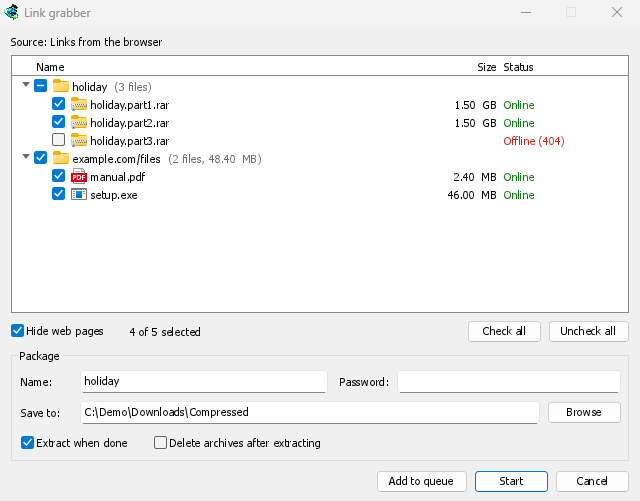
Cada paquete es una fila que puede abrir y cerrar (haga clic en su flecha, haga doble clic en ella o pulse Derecha e Izquierda). Marcar un paquete marca todos sus enlaces; su casilla se llena a la mitad cuando solo algunos están marcados.
- Los volúmenes de un archivo (
movie.part1.rar,movie.part2.rar…, obackup.7z.001,backup.7z.002…) forman un paquete con el nombre del archivo, siempre que procedan del mismo sitio. - Los demás enlaces de una página forman un paquete con el nombre de la página.
- Todo lo demás va a Varios archivos.
- Los enlaces que un sitio empaquetó (Click'n'Load) conservan los paquetes y nombres del sitio, con su contraseña de archivo si el sitio la proporcionó.
- Los archivos de una carpeta forman un paquete para cada carpeta, nombrado como esta, cuyo Guardar en mantiene el árbol de la carpeta (consulta Carpetas).
- Los archivos de un modelo, un conjunto de datos o una versión forman un único paquete, cuya opción Guardar en conserva sus carpetas (consulta Modelos, conjuntos de datos y versiones).
Carpetas
Dale al Capturador de enlaces la dirección de una carpeta, de la misma manera que le das la de una página: pégala con Ctrl+V, cópiala para Tareas → Añadir descarga por lotes desde el portapapeles, ponla en una lista para Tareas → Importar, o arrástrala a la lista de descargas.
- An FTP folder: an
ftp://,ftpes://orftps://address that ends in/(ftp://ftp.example.org/pub/). VDM logs in as it does for a download from that address (its user name and password, else your Sites Logins, else as anonymous) and asks the server for the folder's list. Each file comes with the size the server lists, so it isn't looked up again. - A web server's folder listing: the page Apache, nginx, IIS and other servers make of a folder without its own page, titled Index of /pub/ (or Directory listing for /pub/). VDM recognizes it, so it reads the folder instead of listing the page's links.
El Capturador de enlaces lista entonces cada archivo en la carpeta y en sus subcarpetas. Los archivos de cada carpeta son un paquete nombrado como la carpeta, y su Guardar en es esa carpeta dentro de tu carpeta de descargas (Opciones → Guardar en), por lo que se mantiene el árbol: ftp://ftp.example.org/pub/iso/disc.iso va a Downloads\pub\iso\disc.iso. Marca lo que quieras; Ocultar páginas web y las casillas de los paquetes funcionan como para cualquier enlace.
Options → Archives and Link grabber → Folders: 3 levels deep, types: ... sets how far VDM goes and what it keeps:
- Niveles de profundidad: cuántos niveles de subcarpetas se leen, 3 por defecto, como máximo 10. 0 lista solo los archivos propios de la carpeta.
- Tipos: solo los archivos de estos tipos, escritos como en la página Tipos de archivo (
ISO ZIP R0*). Vacío (el valor por defecto) conserva todos los tipos.
VDM stays inside the folder you gave. It never goes up to the folder above (../), never onto another site, never through a link the listing makes to somewhere else, and an FTP folder's links to other folders (symbolic links) aren't followed. A name that isn't a plain file or folder name (one with / or \ in it, ..) is left out. One folder lists at most 10,000 files, and VDM reads at most 500 folders for it; past that, the window's Source line says the folder was listed only in part (pub: only its first 10000 files).
Las carpetas se leen solo con Buscar enlaces al recibirlos activado (el valor por defecto), como las páginas web. Una dirección FTP sin su / final se toma por un archivo.
Modelos, conjuntos de datos y versiones
Pega una de estas direcciones en Añadir URL (Ctrl+N), o en el Capturador de enlaces con Ctrl+V (también funciona si la copias, importas o arrastras):
- Un modelo o conjunto de datos de Hugging Face:
https://huggingface.co/<owner>/<name>ohttps://huggingface.co/datasets/<owner>/<name>, el repositorio completo. - Una carpeta de uno, en una rama, una etiqueta o un commit: la dirección de la página de la carpeta,
https://huggingface.co/<owner>/<name>/tree/<revision>/<folder>. - Una versión de GitHub:
https://github.com/<owner>/<repo>/releases/tag/<tag>, o…/releases/latestpara la más reciente. Una etiqueta sin versión lista su código fuente.
VDM asks the site's public API for the list of files and opens Link grabber with all of them in one package: each file with its size and the folder it is in, unticked, so you tick only what you need (the package's box ticks them all). Its Save to is the address's path under your download folder (Options → Save to), and each file keeps its folder inside it: onnx/model.onnx of huggingface.co/org/tiny goes to Downloads\org\tiny\onnx\model.onnx, a dataset's files under Downloads\datasets\…, a release's under Downloads\<owner>\<repo>\<tag>. A folder of a repository keeps its place in it (org\tiny\onnx\…), so files you take later from another folder land beside it. Start or Add to queue adds them as one group, with one summary when the last is done.
- Checked against the site's digest. Hugging Face publishes a SHA-256 for each large file, GitHub for each release file. VDM checks the finished file against it, as Verify checksum does; a file that doesn't match stays unfinished and says so (the file's SHA-256 checksum doesn't match), and Redownload fetches it again. Small files kept in the repository itself, and a release's source code, have no digest of their own to check.
- Una versión. Los archivos de un repositorio se solicitan en el commit al que apuntaba su rama o etiqueta cuando se listó, para que una rama que avanza mientras se descargan nunca mezcle dos versiones.
- Straight from the sites. Files come from Hugging Face's and GitHub's own servers, never through a mirror, through VDM's own connections, speed limits and proxy, like any download.
- Modelos restringidos. Un repositorio cuyos archivos requieren la aceptación de sus términos se descarga con tu token de acceso de Hugging Face: acepta los términos en su página, crea un token en tu configuración de Hugging Face y añádelo en Opciones → Inicios de sesión de sitios con el sitio
huggingface.co, cualquier nombre de usuario y el token como contraseña. Se guarda con tus otras contraseñas, en el llavero del sistema, y se envía solo ahuggingface.co, nunca a los servidores desde los que envía los archivos. La línea Origen indica cuándo un repositorio restringido aún no tiene token. - Límites. Ambos sitios permiten solo un número limitado de solicitudes desde un ordenador sin cuenta (GitHub 60 por hora). Cuando se alcanza el límite, la fila de la dirección indica Inténtalo de nuevo más tarde, y su sugerencia indica durante cuánto tiempo.
Lo que dice la lista de un sitio se comprueba antes de usarse: un archivo cuya ruta saldría de su carpeta (.., una ruta absoluta, una letra de unidad, un nombre de dispositivo como CON) se omite, y la línea Origen los cuenta. Se listan como máximo 10 000 archivos para una dirección. Al igual que las carpetas, se leen solo con la opción Buscar enlaces al recibirlos activada (la predeterminada).
Google Drive folders
Paste a shared folder's link, the one Drive's Share → Copy link gives (https://drive.google.com/drive/folders/…?usp=sharing), in Add URL (Ctrl+N) or in Link grabber with Ctrl+V. VDM reads the folder's page, the one your browser opens, and its subfolders' pages, one after the other, and opens Link grabber with all their files in one package, ticked, each with its name and size and the subfolder it is in. Its Save to is a folder of the Drive folder's name under your download folder (Options → Save to), and each file keeps its subfolders inside it: Day 2/hills.jpg of a folder named Holiday photos goes to Downloads\Holiday photos\Day 2\hills.jpg. Start or Add to queue adds them as one group, with one summary when the last is done.
- Each file as a single Drive file. Every file downloads the way a Drive file's own link does (Google Drive links): from Google's own servers, through VDM's connections, speed limits and proxy, past the can't scan this file for viruses page as Download anyway does. When Drive refuses one (too many downloads lately, a sign-in needed, no access), that file says so in its row, and the others go on.
- Google Docs, Sheets and Slides come as Word (
.docx), Excel (.xlsx) and PowerPoint (.pptx) files, Drawings as.png; their size shows once they are looked up. Forms, shortcuts and Sites aren't files: they are left out, and the Source line says how many. - Folders shared with your account only. Sign in to Google in your browser, right-click the folder's link there and choose Download with Volt Download Manager: the browser add-on passes your Google sign-in with it, and VDM uses it for the folder's pages and its files, on Google Drive only. Pasted without one, the folder's row says Needs a sign-in.
- 50 items a folder. Drive's page lists a folder's first 50 items, so a folder (or a subfolder) with more shows only 50 of them. The Source line says so when a folder shows 50; Drive's own Download on the folder gets all of it, as a zip, which the browser add-on hands to VDM.
- Names. Drive lets a name hold characters a disk doesn't take (
a/b,x:y) or be a Windows device's name (CON); VDM makes them plain names (a_b,x_y,_CON), as for any download. A name that is only dots (..) is left out, and the Source line counts it. A file's address is made from its Drive ID, never taken from the page.
Click'n'Load
Many link sites have a Click'n'Load button that sends their links straight to a download manager on your computer, as JDownloader's documentation for web sites describes. Turn it on in Options → Archives and Link grabber → Accept Click'n'Load from web pages (off by default). VDM then listens on port 9666 of this computer only, and the links a page sends open in Link grabber, with the page's package name and archive password.
Any web page can send links there, not only the link site you are on, so VDM is careful with them:
- The first time a site sends links, VDM asks: Allow (that site's links go to Link grabber from now on), Block (they never do), or Not now (these links are dropped, and the site is asked again next time). The site is the one your browser names, never what the page claims. When the browser names none (a page that hides where it is, or one inside a sandboxed frame), the window says An unknown site: it is asked about every time, and its answer is never kept. Turning Click'n'Load off forgets the answers.
- Los enlaces enviados por una página no se buscan: el Capturador de enlaces los muestra como No buscados, y no se envía ninguna solicitud para ellos, con o sin tus Inicios de sesión de sitios o cuentas de debrid, hasta que los añades a la cola. Nada se descarga antes de eso.
- Links to this computer or your network are left out: a link to
localhost, to a private or link-local address (192.168.…,10.…,172.16.…,169.254.…, their IPv6 kin), or to a name without a dot or under.local,.lanor.internalnever reaches Link grabber. A link site's files aren't there, and such an address could be your router or another device. VDM judges the address as written: a public-looking name that points into your network isn't recognized, so look at a package before you add it. - Limits: at most 10 posts a minute from one site, 500 links and 256 KB a post; more is refused, and one site's posts don't use up another's. At most 20 posts wait for an answer. A site brings VDM's window to the front at most once a minute; its links still arrive in Link grabber in between.
- La propia dirección de la página no se envía como referente de los enlaces: una página podría nombrar cualquiera.
- VDM doesn't say it is JDownloader. Some sites first ask whether JDownloader is running (a script named
jdcheck.js) and show their button only then. VDM doesn't answer that question, so such a site may say no program was found; a site that simply sends its form works. - Only one program can listen on port 9666. If JDownloader is running, VDM says so: close it, then turn the option off and on again.
- A button that sends a DLC container instead of links isn't taken: reading one needs a key VDM can't use. The site's plain links, or its Click'n'Load button, are the way.
- Some sites hide the key in a script VDM doesn't run (only the plain form the documentation shows is read): then their button reports a failure, and the site's plain links are the way.
Búsqueda de enlaces
As links arrive, VDM asks each server about its file, as IDM's Download all links does. A few links are checked at a time, and only a few from any one site. Each link then shows its real name and size, and a status:
- En línea: el servidor tiene el archivo.
- Sin conexión (404): el servidor no lo tiene. El enlace no está marcado.
- Necesita un inicio de sesión: el servidor solicita un nombre de usuario y contraseña, o las cookies de la página.
- Ocupado, inténtelo más tarde: el servidor ha pedido que esperes.
Turn the look-ups off in Options → Archives → Look links up when they arrive. Some file hosts count a look-up as a download. With the look-ups off, VDM asks nothing of the network until you start, so a web page's address isn't read for its links either.
Ocultar páginas web (activado por defecto) omite los vínculos a páginas (.html, .php y similares, y cualquier vínculo cuya búsqueda encontró una página web): no se muestran ni se descargan.
Ocultar imágenes ubicadas en esta página web omite las imágenes que el navegador encontró mostradas en la página (sus imágenes, en el tamaño más grande que la página lista para cada una), de modo que la lista contiene los enlaces de la página. Se marca de nuevo cada vez que los enlaces de una página vienen con dichas imágenes, y no se recuerda: desmárcala para ver las imágenes y marca las que quieras; mientras está marcada no se muestran ni se descargan. Un enlace a una imagen (una miniatura que enlaza a su tamaño completo) es un enlace como cualquier otro y siempre se muestra, incluso cuando la misma imagen también se muestra en la página.
El cuadro del paquete
El cuadro debajo de la lista edita el paquete que ha seleccionado:
- Nombre: el nombre del paquete, que se guarda con sus descargas.
- Guardar en: la carpeta donde se guardan sus archivos. Cuando un paquete contiene varios tipos de archivos, el cuadro muestra Carpeta de categoría de cada archivo: cada archivo se guarda en la carpeta de su categoría (Opciones → Guardar en), igual que hacía Importar.
- Contraseña: la contraseña de los archivos comprimidos, si tienen una. Se guarda solo en la memoria y nunca se almacena por sí misma: para guardar una para otros paquetes, añádela a tus contraseñas de archivos comprimidos.
- Extraer al finalizar: se marca automáticamente cuando el paquete contiene un archivo comprimido.
- Eliminar archivos después de extraer: una vez extraídos, los archivos se envían a la Papelera de reciclaje (la Papelera en macOS y Linux).
Añadir los enlaces
- Iniciar añade los enlaces marcados a la Cola de descarga principal e inicia la cola. Descarga tantos archivos a la vez como la cola lo permite.
- La opción Añadir a la cola los añade a la Cola de descarga principal sin iniciarlos, como hace la importación de IDM.
- Cancelar cierra la ventana y no añade nada.
Extracción de archivos comprimidos
VDM itself extracts zip archives (AES-encrypted and Deflate64 ones too), tar, tar.gz and tar.xz archives, and single .gz and .xz files.
7z and RAR archives need 7-Zip, a free program (7-zip.org). VDM runs it when it is installed, for split and encrypted archives too. RAR's own extraction code can't be part of a free program like VDM, and 7-Zip extracts 7z best.
Options → Archives says whether 7-Zip was found. Without it, a 7z or RAR archive isn't extracted, and the 7-Zip needed window says so, with a Get 7-Zip button. On Linux, install your distribution's 7zip (or p7zip) package: VDM finds 7zz, 7z or 7za on its own.
Another archiver built on 7-Zip does as well, so there is no need for a second copy. On Windows VDM finds the 7-Zip that PeaZip brings with it (PeaZip\res\bin\7z\7z.exe in Program Files) and NanaZip's command line (NanaZipC.exe) by itself, after 7-Zip's own folders. For any other, such as a portable copy or one installed for your user only, press Use another program... in Options → Archives and choose its 7-Zip command line program: 7z.exe, 7za.exe or 7zz, not the archiver's own window. VDM runs it once to see that it answers as 7-Zip, then uses it for 7z and RAR archives, with the same arguments as always. Find 7-Zip automatically goes back to the one VDM finds, which is also used if the chosen program is removed.
En el mismo lugar, con HatchZip
HatchZip is another free extractor (MIT or Apache-2.0), optional. VDM uses its command line program, hatchzip, when it is on the PATH (its installers and packages put it there; the desktop app alone isn't enough):
- Options → Archives → Extract in place with HatchZip (off by default): HatchZip removes the archive while its files come out, so a 180 GB download that unpacks to 200 GB needs a little over 200 GB, not 380 GB. It reads zip, 7z, RAR and tar archives, split ones too; single
.gzand.xzfiles are still extracted by VDM. A solid RAR archive can't be extracted in place (HatchZip says so before it changes anything): VDM then extracts it as usual, with 7-Zip, and keeps the archive. HatchZip's own release builds read RAR; a build from crates.io doesn't. - Antes de cambiar nada, HatchZip comprueba que los archivos caben y verifica la contraseña. Una contraseña incorrecta o que falta, o muy poco espacio, no cambia nada: el registro lo indica, y la ventana Contraseña del archivo la pide como de costumbre. La contraseña se envía a HatchZip a través de su entorno, nunca en su línea de comandos.
- Los archivos van donde indica Dónde van los archivos de un paquete, como con cualquier otra extracción. En el proceso, están en una carpeta llamada
<archive>.hatchzip-outjunto al archivo comprimido. - If it stops partway (VDM closed, the download deleted, the disk filled by something else), the files extracted so far stay in that folder and the rest is still in the archive. Extract continues where it stopped, even with the option off: only HatchZip can finish such an archive. VDM continues only a run it started itself (it keeps a note of it in its own data): a HatchZip progress file (
<archive>.hatchzip) that comes with a download or a torrent starts nothing, and that archive is extracted as usual. - Nothing HatchZip extracted is ever deleted, those files are no longer in the archive. Entries VDM leaves out (links, names leading outside the folder) stay in that folder, and so do the files a failed move couldn't put in place (a file held open by another program); the log says where. So after an extraction in place, a link an archive held that VDM considers unsafe is still in your download folder, inside
<archive>.hatchzip-out: it is never followed or moved, but it isn't removed either, as it is by every other extraction. Look at what is left in that folder before you open it. - Luego mover los archivos comprimidos a la Papelera de reciclaje no tiene nada que mover después: el archivo comprimido ya no existe.
- Los archivos 7z y RAR siguen necesitando 7-Zip cuando la opción está desactivada.
Un archivo se extrae:
- cuando su paquete indica Extraer al finalizar,
- cuando está activada la opción Opciones → Archivos → Extraer archivos cuando finalice su descarga (desactivada por defecto), para cualquier otra descarga,
- cuando haces clic con el botón derecho en un archivo descargado y eliges Extraer.
Un archivo dividido se extrae una sola vez, cuando se descarga su último volumen. Los archivos se colocan junto al archivo:
- en una carpeta con el nombre del archivo cuando contiene varias cosas en su nivel superior (o siempre, o nunca: Opciones → Archivos),
- se mantiene un archivo que ya existe y el nuevo se numera:
report (1).txt.
Los archivos extraídos se marcan como procedentes de internet, al igual que el archivo comprimido, por lo que Windows sigue mostrando una advertencia antes de ejecutar un programa extraído de él.
VDM extracts safely. A name that would lead outside the folder is left out, and so is a link to somewhere else on the disk. An archive that would write far more than its size, or more than the disk has room for, stops before it fills it. When something goes wrong, nothing but the archive is left behind.
El registro de la descarga (pasa el ratón por encima en la lista) indica lo que sucedió: Se extrajeron 12 archivos a…, o por qué no, por ejemplo No se pudo extraer movie.7z.001: falta el volumen 3. Cada archivo comprimido se intenta primero sin contraseña. Uno que resulta estar cifrado se intenta con la contraseña de su paquete, luego con cada una de tus contraseñas guardadas (Opciones → Archivos → Contraseñas de archivos comprimidos...), en su orden, para que un archivo que no necesita contraseña nunca las encuentre. Solo cuando ninguna encaja se abre la ventana Contraseña del archivo. Escribe la contraseña y haz clic en Extraer, o en Cancelar para dejar el archivo como está. Marca Recordarla para otros archivos comprimidos (empieza desmarcada) para añadirla a las contraseñas guardadas. A 7-Zip se le da cada contraseña en su entrada, nunca en su línea de comandos, donde otros programas del ordenador podrían leerla.
Contraseñas de archivos comprimidos
Options → Archives → Archive passwords... keeps the passwords you use again and again (a site's own, say), one per line. The download's log says Trying the saved archive passwords... while VDM tries them. The one that opens an archive moves to the top of the list, so the passwords you need most are tried first. A package's password (one you typed in Link grabber, or one that came with the links) is tried first and never added to the list by itself; when it is one of your saved passwords already, it moves to the top like any other. A password typed in the Archive password window is added only with Remember it for other archives ticked, and only once it fits. The list is kept in the system's keychain, as the other passwords are (see Where the sign-in is kept).
Cada intento reinicia la extracción: con una lista larga y un archivo comprimido grande cuyos nombres de archivo no están cifrados, puede tardar un momento antes de que se encuentre el correcto.
Comprobar archivos
A finished archive can still be broken: a server sent wrong bytes, or a proxy on the way mangled part of the file. It shows only when someone opens it, often much later. So VDM tests ZIP, 7z and RAR archives, split ones too once every volume is in, when their download completes: Options → Archives → Test archives when their download completes is on by default, up to 4 GB. A test reads the whole archive, so a larger one is tested only when you ask: right-click a finished archive and choose Test archive, whatever its size.
- The test is 7-Zip's (
7z t, with the 7-Zip that Options → Archives names): every file in the archive is read back and checked, and nothing is written. Without 7-Zip, VDM tests ZIP archives itself; 7z and RAR archives aren't tested. - La descarga se considera finalizada una vez que termina su comprobación. La lista muestra Comprobando 45% mientras tanto, su cola espera, y su ventana Descarga completa, su sonido y su extracción vienen después de la comprobación.
- Un archivo protegido con contraseña no se comprueba, ya que sus archivos no se pueden leer sin ella: el registro dice No se pudo comprobar fotos.zip: necesita una contraseña. Tampoco se comprueban los archivos tar, gz y xz.
- Un archivo dañado muestra Dañado en la lista, su registro nombra los archivos dañados y la ventana Archivo dañado ofrece Volver a descargar: descarga el archivo (cada volumen de uno dividido) de nuevo desde el principio. No se extrae por sí mismo; Extraer aún lo intenta.
- A ZIP in one file is repaired instead, when VDM can tell where its damaged files are in it: their bytes alone are downloaded again, from the same server, and the archive is tested once more. The log says Downloading the damaged parts again (1.20 MB), then Tested again: the archive has no errors now. The bytes come only from the same version of the file: VDM asks for them as it resumes any download (with the file's ETag or date,
If-Range), and checks the bytes just before each part against the ones on disk. A file that changed on the server stops the download with the file changed on the server instead of mixing two versions: Redownload downloads the new one. An archive still damaged after that is offered for Redownload. - Los archivos 7z y RAR guardan sus archivos en bloques cuya ubicación en el archivo la comprobación de 7-Zip no proporciona, y los volúmenes de un archivo dividido son descargas separadas: estos se comprueban y se ofrecen para Volver a descargar cuando están dañados, nunca se reparan parcialmente.
- Un archivo dividido (
photos.zip.001,photos.z01,notes.7z.001,movie.part1.rar,movie.r00) se comprueba una vez, desde su primer volumen, cuando todos los volúmenes están descargados, sea cual sea el último en finalizar. Sus volúmenes a menudo terminan uno tras otro (una cola que descarga uno a la vez, un host que te hace esperar entre archivos), y los que ya están leídos como un archivo cortado, por lo que no se comprueban por sí solos. Probar archivo en un archivo dividido aún no completo lo indica: No comprobado aún: fotos.zip.001 no está completo (el volumen 3 aún no está). - Closing VDM stops a test; the archive is tested again at the next start.
Pasos siguientes
Gratis, código abierto, sin anuncios, sin prueba.
Download Volt Download Manager