

Set up the extension once, and every download link you click in Firefox, Chrome, Edge, Brave, Opera, Vivaldi or Helium goes to VDM.
Antes de empezar
On Windows, VDM must be installed with the setup, with Set up browser integration (Chrome, Edge, Brave, Firefox) ticked. It is ticked by default. If you're not sure, run the setup again. A portable copy can't do this. On Linux and macOS, start VDM once: it sets browser integration up itself.
VDM's Add Volt Download Manager to your browser window, which opens at each start until a browser's extension has reached VDM, does the steps below for you: Add the extension opens the store's page in that browser.
Una vez configurado, los enlaces de descarga funcionan así:
Click a download link in the browser: Download File Info opens in VDM. 

Iniciar descarga: la ventana de progreso muestra cómo avanza la descarga. 

Descarga completa: Abrir el archivo, o Abrir carpeta. 

En Firefox
- Open the add-on's page on addons.mozilla.org, Volt Download Manager, and click Add to Firefox. Zen and LibreWolf use the same page.
- Firefox pide confirmación: haz clic en Añadir. Firefox mantiene el complemento actualizado.
- Go to a web page and click a download link, for example a ZIP or an EXE: VDM opens Download File Info. Click Start Download.
En Chrome, Edge, Brave, Opera o Vivaldi
- Open the extension's page in the Chrome Web Store, Volt Download Manager, and click Add to Chrome. In Edge the button is Get, and Edge first asks to Allow extensions from other stores: click Allow.
- El navegador pide confirmación: haz clic en Añadir extensión. Así la extensión se mantiene actualizada.
- Go to a web page and click a download link, for example a ZIP or an EXE: VDM opens Download File Info. Click Start Download.
Helium la instala desde la misma página, siempre que Helium pueda descargar extensiones: consulta Helium.
Sin la tienda
Cuando un navegador no puede usar su tienda (un ordenador gestionado por una organización, o una compilación propia), añade la extensión manualmente:
- Abre la página de extensiones de tu navegador: escribe
chrome://extensions,edge://extensionsobrave://extensionsen la barra de direcciones. - Active el Modo de desarrollador.
- Haz clic en Cargar extensión descomprimida.
- Choose the
extension\chromiumfolder inside VDM's folder. If you installed VDM for yourself, that is%LOCALAPPDATA%\Programs\Volt Download Manager\extension\chromium; you can paste that path into the folder box. - Volt Download Manager appears. Make sure it is turned on.
- Ve a una página web y haz clic en un enlace de descarga, por ejemplo, un ZIP o un EXE.
- VDM opens Download File Info instead of the browser downloading the file. Click Start Download.
You don't need to start VDM first: if it isn't running, it starts by itself.
Choose what VDM takes
- Qué tipos de archivo: Opciones → Tipos de archivo → Iniciar la descarga automática de los siguientes tipos de archivo. Añade o elimina tipos, separados por espacios.
- Sitios que ignorar: Opciones → Tipos de archivo → No iniciar la descarga automáticamente desde los siguientes sitios. Añade el nombre del sitio, por ejemplo
example.com: cubrewww.example.comy otros subdominios del sitio, así como los archivos a los que sus páginas enlazan en otro servidor. - One browser only: Options → General → Capture downloads from the following browsers. Untick the ones VDM should leave alone.
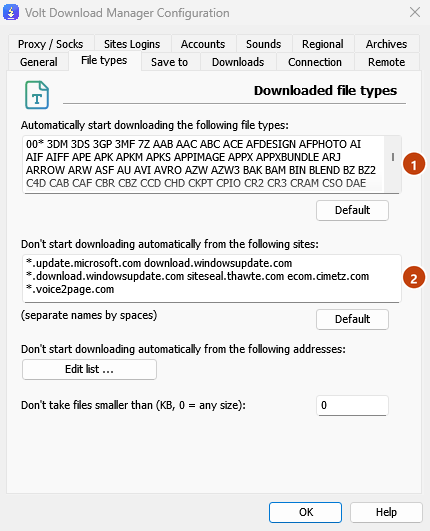
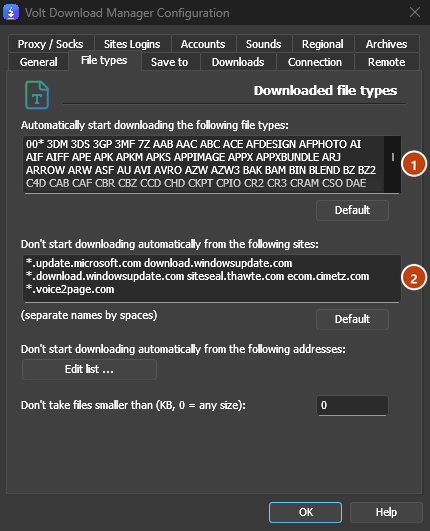
Everything VDM doesn't take stays with the browser.
Descargar un enlace que abriría el navegador
Links to a PDF or a video file, which the browser would open itself, go to VDM too when their type is listed. To leave one to the browser, hold Alt while clicking it: the browser opens it as a plain click would. Any other link: right-click it and choose Download with Volt Download Manager, which takes any type.
Pasos siguientes
- Más información sobre la integración con el navegador (Firefox, ventanas privadas y datos enviados) →
- Si el navegador no transfiere las descargas →
- Descargar por la noche →
Gratis, código abierto, sin anuncios, sin prueba.
Download Volt Download Manager