

Set up the extension once, and every download link you click in Firefox, Chrome, Edge, Brave, Opera, Vivaldi or Helium goes to VDM.
시작하기 전에
On Windows, VDM must be installed with the setup, with Set up browser integration (Chrome, Edge, Brave, Firefox) ticked. It is ticked by default. If you're not sure, run the setup again. A portable copy can't do this. On Linux and macOS, start VDM once: it sets browser integration up itself.
VDM's Add Volt Download Manager to your browser window, which opens at each start until a browser's extension has reached VDM, does the steps below for you: Add the extension opens the store's page in that browser.
설정이 끝나면 다운로드 링크는 다음과 같이 처리됩니다.
Click a download link in the browser: Download File Info opens in VDM. 

다운로드 시작: 진행 창에 다운로드 진행 상황이 표시됩니다. 

다운로드 완료: 파일을 열거나 폴더를 엽니다. 

Firefox에서
- Open the add-on's page on addons.mozilla.org, Volt Download Manager, and click Add to Firefox. Zen and LibreWolf use the same page.
- Firefox에서 확인을 요청하면 추가를 클릭합니다. 부가 기능은 Firefox에서 자동으로 업데이트됩니다.
- Go to a web page and click a download link, for example a ZIP or an EXE: VDM opens Download File Info. Click Start Download.
Chrome, Edge, Brave, Opera 또는 Vivaldi에서
- Open the extension's page in the Chrome Web Store, Volt Download Manager, and click Add to Chrome. In Edge the button is Get, and Edge first asks to Allow extensions from other stores: click Allow.
- 브라우저에서 확인을 요청하면 확장 프로그램 추가를 클릭합니다. 확장 프로그램은 브라우저에서 자동으로 업데이트됩니다.
- Go to a web page and click a download link, for example a ZIP or an EXE: VDM opens Download File Info. Click Start Download.
Helium이 확장 프로그램을 다운로드할 수 있는 한, Helium은 동일한 페이지에서 확장 프로그램을 설치합니다. Helium을 참조하세요.
스토어를 사용하지 않는 경우
브라우저에서 스토어를 사용할 수 없는 경우(조직에서 관리하는 컴퓨터이거나 직접 빌드한 브라우저인 경우) 확장 프로그램을 수동으로 추가합니다.
- 브라우저의 확장 프로그램 페이지를 엽니다. 주소 표시줄에
chrome://extensions,edge://extensions또는brave://extensions를 입력합니다. - 개발자 모드를 켭니다.
- 압축 해제된 확장 프로그램 로드를 클릭합니다.
- Choose the
extension\chromiumfolder inside VDM's folder. If you installed VDM for yourself, that is%LOCALAPPDATA%\Programs\Volt Download Manager\extension\chromium; you can paste that path into the folder box. - Volt Download Manager appears. Make sure it is turned on.
- 웹 페이지에서 ZIP 또는 EXE 등의 다운로드 링크를 클릭합니다.
- VDM opens Download File Info instead of the browser downloading the file. Click Start Download.
You don't need to start VDM first: if it isn't running, it starts by itself.
Choose what VDM takes
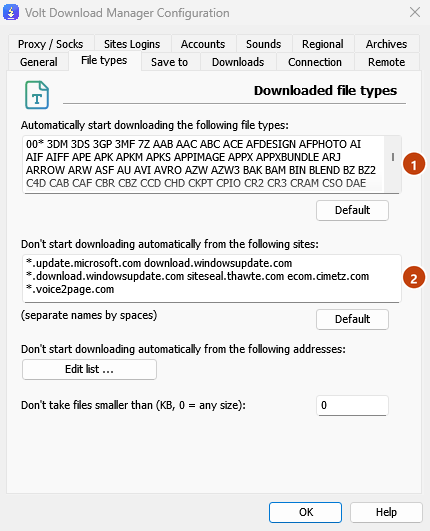
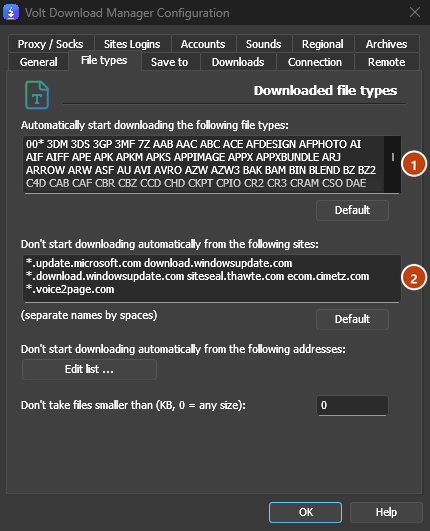
- 파일 형식: 옵션 → 파일 형식 → 다음 파일 형식 자동 다운로드 시작. 공백으로 구분해 형식을 추가하거나 삭제합니다.
- 다운로드하지 않을 사이트: 옵션 → 파일 형식 → 다음 사이트에서 자동으로 다운로드 시작 안 함에 사이트 이름을 추가합니다. 예를 들어
example.com를 추가하면www.example.com및 해당 사이트의 다른 하위 도메인, 그리고 해당 페이지가 다른 서버에 연결하는 파일도 포함됩니다. - One browser only: Options → General → Capture downloads from the following browsers. Untick the ones VDM should leave alone.
Everything VDM doesn't take stays with the browser.
브라우저에서 열리는 링크 다운로드
Links to a PDF or a video file, which the browser would open itself, go to VDM too when their type is listed. To leave one to the browser, hold Alt while clicking it: the browser opens it as a plain click would. Any other link: right-click it and choose Download with Volt Download Manager, which takes any type.
다음 단계
무료, 오픈 소스, 광고 없음, 평가판 없음.
Download Volt Download Manager