

Set up the extension once, and every download link you click in Firefox, Chrome, Edge, Brave, Opera, Vivaldi or Helium goes to VDM.
Sebelum Anda mulai
On Windows, VDM must be installed with the setup, with Set up browser integration (Chrome, Edge, Brave, Firefox) ticked. It is ticked by default. If you're not sure, run the setup again. A portable copy can't do this. On Linux and macOS, start VDM once: it sets browser integration up itself.
VDM's Add Volt Download Manager to your browser window, which opens at each start until a browser's extension has reached VDM, does the steps below for you: Add the extension opens the store's page in that browser.
Setelah penyiapan selesai, tautan unduhan akan diproses seperti ini:
Click a download link in the browser: Download File Info opens in VDM. 

Mulai Unduhan: jendela progres menunjukkan unduhan sedang berlangsung. 

Unduhan selesai: Buka file, atau Buka folder. 

Di Firefox
- Open the add-on's page on addons.mozilla.org, Volt Download Manager, and click Add to Firefox. Zen and LibreWolf use the same page.
- Firefox akan meminta konfirmasi: klik Tambahkan. Firefox akan terus memperbarui pengaya.
- Go to a web page and click a download link, for example a ZIP or an EXE: VDM opens Download File Info. Click Start Download.
Di Chrome, Edge, Brave, Opera, atau Vivaldi
- Open the extension's page in the Chrome Web Store, Volt Download Manager, and click Add to Chrome. In Edge the button is Get, and Edge first asks to Allow extensions from other stores: click Allow.
- Browser akan meminta konfirmasi: klik Tambahkan ekstensi. Ini akan menjaga ekstensi tetap mutakhir.
- Go to a web page and click a download link, for example a ZIP or an EXE: VDM opens Download File Info. Click Start Download.
Helium menginstalnya dari halaman yang sama, selama Helium diizinkan mengunduh ekstensi: lihat Helium.
Tanpa toko
Jika browser tidak dapat menggunakan tokonya (komputer yang dikelola oleh organisasi, atau build Anda sendiri), tambahkan ekstensi secara manual:
- Buka halaman ekstensi browser: ketik
chrome://extensions,edge://extensionsataubrave://extensionsdi bilah alamat. - Nyalakan Mode pengembang.
- Klik Muat tanpa paket.
- Choose the
extension\chromiumfolder inside VDM's folder. If you installed VDM for yourself, that is%LOCALAPPDATA%\Programs\Volt Download Manager\extension\chromium; you can paste that path into the folder box. - Volt Download Manager appears. Make sure it is turned on.
- Buka halaman web dan klik tautan unduhan, misalnya ZIP atau EXE.
- VDM opens Download File Info instead of the browser downloading the file. Click Start Download.
You don't need to start VDM first: if it isn't running, it starts by itself.
Choose what VDM takes
- Jenis file mana: Opsi → Jenis file → Mulai mengunduh secara otomatis jenis file berikut. Tambahkan atau hapus jenis, dipisahkan oleh spasi.
- Situs yang diabaikan: Opsi → Jenis file → Jangan mulai mengunduh secara otomatis dari situs berikut. Tambahkan nama situs, misalnya
example.com: ini mencakupwww.example.comdan subdomain situs lainnya, serta file yang ditautkan halaman-halamannya ke server lain. - One browser only: Options → General → Capture downloads from the following browsers. Untick the ones VDM should leave alone.
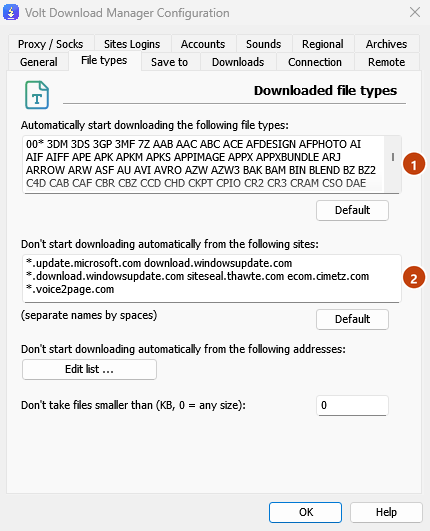
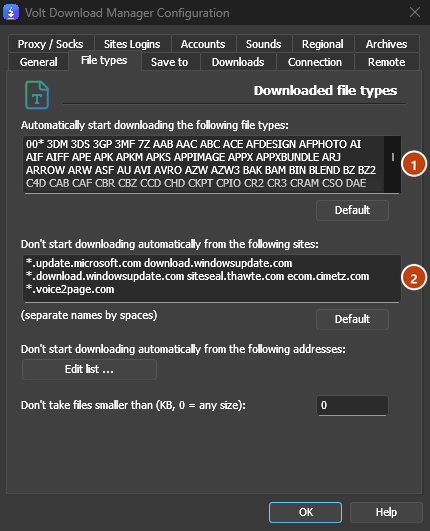
Everything VDM doesn't take stays with the browser.
Unduh tautan yang akan dibuka browser
Links to a PDF or a video file, which the browser would open itself, go to VDM too when their type is listed. To leave one to the browser, hold Alt while clicking it: the browser opens it as a plain click would. Any other link: right-click it and choose Download with Volt Download Manager, which takes any type.
Langkah selanjutnya
- Integrasi browser secara detail (Firefox, jendela pribadi, apa yang dikirim) →
- Jika browser tidak menyerahkan unduhan →
- Unduh semalaman →
Gratis, sumber terbuka, tanpa iklan, tanpa masa uji coba.
Download Volt Download Manager