

VDM runs on Windows 10 and Windows 11 (x64, ARM64 and 32-bit), and on 64-bit Linux (x86-64 and ARM64): see On Linux. Builds for macOS are new and still experimental: see On a Mac.
Pilih unduhan
Semua versi tersedia di halaman Rilis. Untuk Windows, tersedia tiga file:
| File | Keterangan |
|---|---|
VoltDownloadManager-<version>-setup.exe |
The installer. Pick this one unless you have a reason not to. It can set up browser integration and open .torrent files and magnet links with VDM. |
VoltDownloadManager-<version>-portable.zip |
Salinan portabel. Daftar unduhan dan pengaturan disimpan di folder data di samping program, dan tidak ada data yang ditulis ke registri. Integrasi browser memerlukan program pemasang. Lihat Mode portabel. |
VoltDownloadManager-<version>-x64.zip |
Program yang sama tanpa program pemasang. Data disimpan di %APPDATA%\voltdownloadmanager, seperti pada salinan yang diinstal. |
Ketiga file ini untuk Windows 64-bit pada prosesor Intel atau AMD (x64), yaitu PC pada umumnya. Mulai versi 0.6.0, setiap file juga tersedia untuk dua jenis PC lainnya, dengan nama prosesornya:
| File | Untuk |
|---|---|
...-setup-arm64.exe, ...-portable-arm64.zip,...-arm64.zip |
Windows di ARM (PC dengan prosesor Snapdragon atau ARM lainnya). Di Windows 11, file x64 juga berjalan di sana, diterjemahkan oleh Windows, tetapi lebih lambat. Instalasi ARM64 yang dipasang di atas x64 akan menggantikannya; daftar dan pengaturan Anda tetap ada, karena disimpan di profil Anda, bukan bersama program. |
...-setup-x86.exe, ...-portable-x86.zip,...-x86.zip |
32-bit Windows 10. Not sure which you have? Settings → System → About → System type says it. VDM can't download ffmpeg for you there (none is built for 32-bit Windows that VDM can check): to get the best video qualities, choose an ffmpeg of your own in Helpers... (Video). |
Bantuan → Periksa pembaruan memperbarui setiap salinan ke file untuk prosesornya sendiri.
Dengan WinGet
VDM is also in WinGet, Windows' package manager. In a terminal, the first line installs VDM and the second updates it to the latest version:
winget install MikaiL.VoltDownloadManager
winget upgrade MikaiL.VoltDownloadManager
WinGet downloads the setup and installs VDM without the setup's questions.
Di Linux
VDM runs on 64-bit Linux with a desktop session. It is tested on Ubuntu 24.04, Debian 12 and
Fedora, with GNOME, KDE Plasma, Xfce and Cinnamon, on X11 and in Wayland sessions. Pick one
of these files (up to version 0.2.4, their names end in -experimental, as in
...-linux-x86_64-experimental.deb). From version 0.6.0, each also comes for 64-bit
ARM computers, with arm64 in place of x86_64 (...-linux-arm64.deb); they are built and
tested on GitHub's ARM machines. On ARM, VDM doesn't download gallery-dl itself (its author
builds none for it): install it with your system's packages or pip.
| File | Keterangan |
|---|---|
...-linux-x86_64.deb |
For Ubuntu, Debian, Mint and Pop!_OS: sudo apt install ./<file>.deb. It brings the libraries VDM needs. |
...-linux-x86_64.rpm |
For Fedora, openSUSE and RHEL: sudo dnf install ./<file>.rpm. It brings the libraries VDM needs. |
...-linux-x86_64.AppImage |
Berjalan di sebagian besar distribusi: jadikan dapat dieksekusi (chmod +x) dan jalankan. Ini memperbarui dirinya sendiri di tempat (Bantuan → Periksa pembaruan). |
...-linux-x86_64.tar.gz |
Program biasa, untuk distribusi apa pun. |
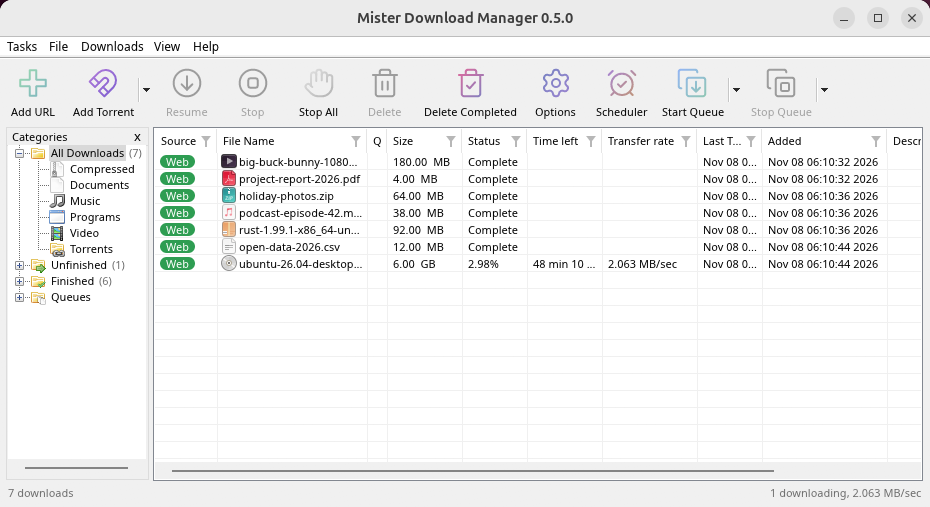
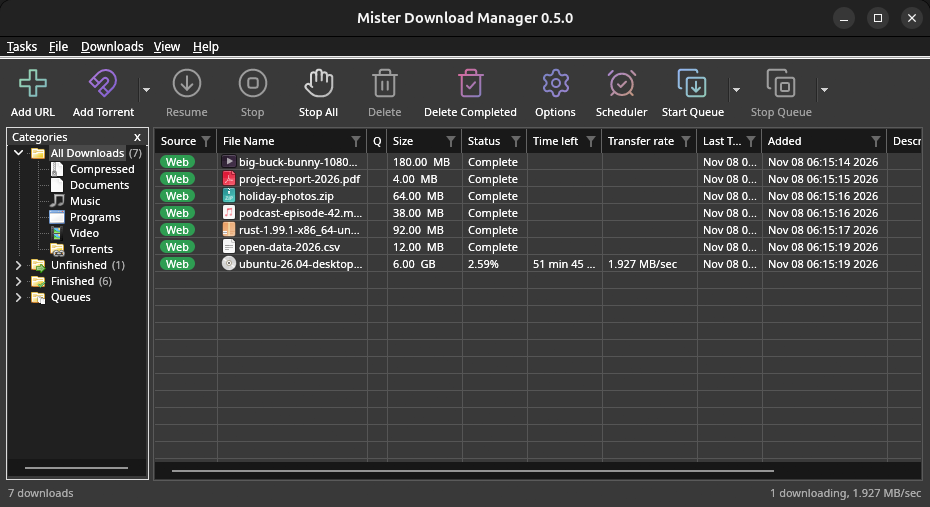
Browser integration is set up by VDM itself at each start (the browsers installed then are found); add the extension as in Browser integration. Firefox installed as a Snap (Ubuntu's) reaches VDM once you allow it; other Snap and Flatpak browsers can't (see Flatpak and Snap browsers). The tray icon, Dark Mode support and Launch on startup work on GNOME (Ubuntu's), KDE Plasma, Xfce and Cinnamon. Running downloads show their progress on VDM's icon in docks that can show it, such as Ubuntu Dock and KDE Plasma's task manager, as on the Windows taskbar (more).
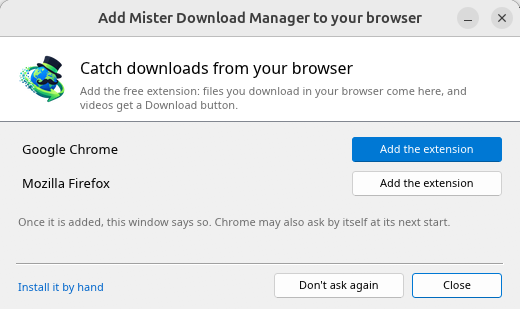
In a Wayland session the windows go through XWayland or Wayland (below). Not there yet on Linux: screen readers (Orca) don't read VDM's windows; browsers installed as a Flatpak can't reach VDM (Firefox from Flathub may, through the desktop as the Snap does, but that isn't checked yet); and View → Draw with → Vulkan is a choice, OpenGL stays the default.
In a Wayland session, VDM chooses its windows' system as it starts, the same way however it was started (its menu entry, the browser's helper, the session's autostart). Its windows run through XWayland where X11 programs look right: only X11 lets VDM open its menus and drop-down lists right under what you clicked (on Wayland they open where the compositor puts new windows, often the middle of the screen) and hide its window in the notification area. That is GNOME and KDE Plasma, which tell X11 programs the screen's scale, and any desktop whose screens aren't scaled. On a scaled screen where nothing tells X11 programs the scale (Hyprland, labwc, sway and other wlroots compositors), the compositor would scale VDM's windows up, blurry, so VDM uses Wayland's own windows there. View → Window system picks X11 (XWayland) or Wayland instead, from the next start, for every way VDM starts (Automatic goes back to VDM's choice); VDM_WAYLAND=1 or VDM_WAYLAND=0 decides for one start. If the system lacks a library X11 windows need (such as libxkbcommon-x11, which the .deb and .rpm bring but the AppImage and the tar.gz can't), VDM opens on Wayland instead; with no window system it can use, it names what's missing and the command that installs it.
Jendela-jendela adalah yang dijelaskan dalam bantuan ini, dengan font, ikon file, dan bilah judul desktop:
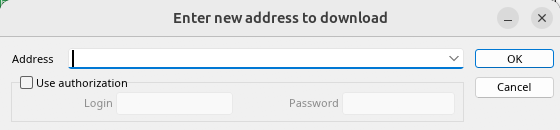
Tambah URL. 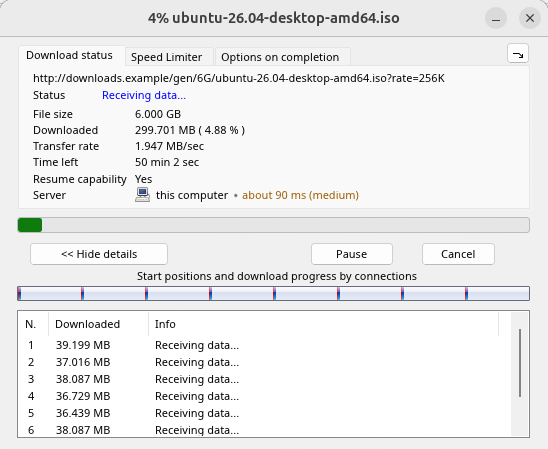
Kemajuan unduhan. 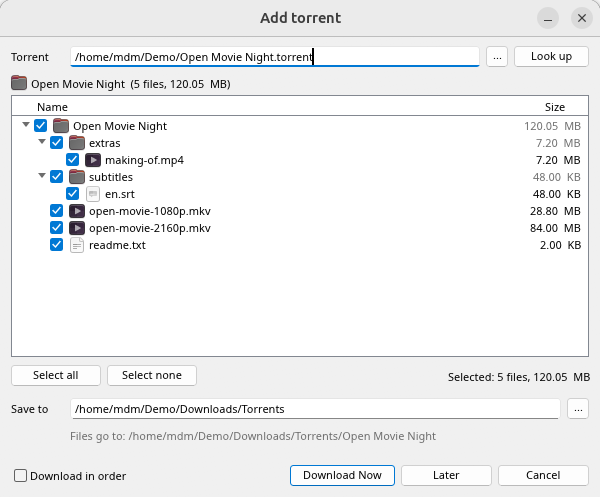
Tambahkan torrent. 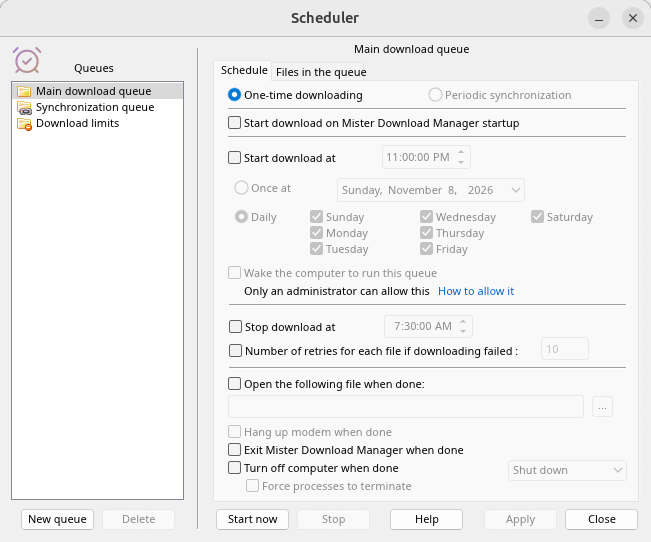
Penjadwal. 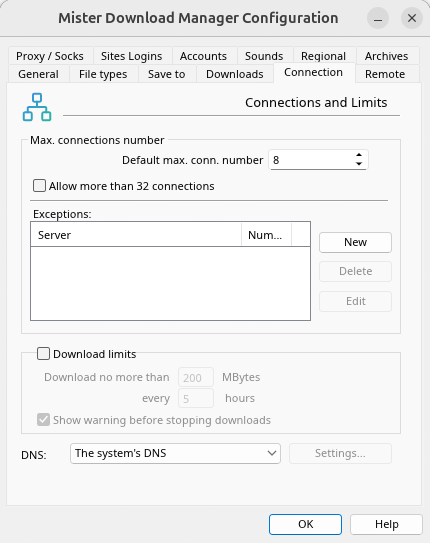
Opsi.
Dan di desktop lain yang telah diperiksa:
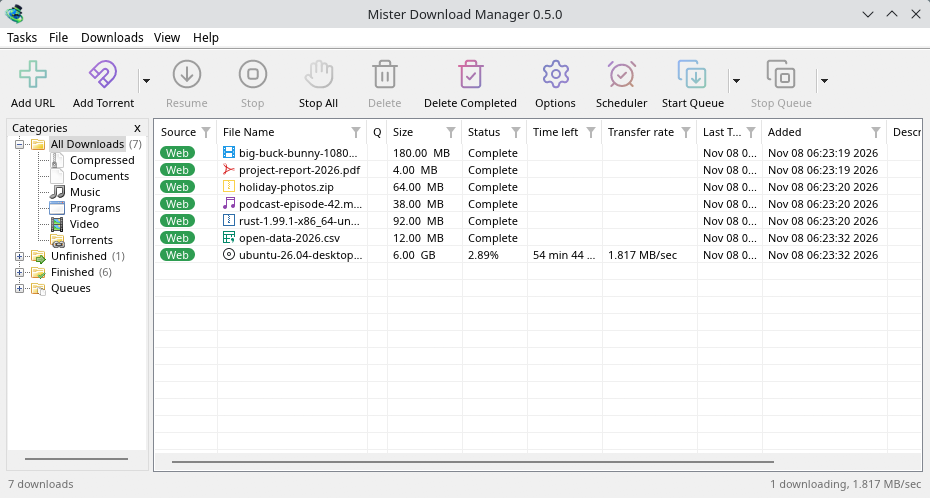
KDE Plasma. 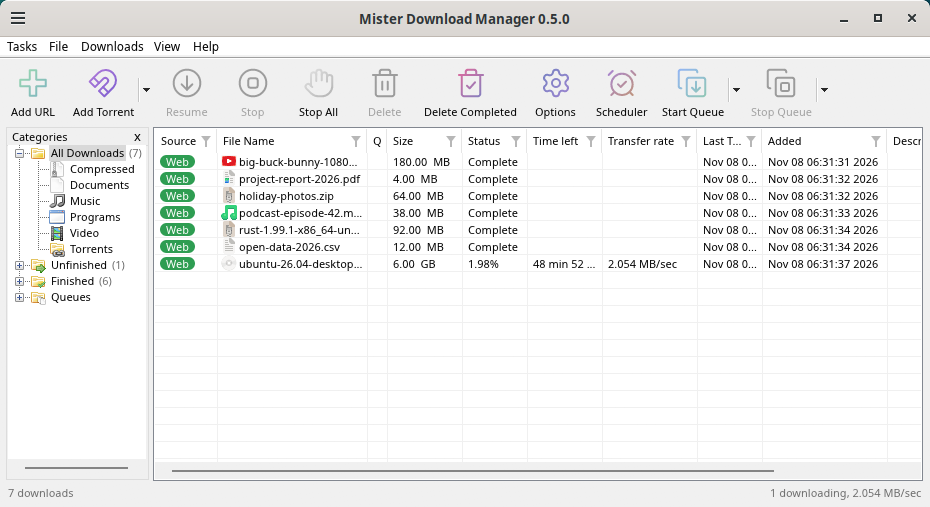
Cinnamon. 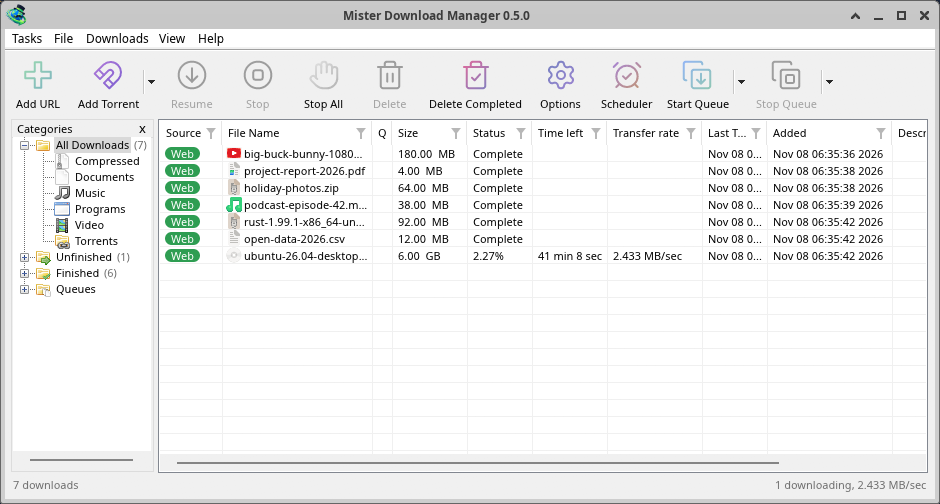
Xfce.
Copot pemasangan di Linux
sudo apt remove voltdownloadmanager (or sudo dnf remove voltdownloadmanager) removes the
programs, and the small files that tell your browsers where VDM's helper is: the .deb and .rpm
install those for everyone (in /etc and /usr/lib), for Chrome, Chromium, Edge, Brave, Vivaldi,
Helium and Firefox (the Snap too), so VDM doesn't write them in your home folder. For the AppImage
or the tar.gz, delete the file or the folder.
What VDM keeps in your home folder stays, as with any package: your list and settings
(~/.local/share/voltdownloadmanager), the AppImage's and the tar.gz's browser files, and
those of the browsers that read them only there (Opera, Helium, Thorium, and Firefox's forks:
Zen, LibreWolf, Floorp, Waterfox). A package can't remove those: it never touches
home folders. Without VDM they lead nowhere, so the extension says it can't reach VDM. To remove
them as well, run this as each user who used VDM, before uninstalling:
voltdownloadmanager-nmhost --unregister
(Dari AppImage: ~/.local/share/voltdownloadmanager/browser-host/voltdownloadmanager-nmhost --unregister.) Sudah dicopot pemasangan? Ini menghapus file yang sama:
find ~/.mozilla ~/.librewolf ~/.config -name com.voltdownloadmanager.host.json -delete 2>/dev/null
Di Mac
Versi macOS masih baru dan eksperimental: kami belum mencobanya sendiri di Mac, jadi Anda akan menjadi salah satu yang pertama. Mohon beritahu kami bagaimana hasilnya, baik atau buruk.
| File | Keterangan |
|---|---|
...-macos-arm64-experimental.dmg |
For a Mac with Apple Silicon (M1 or later: Apple menu → About This Mac shows a Chip). Open it and drag Volt Download Manager to Applications. macOS asks before its first start, because the app isn't notarized by Apple: right-click it and choose Open (on macOS 15 and later: System Settings → Privacy & Security → Open Anyway). |
...-macos-x86_64-experimental.dmg |
Sama, untuk Mac dengan prosesor Intel (Mengenai Mac Ini menunjukkan Prosesor). |
Browser integration is set up by VDM itself at each start (the browsers installed then are found); add the extension as in Browser integration.
Instal dengan program pemasang
- Jalankan
VoltDownloadManager-<version>-setup.exe. - Choose the language. Windows' display language is already selected. The setup offers every language VDM has, and VDM starts in the one you pick.
- Pilih apakah akan menginstal hanya untuk Anda atau untuk semua orang di komputer. Instalasi hanya untuk Anda tidak memerlukan hak administrator dan dilakukan di
%LOCALAPPDATA%\Programs\Volt Download Manager. Instalasi untuk semua orang dilakukan diProgram Files. - Pick what the setup should do: - Set up browser integration (Chrome, Edge, Brave, Firefox) - Open .torrent files and magnet links with Volt Download Manager - Start Volt Download Manager when Windows starts - Create a desktop shortcut (off unless you tick it)
- Click Install, then Finish to start VDM.
If VDM is already running, the setup asks it to save and close first. To update, use Help → Check for updates → Update now, or run the setup of the new version (or update with WinGet); your list and settings stay.
Integrasi browser memerlukan satu langkah lagi di setiap browser: menambahkan ekstensi. Di Firefox, klik Tambahkan ke Firefox di halamannya di addons.mozilla.org; di Chrome, Edge, Brave, Opera, dan Vivaldi, Tambahkan ke Chrome di halamannya di Chrome Web Store. Integrasi browser menunjukkan caranya.
Copot pemasangan
Uninstall VDM from Windows Settings → Apps. The uninstaller asks whether to delete your download list and settings too. Your downloaded files are never touched.
Gunakan salinan zip
- Ekstrak file ke folder yang dapat Anda tulis (jangan langsung ke
Program Files). - Jalankan
voltdownloadmanager.exe.
File zip berisi program yang sama dengan file instalasi: aplikasi, voltdownloadmanager-cli.exe (untuk mengunduh dari baris perintah; lihat Baris perintah dan otomatisasi) dan folder extension.
Pemakaian pertama dan bahasa
On its first start VDM opens one Welcome to Volt Download Manager window that walks you through what it needs, a step at a time: the steps are named on top, Back and Next move between them, and Finish on the last one closes it. Each step can be passed with Next without doing anything, Close or the window's × ends the setup at any step, and once it is finished or closed it doesn't come back: everything in it stays in the menus. Steps that aren't needed are left out.
- Language. - Installed with the setup: VDM starts in the language you chose in the setup, and this step is left out. - Otherwise: the list of languages, each with its flag and its own name. Click yours: the window switches to it at once, right to left for Arabic, Hebrew, Persian and Urdu.
Anda dapat mengubahnya kapan saja di Tampilan → Bahasa. Lihat Bahasa untuk informasi selengkapnya.
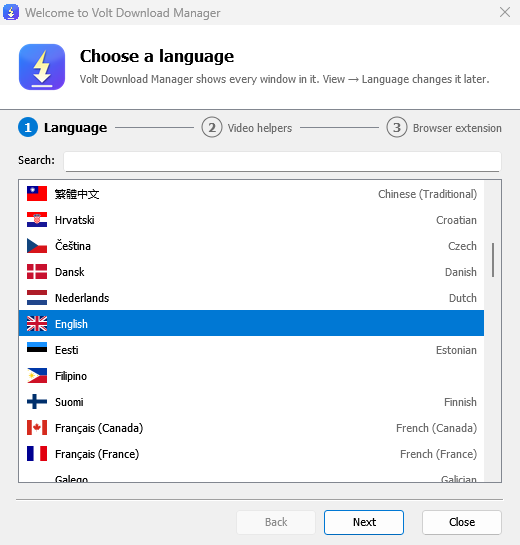
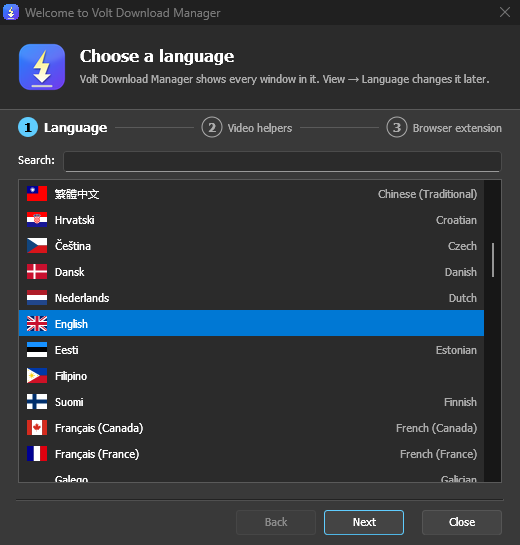
- Pembantu video (di bawah).
- Browser extension: each browser VDM found, with Add the extension for it, as in Browser integration. Left out when a browser's extension already reached VDM, or in a portable copy.
Alat bantu video
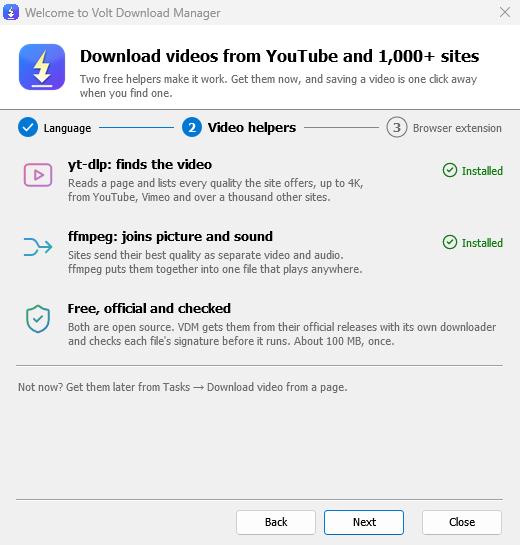
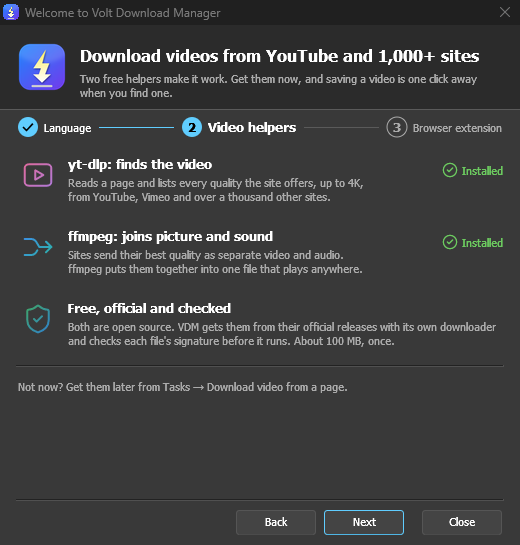
The setup's second step offers VDM's free video helpers: yt-dlp, which finds the video on a page, ffmpeg, which joins its picture and sound (on Windows; elsewhere VDM uses your system's), and Node.js, which YouTube needs, when your computer has no JavaScript runtime. Each says whether it is already there; one that isn't has its own Install button, and Yes, download them (recommended) gets every one that is missing. They download in the background, about 100 MB, once, each with its progress in its row, and go on if you close the window. Nothing is downloaded until you press one. Next leaves them for later: the video window offers them when you first need them. The step is left out when they are all there. More in Videos.
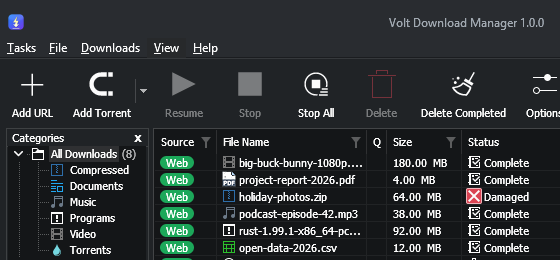
Jendela utama
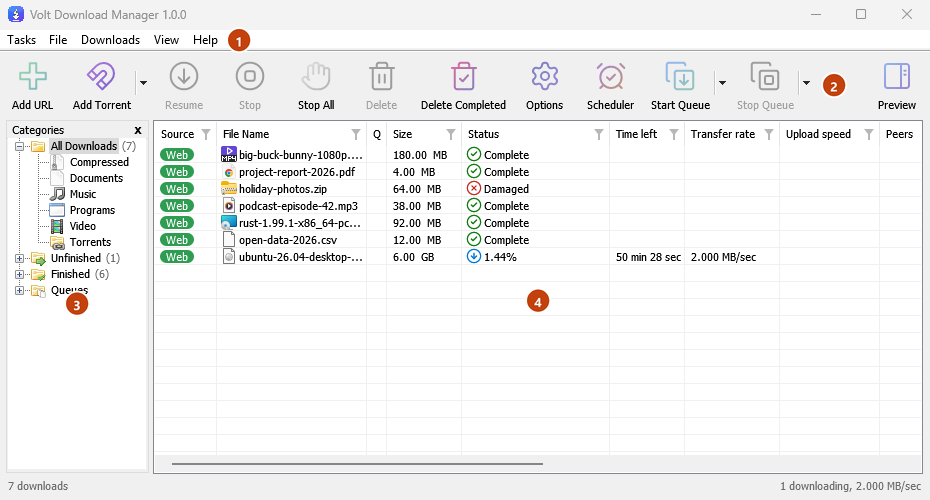
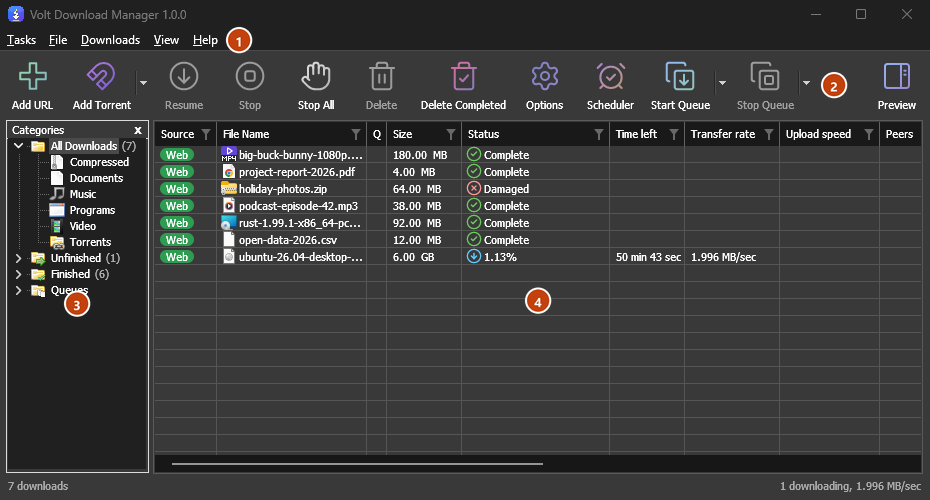
Dari atas ke bawah:
- Bilah menu.
- Tugas — tambahkan unduhan, torrent, tautan magnet, unduhan massal, dan video dari halaman; Pengaturan torrent; Link grabber; Umpan RSS; tampilkan target seret; impor dan ekspor daftar; keluar.
- Berkas — unduhan yang dipilih: Hentikan Unduhan, Hapus, Unduh Sekarang, Unduh ulang.
- Unduhan — Jeda Semua, Hentikan Semua, Hapus Semua yang Selesai, Cari, Penjadwal, antrean, Pembatas Kecepatan dan Opsi.
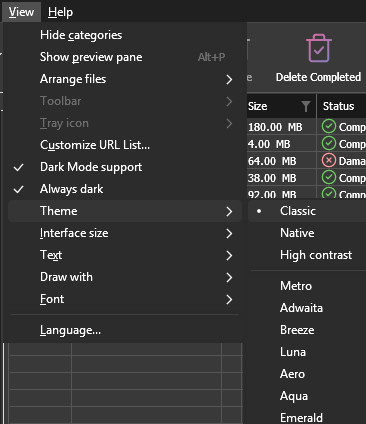
- Tampilan — tampilkan atau sembunyikan kategori, urutkan daftar (Atur file), Dukungan Mode Gelap, Selalu gelap, Tema, Ukuran antarmuka (setiap jendela lebih besar, 100% hingga 200%; Ctrl +, Ctrl − dan Ctrl 0 juga), huruf (file font antarmuka sendiri dan ukuran teks, terpisah dari Ukuran antarmuka), Teks (Windows: huruf halus atau klasik), Render dengan (OpenGL, atau Direct3D di Windows, Vulkan di Linux, Metal di macOS) dan Bahasa.
- Help — help pages and tutorials (on the website, in your language when it has it), Keyboard shortcuts, Report a problem, Check for updates, About, Tell a friend and Support VDM (its creator's GitHub Sponsors page: optional, nothing in VDM changes).
- Bilah Alat. Tambah URL, Tambah Torrent, Lanjutkan, Hentikan, Hentikan Semua, Hapus, Hapus yang Selesai, Opsi, Penjadwal, Mulai Antrean, Hentikan Antrean. Panah kecil di sebelah Tambah Torrent, Mulai Antrean dan Hentikan Antrean membuka lebih banyak pilihan.
- Kategori (kiri). Pilih yang ditampilkan dalam daftar: Semua Unduhan, Belum selesai, Selesai dan Antrean, masing-masing dengan kategorinya. Seret celah di antara panel dan daftar untuk memperlebar panel.
- Daftar unduhan (kanan). Satu baris per unduhan. Lihat Daftar unduhan.
Mode gelap
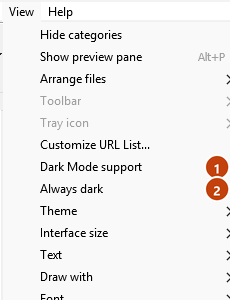
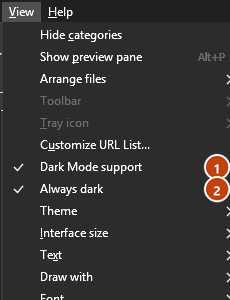
VDM follows your system: when Windows (or your desktop's light/dark preference on Linux and macOS) is set to dark mode, so is VDM. To keep VDM light whatever the system does, turn off View → Dark Mode support. To keep it dark whatever the system does, for example on a desktop that reports no preference, turn on View → Always dark.
Tema
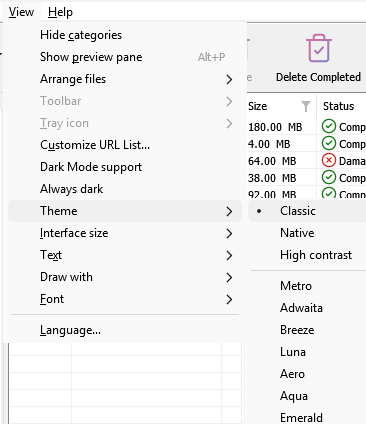
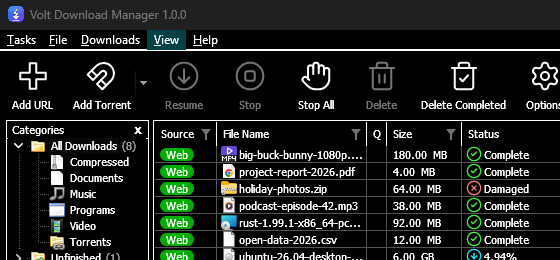
View → Theme changes VDM's look at once, keeping its layout:
- Classic: VDM's own look, the default.
- Asli: warna sistem Anda. Warna aksen Windows (Pengaturan → Personalisasi → Warna) dan, saat aktif, tema kontrasnya; warna aksen desktop dan pengaturan kontras yang lebih tinggi di Linux (GNOME 47 dan yang lebih baru, KDE Plasma); warna aksen di macOS. Ini mengikutinya saat Anda mengubahnya.
- Kontras tinggi: hitam dan putih, aksen cerah, setiap tepi digambar, teks pada rasio 7:1 atau lebih.
- Metro: Windows 8's flat look: square corners, flat buttons and boxes, a coloured title bar with the title centred (on Windows, where VDM draws it), and one-colour icons (Microsoft's Fluent UI System Icons).
- Adwaita: GNOME's look: round corners, flat grey buttons, a rounded focus ring, GNOME's check boxes, a header bar with the title in bold and round buttons (on Windows, where VDM draws it), and GNOME's Adwaita icons, in colour for files and categories, one colour in the toolbar.
- Breeze: KDE Plasma's look: rounded corners, buttons and boxes that take the accent's edge under the pointer or when focused, KDE's check boxes and focus frame, KDE's title bar with the title centred and round buttons (on Windows, where VDM draws it), and KDE's Breeze icons.
- Luna: Windows XP's look: buttons shaded from white with an orange glow under the pointer, green ticks, square text boxes, progress in green blocks, a deep blue title bar with the title in bold (on Windows, where VDM draws it), and colourful icons drawn for VDM in that manner.
- Aero: Windows 7's look: glossy buttons that turn light blue under the pointer, quiet check boxes, a glossy green progress bar, a glassy title bar with the title on a soft glow (on Windows), and glossy icons drawn for VDM in that manner.
- Aqua: Mac OS X's look: gel buttons round at the ends (the default one blue), glossy check boxes, a blue focus ring, a blue gel progress bar, a grey title bar with small round buttons (on Windows), and icons drawn for VDM in that manner.
- Emerald: kanvas putih dengan tinta hampir hitam dan tangga abu-abu netral untuk struktur, isian emerald yang selalu membawa teks hampir hitam daripada putih, sudut 6 poin di setiap kontrol, dan ikon satu warna Metro.
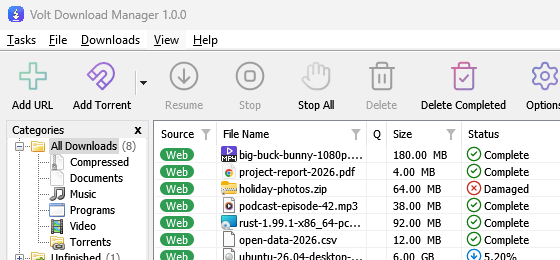
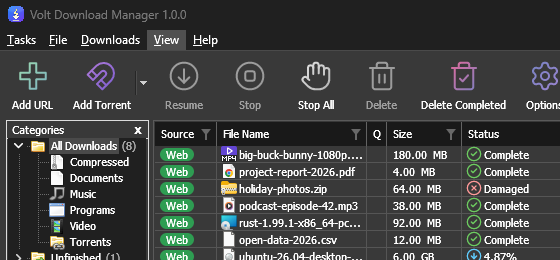
Klasik 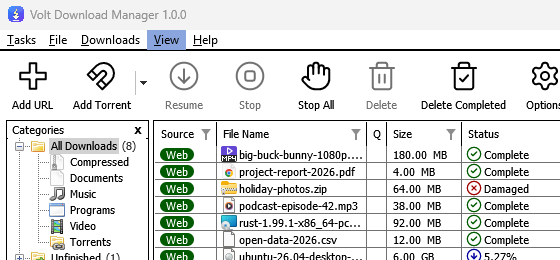
Kontras tinggi 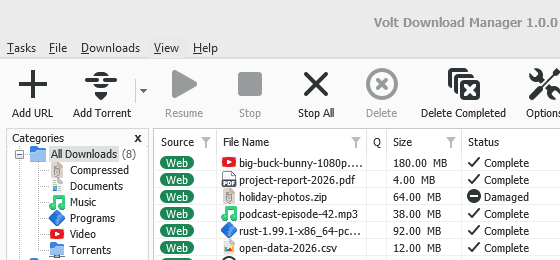
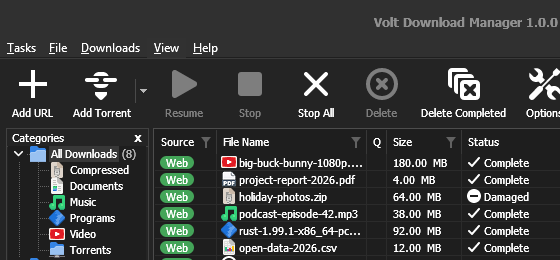
Adwaita 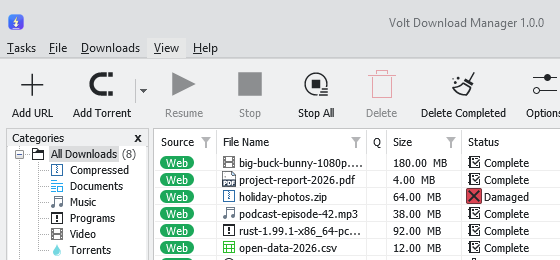
Breeze
Masing-masing memiliki sisi terang dan gelap: Dukungan Mode Gelap dan Selalu gelap memilih di antara keduanya seperti sebelumnya. File tema yang Anda masukkan ke folder tema (Tampilan → Tema → Buka folder tema) juga terdaftar di sana, begitu pula skema warna Base16 dan pywal (Tampilan → Tema → Tambahkan file tema…; pywal mengikuti wal saat berjalan): Tema menjelaskan di mana folder itu berada, apa isi file tema (inherits, warna, ukuran, bentuk kontrol, ikon), bagaimana warna skema digunakan, dan cara membuat serta membagikannya.
Ikon baki
Closing the main window doesn't quit VDM. It hides in the notification area, and downloads, queues and schedules carry on. To make closing quit (a portable copy's folder can then be deleted), untick Options → General → Keep running when closing the window. If there is no icon for VDM at all — not in the notification area, nor behind the ^ hidden icons — the window minimizes to the taskbar instead, so downloads continue and there is a way back. An icon behind ^ can be clicked to bring the window back, and starting VDM again always does. On macOS the window closes into the Dock, as Mac apps' windows do: click VDM's icon in the Dock (or in the menu bar) to bring it back, and quit with Cmd+Q or Volt Download Manager → Quit.
On Linux this needs a tray, which most desktops have (KDE Plasma, Xfce, Cinnamon, Ubuntu's GNOME or GNOME with the AppIndicator extension, waybar's tray). On a desktop without one (some tiling window managers), closing the window quits VDM, since there would be nowhere to bring it back from.
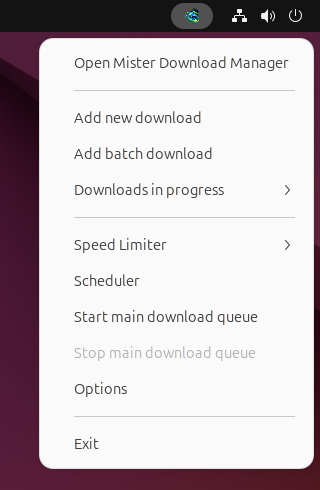
- Click the tray icon to see what is downloading: a small panel over the icon lists each running download with its progress bar, how much has come of how much, its speed and the time left, and the progress window's Pause (then Resume; Stop and save for a live stream being recorded) and Cancel beside it. Open Volt Download Manager at its bottom brings the window back. Its ×, Esc, a click elsewhere or another click on the icon closes it.
- Klik dua kali ikon baki untuk langsung memunculkan kembali jendela (Windows).
- Klik kanan untuk Tambahkan unduhan baru, Tambahkan unduhan batch, Unduhan sedang berlangsung, Pembatas Kecepatan, Penjadwal, antrean unduhan utama, Opsi dan Keluar.
- Unduhan sedang berlangsung mencantumkan unduhan yang sedang berjalan. Pilih salah satu untuk melihat jendela progresnya.
- Options → General → Show downloads when the notification area icon is clicked is ticked in a new copy of VDM. Untick it and a click on the icon brings the window back (or hides it there while it is in front), as it did before the panel. An VDM that was set up before the panel keeps that click: tick it to have the panel.
- On Linux the panel depends on the desktop's tray. KDE Plasma and Xfce send VDM the click, so the panel opens beside the icon. GNOME's AppIndicator extension may open the icon's menu on a left click instead, or send no place for the click: the panel then opens at the top right of the screen, under GNOME's top bar. In a native Wayland session the compositor decides where the panel goes and may not give it the focus, so a click elsewhere doesn't close it there: use its × or click the icon again. If the panel doesn't suit your desktop, untick the option above.
Minimalkan juga menyembunyikan jendela utama di sana, selama Minimalkan ke area notifikasi diaktifkan di Opsi → Umum. Ini aktif secara default; jika baki tidak memiliki ikon, Minimalkan akan mengirim jendela ke bilah tugas sebagai gantinya.
Jendela progres unduhan juga bisa ke sana, dengan tombol Minimalkan atau tombol Sembunyikan ke area notifikasi: tanda hubung pendek dengan panah ke bawah menuju sudut.
Di Windows, tombol itu ada di bilah judul jendela, di kiri Minimalkan, dan di menu bilah judul (Alt+Spasi). Di Linux dan macOS, tombol itu ada di ujung baris tab.
Untuk memunculkan kembali jendela, pilih di Unduhan sedang berlangsung, atau klik ganda unduhan di daftar.
Untuk keluar, pilih Tugas → Keluar atau Keluar di menu baki.
Where VDM keeps its data
Daftar unduhan dan pengaturan ada di %APPDATA%\voltdownloadmanager (downloads.json); di Linux di ~/.local/share/voltdownloadmanager, di Mac di ~/Library/Application Support/voltdownloadmanager. Salinan portabel menyimpannya di folder data miliknya. File yang diunduh masuk ke folder Unduhan Anda, diurutkan ke dalam folder per kategori; Anda dapat mengubahnya di Opsi → Simpan ke.
Langkah selanjutnya
Gratis, sumber terbuka, tanpa iklan, tanpa masa uji coba.
Download Volt Download Manager