

VDM runs on Windows 10 and Windows 11 (x64, ARM64 and 32-bit), and on 64-bit Linux (x86-64 and ARM64): see On Linux. Builds for macOS are new and still experimental: see On a Mac.
Bir indirme seçin
Tüm sürümler Sürümler sayfasında bulunur. Windows için üç dosya vardır:
| Dosya | Ne işe yarar |
|---|---|
VoltDownloadManager-<version>-setup.exe |
The installer. Pick this one unless you have a reason not to. It can set up browser integration and open .torrent files and magnet links with VDM. |
VoltDownloadManager-<version>-portable.zip |
Taşınabilir bir kopya. İndirme listesi ve ayarlar programın yanındaki bir data klasöründe kalır ve kayıt defterine hiçbir şey yazılmaz. Tarayıcı entegrasyonu yükleyiciyi gerektirir. Taşınabilir mod bölümüne bakın. |
VoltDownloadManager-<version>-x64.zip |
Yükleyici olmadan aynı programlar. Verilerini yüklü bir kopya gibi %APPDATA%\voltdownloadmanager içinde tutar. |
Bu üçü, Intel veya AMD işlemcili (x64) 64 bit Windows için, yani standart bilgisayarlar içindir. 0.6.0 sürümünden itibaren, her biri adında işlemci türü belirtilmiş iki farklı bilgisayar türü için de mevcuttur:
| Dosyalar | İçin |
|---|---|
...-setup-arm64.exe, ...-portable-arm64.zip,...-arm64.zip |
ARM üzerinde Windows (Snapdragon veya başka bir ARM işlemcili bilgisayarlar). Windows 11'de x64 dosyaları, Windows tarafından çevrilerek daha yavaş da olsa orada çalışır. x64 üzerine kurulan ARM64 kurulumu onu değiştirir; listeniz ve ayarlarınız, programla değil profilinizde tutulduğu için kalır. |
...-setup-x86.exe, ...-portable-x86.zip,...-x86.zip |
32-bit Windows 10. Not sure which you have? Settings → System → About → System type says it. VDM can't download ffmpeg for you there (none is built for 32-bit Windows that VDM can check): to get the best video qualities, choose an ffmpeg of your own in Helpers... (Video). |
Yardım → Güncelleştirmeleri denetle her kopyayı kendi işlemcisine uygun dosyalarla günceller.
WinGet ile
VDM is also in WinGet, Windows' package manager. In a terminal, the first line installs VDM and the second updates it to the latest version:
winget install MikaiL.VoltDownloadManager
winget upgrade MikaiL.VoltDownloadManager
WinGet downloads the setup and installs VDM without the setup's questions.
Linux'ta
VDM runs on 64-bit Linux with a desktop session. It is tested on Ubuntu 24.04, Debian 12 and
Fedora, with GNOME, KDE Plasma, Xfce and Cinnamon, on X11 and in Wayland sessions. Pick one
of these files (up to version 0.2.4, their names end in -experimental, as in
...-linux-x86_64-experimental.deb). From version 0.6.0, each also comes for 64-bit
ARM computers, with arm64 in place of x86_64 (...-linux-arm64.deb); they are built and
tested on GitHub's ARM machines. On ARM, VDM doesn't download gallery-dl itself (its author
builds none for it): install it with your system's packages or pip.
| Dosya | Ne işe yarar |
|---|---|
...-linux-x86_64.deb |
For Ubuntu, Debian, Mint and Pop!_OS: sudo apt install ./<file>.deb. It brings the libraries VDM needs. |
...-linux-x86_64.rpm |
For Fedora, openSUSE and RHEL: sudo dnf install ./<file>.rpm. It brings the libraries VDM needs. |
...-linux-x86_64.AppImage |
Çoğu dağıtımda çalışır: yürütülebilir yapın (chmod +x) ve çalıştırın. Yerinde güncellenir (Yardım → Güncelleştirmeleri denetle). |
...-linux-x86_64.tar.gz |
Herhangi bir dağıtım için sade programlar. |
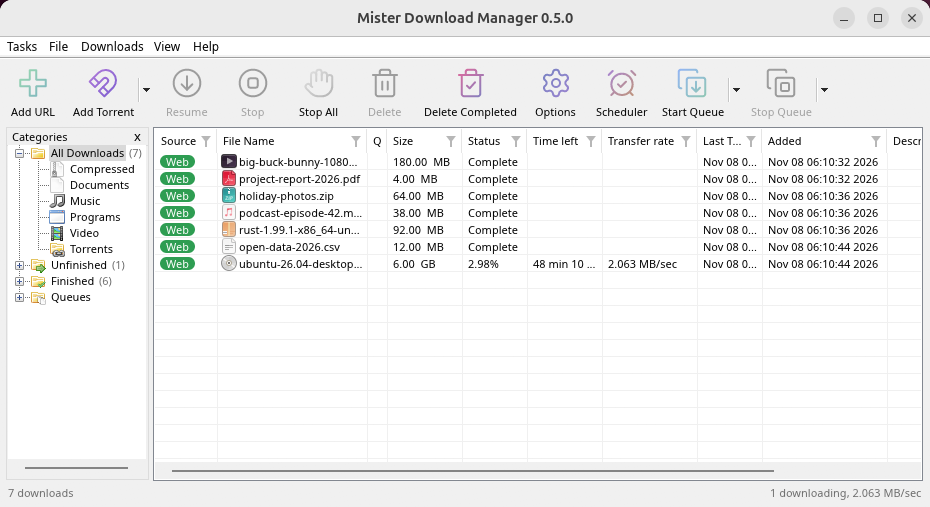
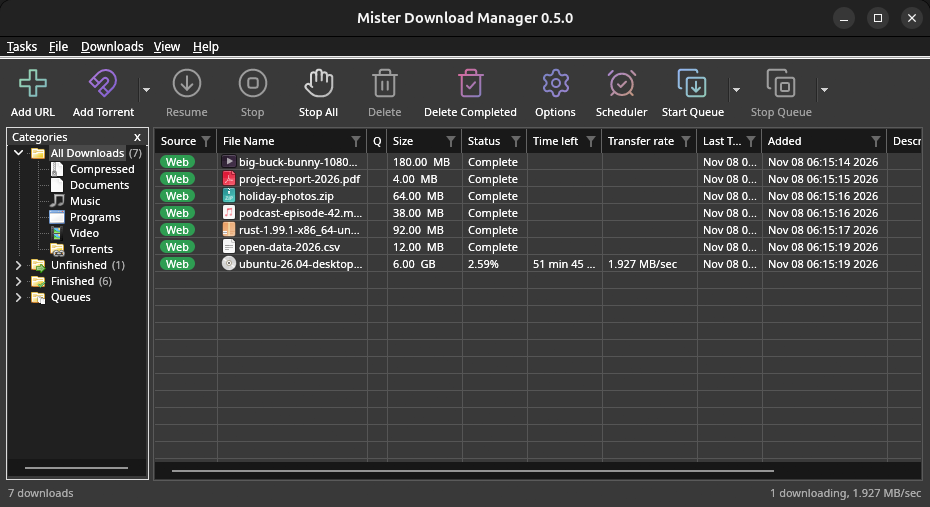
Browser integration is set up by VDM itself at each start (the browsers installed then are found); add the extension as in Browser integration. Firefox installed as a Snap (Ubuntu's) reaches VDM once you allow it; other Snap and Flatpak browsers can't (see Flatpak and Snap browsers). The tray icon, Dark Mode support and Launch on startup work on GNOME (Ubuntu's), KDE Plasma, Xfce and Cinnamon. Running downloads show their progress on VDM's icon in docks that can show it, such as Ubuntu Dock and KDE Plasma's task manager, as on the Windows taskbar (more).
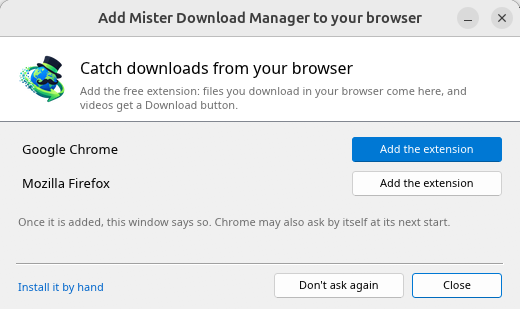
In a Wayland session the windows go through XWayland or Wayland (below). Not there yet on Linux: screen readers (Orca) don't read VDM's windows; browsers installed as a Flatpak can't reach VDM (Firefox from Flathub may, through the desktop as the Snap does, but that isn't checked yet); and View → Draw with → Vulkan is a choice, OpenGL stays the default.
In a Wayland session, VDM chooses its windows' system as it starts, the same way however it was started (its menu entry, the browser's helper, the session's autostart). Its windows run through XWayland where X11 programs look right: only X11 lets VDM open its menus and drop-down lists right under what you clicked (on Wayland they open where the compositor puts new windows, often the middle of the screen) and hide its window in the notification area. That is GNOME and KDE Plasma, which tell X11 programs the screen's scale, and any desktop whose screens aren't scaled. On a scaled screen where nothing tells X11 programs the scale (Hyprland, labwc, sway and other wlroots compositors), the compositor would scale VDM's windows up, blurry, so VDM uses Wayland's own windows there. View → Window system picks X11 (XWayland) or Wayland instead, from the next start, for every way VDM starts (Automatic goes back to VDM's choice); VDM_WAYLAND=1 or VDM_WAYLAND=0 decides for one start. If the system lacks a library X11 windows need (such as libxkbcommon-x11, which the .deb and .rpm bring but the AppImage and the tar.gz can't), VDM opens on Wayland instead; with no window system it can use, it names what's missing and the command that installs it.
Pencereler, masaüstünün yazı tipleri, dosya simgeleri ve başlık çubuklarıyla bu yardımda açıklananlardır:
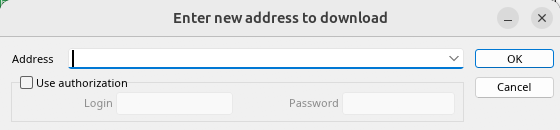
URL Ekle. 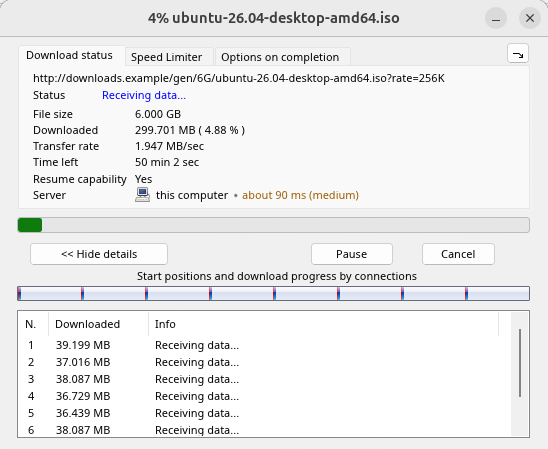
Bir indirmenin ilerlemesi. 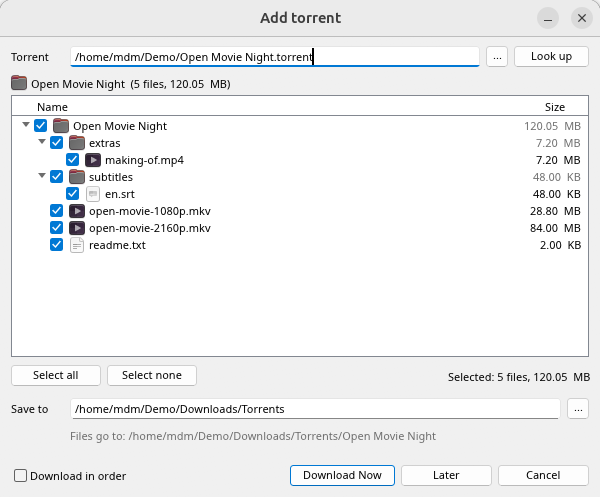
Torrent ekle. 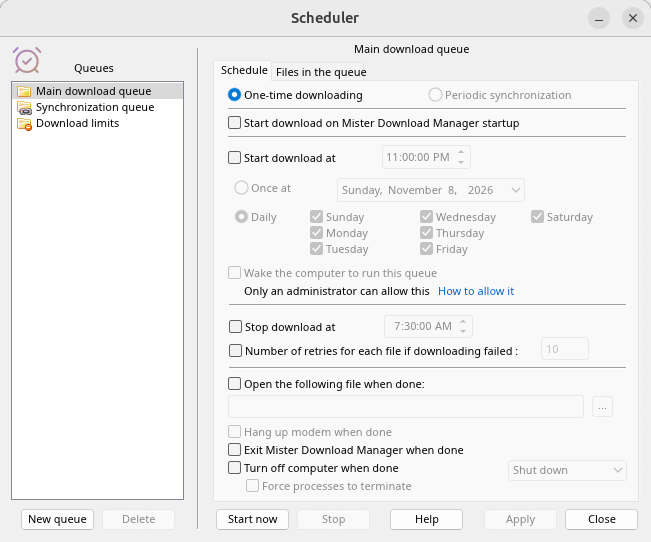
Zamanlayıcı. 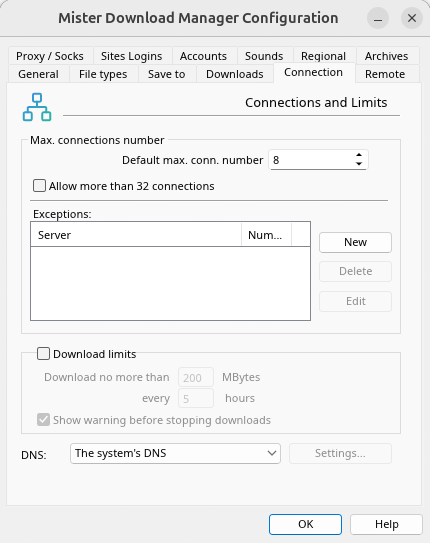
Seçenekler.
Ve kontrol edildiği diğer masaüstlerinde:
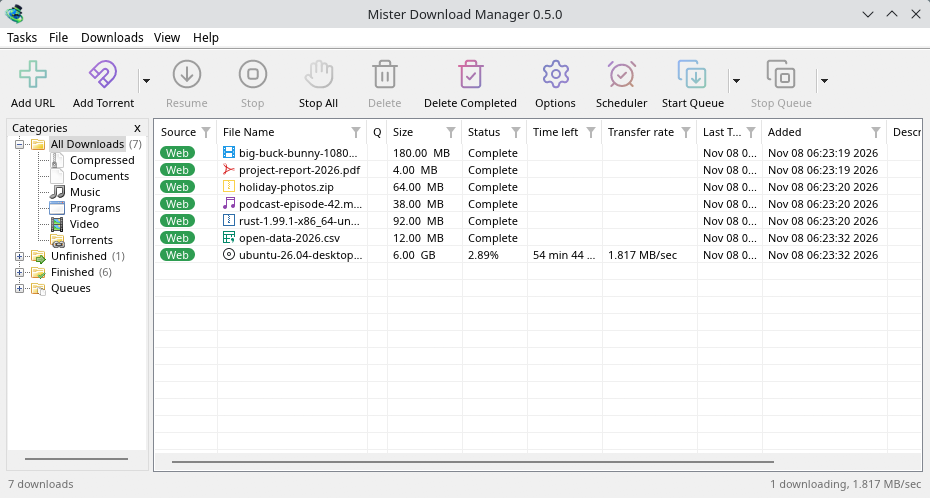
KDE Plasma. 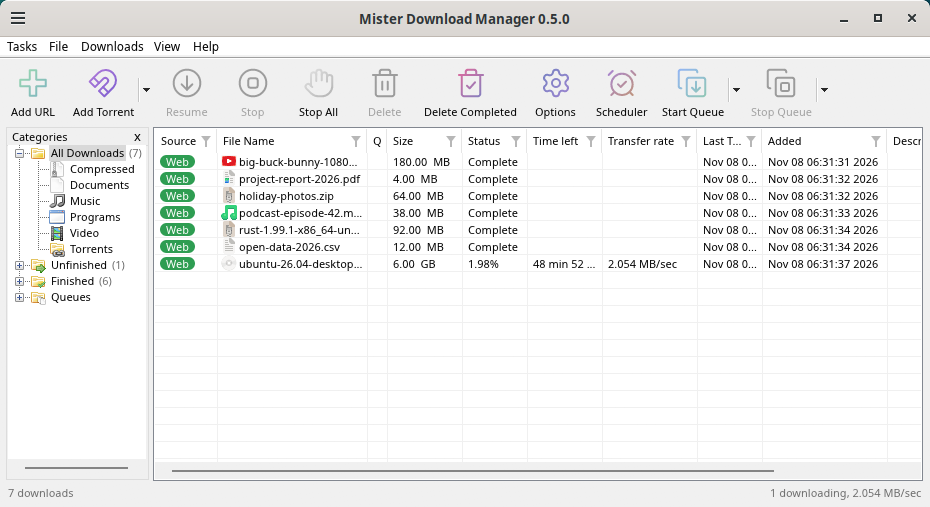
Cinnamon. 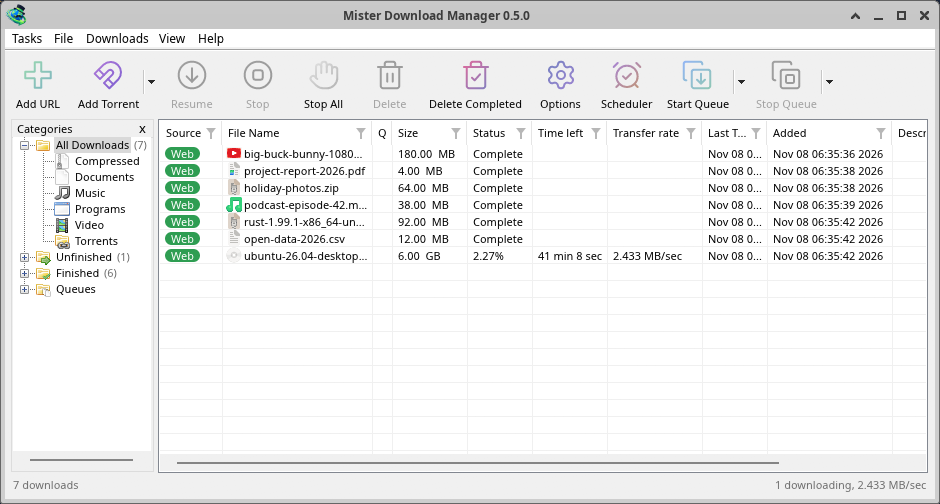
Xfce.
Linux'ta kaldırma
sudo apt remove voltdownloadmanager (or sudo dnf remove voltdownloadmanager) removes the
programs, and the small files that tell your browsers where VDM's helper is: the .deb and .rpm
install those for everyone (in /etc and /usr/lib), for Chrome, Chromium, Edge, Brave, Vivaldi,
Helium and Firefox (the Snap too), so VDM doesn't write them in your home folder. For the AppImage
or the tar.gz, delete the file or the folder.
What VDM keeps in your home folder stays, as with any package: your list and settings
(~/.local/share/voltdownloadmanager), the AppImage's and the tar.gz's browser files, and
those of the browsers that read them only there (Opera, Helium, Thorium, and Firefox's forks:
Zen, LibreWolf, Floorp, Waterfox). A package can't remove those: it never touches
home folders. Without VDM they lead nowhere, so the extension says it can't reach VDM. To remove
them as well, run this as each user who used VDM, before uninstalling:
voltdownloadmanager-nmhost --unregister
(AppImage'dan: ~/.local/share/voltdownloadmanager/browser-host/voltdownloadmanager-nmhost --unregister.) Zaten kaldırıldı mı? Bu, aynı dosyaları kaldırır:
find ~/.mozilla ~/.librewolf ~/.config -name com.voltdownloadmanager.host.json -delete 2>/dev/null
Mac'te
macOS derlemeleri yenidir ve hala deneyseldir: henüz bir Mac'te kendimiz denemedik, bu yüzden ilklerden biri olacaksınız. Lütfen iyi ya da kötü nasıl gittiğini bize bildirin.
| Dosya | Ne işe yarar |
|---|---|
...-macos-arm64-experimental.dmg |
For a Mac with Apple Silicon (M1 or later: Apple menu → About This Mac shows a Chip). Open it and drag Volt Download Manager to Applications. macOS asks before its first start, because the app isn't notarized by Apple: right-click it and choose Open (on macOS 15 and later: System Settings → Privacy & Security → Open Anyway). |
...-macos-x86_64-experimental.dmg |
Aynı işlem, Intel işlemcili bir Mac için (Bu Mac Hakkında bölümünde bir İşlemci görünür). |
Browser integration is set up by VDM itself at each start (the browsers installed then are found); add the extension as in Browser integration.
Kurulum ile yükle
VoltDownloadManager-<version>-setup.exeçalıştırın.- Choose the language. Windows' display language is already selected. The setup offers every language VDM has, and VDM starts in the one you pick.
- Sadece sizin için mi yoksa bilgisayardaki herkes için mi yükleneceğini seçin. Sadece sizin için yönetici hakları gerektirmez ve
%LOCALAPPDATA%\Programs\Volt Download Managerkonumuna gider. Herkes içinProgram Fileskonumuna gider. - Pick what the setup should do: - Set up browser integration (Chrome, Edge, Brave, Firefox) - Open .torrent files and magnet links with Volt Download Manager - Start Volt Download Manager when Windows starts - Create a desktop shortcut (off unless you tick it)
- Click Install, then Finish to start VDM.
If VDM is already running, the setup asks it to save and close first. To update, use Help → Check for updates → Update now, or run the setup of the new version (or update with WinGet); your list and settings stay.
Tarayıcı entegrasyonu her tarayıcıda bir adım daha gerektirir: uzantıyı eklemek. Firefox'ta, addons.mozilla.org adresindeki sayfasında Firefox'a Ekle'ye tıklayın; Chrome, Edge, Brave, Opera ve Vivaldi'de ise Chrome Web Mağazası'ndaki sayfasında Chrome'a Ekle'ye tıklayın. Tarayıcı entegrasyonu nasıl yapılacağını gösterir.
Kaldır
Uninstall VDM from Windows Settings → Apps. The uninstaller asks whether to delete your download list and settings too. Your downloaded files are never touched.
Zip kopyası kullanın
- Dosyayı yazma izniniz olan bir klasöre açın (doğrudan
Program Filesiçine değil). voltdownloadmanager.exeçalıştırın.
Zip dosyaları, kurulum dosyasıyla aynı programları içerir: uygulama, voltdownloadmanager-cli.exe (komut satırından indirme yapmak için; bkz. Komut satırı ve otomasyon) ve extension klasörü.
İlk çalıştırma ve dil
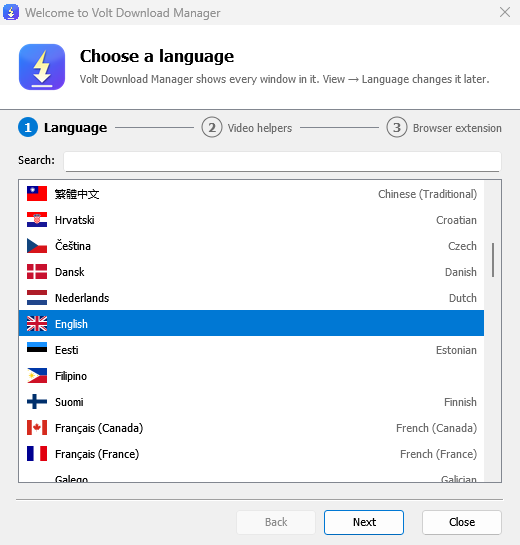
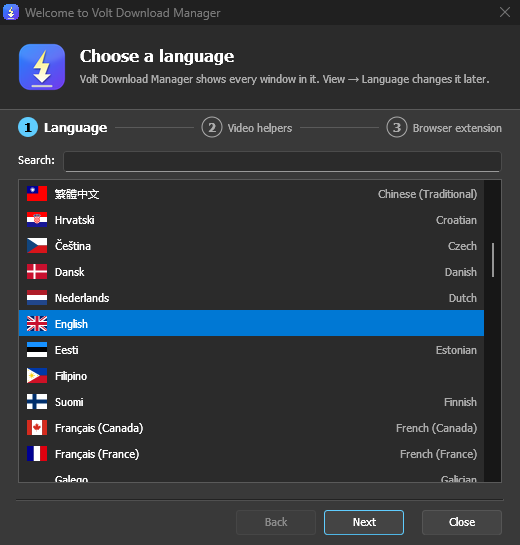
On its first start VDM opens one Welcome to Volt Download Manager window that walks you through what it needs, a step at a time: the steps are named on top, Back and Next move between them, and Finish on the last one closes it. Each step can be passed with Next without doing anything, Close or the window's × ends the setup at any step, and once it is finished or closed it doesn't come back: everything in it stays in the menus. Steps that aren't needed are left out.
- Language. - Installed with the setup: VDM starts in the language you chose in the setup, and this step is left out. - Otherwise: the list of languages, each with its flag and its own name. Click yours: the window switches to it at once, right to left for Arabic, Hebrew, Persian and Urdu.
Dili istediğiniz zaman Görünüm → Dil menüsünden değiştirebilirsiniz. Daha fazla bilgi için Diller bölümüne bakın.
- Video yardımcıları (aşağıda).
- Browser extension: each browser VDM found, with Add the extension for it, as in Browser integration. Left out when a browser's extension already reached VDM, or in a portable copy.
Video yardımcıları
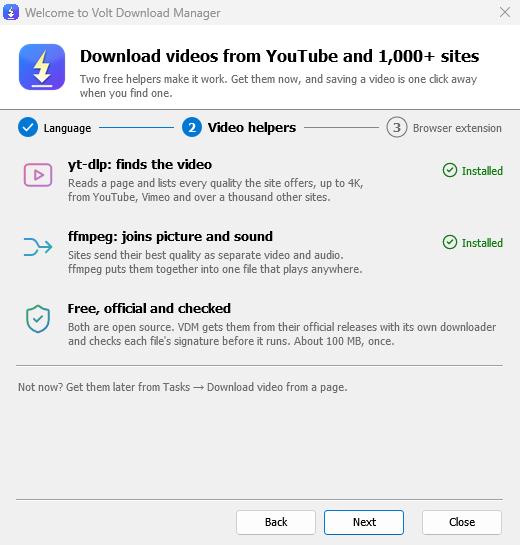
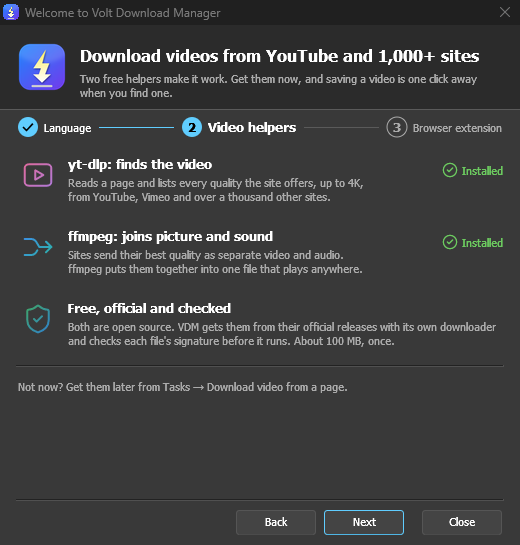
The setup's second step offers VDM's free video helpers: yt-dlp, which finds the video on a page, ffmpeg, which joins its picture and sound (on Windows; elsewhere VDM uses your system's), and Node.js, which YouTube needs, when your computer has no JavaScript runtime. Each says whether it is already there; one that isn't has its own Install button, and Yes, download them (recommended) gets every one that is missing. They download in the background, about 100 MB, once, each with its progress in its row, and go on if you close the window. Nothing is downloaded until you press one. Next leaves them for later: the video window offers them when you first need them. The step is left out when they are all there. More in Videos.
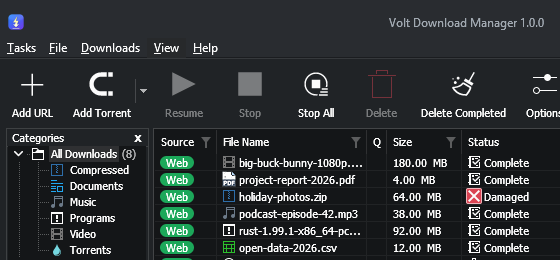
Ana pencere
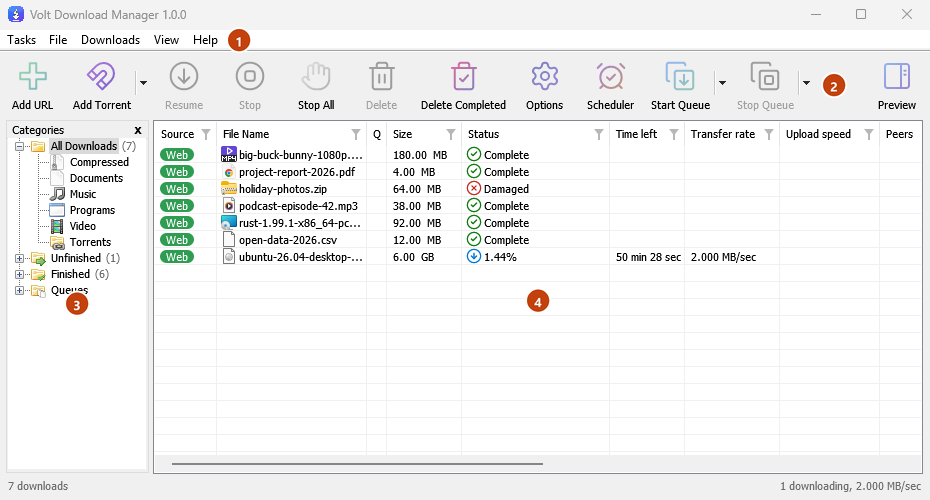
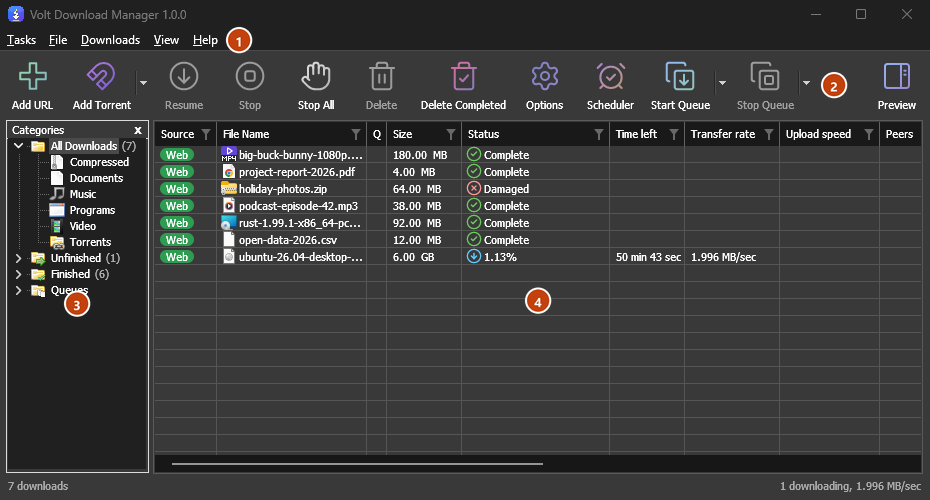
Yukarıdan aşağıya:
- Menü çubuğu.
- Görevler — indirmeler, torrentler, magnet bağlantıları, toplu indirmeler ve bir sayfadan videolar ekleyin; Torrent ayarları; Bağlantı yakalayıcı; RSS akışları; sürükle bırak hedefini göster; listeyi içe ve dışa aktar; çıkış.
- Dosya — seçili indirme: İndirmeyi Durdur, Kaldır, Şimdi İndir, Yeniden indir.
- İndirilenler — Tümünü Duraklat, Tümünü Durdur, Tamamlananların Tümünü Sil, Bul, Zamanlayıcı, sıralar, Hız Sınırlayıcı ve Seçenekler.
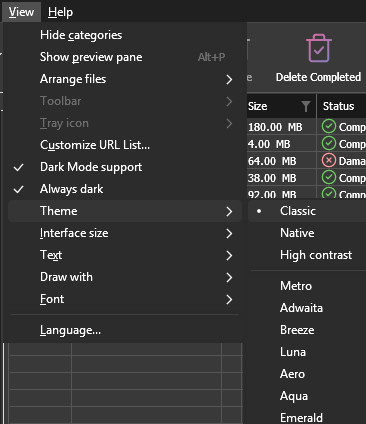
- Görünüm — kategorileri göster veya gizle, listeyi sırala (Dosyaları düzenle), Koyu mod desteği, Her zaman koyu, Tema, Arayüz boyutu (her pencereyi büyütür, %100 ila %200; Ctrl +, Ctrl − ve Ctrl 0 da), Yazı tipi (arayüzün kendi yazı tipi dosyası ve metin boyutu, Arayüz boyutu dışında), Metin (Windows: düzgün veya klasik harfler), Şununla çiz (OpenGL veya Windows'ta Direct3D, Linux'ta Vulkan, macOS'ta Metal) ve Dil.
- Help — help pages and tutorials (on the website, in your language when it has it), Keyboard shortcuts, Report a problem, Check for updates, About, Tell a friend and Support VDM (its creator's GitHub Sponsors page: optional, nothing in VDM changes).
- Araç Çubuğu. URL Ekle, Torrent Ekle, Sürdür, Durdur, Tümünü Durdur, Sil, Tamamlananları Sil, Seçenekler, Zamanlayıcı, Kuyruğu Başlat, Kuyruğu Durdur. Torrent Ekle, Kuyruğu Başlat ve Kuyruğu Durdur yanındaki küçük ok daha fazla seçenek açar.
- Kategoriler (sol). Listenin ne göstereceğini seçin: Tüm İndirmeler, Bitmemiş, Tamamlandı ve Sıralar; her birinin kendi kategorileri vardır. Bölmeyi genişletmek için bölme ile liste arasındaki boşluğu sürükleyin.
- İndirme listesi (sağ). Her indirme bir satırda gösterilir. İndirme listesi bölümüne bakın.
Koyu mod
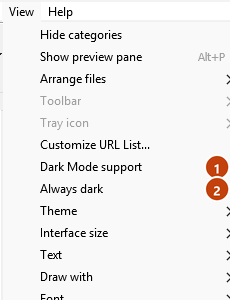
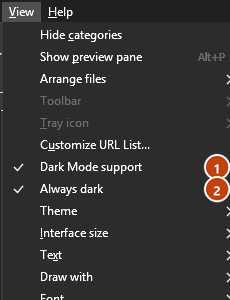
VDM follows your system: when Windows (or your desktop's light/dark preference on Linux and macOS) is set to dark mode, so is VDM. To keep VDM light whatever the system does, turn off View → Dark Mode support. To keep it dark whatever the system does, for example on a desktop that reports no preference, turn on View → Always dark.
Temalar
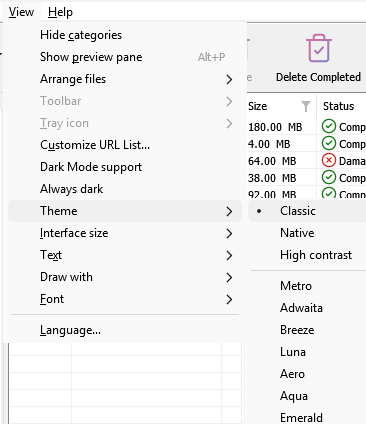
View → Theme changes VDM's look at once, keeping its layout:
- Classic: VDM's own look, the default.
- Yerel: Sisteminizin renkleri. Windows'un vurgu rengi (Ayarlar → Kişiselleştirme → Renkler) ve etkinse karşıtlık teması; Linux'ta masaüstünün vurgu rengi ve yüksek karşıtlık ayarı (GNOME 47 ve sonrası, KDE Plasma); macOS'ta vurgu rengi kullanılır. Bu ayarları değiştirdiğinizde VDM de değişiklikleri izler.
- Yüksek karşıtlık: siyah beyaz, parlak bir vurgu, her kenar çizili, metin 7:1 veya daha fazla kontrastta.
- Metro: Windows 8's flat look: square corners, flat buttons and boxes, a coloured title bar with the title centred (on Windows, where VDM draws it), and one-colour icons (Microsoft's Fluent UI System Icons).
- Adwaita: GNOME's look: round corners, flat grey buttons, a rounded focus ring, GNOME's check boxes, a header bar with the title in bold and round buttons (on Windows, where VDM draws it), and GNOME's Adwaita icons, in colour for files and categories, one colour in the toolbar.
- Breeze: KDE Plasma's look: rounded corners, buttons and boxes that take the accent's edge under the pointer or when focused, KDE's check boxes and focus frame, KDE's title bar with the title centred and round buttons (on Windows, where VDM draws it), and KDE's Breeze icons.
- Luna: Windows XP's look: buttons shaded from white with an orange glow under the pointer, green ticks, square text boxes, progress in green blocks, a deep blue title bar with the title in bold (on Windows, where VDM draws it), and colourful icons drawn for VDM in that manner.
- Aero: Windows 7's look: glossy buttons that turn light blue under the pointer, quiet check boxes, a glossy green progress bar, a glassy title bar with the title on a soft glow (on Windows), and glossy icons drawn for VDM in that manner.
- Aqua: Mac OS X's look: gel buttons round at the ends (the default one blue), glossy check boxes, a blue focus ring, a blue gel progress bar, a grey title bar with small round buttons (on Windows), and icons drawn for VDM in that manner.
- Emerald: Neredeyse siyah bir mürekkep ve yapı için nötr grilerin bir merdiveni olan beyaz bir tuval, beyaz yerine her zaman neredeyse siyah metin taşıyan zümrüt dolgular, her kontrolde 6 noktalı köşeler ve Metro'nun tek renkli simgeleri.
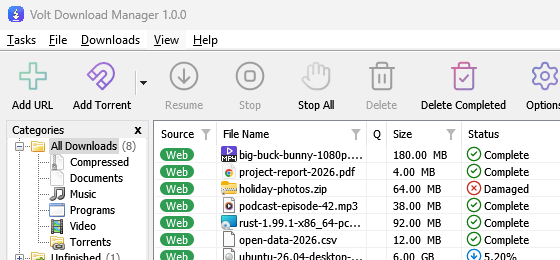
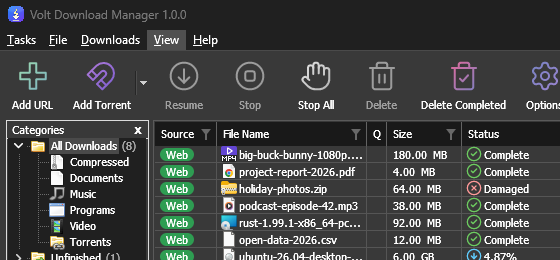
Klasik 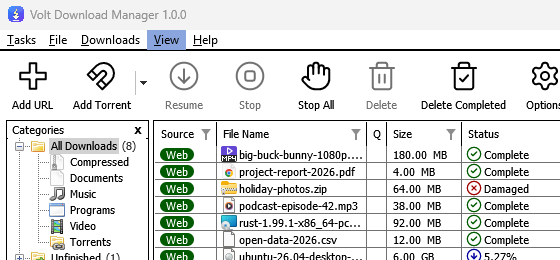
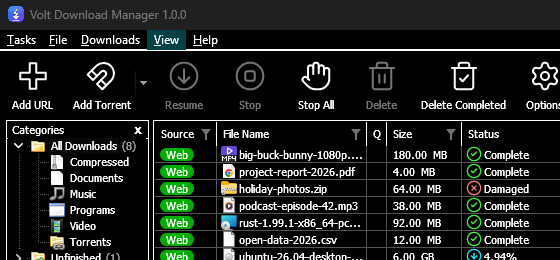
Yüksek karşıtlık 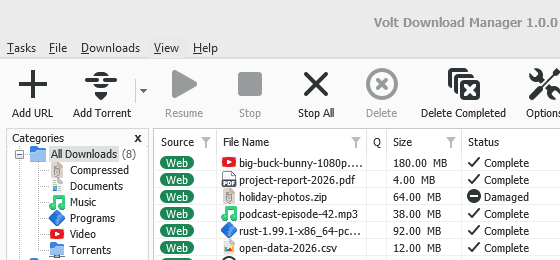
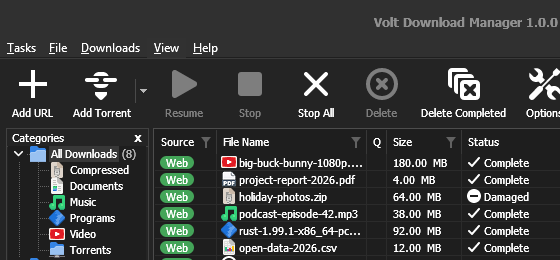
Adwaita 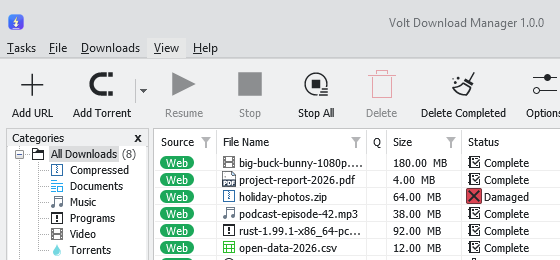
Breeze
Her birinin açık ve koyu bir tarafı vardır: Koyu mod desteği ve Her zaman koyu seçenekleri daha önce olduğu gibi aralarında seçim yapar. Temalar klasörüne (Görünüm → Tema → Temalar klasörünü aç) koyduğunuz tema dosyaları da orada listelenir, Base16 ve pywal renk şemaları da öyle (Görünüm → Tema → Tema dosyası ekle…; pywal çalıştıkça wal takip eder): Temalar bu klasörün nerede olduğunu, bir tema dosyasının ne içerdiğini (inherits, renkler, boyutlar, kontrol şekilleri, simgeler), bir şemanın renklerinin nasıl kullanıldığını ve nasıl oluşturulup paylaşılabileceğini açıklar.
Tepsi simgesi
Closing the main window doesn't quit VDM. It hides in the notification area, and downloads, queues and schedules carry on. To make closing quit (a portable copy's folder can then be deleted), untick Options → General → Keep running when closing the window. If there is no icon for VDM at all — not in the notification area, nor behind the ^ hidden icons — the window minimizes to the taskbar instead, so downloads continue and there is a way back. An icon behind ^ can be clicked to bring the window back, and starting VDM again always does. On macOS the window closes into the Dock, as Mac apps' windows do: click VDM's icon in the Dock (or in the menu bar) to bring it back, and quit with Cmd+Q or Volt Download Manager → Quit.
On Linux this needs a tray, which most desktops have (KDE Plasma, Xfce, Cinnamon, Ubuntu's GNOME or GNOME with the AppIndicator extension, waybar's tray). On a desktop without one (some tiling window managers), closing the window quits VDM, since there would be nowhere to bring it back from.
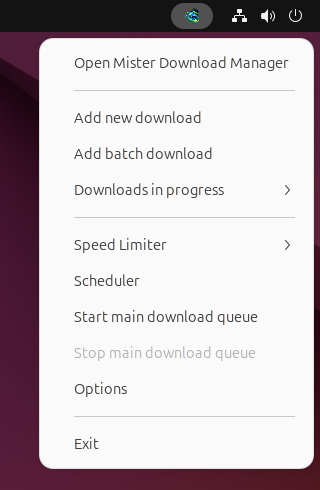
- Click the tray icon to see what is downloading: a small panel over the icon lists each running download with its progress bar, how much has come of how much, its speed and the time left, and the progress window's Pause (then Resume; Stop and save for a live stream being recorded) and Cancel beside it. Open Volt Download Manager at its bottom brings the window back. Its ×, Esc, a click elsewhere or another click on the icon closes it.
- Pencereyi hemen geri getirmek için tepsi simgesine çift tıklayın (Windows).
- Yeni indirme ekle, Toplu indirme ekle, Devam eden indirmeler, Hız Sınırlayıcı, Zamanlayıcı, ana indirme kuyruğu, Seçenekler ve Çıkış için sağ tıklayın.
- Devam eden indirmeler çalışan indirmeleri listeler. İlerleme penceresini görmek için birini seçin.
- Options → General → Show downloads when the notification area icon is clicked is ticked in a new copy of VDM. Untick it and a click on the icon brings the window back (or hides it there while it is in front), as it did before the panel. An VDM that was set up before the panel keeps that click: tick it to have the panel.
- On Linux the panel depends on the desktop's tray. KDE Plasma and Xfce send VDM the click, so the panel opens beside the icon. GNOME's AppIndicator extension may open the icon's menu on a left click instead, or send no place for the click: the panel then opens at the top right of the screen, under GNOME's top bar. In a native Wayland session the compositor decides where the panel goes and may not give it the focus, so a click elsewhere doesn't close it there: use its × or click the icon again. If the panel doesn't suit your desktop, untick the option above.
Seçenekler → Genel bölümünde Bildirim alanına küçült açıkken, Simge Durumuna Küçült de ana pencereyi oraya gizler. Bu varsayılan olarak açıktır; tepside simge yoksa, Simge Durumuna Küçült pencereyi bunun yerine görev çubuğuna gönderir.
Bir indirme ilerleme penceresi de, Simge Durumuna Küçült düğmesiyle veya Bildirim alanına gizle düğmesiyle oraya gidebilir: köşeye doğru ok işareti olan kısa bir çizgi.
Windows'ta bu düğme, pencerenin başlık çubuğunda, Simge Durumuna Küçült'ün solunda ve başlık çubuğunun menüsünde (Alt+Ara Çubuğu) bulunur. Linux ve macOS'ta sekme satırının sonundadır.
Pencereyi geri getirmek için, Devam eden indirmeler bölümünden seçin veya listedeki indirmeye çift tıklayın.
Çıkmak için Görevler → Çıkış veya tepsi menüsünden Çıkış seçeneğini kullanın.
Where VDM keeps its data
İndirme listesi ve ayarlar %APPDATA%\voltdownloadmanager (downloads.json) içinde bulunur; Linux'ta ~/.local/share/voltdownloadmanager içinde, Mac'te ~/Library/Application Support/voltdownloadmanager içinde. Taşınabilir bir kopya bunları bunun yerine data klasöründe tutar. İndirilen dosyalar, kategoriye göre bir klasöre ayrılmış olarak İndirilenler klasörünüze gider; bunu Seçenekler → Kaydedileceği yer bölümünde değiştirebilirsiniz.
Sonraki adımlar
Ücretsiz, açık kaynak, reklamsız, deneme sürümü yok.
Download Volt Download Manager