

VDM runs on Windows 10 and Windows 11 (x64, ARM64 and 32-bit), and on 64-bit Linux (x86-64 and ARM64): see On Linux. Builds for macOS are new and still experimental: see On a Mac.
Choisir un téléchargement
Toutes les versions se trouvent sur la page Releases. Pour Windows, il y a trois fichiers :
| Fichier | Description |
|---|---|
VoltDownloadManager-<version>-setup.exe |
The installer. Pick this one unless you have a reason not to. It can set up browser integration and open .torrent files and magnet links with VDM. |
VoltDownloadManager-<version>-portable.zip |
Une copie portable. La liste des téléchargements et les paramètres restent dans un dossier data à côté du programme, et rien n'est écrit dans le registre. L'intégration au navigateur nécessite l'installateur. Voir Mode portable. |
VoltDownloadManager-<version>-x64.zip |
Les mêmes programmes sans installateur. Cette version conserve ses données dans %APPDATA%\voltdownloadmanager, comme une copie installée. |
Ces trois versions sont pour Windows 64 bits sur un processeur Intel ou AMD (x64), le PC habituel. À partir de la version 0.6.0, chacune est également disponible pour deux autres types de PC, avec le processeur dans son nom :
| Fichiers | Pour |
|---|---|
...-setup-arm64.exe, ...-portable-arm64.zip,...-arm64.zip |
Windows sur ARM (PC avec un processeur Snapdragon ou autre ARM). Sur Windows 11, les fichiers x64 y fonctionnent aussi, traduits par Windows, mais plus lentement. L'installation ARM64 par-dessus une version x64 la remplace ; votre liste et vos paramètres restent, car ils sont conservés dans votre profil, et non avec le programme. |
...-setup-x86.exe, ...-portable-x86.zip,...-x86.zip |
32-bit Windows 10. Not sure which you have? Settings → System → About → System type says it. VDM can't download ffmpeg for you there (none is built for 32-bit Windows that VDM can check): to get the best video qualities, choose an ffmpeg of your own in Helpers... (Video). |
Aide → Rechercher les mises à jour met à jour chaque copie avec les fichiers adaptés à son propre processeur.
Avec WinGet
VDM is also in WinGet, Windows' package manager. In a terminal, the first line installs VDM and the second updates it to the latest version:
winget install MikaiL.VoltDownloadManager
winget upgrade MikaiL.VoltDownloadManager
WinGet downloads the setup and installs VDM without the setup's questions.
Sous Linux
VDM runs on 64-bit Linux with a desktop session. It is tested on Ubuntu 24.04, Debian 12 and
Fedora, with GNOME, KDE Plasma, Xfce and Cinnamon, on X11 and in Wayland sessions. Pick one
of these files (up to version 0.2.4, their names end in -experimental, as in
...-linux-x86_64-experimental.deb). From version 0.6.0, each also comes for 64-bit
ARM computers, with arm64 in place of x86_64 (...-linux-arm64.deb); they are built and
tested on GitHub's ARM machines. On ARM, VDM doesn't download gallery-dl itself (its author
builds none for it): install it with your system's packages or pip.
| Fichier | Description |
|---|---|
...-linux-x86_64.deb |
For Ubuntu, Debian, Mint and Pop!_OS: sudo apt install ./<file>.deb. It brings the libraries VDM needs. |
...-linux-x86_64.rpm |
For Fedora, openSUSE and RHEL: sudo dnf install ./<file>.rpm. It brings the libraries VDM needs. |
...-linux-x86_64.AppImage |
Fonctionne sur la plupart des distributions : rendez-le exécutable (chmod +x) et exécutez-le. Il se met à jour sur place (Aide → Rechercher les mises à jour). |
...-linux-x86_64.tar.gz |
Les programmes simples, pour toute distribution. |
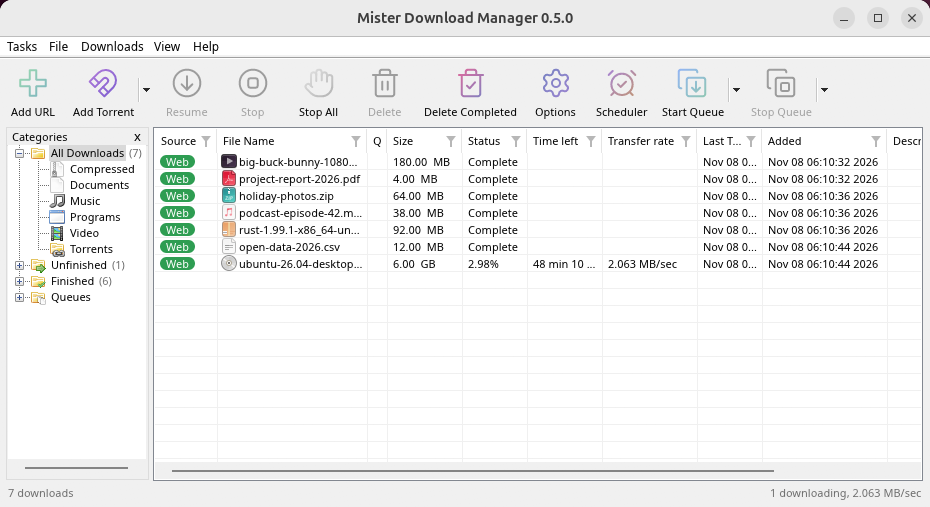
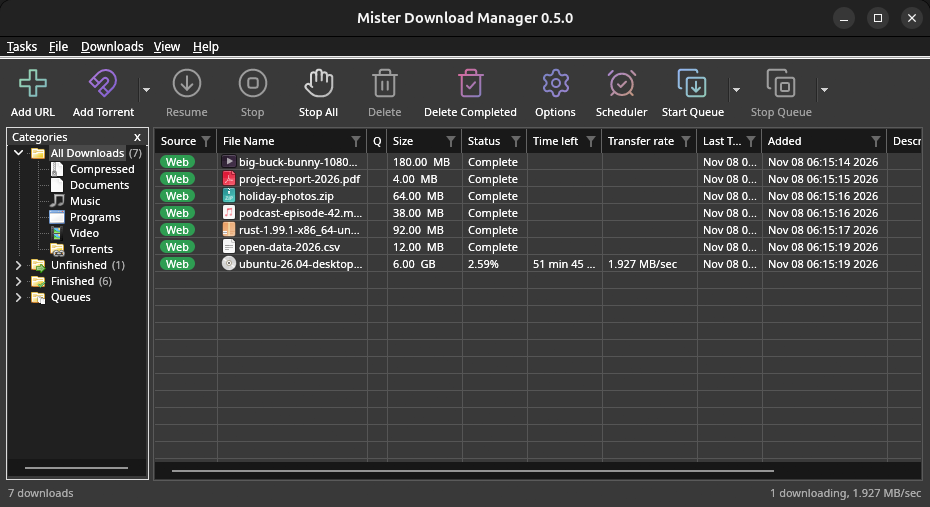
Browser integration is set up by VDM itself at each start (the browsers installed then are found); add the extension as in Browser integration. Firefox installed as a Snap (Ubuntu's) reaches VDM once you allow it; other Snap and Flatpak browsers can't (see Flatpak and Snap browsers). The tray icon, Dark Mode support and Launch on startup work on GNOME (Ubuntu's), KDE Plasma, Xfce and Cinnamon. Running downloads show their progress on VDM's icon in docks that can show it, such as Ubuntu Dock and KDE Plasma's task manager, as on the Windows taskbar (more).
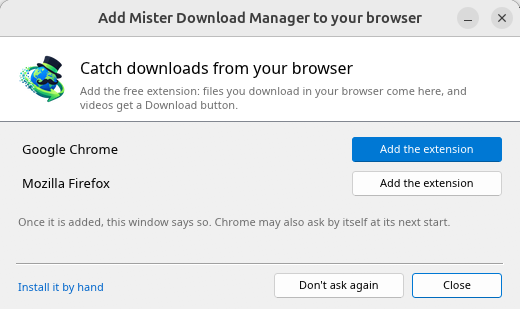
In a Wayland session the windows go through XWayland or Wayland (below). Not there yet on Linux: screen readers (Orca) don't read VDM's windows; browsers installed as a Flatpak can't reach VDM (Firefox from Flathub may, through the desktop as the Snap does, but that isn't checked yet); and View → Draw with → Vulkan is a choice, OpenGL stays the default.
In a Wayland session, VDM chooses its windows' system as it starts, the same way however it was started (its menu entry, the browser's helper, the session's autostart). Its windows run through XWayland where X11 programs look right: only X11 lets VDM open its menus and drop-down lists right under what you clicked (on Wayland they open where the compositor puts new windows, often the middle of the screen) and hide its window in the notification area. That is GNOME and KDE Plasma, which tell X11 programs the screen's scale, and any desktop whose screens aren't scaled. On a scaled screen where nothing tells X11 programs the scale (Hyprland, labwc, sway and other wlroots compositors), the compositor would scale VDM's windows up, blurry, so VDM uses Wayland's own windows there. View → Window system picks X11 (XWayland) or Wayland instead, from the next start, for every way VDM starts (Automatic goes back to VDM's choice); VDM_WAYLAND=1 or VDM_WAYLAND=0 decides for one start. If the system lacks a library X11 windows need (such as libxkbcommon-x11, which the .deb and .rpm bring but the AppImage and the tar.gz can't), VDM opens on Wayland instead; with no window system it can use, it names what's missing and the command that installs it.
Les fenêtres sont celles décrites dans cette aide, avec les polices, les icônes de fichiers et les barres de titre du bureau :
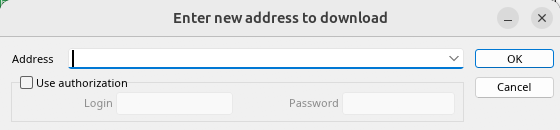
Ajouter une URL. 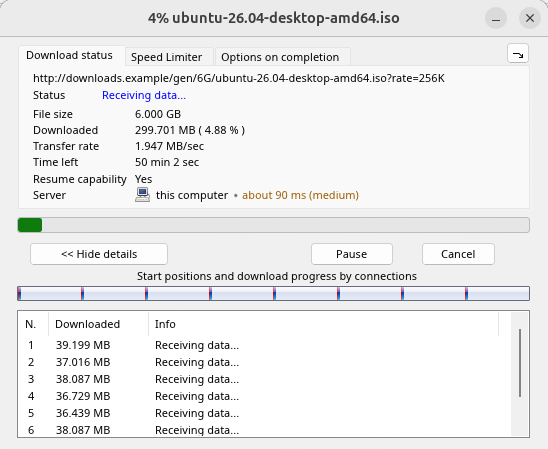
Progression d’un téléchargement. 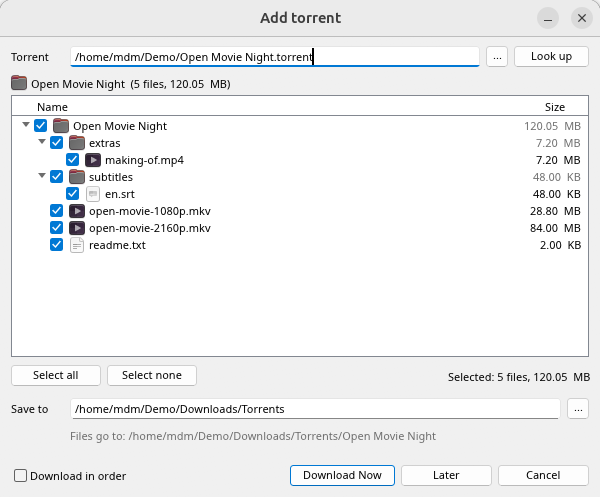
Ajouter un torrent. 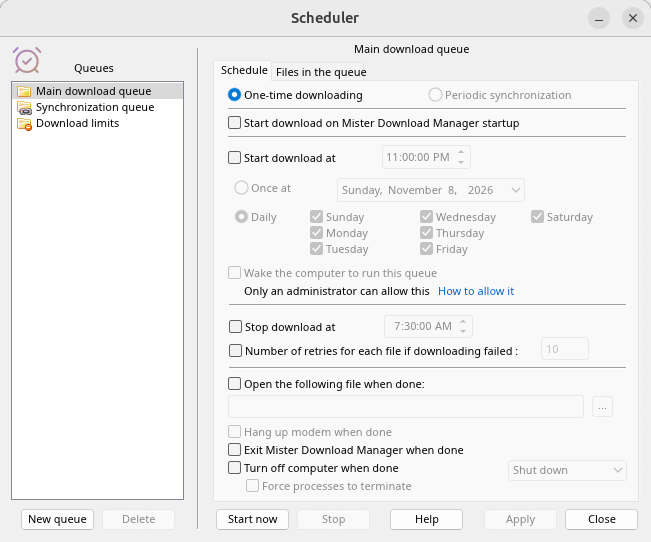
Le Planificateur. 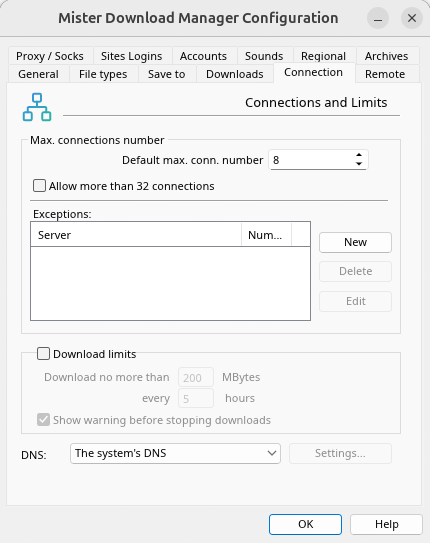
Options.
Et sur les autres bureaux où il a été vérifié :
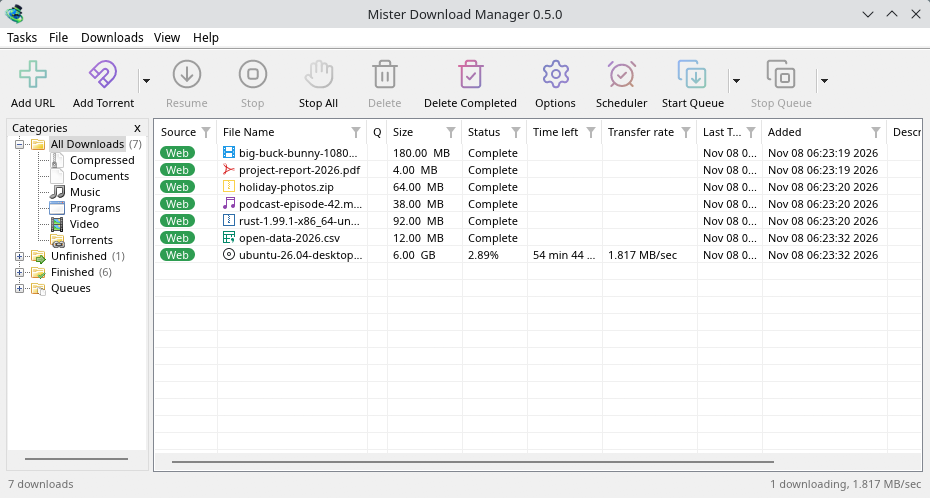
KDE Plasma. 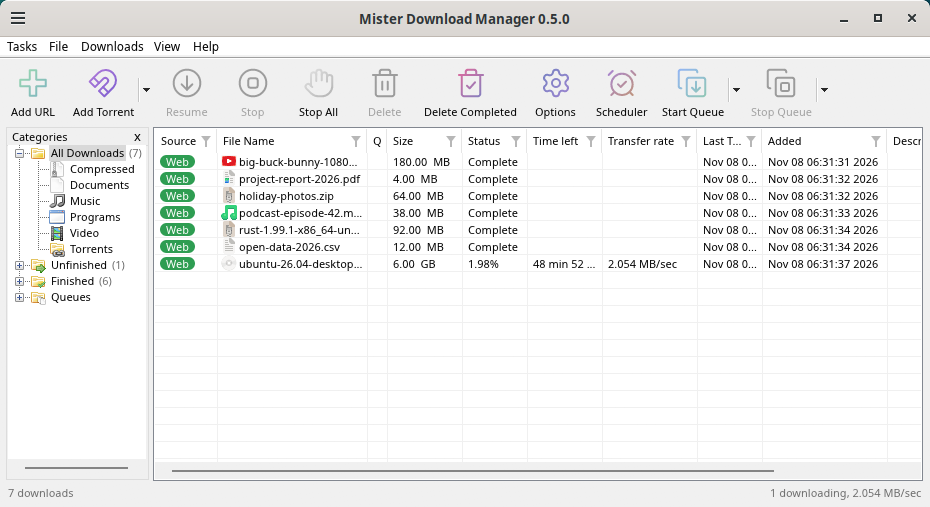
Cinnamon. 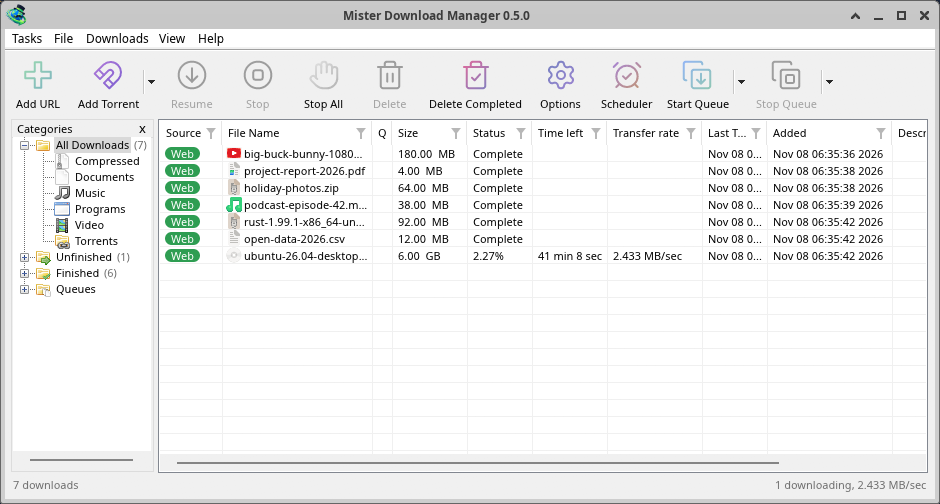
Xfce.
Désinstaller sous Linux
sudo apt remove voltdownloadmanager (or sudo dnf remove voltdownloadmanager) removes the
programs, and the small files that tell your browsers where VDM's helper is: the .deb and .rpm
install those for everyone (in /etc and /usr/lib), for Chrome, Chromium, Edge, Brave, Vivaldi,
Helium and Firefox (the Snap too), so VDM doesn't write them in your home folder. For the AppImage
or the tar.gz, delete the file or the folder.
What VDM keeps in your home folder stays, as with any package: your list and settings
(~/.local/share/voltdownloadmanager), the AppImage's and the tar.gz's browser files, and
those of the browsers that read them only there (Opera, Helium, Thorium, and Firefox's forks:
Zen, LibreWolf, Floorp, Waterfox). A package can't remove those: it never touches
home folders. Without VDM they lead nowhere, so the extension says it can't reach VDM. To remove
them as well, run this as each user who used VDM, before uninstalling:
voltdownloadmanager-nmhost --unregister
(Depuis l’AppImage : ~/.local/share/voltdownloadmanager/browser-host/voltdownloadmanager-nmhost --unregister.) Déjà désinstallé ? Ceci supprime les mêmes fichiers :
find ~/.mozilla ~/.librewolf ~/.config -name com.voltdownloadmanager.host.json -delete 2>/dev/null
Sur Mac
Les versions macOS sont nouvelles et encore expérimentales : nous ne les avons pas encore essayées nous-mêmes sur Mac, vous seriez donc parmi les premiers. Veuillez nous dire comment cela s’est passé, en bien ou en mal.
| Fichier | Description |
|---|---|
...-macos-arm64-experimental.dmg |
For a Mac with Apple Silicon (M1 or later: Apple menu → About This Mac shows a Chip). Open it and drag Volt Download Manager to Applications. macOS asks before its first start, because the app isn't notarized by Apple: right-click it and choose Open (on macOS 15 and later: System Settings → Privacy & Security → Open Anyway). |
...-macos-x86_64-experimental.dmg |
Idem, pour un Mac avec un processeur Intel (À propos de ce Mac affiche un Processeur). |
Browser integration is set up by VDM itself at each start (the browsers installed then are found); add the extension as in Browser integration.
Installer avec le programme d'installation
- Lancer
VoltDownloadManager-<version>-setup.exe. - Choose the language. Windows' display language is already selected. The setup offers every language VDM has, and VDM starts in the one you pick.
- Choisissez d'installer pour vous seulement ou pour tout le monde sur l'ordinateur. Pour vous seulement ne nécessite pas de droits d'administrateur et va dans
%LOCALAPPDATA%\Programs\Volt Download Manager. Pour tout le monde va dansProgram Files. - Pick what the setup should do: - Set up browser integration (Chrome, Edge, Brave, Firefox) - Open .torrent files and magnet links with Volt Download Manager - Start Volt Download Manager when Windows starts - Create a desktop shortcut (off unless you tick it)
- Click Install, then Finish to start VDM.
If VDM is already running, the setup asks it to save and close first. To update, use Help → Check for updates → Update now, or run the setup of the new version (or update with WinGet); your list and settings stay.
L'intégration au navigateur nécessite une étape supplémentaire dans chaque navigateur : l'ajout de l'extension. Dans Firefox, cliquez sur Ajouter à Firefox sur sa page sur addons.mozilla.org ; dans Chrome, Edge, Brave, Opera et Vivaldi, cliquez sur Ajouter à Chrome sur sa page dans le Chrome Web Store. La section Intégration au navigateur explique comment faire.
Désinstaller
Uninstall VDM from Windows Settings → Apps. The uninstaller asks whether to delete your download list and settings too. Your downloaded files are never touched.
Utiliser une copie ZIP
- Décompressez le fichier dans un dossier où vous pouvez écrire (pas directement dans
Program Files). - Lancer
voltdownloadmanager.exe.
Les fichiers zip contiennent les mêmes programmes que le programme d'installation : l'application, voltdownloadmanager-cli.exe (téléchargements à partir de la ligne de commande ; voir Ligne de commande et automatisation) et le dossier extension.
Premier démarrage et langue
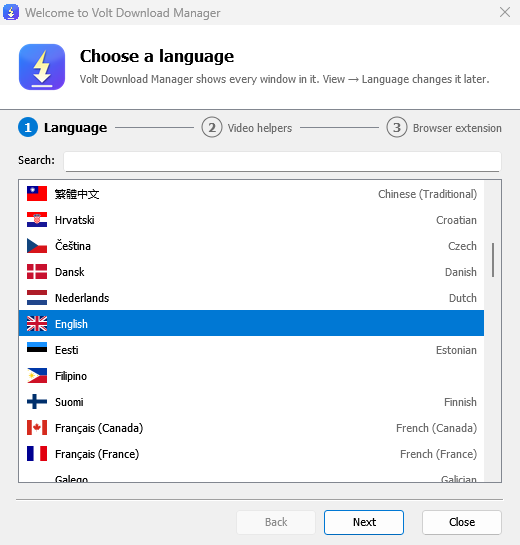
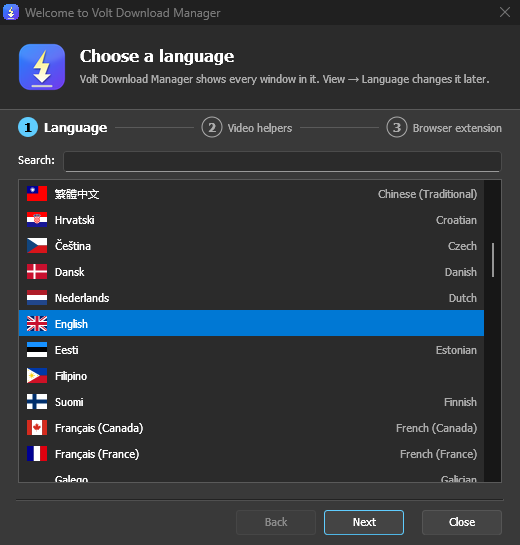
On its first start VDM opens one Welcome to Volt Download Manager window that walks you through what it needs, a step at a time: the steps are named on top, Back and Next move between them, and Finish on the last one closes it. Each step can be passed with Next without doing anything, Close or the window's × ends the setup at any step, and once it is finished or closed it doesn't come back: everything in it stays in the menus. Steps that aren't needed are left out.
- Language. - Installed with the setup: VDM starts in the language you chose in the setup, and this step is left out. - Otherwise: the list of languages, each with its flag and its own name. Click yours: the window switches to it at once, right to left for Arabic, Hebrew, Persian and Urdu.
Vous pouvez la changer à tout moment dans Affichage → Langue. Plus d’informations dans Langues.
- Assistants vidéo (ci-dessous).
- Browser extension: each browser VDM found, with Add the extension for it, as in Browser integration. Left out when a browser's extension already reached VDM, or in a portable copy.
Les assistants vidéo
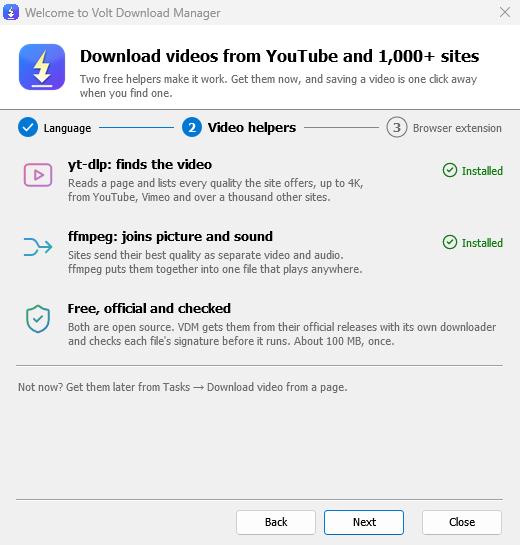
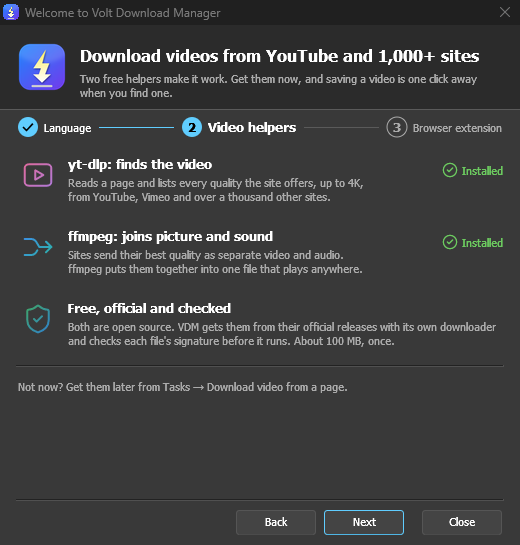
The setup's second step offers VDM's free video helpers: yt-dlp, which finds the video on a page, ffmpeg, which joins its picture and sound (on Windows; elsewhere VDM uses your system's), and Node.js, which YouTube needs, when your computer has no JavaScript runtime. Each says whether it is already there; one that isn't has its own Install button, and Yes, download them (recommended) gets every one that is missing. They download in the background, about 100 MB, once, each with its progress in its row, and go on if you close the window. Nothing is downloaded until you press one. Next leaves them for later: the video window offers them when you first need them. The step is left out when they are all there. More in Videos.
La fenêtre principale
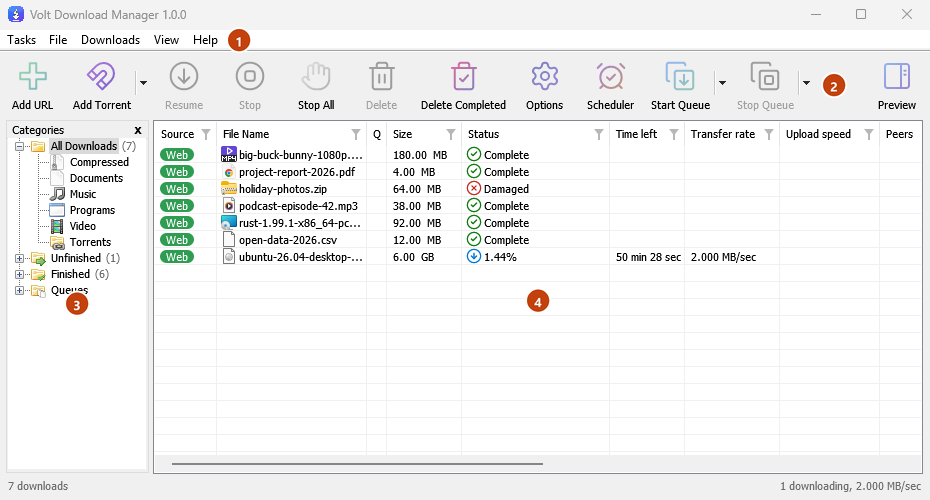
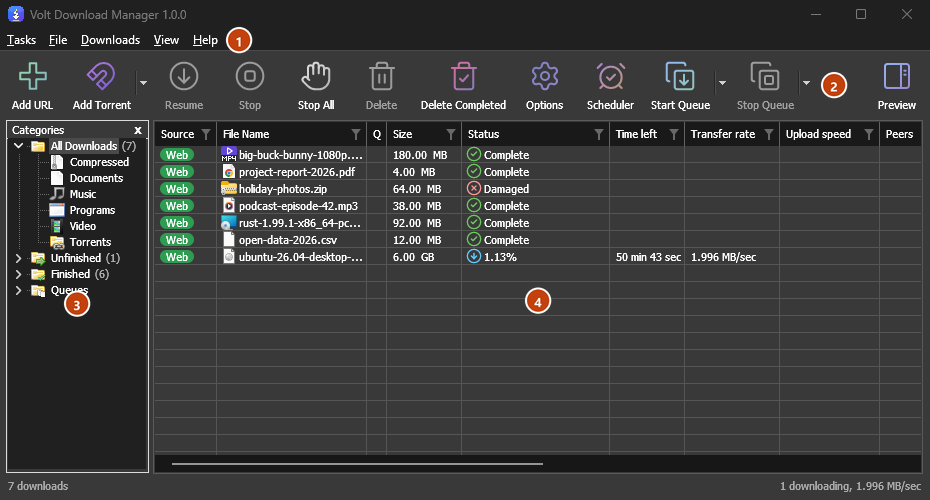
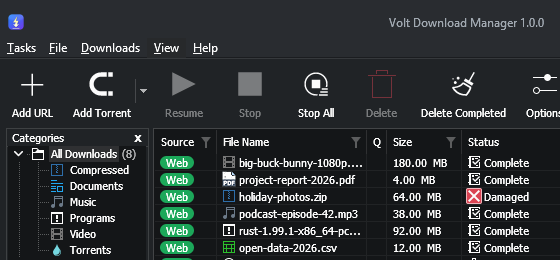
De haut en bas :
- Barre de menus.
- Tâches — ajouter des téléchargements, des torrents, des liens magnet, des téléchargements par lot et des vidéos à partir d’une page ; Paramètres du torrent ; Récupérateur de liens ; Flux RSS ; afficher la cible de dépôt ; importer et exporter la liste ; quitter.
- Fichier — le téléchargement sélectionné : Arrêter le téléchargement, Supprimer, Télécharger maintenant, Retélécharger.
- Téléchargements — Tout mettre en pause, Tout arrêter, Supprimer tous les téléchargements terminés, Rechercher, le Planificateur, les files d’attente, le Limiteur de vitesse et les Options.
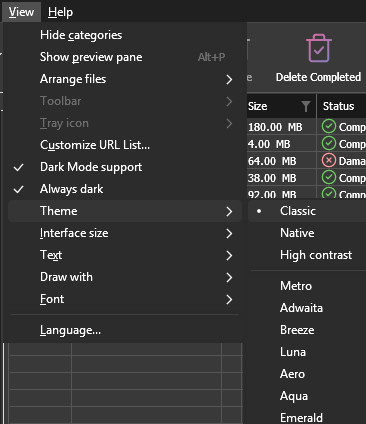
- Affichage — afficher ou masquer les catégories, trier la liste (Organiser les fichiers), prise en charge du mode sombre, Toujours sombre, Thème, Taille de l’interface (chaque fenêtre est agrandie, de 100 % à 200 % ; Ctrl +, Ctrl − et Ctrl 0 également), Police (le fichier de police et la taille du texte de l’interface, indépendamment de la taille de l’interface), Texte (Windows : lettres lisses ou classiques), Dessiner avec (OpenGL, ou Direct3D sur Windows, Vulkan sur Linux, Metal sur macOS) et Langue.
- Help — help pages and tutorials (on the website, in your language when it has it), Keyboard shortcuts, Report a problem, Check for updates, About, Tell a friend and Support VDM (its creator's GitHub Sponsors page: optional, nothing in VDM changes).
- Barre d’outils. Ajouter une URL, Ajouter un torrent, Reprendre, Arrêter, Tout arrêter, Supprimer, Supprimer les téléchargements terminés, Options, Planificateur, Démarrer la file d’attente, Arrêter la file d’attente. La petite flèche à côté de Ajouter un torrent, Démarrer la file d’attente et Arrêter la file d’attente ouvre plus de choix.
- Catégories (à gauche). Choisissez ce que la liste affiche : Tous les téléchargements, Inachevés, Terminé et Files d’attente, chacune avec ses catégories. Faites glisser l’espace entre le volet et la liste pour l’élargir.
- Liste de téléchargements (à droite). Une ligne par téléchargement. Voir La liste de téléchargements.
Mode sombre
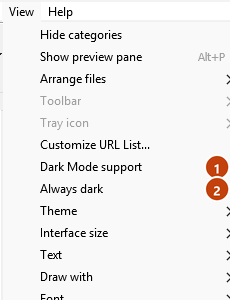
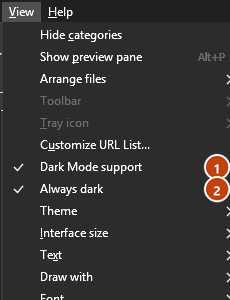
VDM follows your system: when Windows (or your desktop's light/dark preference on Linux and macOS) is set to dark mode, so is VDM. To keep VDM light whatever the system does, turn off View → Dark Mode support. To keep it dark whatever the system does, for example on a desktop that reports no preference, turn on View → Always dark.
Thèmes
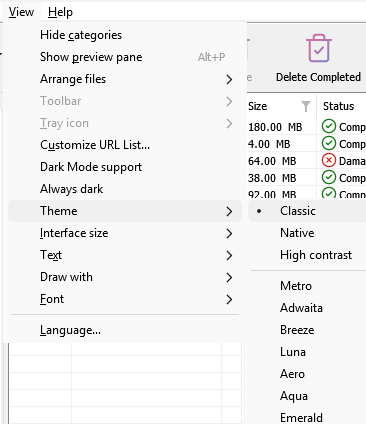
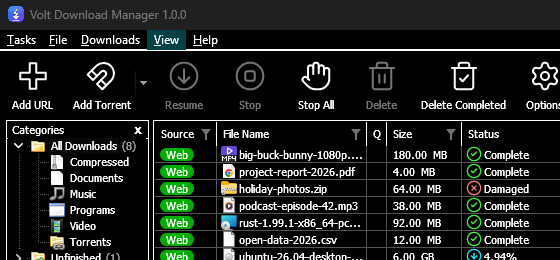
View → Theme changes VDM's look at once, keeping its layout:
- Classic: VDM's own look, the default.
- Natif : les couleurs de votre système. La couleur d'accentuation de Windows (Paramètres → Personnalisation → Couleurs) et, lorsqu'il est activé, son thème de contraste ; la couleur d'accentuation du bureau et son réglage de contraste plus élevé sous Linux (GNOME 47 et versions ultérieures, KDE Plasma) ; la couleur d'accentuation sous macOS. Il les suit lorsque vous les modifiez.
- Contraste élevé : noir et blanc, un accent lumineux, chaque bord dessiné, texte à 7:1 ou plus.
- Metro: Windows 8's flat look: square corners, flat buttons and boxes, a coloured title bar with the title centred (on Windows, where VDM draws it), and one-colour icons (Microsoft's Fluent UI System Icons).
- Adwaita: GNOME's look: round corners, flat grey buttons, a rounded focus ring, GNOME's check boxes, a header bar with the title in bold and round buttons (on Windows, where VDM draws it), and GNOME's Adwaita icons, in colour for files and categories, one colour in the toolbar.
- Breeze: KDE Plasma's look: rounded corners, buttons and boxes that take the accent's edge under the pointer or when focused, KDE's check boxes and focus frame, KDE's title bar with the title centred and round buttons (on Windows, where VDM draws it), and KDE's Breeze icons.
- Luna: Windows XP's look: buttons shaded from white with an orange glow under the pointer, green ticks, square text boxes, progress in green blocks, a deep blue title bar with the title in bold (on Windows, where VDM draws it), and colourful icons drawn for VDM in that manner.
- Aero: Windows 7's look: glossy buttons that turn light blue under the pointer, quiet check boxes, a glossy green progress bar, a glassy title bar with the title on a soft glow (on Windows), and glossy icons drawn for VDM in that manner.
- Aqua: Mac OS X's look: gel buttons round at the ends (the default one blue), glossy check boxes, a blue focus ring, a blue gel progress bar, a grey title bar with small round buttons (on Windows), and icons drawn for VDM in that manner.
- Emerald : un canevas blanc avec une encre presque noire et une échelle de gris neutres pour la structure, des remplissages émeraude qui portent toujours un texte presque noir plutôt que blanc, des coins à 6 points sur chaque contrôle et les icônes unicolores de Metro.
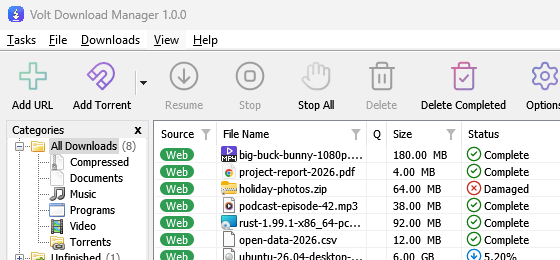
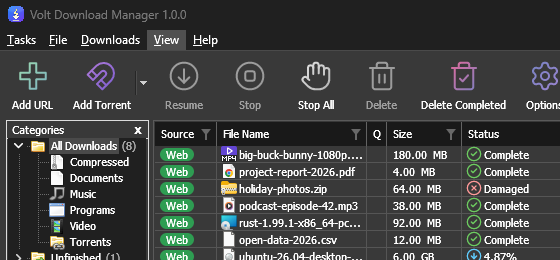
Classique 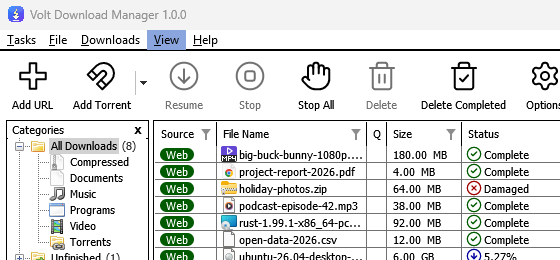
Contraste élevé 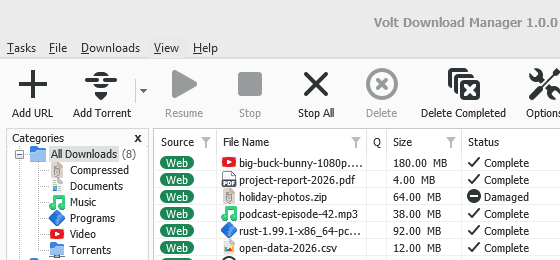
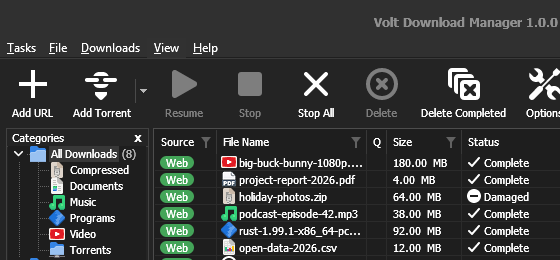
Adwaita 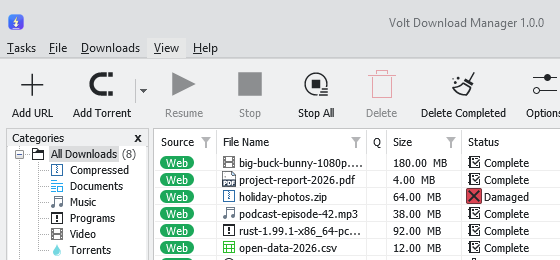
Breeze
Chacun a un côté clair et un côté sombre : Prise en charge du mode sombre et Toujours sombre permettent de choisir entre les deux comme auparavant. Les fichiers de thème que vous placez dans le dossier des thèmes (Affichage → Thème → Ouvrir le dossier des thèmes) y sont également répertoriés, tout comme les jeux de couleurs Base16 et pywal (Affichage → Thème → Ajouter un fichier de thème… ; pywal suit wal lors de son exécution) : Thèmes indique où se trouve ce dossier, ce que contient un fichier de thème (inherits, couleurs, tailles, formes des contrôles, icônes), comment les couleurs d’un jeu sont utilisées, et comment en créer et en partager un.
L’icône de la barre d’état système
Closing the main window doesn't quit VDM. It hides in the notification area, and downloads, queues and schedules carry on. To make closing quit (a portable copy's folder can then be deleted), untick Options → General → Keep running when closing the window. If there is no icon for VDM at all — not in the notification area, nor behind the ^ hidden icons — the window minimizes to the taskbar instead, so downloads continue and there is a way back. An icon behind ^ can be clicked to bring the window back, and starting VDM again always does. On macOS the window closes into the Dock, as Mac apps' windows do: click VDM's icon in the Dock (or in the menu bar) to bring it back, and quit with Cmd+Q or Volt Download Manager → Quit.
On Linux this needs a tray, which most desktops have (KDE Plasma, Xfce, Cinnamon, Ubuntu's GNOME or GNOME with the AppIndicator extension, waybar's tray). On a desktop without one (some tiling window managers), closing the window quits VDM, since there would be nowhere to bring it back from.
- Click the tray icon to see what is downloading: a small panel over the icon lists each running download with its progress bar, how much has come of how much, its speed and the time left, and the progress window's Pause (then Resume; Stop and save for a live stream being recorded) and Cancel beside it. Open Volt Download Manager at its bottom brings the window back. Its ×, Esc, a click elsewhere or another click on the icon closes it.
- Double-cliquez sur l’icône de la zone de notification pour ramener immédiatement la fenêtre (Windows).
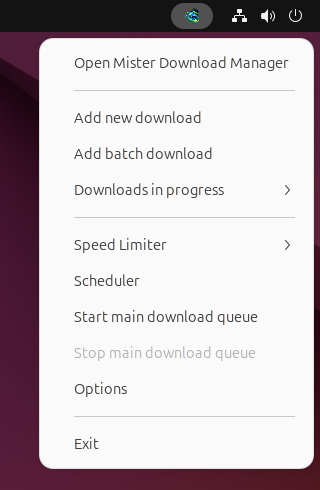
- Faites un clic droit dessus pour Ajouter un nouveau téléchargement, Ajouter un téléchargement par lot, Téléchargements en cours, Limiteur de vitesse, Planificateur, la file d'attente principale des téléchargements, Options et Quitter.
- Téléchargements en cours liste les téléchargements en cours. Choisissez-en un pour voir sa fenêtre de progression.
- Options → General → Show downloads when the notification area icon is clicked is ticked in a new copy of VDM. Untick it and a click on the icon brings the window back (or hides it there while it is in front), as it did before the panel. An VDM that was set up before the panel keeps that click: tick it to have the panel.
- On Linux the panel depends on the desktop's tray. KDE Plasma and Xfce send VDM the click, so the panel opens beside the icon. GNOME's AppIndicator extension may open the icon's menu on a left click instead, or send no place for the click: the panel then opens at the top right of the screen, under GNOME's top bar. In a native Wayland session the compositor decides where the panel goes and may not give it the focus, so a click elsewhere doesn't close it there: use its × or click the icon again. If the panel doesn't suit your desktop, untick the option above.
Réduire masque également la fenêtre principale, tant que Réduire dans la zone de notification est activé dans Options → Général. C’est activé par défaut ; là où la zone de notification n’a pas d’icône, Réduire envoie plutôt la fenêtre dans la barre des tâches.
La fenêtre de progression d'un téléchargement peut aussi y aller, avec son bouton Réduire ou son bouton Masquer dans la zone de notification : un petit tiret avec une flèche vers le coin.
Sous Windows, ce bouton se trouve dans la barre de titre de la fenêtre, à gauche de Réduire, et dans le menu de la barre de titre (Alt+Espace). Sous Linux et macOS, il est à la fin de la rangée d'onglets.
Pour ramener la fenêtre, choisissez-la dans Téléchargements en cours, ou double-cliquez sur le téléchargement dans la liste.
Pour quitter, choisissez Tâches → Quitter ou Quitter dans le menu de la barre d’état système.
Where VDM keeps its data
La liste des téléchargements et les paramètres se trouvent dans %APPDATA%\voltdownloadmanager (downloads.json) ; sous Linux dans ~/.local/share/voltdownloadmanager, sur un Mac dans ~/Library/Application Support/voltdownloadmanager. Une copie portable les conserve plutôt dans son dossier data. Les fichiers téléchargés vont dans votre dossier Téléchargements, triés dans un dossier par catégorie ; vous pouvez modifier cela dans Options → Enregistrer dans.
Étapes suivantes
- Télécharger votre premier fichier →
- Send browser downloads to VDM →
- Découvrir la liste de téléchargements →
Gratuit, open source, sans publicité ni période d’essai.
Download Volt Download Manager