

VDM downloads BitTorrent files from magnet links and .torrent files. Torrents appear in the same list as other downloads, marked Torrent in the Source column, and can be queued and scheduled like them.
Ajouter un torrent
- Cliquez sur Ajouter un torrent dans la barre d'outils pour choisir un fichier
.torrent. Ou cliquez sur la flèche à côté et choisissez Ouvrir le fichier torrent... ou Ajouter un lien magnet... (également sous Tâches). - La fenêtre Ajouter un torrent s'ouvre. Collez un lien magnet dans Torrent, ou cliquez sur ... pour choisir un fichier
.torrent, puis cliquez sur Rechercher. - VDM reads the torrent and shows its files as a folder tree. A
.torrentfile is read at once. A magnet link first has to get the file list from other peers, usually within seconds. While it waits, Add torrent shows how many peers it found, from the trackers, the DHT or your local network, and how many answered. After 30 seconds without an answer, it says what may be in the way: a link with no trackers while the DHT is off, or a firewall, a VPN or a network that blocks BitTorrent. - Décochez les dossiers ou les fichiers que vous ne souhaitez pas télécharger. Sélectionner tout et Ne rien sélectionner sont utiles pour les gros torrents. Sélectionné indique le nombre de fichiers et la quantité de données sélectionnés.
- Vérifiez Enregistrer dans. Les fichiers vont dans indique le dossier exact. Les torrents ont leur propre catégorie, donc par défaut c'est
Downloads\Torrents. Pour un torrent multi-fichiers téléchargé directement via BitTorrent, Créer un dossier pour ce torrent est coché par défaut. Décochez-le pour placer les fichiers directement dans Enregistrer dans, en conservant leurs dossiers internes. L'arborescence des fichiers et Les fichiers vont dans se mettent à jour en conséquence. Renommer est désactivé tant qu'il n'y a pas de dossier externe à nommer. - Pour regarder une vidéo pendant son téléchargement, cochez Télécharger dans l’ordre (voir Télécharger dans l’ordre).
- Cliquez sur Télécharger maintenant, ou sur Plus tard pour l'ajouter à la liste sans démarrer le téléchargement.
Une destination déjà revendiquée par un autre téléchargement, y compris un téléchargement en attente avec Plus tard, doit être modifiée avant que le torrent puisse être ajouté. Cela inclut les chemins non sélectionnés, car une pièce qui se chevauche peut y écrire. Un ancien torrent sans liste de fichiers enregistrés réserve de manière conservatrice toute sa destination ; choisissez une autre destination ou supprimez cette entrée de liste sans supprimer ses fichiers avant de partager le répertoire.
Also delete the file from disk removes the files VDM made for the torrent, each recognised by its file index and the time it was created, so a file that took the same name later is never taken for the torrent's. Files that were already there, files another download claims and files you agreed to use stay. VDM creates every ticked file of a torrent itself, empty, before it starts, so they are removed with it. Unticked files aren't made in the folder: the parts of the pieces they share with ticked files are kept in VDM's own torrent data, and go with the torrent; a file ticked later is made then, and gets them. Only empty folders VDM created are removed; existing folders and a shared Save to folder stay. A torrent with its own outer folder, added before this version, is deleted the way it always was. An older one-file torrent is deleted by name, from its own folder. Another older torrent (saved without an outer folder) has no record of its files: VDM keeps them and says why, so check and remove them yourself. A filesystem that gives no reliable creation time (FAT and exFAT, some network and Linux filesystems) keeps its files: VDM never deletes what it cannot recognise. Whenever Also delete the file from disk leaves files on the disk, VDM lists them. A Save to folder that does not exist yet is made, with its parents, when the torrent starts. A torrent added before this version, with its own folder or one file, takes the files already there as its own once, so resuming it or sharing it again does not ask about files VDM itself downloaded.
The torrent can only write into files VDM has checked, however it starts (Download Now, Resume, the Files tab, Recheck, or when VDM opens). If a file is at one of its paths and VDM did not make it (saved there after the torrent was added, replaced while the torrent was stopped, or moved to another drive by something other than VDM), VDM asks before using it. Yes lets the torrent use the file and write into it, and VDM never deletes it; No leaves it as it is and the torrent does not start. Starting it again asks again. An empty file is asked about too (a .gitkeep, or a file another program has just made and is about to write). If you replace a file while its torrent is stopped, starting the torrent adds it again on the file that is there now, so what you agreed to is what it writes to. When VDM opens, finished torrents are shared again only if their files are as VDM left them; one with a file that would need your permission is left stopped, and VDM asks nothing then.
An older VDM can open a list that holds a torrent saved without its own folder, but it does not know that its folder is shared: do not Move, Rename or Delete that torrent there. Its Delete with files removes every file of the torrent in Save to, those you agreed to use included, and Save to itself if that is then empty. This version recognises such a torrent again from its address, which an older VDM keeps.
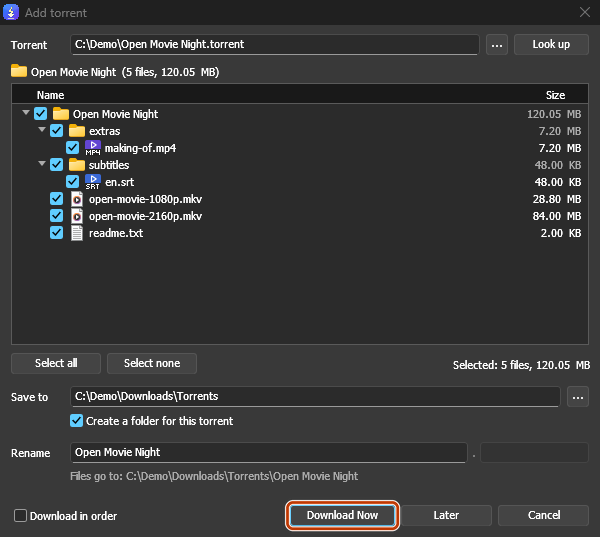
Décochez les éléments que vous ne souhaitez pas télécharger, puis cliquez sur Télécharger maintenant. 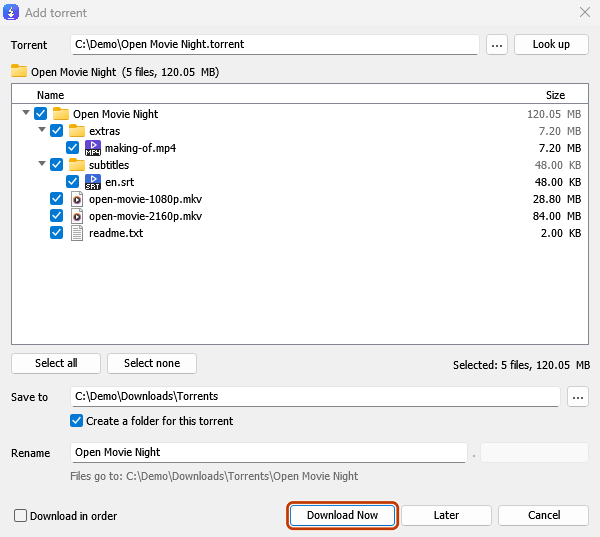
Sa fenêtre de progression : chaque fichier et sa part déjà présente. 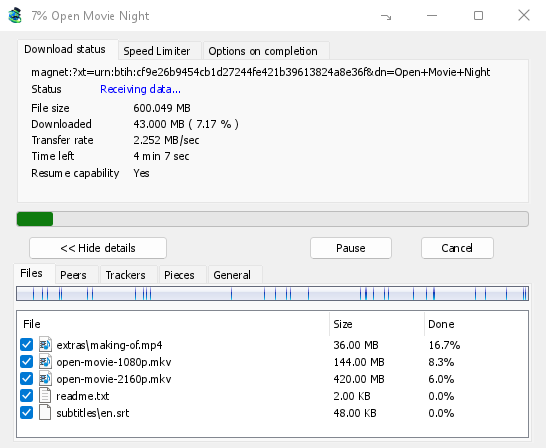
Fragments : la carte du torrent, qui se remplit. 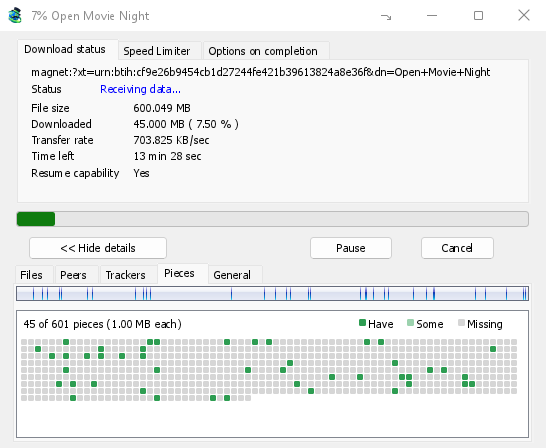
You can also paste a magnet link into Add URL, or drop a magnet link or a .torrent file on the drop target (Tasks → Show drop target). If a torrent is already in the list, VDM says so instead of adding it twice.
A .torrent file's web address works too: paste it into Add URL or Torrent, or let the browser hand the download over. VDM fetches the file, with the browser's cookies when the browser sent it, and Add torrent shows what it holds. The browser hands .torrent downloads over when TORRENT is in Options → File types and Open magnet links and .torrent files with Volt Download Manager is on in Torrent settings. TORRENT is in the list by default; a list you had before it came keeps what it had, so add TORRENT to it yourself. While that setting is off, the browser keeps .torrent downloads and opens them in your own torrent program, and the extension's button says why. Download with Volt Download Manager on a link always hands it over. A command line with /n (silent) saves the .torrent file itself, like any file. VDM fetches at most 10 MB: anything bigger isn't a .torrent file.
If some of the torrent's files are already in the folder, VDM asks before using them. Yes keeps them for the torrent: VDM checks them, keeps what matches the torrent and downloads the rest, which is how you continue a download started elsewhere or share files you already have. No (the default) goes back, so you can choose another folder and nothing of yours is overwritten.
The chosen layout is kept when the torrent is paused or VDM restarts. A multi-file torrent saved directly in Save to shares that directory: Move/Rename and folder renaming on completion are disabled for it so they cannot move unrelated files. Deleting the torrent's files leaves unrelated files and the shared destination folder in place. The layout option applies to direct BitTorrent downloads; torrents downloaded through a debrid account keep their existing layout.
Some programs (BitComet, for one) write a torrent's names in another encoding and add a UTF-8 copy of them (name.utf-8, path.utf-8); VDM shows and saves the files under the UTF-8 names. A torrent like that which was downloading in an earlier version starts those files again under their correct names, and leaves the files with the old names in the folder.
VDM refuses a torrent with file names your system can't write safely, says which name, and writes nothing. What others can see, the network switches in Torrent settings, blocklists and proxies: Torrents and your security.
Pendant le téléchargement
Double-cliquez sur le torrent dans la liste pour ouvrir sa fenêtre de progression. En plus des informations habituelles sur l’état, cette fenêtre comporte cinq onglets :
- Fichiers — chaque fichier, sa taille et sa progression. Les fichiers décochés affichent Ignoré. Cochez ou décochez la case d’un fichier pour modifier ce qui est téléchargé, même pendant le téléchargement du torrent. Au moins un fichier reste coché. Si vous décochez tous les fichiers encore manquants, le torrent se termine. Si vous ajoutez un fichier à un torrent terminé et à l’arrêt, celui-ci reste à l’arrêt jusqu’à ce que vous le repreniez : aucun téléchargement ne se lance sans que vous le sachiez.
- Pairs — les ordinateurs depuis lesquels vous téléchargez, ainsi que les quantités reçues de chacun et envoyées à chacun.
- Traqueurs — les traqueurs du torrent. S’il n’y en a pas, les pairs sont trouvés grâce au DHT et aux autres pairs.
- Fragments — une carte des fragments du torrent : présents, partiellement présents ou manquants.
- General — the info hash, pieces, peers, how much was sent, the share ratio, how long it has been shared and the folder. What was sent and the time shared add up over all of the torrent's runs: they don't start again at 0 after a pause or a restart of VDM.
Les onglets restent affichés une fois le téléchargement du torrent terminé, tant qu’il est partagé.
A file is made when its first byte is downloaded, and only a ticked one is made in the folder: what an unticked file shares with a ticked one waits in VDM's own torrent data. A running torrent keeps only the files it is reading or writing open, a few hundred at most for all of VDM's torrents together (fewer where the system allows fewer, as macOS does), so a torrent of thousands of files runs where it used to fail with "Too many open files".
A stopped torrent keeps none of its files open: you can move, rename or delete them, or open them in another program, while it waits. When you start it again, VDM opens them where they are; a file that was moved away or deleted meanwhile is made again and its pieces downloaded again. A finished torrent that is shared (Keep sharing torrents after they finish, in Torrent settings) keeps its files open only to read them: other programs can open, copy, run, move or rename them meanwhile.
L’onglet Limiteur de vitesse de la fenêtre d’un torrent permet, en plus de limiter la vitesse de téléchargement, de Limiter le partage à la vitesse de votre choix. Cette limite est conservée avec le torrent et s’applique chaque fois qu’il est en cours de téléchargement ou de partage. Dans les deux cas, la vitesse d’un torrent ne peut pas être limitée à moins de 16 Ko/s.
Commandes des torrents
Faites un clic droit sur un torrent dans la liste, puis ouvrez le menu Torrent :
- Re-vérifier les fichiers — lit et vérifie chaque fragment des fichiers du torrent, par exemple après avoir déplacé des fichiers dans le dossier ou en cas d’erreurs du disque. Un torrent en cours reprend ensuite et télécharge ce qui manque. Un torrent à l’arrêt le reste. Son journal des événements indique la quantité de données vérifiée : si un torrent terminé contient un fragment endommagé, il passe à l’état arrêté. Reprenez-le pour télécharger à nouveau ce fragment.
- Réannoncer — demande immédiatement aux traqueurs du torrent de trouver des pairs, sans attendre la prochaine annonce. Cette commande fonctionne pendant le téléchargement ou le partage du torrent.
- Add trackers... — adds trackers, one address a line (
http,httpsorudp). They are kept with the torrent, after the ones it has, and the Trackers tab shows them. A tracker on your computer or your local network is refused: VDM never contacts those (why). - Télécharger dans l’ordre — télécharge les fichiers du torrent depuis leur début (voir ci-dessous). Cliquez à nouveau pour revenir aux pièces les plus rares en premier.
- Premières et dernières pièces en premier — avec Télécharger dans l’ordre, les premières et dernières pièces de chaque fichier sont téléchargées avant le reste. C’est activé par défaut.
- Copier le lien magnet — copie un lien magnet pour le torrent, avec ses traqueurs.
Le résultat de chaque commande est enregistré dans le journal d'événements du torrent ; survolez sa cellule État dans la liste pour le lire.
Télécharger dans l’ordre
By default VDM downloads the pieces that the fewest peers have first, as BitTorrent programs usually do. That way a piece only one peer has is fetched before that peer leaves, and VDM can pass it on to others sooner. On VDM's test swarms it finished just as fast as downloading in order, and it was the only order that finished when a scarce piece's only holder left.
Télécharger dans l’ordre récupère d’abord le début d’un fichier, afin que vous puissiez regarder une vidéo pendant son téléchargement : ouvrez-la dans votre lecteur dès que la première partie est téléchargée. Cochez cette option dans Ajouter un torrent, ou choisissez Torrent → Télécharger dans l’ordre dans le menu contextuel de la liste, à tout moment, même pendant le téléchargement. Les pièces demandées ensuite suivent le nouvel ordre.
- Avec Premières et dernières pièces en premier (activé par défaut), les dernières pièces de chaque fichier arrivent aussi tôt. La plupart des fichiers vidéo conservent leur index à la fin, et un lecteur le lit avant toute lecture.
- Plusieurs fichiers sont téléchargés l’un après l’autre, dans l’ordre alphabétique.
- Les pairs plus lents prennent des pièces un peu plus loin, pour que le début du fichier ne soit pas bloqué par eux.
Le téléchargement dans l’ordre ne permet pas de terminer plus vite et aide moins l’essaim : utilisez-le pour ce que vous voulez regarder maintenant.
Flux RSS
Many sites publish their new torrents as an RSS or Atom feed. VDM can watch feeds, list what they hold, and add the new torrents you want by itself. Choose Tasks → RSS feeds..., or click the arrow next to Add Torrent.
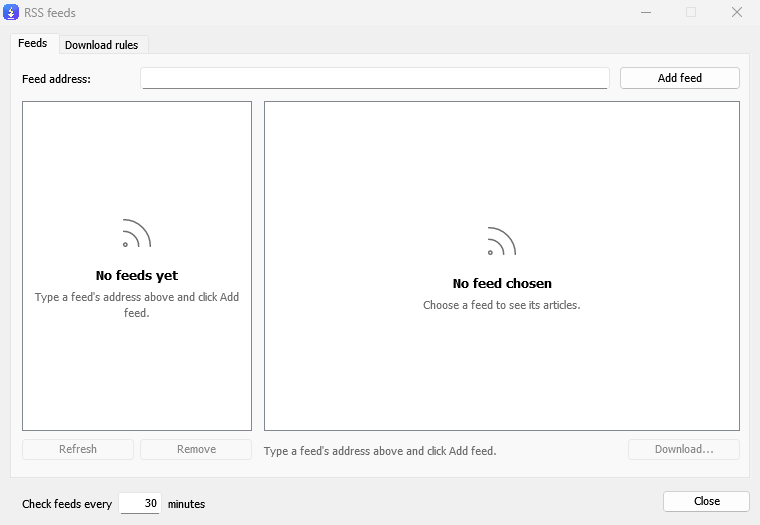
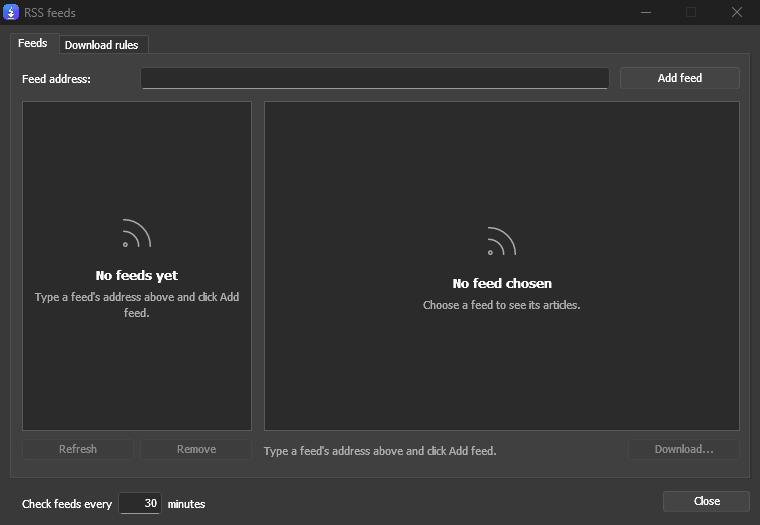
Onglet Flux :
- Type a feed's address into Feed address and click Add feed. VDM fetches it at once, then every 30 minutes; change that under Check feeds every ... minutes, 5 at the least.
- Choisissez un flux à gauche pour voir ses articles. Un article contenant un torrent affiche une icône de torrent et sa taille, si le flux la fournit. Double-cliquez sur un article, ou sélectionnez-le et cliquez sur Télécharger..., pour l’ouvrir dans Ajouter un torrent, comme pour tout lien magnet ou adresse
.torrent. - Actualiser récupère immédiatement le flux sélectionné. Supprimer arrête de le surveiller. Un flux illisible s’affiche en rouge et la ligne en bas indique pourquoi.
Onglet Règles de téléchargement : une règle ajoute sans confirmation les torrents des nouveaux articles dont le titre correspond.
- Doit contenir : mots que le titre doit contenir, tous, dans n’importe quel ordre.
|sépare les alternatives (1080p|2160p), et*et?sont des jokers. La casse n’a pas d’importance. - Ne doit pas contenir : mots qui font ignorer un article par la règle, écrits de la même manière.
- Expressions régulières : les deux champs contiennent plutôt des expressions régulières.
- Épisodes : épisodes à prendre, repérés à partir de
S01E05ou1x05dans le titre.1x2correspond à la saison 1, épisode 2 ;1x5-8, aux épisodes 5 à 8 ;2x1-, à tous les épisodes à partir de la saison 2, épisode 1 ; et3, à toute la saison 3. Séparez les valeurs par;. Champ vide : tous les articles. Une règle ne prend chaque épisode qu’une fois : toute nouvelle publication d’un épisode déjà ajouté est ignorée. - Enregistrer dans : dossier où enregistrer les torrents ; si le champ est vide, ils sont enregistrés dans le dossier de la catégorie Torrents. Les ajouter sans les démarrer les ajoute comme le ferait Télécharger plus tard.
- Flux : flux surveillés ; si aucun flux n’est coché, tous le sont.
Rules only look at articles that are new since the feed was last fetched, and a feed's first fetch only lists what is there. So adding a feed or a rule never downloads a whole backlog. Matches ... articles now shows which of the articles the feeds hold now the rule matches, to check it; download those by hand. A torrent the list already has isn't added again, and neither is one whose files are already in the folder: VDM never writes into files it didn't make without asking. The bottom line of the tab says what the rules did last, and a torrent a rule added says so in its event log.
Feeds and rules are kept in rss.json in VDM's data folder. VDM reads at most 5 MB of a feed.
Paramètres du torrent
Choisissez Tâches → Paramètres du torrent... (ou cliquez sur la flèche à côté de Ajouter un torrent) :
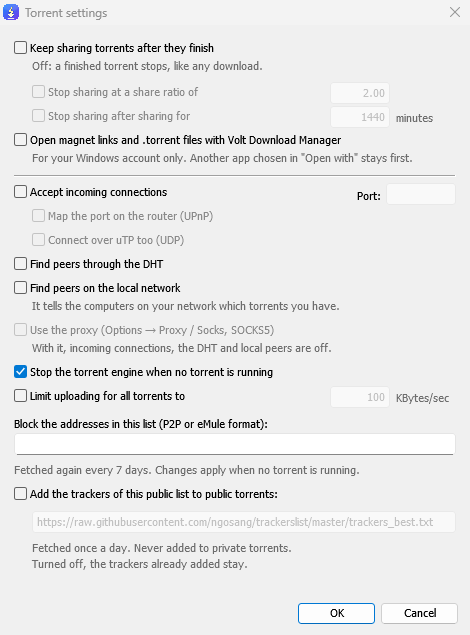
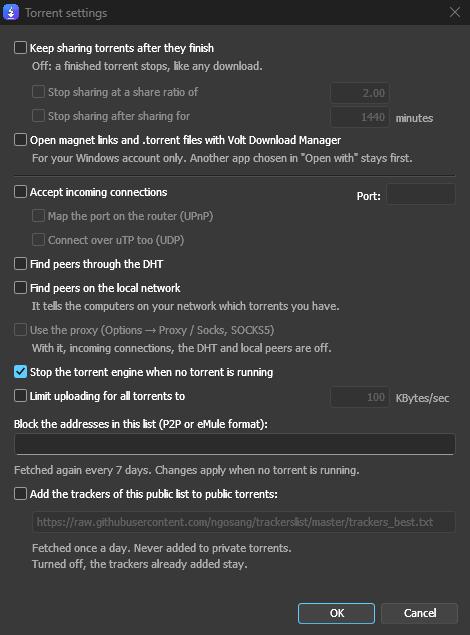
- Continuer à partager les torrents une fois terminés — désactivé par défaut : un torrent terminé s'arrête, comme tout téléchargement. Activez-le pour continuer à envoyer des données aux autres pairs une fois votre téléchargement terminé.
- Arrêter le partage à un ratio de partage de — un torrent terminé cesse d'être partagé une fois qu'il a envoyé autant de fois ce qu'il a (2,00 : deux fois). Désactivé par défaut.
- Arrêter le partage après avoir partagé pendant … minutes — ou une fois qu'il a été partagé pendant cette durée, sur toutes ses exécutions. Désactivé par défaut.
A torrent stopped by one of these says so in its event log, and isn't shared again when VDM starts. Raise or turn off the limit to share it again.
- Limit uploading for all torrents to — off by default. Caps what all your torrents together send to other peers, while they download and while they share. A torrent's own upload limit, in its progress window, applies on top of it.
- Open magnet links and .torrent files with Volt Download Manager — Windows then opens magnet links in your browser and .torrent files in Explorer with VDM. This is for your Windows account only. It also lists VDM in Windows' Settings → Apps → Default apps for MAGNET and .torrent. A program already chosen there (or in Open with) stays first, because Windows lets only you change that choice: when you turn the setting on and Windows still opens them with another program, VDM says which and opens its own Default apps page, where you set MAGNET and .torrent to Volt Download Manager. Firefox can keep a choice of its own for magnet links: when magnet is listed in its Settings → General → Applications, set its action to Volt Download Manager (shown as the default once Windows has it) or to Always ask. The setup can turn it on for you. It also decides whether the browser hands .torrent downloads to VDM: off, they stay with the browser for your own torrent program, even with TORRENT in Options → File types. It starts as you chose in the setup; a portable copy, or an VDM updated from an earlier version, starts with it on when your system already opens .torrent files with this VDM (or you had ticked it), off otherwise. From then on it stays as you leave it. On Linux it makes VDM your desktop's default app for them; on macOS, their default app (Finder offers VDM in Open With for .torrent files either way, and a double-click opens them in VDM when no other app is their default).
-
Connect over uTP too (UDP) — on by default. uTP is BitTorrent over UDP. Many peers (qBittorrent's, µTorrent's, Transmission's and others) take uTP, and some take nothing else: without it, VDM can't reach those, and a torrent with few peers may find almost none. VDM tries TCP first and uTP when TCP doesn't answer within a second, on the same port it listens on, so uTP needs Accept incoming connections on. A SOCKS5 proxy carries only TCP, so with Use the proxy on, uTP is off. A chosen network adapter holds uTP's socket too.
-
Add the trackers of this public list to public torrents — off by default. While it is on, every public torrent also asks the trackers of a public tracker list, so it finds peers sooner, above all an old torrent whose own trackers have gone quiet: the ones you add from then on, and those already in your list (once, when you turn it on). The list is ngosang/trackerslist's best trackers unless you type another address in the box (one tracker per line). VDM fetches it with its own downloader, through your proxy and network adapter, once a day (an hour later when a fetch failed), and keeps the last good copy: a new torrent never waits for it, and takes the list as last fetched. When a newer list brings new trackers, each torrent gets those too. A private torrent (one from a private tracker, marked so inside the torrent) never gets them: it may only ask its own trackers. Turning it off doesn't take away the trackers already added. Each torrent's Trackers tab shows them, and its event log says how many were added.
voltdownloadmanager-cli torrent-getfollows the same switch.
La même fenêtre contient les commutateurs réseau (connexions entrantes, le port, UPnP, uTP, le DHT, un proxy SOCKS5), la liste de blocage et la liste publique de traqueurs : voir Torrents et votre sécurité.
VDM starts its torrent engine the first time you add a torrent. If you never use torrents, it never listens for peers.
When the network comes back after a drop (Wi-Fi reconnecting, the computer waking from sleep, a VPN connecting or switching), VDM notices within a few seconds and calls the torrents' peers again at once, and asks their trackers and the DHT again, so a download picks up where it was instead of waiting minutes for each peer's next try. Each peer is called once for it; a tracker is still never asked sooner than its minimum interval. Behind a SOCKS5 proxy, a drop the computer itself doesn't see (the router losing its line while Wi-Fi stays up) is noticed only through the DHT, which is off there, so those torrents come back on their own, as before.
To find peers without trackers, VDM joins the DHT through four public routers (dht.libtorrent.org, dht.transmissionbt.com, router.bittorrent.com and router.utorrent.com); any one that answers is enough. It keeps the DHT nodes it found for the next start, so later starts don't depend on those routers.
VDM's log (logs\vdm.log in VDM's data folder) says where it listens, for example torrents: listening for peers on TCP and uTP (UDP) port 51413 (every address, IPv4 and IPv6: [::]:51413). That is one socket for IPv4 and IPv6 (and one UDP socket for uTP), so on Windows netstat -ano -p tcp (IPv4 only) doesn't list it; netstat -ano or Get-NetTCPConnection -State Listen does, under [::] or :: (and Get-NetUDPEndpoint the uTP one).
On a Linux system without CA certificates (a minimal install without the ca-certificates package), torrents still work: peers, the DHT and http:// trackers. An https:// tracker can't be checked there, so VDM skips it; install that package to use those too.
With a debrid account, torrents and magnet links can go to the service instead of to peers, and VDM downloads the files from it over HTTP: see Torrents through the service.
Étapes suivantes
Gratuit, open source, sans publicité ni période d’essai.
Download Volt Download Manager