

VDM downloads BitTorrent files from magnet links and .torrent files. Torrents appear in the same list as other downloads, marked Torrent in the Source column, and can be queued and scheduled like them.
Een torrent toevoegen
- Klik op Torrent toevoegen op de werkbalk om een
.torrent-bestand te kiezen. U kunt ook op de pijl ernaast klikken en Torrentbestand openen... of Magnet-link toevoegen... kiezen (ook onder Taken). - Torrent toevoegen wordt geopend. Plak een magneetlink in Torrent of klik op ... om een
.torrent-bestand te kiezen. Klik daarna op Zoeken. - VDM reads the torrent and shows its files as a folder tree. A
.torrentfile is read at once. A magnet link first has to get the file list from other peers, usually within seconds. While it waits, Add torrent shows how many peers it found, from the trackers, the DHT or your local network, and how many answered. After 30 seconds without an answer, it says what may be in the way: a link with no trackers while the DHT is off, or a firewall, a VPN or a network that blocks BitTorrent. - Haal de vinkjes weg bij de mappen of bestanden die u niet wilt downloaden. Alles selecteren en Niets selecteren zijn handig bij grote torrents. Geselecteerd toont het aantal bestanden en de hoeveelheid gegevens die u hebt geselecteerd.
- Controleer Opslaan in. Bestanden gaan naar toont de exacte map. Torrents hebben hun eigen categorie, dus standaard is dit
Downloads\Torrents. Voor een torrent met meerdere bestanden die rechtstreeks via BitTorrent is gedownload, is Een map maken voor deze torrent standaard aangevinkt. Vink dit uit om de bestanden direct in Opslaan in te plaatsen, met behoud van hun interne mappen. De bestandsstructuur en Bestanden gaan naar worden bijgewerkt. Naam wijzigen is uitgeschakeld zolang er geen buitenste map is om een naam te geven. - Als u een video wilt bekijken terwijl deze wordt gedownload, vink dan In volgorde downloaden aan (zie In volgorde downloaden).
- Klik op Nu downloaden, of op Later om het aan de lijst toe te voegen zonder te starten.
Een bestemming die al in gebruik is door een andere download, inclusief een die wacht met Later, moet worden gewijzigd voordat de torrent kan worden toegevoegd. Dit omvat niet-geselecteerde paden, omdat een overlappend stuk daarin kan schrijven. Een oudere torrent zonder opgeslagen bestandsclaimlijst reserveert conservatief zijn hele bestemming; kies een andere bestemming of verwijder die lijstvermelding zonder de bestanden te verwijderen voordat u de map deelt.
Also delete the file from disk removes the files VDM made for the torrent, each recognised by its file index and the time it was created, so a file that took the same name later is never taken for the torrent's. Files that were already there, files another download claims and files you agreed to use stay. VDM creates every ticked file of a torrent itself, empty, before it starts, so they are removed with it. Unticked files aren't made in the folder: the parts of the pieces they share with ticked files are kept in VDM's own torrent data, and go with the torrent; a file ticked later is made then, and gets them. Only empty folders VDM created are removed; existing folders and a shared Save to folder stay. A torrent with its own outer folder, added before this version, is deleted the way it always was. An older one-file torrent is deleted by name, from its own folder. Another older torrent (saved without an outer folder) has no record of its files: VDM keeps them and says why, so check and remove them yourself. A filesystem that gives no reliable creation time (FAT and exFAT, some network and Linux filesystems) keeps its files: VDM never deletes what it cannot recognise. Whenever Also delete the file from disk leaves files on the disk, VDM lists them. A Save to folder that does not exist yet is made, with its parents, when the torrent starts. A torrent added before this version, with its own folder or one file, takes the files already there as its own once, so resuming it or sharing it again does not ask about files VDM itself downloaded.
The torrent can only write into files VDM has checked, however it starts (Download Now, Resume, the Files tab, Recheck, or when VDM opens). If a file is at one of its paths and VDM did not make it (saved there after the torrent was added, replaced while the torrent was stopped, or moved to another drive by something other than VDM), VDM asks before using it. Yes lets the torrent use the file and write into it, and VDM never deletes it; No leaves it as it is and the torrent does not start. Starting it again asks again. An empty file is asked about too (a .gitkeep, or a file another program has just made and is about to write). If you replace a file while its torrent is stopped, starting the torrent adds it again on the file that is there now, so what you agreed to is what it writes to. When VDM opens, finished torrents are shared again only if their files are as VDM left them; one with a file that would need your permission is left stopped, and VDM asks nothing then.
An older VDM can open a list that holds a torrent saved without its own folder, but it does not know that its folder is shared: do not Move, Rename or Delete that torrent there. Its Delete with files removes every file of the torrent in Save to, those you agreed to use included, and Save to itself if that is then empty. This version recognises such a torrent again from its address, which an older VDM keeps.
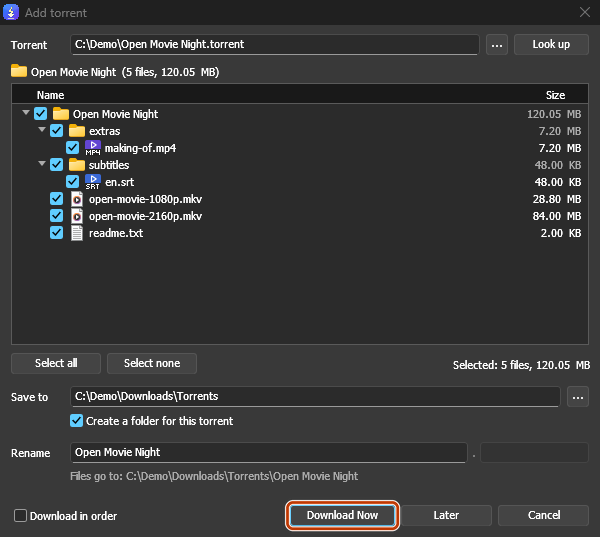
Haal de vinkjes weg bij wat u niet wilt en klik daarna op Nu downloaden. 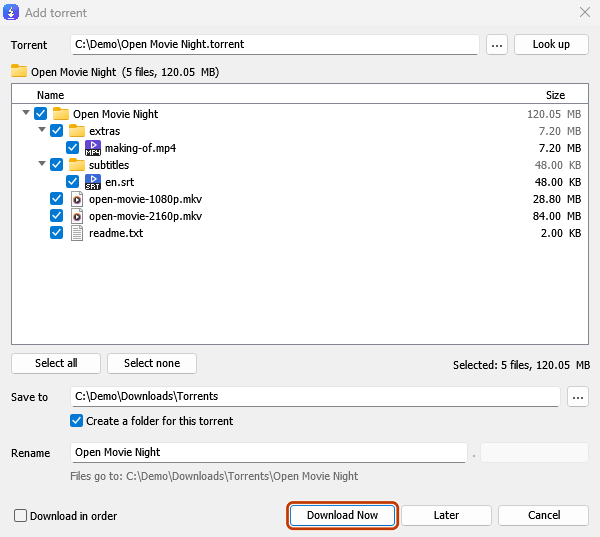
Het voortgangsvenster toont elk bestand en hoeveel ervan al is gedownload. 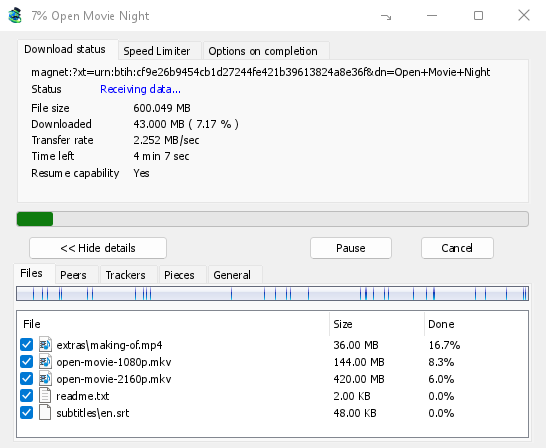
Delen: de kaart van de torrent, die geleidelijk wordt ingevuld. 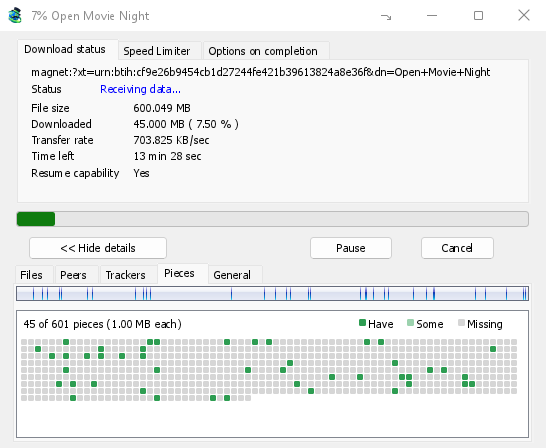
You can also paste a magnet link into Add URL, or drop a magnet link or a .torrent file on the drop target (Tasks → Show drop target). If a torrent is already in the list, VDM says so instead of adding it twice.
A .torrent file's web address works too: paste it into Add URL or Torrent, or let the browser hand the download over. VDM fetches the file, with the browser's cookies when the browser sent it, and Add torrent shows what it holds. The browser hands .torrent downloads over when TORRENT is in Options → File types and Open magnet links and .torrent files with Volt Download Manager is on in Torrent settings. TORRENT is in the list by default; a list you had before it came keeps what it had, so add TORRENT to it yourself. While that setting is off, the browser keeps .torrent downloads and opens them in your own torrent program, and the extension's button says why. Download with Volt Download Manager on a link always hands it over. A command line with /n (silent) saves the .torrent file itself, like any file. VDM fetches at most 10 MB: anything bigger isn't a .torrent file.
If some of the torrent's files are already in the folder, VDM asks before using them. Yes keeps them for the torrent: VDM checks them, keeps what matches the torrent and downloads the rest, which is how you continue a download started elsewhere or share files you already have. No (the default) goes back, so you can choose another folder and nothing of yours is overwritten.
The chosen layout is kept when the torrent is paused or VDM restarts. A multi-file torrent saved directly in Save to shares that directory: Move/Rename and folder renaming on completion are disabled for it so they cannot move unrelated files. Deleting the torrent's files leaves unrelated files and the shared destination folder in place. The layout option applies to direct BitTorrent downloads; torrents downloaded through a debrid account keep their existing layout.
Some programs (BitComet, for one) write a torrent's names in another encoding and add a UTF-8 copy of them (name.utf-8, path.utf-8); VDM shows and saves the files under the UTF-8 names. A torrent like that which was downloading in an earlier version starts those files again under their correct names, and leaves the files with the old names in the folder.
VDM refuses a torrent with file names your system can't write safely, says which name, and writes nothing. What others can see, the network switches in Torrent settings, blocklists and proxies: Torrents and your security.
Tijdens het downloaden
Dubbelklik op de torrent in de lijst om het voortgangsvenster te openen. Naast de gebruikelijke status heeft het torrentvenster vijf tabbladen:
- Bestanden — elk bestand, de grootte en hoeveel ervan is gedownload. Bij bestanden waarvan u het vinkje hebt weggehaald, staat Overgeslagen. Vink het vakje van een bestand aan of haal het vinkje weg om te wijzigen wat er wordt gedownload, ook terwijl de torrent actief is. Er blijft altijd minstens één bestand aangevinkt. Als u alle bestanden die nog ontbreken uitvinkt, is de torrent voltooid. Als u later een bestand weer selecteert voor een voltooide torrent die niet actief is, blijft de torrent gestopt totdat u deze hervat. Zo wordt er niets ongemerkt gedownload.
- Peers — de computers waarvan u downloadt, met de hoeveelheid gegevens die u van en naar elke computer hebt overgedragen.
- Trackers — de trackers van de torrent. Zonder trackers worden peers gevonden via DHT en andere peers.
- Delen — een kaart van de torrentdelen: aanwezig, gedeeltelijk aanwezig of ontbrekend.
- General — the info hash, pieces, peers, how much was sent, the share ratio, how long it has been shared and the folder. What was sent and the time shared add up over all of the torrent's runs: they don't start again at 0 after a pause or a restart of VDM.
De tabbladen blijven beschikbaar nadat de torrent is voltooid, zolang deze wordt gedeeld.
A file is made when its first byte is downloaded, and only a ticked one is made in the folder: what an unticked file shares with a ticked one waits in VDM's own torrent data. A running torrent keeps only the files it is reading or writing open, a few hundred at most for all of VDM's torrents together (fewer where the system allows fewer, as macOS does), so a torrent of thousands of files runs where it used to fail with "Too many open files".
A stopped torrent keeps none of its files open: you can move, rename or delete them, or open them in another program, while it waits. When you start it again, VDM opens them where they are; a file that was moved away or deleted meanwhile is made again and its pieces downloaded again. A finished torrent that is shared (Keep sharing torrents after they finish, in Torrent settings) keeps its files open only to read them: other programs can open, copy, run, move or rename them meanwhile.
Het tabblad Snelheidsbegrenzer van het torrentvenster bevat naast de downloadlimiet ook Uploaden beperken, waarmee u een uploadsnelheid naar keuze kunt instellen. De limiet blijft bij de torrent en geldt telkens wanneer deze wordt gedownload of gedeeld. Een torrent kan in geen van beide gevallen worden beperkt tot minder dan 16 KB/sec.
Torrentopdrachten
Klik met de rechtermuisknop op een torrent in de lijst en open Torrent:
- Bestanden opnieuw controleren — leest en controleert elk deel van de torrentbestanden, bijvoorbeeld nadat u bestanden hebt verplaatst of er schijffouten zijn opgetreden. Een actieve torrent gaat daarna verder en haalt de ontbrekende delen op. Een gestopte torrent blijft gestopt. In het gebeurtenislogboek staat hoeveel er is gevonden. Als een voltooide torrent een beschadigd deel bevat, wordt deze gestopt. Als u de torrent hervat, wordt het deel opnieuw opgehaald.
- Trackers opnieuw aankondigen — vraagt de trackers van de torrent meteen om peers, in plaats van te wachten tot de volgende ronde. Dit werkt zolang de torrent actief is of wordt gedeeld.
- Add trackers... — adds trackers, one address a line (
http,httpsorudp). They are kept with the torrent, after the ones it has, and the Trackers tab shows them. A tracker on your computer or your local network is refused: VDM never contacts those (why). - In volgorde downloaden — downloadt de bestanden van de torrent vanaf het begin (zie hieronder). Klik er nogmaals op om terug te gaan naar de zeldzaamste delen eerst.
- Eerste en laatste delen eerst — met Downloaden in volgorde komen de eerste en laatste delen van elk bestand vóór de rest. Dit is standaard ingeschakeld.
- Magnetlink kopiëren — kopieert een magnetlink voor de torrent, met de bijbehorende trackers.
Het resultaat van elke opdracht komt in het gebeurtenislogboek van de torrent; beweeg de muis over de Status-cel in de lijst om het te lezen.
In volgorde downloaden
By default VDM downloads the pieces that the fewest peers have first, as BitTorrent programs usually do. That way a piece only one peer has is fetched before that peer leaves, and VDM can pass it on to others sooner. On VDM's test swarms it finished just as fast as downloading in order, and it was the only order that finished when a scarce piece's only holder left.
In volgorde downloaden haalt eerst het begin van een bestand op, zodat u een video kunt bekijken terwijl deze wordt gedownload: open de video in uw speler zodra het eerste deel binnen is. Vink deze optie aan in Torrent toevoegen, of kies op elk moment Torrent → In volgorde downloaden in het contextmenu van de lijst, zelfs terwijl de download bezig is. De volgende opgevraagde delen volgen de nieuwe volgorde.
- Met Eerste en laatste delen eerst (standaard ingeschakeld) komen ook de laatste delen van elk bestand vroeg. De meeste videobestanden bewaren hun index aan het einde, en een speler leest deze voordat er iets wordt afgespeeld.
- Meerdere bestanden worden na elkaar gedownload, gesorteerd op naam.
- Langzamere peers krijgen delen die iets verderop liggen, zodat het begin niet op hen hoeft te wachten.
Een torrent in volgorde is niet sneller klaar en helpt de zwerm minder: gebruik deze optie voor wat u nu wilt bekijken.
RSS-feeds
Many sites publish their new torrents as an RSS or Atom feed. VDM can watch feeds, list what they hold, and add the new torrents you want by itself. Choose Tasks → RSS feeds..., or click the arrow next to Add Torrent.
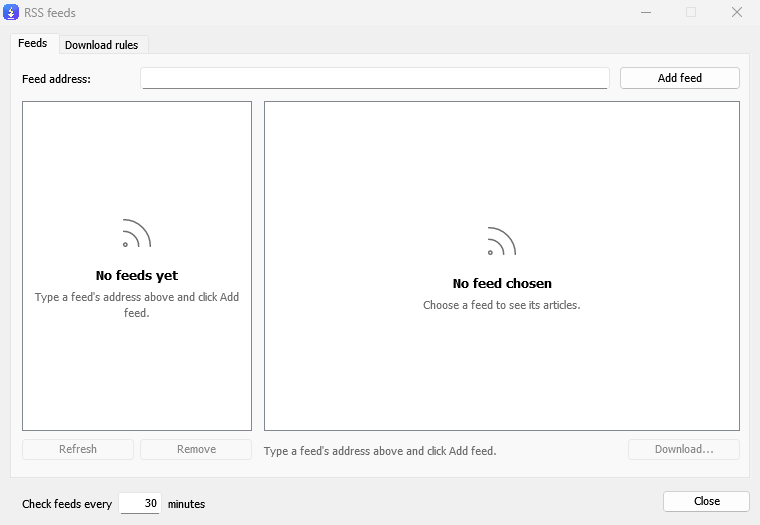
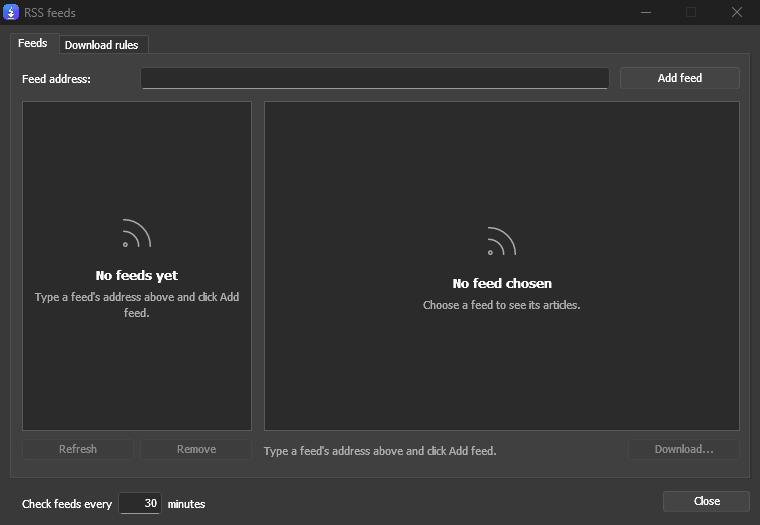
Tabblad Feeds:
- Type a feed's address into Feed address and click Add feed. VDM fetches it at once, then every 30 minutes; change that under Check feeds every ... minutes, 5 at the least.
- Selecteer links een feed om de artikelen ervan te bekijken. Bij een artikel met een torrent wordt een torrentpictogram weergegeven, evenals de bestandsgrootte als de feed die vermeldt. Dubbelklik op een artikel of selecteer het en klik op Downloaden... om Torrent toevoegen met dit artikel te openen, net als bij elke magnetlink of
.torrent-adres. - Vernieuwen haalt de geselecteerde feed nu op. Verwijderen stopt met het controleren ervan. Een feed die niet kan worden gelezen, wordt rood weergegeven. Onderaan staat waarom.
Tabblad Downloadregels: een regel voegt zonder bevestiging torrents toe van nieuwe artikelen waarvan de titel overeenkomt met de regel.
- Moet bevatten: woorden die allemaal in de titel moeten voorkomen, in willekeurige volgorde.
|scheidt alternatieven (1080p|2160p), en*en?zijn jokertekens. Hoofdletters en kleine letters maken geen verschil. - Mag niet bevatten: woorden die ervoor zorgen dat de regel een artikel overslaat, op dezelfde manier geschreven.
- Reguliere expressies: de twee vakken bevatten in plaats daarvan reguliere expressies.
- Afleveringen: welke afleveringen u wilt ophalen, zoals vermeld in
S01E05of1x05in de titel.1x2is seizoen 1, aflevering 2;1x5-8zijn afleveringen 5 tot en met 8;2x1-is alles vanaf seizoen 2, aflevering 1; en3is heel seizoen 3. Scheid ze met;. Leeg: elk artikel. Een regel haalt elke aflevering één keer op: een tweede uitgave van een aflevering die al is toegevoegd, wordt overgeslagen. - Opslaan in: de map waarin de torrents worden opgeslagen. Als dit veld leeg is, wordt de map van de categorie Torrents gebruikt. Toevoegen zonder te starten voegt ze toe zoals Later downloaden dat doet.
- Feeds: de feeds die de regel controleert. Als geen enkele feed is aangevinkt, worden alle feeds gecontroleerd.
Rules only look at articles that are new since the feed was last fetched, and a feed's first fetch only lists what is there. So adding a feed or a rule never downloads a whole backlog. Matches ... articles now shows which of the articles the feeds hold now the rule matches, to check it; download those by hand. A torrent the list already has isn't added again, and neither is one whose files are already in the folder: VDM never writes into files it didn't make without asking. The bottom line of the tab says what the rules did last, and a torrent a rule added says so in its event log.
Feeds and rules are kept in rss.json in VDM's data folder. VDM reads at most 5 MB of a feed.
Torrent-instellingen
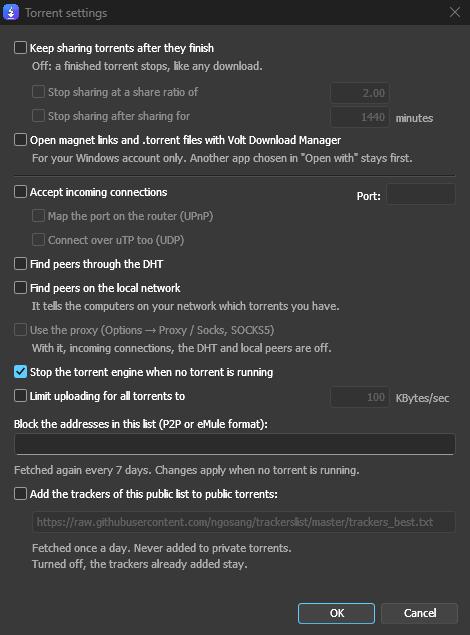
Kies Taken → Torrent-instellingen... (of klik op de pijl naast Torrent toevoegen):
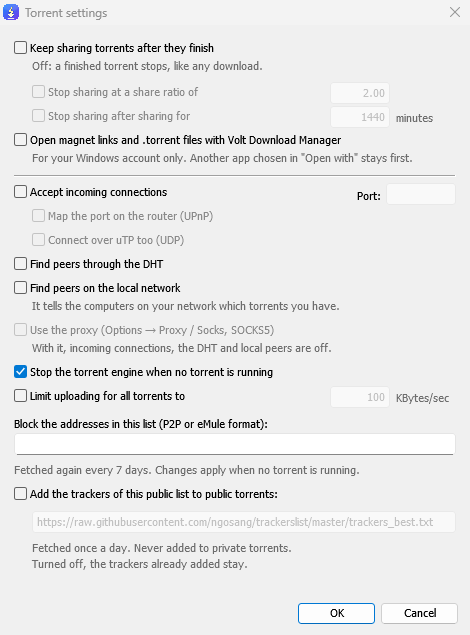
- Torrents blijven delen nadat ze zijn voltooid — standaard uit: een voltooide torrent stopt, net als elke download. Schakel deze optie in om te blijven uploaden naar andere peers nadat uw download is voltooid.
- Delen stoppen bij een deelverhouding van — een voltooide torrent stopt met delen zodra deze zoveel heeft verzonden als hij heeft ontvangen (2.00: tweemaal zoveel). Standaard uitgeschakeld.
- Delen stoppen na delen voor … minuten — of zodra de torrent in totaal zo lang is gedeeld, over al zijn sessies. Standaard uitgeschakeld.
A torrent stopped by one of these says so in its event log, and isn't shared again when VDM starts. Raise or turn off the limit to share it again.
- Limit uploading for all torrents to — off by default. Caps what all your torrents together send to other peers, while they download and while they share. A torrent's own upload limit, in its progress window, applies on top of it.
- Open magnet links and .torrent files with Volt Download Manager — Windows then opens magnet links in your browser and .torrent files in Explorer with VDM. This is for your Windows account only. It also lists VDM in Windows' Settings → Apps → Default apps for MAGNET and .torrent. A program already chosen there (or in Open with) stays first, because Windows lets only you change that choice: when you turn the setting on and Windows still opens them with another program, VDM says which and opens its own Default apps page, where you set MAGNET and .torrent to Volt Download Manager. Firefox can keep a choice of its own for magnet links: when magnet is listed in its Settings → General → Applications, set its action to Volt Download Manager (shown as the default once Windows has it) or to Always ask. The setup can turn it on for you. It also decides whether the browser hands .torrent downloads to VDM: off, they stay with the browser for your own torrent program, even with TORRENT in Options → File types. It starts as you chose in the setup; a portable copy, or an VDM updated from an earlier version, starts with it on when your system already opens .torrent files with this VDM (or you had ticked it), off otherwise. From then on it stays as you leave it. On Linux it makes VDM your desktop's default app for them; on macOS, their default app (Finder offers VDM in Open With for .torrent files either way, and a double-click opens them in VDM when no other app is their default).
-
Connect over uTP too (UDP) — on by default. uTP is BitTorrent over UDP. Many peers (qBittorrent's, µTorrent's, Transmission's and others) take uTP, and some take nothing else: without it, VDM can't reach those, and a torrent with few peers may find almost none. VDM tries TCP first and uTP when TCP doesn't answer within a second, on the same port it listens on, so uTP needs Accept incoming connections on. A SOCKS5 proxy carries only TCP, so with Use the proxy on, uTP is off. A chosen network adapter holds uTP's socket too.
-
Add the trackers of this public list to public torrents — off by default. While it is on, every public torrent also asks the trackers of a public tracker list, so it finds peers sooner, above all an old torrent whose own trackers have gone quiet: the ones you add from then on, and those already in your list (once, when you turn it on). The list is ngosang/trackerslist's best trackers unless you type another address in the box (one tracker per line). VDM fetches it with its own downloader, through your proxy and network adapter, once a day (an hour later when a fetch failed), and keeps the last good copy: a new torrent never waits for it, and takes the list as last fetched. When a newer list brings new trackers, each torrent gets those too. A private torrent (one from a private tracker, marked so inside the torrent) never gets them: it may only ask its own trackers. Turning it off doesn't take away the trackers already added. Each torrent's Trackers tab shows them, and its event log says how many were added.
voltdownloadmanager-cli torrent-getfollows the same switch.
Hetzelfde venster bevat de netwerkschakelaars (inkomende verbindingen, de poort, UPnP, uTP, de DHT, een SOCKS5-proxy), de blokkeerlijst en de openbare trackerlijst: zie Torrents en uw beveiliging.
VDM starts its torrent engine the first time you add a torrent. If you never use torrents, it never listens for peers.
When the network comes back after a drop (Wi-Fi reconnecting, the computer waking from sleep, a VPN connecting or switching), VDM notices within a few seconds and calls the torrents' peers again at once, and asks their trackers and the DHT again, so a download picks up where it was instead of waiting minutes for each peer's next try. Each peer is called once for it; a tracker is still never asked sooner than its minimum interval. Behind a SOCKS5 proxy, a drop the computer itself doesn't see (the router losing its line while Wi-Fi stays up) is noticed only through the DHT, which is off there, so those torrents come back on their own, as before.
To find peers without trackers, VDM joins the DHT through four public routers (dht.libtorrent.org, dht.transmissionbt.com, router.bittorrent.com and router.utorrent.com); any one that answers is enough. It keeps the DHT nodes it found for the next start, so later starts don't depend on those routers.
VDM's log (logs\vdm.log in VDM's data folder) says where it listens, for example torrents: listening for peers on TCP and uTP (UDP) port 51413 (every address, IPv4 and IPv6: [::]:51413). That is one socket for IPv4 and IPv6 (and one UDP socket for uTP), so on Windows netstat -ano -p tcp (IPv4 only) doesn't list it; netstat -ano or Get-NetTCPConnection -State Listen does, under [::] or :: (and Get-NetUDPEndpoint the uTP one).
On a Linux system without CA certificates (a minimal install without the ca-certificates package), torrents still work: peers, the DHT and http:// trackers. An https:// tracker can't be checked there, so VDM skips it; install that package to use those too.
With a debrid account, torrents and magnet links can go to the service instead of to peers, and VDM downloads the files from it over HTTP: see Torrents through the service.
Volgende stappen
Gratis, open source, geen advertenties, geen proefversie.
Download Volt Download Manager