

VDM downloads BitTorrent files from magnet links and .torrent files. Torrents appear in the same list as other downloads, marked Torrent in the Source column, and can be queued and scheduled like them.
添加种子
- 点击工具栏上的添加 Torrent来选择一个
.torrent文件。或者点击旁边的箭头,选择打开 torrent 文件...或添加磁力链接...(也在任务下)。 - 添加种子窗口打开。将磁力链接粘贴到种子中,或点击...选择一个
.torrent文件,然后点击查找。 - VDM reads the torrent and shows its files as a folder tree. A
.torrentfile is read at once. A magnet link first has to get the file list from other peers, usually within seconds. While it waits, Add torrent shows how many peers it found, from the trackers, the DHT or your local network, and how many answered. After 30 seconds without an answer, it says what may be in the way: a link with no trackers while the DHT is off, or a firewall, a VPN or a network that blocks BitTorrent. - 取消勾选您不想要的文件夹或文件。全选和不选有助于处理大型种子。已选显示您选择了多少文件和多少数据。
- 勾选保存到。文件保存到显示确切的文件夹。种子有自己的类别,因此默认情况下是
Downloads\Torrents。对于直接通过 BitTorrent 下载的多文件种子,默认勾选为此种子创建文件夹。取消勾选可将文件直接放入保存到,同时保留其内部文件夹。文件树和文件保存到会随之更新。重命名在没有外部文件夹可命名时禁用。 - 要边下载边观看视频,请勾选按顺序下载(参见按顺序下载)。
- 点击立即下载,或点击稍后将其添加到列表而不开始下载。
如果目标位置已被其他下载占用(包括处于稍后状态的下载),则必须在添加种子之前更改目标位置。这包括未选定的路径,因为重叠的片段可能会写入这些路径。没有保存文件声明列表的旧种子会保守地保留其整个目标位置;在共享目录之前,请选择其他目标位置或删除该列表条目而不删除其文件。
Also delete the file from disk removes the files VDM made for the torrent, each recognised by its file index and the time it was created, so a file that took the same name later is never taken for the torrent's. Files that were already there, files another download claims and files you agreed to use stay. VDM creates every ticked file of a torrent itself, empty, before it starts, so they are removed with it. Unticked files aren't made in the folder: the parts of the pieces they share with ticked files are kept in VDM's own torrent data, and go with the torrent; a file ticked later is made then, and gets them. Only empty folders VDM created are removed; existing folders and a shared Save to folder stay. A torrent with its own outer folder, added before this version, is deleted the way it always was. An older one-file torrent is deleted by name, from its own folder. Another older torrent (saved without an outer folder) has no record of its files: VDM keeps them and says why, so check and remove them yourself. A filesystem that gives no reliable creation time (FAT and exFAT, some network and Linux filesystems) keeps its files: VDM never deletes what it cannot recognise. Whenever Also delete the file from disk leaves files on the disk, VDM lists them. A Save to folder that does not exist yet is made, with its parents, when the torrent starts. A torrent added before this version, with its own folder or one file, takes the files already there as its own once, so resuming it or sharing it again does not ask about files VDM itself downloaded.
The torrent can only write into files VDM has checked, however it starts (Download Now, Resume, the Files tab, Recheck, or when VDM opens). If a file is at one of its paths and VDM did not make it (saved there after the torrent was added, replaced while the torrent was stopped, or moved to another drive by something other than VDM), VDM asks before using it. Yes lets the torrent use the file and write into it, and VDM never deletes it; No leaves it as it is and the torrent does not start. Starting it again asks again. An empty file is asked about too (a .gitkeep, or a file another program has just made and is about to write). If you replace a file while its torrent is stopped, starting the torrent adds it again on the file that is there now, so what you agreed to is what it writes to. When VDM opens, finished torrents are shared again only if their files are as VDM left them; one with a file that would need your permission is left stopped, and VDM asks nothing then.
An older VDM can open a list that holds a torrent saved without its own folder, but it does not know that its folder is shared: do not Move, Rename or Delete that torrent there. Its Delete with files removes every file of the torrent in Save to, those you agreed to use included, and Save to itself if that is then empty. This version recognises such a torrent again from its address, which an older VDM keeps.
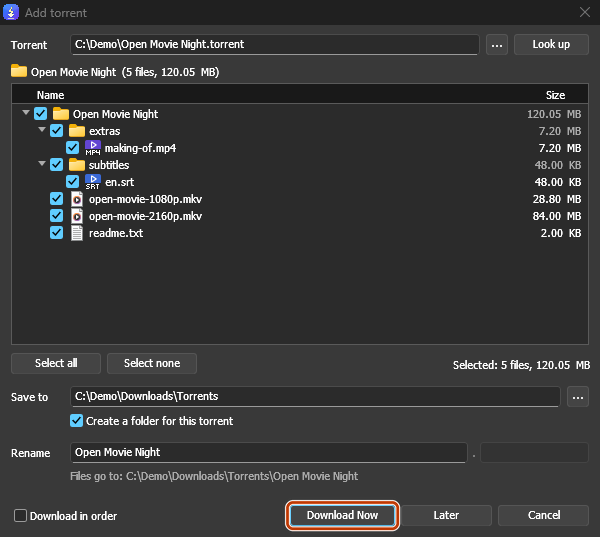
取消勾选不想要的文件,然后点击“立即下载”。 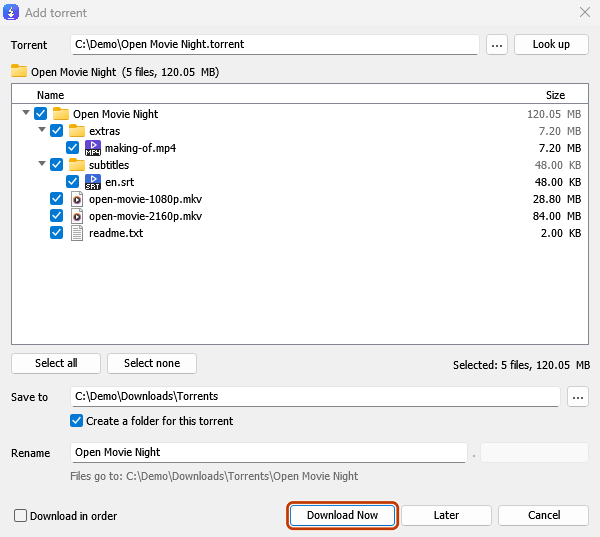
其进度窗口:显示每个文件及其已下载的百分比。 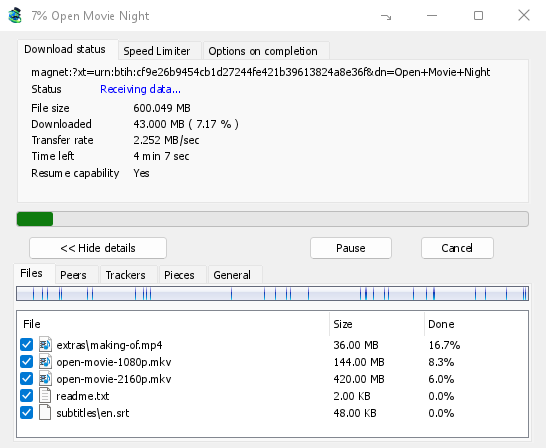
分块:种子的地图,正在填充中。 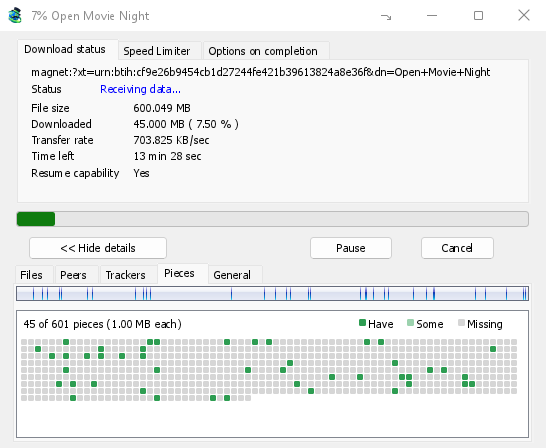
You can also paste a magnet link into Add URL, or drop a magnet link or a .torrent file on the drop target (Tasks → Show drop target). If a torrent is already in the list, VDM says so instead of adding it twice.
A .torrent file's web address works too: paste it into Add URL or Torrent, or let the browser hand the download over. VDM fetches the file, with the browser's cookies when the browser sent it, and Add torrent shows what it holds. The browser hands .torrent downloads over when TORRENT is in Options → File types and Open magnet links and .torrent files with Volt Download Manager is on in Torrent settings. TORRENT is in the list by default; a list you had before it came keeps what it had, so add TORRENT to it yourself. While that setting is off, the browser keeps .torrent downloads and opens them in your own torrent program, and the extension's button says why. Download with Volt Download Manager on a link always hands it over. A command line with /n (silent) saves the .torrent file itself, like any file. VDM fetches at most 10 MB: anything bigger isn't a .torrent file.
If some of the torrent's files are already in the folder, VDM asks before using them. Yes keeps them for the torrent: VDM checks them, keeps what matches the torrent and downloads the rest, which is how you continue a download started elsewhere or share files you already have. No (the default) goes back, so you can choose another folder and nothing of yours is overwritten.
The chosen layout is kept when the torrent is paused or VDM restarts. A multi-file torrent saved directly in Save to shares that directory: Move/Rename and folder renaming on completion are disabled for it so they cannot move unrelated files. Deleting the torrent's files leaves unrelated files and the shared destination folder in place. The layout option applies to direct BitTorrent downloads; torrents downloaded through a debrid account keep their existing layout.
Some programs (BitComet, for one) write a torrent's names in another encoding and add a UTF-8 copy of them (name.utf-8, path.utf-8); VDM shows and saves the files under the UTF-8 names. A torrent like that which was downloading in an earlier version starts those files again under their correct names, and leaves the files with the old names in the folder.
VDM refuses a torrent with file names your system can't write safely, says which name, and writes nothing. What others can see, the network switches in Torrent settings, blocklists and proxies: Torrents and your security.
下载期间
双击列表中的种子以打开其进度窗口。除了常规状态外,种子的窗口有五个选项卡:
- 文件 — 每个文件、其大小以及完成的进度。未勾选的文件显示已跳过。勾选或取消勾选文件的框以更改下载内容,即使种子正在运行。至少有一个文件保持勾选状态。如果您取消勾选所有仍缺失的文件,则种子完成。如果一个已完成但未运行的种子重新获得一个文件,它会保持停止状态,直到您恢复它,这样就不会在不知情的情况下下载任何内容。
- 对等方 — 您正在从中下载的计算机,以及您从每个计算机接收和发送的数据量。
- 跟踪器 — 种子的跟踪器。如果没有跟踪器,对等方将来自 DHT 和其他对等方。
- 分块 — 种子分块的映射:已存在、部分存在或缺失。
- General — the info hash, pieces, peers, how much was sent, the share ratio, how long it has been shared and the folder. What was sent and the time shared add up over all of the torrent's runs: they don't start again at 0 after a pause or a restart of VDM.
只要 torrent 仍在共享,其选项卡就会在下载完成后保留。
A file is made when its first byte is downloaded, and only a ticked one is made in the folder: what an unticked file shares with a ticked one waits in VDM's own torrent data. A running torrent keeps only the files it is reading or writing open, a few hundred at most for all of VDM's torrents together (fewer where the system allows fewer, as macOS does), so a torrent of thousands of files runs where it used to fail with "Too many open files".
A stopped torrent keeps none of its files open: you can move, rename or delete them, or open them in another program, while it waits. When you start it again, VDM opens them where they are; a file that was moved away or deleted meanwhile is made again and its pieces downloaded again. A finished torrent that is shared (Keep sharing torrents after they finish, in Torrent settings) keeps its files open only to read them: other programs can open, copy, run, move or rename them meanwhile.
torrent 窗口的速度限制器选项卡除了下载限制外,还有限制上传到您选择的速度。该限制会随 torrent 保存:每当 torrent 运行或分享时,该限制都会再次生效。无论如何,torrent 的上传速度不能低于 16 千字节/秒。
种子命令
右键单击列表中的种子,然后打开种子:
- 重新检查文件 — 读取种子文件的每个部分并进行检查,例如在您移动文件或磁盘出现错误之后。运行中的种子会继续运行并获取缺失的部分。已停止的种子保持停止状态。其事件日志会显示找到多少内容:已完成的种子如果损坏了一个部分,则会变为停止状态,恢复它会再次获取该部分。
- 重新发布 — 立即再次向种子的跟踪器请求对等点,而不是等待下一轮。它在种子运行或共享时有效。
- Add trackers... — adds trackers, one address a line (
http,httpsorudp). They are kept with the torrent, after the ones it has, and the Trackers tab shows them. A tracker on your computer or your local network is refused: VDM never contacts those (why). - 按顺序下载 — 从种子的文件开头开始下载(见下文)。再次点击可切换回优先下载最稀有分块。
- 先下载首尾分块 — 启用按顺序下载时,每个文件的首尾分块会优先于其他分块下载。此功能默认开启。
- 复制磁力链接 — 复制种子的磁力链接,包括其跟踪器。
每条命令的执行结果都会记录在种子的事件日志中;将鼠标悬停在列表中的状态单元格上即可查看。
按顺序下载
By default VDM downloads the pieces that the fewest peers have first, as BitTorrent programs usually do. That way a piece only one peer has is fetched before that peer leaves, and VDM can pass it on to others sooner. On VDM's test swarms it finished just as fast as downloading in order, and it was the only order that finished when a scarce piece's only holder left.
按顺序下载会优先下载文件开头部分,这样您就可以边下载边观看视频:第一部分下载完成后,就可以在播放器中打开视频。在添加种子时勾选此选项,或随时(包括下载过程中)在列表的右键菜单中选择种子 → 按顺序下载。之后请求的分块会按新的顺序下载。
- 启用先下载首尾分块(默认开启)后,每个文件末尾的分块也会提前下载。大多数视频文件将索引保存在末尾,而播放器会先读取索引,再开始播放。
- 多个文件会按名称排序,依次下载。
- 速度较慢的对等方会下载稍靠后的分块,因此文件开头部分无需等待它们。
按顺序下载不会让种子更快完成,对群的贡献也较小:仅在需要立即观看内容时使用此功能。
RSS 源
Many sites publish their new torrents as an RSS or Atom feed. VDM can watch feeds, list what they hold, and add the new torrents you want by itself. Choose Tasks → RSS feeds..., or click the arrow next to Add Torrent.
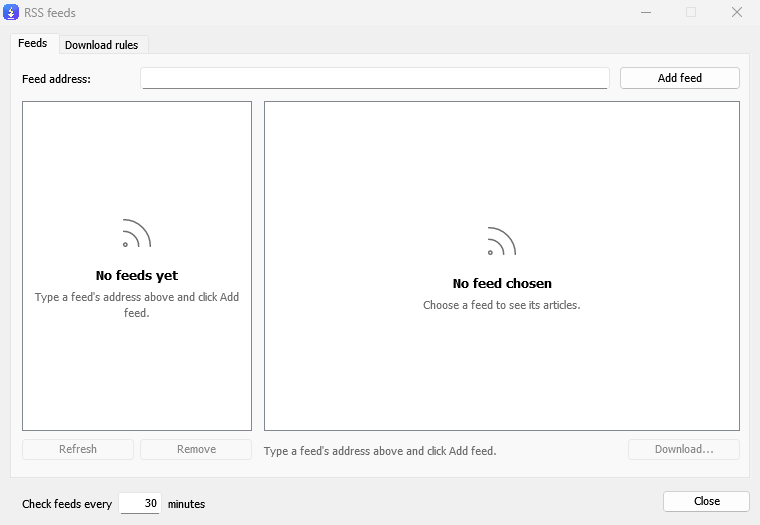
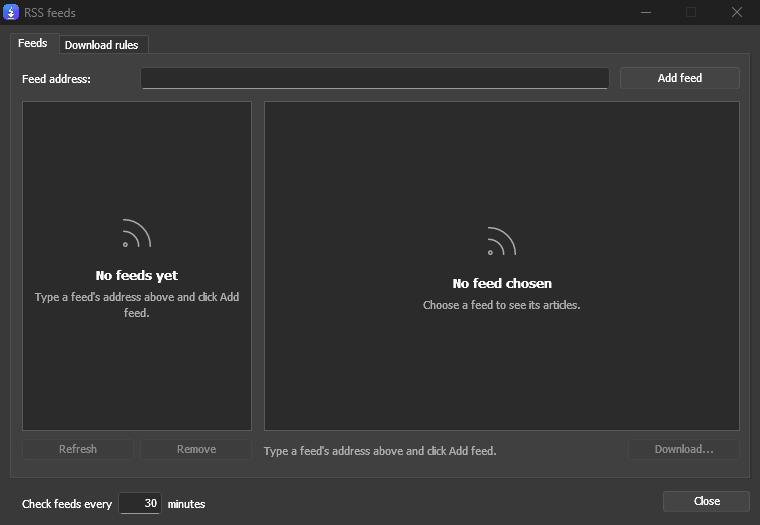
源选项卡:
- Type a feed's address into Feed address and click Add feed. VDM fetches it at once, then every 30 minutes; change that under Check feeds every ... minutes, 5 at the least.
- 选择左侧的源以查看其中的文章。如果文章包含种子,且源提供了种子大小,文章旁会显示种子图标和大小。双击文章,或选中后点击下载...,即可用该种子打开添加种子窗口,操作方式与磁力链接或
.torrent地址相同。 - 刷新会立即获取选定的源。删除会停止监视该源。无法读取的源会显示为红色,底部一行会说明原因。
下载规则选项卡:规则会自动添加标题符合条件的新文章中的种子,无需确认。
- 必须包含:标题必须包含的词语,且所有词语都要出现,顺序不限。
|用于分隔备选项(1080p|2160p),*和?是通配符。不区分大小写。 - 不得包含:标题中包含这些词语时,规则会跳过该文章;写法相同。
- 正则表达式:这两个输入框改为填写正则表达式。
- 剧集:从标题中的
S01E05或1x05读取要下载的剧集。1x2表示第 1 季第 2 集,1x5-8表示第 5 至 8 集,2x1-表示从第 2 季第 1 集开始的所有剧集,3表示第 3 季的所有剧集,各项之间用;分隔。留空表示匹配任何文章。每个剧集只会由一条规则下载一次:已添加过的剧集再次发布时会被跳过。 - 保存到:种子文件的保存文件夹;留空则使用“种子”类别的文件夹。启用添加但不启动时,添加方式与稍后下载相同。
- 源:规则适用的源;如果没有勾选任何源,则适用于所有源。
Rules only look at articles that are new since the feed was last fetched, and a feed's first fetch only lists what is there. So adding a feed or a rule never downloads a whole backlog. Matches ... articles now shows which of the articles the feeds hold now the rule matches, to check it; download those by hand. A torrent the list already has isn't added again, and neither is one whose files are already in the folder: VDM never writes into files it didn't make without asking. The bottom line of the tab says what the rules did last, and a torrent a rule added says so in its event log.
Feeds and rules are kept in rss.json in VDM's data folder. VDM reads at most 5 MB of a feed.
种子设置
选择任务 → 种子设置...(或点击添加 Torrent旁边的箭头):
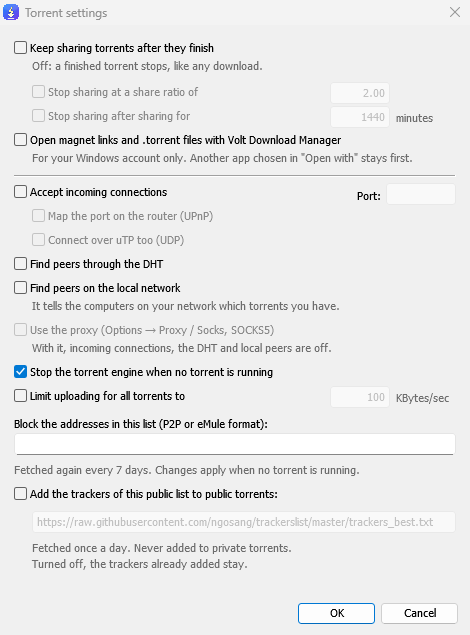
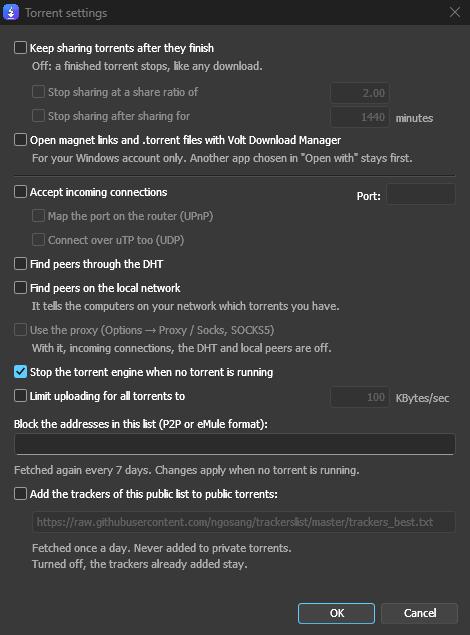
- 下载完成后继续共享种子 — 默认关闭:种子完成后会停止共享,与其他下载相同。启用此选项后,下载完成仍会继续向其他节点上传。
- 共享率达到以下比率后停止共享 — 种子完成后,上传的数据量达到下载数据量指定倍数时(2.00 即两倍)便会停止共享。默认关闭。
- 共享时间达到以下时长后停止共享 — 或者累计共享达到指定时长后停止。默认关闭。
A torrent stopped by one of these says so in its event log, and isn't shared again when VDM starts. Raise or turn off the limit to share it again.
- Limit uploading for all torrents to — off by default. Caps what all your torrents together send to other peers, while they download and while they share. A torrent's own upload limit, in its progress window, applies on top of it.
- Open magnet links and .torrent files with Volt Download Manager — Windows then opens magnet links in your browser and .torrent files in Explorer with VDM. This is for your Windows account only. It also lists VDM in Windows' Settings → Apps → Default apps for MAGNET and .torrent. A program already chosen there (or in Open with) stays first, because Windows lets only you change that choice: when you turn the setting on and Windows still opens them with another program, VDM says which and opens its own Default apps page, where you set MAGNET and .torrent to Volt Download Manager. Firefox can keep a choice of its own for magnet links: when magnet is listed in its Settings → General → Applications, set its action to Volt Download Manager (shown as the default once Windows has it) or to Always ask. The setup can turn it on for you. It also decides whether the browser hands .torrent downloads to VDM: off, they stay with the browser for your own torrent program, even with TORRENT in Options → File types. It starts as you chose in the setup; a portable copy, or an VDM updated from an earlier version, starts with it on when your system already opens .torrent files with this VDM (or you had ticked it), off otherwise. From then on it stays as you leave it. On Linux it makes VDM your desktop's default app for them; on macOS, their default app (Finder offers VDM in Open With for .torrent files either way, and a double-click opens them in VDM when no other app is their default).
-
Connect over uTP too (UDP) — on by default. uTP is BitTorrent over UDP. Many peers (qBittorrent's, µTorrent's, Transmission's and others) take uTP, and some take nothing else: without it, VDM can't reach those, and a torrent with few peers may find almost none. VDM tries TCP first and uTP when TCP doesn't answer within a second, on the same port it listens on, so uTP needs Accept incoming connections on. A SOCKS5 proxy carries only TCP, so with Use the proxy on, uTP is off. A chosen network adapter holds uTP's socket too.
-
Add the trackers of this public list to public torrents — off by default. While it is on, every public torrent also asks the trackers of a public tracker list, so it finds peers sooner, above all an old torrent whose own trackers have gone quiet: the ones you add from then on, and those already in your list (once, when you turn it on). The list is ngosang/trackerslist's best trackers unless you type another address in the box (one tracker per line). VDM fetches it with its own downloader, through your proxy and network adapter, once a day (an hour later when a fetch failed), and keeps the last good copy: a new torrent never waits for it, and takes the list as last fetched. When a newer list brings new trackers, each torrent gets those too. A private torrent (one from a private tracker, marked so inside the torrent) never gets them: it may only ask its own trackers. Turning it off doesn't take away the trackers already added. Each torrent's Trackers tab shows them, and its event log says how many were added.
voltdownloadmanager-cli torrent-getfollows the same switch.
同一窗口中还有网络开关(传入连接、端口、UPnP、uTP、DHT、SOCKS5 代理)、阻止列表和公共 Tracker 列表:请参阅种子与您的安全。
VDM starts its torrent engine the first time you add a torrent. If you never use torrents, it never listens for peers.
When the network comes back after a drop (Wi-Fi reconnecting, the computer waking from sleep, a VPN connecting or switching), VDM notices within a few seconds and calls the torrents' peers again at once, and asks their trackers and the DHT again, so a download picks up where it was instead of waiting minutes for each peer's next try. Each peer is called once for it; a tracker is still never asked sooner than its minimum interval. Behind a SOCKS5 proxy, a drop the computer itself doesn't see (the router losing its line while Wi-Fi stays up) is noticed only through the DHT, which is off there, so those torrents come back on their own, as before.
To find peers without trackers, VDM joins the DHT through four public routers (dht.libtorrent.org, dht.transmissionbt.com, router.bittorrent.com and router.utorrent.com); any one that answers is enough. It keeps the DHT nodes it found for the next start, so later starts don't depend on those routers.
VDM's log (logs\vdm.log in VDM's data folder) says where it listens, for example torrents: listening for peers on TCP and uTP (UDP) port 51413 (every address, IPv4 and IPv6: [::]:51413). That is one socket for IPv4 and IPv6 (and one UDP socket for uTP), so on Windows netstat -ano -p tcp (IPv4 only) doesn't list it; netstat -ano or Get-NetTCPConnection -State Listen does, under [::] or :: (and Get-NetUDPEndpoint the uTP one).
On a Linux system without CA certificates (a minimal install without the ca-certificates package), torrents still work: peers, the DHT and http:// trackers. An https:// tracker can't be checked there, so VDM skips it; install that package to use those too.
With a debrid account, torrents and magnet links can go to the service instead of to peers, and VDM downloads the files from it over HTTP: see Torrents through the service.
下一步
免费、开源、无广告、无试用版。
Download Volt Download Manager