

VDM downloads BitTorrent files from magnet links and .torrent files. Torrents appear in the same list as other downloads, marked Torrent in the Source column, and can be queued and scheduled like them.
Adicionar um torrent
- Clique em Adicionar Torrent na barra de ferramentas para escolher um ficheiro
.torrent. Ou clique na seta ao lado e escolha Abrir ficheiro torrent... ou Adicionar link magnet... (também em Tarefas). - Abre-se Adicionar torrent. Cole um link magnet em Torrent, ou clique em ... para escolher um ficheiro
.torrent, depois clique em Procurar. - VDM reads the torrent and shows its files as a folder tree. A
.torrentfile is read at once. A magnet link first has to get the file list from other peers, usually within seconds. While it waits, Add torrent shows how many peers it found, from the trackers, the DHT or your local network, and how many answered. After 30 seconds without an answer, it says what may be in the way: a link with no trackers while the DHT is off, or a firewall, a VPN or a network that blocks BitTorrent. - Desmarque as pastas ou ficheiros que não quer. Selecionar tudo e Não selecionar nada ajudam com torrents grandes. Selecionado mostra quantos ficheiros e quantos dados selecionou.
- Verifique Guardar em. Os ficheiros vão para mostra a pasta exata. Os torrents têm a sua própria categoria, por isso, por predefinição, esta é
Downloads\Torrents. Para um torrent de vários ficheiros transferido diretamente via BitTorrent, Criar uma pasta para este torrent está selecionado por predefinição. Desmarque-o para colocar os ficheiros diretamente em Guardar em, mantendo as suas pastas internas. A árvore de ficheiros e Os ficheiros vão para são atualizadas para corresponder. Mudar o nome está desativado enquanto não houver uma pasta externa para nomear. - Para ver um vídeo enquanto este é transferido, selecione Transferir por ordem (ver Transferir por ordem).
- Clique em Transferir Agora, ou em Mais tarde para adicioná-lo à lista sem iniciar.
Um destino já reivindicado por outra transferência, incluindo uma à espera com Mais tarde, deve ser alterado antes que o torrent possa ser adicionado. Isto inclui caminhos não selecionados porque uma parte sobreposta pode escrever neles. Um torrent mais antigo sem uma lista de reivindicação de ficheiros guardados reserva conservadoramente todo o seu destino; escolha outro destino ou remova essa entrada da lista sem eliminar os seus ficheiros antes de partilhar o diretório.
Also delete the file from disk removes the files VDM made for the torrent, each recognised by its file index and the time it was created, so a file that took the same name later is never taken for the torrent's. Files that were already there, files another download claims and files you agreed to use stay. VDM creates every ticked file of a torrent itself, empty, before it starts, so they are removed with it. Unticked files aren't made in the folder: the parts of the pieces they share with ticked files are kept in VDM's own torrent data, and go with the torrent; a file ticked later is made then, and gets them. Only empty folders VDM created are removed; existing folders and a shared Save to folder stay. A torrent with its own outer folder, added before this version, is deleted the way it always was. An older one-file torrent is deleted by name, from its own folder. Another older torrent (saved without an outer folder) has no record of its files: VDM keeps them and says why, so check and remove them yourself. A filesystem that gives no reliable creation time (FAT and exFAT, some network and Linux filesystems) keeps its files: VDM never deletes what it cannot recognise. Whenever Also delete the file from disk leaves files on the disk, VDM lists them. A Save to folder that does not exist yet is made, with its parents, when the torrent starts. A torrent added before this version, with its own folder or one file, takes the files already there as its own once, so resuming it or sharing it again does not ask about files VDM itself downloaded.
The torrent can only write into files VDM has checked, however it starts (Download Now, Resume, the Files tab, Recheck, or when VDM opens). If a file is at one of its paths and VDM did not make it (saved there after the torrent was added, replaced while the torrent was stopped, or moved to another drive by something other than VDM), VDM asks before using it. Yes lets the torrent use the file and write into it, and VDM never deletes it; No leaves it as it is and the torrent does not start. Starting it again asks again. An empty file is asked about too (a .gitkeep, or a file another program has just made and is about to write). If you replace a file while its torrent is stopped, starting the torrent adds it again on the file that is there now, so what you agreed to is what it writes to. When VDM opens, finished torrents are shared again only if their files are as VDM left them; one with a file that would need your permission is left stopped, and VDM asks nothing then.
An older VDM can open a list that holds a torrent saved without its own folder, but it does not know that its folder is shared: do not Move, Rename or Delete that torrent there. Its Delete with files removes every file of the torrent in Save to, those you agreed to use included, and Save to itself if that is then empty. This version recognises such a torrent again from its address, which an older VDM keeps.
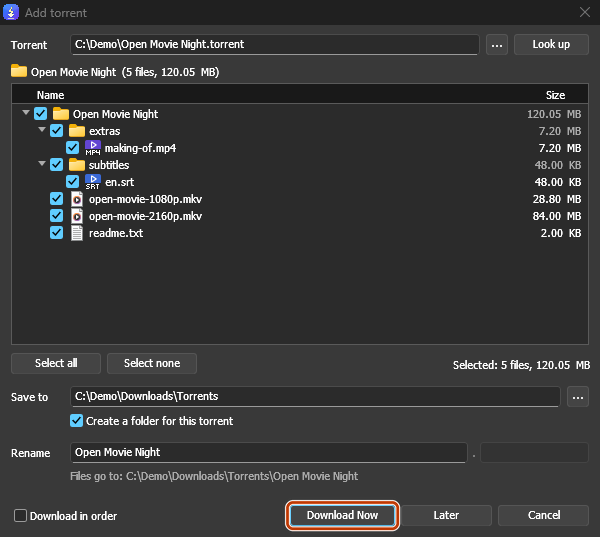
Desselecione o que não quer e depois clique em Transferir Agora. 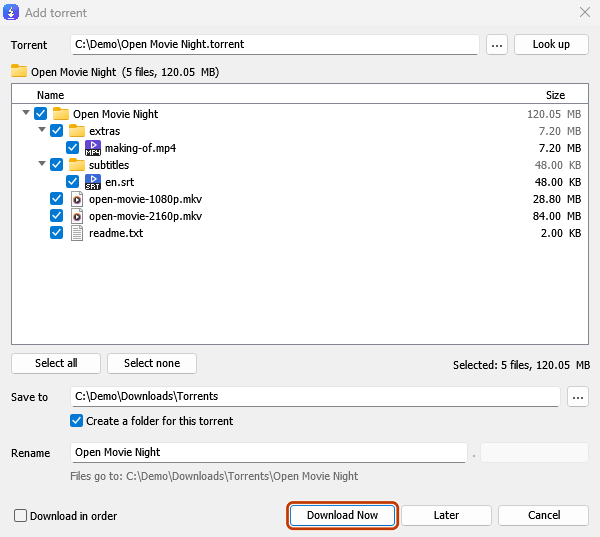
A janela de progresso: cada ficheiro e a sua percentagem de conclusão. 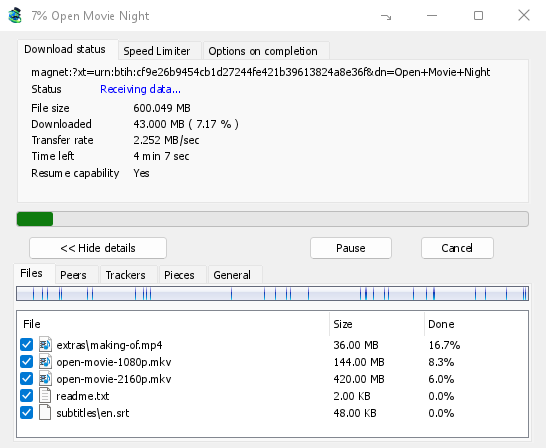
Partes: o mapa do torrent, a ser preenchido. 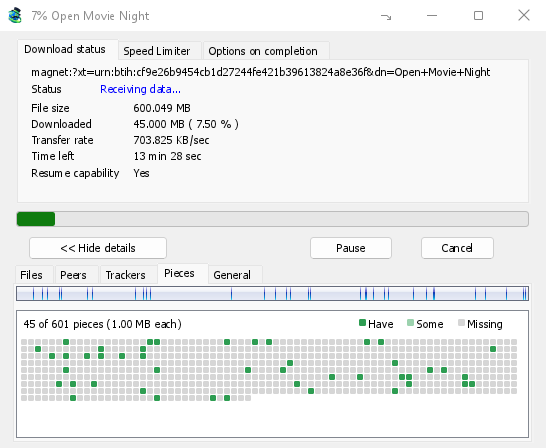
You can also paste a magnet link into Add URL, or drop a magnet link or a .torrent file on the drop target (Tasks → Show drop target). If a torrent is already in the list, VDM says so instead of adding it twice.
A .torrent file's web address works too: paste it into Add URL or Torrent, or let the browser hand the download over. VDM fetches the file, with the browser's cookies when the browser sent it, and Add torrent shows what it holds. The browser hands .torrent downloads over when TORRENT is in Options → File types and Open magnet links and .torrent files with Volt Download Manager is on in Torrent settings. TORRENT is in the list by default; a list you had before it came keeps what it had, so add TORRENT to it yourself. While that setting is off, the browser keeps .torrent downloads and opens them in your own torrent program, and the extension's button says why. Download with Volt Download Manager on a link always hands it over. A command line with /n (silent) saves the .torrent file itself, like any file. VDM fetches at most 10 MB: anything bigger isn't a .torrent file.
If some of the torrent's files are already in the folder, VDM asks before using them. Yes keeps them for the torrent: VDM checks them, keeps what matches the torrent and downloads the rest, which is how you continue a download started elsewhere or share files you already have. No (the default) goes back, so you can choose another folder and nothing of yours is overwritten.
The chosen layout is kept when the torrent is paused or VDM restarts. A multi-file torrent saved directly in Save to shares that directory: Move/Rename and folder renaming on completion are disabled for it so they cannot move unrelated files. Deleting the torrent's files leaves unrelated files and the shared destination folder in place. The layout option applies to direct BitTorrent downloads; torrents downloaded through a debrid account keep their existing layout.
Some programs (BitComet, for one) write a torrent's names in another encoding and add a UTF-8 copy of them (name.utf-8, path.utf-8); VDM shows and saves the files under the UTF-8 names. A torrent like that which was downloading in an earlier version starts those files again under their correct names, and leaves the files with the old names in the folder.
VDM refuses a torrent with file names your system can't write safely, says which name, and writes nothing. What others can see, the network switches in Torrent settings, blocklists and proxies: Torrents and your security.
Enquanto transfere
Faça duplo clique no torrent na lista para abrir a sua janela de progresso. Além do estado habitual, a janela de um torrent tem cinco separadores:
- Ficheiros — cada ficheiro, o seu tamanho e quanto dele está concluído. Os ficheiros que desmarcou mostram Ignorado. Marque ou desmarque a caixa de um ficheiro para alterar o que é transferido, mesmo enquanto o torrent está a ser executado. Pelo menos um ficheiro permanece marcado. Se desmarcar tudo o que ainda falta, o torrent termina. Se um torrent concluído que não está a ser executado recuperar um ficheiro, ele espera como parado até que o retome, para que nada seja transferido sem ser visto.
- Pares — os computadores de onde está a transferir, com o quanto recebeu e enviou para cada um.
- Trackers — os trackers do torrent. Sem nenhum, os pares vêm do DHT e de outros pares.
- Partes — um mapa das partes do torrent: presentes, parcialmente presentes ou em falta.
- General — the info hash, pieces, peers, how much was sent, the share ratio, how long it has been shared and the folder. What was sent and the time shared add up over all of the torrent's runs: they don't start again at 0 after a pause or a restart of VDM.
Os separadores permanecem depois de o torrent terminar, enquanto estiver a ser partilhado.
A file is made when its first byte is downloaded, and only a ticked one is made in the folder: what an unticked file shares with a ticked one waits in VDM's own torrent data. A running torrent keeps only the files it is reading or writing open, a few hundred at most for all of VDM's torrents together (fewer where the system allows fewer, as macOS does), so a torrent of thousands of files runs where it used to fail with "Too many open files".
A stopped torrent keeps none of its files open: you can move, rename or delete them, or open them in another program, while it waits. When you start it again, VDM opens them where they are; a file that was moved away or deleted meanwhile is made again and its pieces downloaded again. A finished torrent that is shared (Keep sharing torrents after they finish, in Torrent settings) keeps its files open only to read them: other programs can open, copy, run, move or rename them meanwhile.
O separador Limitador de Velocidade da janela de um torrent tem, além do seu limite de descarregamento, a opção Limitar carregamento a uma velocidade à sua escolha. Esse limite é mantido com o torrent: aplica-se novamente sempre que o torrent é executado ou partilhado. Um torrent não pode ser mantido abaixo de 16 KB/seg de qualquer forma.
Comandos de torrent
Clique com o botão direito num torrent na lista e abra Torrent:
- Reverificar ficheiros — lê e verifica cada parte dos ficheiros do torrent, por exemplo, depois de ter movido ficheiros ou de um disco ter tido erros. Um torrent em execução continua depois e obtém o que falta. Um torrent parado permanece parado. O seu registo de eventos indica quanto foi encontrado: um torrent concluído com uma parte danificada fica parado, e ao retomá-lo, obtém a parte novamente.
- Reanunciar — pede aos trackers do torrent por pares novamente agora, em vez de esperar pela próxima ronda. Funciona enquanto o torrent está a ser executado ou partilhado.
- Add trackers... — adds trackers, one address a line (
http,httpsorudp). They are kept with the torrent, after the ones it has, and the Trackers tab shows them. A tracker on your computer or your local network is refused: VDM never contacts those (why). - Transferir por ordem — transfere os ficheiros do torrent a partir do início (ver abaixo). Clique novamente para voltar às partes mais raras primeiro.
- Primeiras e últimas partes primeiro — com Transferir por ordem, as primeiras e últimas partes de cada ficheiro vêm antes do resto. Está ativado por predefinição.
- Copiar ligação magnet — copia uma ligação magnet para o torrent, com os seus trackers.
O resultado de cada comando vai para o registo de eventos do torrent; passe o rato sobre a célula Estado na lista para o ler.
Transferir por ordem
By default VDM downloads the pieces that the fewest peers have first, as BitTorrent programs usually do. That way a piece only one peer has is fetched before that peer leaves, and VDM can pass it on to others sooner. On VDM's test swarms it finished just as fast as downloading in order, and it was the only order that finished when a scarce piece's only holder left.
Transferir por ordem obtém o início de um ficheiro primeiro, para que possa ver um vídeo enquanto este é transferido: abra-o no seu leitor assim que a primeira parte estiver disponível. Selecione-o em Adicionar torrent, ou escolha Torrent → Transferir por ordem no menu de clique direito da lista, a qualquer momento, mesmo enquanto está a ser executado. As próximas partes solicitadas seguem a nova ordem.
- Com Primeiras e últimas partes primeiro (ativado por predefinição), as últimas partes de cada ficheiro também chegam cedo. A maioria dos ficheiros de vídeo mantém o seu índice no final, e um leitor lê-o antes de qualquer coisa ser reproduzida.
- Vários ficheiros são transferidos um após o outro, ordenados por nome.
- Pares mais lentos levam as partes um pouco mais adiante, para que o início não esteja à espera deles.
Um torrent por ordem não é mais rápido a terminar, e ajuda menos o enxame: use-o para o que quer ver agora.
Feeds RSS
Many sites publish their new torrents as an RSS or Atom feed. VDM can watch feeds, list what they hold, and add the new torrents you want by itself. Choose Tasks → RSS feeds..., or click the arrow next to Add Torrent.
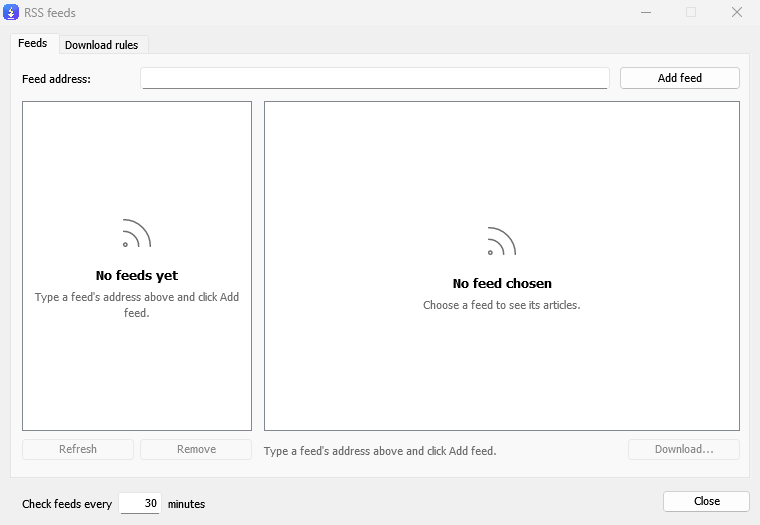
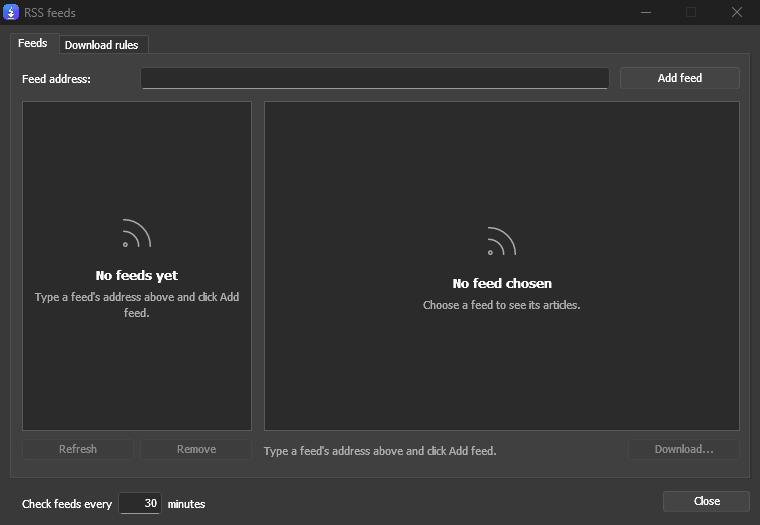
Separador Feeds:
- Type a feed's address into Feed address and click Add feed. VDM fetches it at once, then every 30 minutes; change that under Check feeds every ... minutes, 5 at the least.
- Escolha um feed à esquerda para ver os seus artigos. Um artigo com um torrent mostra um ícone de torrent e o seu tamanho, se o feed o fornecer. Faça duplo clique num, ou selecione-o e clique em Transferir..., para abrir Adicionar torrent com ele, tal como para qualquer link magnet ou endereço
.torrent. - Atualizar obtém o feed selecionado agora. Remover para de o monitorizar. Um feed que não pode ser lido é mostrado a vermelho, e a sua linha na parte inferior indica o motivo.
Separador Regras de transferência: uma regra adiciona os torrents de novos artigos cujos títulos correspondem, sem perguntar.
- Deve conter: palavras que o título deve conter, todas elas, em qualquer ordem.
|separa alternativas (1080p|2160p), e*e?são caracteres curinga. A capitalização não importa. - Não deve conter: palavras que fazem a regra ignorar um artigo, escritas da mesma forma.
- Expressões regulares: as duas caixas contêm expressões regulares em vez disso.
- Episódios: quais episódios selecionar, lidos de
S01E05ou1x05no título.1x2é a temporada 1 episódio 2,1x5-8episódios 5 a 8,2x1-tudo a partir da temporada 2 episódio 1, e3toda a temporada 3, separados por;. Vazio: qualquer artigo. Uma regra seleciona cada episódio uma vez: um segundo lançamento de um episódio que já adicionou é ignorado. - Guardar em: a pasta para onde os seus torrents vão; se vazio, a pasta da categoria Torrents. Adicioná-los sem os iniciar adiciona-os como Transferir Mais Tarde faria.
- Feeds: os feeds que monitoriza; se nenhum estiver selecionado, todos eles.
Rules only look at articles that are new since the feed was last fetched, and a feed's first fetch only lists what is there. So adding a feed or a rule never downloads a whole backlog. Matches ... articles now shows which of the articles the feeds hold now the rule matches, to check it; download those by hand. A torrent the list already has isn't added again, and neither is one whose files are already in the folder: VDM never writes into files it didn't make without asking. The bottom line of the tab says what the rules did last, and a torrent a rule added says so in its event log.
Feeds and rules are kept in rss.json in VDM's data folder. VDM reads at most 5 MB of a feed.
Definições de torrent
Escolha Tarefas → Definições de torrent... (ou a seta ao lado de Adicionar Torrent):
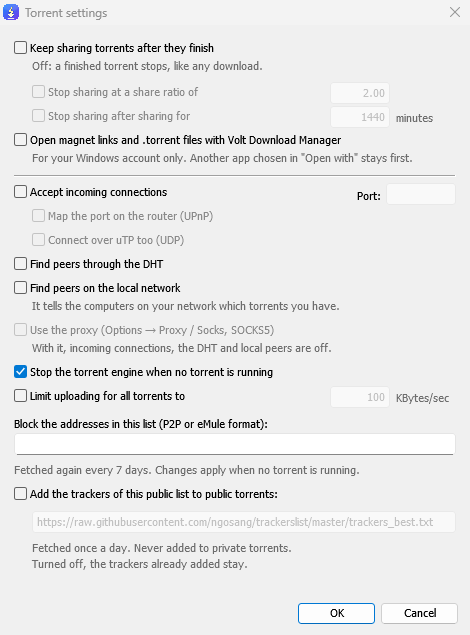
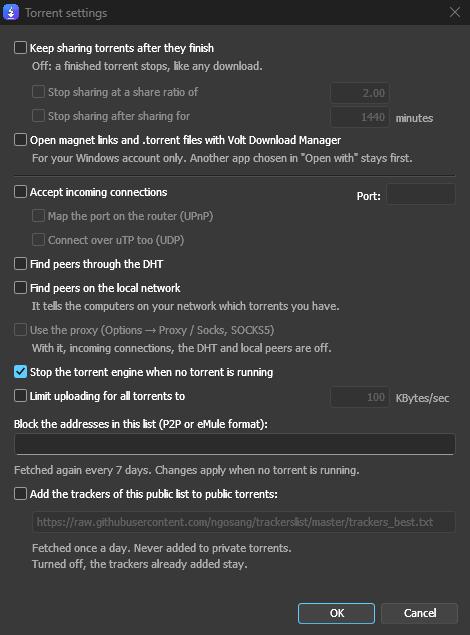
- Manter a partilha de torrents após a conclusão — desativado por predefinição: um torrent concluído para, como qualquer transferência. Ative-o para continuar a enviar para outros pares após a sua transferência estar completa.
- Parar de partilhar quando o rácio de partilha for — um torrent concluído deixa de ser partilhado quando tiver enviado o número de vezes que tem (2.00: o dobro). Desativado por predefinição.
- Parar de partilhar após partilhar durante … minutos — ou depois de ter sido partilhado durante esse tempo, em todas as suas execuções. Desativado por predefinição.
A torrent stopped by one of these says so in its event log, and isn't shared again when VDM starts. Raise or turn off the limit to share it again.
- Limit uploading for all torrents to — off by default. Caps what all your torrents together send to other peers, while they download and while they share. A torrent's own upload limit, in its progress window, applies on top of it.
- Open magnet links and .torrent files with Volt Download Manager — Windows then opens magnet links in your browser and .torrent files in Explorer with VDM. This is for your Windows account only. It also lists VDM in Windows' Settings → Apps → Default apps for MAGNET and .torrent. A program already chosen there (or in Open with) stays first, because Windows lets only you change that choice: when you turn the setting on and Windows still opens them with another program, VDM says which and opens its own Default apps page, where you set MAGNET and .torrent to Volt Download Manager. Firefox can keep a choice of its own for magnet links: when magnet is listed in its Settings → General → Applications, set its action to Volt Download Manager (shown as the default once Windows has it) or to Always ask. The setup can turn it on for you. It also decides whether the browser hands .torrent downloads to VDM: off, they stay with the browser for your own torrent program, even with TORRENT in Options → File types. It starts as you chose in the setup; a portable copy, or an VDM updated from an earlier version, starts with it on when your system already opens .torrent files with this VDM (or you had ticked it), off otherwise. From then on it stays as you leave it. On Linux it makes VDM your desktop's default app for them; on macOS, their default app (Finder offers VDM in Open With for .torrent files either way, and a double-click opens them in VDM when no other app is their default).
-
Connect over uTP too (UDP) — on by default. uTP is BitTorrent over UDP. Many peers (qBittorrent's, µTorrent's, Transmission's and others) take uTP, and some take nothing else: without it, VDM can't reach those, and a torrent with few peers may find almost none. VDM tries TCP first and uTP when TCP doesn't answer within a second, on the same port it listens on, so uTP needs Accept incoming connections on. A SOCKS5 proxy carries only TCP, so with Use the proxy on, uTP is off. A chosen network adapter holds uTP's socket too.
-
Add the trackers of this public list to public torrents — off by default. While it is on, every public torrent also asks the trackers of a public tracker list, so it finds peers sooner, above all an old torrent whose own trackers have gone quiet: the ones you add from then on, and those already in your list (once, when you turn it on). The list is ngosang/trackerslist's best trackers unless you type another address in the box (one tracker per line). VDM fetches it with its own downloader, through your proxy and network adapter, once a day (an hour later when a fetch failed), and keeps the last good copy: a new torrent never waits for it, and takes the list as last fetched. When a newer list brings new trackers, each torrent gets those too. A private torrent (one from a private tracker, marked so inside the torrent) never gets them: it may only ask its own trackers. Turning it off doesn't take away the trackers already added. Each torrent's Trackers tab shows them, and its event log says how many were added.
voltdownloadmanager-cli torrent-getfollows the same switch.
A mesma janela tem as opções de rede (ligações de entrada, a porta, UPnP, uTP, DHT, um proxy SOCKS5), a lista de bloqueio e a lista pública de trackers: consulte Torrents e a sua segurança.
VDM starts its torrent engine the first time you add a torrent. If you never use torrents, it never listens for peers.
When the network comes back after a drop (Wi-Fi reconnecting, the computer waking from sleep, a VPN connecting or switching), VDM notices within a few seconds and calls the torrents' peers again at once, and asks their trackers and the DHT again, so a download picks up where it was instead of waiting minutes for each peer's next try. Each peer is called once for it; a tracker is still never asked sooner than its minimum interval. Behind a SOCKS5 proxy, a drop the computer itself doesn't see (the router losing its line while Wi-Fi stays up) is noticed only through the DHT, which is off there, so those torrents come back on their own, as before.
To find peers without trackers, VDM joins the DHT through four public routers (dht.libtorrent.org, dht.transmissionbt.com, router.bittorrent.com and router.utorrent.com); any one that answers is enough. It keeps the DHT nodes it found for the next start, so later starts don't depend on those routers.
VDM's log (logs\vdm.log in VDM's data folder) says where it listens, for example torrents: listening for peers on TCP and uTP (UDP) port 51413 (every address, IPv4 and IPv6: [::]:51413). That is one socket for IPv4 and IPv6 (and one UDP socket for uTP), so on Windows netstat -ano -p tcp (IPv4 only) doesn't list it; netstat -ano or Get-NetTCPConnection -State Listen does, under [::] or :: (and Get-NetUDPEndpoint the uTP one).
On a Linux system without CA certificates (a minimal install without the ca-certificates package), torrents still work: peers, the DHT and http:// trackers. An https:// tracker can't be checked there, so VDM skips it; install that package to use those too.
With a debrid account, torrents and magnet links can go to the service instead of to peers, and VDM downloads the files from it over HTTP: see Torrents through the service.
Próximos passos
Gratuito, de código aberto, sem anúncios, sem período de avaliação.
Download Volt Download Manager